Yesterday, we restarted our Closer Look series to check out Microsoft PowerToys" set of utilities aimed at enhancing your Windows experience and workflows. The first "toy" that we had a look at was Advanced Paste, and as we discussed, it is a very powerful tool to have in your arsenal for clipboard management. It gets even more versatile if you enable AI capabilities.
Today, we"ll be taking a look at the second toy in the System Tools section in PowerToys, and that is Awake.
About Awake
Windows already has a set of configurations that allows you to set your PC"s sleep state through various power plans. While they can fit most use-cases, PowerToys naturally extends this functionality a bit through Awake, which offers primarily time-based controls around your device"s sleep state.
That said, Awake does come with some limitations. It can only work if you have signed in to your PC and have enabled the toy, which means that it doesn"t work on the lock screen for security purposes. If your device goes to the lock screen at any point, the PC will revert to the default power plan. It"s also worth keeping in mind that Awake does not modify your existing power plan; it only overrides it through a set of customized background threads that get terminated once a particular criterion is completed.
PowerToys Awake can be accessed from the taskbar and the PowerToys app, and is enabled by default.
PowerToys Awake Functionalities
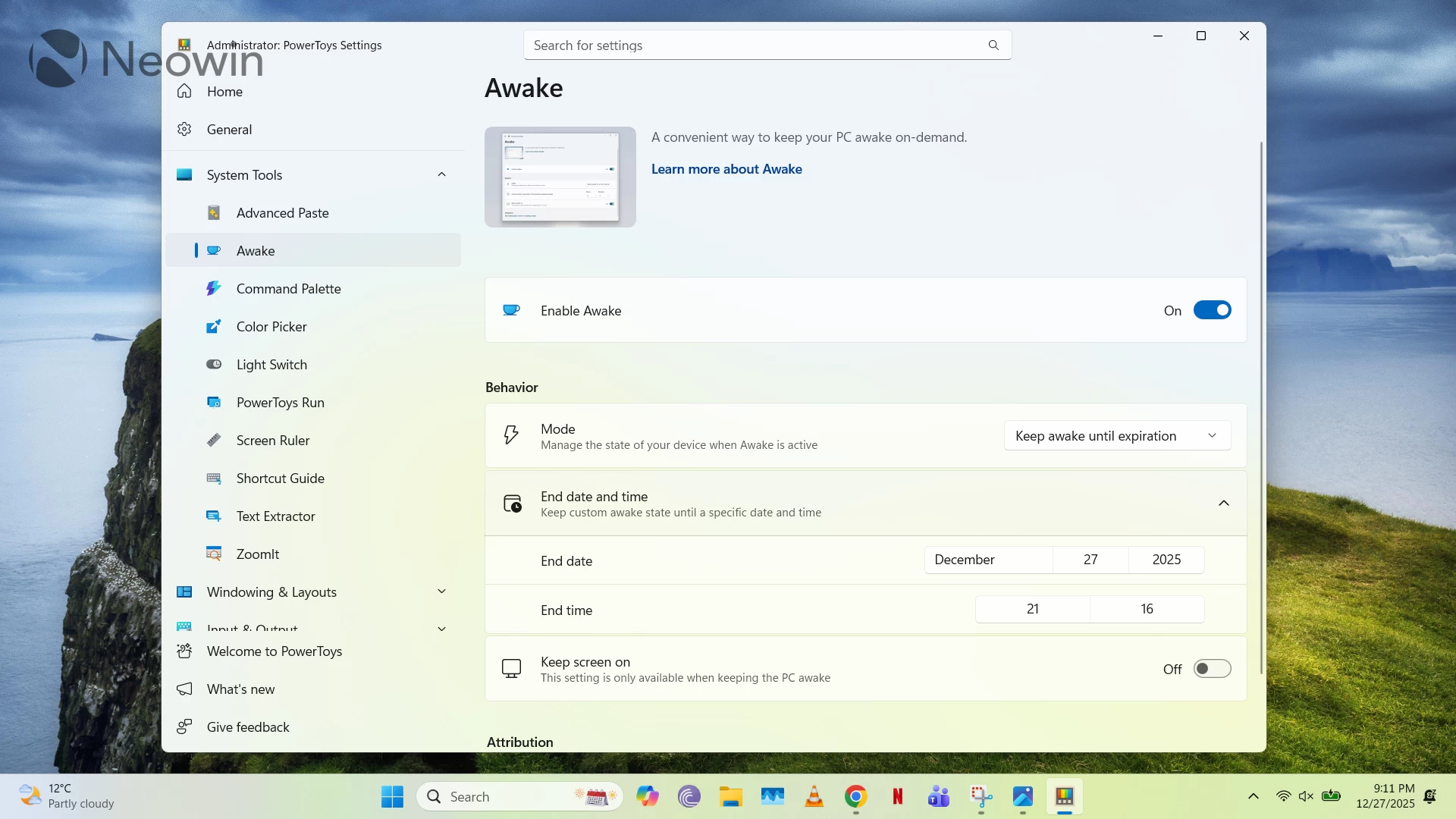
Awake basically has four possible configurations. These are described below:
- Disabled (Passive): It keeps utilizing the configured Windows power plan and does not override any settings.
- Keep awake indefinitely: Your PC will always stay awake unless you disable the application or put your PC to sleep intentionally.
- Keep awake for a time interval: Define the time in hours and minutes for how long you want your PC to stay awake. Once this time limit is hit, Awake will revert to its disabled state.
- Keep awake until expiration: Similar to the mode described above, but you can set an exact date and time, rather than configuring a timer.
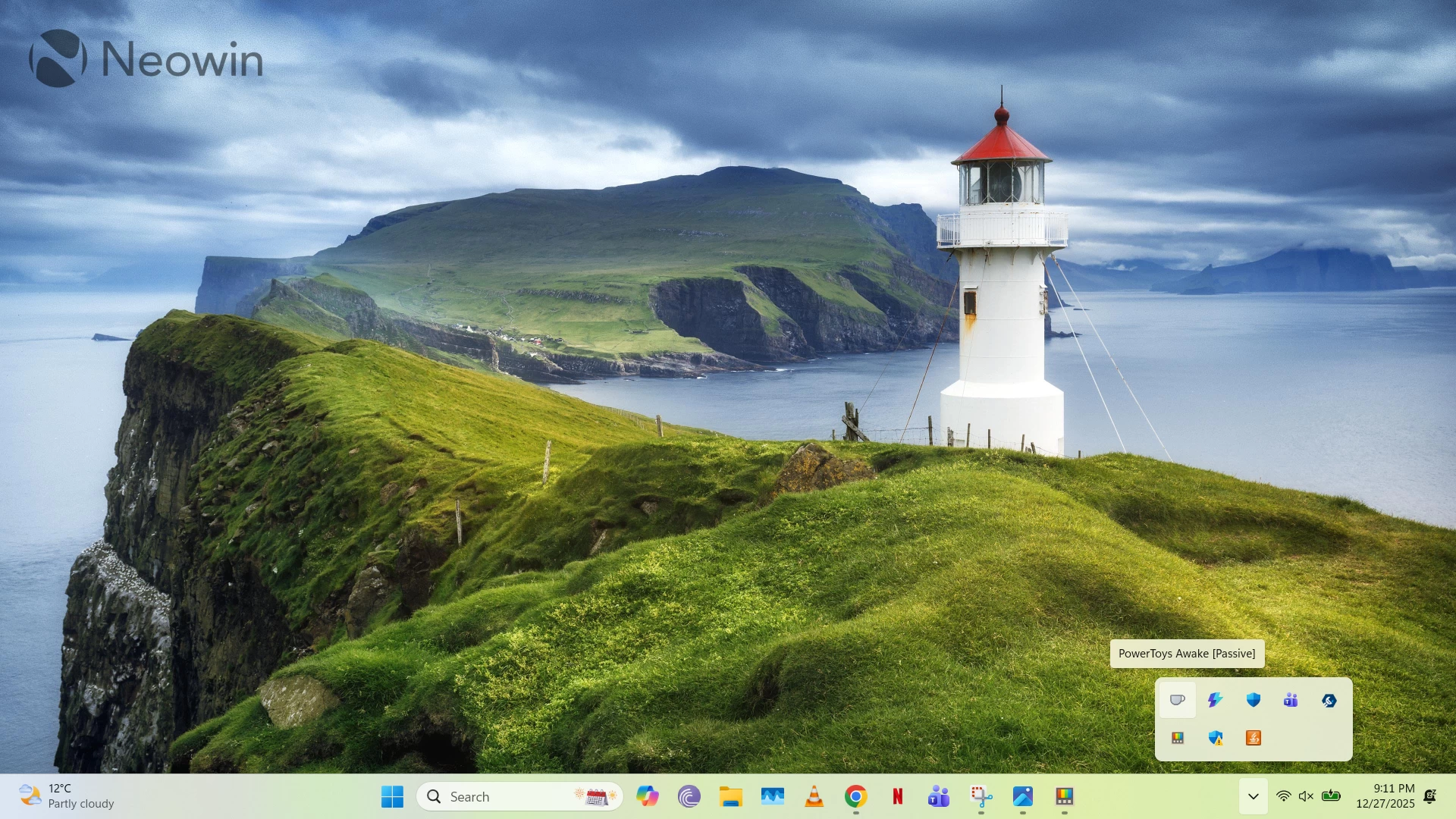
Additionally, any external displays connected to your PC will still turn off regardless of your PC following one of Awake"s modes, unless you toggle on the Keep screen on functionality. Furthermore, if you right-click the Awake icon on the system tray in the Taskbar, you"ll be able to identify the currently enabled mode.
PowerToys Awake goes a bit beyond the GUI as well, unlike Advanced Paste. You can configure it as a standalone application that can be triggered through the Command Line Interface (CLI) as described here, or modify the settings.json file as detailed here.
Conclusion: Awake is nice, but I can"t really find a use for it
Now, there"s no doubt that PowerToys Awake offers a couple of configurations beyond the scope of the power plans built into Windows, but I personally haven"t been able to figure out a use case where I would actually use them. In all my personal and organizational workflows, I haven"t encountered scenarios where I would have to keep my PC awake for a specific time interval or a set date and time. I configure my power plan such that my PC is always awake, and when I do want to put it to sleep, I do so manually. The available power plans in Windows don"t impact my productivity and fit my use cases perfectly. Of course, that doesn"t mean that Awake is useless; the reason it"s still included in PowerToys is that some people obviously have a use for it. I am just not one of them.
You can check out Awake by downloading PowerToys from the Microsoft Store here.