Recently, we began looking at PowerToys utilities through our Closer Look series which takes a deep-dive into the functionalities offered by various software products. Most recently, we took a closer look at Light Switch, which we found to be very useful. Now, it is time to check out the next "toy" in the PowerToys System Tools section, with that being Screen Ruler.
About Screen Ruler
Screen Ruler does exactly what it says on the tin; it measures the distance between various objects drawn on your screen. The good thing is that it offers various units of measurements and "advanced image edge detection technology" to accomplish this task. Although I am not proficient enough in Windows development to understand the open-source code base available on GitHub, my assumption is that it uses a combination of your display"s metadata, cursor location, and screen display elements to achieve its goal of calculating distances.
Screen Ruler Functionalities
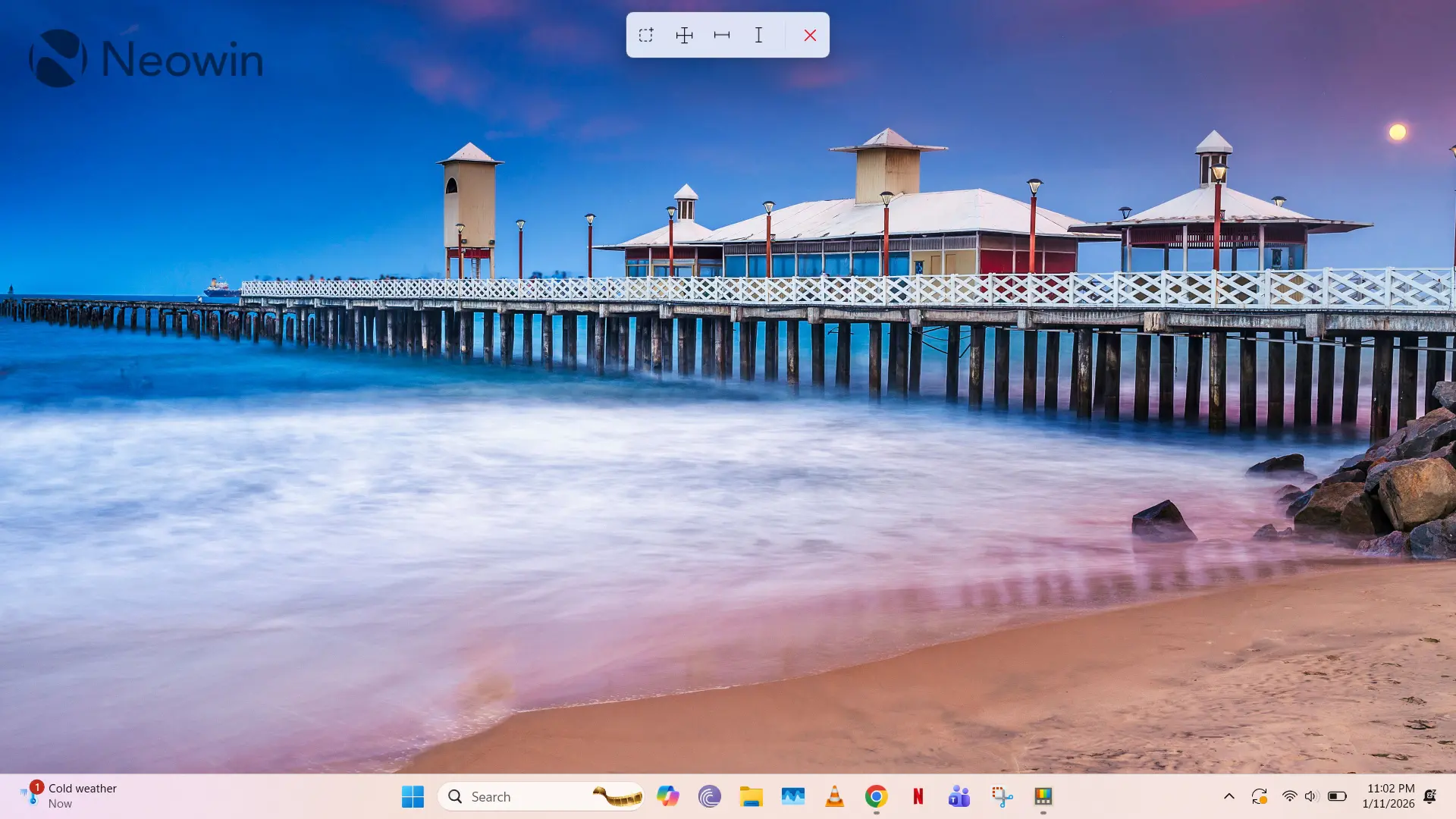
Screen Ruler can be triggered with the Win + Shift + M shortcut by default, and it should go without saying at this point that this activation method is configurable. Once you trigger it, you"ll be presented with four modes represented by different icons, as can be seen in the screenshot above. I will describe them below in order:
- Bounding box: As you draw your cursor across the screen, the utility will show the length and width of the bounding box that you are drawing. One excellent feature available here is also that if you hold the Shift button while drawing, your bounding boxes will stay in place, along with their measures.
- Spacing: As you move your cursor to your target location, you"ll be shown the vertical and horizontal distances to the neighboring element.
- Horizontal: Only show the horizontal distance between your target location and the neighboring element.
- Vertical: Only show the horizontal distance between your target location and the neighboring element.
You can toggle between all of these modes through Ctrl + 1, 2, 3, 4 and also scroll your mouse wheel to manually change the size of the measuring line by 15 units per wheel tick.
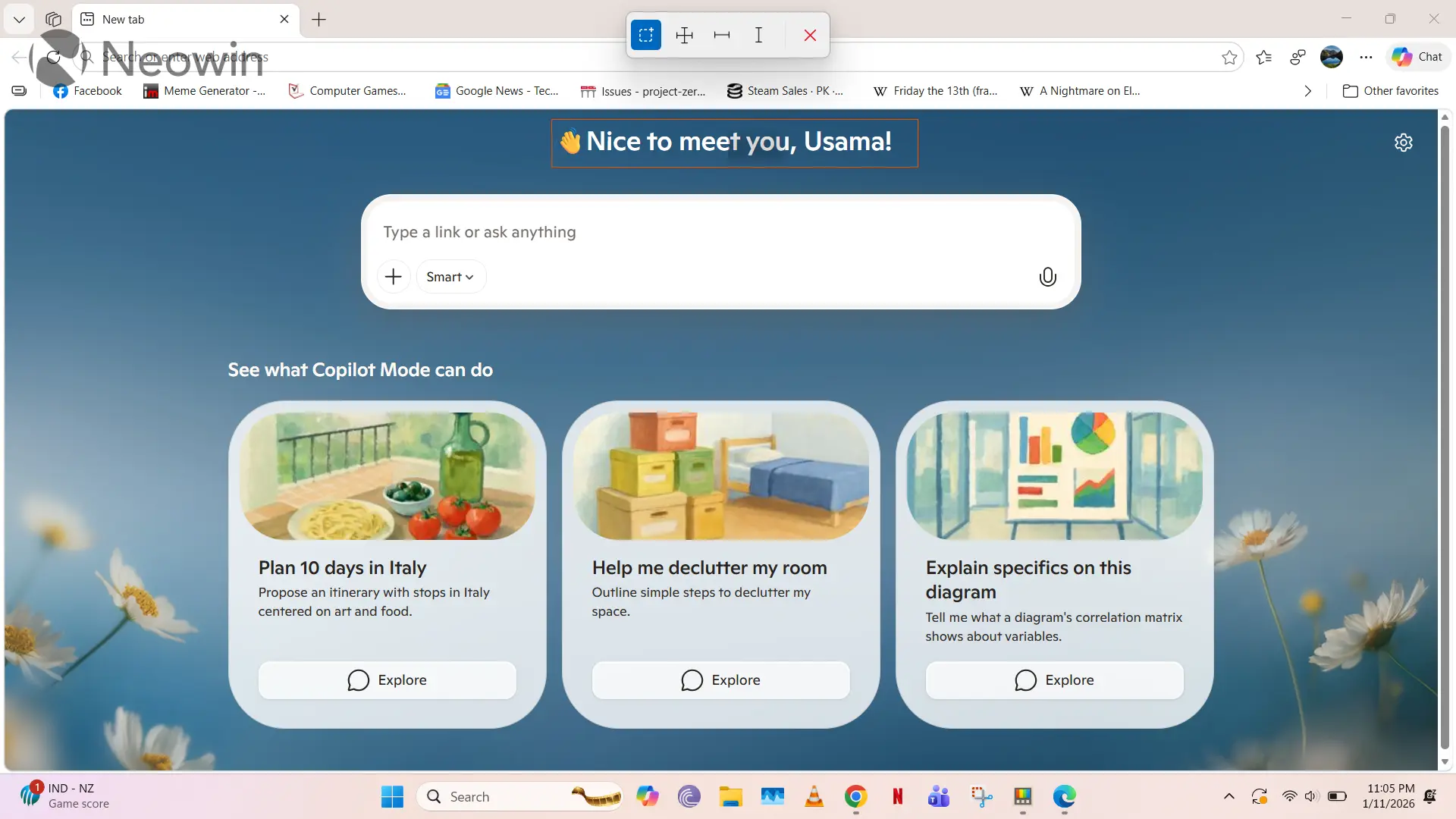
There are several other behavorial quirks that you can toggle as well. By default, when you select a measuring mode, your screen will become frozen as if you are measuring a screenshot. However, you can modify this so that all measurements occur in real-time, which will also consume more resources. Other advanced configurations include enabling per color channel edge detection and pixel tolerance for edge detection. The latter allows you to set a variance between 0 and 255 so that it respects display elements like gradients and shadows, and only measures the "true" object.
Notably, you can also change the color of the measuring line and show measurements in multiple formats, including pixels, or a combination of pixels with centimeters, millimeters, and inches.
Conclusion: An excellent tool for many... but not for me
Just like Color Picker in PowerToys, I strongly believe that Screen Ruler is a very useful tool for its target market; that being designers and developers. But, it is not something that I use in my workflows at all. There is nothing wrong with that. After all, PowerToys is meant to be a set of tools for power users of various types, it"s not a "one shoe fits all" solution.
In its current state, Screen Ruler is pretty much feature-complete and I haven"t noticed it being buggy in its calculations, even when I change my screen resolution. I don"t know what else it could do for me to make me use it in my daily workflows, and that"s okay, I"m not one of the target audiences.
This Closer Look piece is based on version 0.96.1 of Microsoft PowerToys, which is the latest version at the time of writing. Functionalities may change in newer versions of PowerToys when they become available.
You can check out our other Closer Look pieces for PowerToys utilities here:
- Closer Look: Advanced Paste in Windows PowerToys
- Closer Look: Awake is not my favorite tool in PowerToys on Windows
- Closer Look: Command Palette in PowerToys puts Windows Search to shame
-
Closer Look: Color Picker in PowerToys on Windows is an excellent tool for designers
-
Closer Look: I wish Light Switch was a default feature in Windows 11