Microsoft"s recently launched Xbox handhelds, made in collaboration with ASUS, feature an exclusive full-screen Xbox gaming experience that tries to mask the standard Windows 11 behind a software layer that optimizes the experience for gamepad controls. While there is no shortage of Windows-based handhelds on the market, the new Xbox experience is limited only to ASUS Xbox ROG Ally and Ally X devices.
Fortunately, there is a way to force-enable it on any other device, including laptops, desktop PCs, and more. It is a nice way to make PC gaming a little bit more console-like, especially if you use your computer primarily for games, as you can boot right into the new user interface without getting to the regular desktop.
Enable the Xbox full-screen experience on any Windows 11 PC
Getting the new experience on your computer requires using a third-party modding tool that enables the underlying bits using tools like ViVeTool and more. Therefore, we strongly recommend backing up important data and being ready for troubleshooting. We are talking third-party modding apps, which means there are no guarantees, particularly on devices that were not designed for the feature. Proceed at your own risk.
Before you start, your device must meet the following requirements:
- Windows 11 version 24H2 or 25H2 with build number 26100.7019 or newer
- A gamepad. After all, this experience is optimized for gamepads; there is little sense in using it with a mouse and keyboard.
Now, do the following:
- Go to GitHub and download the latest Xbox Full Screen Experience Tool.
- Open the downloaded file and follow the on-screen instructions to install the app.
- Launch the app with a shortcut on the desktop.
- Click "Enable Xbox Full Screen Experience" and restart your computer.
- After a restart, open the Microsoft Store and check for available updates. Download all available updates, particularly for gaming-related components.
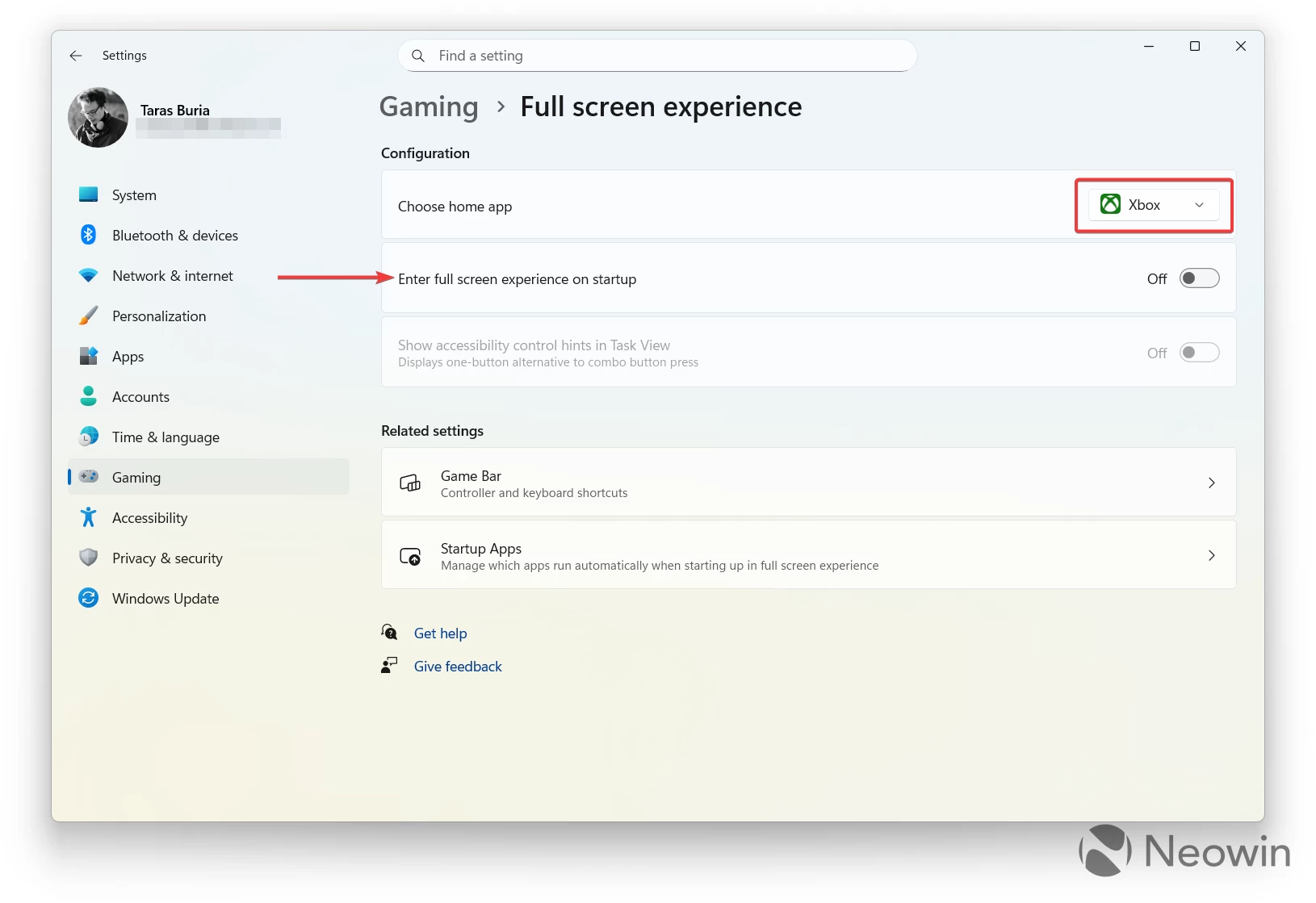
- Go to Settings > Gaming > Full-screen experience.
- Select Xbox in the Choose home app drop-down.
- Toggle on the "Enter full screen experience on startup" option.
- Open the Xbox app and restart your system if prompted.
That"s it. Now, your computer should boot into the Xbox app in full-screen mode every time you turn on your computer or handheld. The experience should work just fine if you have a compatible controller, but you might encounter input quirks on unsupported handhelds, so the final experience may vary depending on the device you use.
In case things do not work as intended, you can always revert to the original state by launching the Xbox Full Screen Experience Tool and clicking Disable and Restore.