One of the downgrades that Windows 10 users experience when moving to Windows 11, especially when clean-installing the newer operating system, is the inability to create a local account and set up Windows 11 in offline mode. Back in the days of Windows 10, the OS allowed setting it up with a local account and without an internet connection. Nowadays, though, Windows 11 will not let you proceed if you are not connected, and using a Microsoft Account is mandatory. Additionally, Microsoft is making bypassing those requirements more difficult with each update. If you do not want to deal with it, you can still set up Windows 11 with a local, offline account. Here is how.
Why install Windows 11 in offline mode? You can skip several screens of ads, get to the desktop faster, and make sure you decide what driver versions are installed, not Windows Update. Also, it helps those who do not want to sign in with a Microsoft Account on their PCs.
Option 1 - Without third-party tools
The most important part is not to connect to the internet. If you have an internet cable attached, disconnect it. Also, do not connect to a Wi-Fi network when prompted. Instead, do the following:
- When setting up Windows 11 during OOBE, make sure your system is disconnected from the internet.
- Press Shift + F10 to launch Command Prompt.
- Type oobe\bypassnro and press Enter. You may have heard that Microsoft removed that command from Windows 11, but the truth is that the bypassnro command still works, as long as you are disconnected from the internet. Other commands do the same, but the bypassnro is the shortest and easiest to remember or execute.
- Once your PC restarts, proceed with its initial setup. Remember not to connect to the internet until you get to the desktop. This will force Windows 11 to create a local account and skip all the upsells and ads during OOBE (out-of-box experience).
That"s it. This method works in Windows 11 version 24H2 and version 25H2.
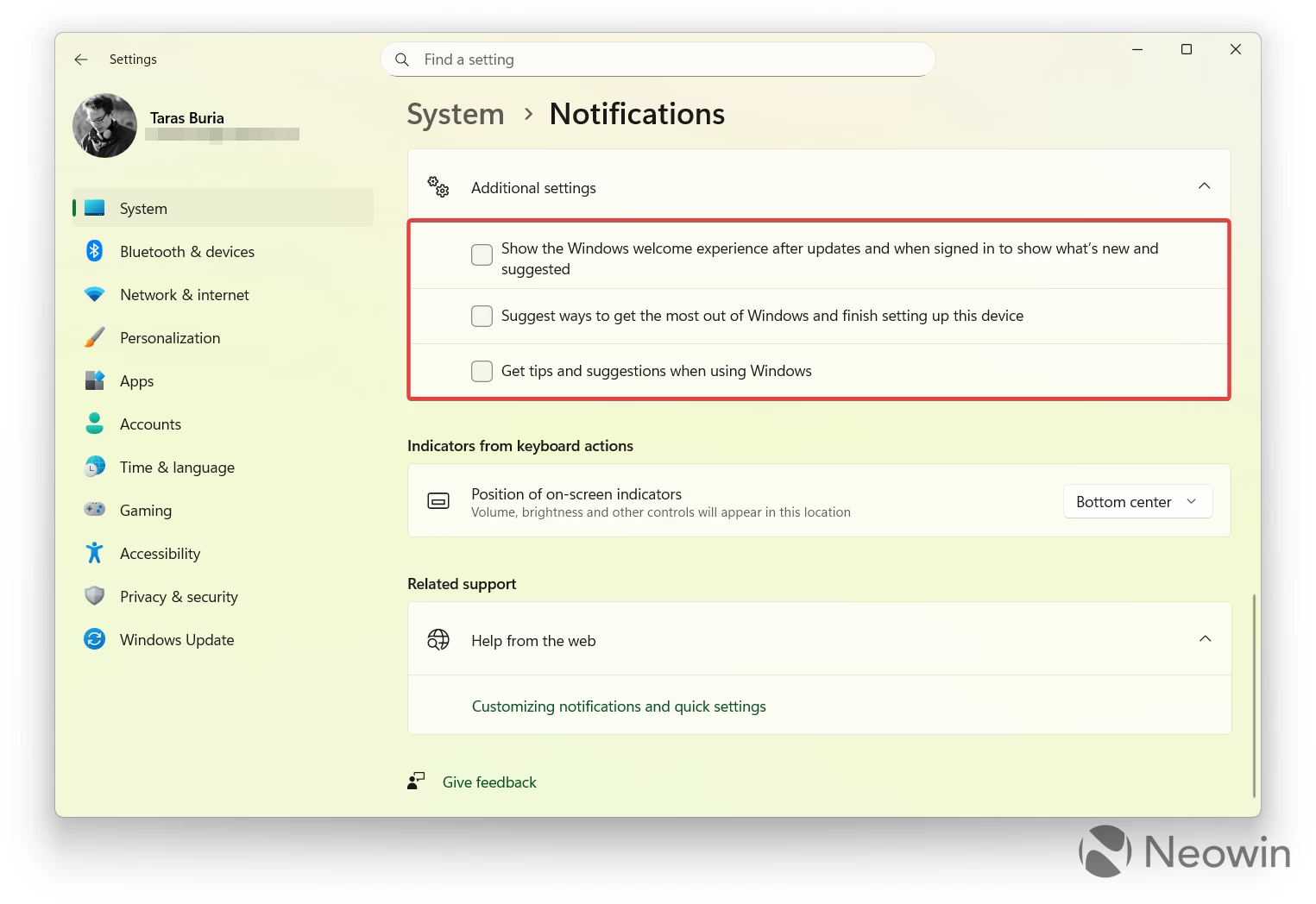
Tip: Once on the desktop, go to Settings > System > Notifications > Additional settings and untick all three options. These will make sure you do not get full-screen prompts with Microsoft"s ads next time you turn on your computer.
Option 2 - With a third-party app
If you want to clean-install Windows 11, say the latest release, version 25H2, you can use the Rufus app to create a bootable Windows 11 media that can automatically skip the Microsoft Account and internet requirements.
- Go to the official Windows 11 website and download a Windows 11 image (directly or via the Media Creation Tool app).
- Go to the official Rufus website and download the app (installer or portable).
- Open Rufus and connect your USB drive.
- Select the drive from the list of available devices and specify your ISO. Leave the rest as-is.
- Click Start. Rufus will show a small window with a few additional options. Tick the "Remove requirement for an online Microsoft account." Additionally, you can speed things up by ticking the "Create a local account with username" option and specifying your local profile name. Feel free to select additional options if necessary.
- Click Ok.
- Once everything is done, clean-install Windows 11 as usual. Make sure to disconnect from the internet during the initial setup.
That"s it. Now you can use Windows 11 without a mandatory Microsoft Account.