Although Windows may appear very simple to use on the surface, it contains a lot of relatively obscure functionalities that can be used by power users and IT admins to perform complex activities. We have talked before about how one such capability is the Task Scheduler, which allows you to automate activities in Windows by setting up workflows. Another such mechanism that Windows has in place to enable automation cases (among other scenarios) is batch files.
Simply stated, batch files in Windows are plaintext script files with the .bat extension that allow you to store commands that the OS can execute sequentially once the file is run. They are typically used to automate repetitive tasks without requiring manual intervention. Today, we are going to talk about a common scenario in which batch files are heavily used, and that is, enabling multiple apps to launch automatically.
Imagine your daily workflow involves opening the following apps as soon as you start your day:
- Microsoft Outlook so you can view your email
- Microsoft Teams so you can view messages sent to you by your colleagues
- Google Chrome so that you can begin browsing the web
- Excel so that you can perform some data analysis on the fly
- File Explorer so you can refer to downloaded files in the Downloads folder
Now, you could open these apps one by one, but that takes up some time. A faster way to do this would be to configure a batch file that launches all these apps automatically, shaving several precious seconds, or even minutes, in your workflow.
Here is how to do it:
- Note down the locations of your desired executables. In this case, Outlook, Teams, Chrome, Excel, and File Explorer
- In your desired location, perhaps the desktop so it"s easily accessible, create a new text file with a name like Launch Apps.bat
- Open the file in Notepad or any text editor
- Enter the following script using the locations of the executables from step 1 (make sure to replace the paths below with your own, if they differ) :
@echo off
start "" "C:\Program Files\Microsoft Office\root\Office16\OUTLOOK.EXE"
start "" "ms-teams:"
start "" "C:\Program Files\Google\Chrome\Application\chrome.exe"
start "" "C:\Program Files\Microsoft Office\root\Office16\EXCEL.EXE"
start "" explorer.exe "%USERPROFILE%\Downloads" - Save and close
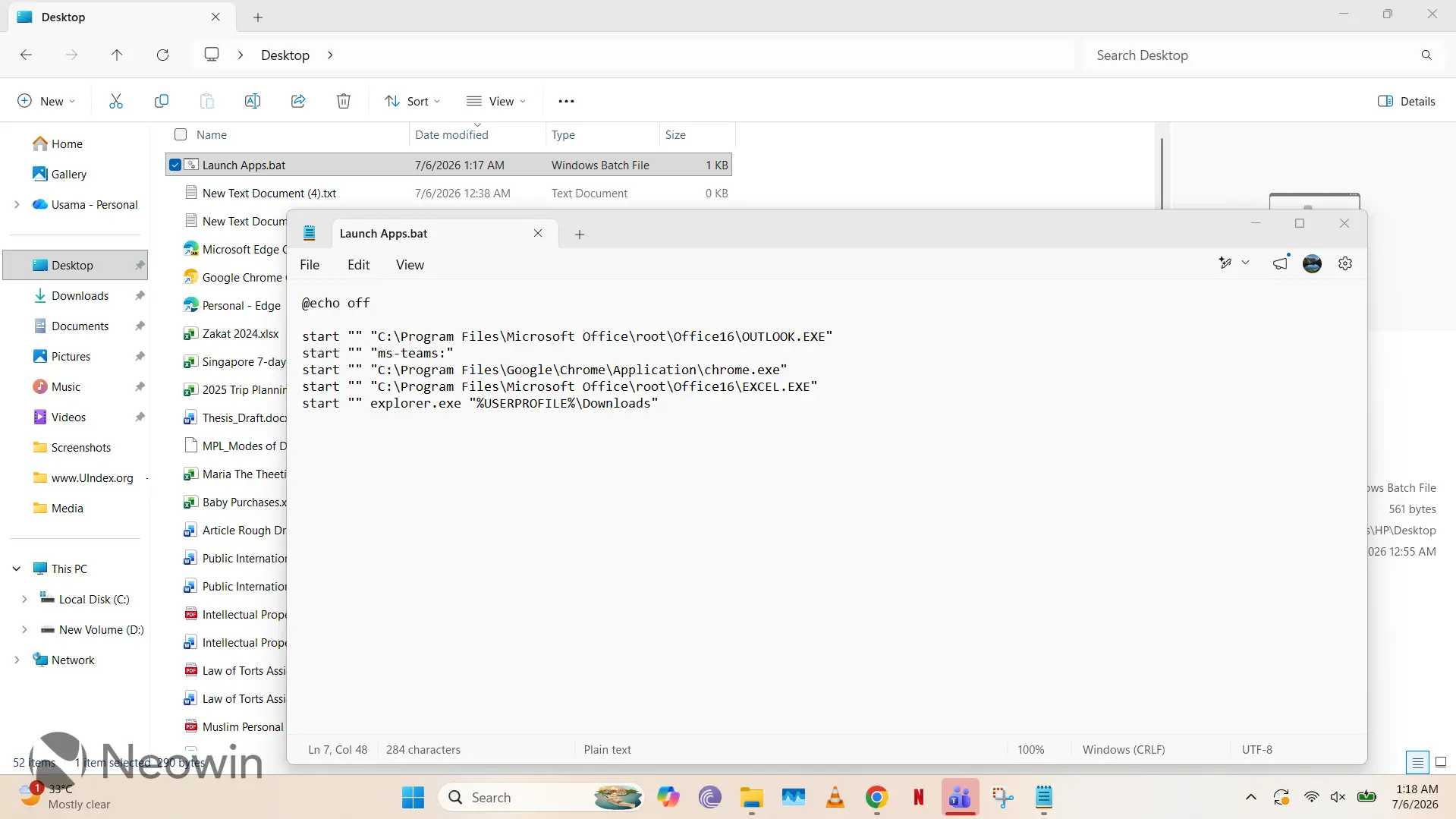
Now, whenever you double-click this batch file from your desktop, you"ll be able to launch multiple apps in a single action.
Of course, you can customize this script even further by having echo commands so that it shows the status of execution, but the barebones script described above should get the job done with minimal UX interruptions. You can automate the launch of the .bat file even further by initiating it with Task Scheduler so that it can launch whenever you start your PC and you don"t even have to double-click to execute it. You can even add a delay, so that you don"t experience performance hiccups as your PC attempts to launch five apps at once. The customization options with a .bat script are endless.
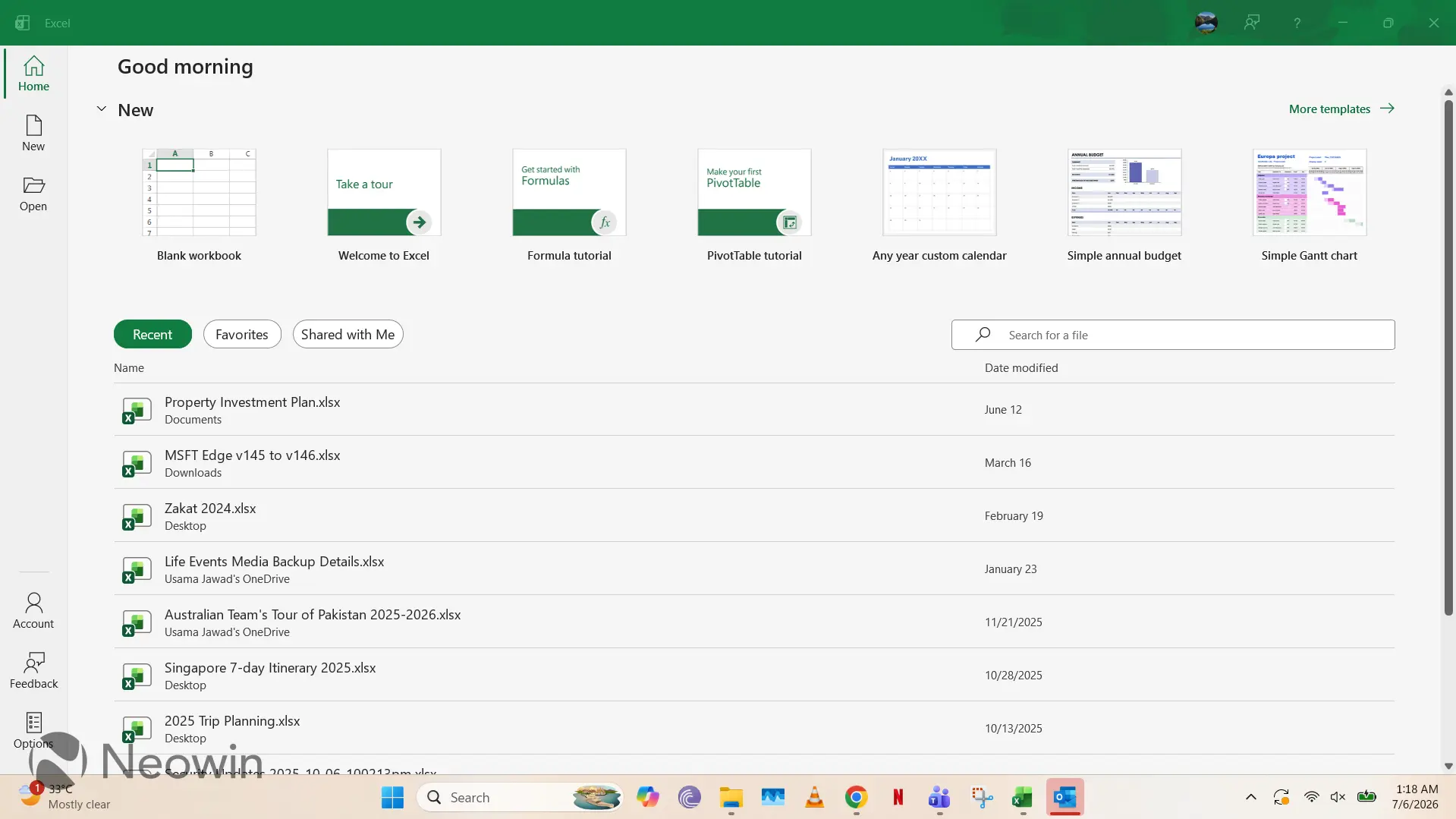
Do keep in mind though that some files may require administrator privileges, so it"s best to launch the .bat file as an administrator (if you have that option), so you don"t run into errors. Also note that the locations above are based on the default directories for the listed apps. You may have them stored in different directories, so modify the script as you see fit.