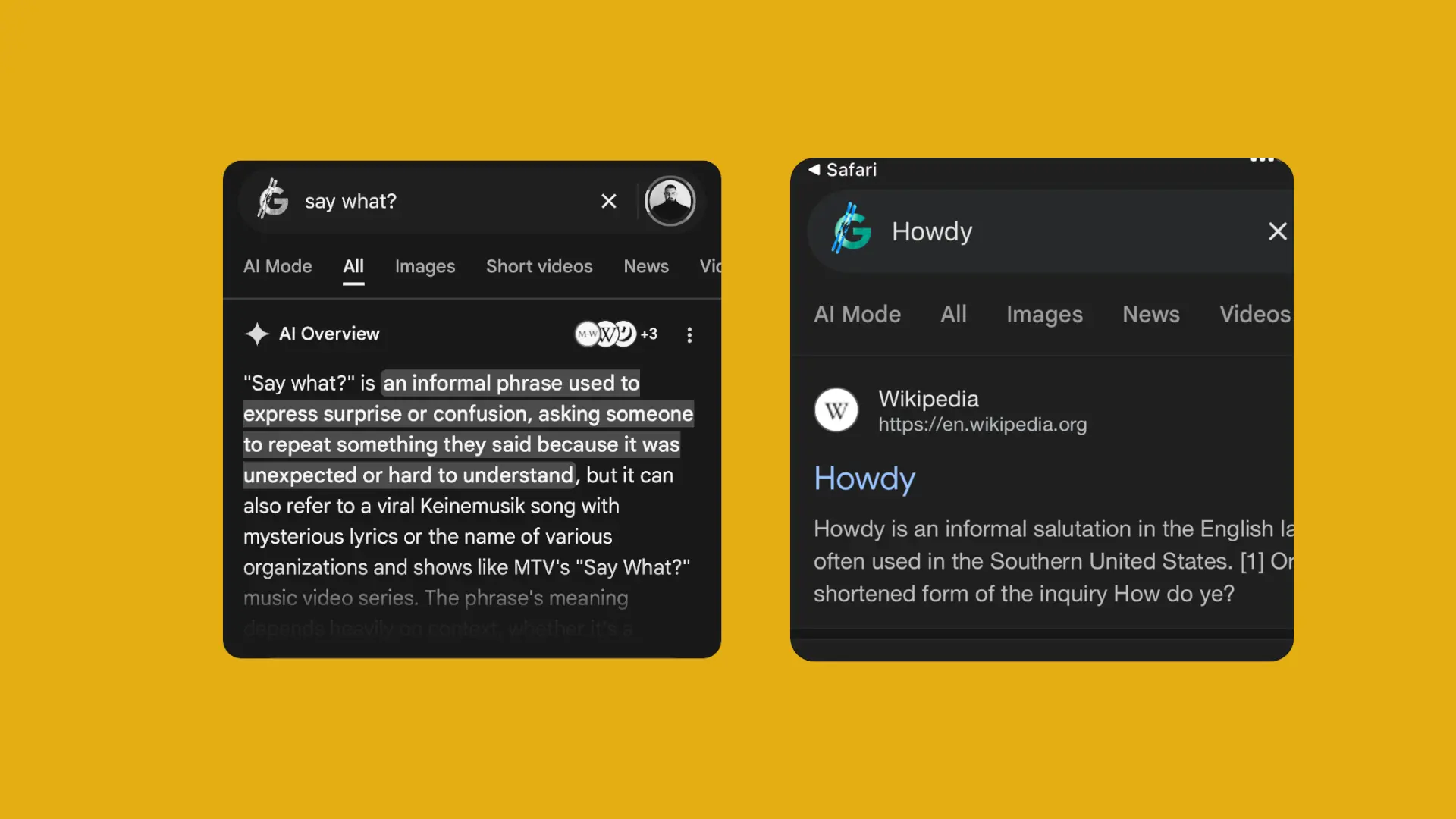
Google’s AI overviews are dividing the internet. While some users find them convenient for performing quick searches, others are annoyed by the inconsistent quality of information, burying sources, or sometimes straight-up hallucinating. I personally fall into the latter category.
Naturally, unsatisfied users are looking for ways to bypass AI Overviews, and at least bring a portion of the old web search dynamics that functioned well until Google decided to force novelties upon us. I’ll try to fulfill users’ requests in this article and present a couple of ways to eliminate AI-generated snippets from Google search. But spoiler alert: it won’t be cinematic.
How to remove AI Overviews from Google search
The simplest way to prevent the AI Overviews from appearing is to add the “-ai” suffix after each query you type into Google. But that requires constant work, and nobody’s got time for that. Instead, I prepared a bunch of workarounds, of various effectiveness, for you to play with.
So, let’s embark on a not-so-smooth journey called using Google without AI Overviews. Just be warned that Google doesn’t want to make this easy for you. And most of these workarounds come with important caveats, so those who decide to implement them will likely be doing it more as a form of spite against Google, than to make the experience more convenient.
Just use a browser extension
At this point, your best bet is to just use a browser extension for removing AI Overviews from Google Search. There are multiple extensions in the store that can do this. Our choice for this is &udm=14, simply because it’s used by the biggest number of users and has the best reviews. But you can try a few and see which one suits you best.
These extensions are simple, lightweight, and they get the job done. Simply install one from your browser’s add-on store, enable it, and AI Overviews will be gone.
&udm=14 and other extensions promise they don’t collect user data, but do a bit of research on your own, if you’re skeptical.
If you don’t want to use third-party extensions, there are several DIY ways of getting rid of Google’s AI overviews. But none of them is ideal, as their effectiveness varies depending on where and how you want to implement these workarounds.
How to disable Google AI Overviews in browsers (Chrome, Firefox, Edge)
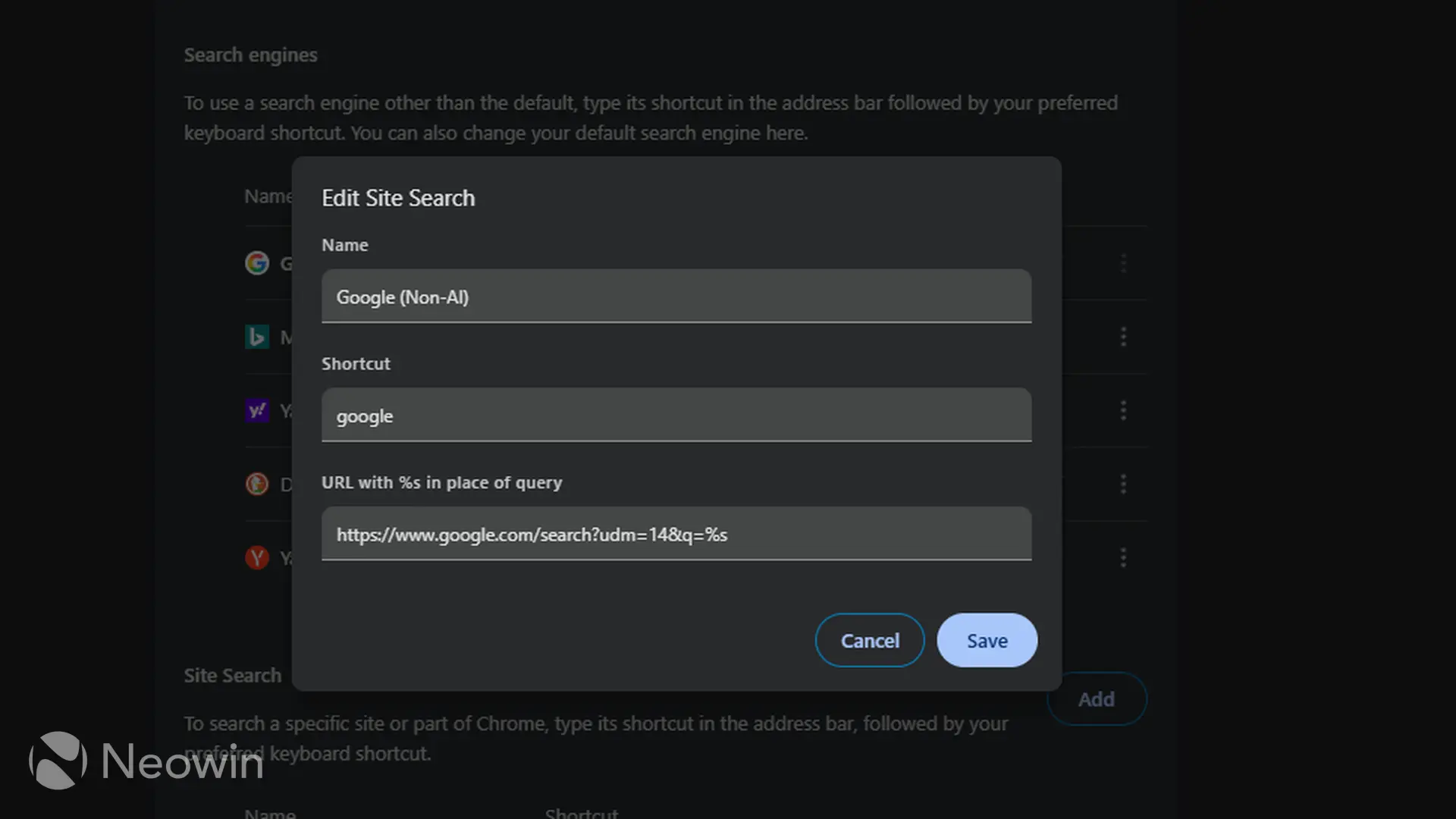
Disabling AI Overviews on your PC/Mac is probably the most straightforward of all the platforms we’ll cover here. All you need to do is add the %s&udm=14 extension to the default search engine URL, and whenever you search for something in the search bar, it will always default to a non-AI mode.
Here’s how to disable Google’s AI Overviews in Chrome (the process is similar across all major browsers):
- Go to Settings > Search engine> Manage.
- Add: Name “Google Non-AI” (or whatever you want to name it).
- Paste this url: https://www.google.com/search?q=%s&udm=14
- Set as default.
It’s important to note that this will only work when you search for something using the search bar in your browser. If you bookmark this URL, every time you open it, Google search will start with %s, which isn’t ideal, and can affect your search results. This happens because standard bookmarks cannot hold a variable the same way a browser does, so the variable part of the URL is interpreted as a literal search query.
Create a Bookmarklet
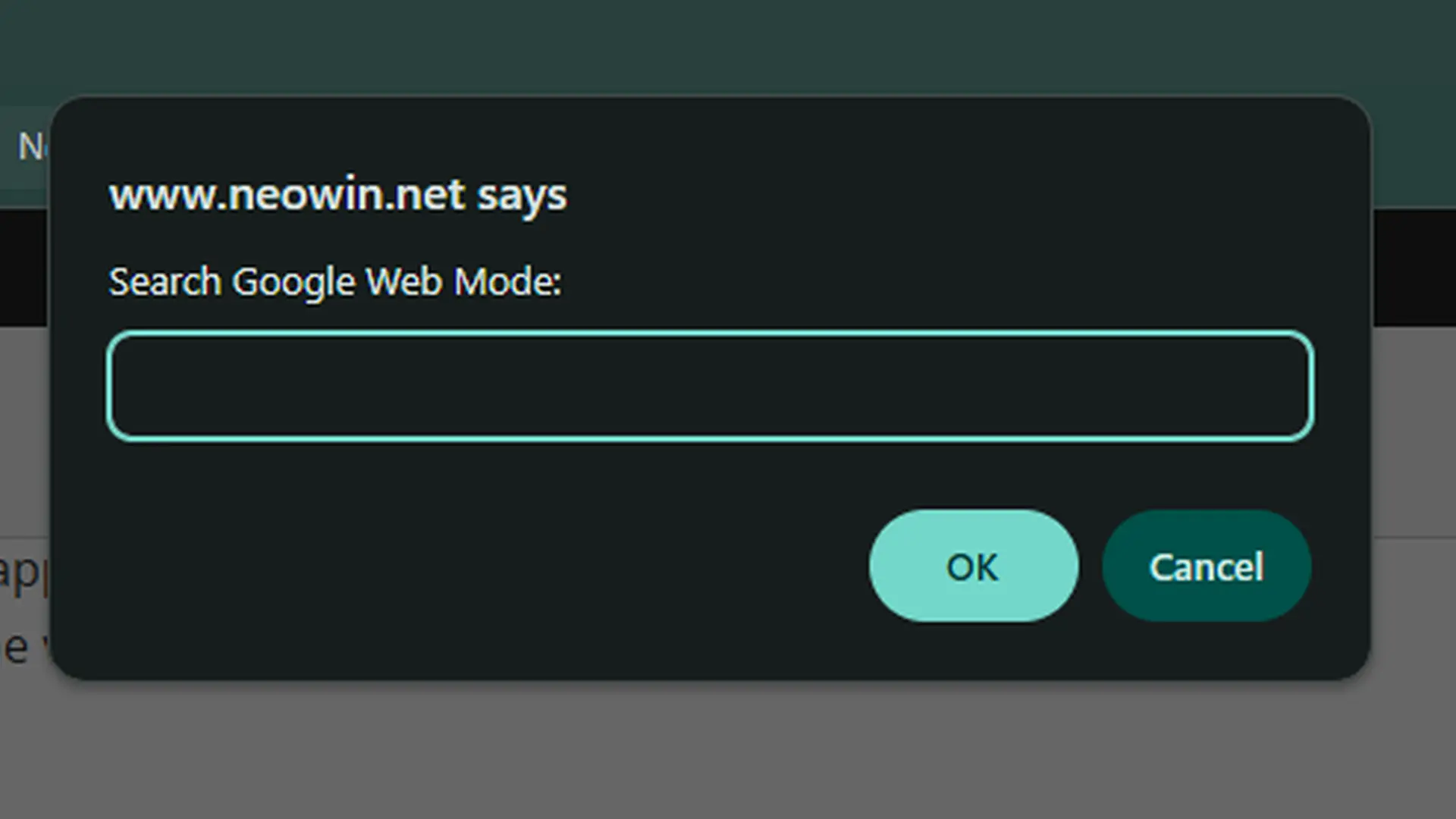
If you really want to bookmark a “non-AI” version of Google, you can create a bookmarklet instead of a regular bookmark. A bookmarklet is a browser bookmark that stores JavaScript code instead of a URL, which essentially allows you to perform small actions instead of just visiting a link.
When you open this bookmarklet, it will appear as a pop-up window with the search field. Once you enter the query and hit Enter or click OK, it will transfer you to the Web section of Google’s search interface without the AI Overviews.
Here’s how to create the bookmarklet:
- Create a new bookmark in your browser (usually right-click the bookmarks bar > Add Page or Add Bookmark).
- Name it: Non-AI Google (or whatever you prefer).
- In the URL field, paste this exact code block instead of a website address: javascript:(function(){var q=prompt("Search Google Web Mode:");if(q)window.location="https://www.google.com/search?udm=14&q="+encodeURIComponent(q);})();
Of course, using a bookmarklet comes with its own set of caveats. First of all, you need to be on an actual webpage to launch the bookmarklet. You cannot launch it from your browser’s home screen if it’s not set to a URL.
How to disable Google AI Overviews on Android and iOS
Your options are even more limited on Android and iOS. First of all, there’s no way to disable AI search in Google’s official app. So, if you want to use Google without AI Overviews, you’ll have to do it with the help of a browser.
Essentially, the only way to do it is to create the same bookmark I mentioned above and add it to your Home Screen. And this only applies to iOS, as Android has its own rules!
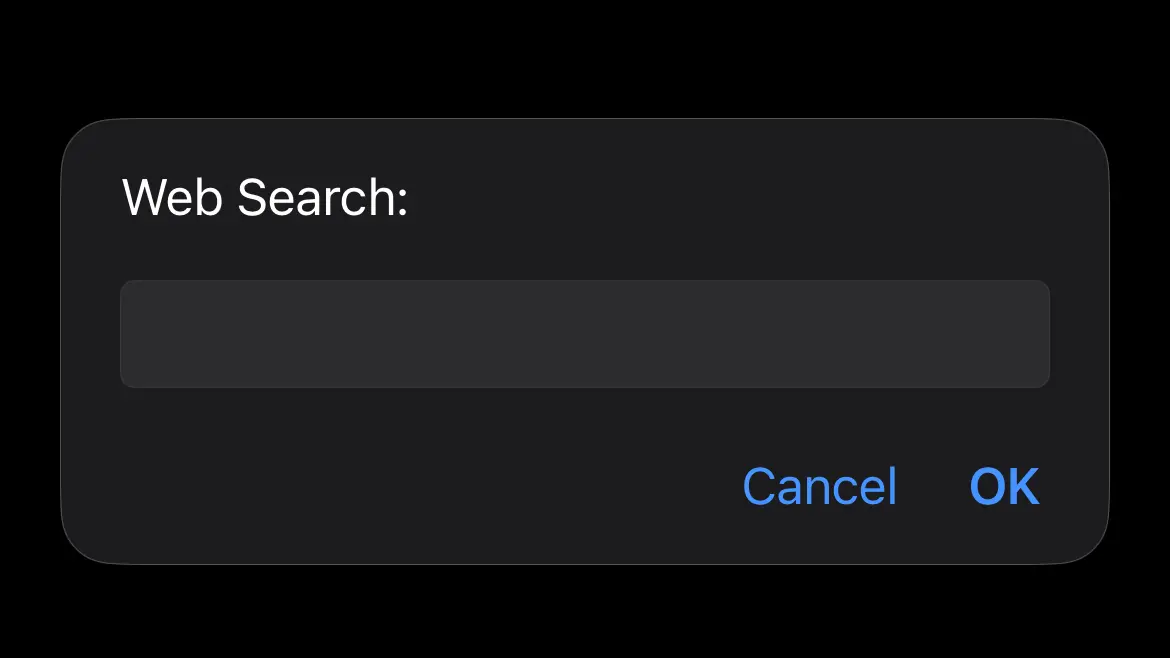
Here’s how to create the bookmarklet on iOS:
- Open any webpage (it doesn"t matter which one).
- Tap the Share icon (box with arrow) > Add to Bookmarks.
- Name it something short (e.g., web) and tap Save.
- Open your Bookmarks (book icon) > Edit.
- Tap the bookmark you just created.
- Paste the same script I listed above into the URL field (delete the old http address first).
- Tap Done.
You can also put the bookmarklet on your Home Screen, but you’ll need to do it through the Shortcut app.
- Open the Shortcuts app.
- Tap the + sign in the upper-right corner to create a new shortcut.
- In the Search Actions field, search for “bookmark” and tap Open Bookmark.
- Select the non-AI Google bookmark from the list.
- Tap the Share button > Add to Home Screen.
There you go, now you’ve got the no-AI Google bookmark on your Home Screen. When you open it, the searchbox pop-up will appear, and you can enter your search query. Interestingly enough, when you tap OK, the shortcut will redirect you to the Google app (if you’ve got it installed), instead of performing the search in Safari.
And finally, the final boss of forcing people to use the AI search - Android. Unlike iOS and web browsers on PC, Chrome on Android doesn’t support bookmark scripting, which means our bookmarklet has no power here.
But this is not the end of the road, as we’ve come up with yet another workaround that will make using Google without AI Overviews on Android possible. We’ll use a static link that forces Google into "Web Mode" immediately. Since this method practically performs an empty Google search, you’ll come across Google’s Yeti doodle that appears when there are no results for a particular search. But at least you’ll have a platform for entering the query you want.
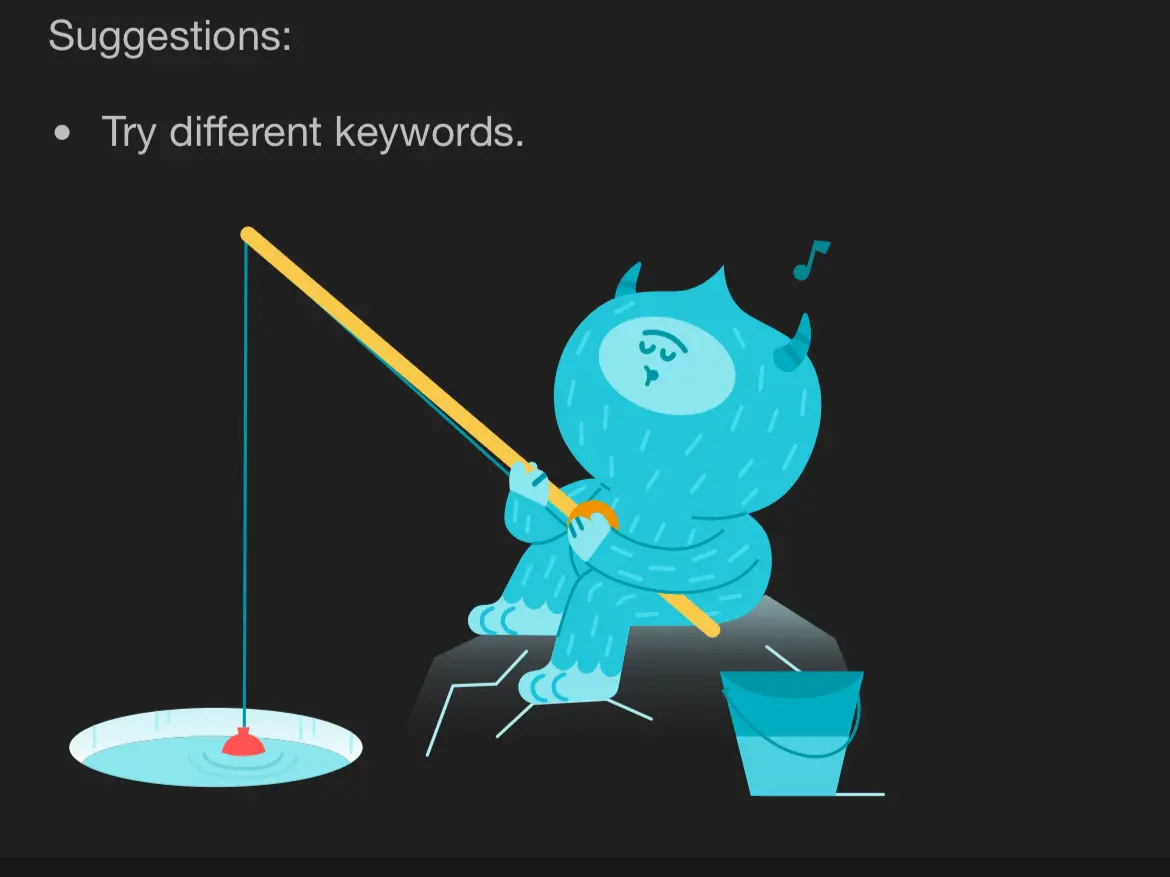
So, if you’re fine with hanging out with the Yeti, here’s how to eliminate AI Overviews on Android:
- Open Chrome.
- Paste this URL into the address bar and tap Enter: https://www.google.com/search?udm=14&q=%20
- Tap the three-dot menu in the top right corner.
- Select Add to Home Screen.
- Rename it to "Google Web".
- Tap Add.
Now, every time you open the bookmark from your Home Screen, you’ll be greeted by an empty search, and you can then search for whatever you want without the AI Overview appearing.
Note: You can also use this method on iOS and PC, but I put it under Android because it’s the only solution that works on Google’s own OS.
That’s about it. We’ve now covered just about any way of removing AI Overviews from Google that’s currently working. With that being said, it’s possible that Google will patch the search interface and render some of these methods obsolete soon, just like it recently did with background play on YouTube. If you notice that, feel free to let us know in the comments, and we’ll investigate further.