
I have often lamented how Windows Search is extremely slow in surfacing results and favors web queries rather than on-device items at times. Command Palette in PowerToys is far superior to Windows Search in this regard, but you can improve the latter through indexing configurations, built into Windows, too.
What is indexing?
In simple terms, indexing is the process of using metadata to structure items in a format that is easily searchable and does not require you to look through each item of your dataset every time. Think of an index similar to the index page/table of contents of a book, which lists each chapter and its corresponding page number. Through this, you can directly jump to the page number of the chapter that interests you rather than scouring through each page manually. Indexing in Windows works the same way on a base level, where it categorizes your on-device items so that they can be searched in a faster manner.
How do I enable indexing in Windows 11?
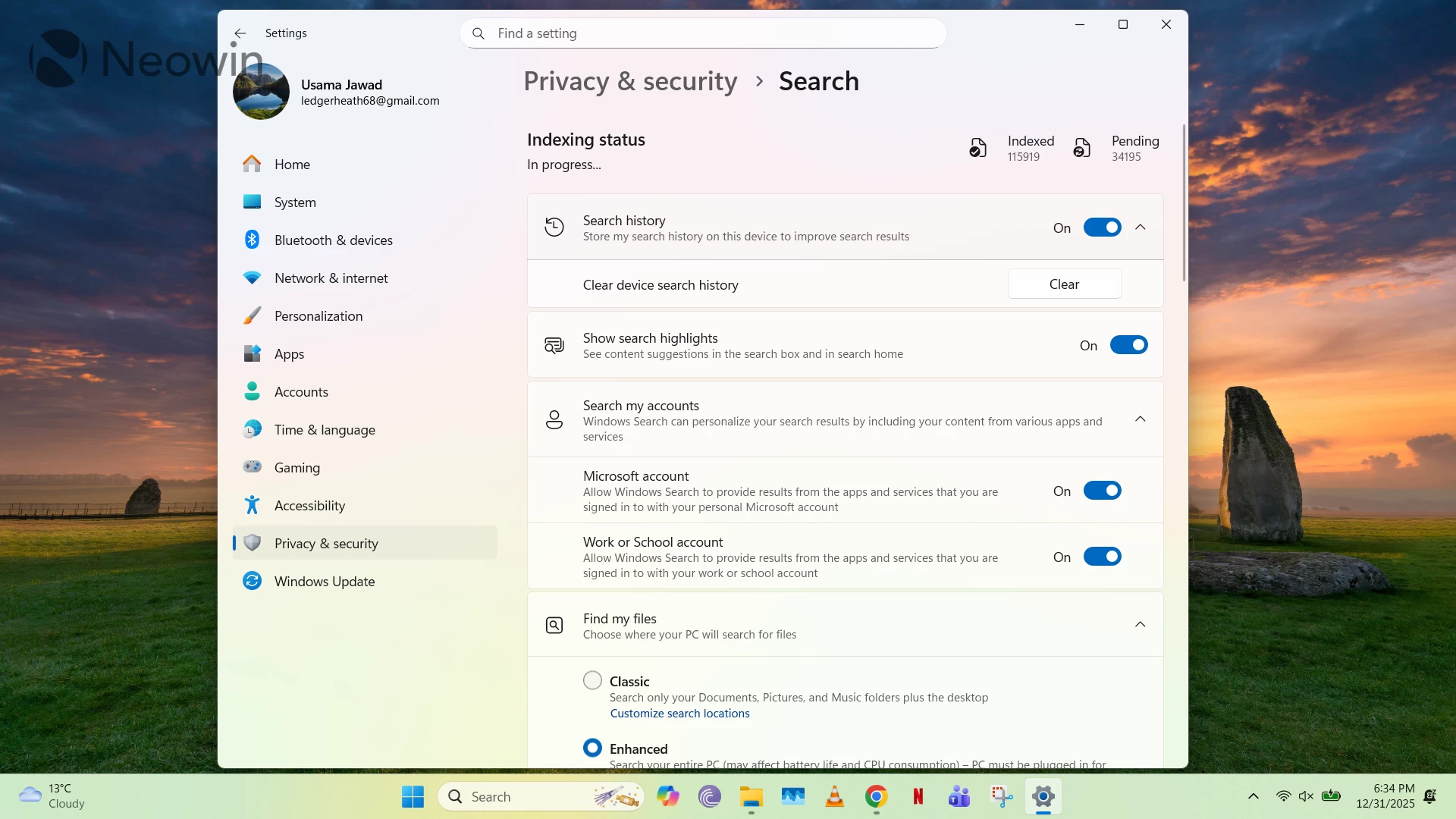
Windows 11 has search indexing enabled by default. You can navigate to it through Windows Settings > Privacy & security > Search. By default, it is set to Classic mode. In this configuration, Windows only indexes the Documents, Pictures, Desktop, and Music folders. That means that if you store your content in any of these locations, it will appear in search results much faster than other items.
Within Classic mode, you can press the Customize search locations button, which opens the legacy Indexing Options UX from the Control Panel. Here you can manually add other folders that you would like indexed too. This is particularly useful when you store files in directories other than those included by default, and would like those locations to be included in faster search results, too.
However, if you would prefer to have all of your PC"s content indexed, you can simply switch to the Enhanced setting. It performs the initial indexing only when your PC is plugged in, and you do have the option to manually exclude some folders.
Great! But why doesn"t Microsoft enable enhanced indexing by default?

While Enhanced indexing surfaces search results in Windows faster, there is a reason that it"s not the default configuration. This is because indexes take up space. Microsoft indicates that a general rule of thumb is that an index will take up roughly 10% of the size of the overall content being indexed. This means that if your PC has 1TB of content stored on it, an index for it may take up 100GB. That"s a lot on a device with limited resources, and customers likely wouldn"t be happy if Windows was forcibly reducing their available storage space, which is why it"s not enabled by default. The Redmond tech giant even says that sometimes an index takes up more than 10% of available space, so it"s clearly not something that should be enforced upon users.
Another thing to keep in mind is that updating an index can take up time and resources on your PC. The initial indexing process itself usually takes a few hours, but even after that, if you delete or move a file, its corresponding index will be updated, so this process is constantly running in the background to monitor any changes. Let"s go back to the book analogy, where if a book publisher decides to start their book from page number 2 rather than page number 1, they would also need to increment the page number of each chapter by 1 in their index/table of contents. This continuous potential strain on a PC is also why Enhanced indexing is not the default option, as Classic strikes a good balance between performance and resource utilization.
Oh, anything else that I need to know about indexing?

Indexing in Windows is leveraged by numerous applications, including Windows Search and File Explorer. The index is typically built using all properties of a file, such as file path and file name, but you also have the option to index their internal content, so it"s easier to search within them too. All data related to the index is stored locally, and Microsoft promises not to exfiltrate that data into its cloud or to train its AI models. That said, certain third-party apps can use the index too, so make sure that you only install trusted applications.
It is possible to index encrypted files as well, and to toggle between the index of file content versus file properties only. You can configure this through the Advanced indexing options UX on the same Windows Settings page referenced previously.
Copilot+ PCs leverage semantic indexing in addition to traditional indexing. This means that items closely related to each other in meaning may also be surfaced in search results, rather than those that match identically in terms of file properties or lexical similarity. This is done using the on-device model and is enabled by default.
Overall, it"s good that Microsoft indexes some directories by default and gives users the option to index more locations or even their entire PC. The latter option does come with some trade-offs, though, so do keep them in mind before you enable Enhanced indexing.