Microsoft has announced its decision to overhaul the device settings interface for Teams on the web by introducing a new consolidated panel for audio and video configuration. This update is rolling out this month and will replace existing menus with a new “Device settings” hub that can be found under the standard settings tab. This is rolling out to all global environments including specialized sectors like GCC, GCCH, and DoD. It will be pushed automatically to all web users, regardless of their configurations or organizational size.
The new hub centralizes controls for speaker, microphone, and camera selection. This gives users a unified workflow for hardware management. It will also give users specific video controls like “Mirror my video” and “Adjust brightness” directly in the primary device panel. The test call feature has also been embedded in the new experience so that users can confirm audio configurations before meetings begin.
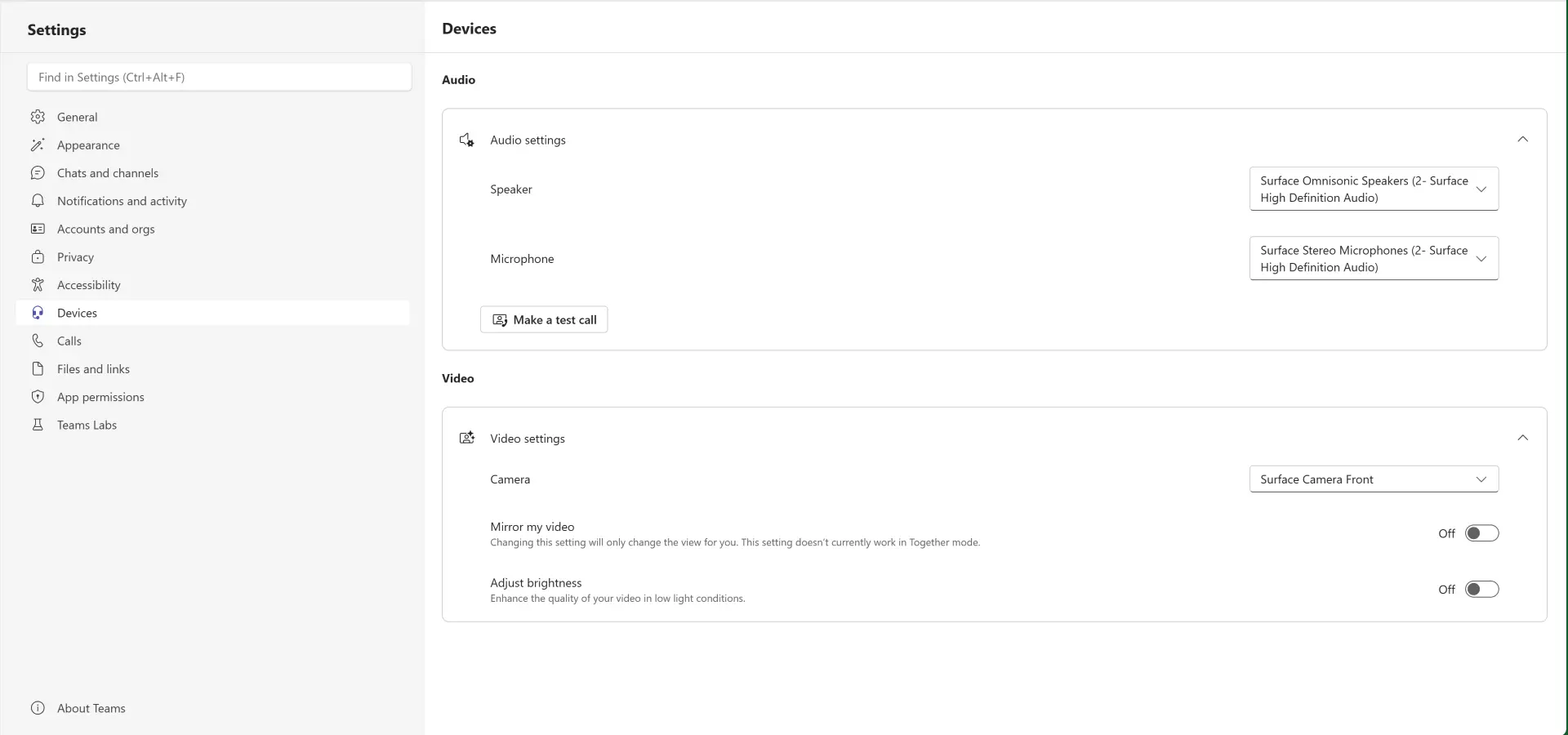
The main downside to this move is that users familiar with the existing web interface will now have to learn the new layout just to perform routine tasks such as switching headsets or toggling cameras. This could be a headache for businesses who may now need to provide some training to familiarize people with the updated interface or assist those struggling to setup peripherals due to unfamiliarity with the updated interface.
For IT support teams, this update means that existing internal screenshots and training manuals for web users will need to be updated. Despite this, the new update will offer a more streamlined experience for users looking to adjust their Teams settings.
Microsoft says that no admin action is needed to trigger the update as it will be enabled by default for everyone worldwide. Organizations should expect the new “Device settings” panel to appear between now and the end of the month. While admins don’t need to take action to enable the feature, internal documentation should be updated immediately to reflect the new navigation path.
To learn more, head over to the Microsoft 365 Admin Center and check message ID MC1234663.