Earlier this week, we published our NASync DH2300 review, and now, we"re back with its larger sibling, the NASync DH4300 Plus. Key differences are that the former is a two-bay NAS, while this is a four-bay with some upgraded internals.
Disclaimer: UGREEN provided the review sample without any editorial input or pre-approval.
Here are the most important specifications:
| UGREEN NASync DH4300 Plus | |
|---|---|
| CPU: | Rockchip RK3588 ARM-64 Bit P-Cores 4x Cortex-A76 @2.4GHz + E-Cores 4x Cortex-A55 @1.8GHz TDP: 12W |
| Graphics: | Arm Mali G610 MC4 GPU + 4 Shader Cores |
| NPU: | 6 TOPS |
| Memory: | 8 GB LPDDR4X 3200MT/s SODIMM (Soldered) |
| Bays: | 4 x |
| Disk Capacity: | 120TB (4 x 30TB) |
| RAID Level: | JBOD/Basic/0/1/5/6/10 |
| Network: | 1 x RJ-45 2.5 GbE |
| Internal storage: | eMMC 32GB |
| USB Ports Rear: Front: | 2 x Type-A 3.2 Gen 1 (5 Gb/s) 2 x Type-C 3.2 Gen 1 (5 Gb/s) |
| HDMI: | 1 x (HDMI 2.1) |
| Hardware Transcoding Engine: | H.264, H.265/HEVC, VP9, AVS2, AV1, AVS2 @ |
| Size (L/W/H): | 155 x 155 x 215.7 mm |
| PCIe expansion: | No |
| Weight: | 1.595 g (diskless) |
| Power: | 12V/6A, 100V - 240V AC, 50/60 Hz, Single frequency |
| Power consumption Standby: (HDDs): (self-measured) | 0.3W (Standby) 28.1W (4x WD40EFPX WD Red 4TB drive access) 8.9W (4x WD40EFPX WD Red 4TB drive hibernation) |
| MSRP: | $429.99 |
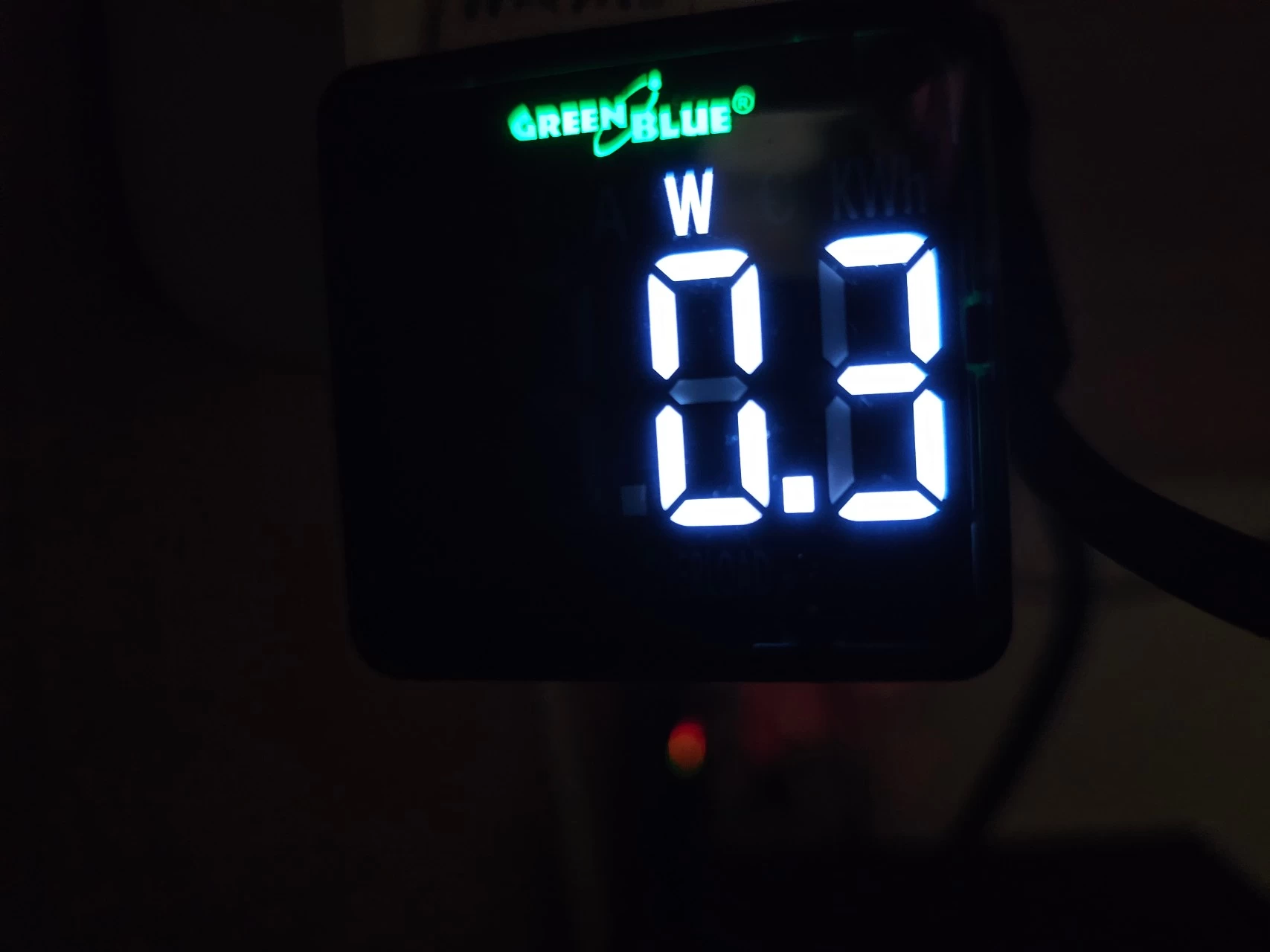
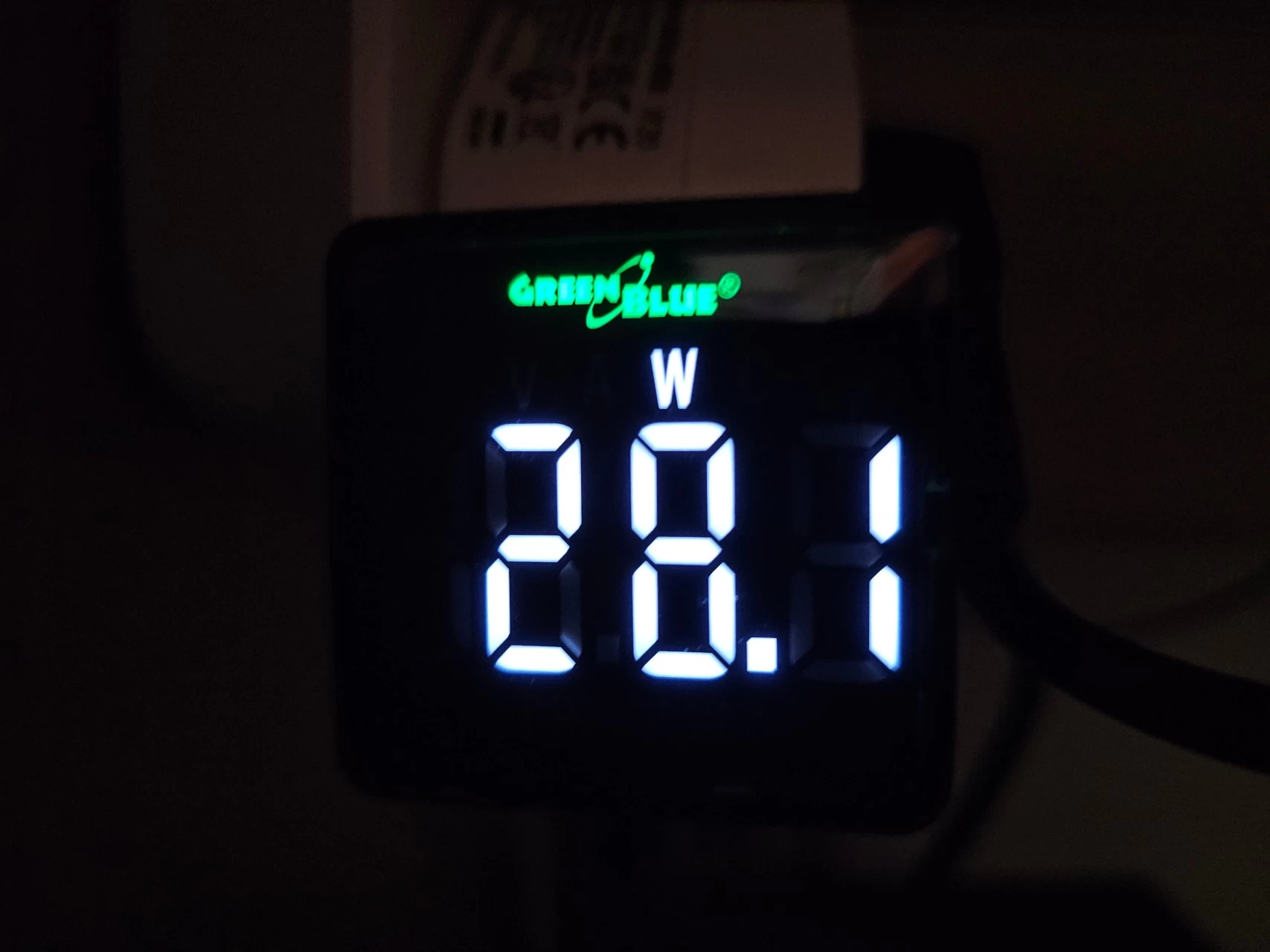
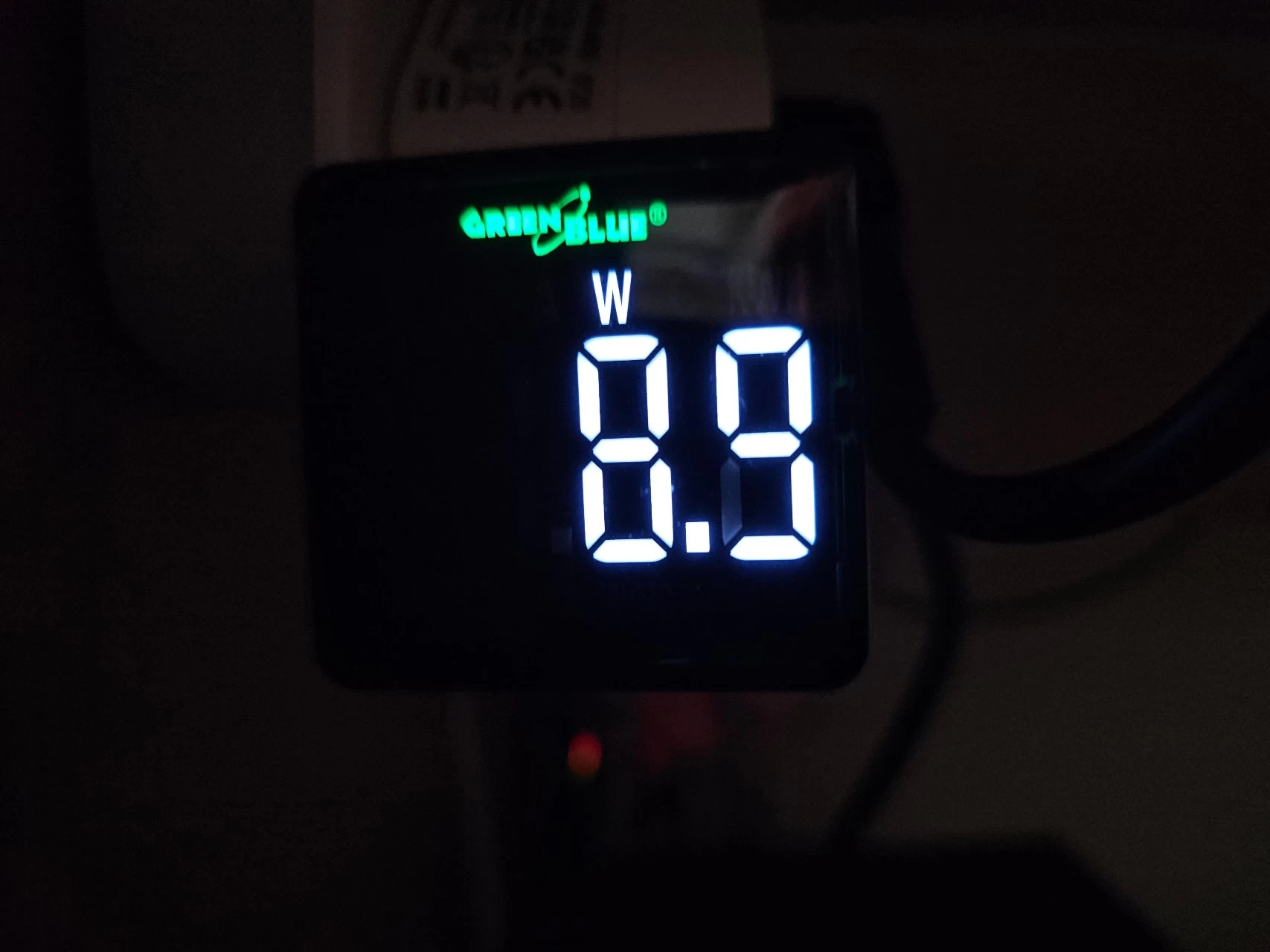
As you can see, it includes somewhat lightweight specs with its Rockchip RK3588 CPU, which was released in 2022. It"s actually one of Rockchip"s higher-end spec chips with support for AV1, AVS2 decode at up to 8K (60fps), DisplayPort 1.4, HDMI 2.1, LPDDR5 (5200), DDR5 and DDR4, and a max TDP of around 1.4W.
Yes, although this CPU is not setting the world alight, it supports most media streaming formats, and thus also fits squarely in the HTPC segment. However, it should be noted that the NASync DH4300 Plus also does not offer Wi-Fi connectivity.
One of the things I always mention in previous NAS reviews is how disappointing it was to discover a mediocre amount of RAM in these devices, and thanks very much, my point is proven again with the ample 8GB in this relatively cheap NAS versus the "mainstream" Synology DS925+ model, which only has 4GB of memory. This usually leaves buyers immediately scrambling to replace the RAM at additional cost. While 8GB in this NASync DH4300 Plus is nice, you should know upfront that it"s not possible to expand on the included 8GB of LPDDR4X.
What you should know
Before we dive in, the DH2300 and DH4300 Plus are very similar in regard to the internals, so my review won"t be very different. I"ll list the main differences in the table below:
| NASync DH4300 Plus | NASync DH2300 |
|---|---|
| Rockchip RK3588 (Up to 2.4GHz) | Rockchip RK3576 (Up to 2.2GHz) |
| Arm Mali G610 MC4 | ARM Mali G52 MC3 |
| 8 GB LPDDR4X | 4 GB LPDDR4X |
| 4 HDD Bays | 2 HDD Bays |
| JBOD/Basic/0/1/5/6/10 | JBOD/Basic/0/1 |
| 2.5 GbE | 1.0 GbE |
| $429.99 | $209.99 |
First impressions
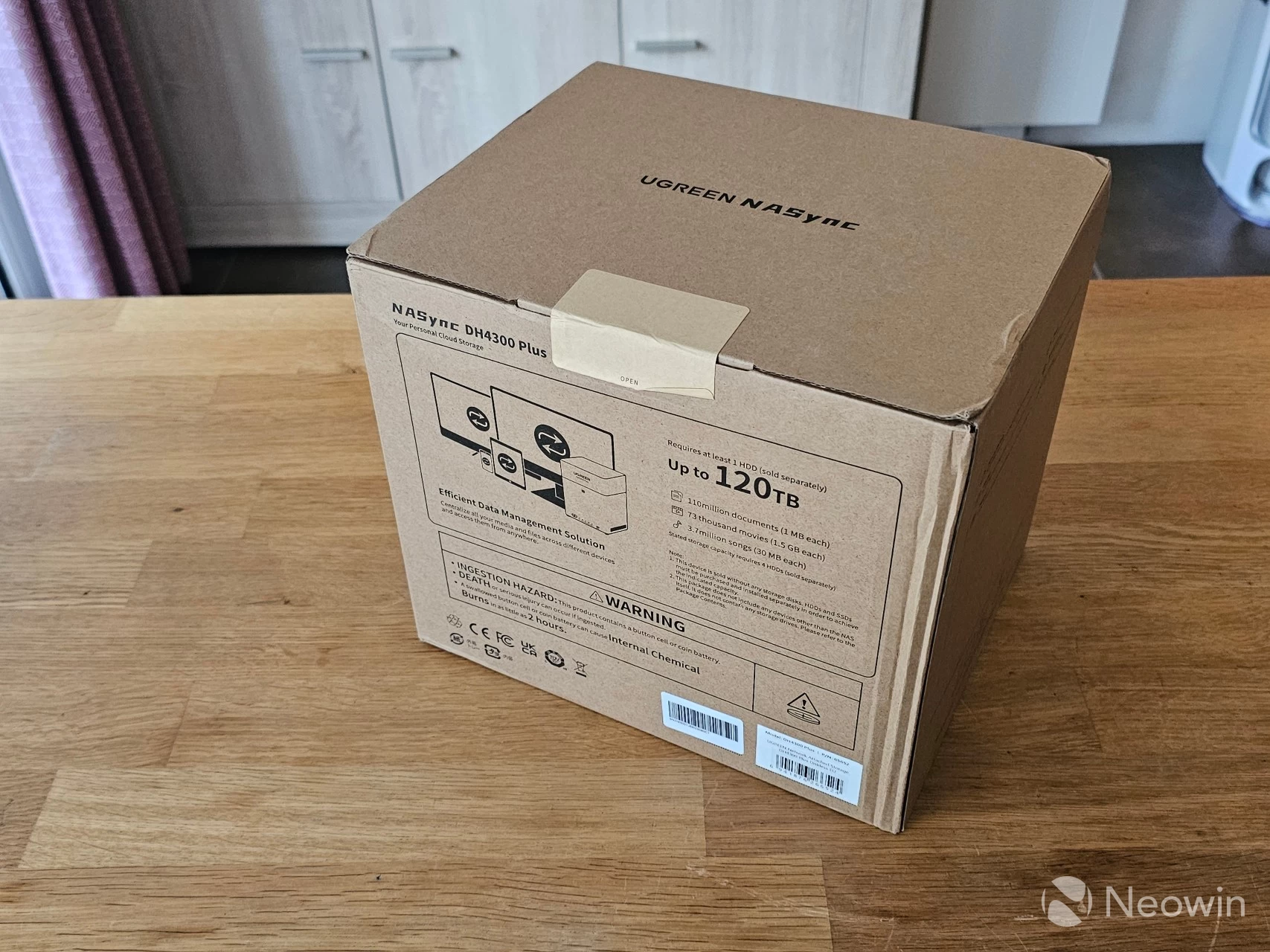
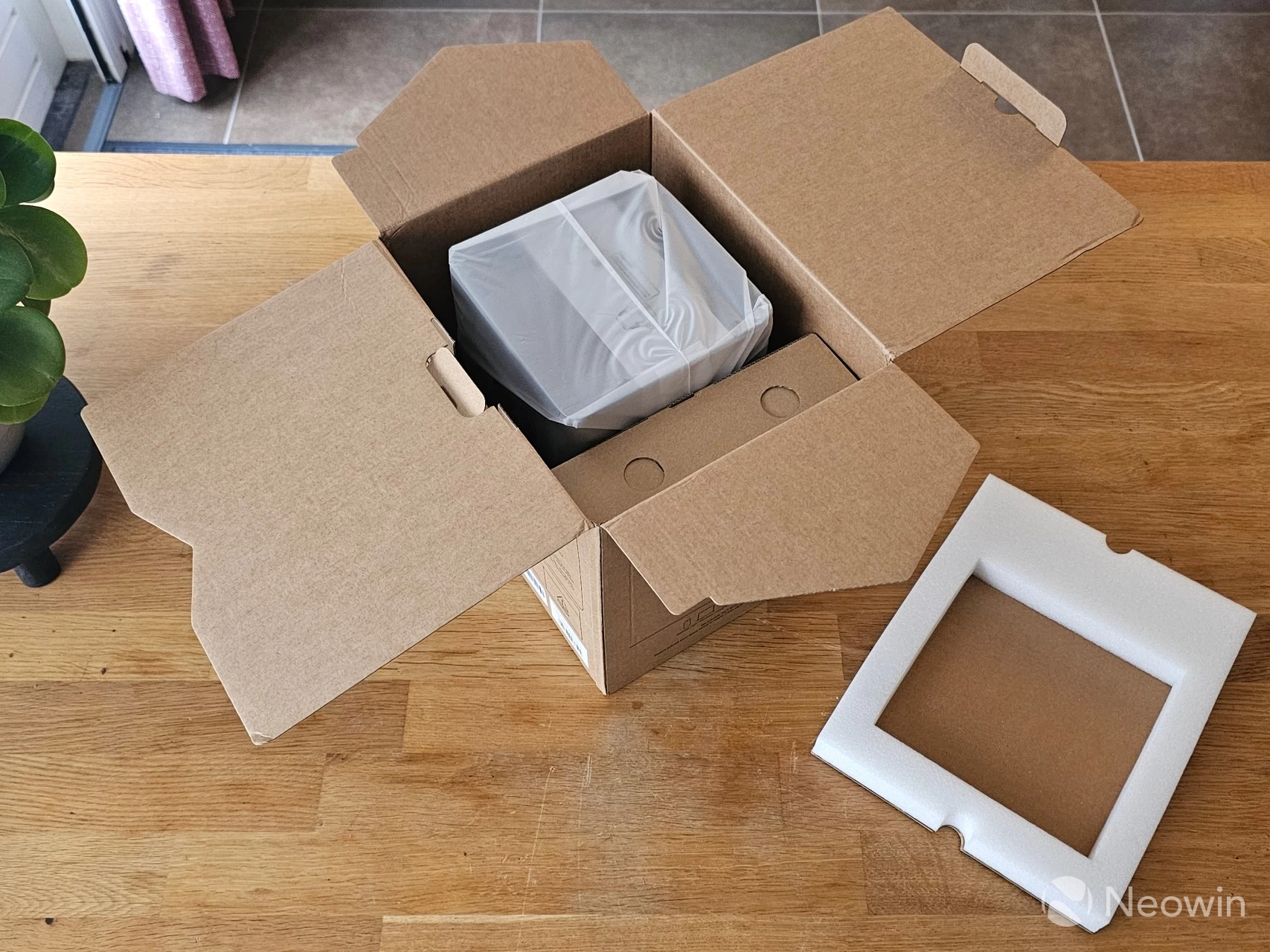
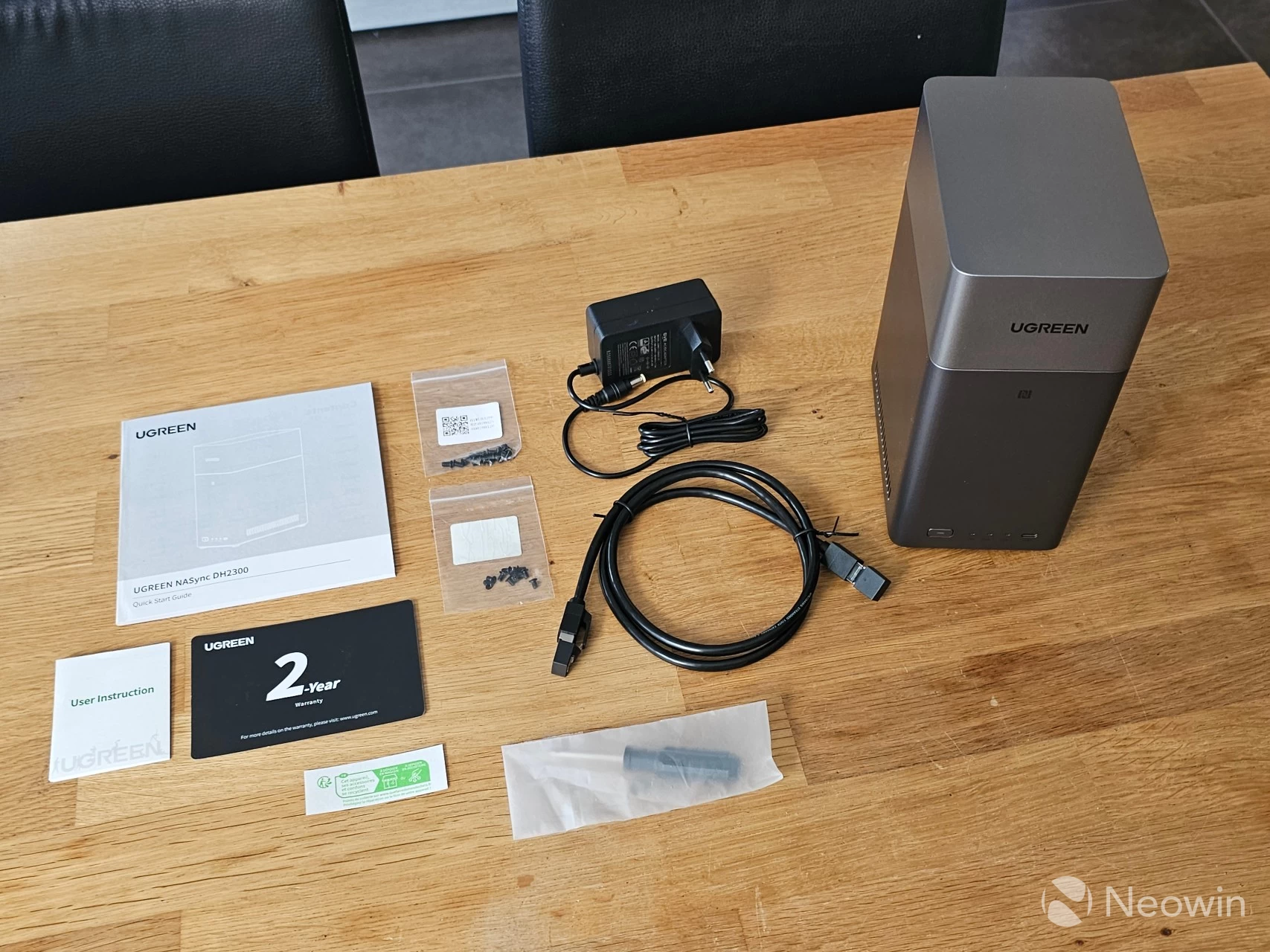
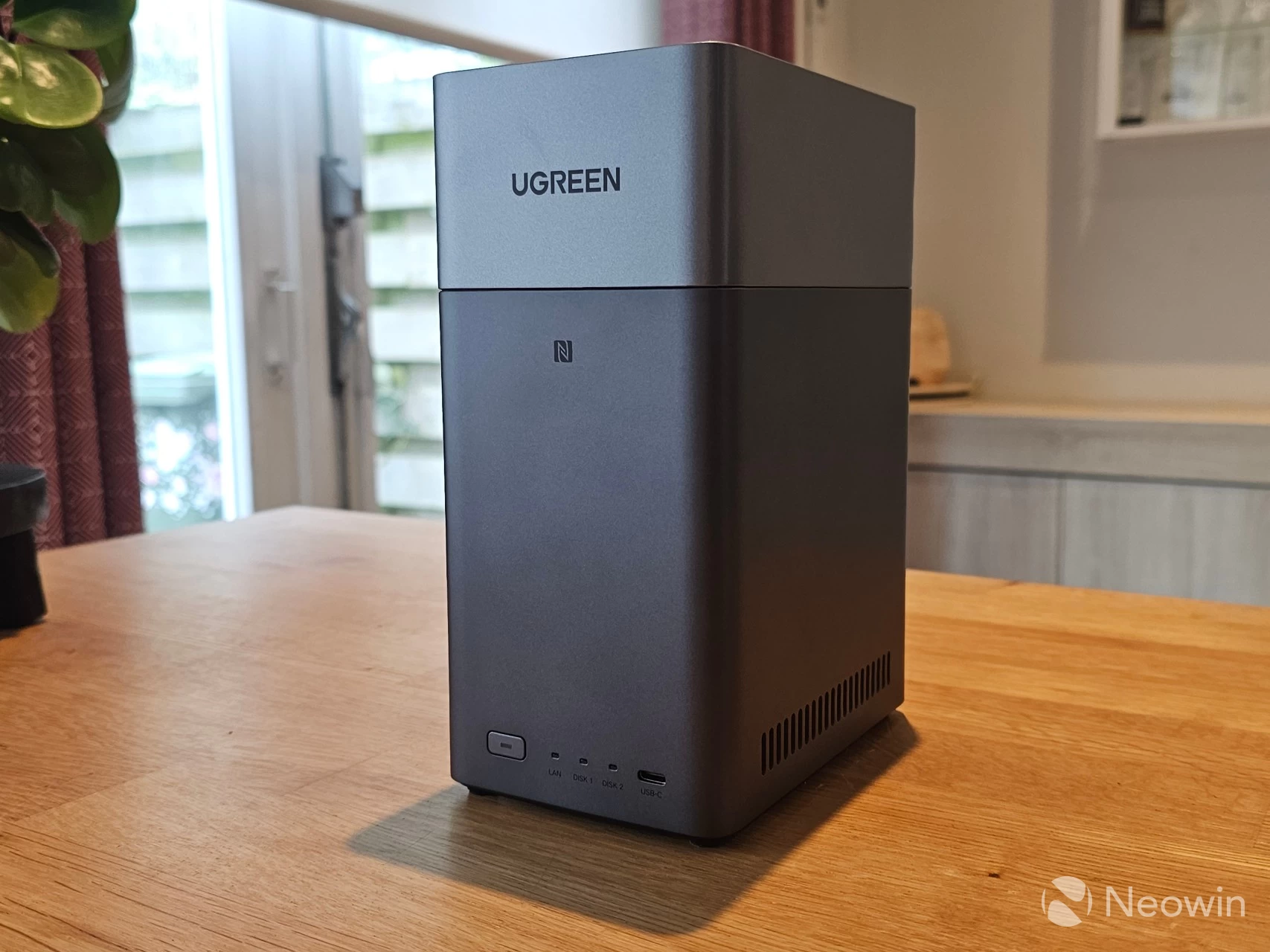
The NASync DH4300 Plus arrived in a large outer brown cardboard box, and upon opening it, the UGREEN box is a pretty standard affair with details of the DH4300 Plus printed on the side of the cardboard box. The NASync DH4300 Plus itself is protected by a foam cushioning on the top and bottom, with another cardboard box for the accessories.
In the box
- NASync DH4300 Plus device
- Power cable
- 1 x LAN cable (CAT 6)
- Quick guide [full online product documentation]
- Warranty card
- Screws (for 3.5-inch HDD)
- Screwdriver
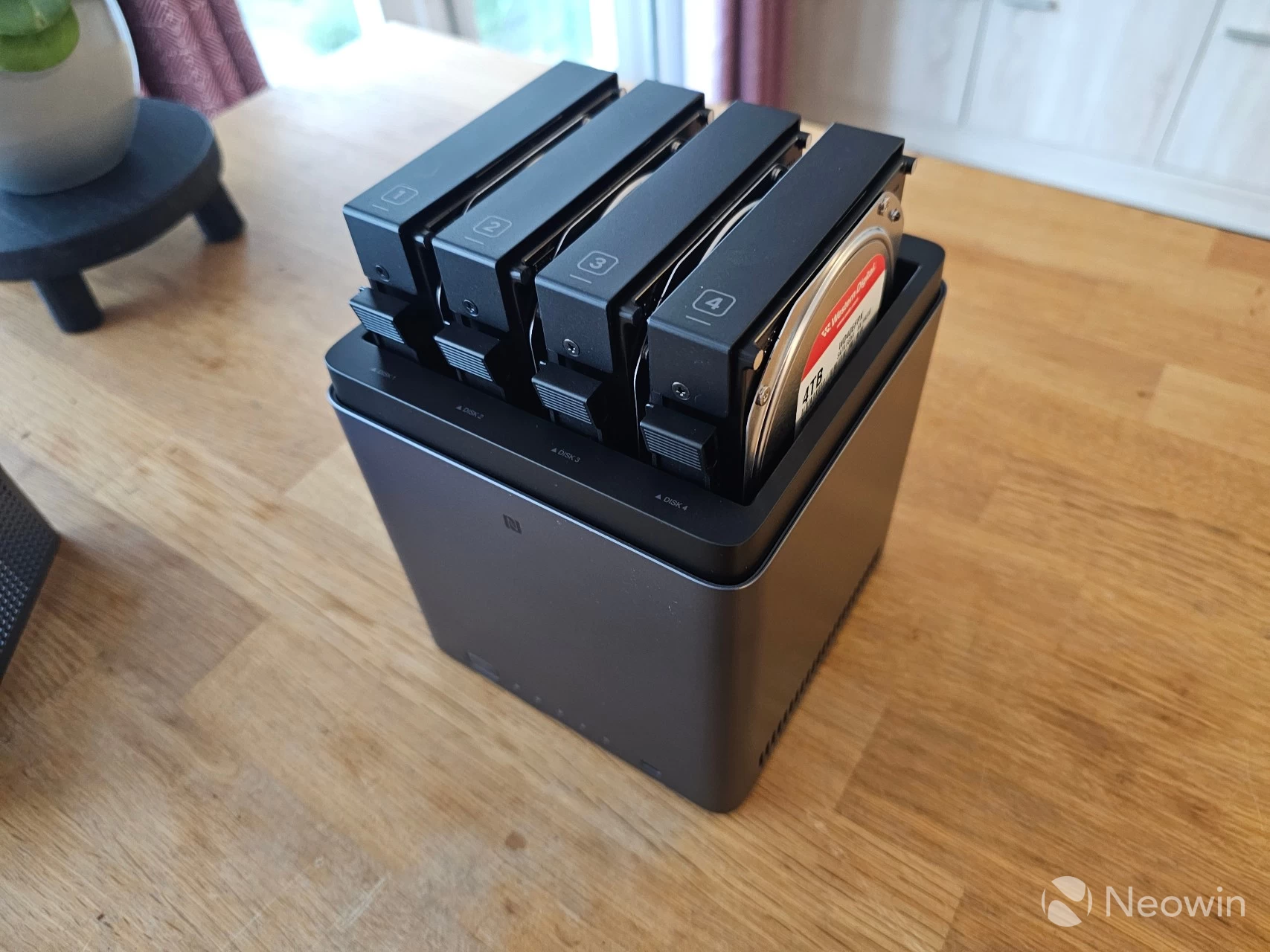
UGREEN also sent along a four WD Red Plus 4TB NAS HDDs to use in the NASync DH4300 Plus for the purpose of this review, so that is what I went with.
Design
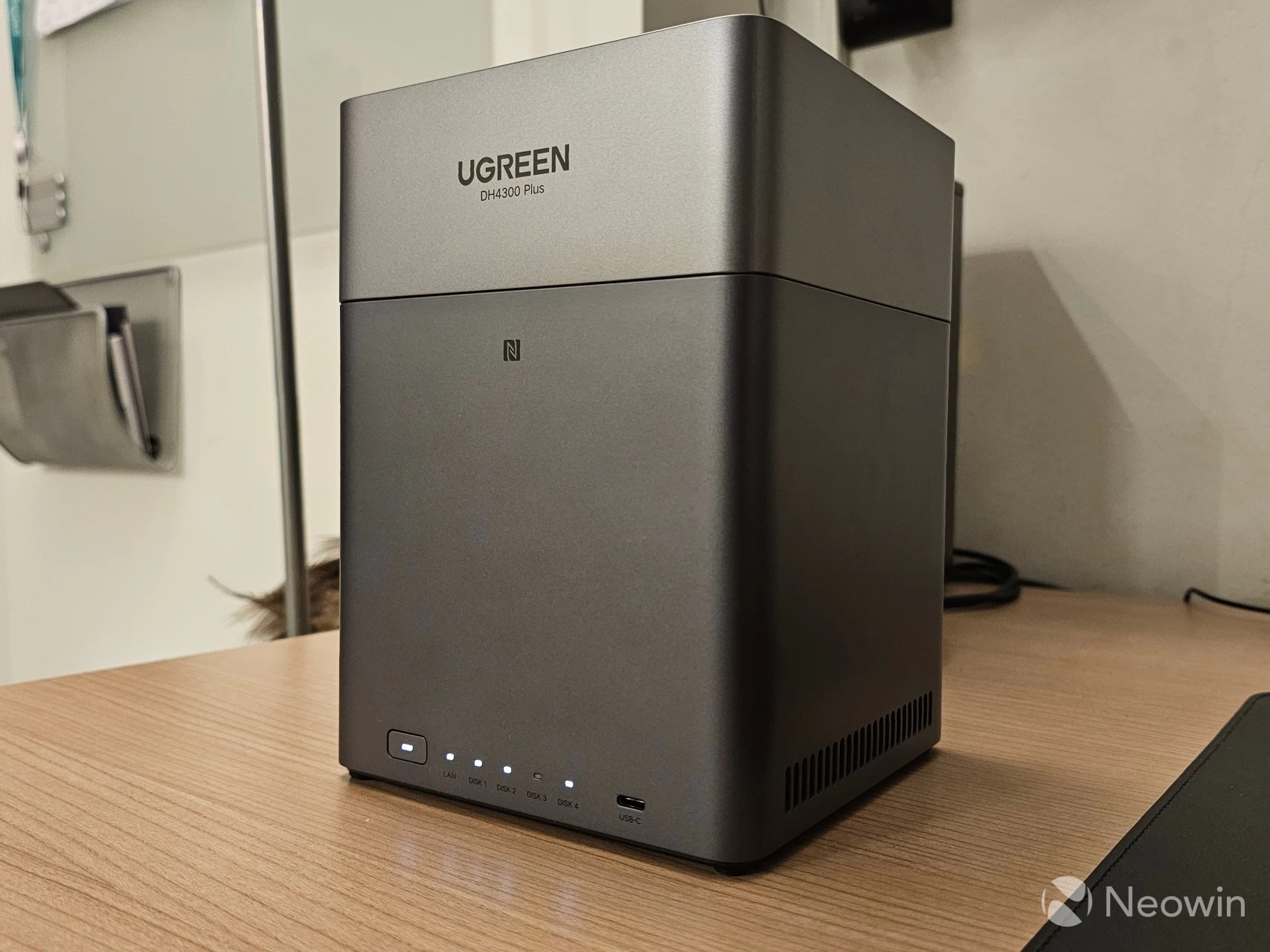
The exterior uses a two-tone gray with the darker gray reserved for the bottom of the unit and the light gray for the HDD cover, which is magnetic; it"s also not a fingerprint magnet. The shape of the NASync DH4300 Plus looks more like a personal cloud backup than a NAS unit. The rounded edges look pretty cool as well. Overall, it"s a very nice-looking device; the cherry on top is that it does not slap any stickers on the front, you just have the UGREEN logo with the model name below it stamped on the top cover.
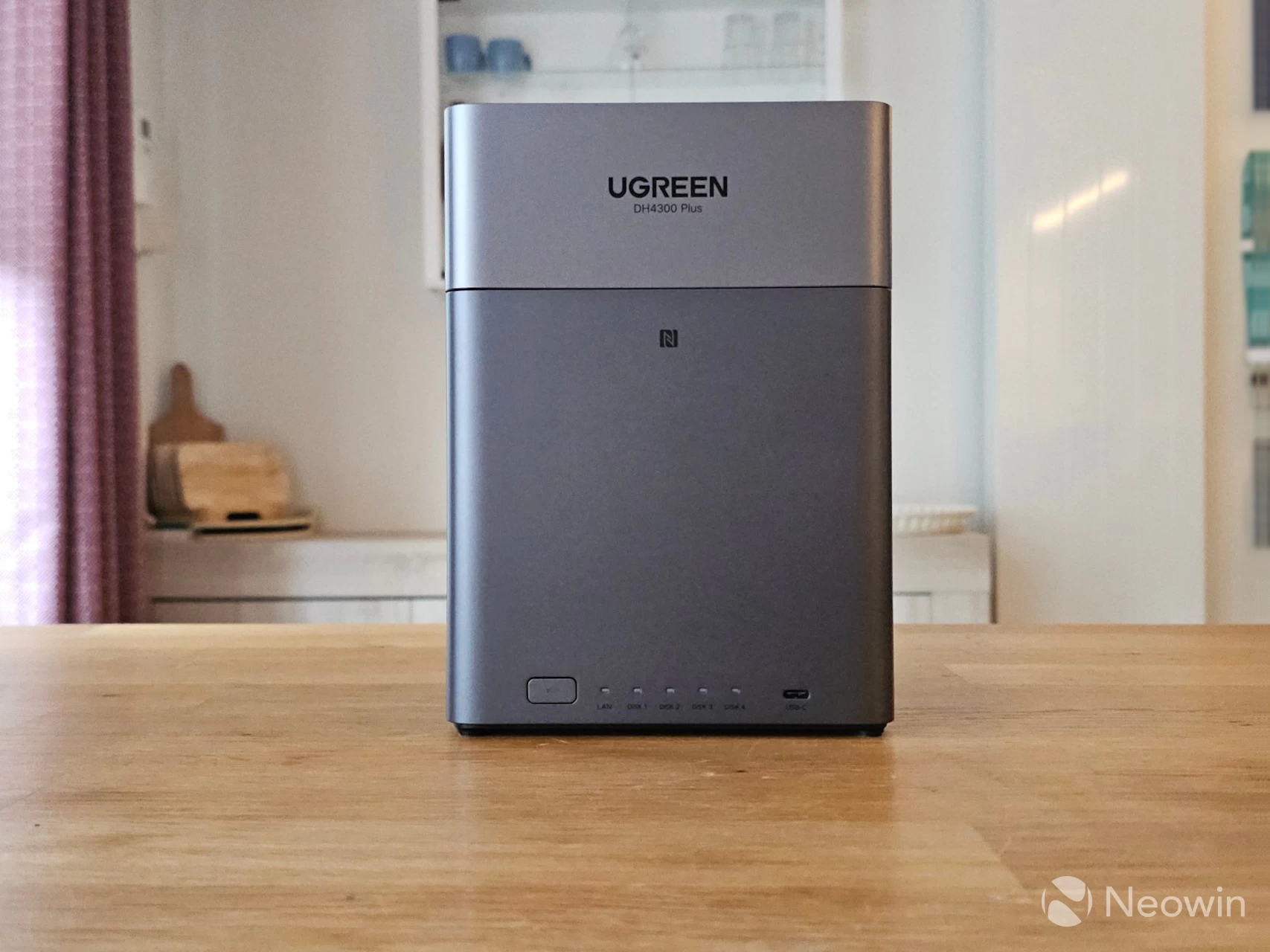
On the front, from left to right, you have the power button, five LED indicators for LAN, disk 1, 2, 3, and 4, along with a Type-C 3.2 Gen 1 USB port, with a maximum speed of 5 Gbps.
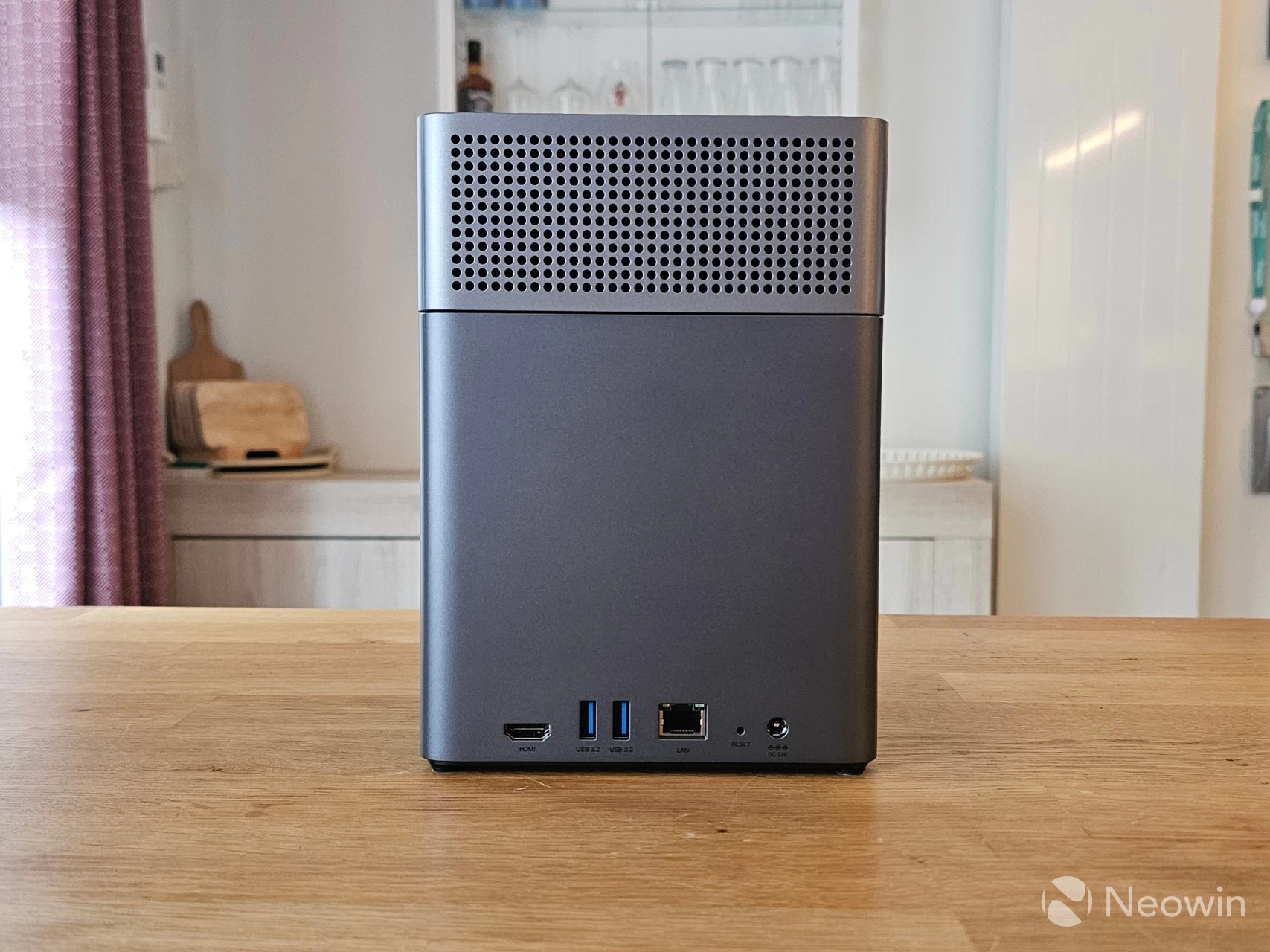
Around the back, the top HDD bays cover has holes to assist fan intake and heat dissipation, and on the bottom, from left to right, there is an HDMI 2.1 port, two Type A 3.2 Gen 1 ports (5 Gbps), an RJ45 port (2.5 GbE), a reset pin hole, and the barrel connector port.
| Left side | Right side |
|---|---|
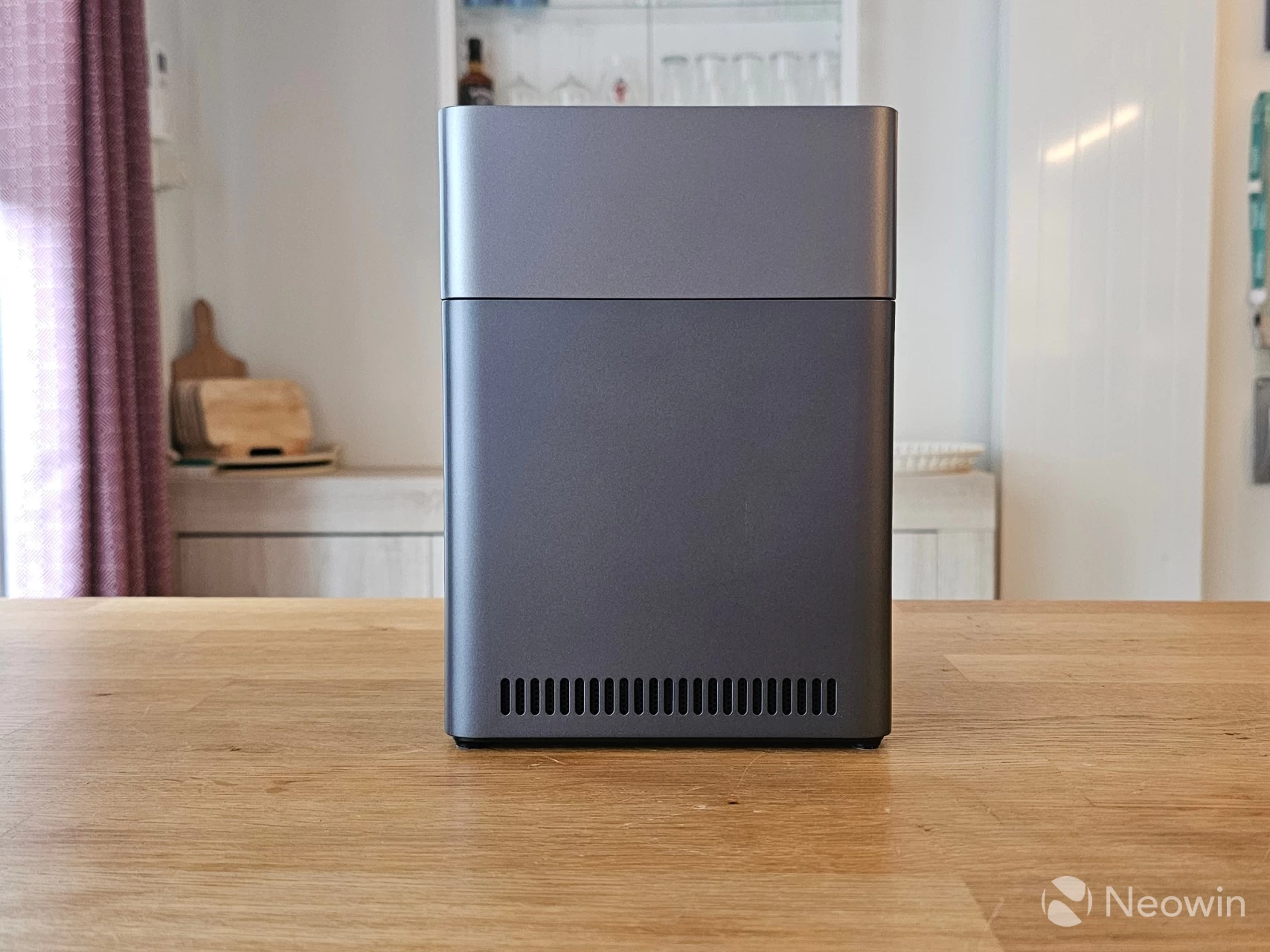
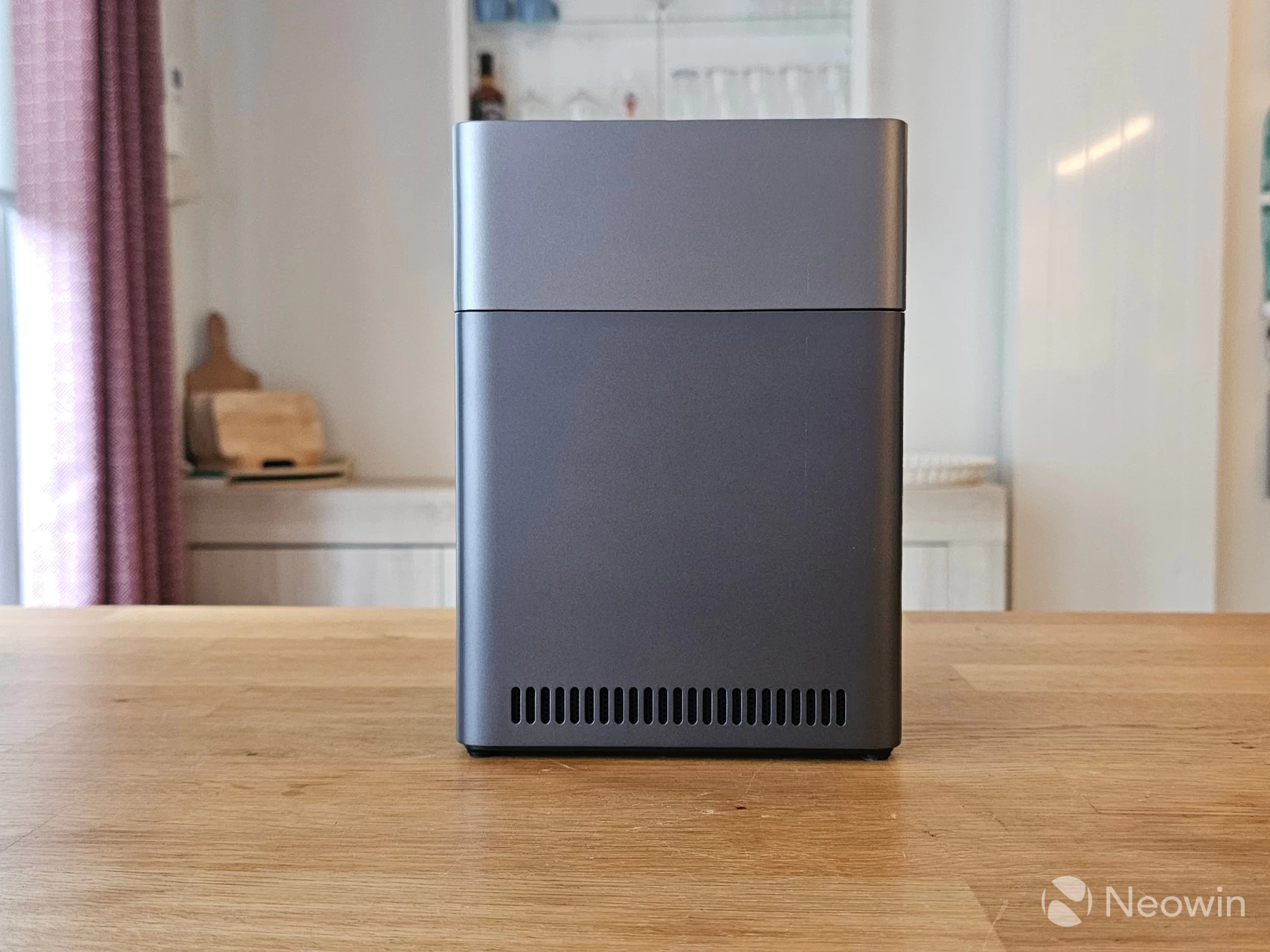
The left and right look completely the same, with vents at the bottom of each side to assist heat dissipation.
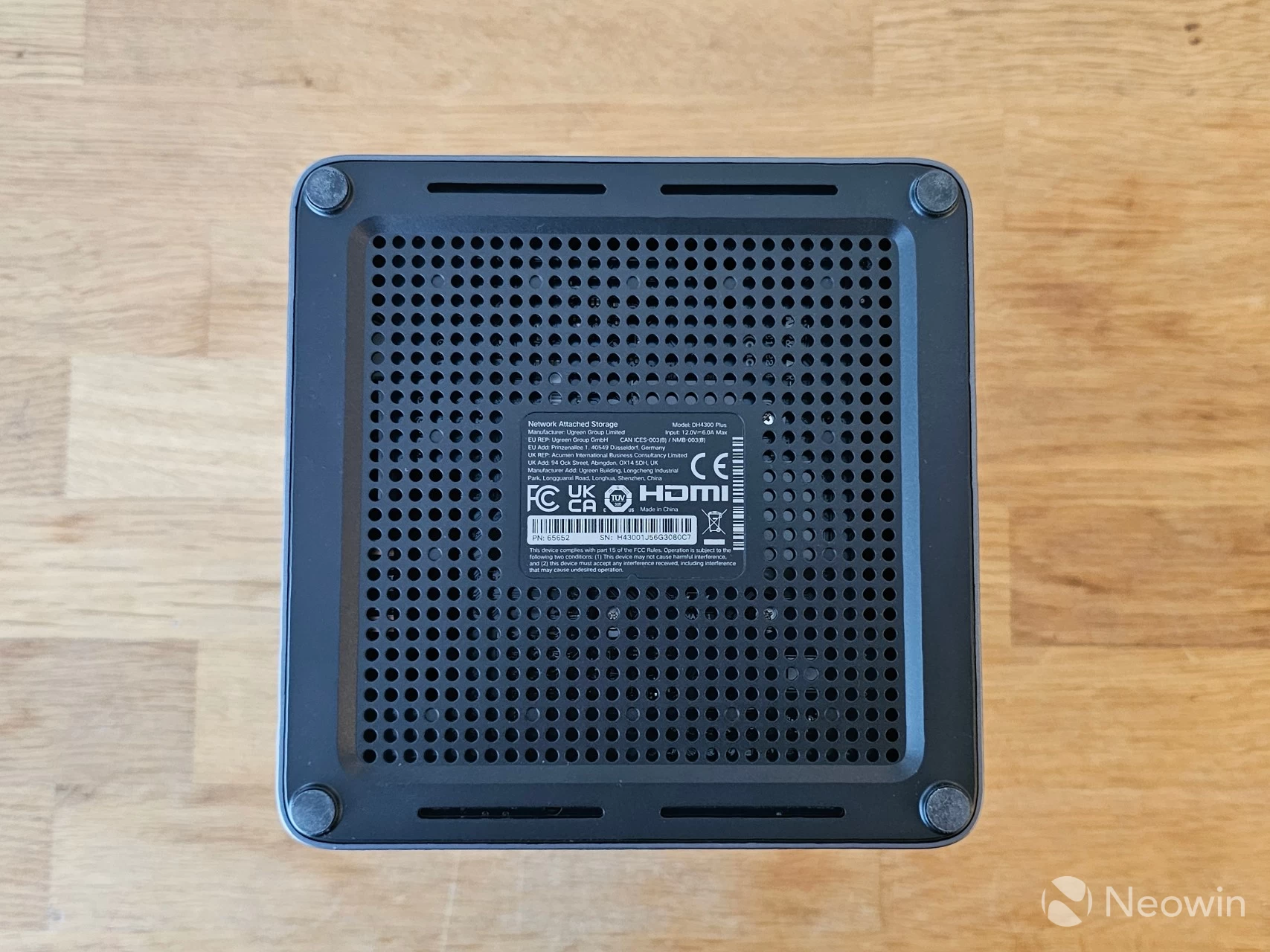
On the bottom, the four rubber feet are glued on and give an overall height of around 0.5mm. These flank the entire bottom plate, which is also designed to allow for ventilation.
Teardown
No NAS review that I do would be complete without some sort of teardown, and usually, I would have done this here too; however, I discovered that the DH2300 isn"t designed to be taken apart, and as a result, I had trouble getting the mainboard back in, and now the front lights do not illuminate fully. I reseated the board a few times with the same result, so I opted to leave it alone rather than risk breaking something.
I already know there"s nothing that can be managed inside the DH4300 Plus, so to save myself some hassle, I did not take this apart. If you want to see the teardown of the DH2300, go here... the steps to do so if you wish are virtually the same for the DH4300 Plus.
Getting Started
Now that we have skipped over dismantling it, next up are the drive bays.
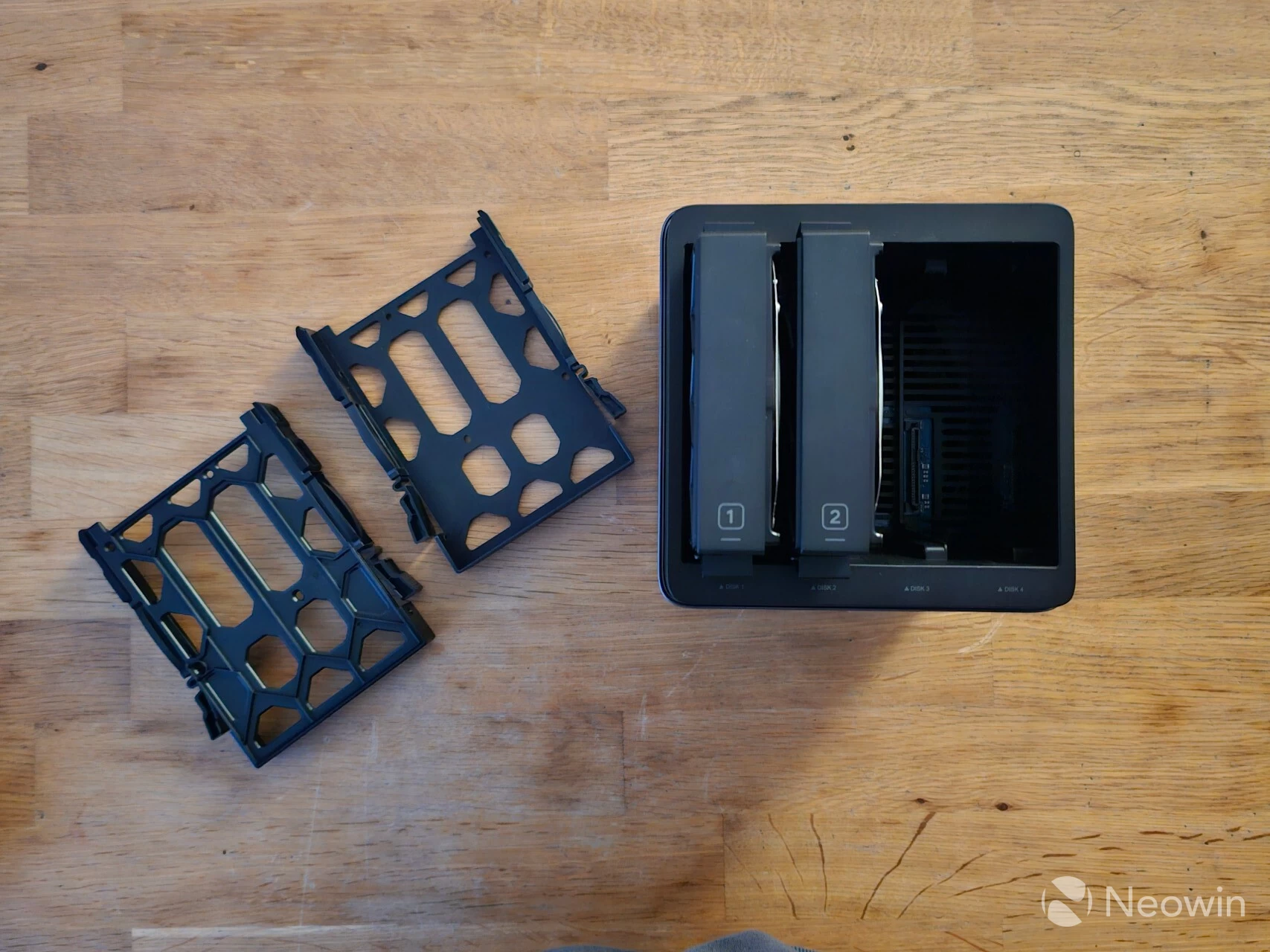
The drive bay sleds are basically a plastic mould into which the HDDs fit, and sadly, they are not toolless; you will need to make use of the screws that are included with the accessories and fasten those disks into the sled. Helpfully, these are also numbered, so you won"t lose track of which disk went in the left bay or in the right.
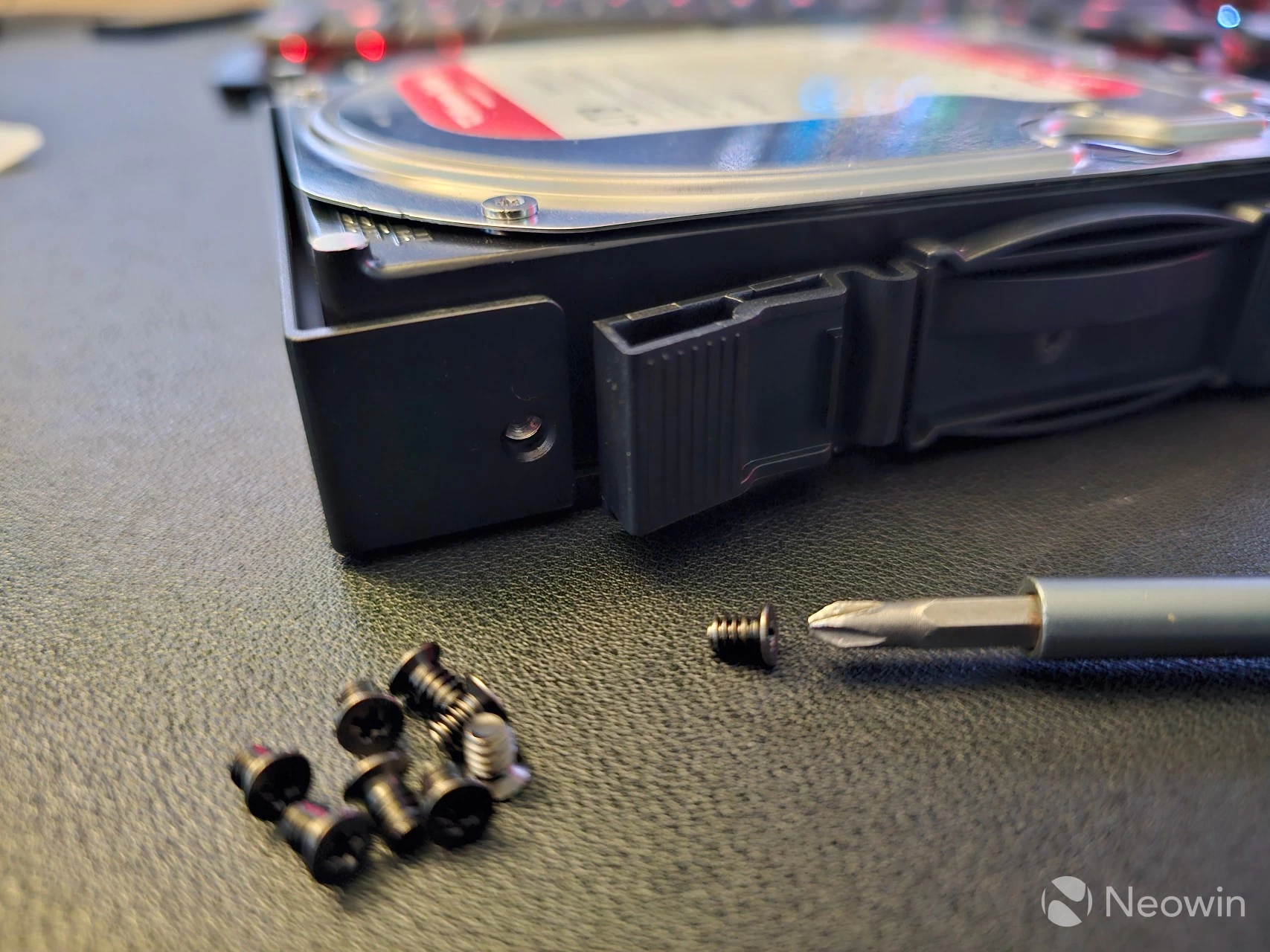
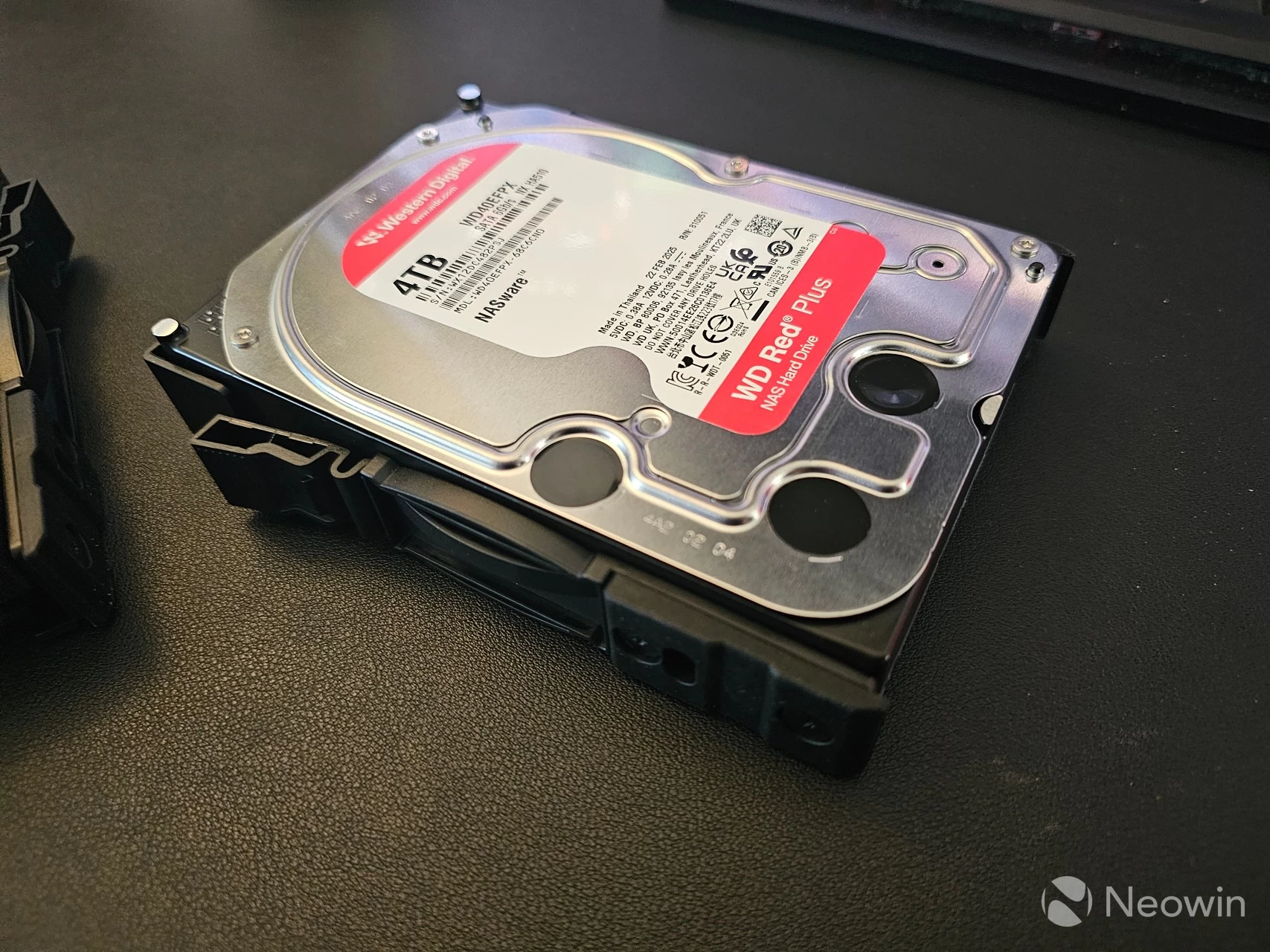
As you can see above, I made a close-up shot of the screws; there are six per HDD sled (three on each side), and you should use them all, considering the disks are top-loaded and prone to accidents if they are not fastened properly.
The fan is the intake
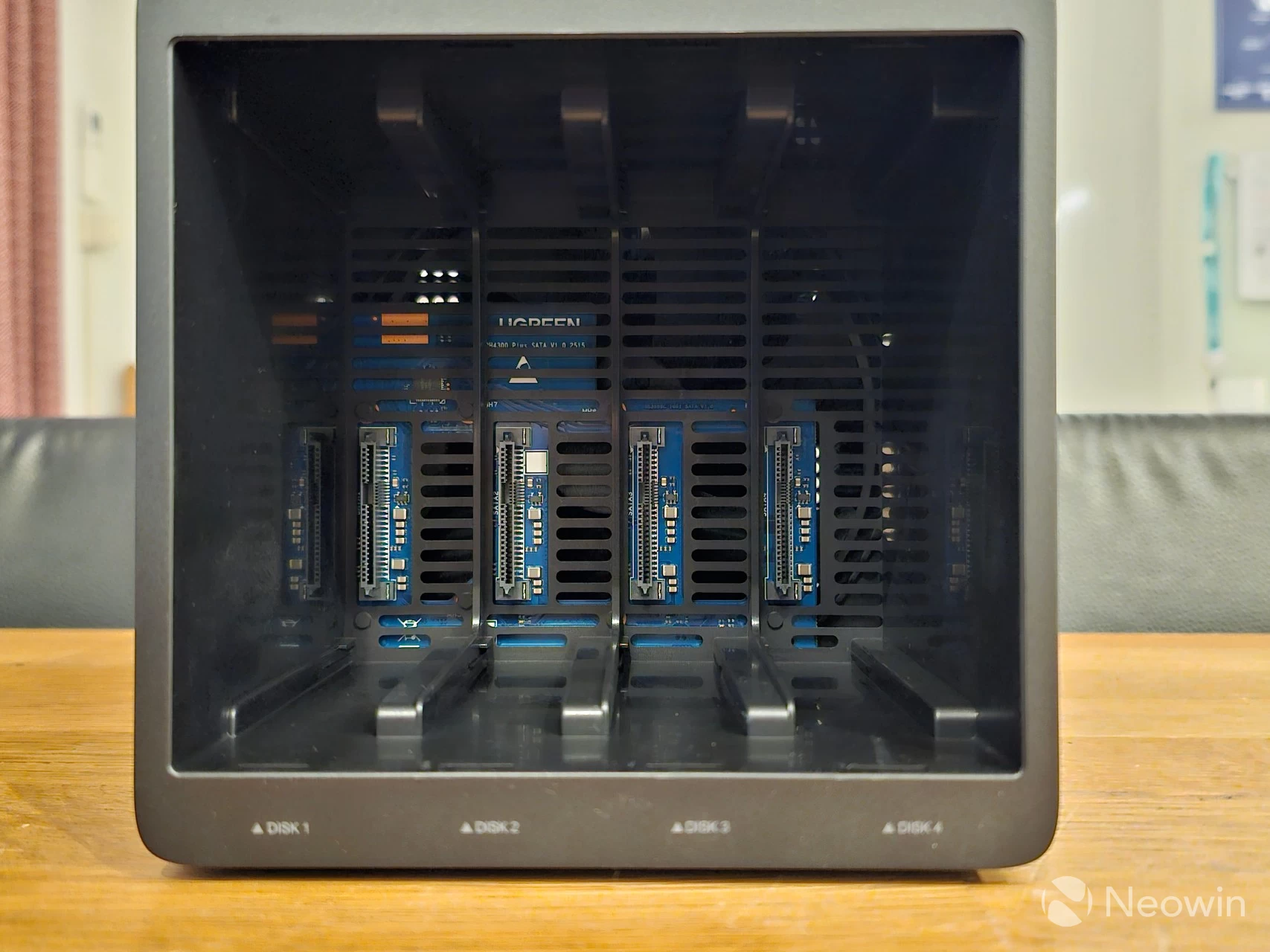
Here you can view the inside of the NASync DH4300 Plus. You can just about make out the direction of the fan blades, which pull in air over the HDDs in an intake configuration rather than as an exhaust.
Setup
BIOS (and another word of warning)
Getting to the BIOS is not possible in the NASync DH4300 Plus. I tried CTRL + F12, F12 and DEL combinations, and nothing. A quick search online shows that the Bootloader is static and cannot be changed:
"When a Rockchip MCU initially boots it will load the primary program loader, known as PPL or BootRom, from its internal EPROM. This is static code and cannot be changed."
So I imagine it would be quite difficult to switch over to something else. This is a piece of hardware designed to do one thing specifically, and that is to run UGOS.
My contact confirmed that it is not possible or supported to change the OS on the DH series (DH4300 Plus and DH4300 Plus). My contact at UGREEN is supplying the following statement:
“The DH series adopts the ARM architecture and utilizes a bootloader, thus it does not come with a traditional BIOS. Unlike the DXP series, it is strongly discouraged to attempt replacing the original operating system. Currently, due to the unique nature of the ARM architecture, there is no available UGOS Pro image for this operation. The process requires rk-tools, and you will need to send the device back to us for image flashing."
Initial Setup
Aside from the web address https://find.ugnas.com, which you can use to find your UGREEN NAS in any browser, there"s also an app for that you can use for Windows, Mac, Apple TVOS, Android and iOS, which we"ll get into a bit later.
| UGREEN NAS Finder | Login screen |
|---|---|
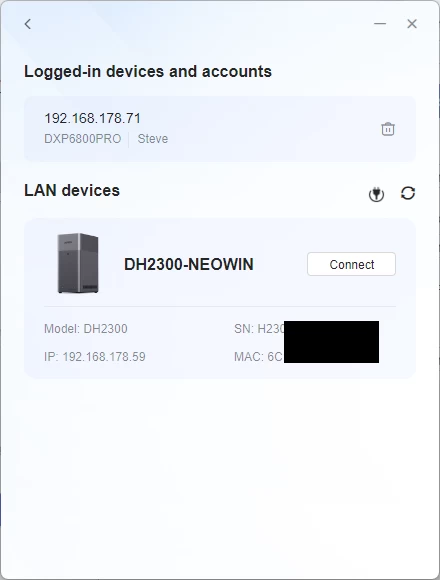
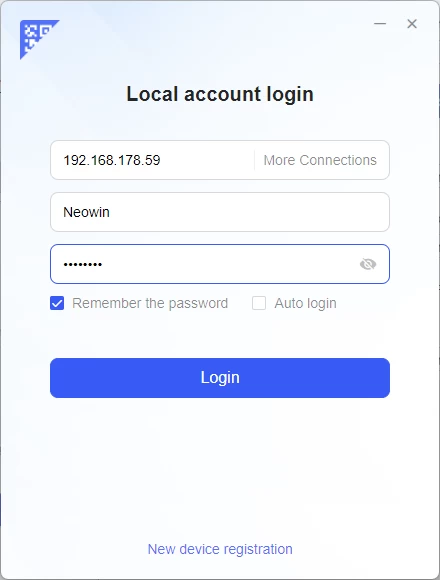
The above two images are from the Windows app that, upon opening, scans for any UGREEN NAS devices on the network, and then either lets you log in to an already initialized system or set one up.
I did the setup process through the UGREEN NAS app, which is pretty straightforward and through a wizard, which you can view in full below
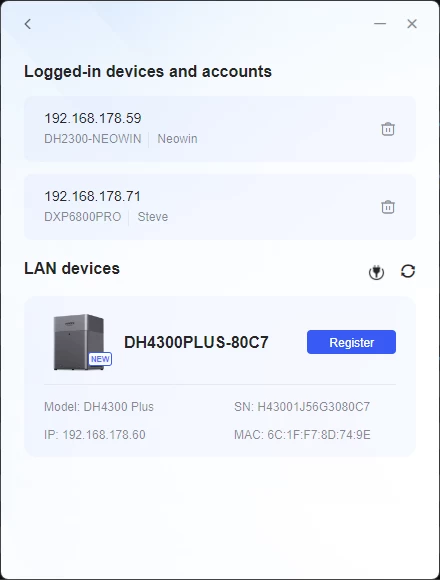
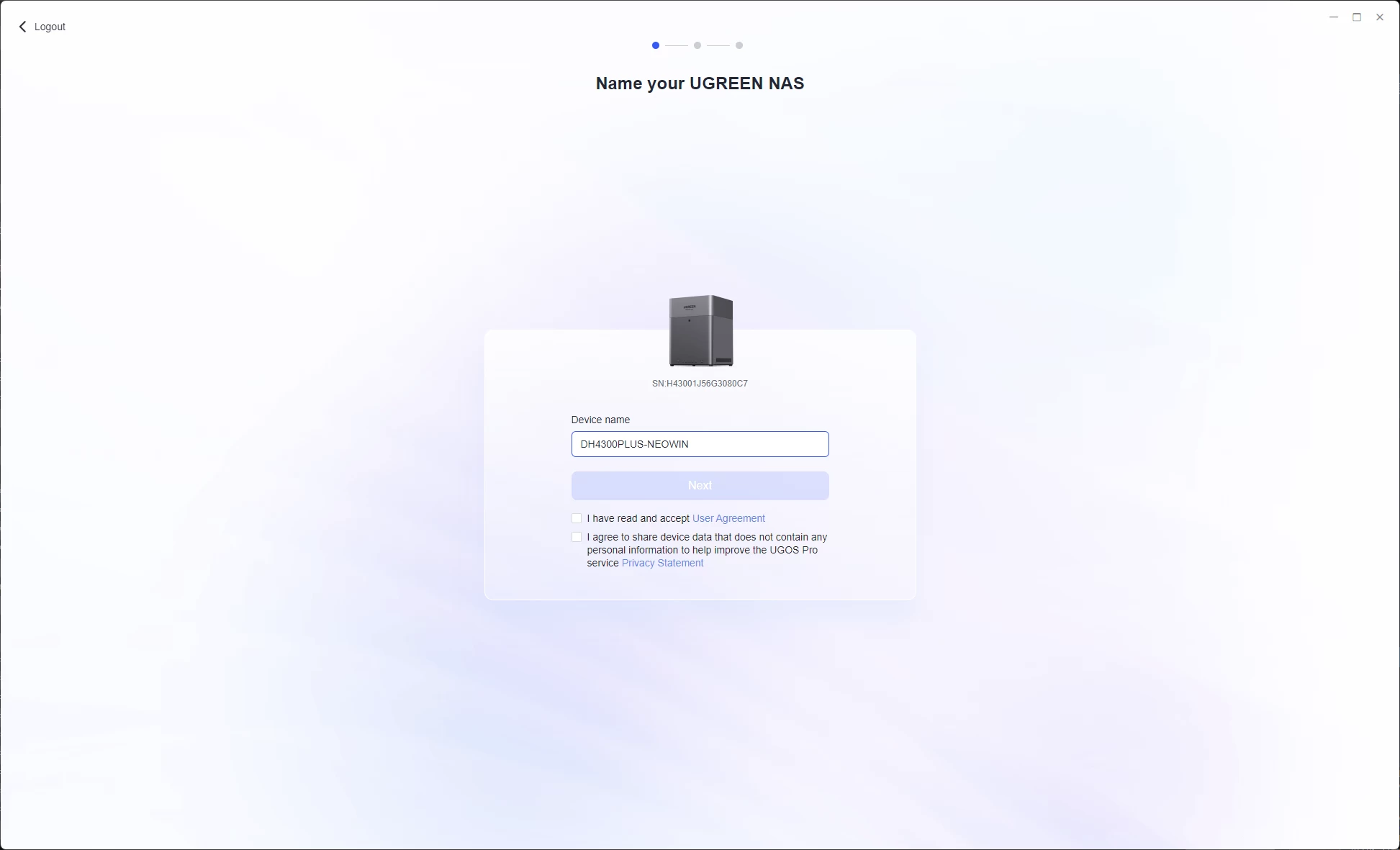
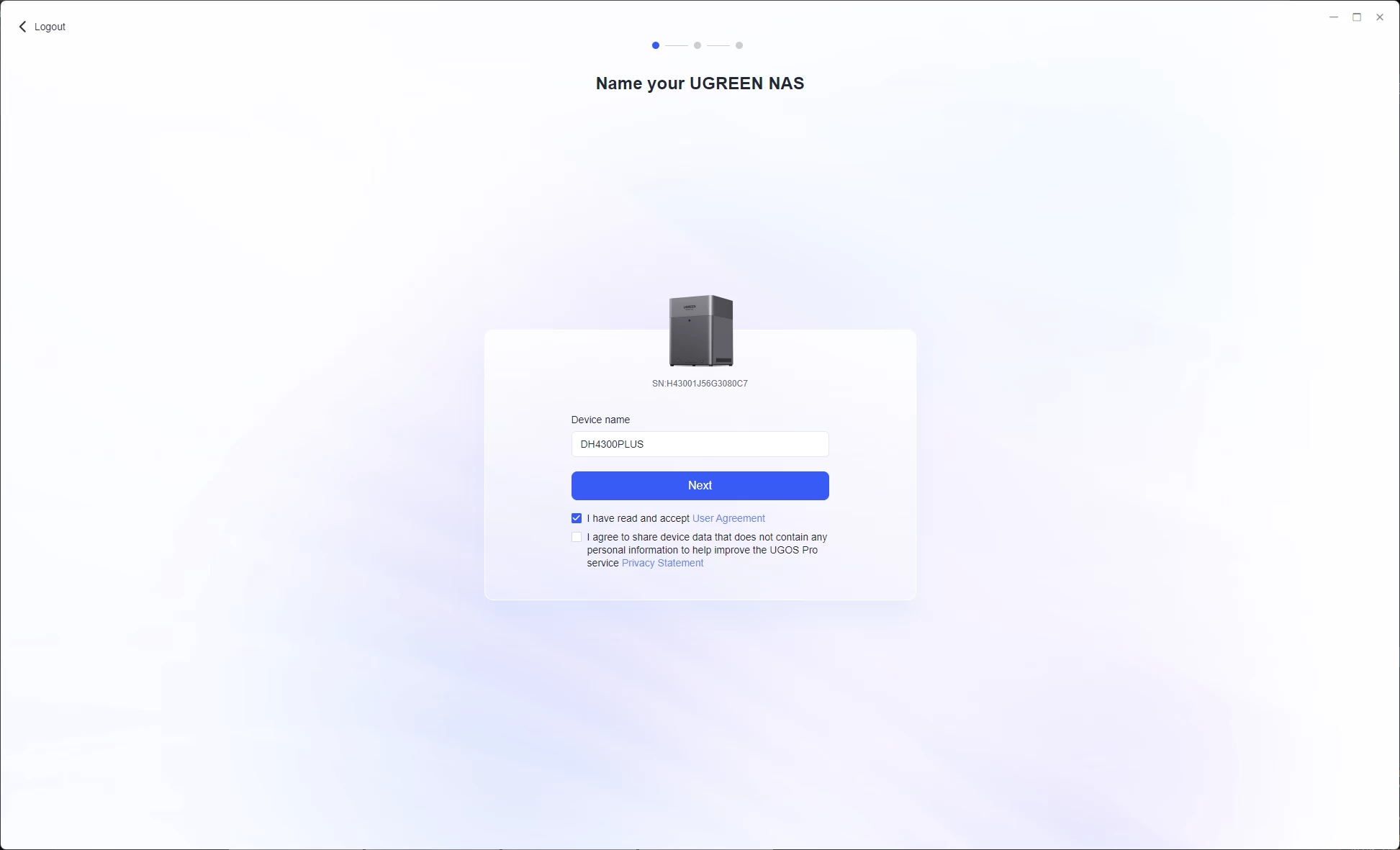
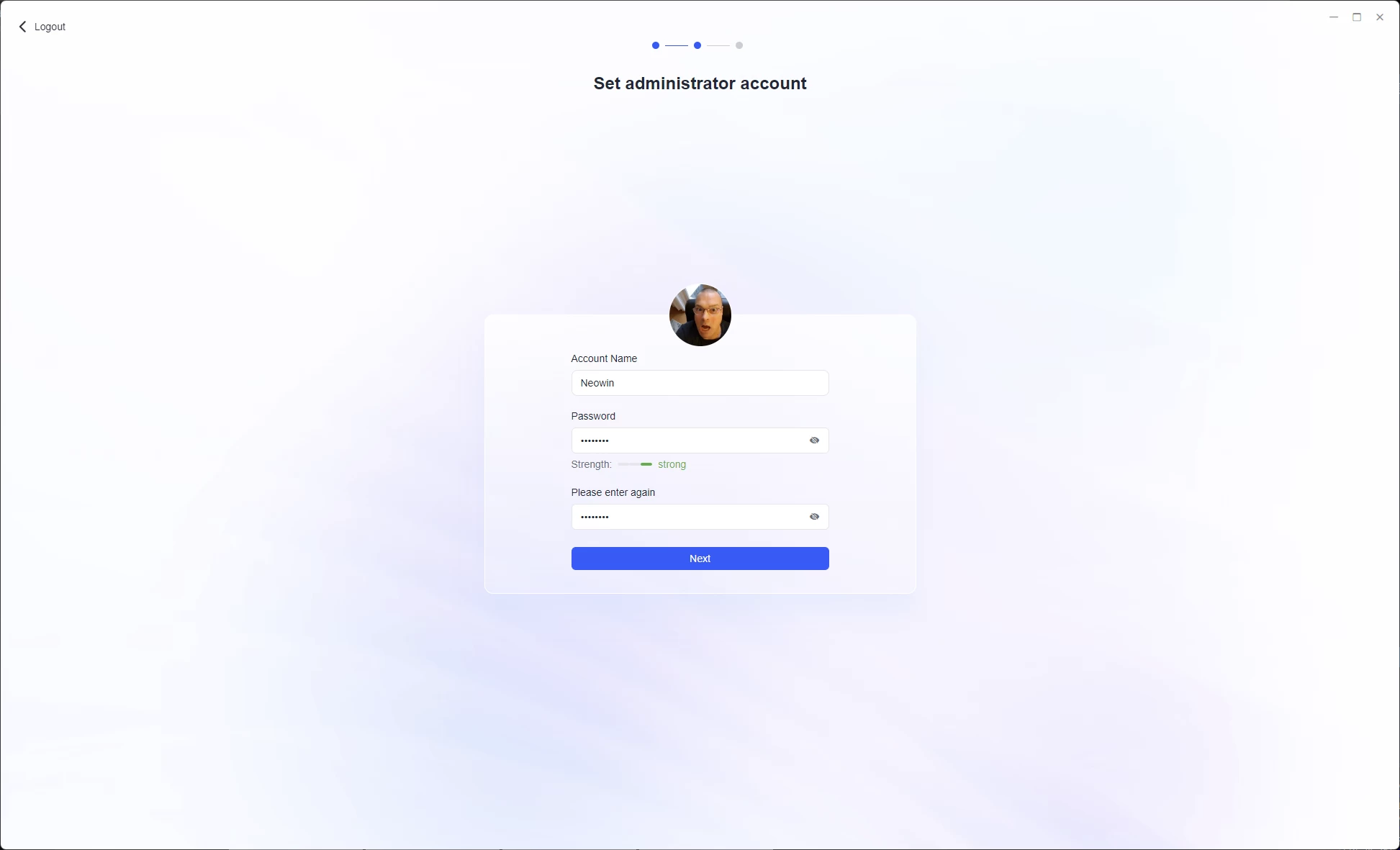
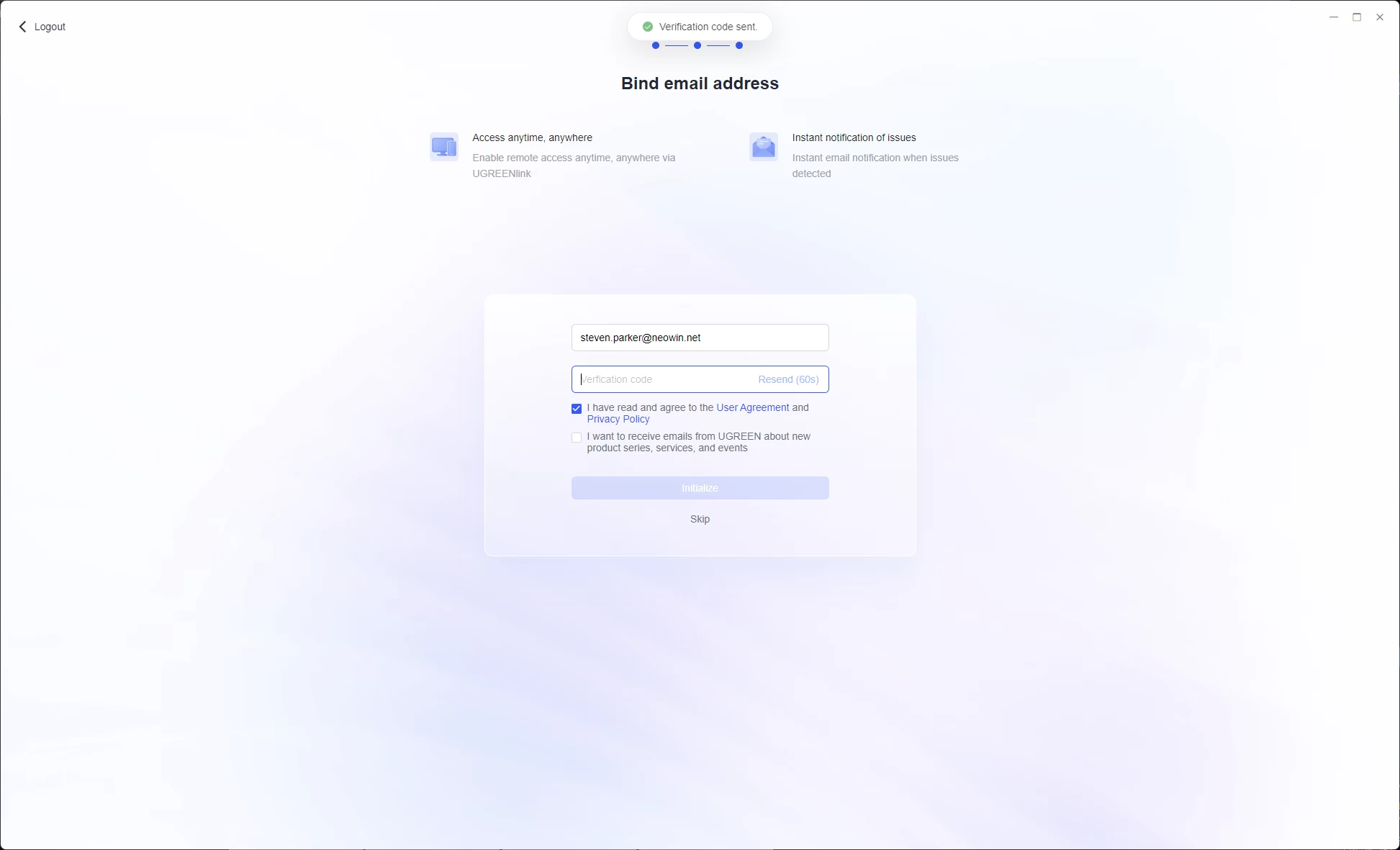
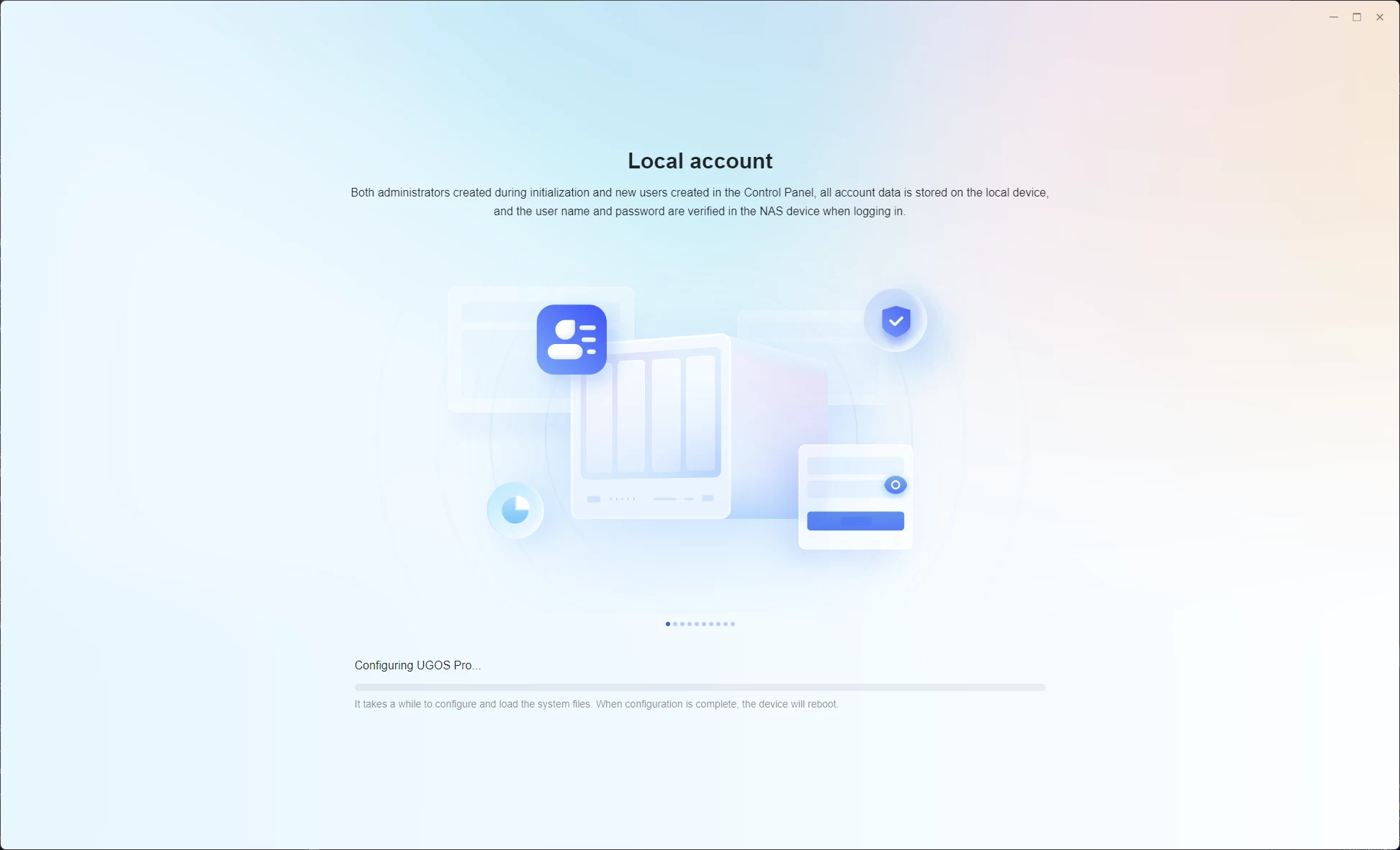
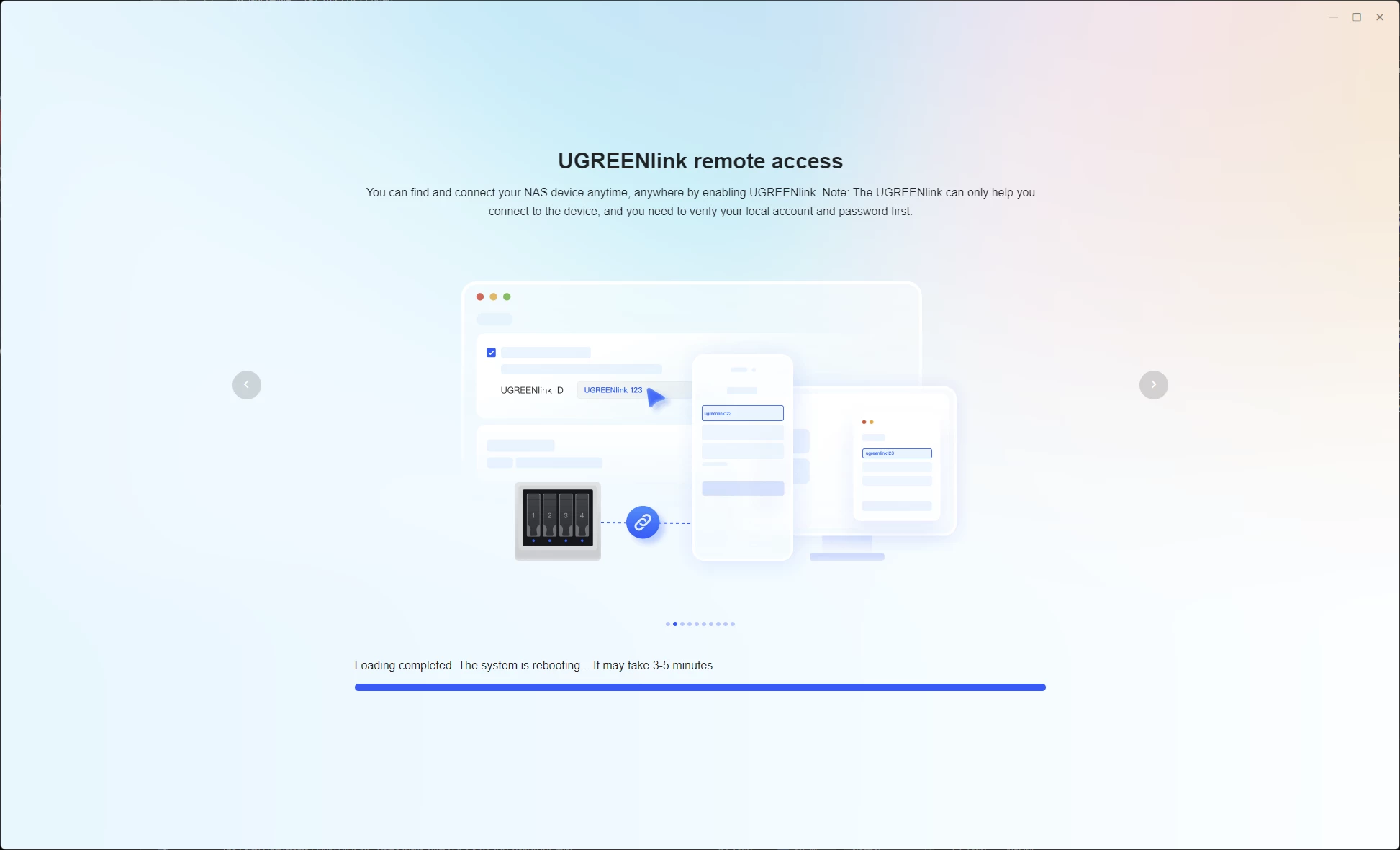
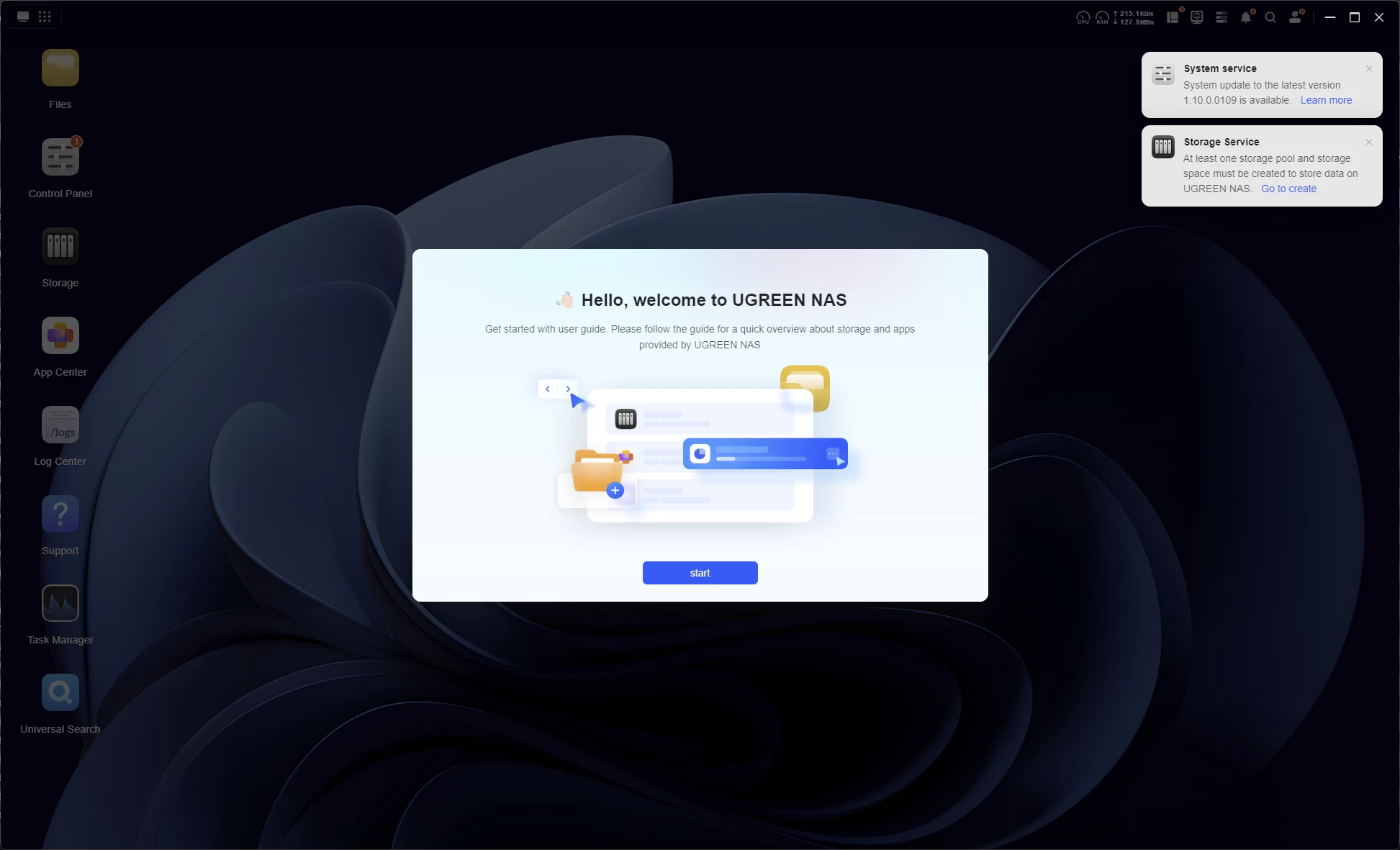
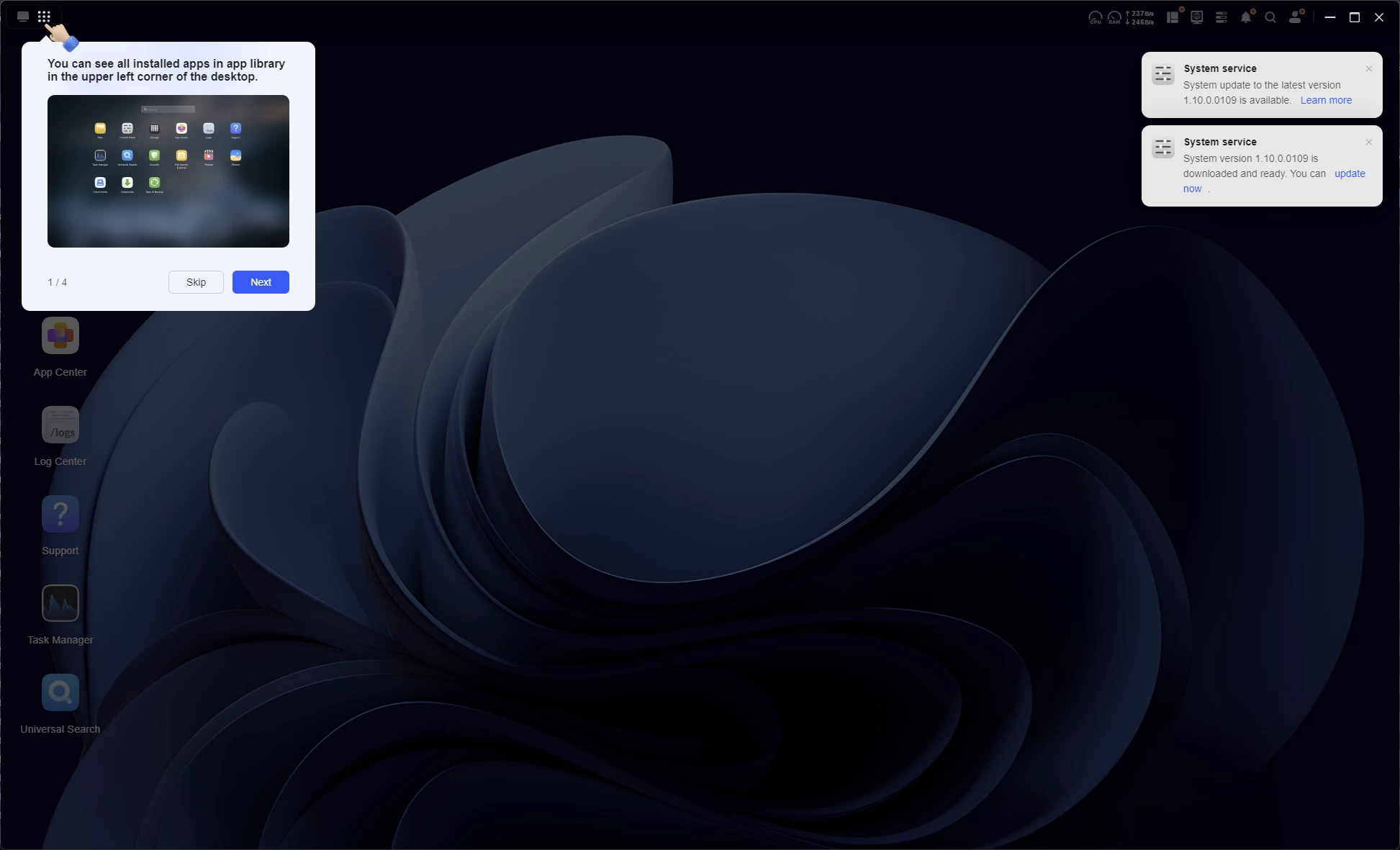
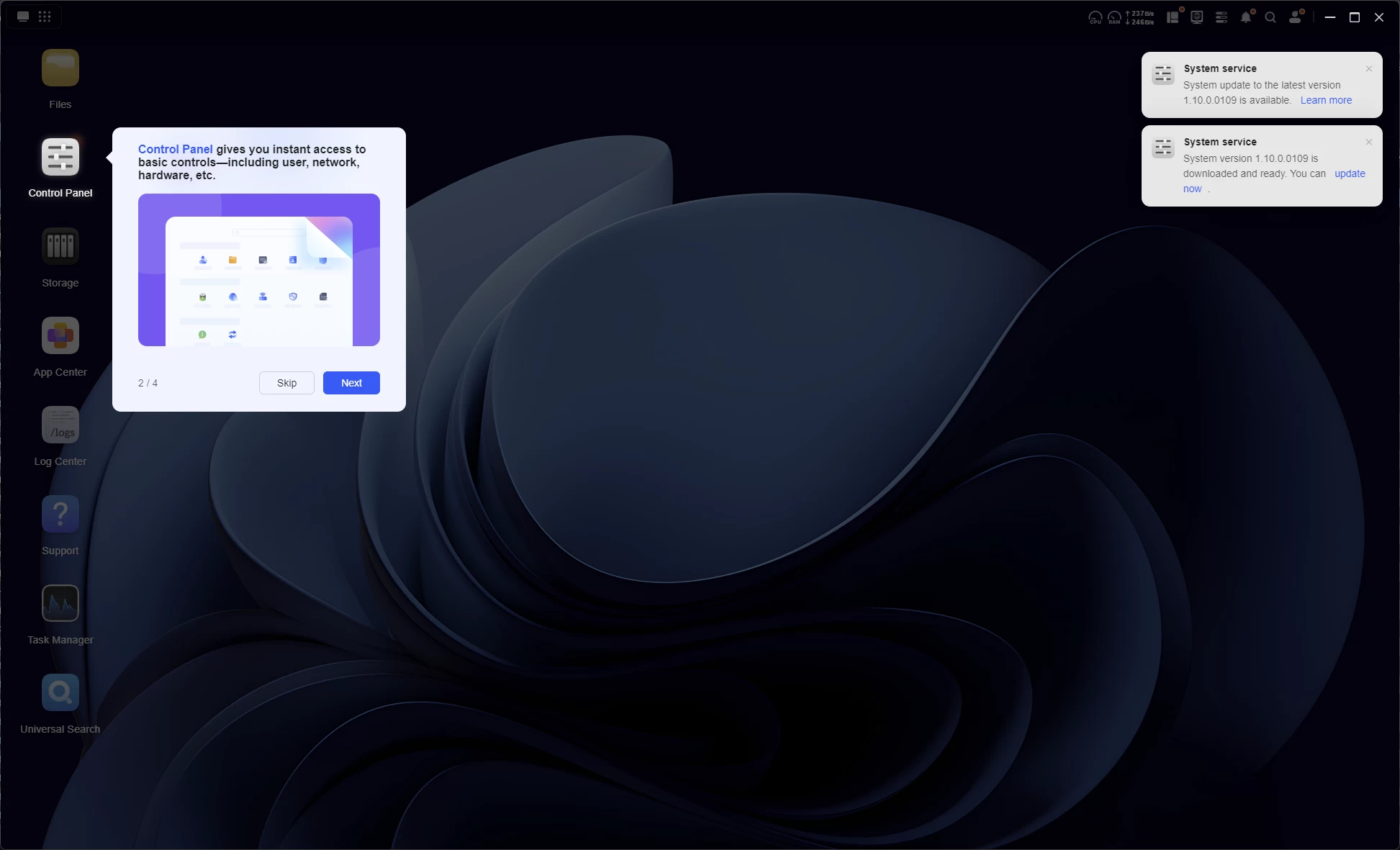
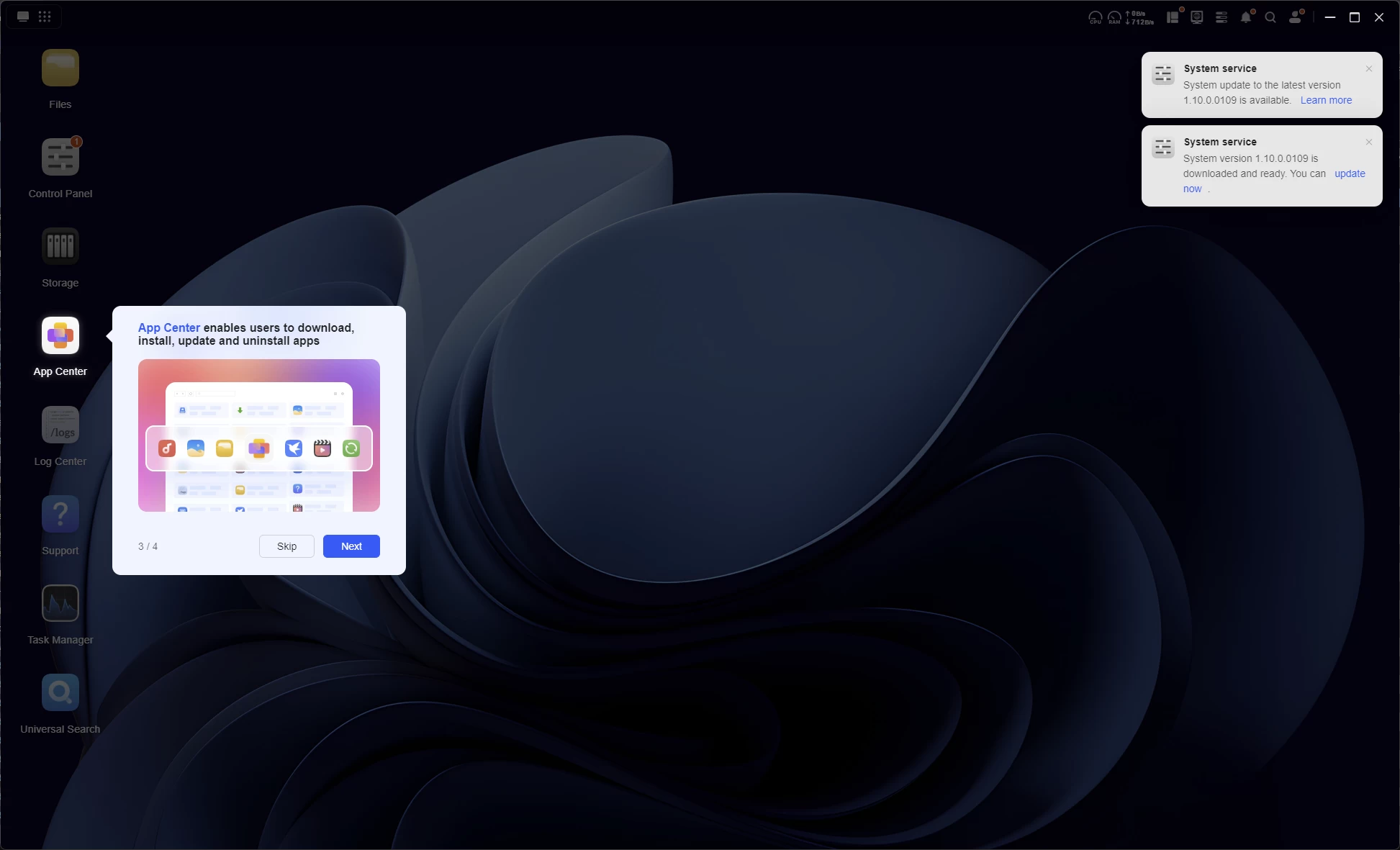
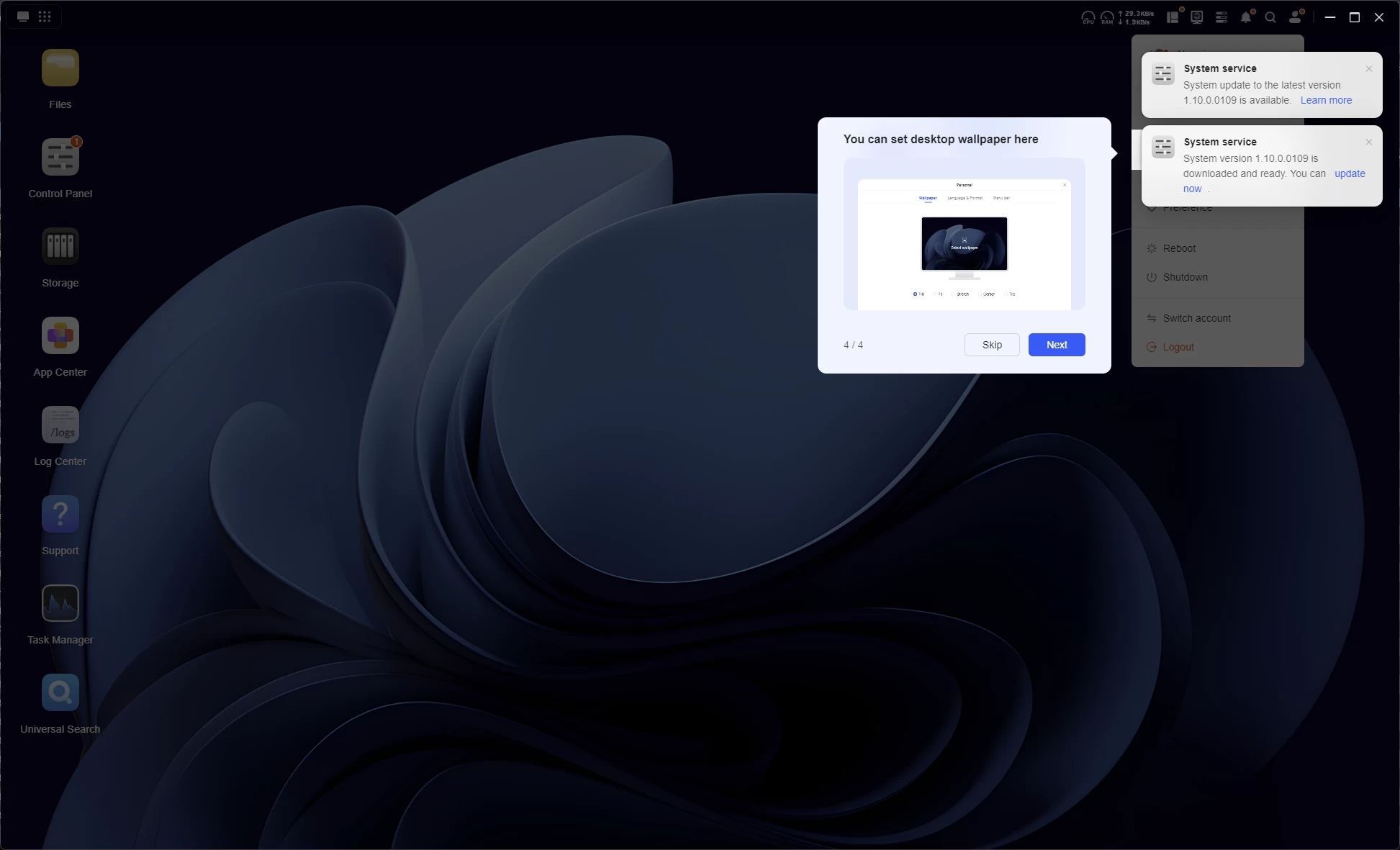
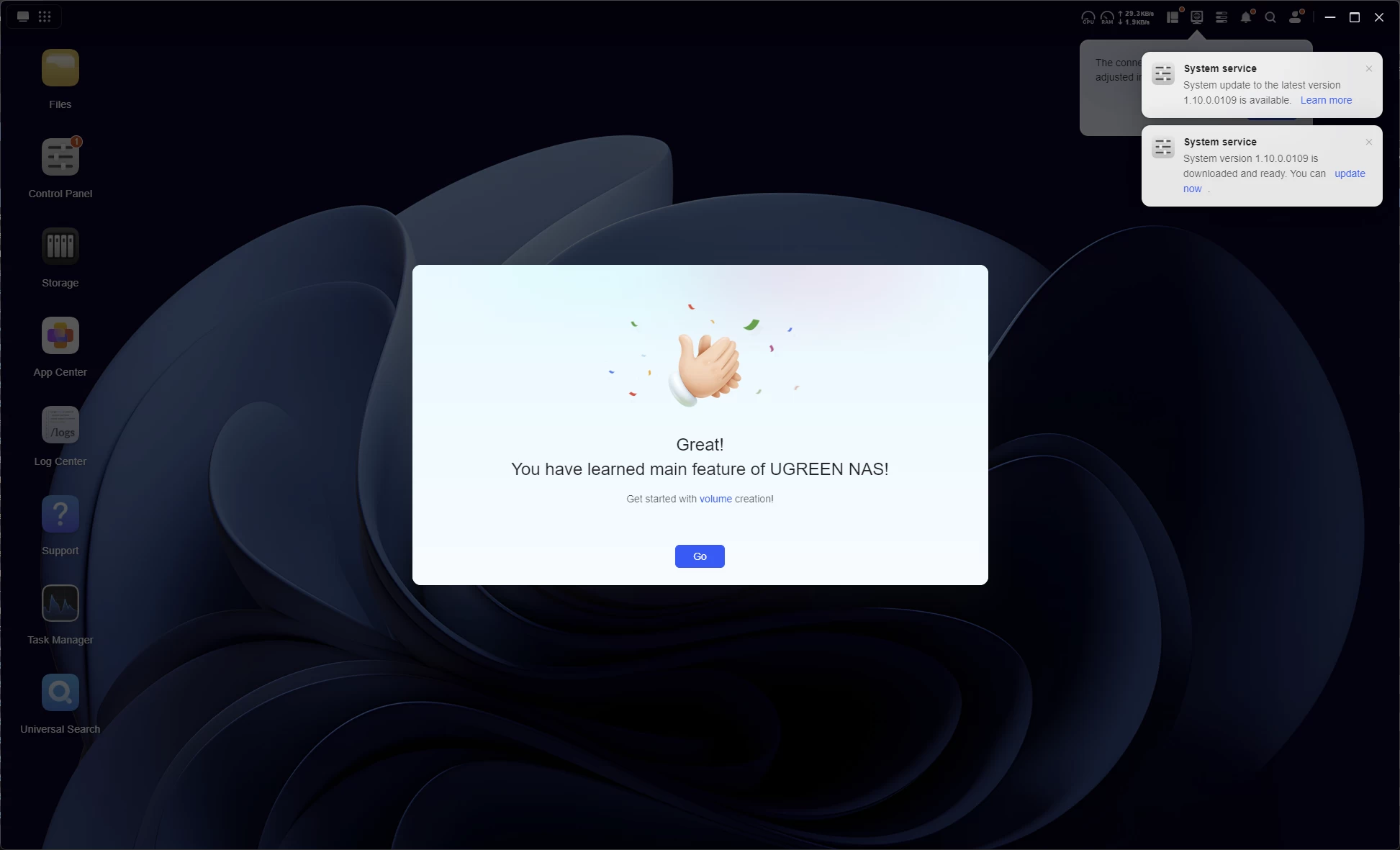
I have no complaints about the setup; everything worked, and UGOS does not decide to throw everything into a Storage Pool during this procedure, which I personally find incredibly important. It is a step you must take once the initial setup has completed (good stuff!) This means you will be able to determine exactly which drives will make up the Storage Pool(s).
Although it was not apparent from the teardown, the NASync DH4300 Plus includes a 32 GB Flash drive, which is where UGOS lives.
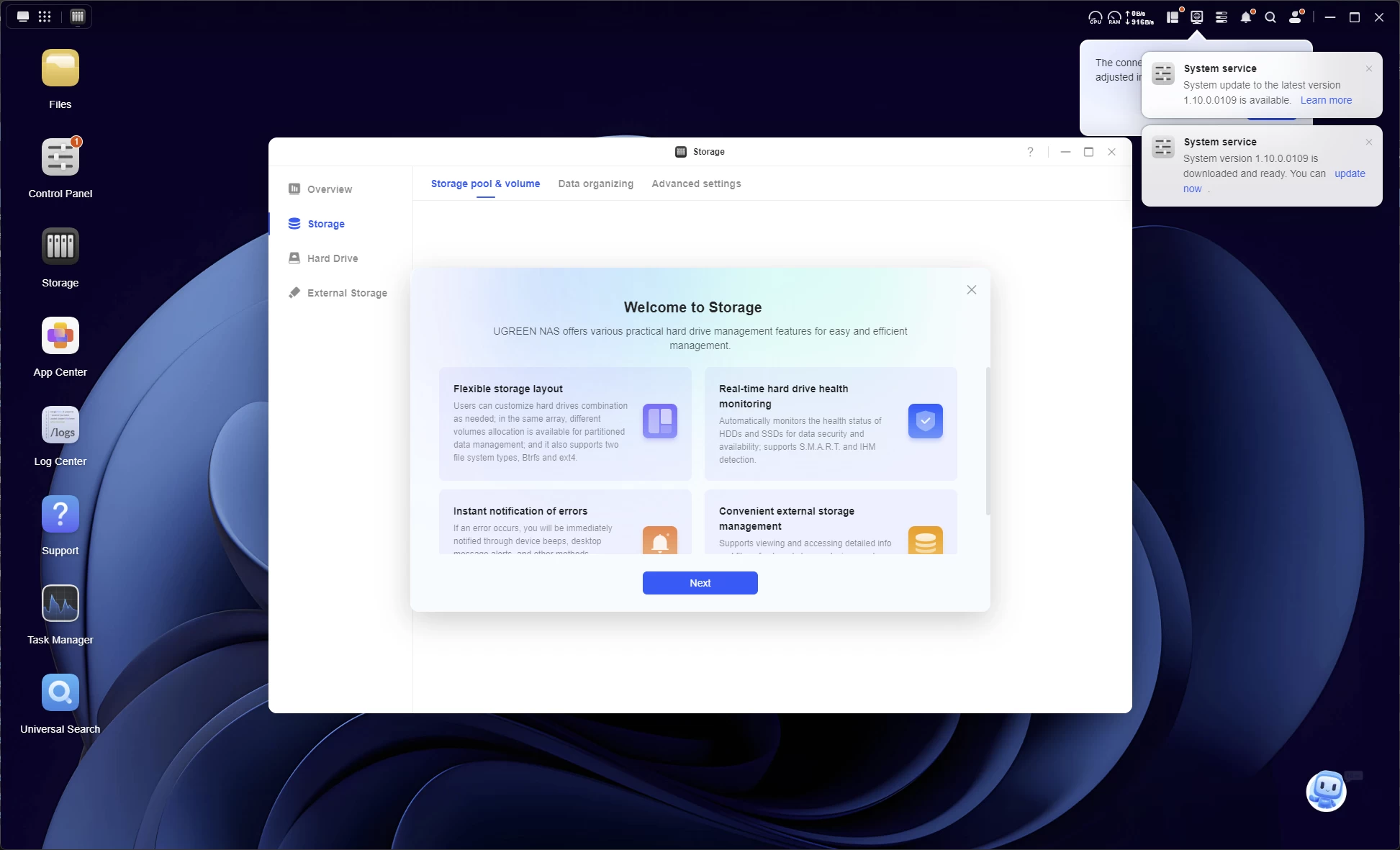
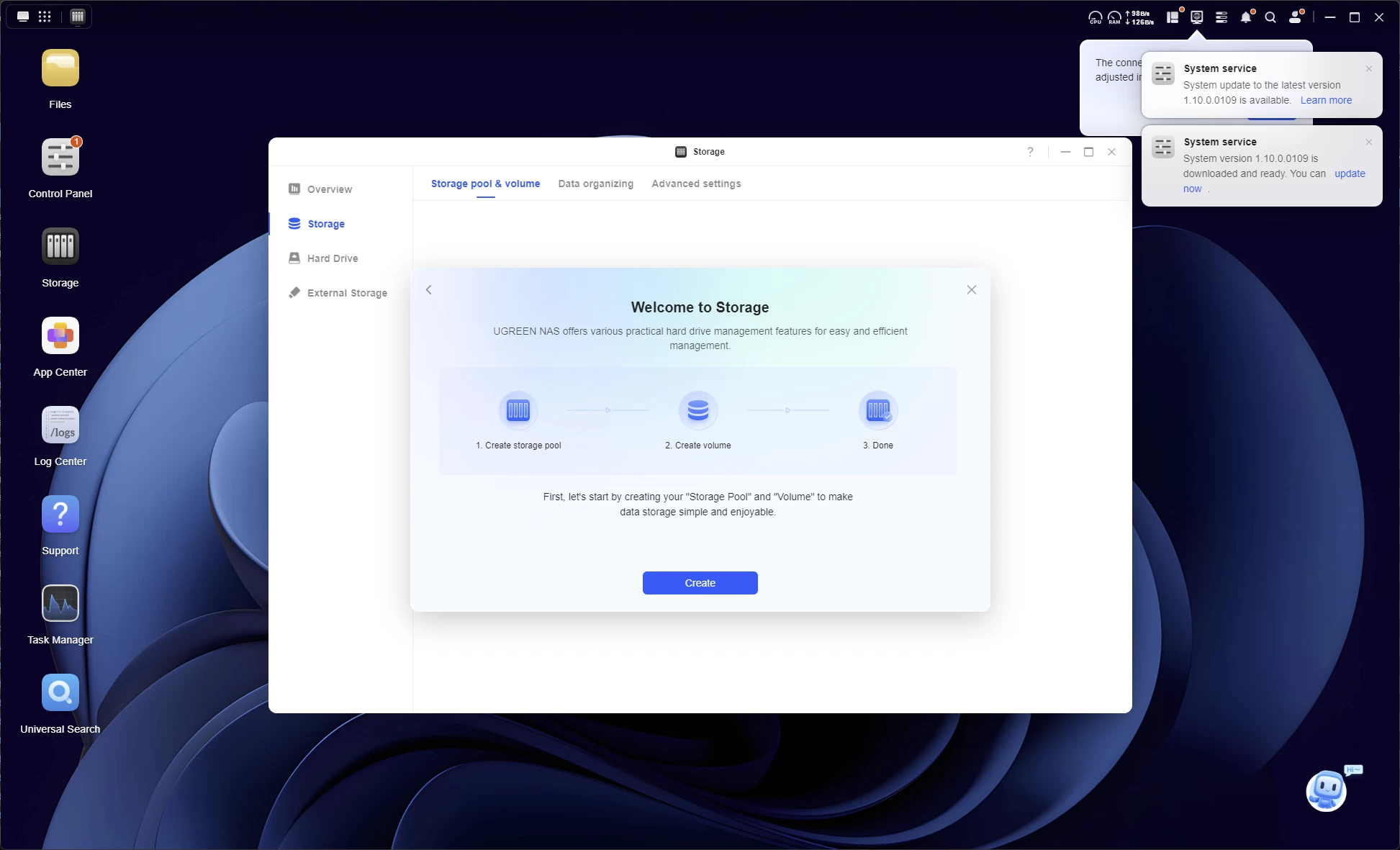
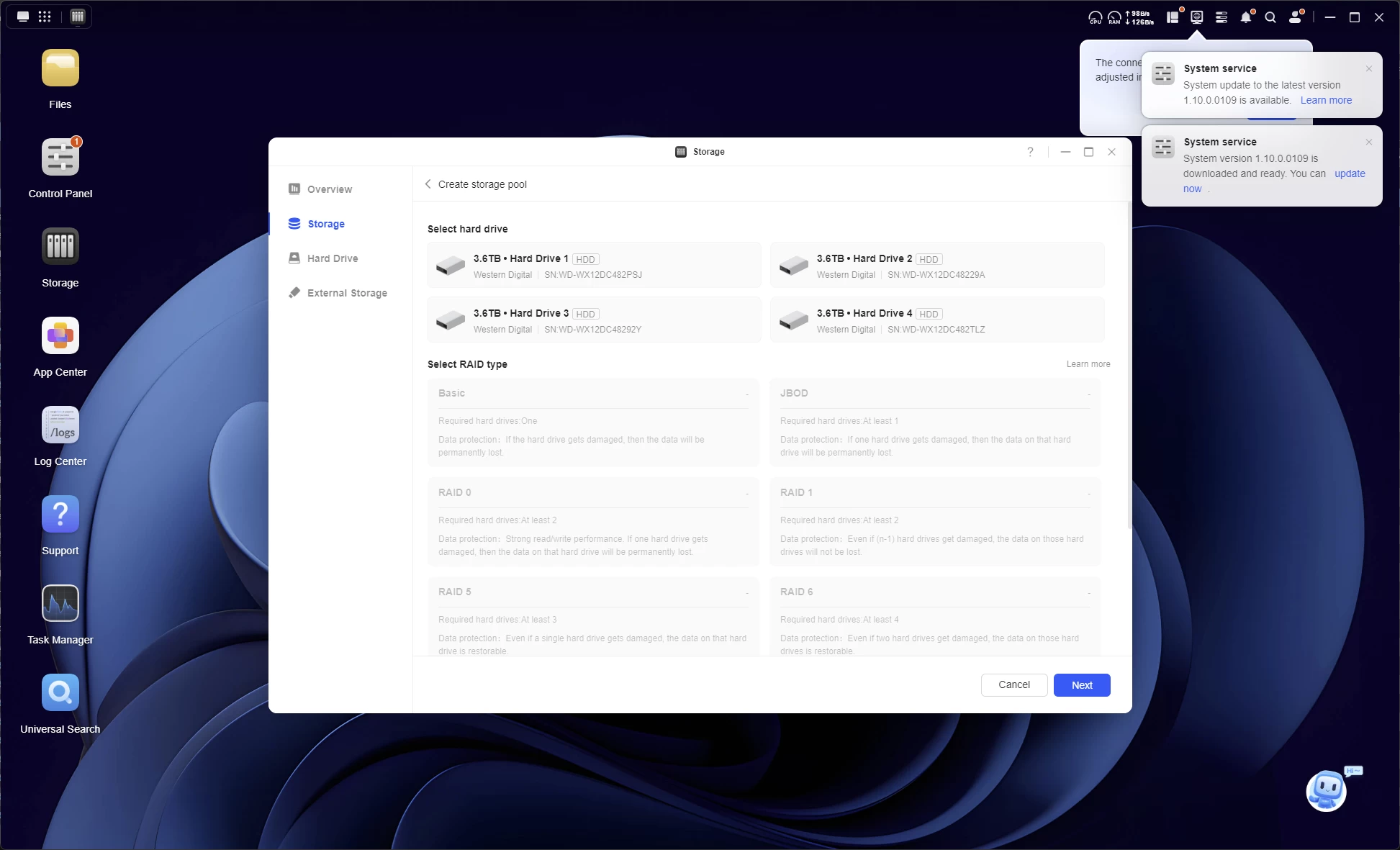
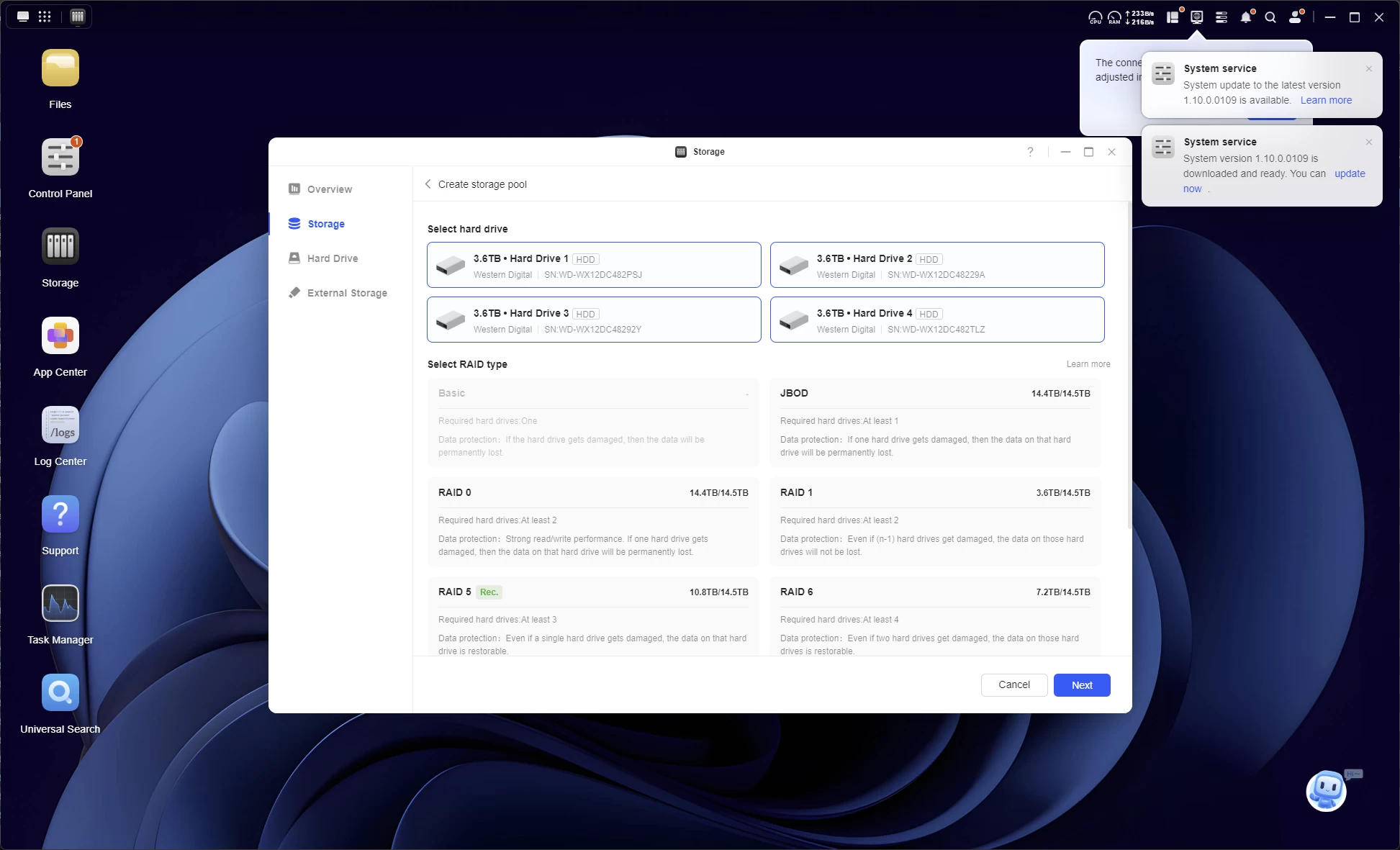
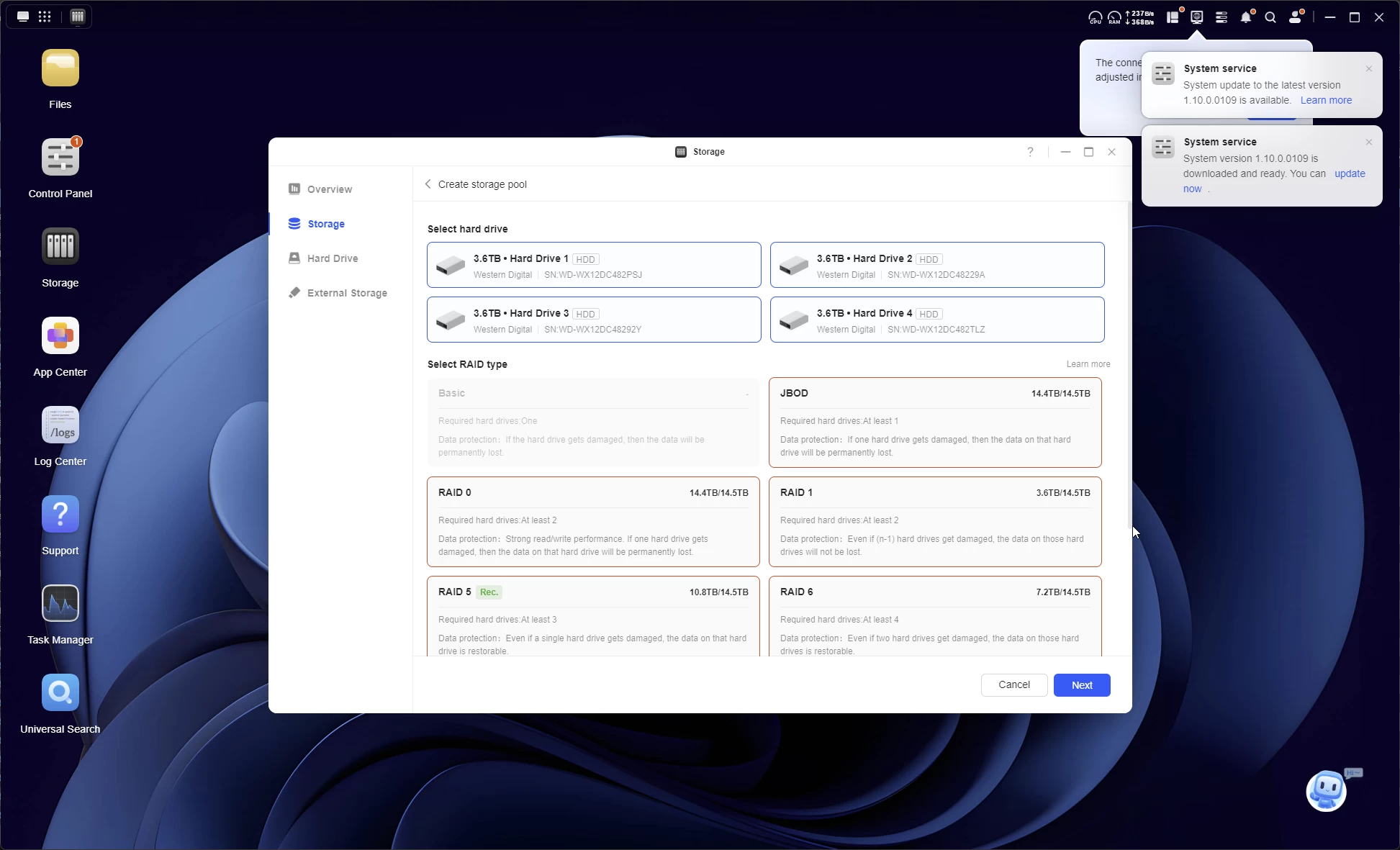
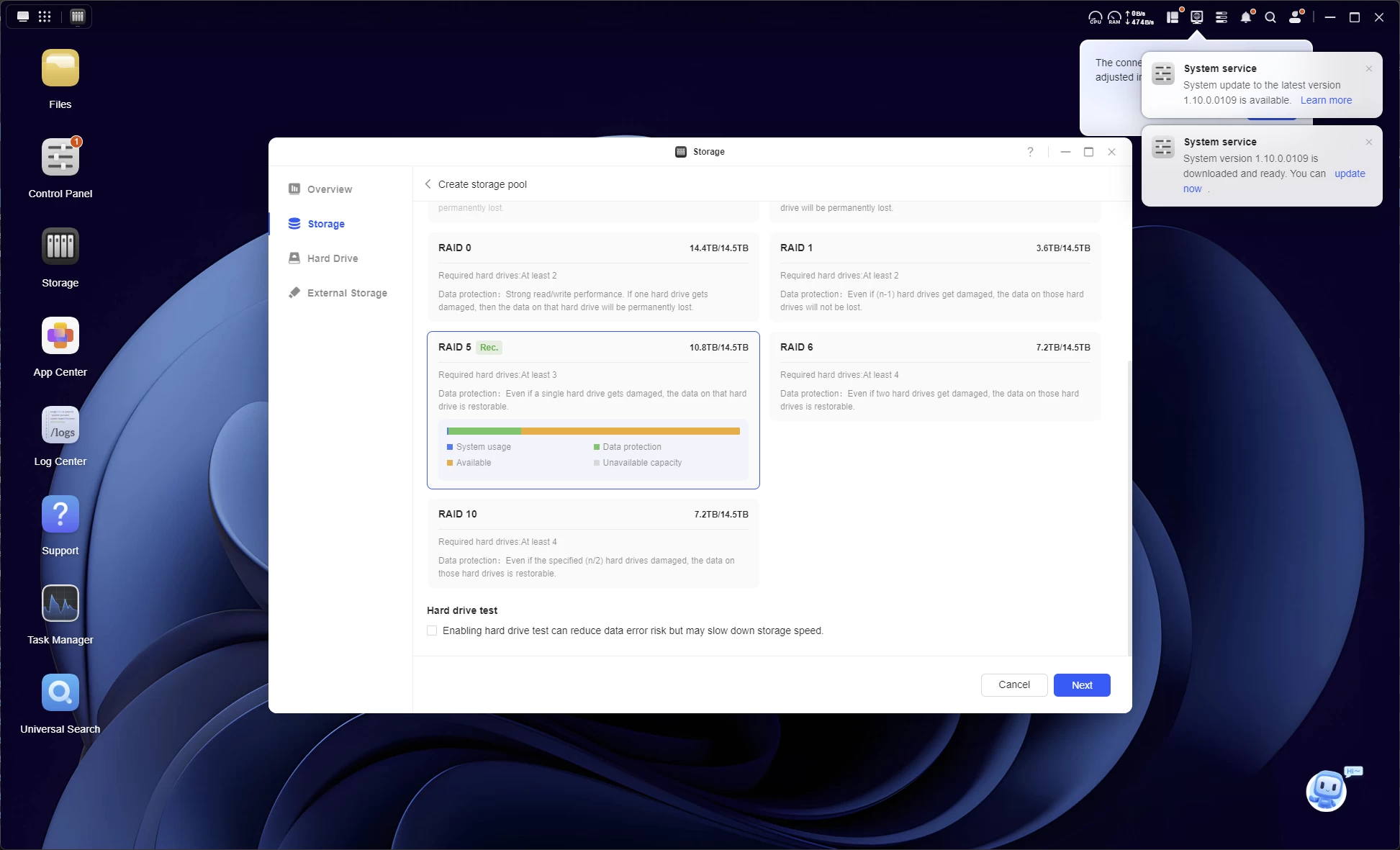
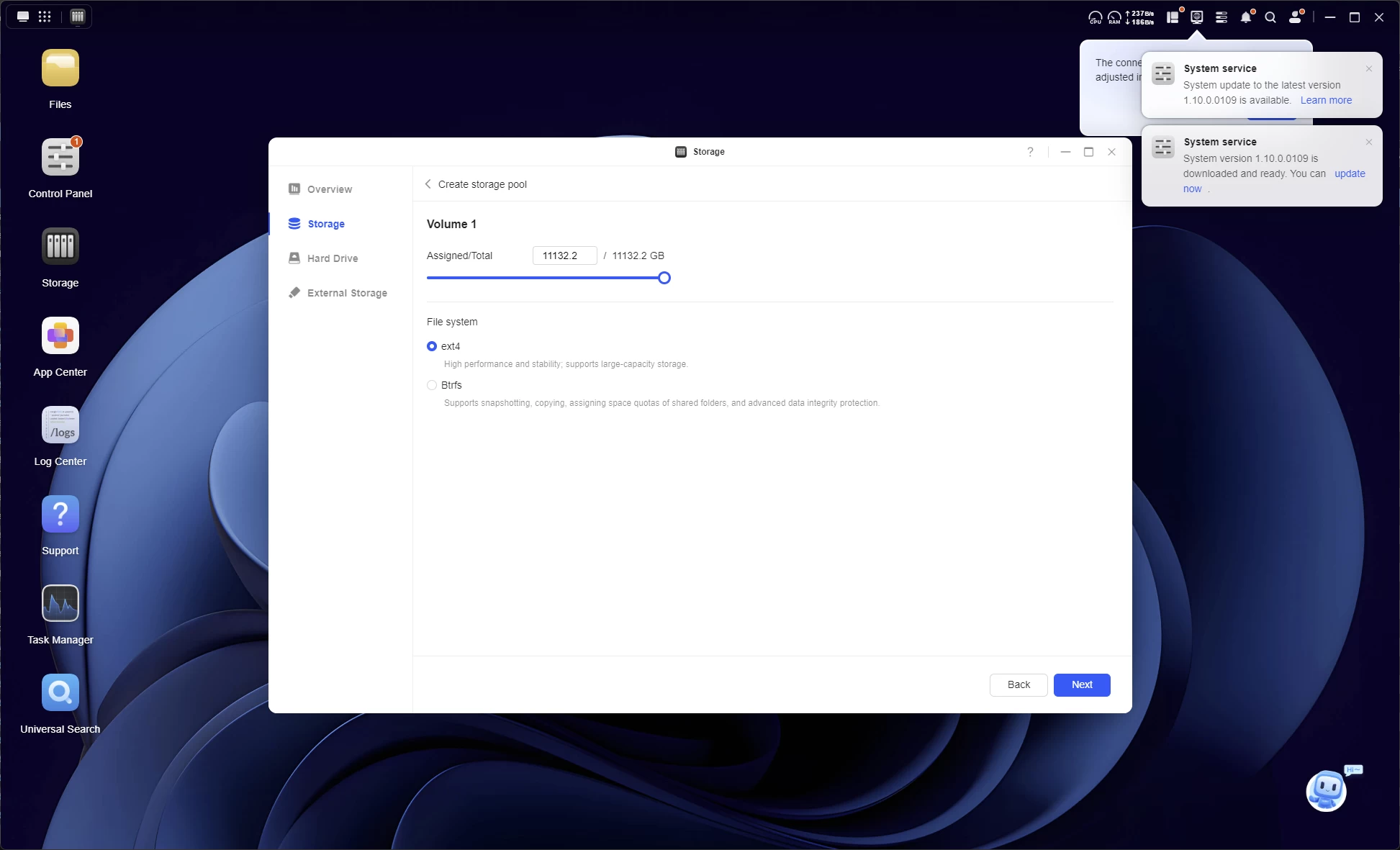
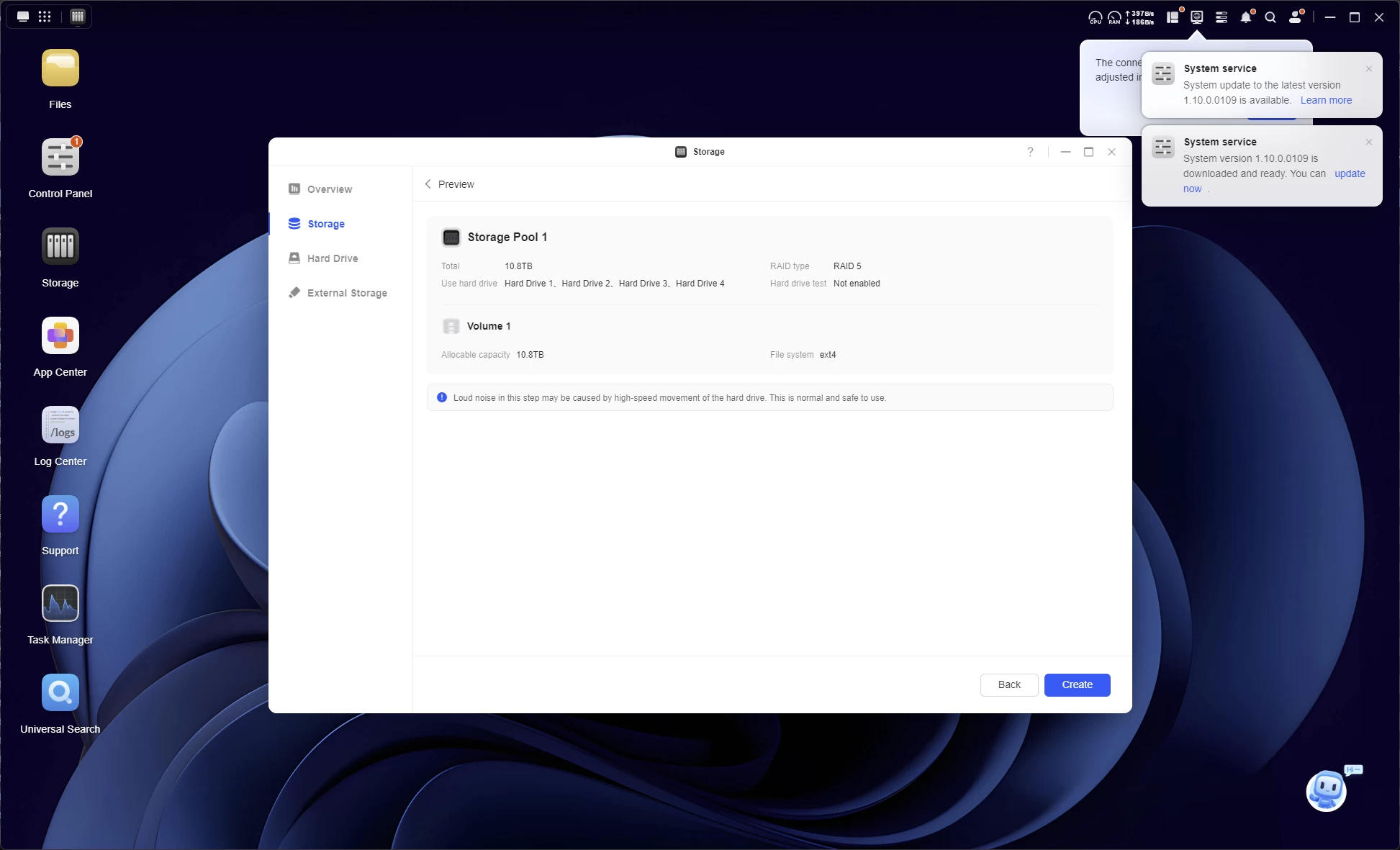
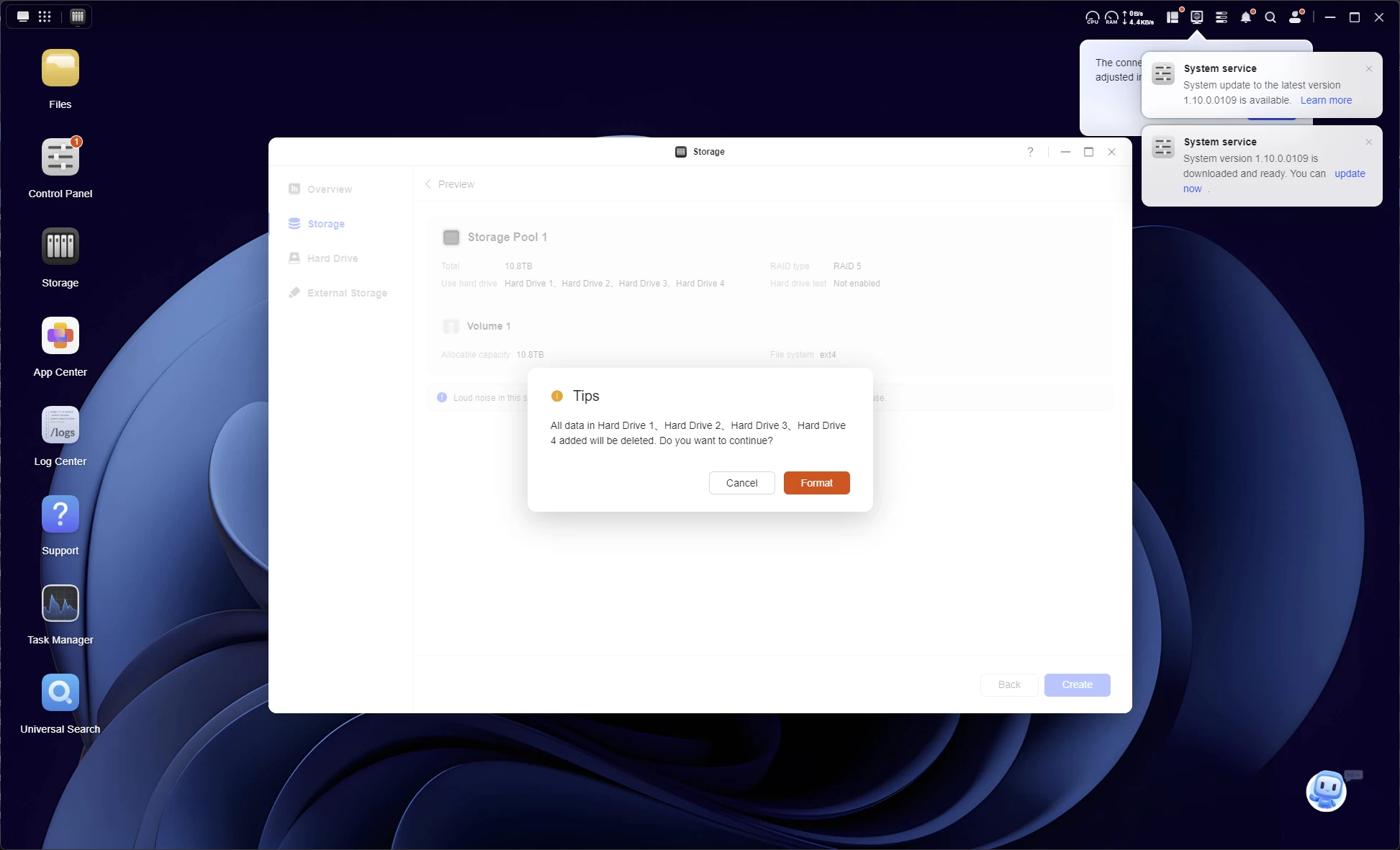
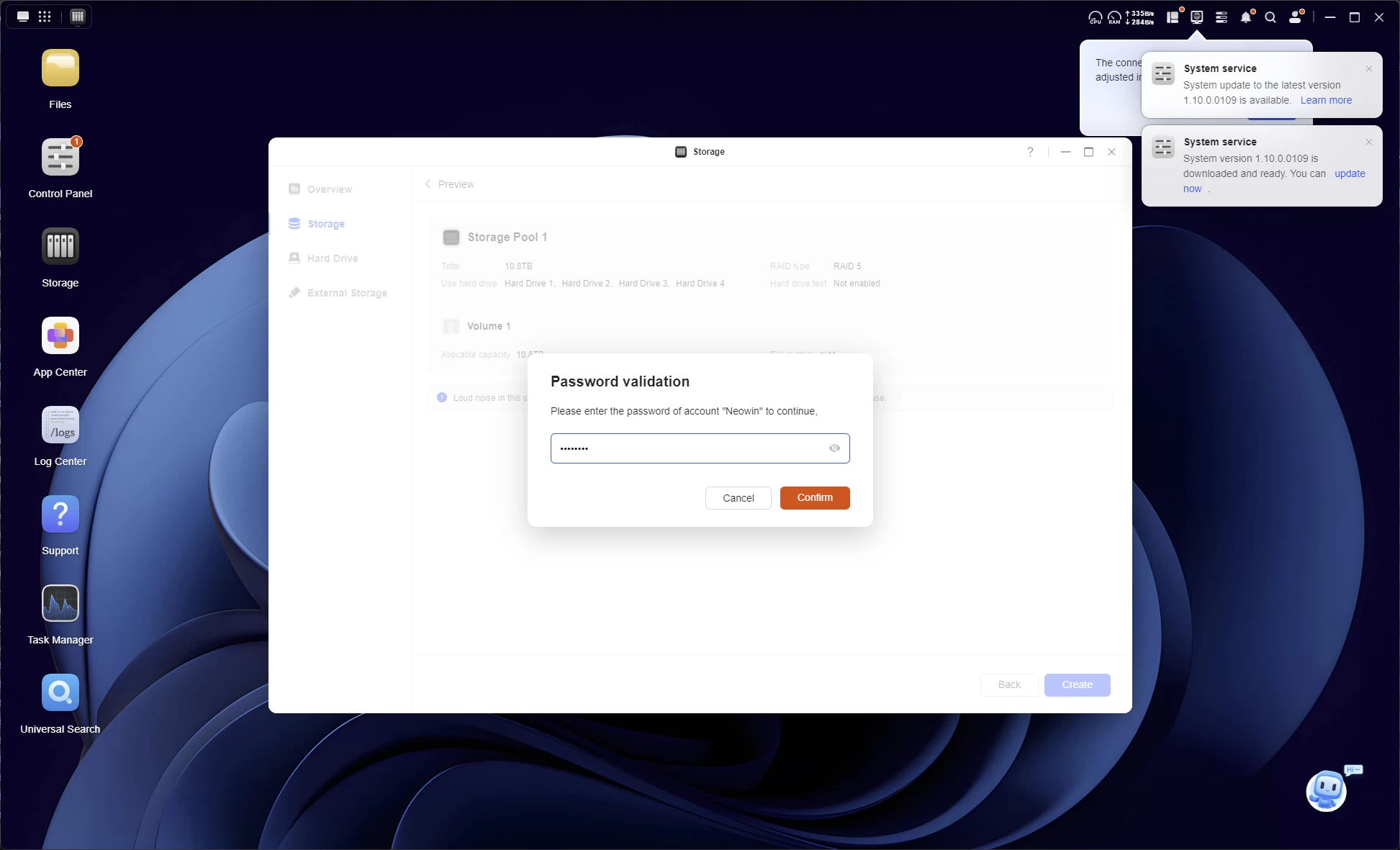
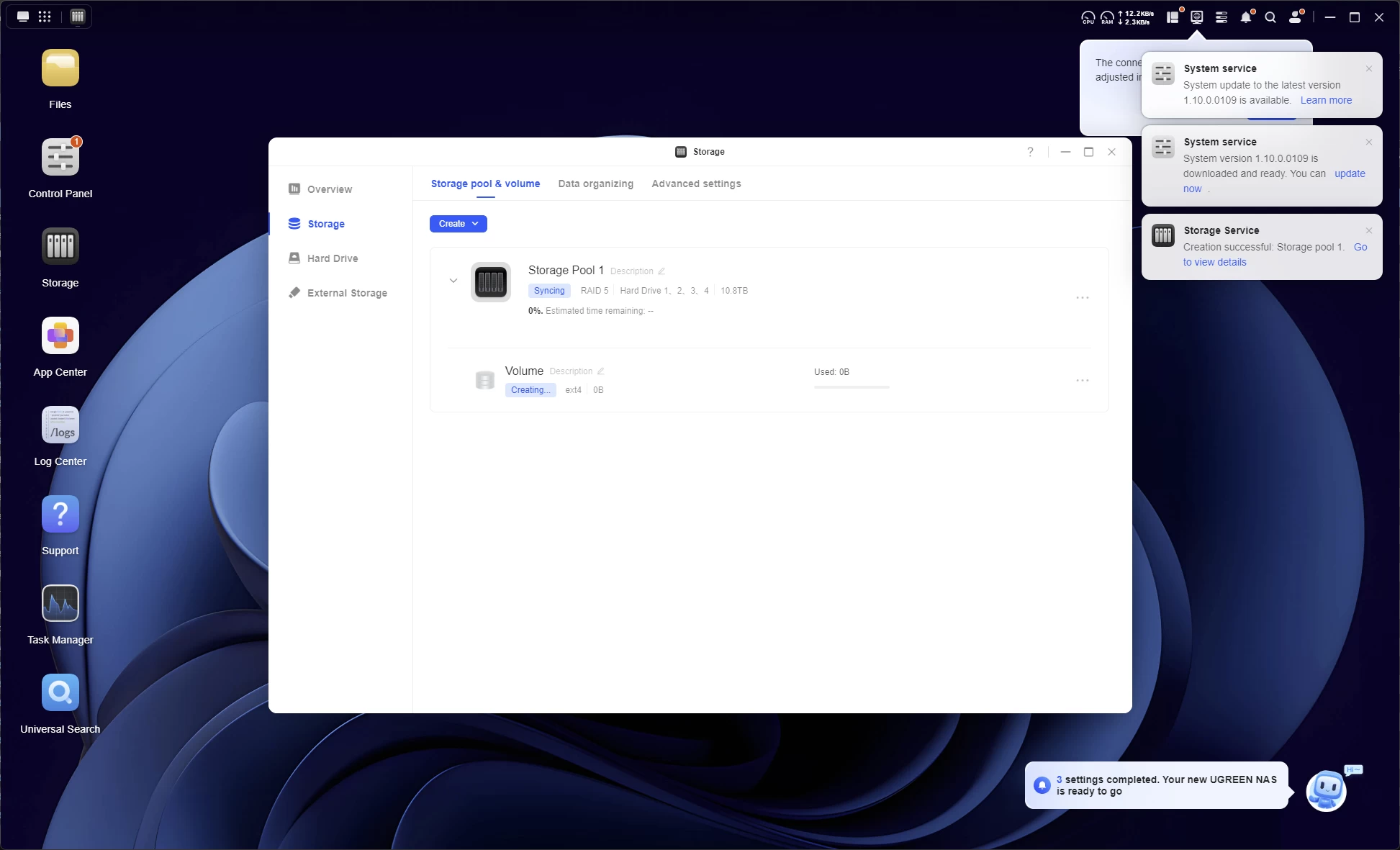
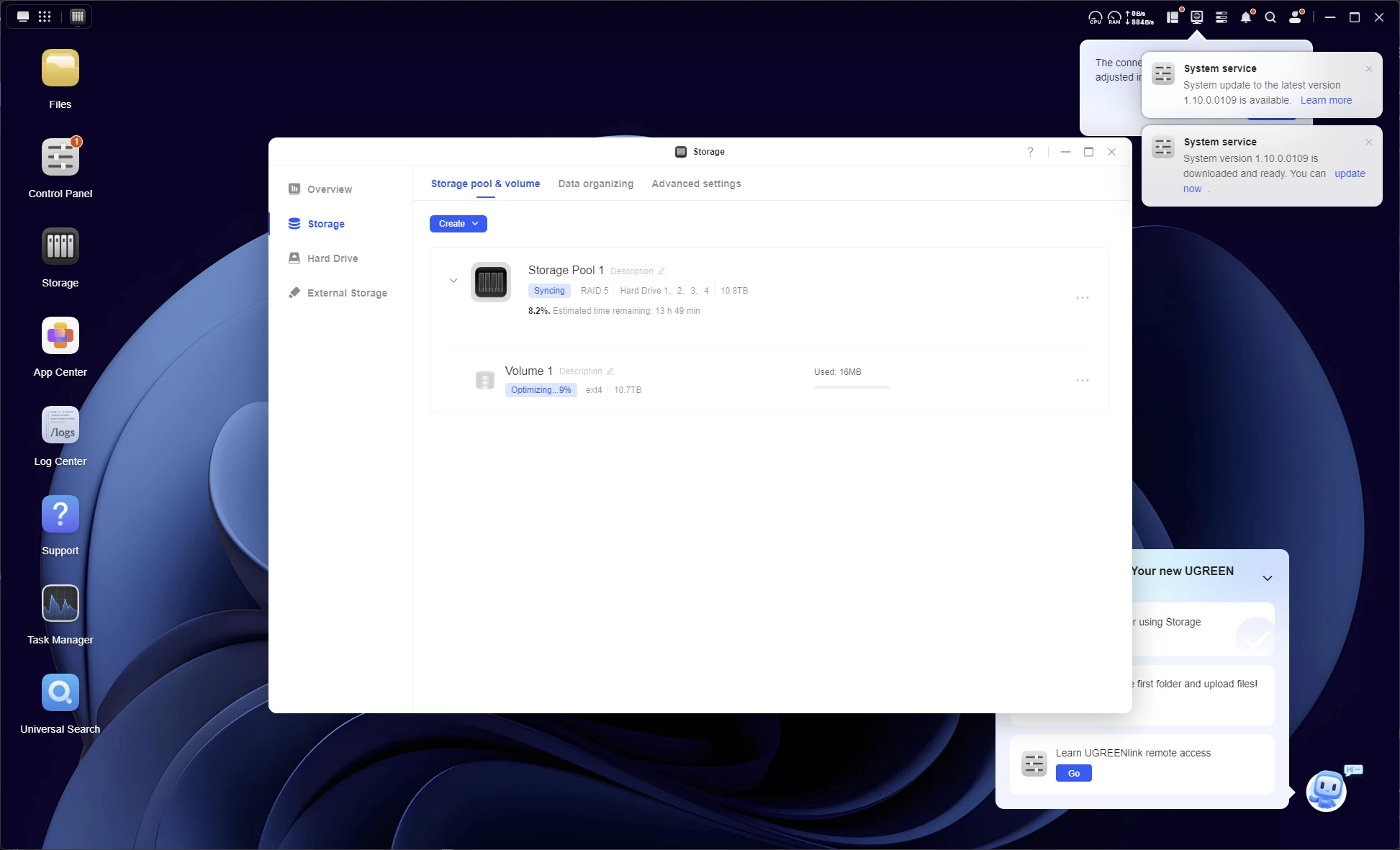
The DH4300 Plus supports full JBOD/Basic/0/1/5/6/10 options, so you can set the disks up to your heart"s desire. As you can see from the screenshots above, UGOS "recommends" the way forward based on the disks you have placed in the unit. In my case, it was four WD Red Plus 4TB HDDs, so I went with the recommended RAID5.
However, you should be aware that UGOS does not have its own fancy SHR (Synology) or TRAID (TerraMaster) that is capable of mixing different-sized HDDs without setting larger drives to the smallest capacity in a hybrid RAID5 configuration.
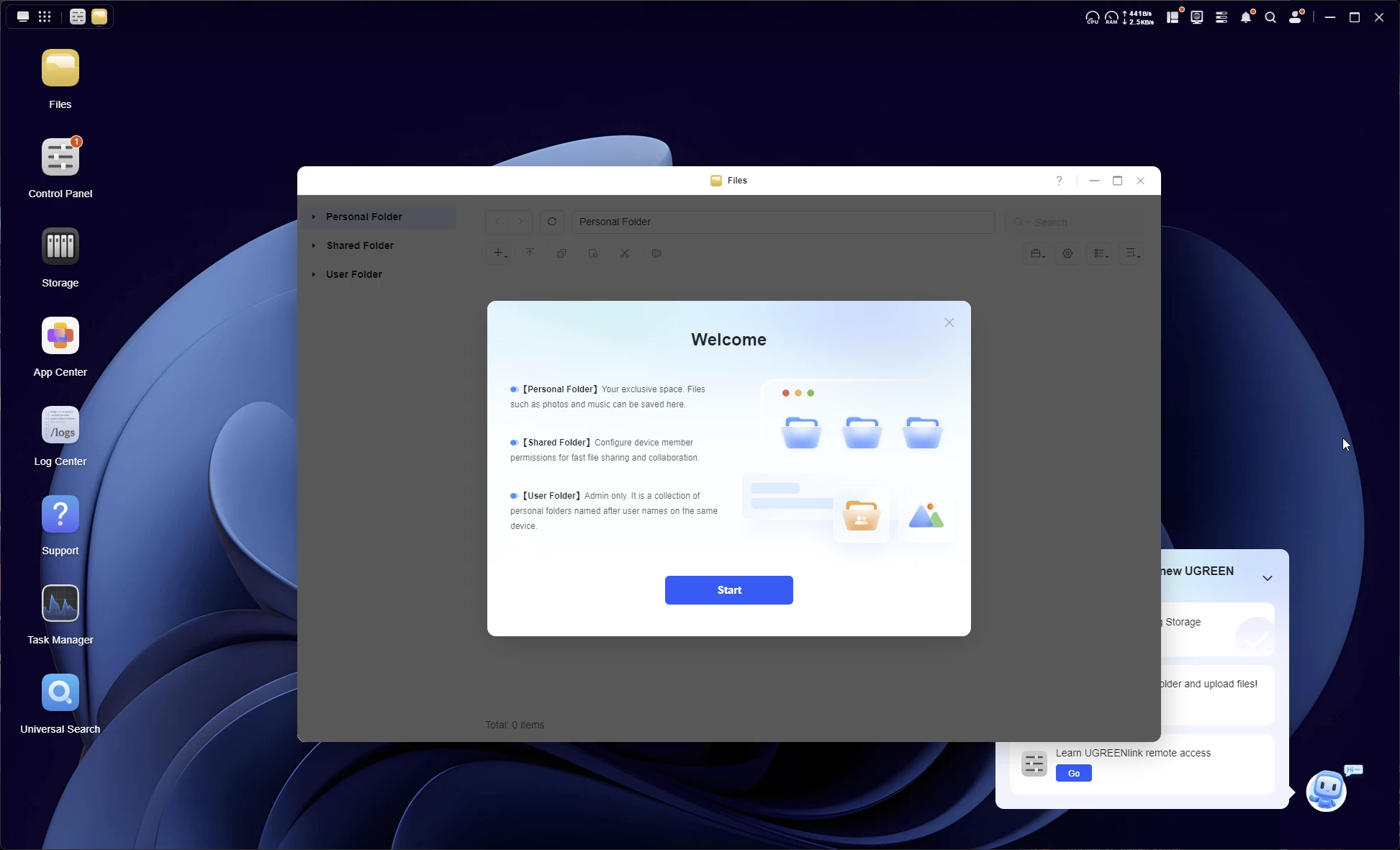
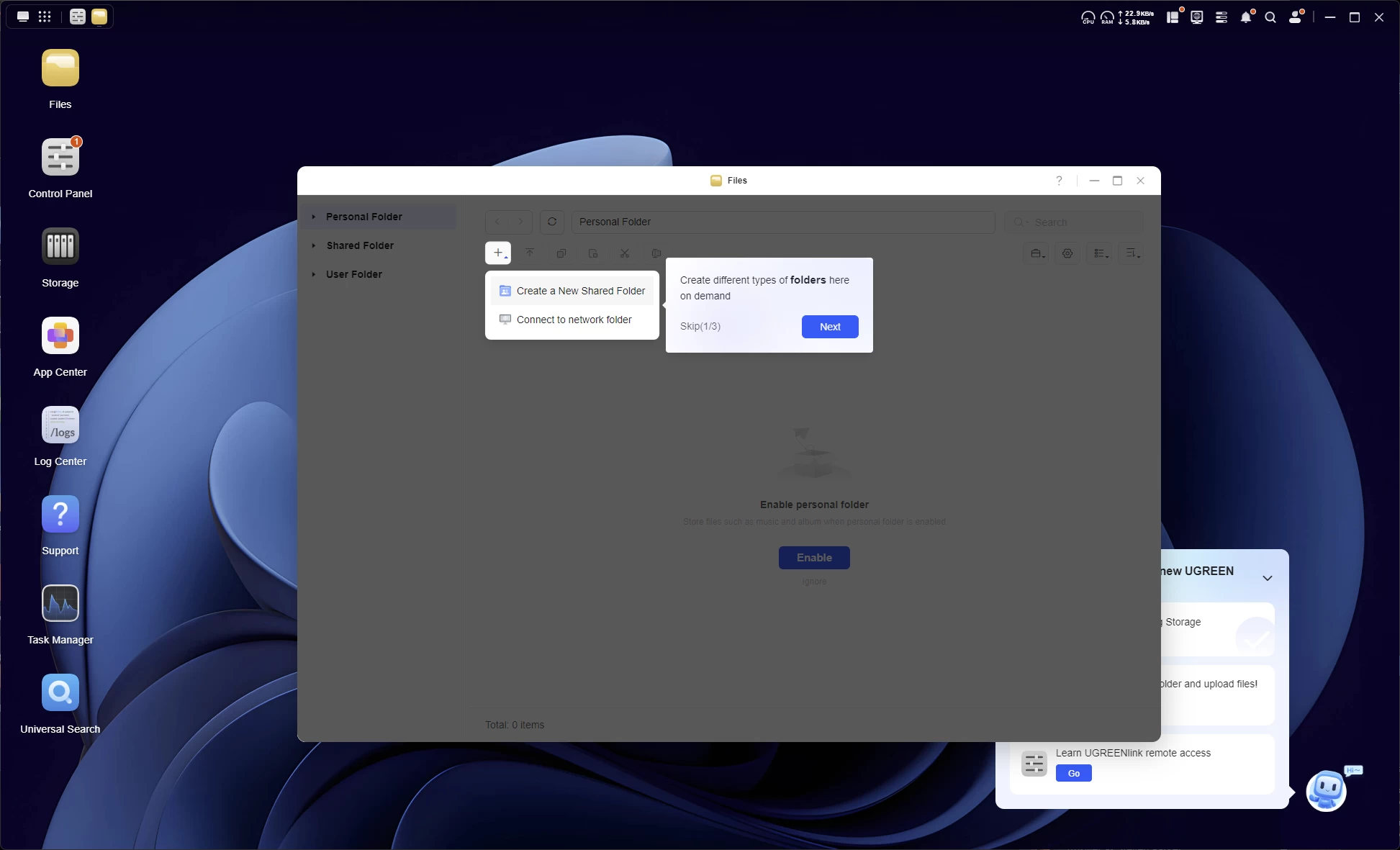
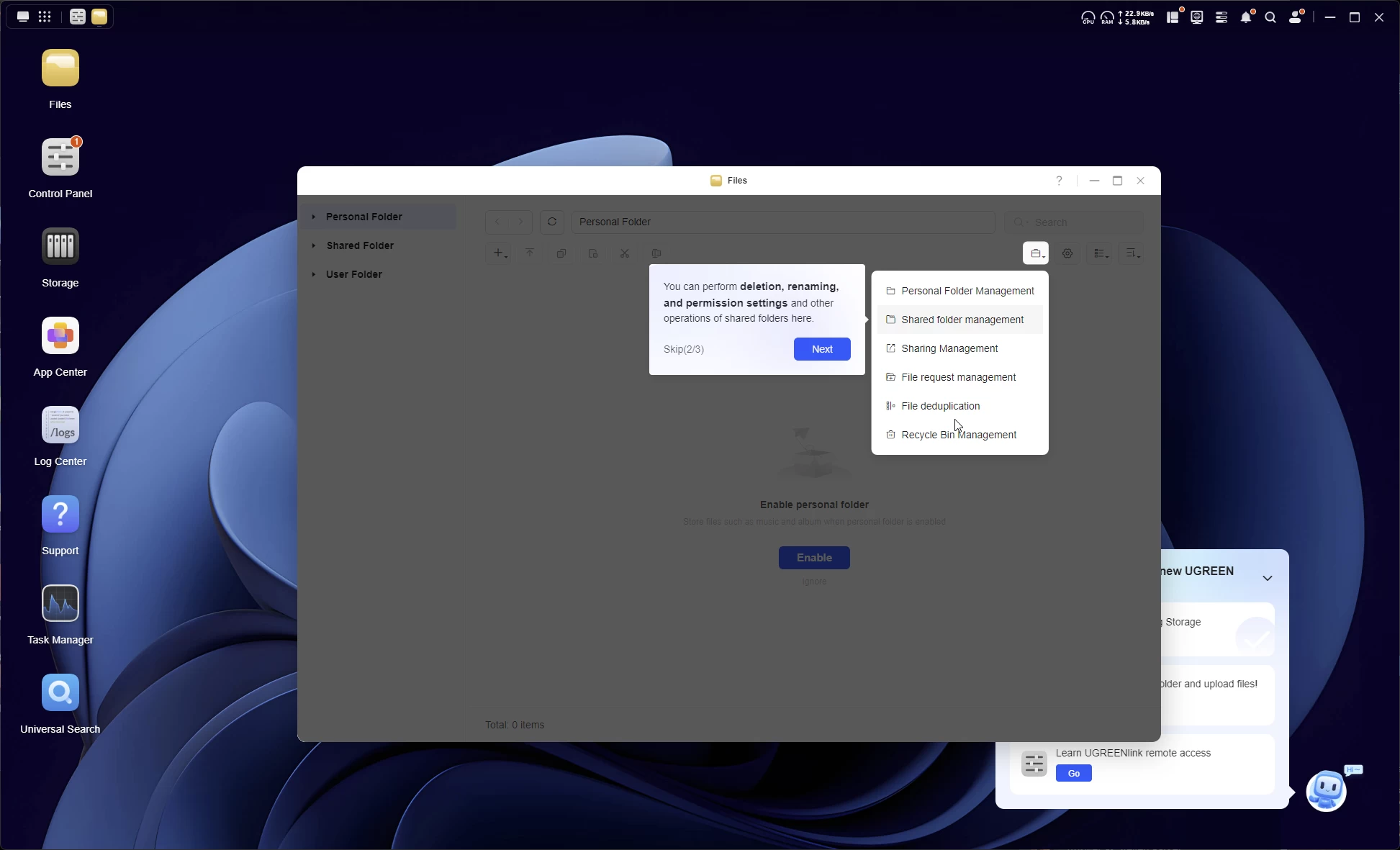
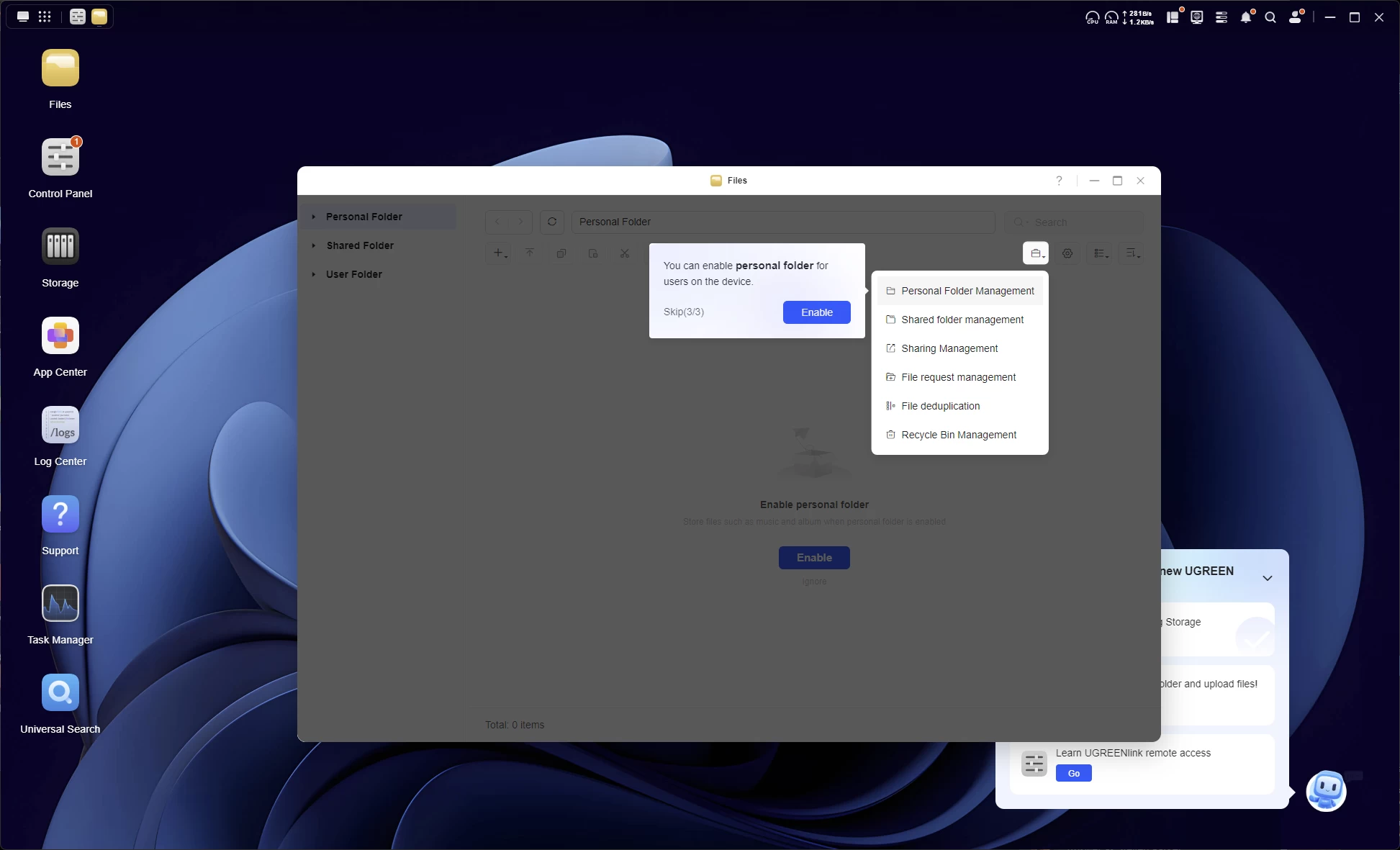
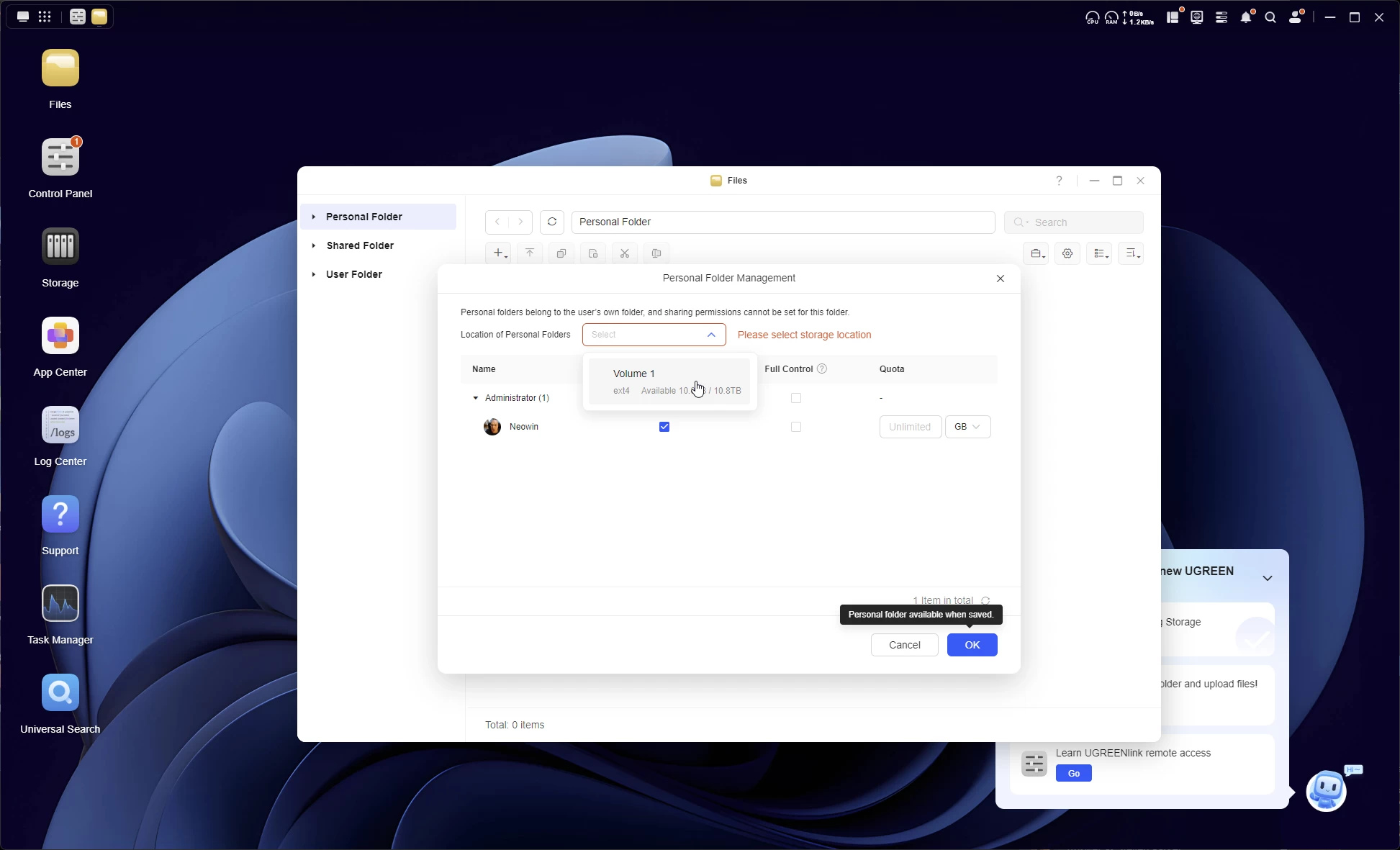
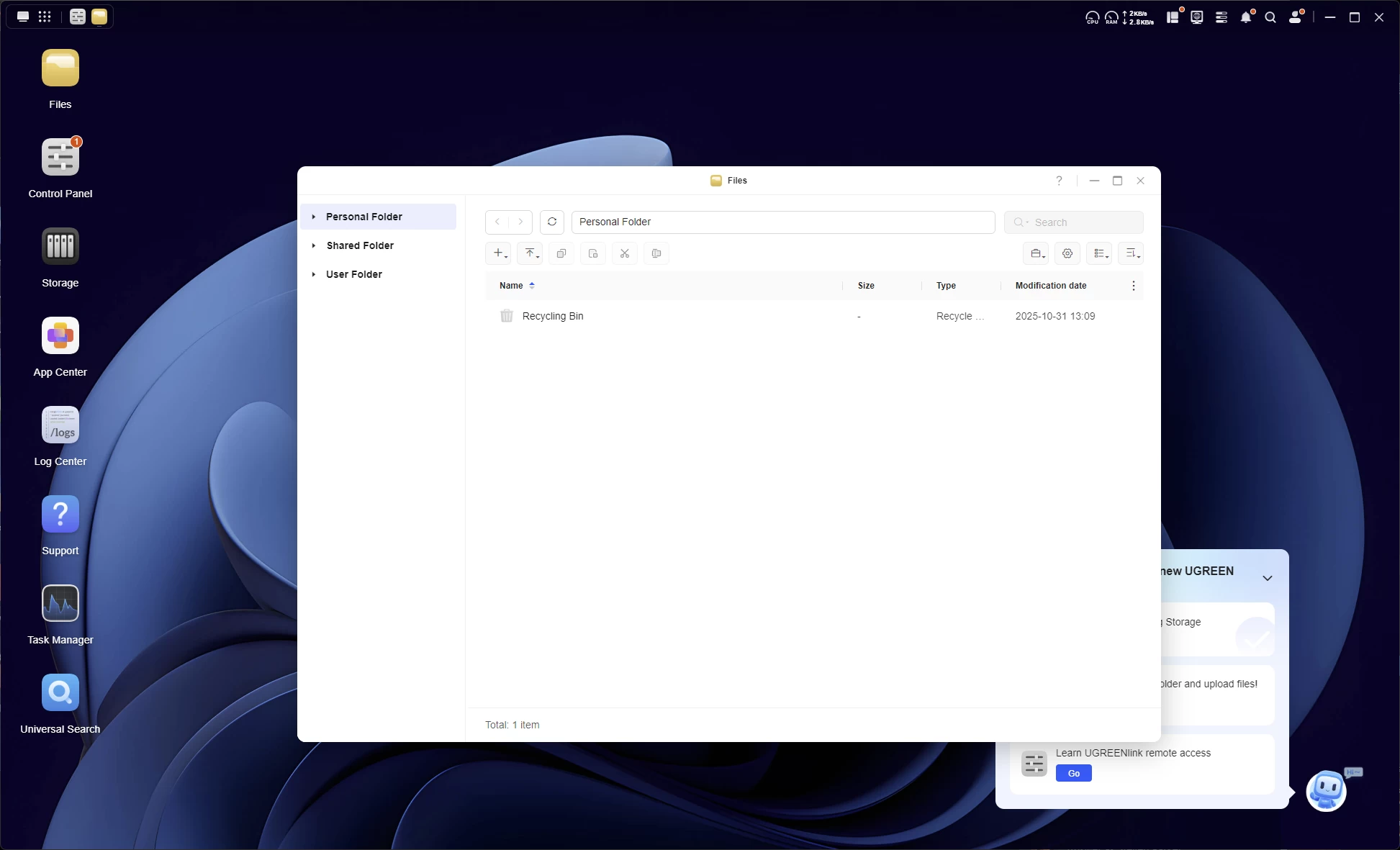
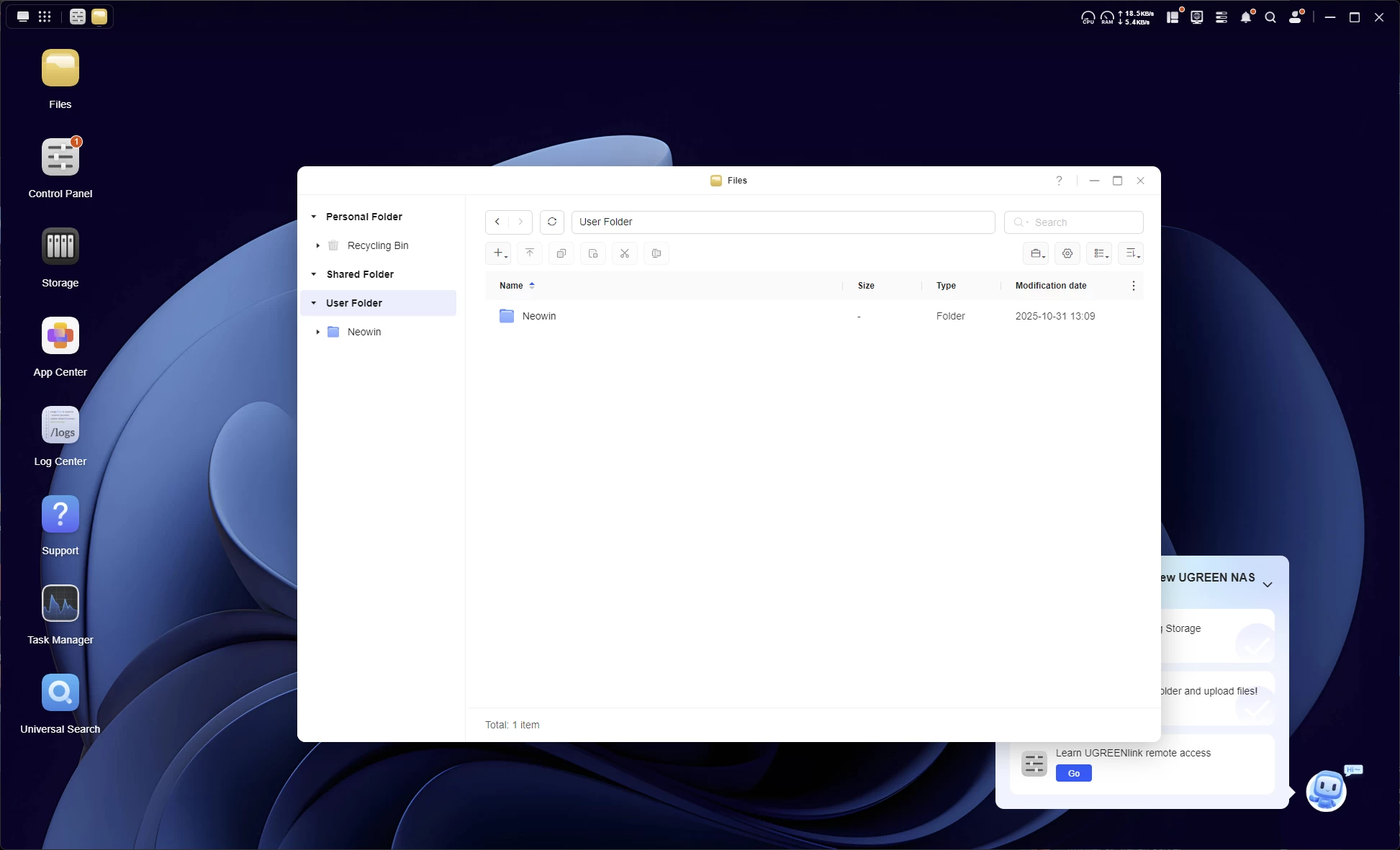
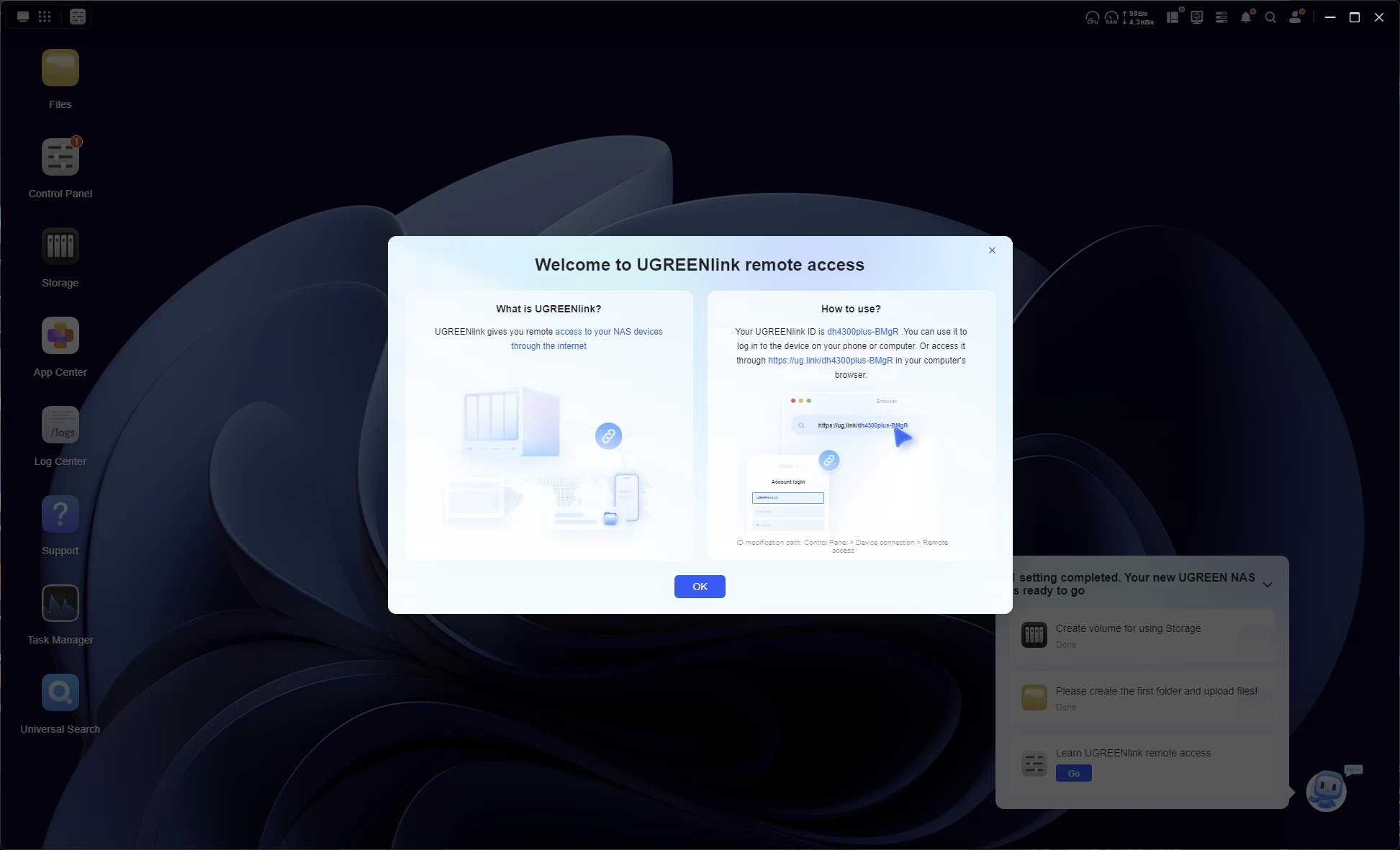
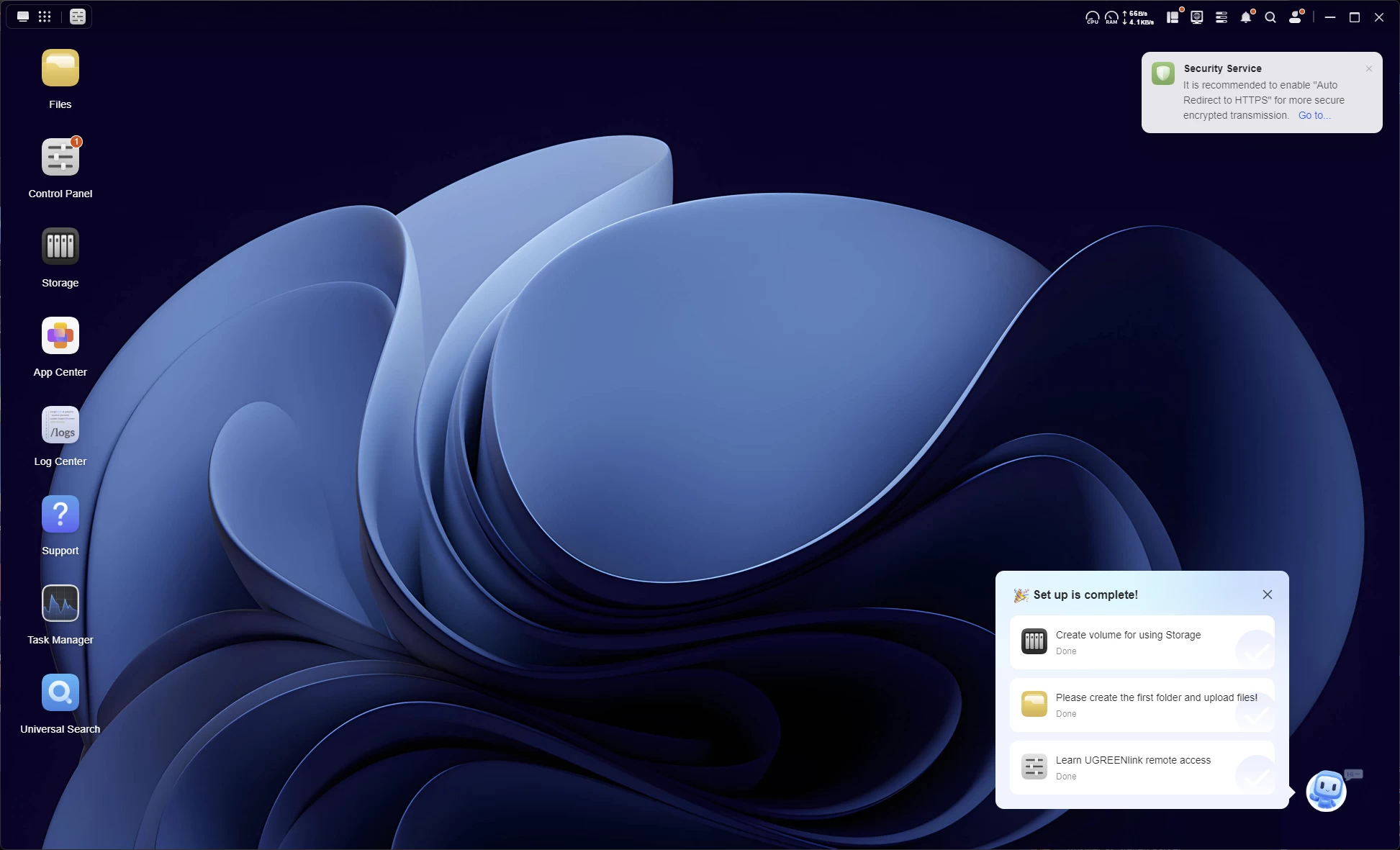
The UGOS dashboard is actually quite nice and innovative. Aside from the OOBE desktop tips, there is also a little helper on the bottom right that reminds you to complete the first basic setup steps of the now initialized NAS. Those are:
- Create a volume for using Storage.
- Create a folder.
- Create UGREENlink remote access.
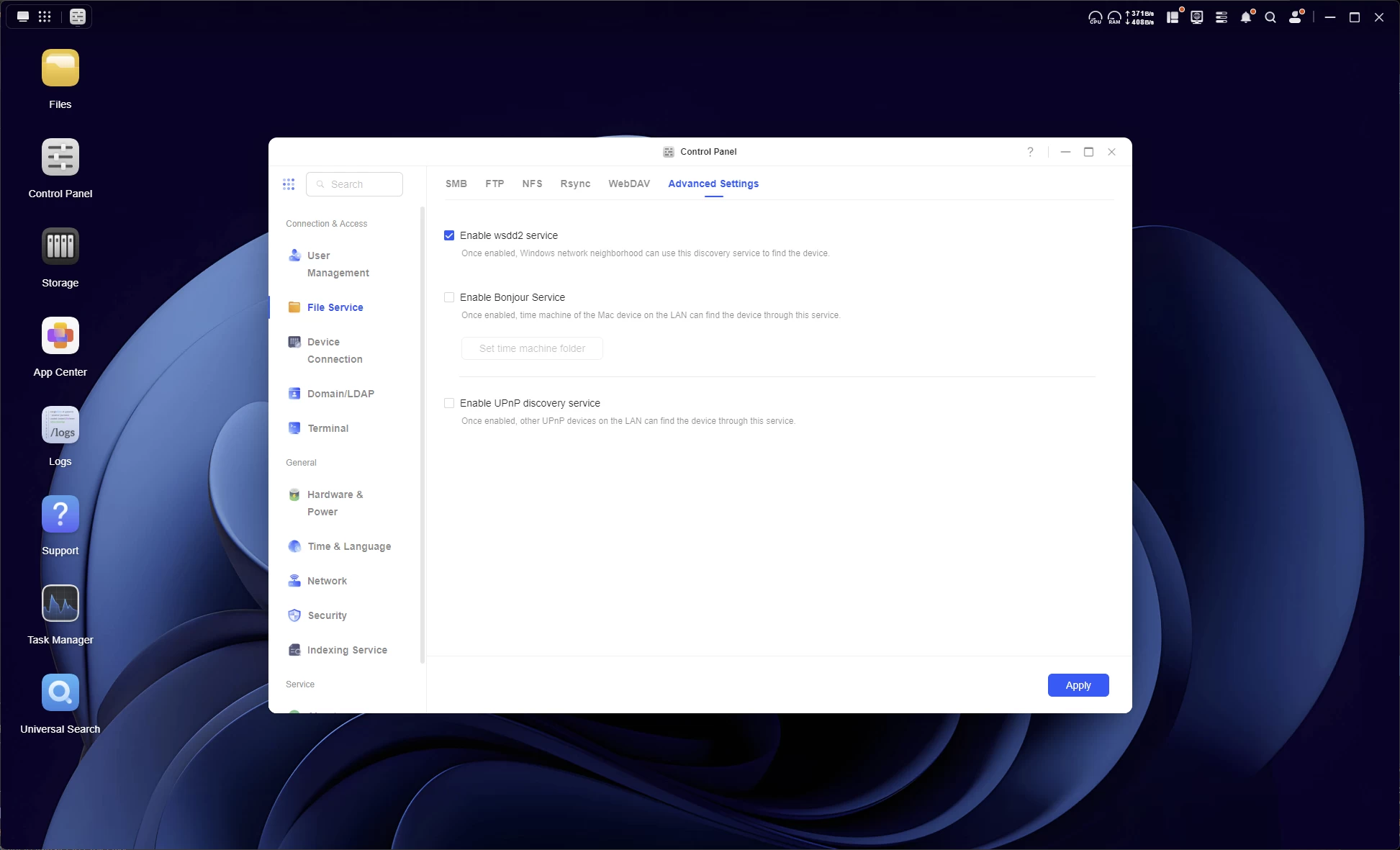
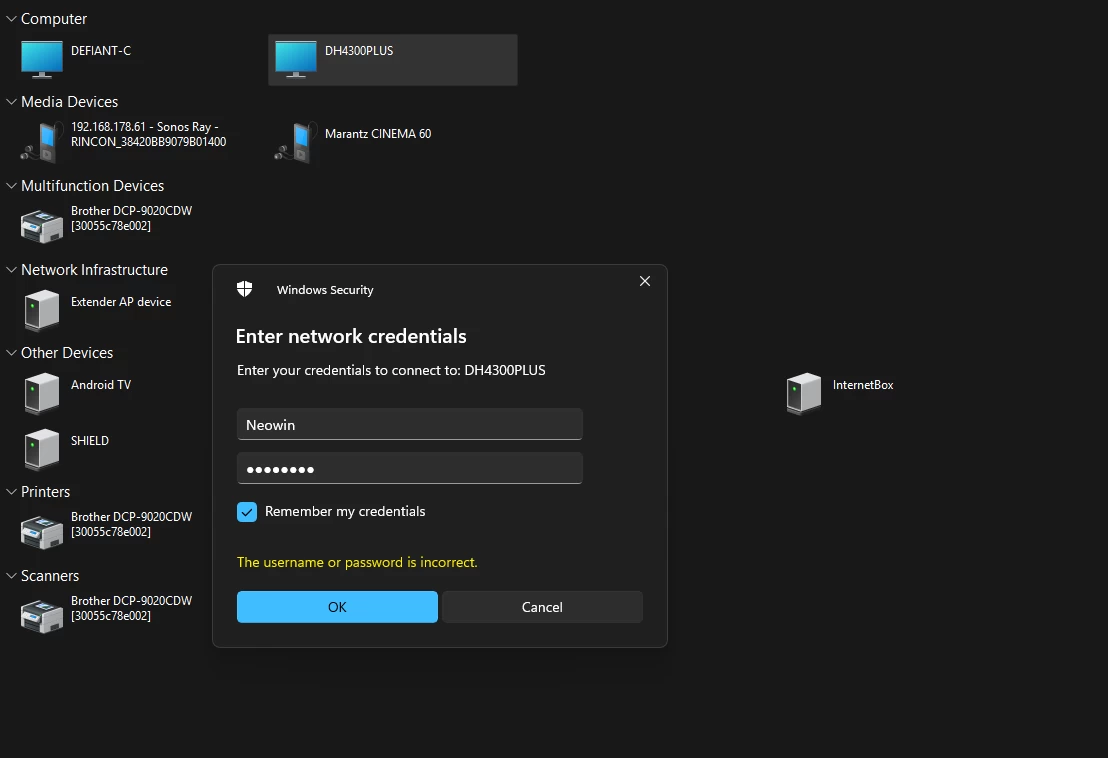
One of the last Post setup steps I did was to enable the wsdd2 service in Control Panel > File Services > Advanced Settings, which basically allows you to reach the shared folders through the Windows Network Neighborhood. After entering my credentials, I was able to map my personal folder in my Windows client.
UGREENlink remote access is similar to Synology QuickConnect; in fact, it works exactly the same, enabling a hostname for the .local LAN but also a unique device ID to connect to over the web, with a full https certificate provided by UGREEN. Once all the steps are completed, they get checked off, and the assistant disappears.
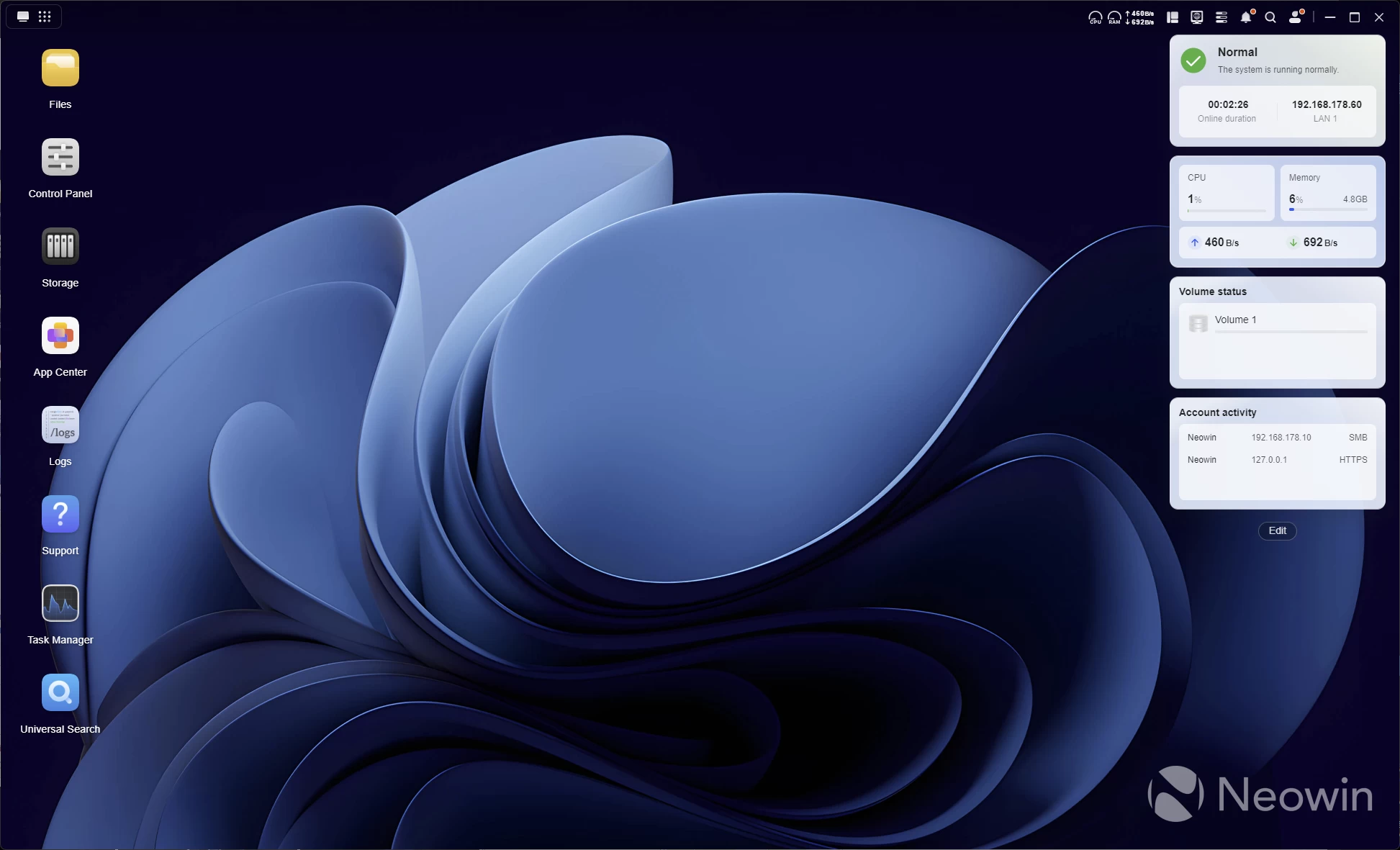
So, you know how you normally connect to a NAS through the browser? That"s how I"ve been doing it for the past few years anyway. UGREEN has its own Windows app that displays the connection in a remote desktop session window. From a quick online search it is also not a PWA (a web page thrown inside an app wrapper) it is a fully dedicated Windows app.
Usage
Next up, I did some network performance tests, which you can view below.
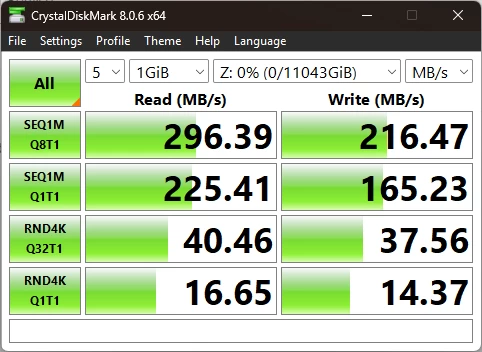
A CrystalDiskMark test on a mapped network drive from within a Windows 11 24H2 PC (image above) connected over the 2.5 GbE connection was well within acceptable ranges.
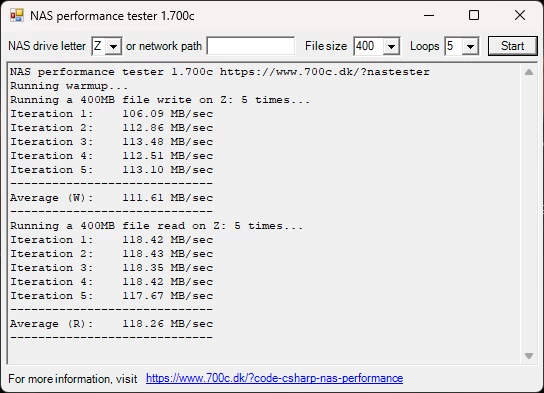
I also ran the NAS Performance tester, which tests the link speed performance. As you can see, it pretty much maxes out the 2.5 GbE connection of the DH4300 Plus.
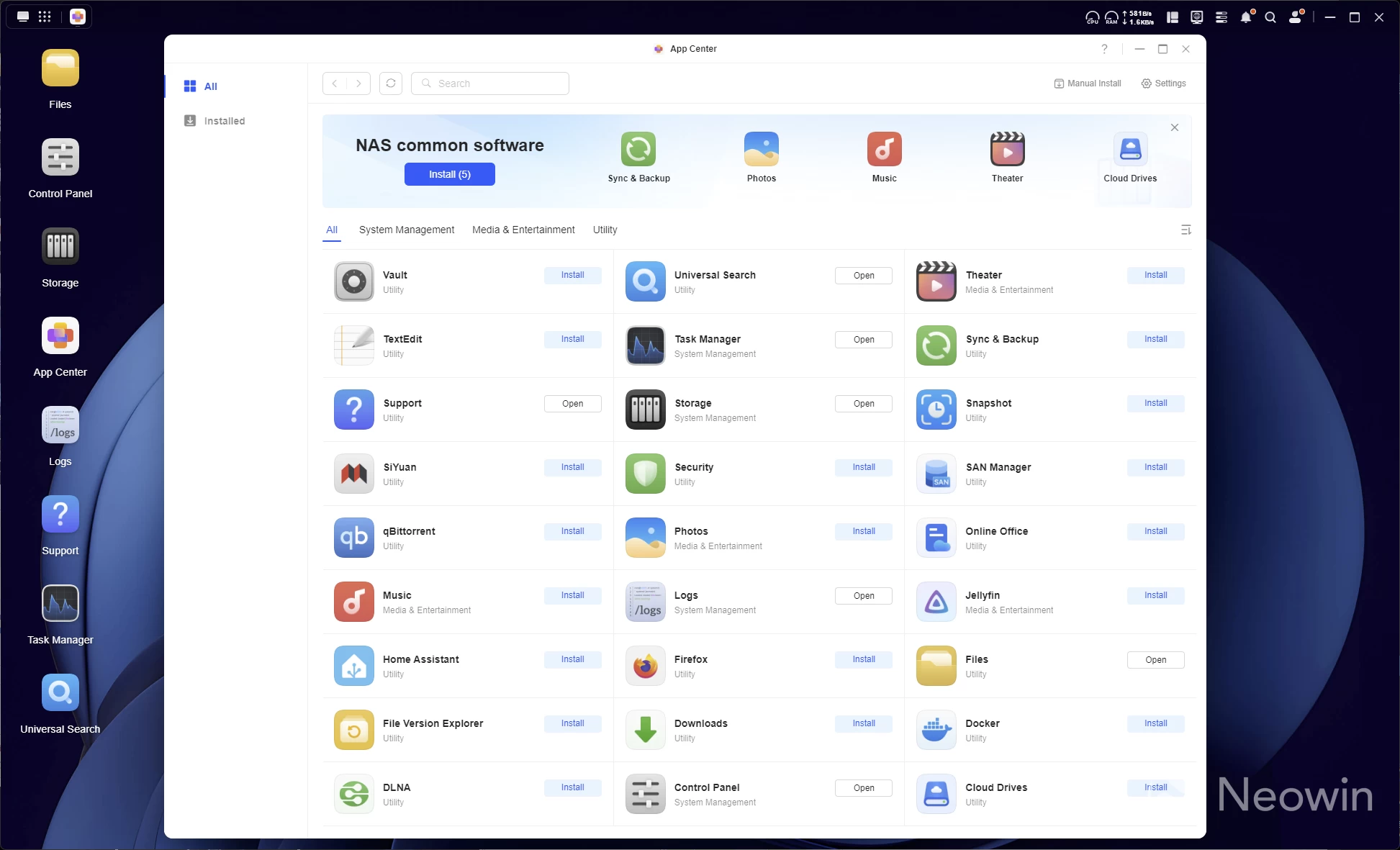
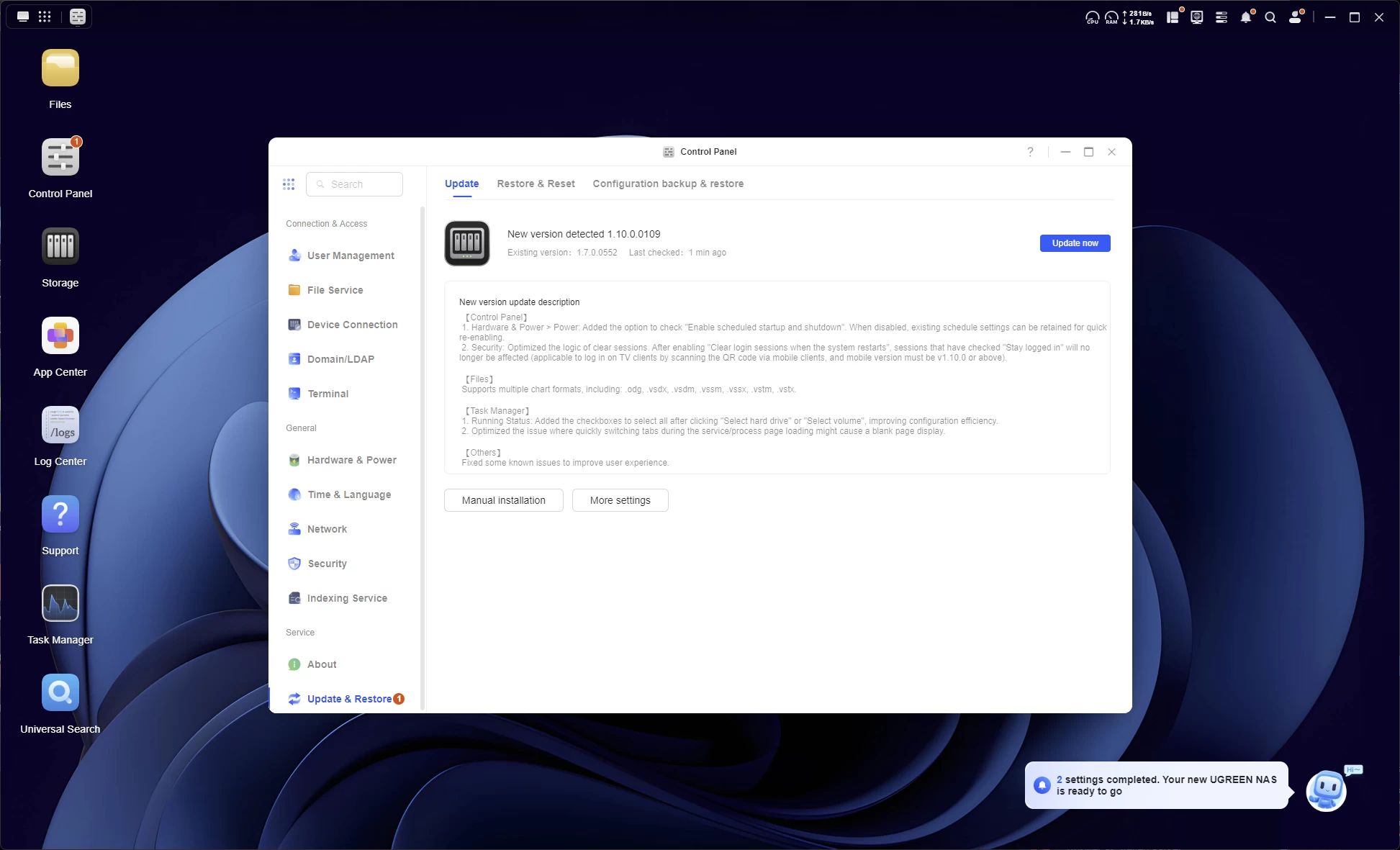
UGOS, which is now at v1.10.0.0109, comes with an App Center that has a bunch of handy programs you can install right off the bat, such as a Virtual Machine manager, Docker, and (Cloud) Backup.
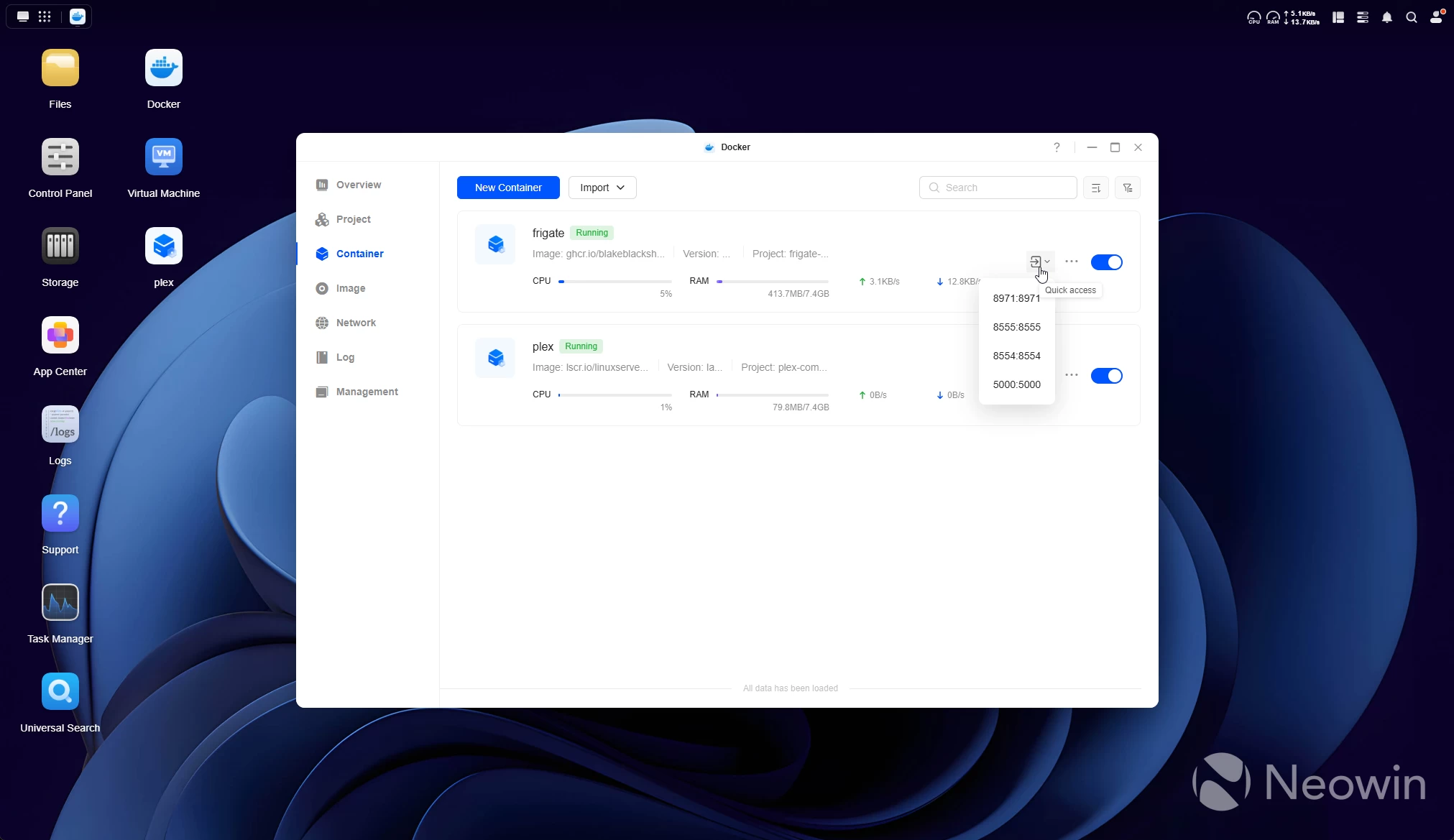
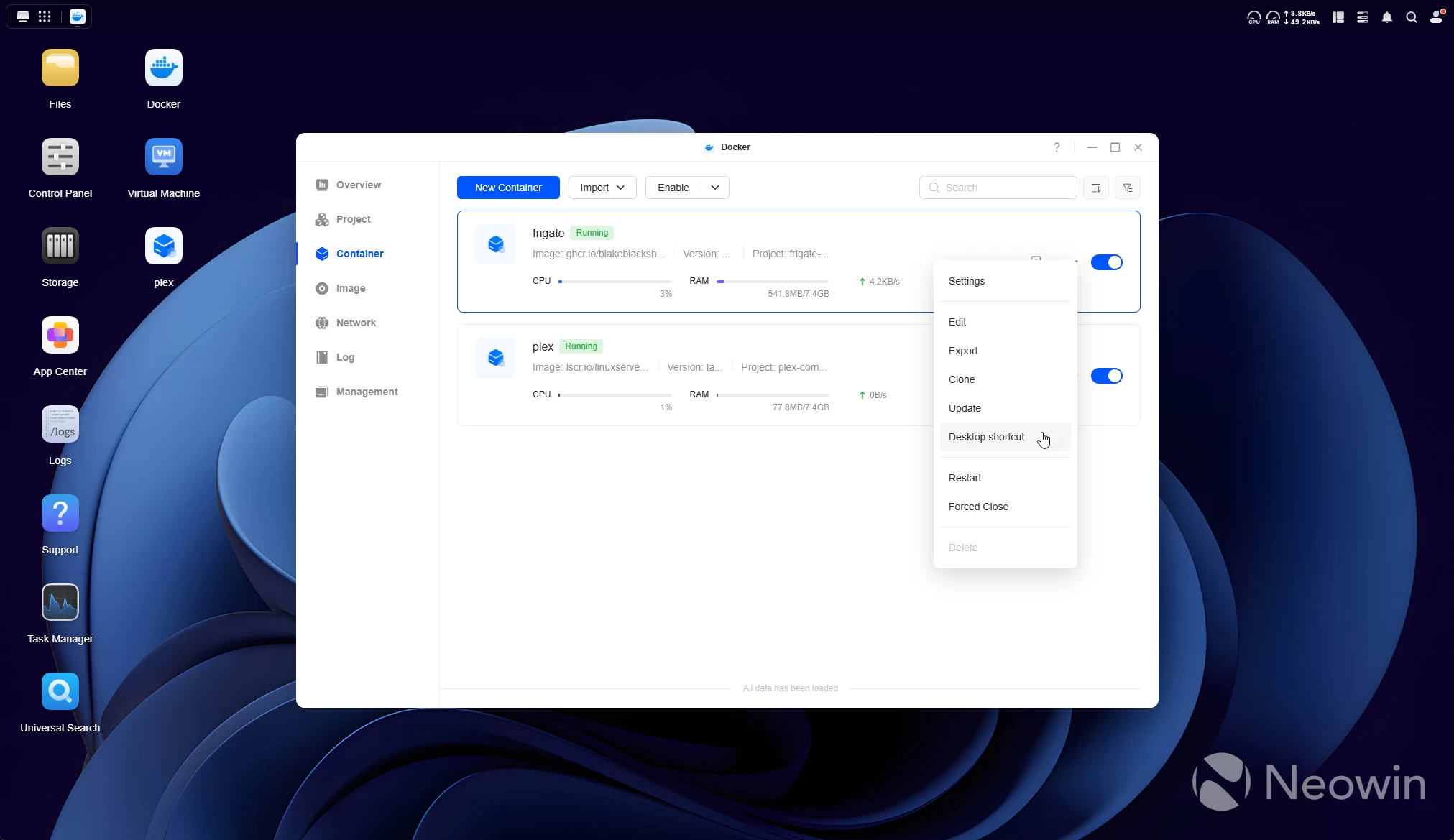
From my limited time with the system, you wouldn"t think this is barely a year old from the polish it has so obviously gotten from the dev team. When I reviewed the DXP6800 Pro, I reached out to UGREEN and asked if end users had a lot of say in the development, purely from some of the stuff I saw like the numbered drive bays, a drop down menu in Docker manager for the containers that allow access to the web UI ports, and create shortcuts on the desktop and all these little things you don"t find in Synology DSM, and they replied with:
We indeed spend a lot of time looking at our users’ inputs to improve UGOS
Two months on from my last UGREEN NAS review, and Surveillance manager is still on the roadmap; however, since my last experience with UGOS, the following was added (two most recent updates):
New Language: Korean
OpenList (New Docker App)
Intro/Outro Smart Recognition (Theater)
Energy-Saving Backup (Sync & Backup)
Aliases for Cloud Drive Connections (Cloud Drives)Vault (New App)
Download to Library (Photos)
New Integrations (Cloud Drives)
Current Song Button (Music)
Scheduled Library Scan (Theater)
The planned roadmap now looks a bit different from August. I bolded the new entries:
Important future updates in the next 12 months*
Hard Drive Enclosure Integration
3rd-Party Application Support
AI Model Management (iDX)
LLM-Based ChatBot (iDX)
New App: Comic
File Tags
New App: Voice Memos (iDX)
Double-Tap to Fast Forward/Backward (Theater)
New App: Monitoring Center named Surveillance
Cloud Drives: Addition of Dropbox
Cloud Drive Mounting in Files
Offline Mode in Music
Offline video playback in Theate
It"s also quiet. I had this sat next to my computer on my work desk, and I did wonder if the noise I was accustomed to with NAS devices would annoy me, but all I could hear was a soft whirring of the rear fan when the disks were not actively copying or reading data.
But wait, there"s more
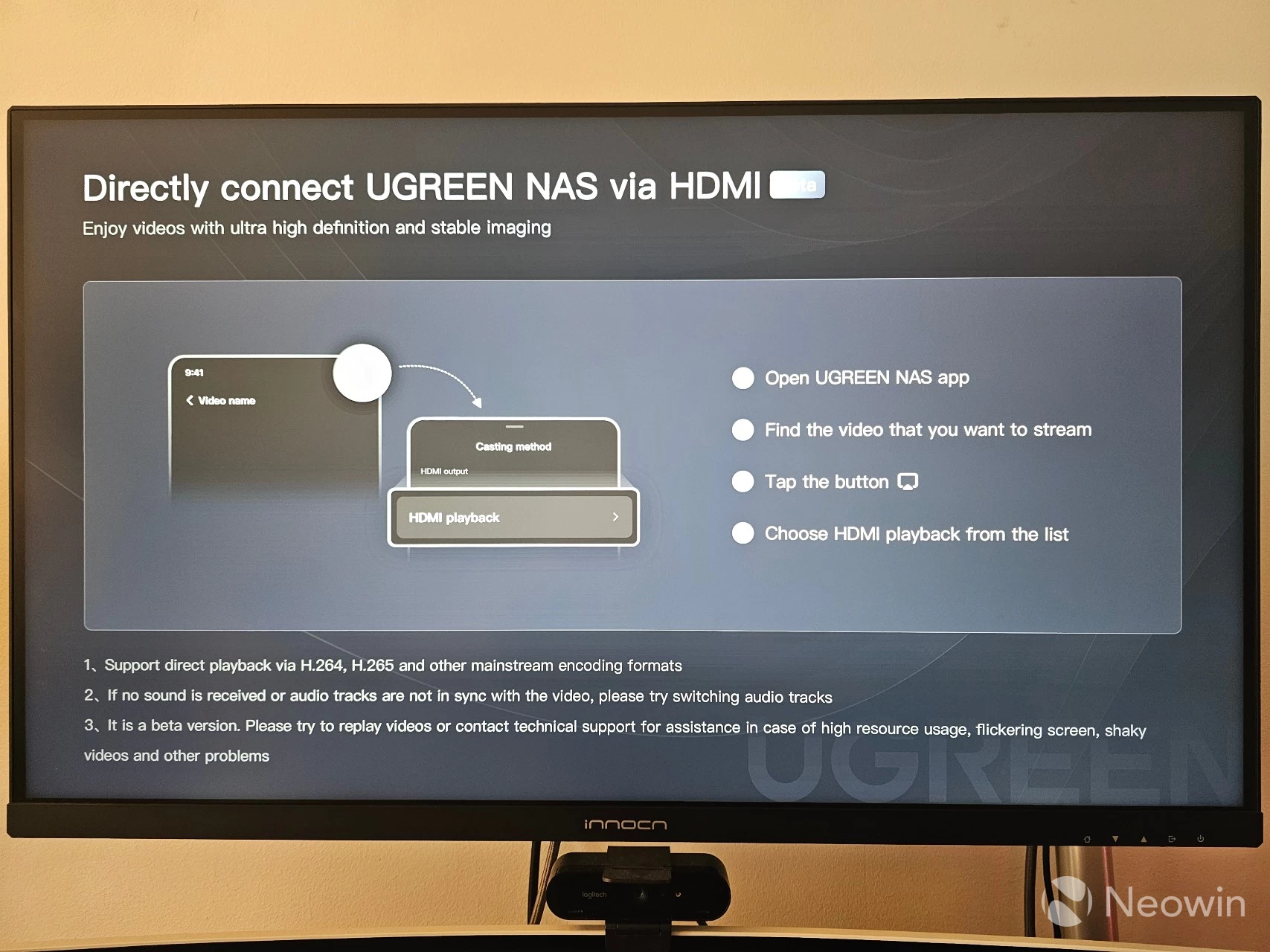
In case you decide to set this up as an HTPC with a TV or monitor connected, the UGREEN NAS app also lets you cast directly from the phone app to the screen that the NAS is connected to. It is still stamped as a Beta, but I tried it out and it works perfectly. It is somewhat limited in that you can only cast content that is already on or exposed to the NAS.
It should be noted that I was also able to cast media content from a different TerraMaster F4-424 Max NAS to the screen, because I had connected a Server Message Block (SMB) network share in the UGOS Files app, so this also sort of gets around not being able to link such shares in Plex for a library. In short, you must be able to navigate to the content in "Files" through the UGREEN NAS app. Perhaps an update could provide a QR code to be able to cast the phone screen"s content.
Conclusion
What it comes down to is the quality of the NASync DH4300 Plus, it is really cheap right now at just $386.99 with the early bird discount, and for that it"s a great device, recommending it will depend on the individual"s use case. If you"re just looking for a relatively cheap media streamer with a cloud backup capability, then this ticks the boxes. It provides good performance, takes very little space, and is, on the whole, very quiet.
The good
Things that stood out for me are the attention to detail this NAS offers, with things like the numbered bays and plentiful connection options. I remain impressed with UGOS; it feels really polished, and as I already mentioned, this was actually the first time I didn"t run into any issues with this new to me OS, I didn"t need to fire up Google or consult the UGREEN forums in order to complete the setup or get underway with my Docker containers.
There"s so much more to unpack with UGOS and the NASync DH4300 Plus that isn"t really in the scope of this review, but to me, this is a great starter NAS. If you don"t care to muck around in Unraid or TrueNAS and your expectations are kept in check, this is a great option as an ultra-low-powered HTPC and personal Cloud backup. I did not see my wattage monitor go over 28.1W in all the time I was using it and transferring files over the network to it. And now, at under $400, it feels like a real bargain.
The bad
If I had to fault it at all, I would just say that I do not like how the top cover comes off so easily. The first time I was using the DH2300, I mistakenly wanted to pick it up from the top, and all I got was the top cover, of course! It is nice to see three USB 3 ports on it as well, but I would have preferred USB 3.2 Gen 2 at 10 Gbps speeds.
If that doesn"t put you off, act now to claim the early bird price!
- UGREEN NASync DH4300 Plus for $386.99 ($43 off MSRP of $429.99)