UGREEN is still relatively new to the NAS game, offering a full range of their NASync series at the beginning of 2024 at CES. Despite this, it seems to have made quite a splash with home lab and small business users, securing $6.6 million in funding on Kickstarter from over 13,000 backers. We already reviewed the 6-bay NASync DXP6800 Pro model back in August, giving it high marks, and now it is back with the entry-level NASync DXP2800.
Disclaimer: UGREEN provided the review sample without any editorial input or pre-approval.
Here are the most important specifications:
| UGREEN NASync DXP2800 | |
|---|---|
| CPU: | Intel N100 (4C, 4T Max Boost 3.40 GHz L3 Cache: 6 MB) TDP: 6W |
| Graphics: | Intel UHD Graphics 750 GHz 24 EU |
| NPU: | No |
| Memory: | 8GB LPDDR5X 5600MT/s SODIMM (Max: 16 GB) |
| HDD Bays: | 2 x |
| M.2 Bays: | 2 x |
| Disk Capacity: | 76 TB (2 x 30 TB, 2 x 8 TB) |
| RAID Level: | JBOD/Basic/0/1 |
| Network: | 1 x RJ-45 2.5 GbE |
| Internal storage: | eMMC 32GB |
| USB Ports Front: | 1 x Type-C 3.2 Gen 2 (10 Gb/s) 1 x Type-A 3.2 Gen 2 (10 Gb/s) |
| USB Ports Rear: | 1 x Type-A 3.1 Gen 2 (5 Gb/s) 2 x Type-A 2.0 (480 Mb/s) |
| HDMI: | 1 x (HDMI 2.1) |
| Hardware Transcoding Engine: | H.264, H.265/HEVC, VP9, AVS2, AV1 (decode) |
| Size (L/W/H): | 231 × 109 × 177 mm |
| PCIe expansion: | No |
| OS: | UGOS Pro |
| Weight: | 2.5 kg |
| Power: | 12V / 5A, 100V - 240V AC, 50/60 Hz, Single frequency |
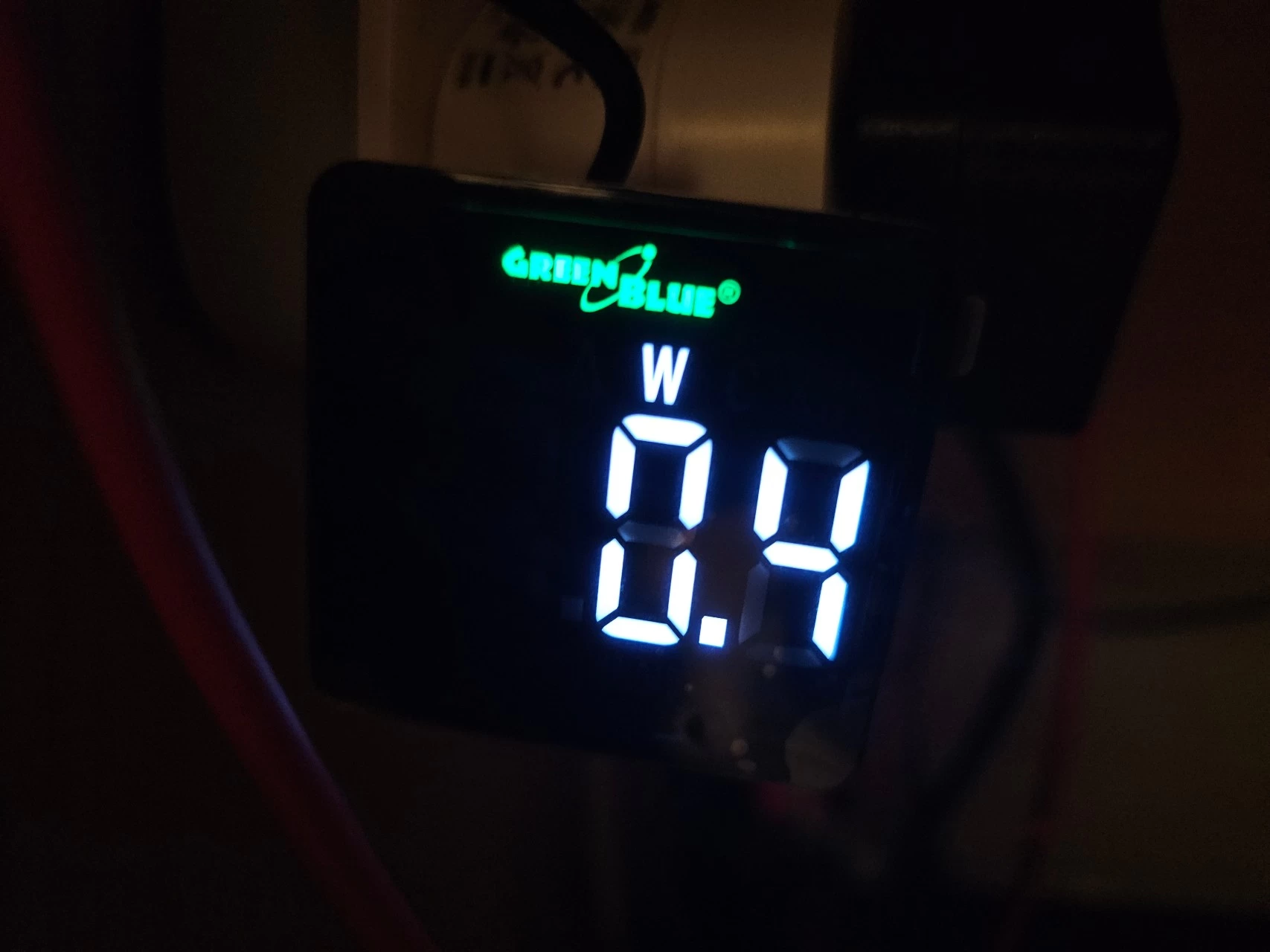
| Power consumption: | 0.4 W (Standby) 16.38 W (drive access) 5.244 W (drive hibernation) |
| Warranty: | 2 years (from the moment of initialization) |
| MSRP: | $349.99 |
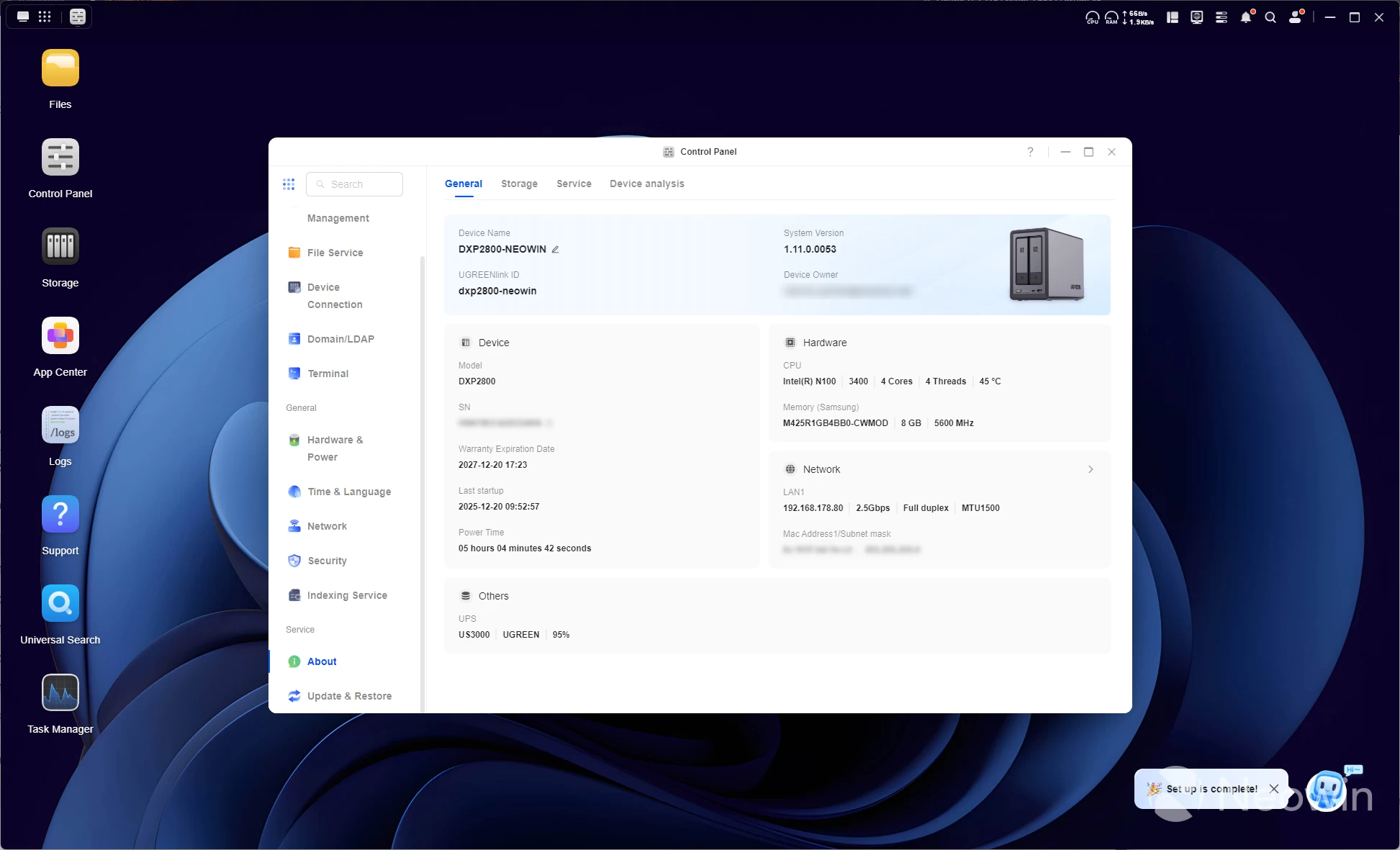
As you can see from the specs, it includes somewhat lightweight specs with a Intel N100 Alder Lake-N CPU, which was announced at Q1 of 2023 with support for AV1 decode via Intel QuickSync (QSV), as well as H.264, VP8, VP9, H.265 (8 bit), and H.265 (10 bit), with support for DisplayPort 1.4, HDMI 2.1, LPDDR5 (4800), DDR5 (4800) and DDR4, and a max TDP of around 6W.
Naughty UGREEN?
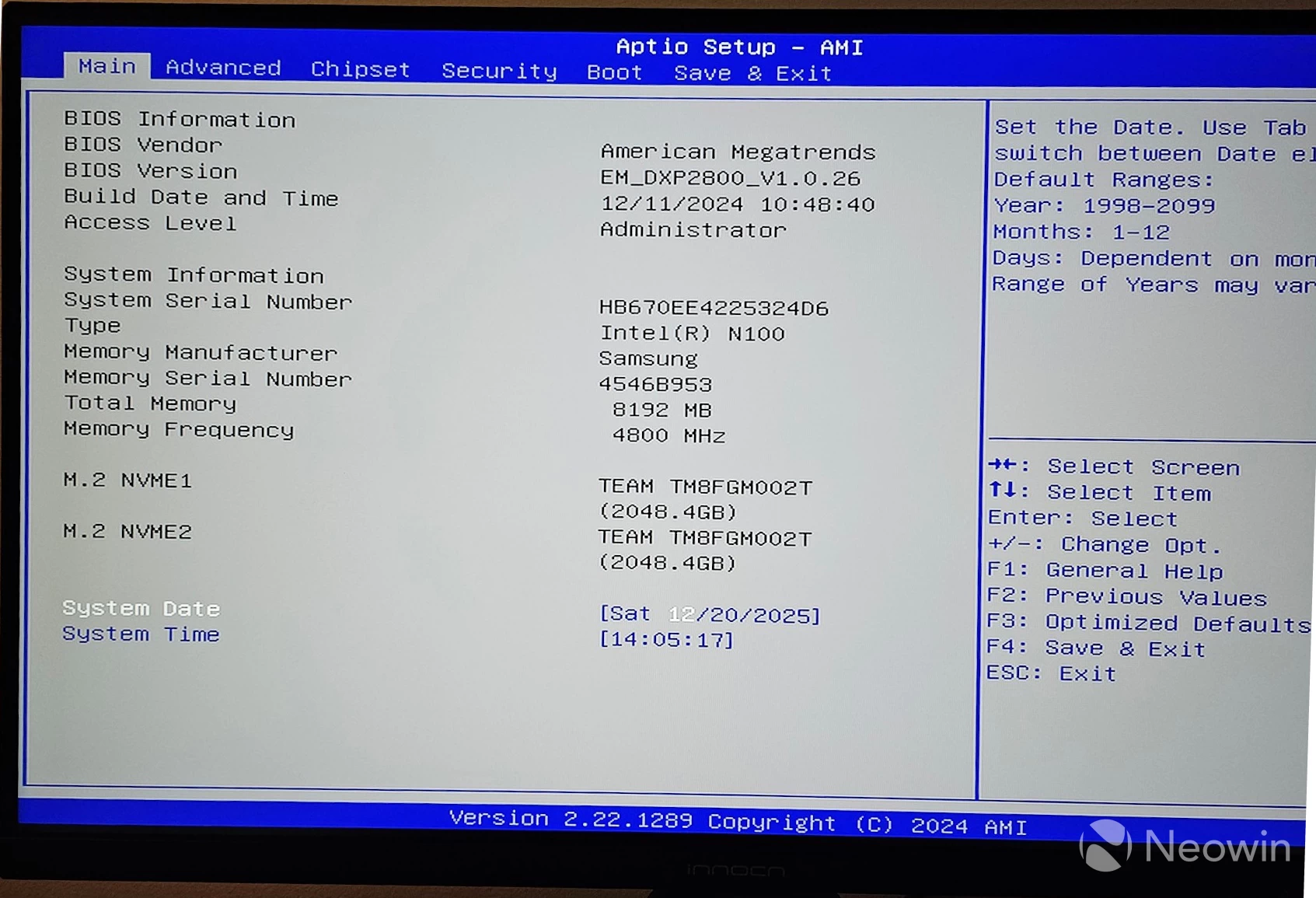
Our DXP2800 even reports the memory running at 5600 Mhz, even though Intel suggests a max supported speed of 4800 MT/s, and after a quick look in the BIOS, as expected, the memory frequency shows a max speed of 4800 MHz.
| Processor | E-cores | L3-cache | Turbo clock | GPU | GPU-clock | TDP |
|---|---|---|---|---|---|---|
| Intel N355 | 8 | 6 MB | 3.9 GHz | 32 EUs | 1.35 GHz | 9-15 W |
| Intel Core i3-N305 | 3.8 GHz | 1.25 GHz | ||||
| Intel N350 | 3.9 GHz | 1.35 GHz | 7 W | |||
| Intel Core i3-N300 | 3.8 GHz | 1.25 GHz | ||||
| Intel N250 | 4 | 3.8 GHz | 1.25 GHz | 6 W | ||
| Intel Processor N200 | 3.7 GHz | 0.75 GHz | ||||
| Intel N150 | 3.6 GHz | 24 EUs | 1 GHz | |||
| Intel N97 | 1.2 GHz | 12 W | ||||
| Intel Processor N100 | 3.4 GHz | 0.75 GHz | 6 W |
Yes, although this CPU is not setting the world alight, it supports most media streaming formats, and thus also fits squarely in the HTPC segment. However, it should be noted that the DXP2800 does not offer Wi-Fi connectivity.
RAM
One of the things I always mention in previous NAS reviews is how disappointing it was to discover a mediocre amount of RAM in these devices. Still, buyers need not worry about the DXP2800 because it is populated with 8GB, which is double the amount in the Synology DS925+ model, which also only has 4GB of memory. This usually leaves buyers immediately scrambling to replace the RAM at additional cost.
First impressions
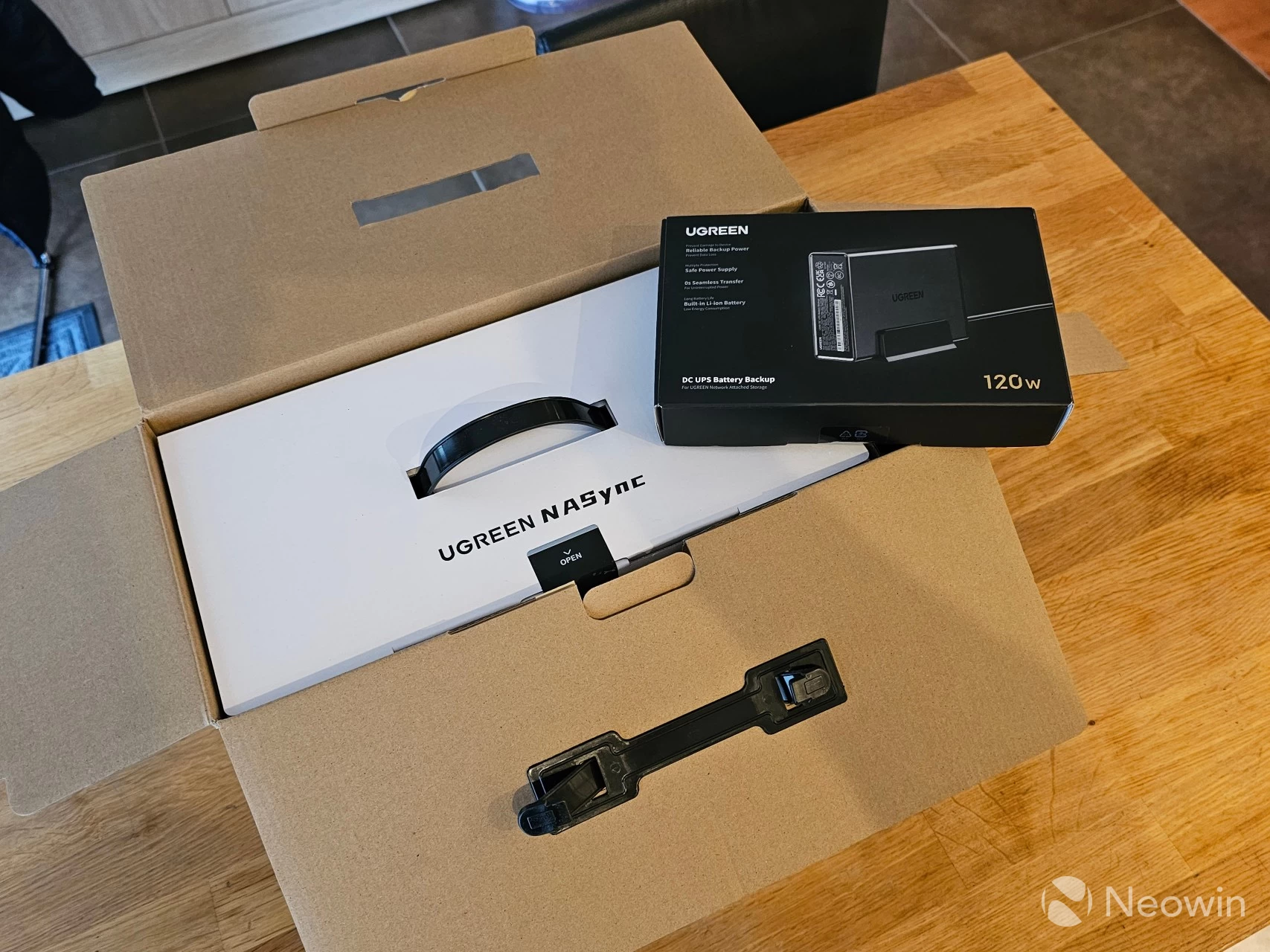
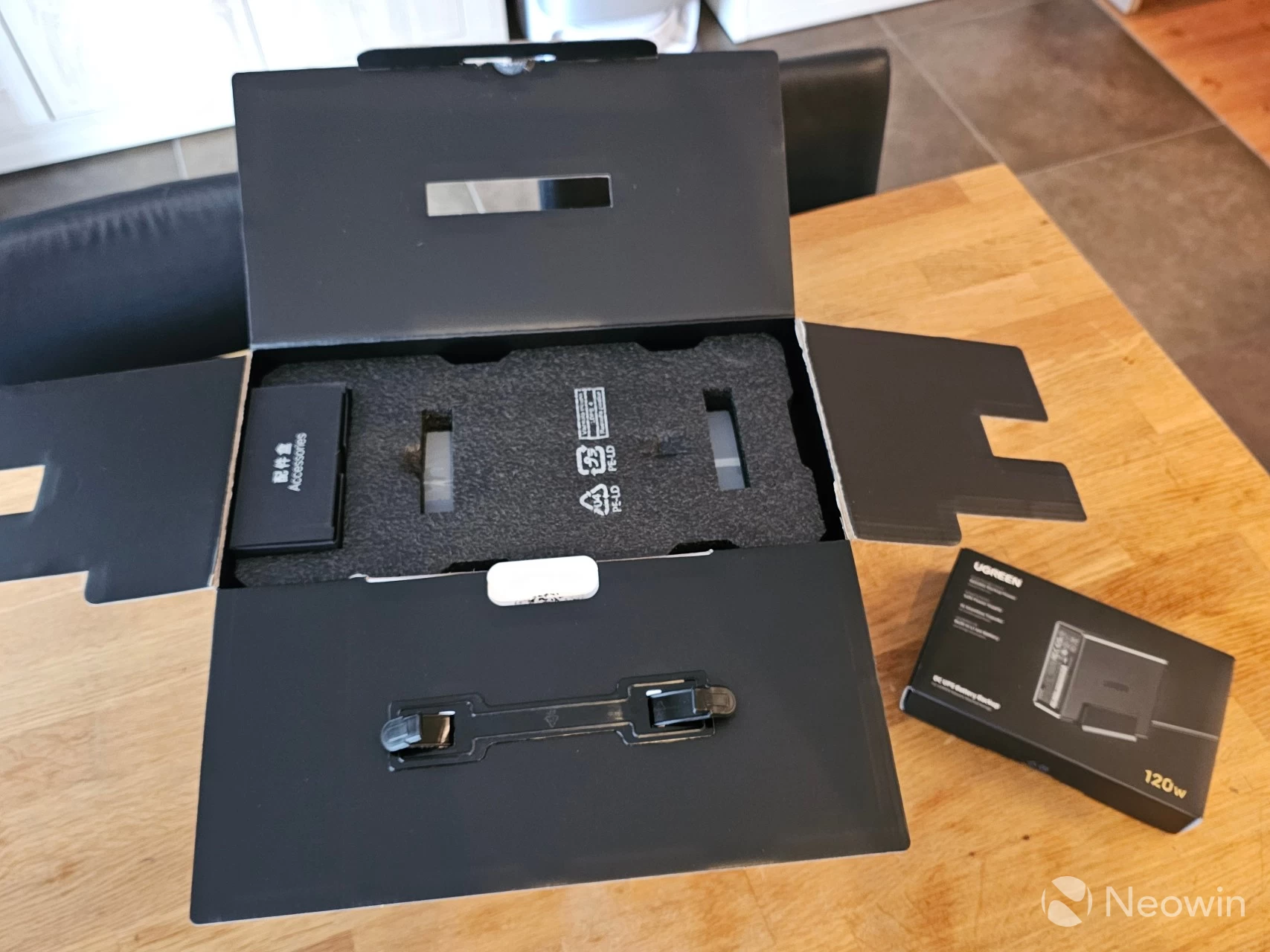
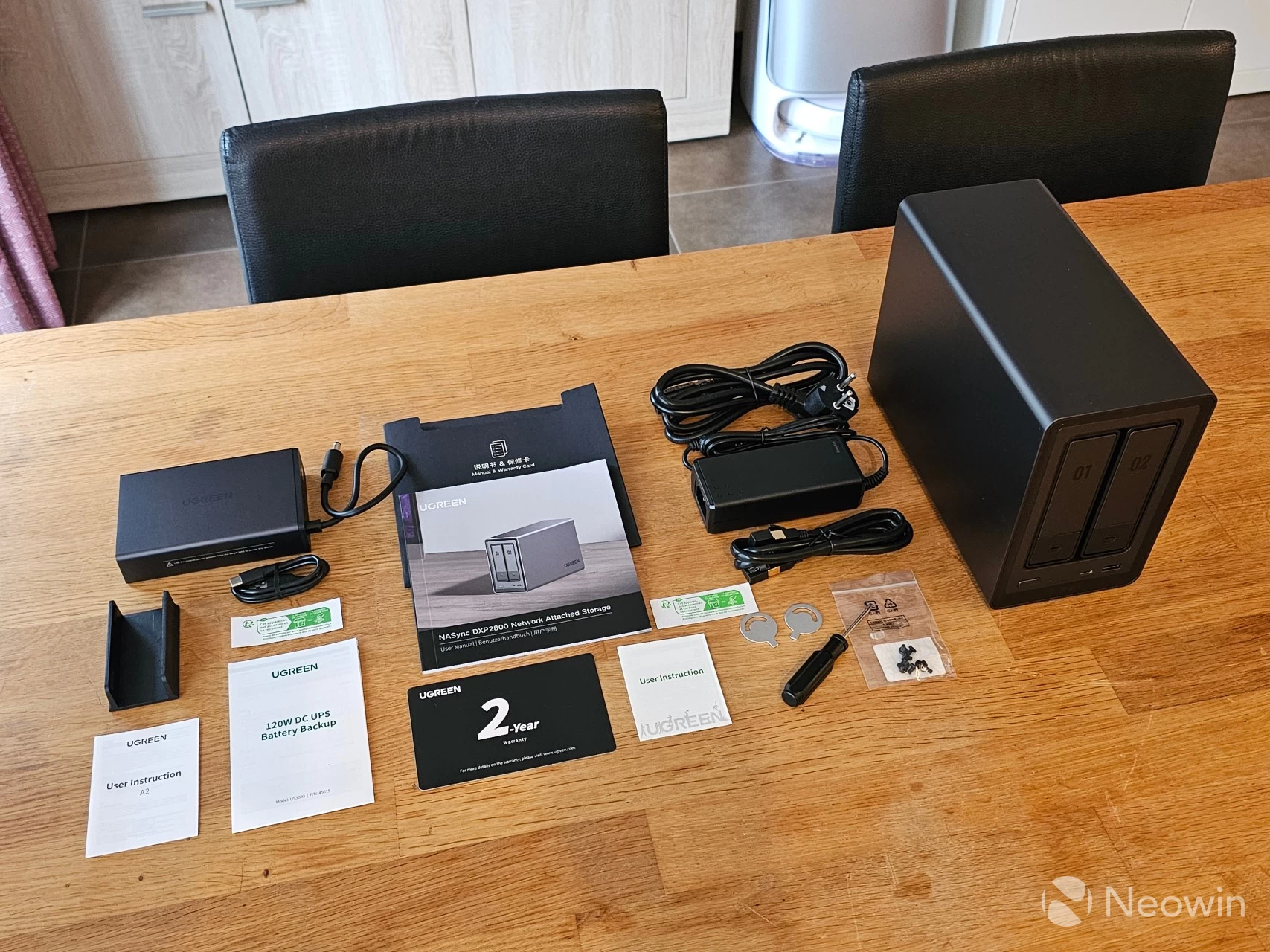
The NASync DXP2800 arrived in a large outer brown cardboard box, and upon opening it, there was another box with details of the DXP2800 printed on the sides of the white cardboard box. The NASync DXP2800 itself is protected by a foam cushioning on the top and bottom, with another cardboard box for the accessories.
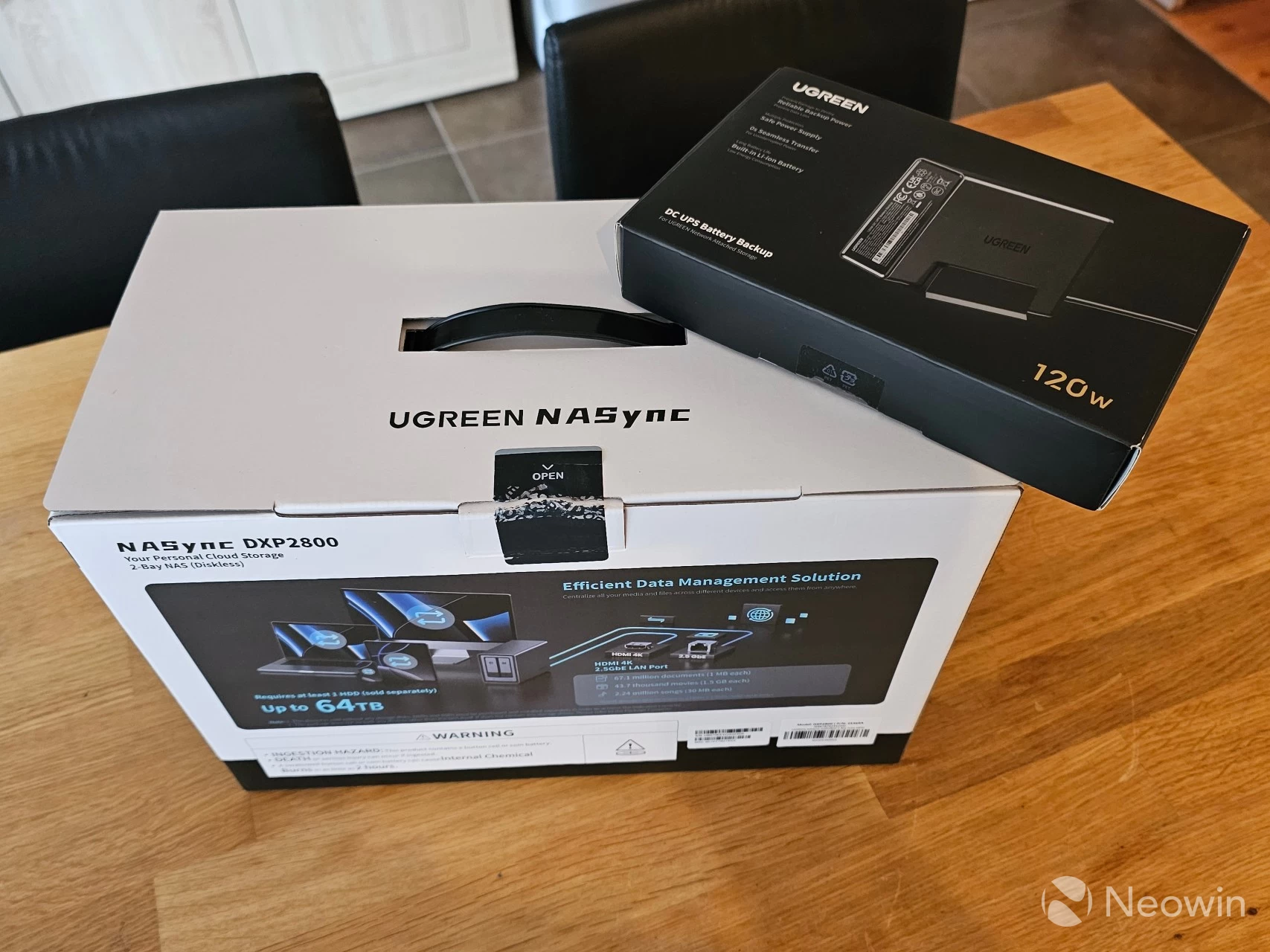
In the box
- NASync DXP2800 device
- Power cable
- 1 x LAN cable (CAT 6)
- Quick guide [full online product documentation]
- Warranty card
- Screws (for 3.5-inch HDD)
- Screwdriver
UGREEN also has a quick start guide online that covers most questions first-time buyers will have about populating it and setting it up here.
UGREEN also sent along a couple of WD Red Plus 4TB NAS HDDs to use in the NASync DXP2800 for the purpose of this review, so that is what I went with.
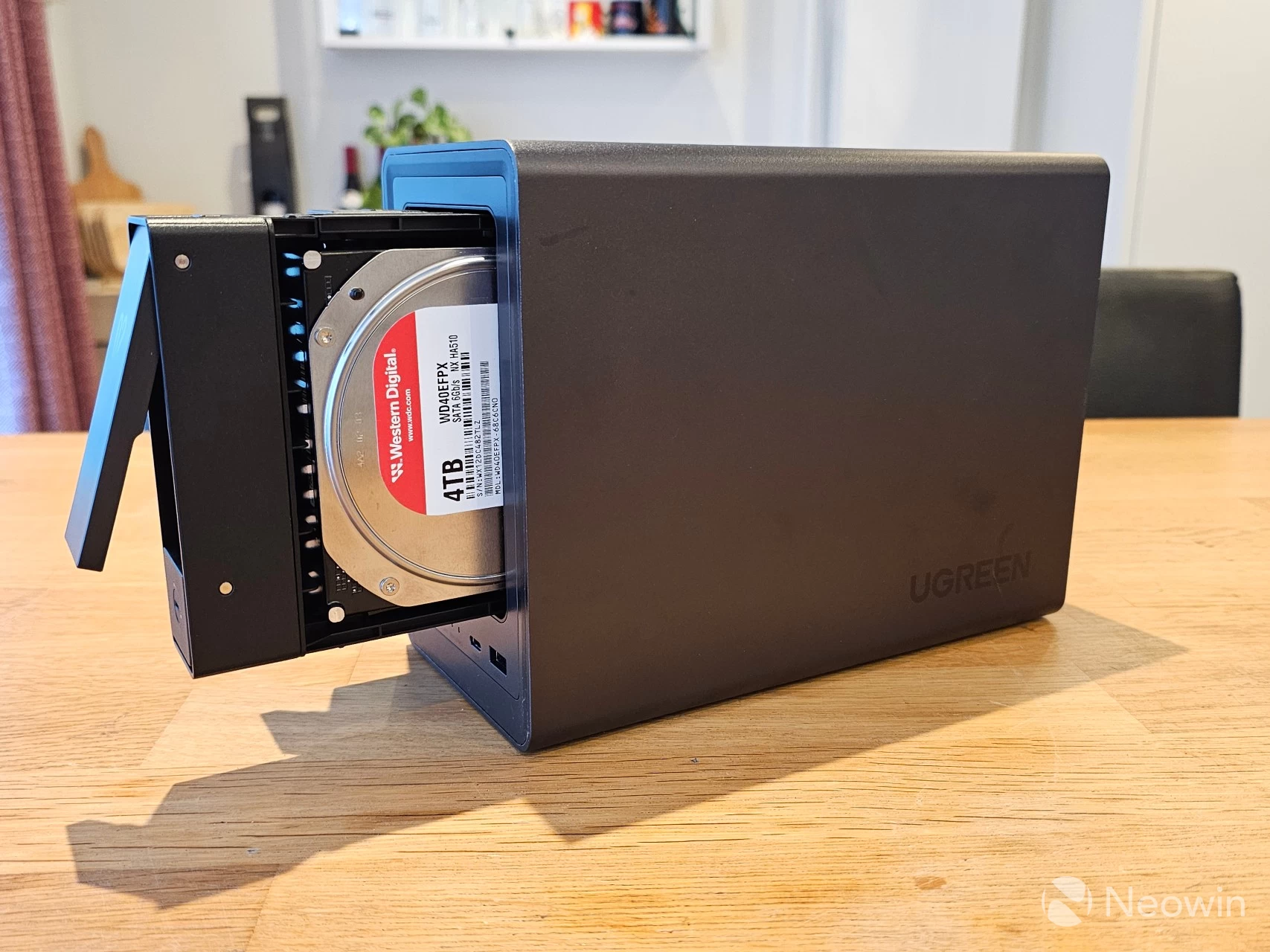
Design
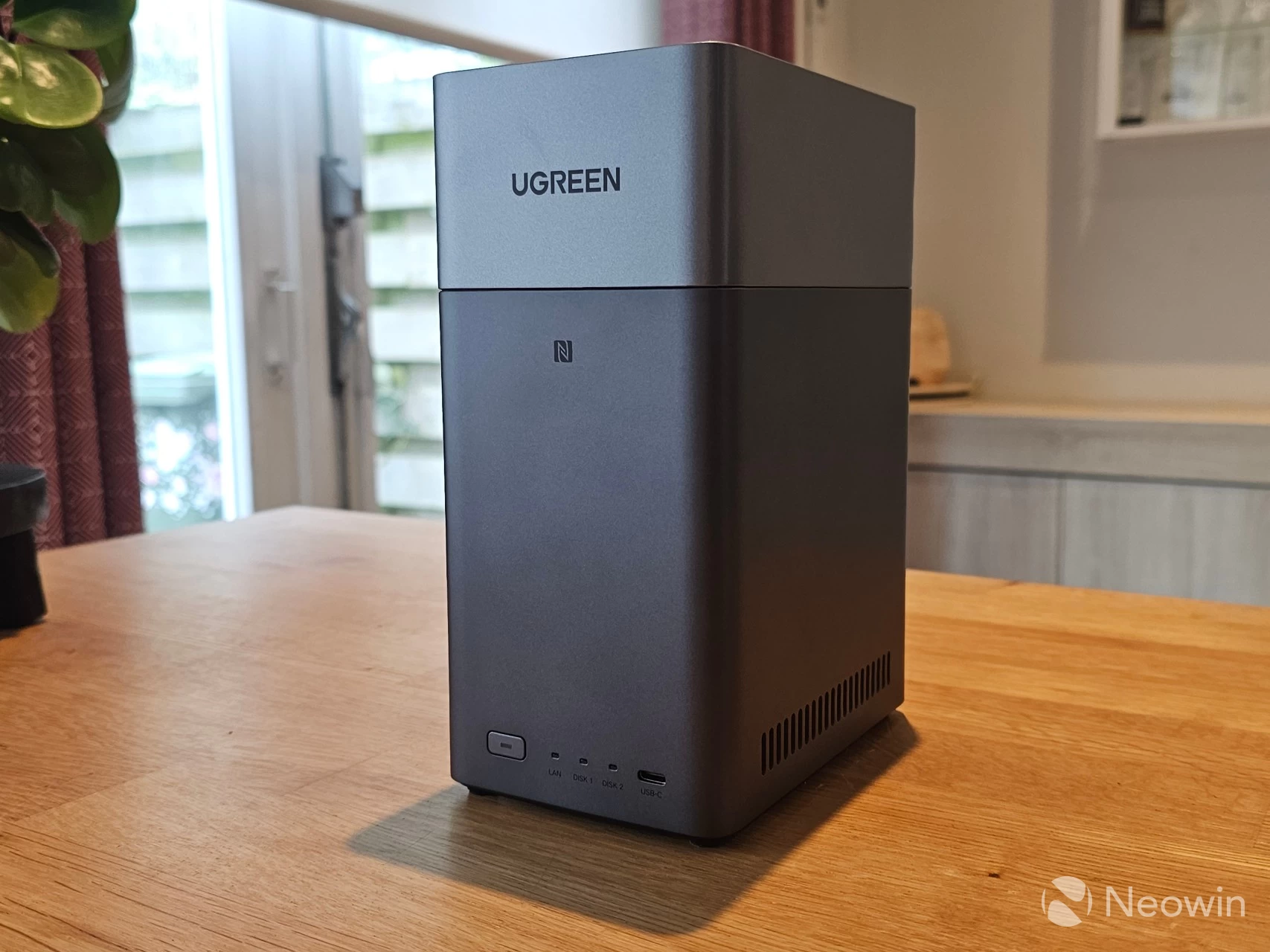
The exterior uses a two-tone gray with the darker gray reserved for the outer shell and rear of the unit, with the light gray making up most of the front; it"s also not a fingerprint magnet. The shape of the NASync DXP2800 looks more like a personal cloud backup than a NAS unit. The rounded edges look pretty cool as well. Overall, it"s a very nice-looking device; the cherry on top is that it does not slap any stickers on the front with a model number.
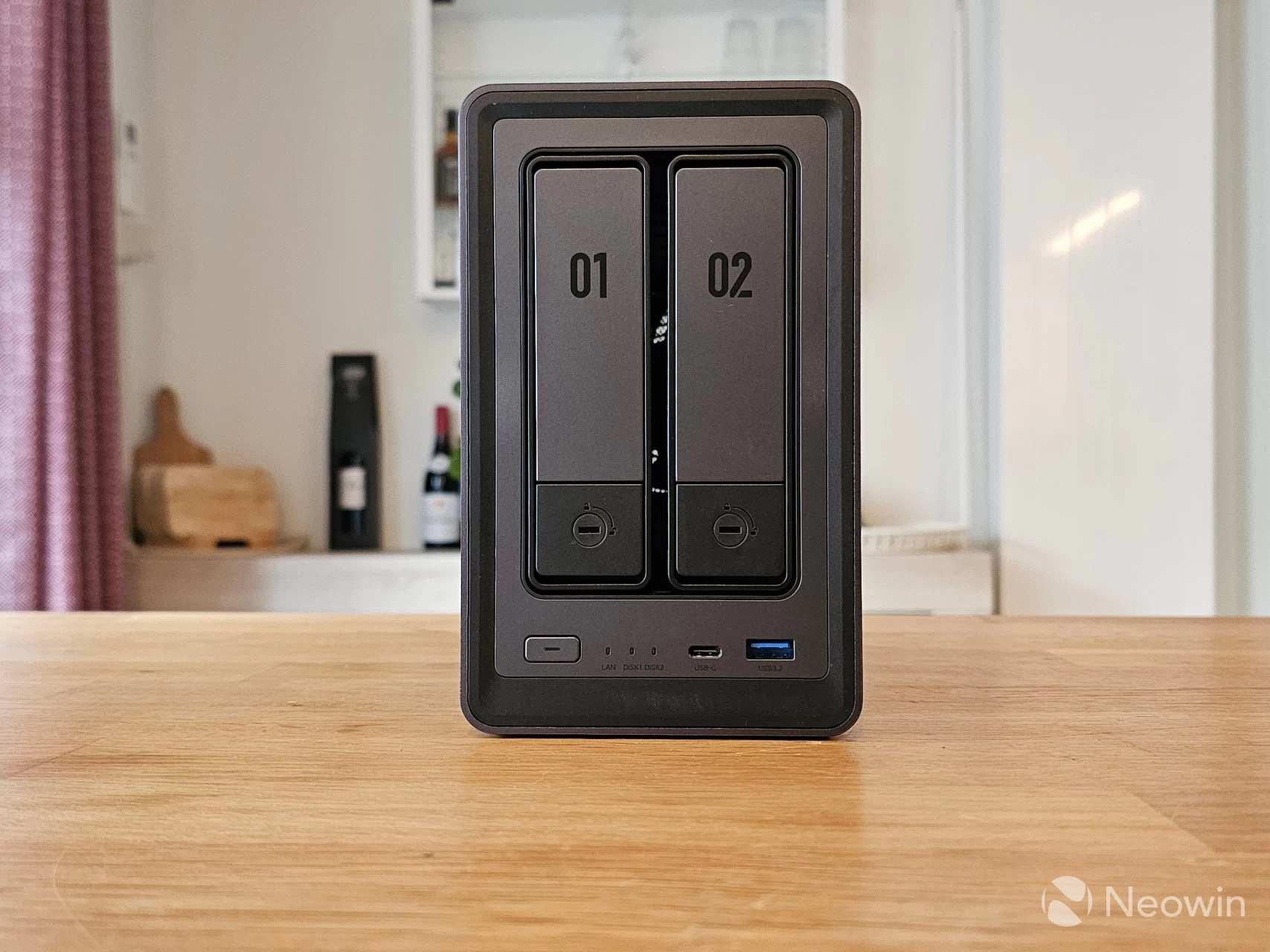
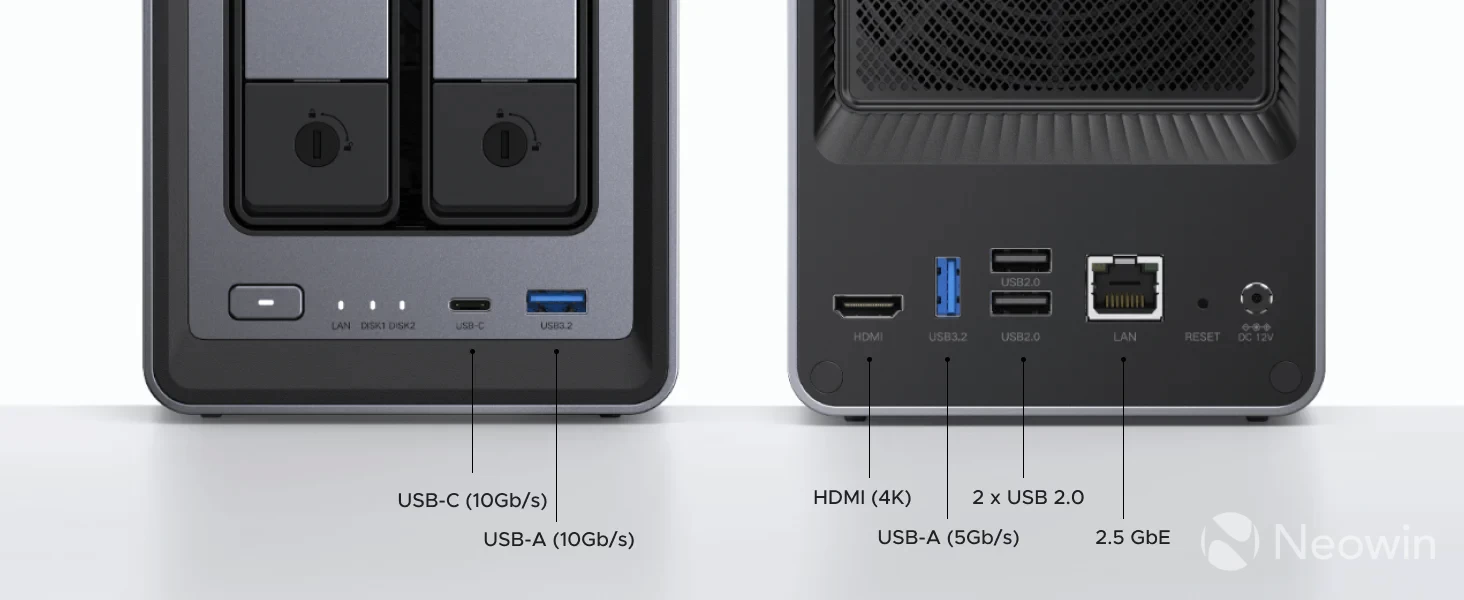
On the front, from left to right, you have the power button, three LED indicators for LAN, disk 1, and disk 2 and the Type-C and Type-A 3.2 Gen 2 USB ports, with a maximum speed of 10 Gbps.
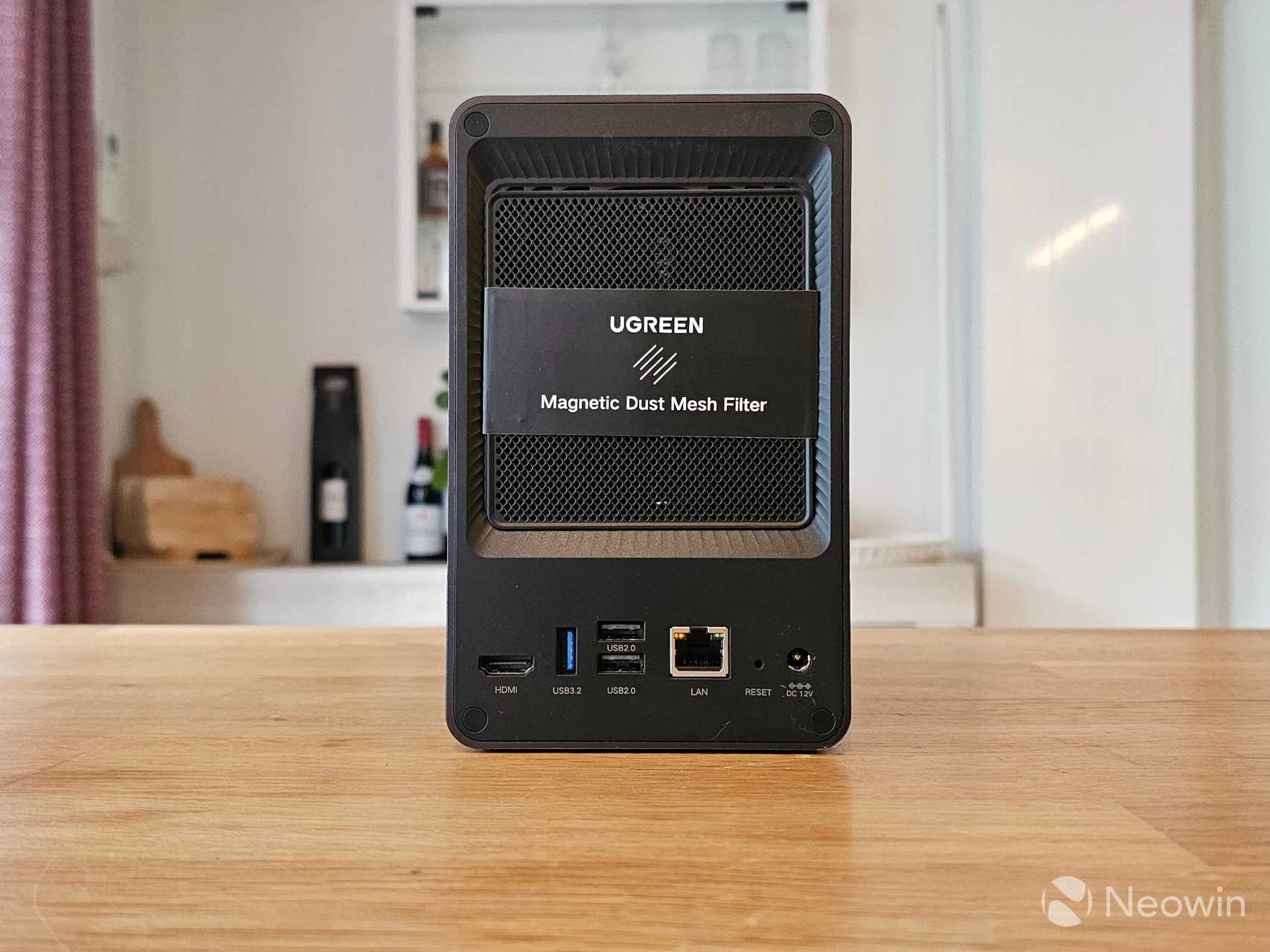
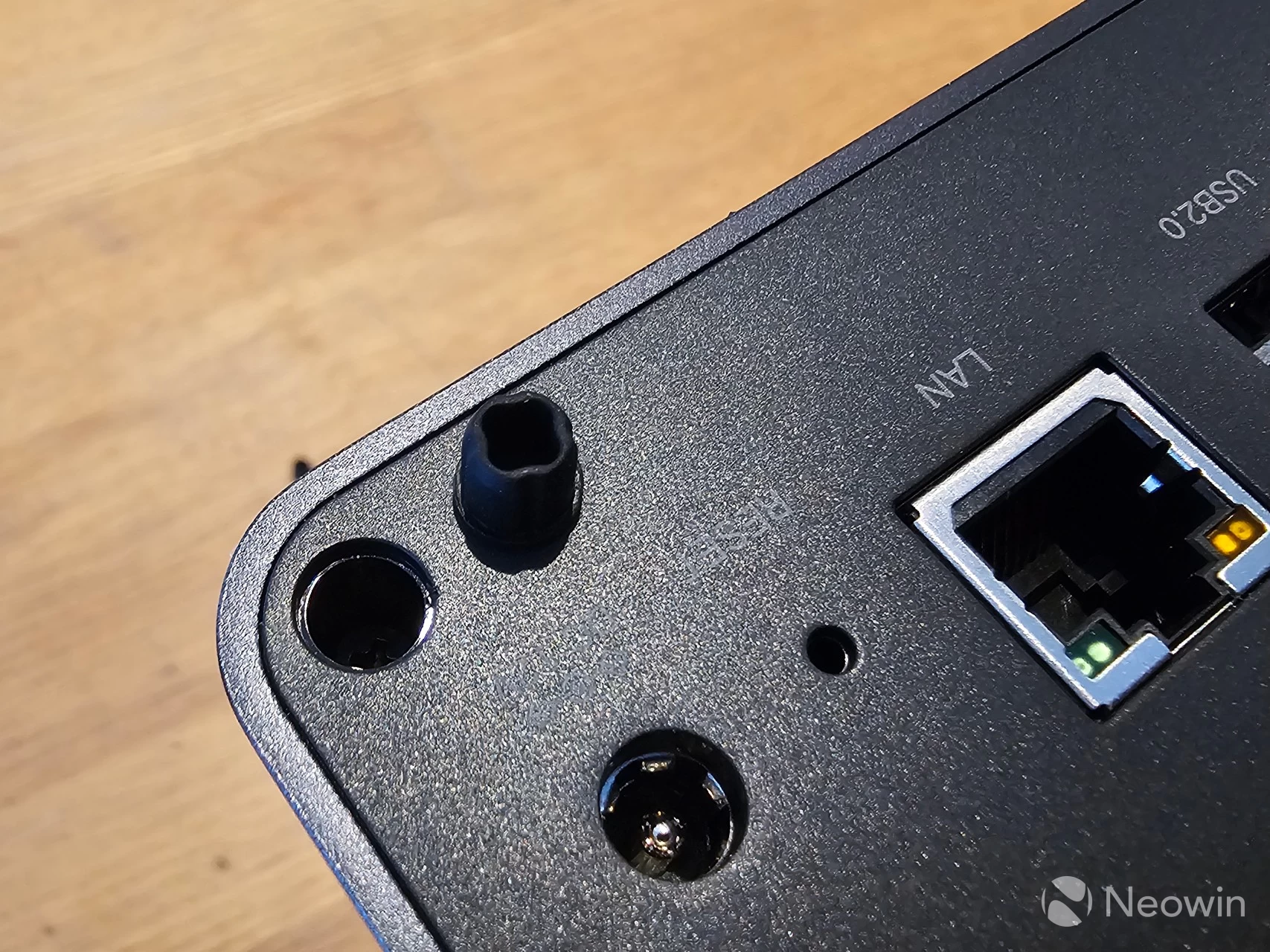
Around the back, there"s the Magnetic Dust Mesh Filter over the system fan which is set to intake, and on the bottom, from left to right, there"s an HDMI 2.1 port, one Type A 3.2 Gen 1 ports (5 Gbps), two USB 2.0 ports, an RJ45 port (2.5 GbE), a reset pin hole, and the barrel connector port.
| Right side | Left side |
|---|---|
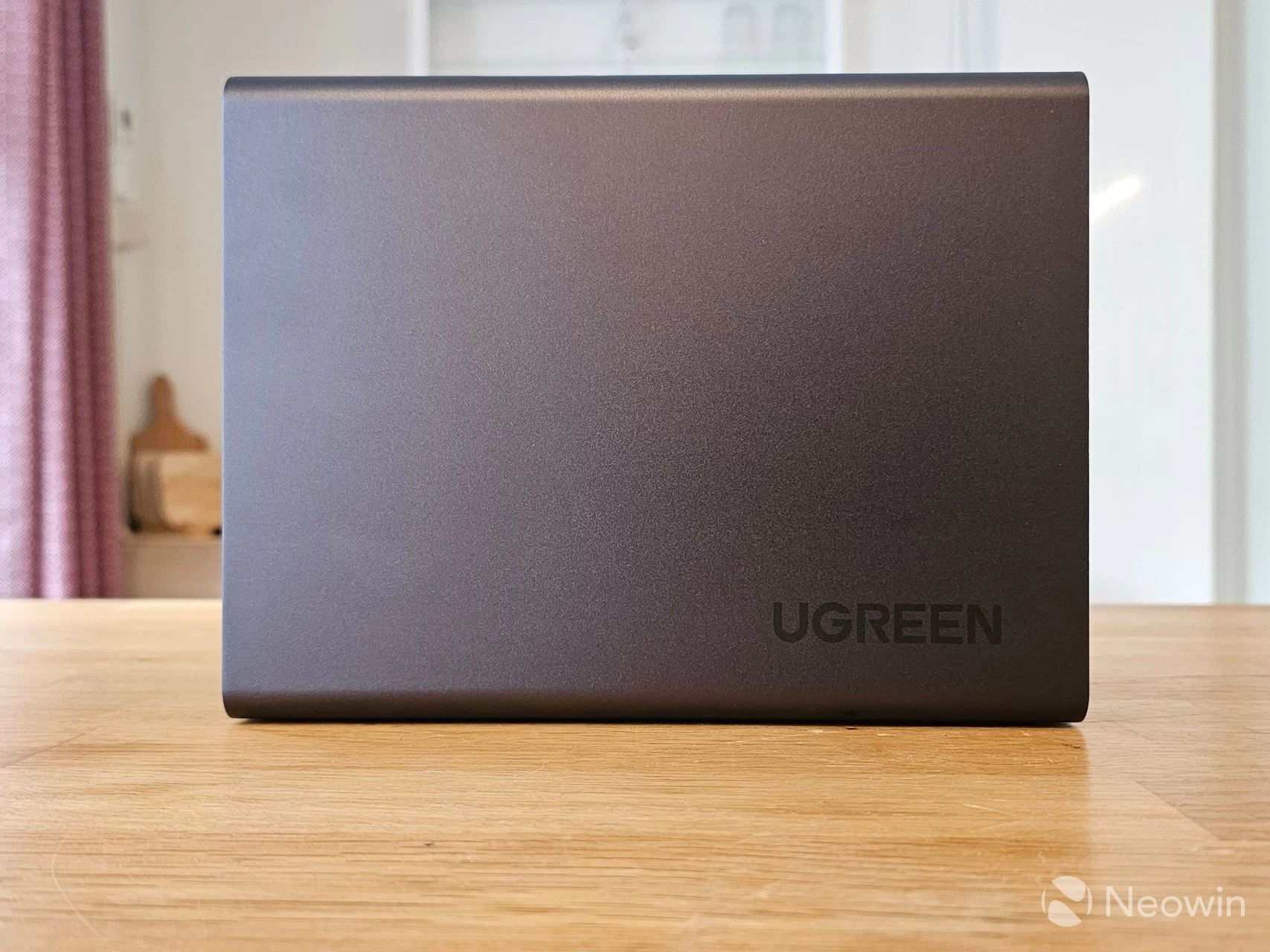
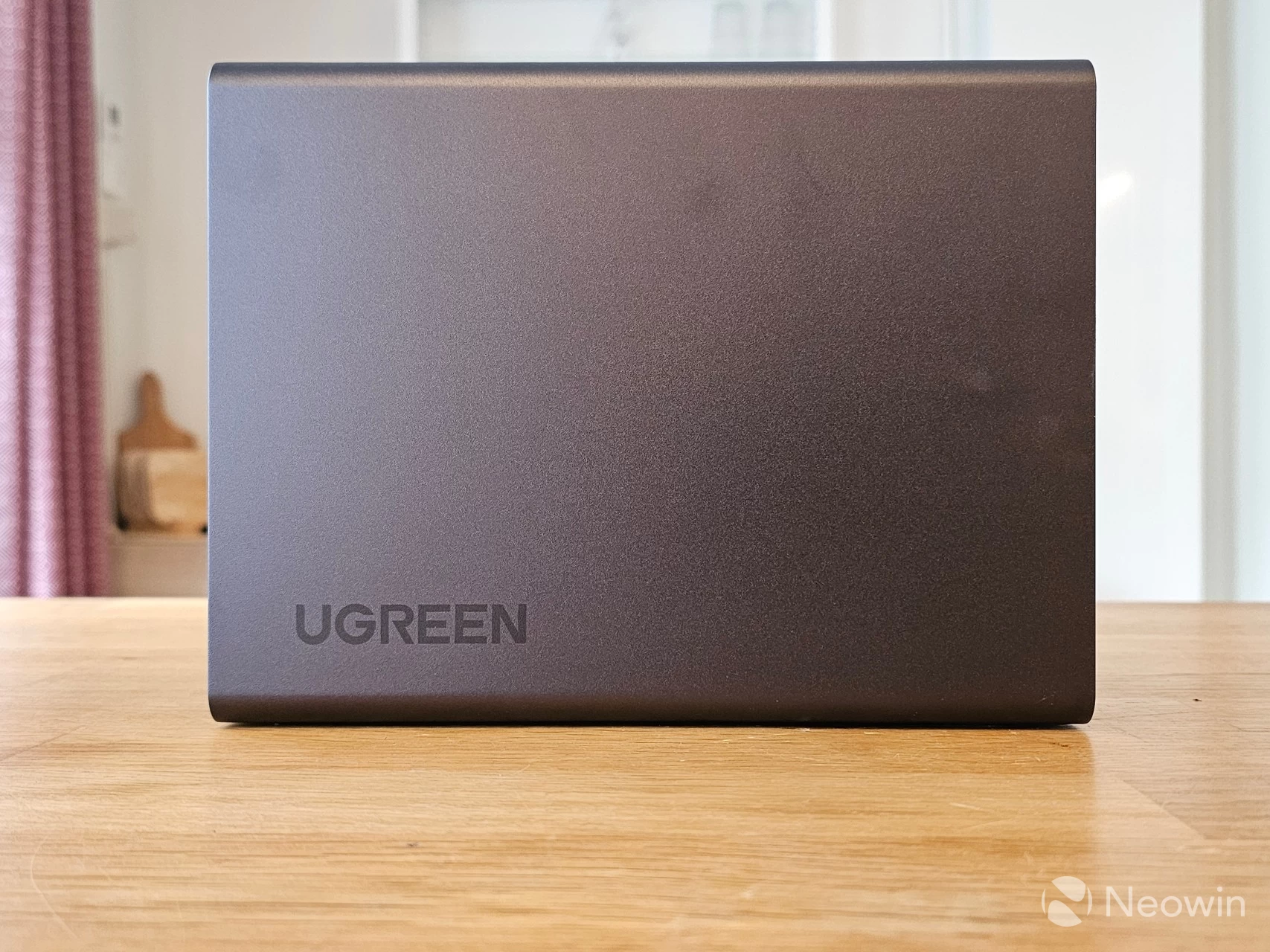
The left and right look completely the same, with UGREEN stamped on the bottom rear of each side.
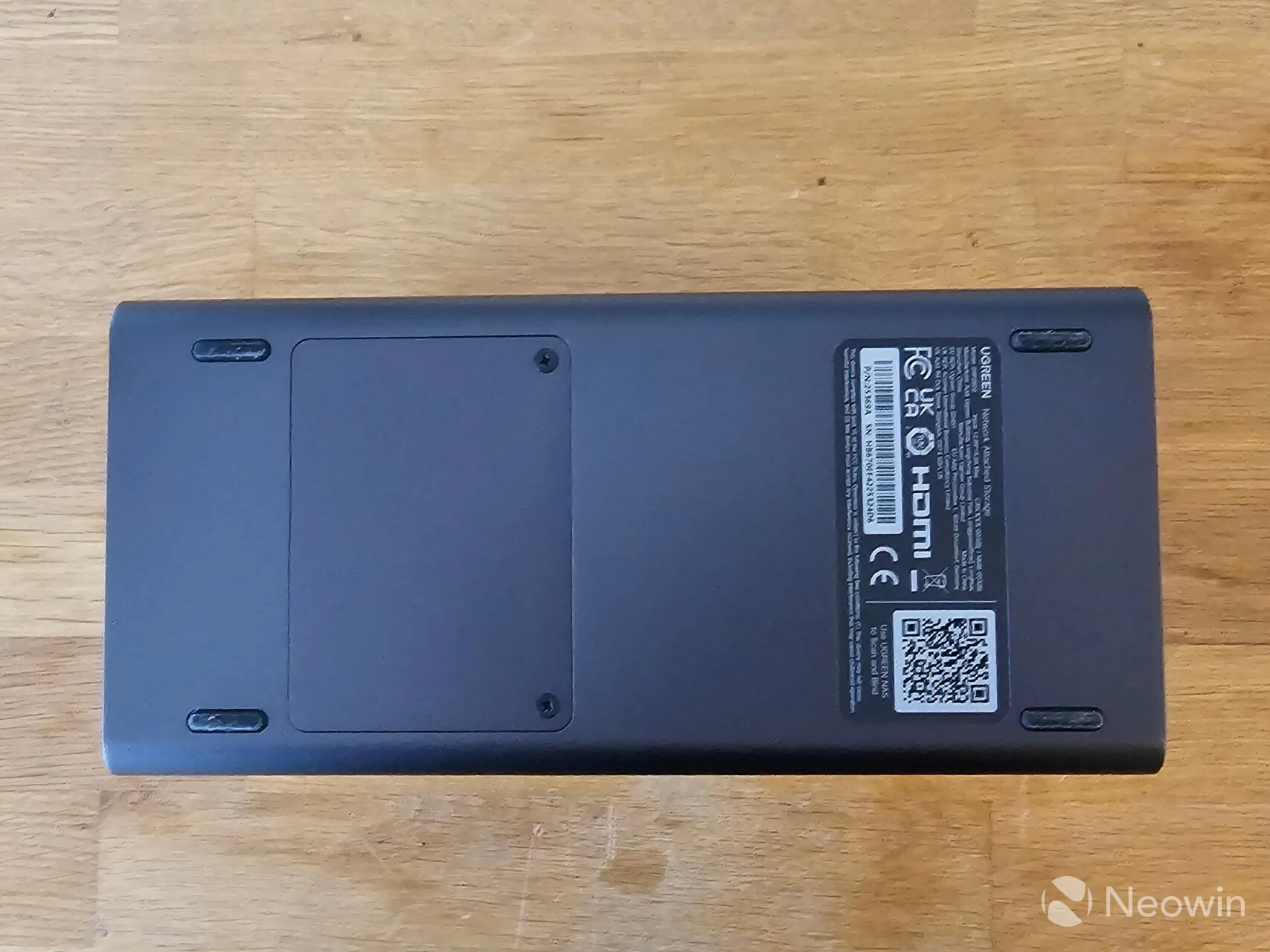
On the bottom, the four rubber feet are glued on and give an overall height of around 0.3mm, then there is the flap with two screws, which, when removed, provides access to the SODIMM memory module.
Teardown
No NAS review that I do would be complete without some sort of teardown, and usually, it is required to manage some of the internal bays and memory anyway.
Managing the memory
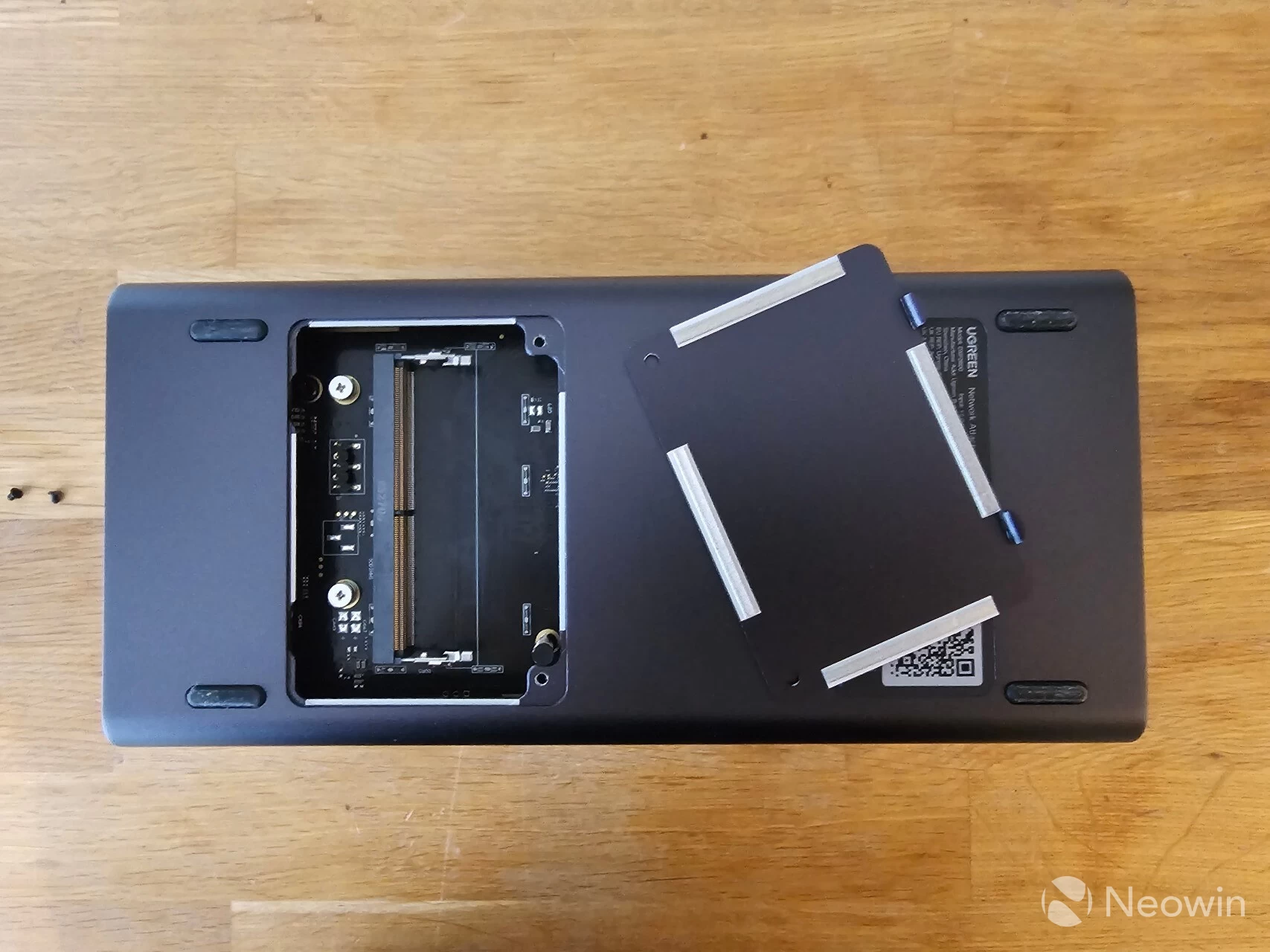
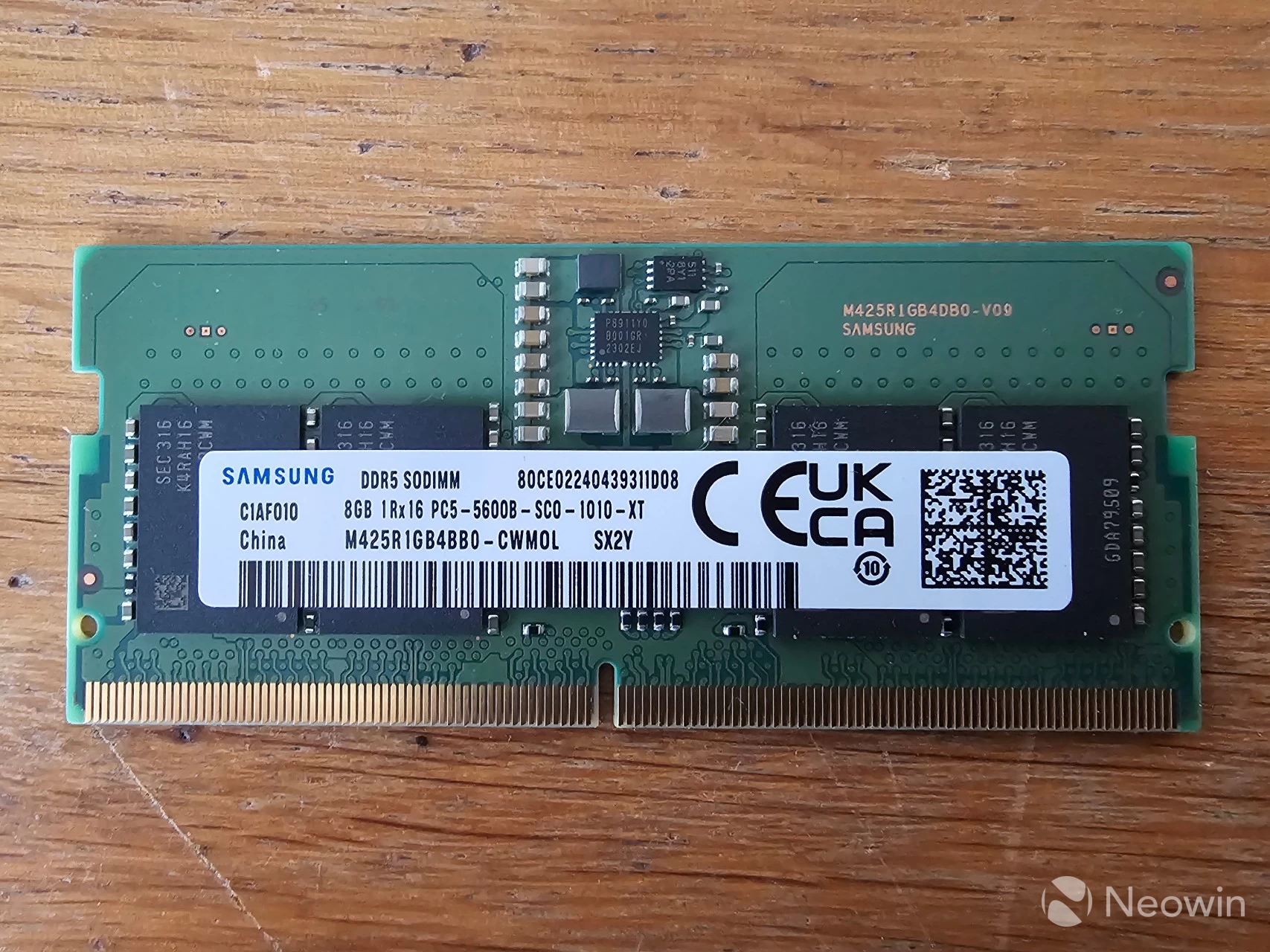
On the bottom of the DXP2800, you can remove two screws and remove the flap to reveal the DDR5 SODIMM. There"s only one slot, so only one memory module can be installed; in this case, it is a Samsung 5600 MT/s module.
Managing the M.2 SSD bays
| Unpopulated | Populated |
|---|---|
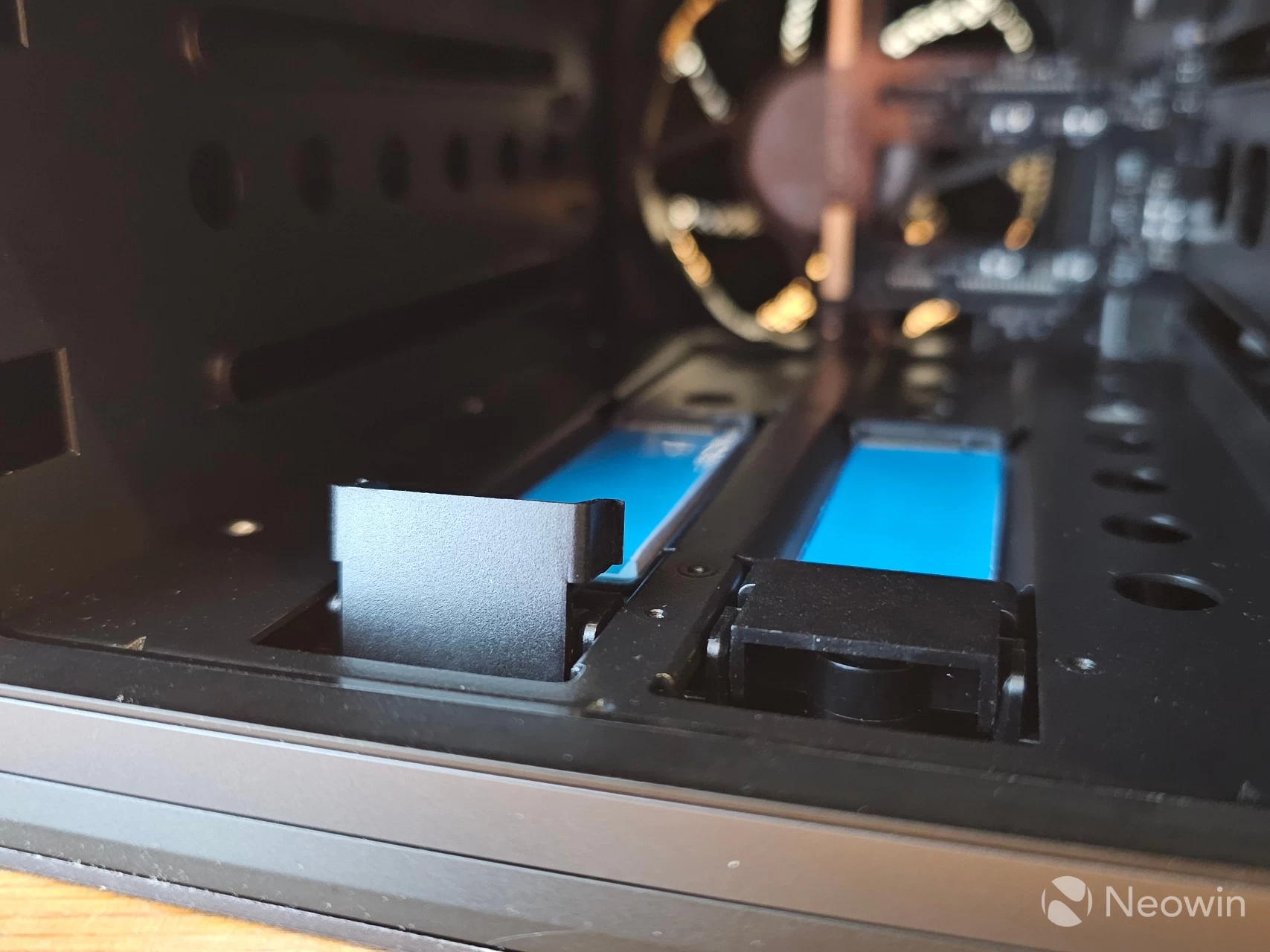
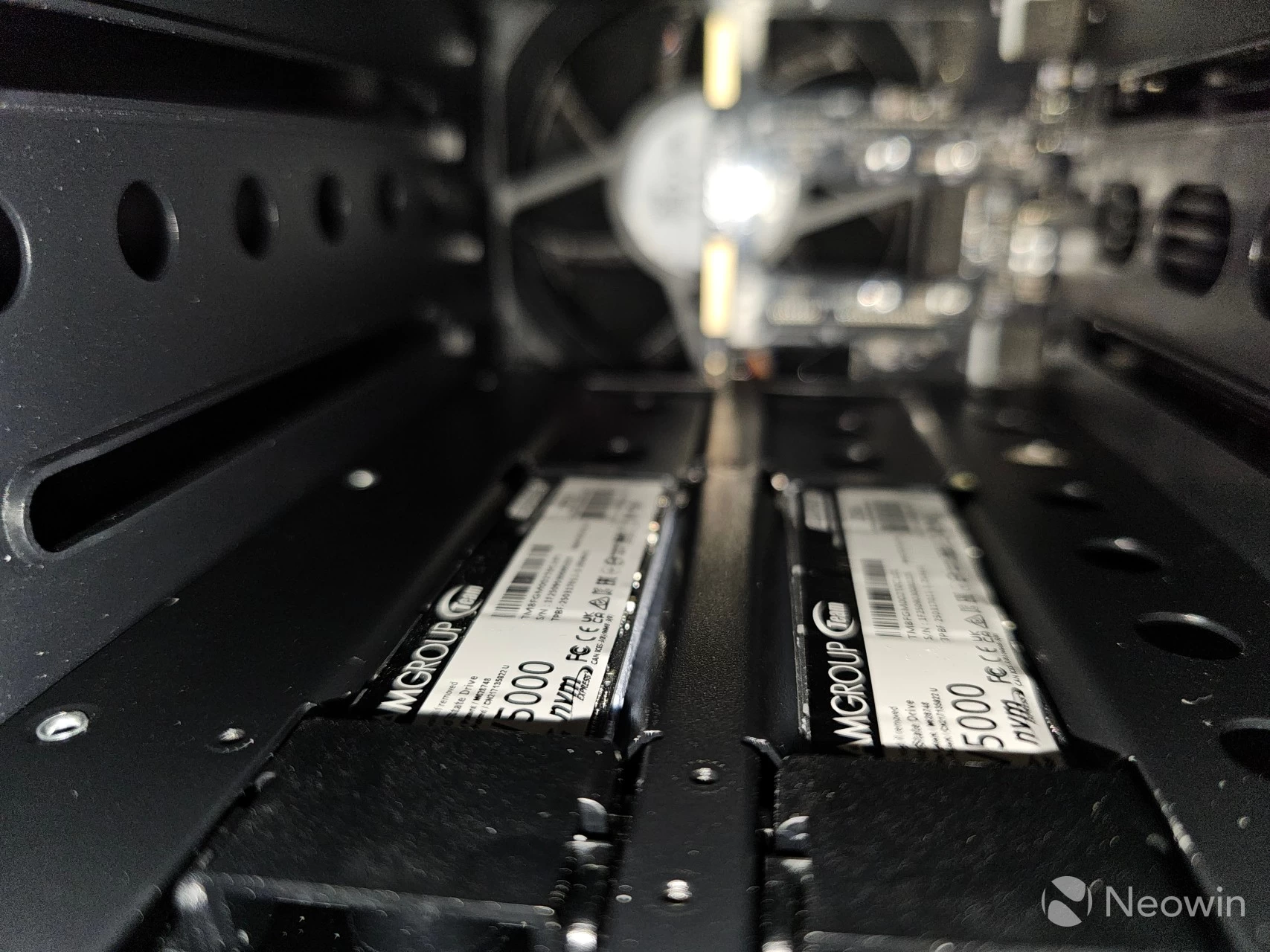
The M.2 slots are located to the left of the first HDD bay and are toolless. Simply lift the flap up, and after removing the blue plastic covers for the thermal pads, I was able to slot in a couple of NV5000 M.2 PCIe 4.0 SSDs (2 x 2TB) that TEAMGROUP supplied us with (Amazon, Newegg), and lock them into place by pressing down the flap. In the above image, one flap is completely opened, and the other is in the locked position.
This is far, as most users will get, with regards to hardware management.
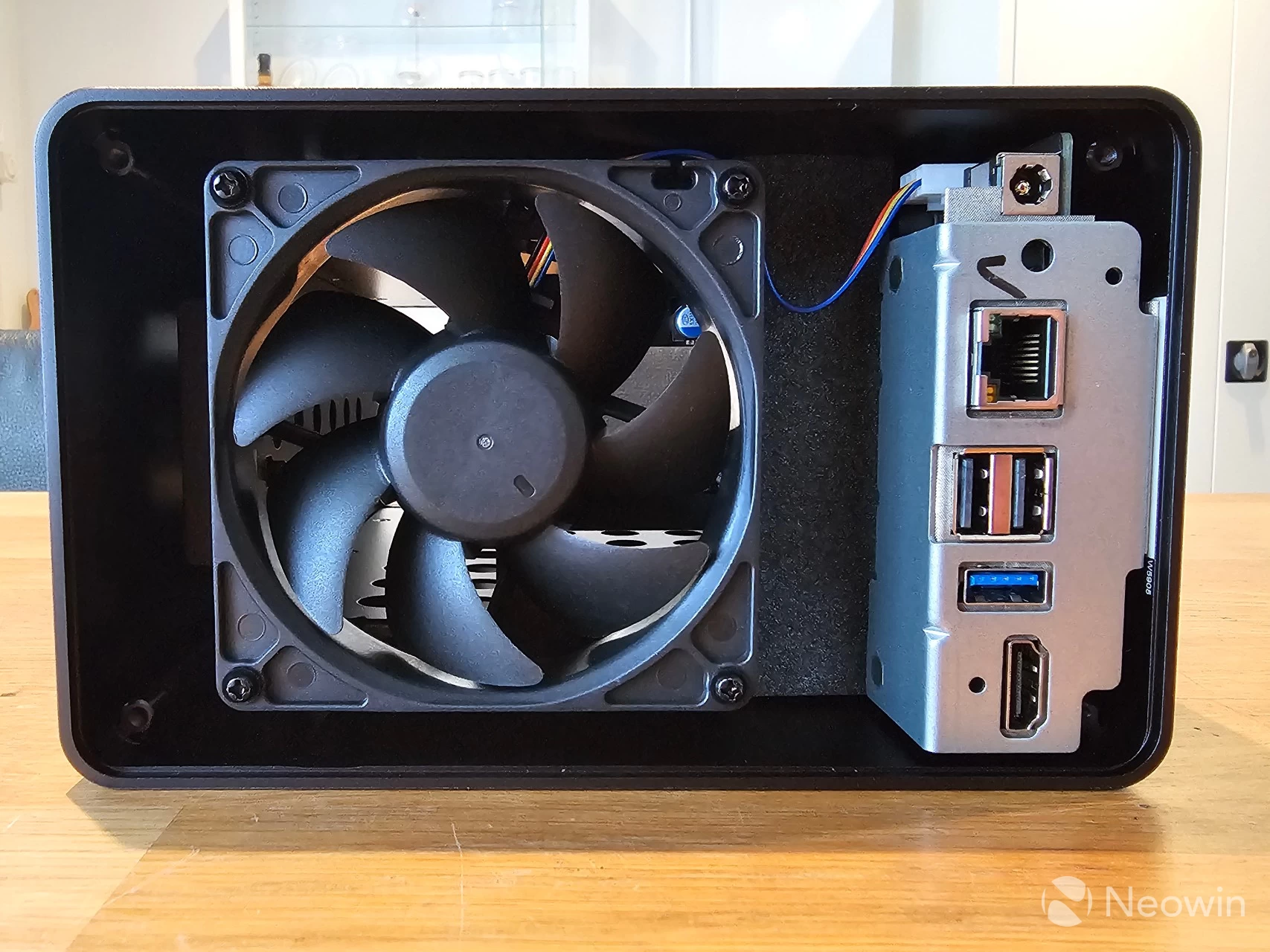
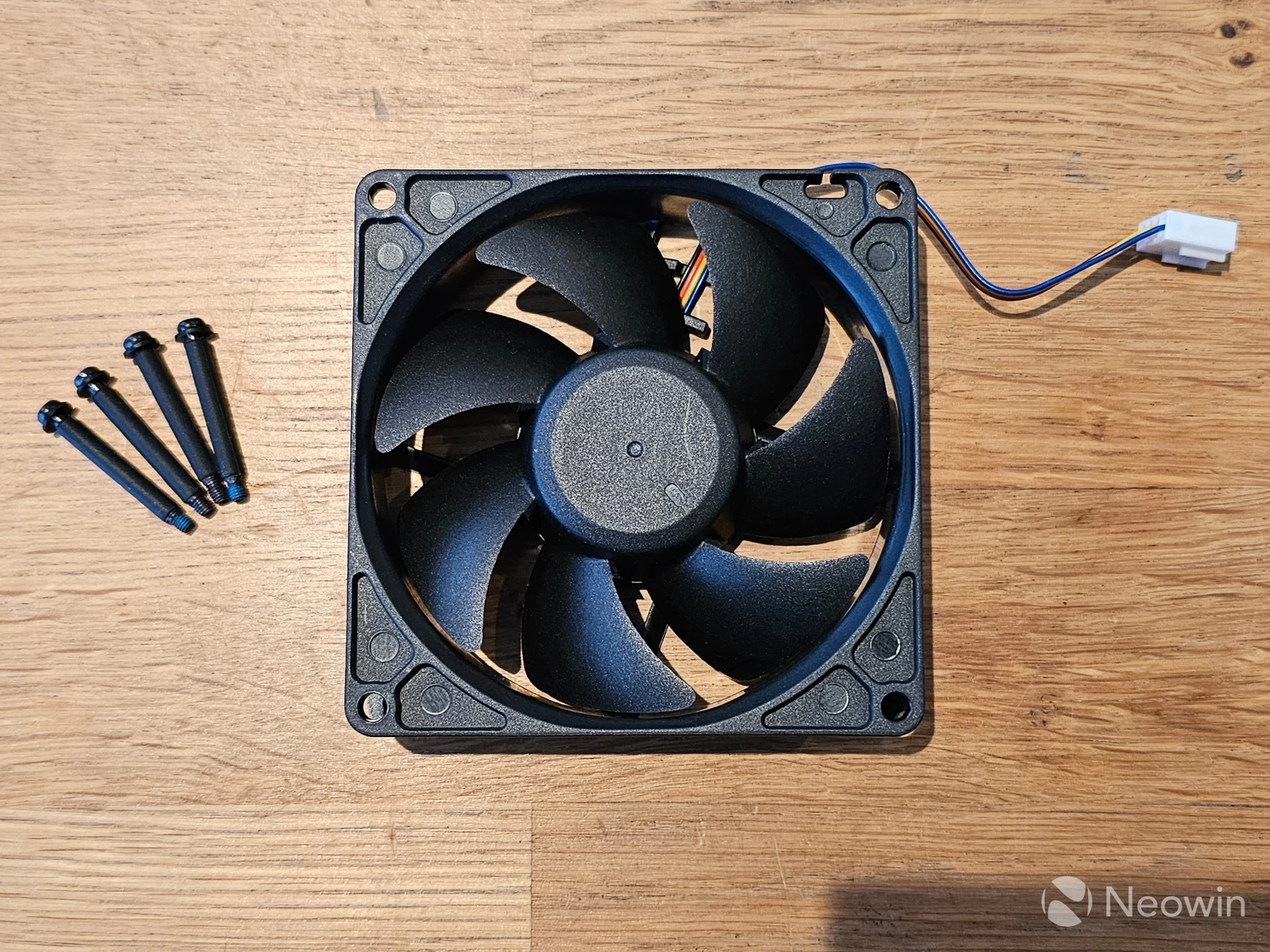
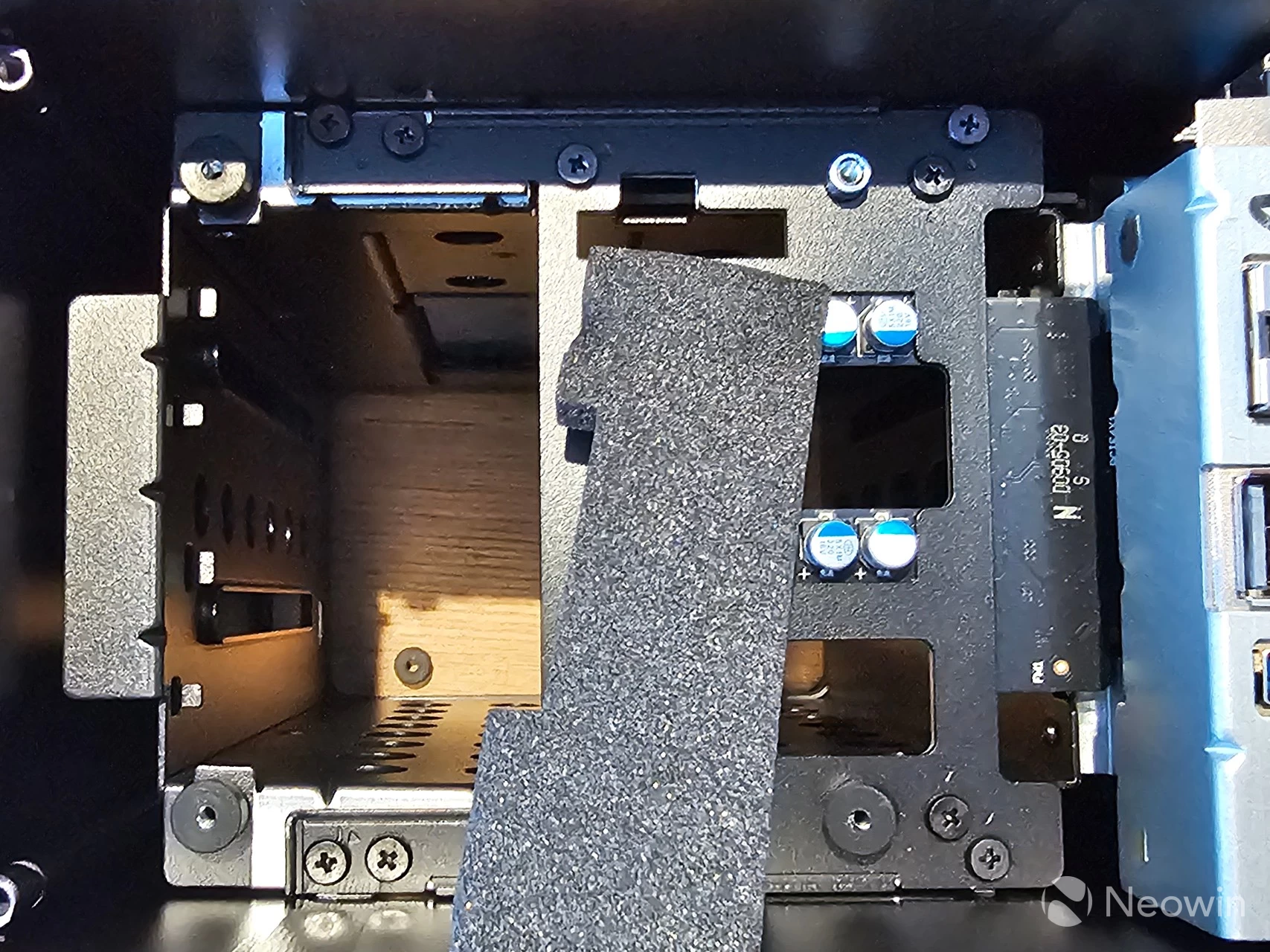
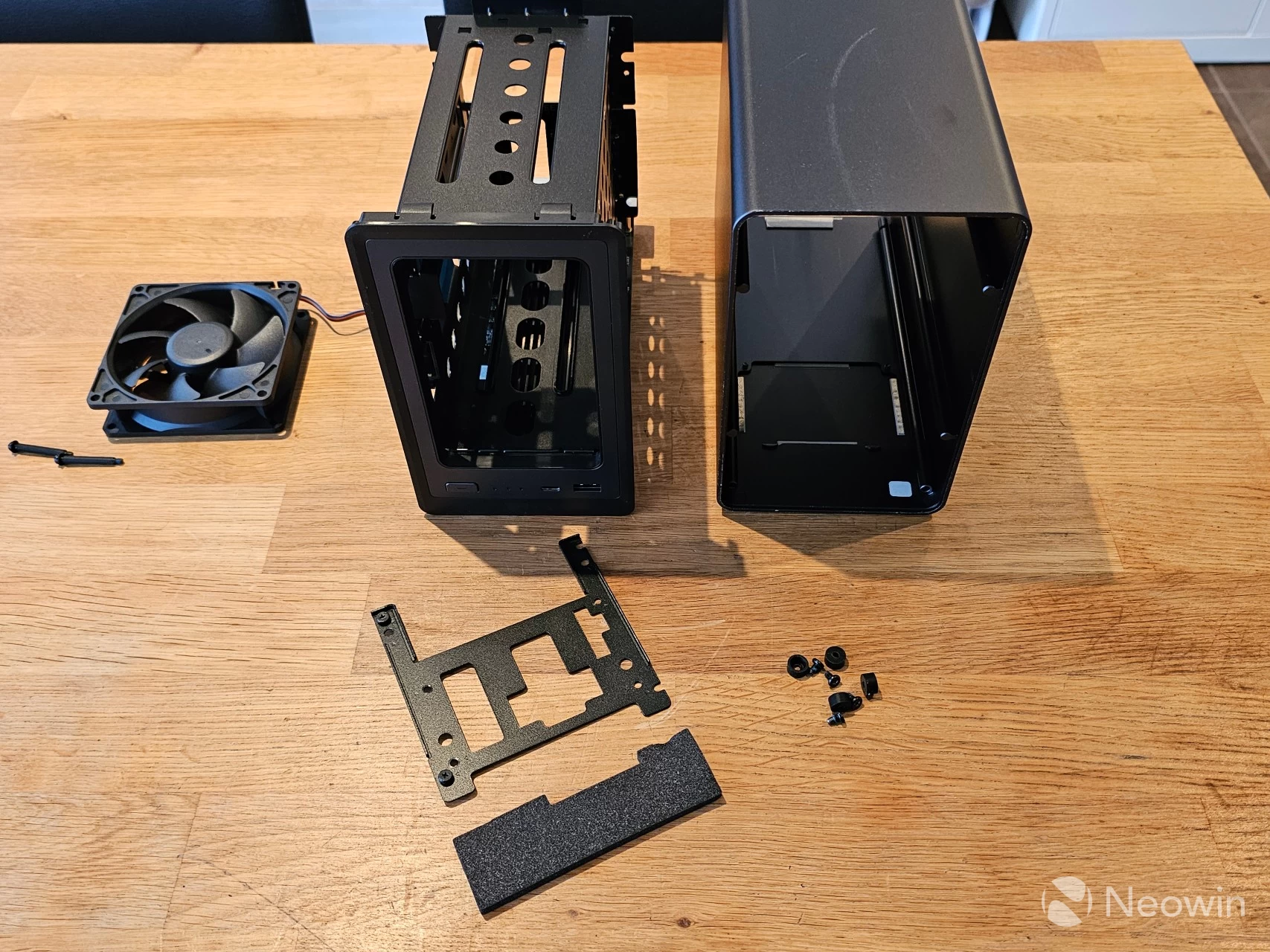
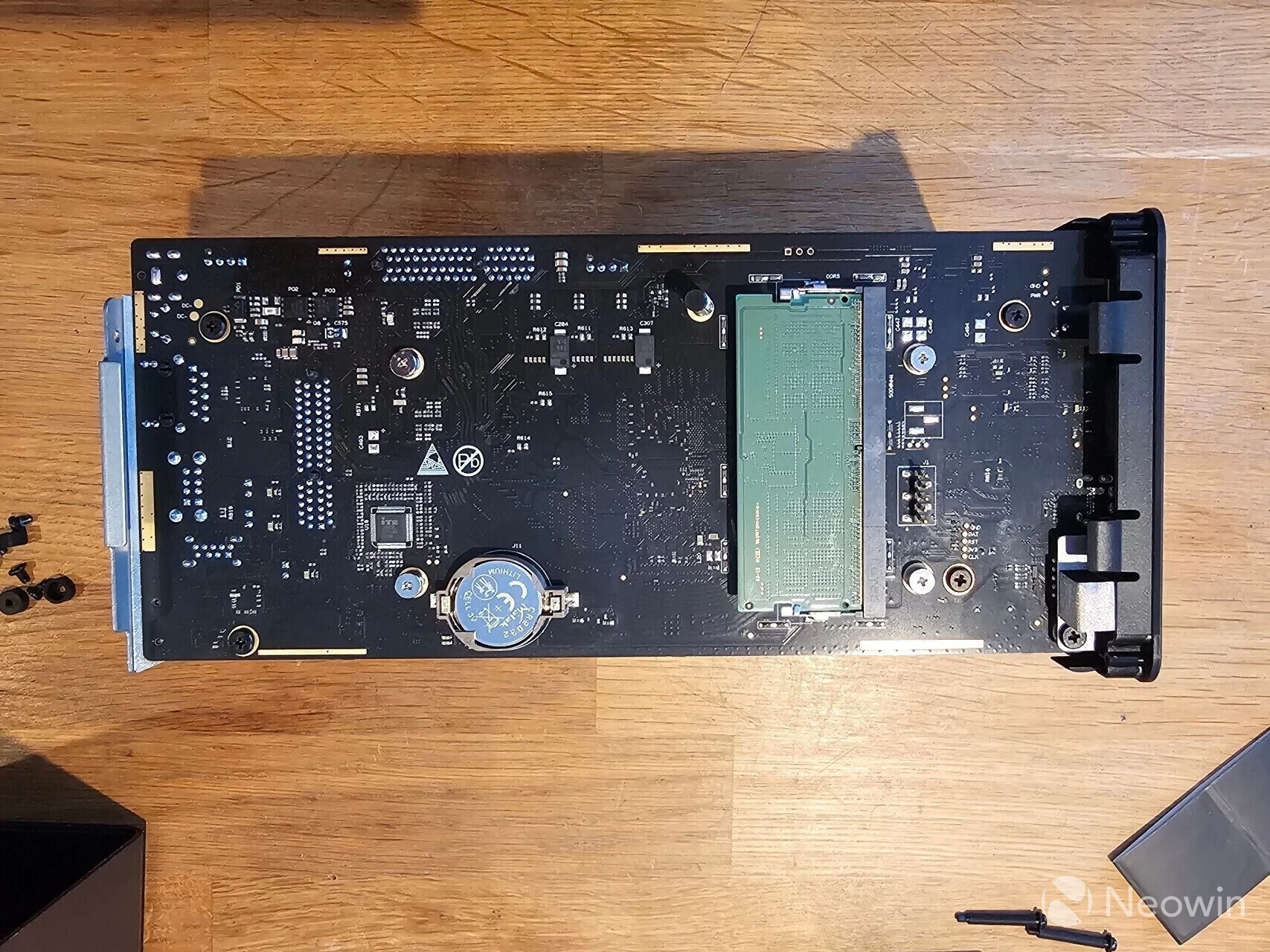
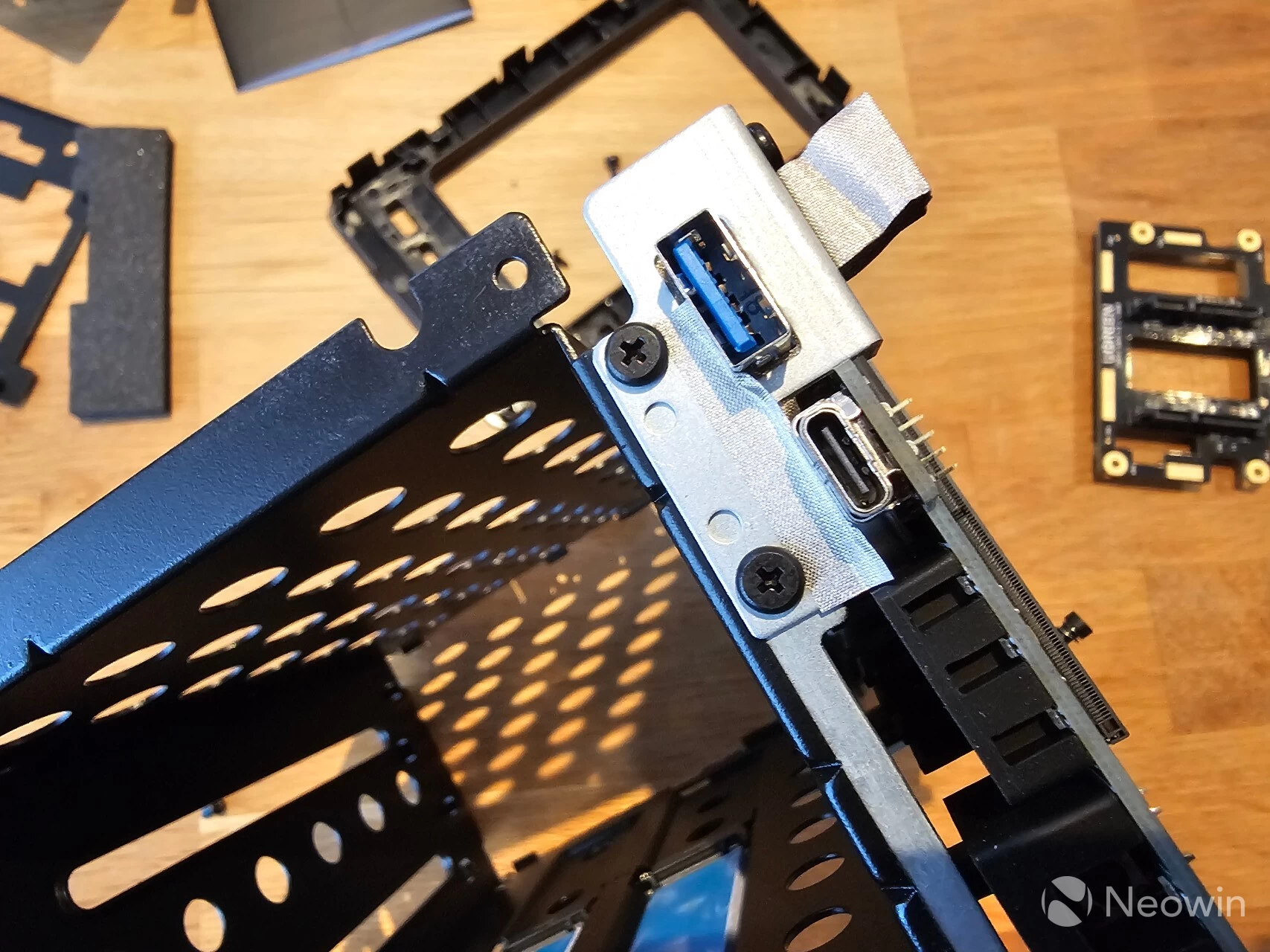
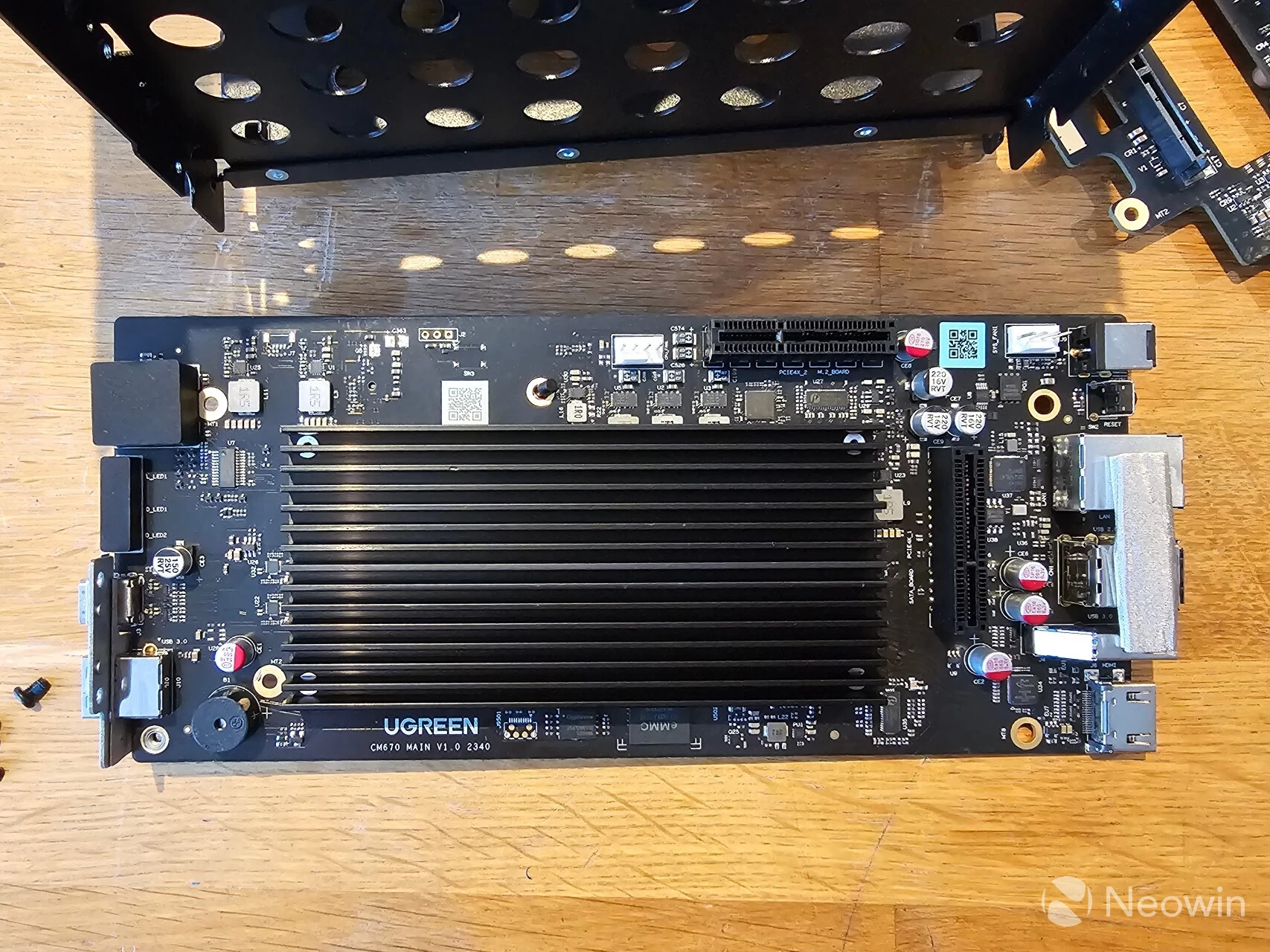
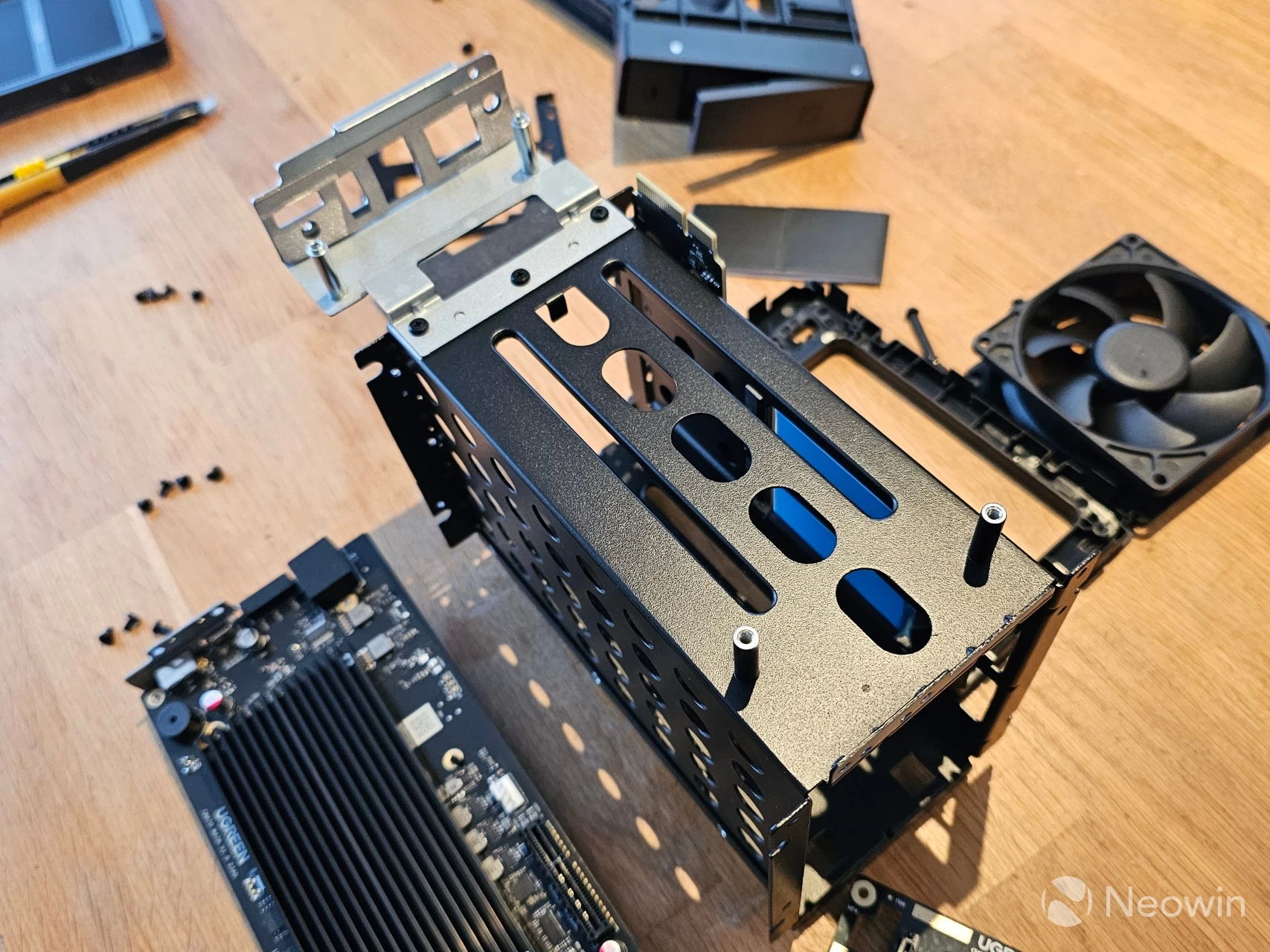
The DXP2800 can be completely taken apart; there are a lot of screws that need to be removed, though!
- Remove the rubber covers on the rear plate (with something like a Stanley knife);
- Remove the four screws and lift off the plate;
- Remove four more screws of the system fan, and disconnect it;
- Remove a small piece of foam that covers some screws;
- Remove the six outer screws to free it from the outer frame (four inner screws hold the HDD SATA connectors PCB in place; these do not need to be removed);
- Now you can slide it out of the inner casing.
In order to remove the mainboard:
- Remove four screws holding the front plate to the inner frame;
- Remove four screws of the PCB (mainboard);
- Remove an additional three screws holding a metal shield around the USB ports;
- Now the PCB can be lifted off the SATA PCB connector.
As you may see, there is no internal USB port for a custom bootloader, and the EMMC flash, where UGOS lives, is integrated into the main PCB. However, it is possible to set the boot order to boot from the USB port if you decide you want to run something like TrueNAS or Unraid.
Long story short, you should never need to do this anyway, but I did it so you don"t have to!
Getting Started
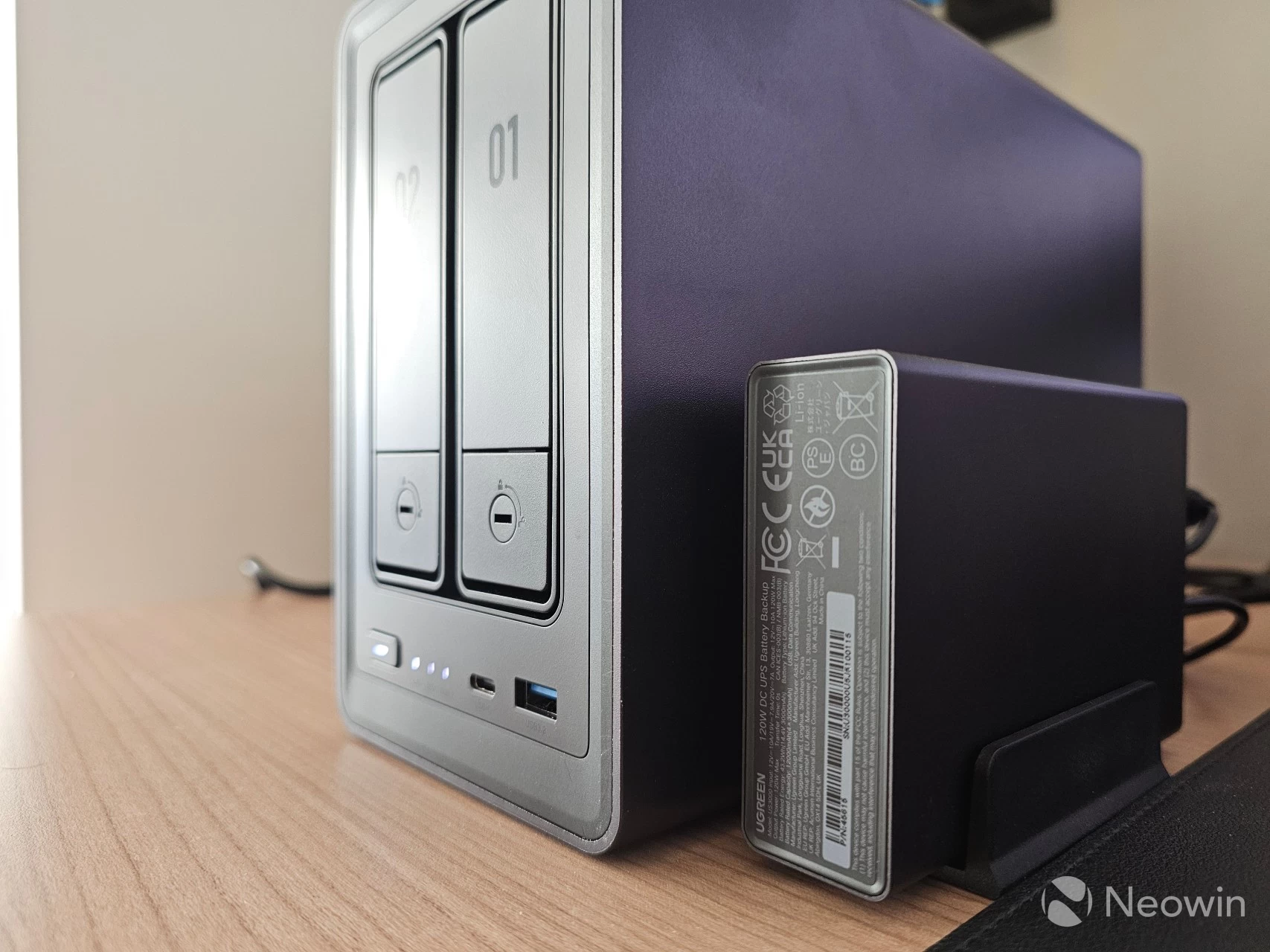
Before we move on to the DXP2800, first, a bit about the UGREEN NAS 120W DC Uninterruptible Power Supply. UGREEN sent this along with the NAS so I could also test its capabilities.
First up, the specifications:
| UGREEN NAS 120W DC Uninterruptible Power Supply | |
|---|---|
| Model: | US3000 |
| Battery Rated Energy: | 43.2Wh (14.4V 3000mAh) |
| Battery Rated Capacity: | 12000mAh (4×3000mAh) |
| Battery Type: | Lithium-ion Battery |
| Output Power: | 120 W Max |
| Input: | 12V⎓10A/19V⎓7.9A/20V⎓7A |
| Output: | 12V⎓10A 120W Max |
| Ports: | 1 x USB Data Communication |
| Warranty: | 1 year? |
| MSRP: | $99.99 |
However, it was not plain sailing. There"s no online documentation (just a small booklet in the box), and every review I could find of it online did not even show the process of connecting it to a NAS and powering it up; nothing was mentioned about the power states of the button on the UPS in the reviews I could find, either.
It"s also not clear from their own warranty page how long the UPS is covered, since it does not fall under "Main Device" or "Power Adapter." I have reached out to my contact at UGREEN and will update when I hear back.
I discovered through the documentation that when the UPS is showing a solid red light, it means that it is below 20% battery. It is only possible to see this when the UPS is not connected to the mains power. So due to this, the DXP2800 would not turn on; all I got was a blinking white light on the DXP2800, which, according to the documentation, means it is powered off.
So I decided to leave the DXP2800 off, and let the UPS charge (indicated by the pulsing white light on the UPS,) after about ten minutes the DXP2800 started booting and then immediately shutdown again, this probably indicated that the UPS went over 20% and tried to power on the DXP2800.
After a while (with DXP2800 disconnected), the blinking white light became a solid one, which made me think it had enough power to connect the DXP2800. After I did that, it booted and then immediately shut down again, and when I disconnected the UPS from the mains, the power light was solid red, indicating that it dropped below 20% again. I plan to leave the UPS connected to the mains overnight to let it charge fully.
Use the UPS after setting up the DXP2800
I discovered by accident that the DXP2800 needs to be initialized and set up first before the UPS works, maybe this has to do with the USB communications port, as the UPS is only designed to work on a few select models, those are:
- DH2300
- DH4300 Plus
- DXP2800
- DXP4800 & DXP4800 Plus
- DXP480T Plus
Right-ho!
I simulated power loss and I have to say, when the DXP2800 switched to UPS (battery) mode nothing else happened, no beeps or notifications, so I guess it"s just a matter of waiting for the UPS battery to go below 15%, when the NAS powers off. I would prefer to have a notification service for this, or have the NAS continuously beep to actually indicate that there is a problem.
A lack of email or push notification service from the UGOS desktop app is a bit concerning.
Okay, tell a lie... I almost forgot to mention the mobile UGREEN NAS app. When the app is active on my phone, only then will I get a static alert (tapping on it does nothing). Furthermore, there is no alert when you navigate into the UGREEN NAS app; it just suggests everything is cool.
I have an APC UPS connected to my own NAS and when it switches to battery power I get an email, I also get an email when it switches back to AC power, no such luck here.
Populating the DXP2800
The HDD sleds are completely tool-less for traditional HDDs. One side of the sled can be pulled out a bit, then you place the HDD in at a slight angle to align the plastic pins with the screw holes of the HDD, press down, and then press the right side in until you hear it click, and that"s it. Pressing down on the button on the bottom of the sled releases the side, which can then be pulled out to release the HDD from the sled.
| Top of sled | Bottom of sled | HDD installed in sled |
|---|---|---|
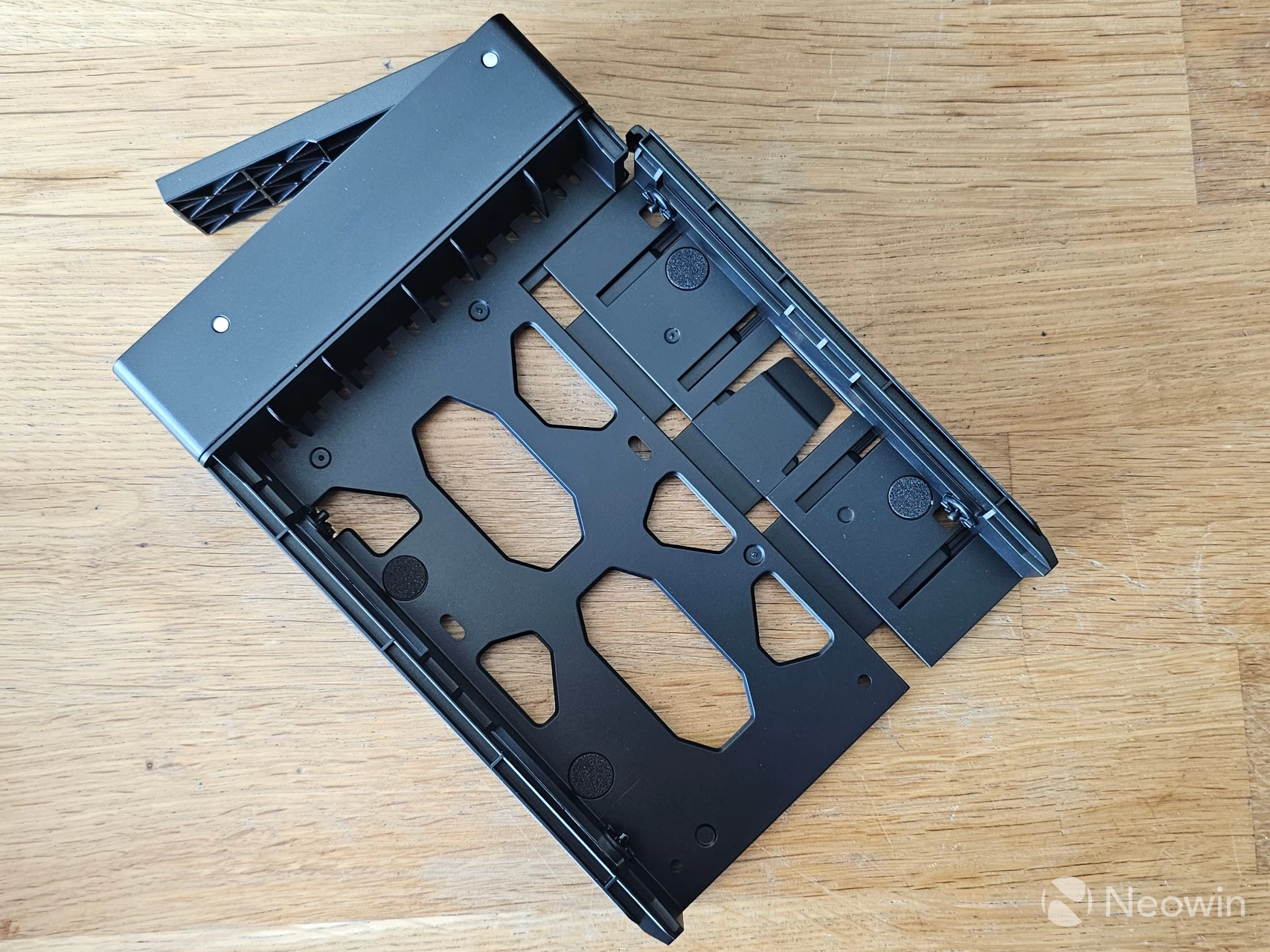
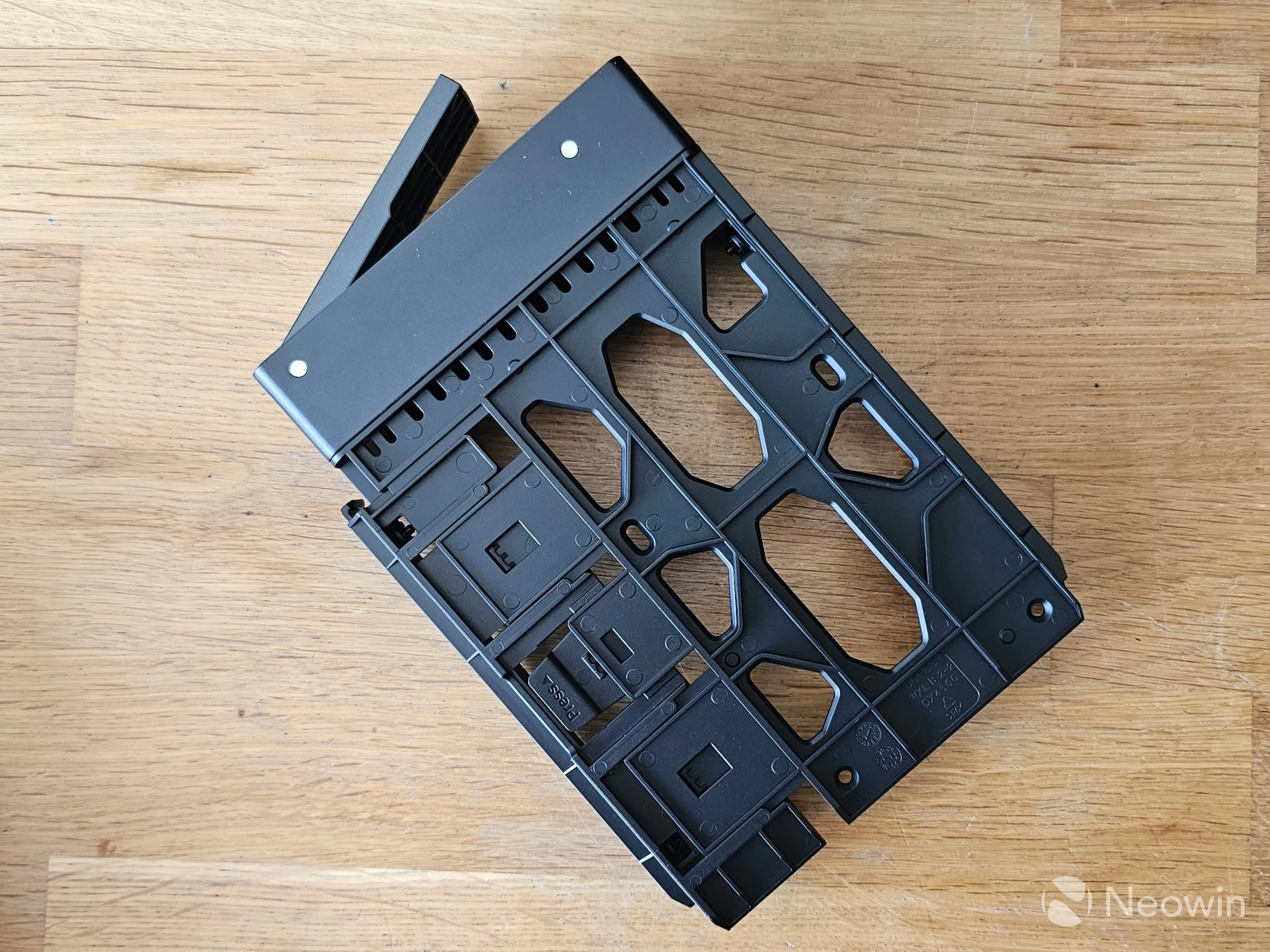
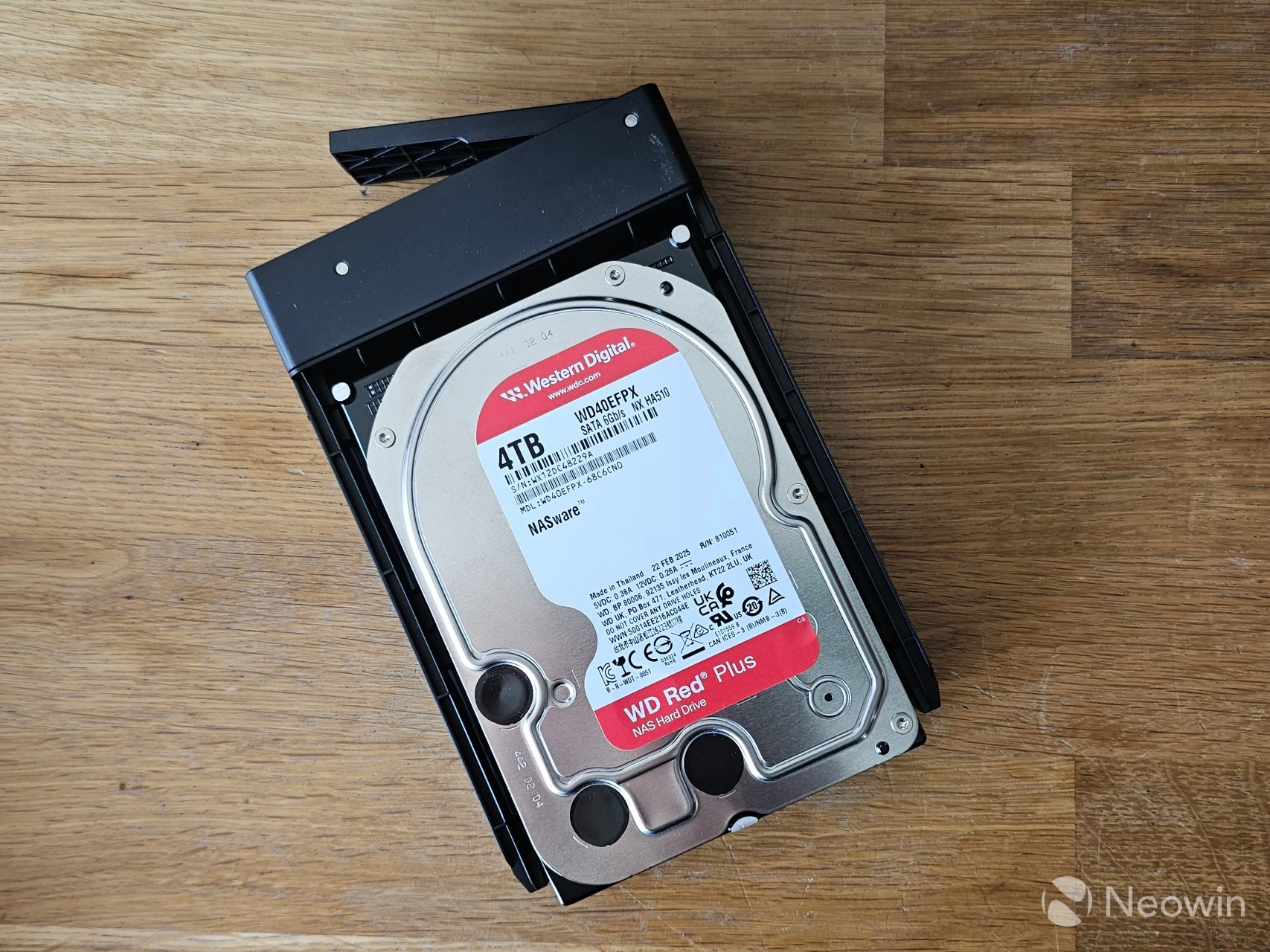
If you opt for an all-SSD (2.5-inch) setup for your bays, then UGREEN has you covered there, too, because there is a bag of screws included in the box so you can screw them into the bays from the bottom.
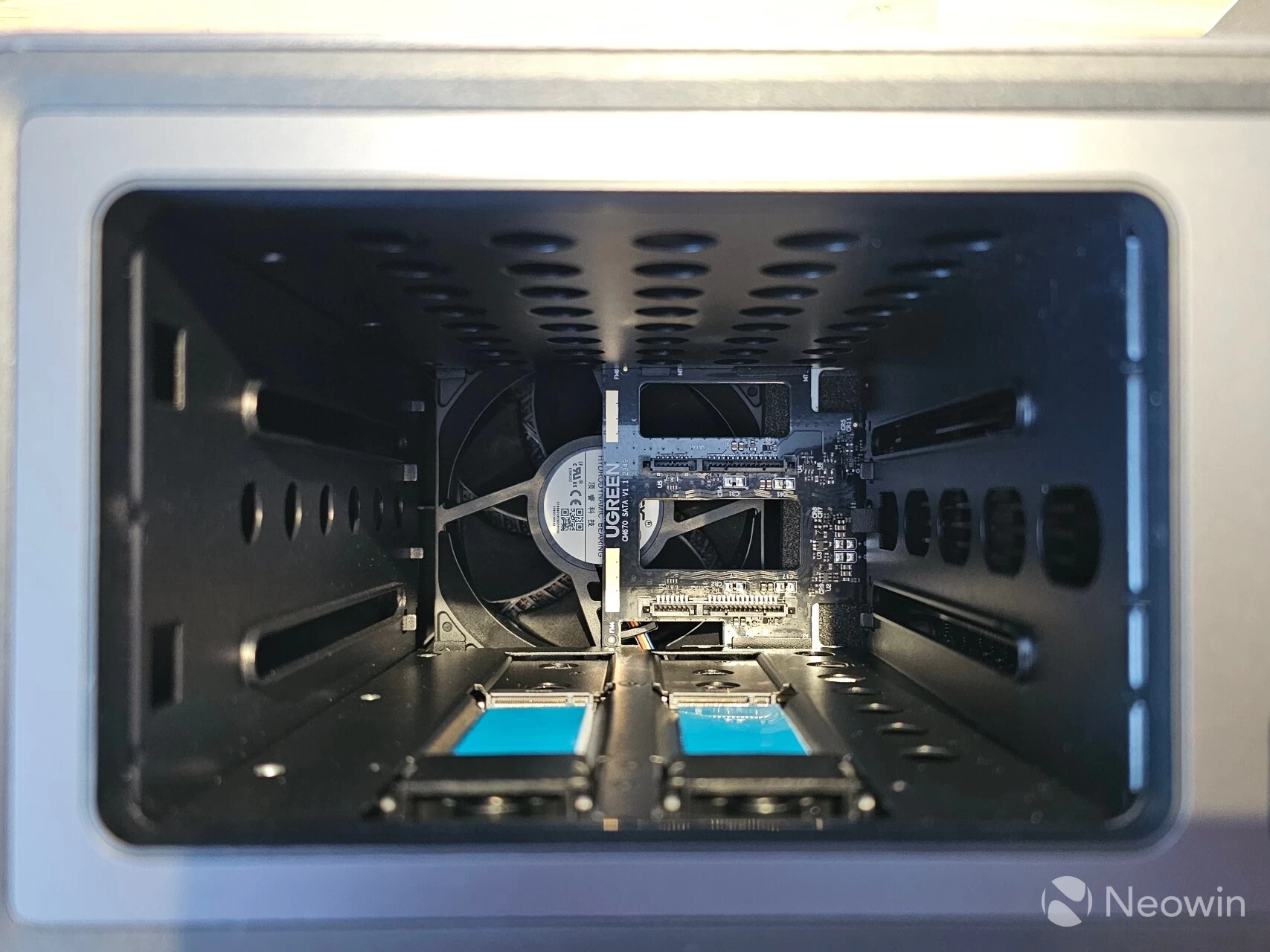
Fan is intake
Here you can view the inside of the NASync DXP2800. You can"t really tell here, but from looking at the direction of the fan blades when I tore this thing apart earlier, I could see this pulls in air over the HDDs in an intake configuration rather than as an exhaust.
Setup
BIOS
Getting to the BIOS is possible by spamming CTRL + F2, not by removing the HDDs and SSDs as misreported here. So it is possible to manage the machine settings here, but not any memory profiles like XMP, since the N100 is locked to 4800 MHz.
Since there is no internal USB port or removable eMMC flash, any buyer would be limited to using the external USB ports to boot to an alternative OS, which is possible because that can be configured in the boot order.
Initial Setup
Aside from the web address https://find.ugnas.com, which you can use to find your UGREEN NAS in any browser, there"s also an app for that you can use for Windows, Mac, Apple TVOS, Android and iOS, which we"ll get into a bit later.
| UGREEN NAS Finder | Login screen |
|---|---|
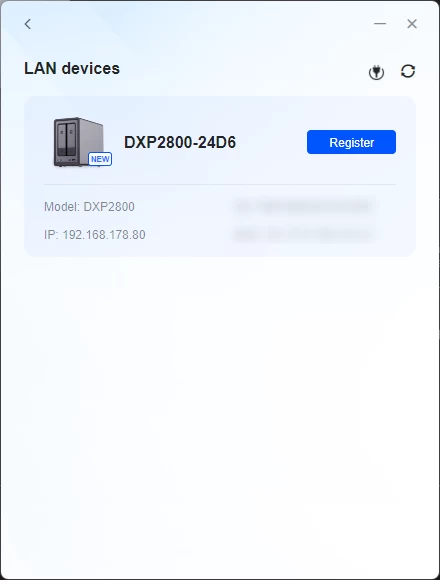
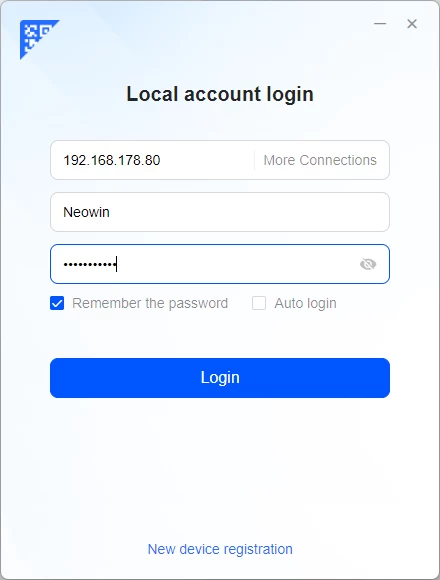
The above two images are from the Windows app that, upon opening, scans for any UGREEN NAS devices on the network, and then either lets you log in to an already initialized system or set one up.
I did the setup process through it; it is pretty straightforward and through a wizard, which you can view in full below.
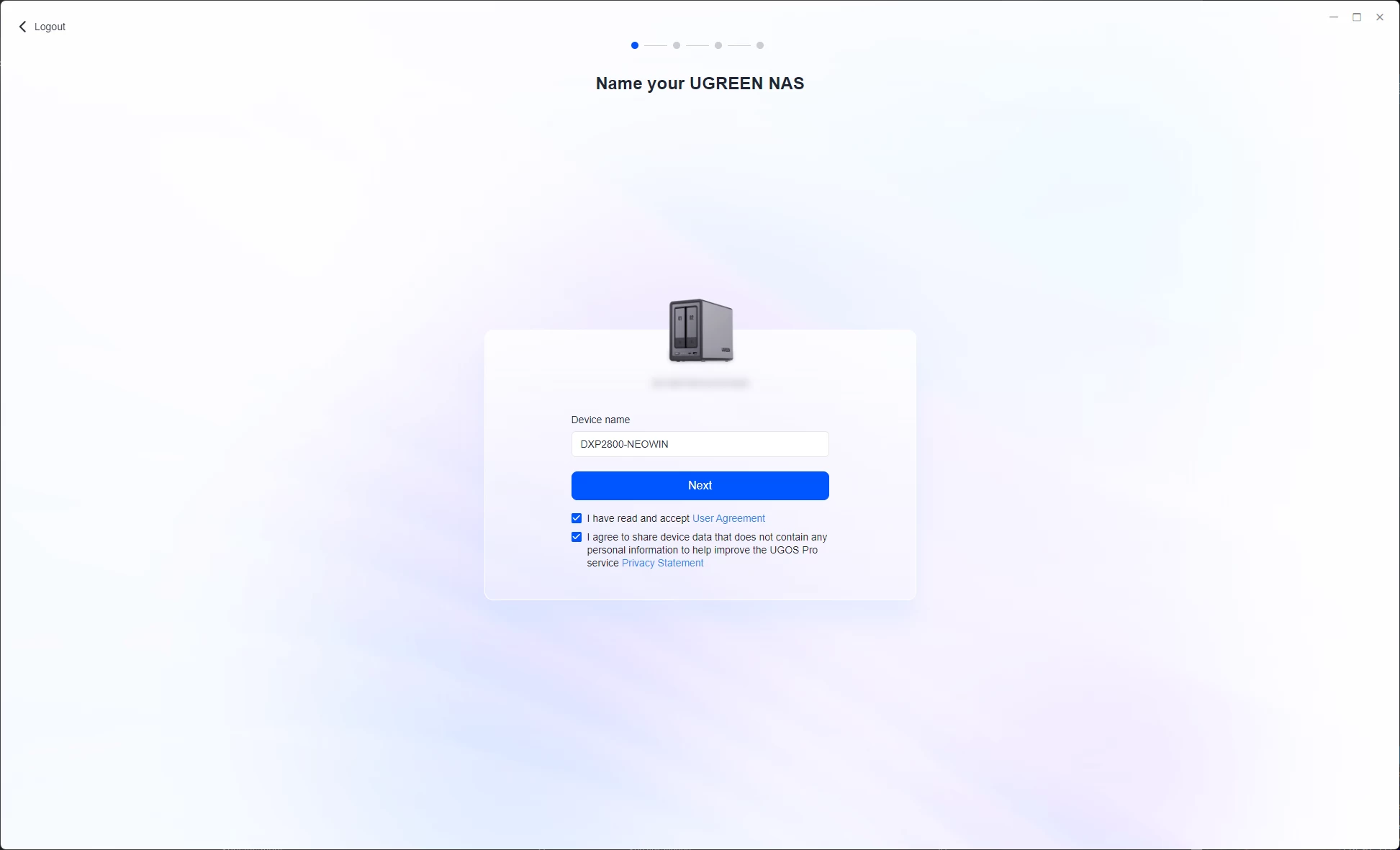
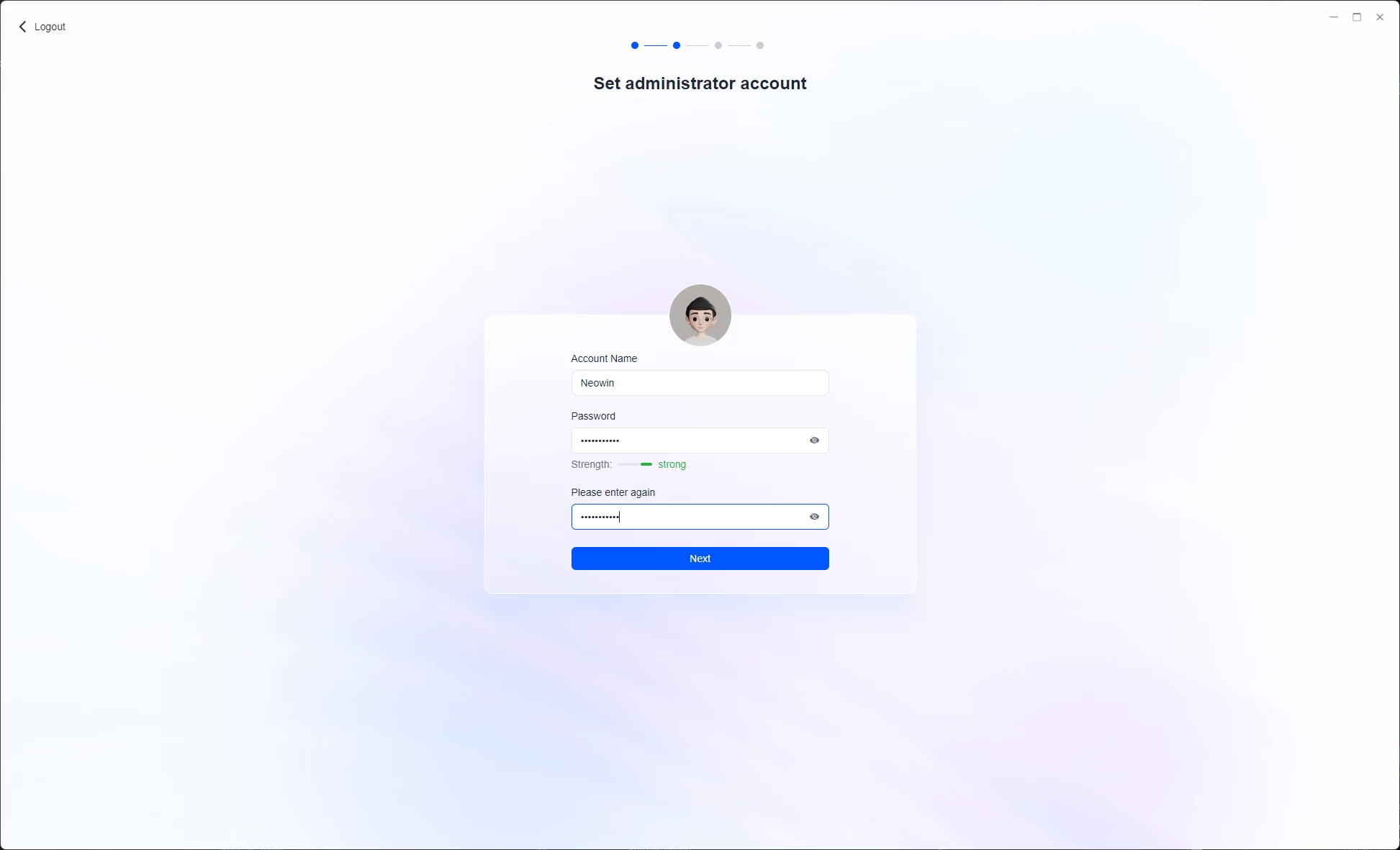
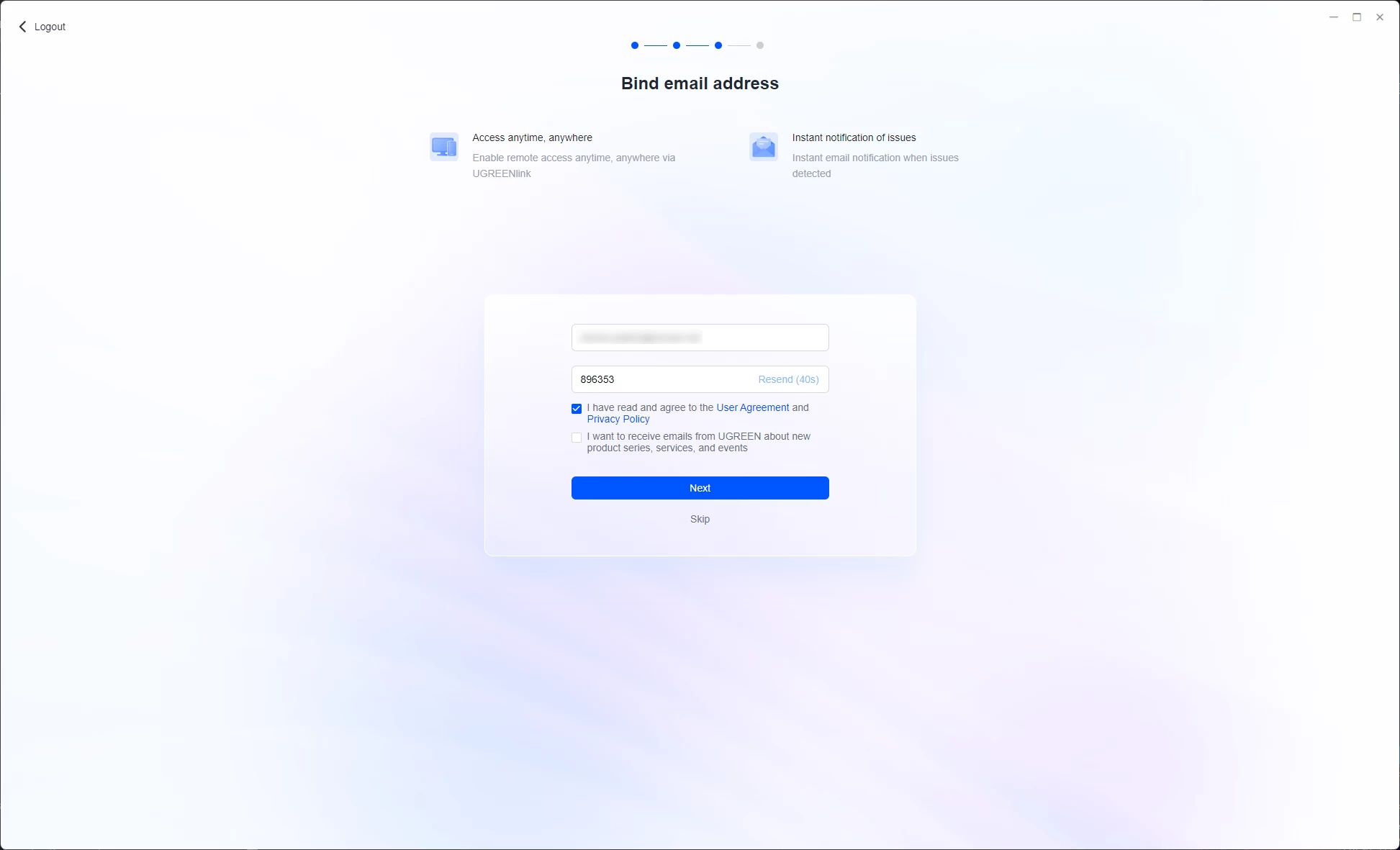
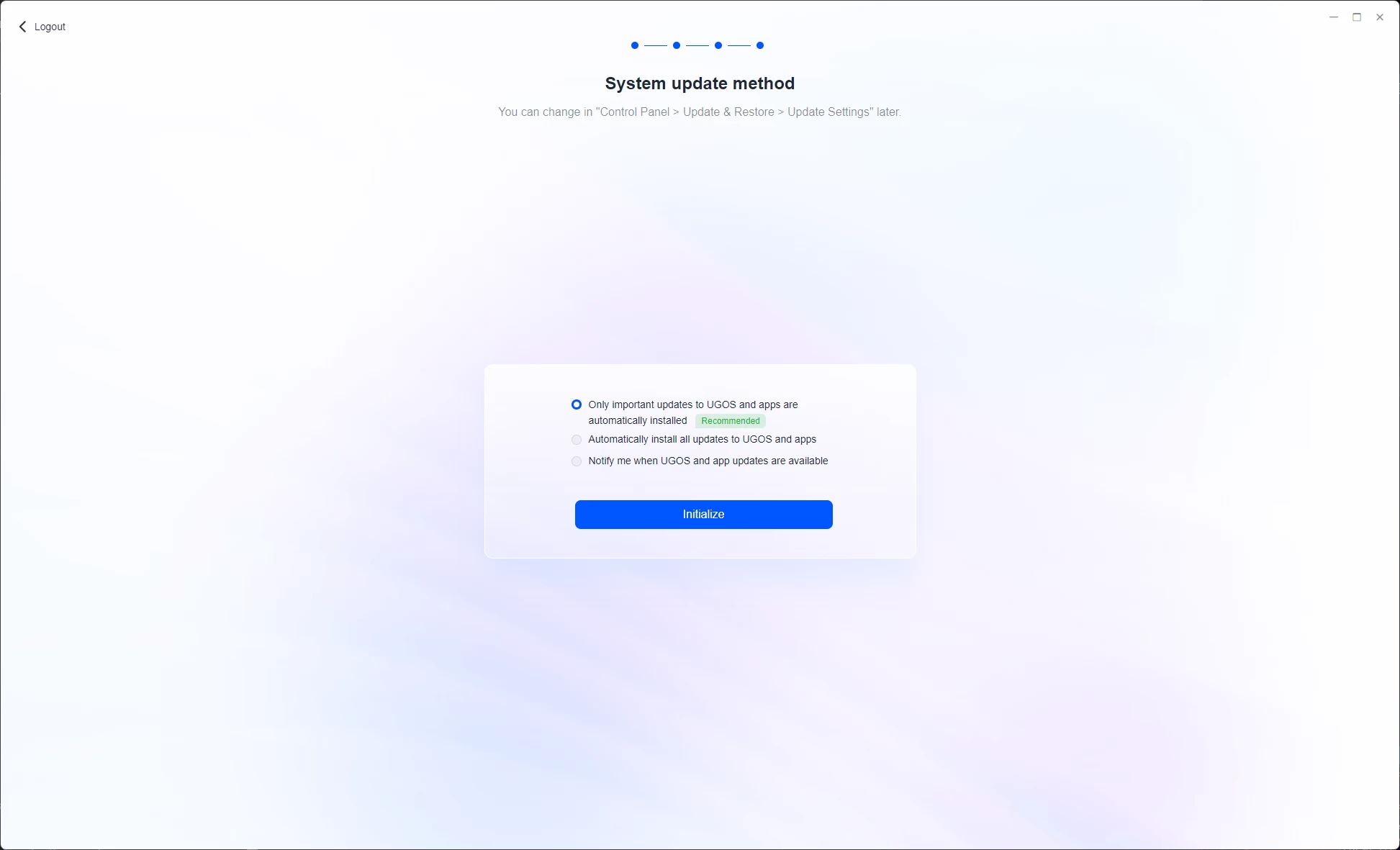
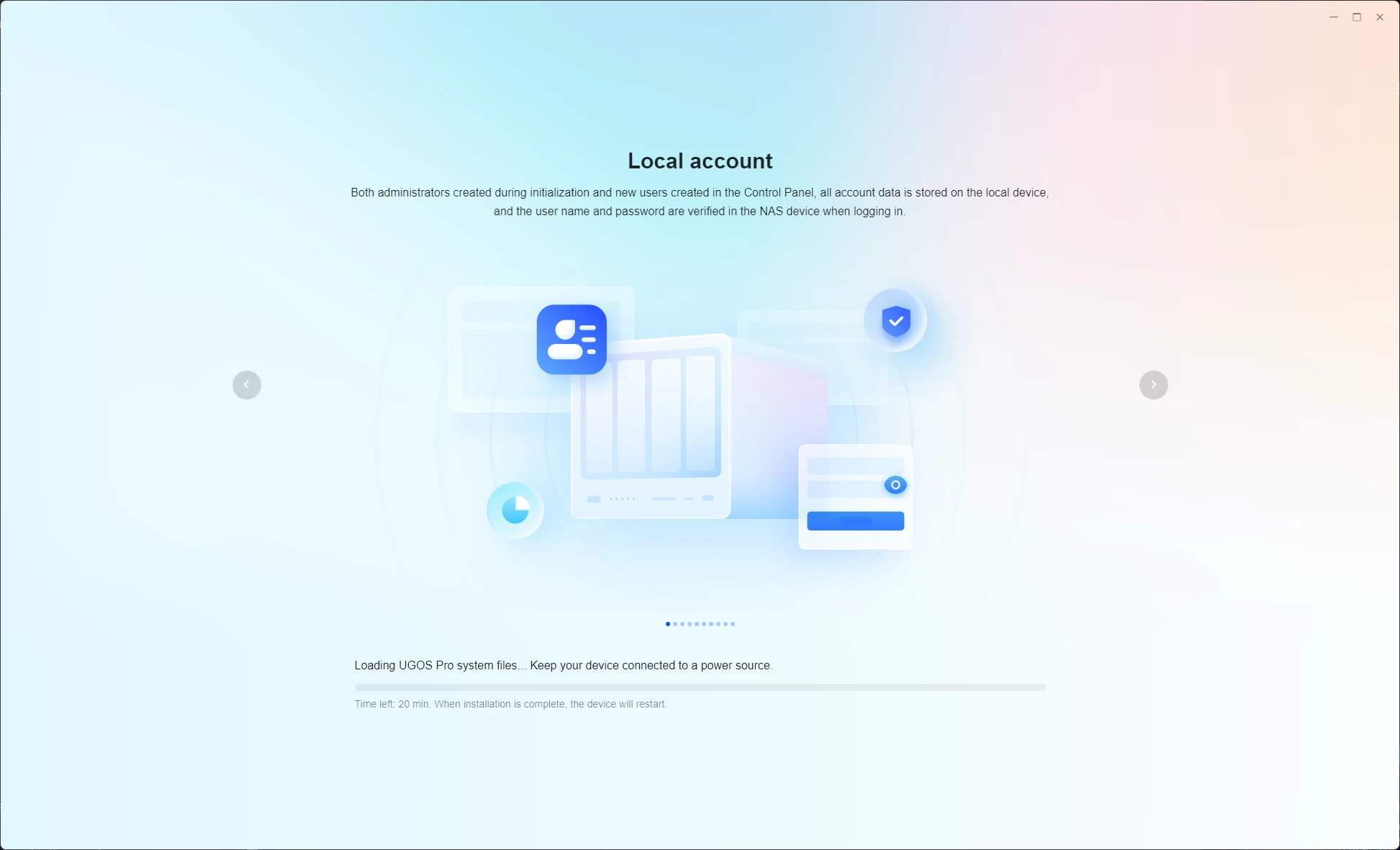
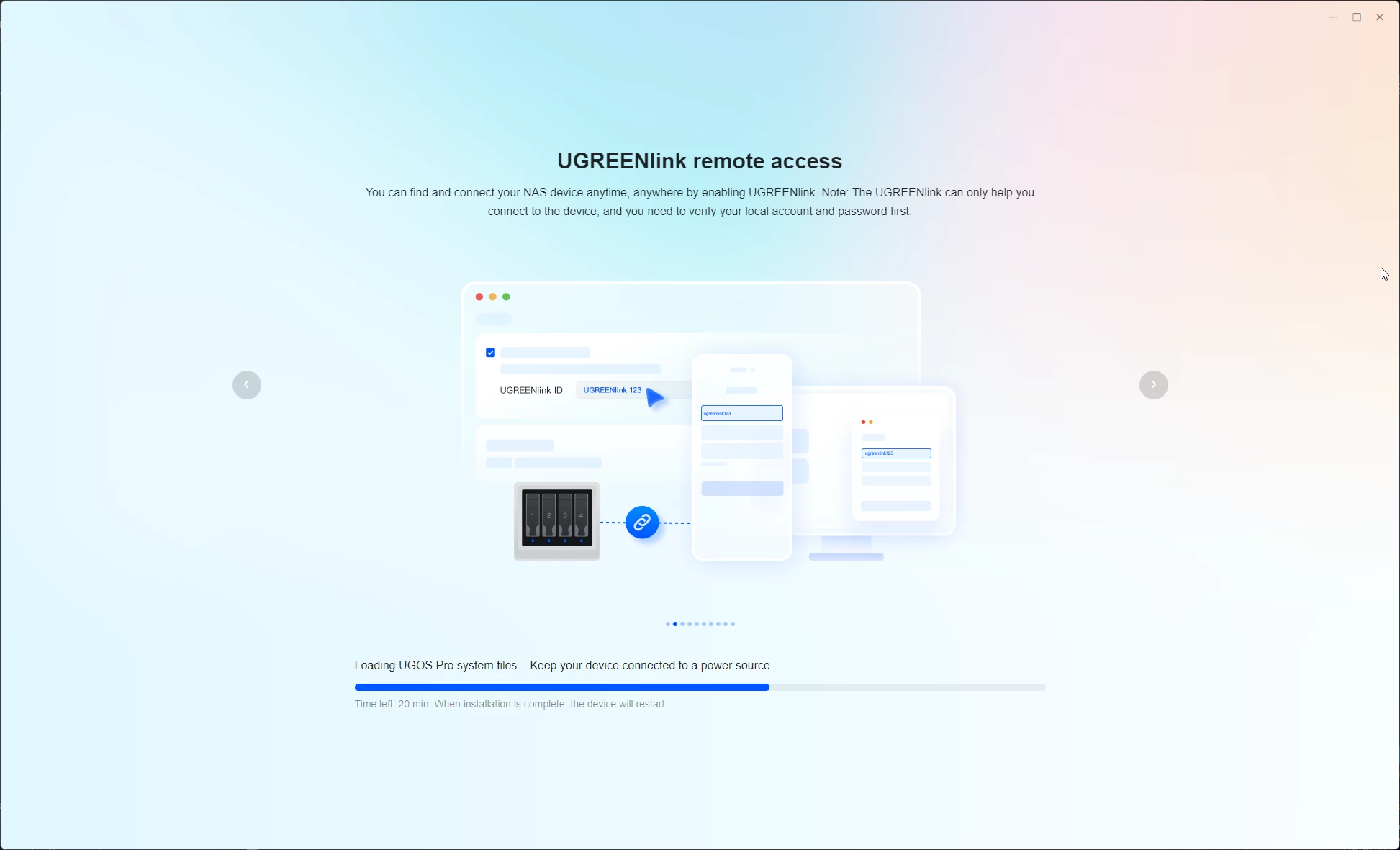
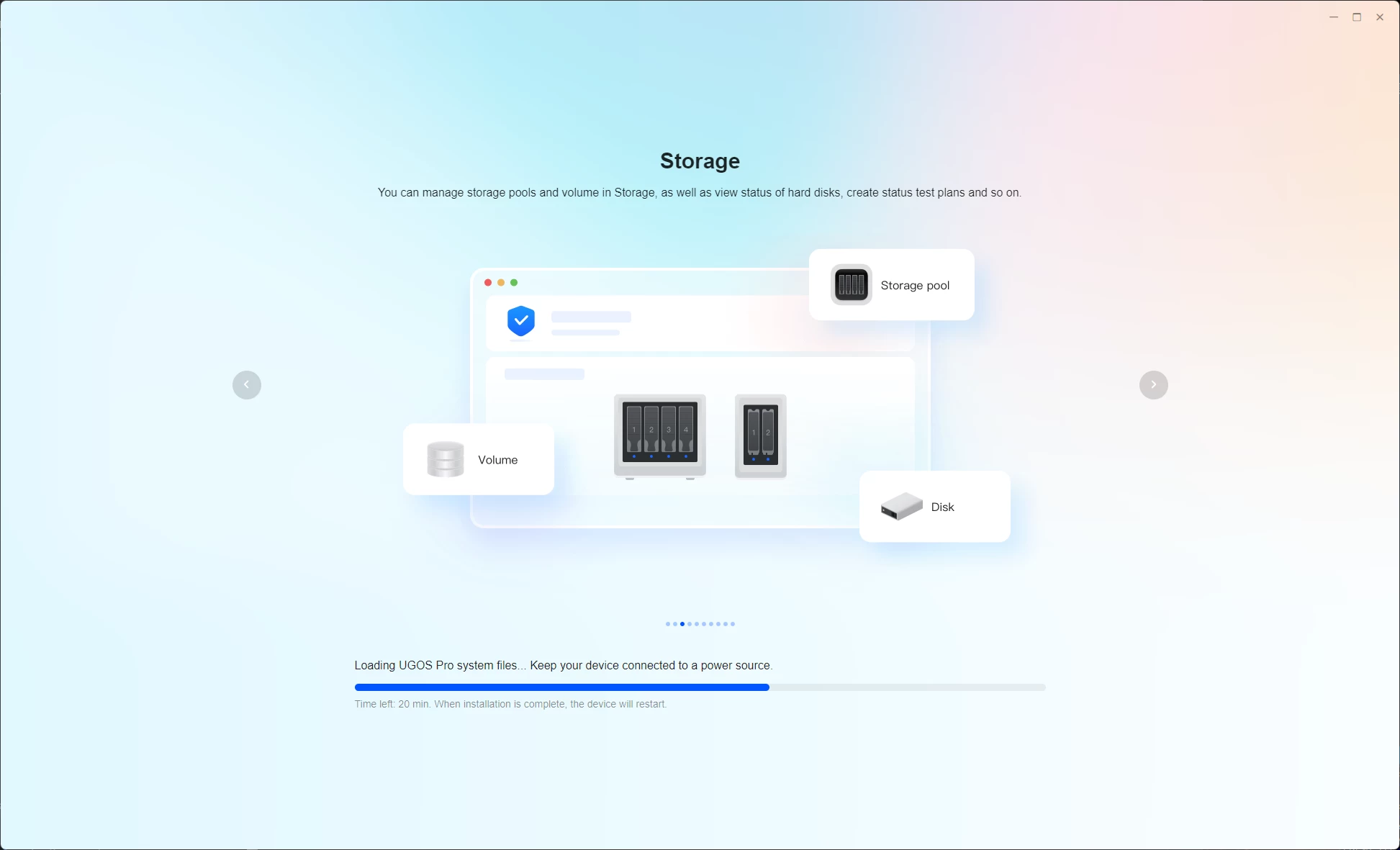
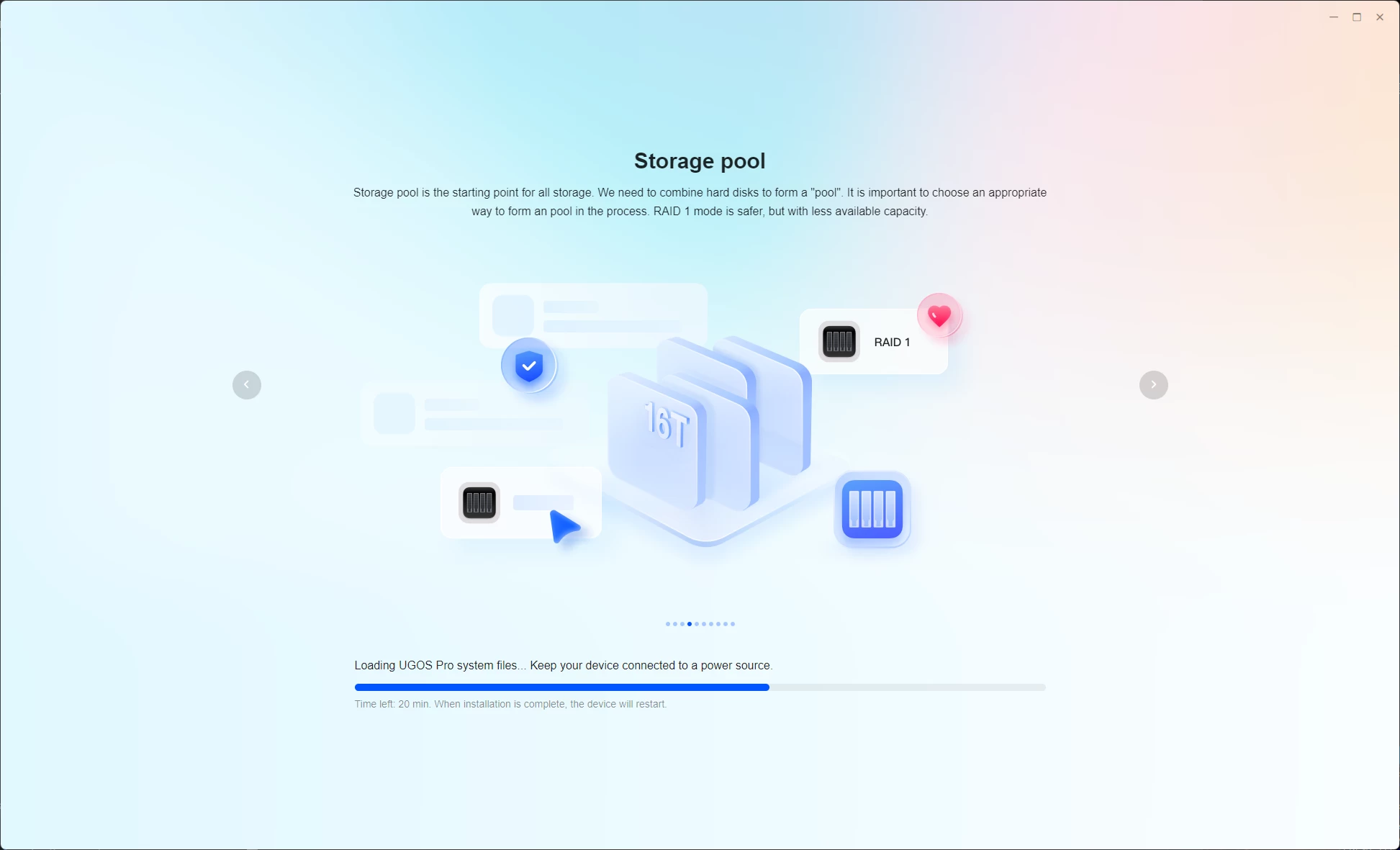
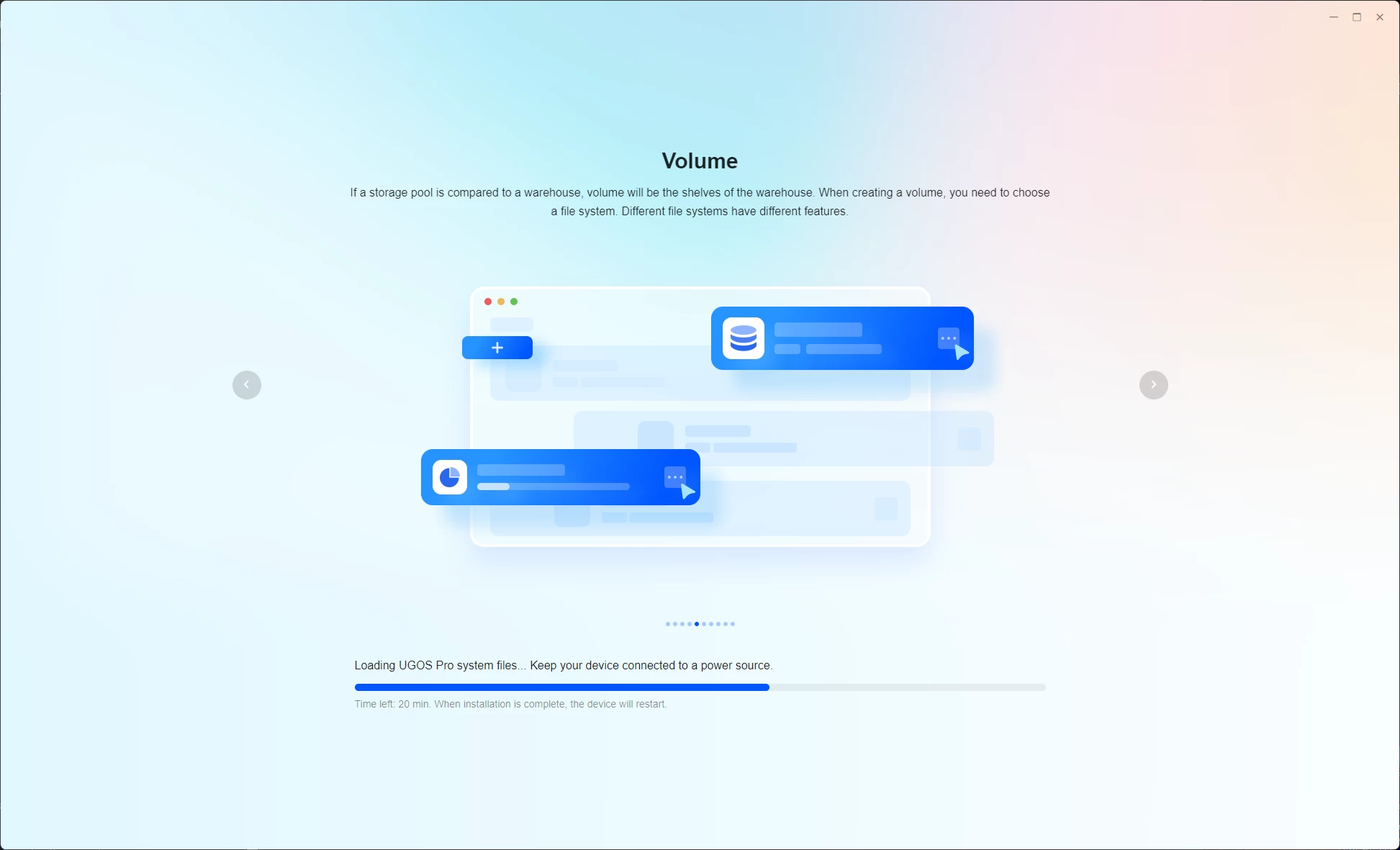
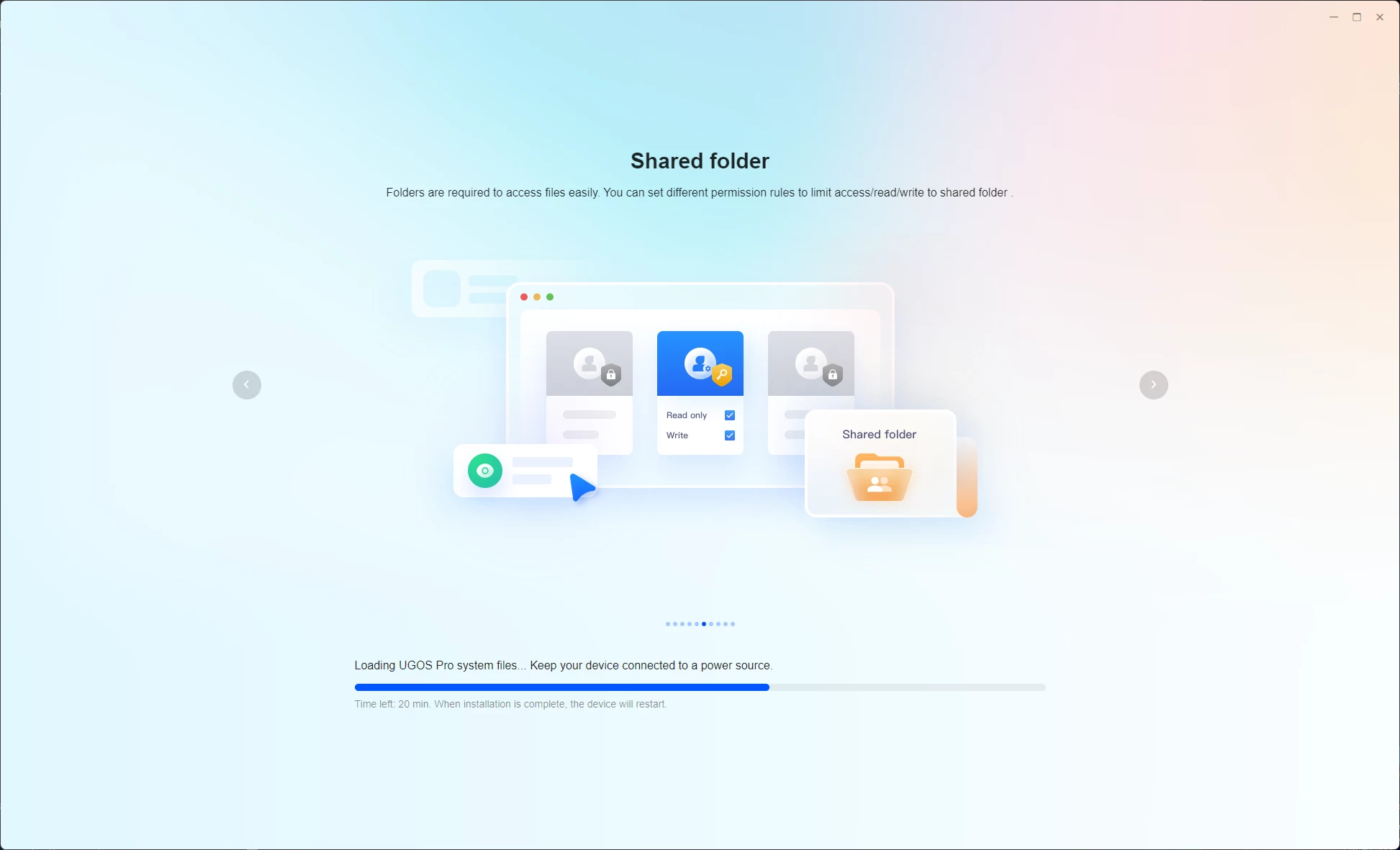
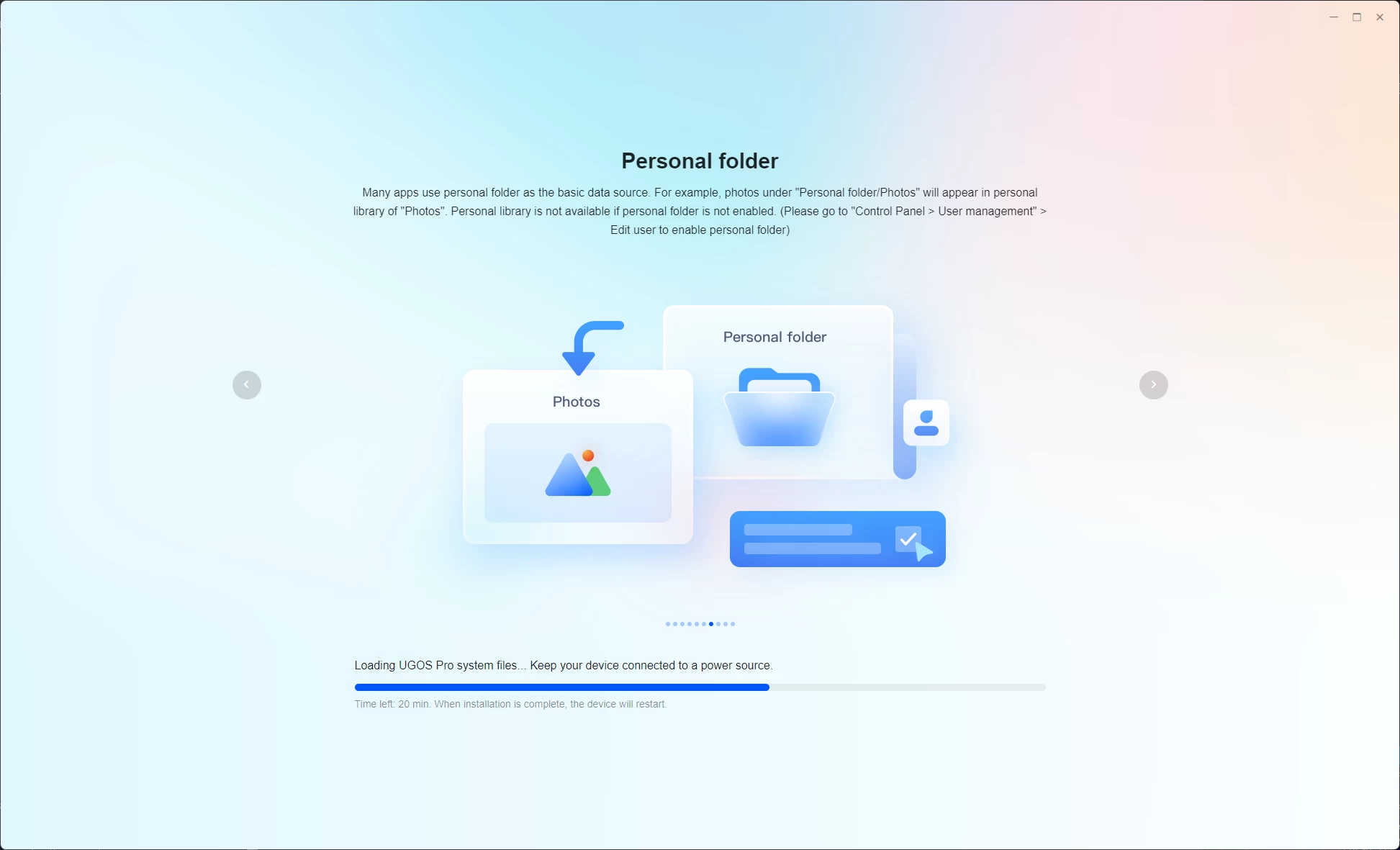
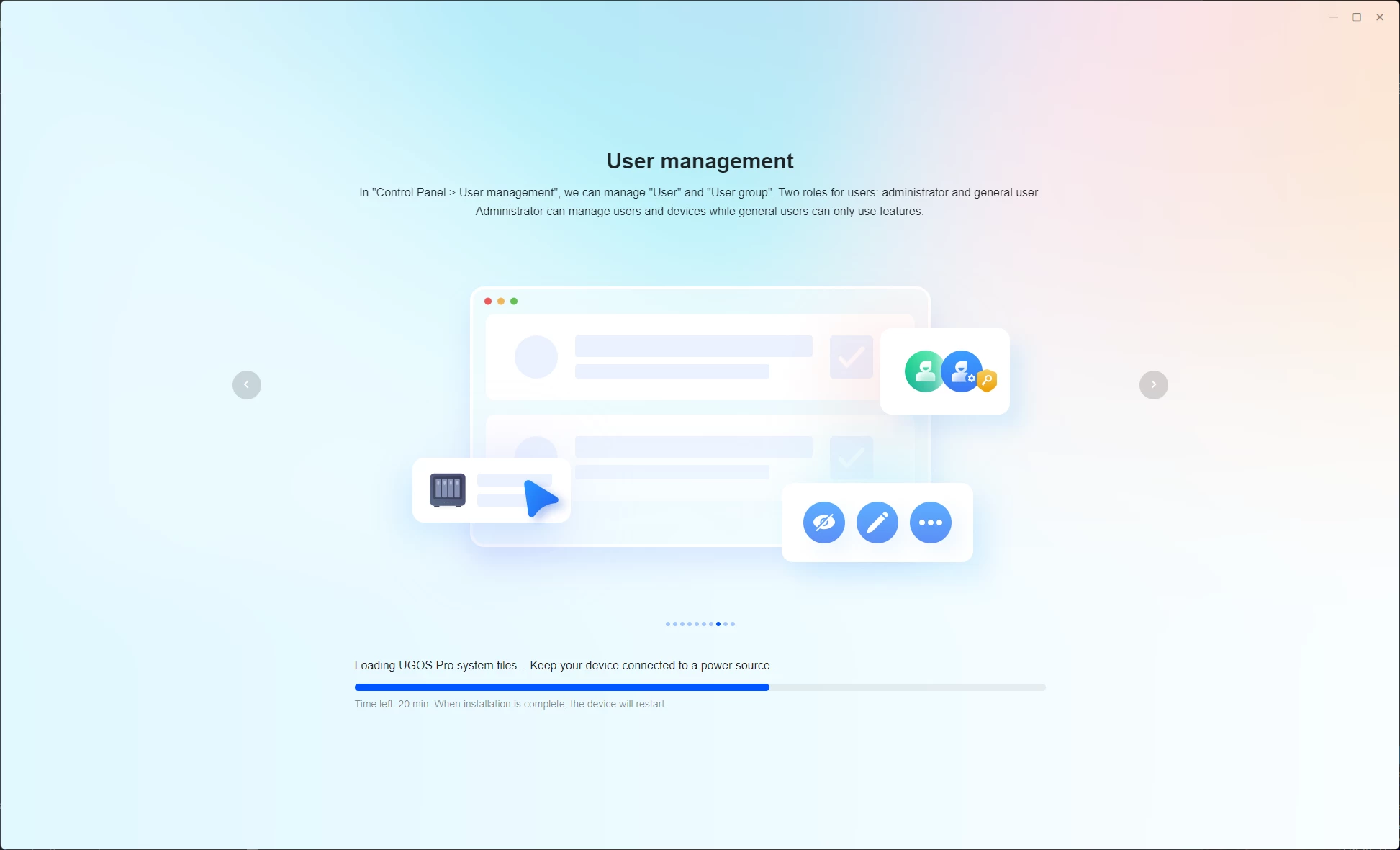
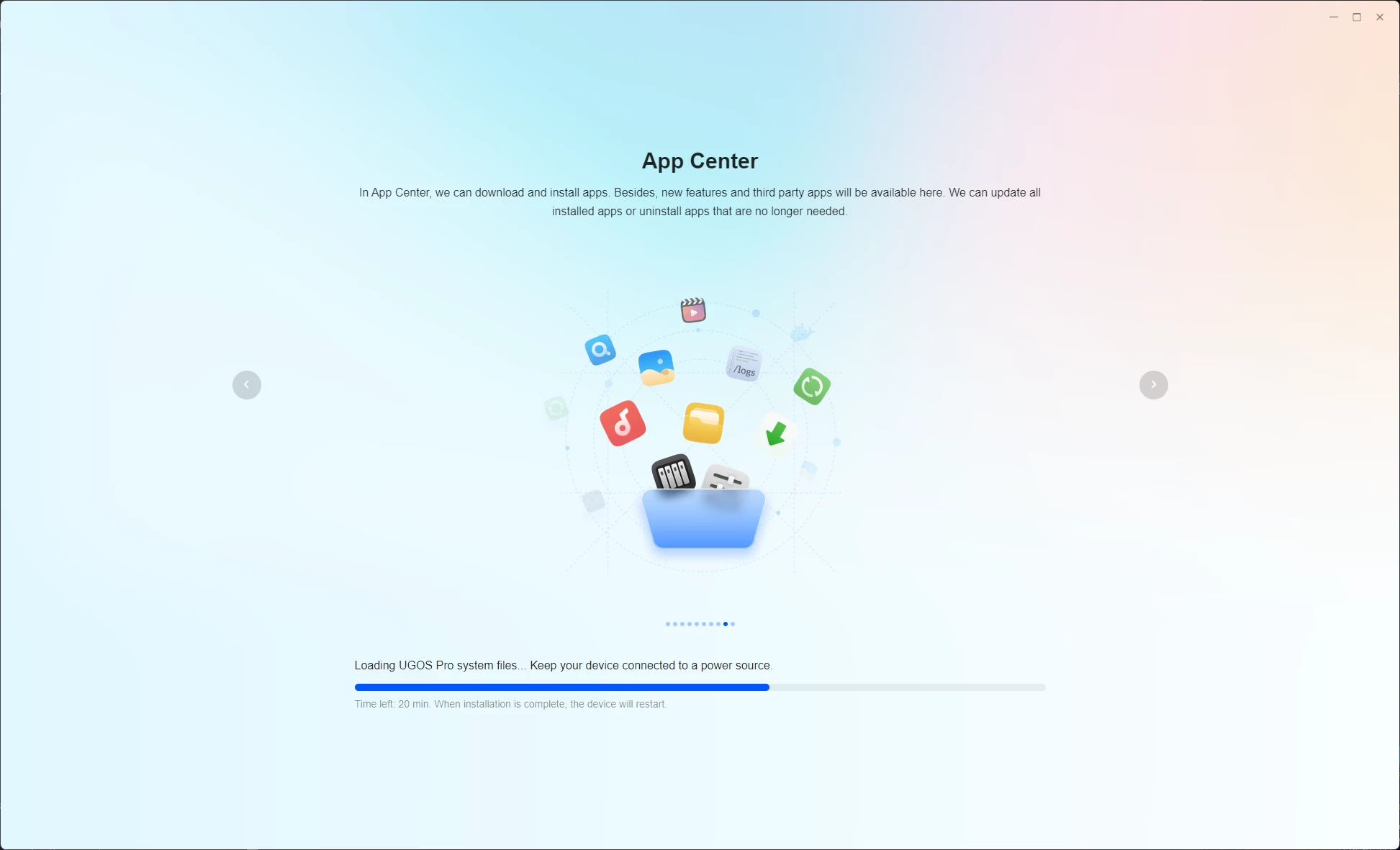
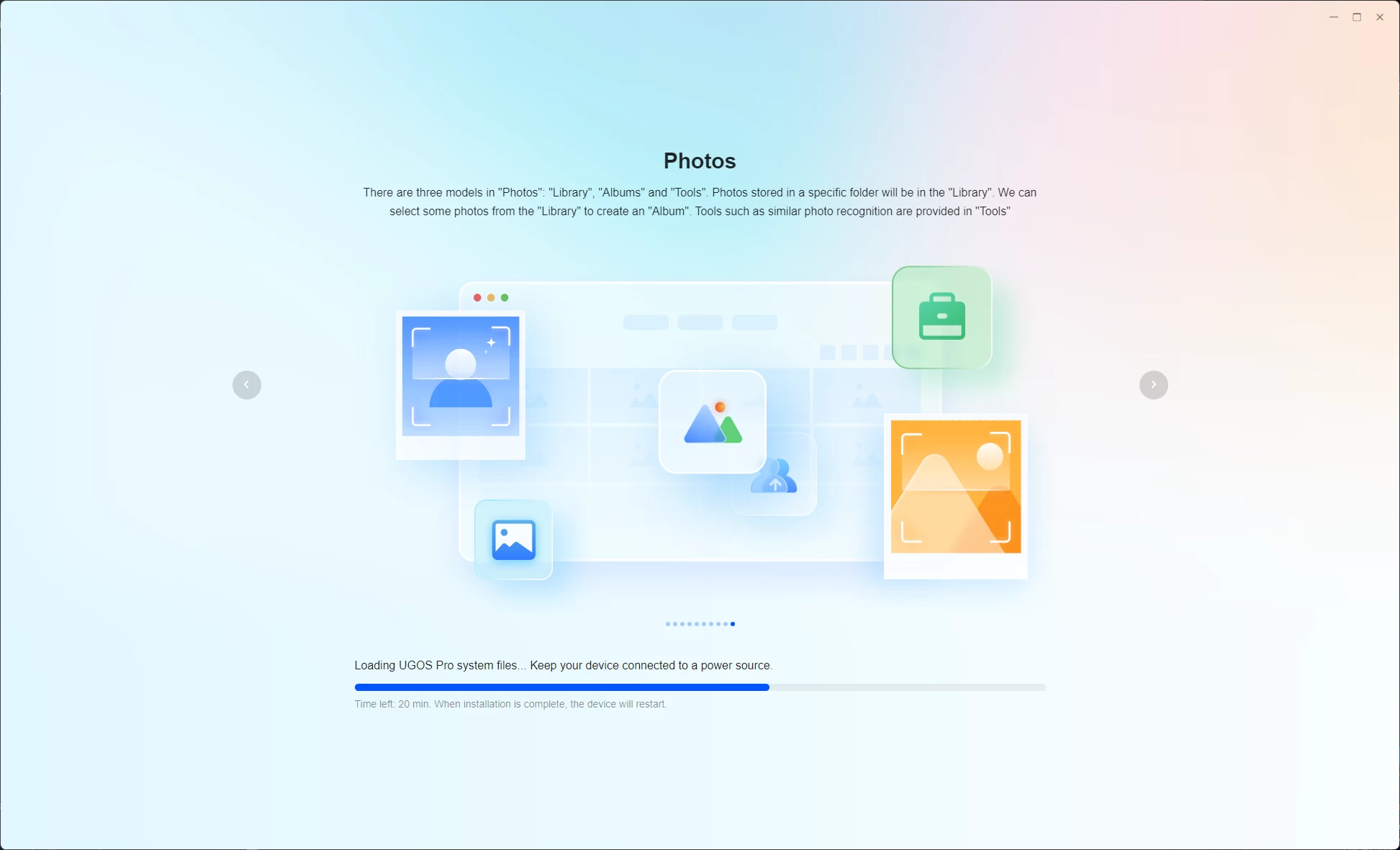
I have no complaints about the setup; everything worked, and UGOS does not decide to throw everything into a Storage Pool during this procedure, which I personally find incredibly important. It is a step you must take once the initial setup has completed (good stuff!) This means you will be able to determine exactly which drives and what drives will make up the Storage Pool(s).
Although it was not apparent from the teardown, the NASync DXP2800 includes a 32 GB Flash drive, which is where UGOS lives.
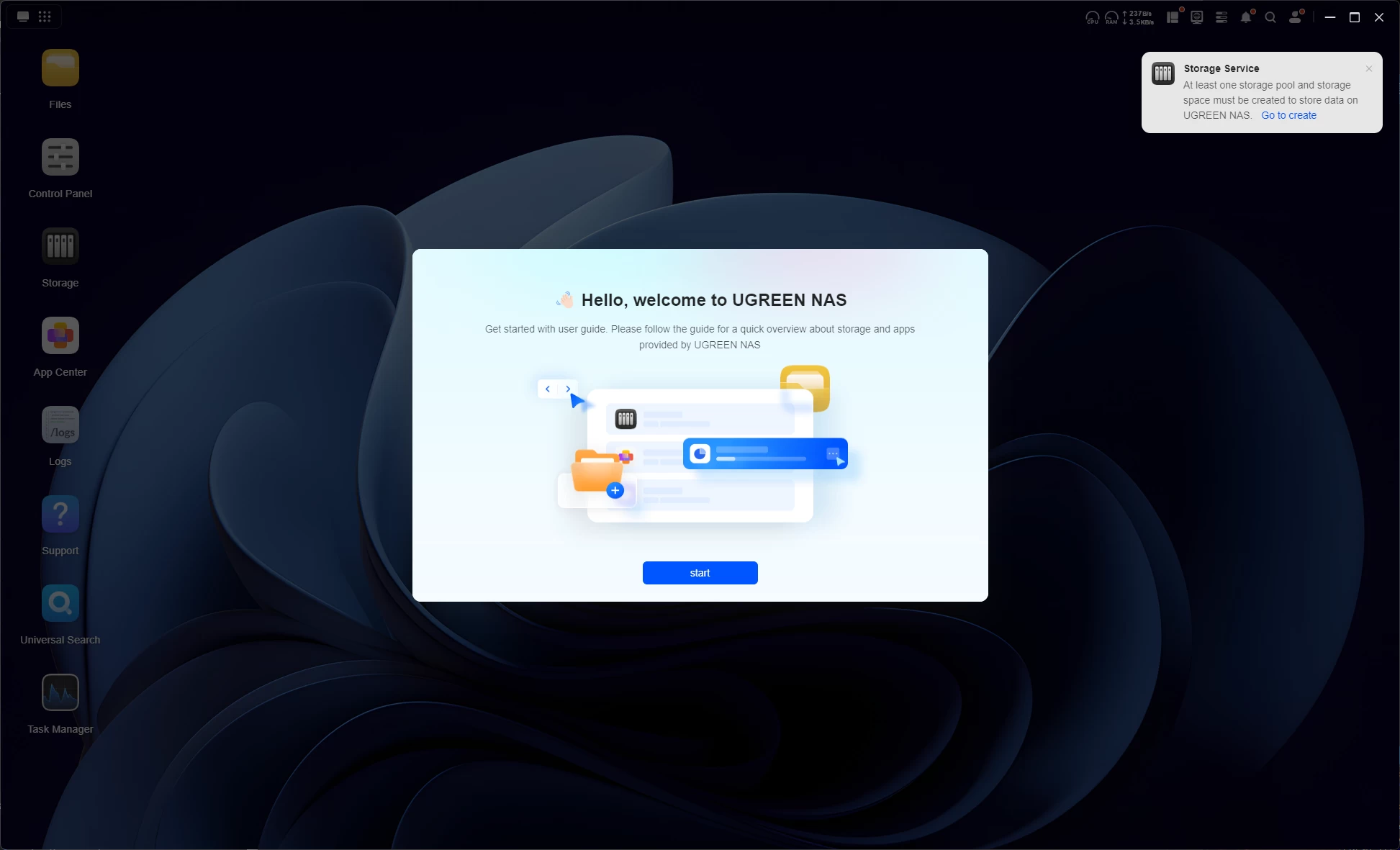
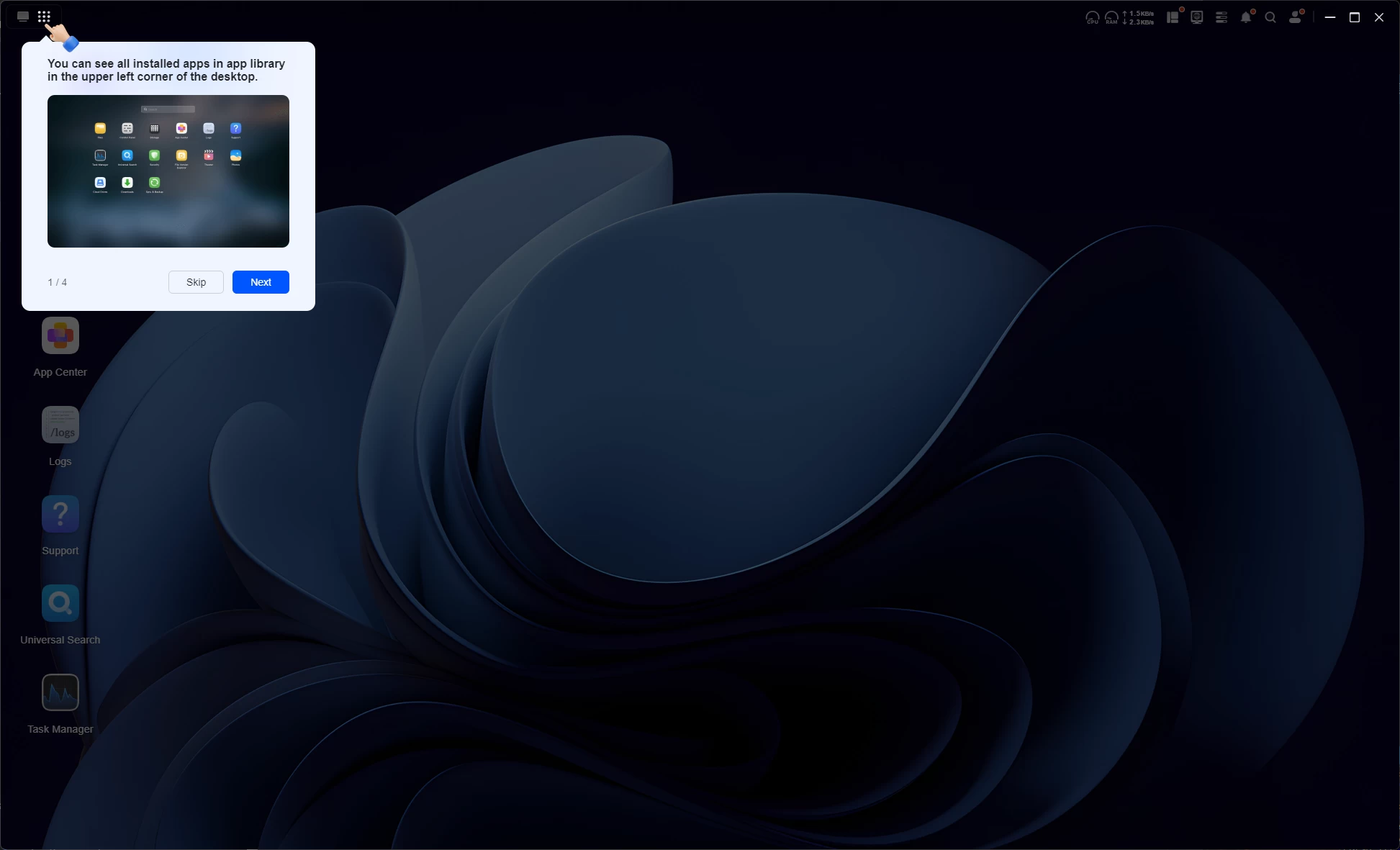
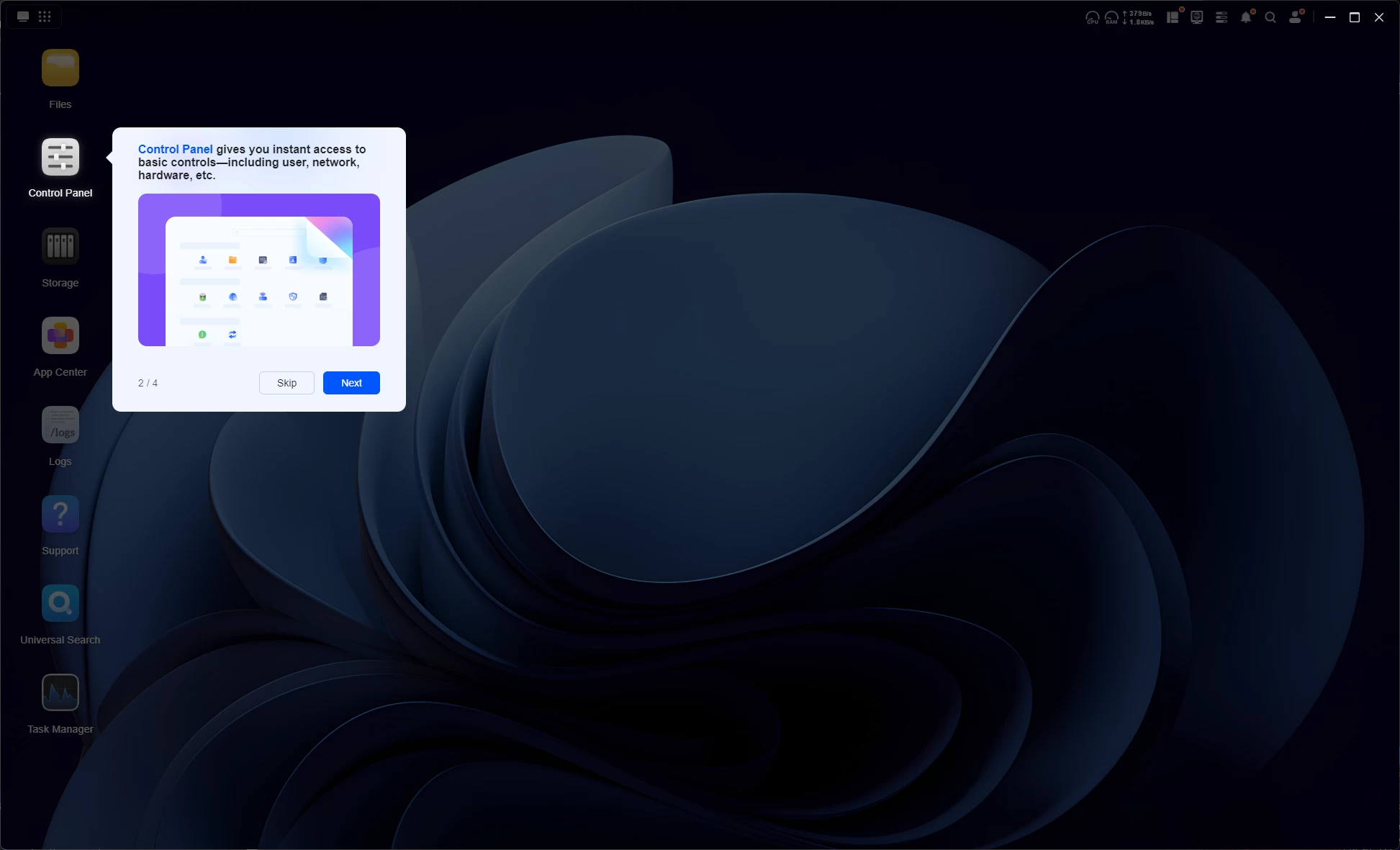
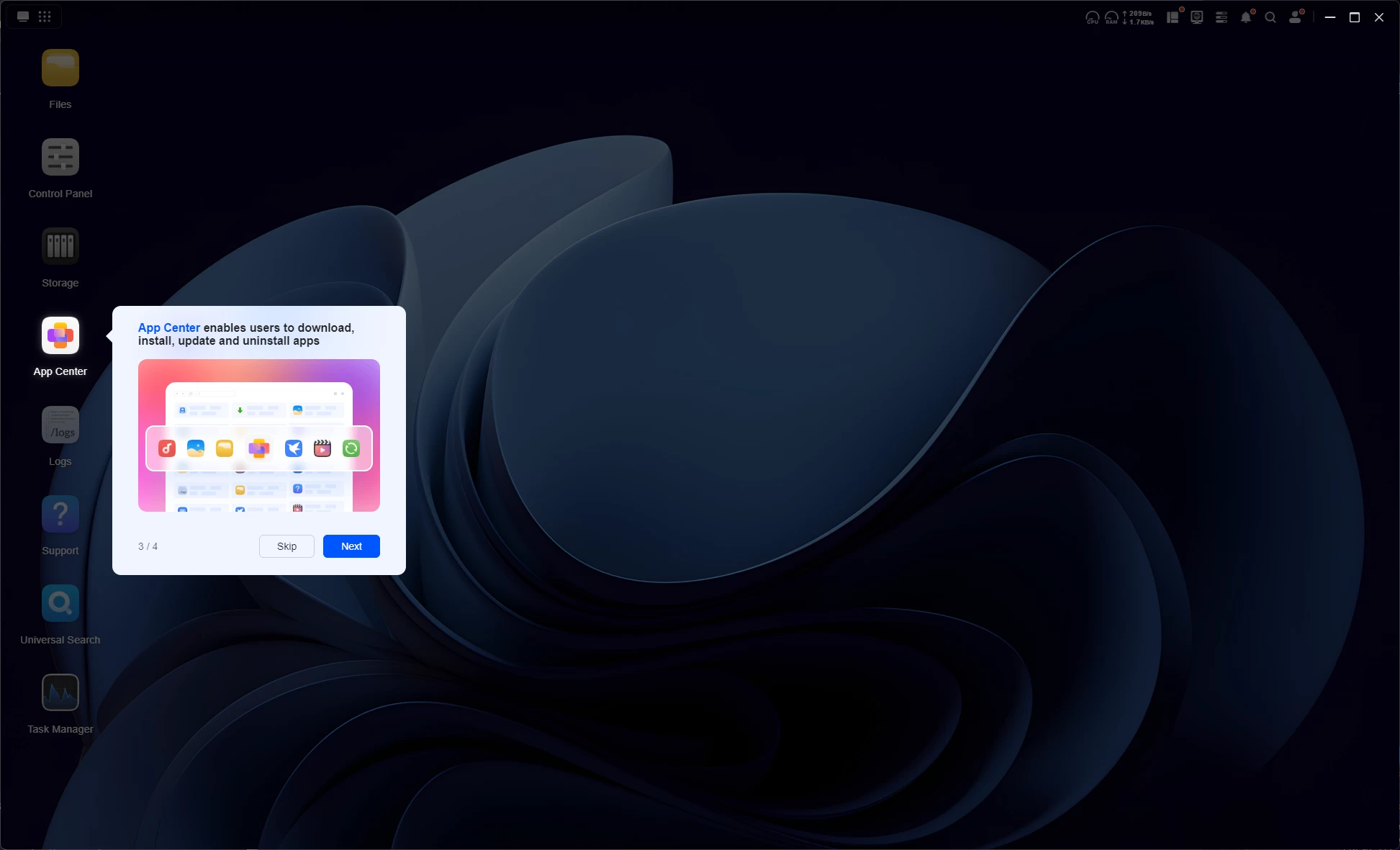
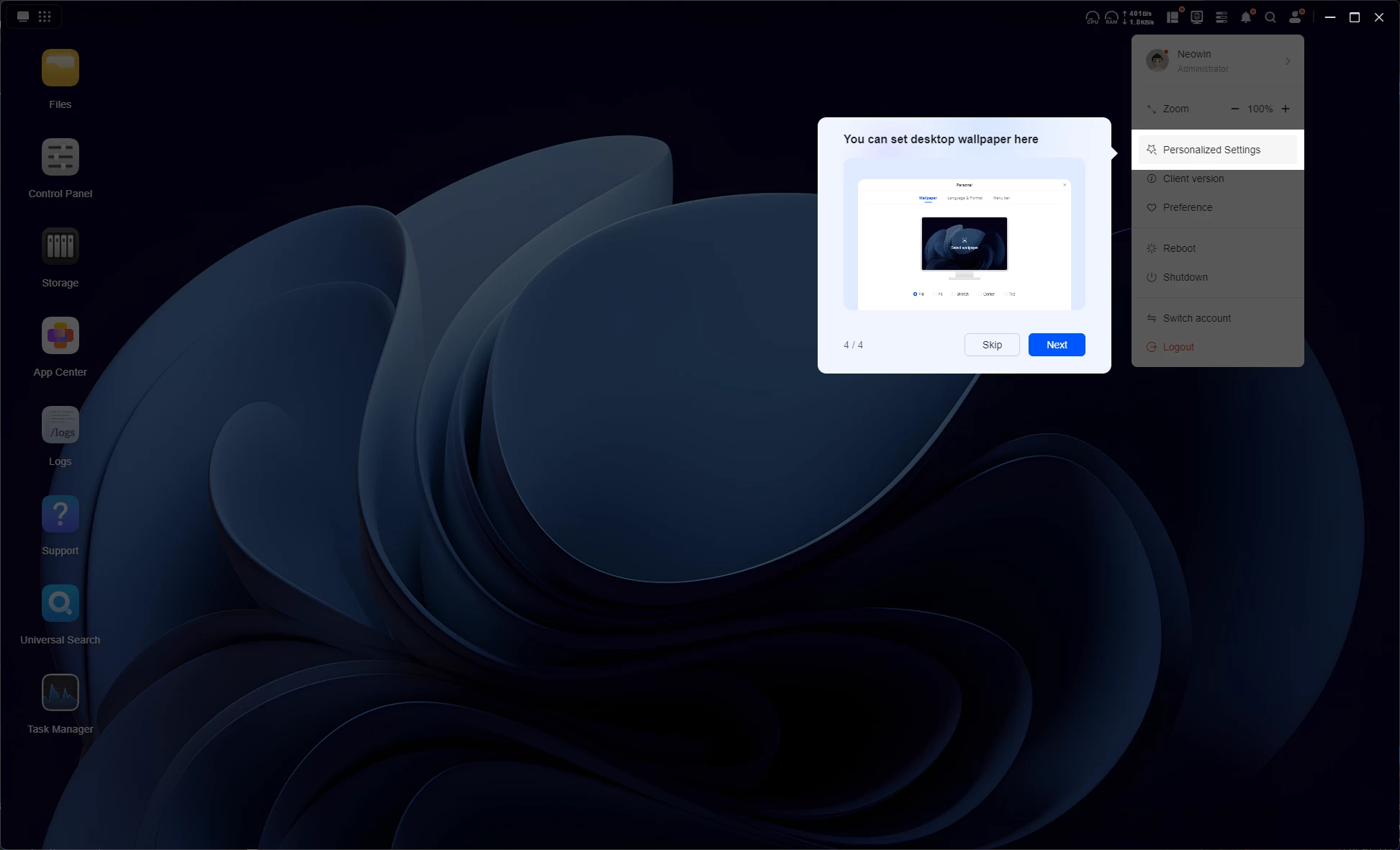
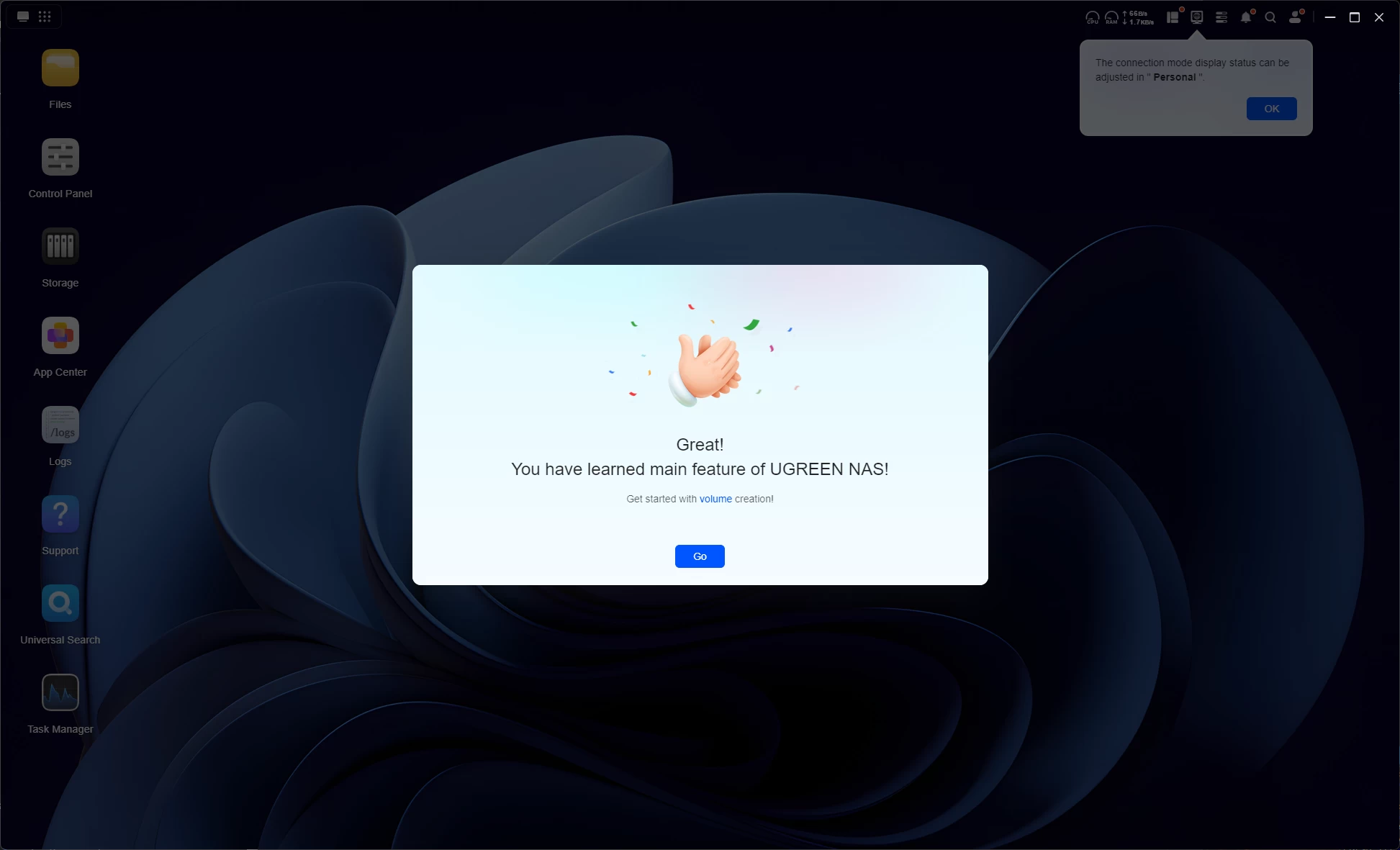
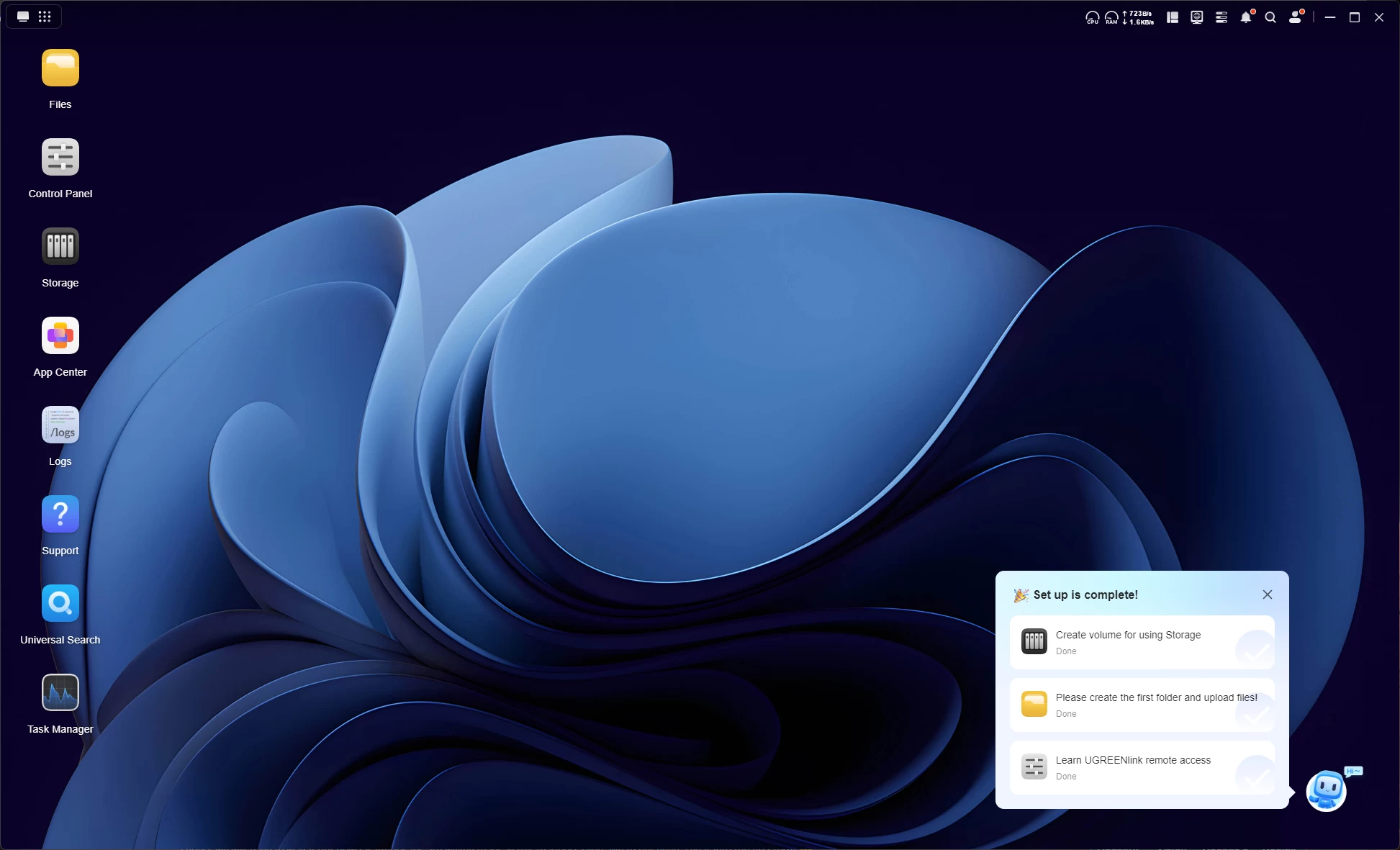
The UGOS dashboard is actually quite nice and innovative. Aside from the OOBE desktop tips, there is also a little helper on the bottom right that reminds you to complete the first basic setup steps of the now initialized NAS. Those are:
- Create a volume for using Storage.
- Create a folder.
- Create UGREENlink remote access.
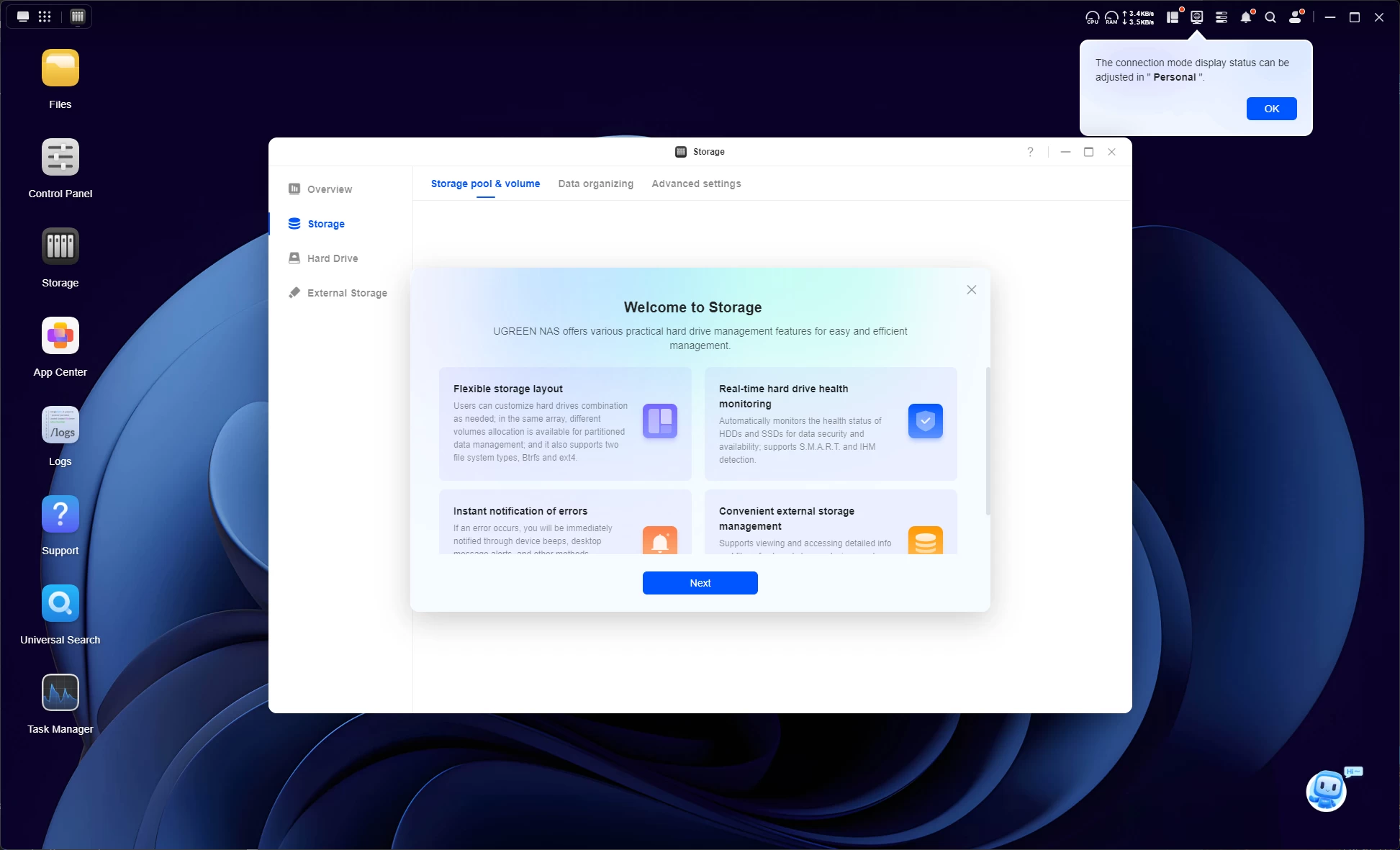
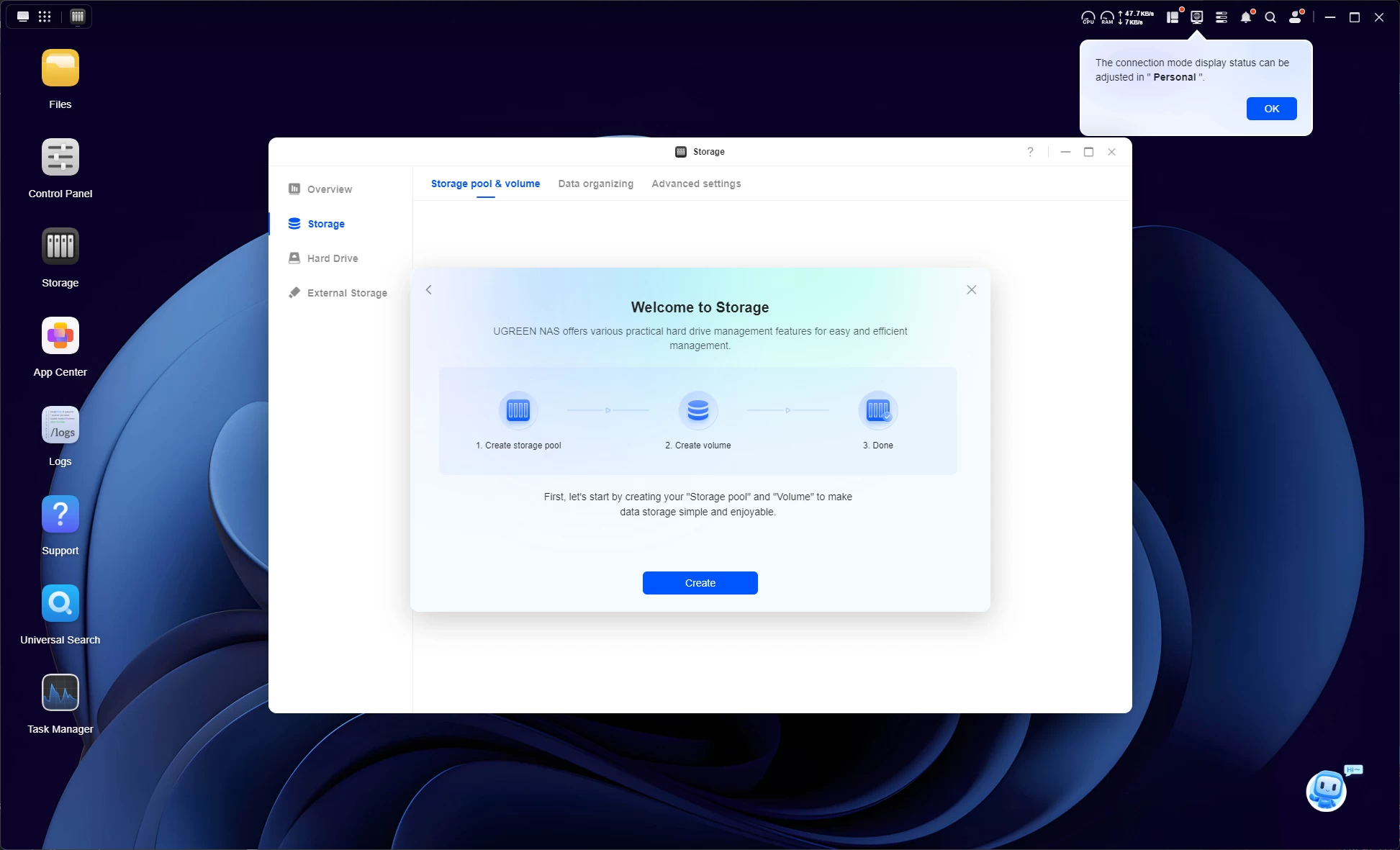
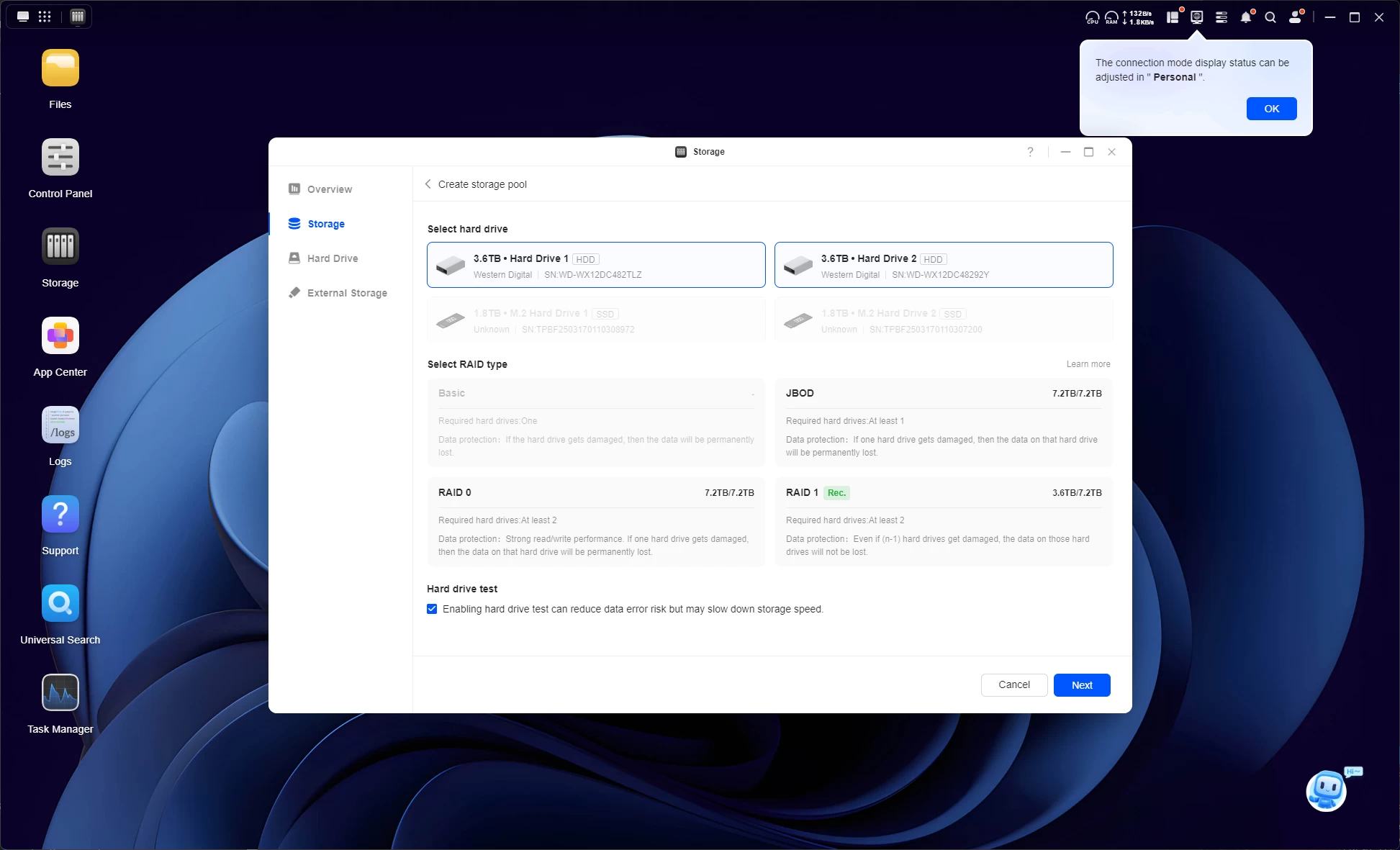
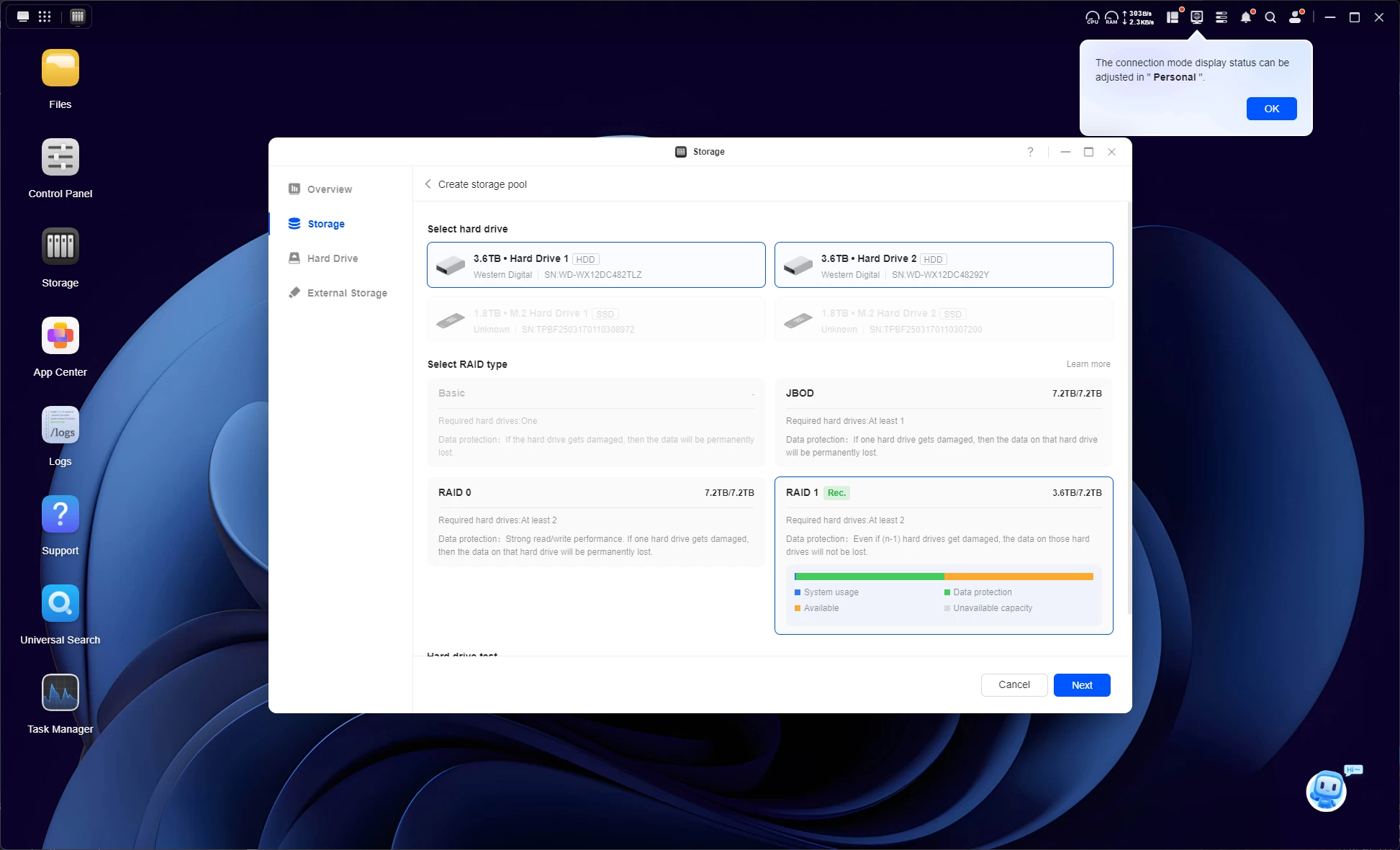
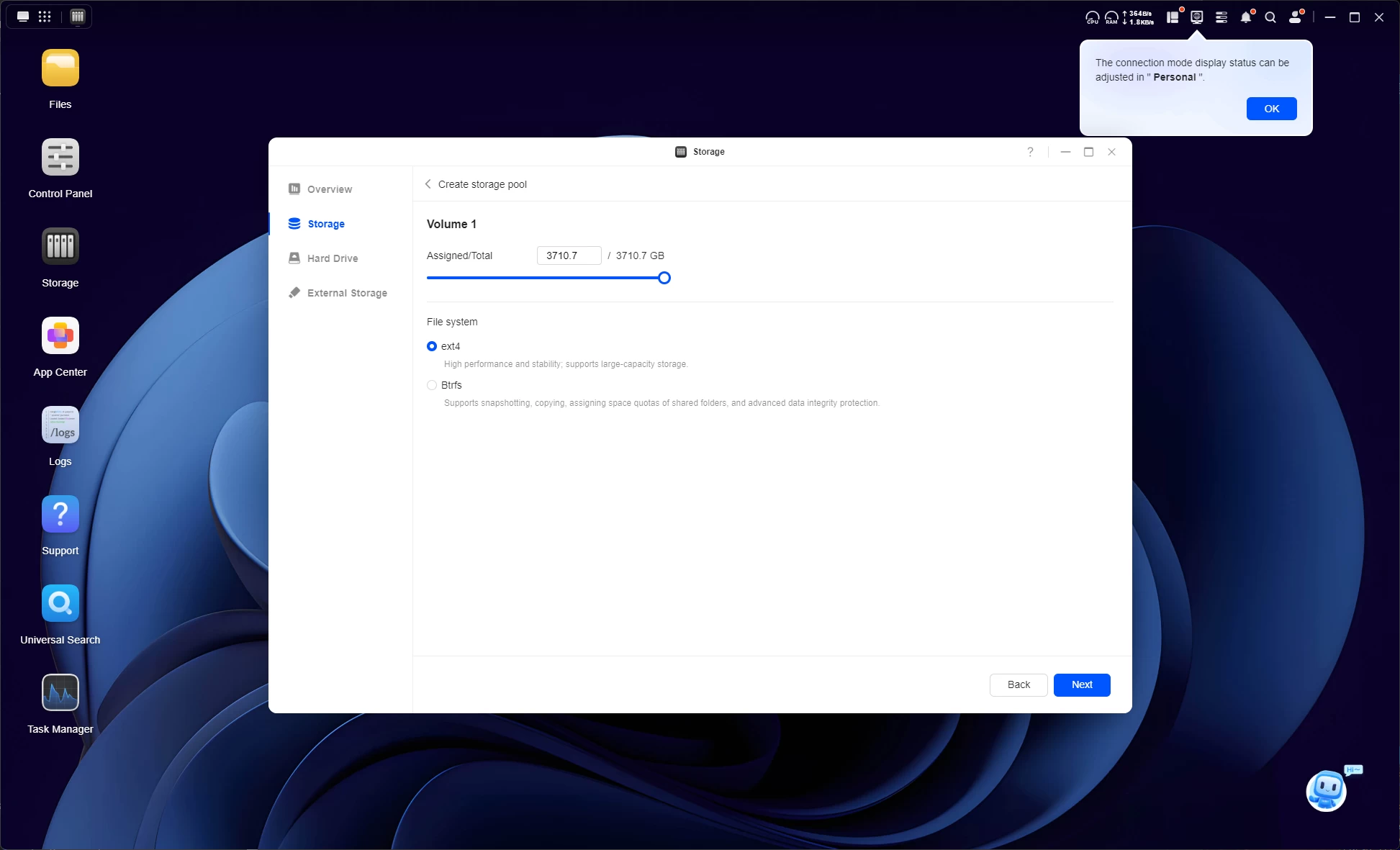
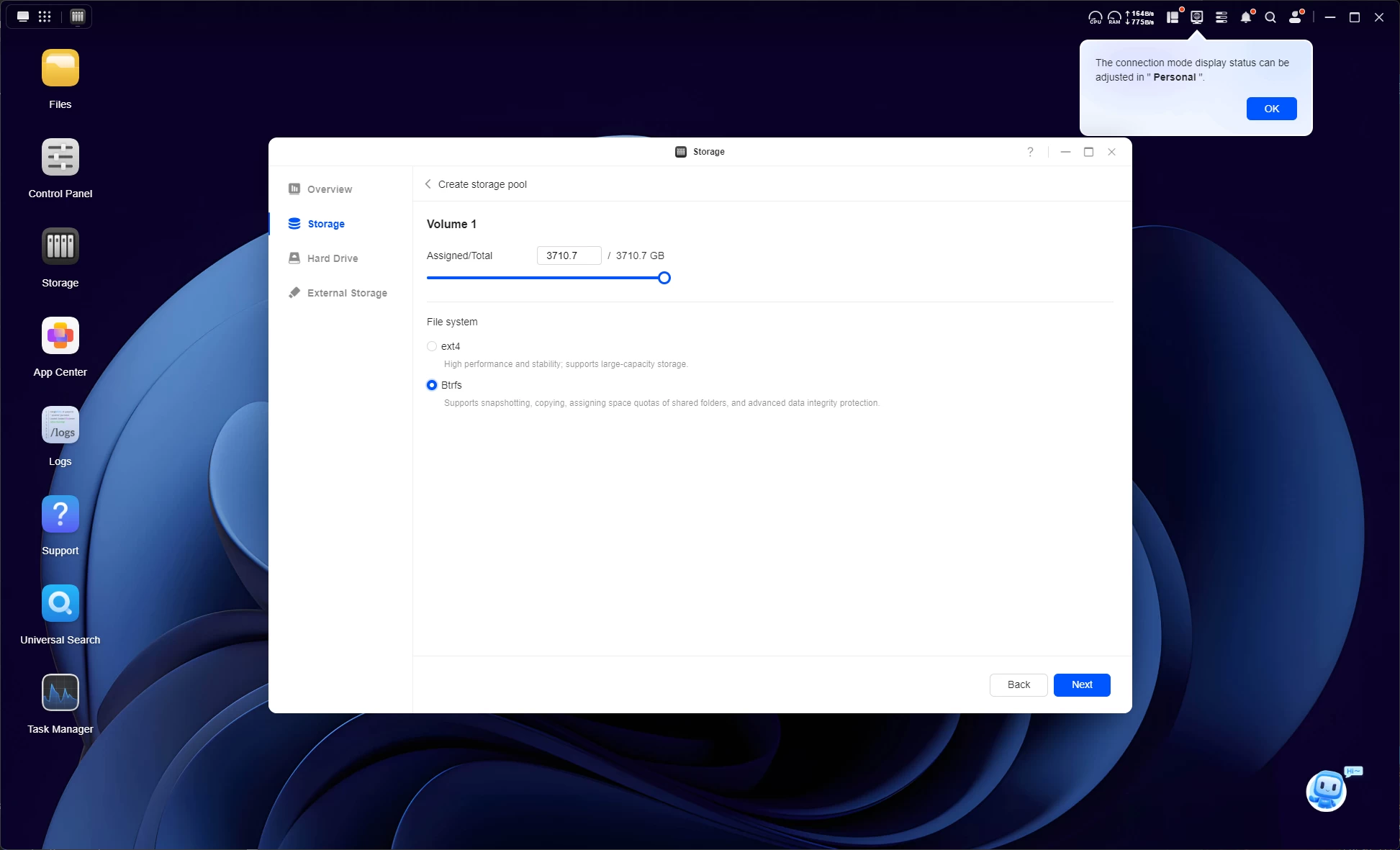
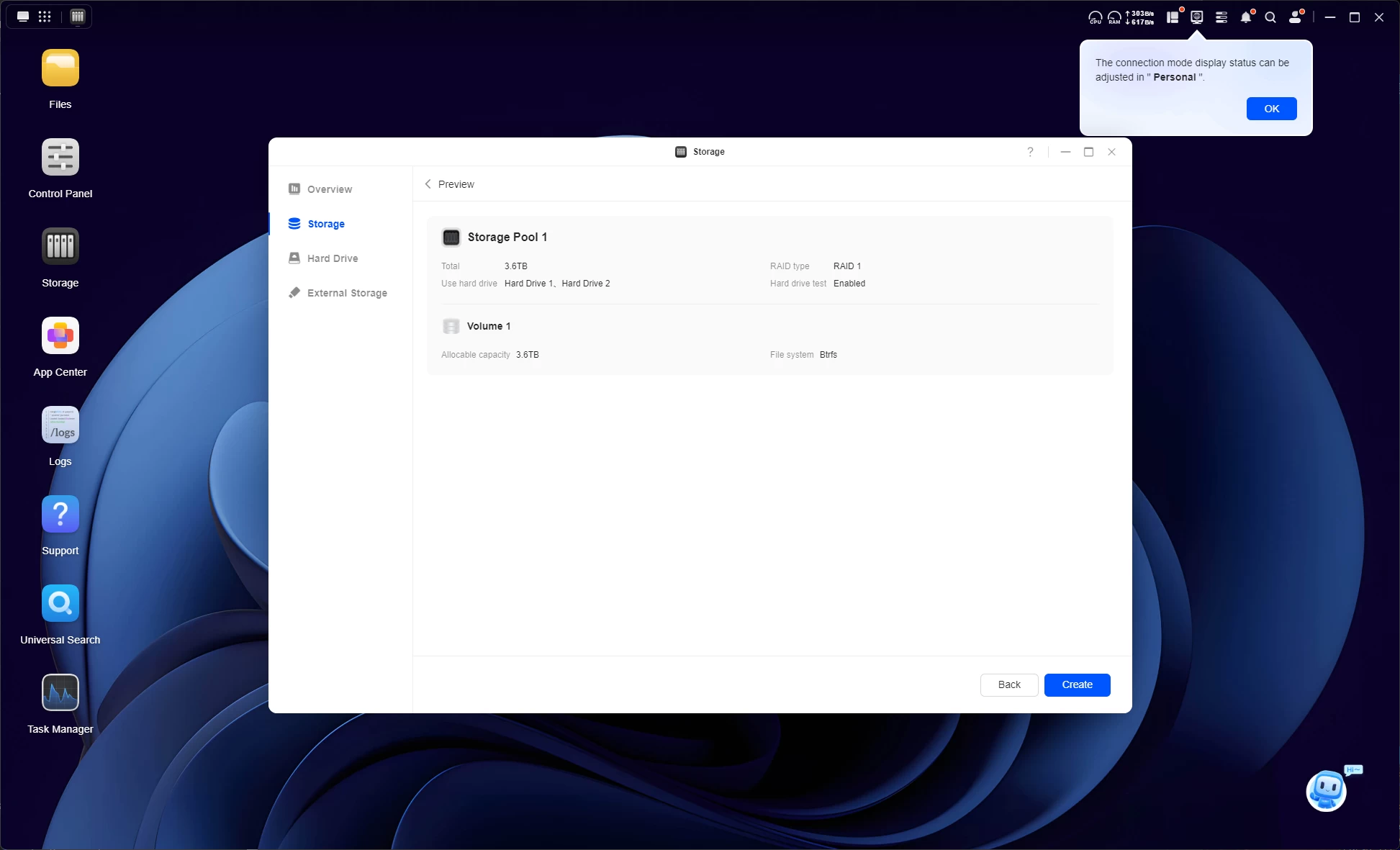
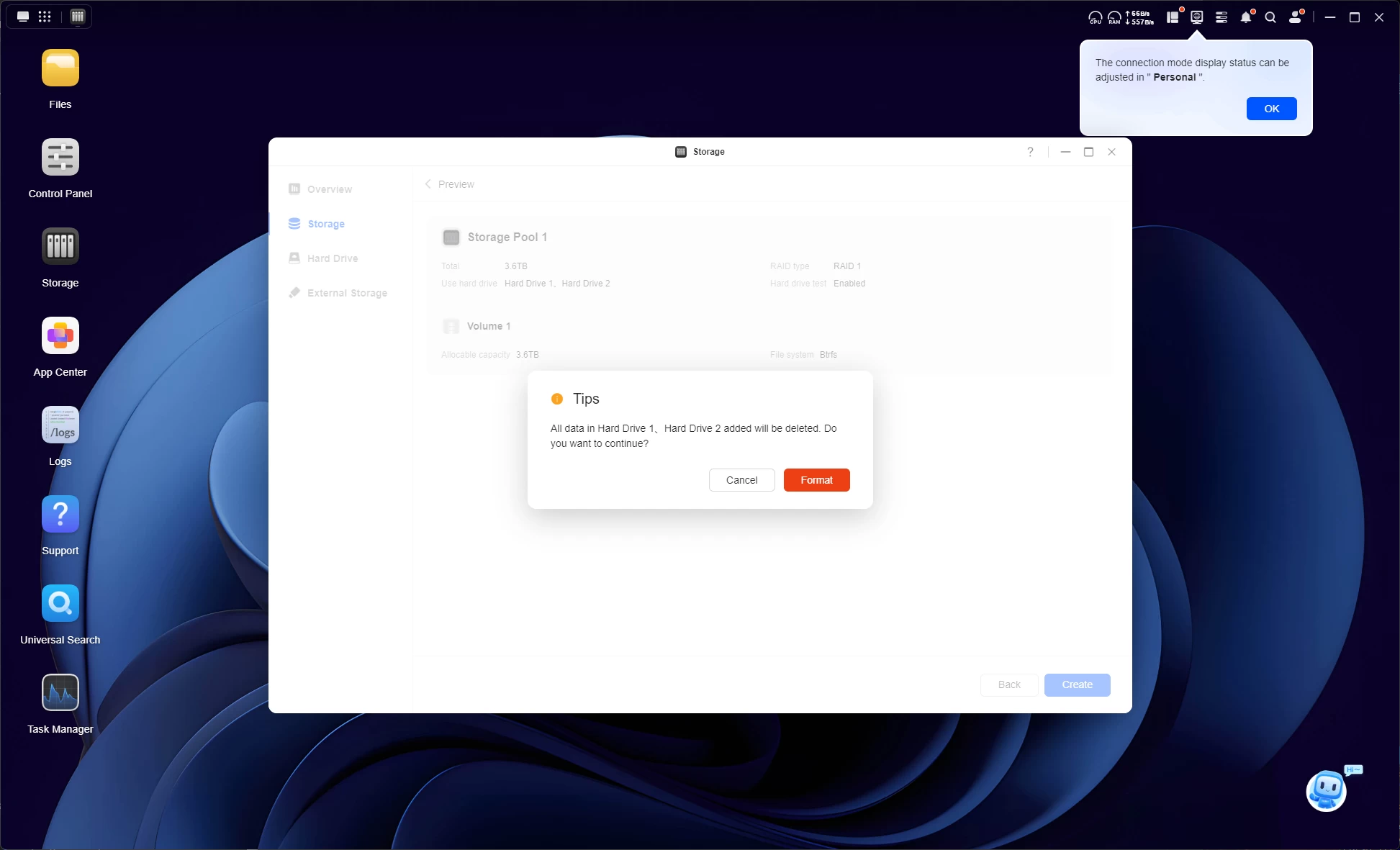
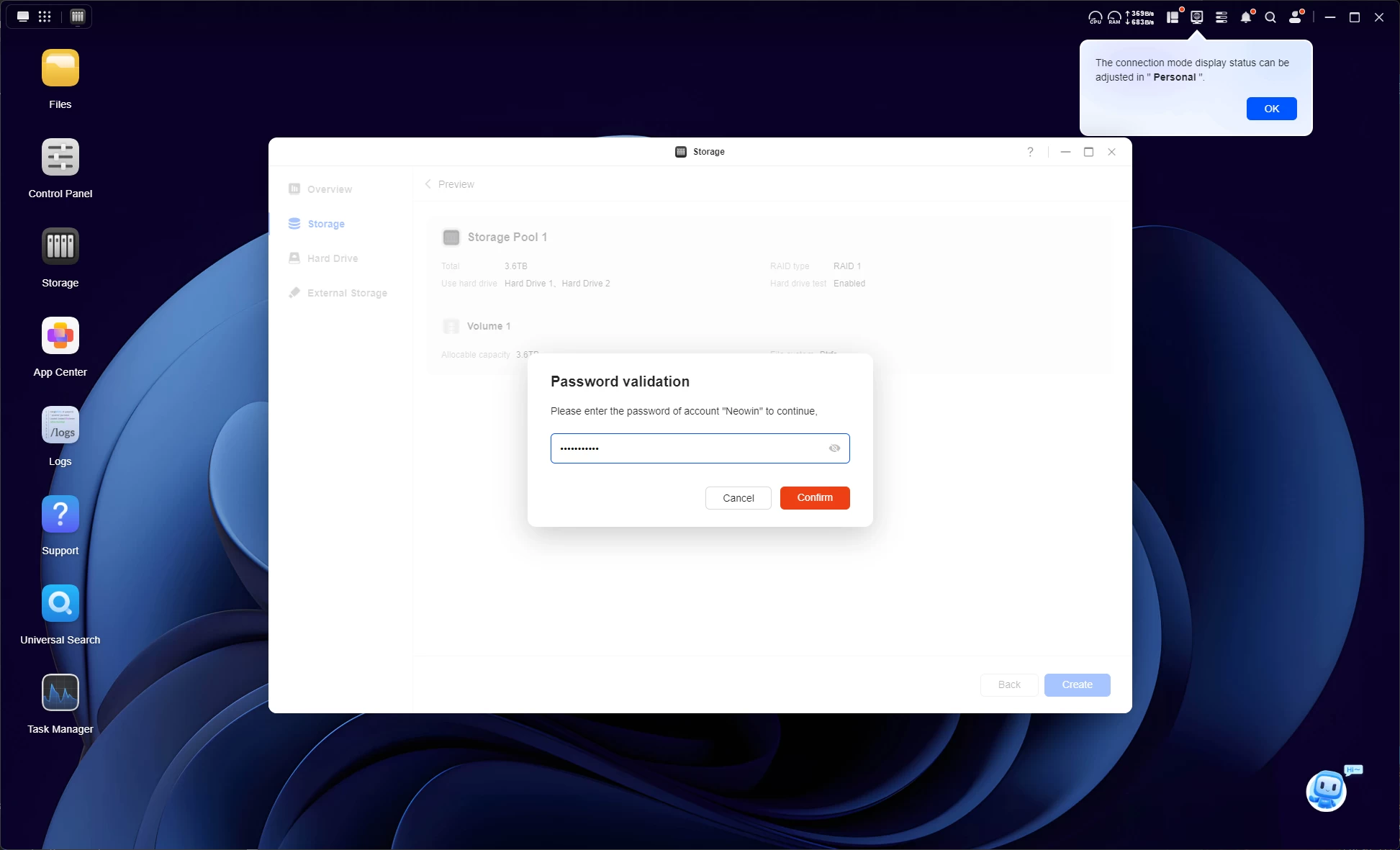
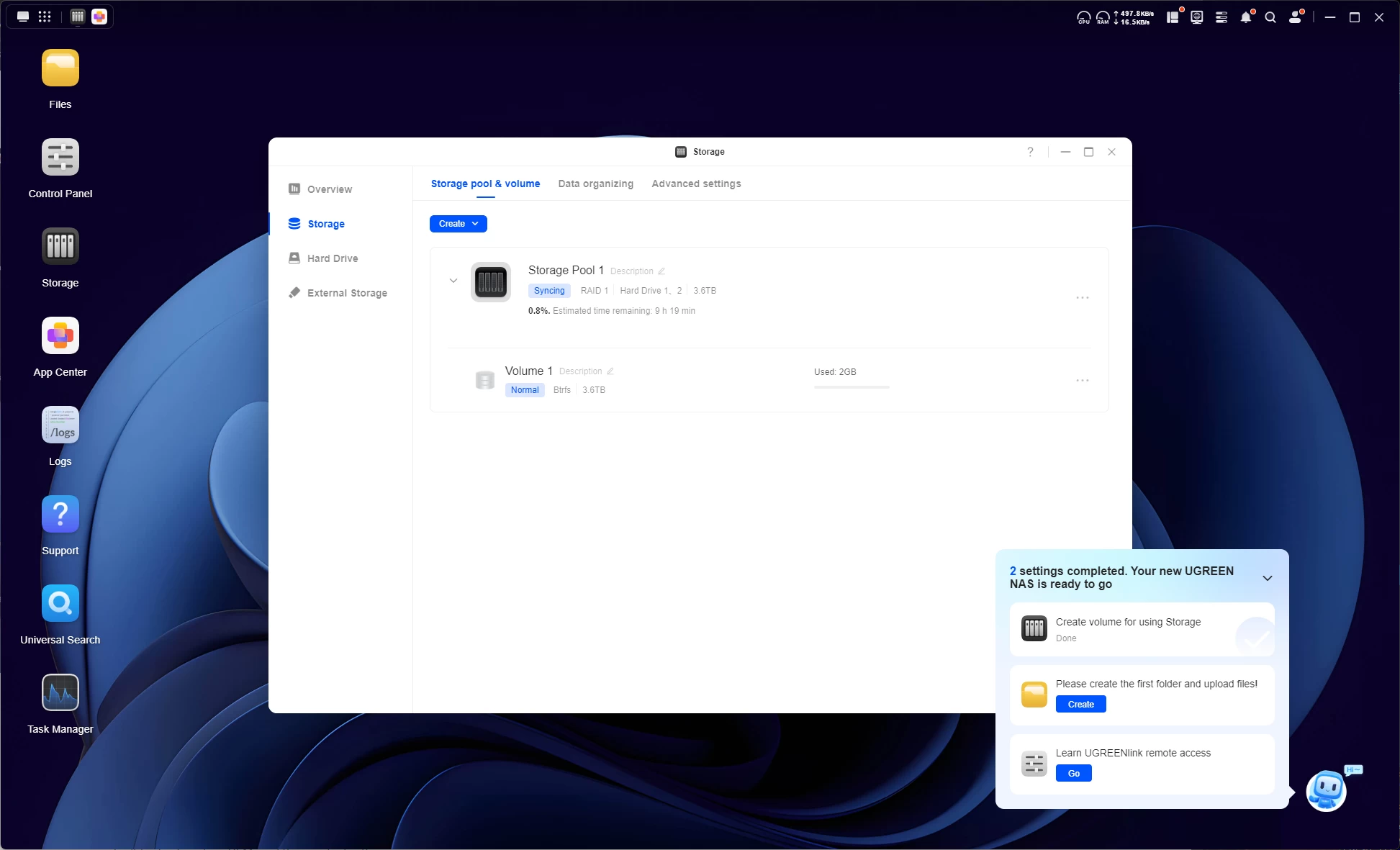
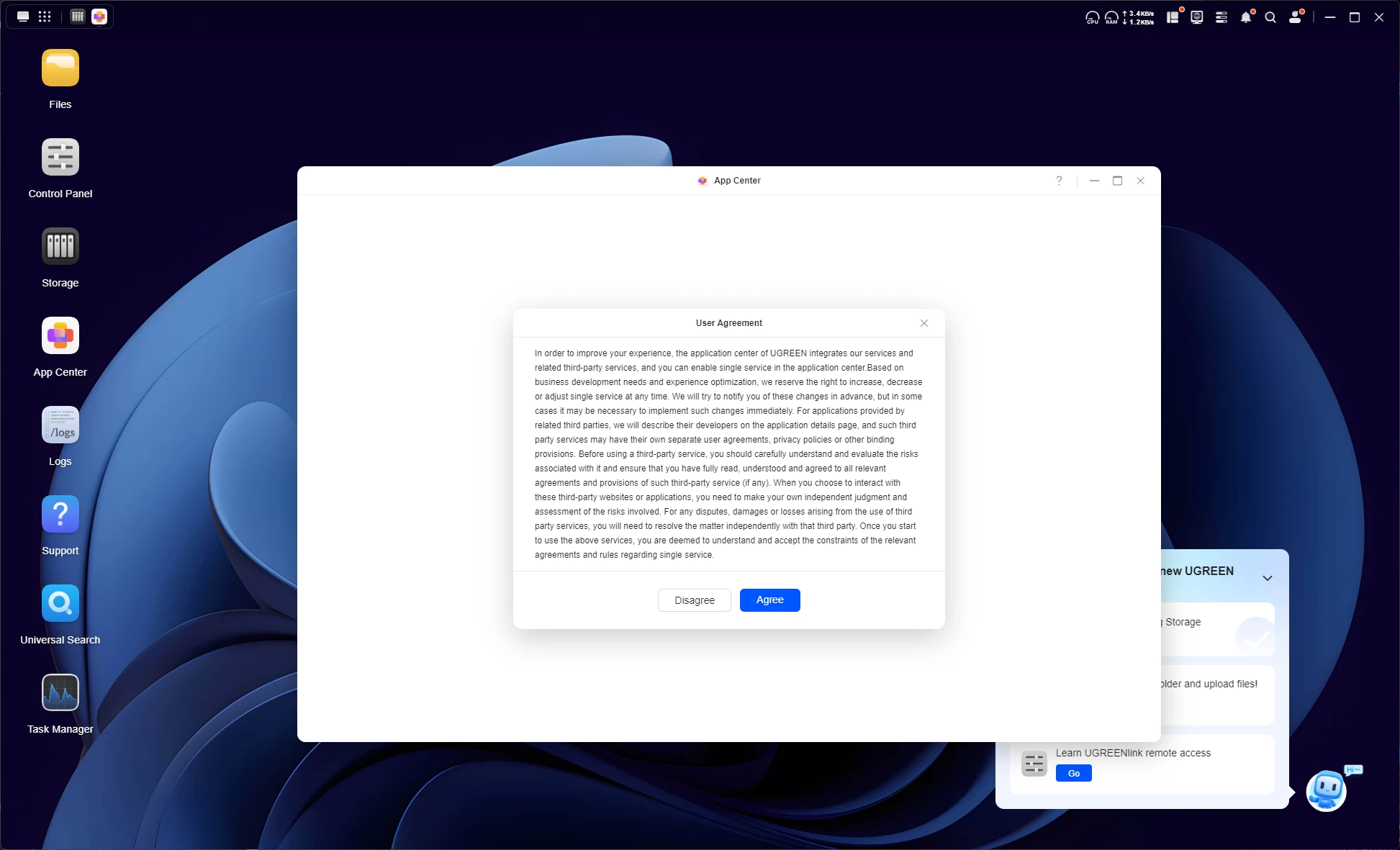
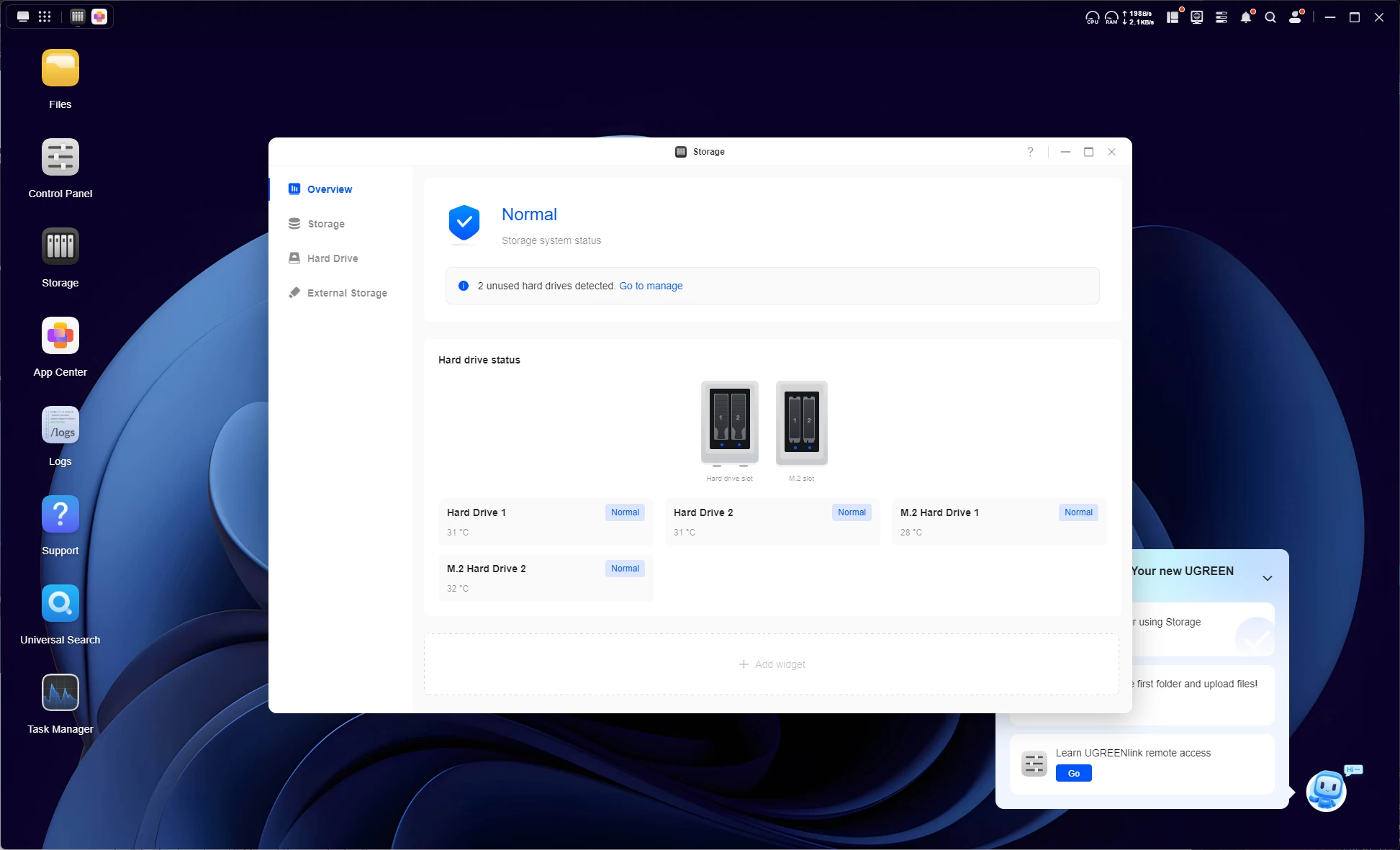
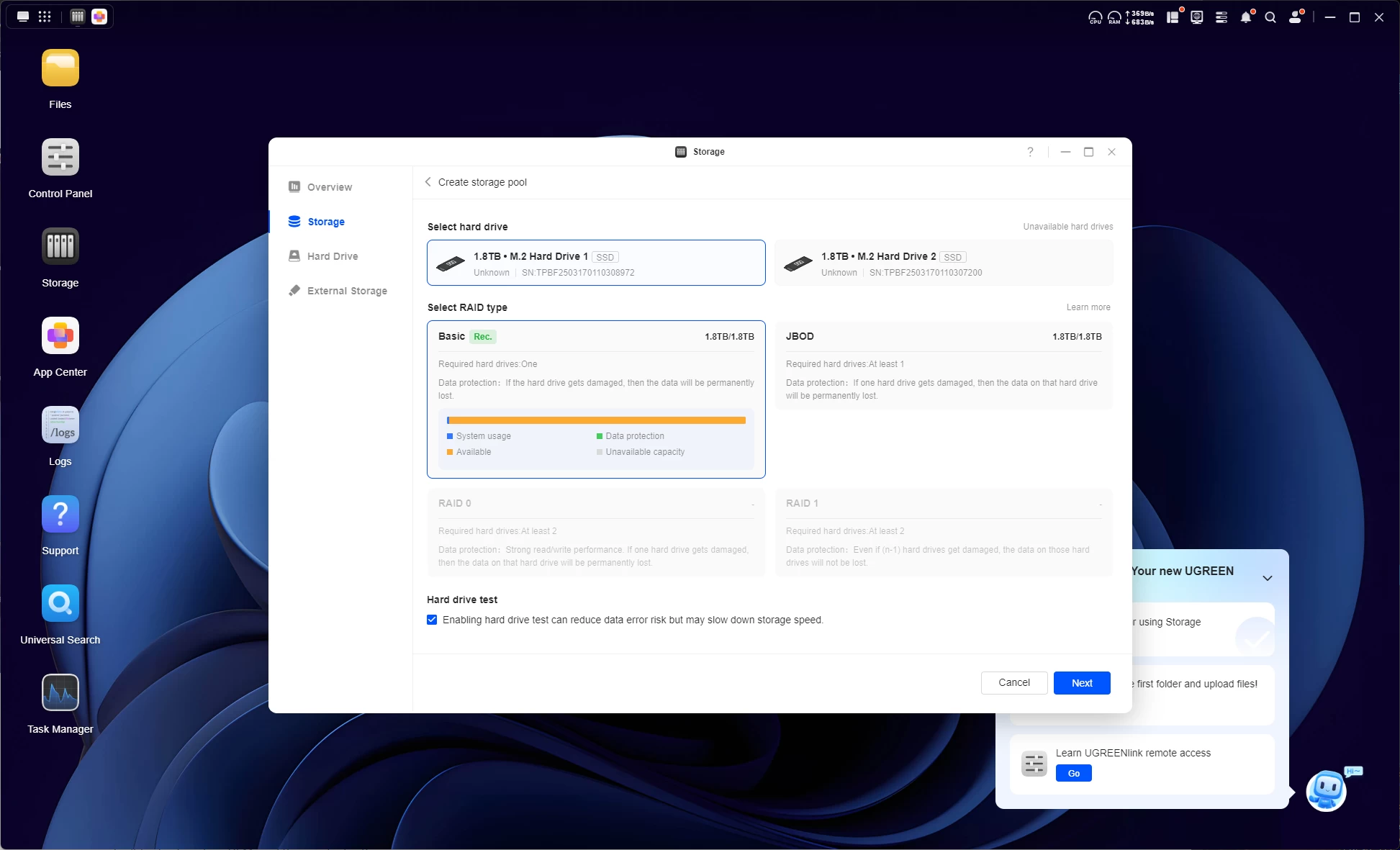
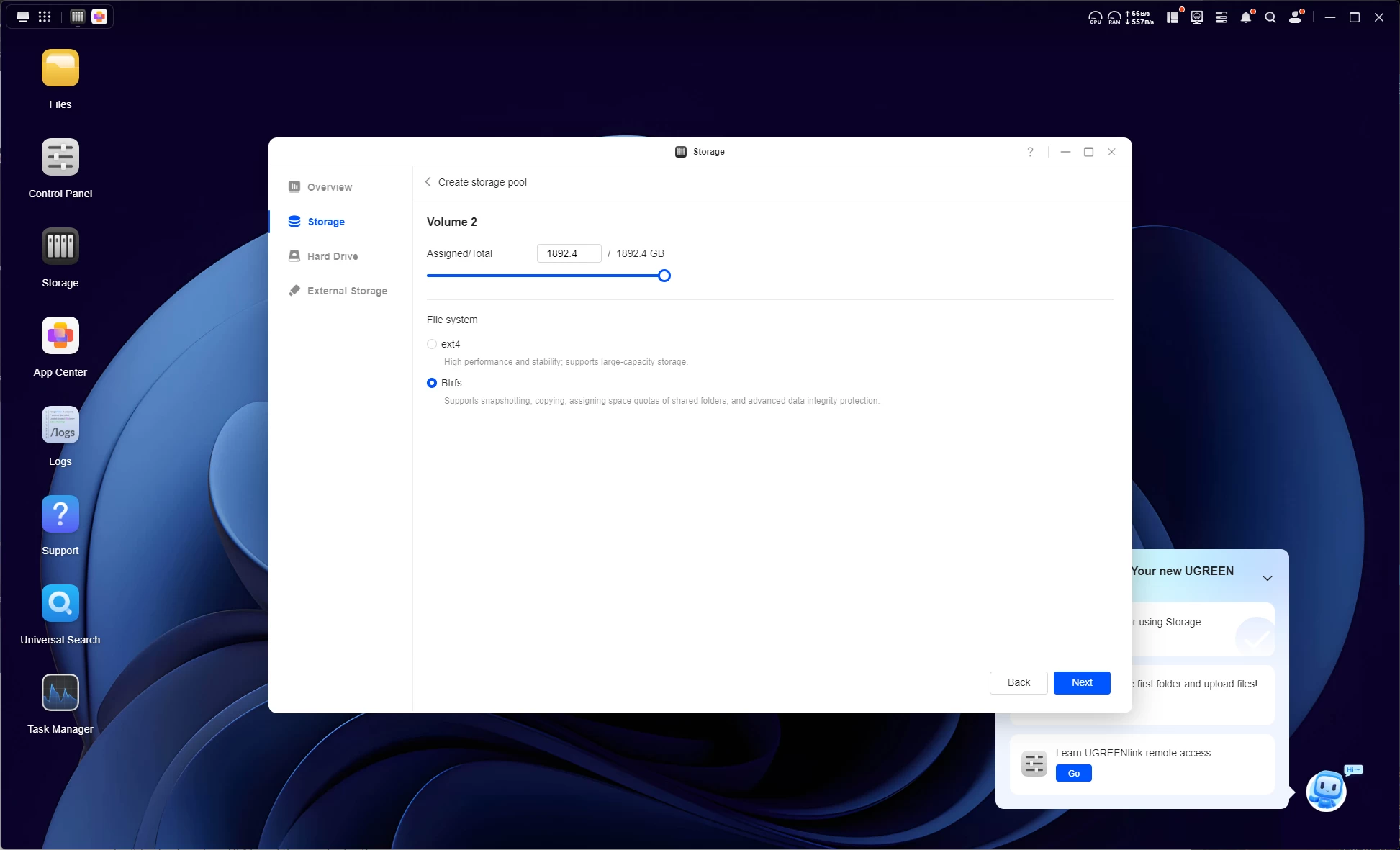
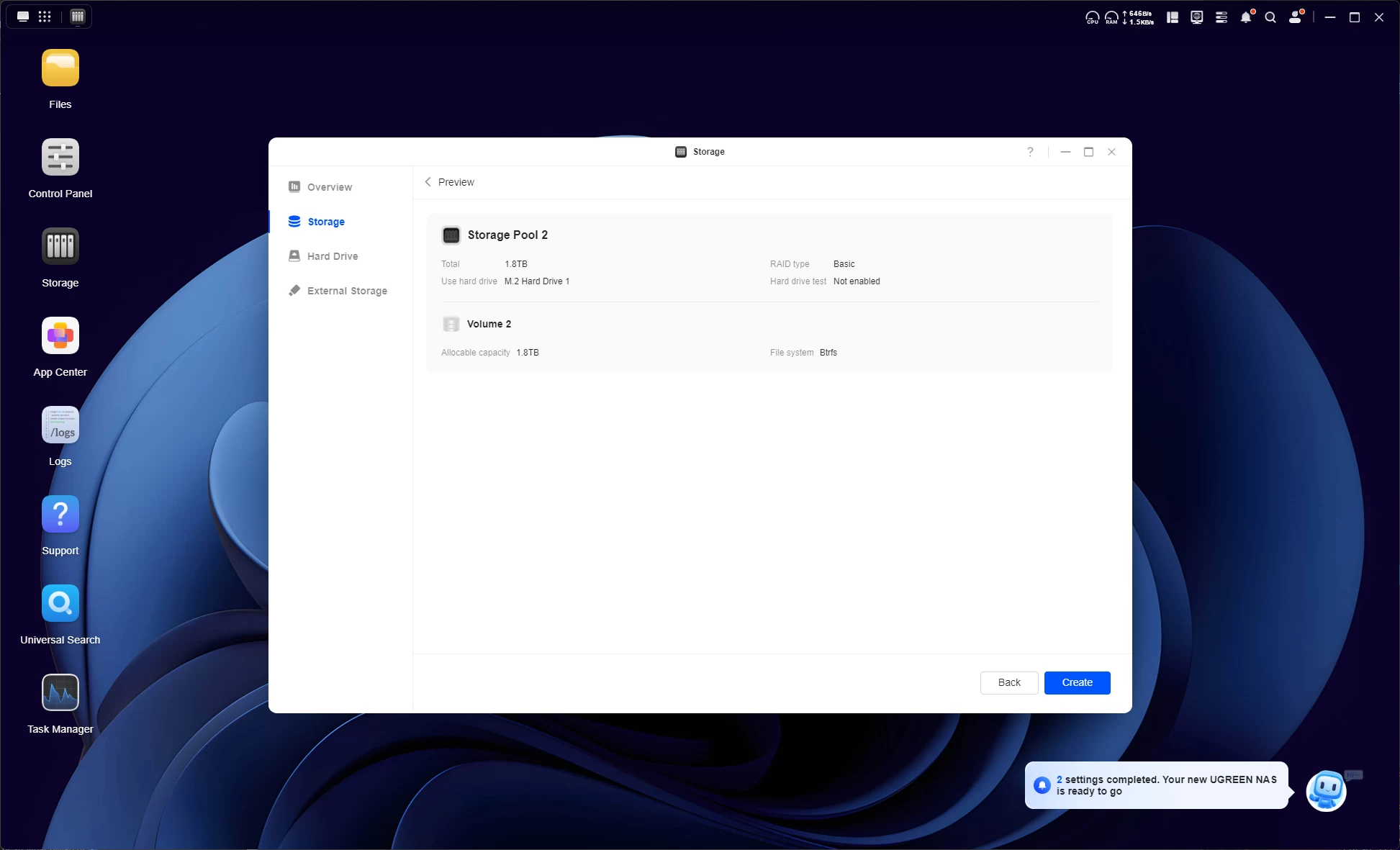
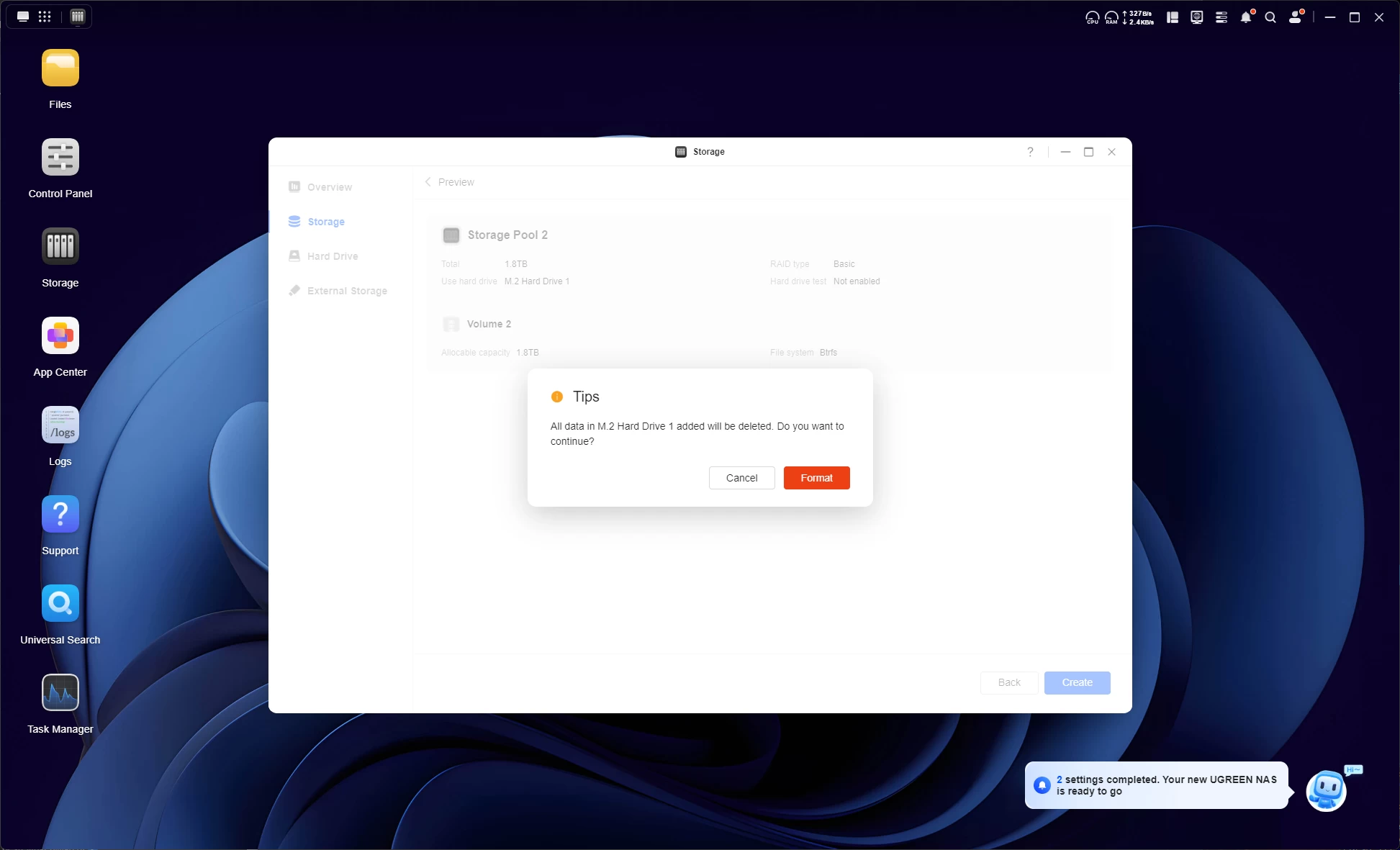
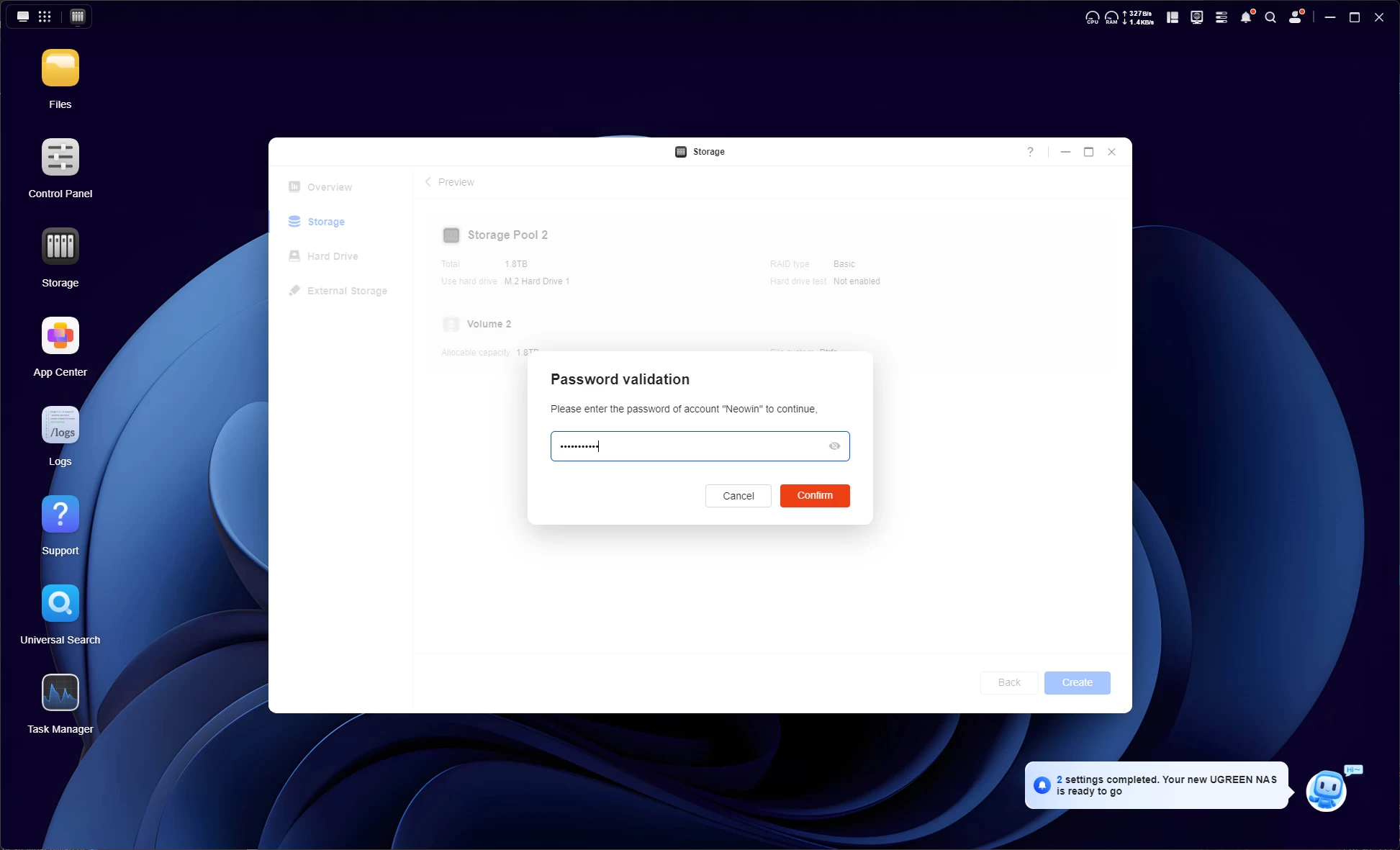
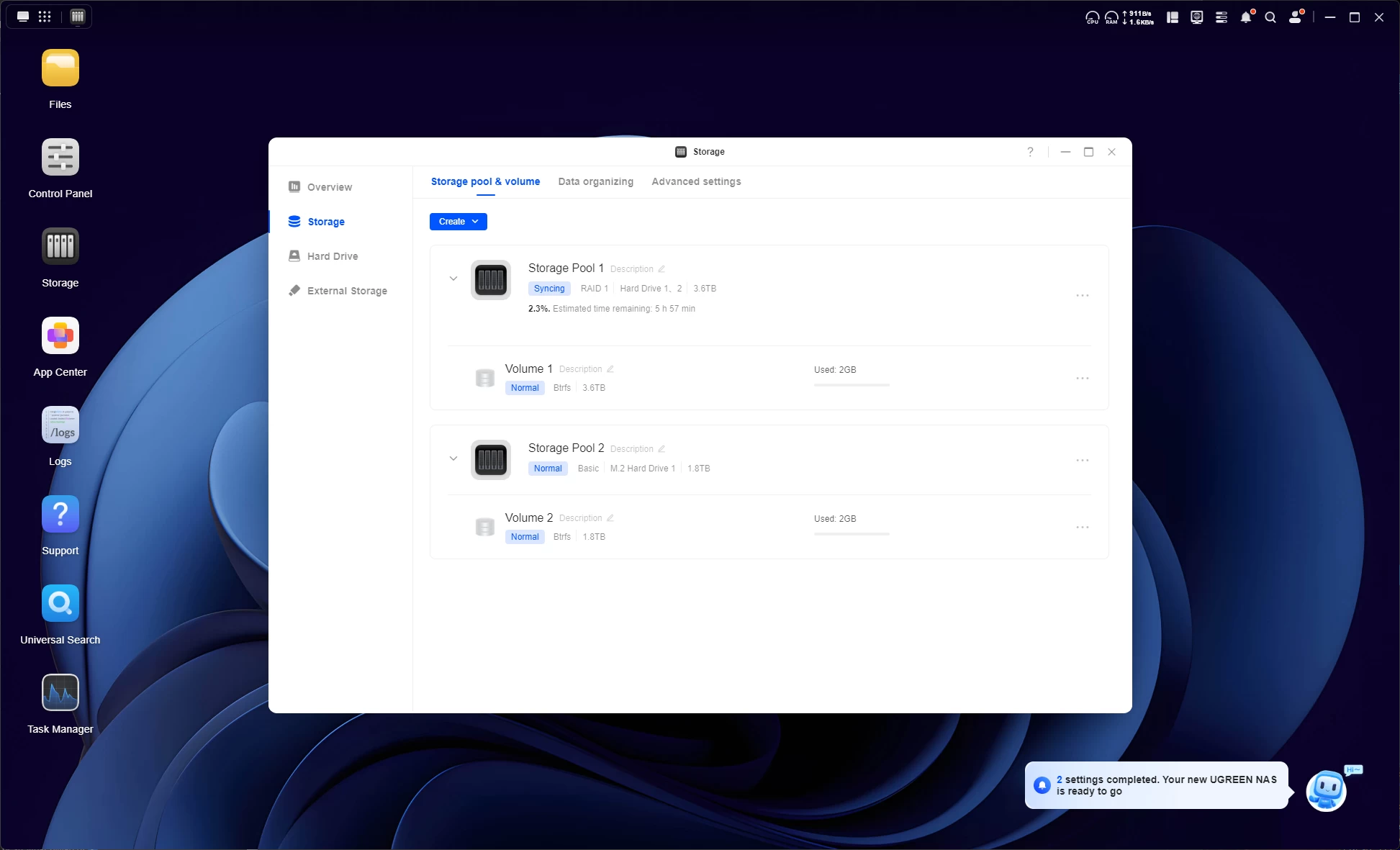
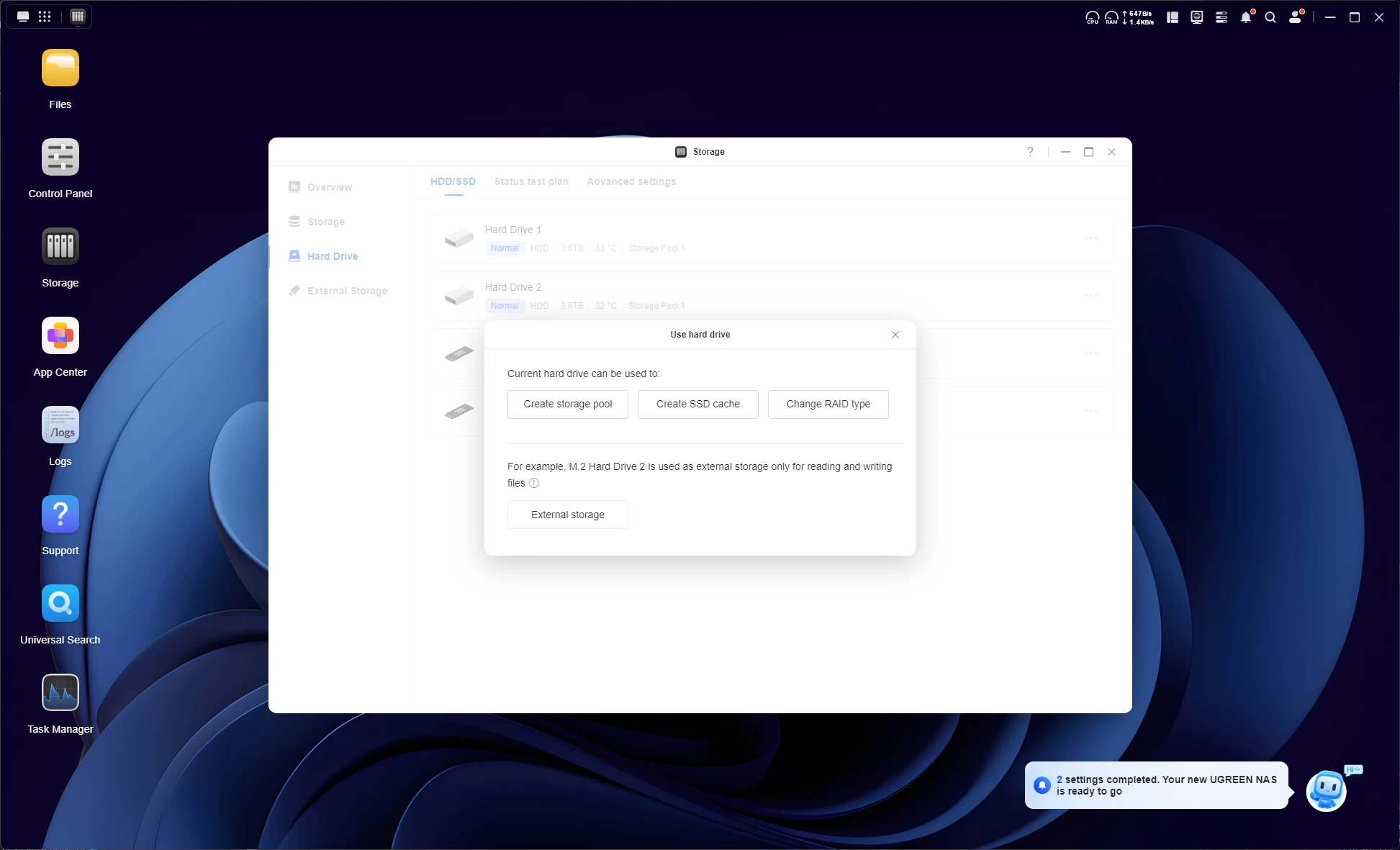
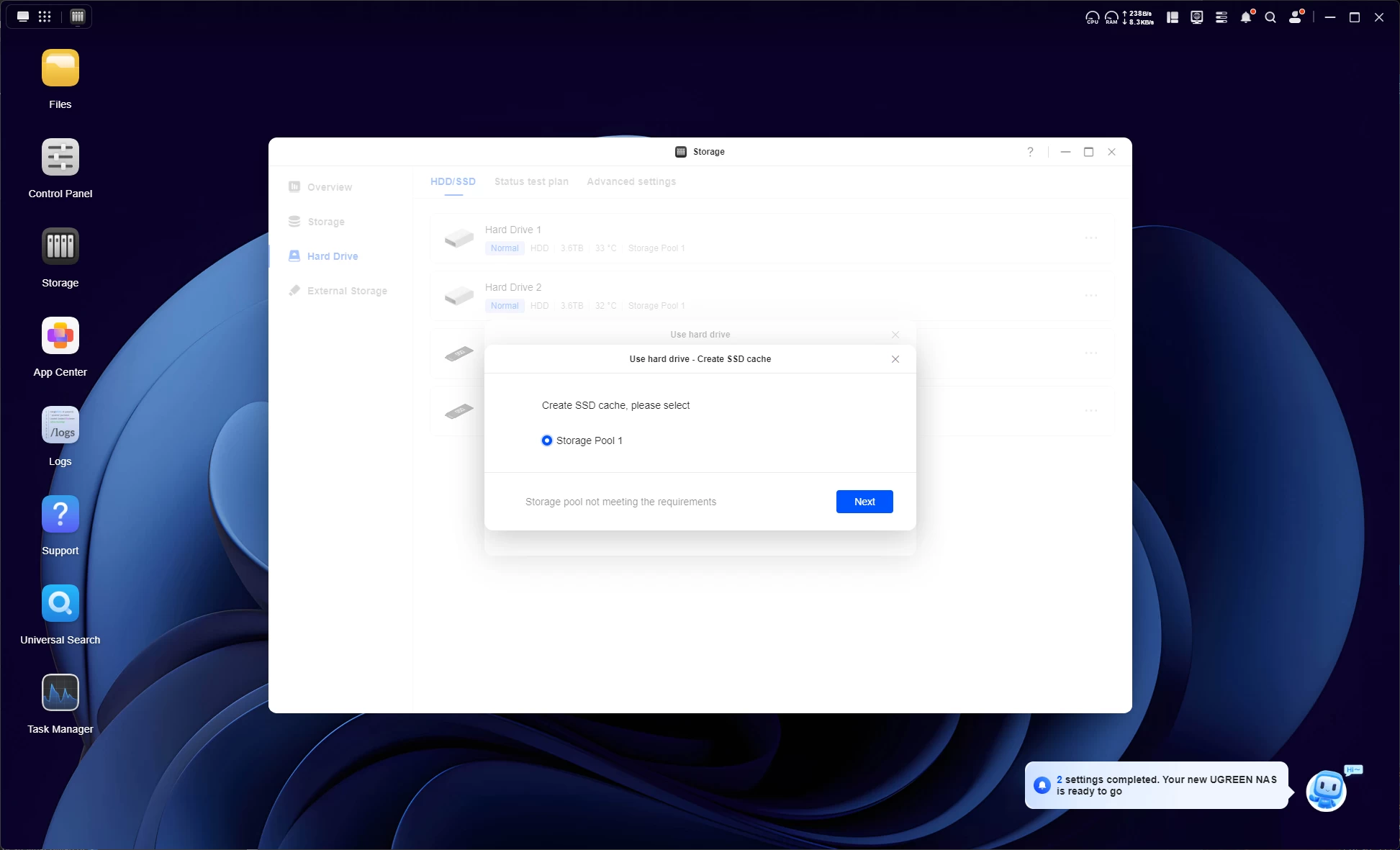
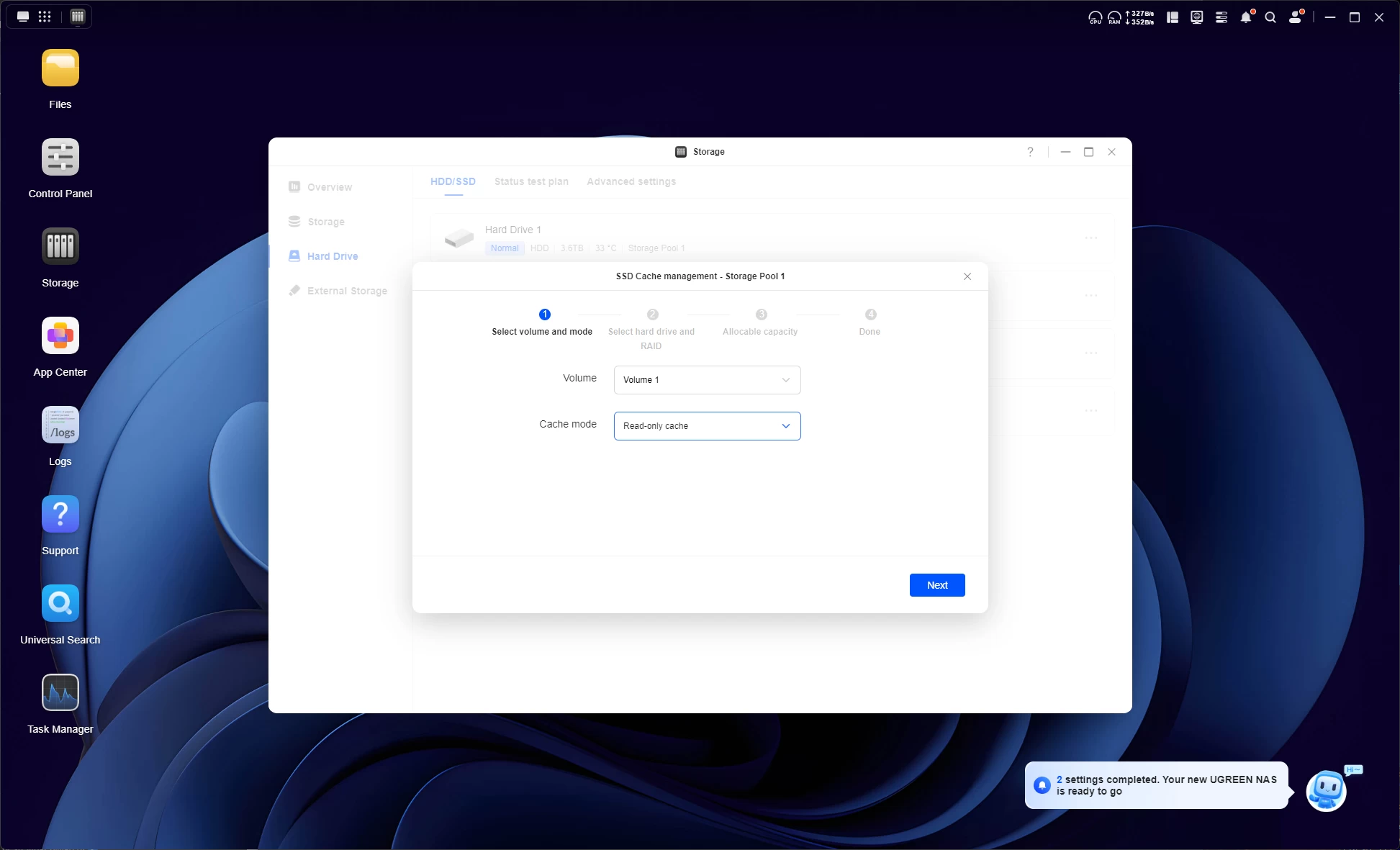
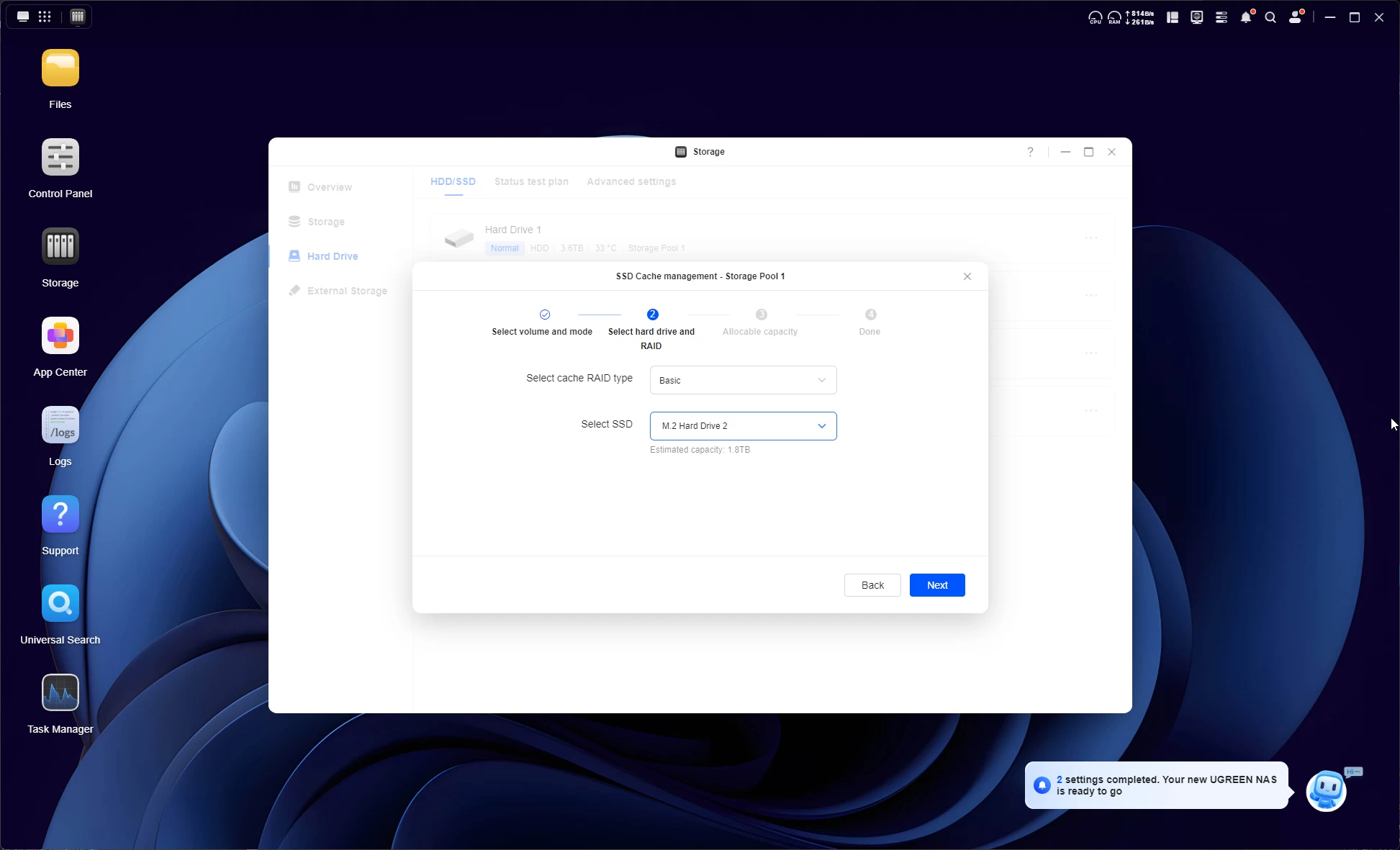
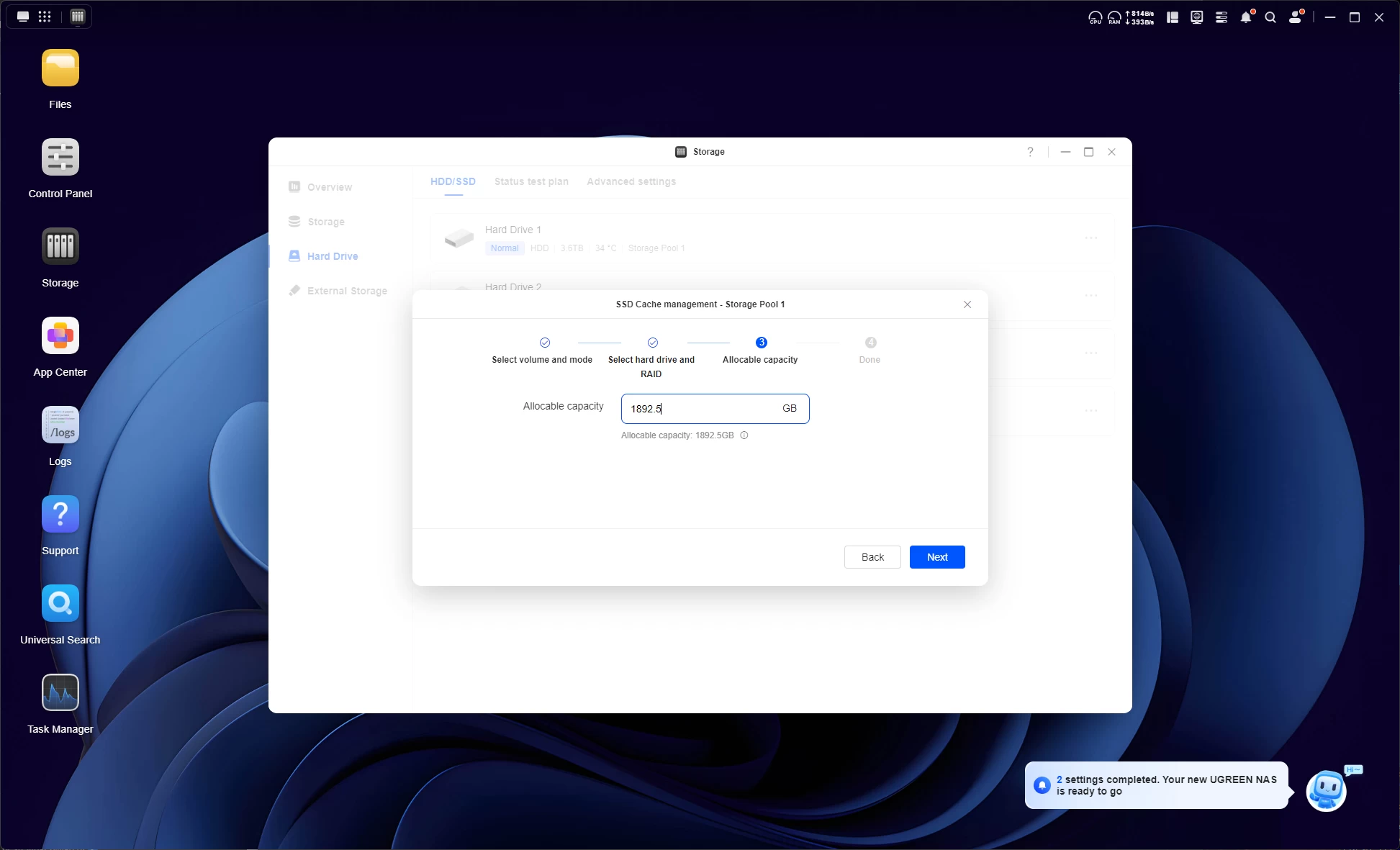
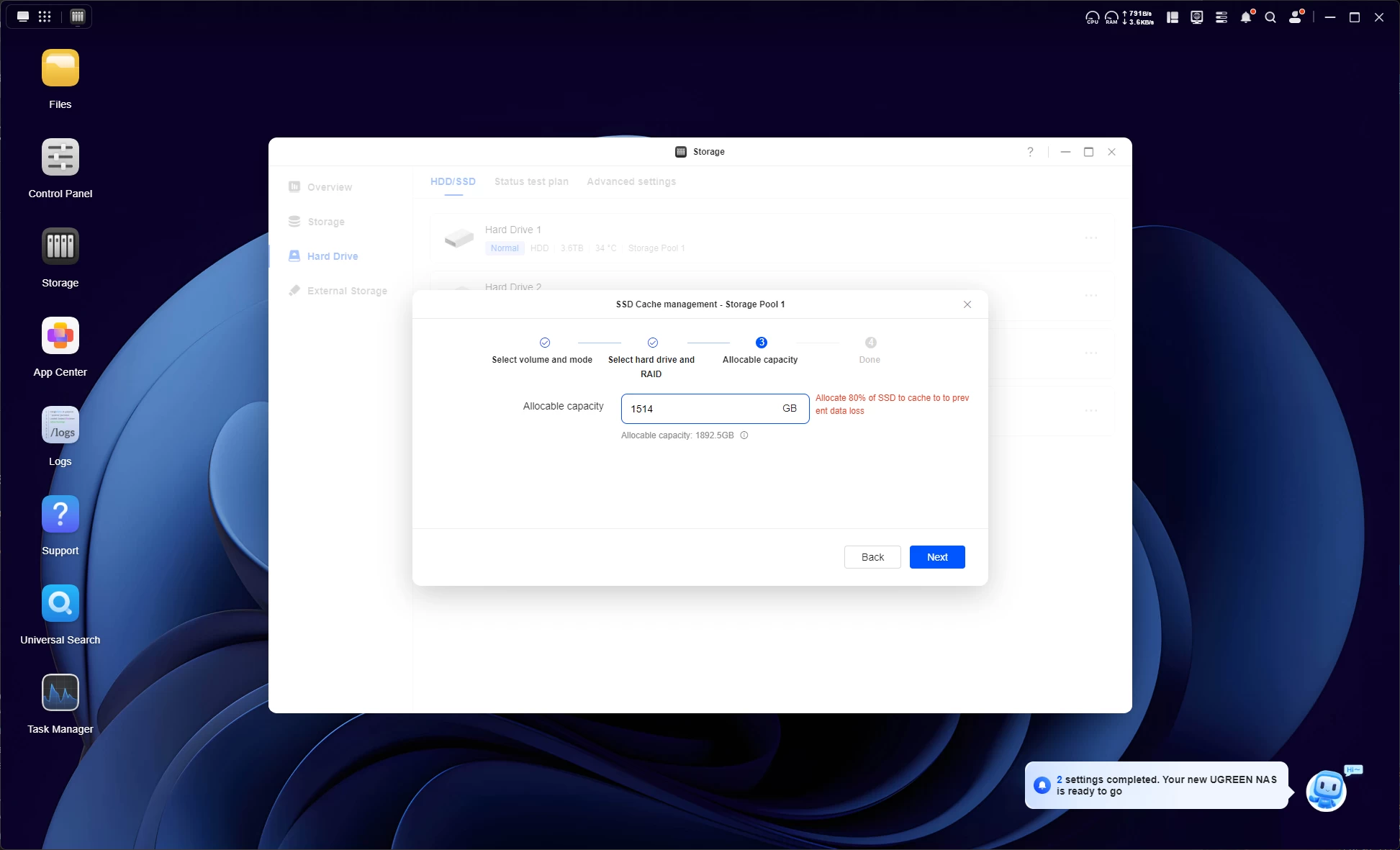
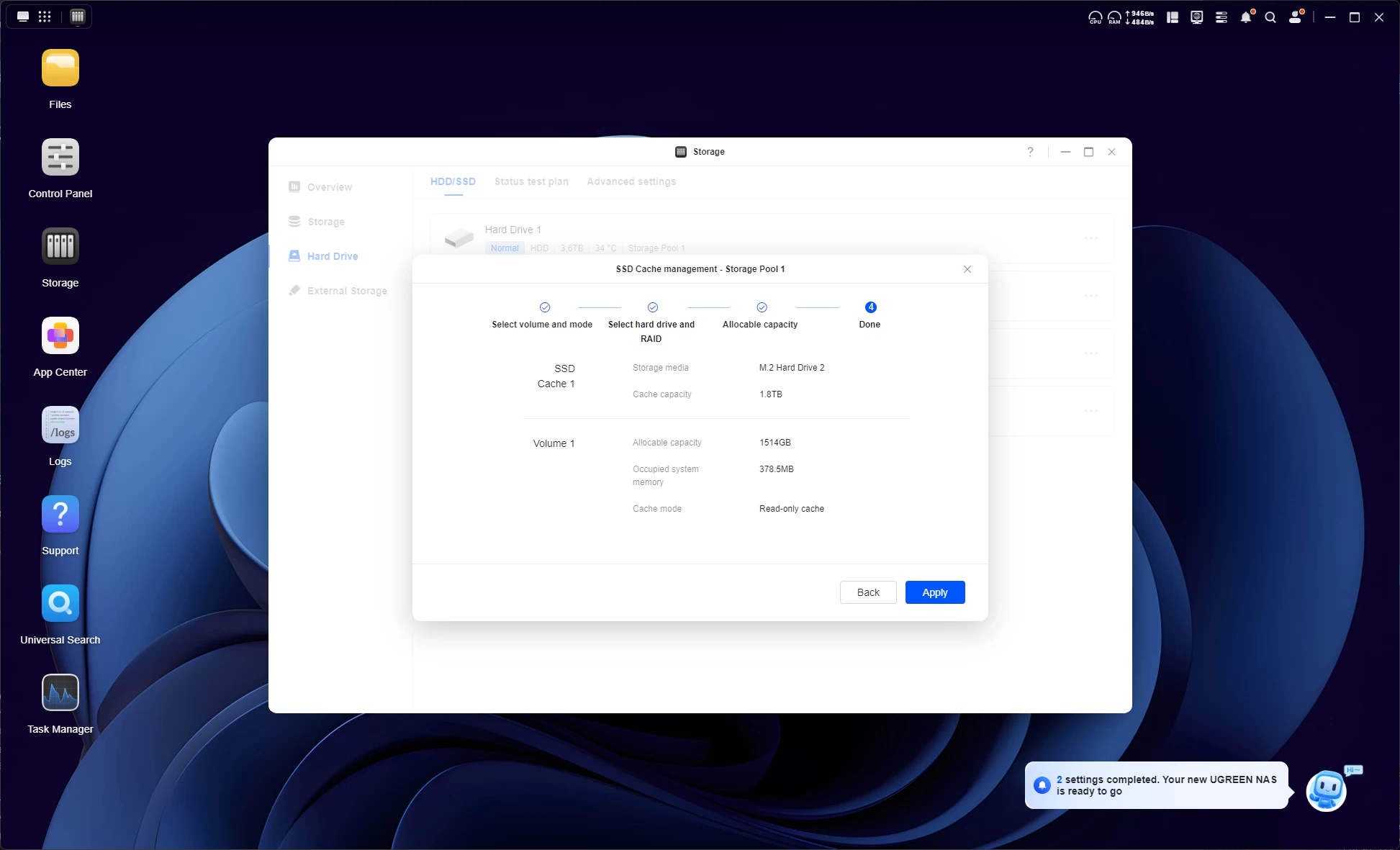
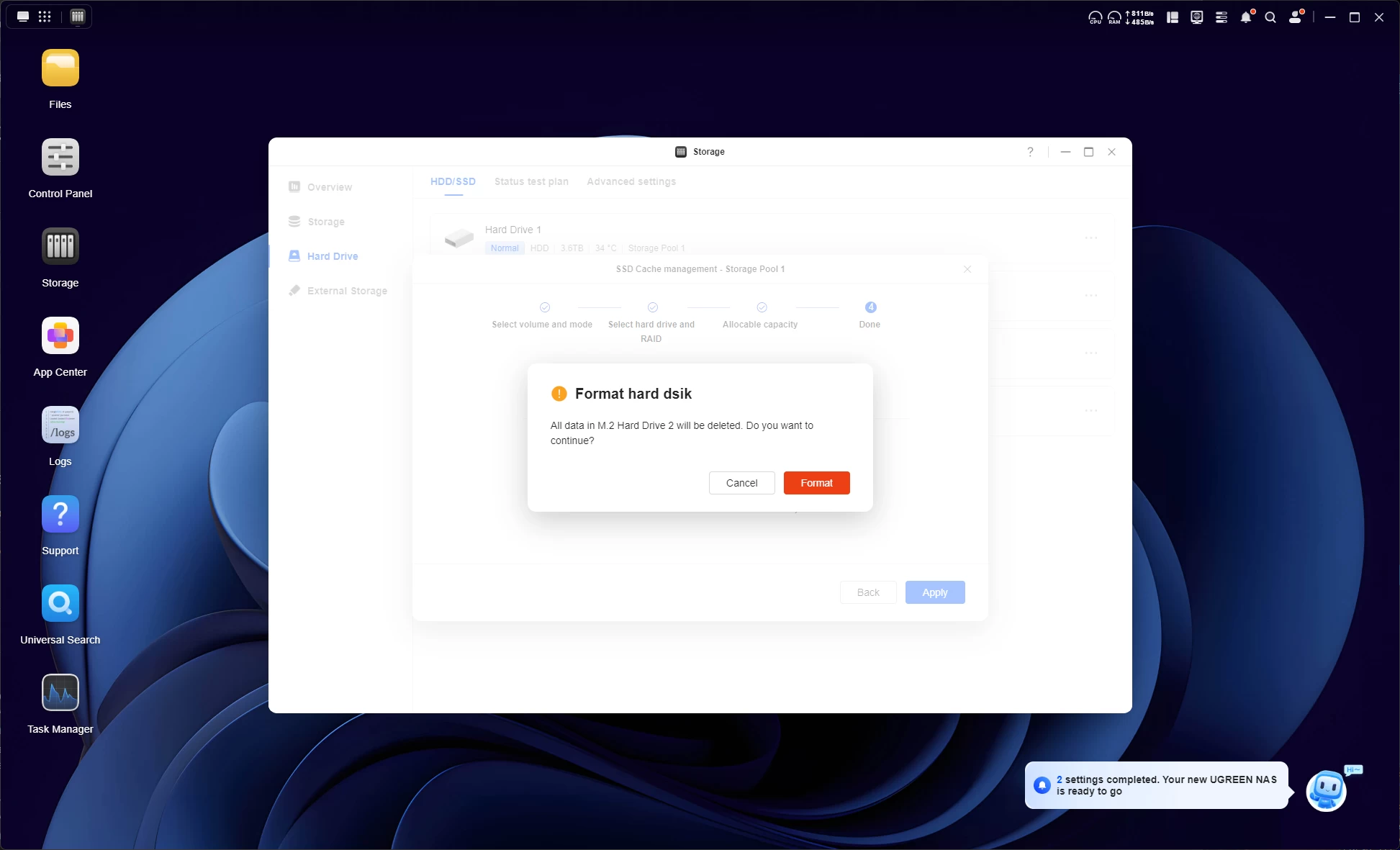
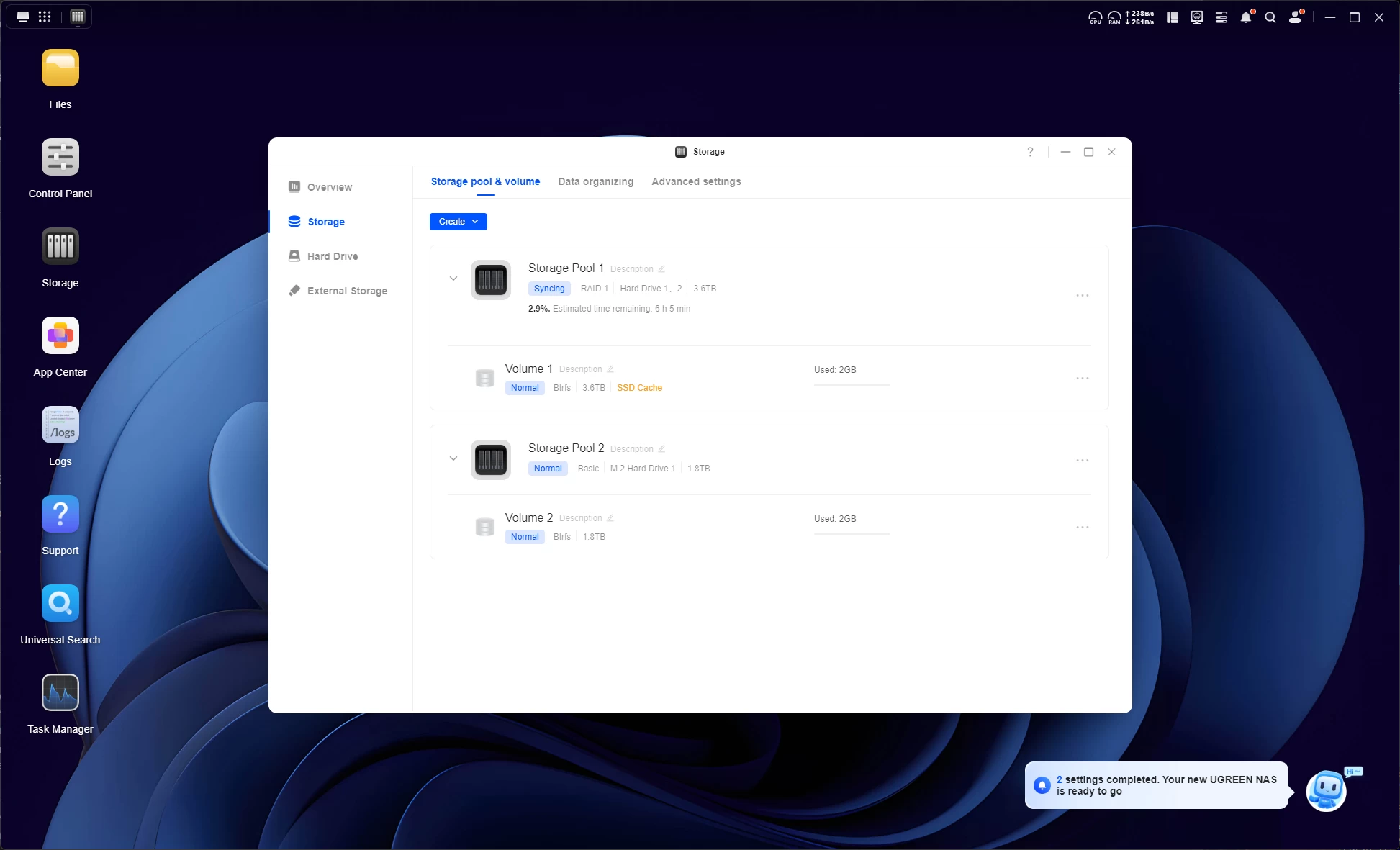
As shown above, you are immediately asked to set up a Storage Pool, which I did, then I added a second Storage Pool from a 2TB SSD, and used the second 2TB SSD for HDD cache.
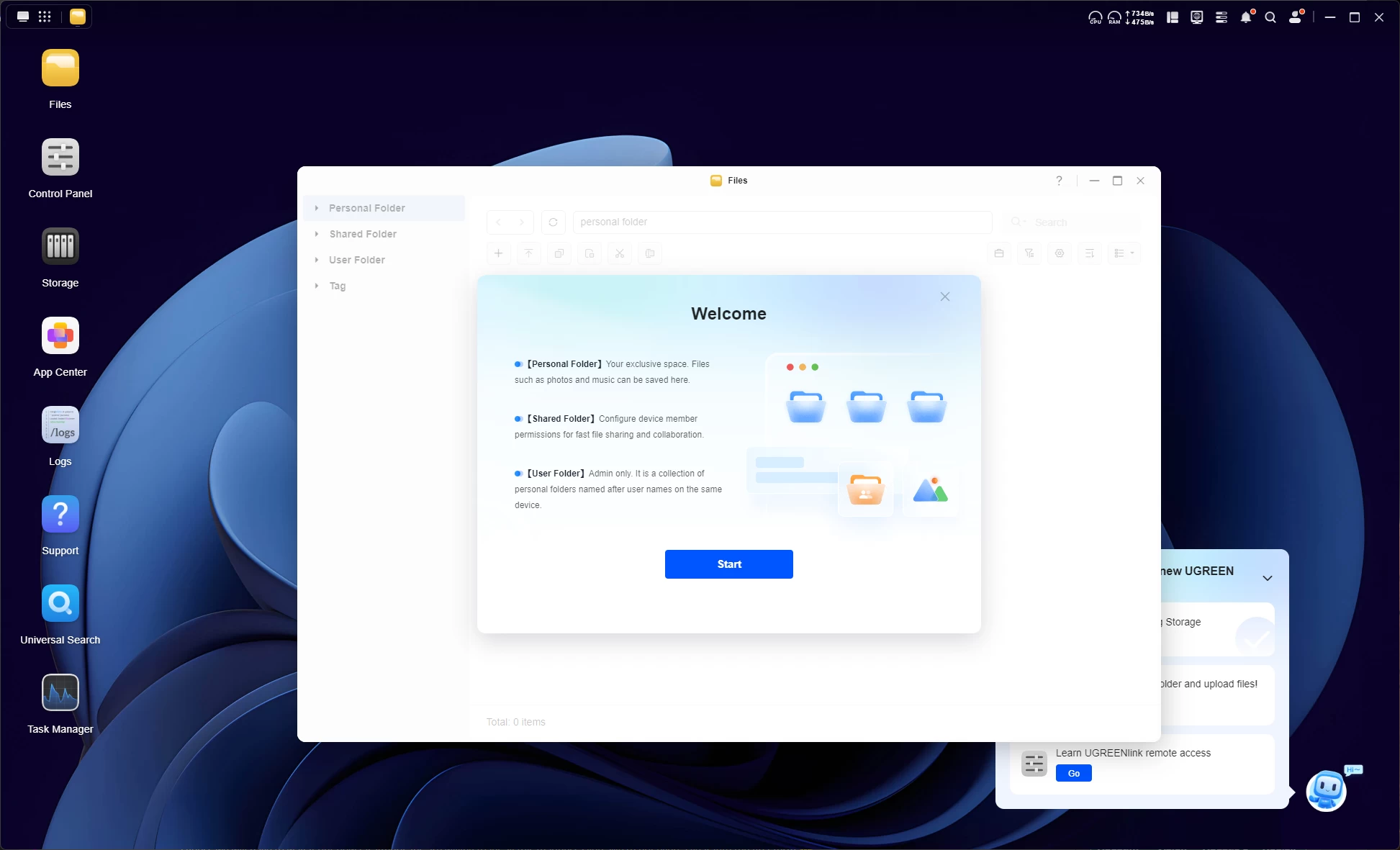
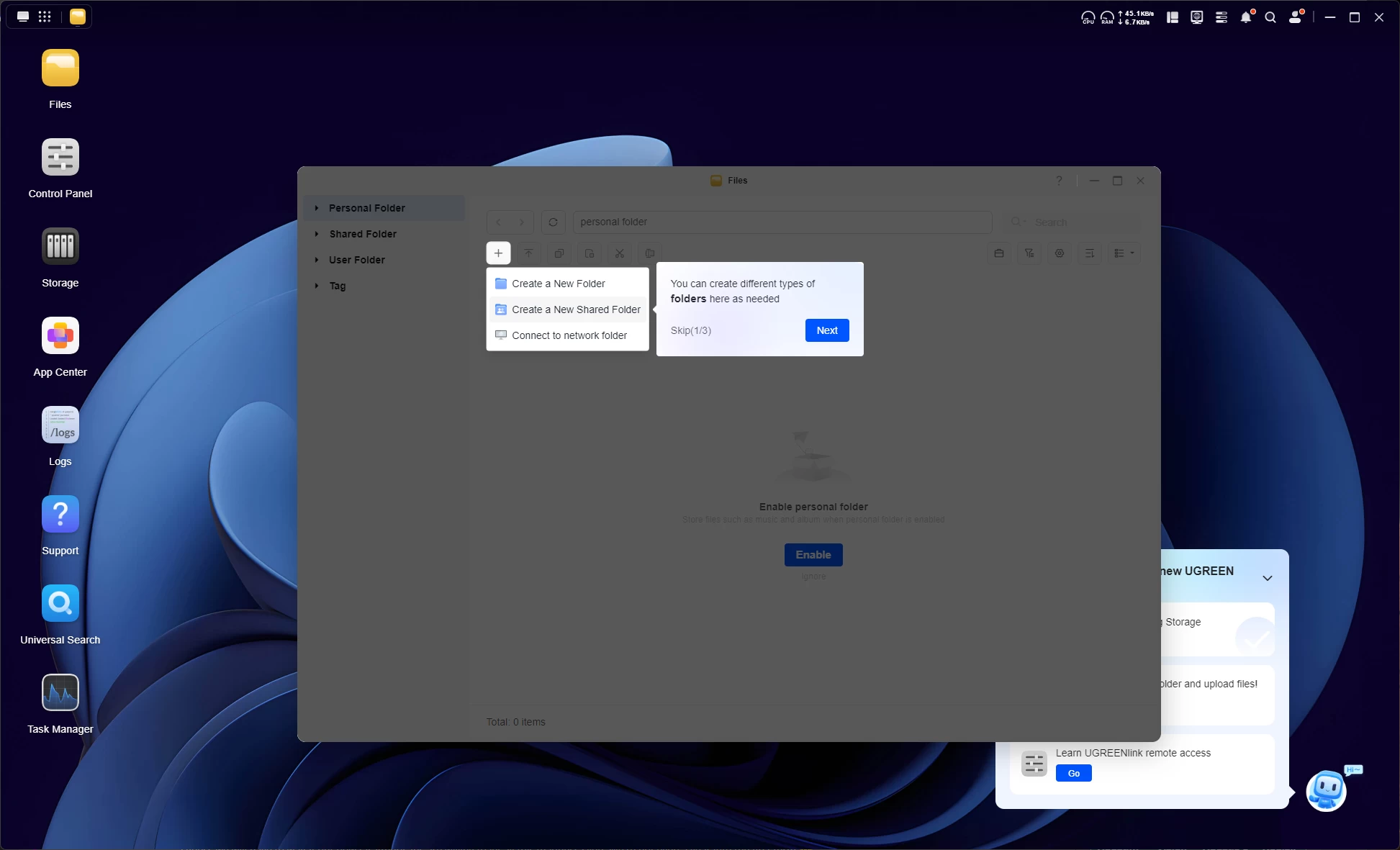
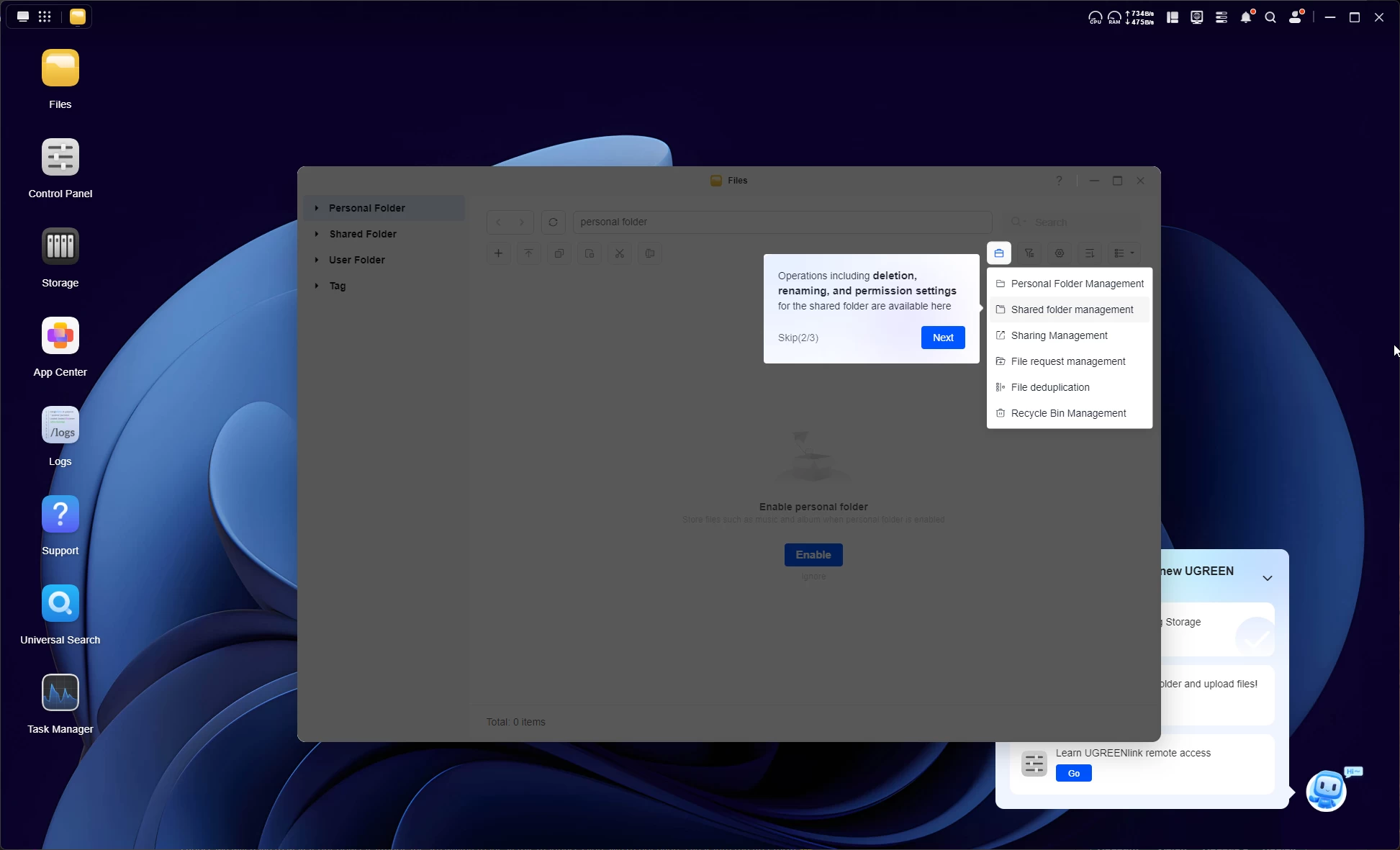
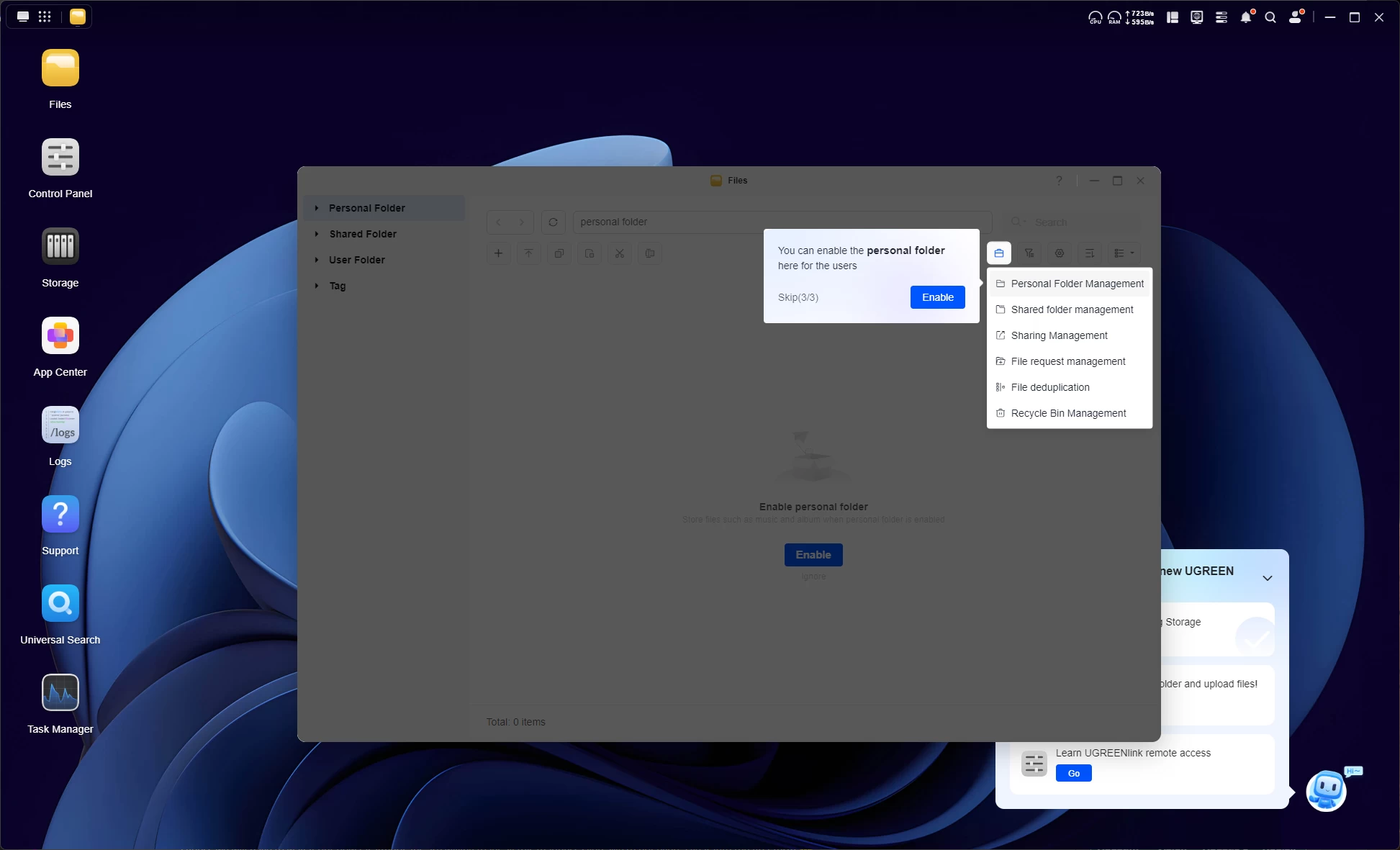
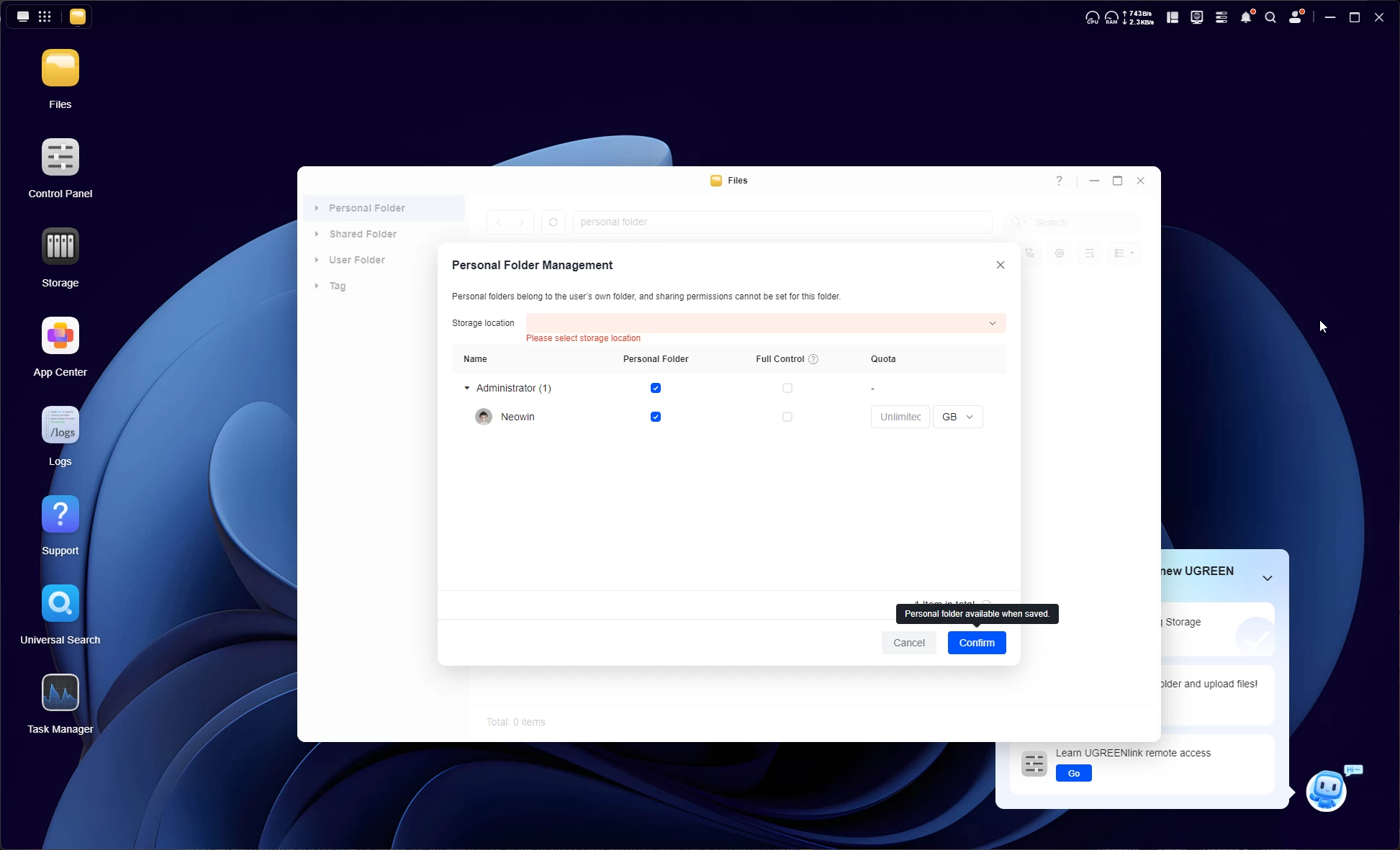
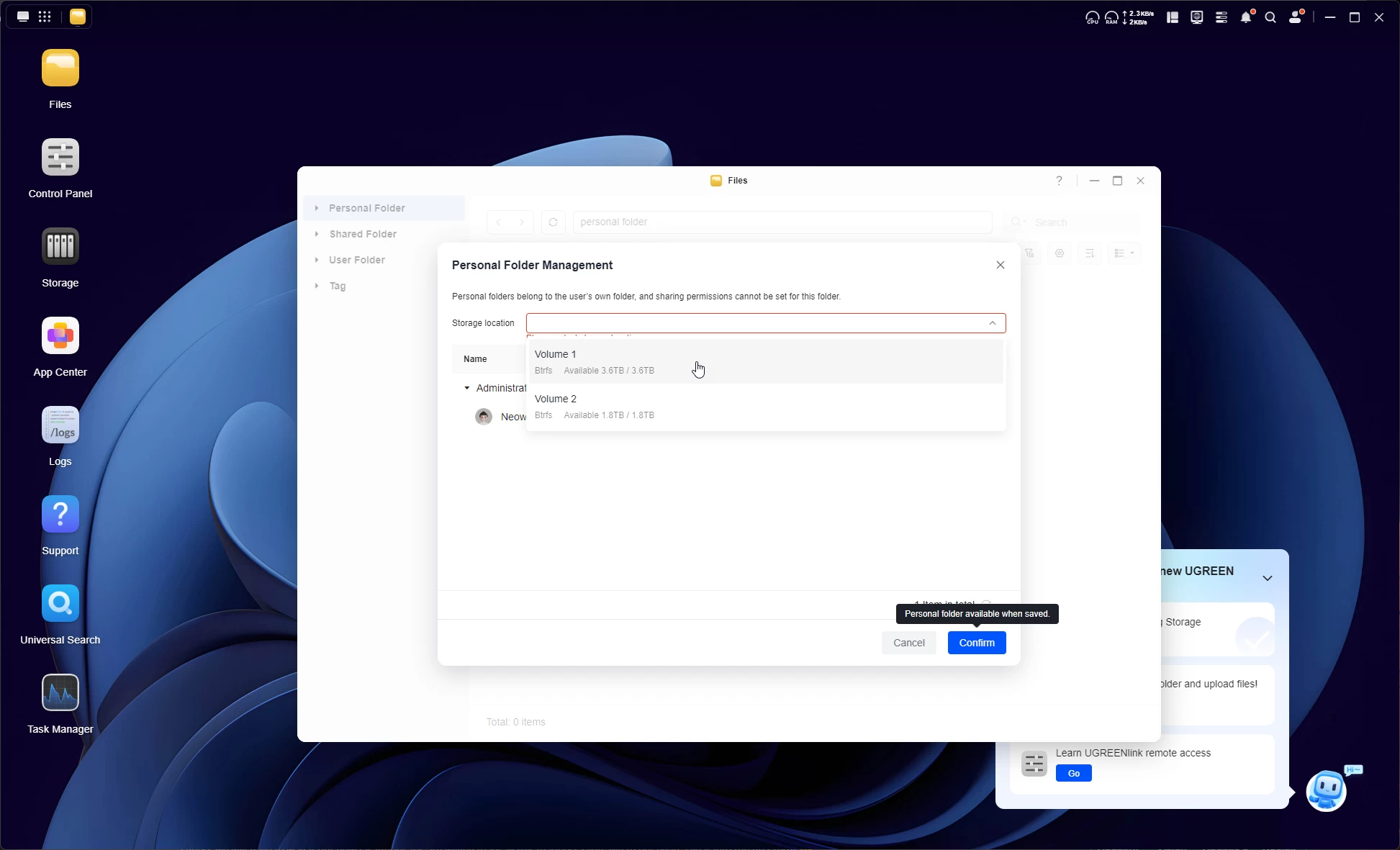
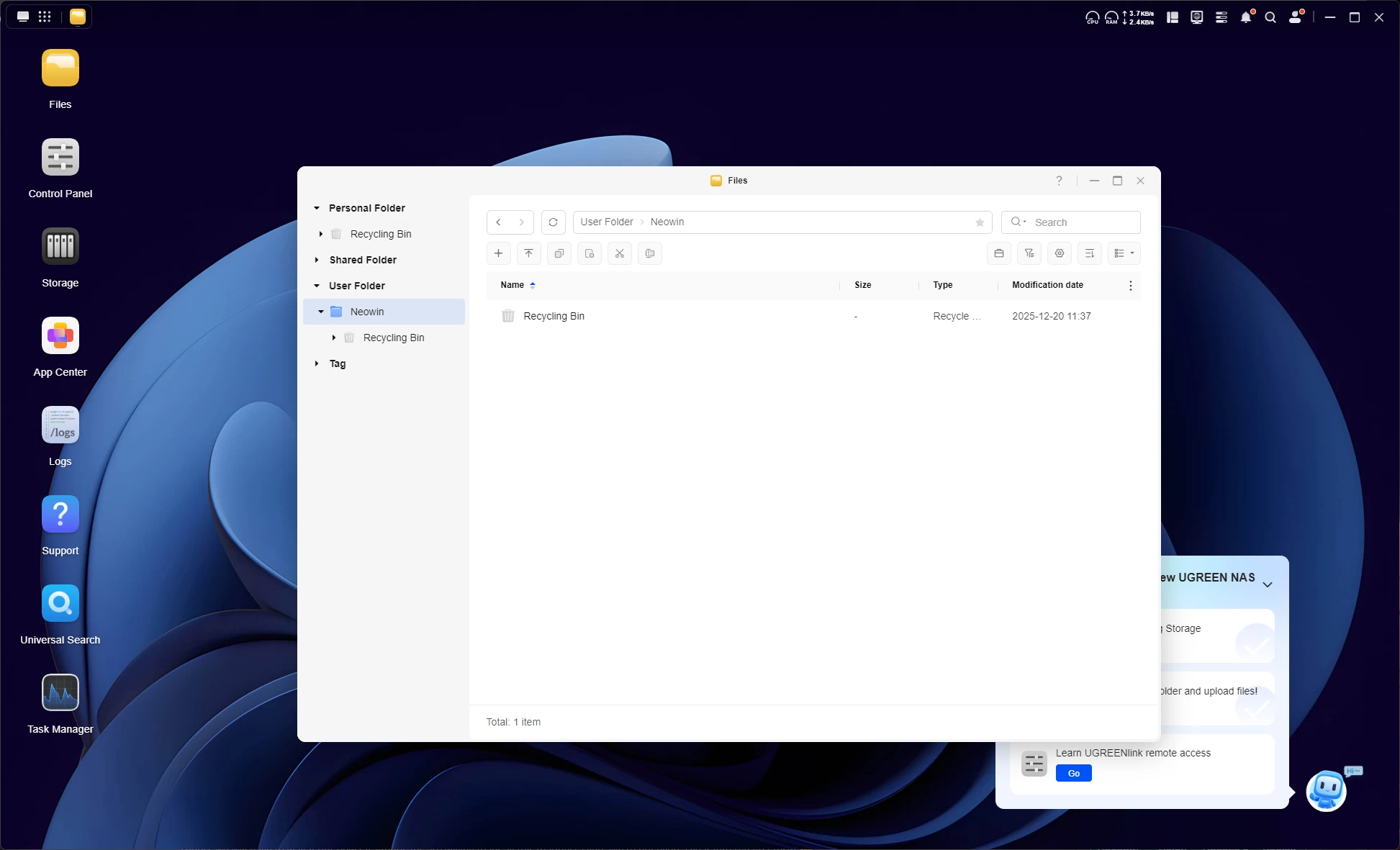
In the next step, you are asked to create a Personal Folder, which I did as shown in the above gallery.
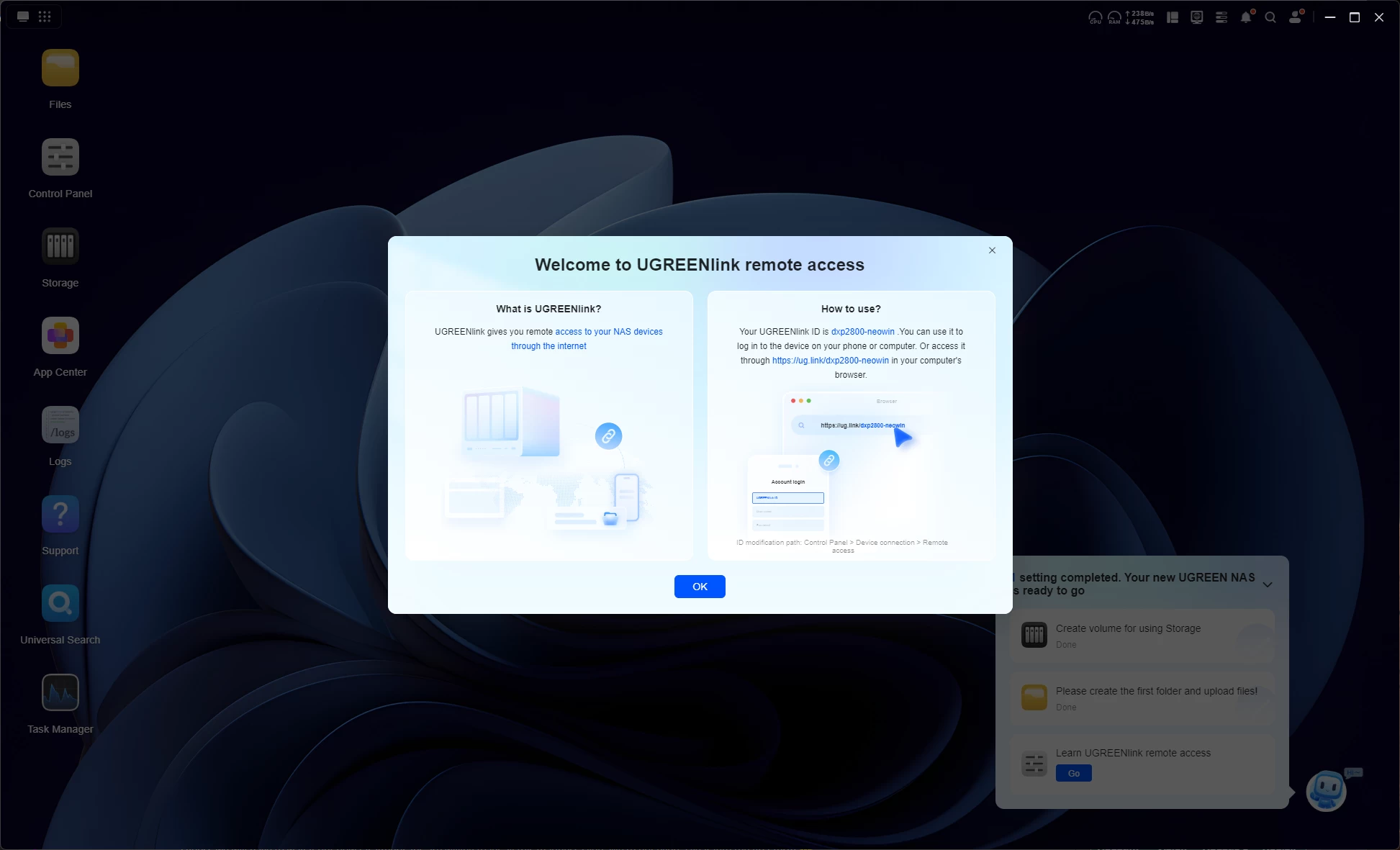
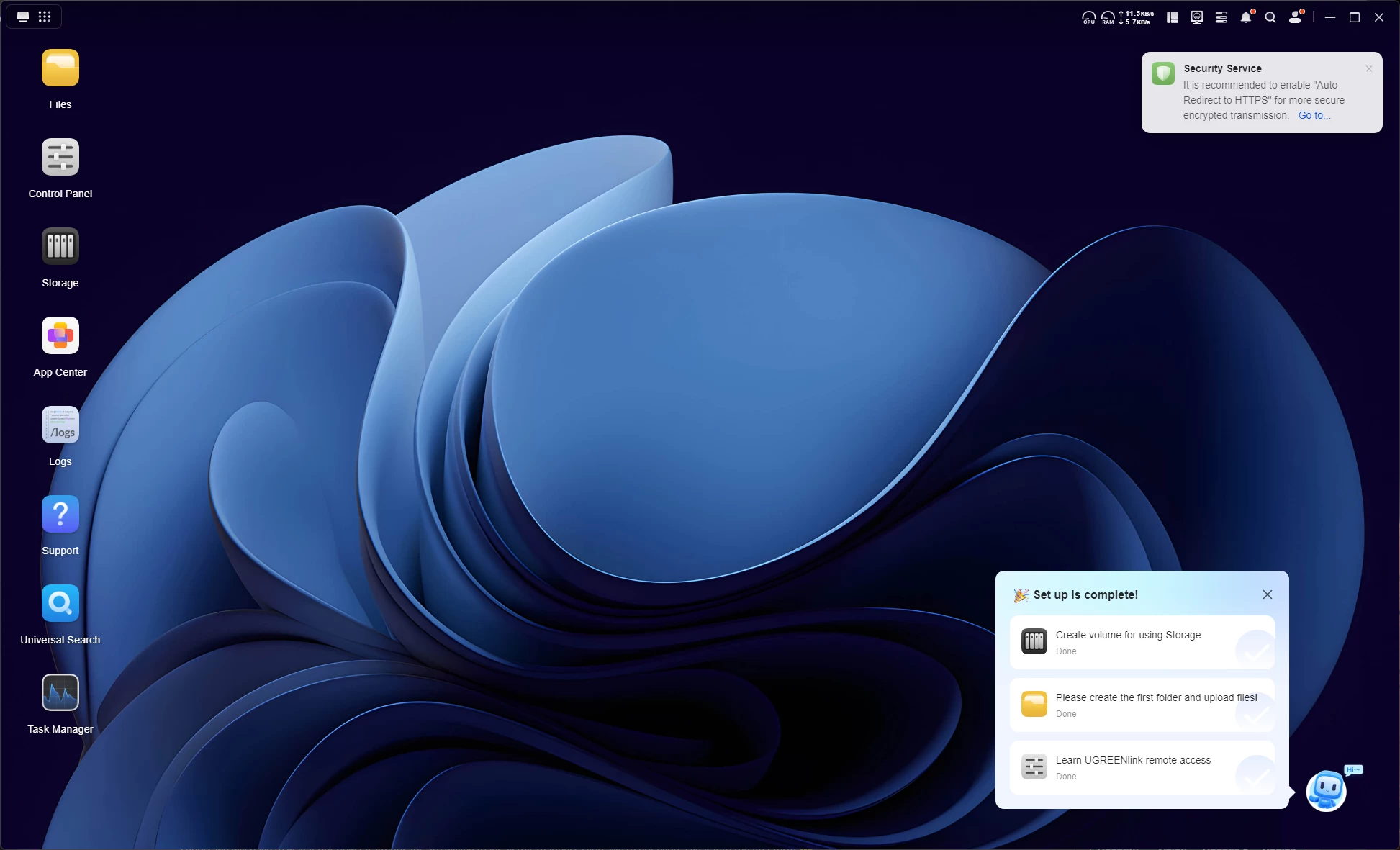
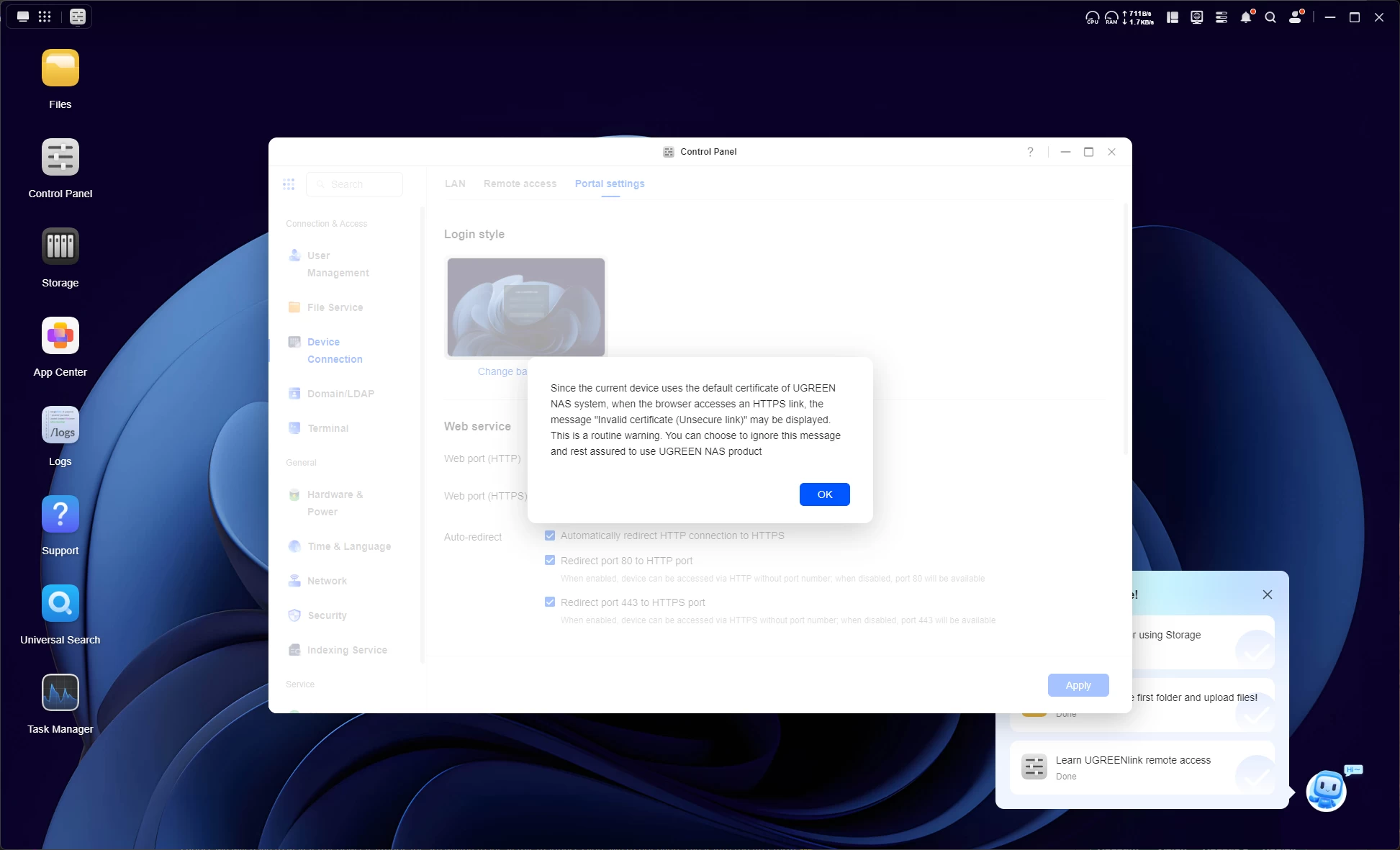
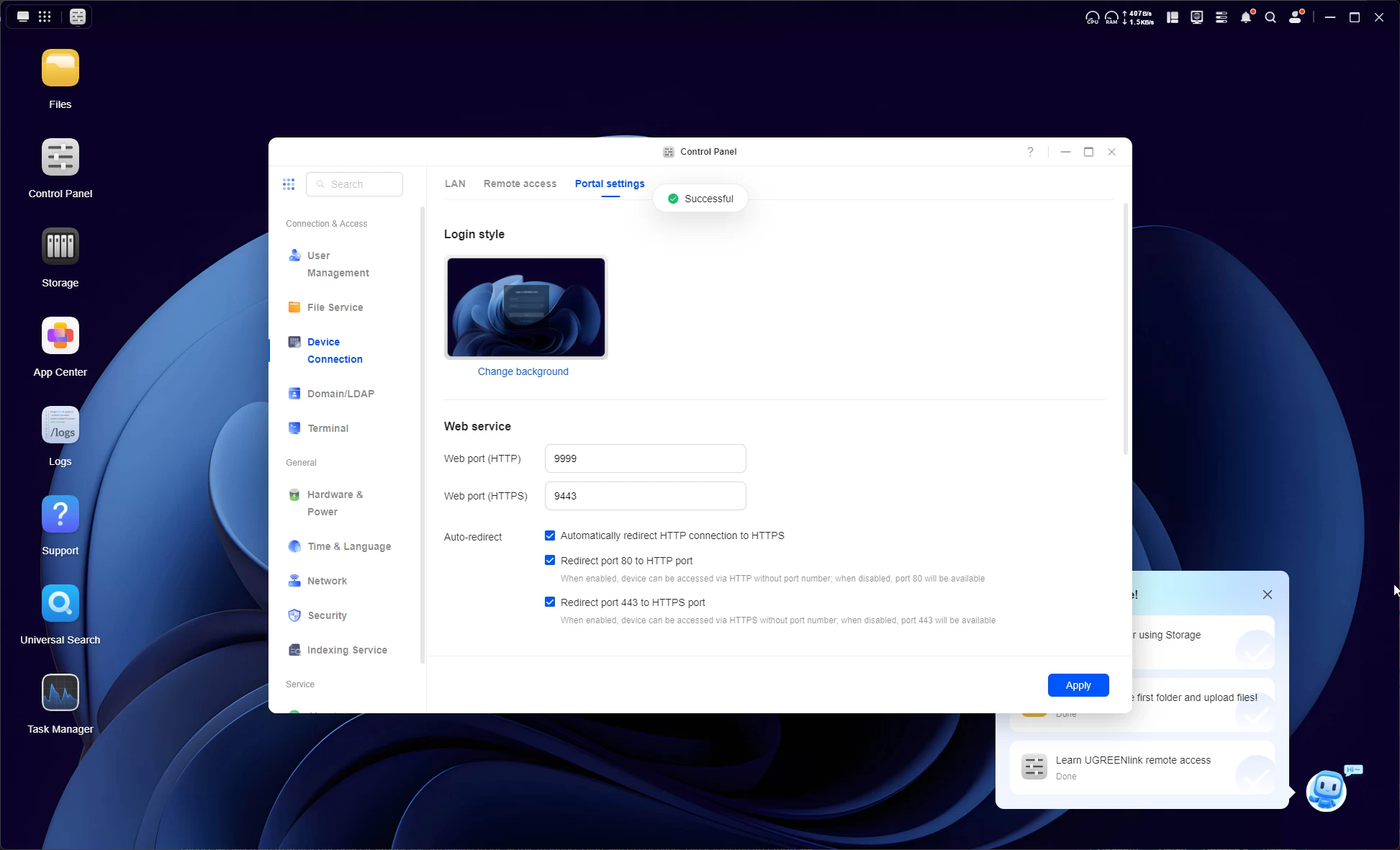
The final step of the onboarding wizard is to enable HTTPS for local and external connections.
UGREENlink remote access is similar to Synology QuickConnect; in fact, it works exactly the same, enabling a hostname for the .local LAN but also a unique device ID to connect to over the web, with a full https certificate provided by UGREEN. Once all the steps are completed, they get checked off, and the assistant disappears.
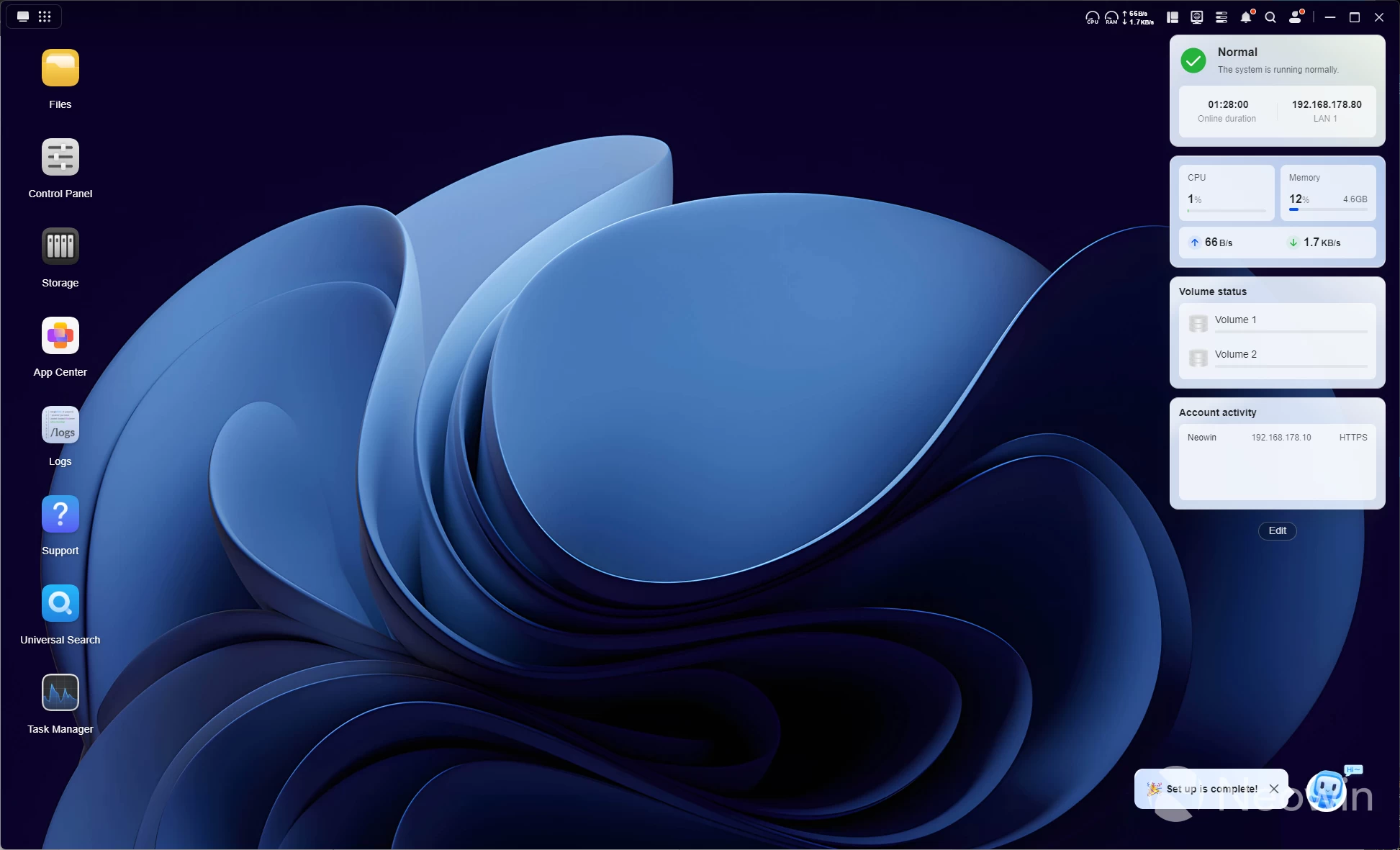
So, you know how you normally connect to a NAS through the browser? That"s how I"ve been doing it for the past few years anyway. UGREEN has its own Windows app that displays the connection in a remote desktop session window. From a quick online search it is also not a PWA (a web page thrown inside an app wrapper) it is a fully dedicated Windows app.
Usage
| wsdd2 service | warning | SMB service |
|---|---|---|
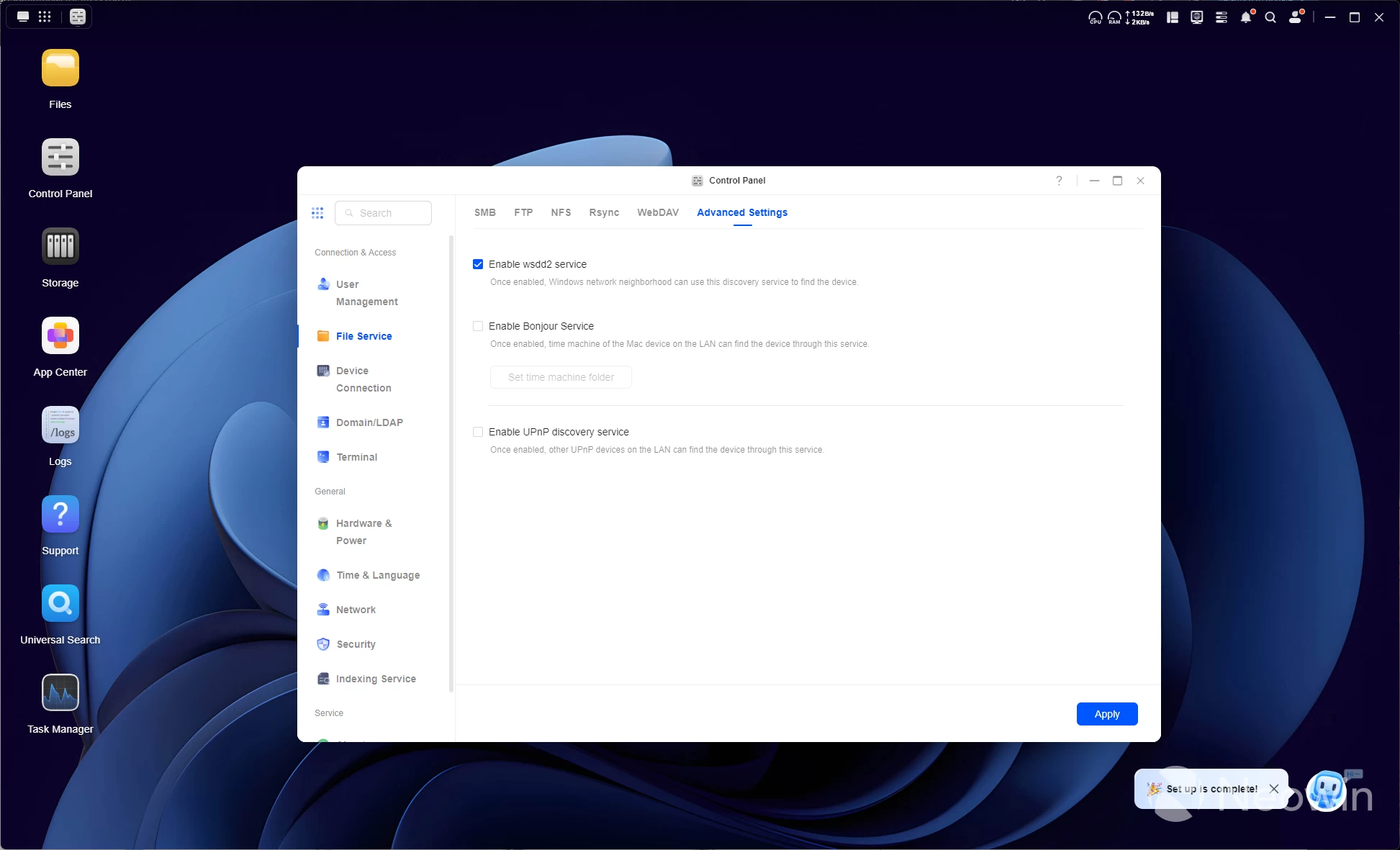
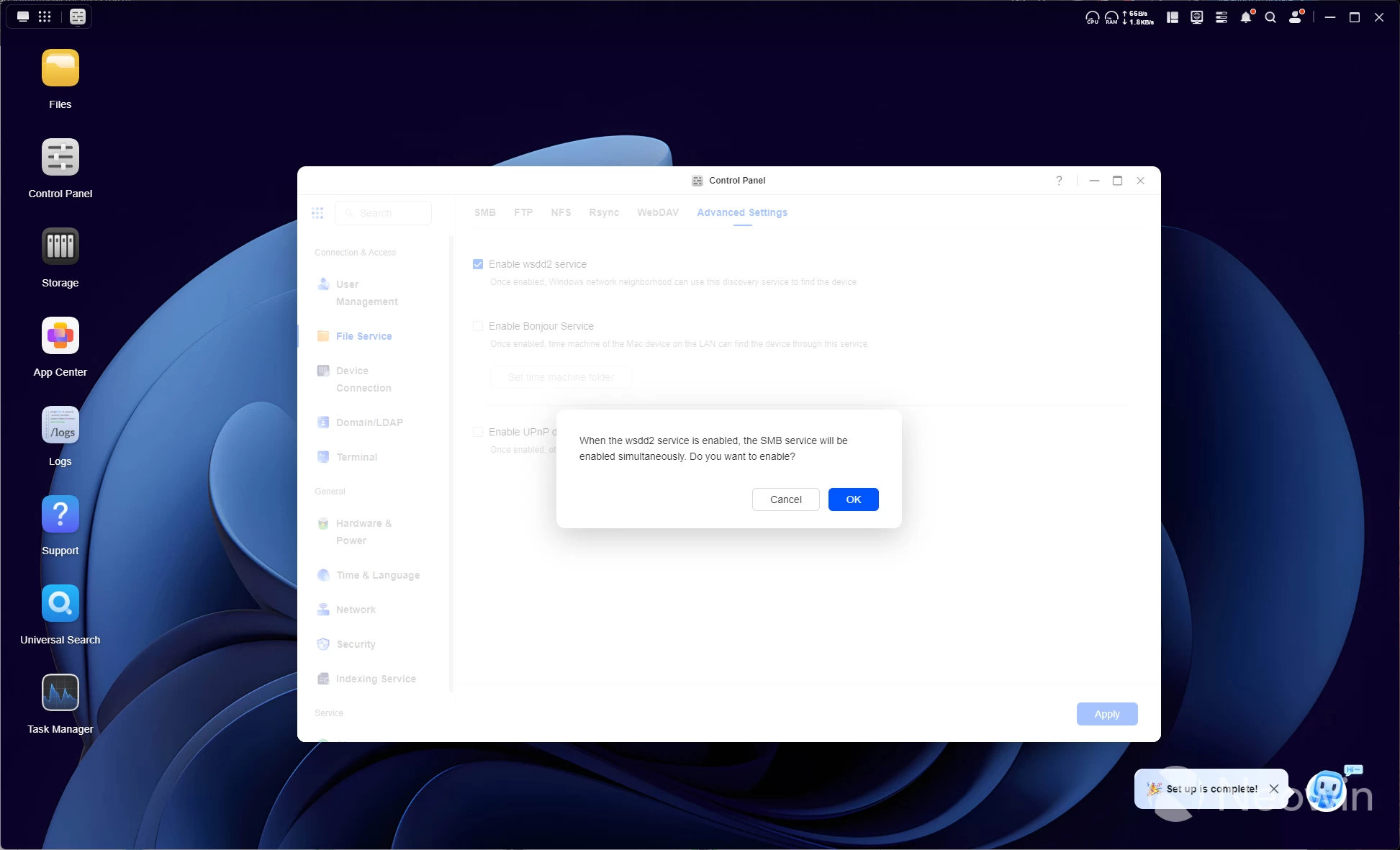
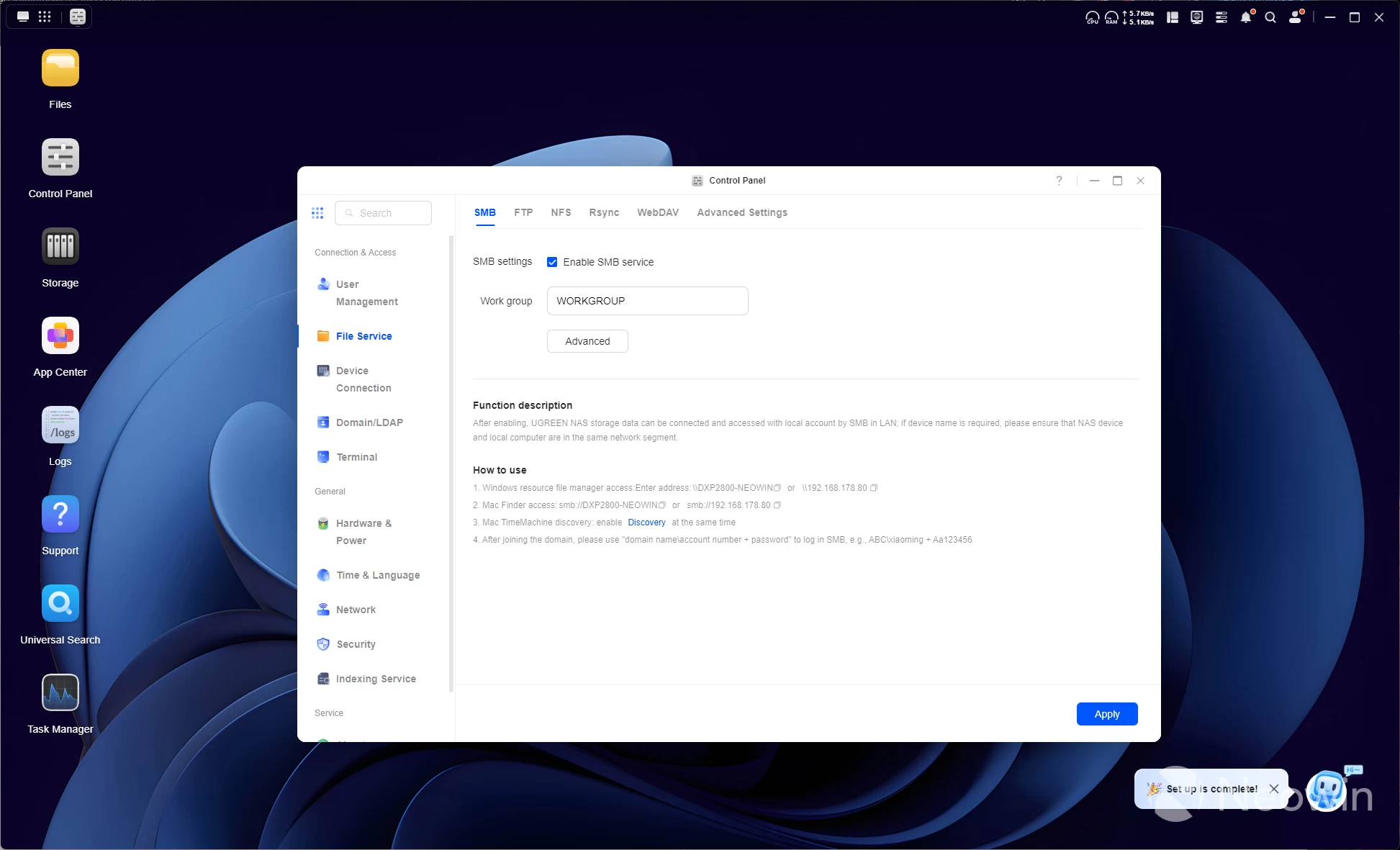
Next up, in order for the DXP2800 to get discovered on my LAN, I had to enable the wsdd2 service, which also automatically enables the SMB service. I did some network performance tests, which you can view below.
A CrystalDiskMark test on a mapped network drive from within a Windows 11 25H2 PC (image above) connected over the 2.5 GbE was well within acceptable ranges.
I also ran the NAS Performance tester, which tests the link speed performance. As you can see it pretty much maxes out the 2.5 GbE connection.
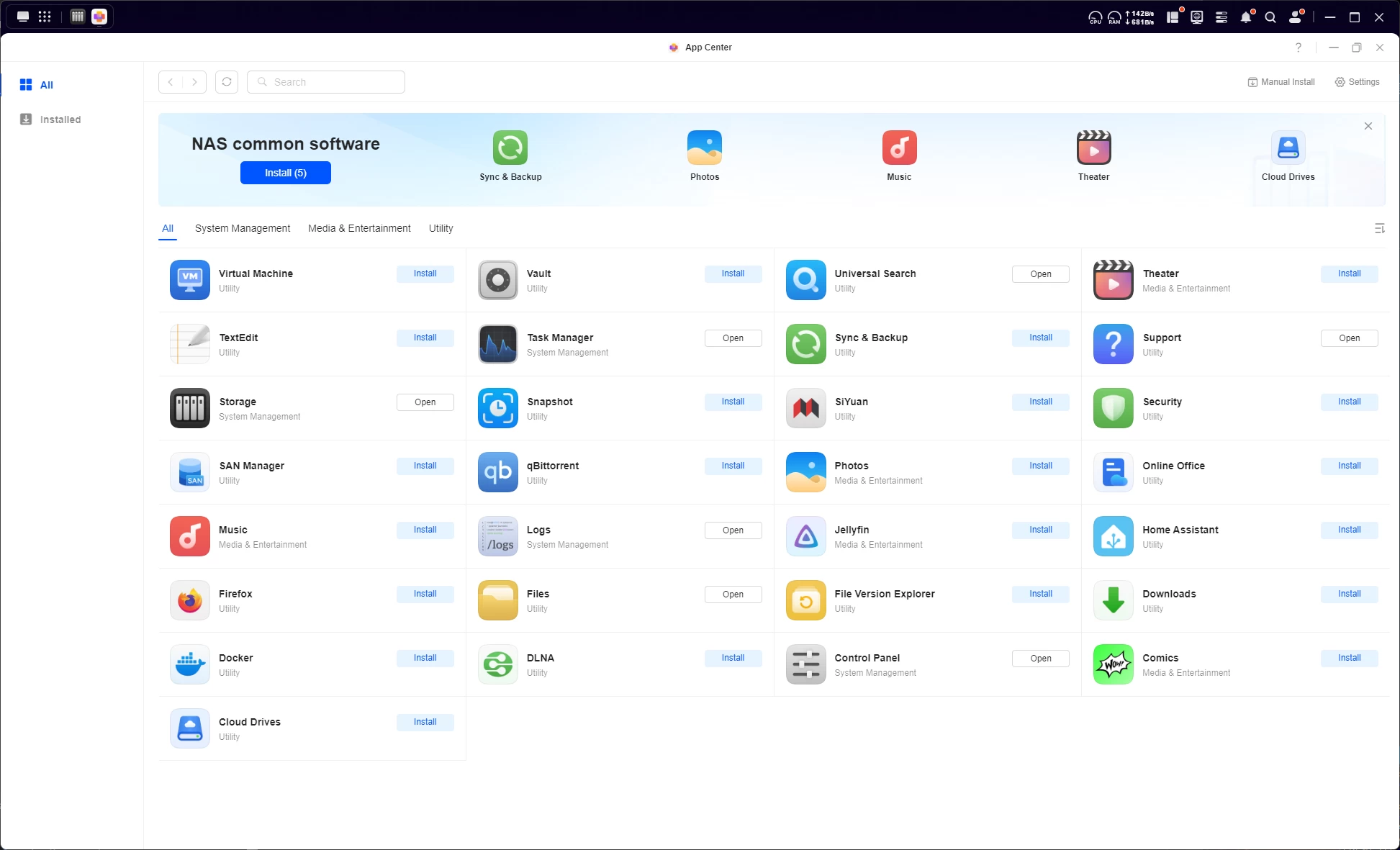
UGOS, which is now at v1.11.0.0053, comes with an App Center that has a bunch of handy programs you can install right off the bat, such as a Virtual Machine manager, Docker, Jellyfin, and (Cloud) Backup.
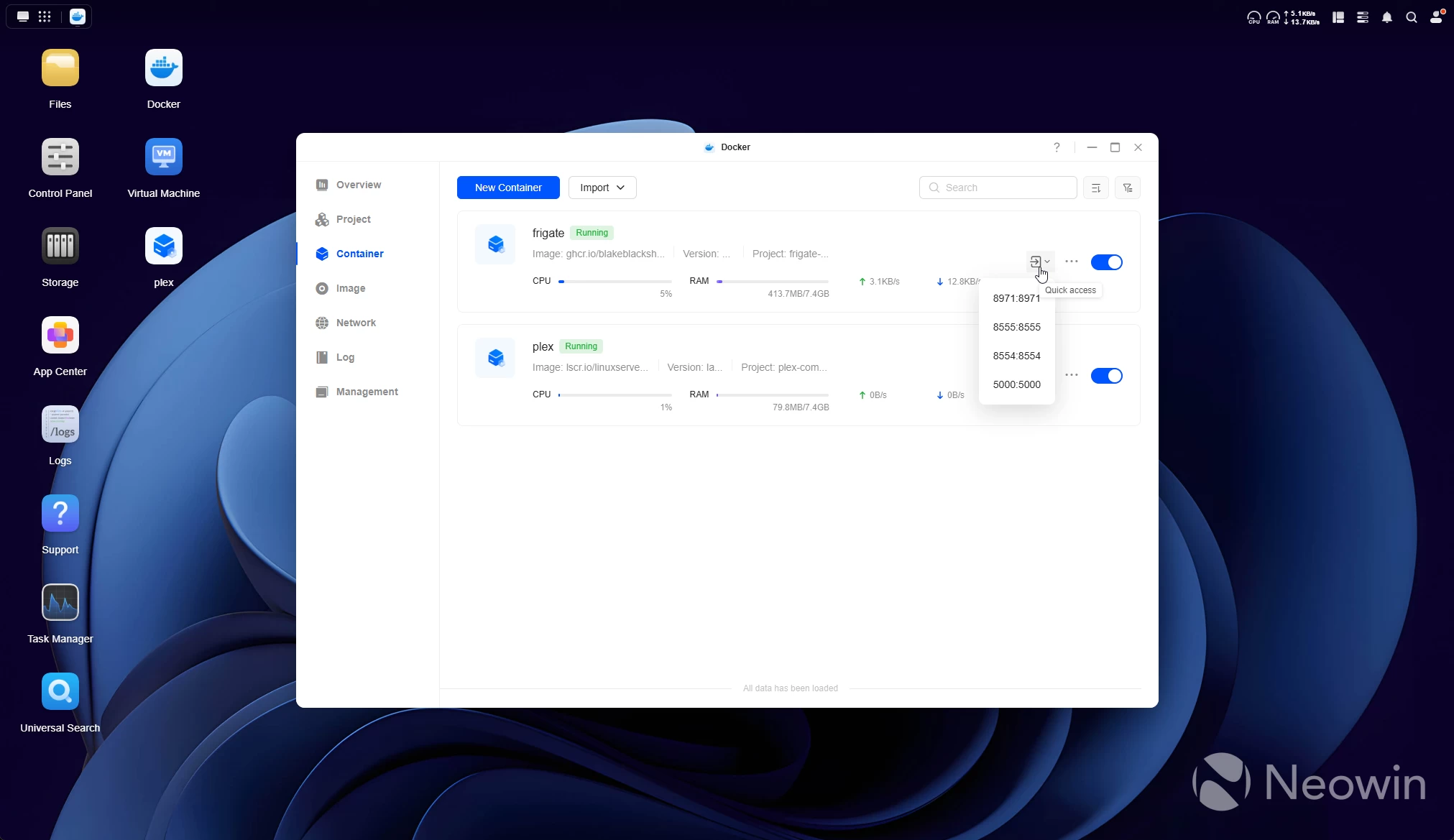
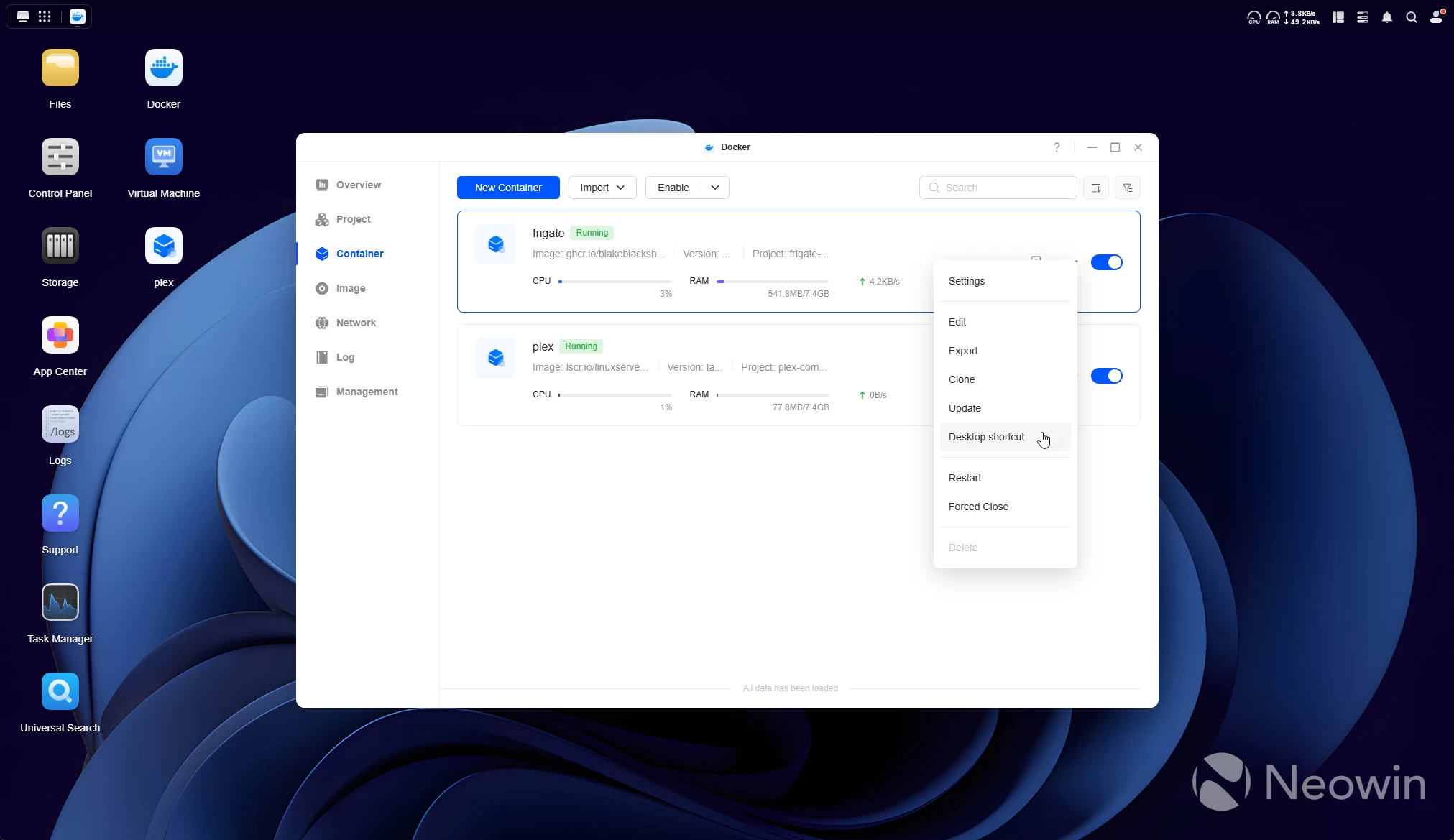
From my limited time with the system, you wouldn"t think this is barely a year and a half old from the polish it has so obviously gotten from the dev team. When I reviewed the DXP6800 Pro, I reached out to UGREEN. I asked if end users had a lot of say in the development, purely from some of the stuff I saw like the numbered drive bays, a drop down menu in Docker manager for the containers that allow access to the web UI ports, and create shortcuts on the desktop and all these little things you don"t find in Synology DSM, and they replied with:
We indeed spend a lot of time looking at our users" inputs to improve UGOS
Almost two months on from my last UGREEN NAS review, and Surveillance manager is still on the roadmap; however, since my last experience with UGOS, the following was added (two most recent updates):
New System Language: Traditional Chinese
Files/folders Tagging (Files)
More Squash Mapping Options for NFS Rules (Files)
Snapshot File Browsing (Snapshot)
Image Update Notifications & One-Click Update for Containers and Projects (Docker)
New App: ComicSwitch for "Scheduled startup and shutdown"
Offline Data Entry on Mobile
Download Songs on Mobile (Music)
Select Playback Mode (Theater)
Search Function Optimization (Theater)
The planned roadmap now looks a bit different from November. I bolded the new entries:
Important future updates in the next 12 months*
Hard Drive Enclosure Integration
3rd-Party Application Support
Email Notification
New App: AI Console for AI Model Management (iDX)
New App: LLM-Based AI Assistant named "Uliya" (iDX)
New App: Voice Memos (iDX)
New App: Monitoring Center named "Surveillance"
Cloud Drive Mounting (Files)
Support for Dropbox (Cloud Drives)
Offline Video Playback (Theater)
Photos Favoriting (Photos)
Upload Folder as Album (Photos)
UGREEN NAS Mobile app
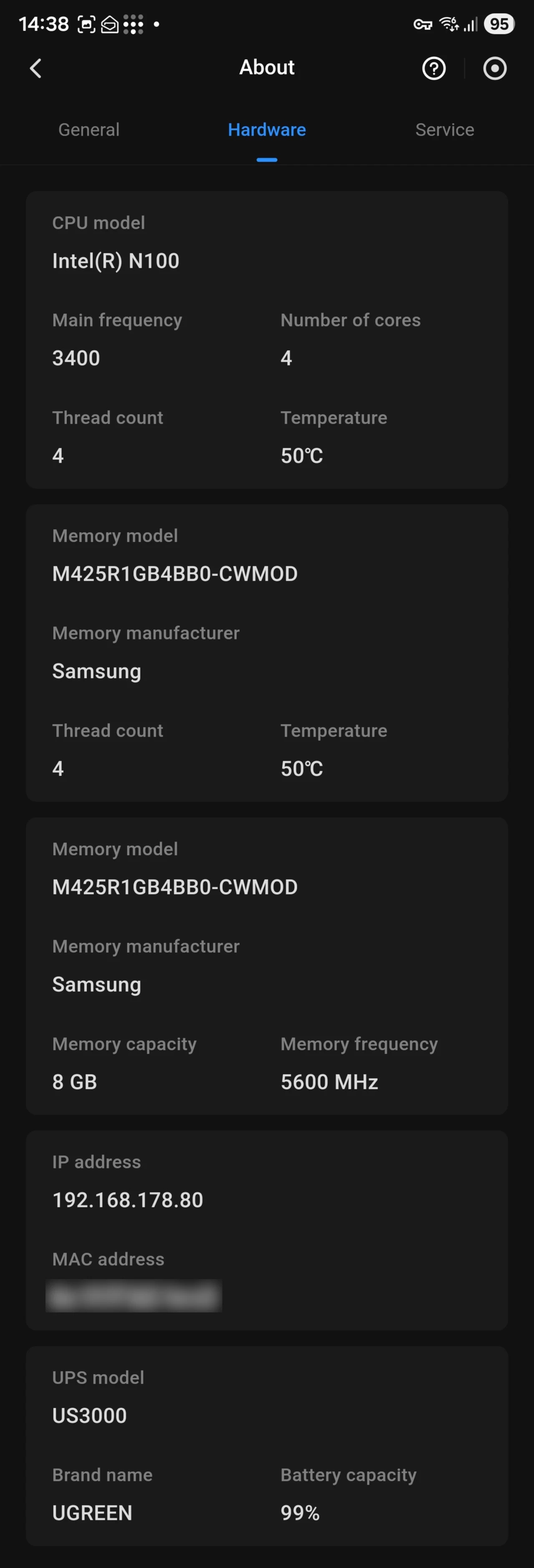
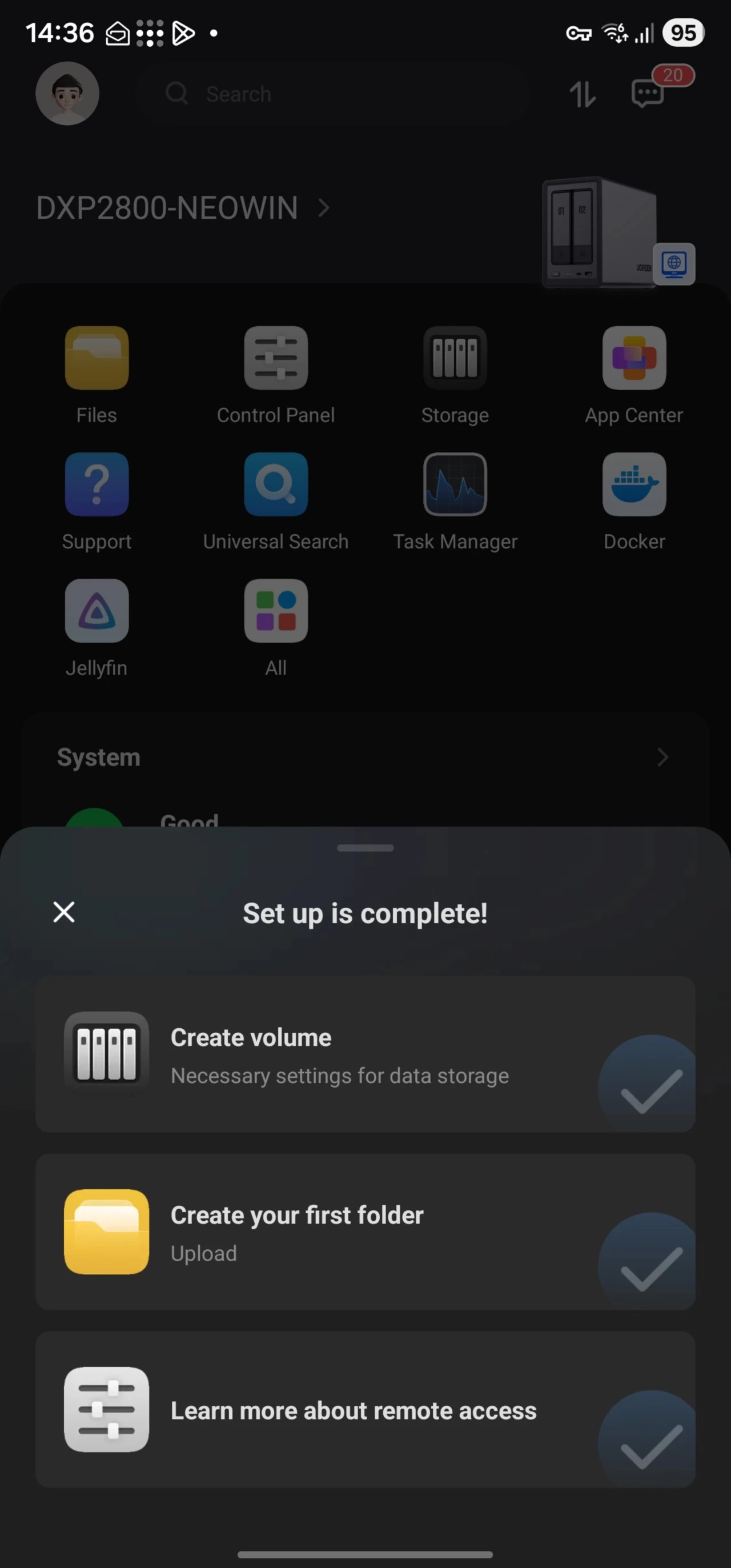
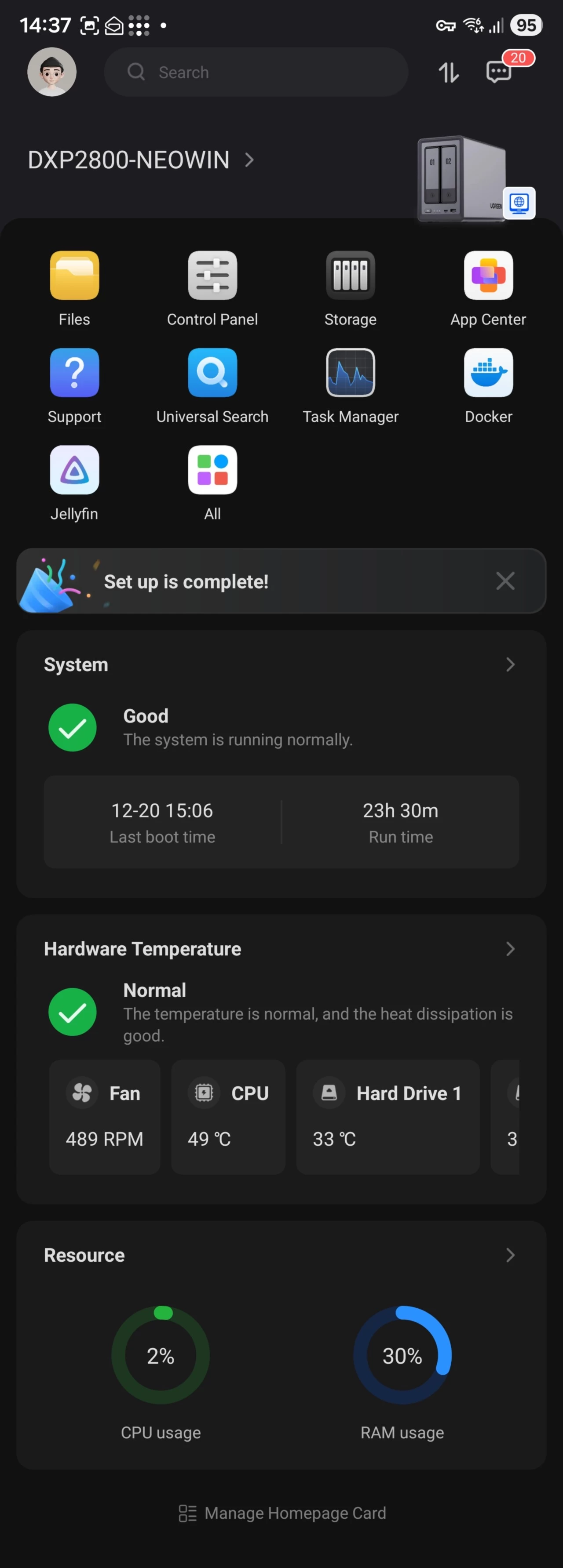
There"s also the Android and iOS UGREEN NAS app, which is coming along pretty well. It lets you manage almost as much as through the desktop app, including managing Docker and Apps through the App Center.
It"s also quiet. I had this sat next to my computer on my work desk for the past week, and I did wonder if the noise I was accustomed to with NAS devices would annoy me, but all I could hear was a soft whirring of the rear fan when the disks were not actively copying or reading data.
In fact, the most noise it made was from the fan spinning up when Jellyfin was importing library metadata.
Jellyfin install
| Where to install | Data paths | Are you sure? |
|---|---|---|
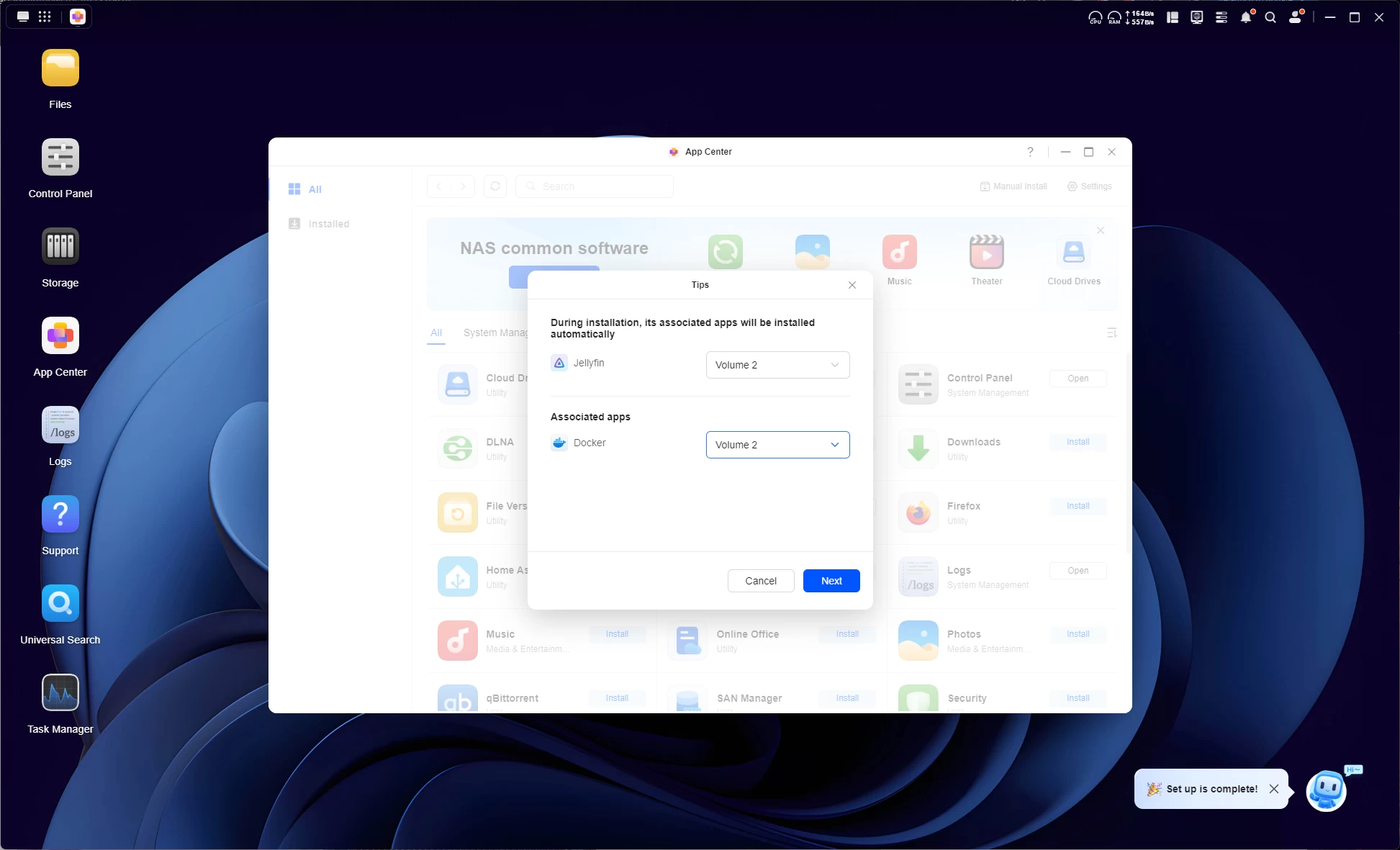
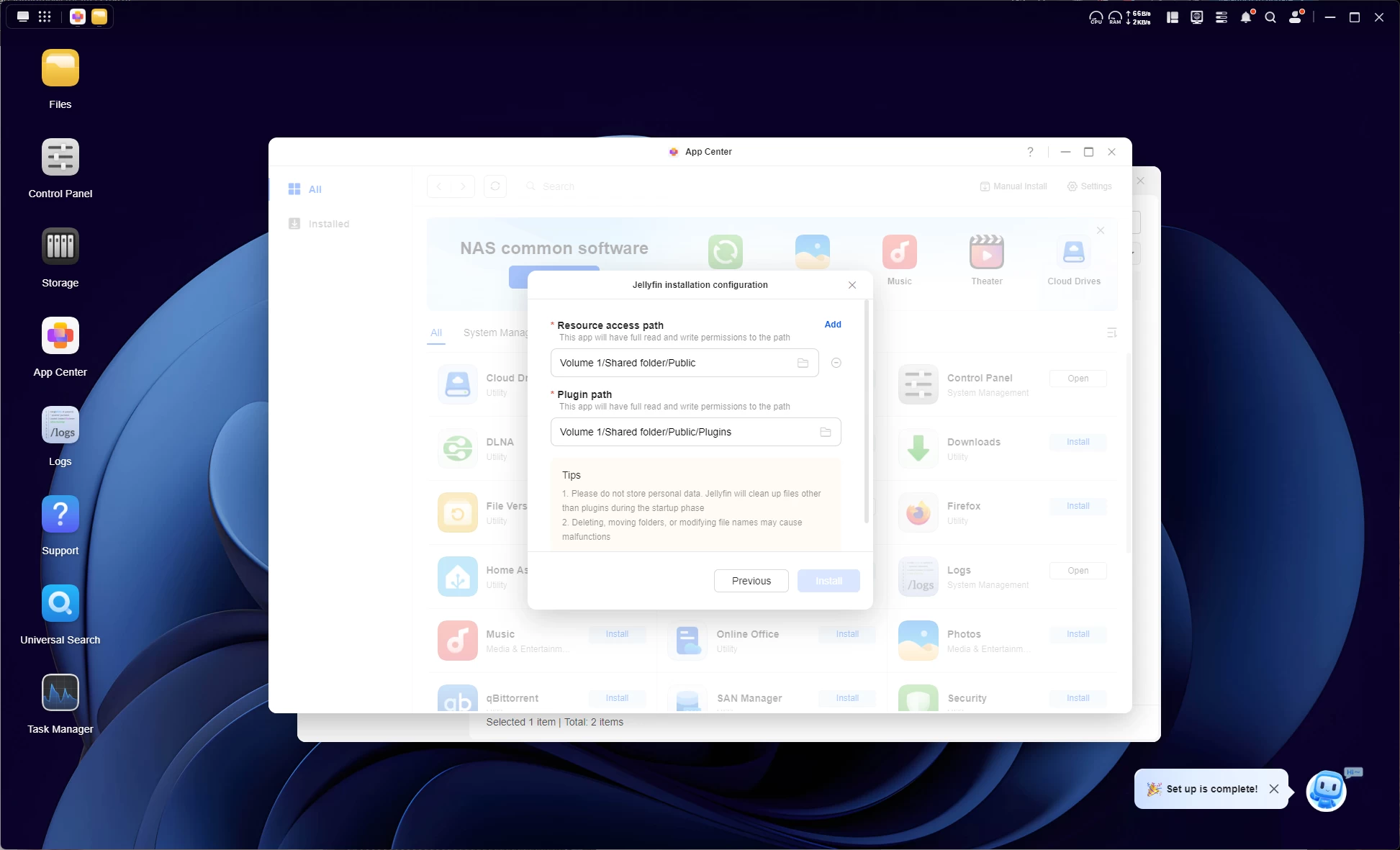
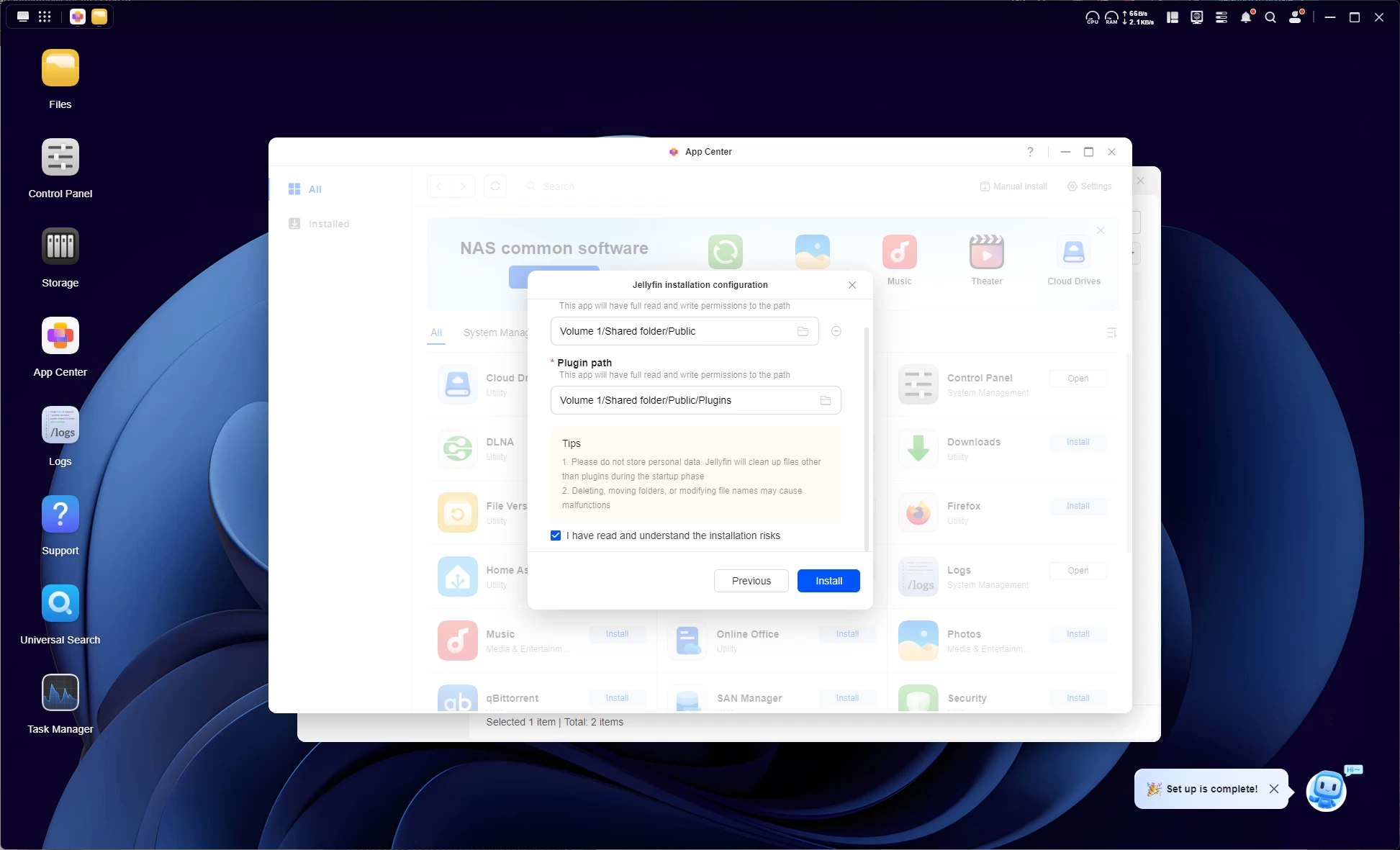
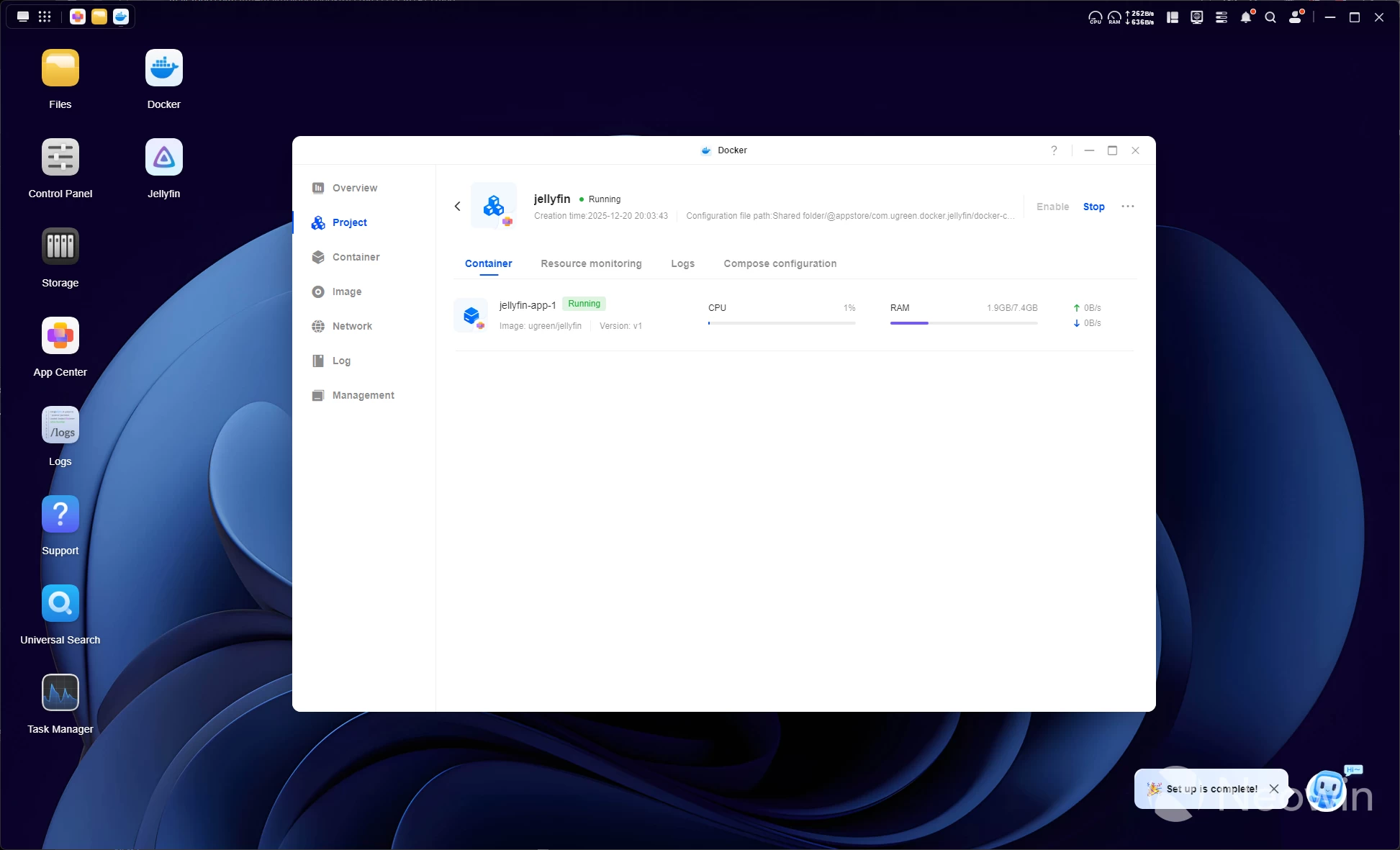
Speaking of Jellyfin, I installed it from the AppCenter. I discovered that it actually installs via Docker, but here"s the kicker: if you mess up the paths Jellyfin may access, you cannot edit this in the Docker settings, which I found a bit weird. You would basically have to start over.
| Docker | Jellyfin |
|---|---|
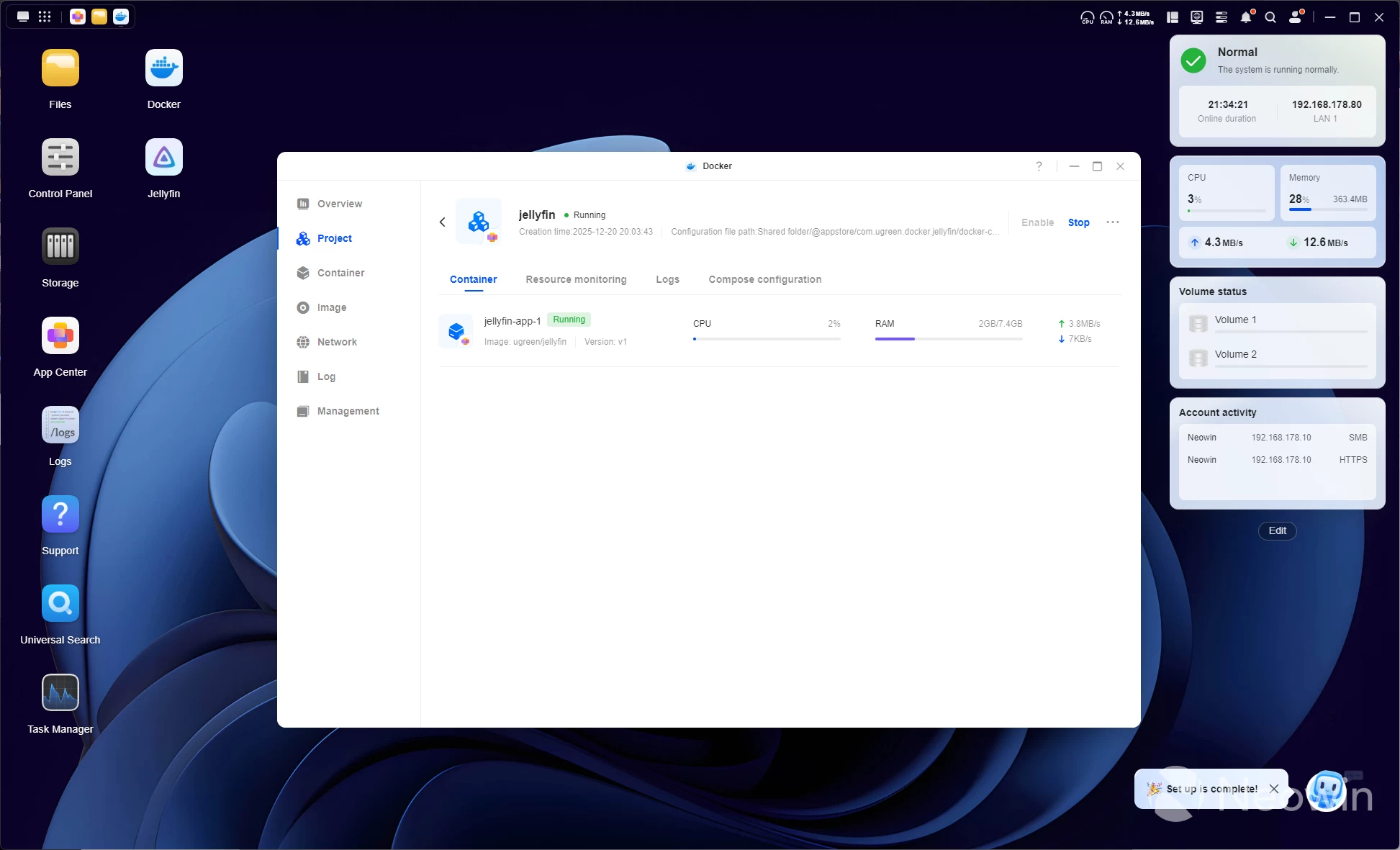
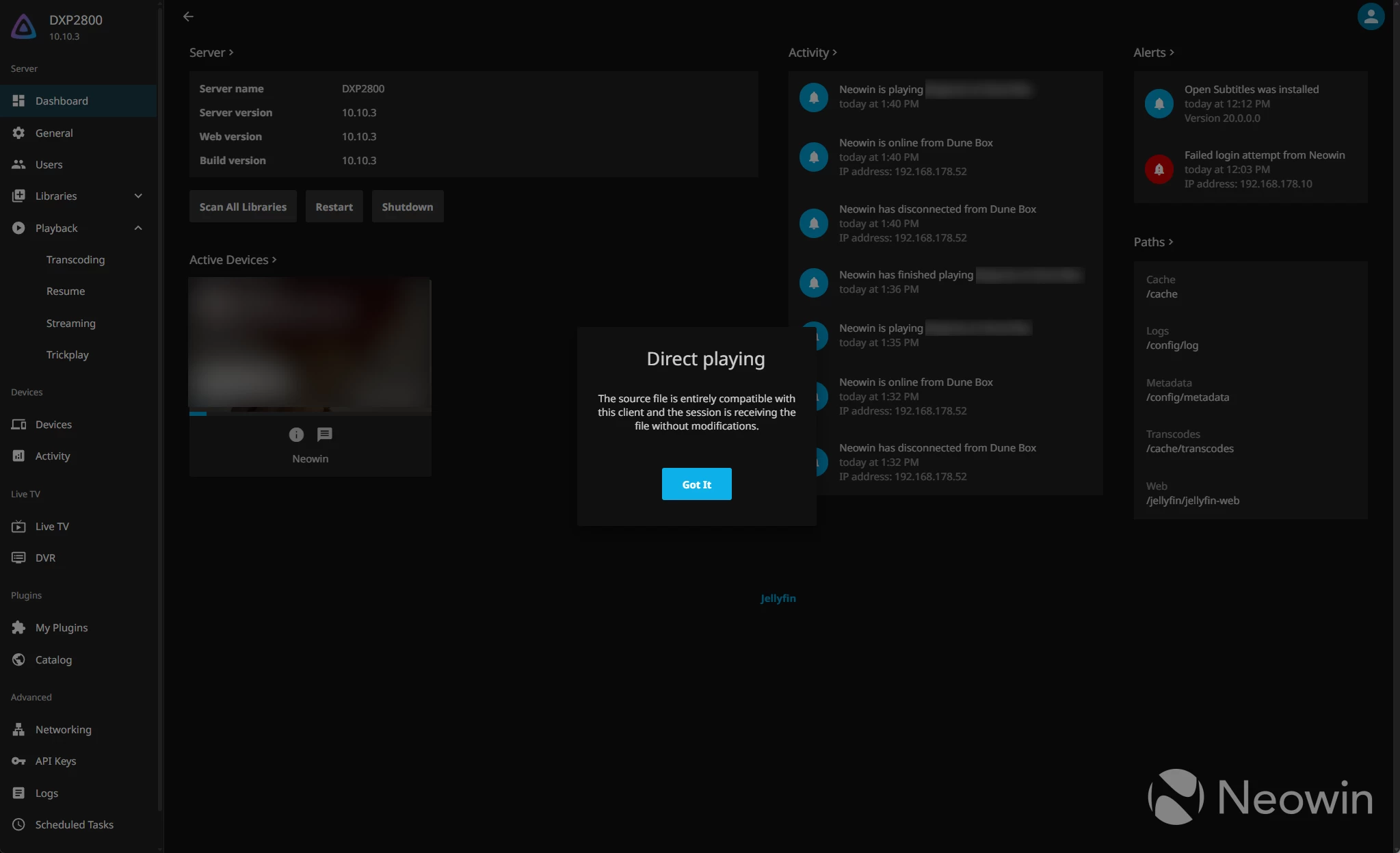
After setting up the QSV Device in the Transcoding settings to allow Jellyfin to Hardware encode/decode in the supported formats, I played 4K HEVC HDR Dolby TrueHD + Dolby Atmos content with no problem, as can be seen above. The content was sourced from my own NAS over a network share into the DXP2800, and it barely breaks a sweat.
But wait, there"s more
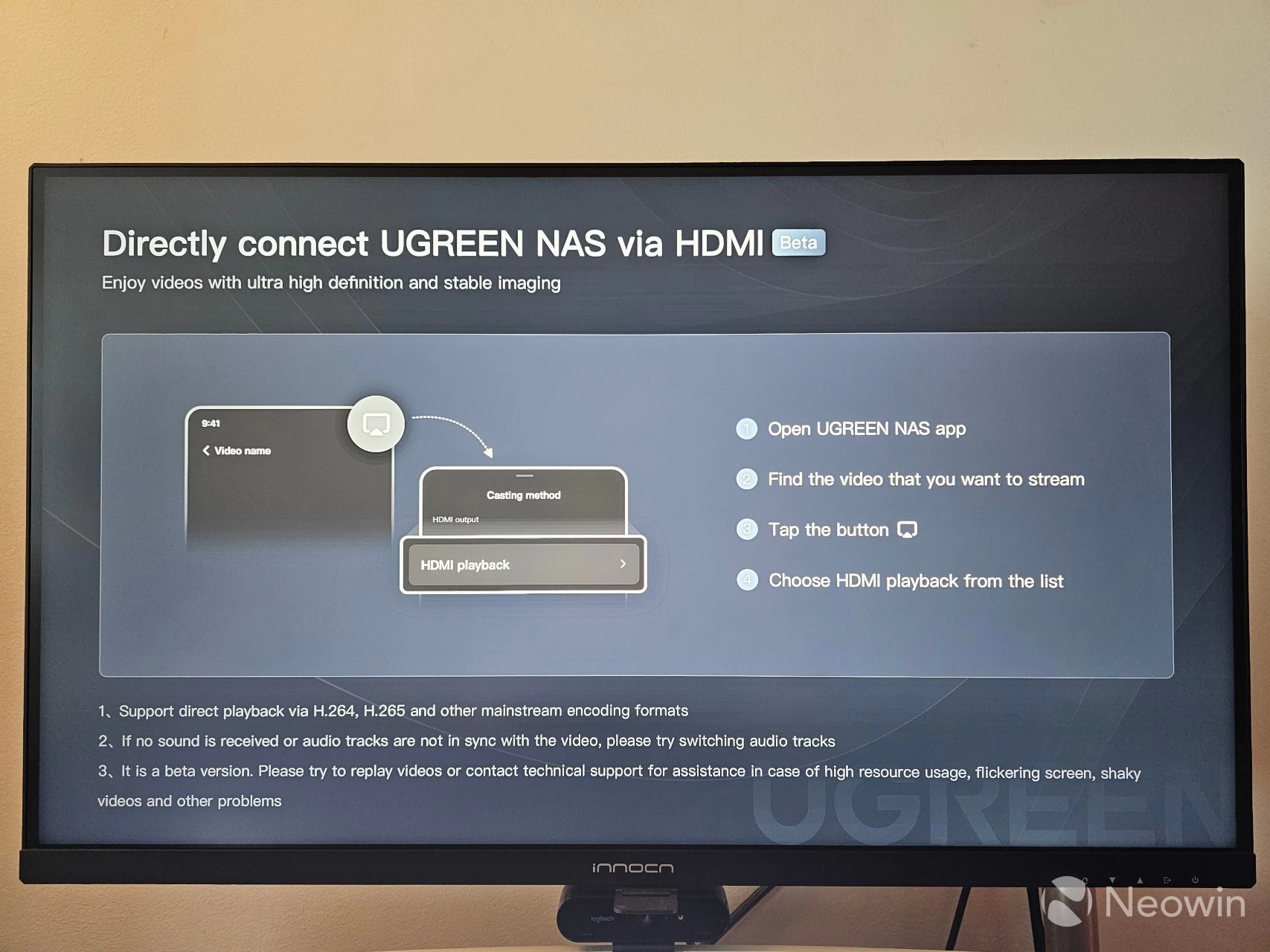
In case you decide to set this up as an HTPC with a TV or monitor connected, the UGREEN NAS app also lets you cast directly from the phone app to the screen that the NAS is connected to. It is still stamped as a Beta, but I tried it out, and it works perfectly. It is somewhat limited in that you can only cast content that is already on or exposed to the NAS.
It should be noted that I was also able to cast media content from a different TerraMaster F4-424 Max NAS to the screen, because I had connected a Server Message Block (SMB) network share in the UGOS Files app, so this also sort of gets around not being able to link such shares in Plex for a library. In short, you must be able to navigate to the content in "Files" through the UGREEN NAS app. Perhaps an update could provide a QR code to be able to cast the phone screen"s content.
Conclusion
What it comes down to is the quality of the NASync DXP2800, it is really cheap right now at just $269.99 with the early bird discount, and for that it"s a great device, recommending it will depend on the individual"s use case. If you"re just looking for a relatively cheap media streamer with a cloud backup capability, then this ticks the boxes. It provides good performance, takes up little to no space, and is, on the whole, very quiet.
The good
Things that stood out for me are the attention to detail this NAS offers, with things like the numbered bays and plentiful connection options. I remain impressed with UGOS; it feels really polished, and as I already mentioned, this was actually the first time I didn"t run into any issues with this relatively new to me OS I didn"t need to fire up Google or consult the UGREEN forums in order to complete the setup or get underway with my Docker containers.
There"s so much more to unpack with UGOS and the NASync DXP2800 that isn"t really in the scope of this review; that"s why I will be following up with another guide in order to turn the DXP6800 Pro into a powerful home streamer, so look out for that in the near future.
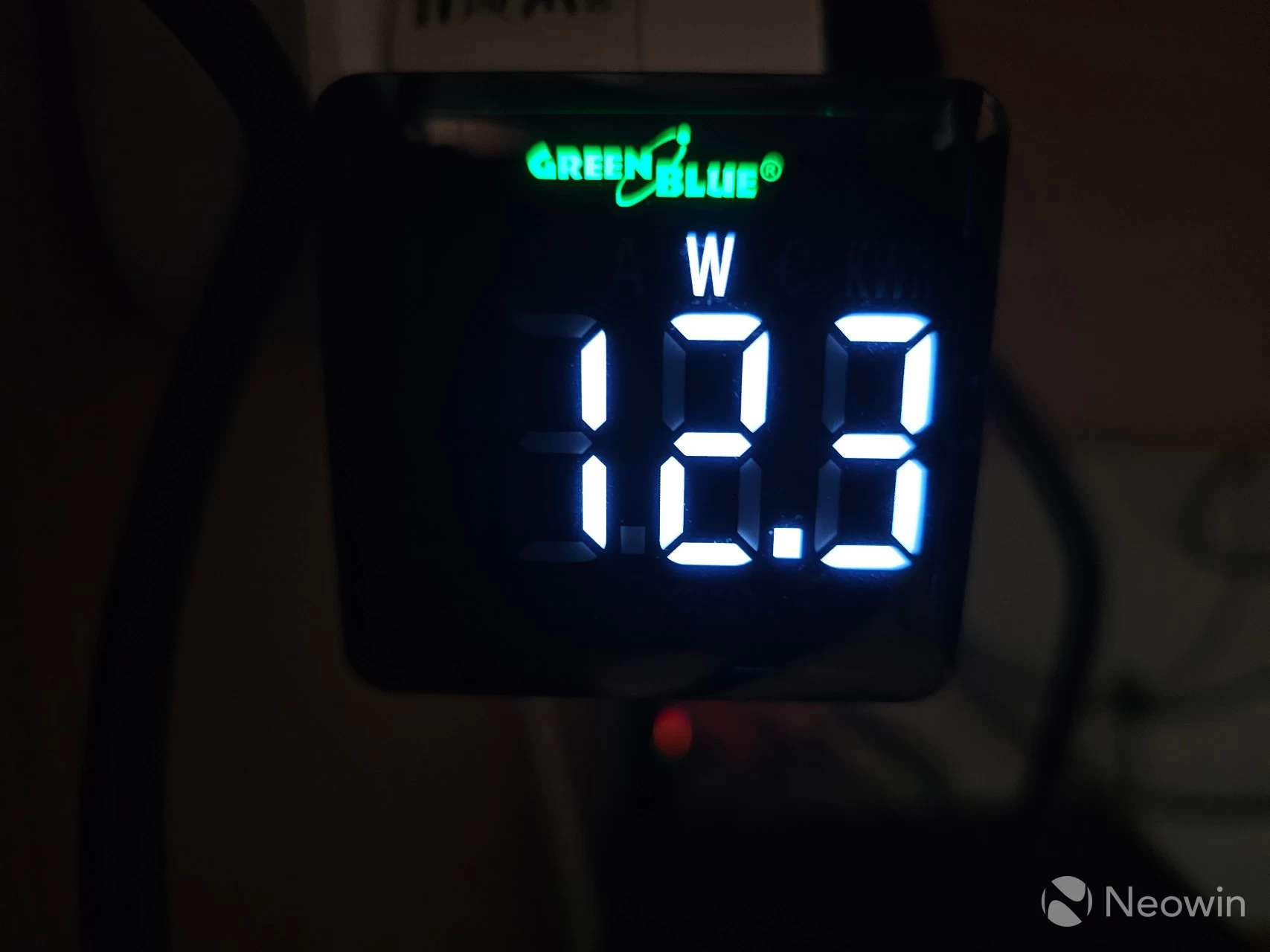
To me, this is a great starter NAS. If you don"t care to muck around in Unraid or TrueNAS and your expectations are kept in check, this is a great option as an ultra-low-powered HTPC and personal Cloud backup. I did not see my wattage monitor go over 13W in all the time I was using it (including streaming HDR Dolby TrueHD + Atmos content, and transferring files over the network to it. And now, at under $300, it feels like a real bargain.
The bad
If I had to fault it at all, it would be the awkward placement of the M.2 SSD slots, and the lack of a notifications center in UGOS. However, it looks like Email notifications are coming, as this was added to the roadmap since the last time I reviewed a UGREEN NAS, so with that said, it"s on the way!
Other than that, I can"t fault it; it has all the features that the DH series does not (like Docker and SSD cache support), but as of writing, it only costs $70 more. This would be the better choice for a media streamer, and if you prefer to manage your own Docker containers.
Yes, in saying that, you would need to act now to claim the early bird price.
- UGREEN NASync DXP2800 for $269.99 on the official website ($80 off MSRP)
- UGREEN NASync DXP2800 for $296.99 on Amazon U.S. ($53 off MSRP)
- UGREEN NASync DXP2800 for €269.99 on Amazon DE (€80 off MSRP)
- UGREEN NASync DXP2800 for £263.99 on Amazon U.K. (15% off MSRP)
The DXP2800 has next-day shipping via Amazon except in Germany, where you will have to wait until Jan 5 at the earliest. The official UGREEN website starts shipping the DXP2800 on December 31.
Unfortunately it appears that the UGREEN UPS is sold out on the official website, so there is no (affordable) bundle price, but it can be ordered through Amazon at the below links.
- UGREEN UPS for $109.99 on Amazon U.S.
- UGREEN UPS for €99.99 on Amazon DE
- UGREEN UPS for £99.99 on Amazon UK
As an Amazon Associate, when you purchase through links on our site, we earn from qualifying purchases.