UGREEN blasted onto the scene, offering a full range of their NASync series at the beginning of 2024 at CES. As a result, they seem to have made quite a splash with home lab and small business users, by securing $6.6 million in funding on Kickstarter from over 13,000 backers at the time. Two years on, and with backers having already received their products, the results are in, and we were invited to take a look at their new 4-bay DXP4800 GT model.
Disclaimer: UGREEN provided the review sample without any editorial input or pre-approval.
Here are the most important specifications:
| UGREEN NASync DXP4800 GT | |
|---|---|
| SKU | 16057 |
| CPU | AMD Ryzen Embedded R2514 (4C+8T, Max frequency 3.7 GHz) TDP Base: 12W Max 25W |
| Graphics | Integrated Radeon Graphics 8 CUs, 512 Stream Processors |
| Memory | 8 GB DDR4 @ 2666MT/s (Kimtigo KT8GS4AE8) SODIMM (Max 64 GB) |
| HDD Bays | 4 x (SATA) |
| Disk Capacity | 144TB (4x 32TB + 2x 8TB) |
| RAID Level | JBOD/Basic/0/1/5/6/10 |
| Internal storage | 2 x M.2 2280 NVMe Slot M.2 (PCI-e 3.0 x2) |
| Flash Memory | 1 x eMMC (CG1051) 64GB |
| Front (USB) | 1 x Type C USB 3.2 Gen 2 (10Gb/s) 1 x Type-A USB 3.2 Gen 2 (10Gb/s) 1 x SD 3.0 |
| Rear (USB) | 1 x Type-A USB 3.2 Gen 2 (10Gb/s) 2 x Type-A USB 2.0 (480Mb/s) |
| Network | 2 x RJ-45 10 GbE |
| HDMI | 1 x (HDMI 2.0b) |
| Hardware Transcoding Engine | H.264, H.265, MPEG-4, VC-1 |
| Size (L/W/H) | 257.5 × 178 × 178mm / 10.1" × 7.0" × 7.0" |
| PCIe expansion | No |
| OS | UGOS Pro |
| Weight | Unspecified |
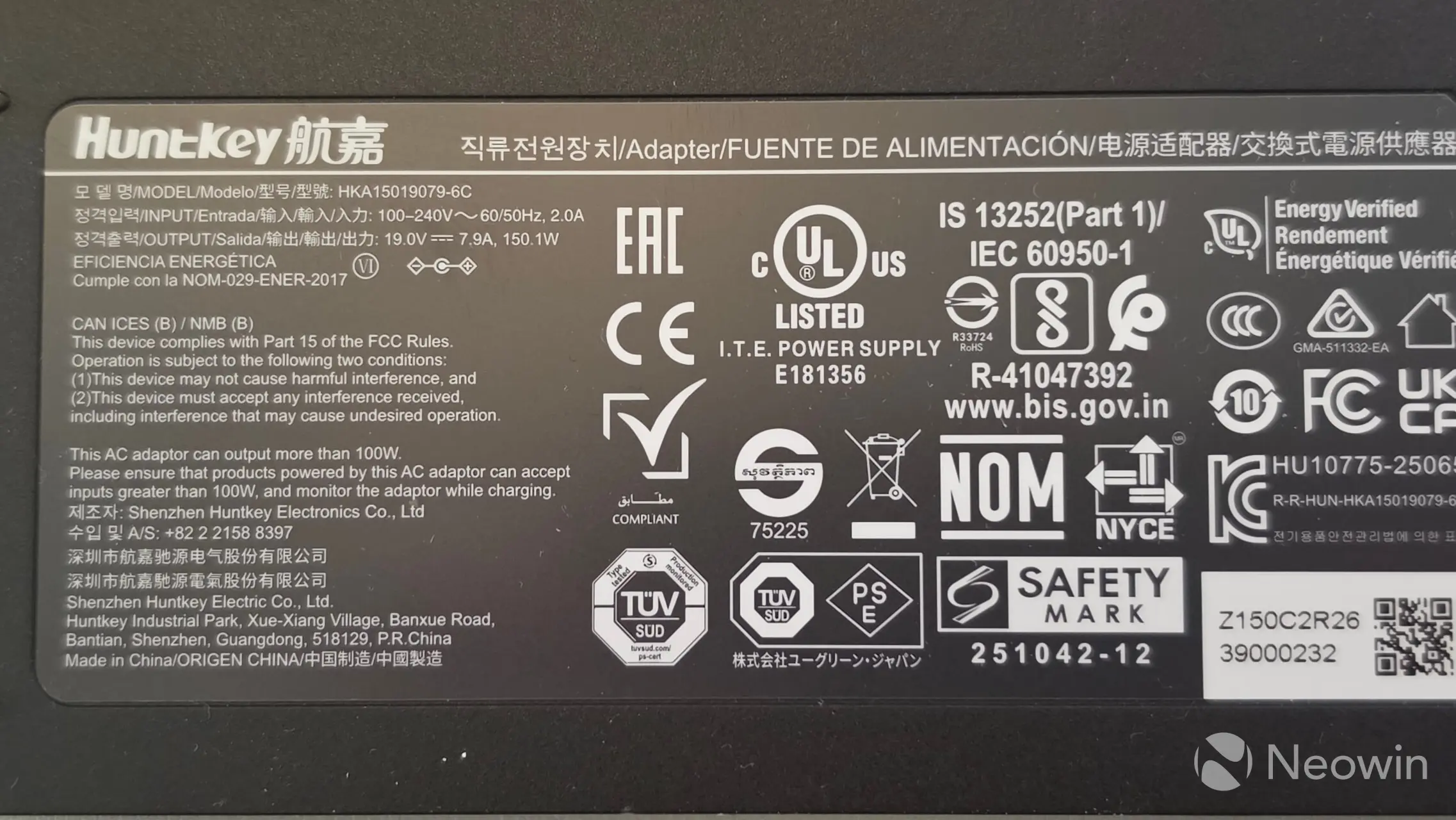
| Power Input/Output | 150.1W, 19.1V, 7.9A / 100V - 240V AC, 60/50 Hz, 2.0A |
| Power consumption (HDDs) | 42.36W (drive access) 18.12W (drive hibernation) |
| MSRP | $659.99 |
This is actually part of a refreshed version of the DXP4800 series. Before you start wondering why I am reviewing a nearly two-year-old device, it"s not! However, this "new" DXP4800 GT contains the nearly four-year-old AMD Ryzen Embedded R2514, which was introduced in Q4 of 2022 using the Zen+ (Picasso) architecture with support for DisplayPort 1.4a, HDMI 2.0b, DDR4 (@ max 2666MT/s), and a max TDP of 25W. It supports the main codecs like H.265/HEVC, including 8-bit and 10-bit (Main 10) profiles, as well as H.264/AVC at up to 4K resolution and VP9/VP8 with full hardware decode support for MPEG-2 and VC-1. There"s no support for AV1 decode here though.
A bit of history
UGREEN launched the original DXP4800 back in 2024 with an Intel N100 CPU and dual 2.5GbE ports, along with one of the M.2 slots supporting PCIe 4.0 x4 with the other being PCIe 3.0 x2.
Yes, so this new DXP4800 GT contains a CPU usually found in industrial, IoT, and embedded systems, but it also fits squarely in the HTPC segment. However, it should be noted that, unlike the DXP6800 Pro, the DXP4800 GT does not include any Thunderbolt 4 ports or a PCIe slot, it does have a Type-C port on the front though.
Below is a table of all the current four-bay in the NASync DXP series.
|
| Processor | Memory | SATA/SSD | Ethernet | GPU-clock |
|---|---|---|---|---|---|
| DXP4800 GT | AMD Ryzen Embedded R2514 | 8 GB DDR4 | 4+2 (PCIe 3.0 X2) | 2 x 10 GbE | $659.99 |
| DXP4800 Plus | Intel Pentium Gold 8505 | 8 GB DDR5 | 4+2 (PCIe 4.0 X4) | 2.5 & 10 GbE | $729.99 |
| DXP4800 Pro | Intel Core i3-1315U | 8 GB DDR5 | 4+2 (PCIe 4.0 X4) | 2.5 & 10 GbE | $799.99 |
One of the things I always mentioned in previous NAS reviews is how disappointing it was to discover just 4GB RAM in models, even the Synology DS925+ launched with just 4GB of memory, which leaves buyers immediately scrambling to replace the RAM at additional cost. While 8GB in the DXP4800 GT is nice, it is still relatively slow DDR4 when we are seeing DDR5 on most consumer-facing NAS on the market today.
Before we dive in, UGREEN no longer offers the standard DXP4800 for sale, but this GT model is the cheapest of the DXP 4-bay series and has the weakest hardware of the bunch even though it can boast dual 10GbE which is better than the Plus or Pro"s 2.5 and 10 GbE combo.
First impressions
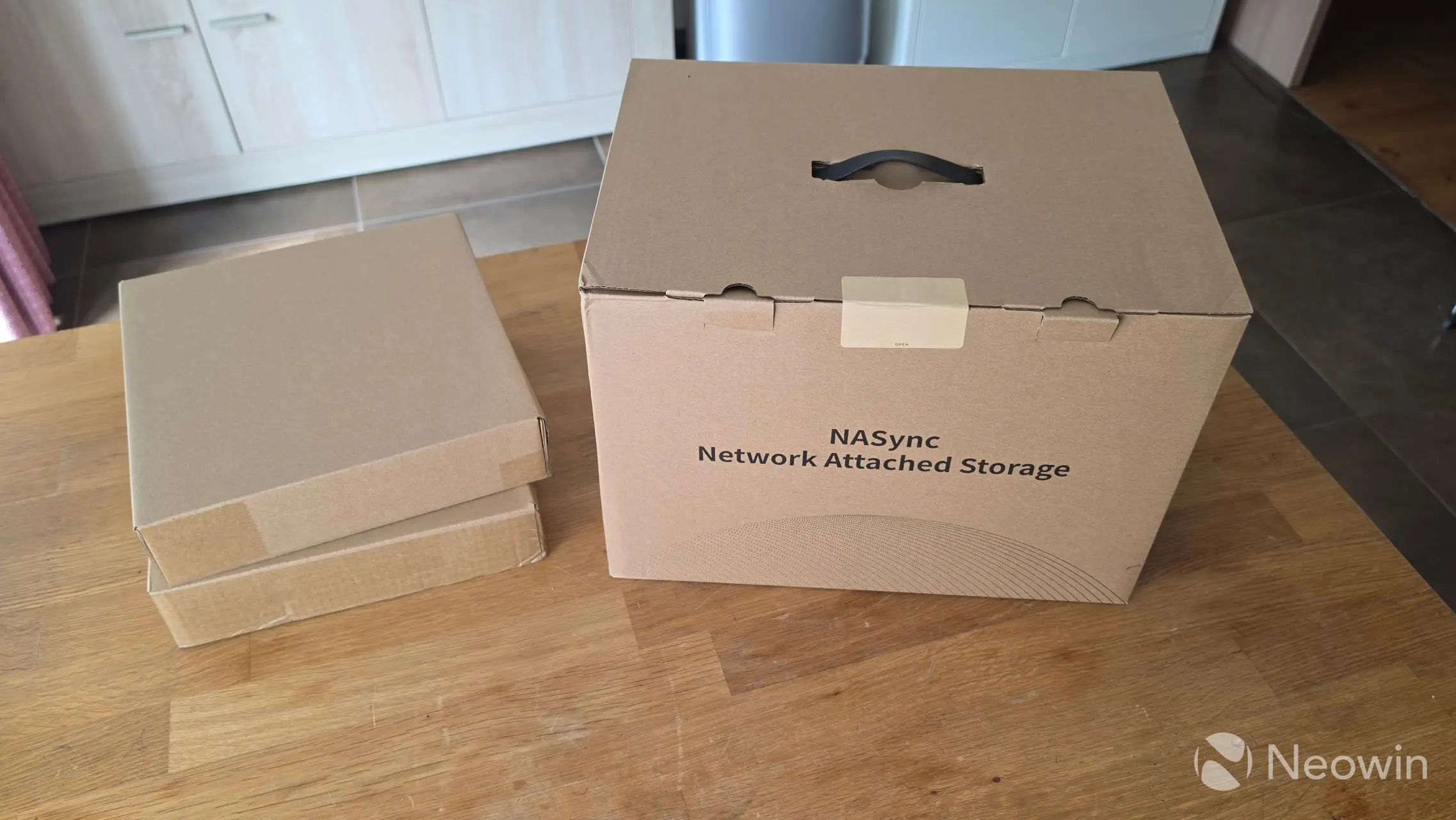
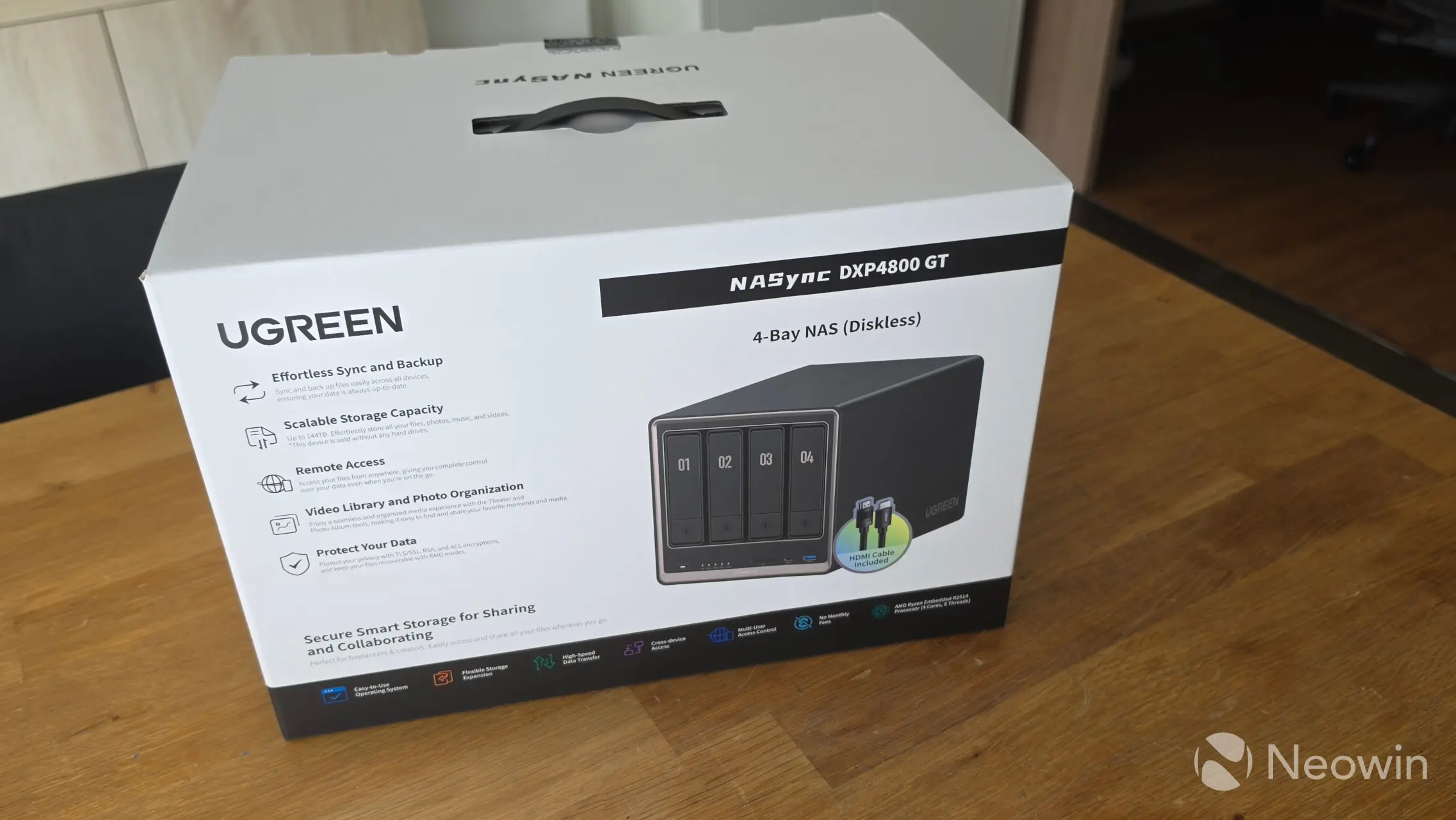
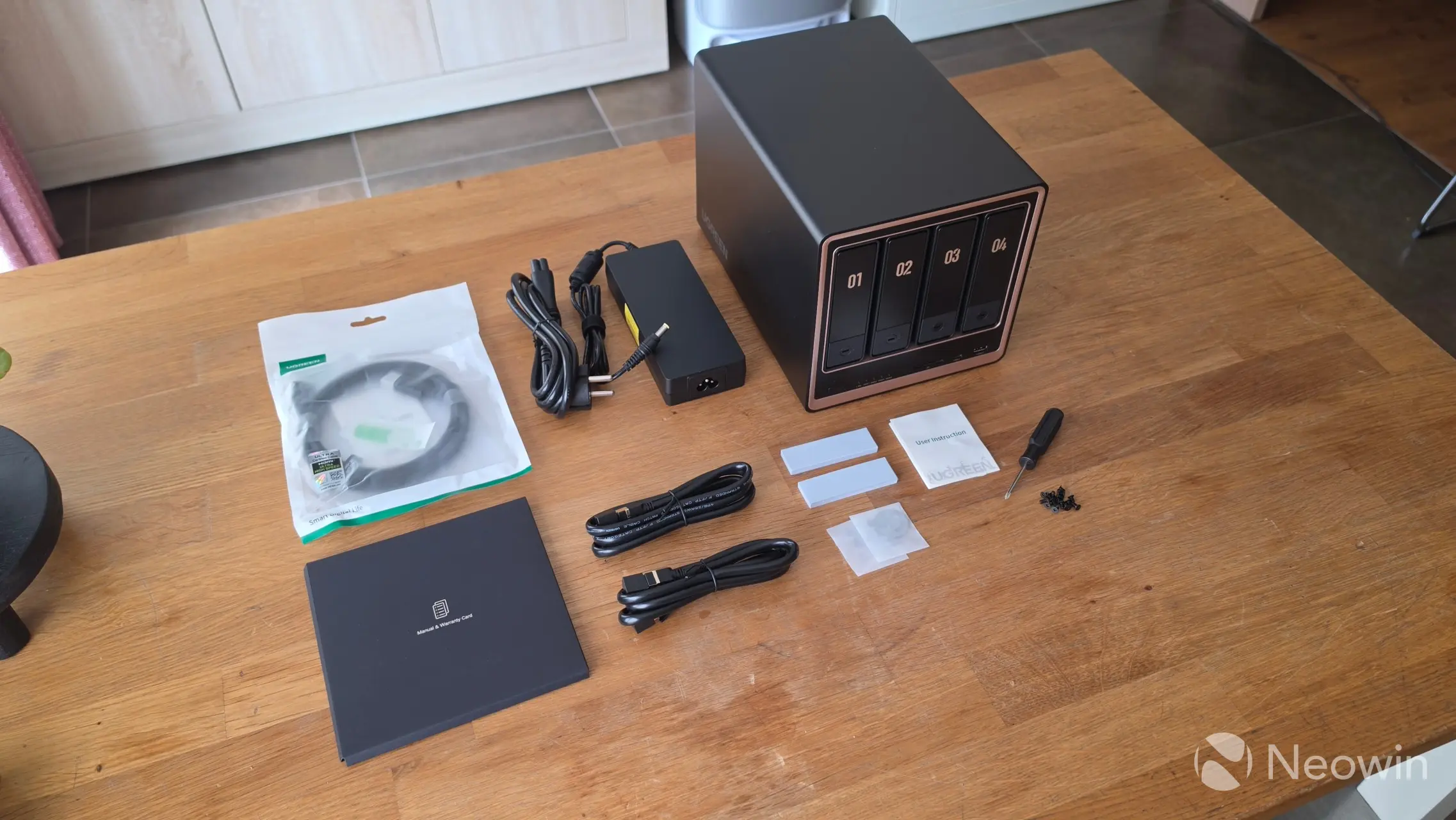
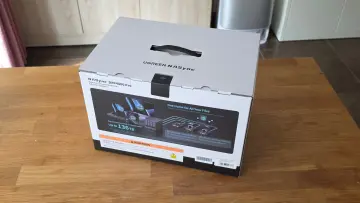
The DXP4800 GT arrived in a large outer brown cardboard box, and upon opening it, the UGREEN box looks pretty cool with nice decals on the sides showing off the product. The DXP4800 GT itself is protected by a foam cushioning with a compartment for the accessories box.
In the box
- NASync DXP4800 GT device
- Power cable
- 2 x LAN cable (CAT 7)
- 1 x HDMI (Ultra High Speed)
- Quick guide [full online product documentation]
- Warranty card
- 2x SSD Thermal Pad
- Screws (for 2.5-inch SSD)
- 2 x HDD Tray key
- Screwdriver
UGREEN had already sent me a bunch of WD Red Plus 4TB NAS HDDs to use in previous reviews of their NAS hardware, but this time around they sent four 2TB WD Red Plus, which is what I went with. I noticed UGREEN is now shipping a high quality (own brand) HDMI cable in the box too, which is quite nice as the cable is also the certified type.
Design
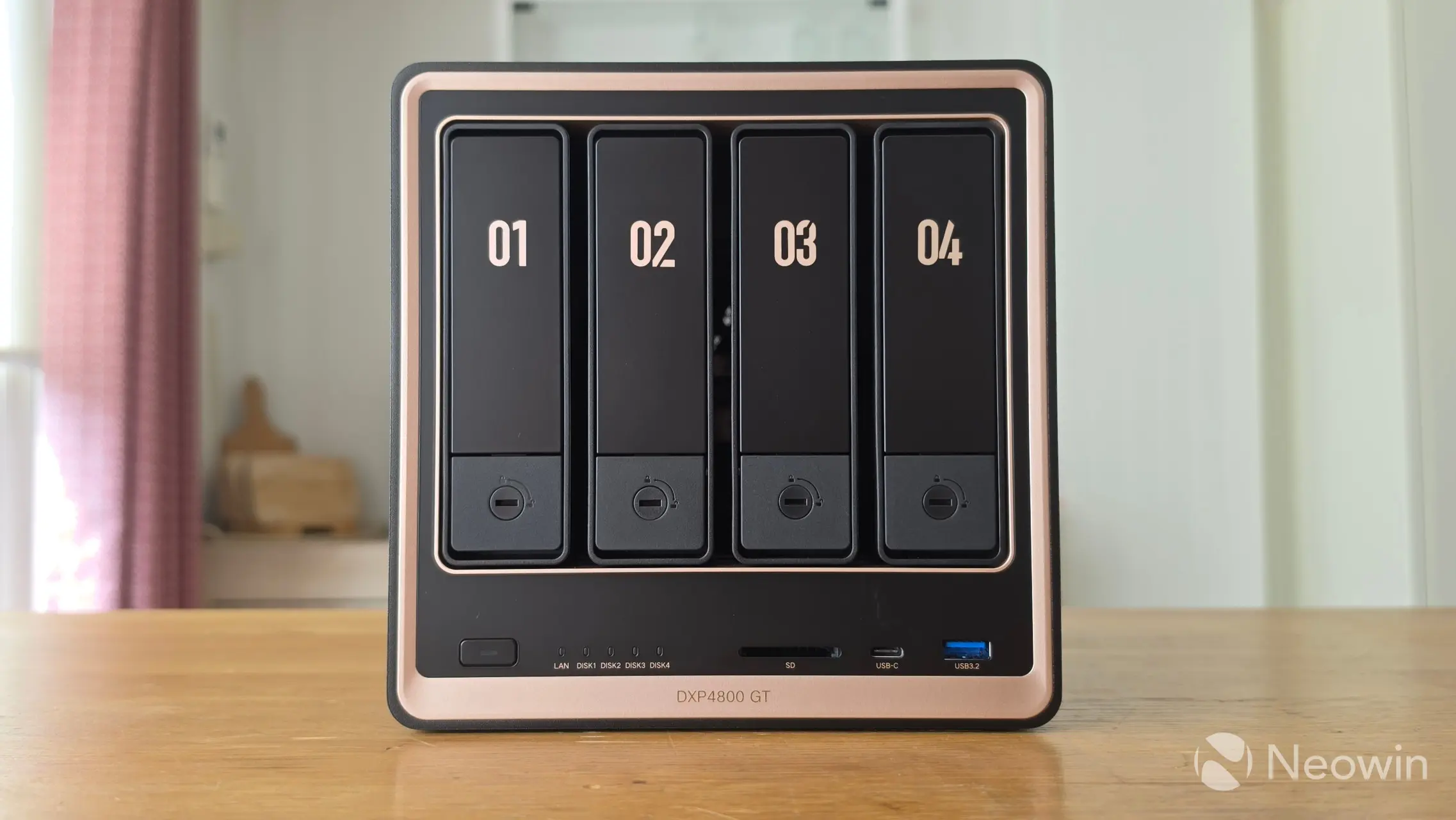
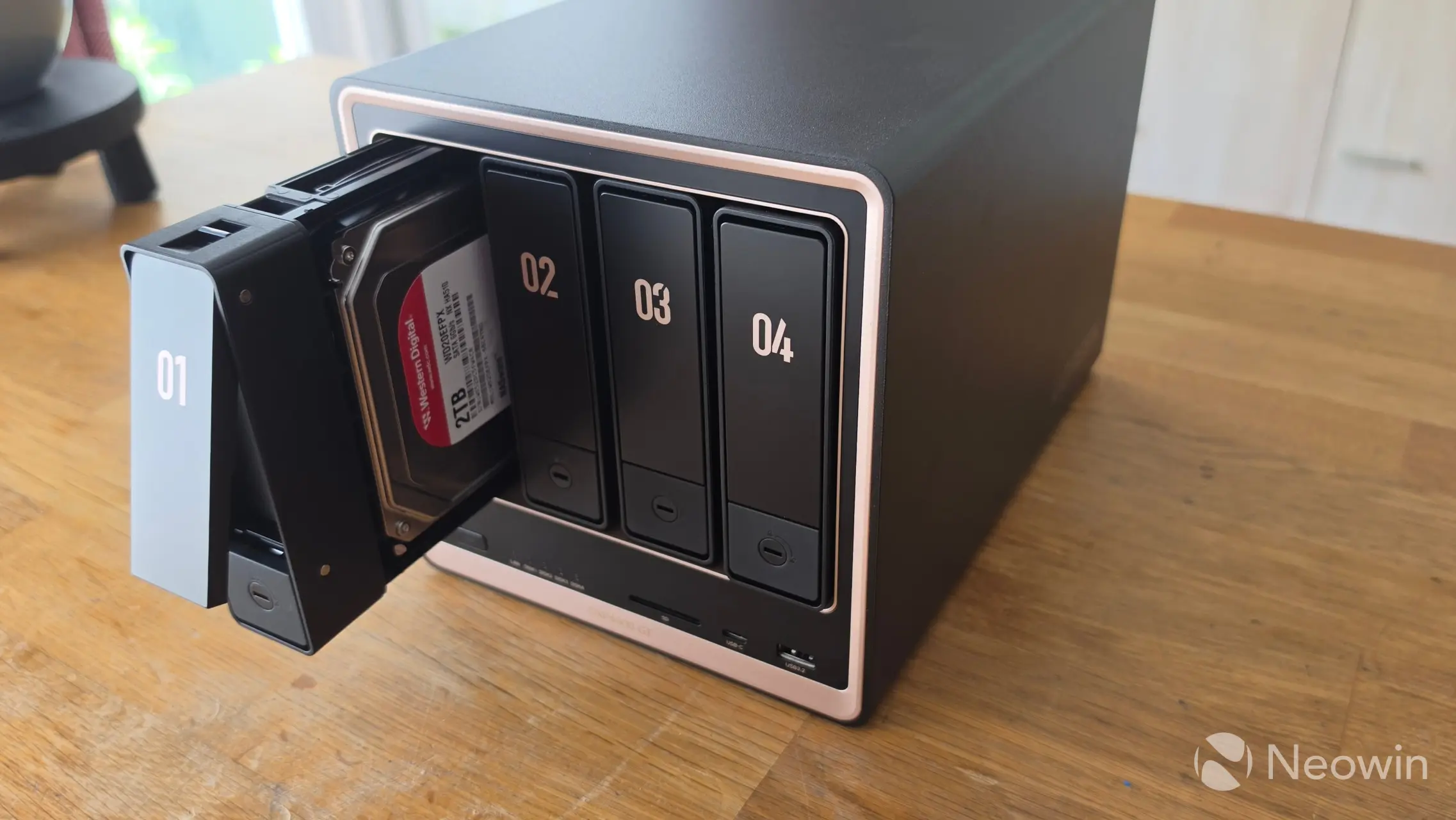
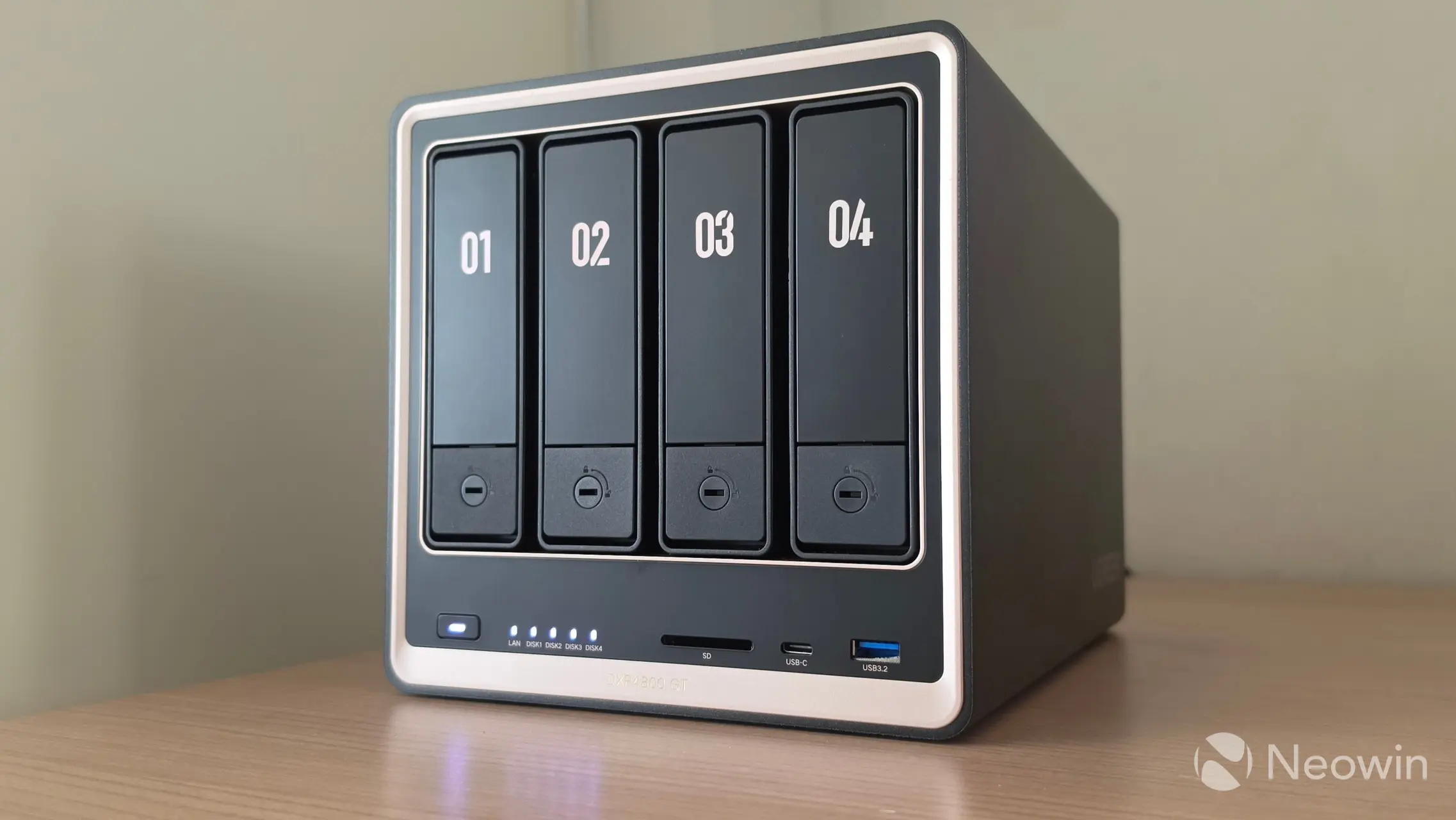
The exterior is a matte dark gray with gold trim around the front with gold colored numbers on the drive bays, in real life, it looks much darker, almost black. It"s also not a fingerprint magnet. The shape of the DXP4800 GT follows a traditional NAS design, so no surprises here. The rounded edges look pretty cool as well. Overall, it"s a very nice-looking device; the cherry on top is that it does not slap a sticker on the front with the model number, it is embedded with slightly raised gold lettering on the front, which is also barely noticeable thanks to the gold trim.
On the front, you have your four bays, which are all numbered. Then below that and from left to right, you have the power button, which lights up when powered on, five LEDs, with the first indicating LAN activity, the others (when white) show disk activity, (when orange) indicates a disk error, then there"s a slot for an SD card, one Type-C and another Type-A USB 3.2 Gen 2 port.
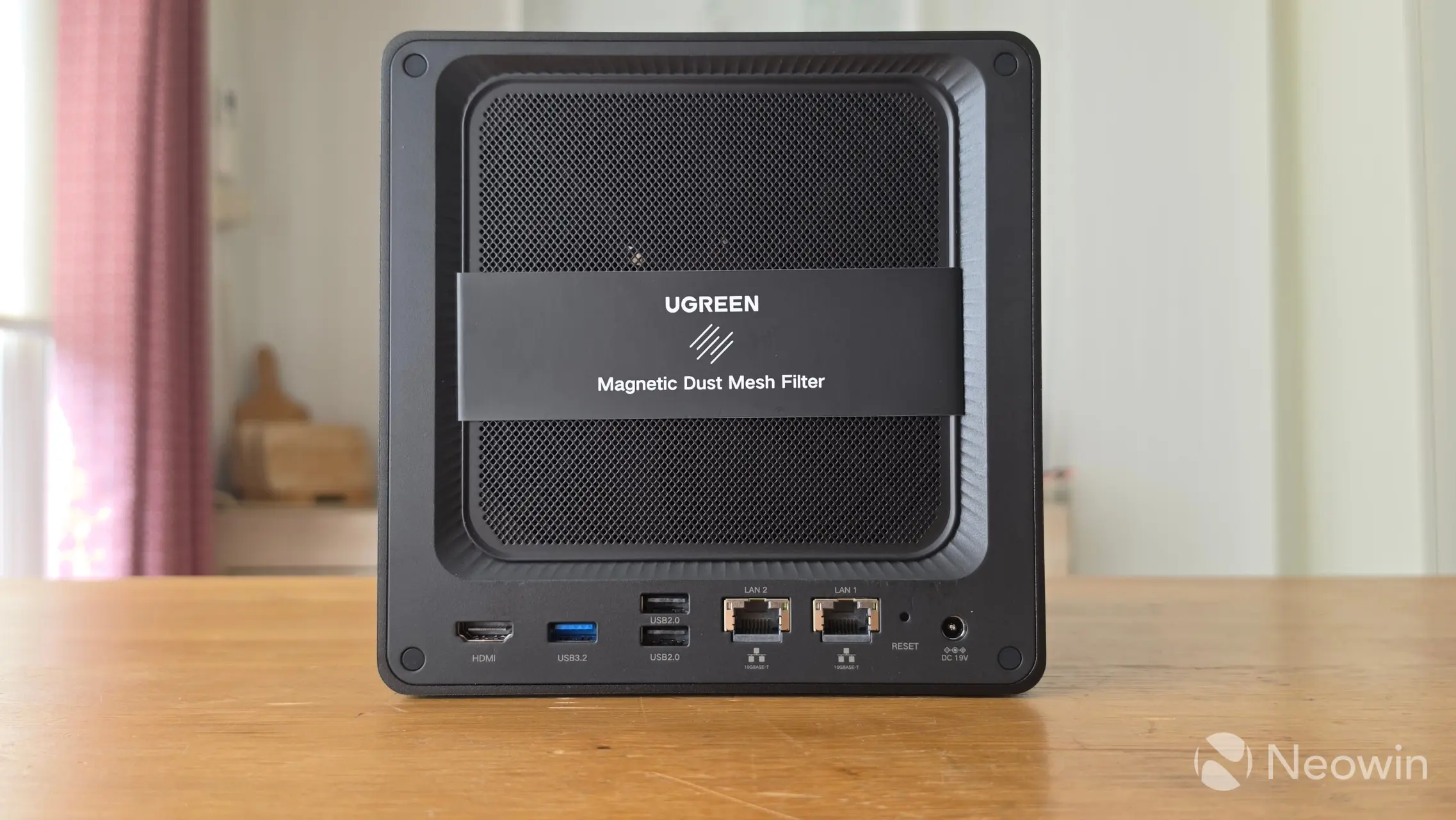
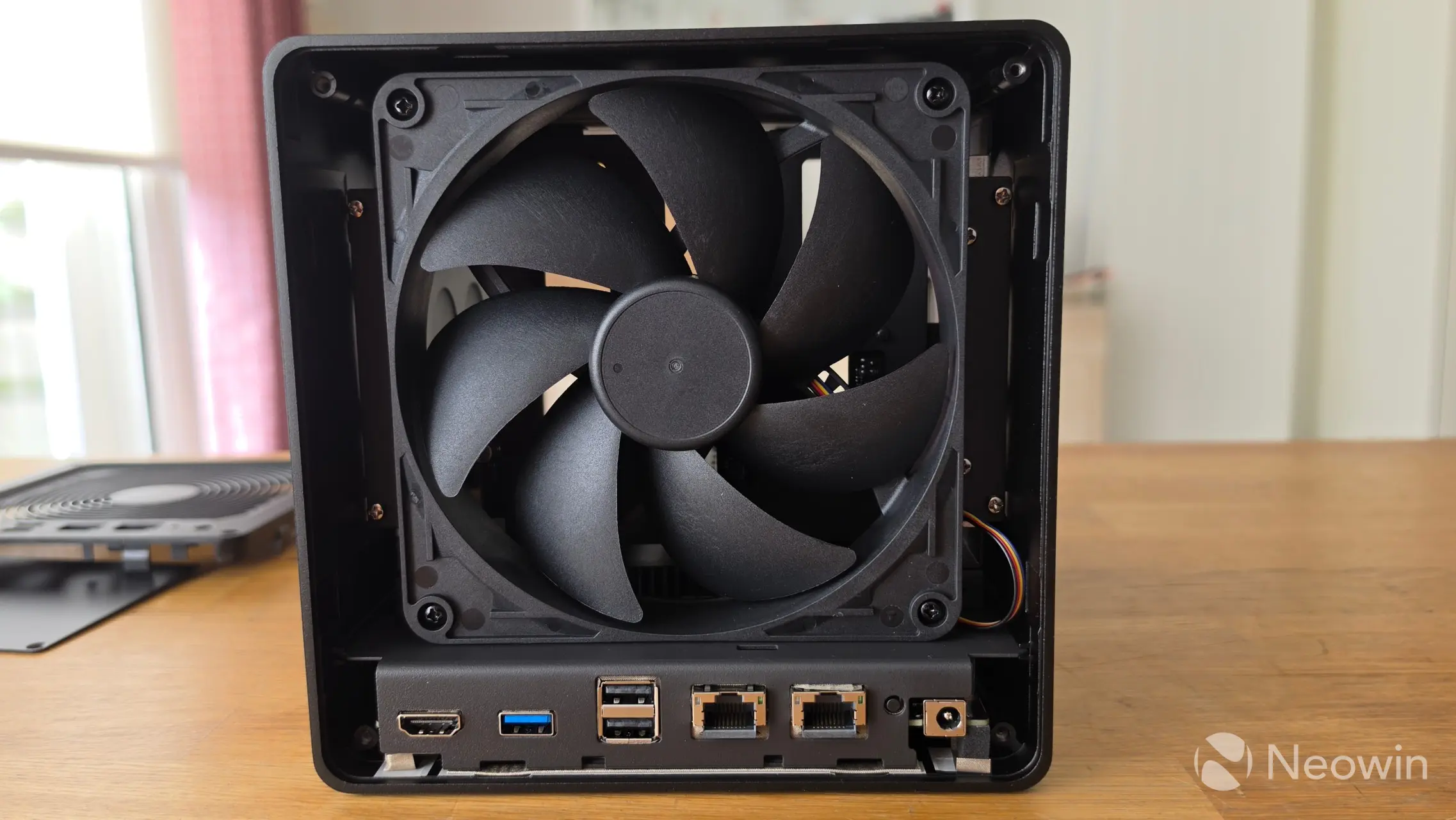
Around the back, there"s a magnetic Dust Mesh Filter (yes, I did remove the cardboard sleeve before powering on). Then at the bottom from left to right you have, a HDMI port, one Type A 3.2 Gen 2 port along with two Type A USB 2.0 ports, two 10 GbE LAN ports, a reset pinhole, and a barrel port power connector; there"s no Kensington Slot on this model which is a shame because it is a data storage device, you should be able to secure it if you want.
| Left side | Right side |
|---|---|
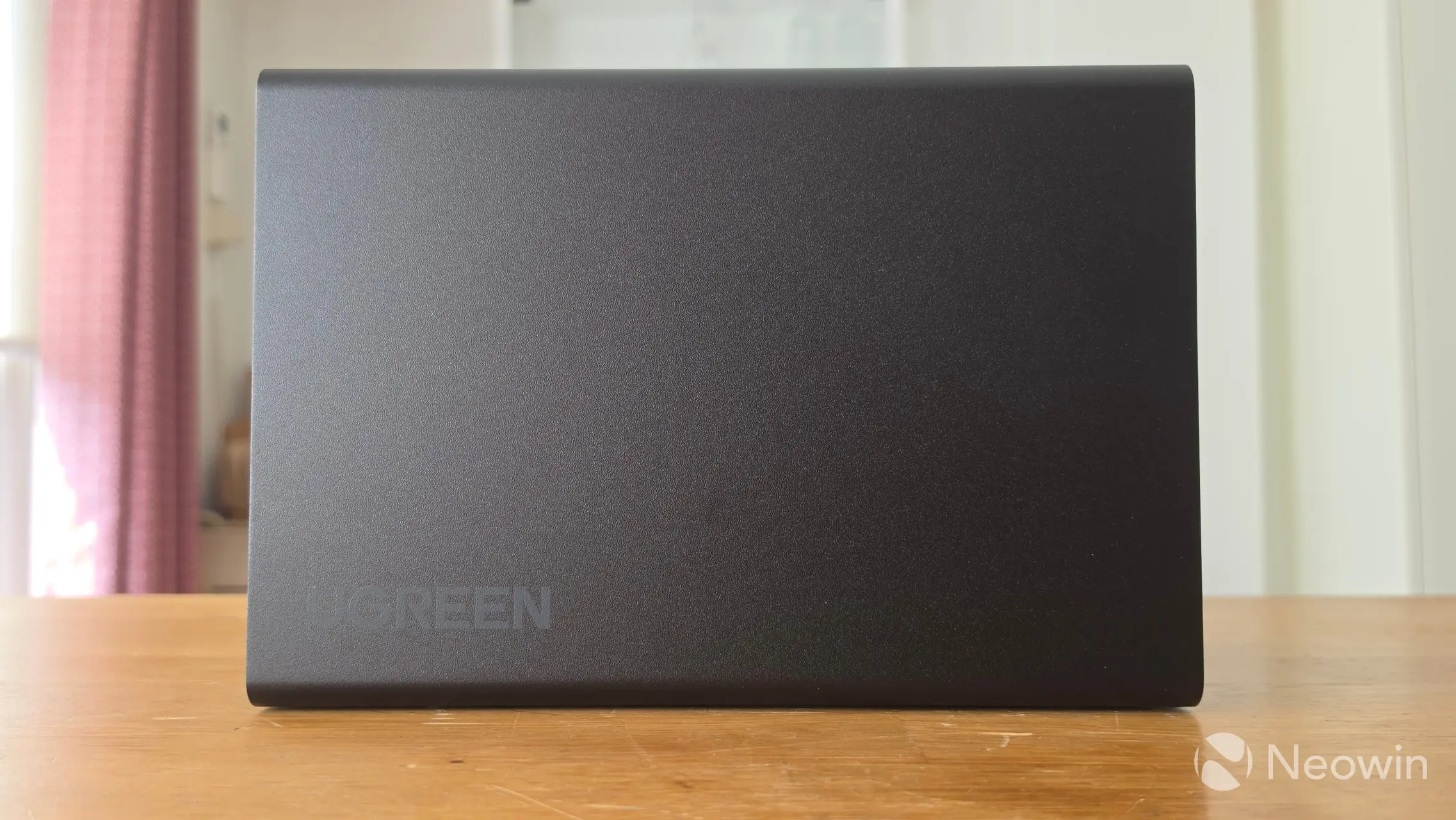
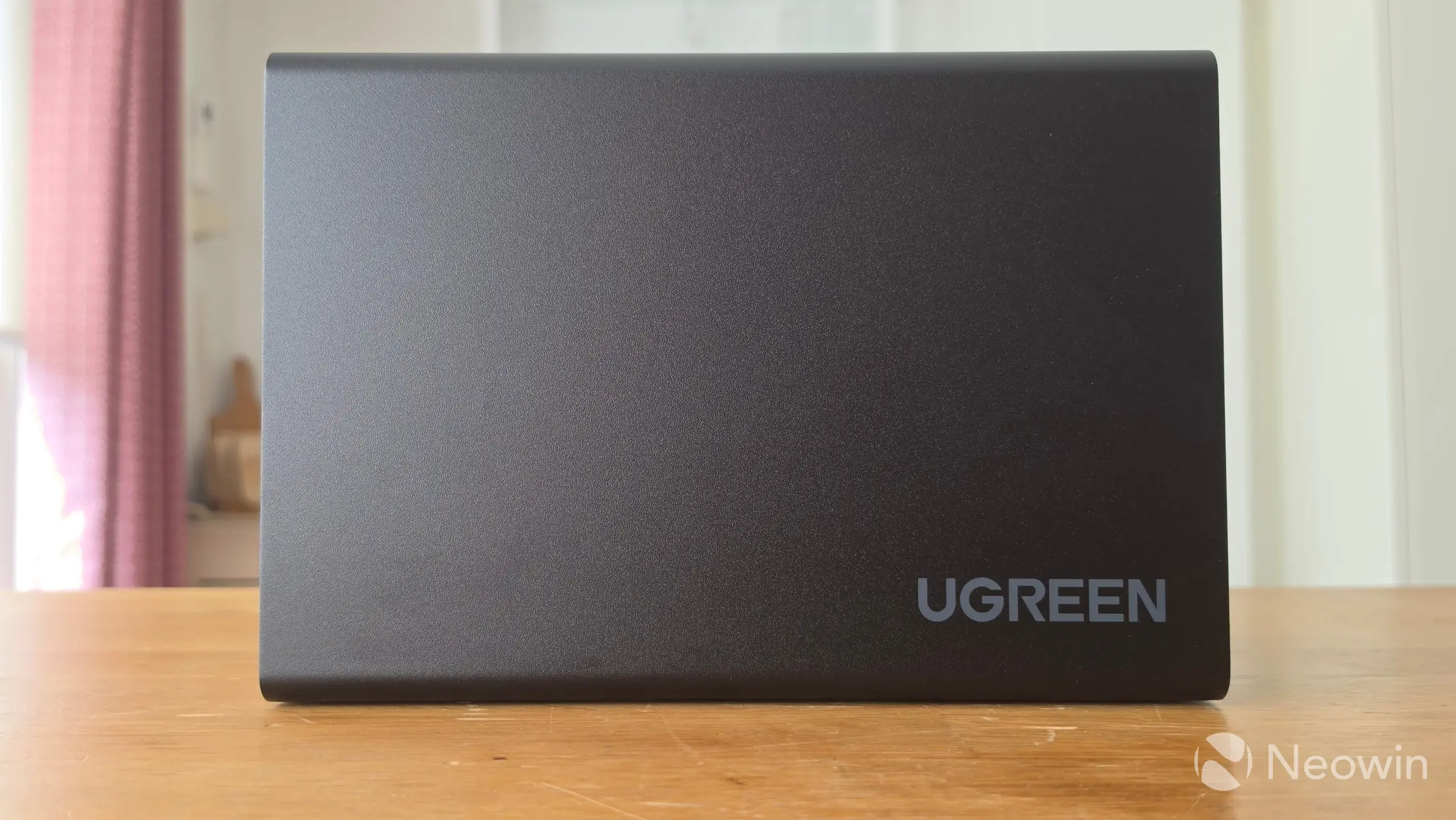
On the left and right of the DXP4800 GT, it is completely smooth with just a UGREEN logo embedded into the metal casing at the bottom rear of each side.
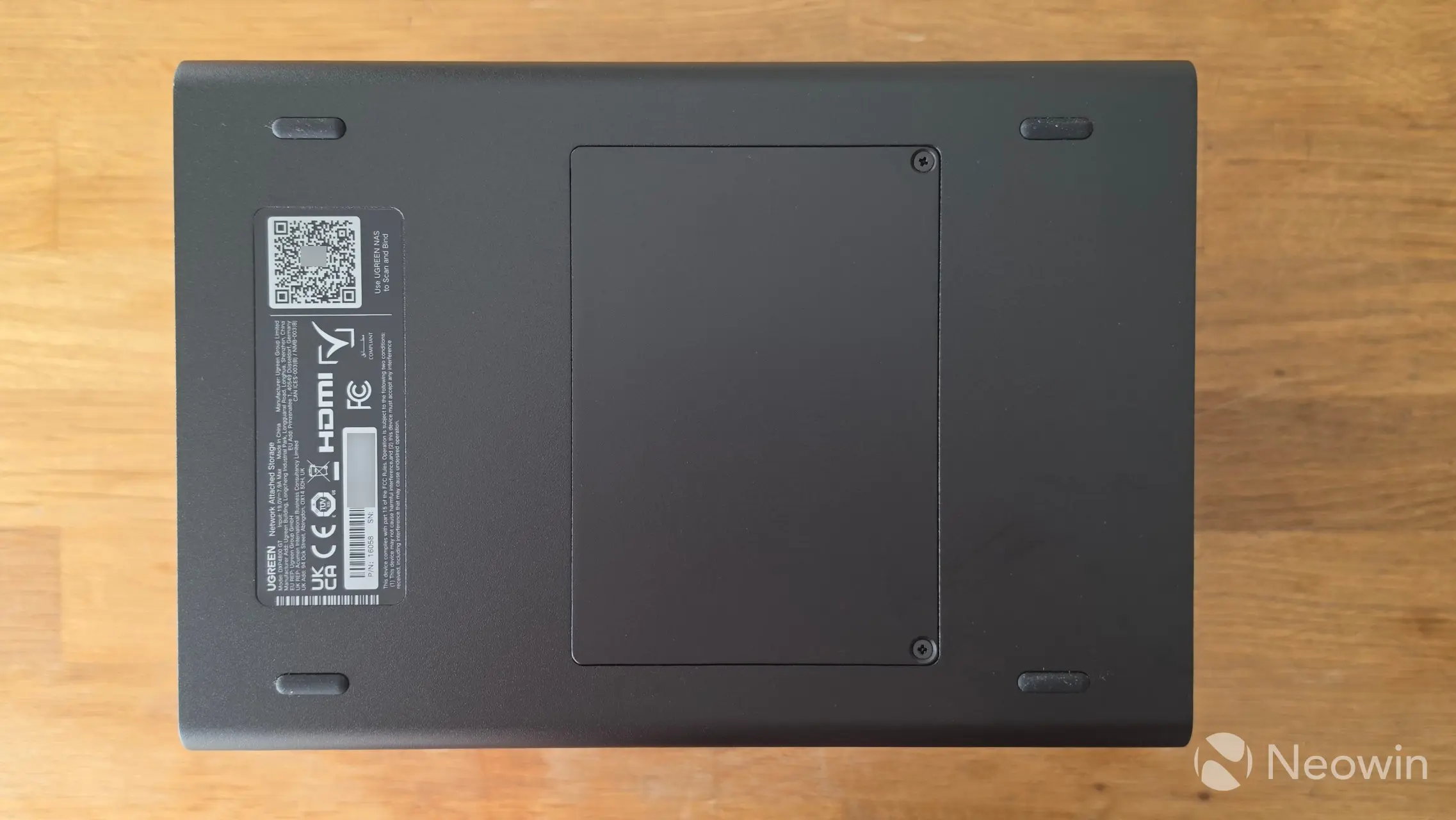
On the bottom, the four rubber feet are stuck on and give a height of around 0.3mm, and although there are no grills for heat dissipation on the bottom, the "door" of the M.2 SSDs and memory does get quite warm, so it makes sense to have some height there in order to expel some of that heat if you can. I am not sure why UGREEN opted to go with tiny rubber standoffs for feet; they should be half a centimeter at least in height if you ask me.
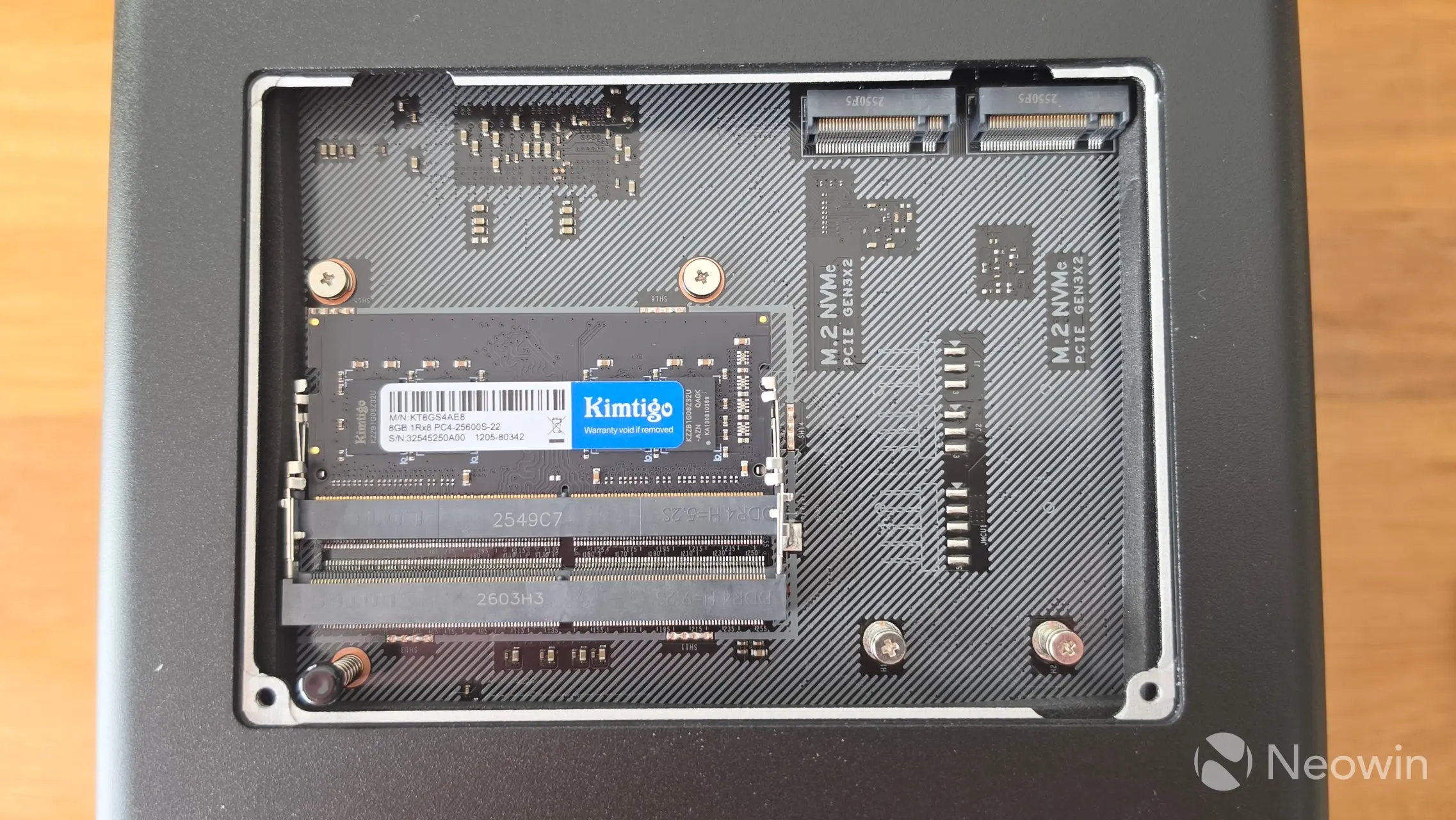
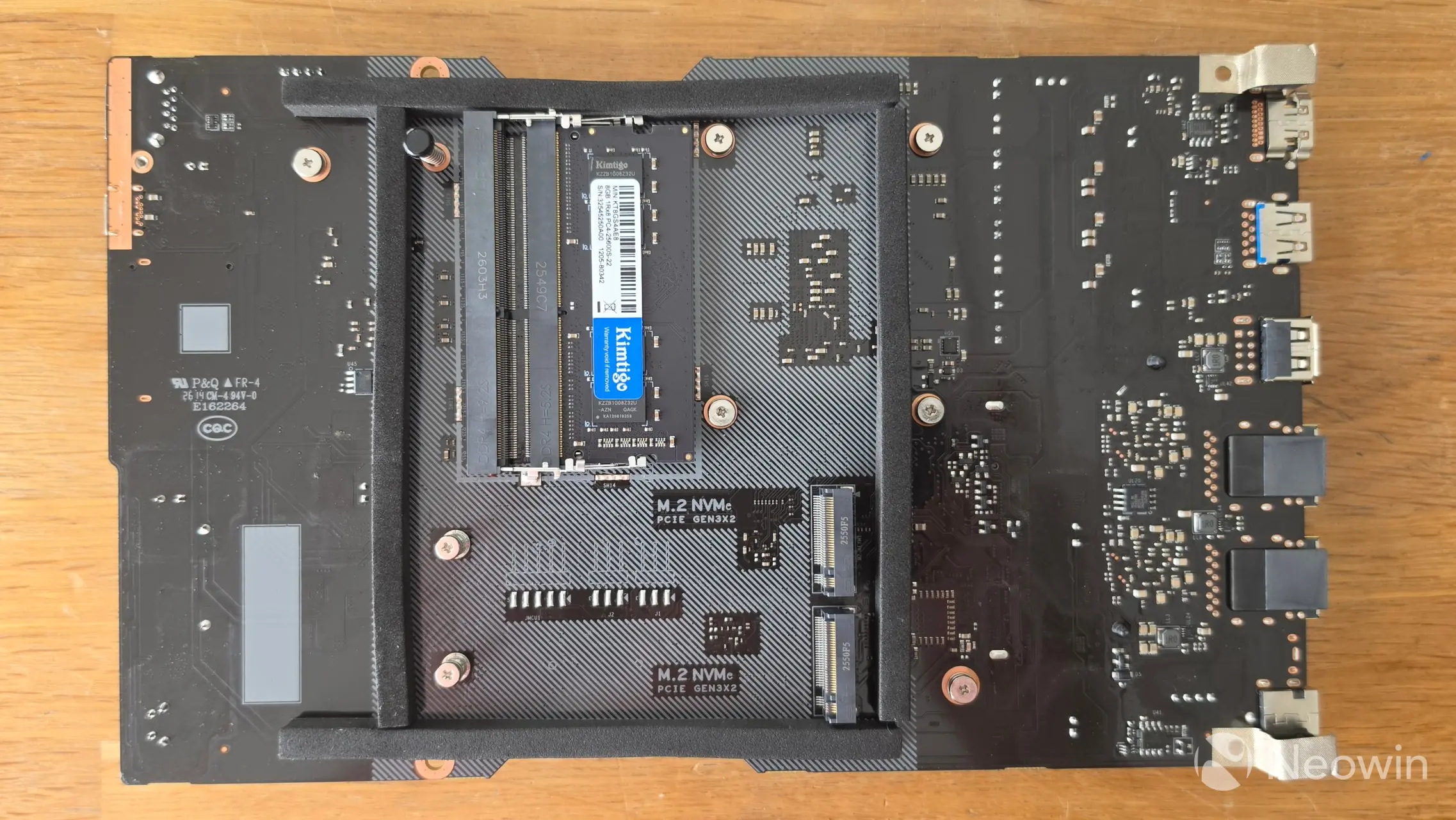
Upon removing a couple of screws for the bottom "door," you can access the memory and M.2 slots. The DXP4800 GT comes preinstalled with 8GB of DDR4 (2666 MT/s) memory, although it supports up to 64 GB kits. This is a staple of the silicone storage problem with AI gobbling up memory and SSD storage for the mega datacenters, leaving companies to come up with alternatives like reverting to older tech with fewer amounts.
Teardown
No NAS review would be complete without some sort of teardown, and usually, it is required to manage some of the internal bays and memory anyway.
| With the rear panel removed | Front panel, 4 screws | Front panel off |
|---|---|---|
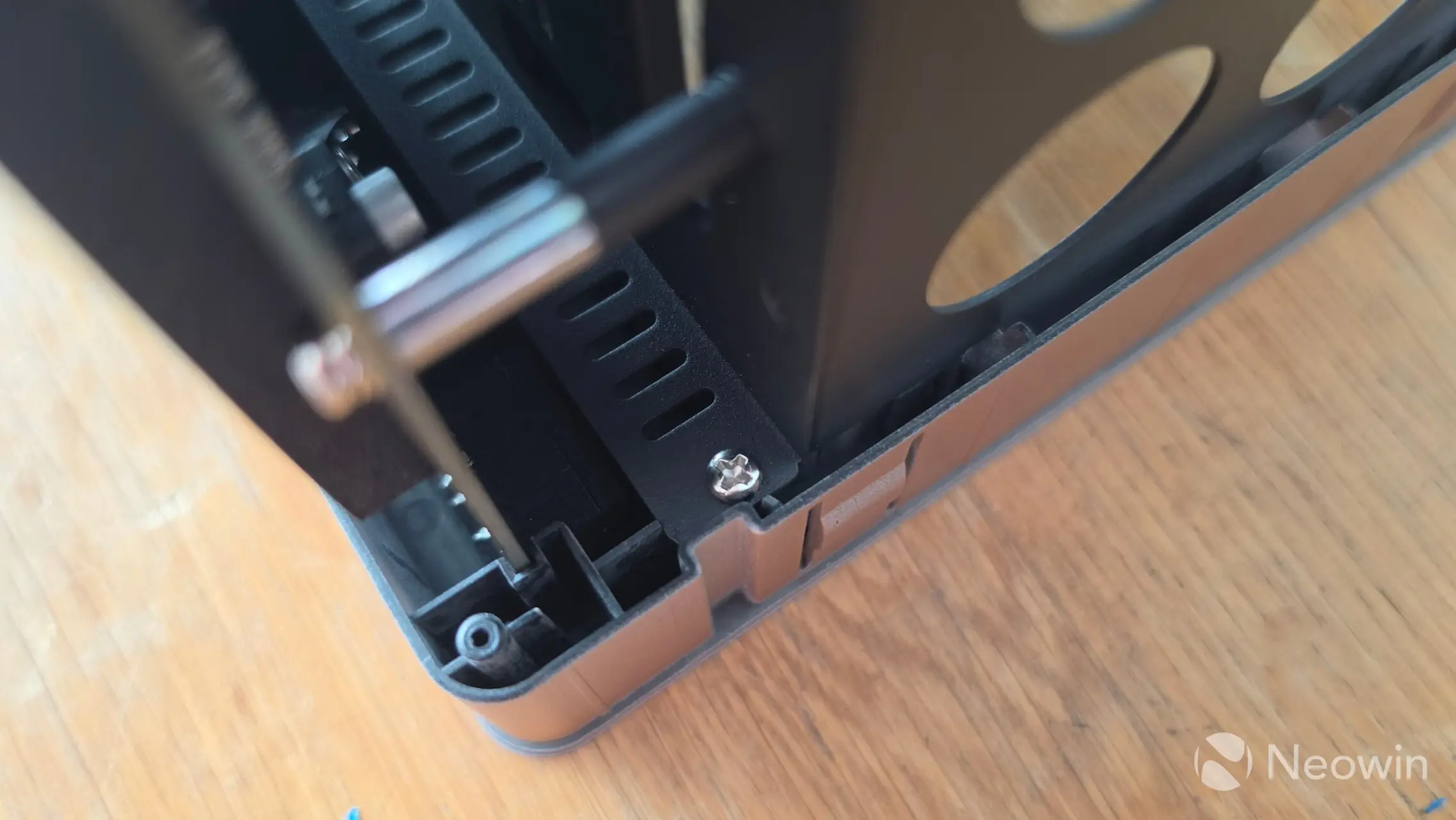
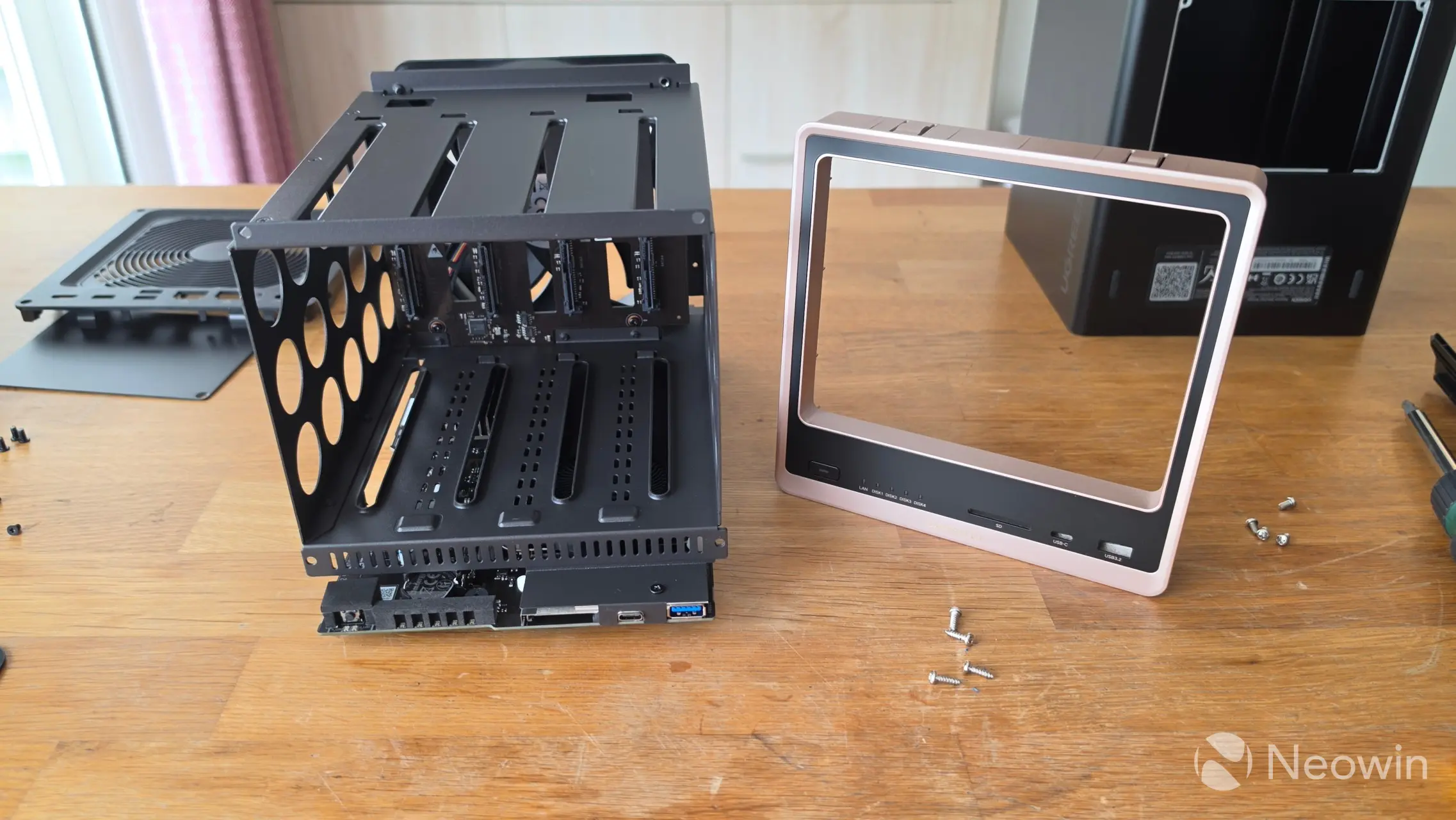
The DXP4800 GT requires a full teardown in order to reseat the CMOS battery.
- Turn the NAS over so the bottom is facing upward;
- Remove the bottom panel (covering the memory);
- On the back panel, remove the four rubber covers and screws;
- After removing the back panel, do not remove the fan yet!
- Unscrew four inner internal fixing screws (two on each side);
- Slide the unit out of the outer casing.
Yes, the shell is a little different in that it is not possible to easily disconnect the rear fan until it is completely outside the metal shell. That"s the basics of getting into it; to manage the CMOS battery and PCB requires a bit more.
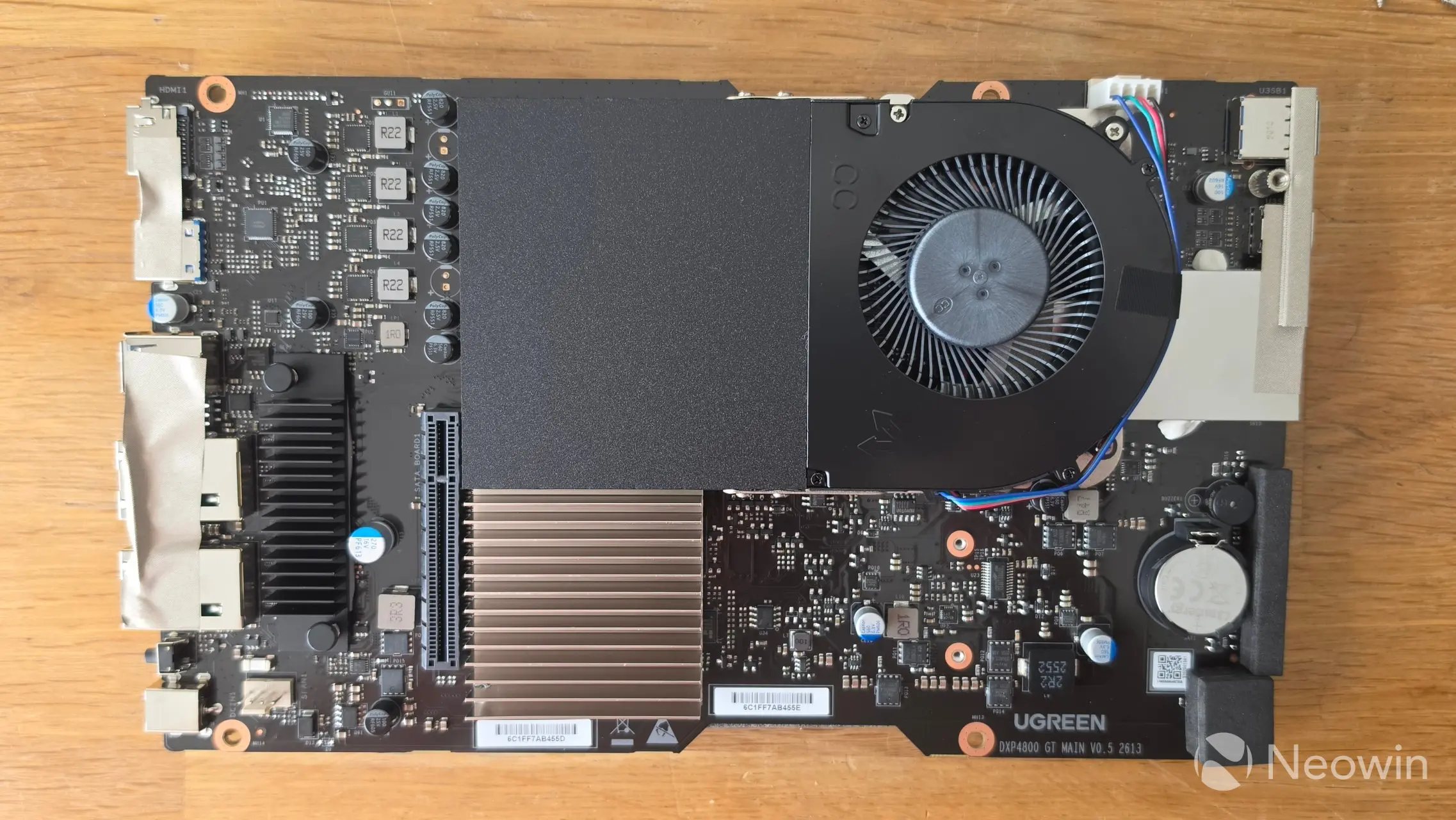
The System Fan connector (bottom left in the above image) is fed through the metal frame covering of the rear ports, it"s almost impossible to reconnect due to the depth, so to disconnect and reconnect this is best done while carefully removing the PCB from the frame so you aren"t pulling on the wires (to disconnect).
To be able to detach the PCB:
- Remove four inner screws from the front panel (one in each corner);
- Remove the front panel;
- Remove four screws from the PCB connecting it to the frame;
- Remove one screw under the front USB ports;
- Carefully lift the PCB off the internal SATA connector and disconnect the system fan.
In the DXP6800 Pro [read our review here], it was awkward to get to the UGOS flash drive, but here, there"s soldered on eMMC flash (under the heatsink left of the PCIe slot in the above image). This basically means you can"t easily swap out the bootloader (more on that later).
However, if for some reason you need to remove the CMOS battery, then you will have to do the steps as detailed above in order to be able to get to it. In the GT, the CMOS battery is completely surrounded by protective foam from the outside, so the placement of the battery definitely does not afford ease of use, you"ll have to strip the GT down in order to manage it.
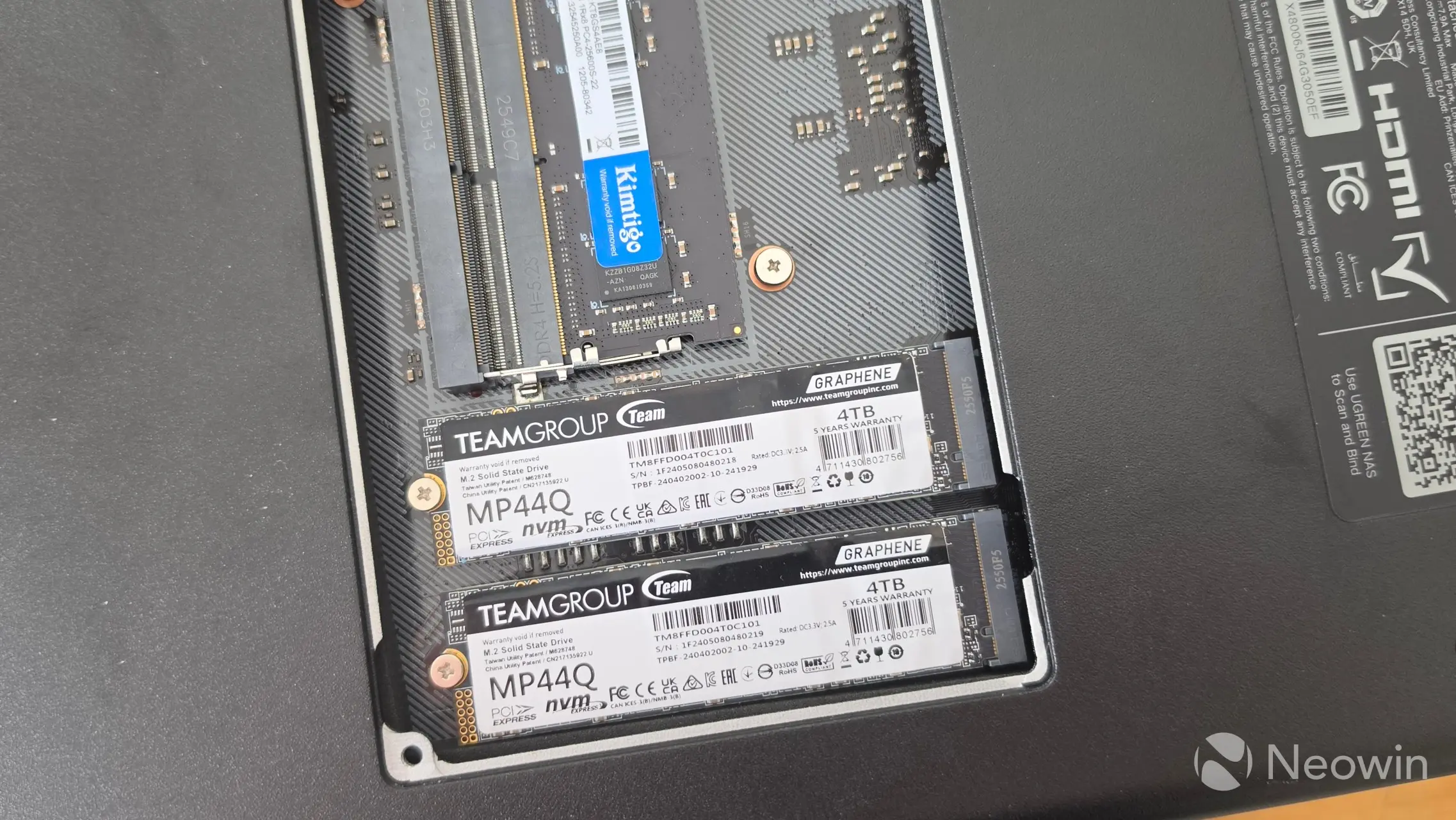
UGREEN also helpfully provides two massive thermal pads for the SSD slots which can be used.
Getting Started
Now that we have managed the internals and installed our SSDs, next up are the drive bays, which have not changed since I reviewed the DXP6800 Pro.
| Top of sthe led | Bottom of the sled | HDD installed in sled |
|---|---|---|
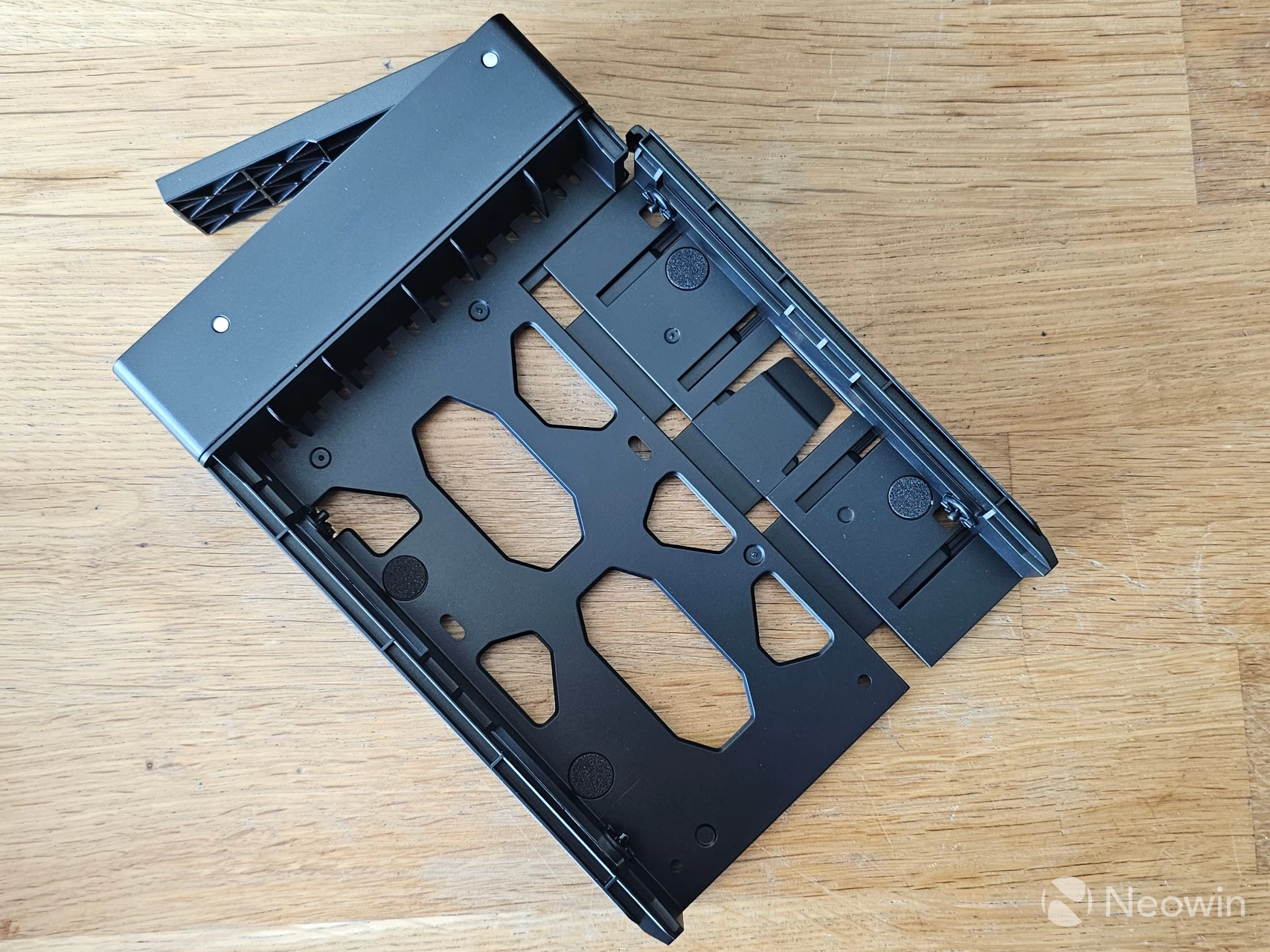
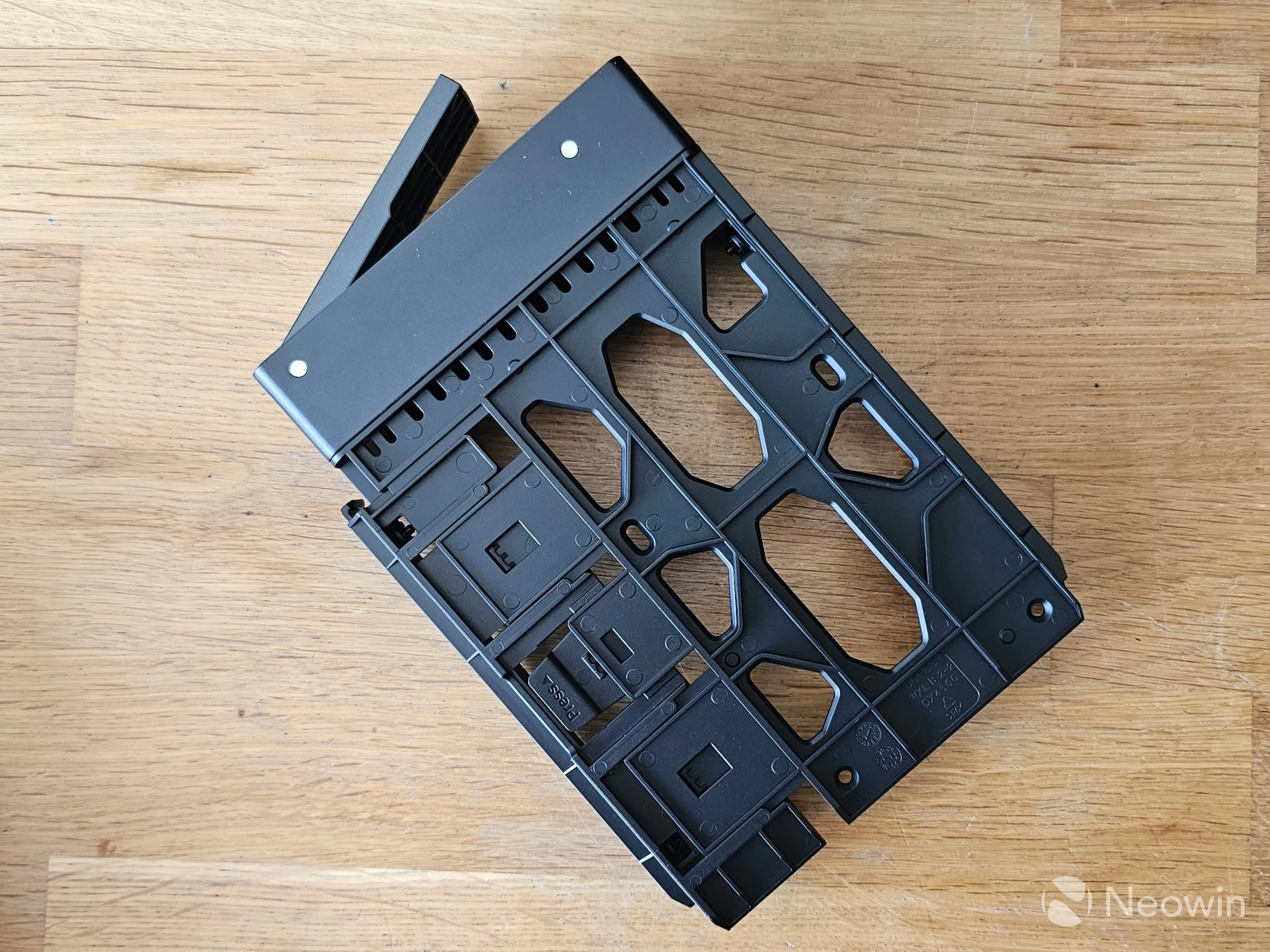
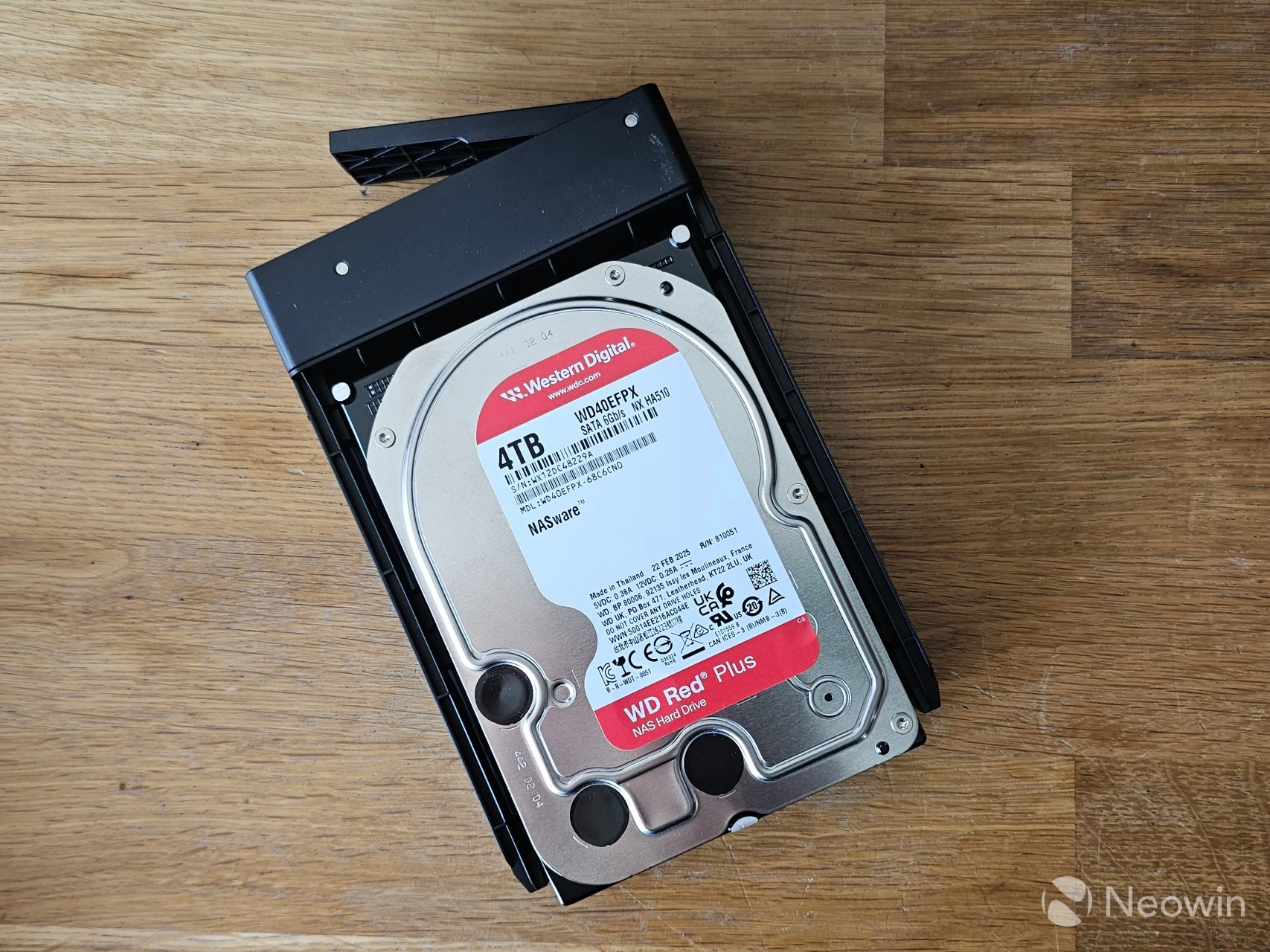
The HDD sleds are completely tool-less for traditional HDDs. One side of the sled can be pulled out a bit, then you place the HDD in at a slight angle to align the plastic pins with the screw holes of the HDD, press down, and then press the right side in until you hear it click, and that"s it. Pressing down on the button on the bottom of the sled releases the side, which can then be pulled out to release the HDD from the sled.
If you opt for an all-SSD (2.5-inch) setup for your bays, then UGREEN has you covered there, too, because there are enough screws included in the box so you can screw them into the bays from the bottom.
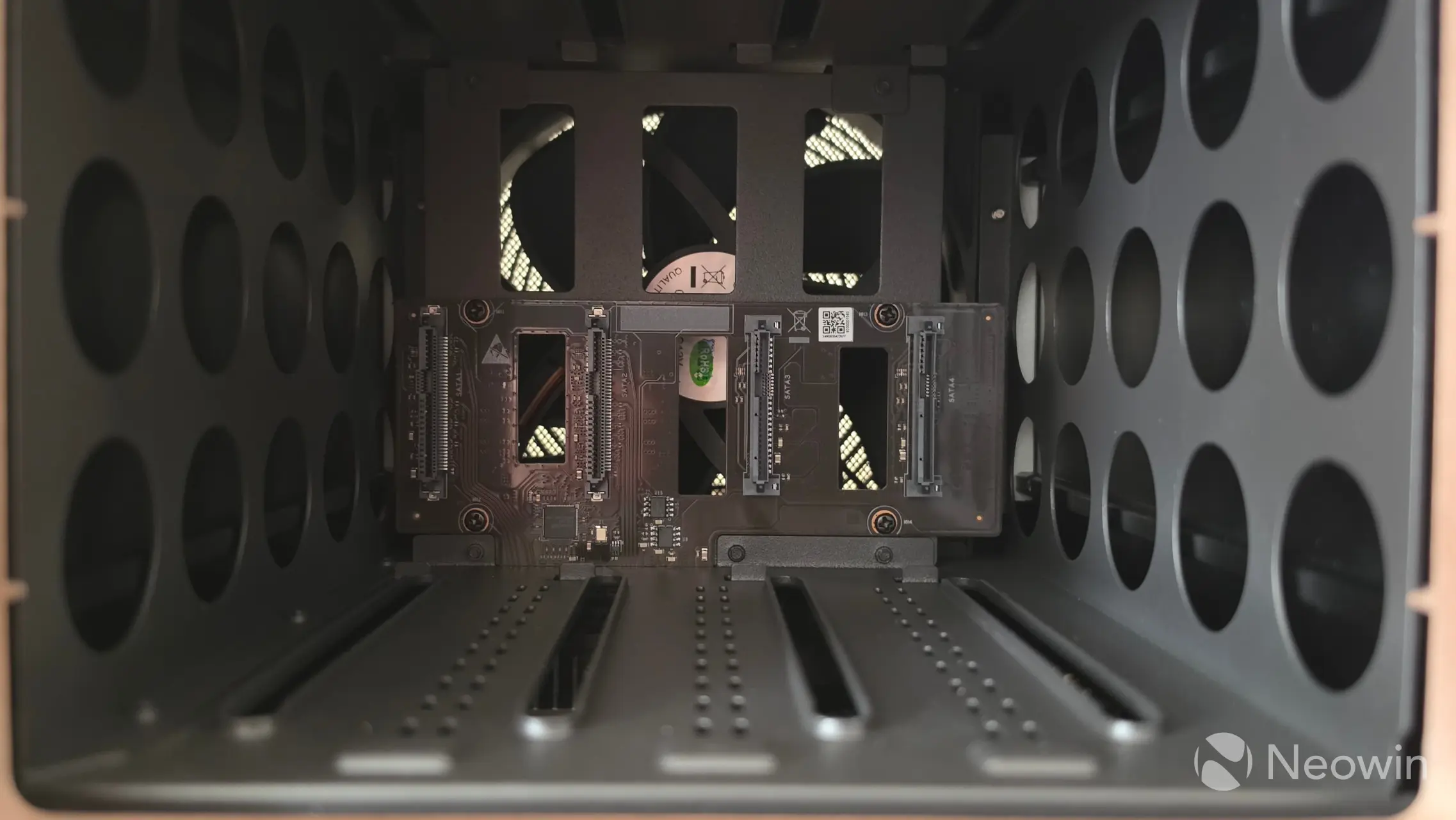
Fans are intake
Here you can view the inside of the DXP4800 GT with its single 120mm fan. From looking online and having a bit of a feel (but also looking at the direction of the fan blades), this actually pulls in air over the HDDs in an intake configuration rather than as an exhaust.
Setup
BIOS
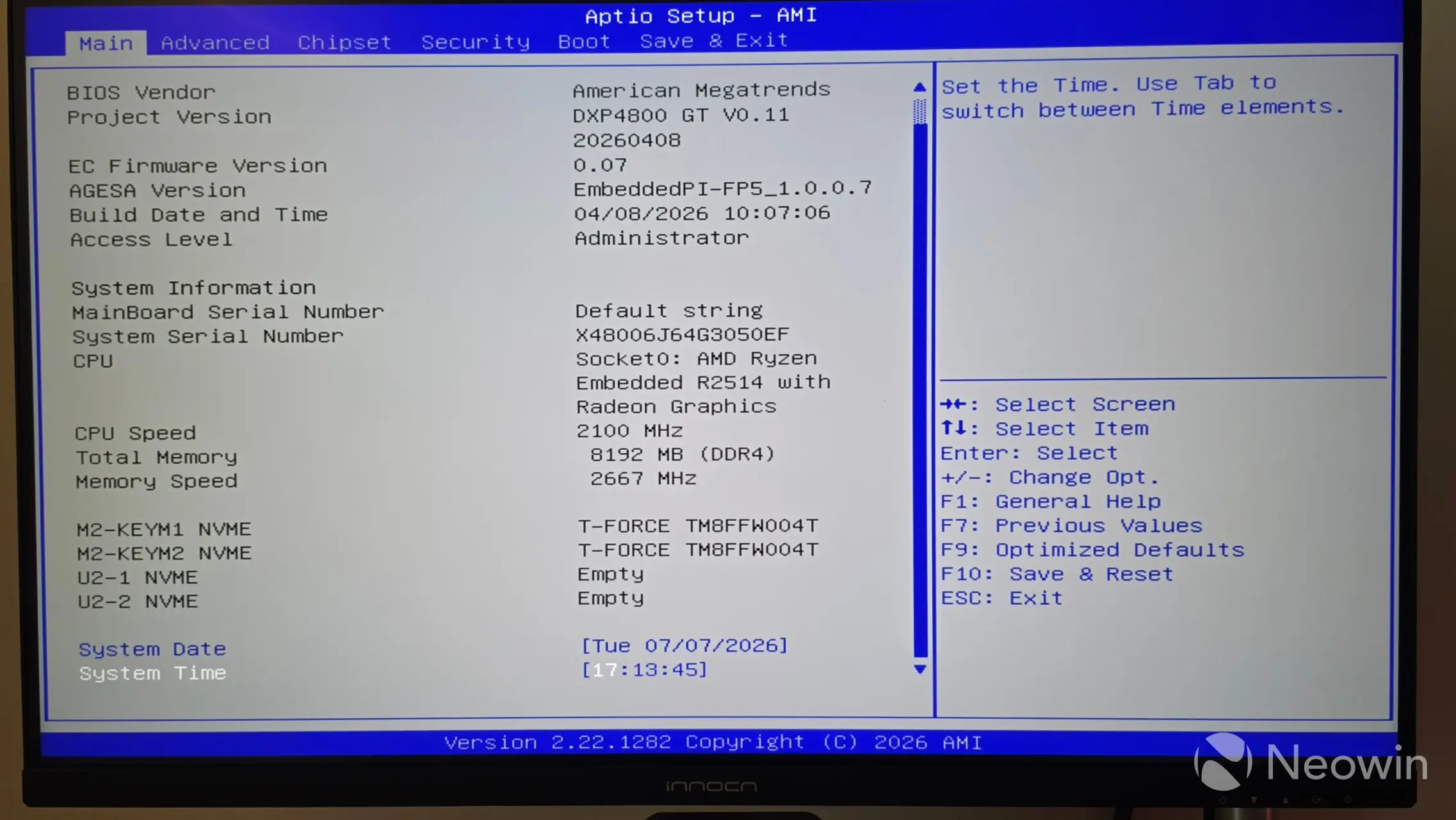
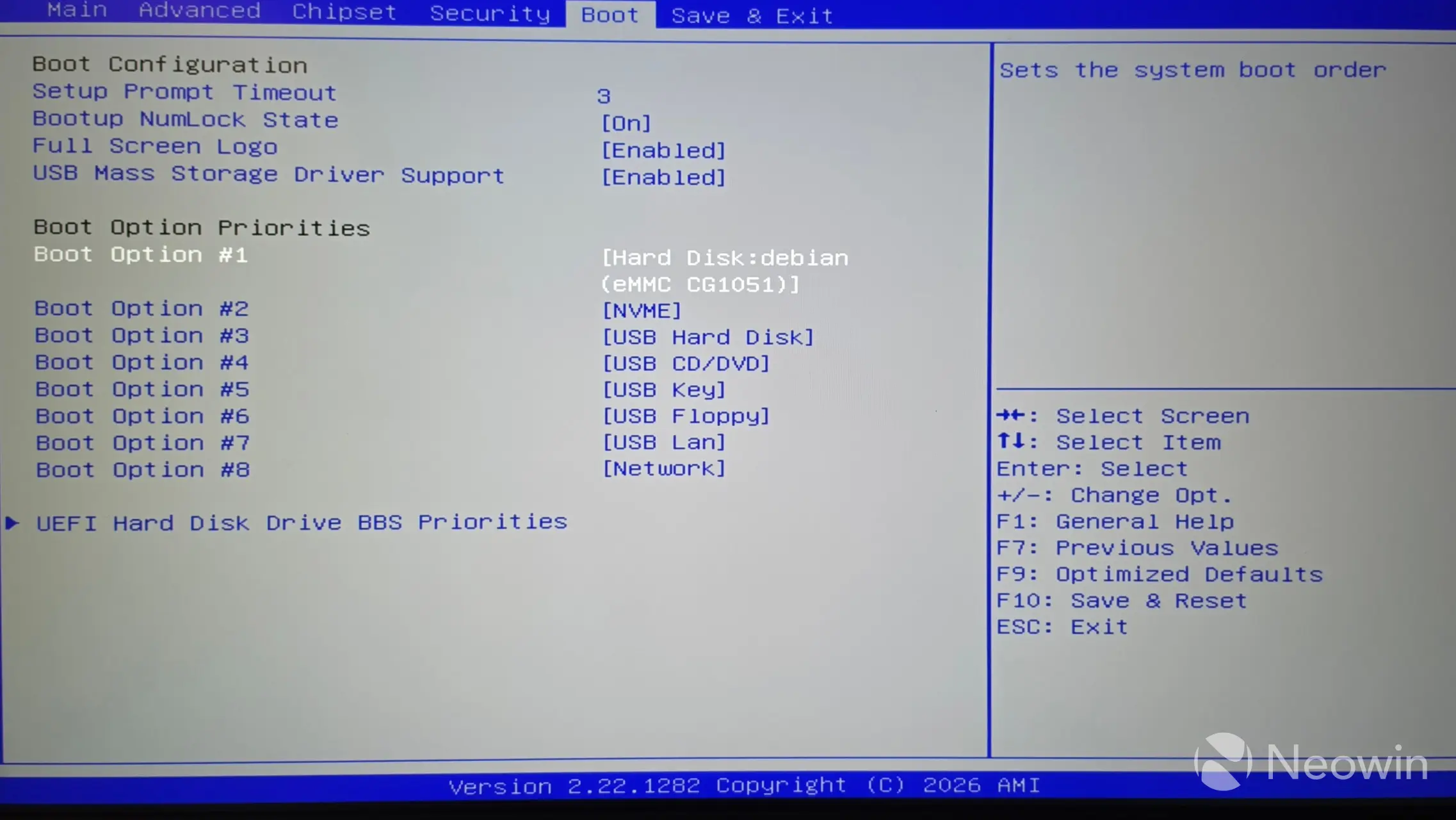
The DXP4800 GT includes an Aptio BIOS from American Megatrends (1) (2), and you can set up pretty much everything here, including the boot order. To access the UGREEN NAS BIOS, you need a keyboard and an HDMI monitor connected to the device, then upon powering on, press the CTRL + F2 key combination during the boot-up process to immediately access the BIOS. You can also use CTRL + F12 that will interrupt the normal boot and display a menu, allowing you to boot to UGOS, any USB sticks you have attached to it, and Enter Setup (the BIOS).
Initial Setup
Aside from the web address https://find.ugnas.com, which you can use to find your UGREEN NAS in any browser, there"s also an app for that you can use for Windows, Mac, Apple TVOS, Android, and iOS, which we"ll get into a bit later.
| UGREEN NAS Finder | Register screen |
|---|---|
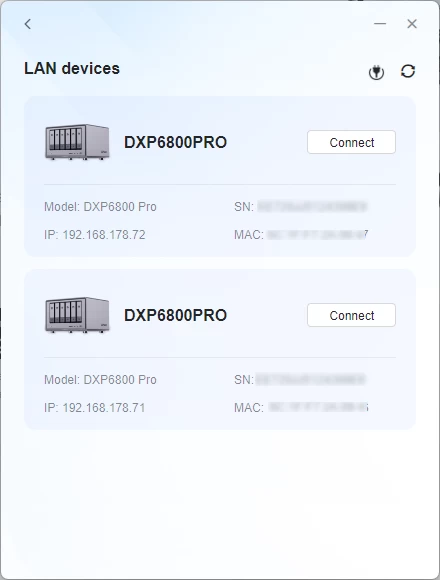
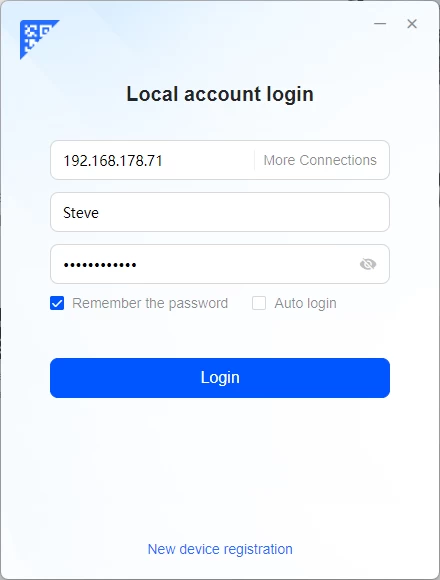
The above two images are from the Windows app that, upon opening, scans for any UGREEN NAS devices on the network, and then either lets you log in to an already initialized system or set one up.
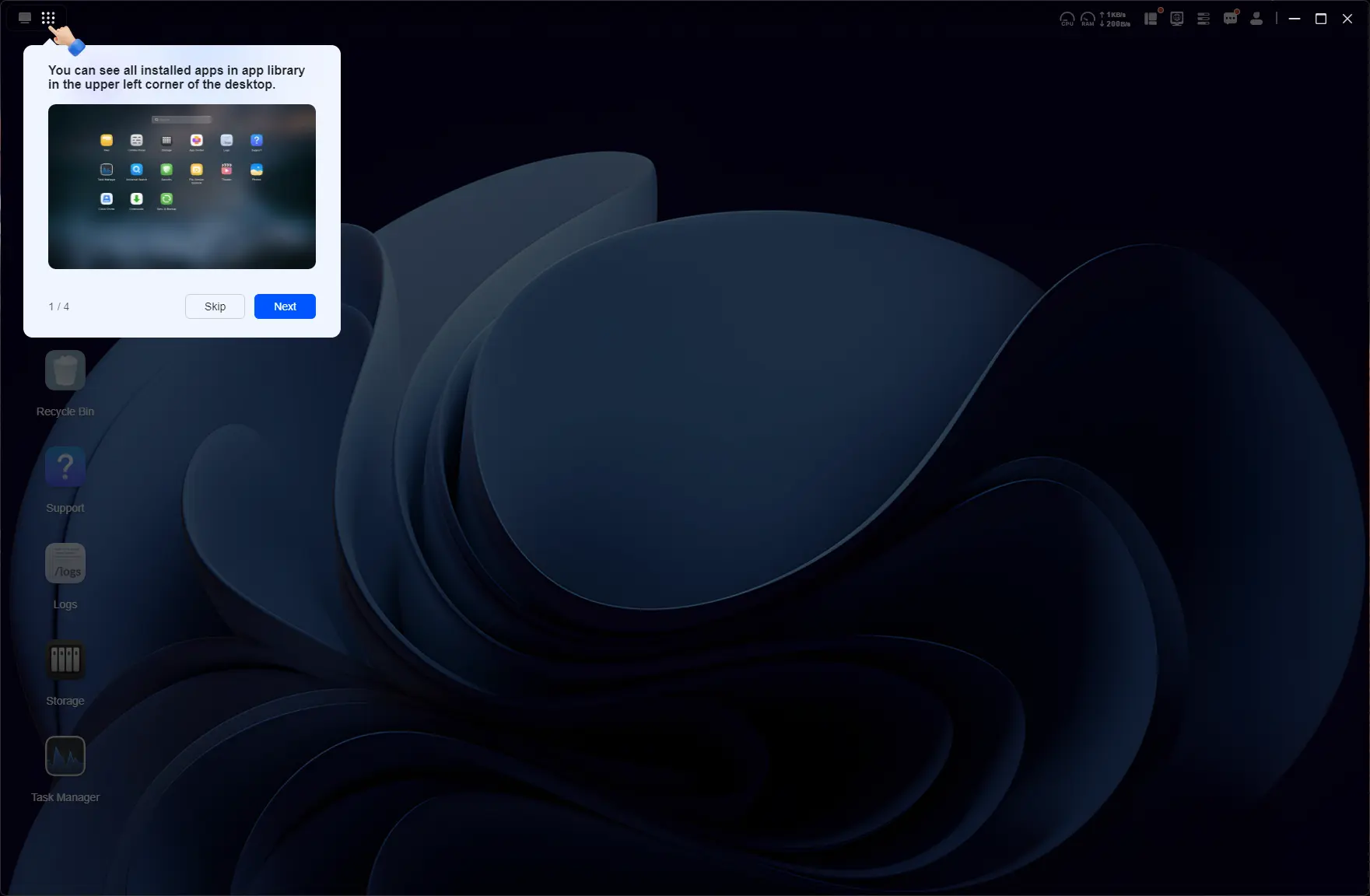
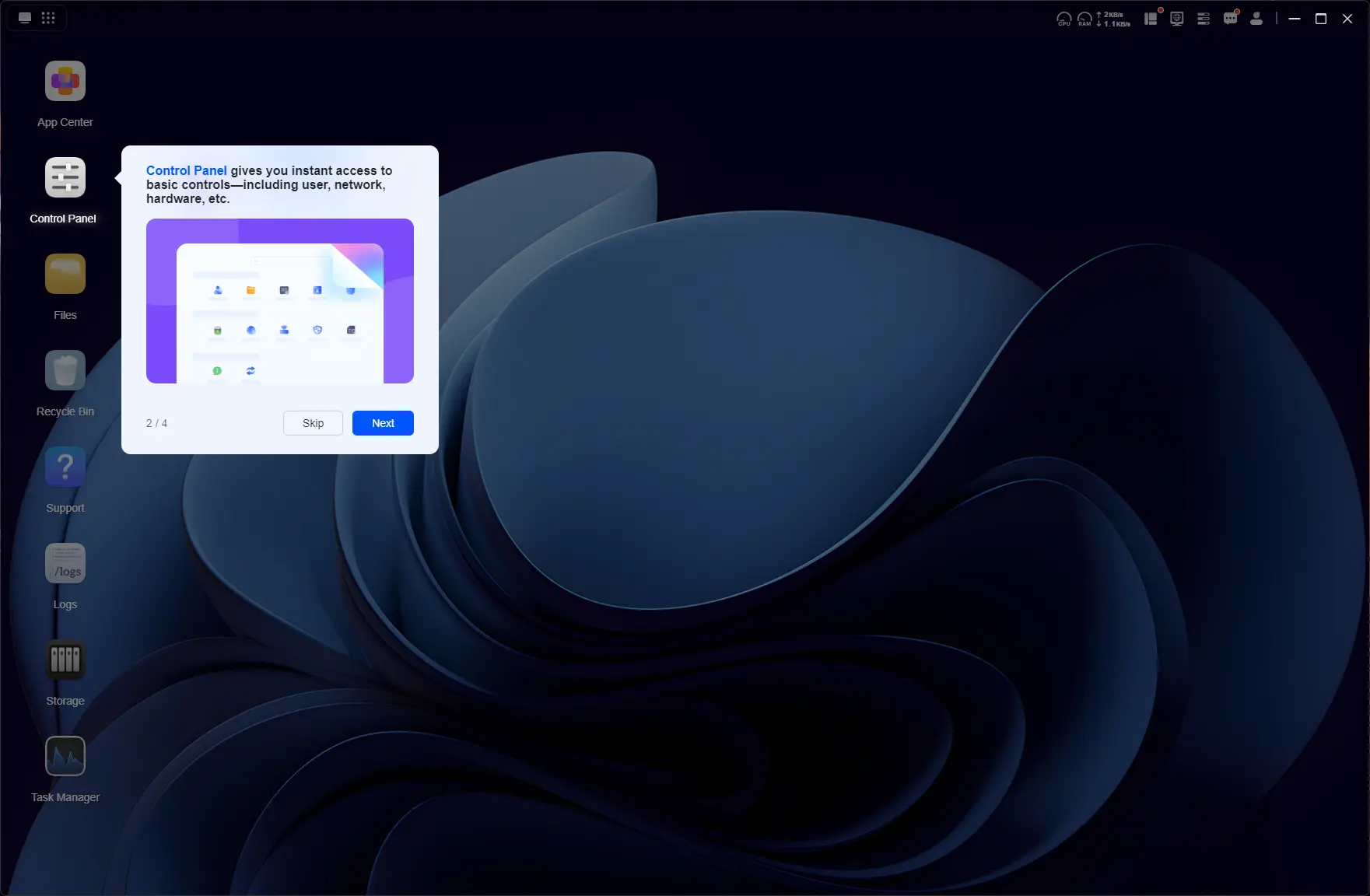
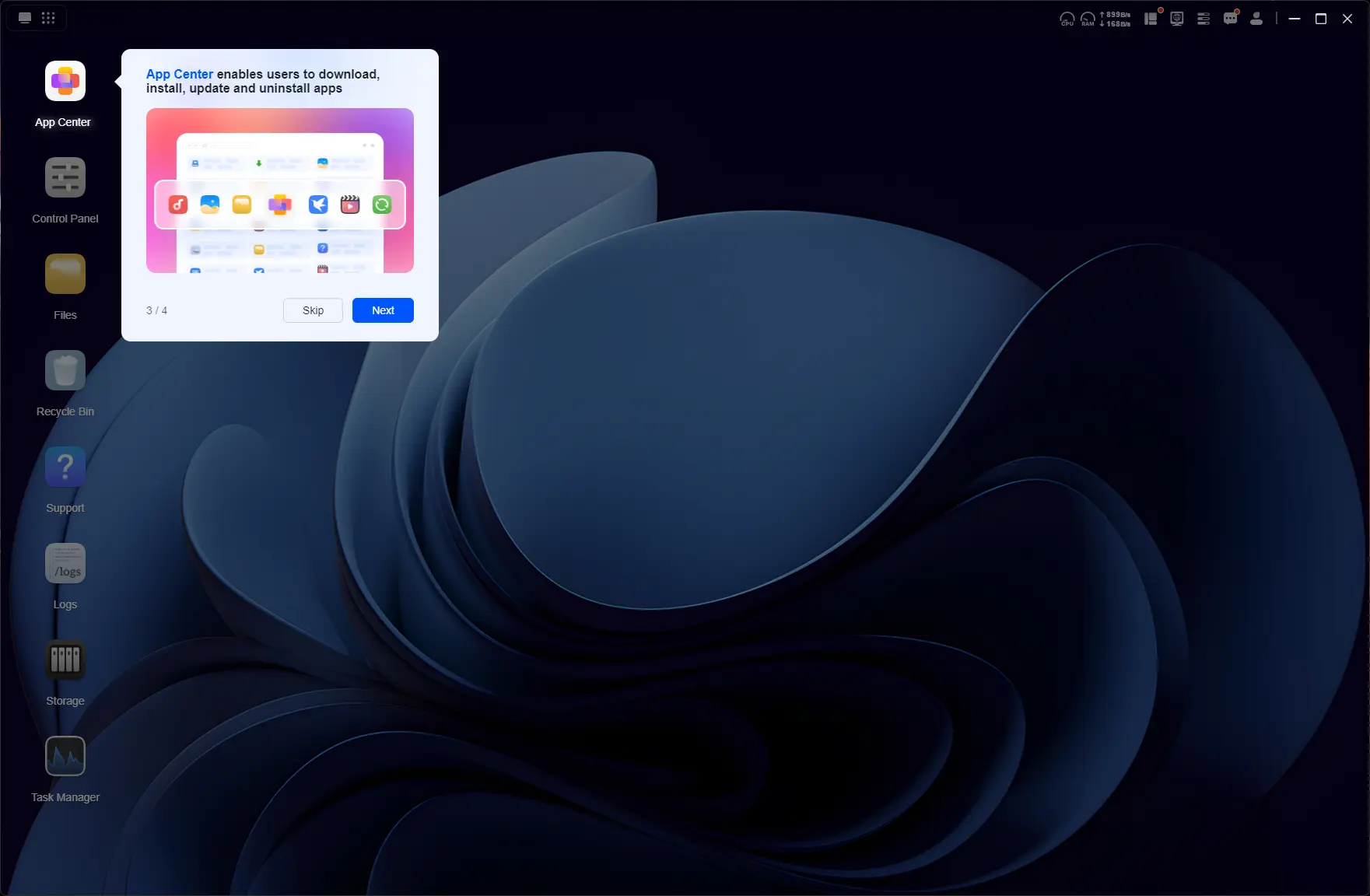
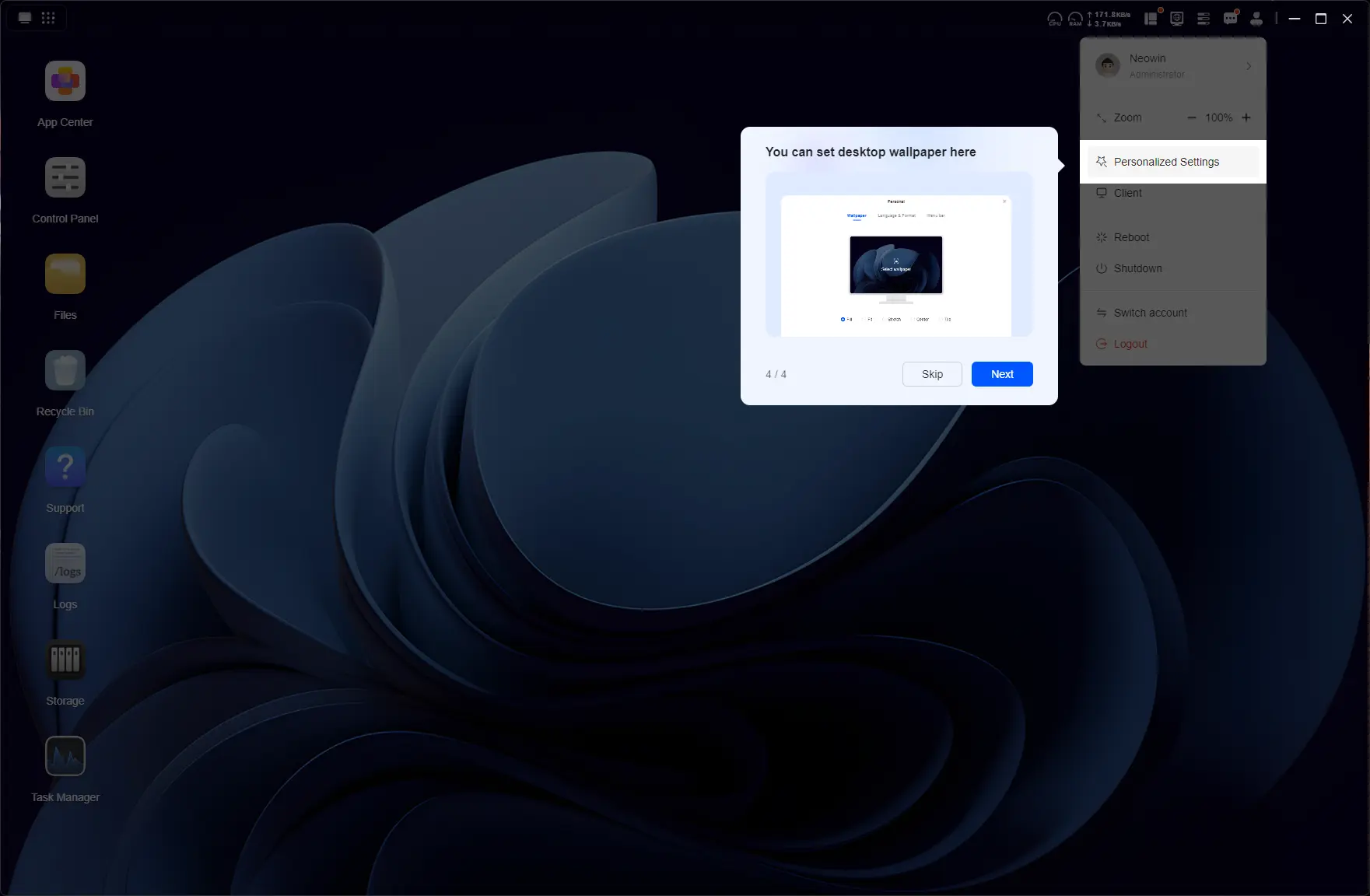
I did the setup process through the dedicated UGREEN NAS app for Windows. It is pretty straightforward and through a wizard, which you can view in full below:
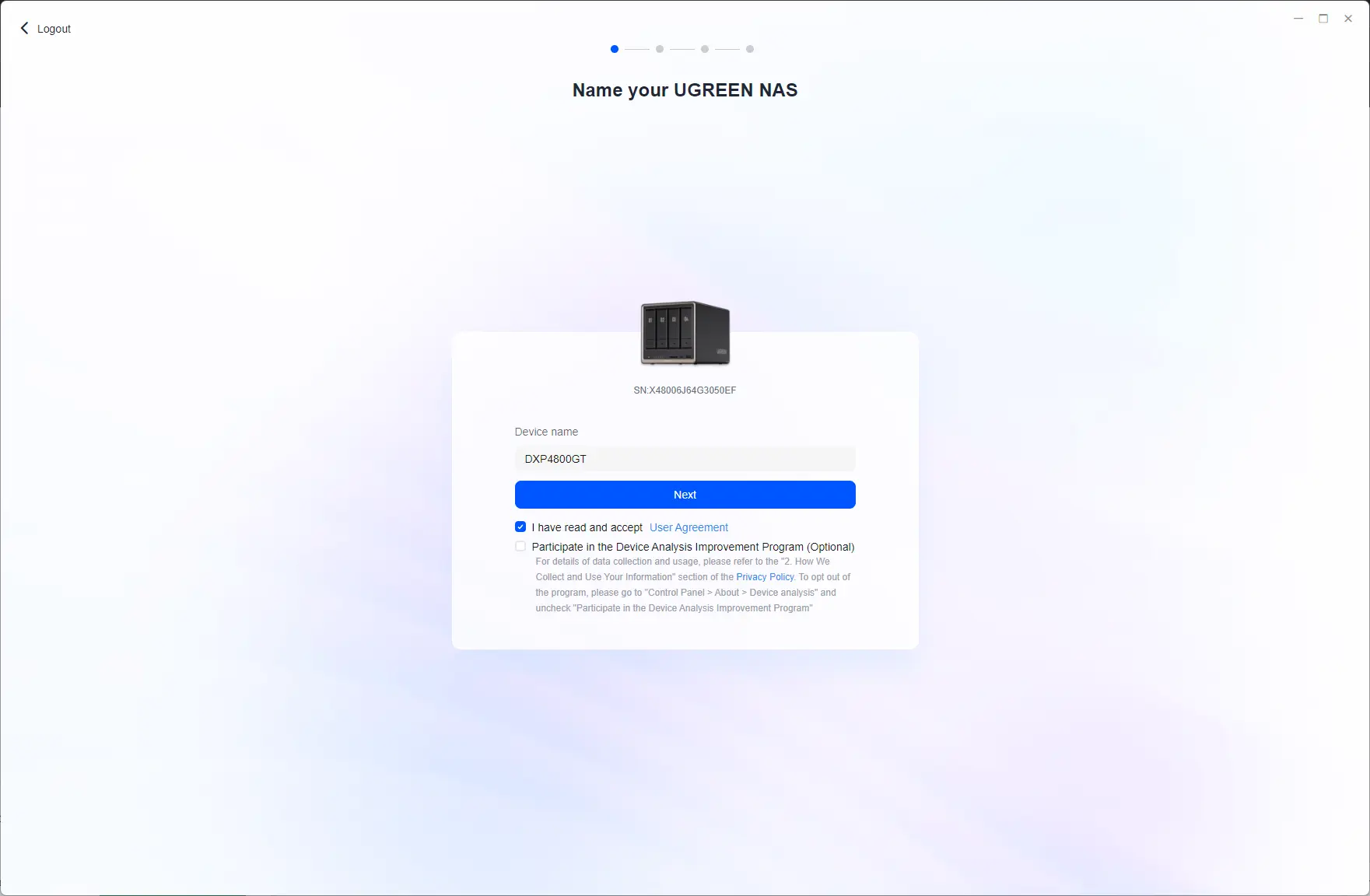
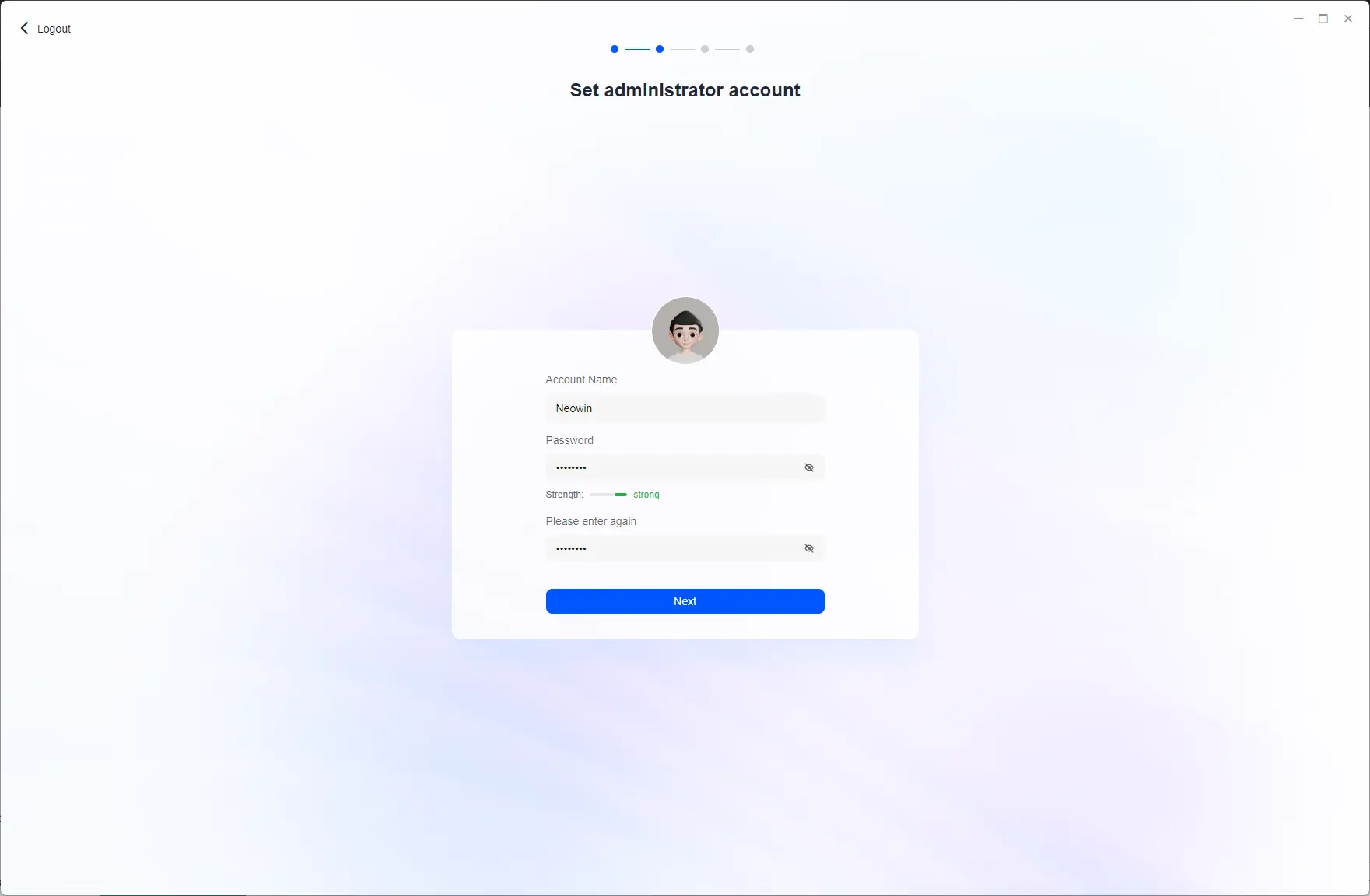
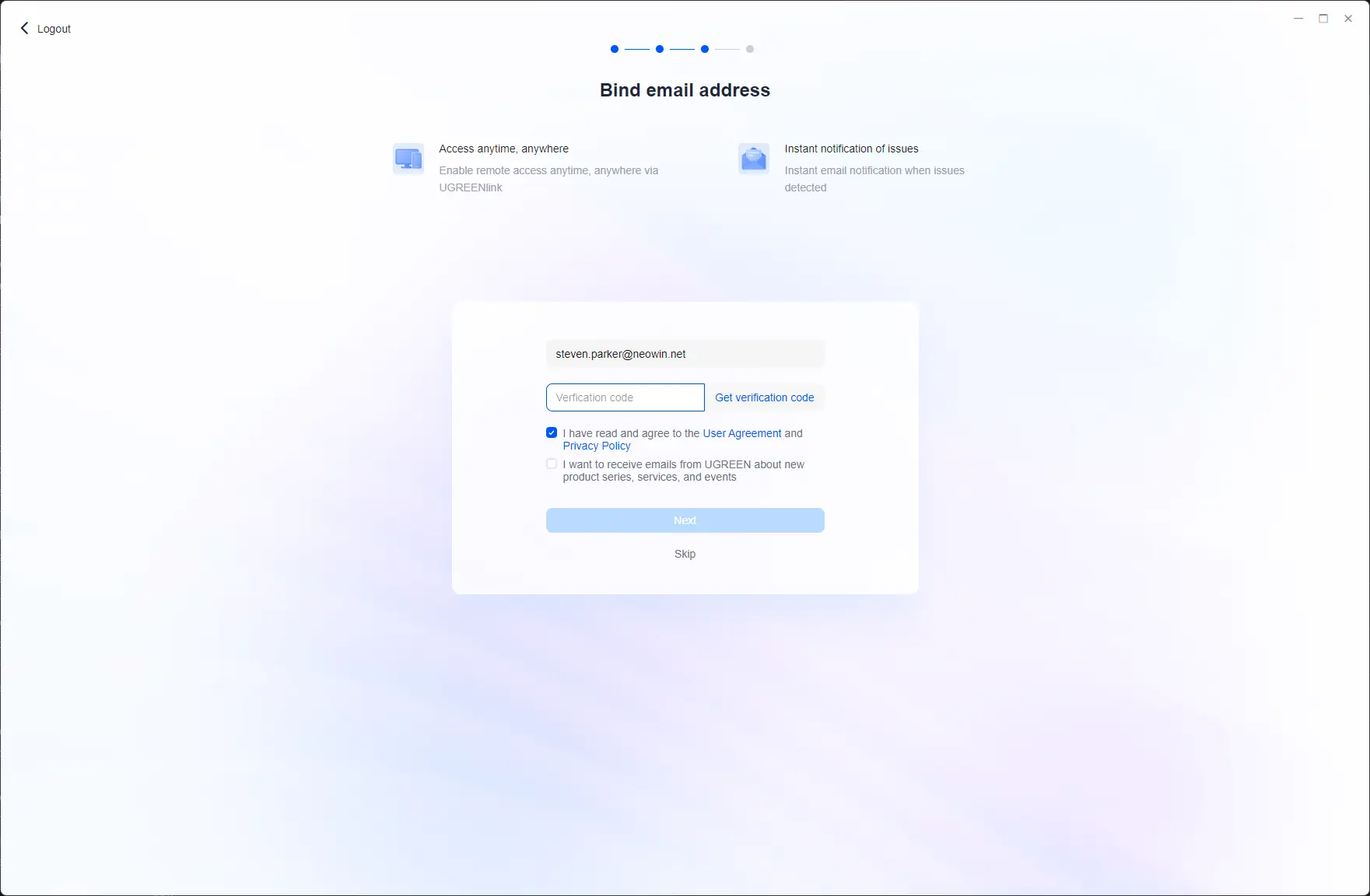
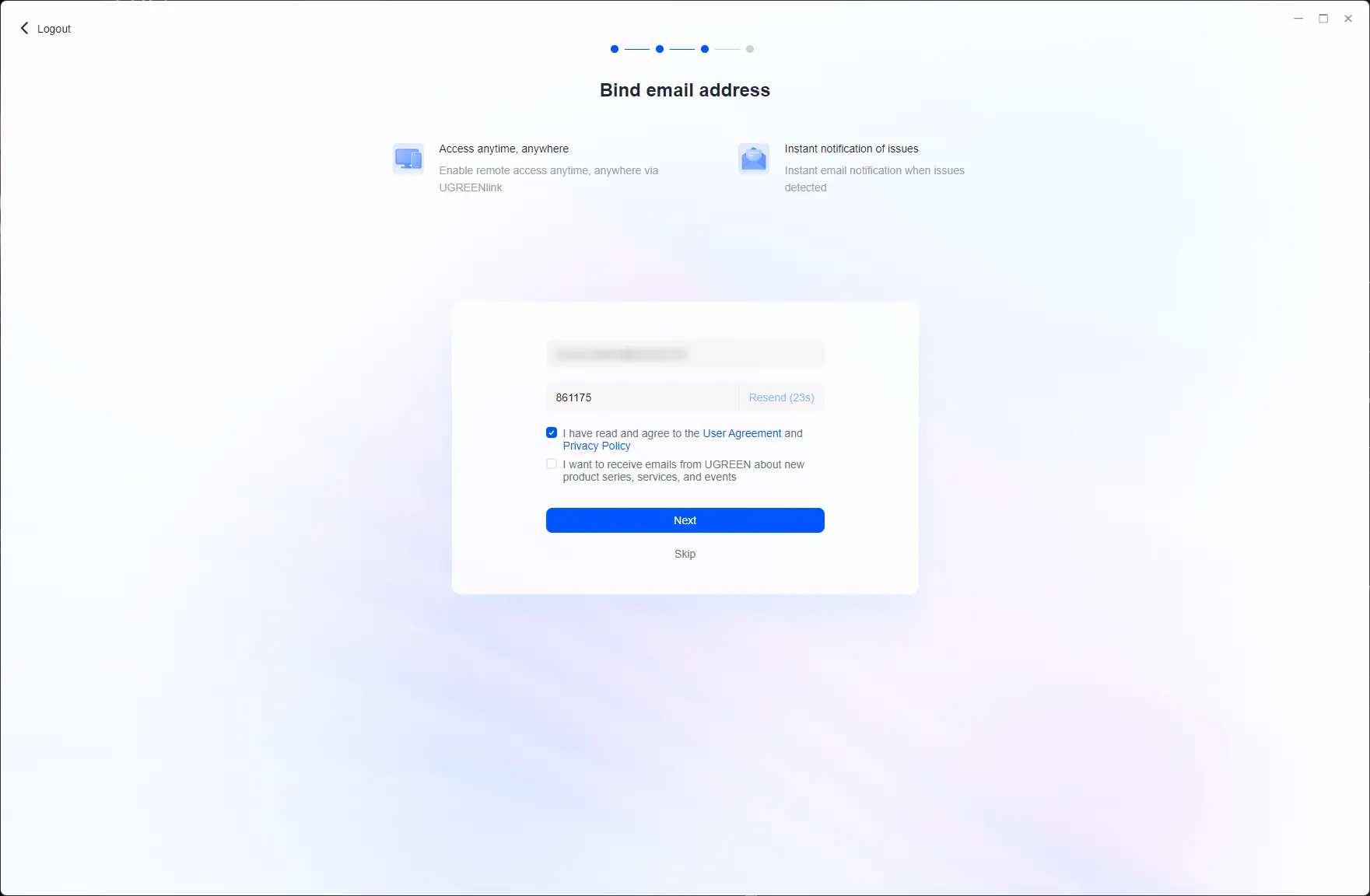
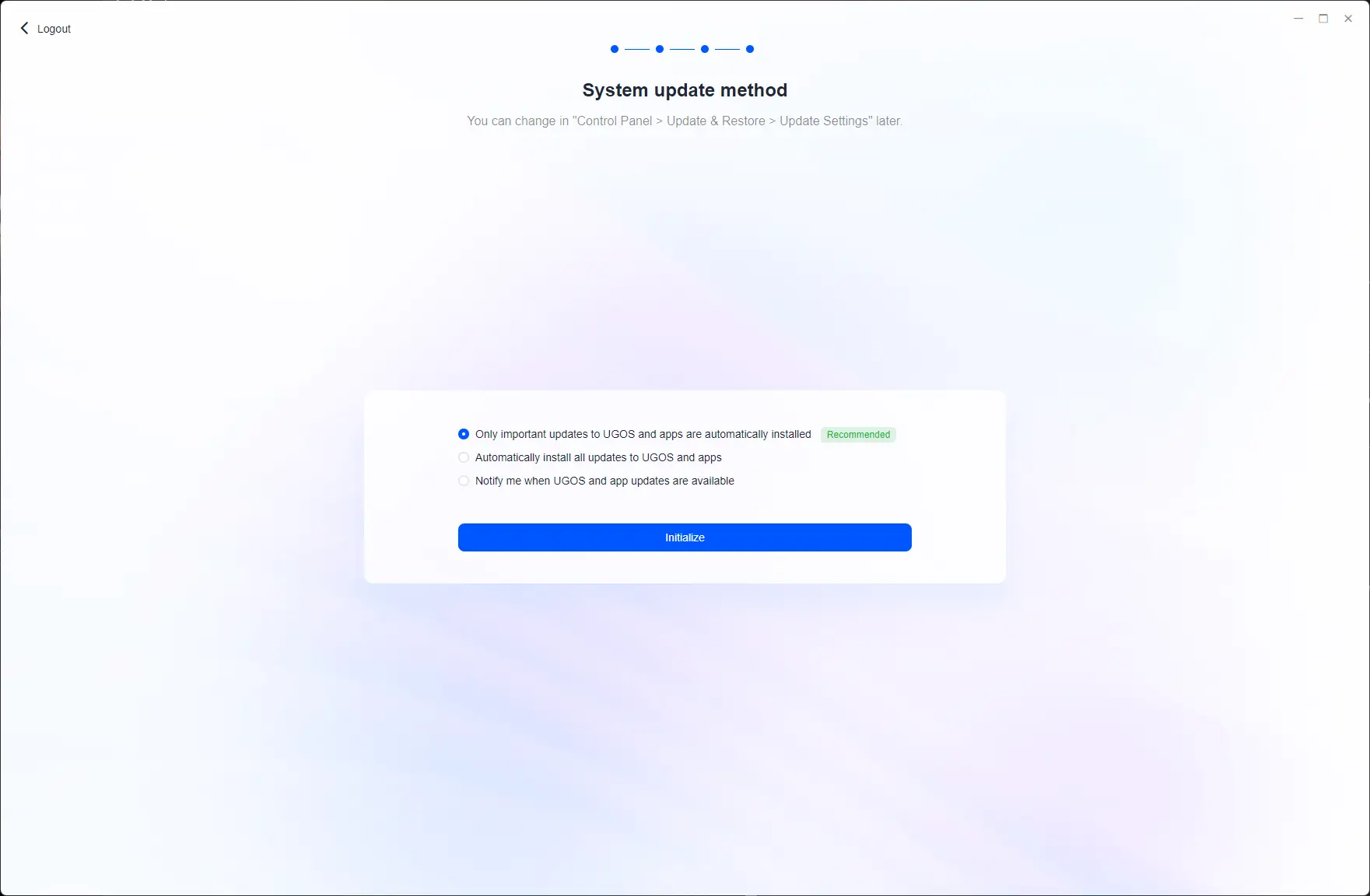

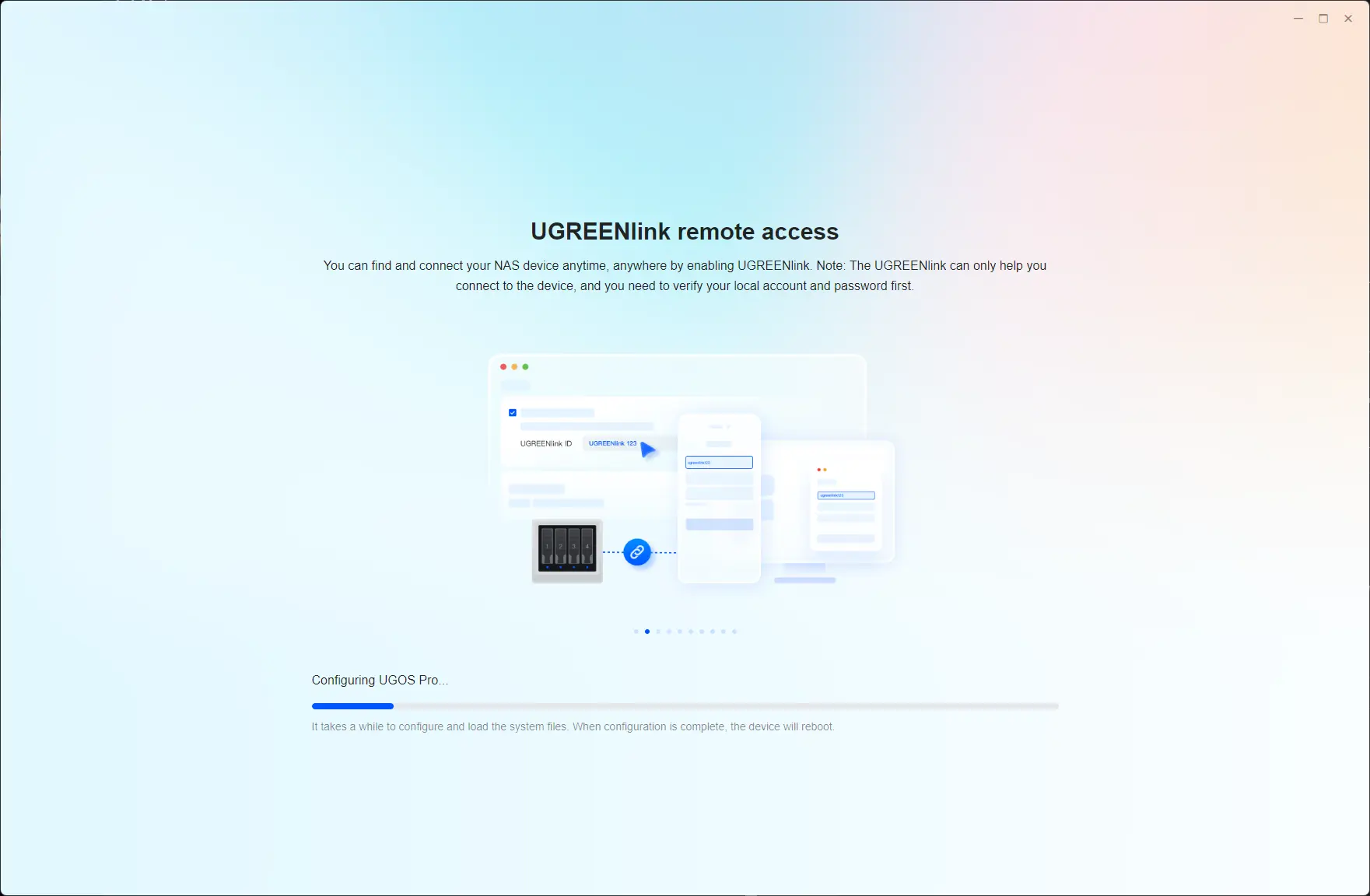
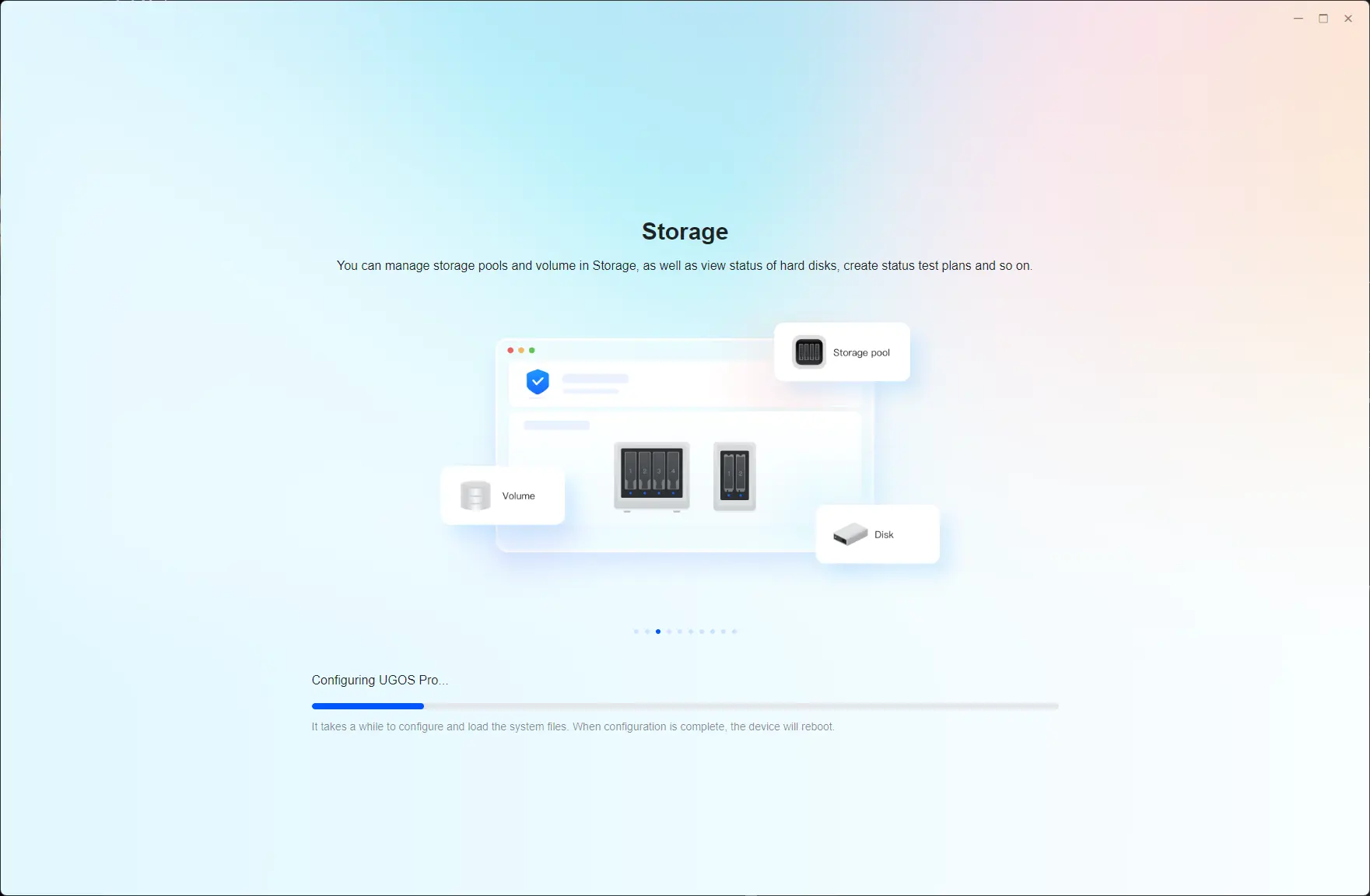
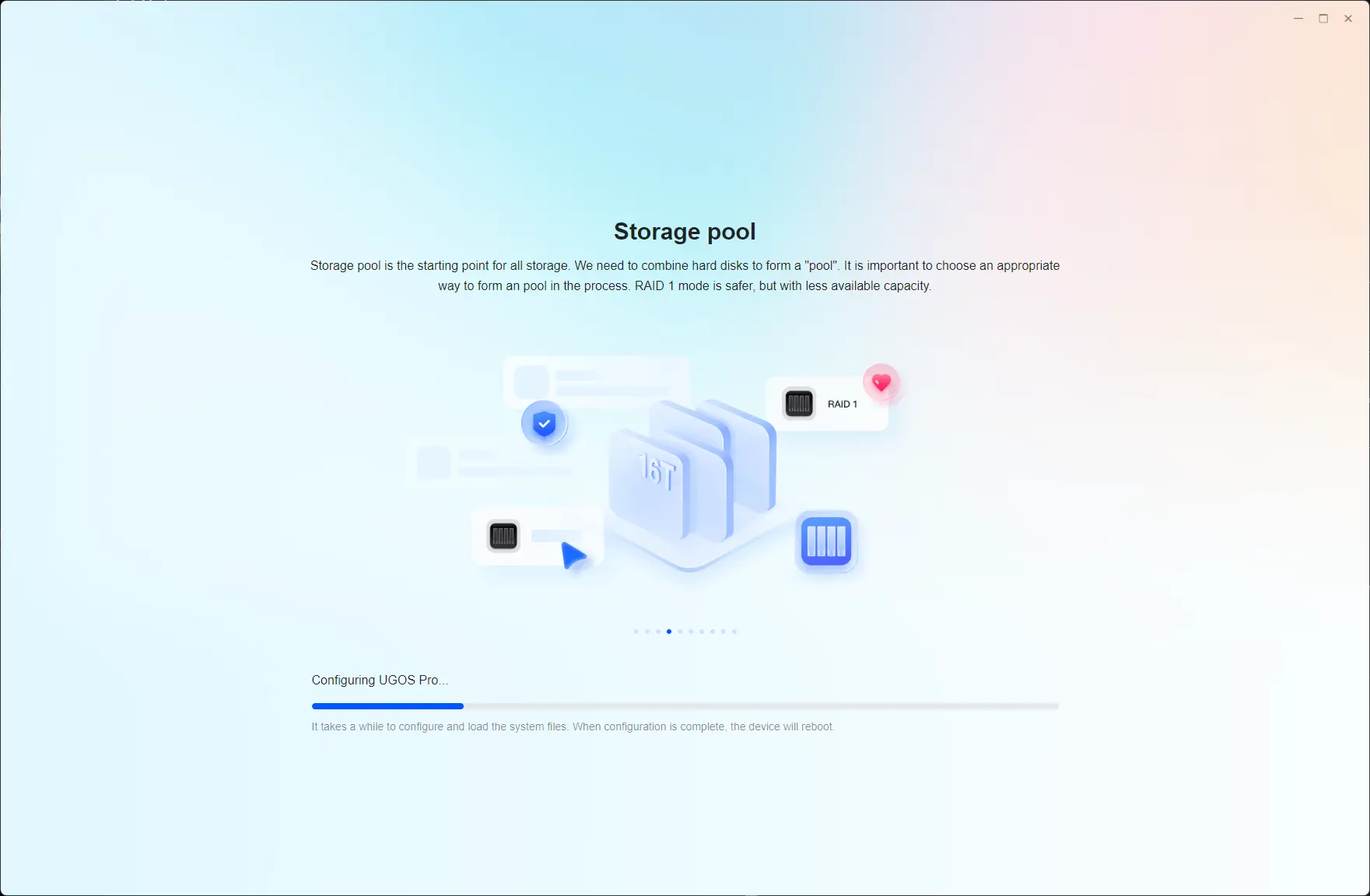
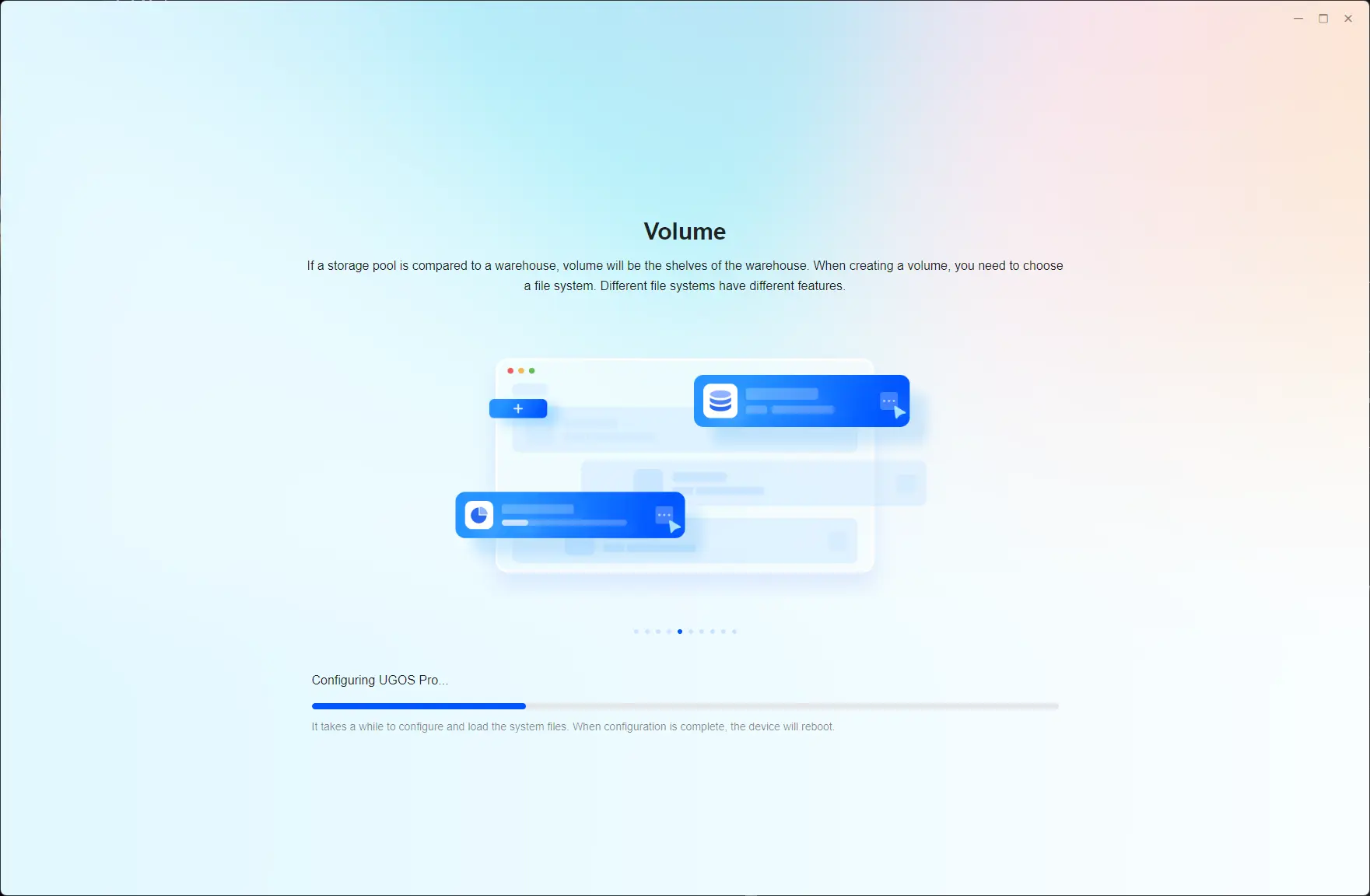
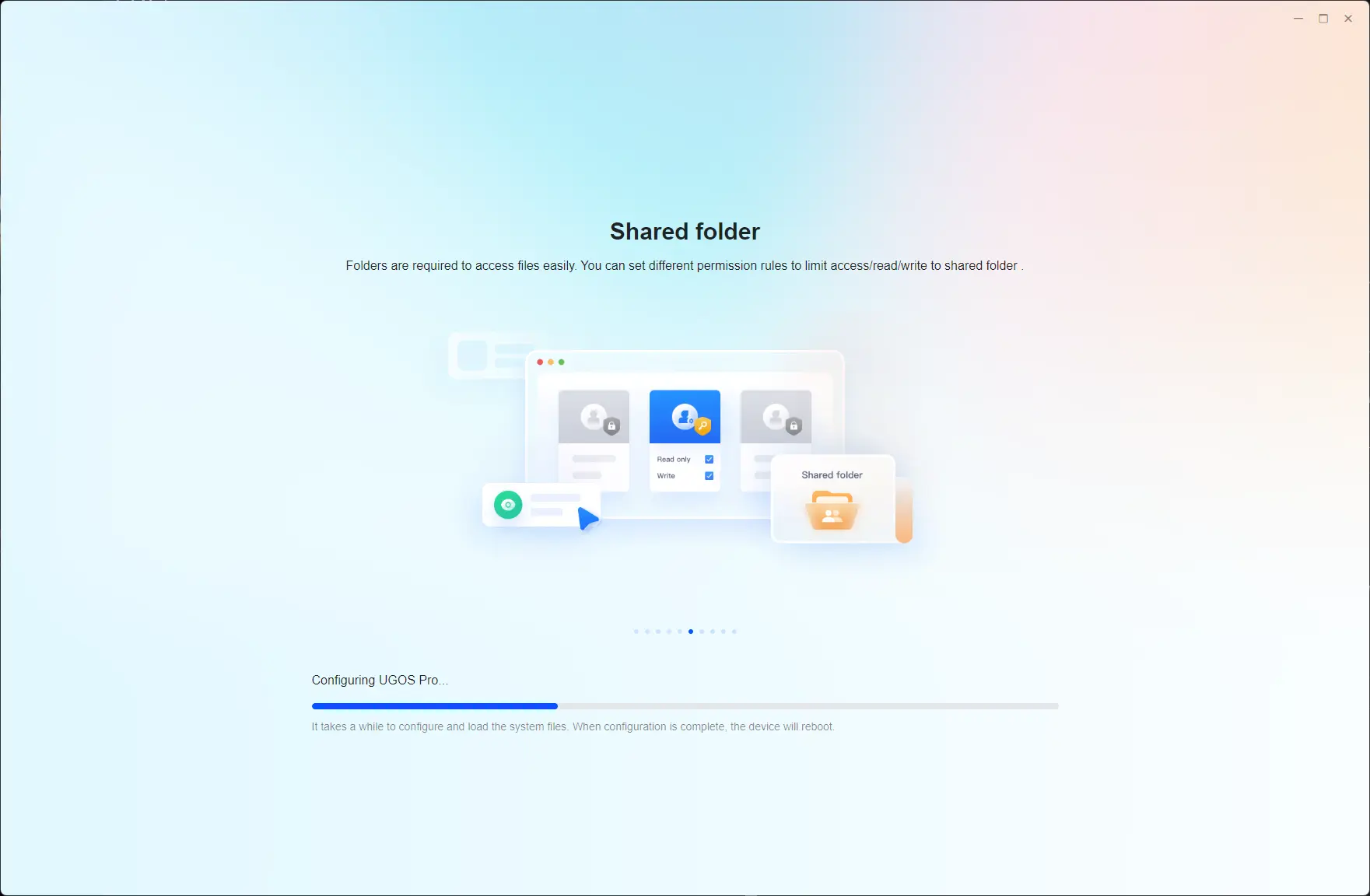
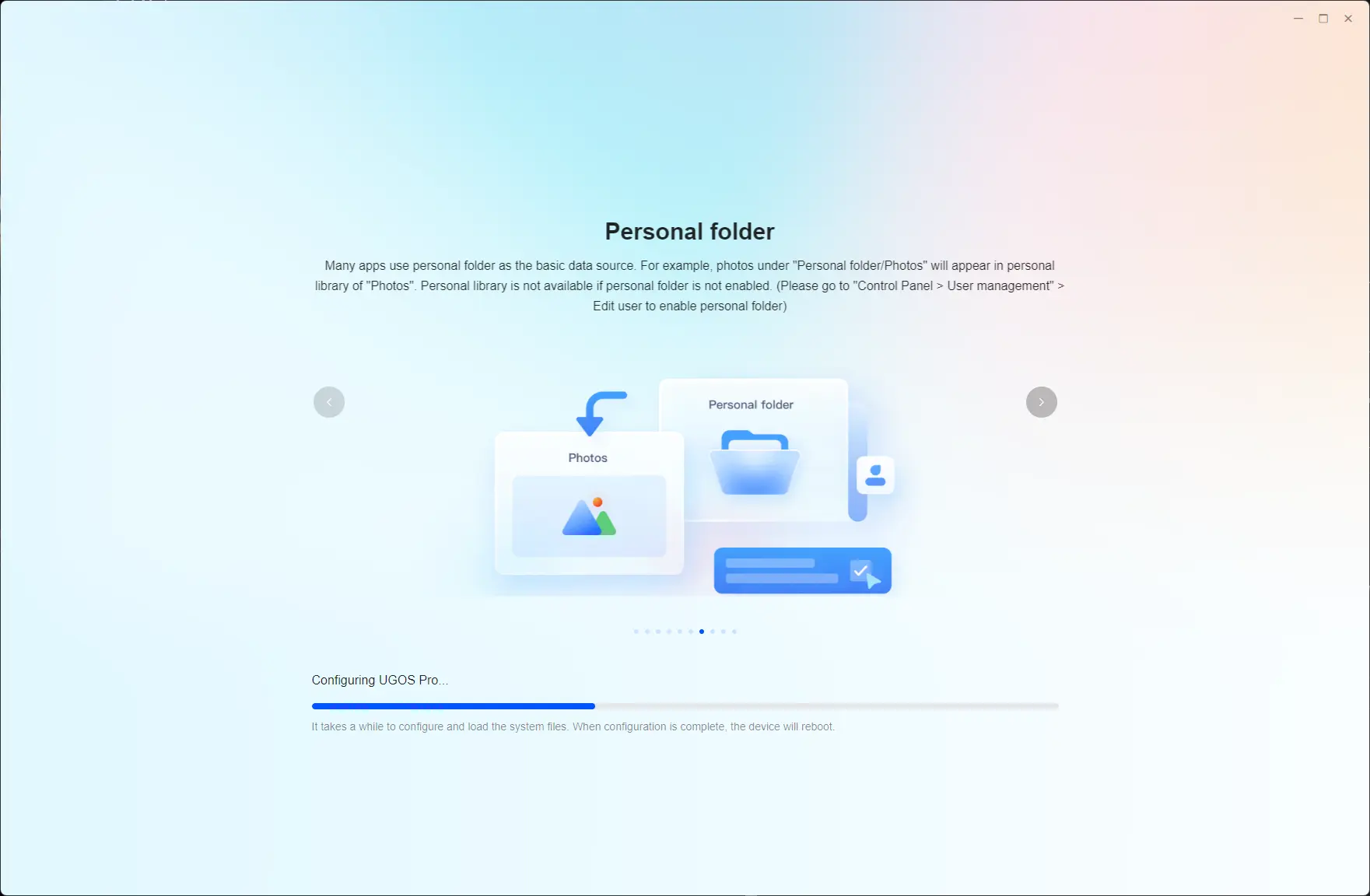
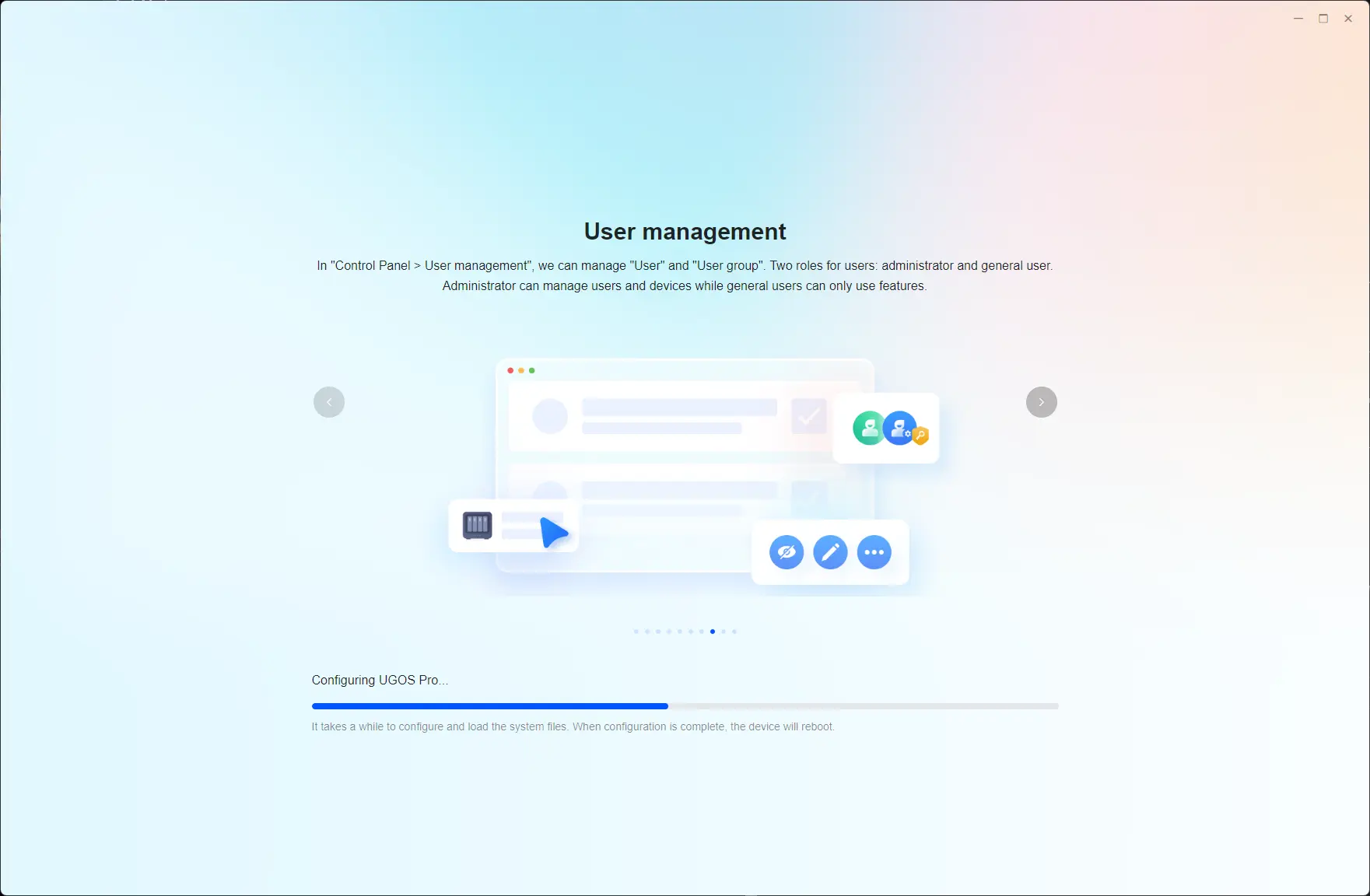
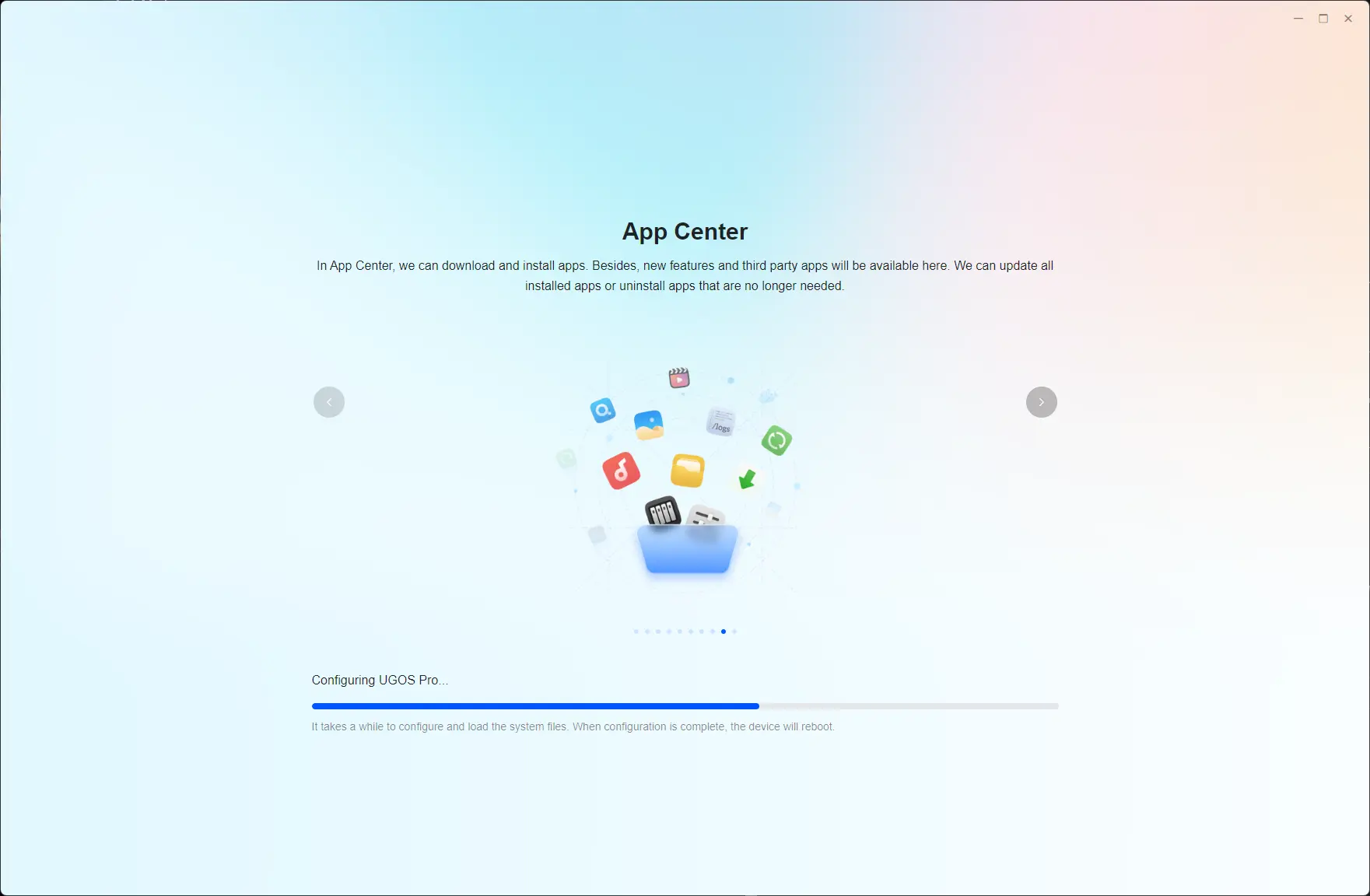
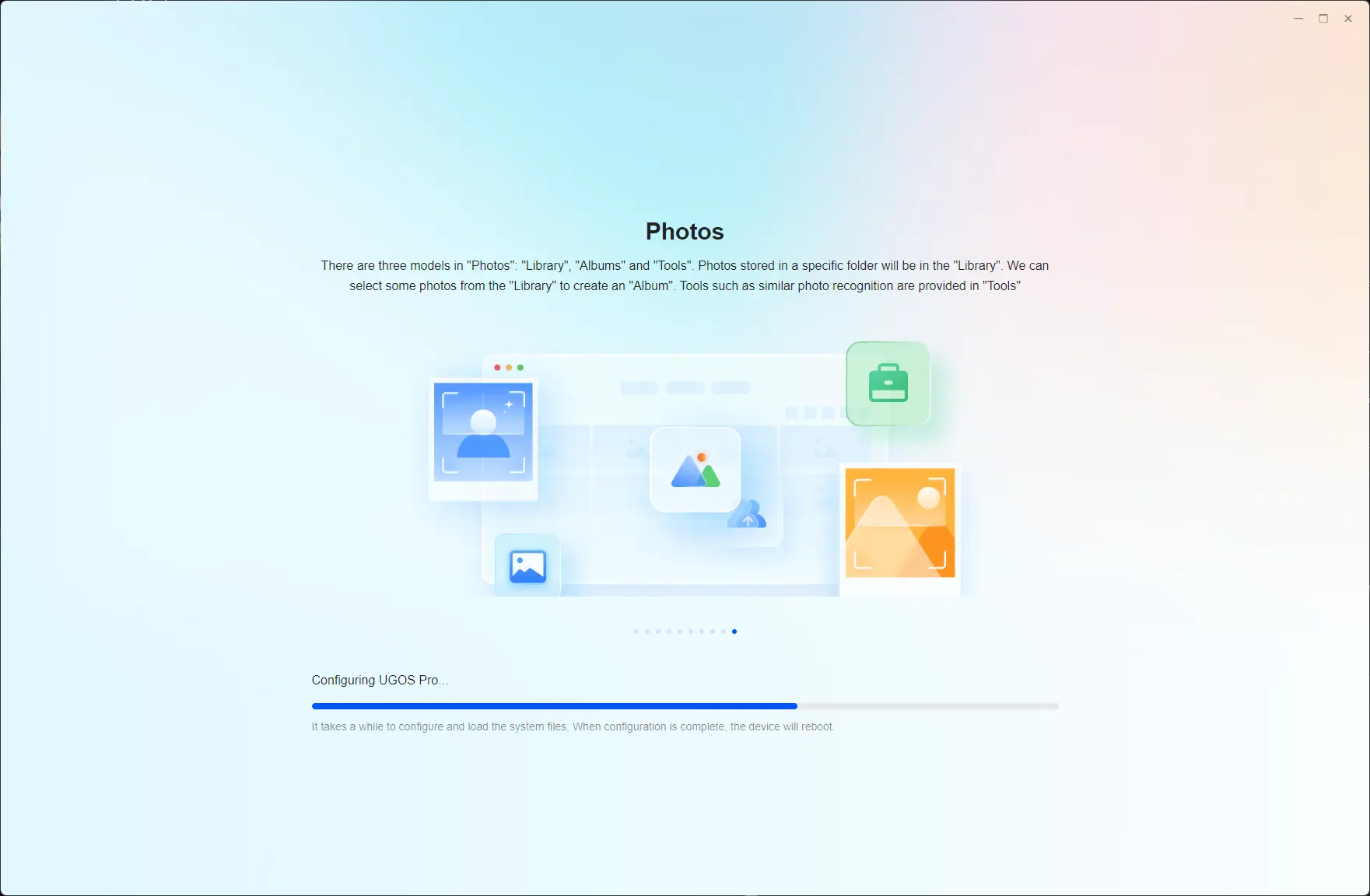
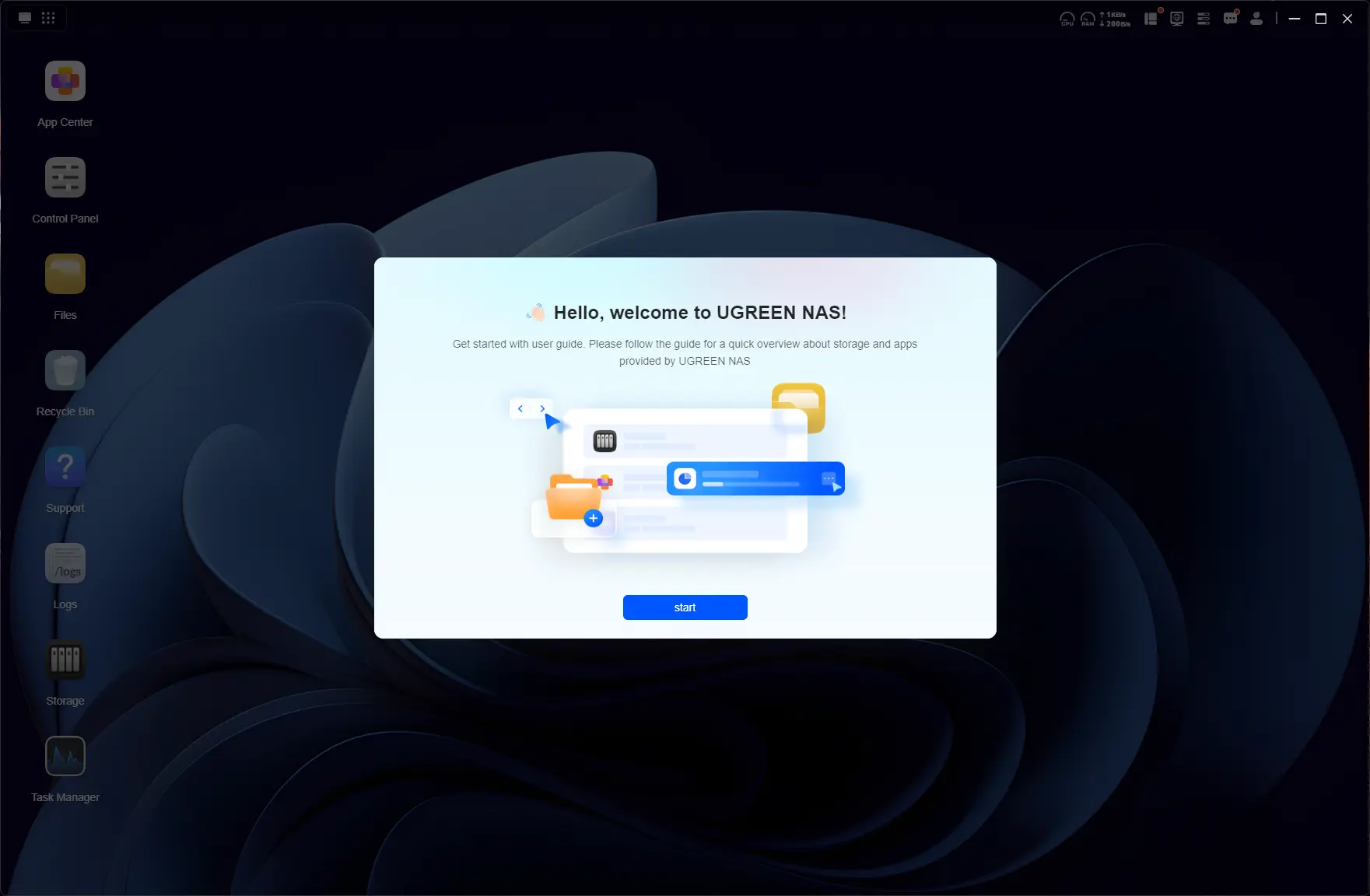
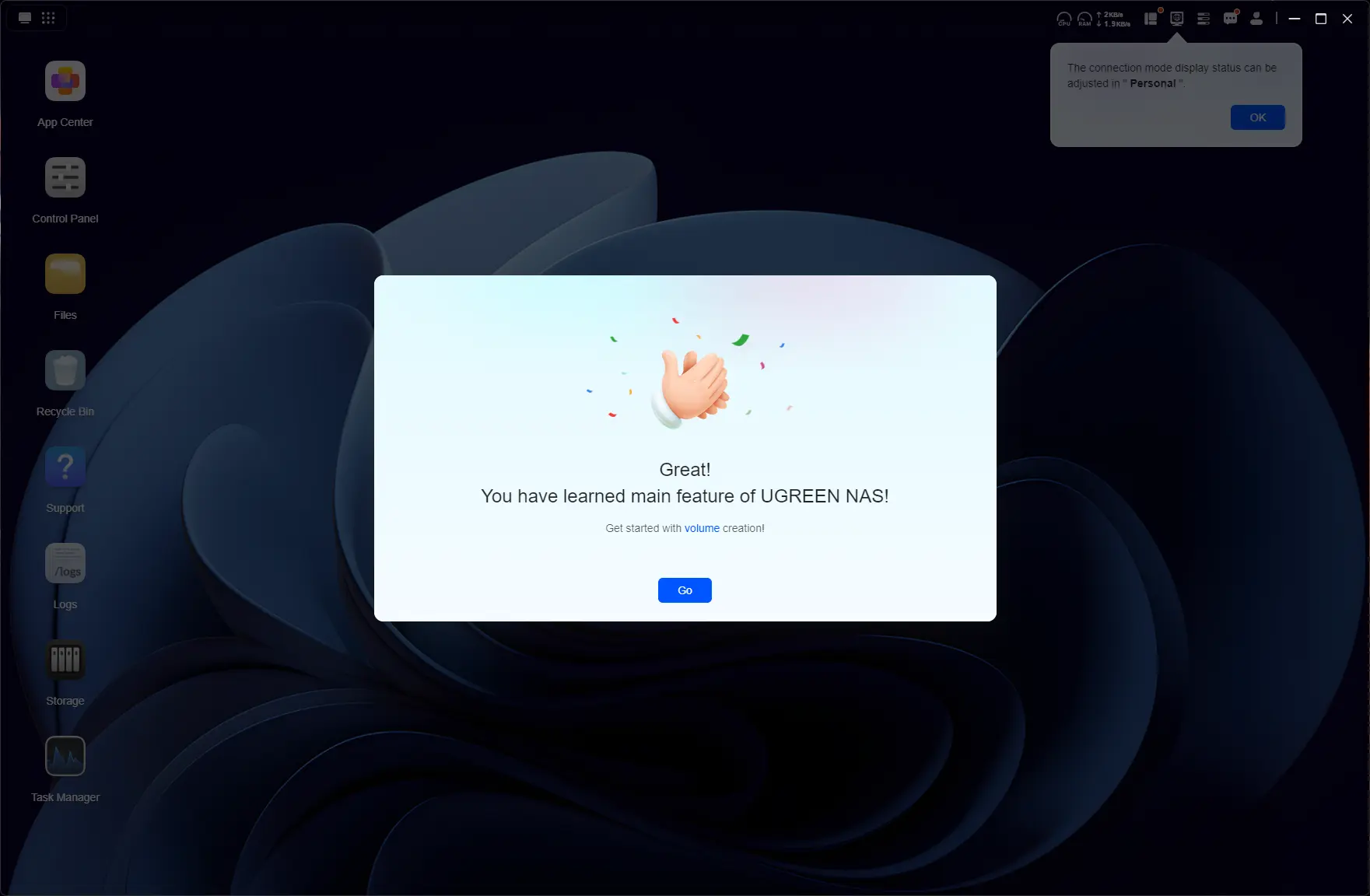
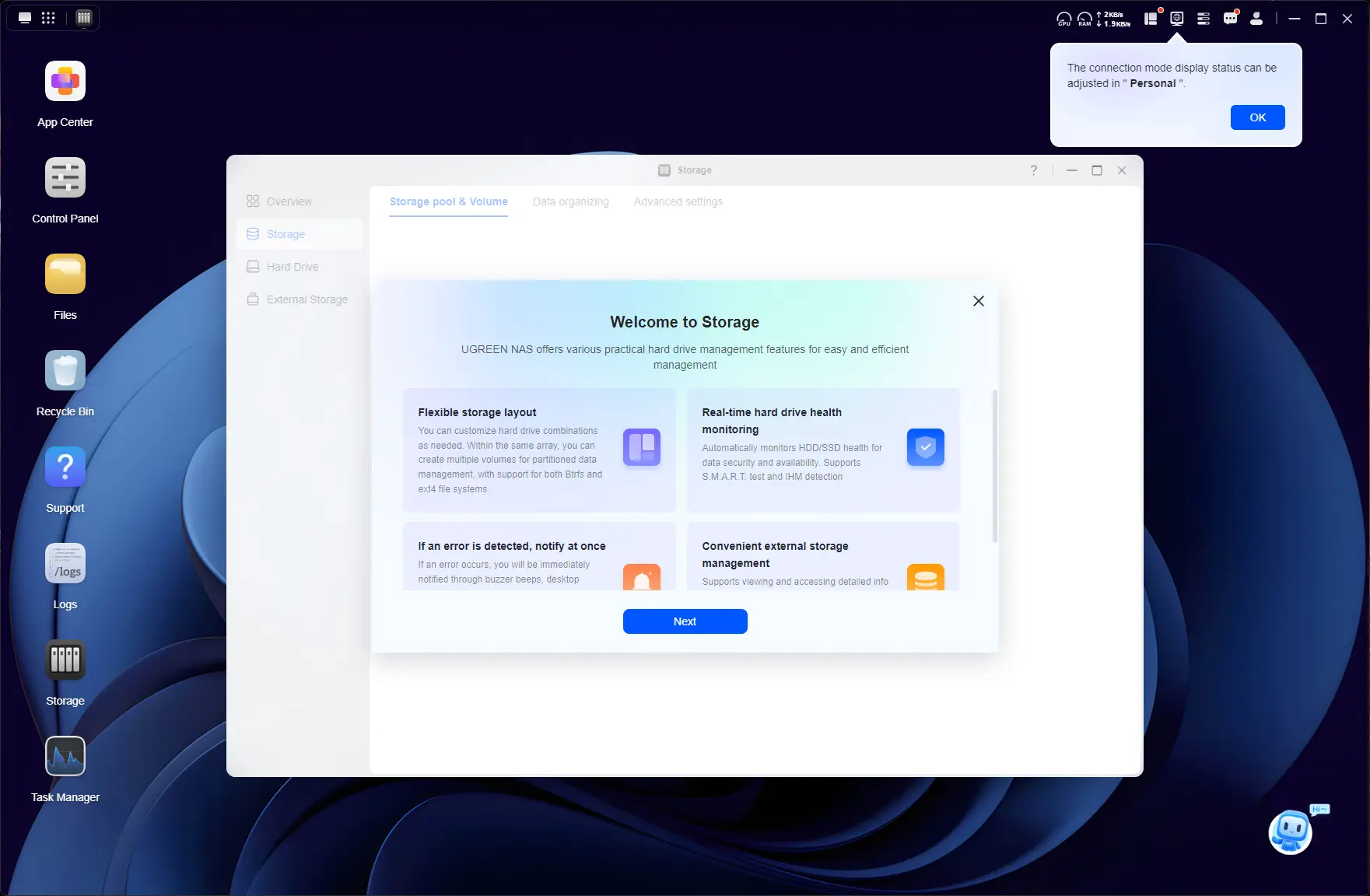
I have no complaints about the setup; everything worked, and UGOS does not decide to throw everything into a Storage Pool during this procedure, which I personally find incredibly important. It is a step you must take once the initial setup has completed (good stuff!) This means you will be able to determine exactly which drives and what drives will make up the Storage Pool(s).
As you may have seen from the teardown, the DXP4800 GT includes a 64 GB eMMC drive, which is where UGOS lives.
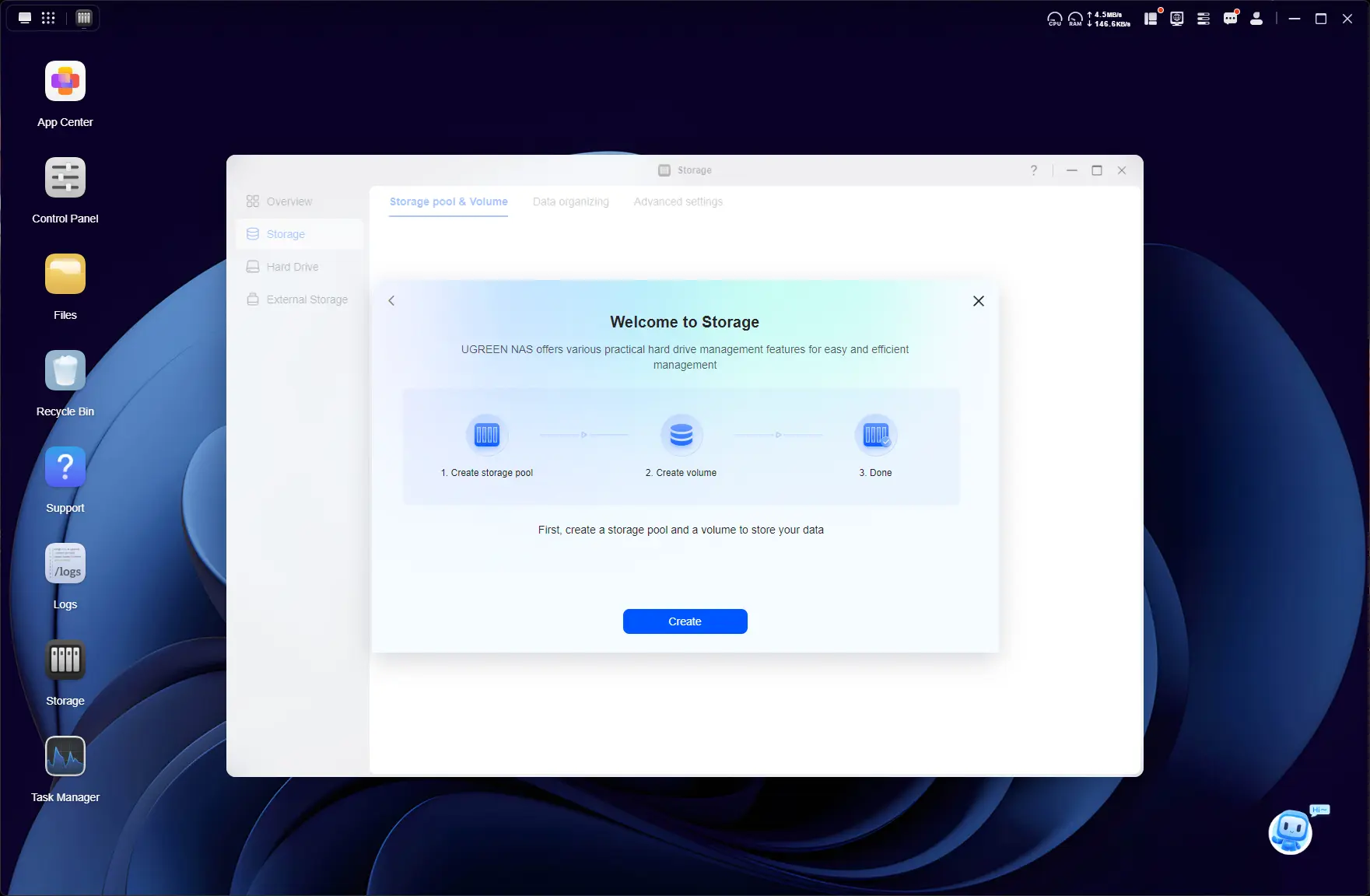
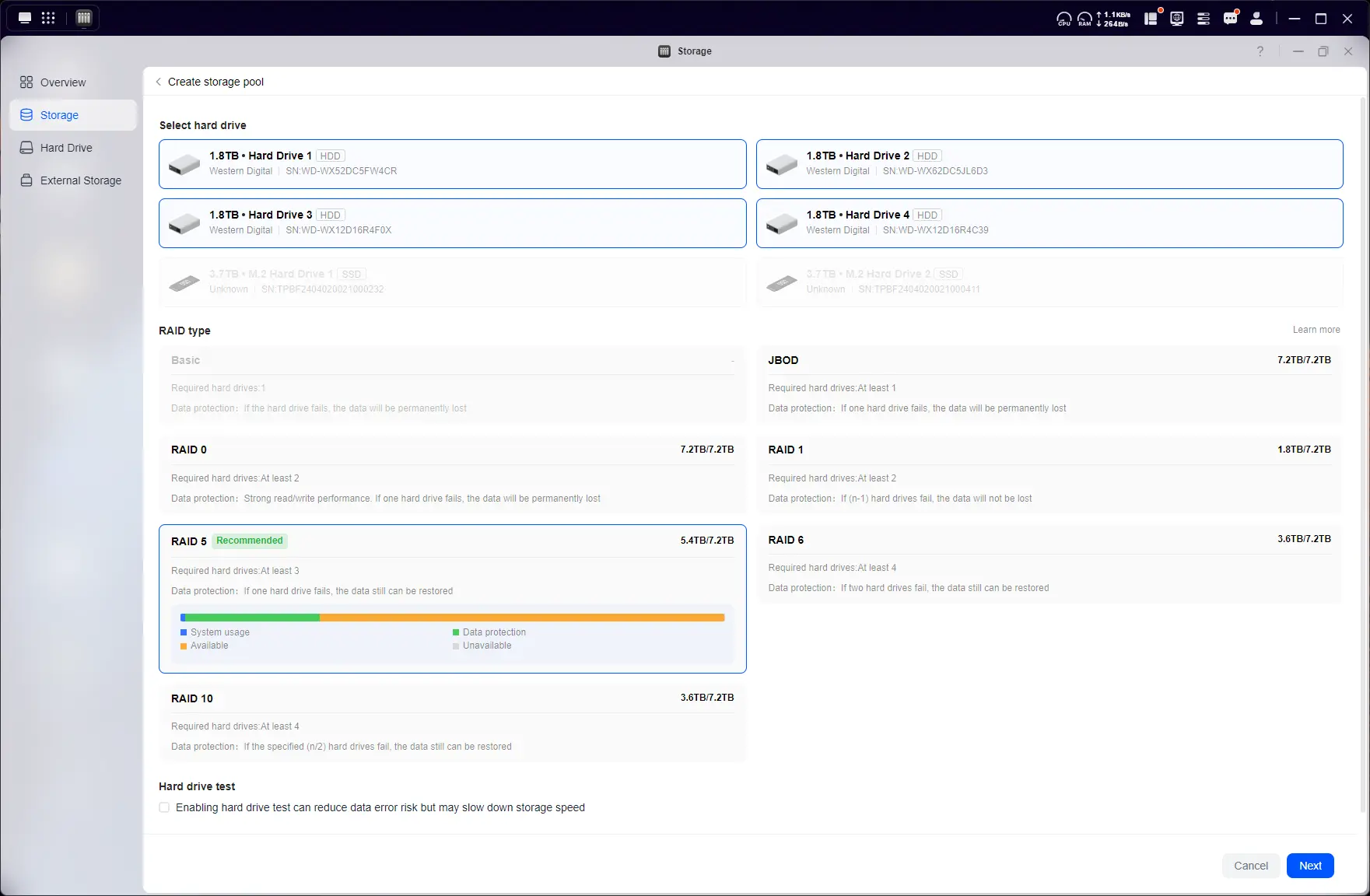
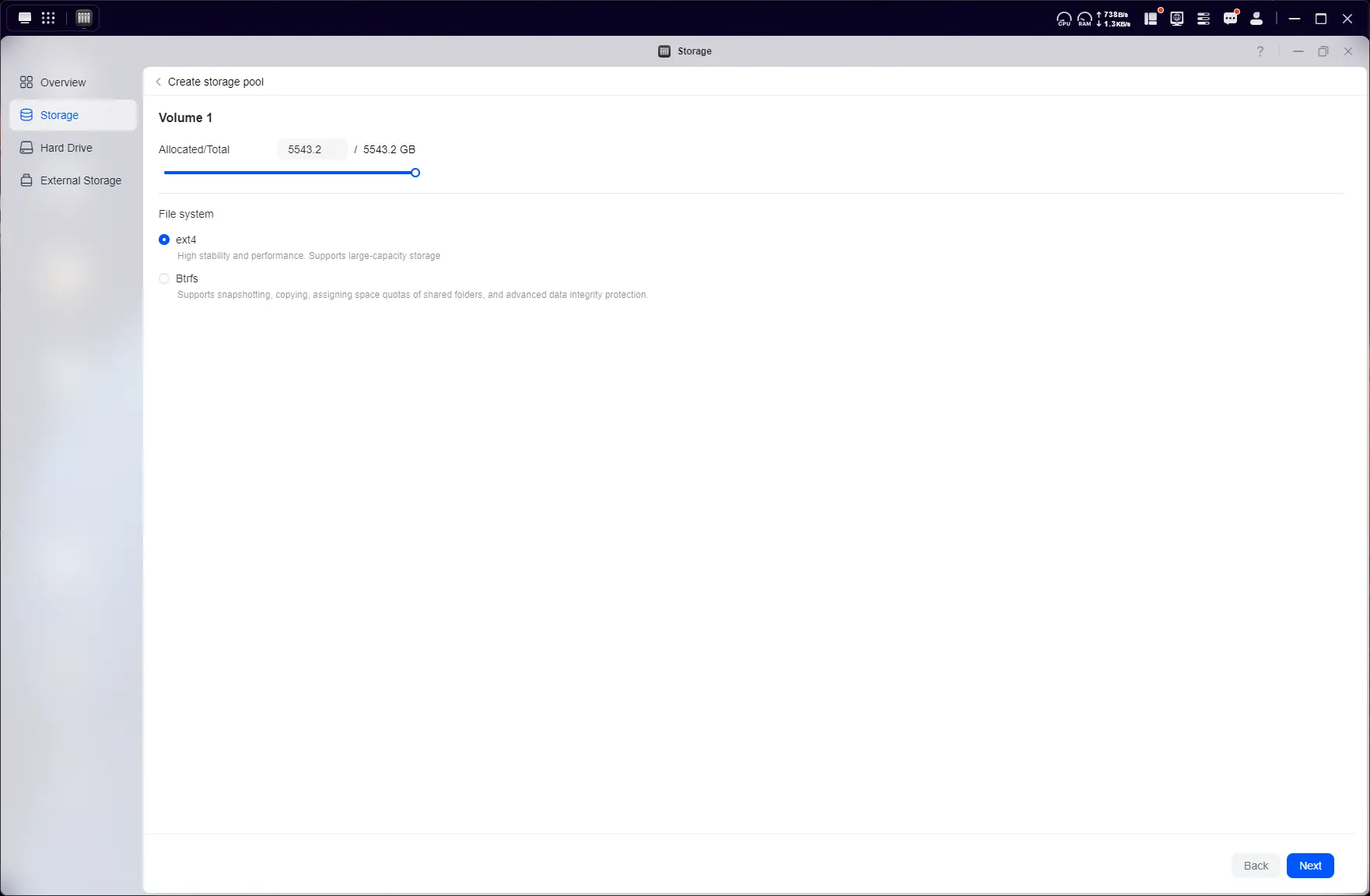
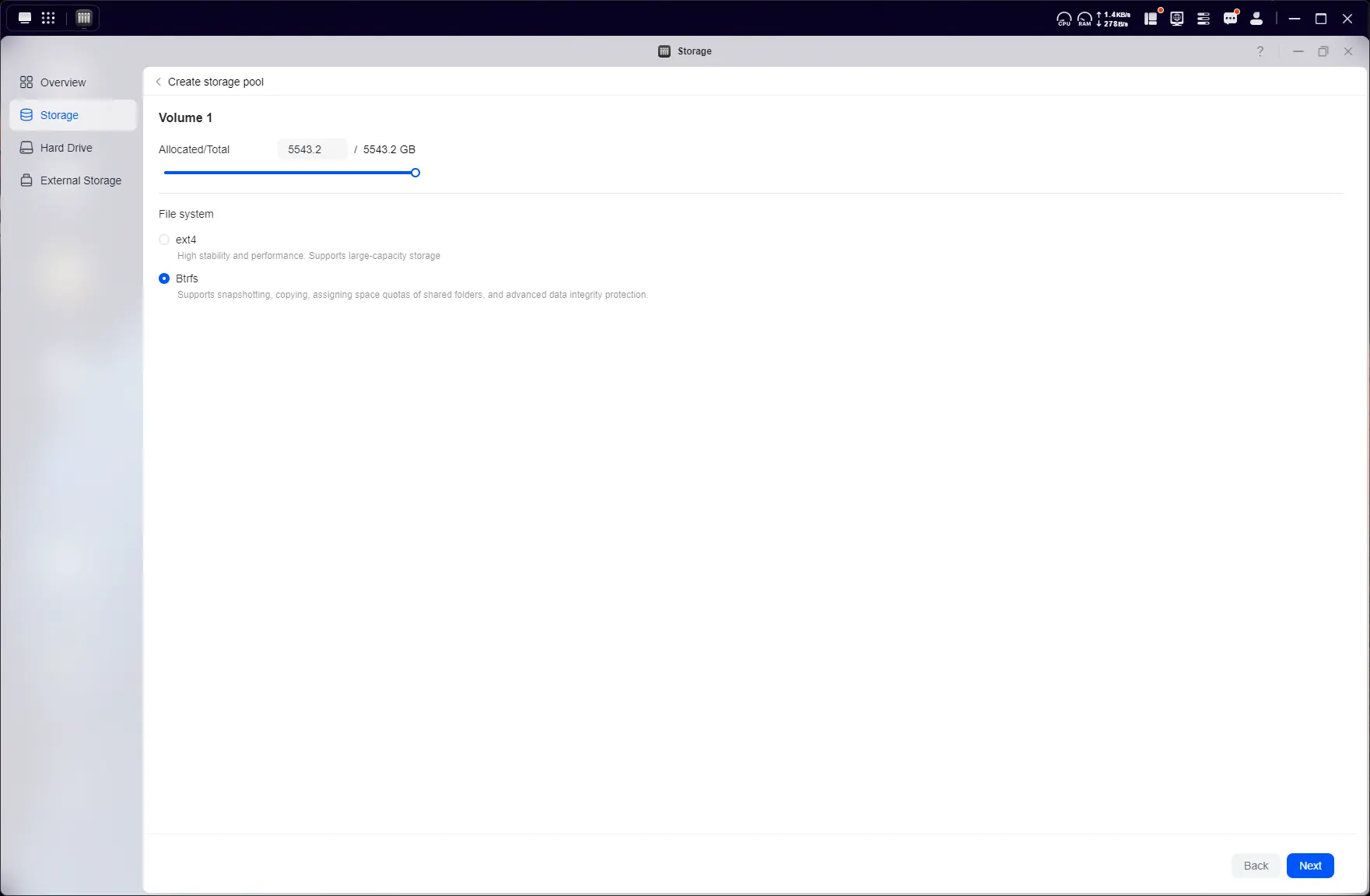
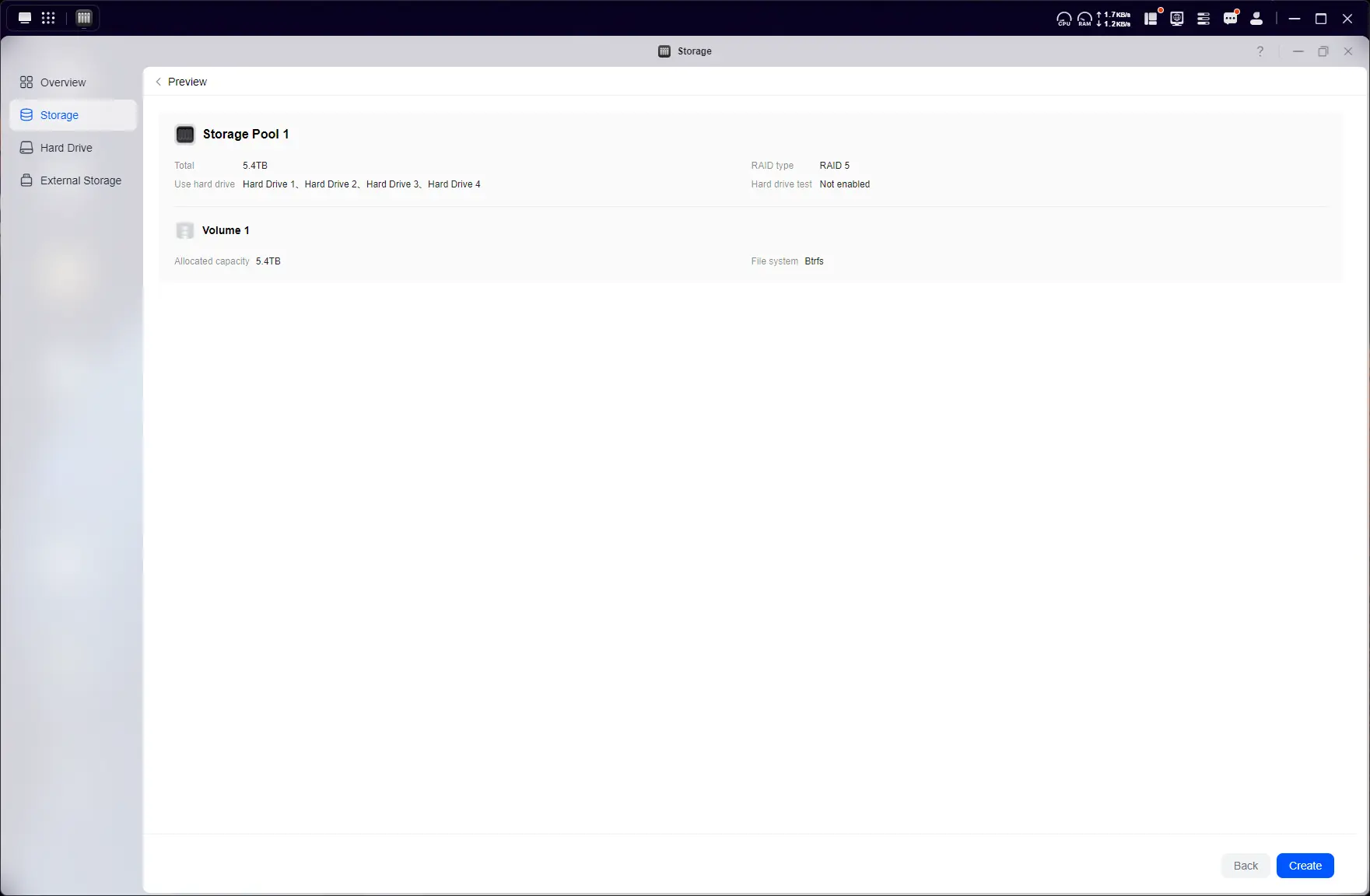
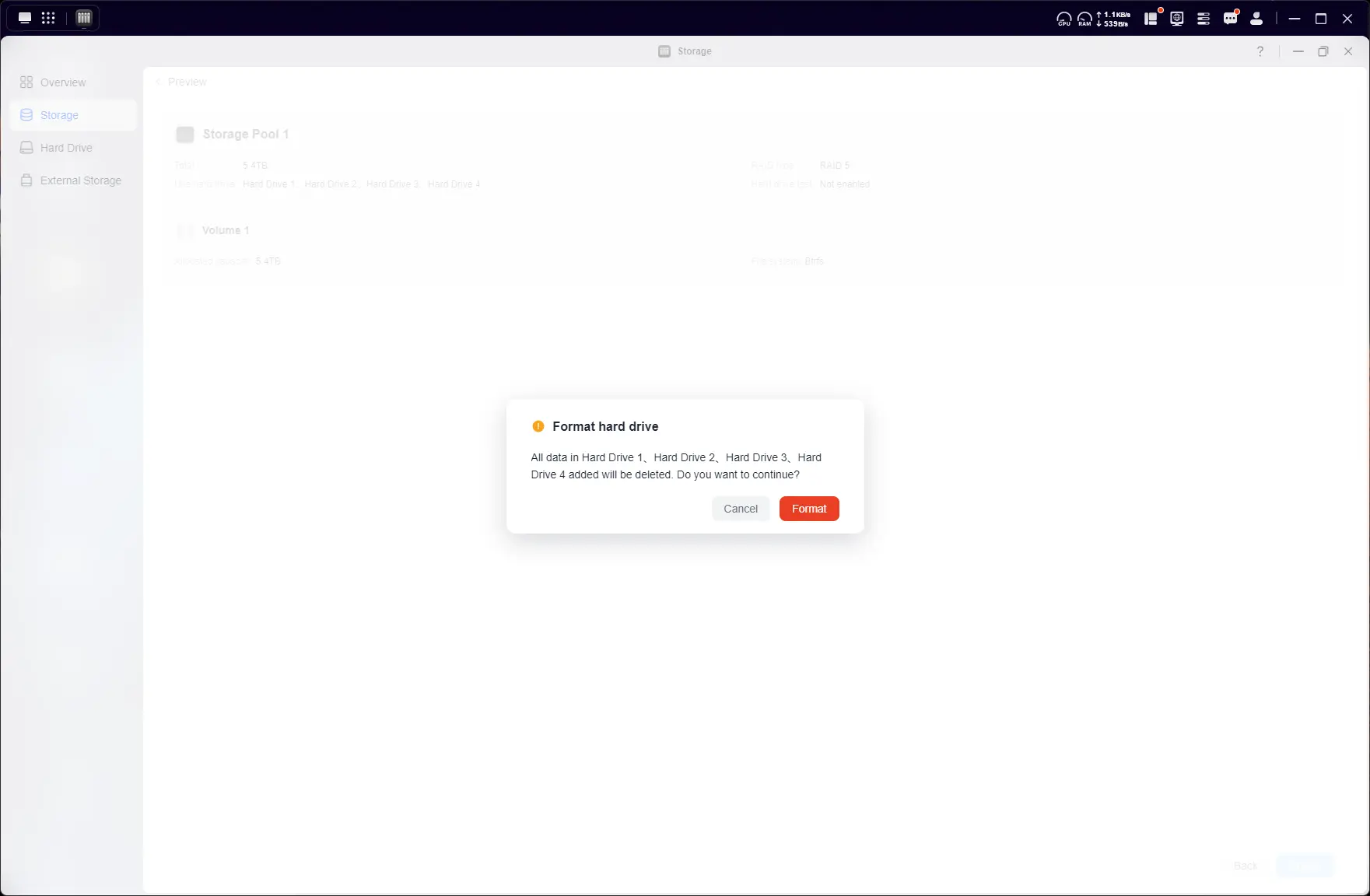
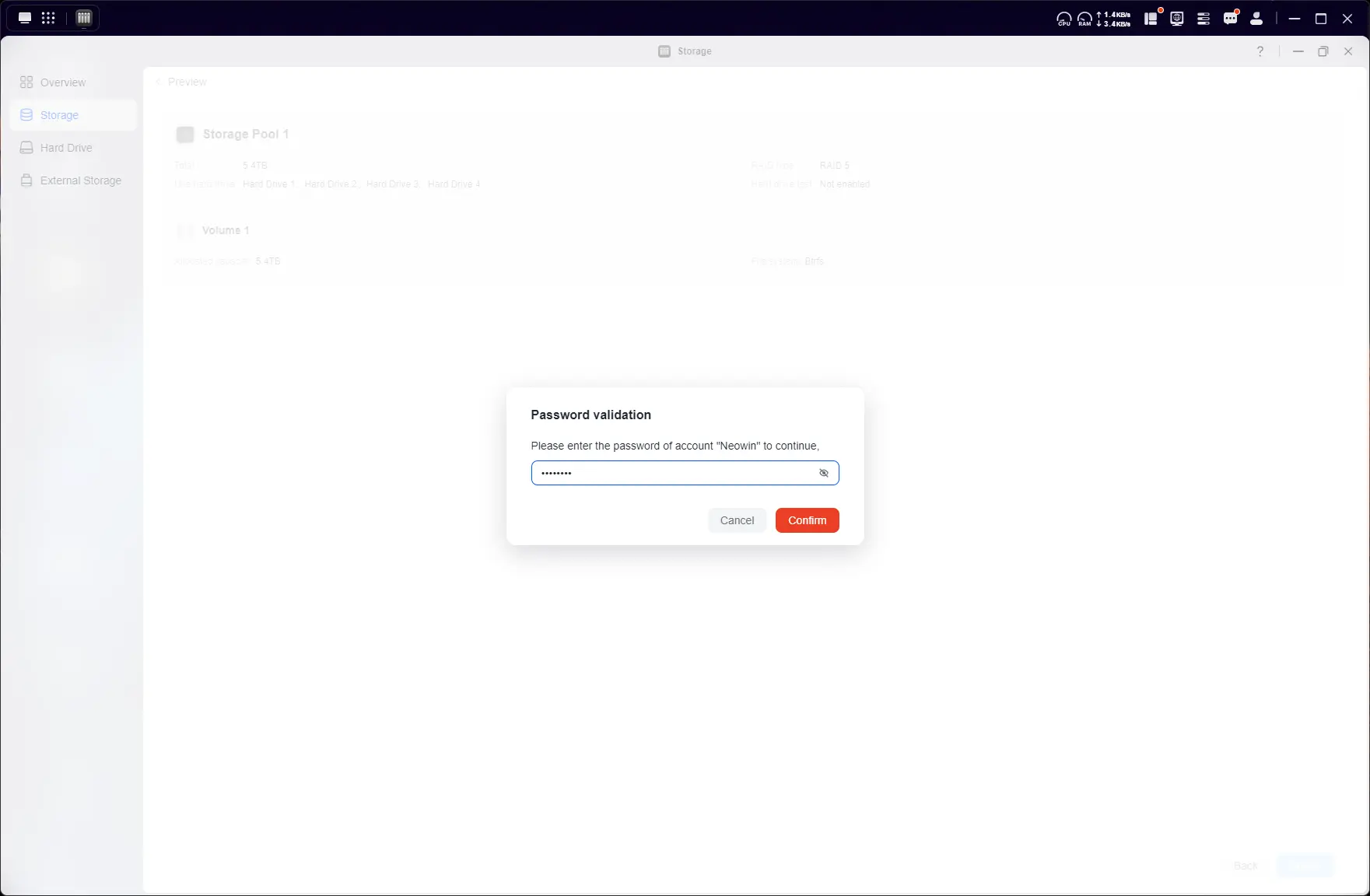
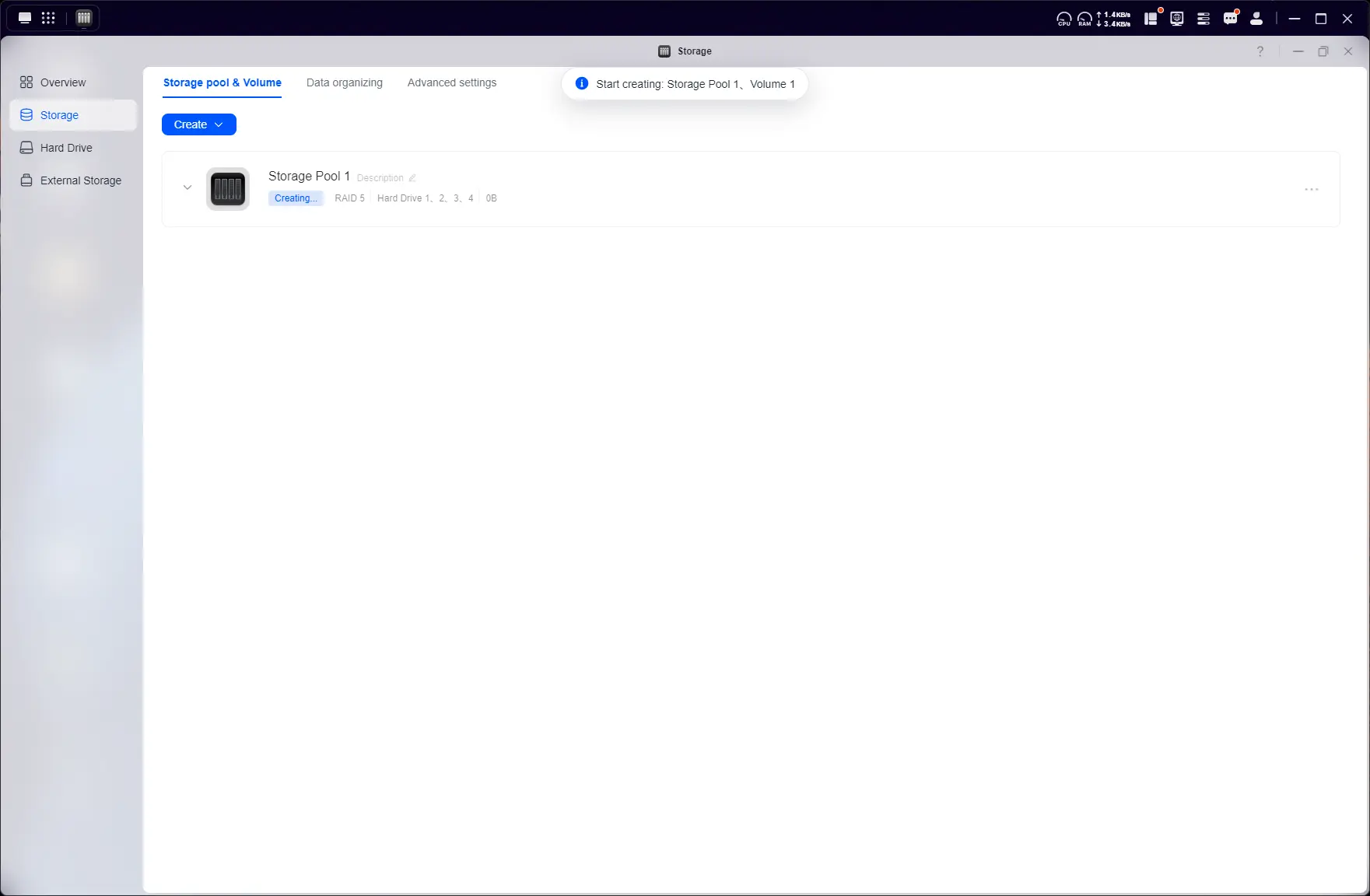
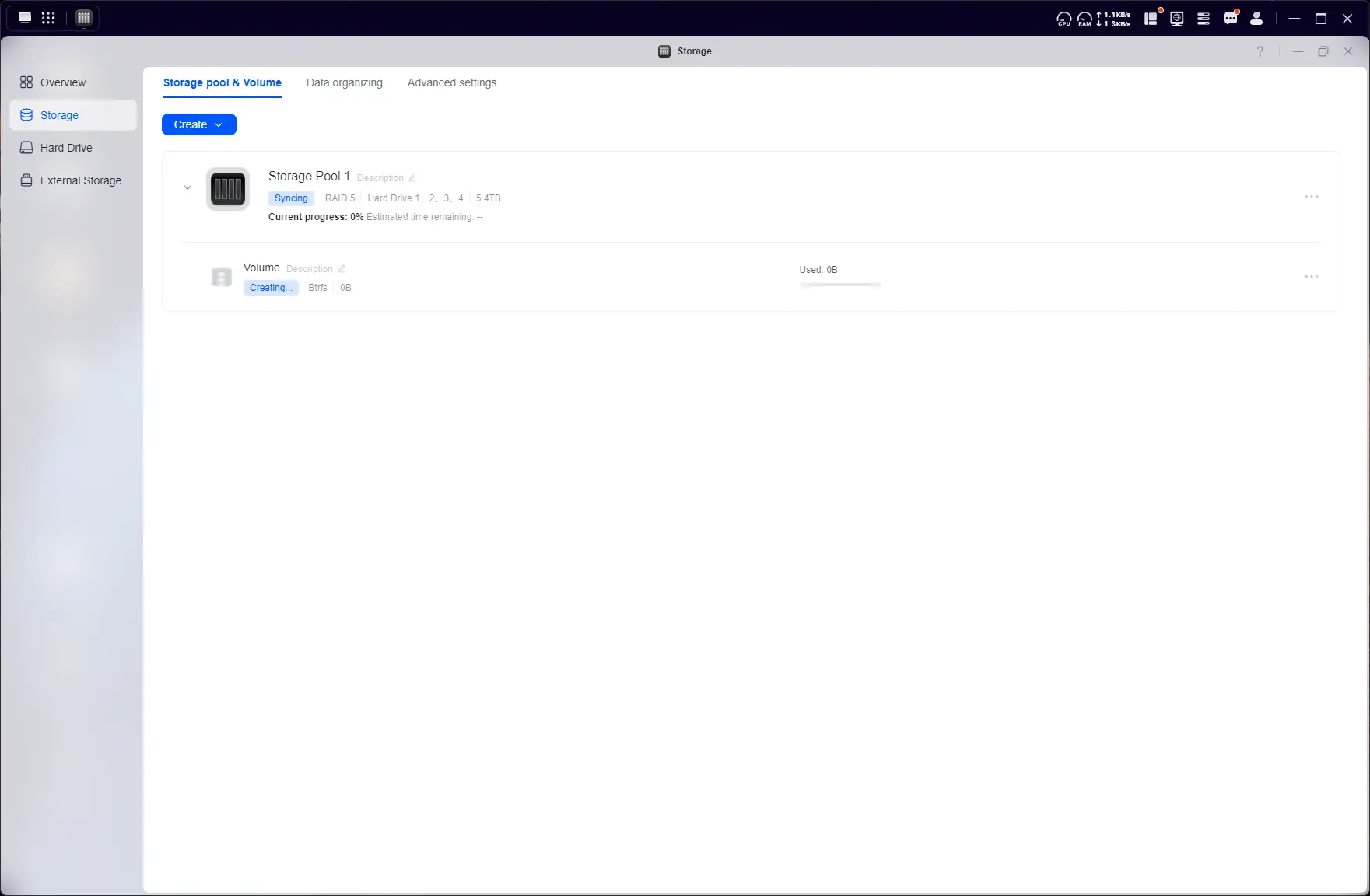
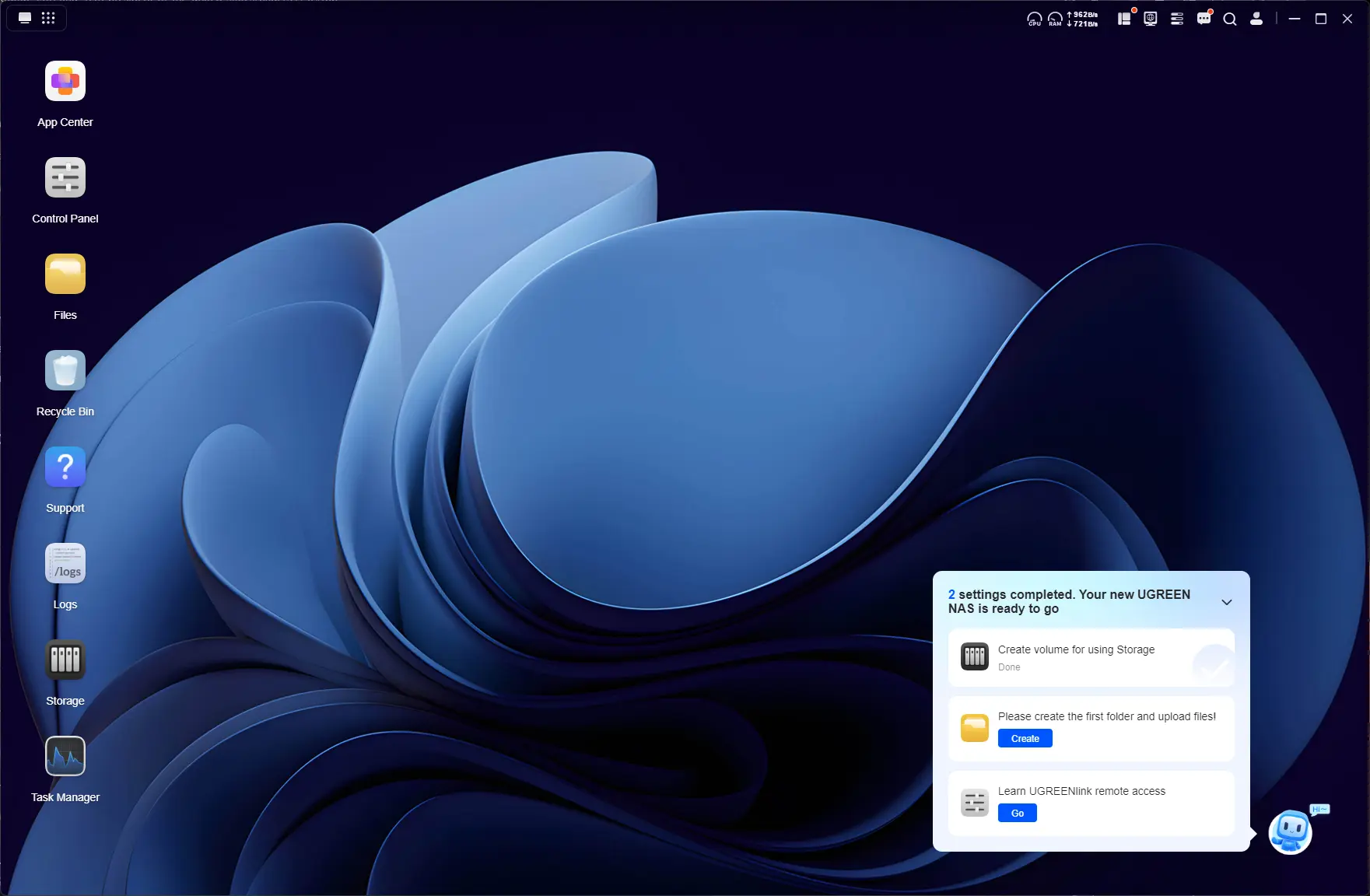
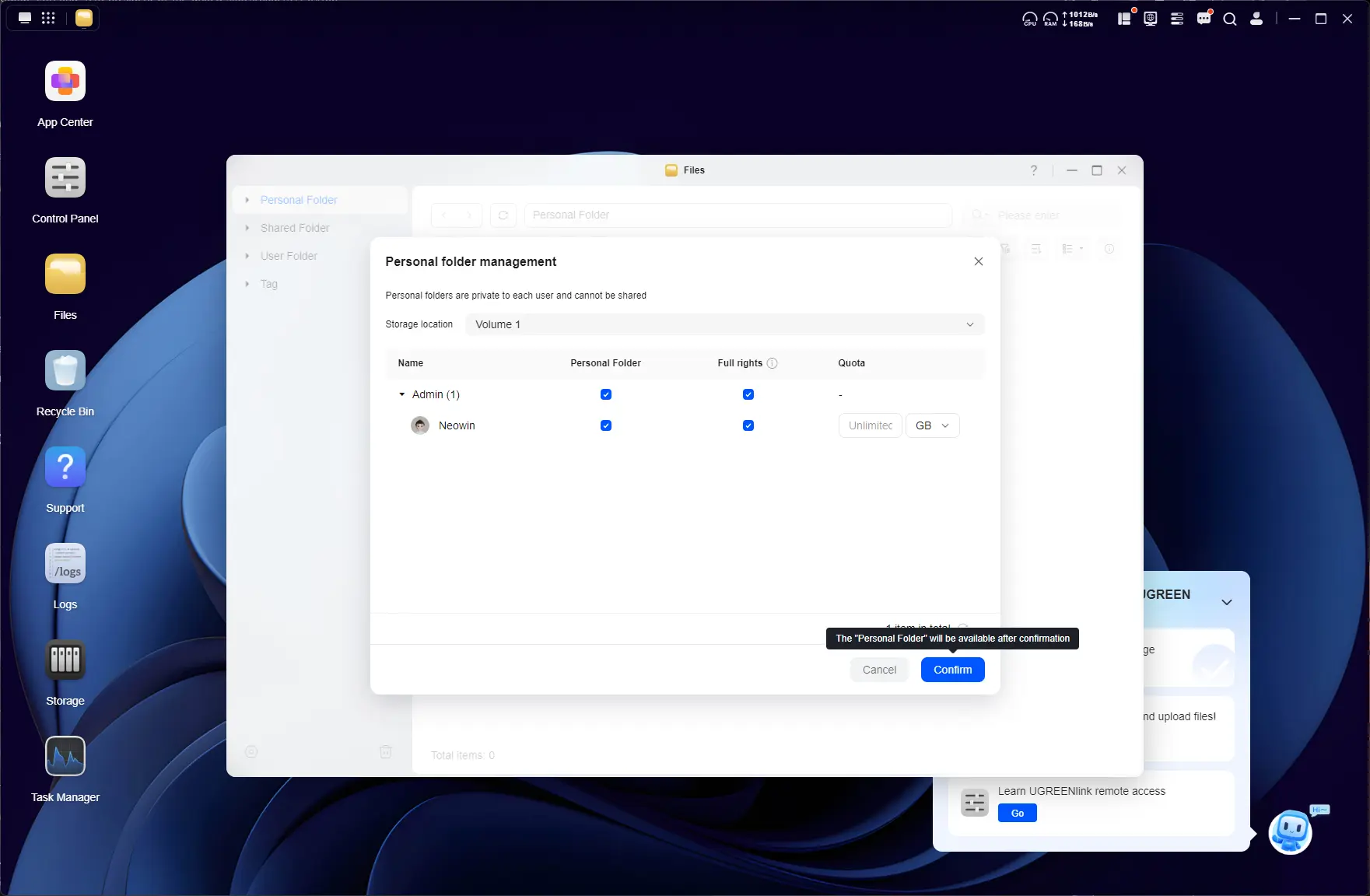
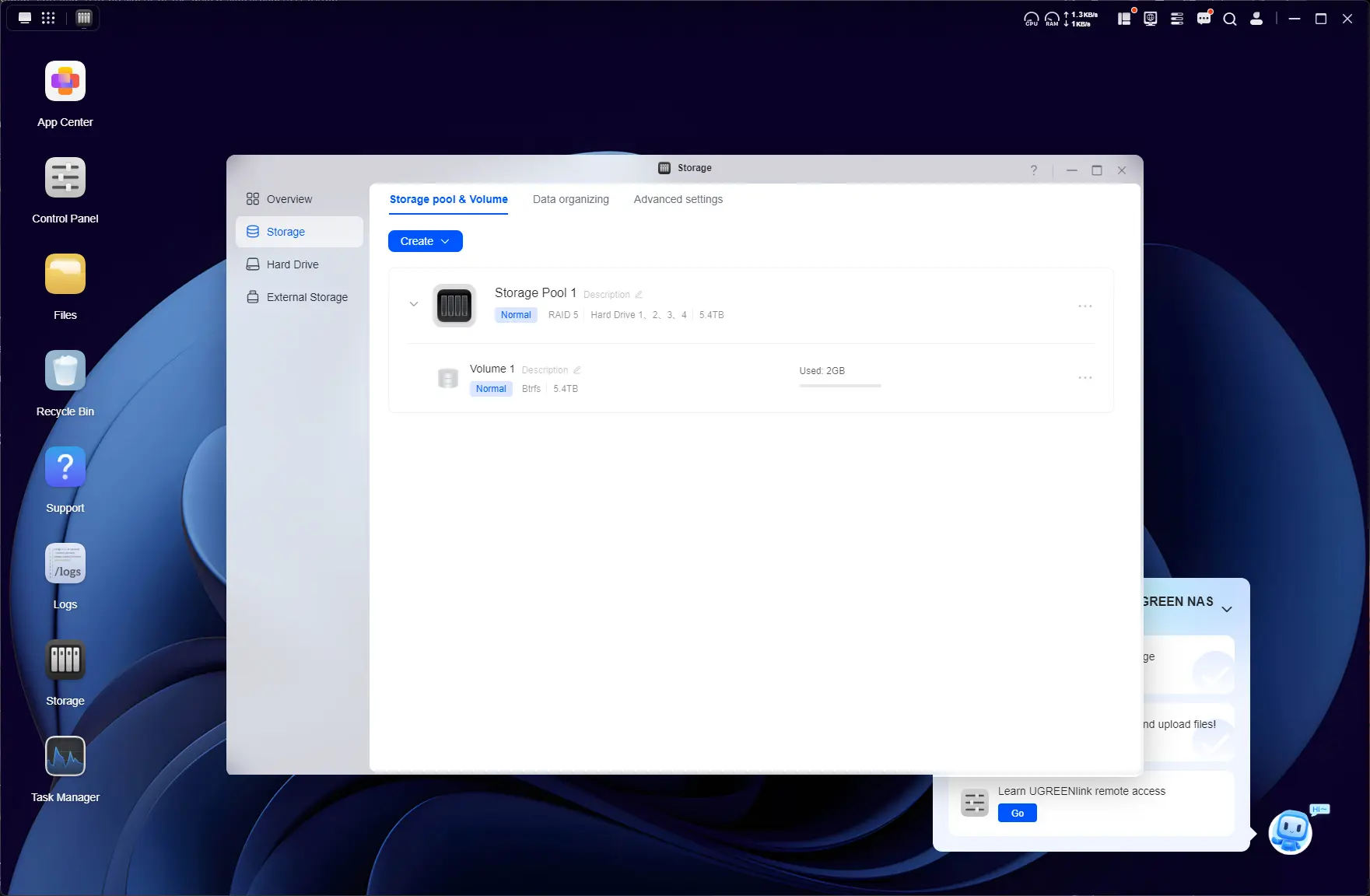
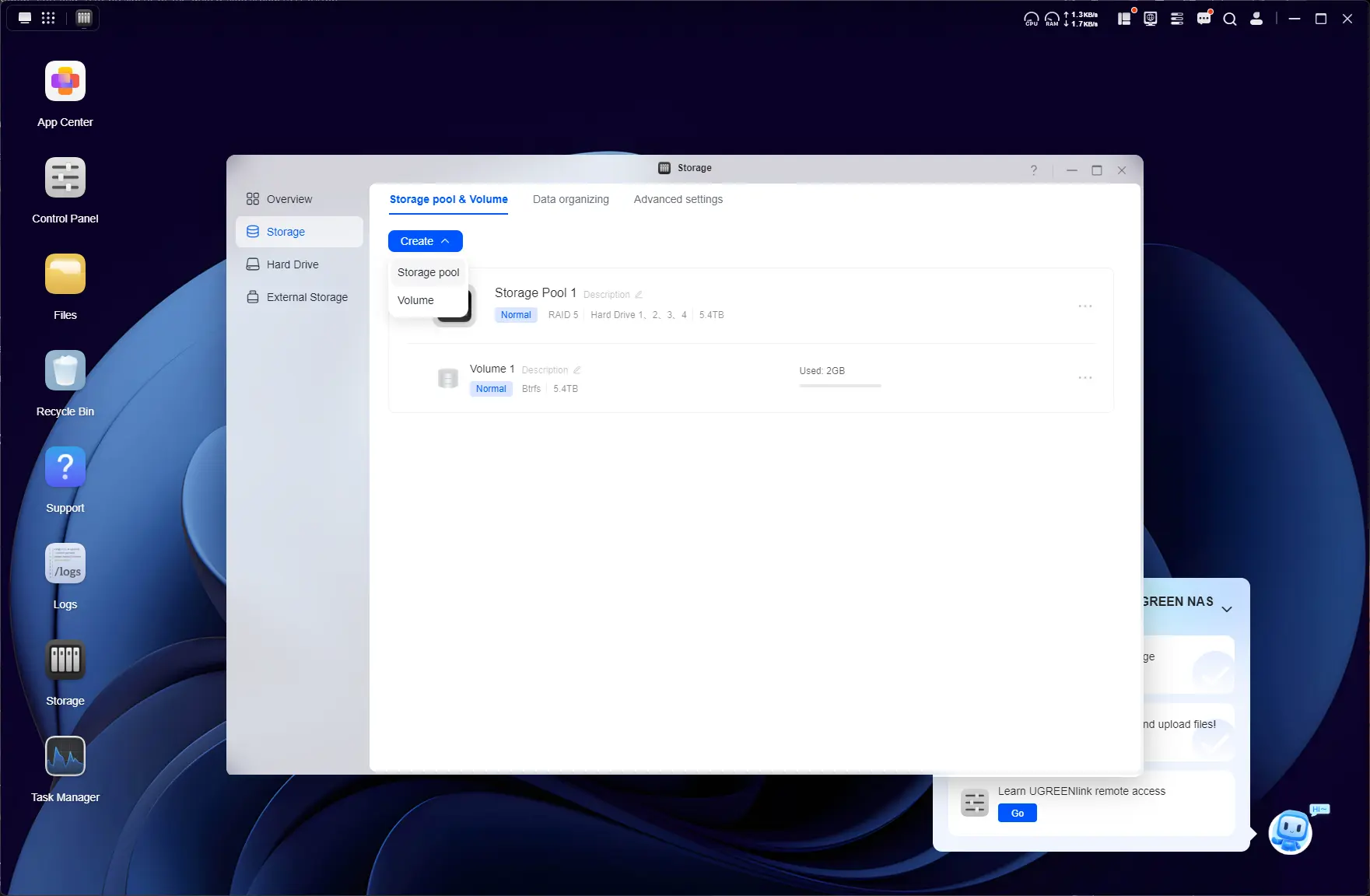
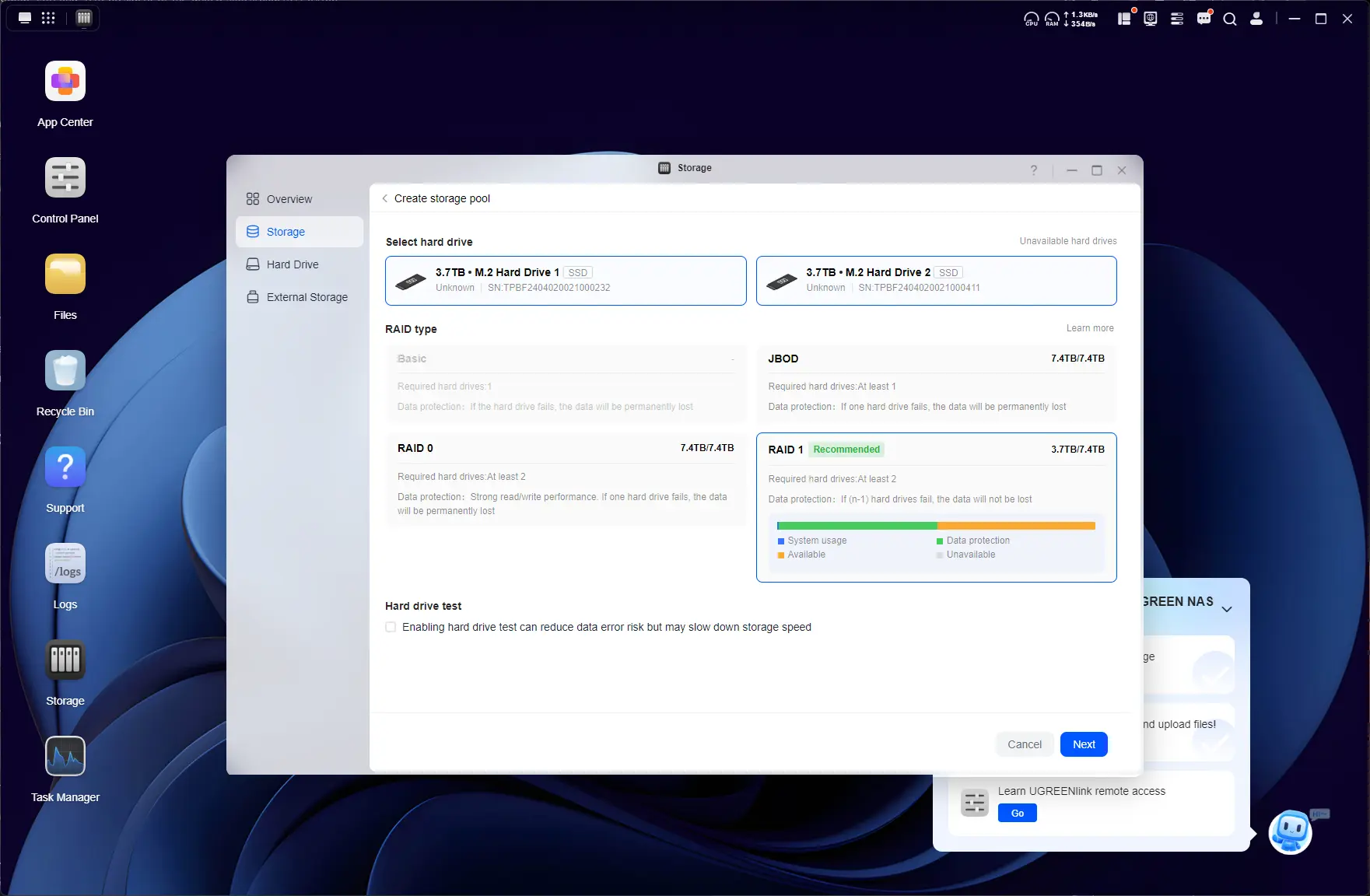
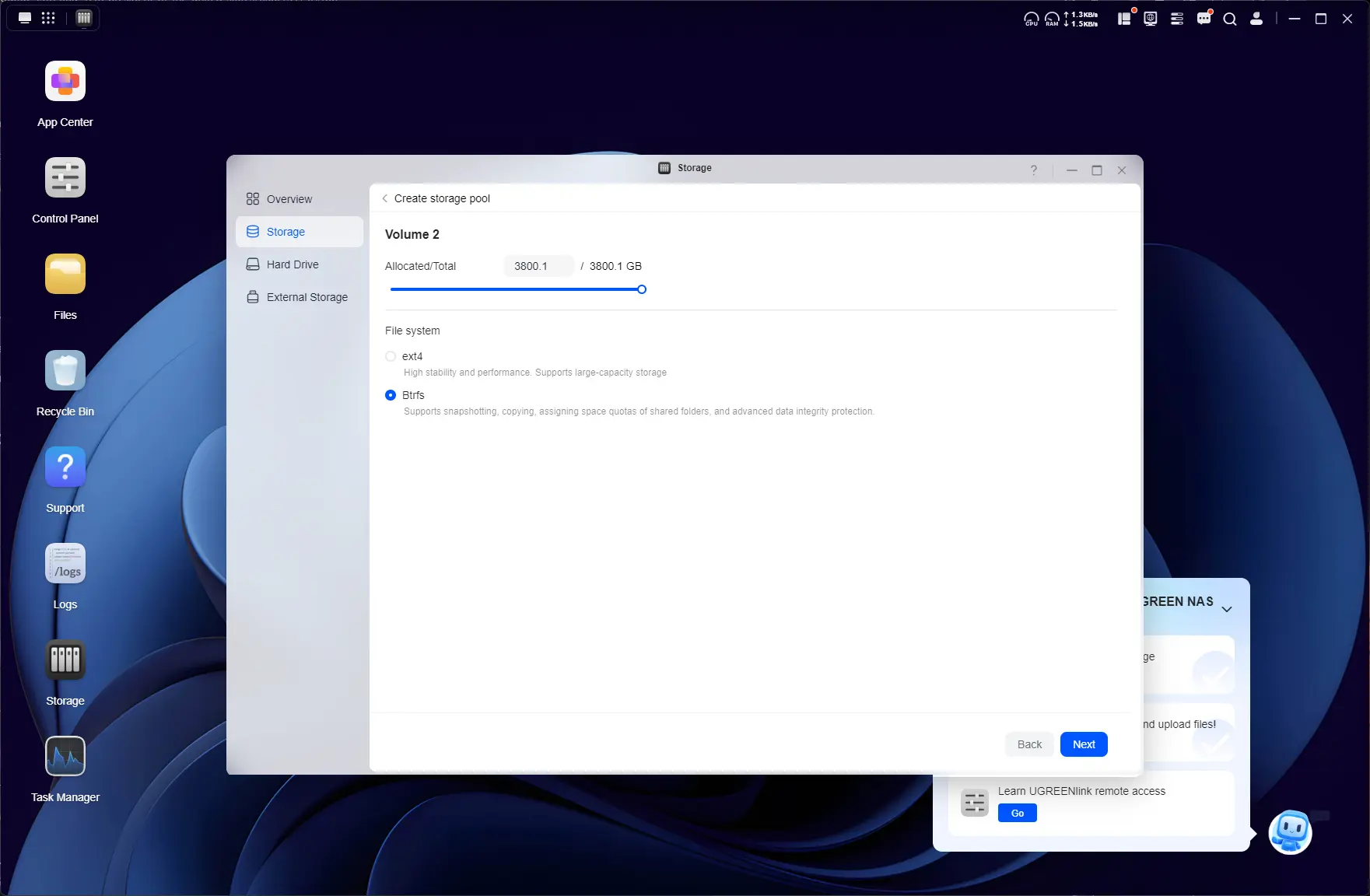
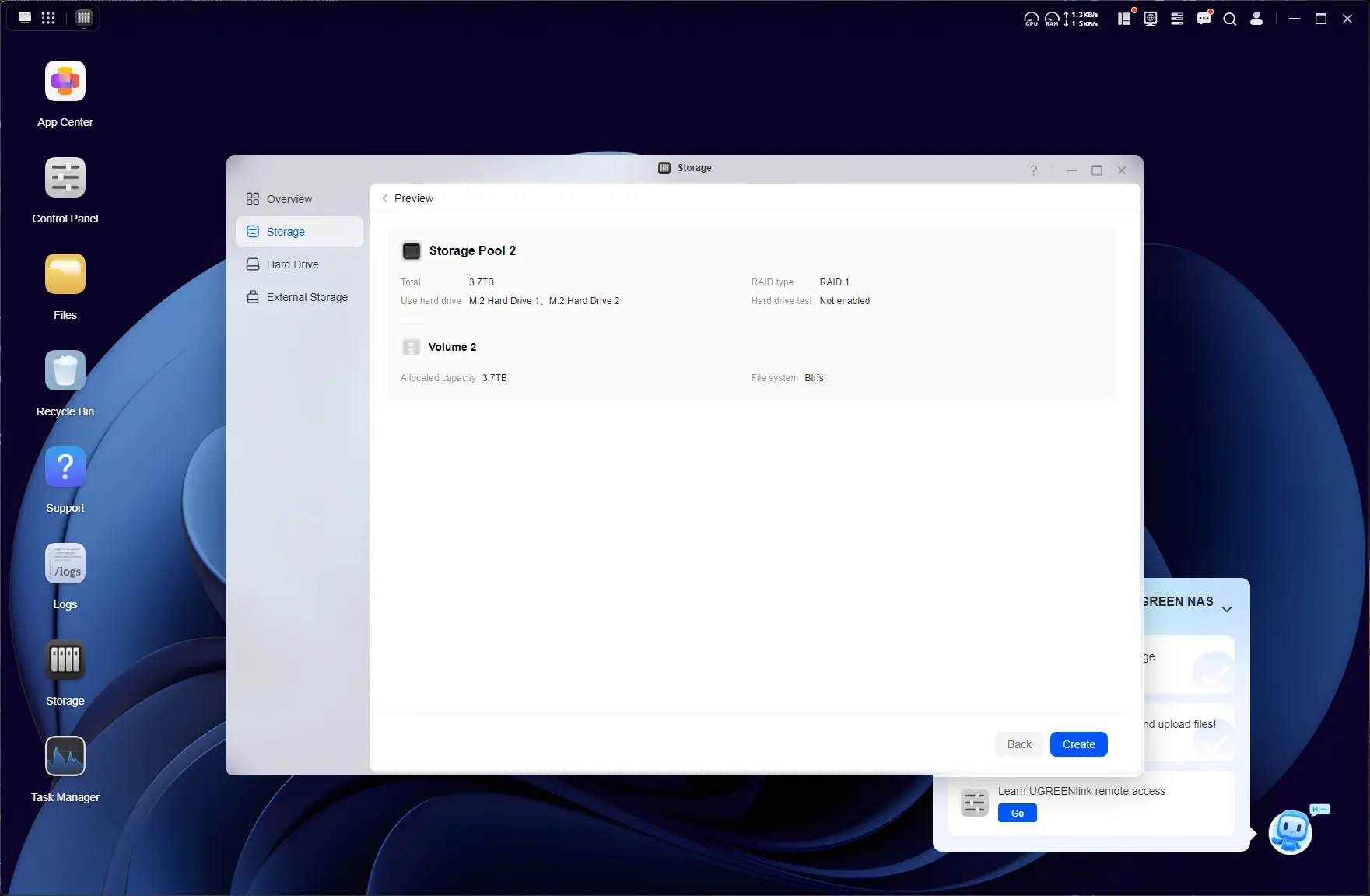
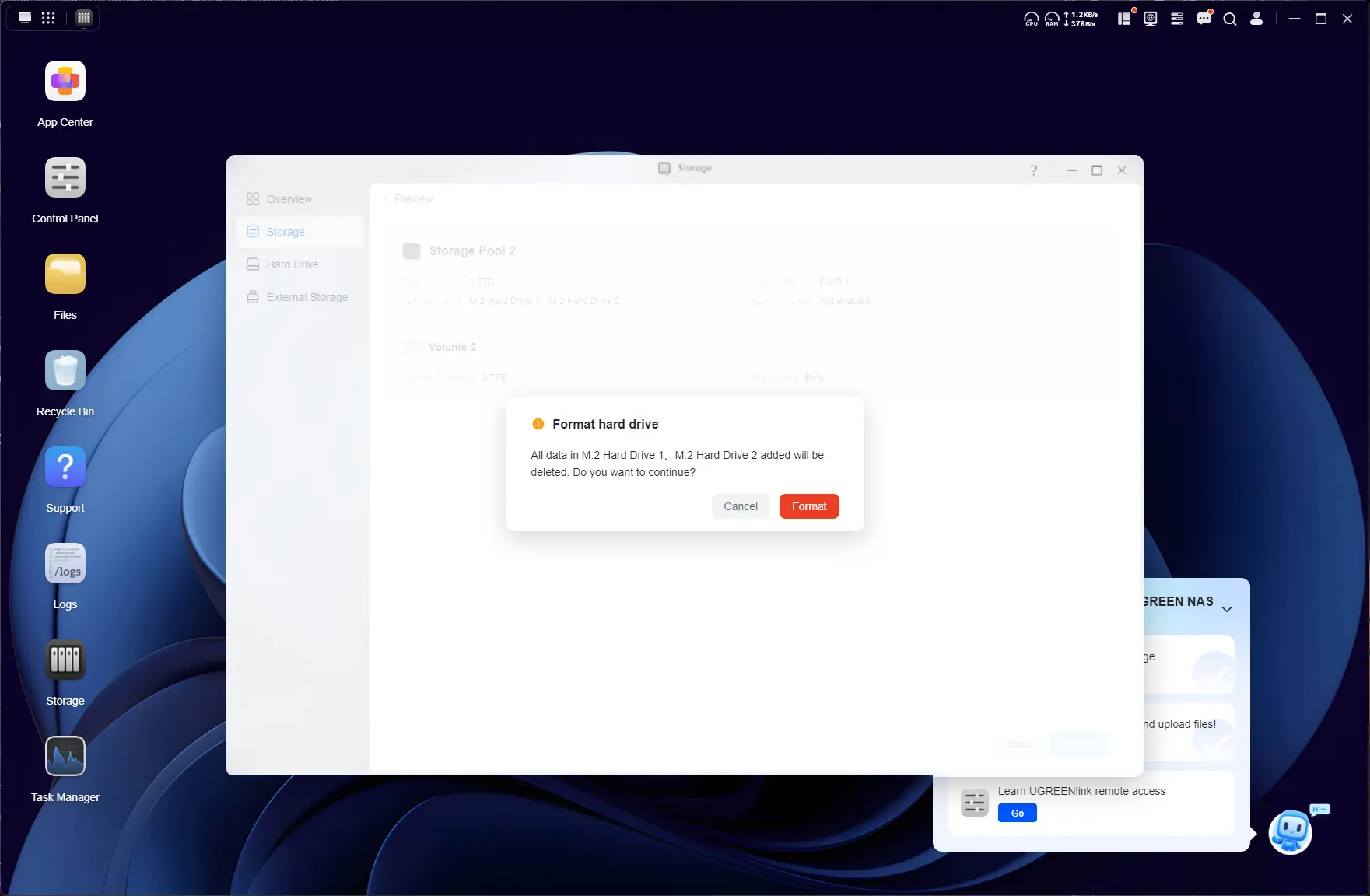
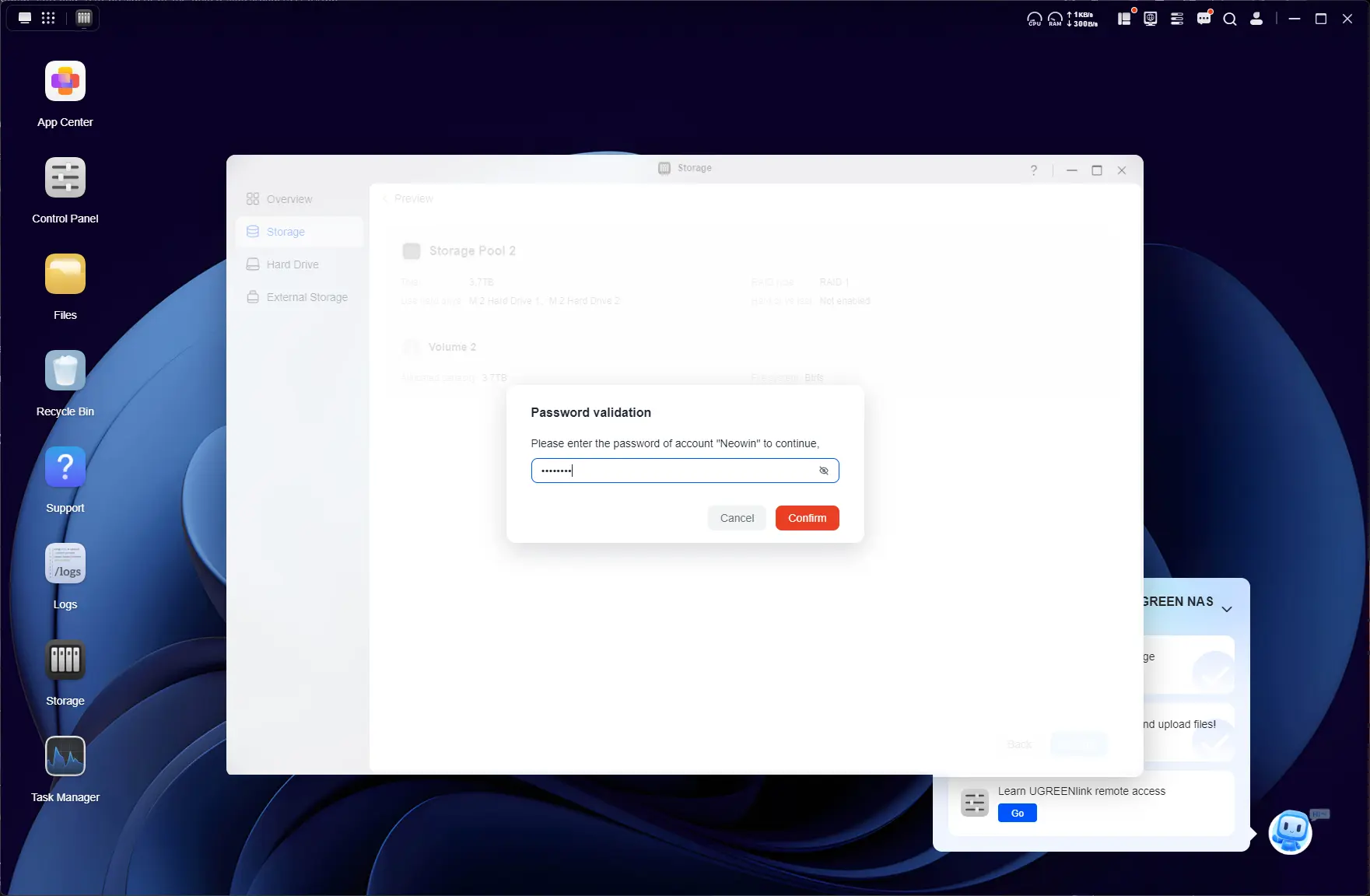
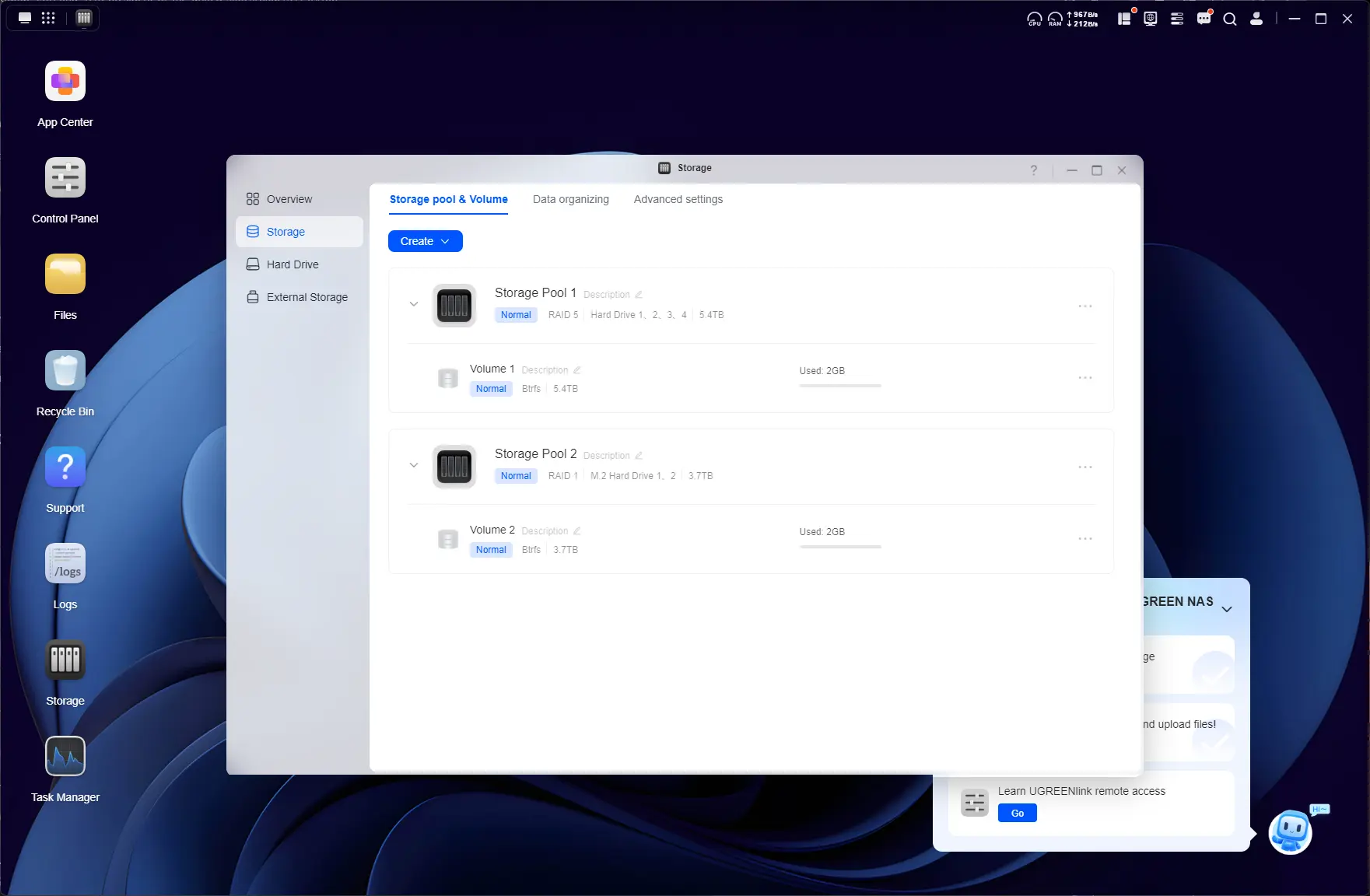
Above are the steps I took to create two Storage Pools, one for the HDDs and another for the two 4TB NVMe, where I planned to install apps.
No Hybrid RAID
Nope, UGOS still does not have any sort of SHR (Synology Hybrid RAID) or TRAID (TerraMaster RAID), which allows mix and match of different disk types without losing the capacity of the largest disks.
Although it is possible to expand the Storage Pool (using RAID1 or 5), this can only be achieved once all of the smallest disks are replaced with larger ones. You can check out UGREEN"s RAID calculator here and have a play around experimenting with your own use case scenario.
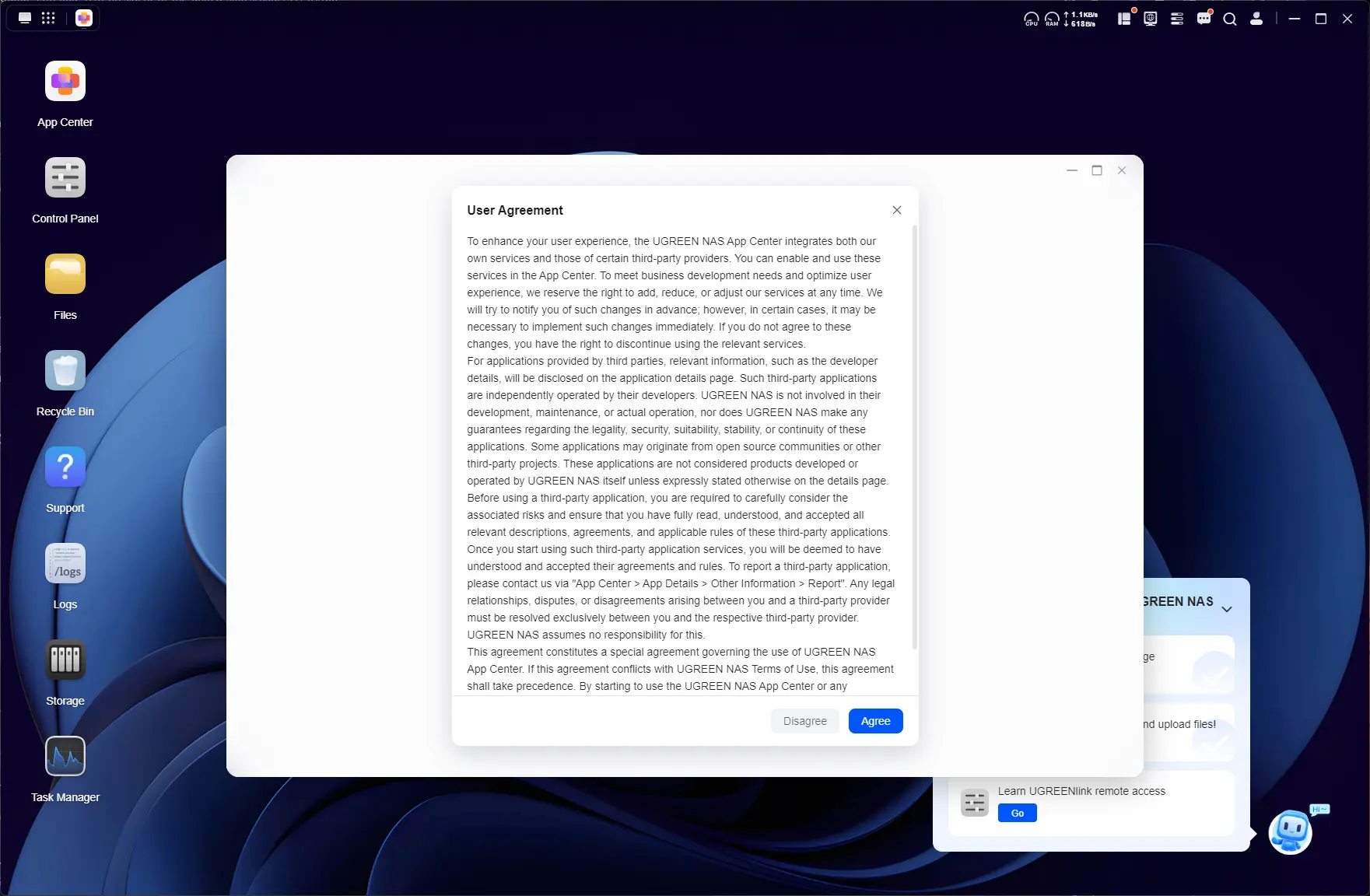
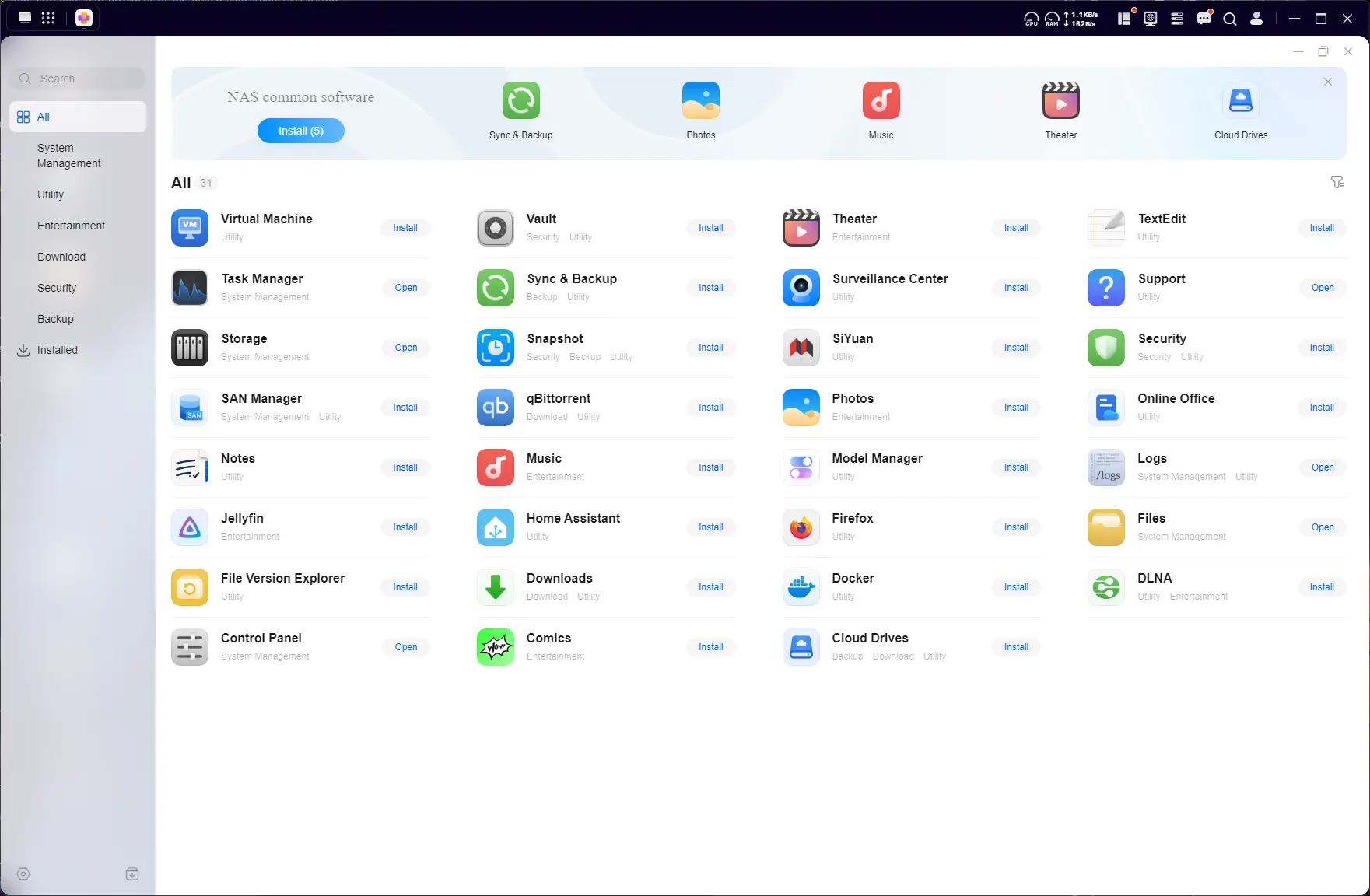
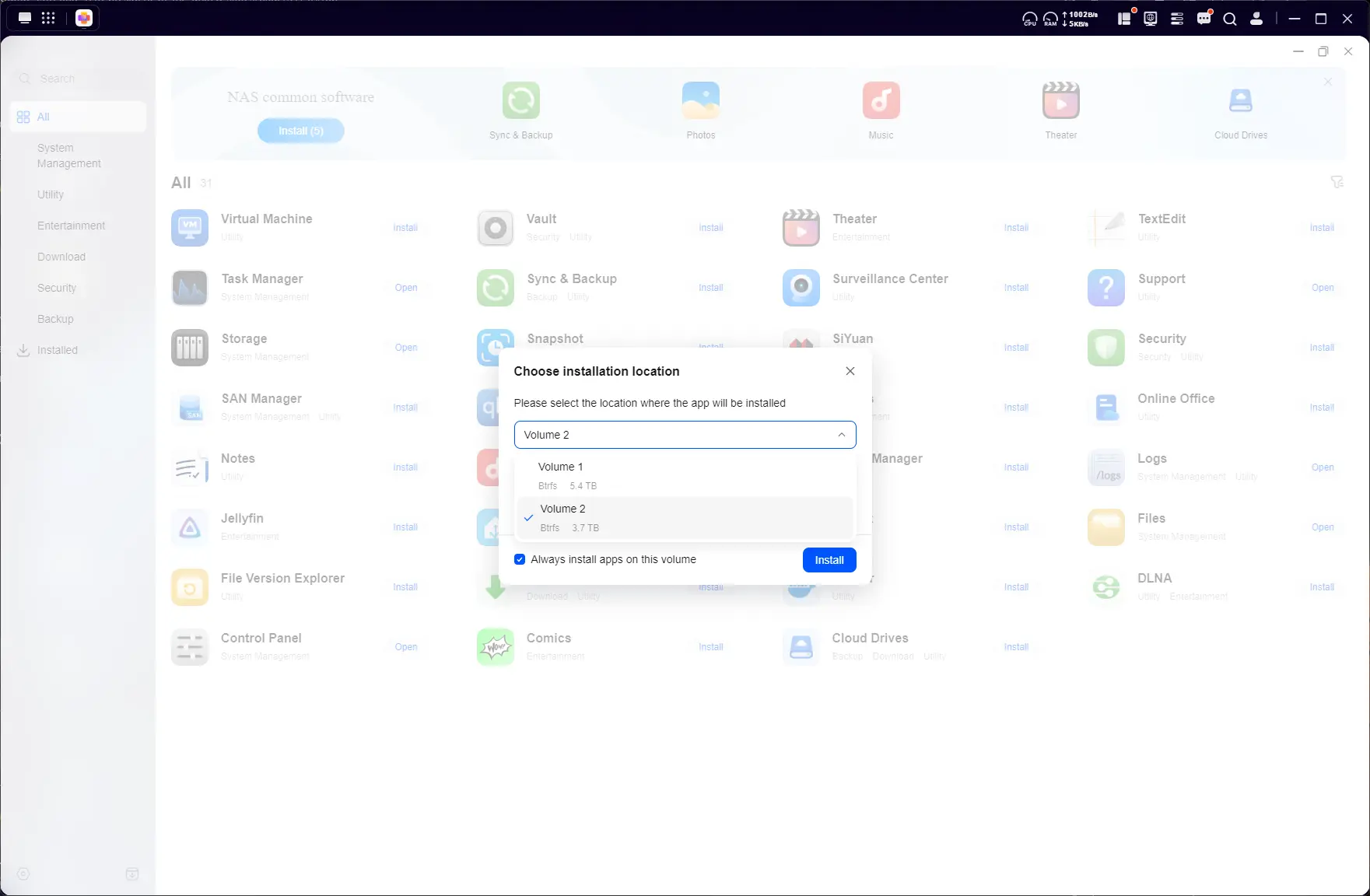
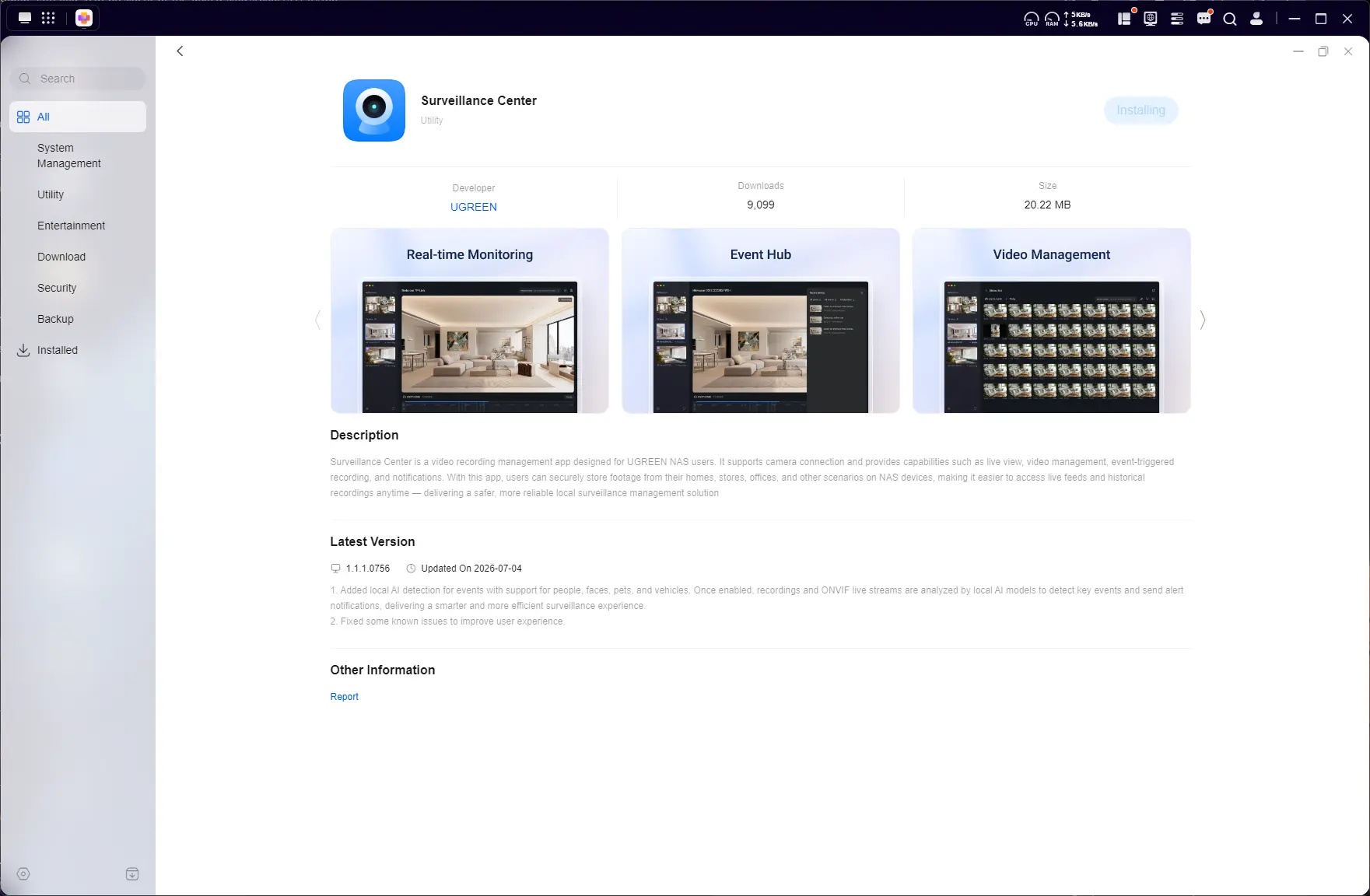
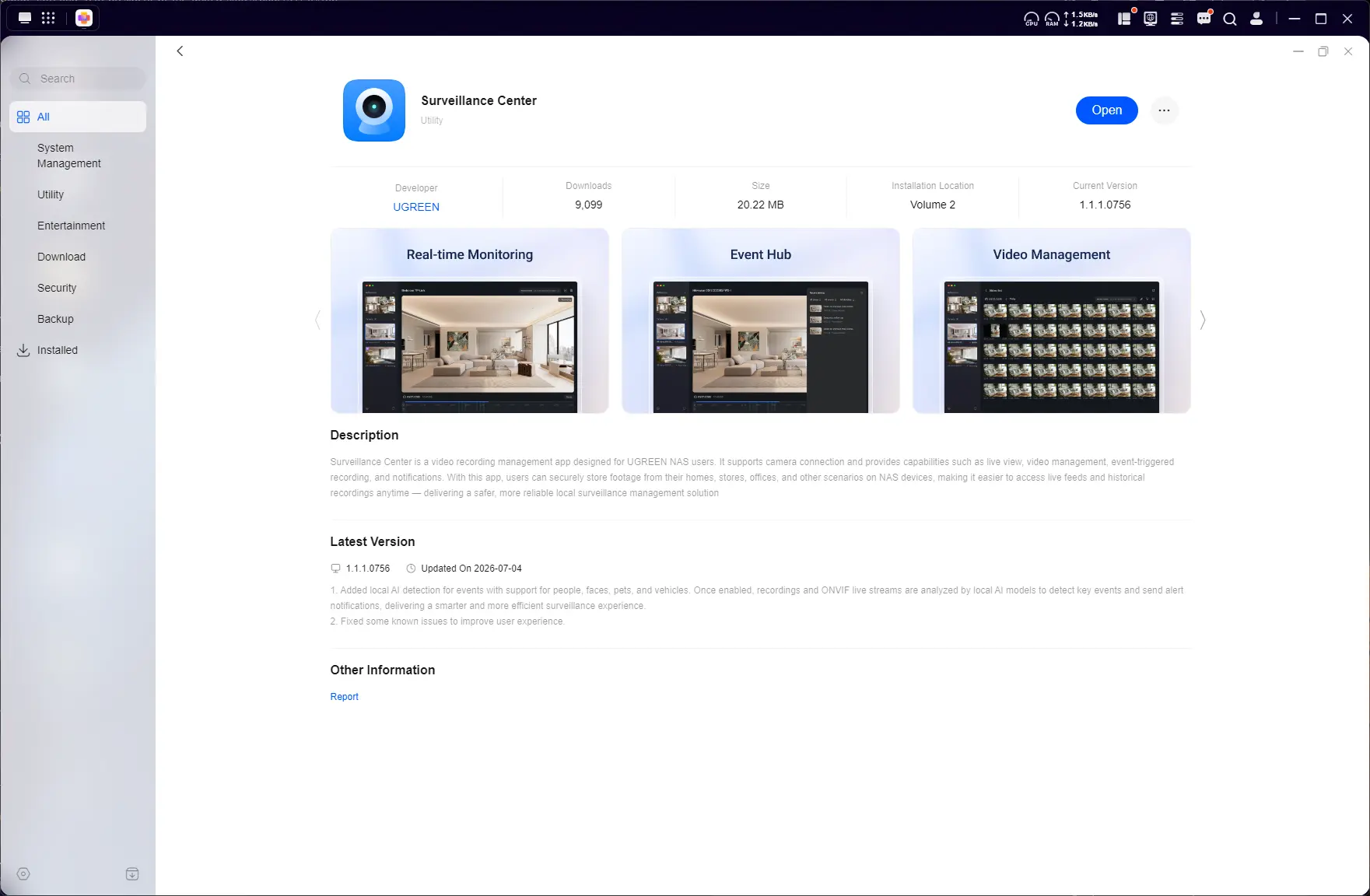
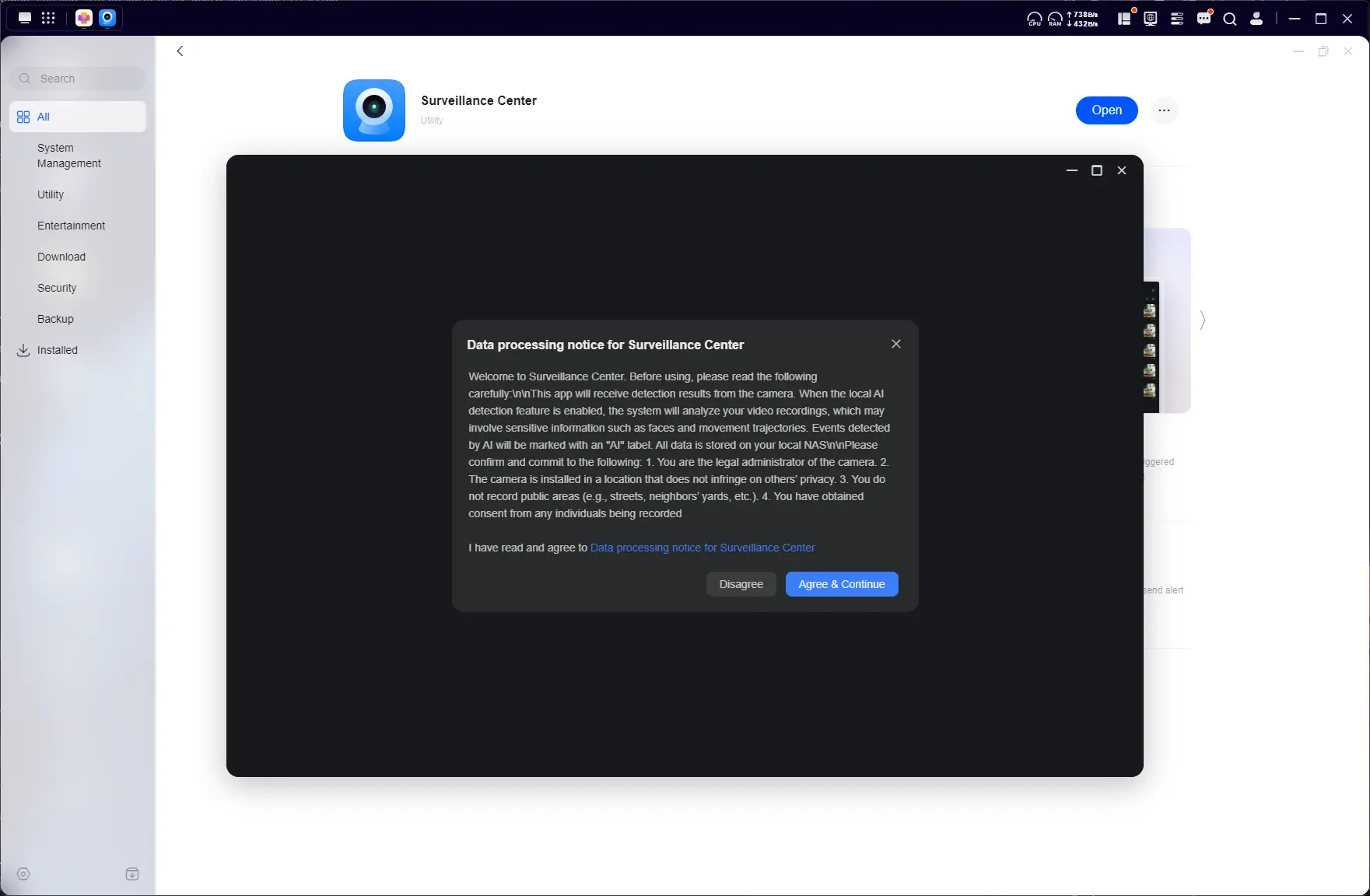
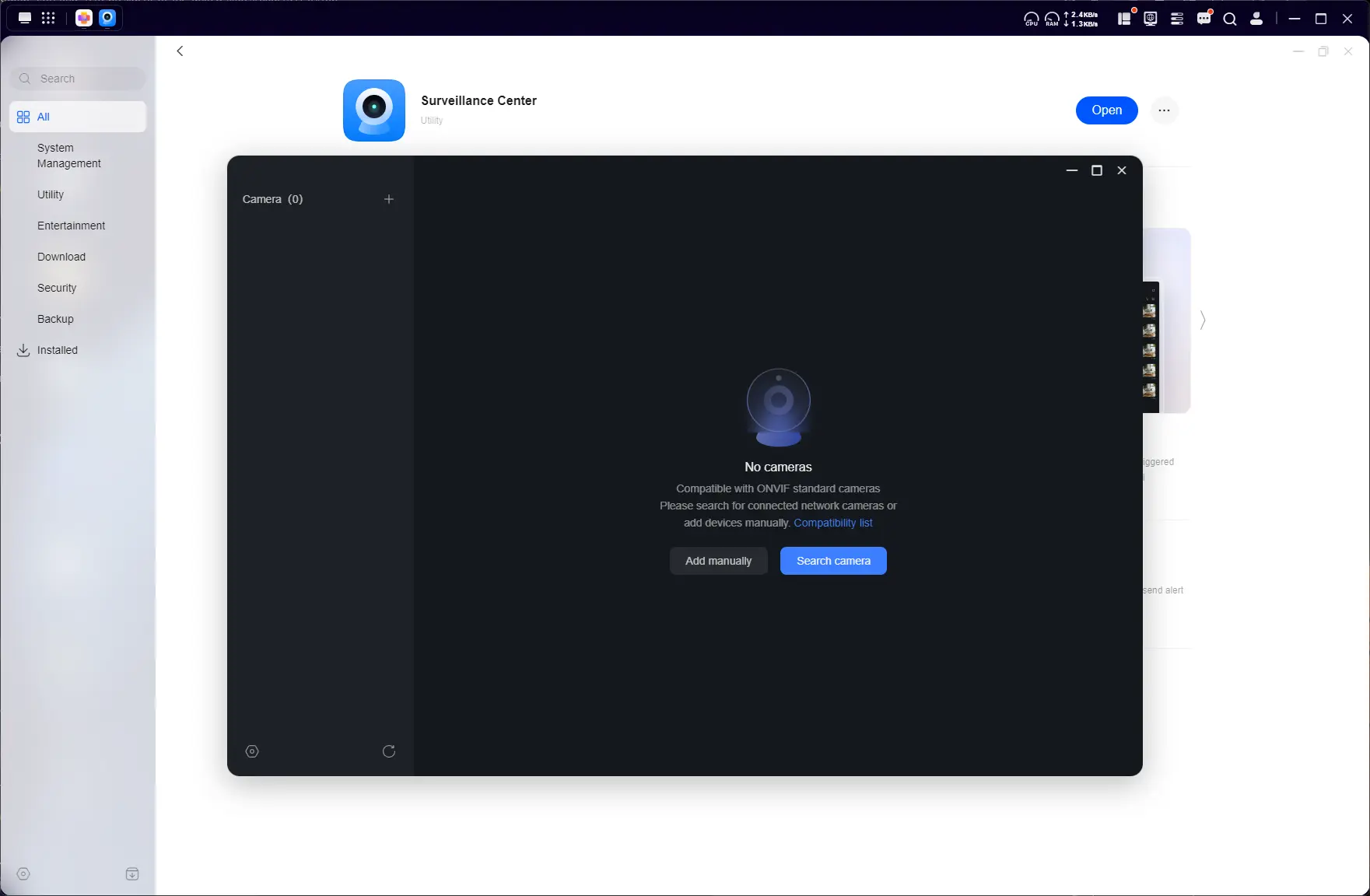
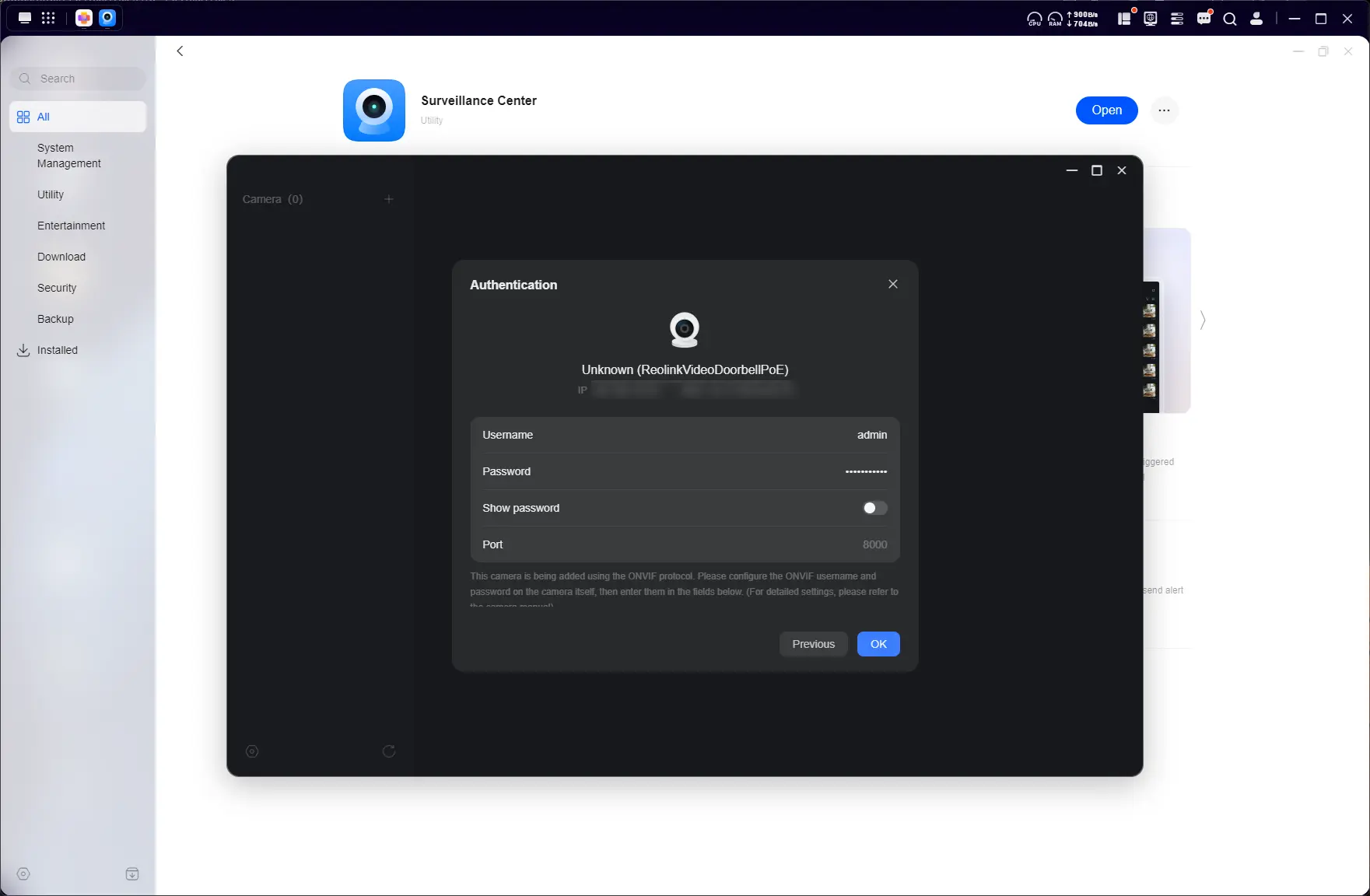
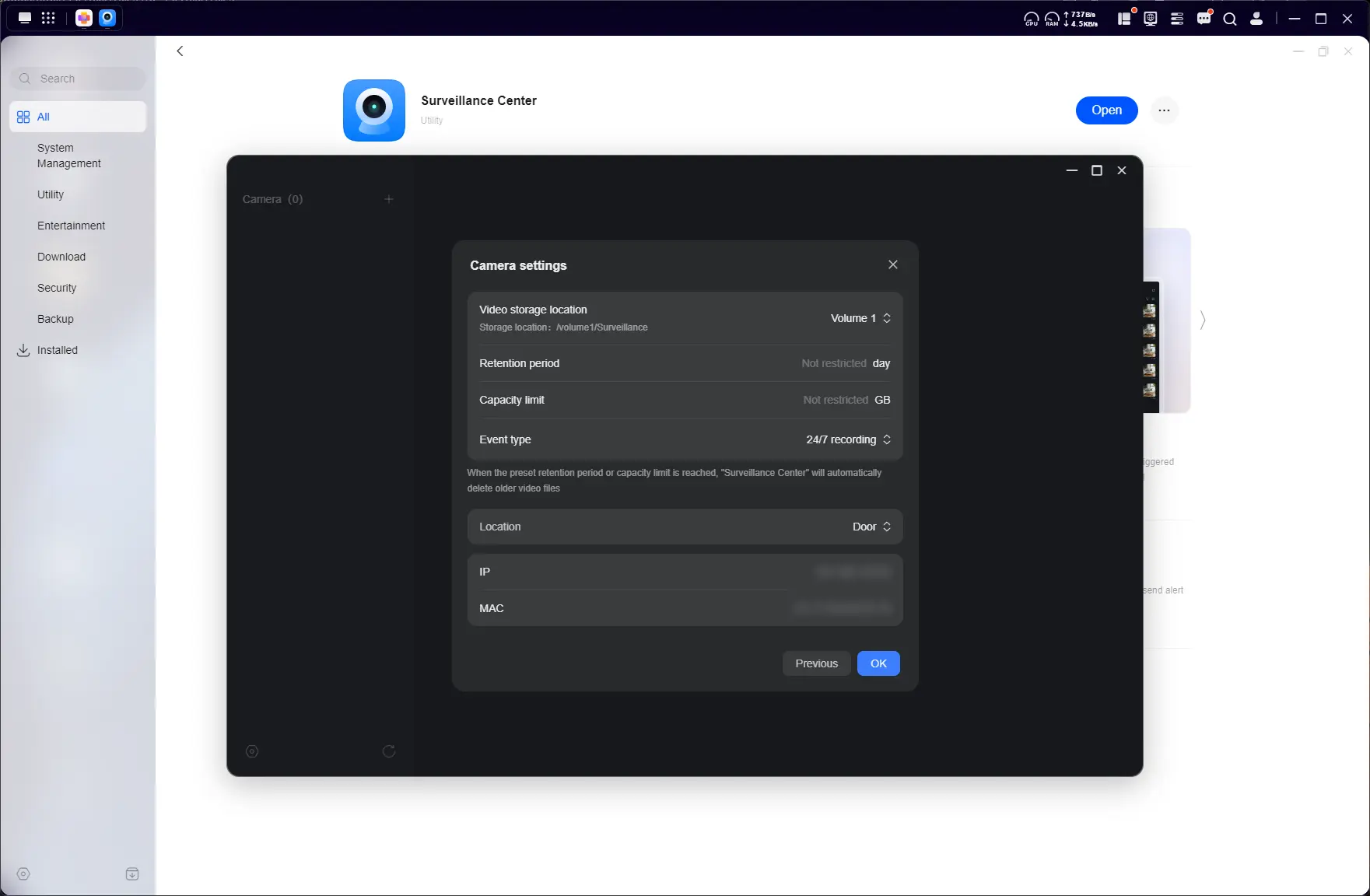
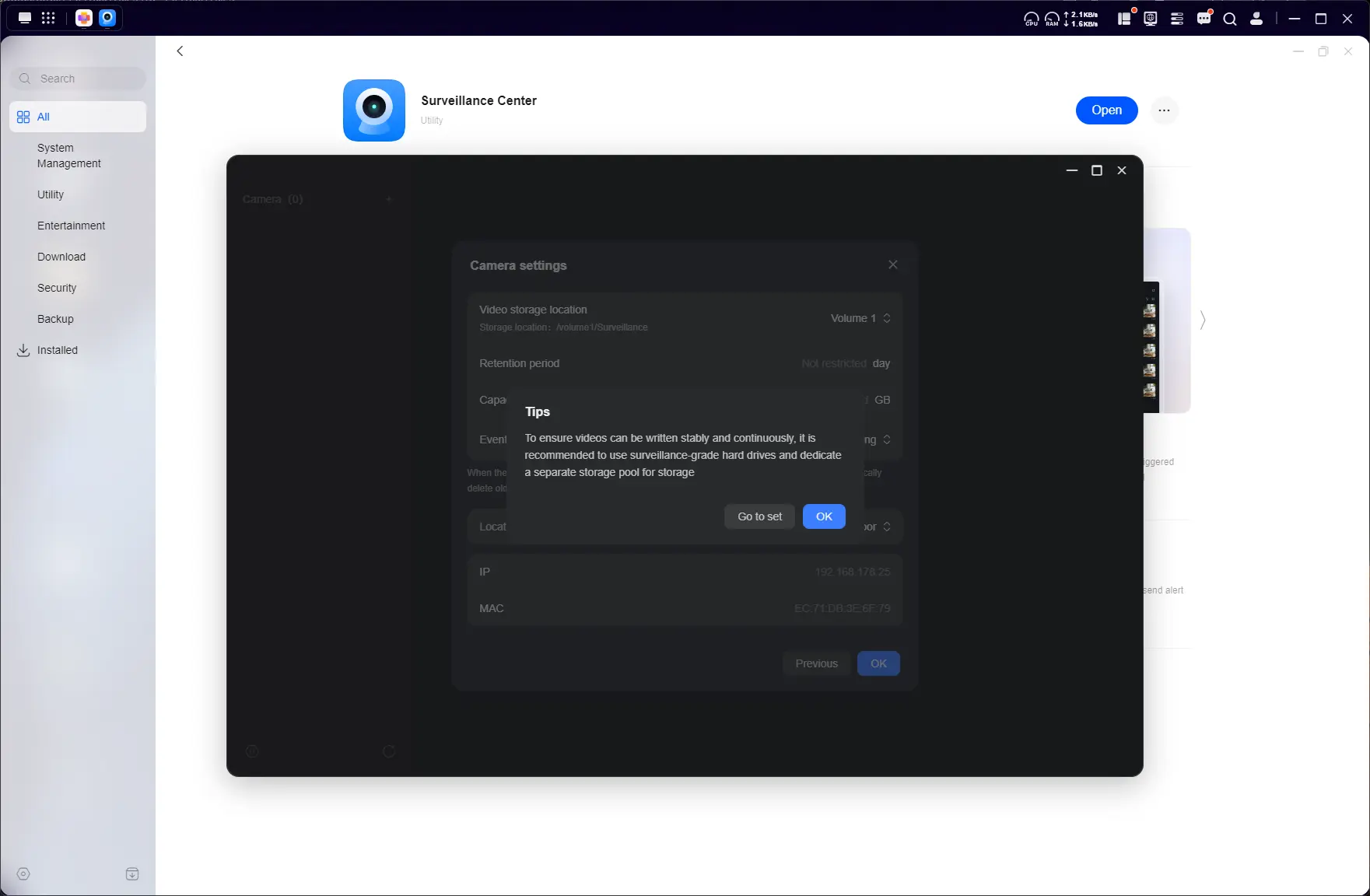
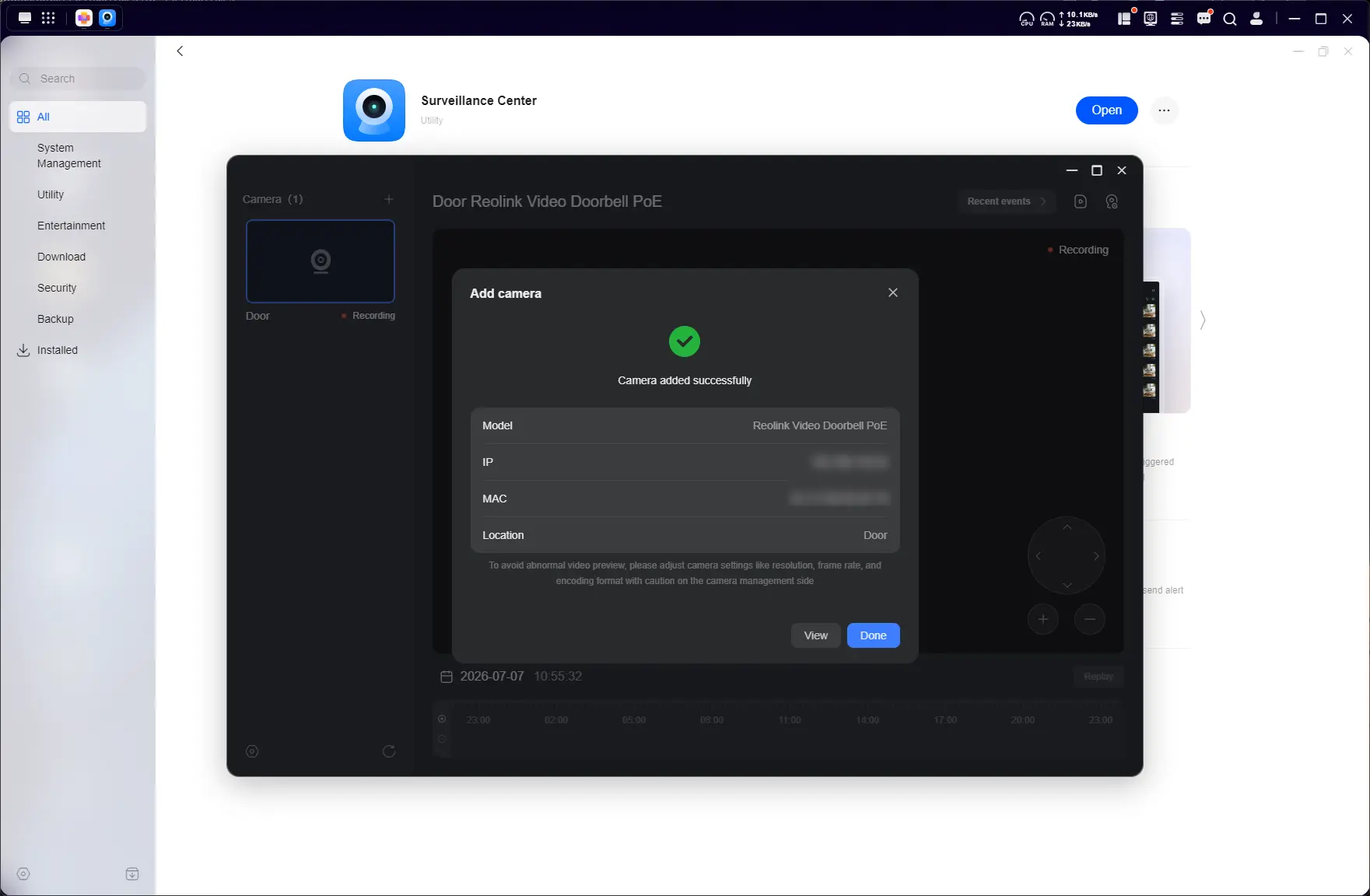
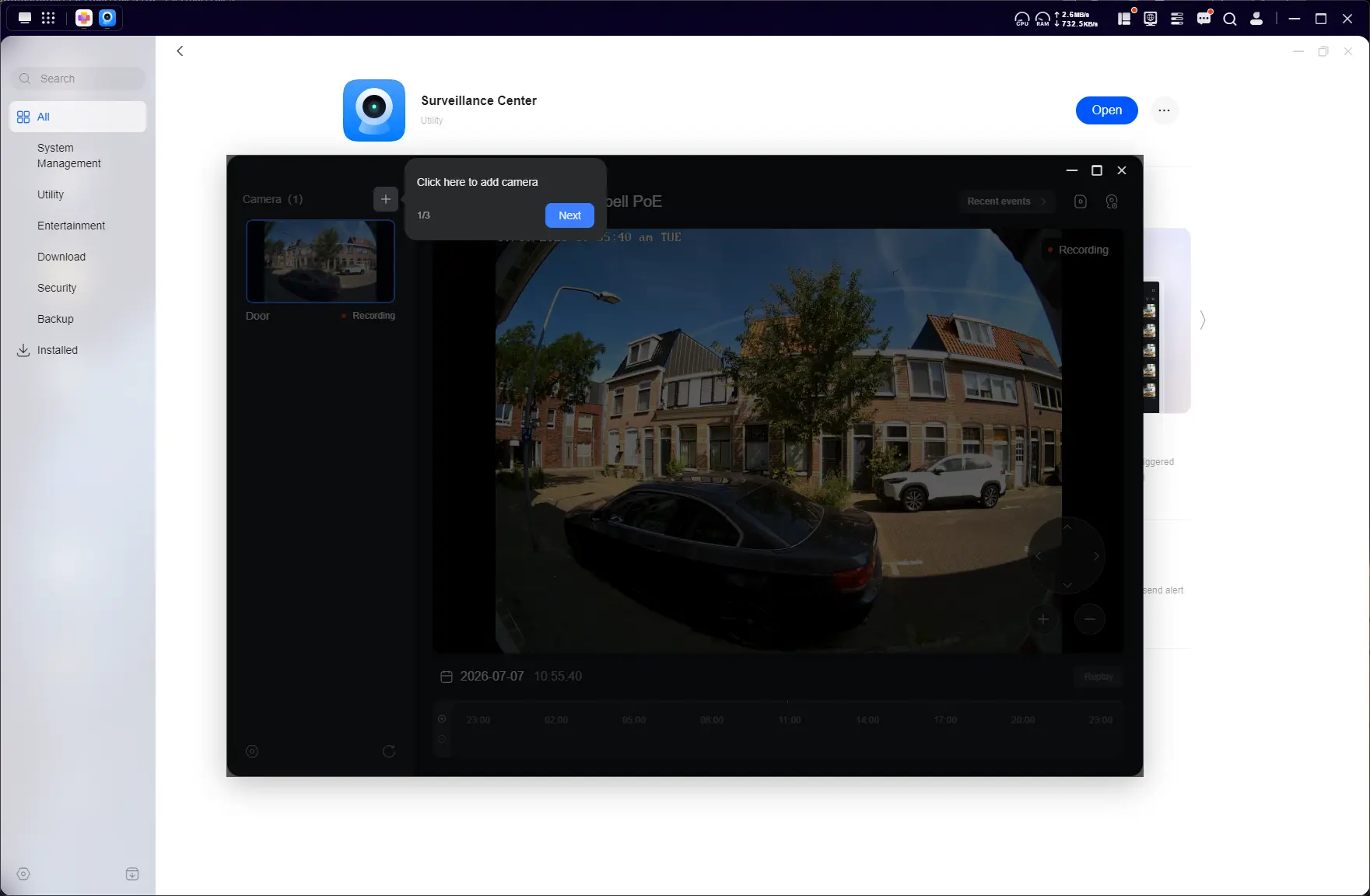
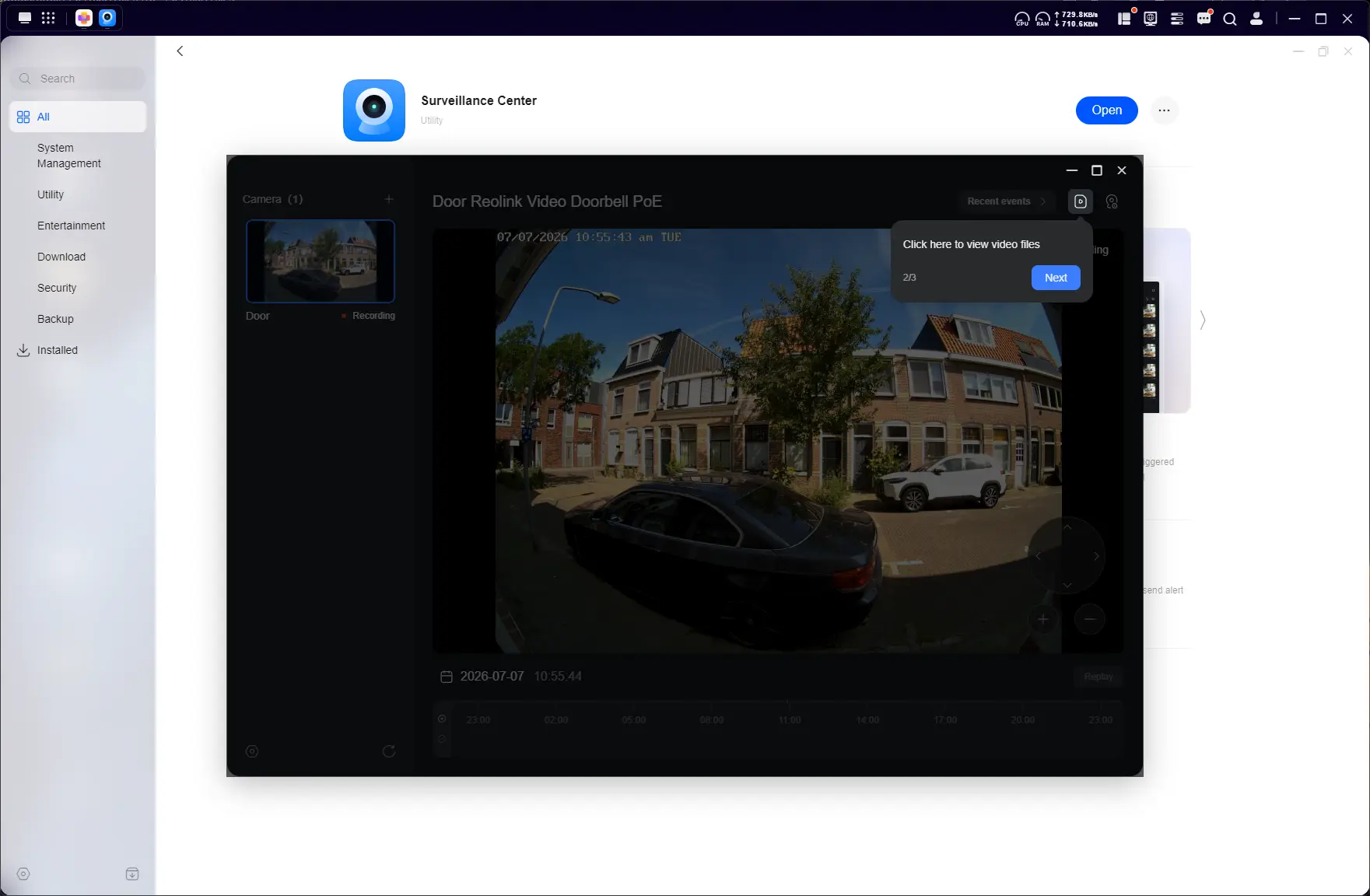
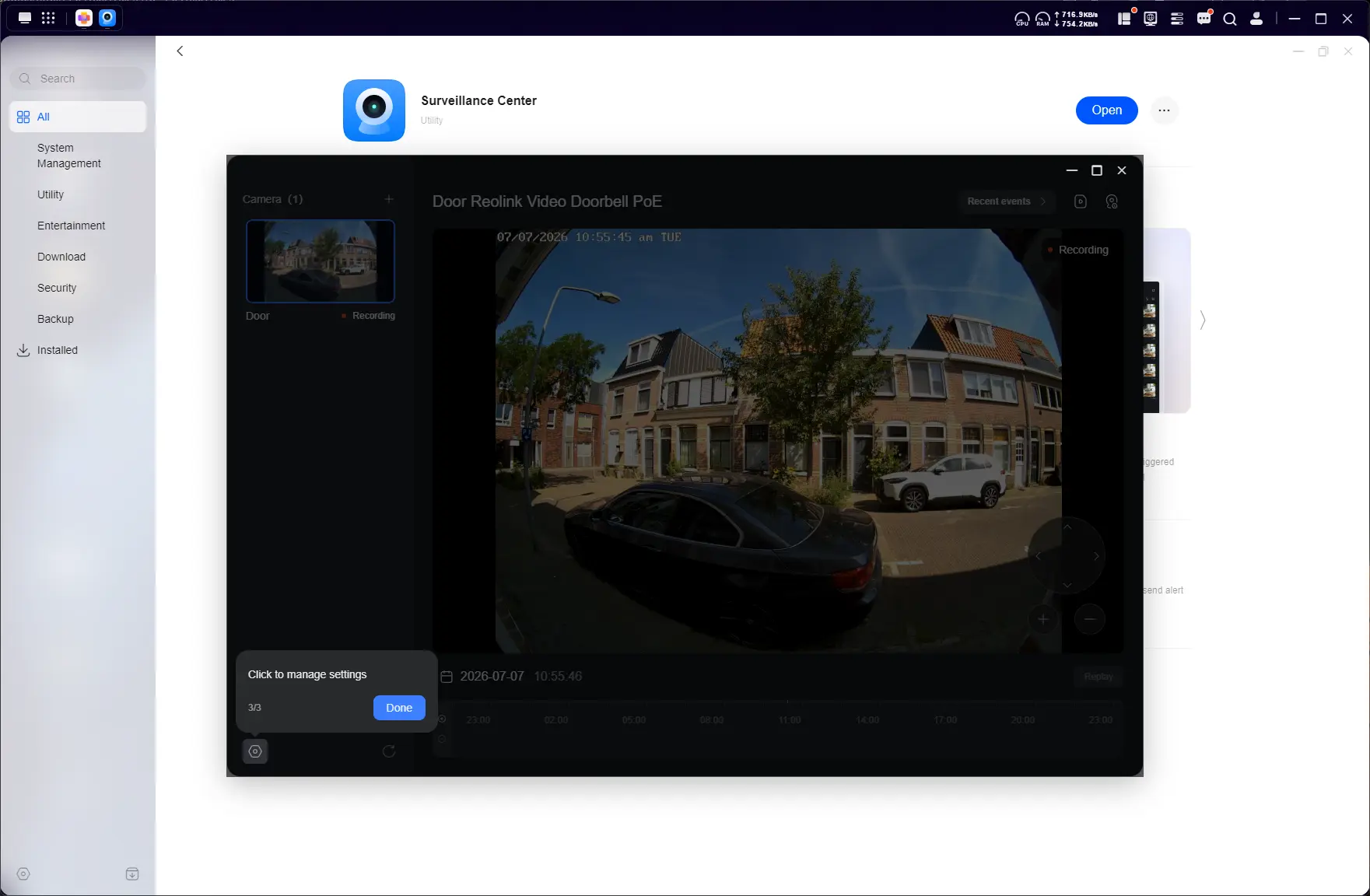
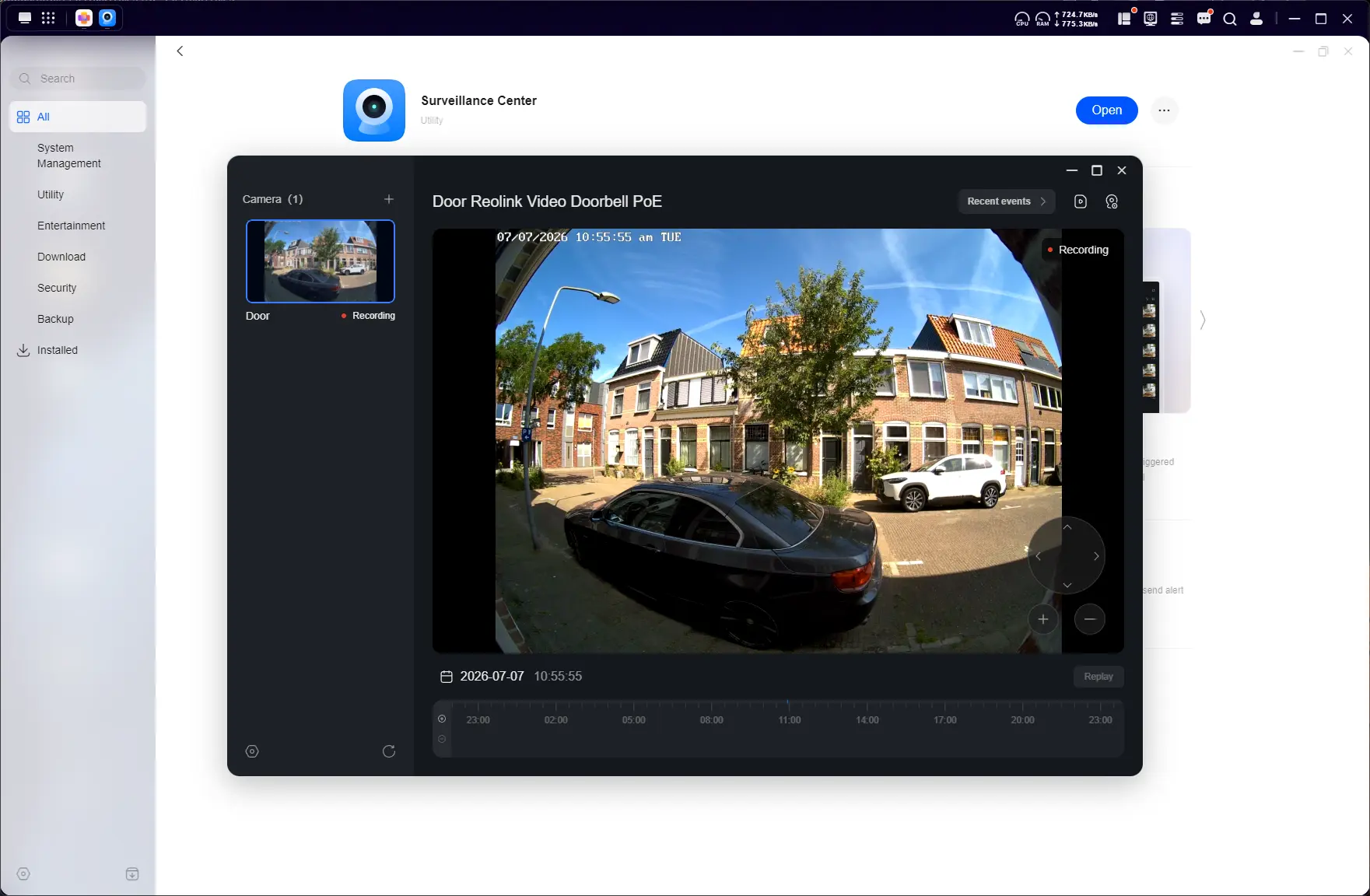
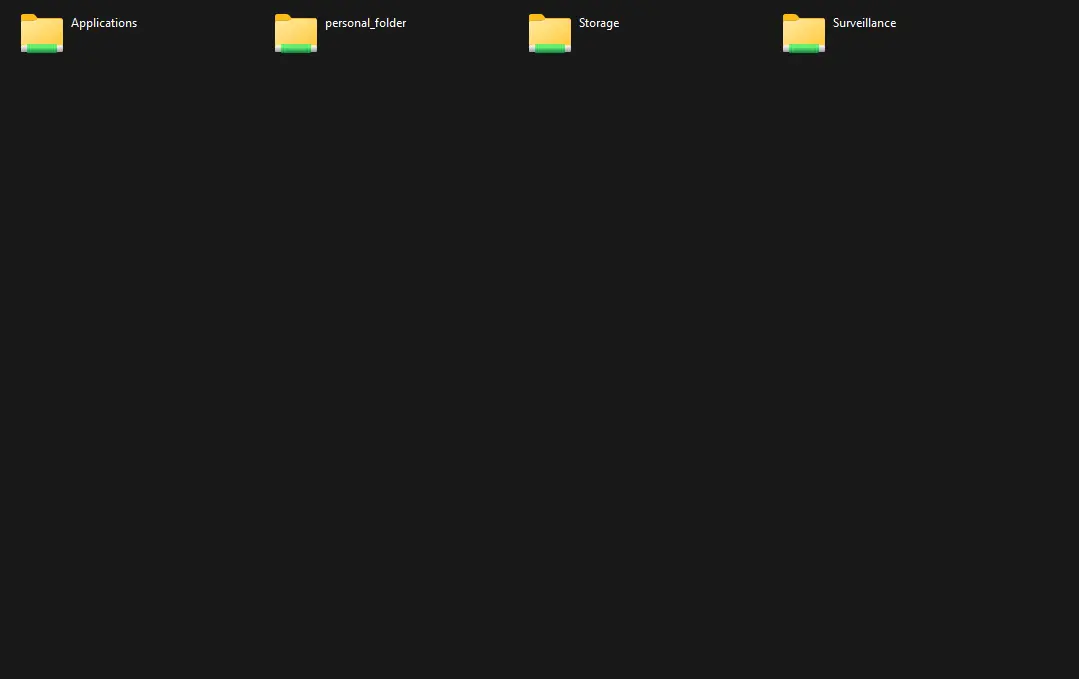
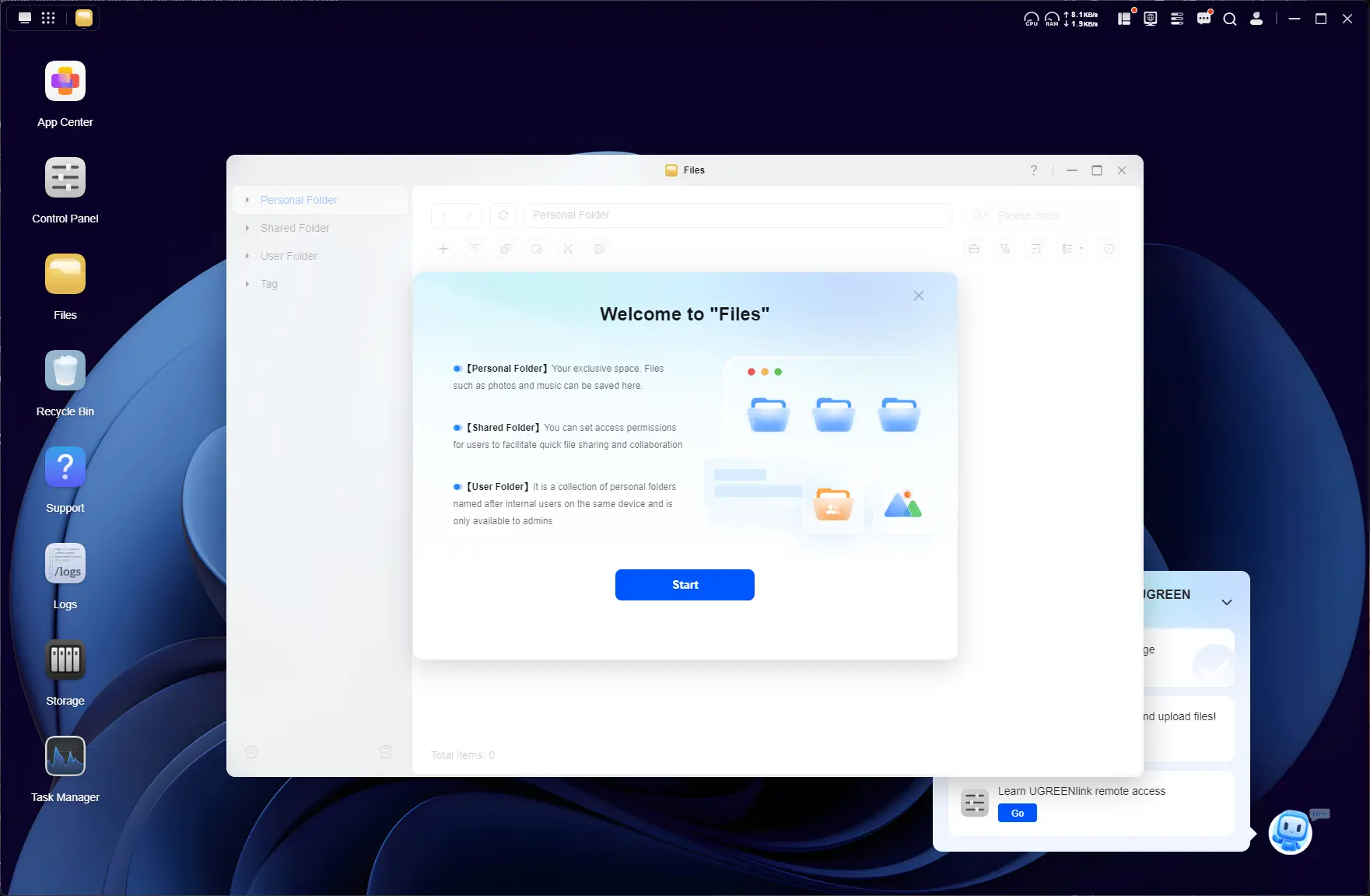
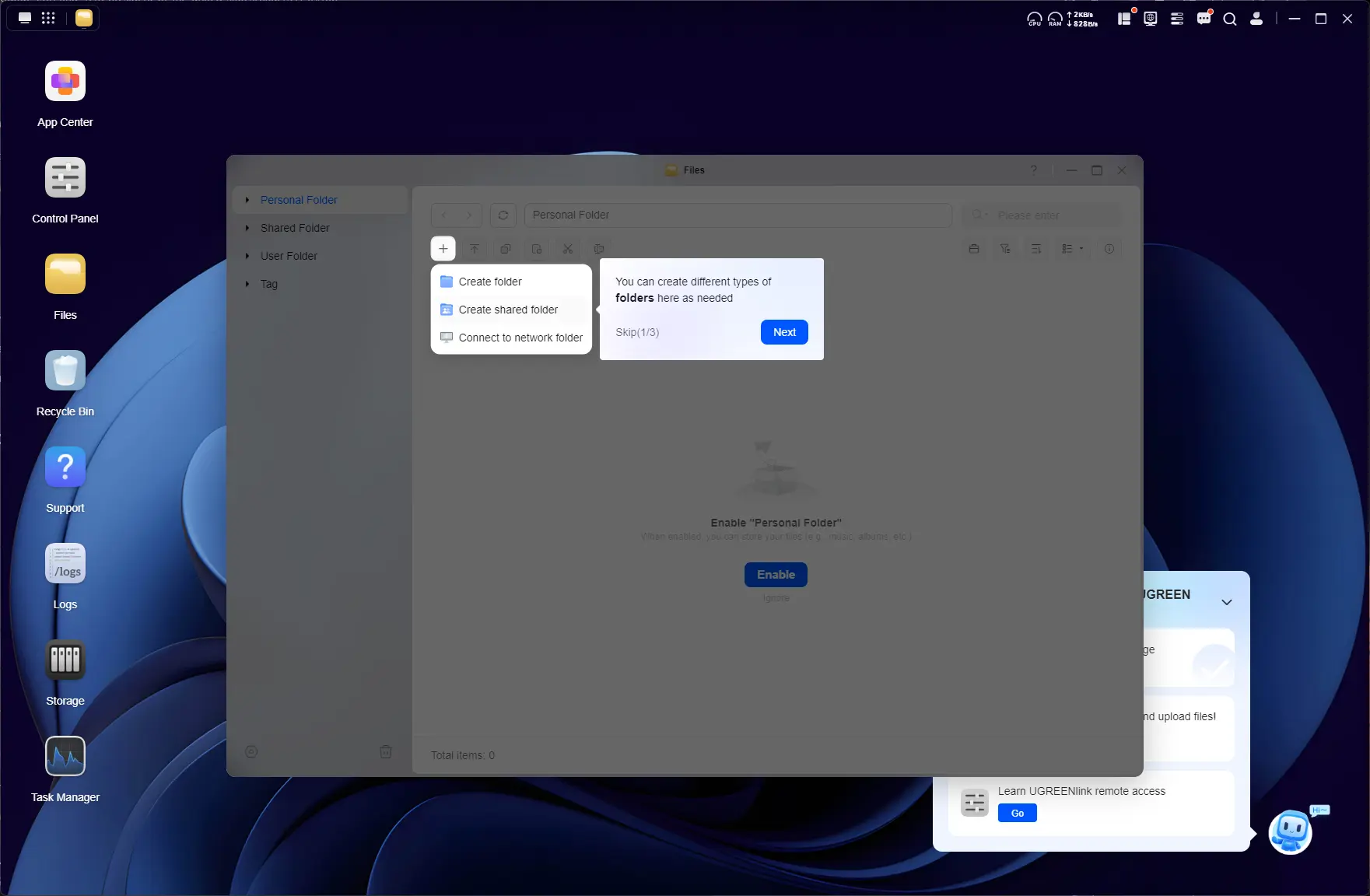
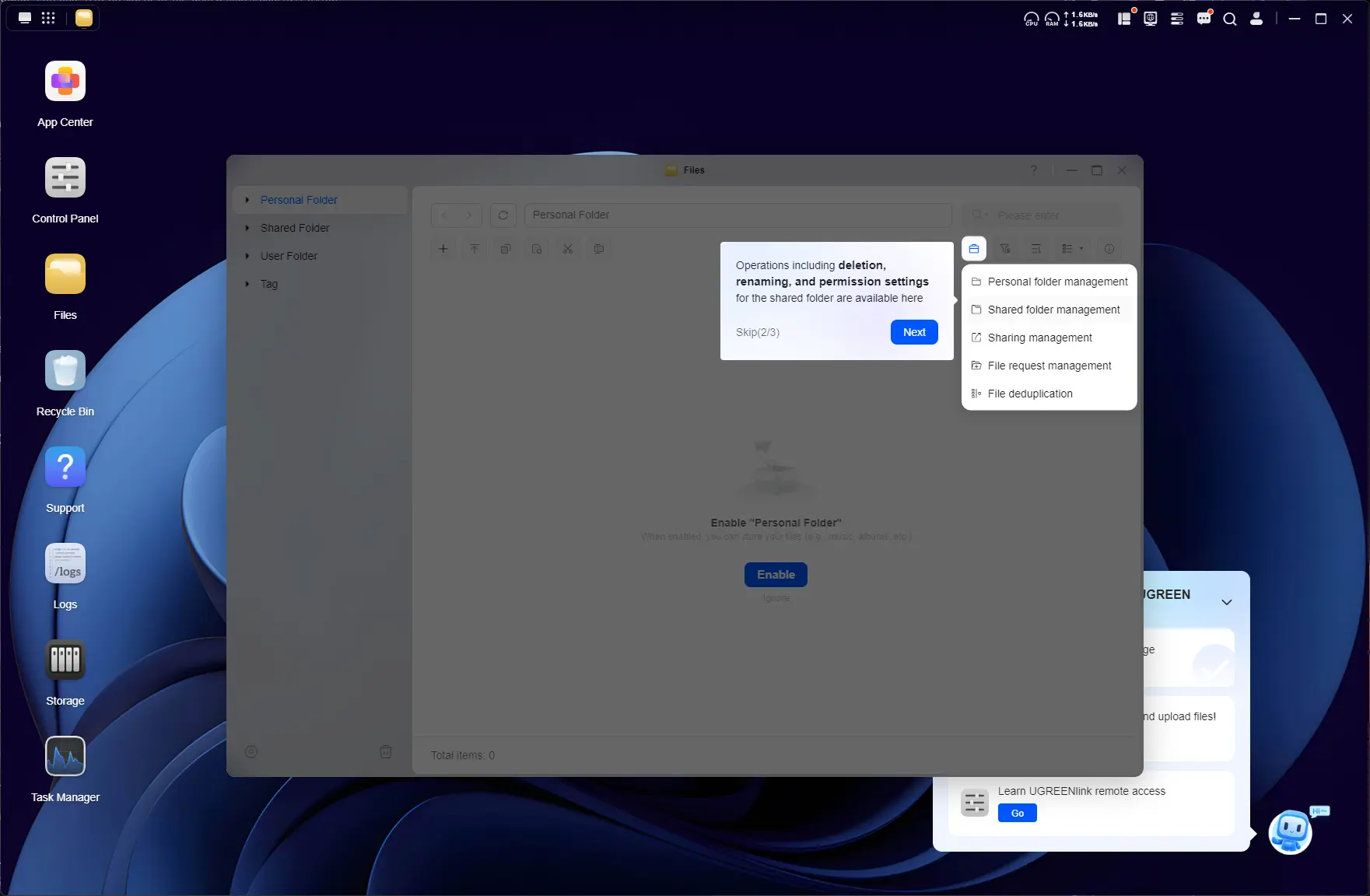
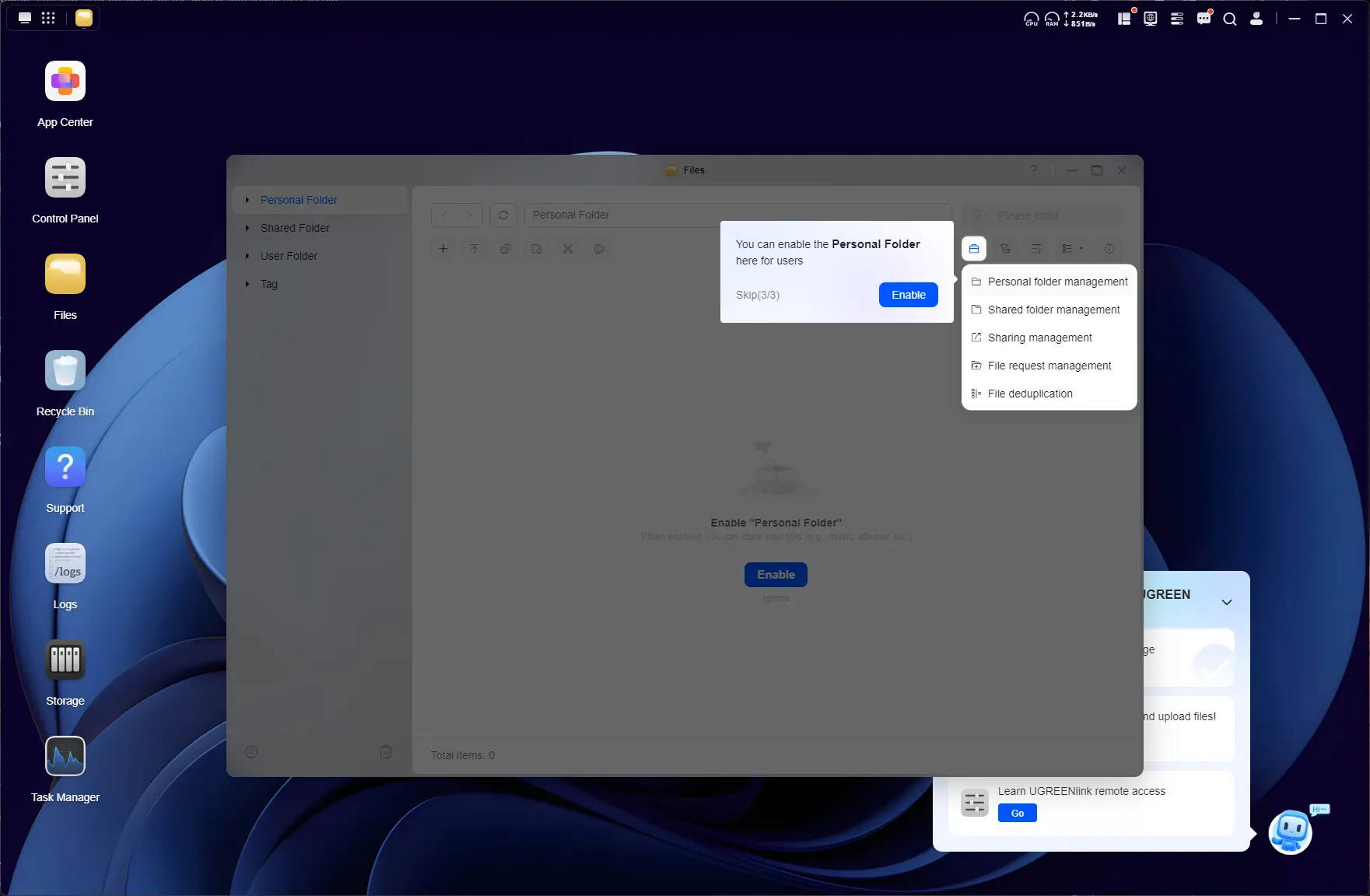
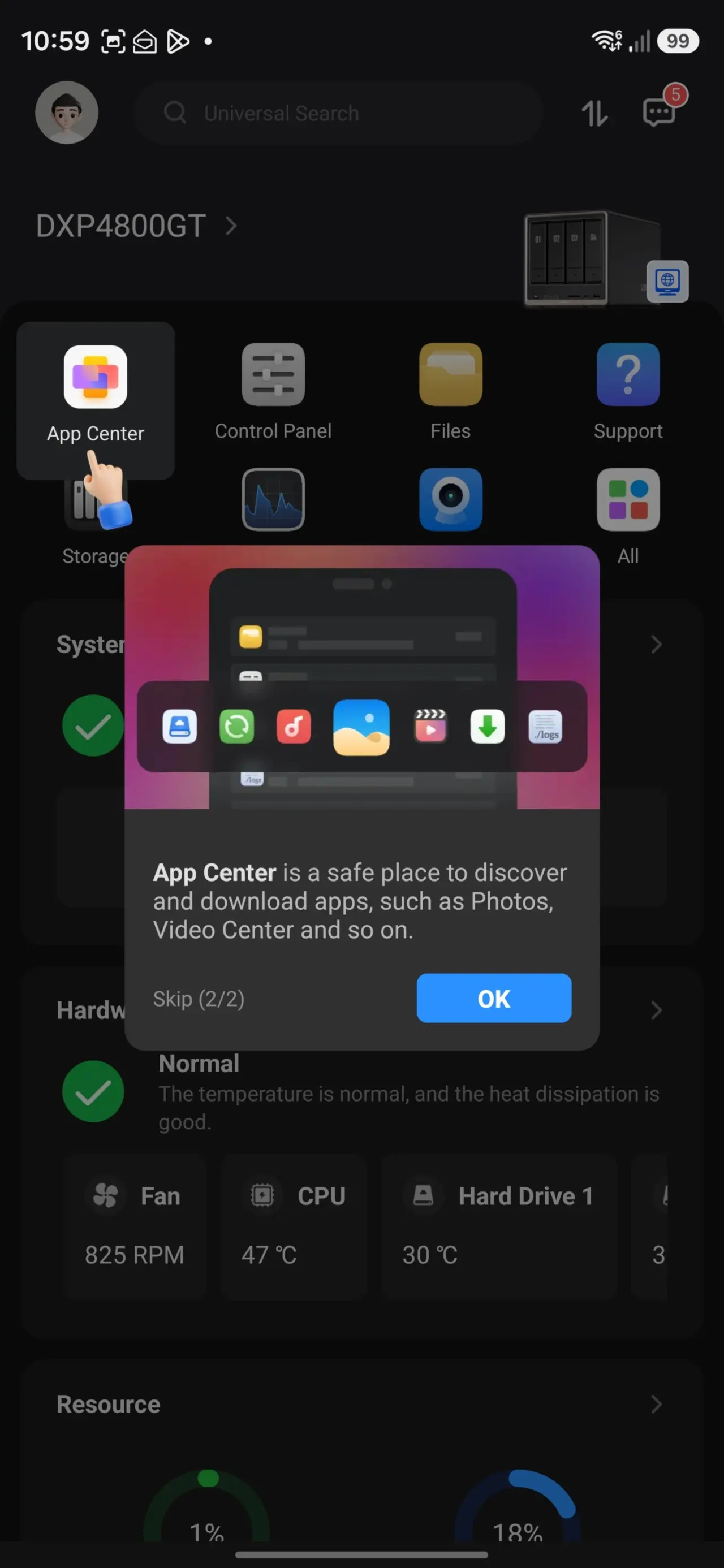
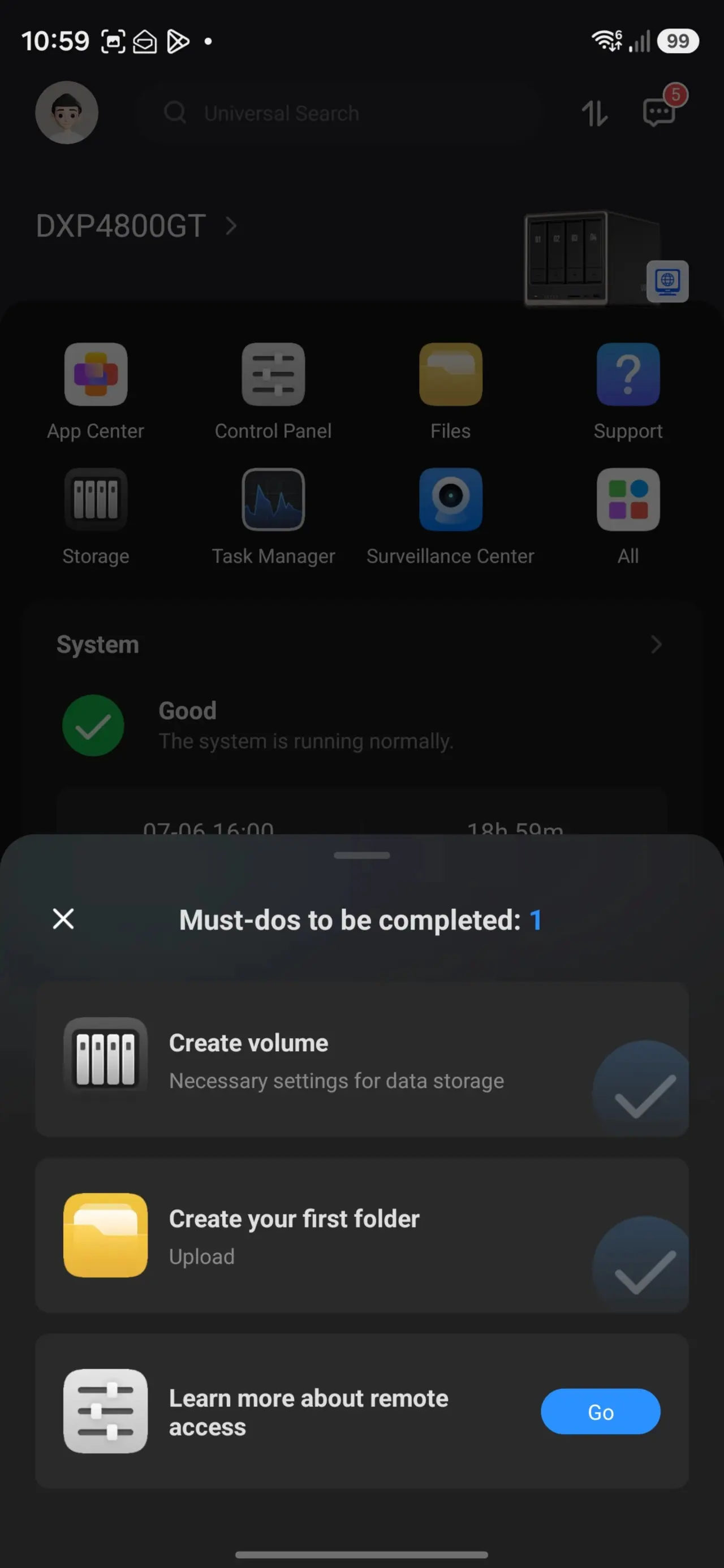
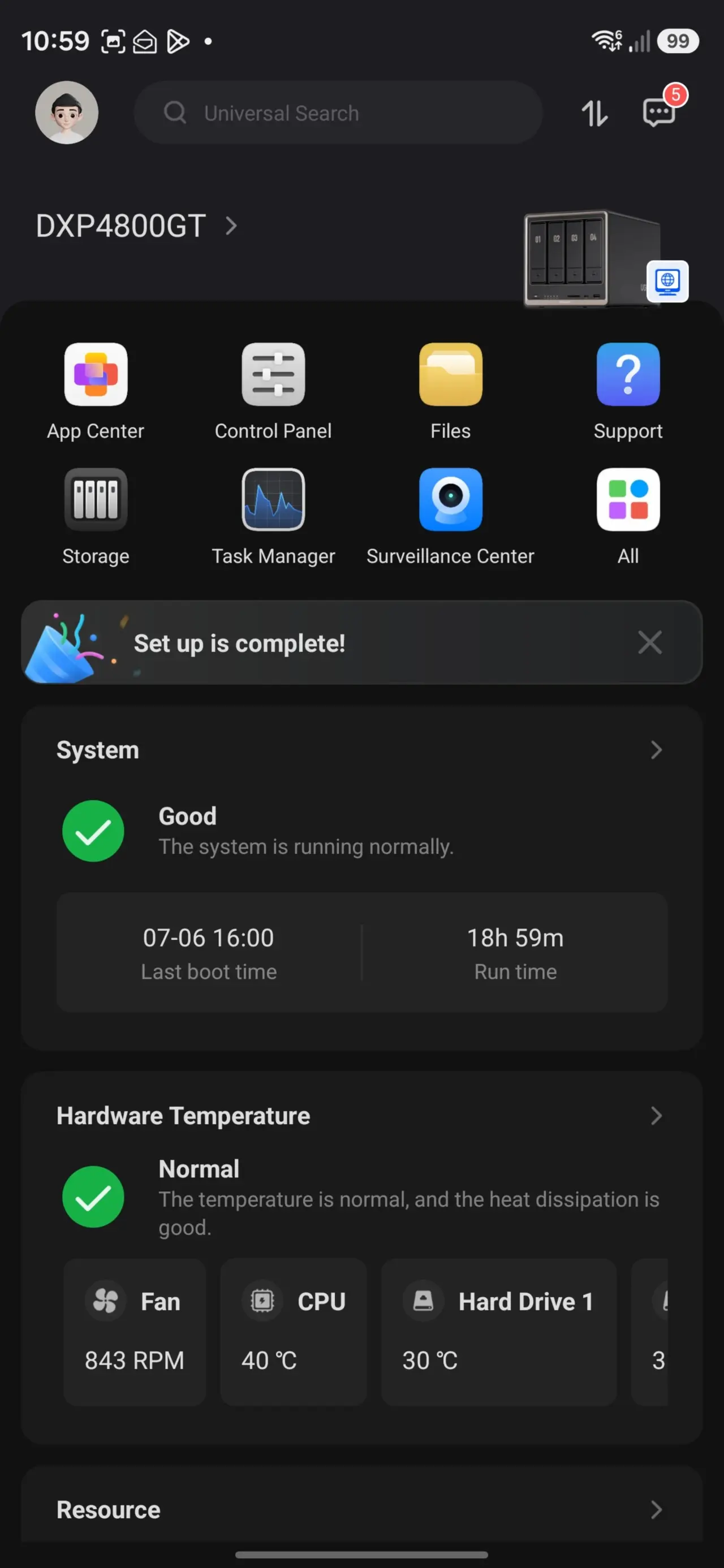
The UGOS dashboard is actually quite nice and innovative. Aside from the OOBE desktop tips, there is also a little helper on the bottom right that reminds you to complete the first basic setup steps of the now initialized NAS. Those are:
- Create a volume for using Storage;
- Create a folder;
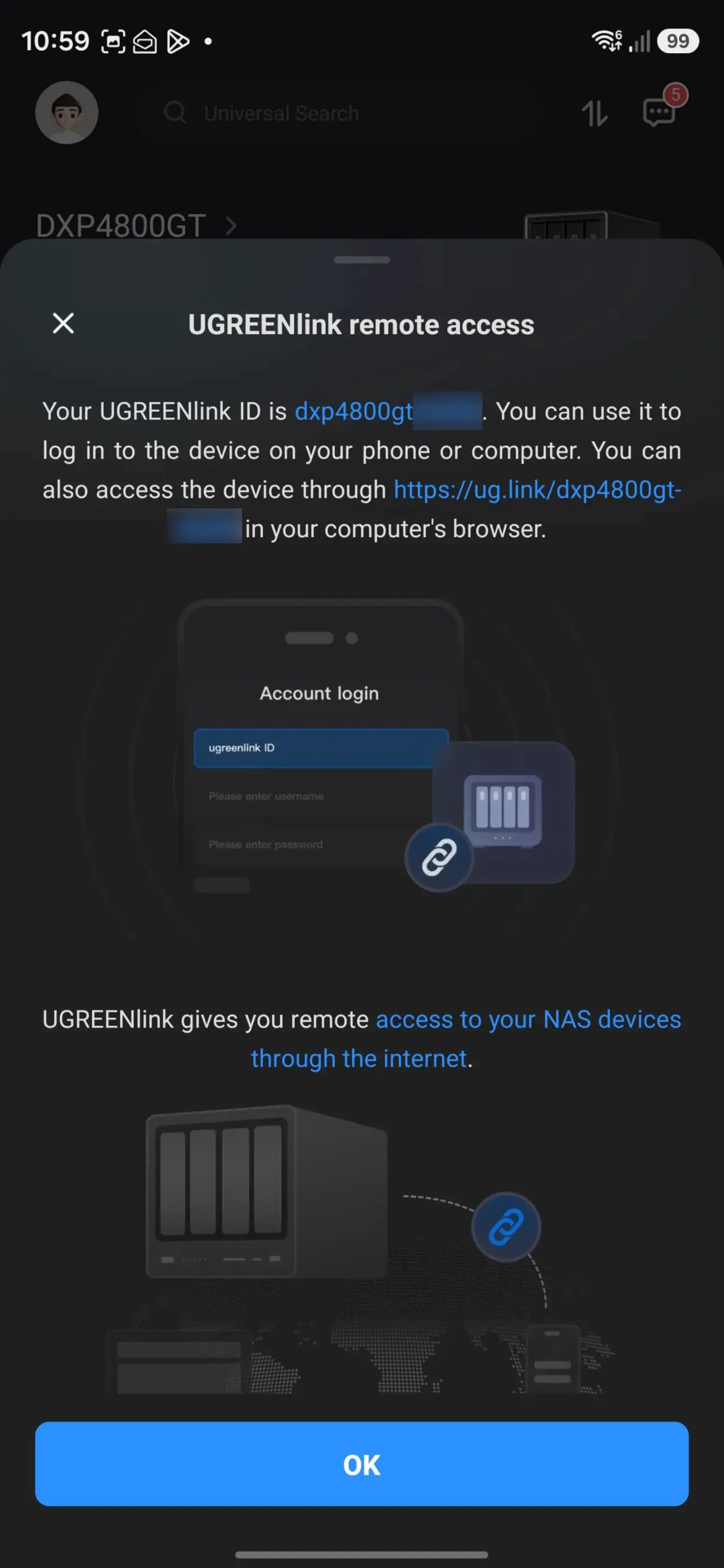
- Create UGREENlink remote access.
UGREENlink remote access is similar to Synology QuickConnect; in fact, it works exactly the same, enabling a hostname for the .local LAN but also a unique device ID to connect to over the web, with a full https certificate provided by UGREEN. Once all the steps are completed, they get checked off, and the assistant disappears.
Surveillance Center
As you may have seen from the above Post Setup images, UGOS now includes Surveillance Center, and the entire process to setup is in the above gallery. It was painless to add my Reolink POE doorbell camera; although there is no dedicated Surveillance Center app, the camera can be managed and viewed through the UGREEN Mobile app. It"s pretty barebones at the moment, for example you cannot even zoom in on the feed via Mobile or the Browser apps which is disappointing.
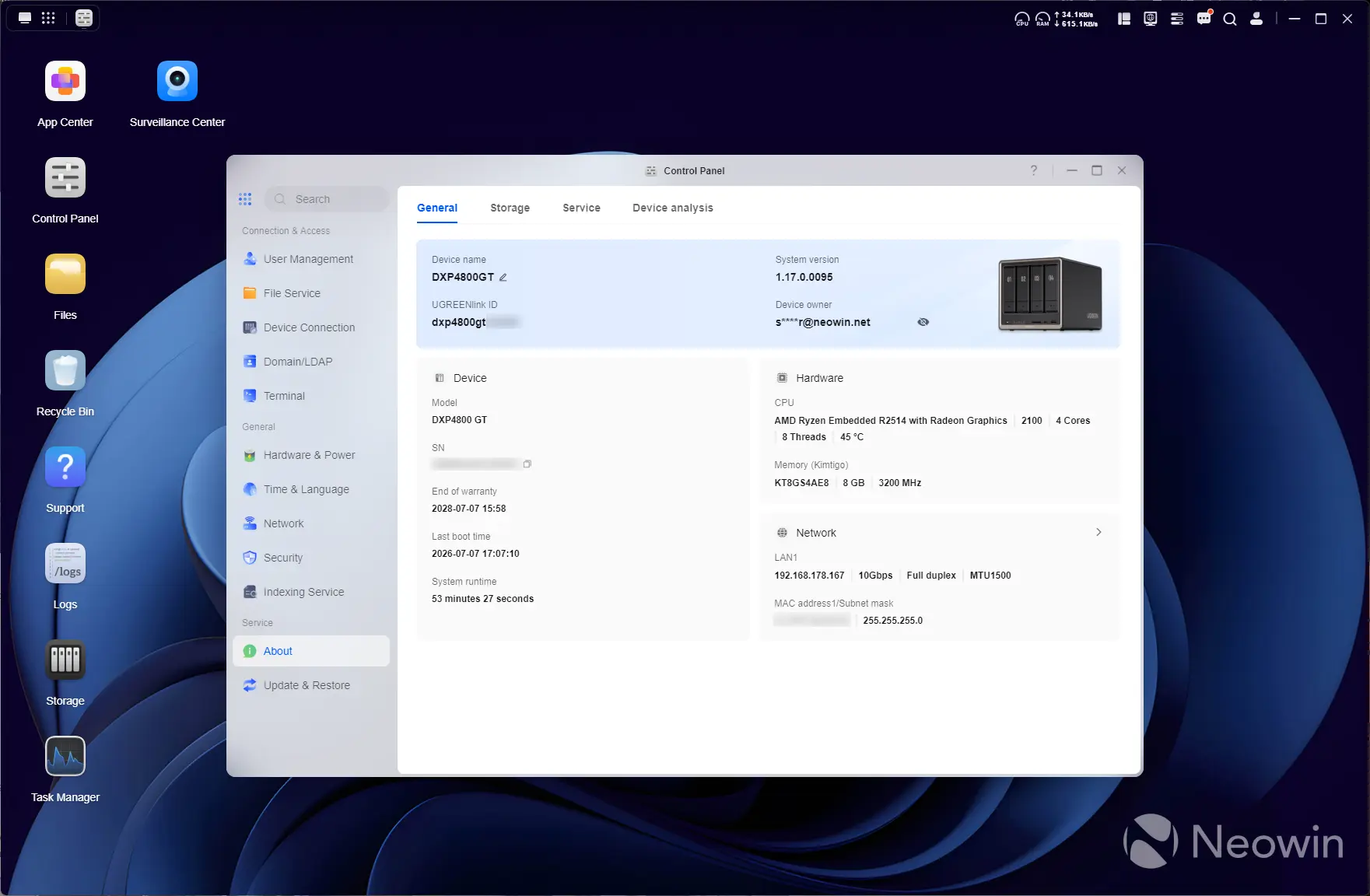
So, you know how you normally connect to a NAS through the browser? That"s how I"ve been doing it for the past few years anyway. UGREEN has its own Windows app that displays the connection in a remote desktop session window. From a quick online search, it is also not a PWA (a web page thrown inside an app wrapper); it is a fully dedicated Windows app.
Usage
Next up, I did some network performance tests, which you can view below.
| HDD volume | SSD volume |
|---|---|
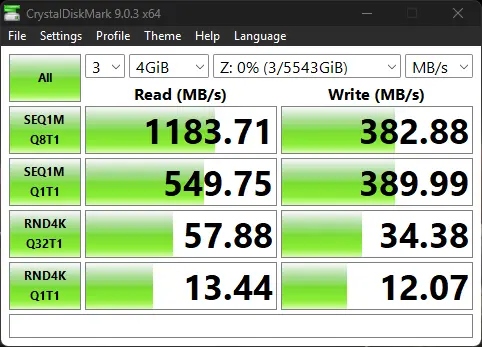
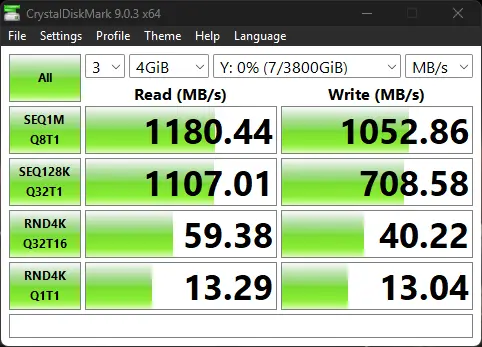
A CrystalDiskMark test on mapped network drives from within a Windows 11 25H2 PC connected over a 10 GbE hub, pretty much maxed out my connection.
| HDD volume | SSD volume |
|---|---|
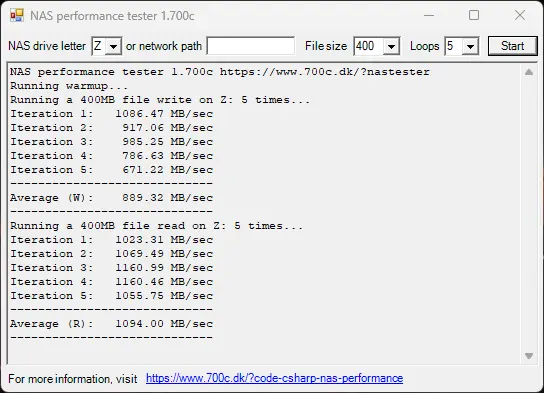
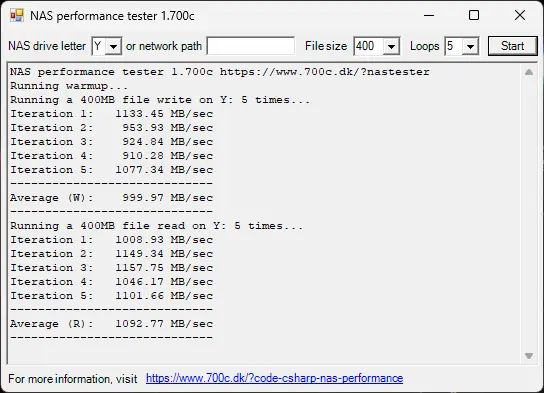
I also ran the NAS Performance tester, which tests the link speed performance. As you can see, it pretty much maxes out my 10 GbE connection.

UGOS, which is now at v1.17.0.0095, comes with an App Center that has a bunch of handy programs you can install right off the bat, such as a Virtual Machine manager, Docker, (Cloud) Backup. As you can imagine, any media streaming services you would want to host off the DXP4800 GT will work great, thanks to the AMD Ryzen Embedded R2514 CPU with its onboard Radeon Vega Graphics and 8GB of DDR4 memory.
It"s also quiet. I had this sat next to my computer on my work desk for the past week, and I did wonder if the noise I was accustomed to with NAS devices would annoy me, but all I could hear was a soft whirring of the rear fan when the disks were not actively copying or reading data.
Mobile app
No WoL for you (without a UPS)
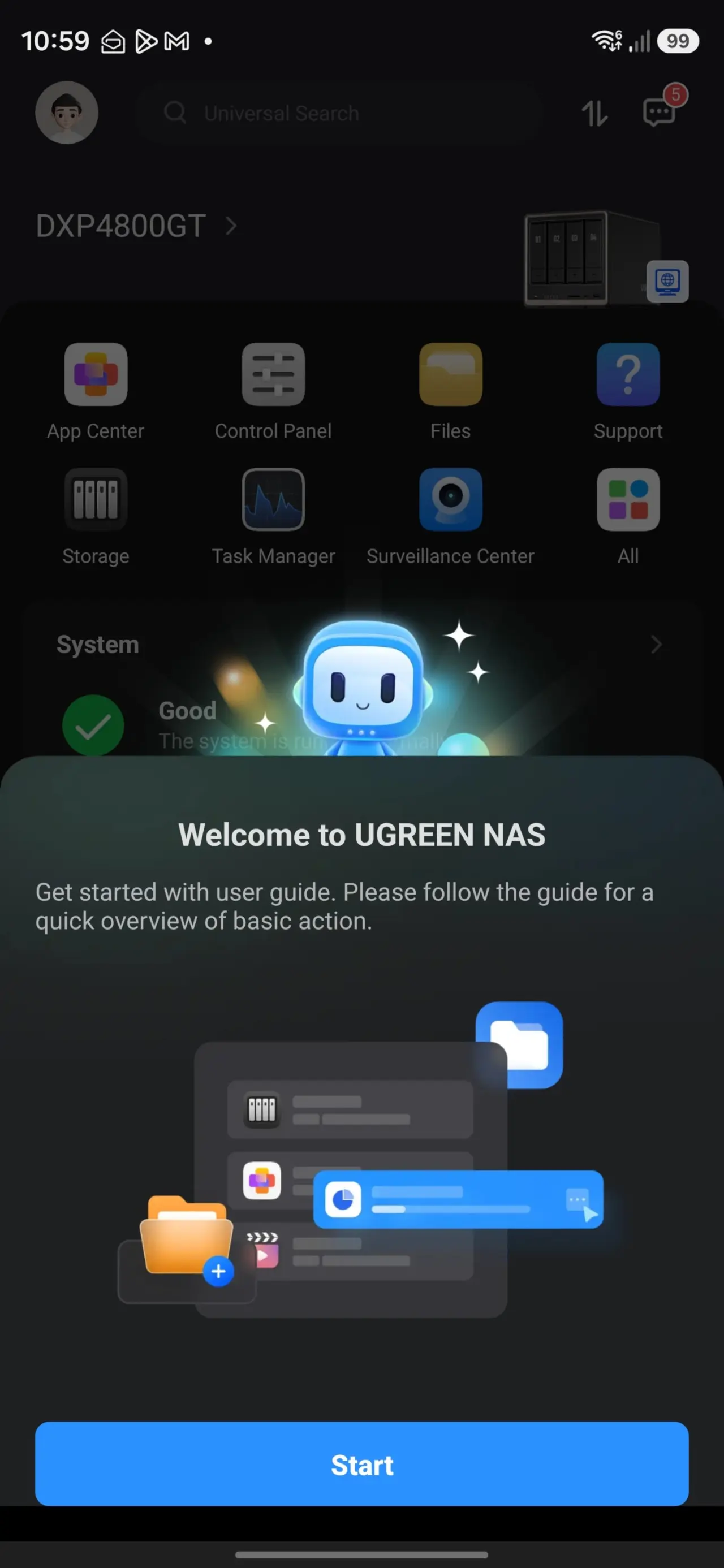
UGREEN also has a dedicated mobile app, and it lets you control the DXP4800 GT fully, like the desktop app. This also means you can shut it off from the app, but powering it on again through the mobile app isn"t possible because the app does not support Magic Packets.
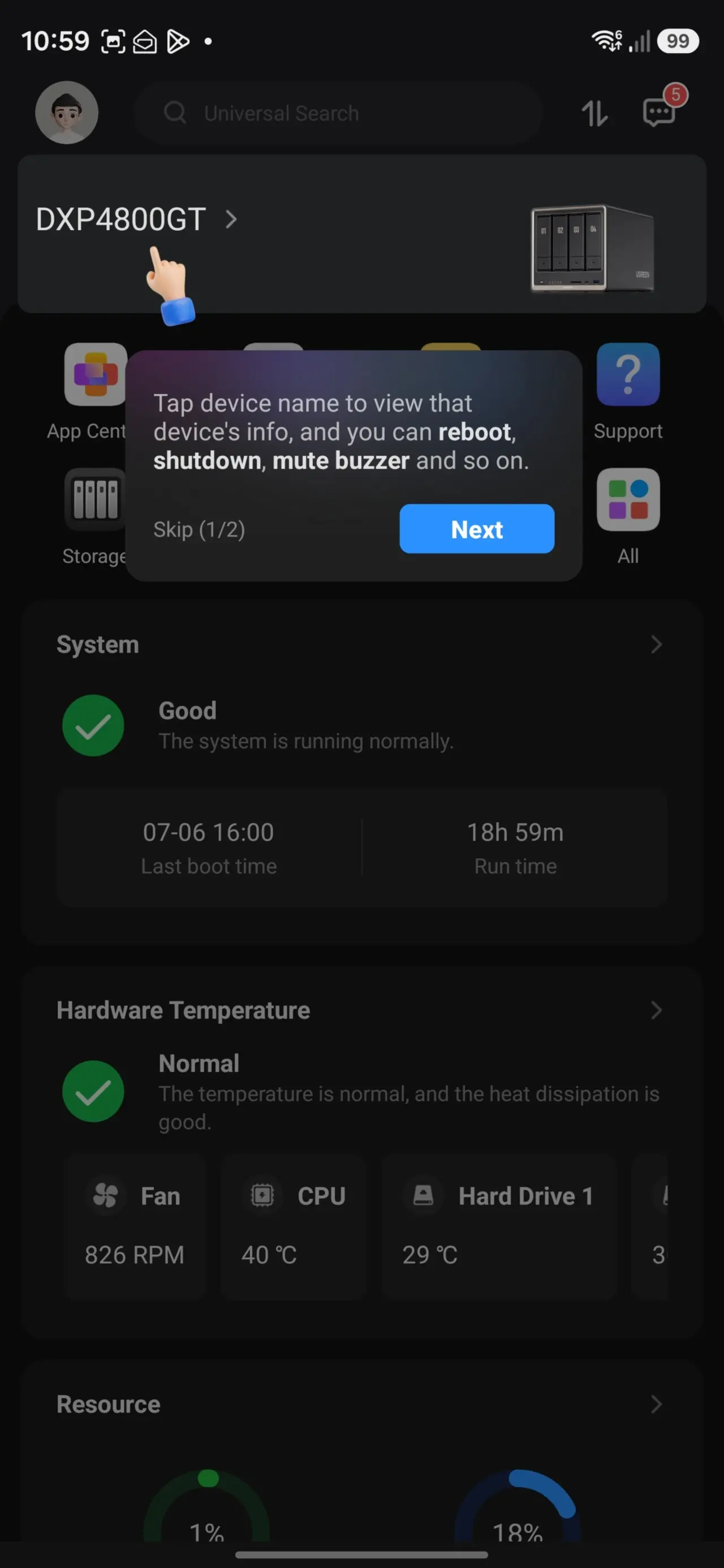
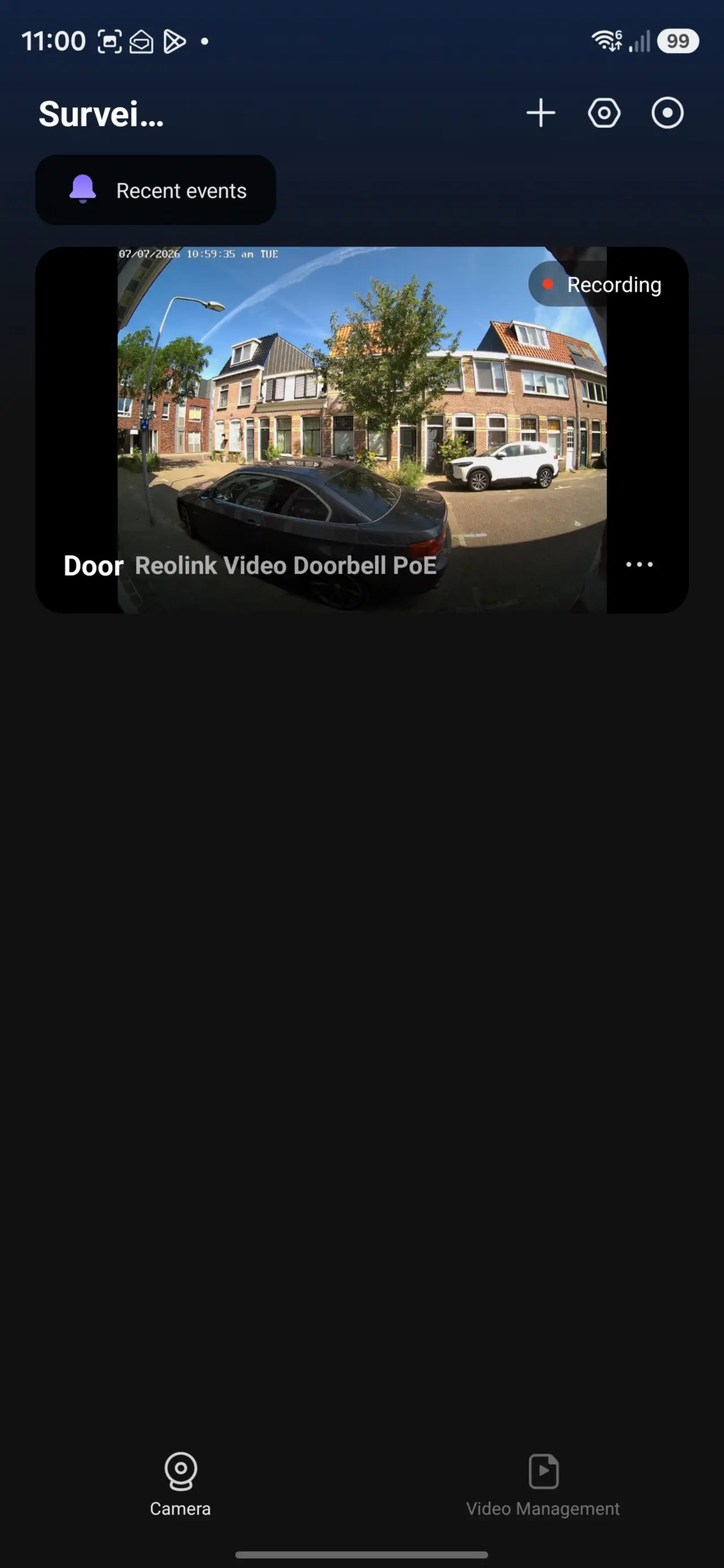
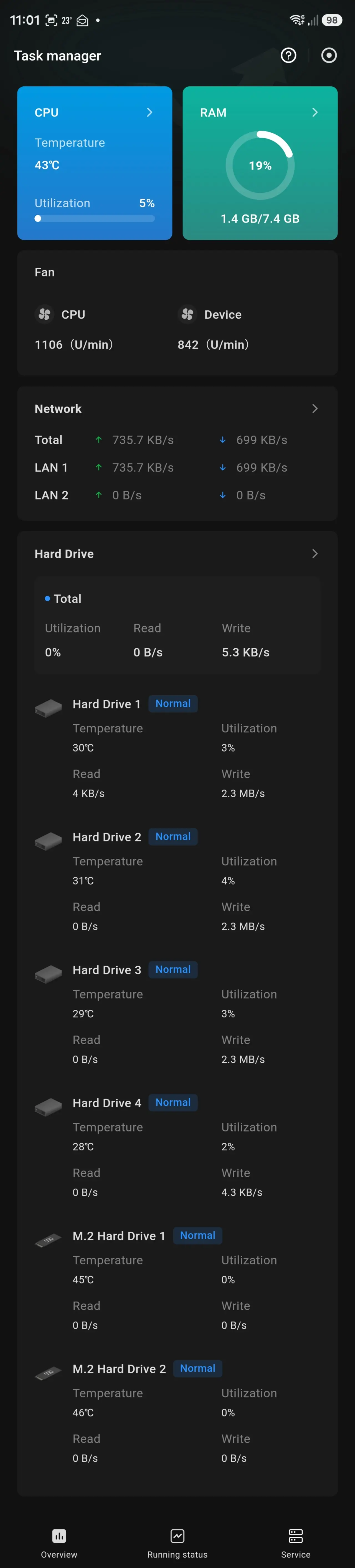
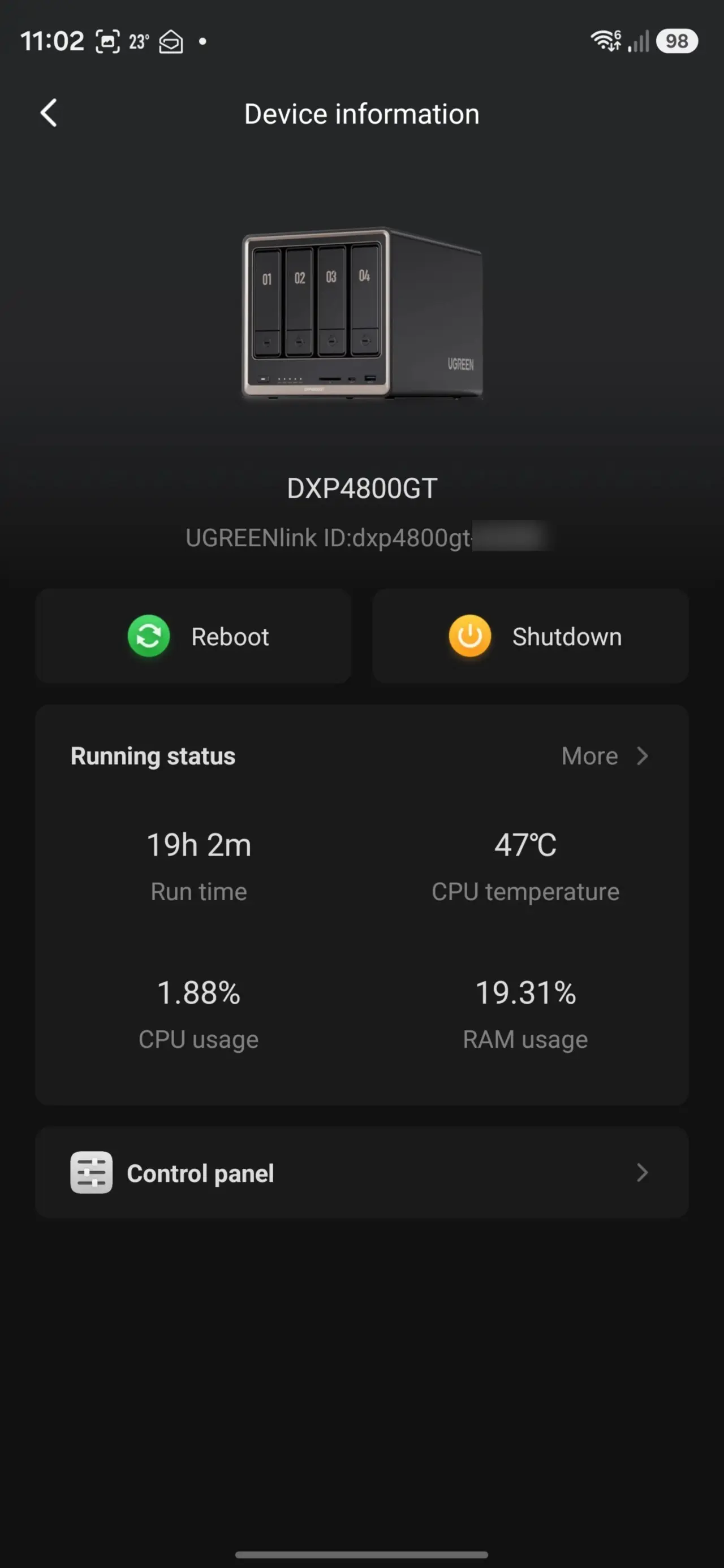
it is possible to use WoL to power on the NAS through the mobile app; but this only works in combination with a UPS.
Power
| In Standby | On, idle |
|---|---|
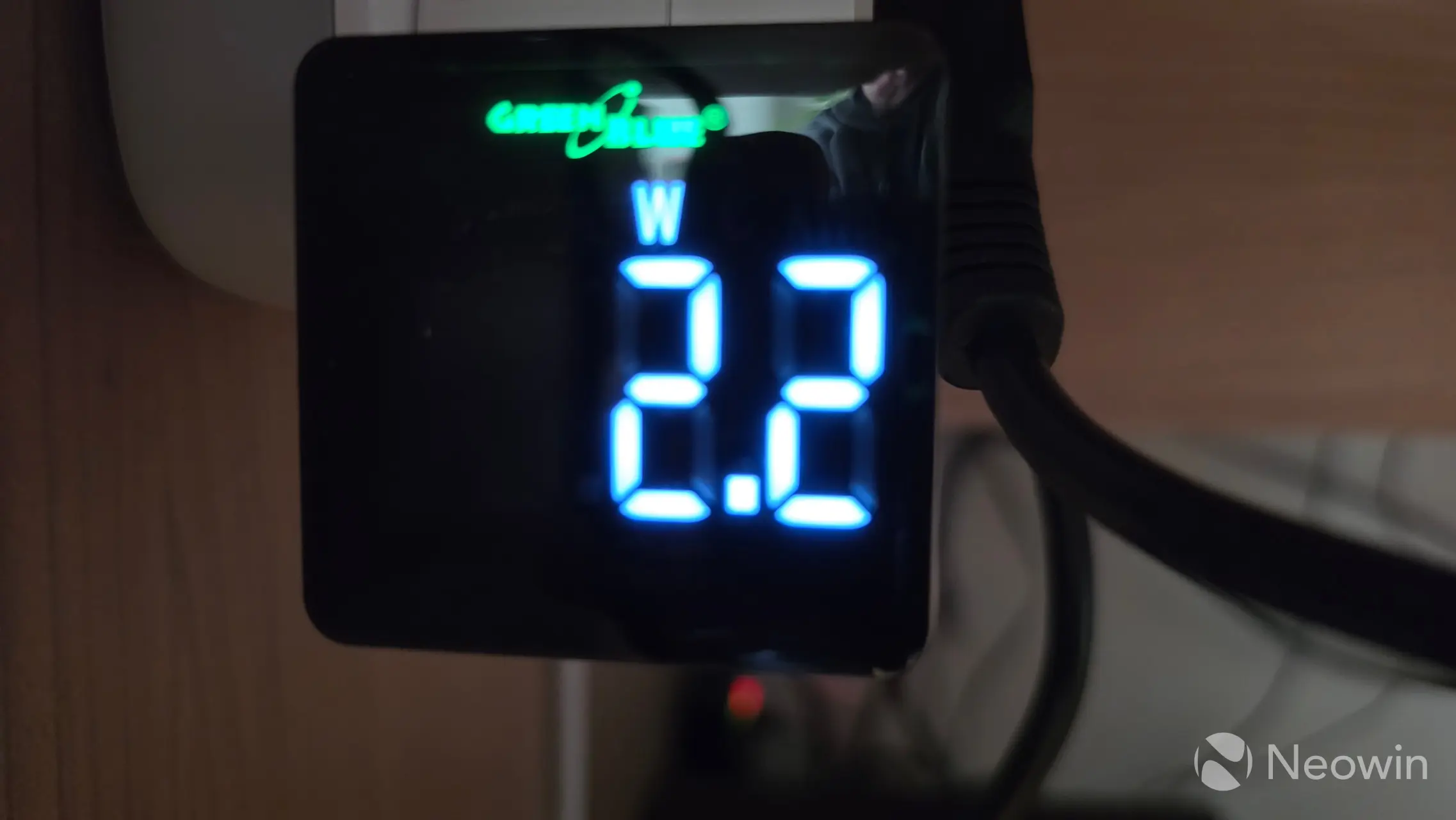
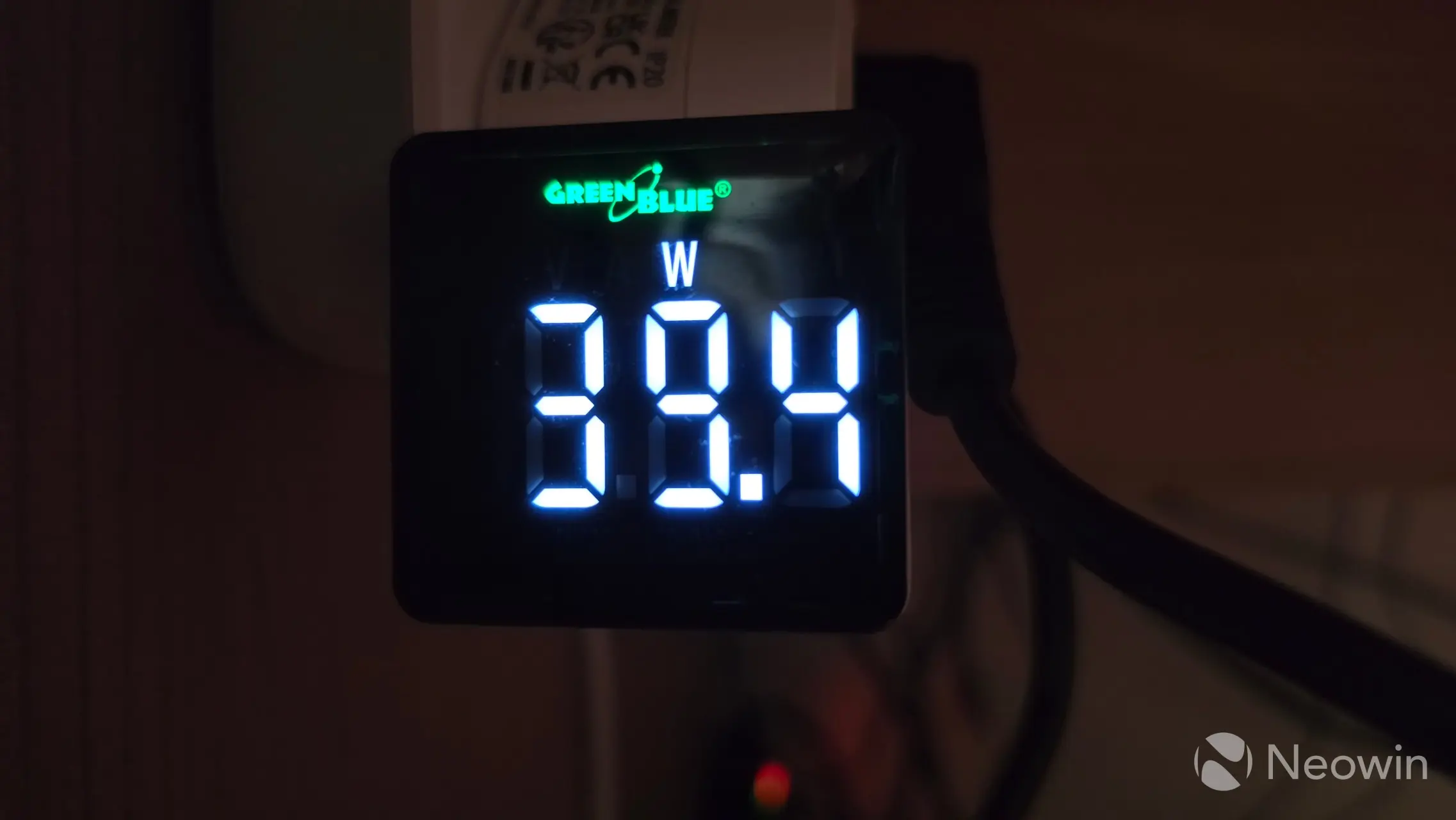
Speaking of power, you may find that it is near impossible to find specifications about the power, aside from UGREEN"s own claims about disk usage in use, and in hibernation (which are 42.36W, and 18.12W respectively), but what about the states when it is powered off, or not doing anything (idle) while fully loaded with disks? I measured this and you can see above that when the DXP4800 GT is off it will average around 2.2W, which was the same as the DXP4800 Plus, and the "in use" state pretty much aligns with UGREEN"s claim.
In any case, the DXP4800 GT is powered the same external 150.1W PSU as the DXP4800 Plus. Here is a photo I took of it.
Development
As I"ve said in previous reviews I reached out to UGREEN and asked if end users had a lot of say in the development, purely from some of the stuff I saw like the numbered drive bays, a drop down menu in Docker manager for the containers that allow access to the web UI ports, and create shortcuts on the desktop and all these little things you don"t find in Synology DSM and they replied with:
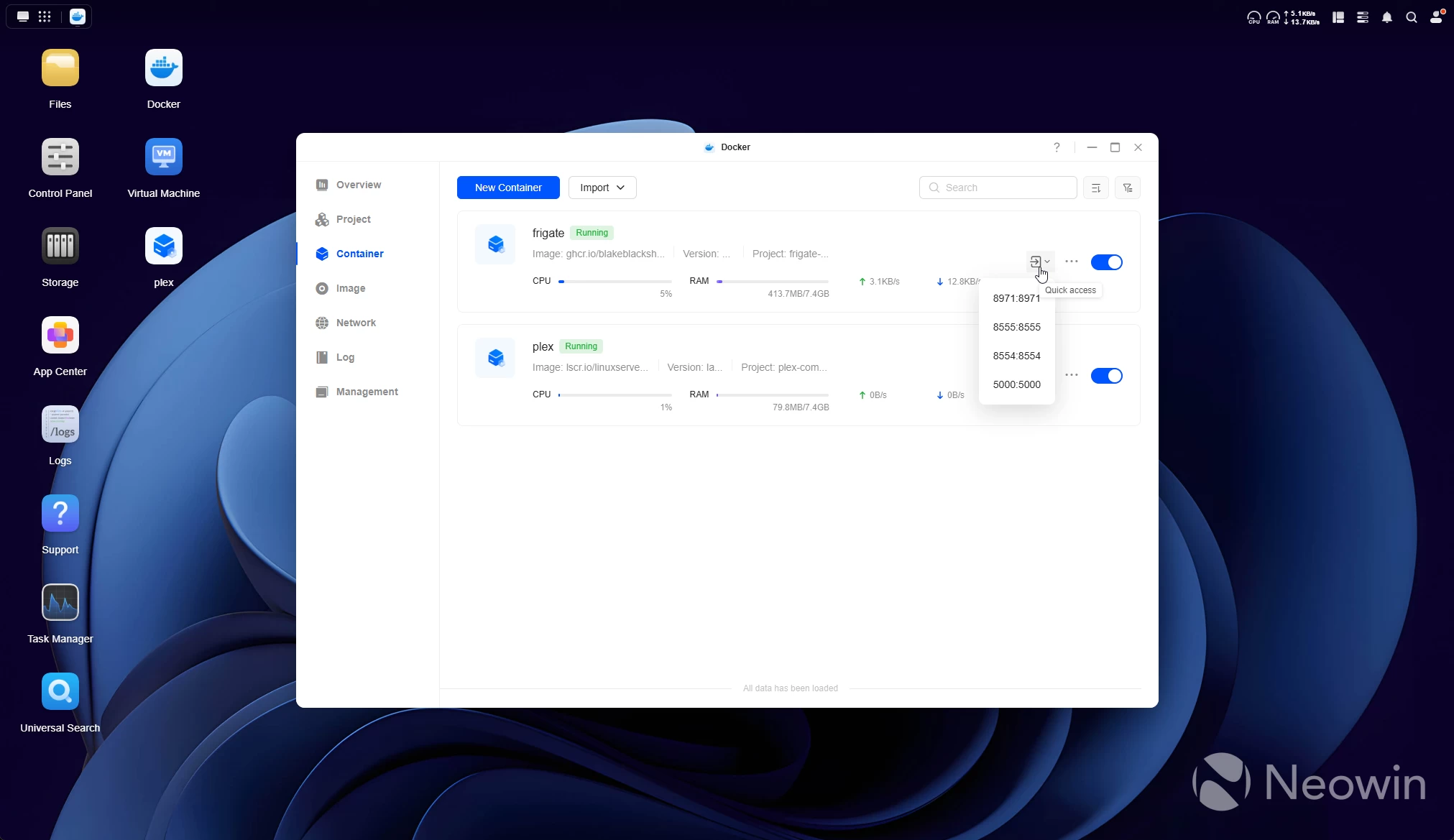
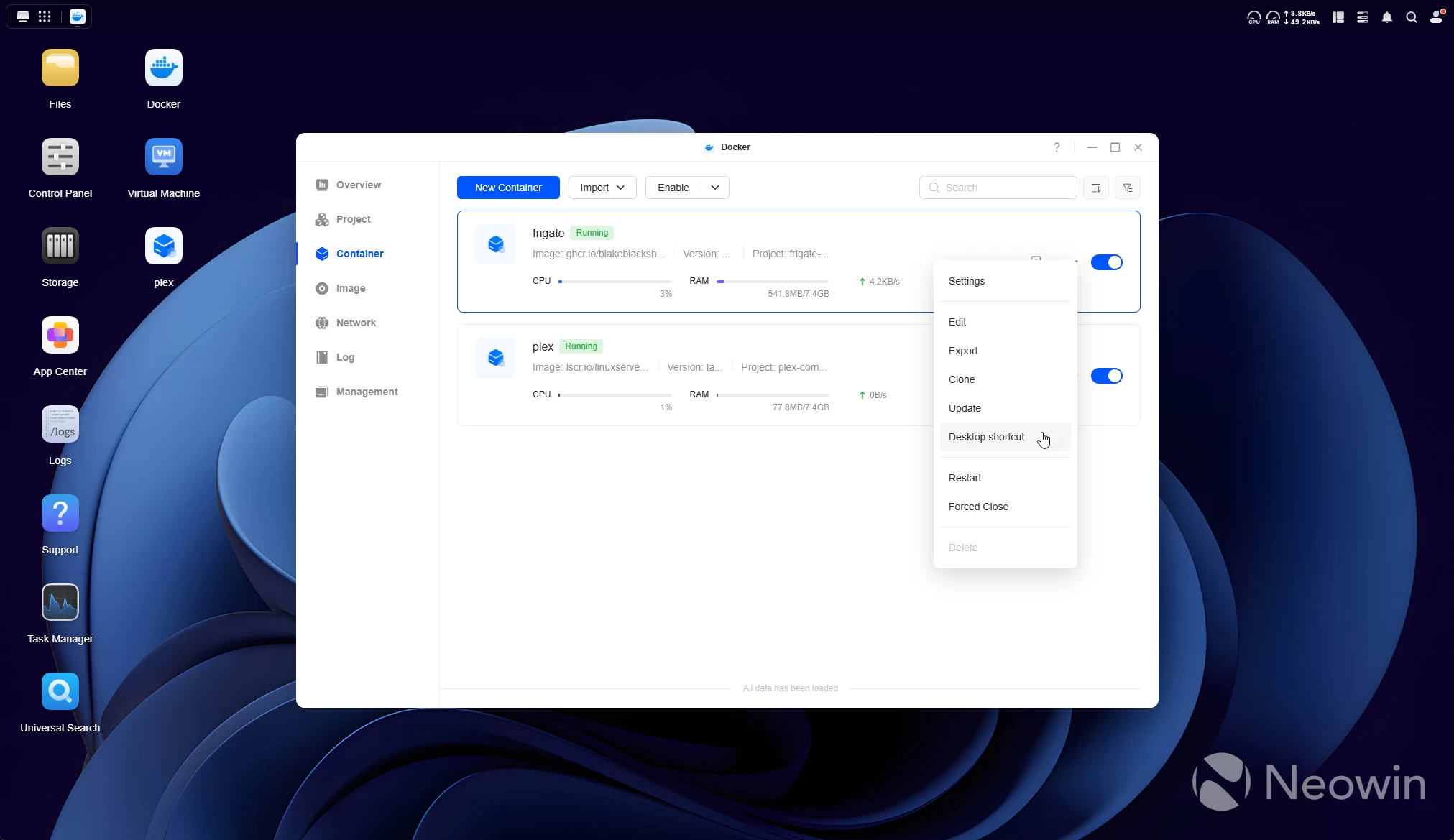
We indeed spend a lot of time looking at our users’ inputs to improve UGOS
Back in August 2025, I asked if a Surveillance manager was being planned, and was told that it is on the roadmap "to be able to connect cameras to the NAS device and save the footage." However, fast forward eleven months, and it is still on that same roadmap, as shown below:
Important future updates in the next 12 months
- New app: Surveillance Center
- Customize excluded paths (Security)
- Customize fan mode (Control Panel)
- Enforce OTP on account sign-in
- Direct playback of cloud resources on TV Clients (Theater)
- Play NAS music via CarPlay (Music)
- Support for Amazon S3 backup (Cloud Drives)
- GPU passthrough (Docker / Virtual Machine)
- Optimization for baby album experience (Photos)
- Memory album (Photos)
- Mount Google Drive / Microsoft OneDrive (Files)
- Encrypt folders (Files)
- Support for Backblaze backup (Cloud Drives)
- Support for third-party apps
- New app: "UGREEN AI" for managing AI models (iDX)
- New app: LLM-based AI assistant named "Uliya" (iDX)
- New app: Voice Memos (iDX)
It looks like the list has not been updated as of July 7, because Surveillance Center is now included in UGOS. Even so, UGREEN hasn"t been sitting on its hands since we last revisited the roadmap. Here"s everything that"s been added in the last three versions:
Important updates in the last 3 versions
- Hard Drive Enclosure Integration
- 3rd-Party Application Support
- Email Notification
- New App: AI Console for AI Model Management (iDX)
- New App: LLM-Based AI Assistant named "Uliya" (iDX)
- New App: Voice Memos (iDX)
- New App: Monitoring Center named "Surveillance"
- Cloud Drive Mounting (Files)
- Support for Dropbox (Cloud Drives)
- Offline Video Playback (Theater)
- Photos Favoriting (Photos)
- Upload Folder as Album (Photos)
But wait, there"s more!
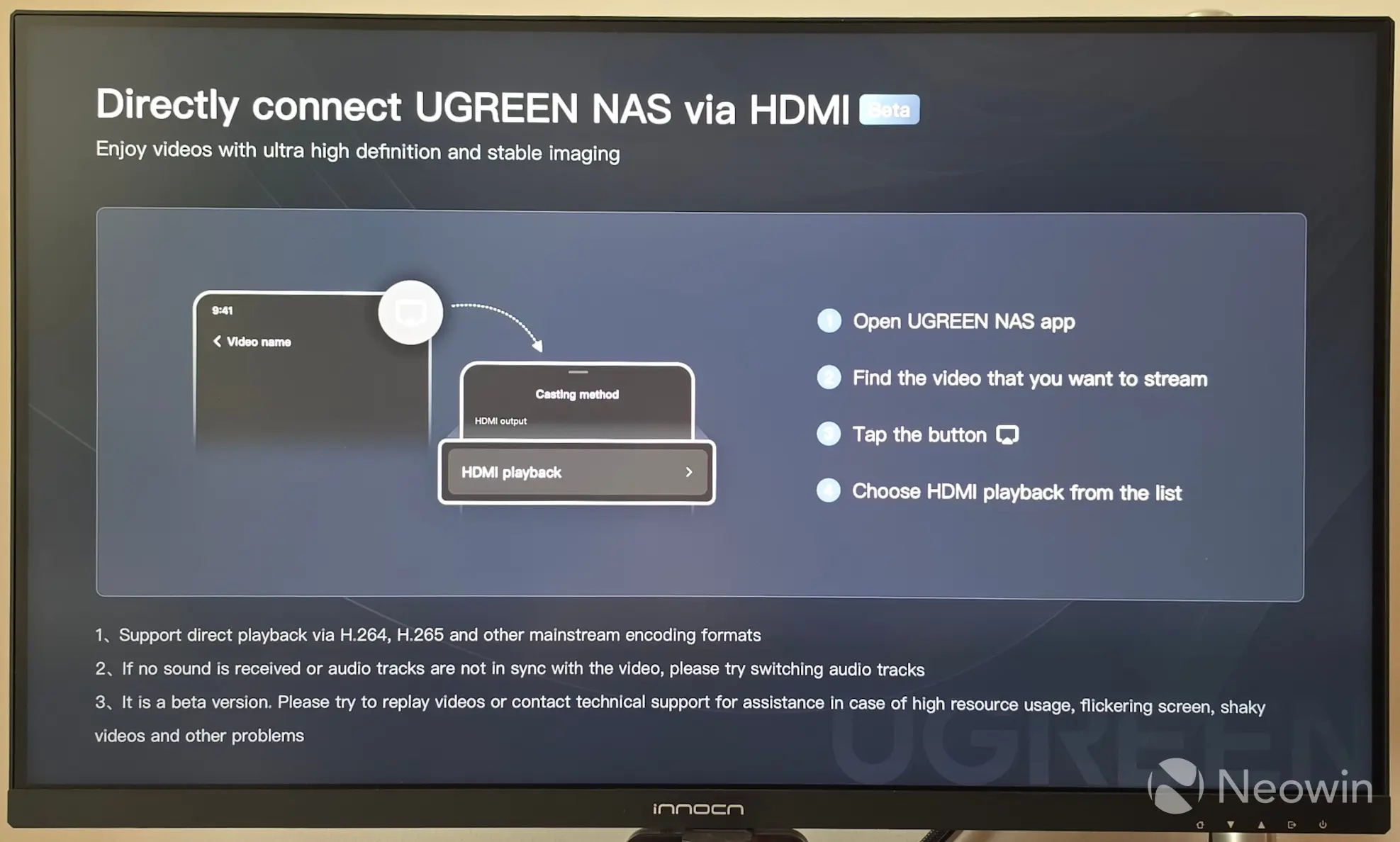
In case you decide to set up the DXP4800 GT as an HTPC with a TV or monitor connected, the UGREEN NAS app also lets you cast directly from the phone app to the screen that the NAS is connected to. It is still stamped as a Beta, but I tried it out, and it works perfectly. It is somewhat limited in that you can only cast content that is already on or exposed to the NAS.
It should be noted that I was also able to cast media content from a different TerraMaster F4-424 Max NAS to the screen, because I had connected a Server Message Block (SMB) network share in the UGOS Files app, so this also sort of gets around not being able to link such shares in Plex for a library. In short, you must be able to navigate to the content in "Files" through the UGREEN NAS app. Perhaps an update could provide a QR code to be able to cast the phone screen"s content.
Conclusion
The DXP4800 GT is the cheapest four-bay model in the DXP series, although it isn"t cheap at $659.99 (MSRP), but it"s still a great device, and recommending it will depend on the individual"s use case. If you"re just looking for an all-rounder, NAS device to manage virtual machines on, back up your files, and take care of your home theater streaming, then this certainly ticks the boxes. It provides great performance, takes up little space, and is, on the whole, very quiet. Four bays should afford most home labs and SMBs some redundancy, too.
The good
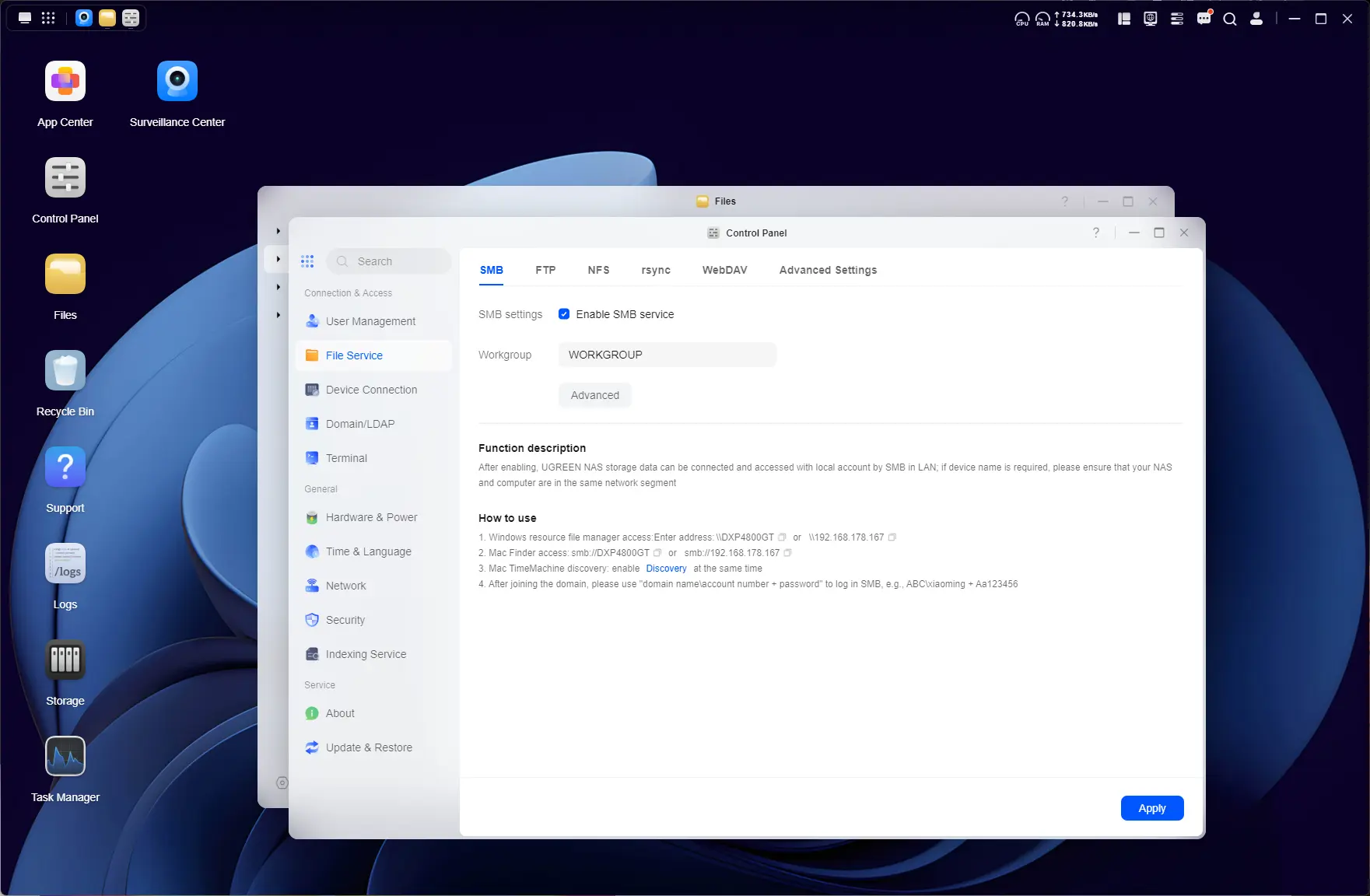
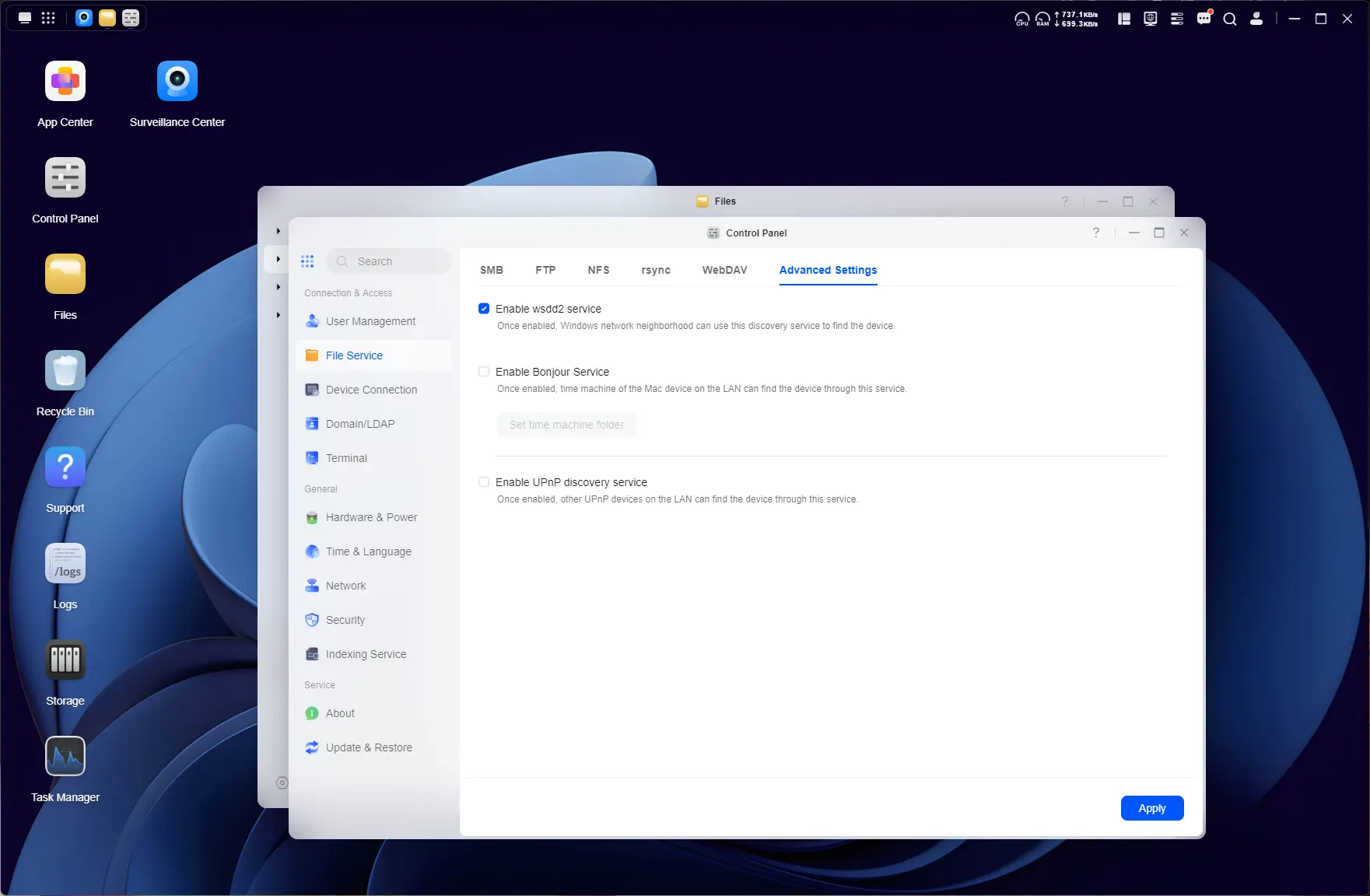
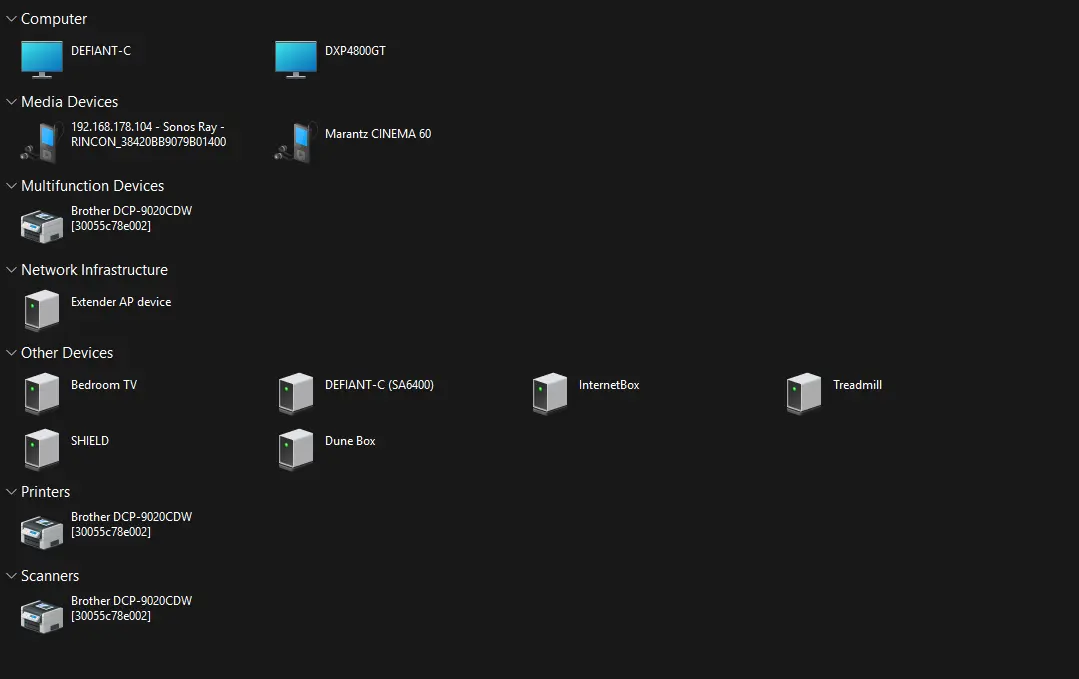
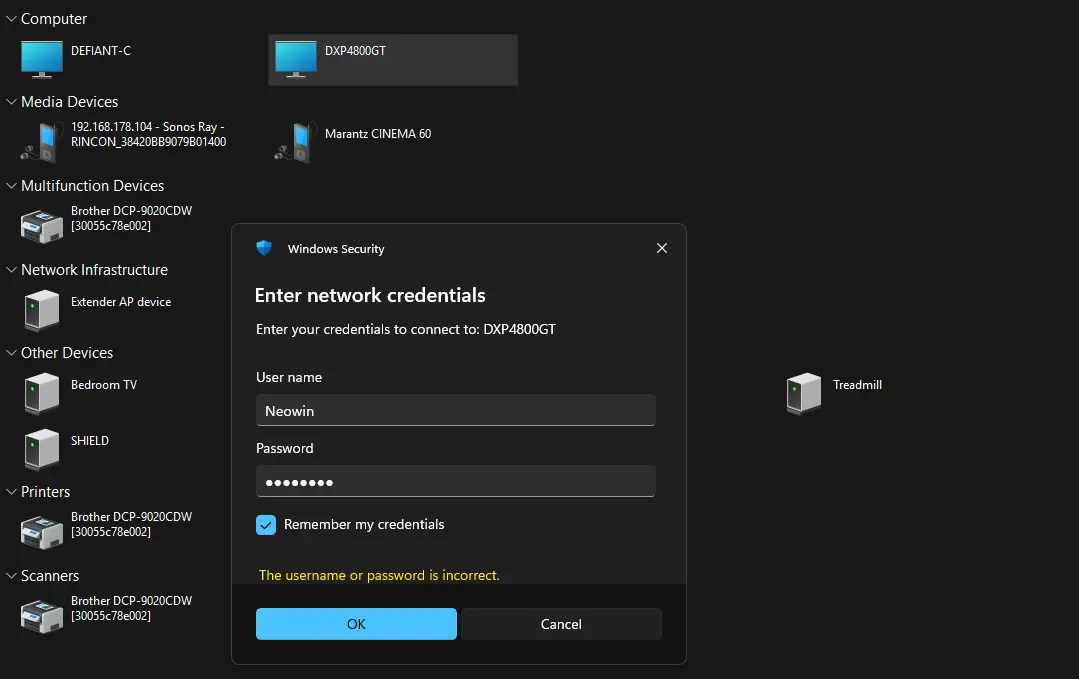
Things that stood out for me are the attention to detail this NAS offers, with things like the numbered bays, plentiful connection options on the front, with an additional USB Type A 3.2 Gen 2, and standard USB 2.0 on the back. I"m still really impressed with UGOS; it feels polished, and as I already mentioned, I didn"t run into any issues with this relatively new OS I didn"t need to fire up Google or consult the UGREEN forums in order to complete the setup or get underway with my Docker containers or even connect to folders over Windows Network Neighborhood.
There"s so much more to unpack with UGOS and the DXP4800 GT that isn"t really in the scope of this review. If you"re familiar with working with NAS, you can"t really go wrong here.
The bad
Let"s start with the elephant in the room, had AI datacenters not swallowed up consumer memory and storage chips like it has been doing since the end of last year, this probably would not have seen the light of day in its current form, but here we are with just 8 gigs of DDR4 memory, and an eMMC flash bootloader. It"s the sign of the times man.
I also dislike the awkward placement of the CMOS battery and that non-replaceable UGOS eMMC flash drive, which requires a full teardown to get to them, but I wouldn"t consider it a deal-breaker if you plan to stay with UGOS. What is a bit disappointing to see is that UGREEN made it harder to do what you like with the hardware. Making the CMOS battery and flash drive impossible to get to without a full teardown will limit what people can do with it. Aside from that though, and as I said earlier in this review, the push notifications could be better.
Other than what I mentioned already, it has all the features that the DH series does not (like Docker and SSD cache support), if you can justify spending around $230 more than the four-bay DH4300 Plus. This would be the better choice for a media streamer, and if you prefer to manage your own Docker containers.
So, should Synology still be worried?
Even though Synology later reversed their awful policy of locking out third party HDDs from its 2025 Home and SMB line, I think the damage had already been done with a lot of customers (I count myself) when it received barely a lukewarm reception to its 2025 line, such as with the $799 DS1525+ and the 925+ (which we reviewed) with its AMD Ryzen V1500B embedded CPU that does not even have an onboard iGPU. It seems like Synology is stuck in the past, only now upgrading to 2.5GbE (from 1 GbE in 2023) while 10GbE is becoming the norm for premium devices. The + used to represent the flagship media-class series of Synology NAS range that was designed to do it all, but buyers will be left wanting, with no PCIe NiC or GPU expansion option available to it as well.
Should you buy?
Like I said, if you plan to stick with UGOS then this is a really cheap four-bay with the current discounts of $100 applied. You would have to start looking in the realms of prev-gen repurposed PCs to start to match the DXP4800 GT"s performance. The price might be a bit of a turn-off for casual users, even if it is currently being offered at 15% off, which brings the MSRP down to $559.99, £499.99 or €559.99 right now. For me, it"s a no-brainer, and yes, if you ask me, Synology should still be worried about UGREEN expanding their portfolio to suit end user needs in this time of hurt!
- UGREEN NASync DXP4800 GT (official) for $559.99 (15% off $659.99 MSRP)
- UGREEN NASync DXP4800 GT (Amazon US) for $589.99 (11% off MSRP)
- UGREEN NASync DXP4800 GT (Amazon UK) for £499.99 (15% off MSRP)
- UGREEN NASync DXP4800 GT (Amazon DE) for €559.99 (15% off MSRP)
As an Amazon Associate when you purchase through links on our site, we earn from qualifying purchases.