We recently restarted our Closer Look series, in which we typically check out various pieces of software in terms of the functionalities they offer and the tangible benefits that they bring. In the past couple of days, we have had a closer look at two PowerToys utilities, namely Advanced Paste and Awake. I"m not particularly a fan of the latter, but let"s take a gander at a new "toy" today, which is Command Palette.
About Command Palette
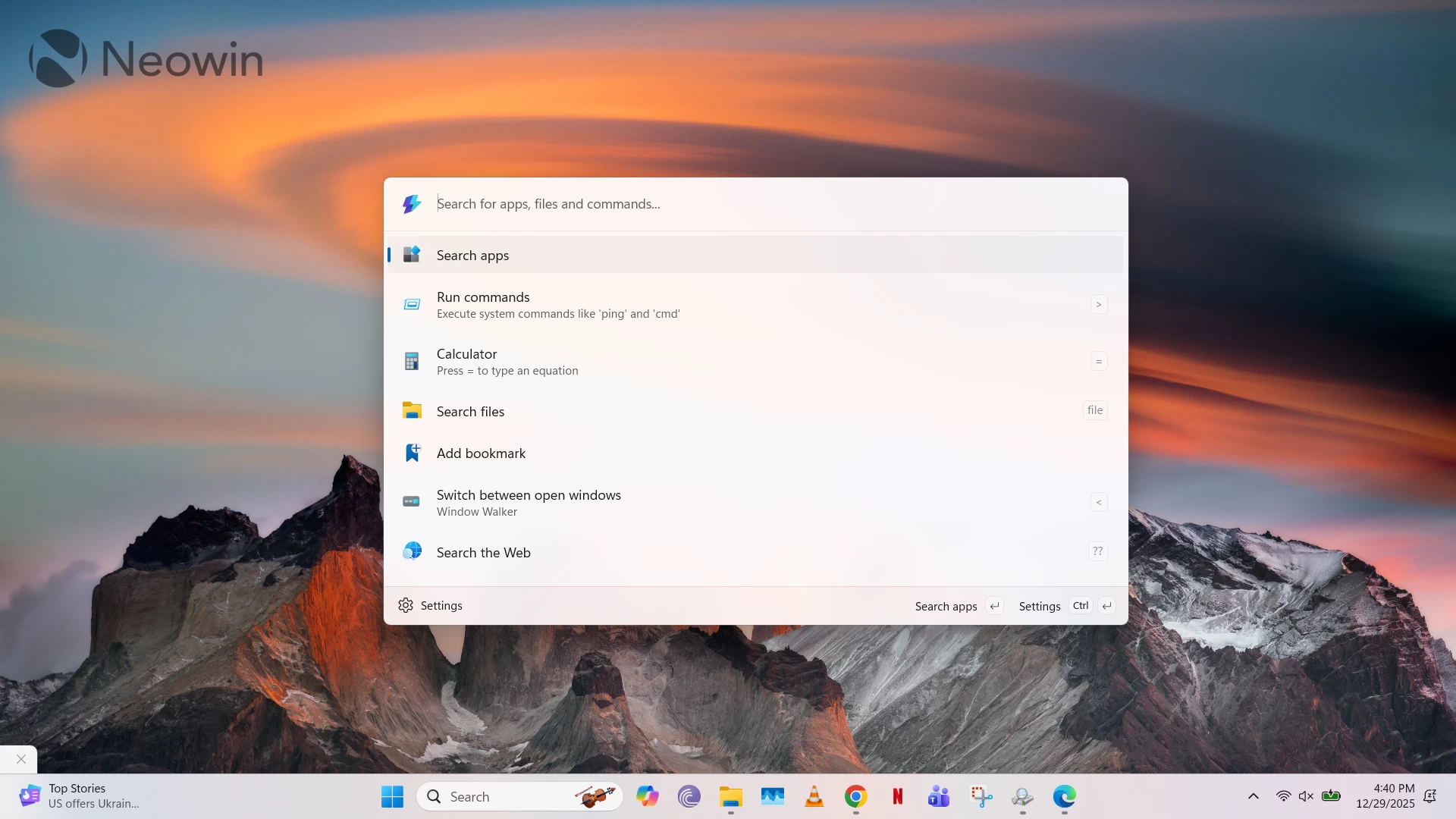
Command Palette is essentially a launcher through which you can perform various tasks without needing to separately open different apps. It doesn"t exactly introduce new features in your existing software; it just extends them by making them more accessible. This makes it a great addition to the arsenal of power users who want to leverage shortcuts through text-based interfaces rather than going through the GUI. It"s not exactly a Windows Search alternative, but I sometimes find myself using it as such in many of my workflows.
Command Palette can be launched through the Win + Alt + Space shortcut, but you can remap this key combo if you want. It can also be accessed through the system tray in the taskbar if you"re not a fan of memorizing shortcuts.
The utility also has a set of general configurations related to the triggering process and behavioral quirks (i.e., pressing backspace key on an empty search field taking you to the previous page, or disabling animations, etc.), but it"s nothing groundbreaking.
Command Palette Functionalities
Command Palette launches with a search bar interface that follows Fluent Design principles. In this GUI, you can do the following:
- Use it as a Windows Search alternative to launch apps
- Press the > key to launch Windows Run, through which you can then type commands like cmd to launch Command Prompt
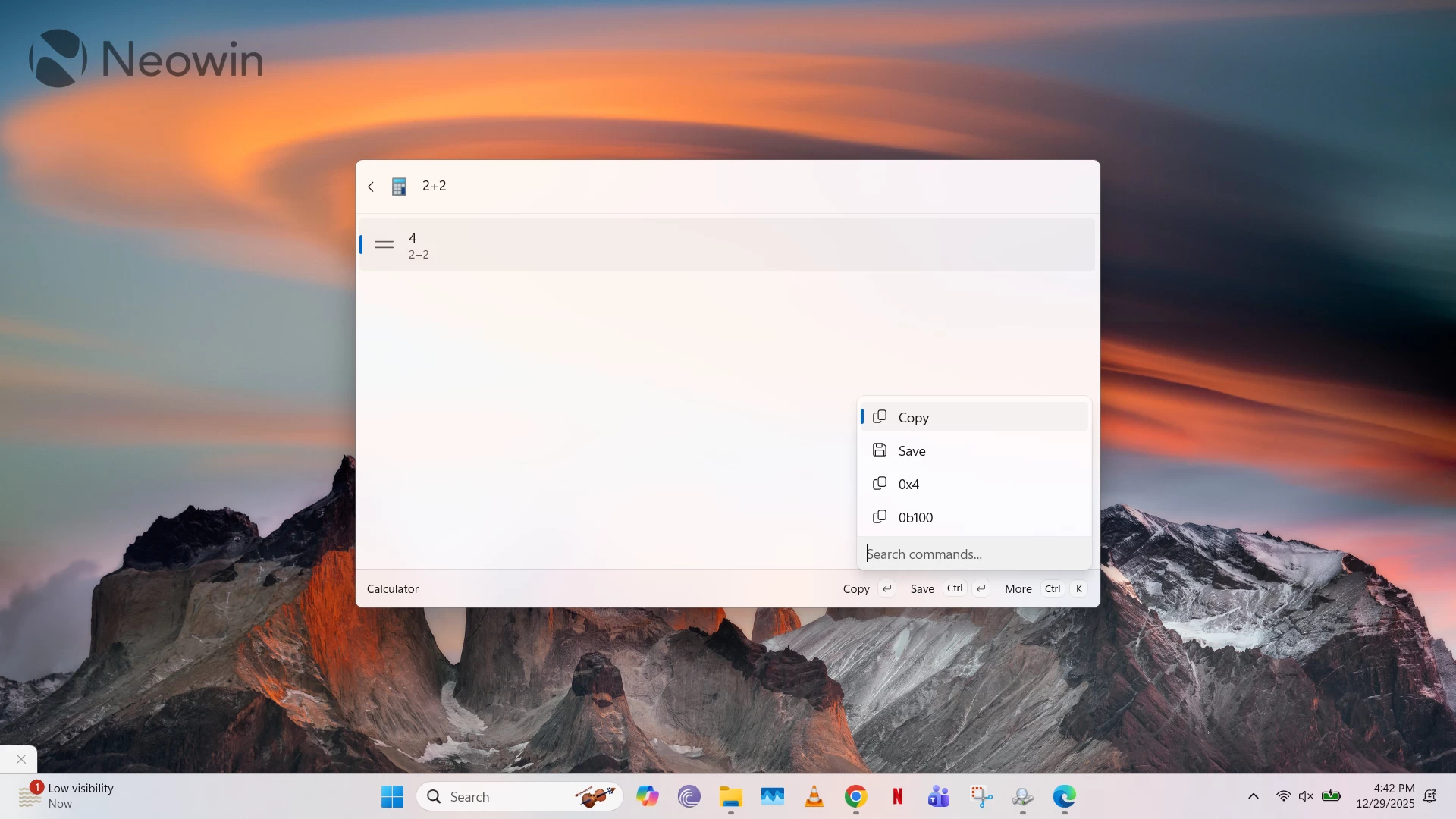
- Press the = key and type a calculation like 2+2, and get the results inline in the results
- Type file followed by the name of a file or folder to search for it
- Create a bookmark for a file path or a URL so you can access it faster through Command Palette in the future
- Press the < key after which you can switch between your open windows
- Browse the web
- Access clipboard history
- Show date and time in various other formats, with additional details like week number
- Type $ and then search for various Windows Settings pages
- Find apps on WinGet
- Type : (colon) and then use the search interface to browse the Windows Registry
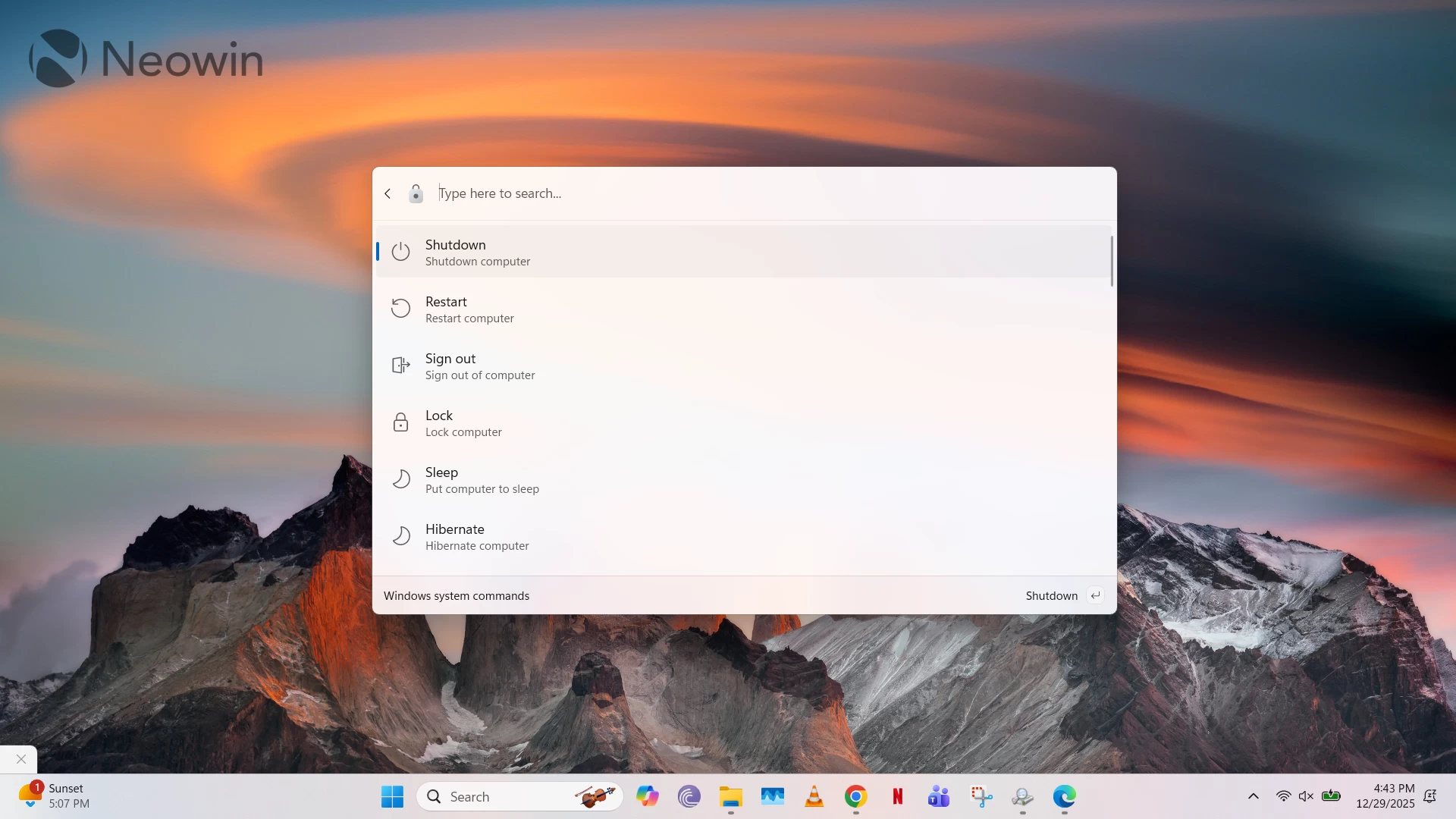
- Access Windows system commands like Sleep, Hibernate, and Shutdown
As can be surmised from the above, Command Palette is a powerhouse that offers you quick access to many Windows and third-party interfaces without needing to launch them separately. In fact, Microsoft also allows developers to load external extensions that allow customers to extend the existing functionalities by adding more commands. You can find out how to do so here.
Beyond launching GUIs, Command Palette also gives access to some of their respective configurations through other keyboard shortcuts in the search results. For example, if you have found a file through Command Palette search results, you can then use the Ctrl + K shortcut to access additional settings like copying the file path, viewing properties, and more. Additionally, it"s worth noting that you can launch Command Palette and begin typing your search item without using any of the symbols mentioned in the bulleted list beforehand; the utility will intelligently try to figure out what you"re attempting to do.
Conclusion: Command Palette is the one search interface to rule them all... in the right hands
Command Palette is an exceptionally well-thought-out tool, but for a specific audience. Although it offers a pretty GUI, the software heavily encourages the use of shortcuts for even better results. This makes sense because it is primarily meant for power users who want to get more done quicker; it"s not designed for everyone.
I personally have a hard time remembering shortcuts, and while that doesn"t eliminate functionalities for me when using Command Palette, it does make the overall interface feel slightly overwhelming at times. That said, this is obviously a personal lack in skill; it"s nothing against Command Palette. I"m sure that this piece of software will absolutely be adored by the right customer.
The launcher is extremely performant at finding apps - it surfaces the Recycle Bin much faster for me than regular Windows Search -, and I find it to be more reliable than Windows Search when looking for files and folders. This is because it doesn"t try to shove web search results down my throat as long as I type file before my search query, so that the Command Palette results are specific to files and folders. These types of nifty behavioral tweaks make it a strong contender as a Windows Search alternative. It also makes me wonder what"s stopping Microsoft from making Windows Search as good as Command Palette in PowerToys, because it"s evident that it can be done.
This Closer Look piece is based on version 0.96.1 of Microsoft PowerToys, which is the latest version at the time of writing. Functionalities may change in newer versions of PowerToys when they become available.
You can check out our other Closer Look pieces for PowerToys utilities here: