
Apple"s annual software upgrade for the iPhone has arrived for everyone. The Cupertino giant has introduced significant changes that make iOS 26 the biggest visual overhaul Apple has pushed in years.
If you haven"t been running the beta releases already and own a supported iPhone model, you can get your hands on the new features and changes that have arrived with iOS 26. The update comes with a ton of new features in the Photos app, Safari browser, and other system apps. You can also take HDR-supported screenshots on your iPhone.
This article is part of our series exploring the new features and changes in iOS 26. So, let"s talk about some new changes you"ll notice immediately after installing the iOS 26 update.
Note: This list is not exhaustive of all the features and changes.
1. 3D spatial wallpapers, dynamic clock
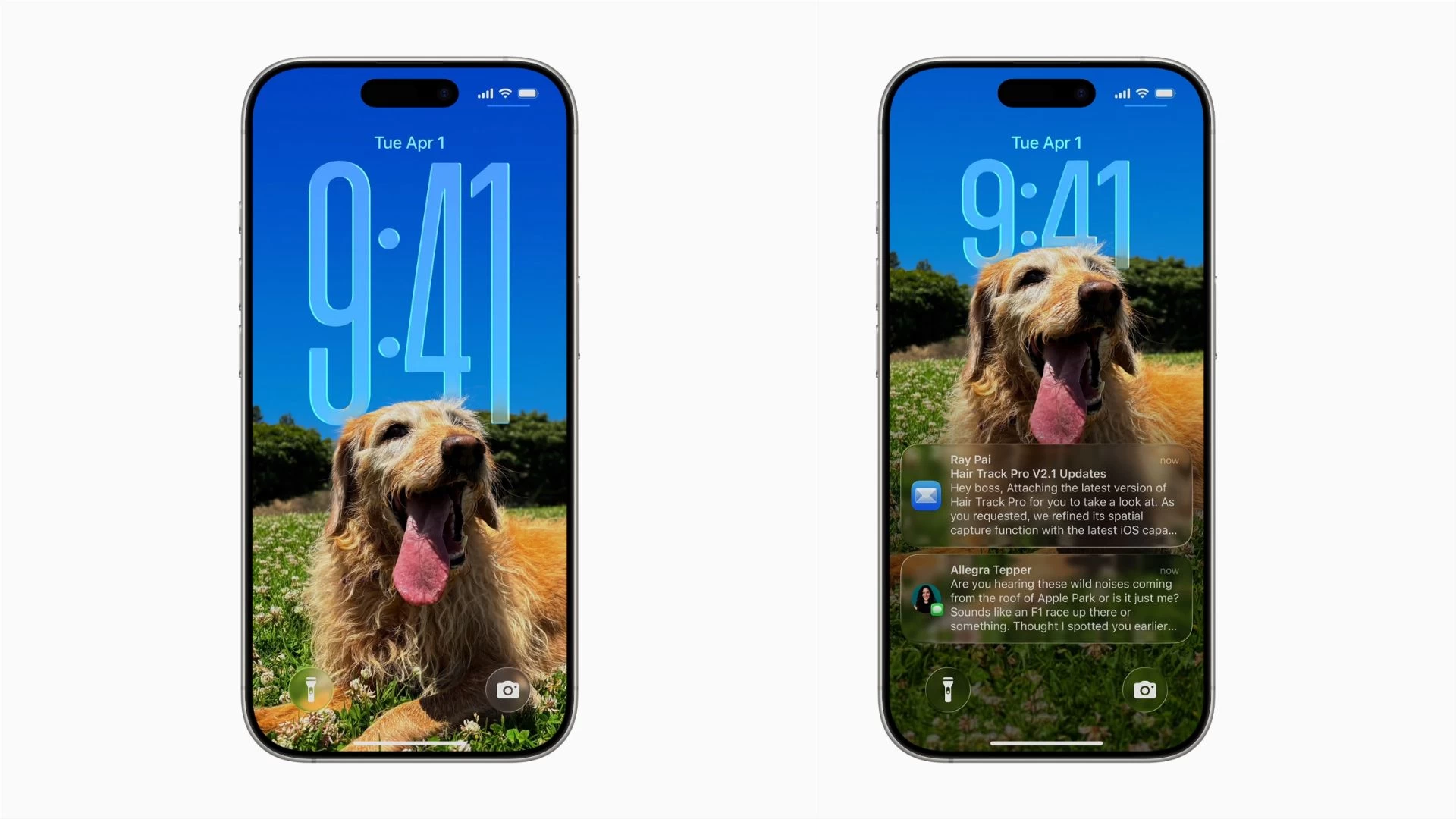
You"ll start noticing the changes right on the lock screen. The newly updated dynamic clock on iOS 26 slides behind the subject when you swipe down on the screen to hide the notifications. Thanks to the Spatial Scenes feature in the Photos app, you"ll notice some parallax effect in the 3D wallpaper on the lock screen when you tilt your phone in different directions.
2. It could have been iOS 19
Apple skipping version numbers for iOS is something you wouldn"t expect. But the company did it in 2025, and not just for iPhone, Apple renamed all of its operating systems to a single version number. So, now we have iOS 26, iPadOS 26, tvOS 26, watchOS 26, macOS 26, and visionOS 26.
This change in the naming scheme aligns with the new Liquid Glass design language across Apple"s ecosystem. It also creates consistency as previous Apple-made operating systems carried different version numbers, such as iOS 18, macOS 15, tvOS 13, and watchOS 11.
Calling it version 26 indicates the year when the update is most active. Typically, Apple"s OS updates are released in the fourth quarter, which means that the majority of their lifecycle and incremental updates happen in the following year. That"s why it makes more sense to call it iOS 26 instead of iOS 25.
3. Liquid Glass
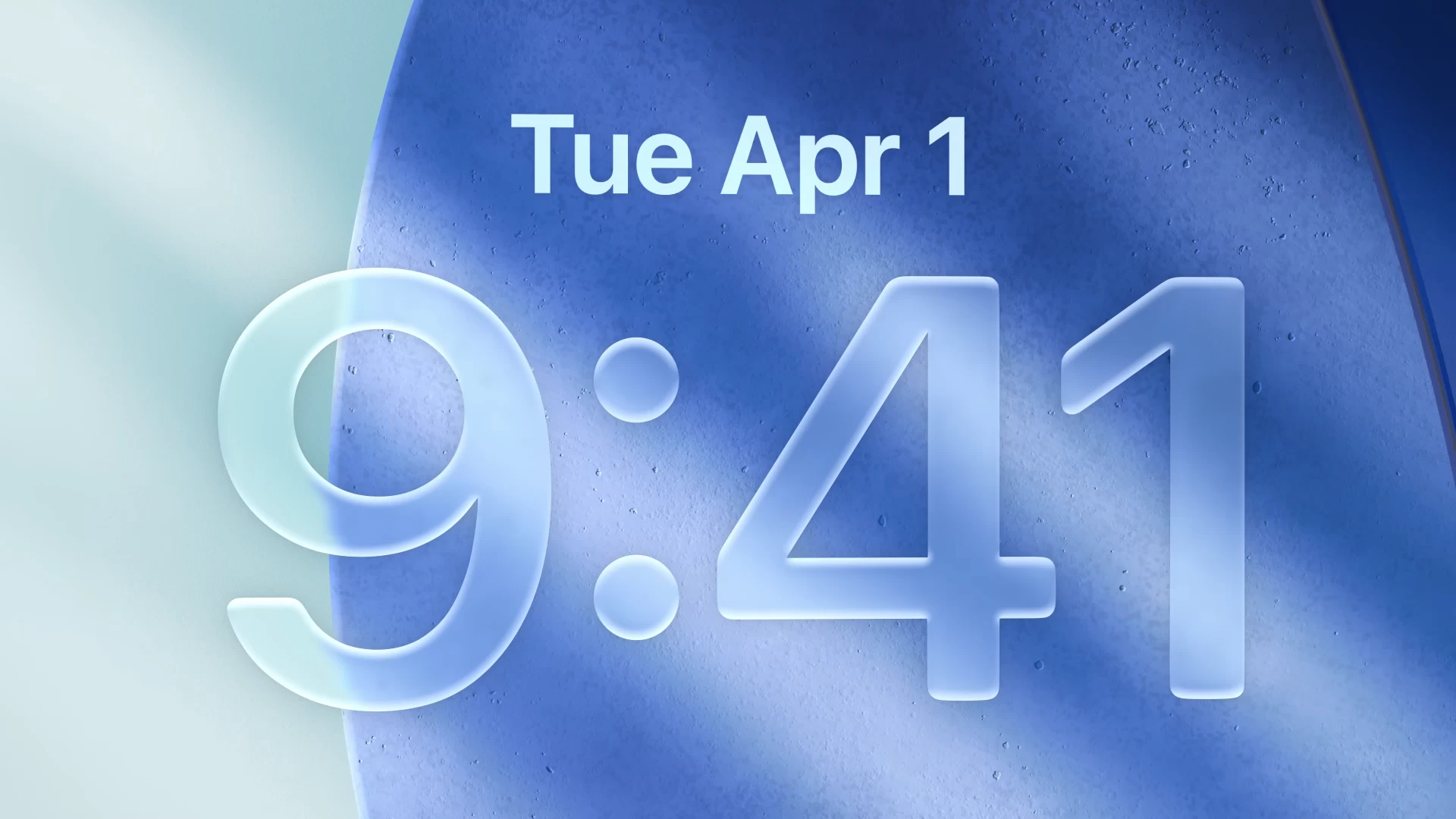
While Apple is lagging behind on the AI front, it"s trying to make up for it with other features. Liquid Glass is one such thing, which is in fact the biggest visual update the Cupertino giant has pushed in years, across iPhone, iPad, Mac, Apple Watch, and Apple TV.
Apple describes Liquid Glass as "a new translucent material that reflects and refracts its surroundings, bringing greater focus to content, and delivering a new level of vitality across controls, navigation, app icons, widgets, and more."
Liquid Glass is based on visionOS and succeeds Apple"s existing design languages, such as Aqua on macOS and the minimalist flat design on iOS/iPadOS. It mimics how a glass would behave in the real world when placed on top of different materials, and borrows colors from its surrounding content.
You can find Liquid Glass in action right away on the Control Center, Home Screen, and Lock Screen, where you can see how the glassy UI elements change the appearance when you swipe in different directions or interact with the tab bars, side bars, buttons, switches, sliders, text, and media controls.
However, not everything is perfect in its first rollout, and Apple faced criticism when it pushed the first draft of Liquid Glass to iOS beta versions. Users complained about imperfect color contrast and high transparency, which made the content difficult to see.
Apple has since made changes to the Liquid Glass in places like Control Center, where it reduced transparency to make the icons more visible.
4. Streamlined search experience
The search bar on older versions of iOS was hidden somewhere at the top of the screen. You had to swipe down on the screen to reveal the search bar in apps like Phone and Settings. With iOS 26, Apple has streamlined the search experience by moving the search bar to the bottom of the display, making it easier to use an iPhone with one hand.
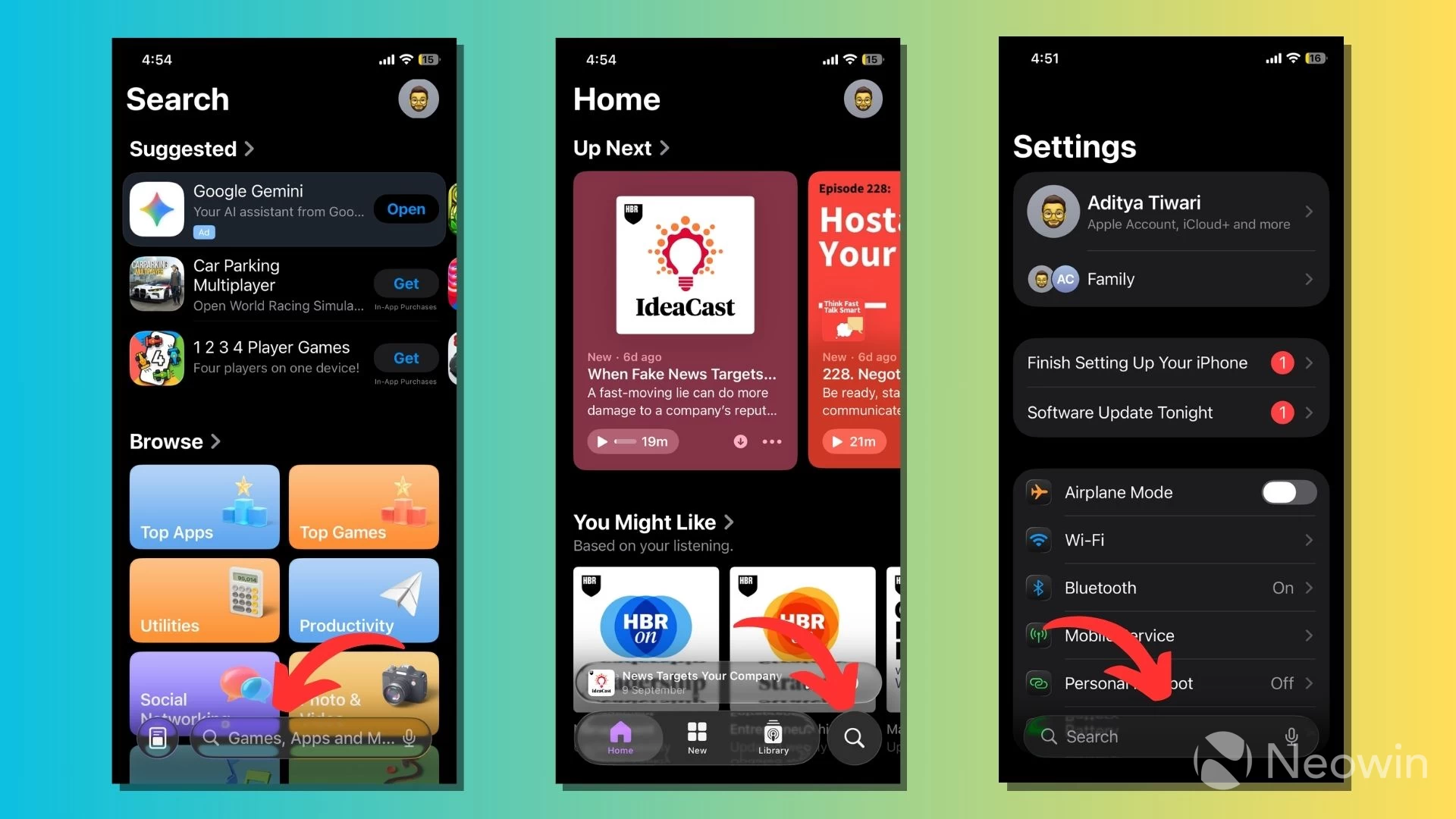
You can find the updated search feature on most system apps, either as a wide pill or a lens icon, depending on the app. However, it"s still a work in progress, as Apple has yet to update the Files app with the new interface.
5. Mind the curves

Apple has continued the trend of adding curves to everything. It started with the iPhone X in 2017, when Apple ditched the rectangular screen for one with rounded corners. iOS 26 has an abundance of UI elements and borders that are curvier than before.
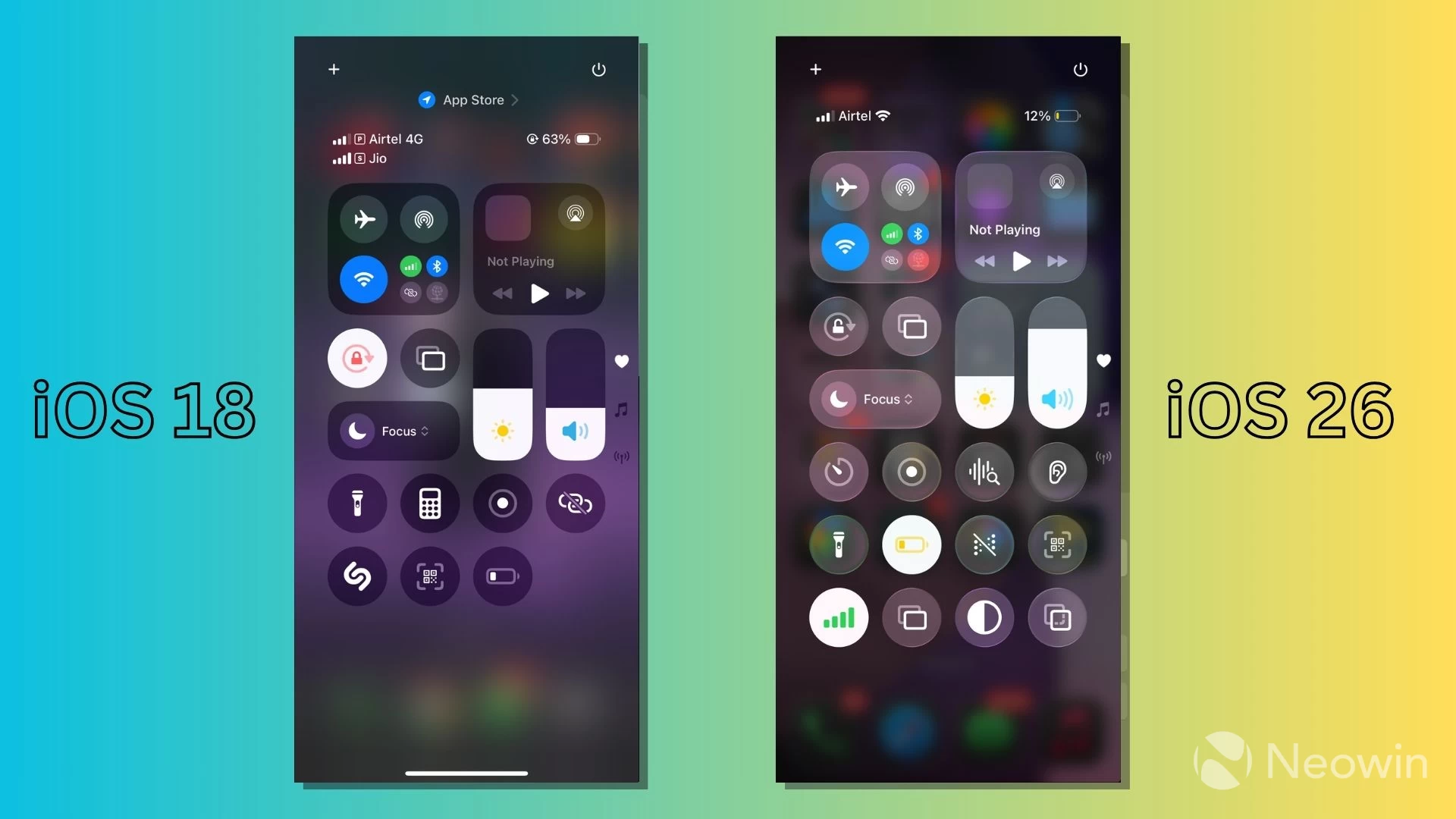
The Settings app is one place where you"ll notice this change quickly when comparing it with iOS 18, and so is the case with the buttons in the Control Center. You can also see it across controls, toolbars, and navigation buttons within apps that have the Liquid Glass treatment.
6. Updated app icons
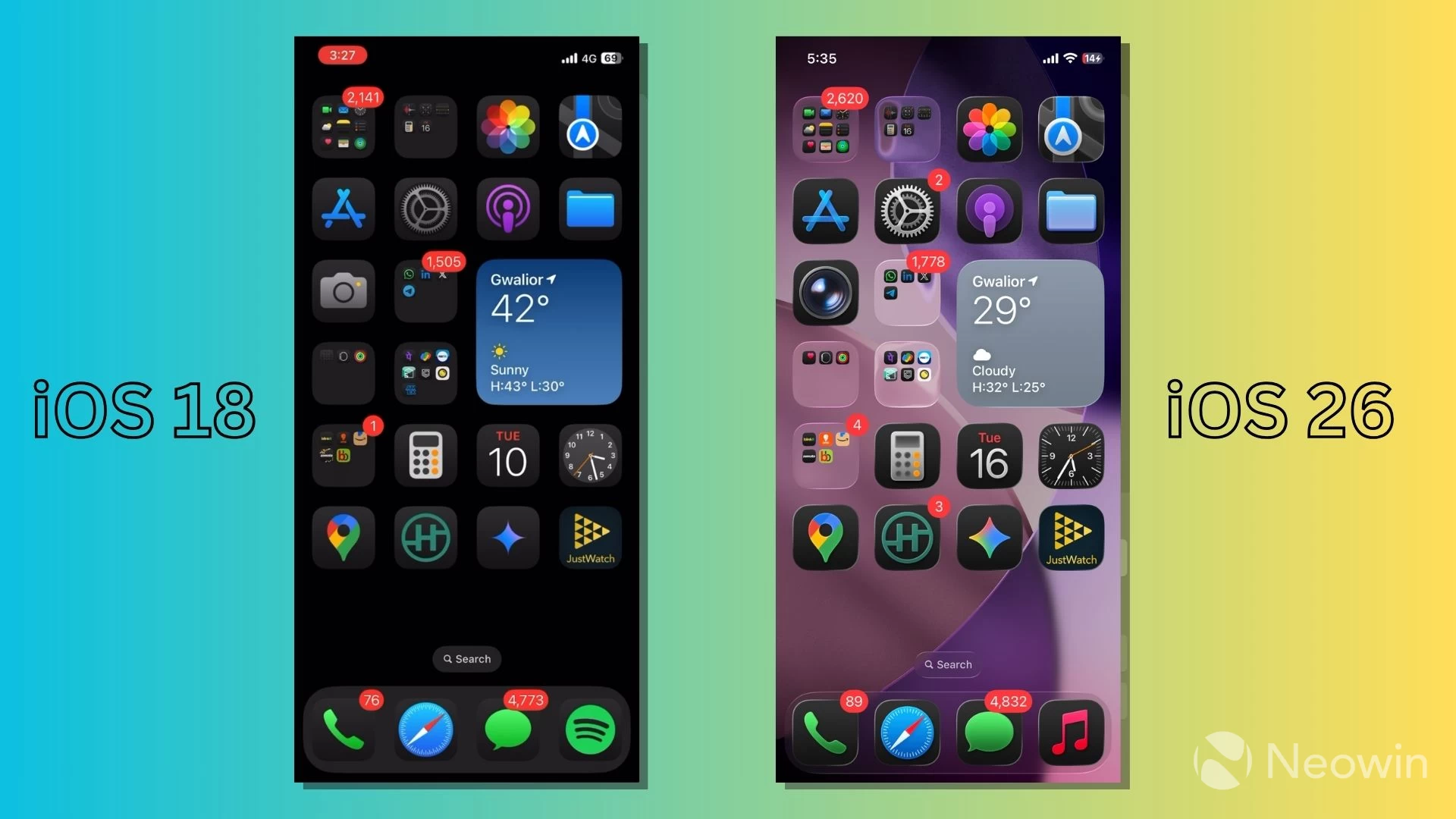
With Liquid Glass comes a fresh coat of paint to the app icons on iOS 26 and its siblings. You can find new icons for apps like Camera, Safari, App Store, Reminders, Notes, and others. In addition to that, Apple has also redesigned the icons for the features and options available in the Settings app.
However, another round of criticism has arrived as some users who downloaded the stable version are reporting that Liquid Glass icons look tilted and asymmetrical when used in dark mode.
7. No navigation pill at the bottom
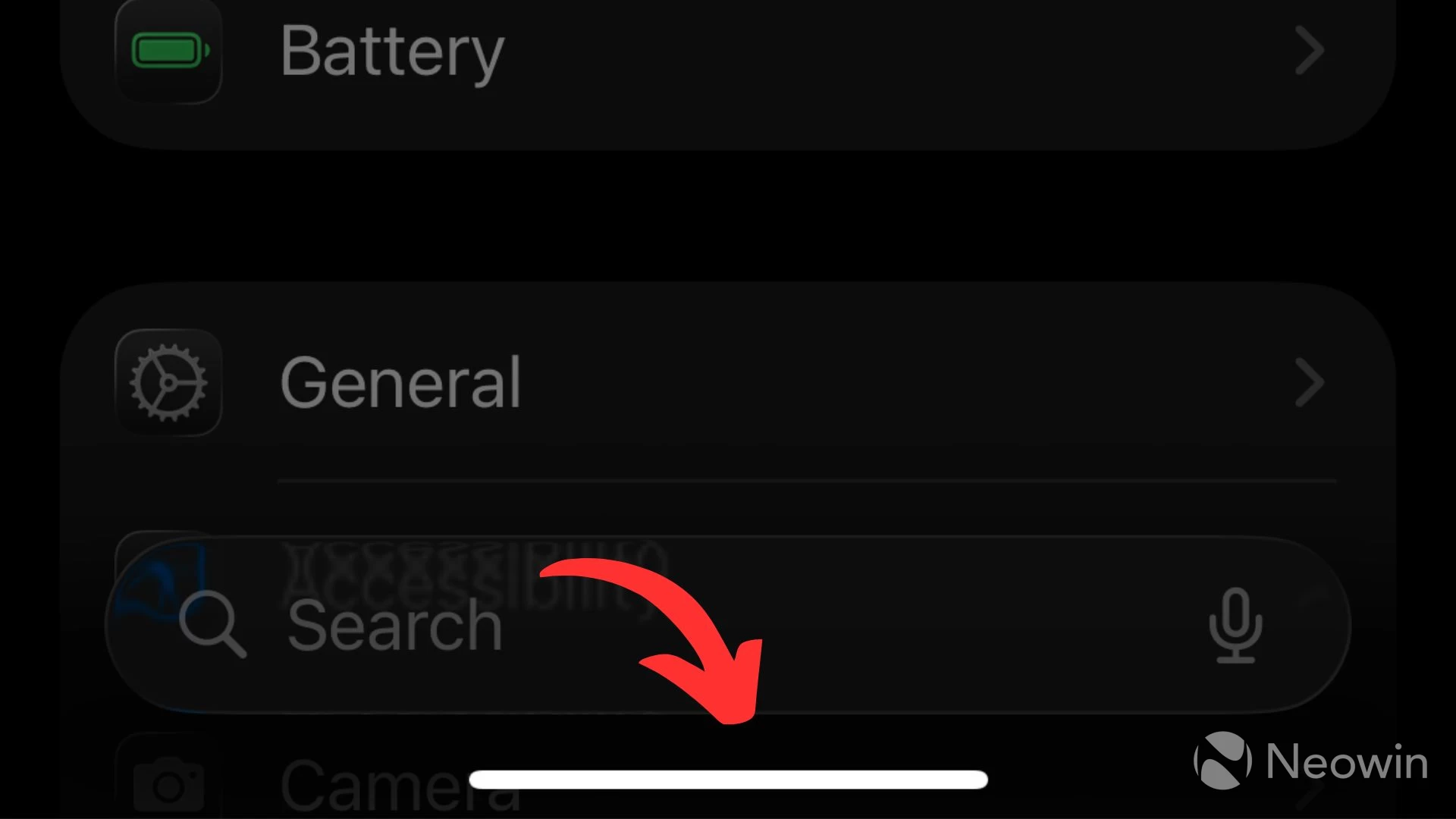
Apple introduced gesture navigation for iPhone almost eight years ago. It seems that the company feels that users are now familiar with navigation controls. After installing iOS 26, you won"t find the thin off-white navigation pill or Home Bar (informally) anymore, except on the Lock Screen. It does briefly appear for a couple of seconds when you open any app on the device.
8. The Preview app
iOS 26 and iPadOS 26 have introduced the Preview app, building on the legacy of its macOS counterpart that has existed for years.
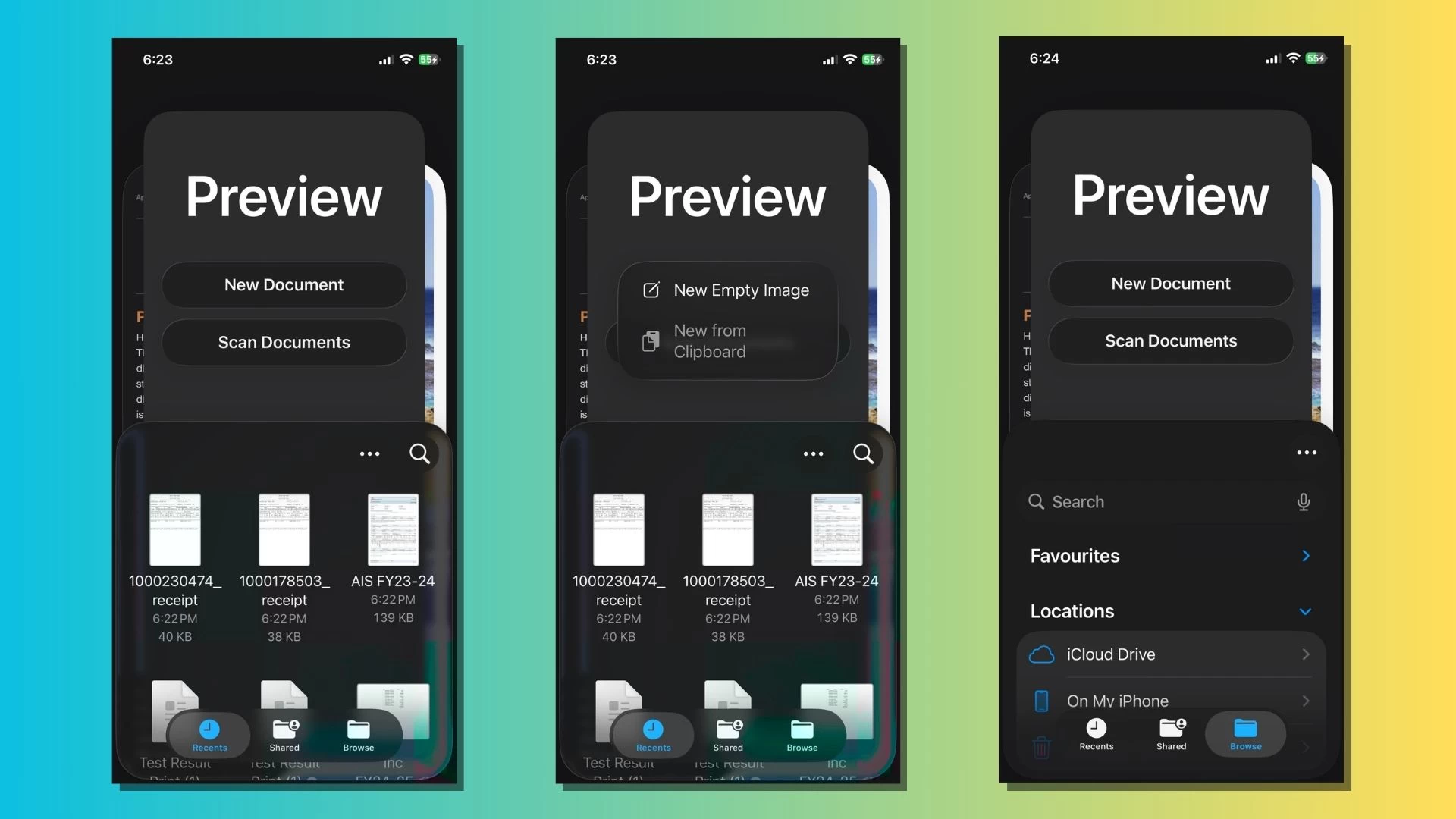
Preview app on iOS 26 makes it easier to work with images and PDFs with built-in tools for creating, editing, annotating, and exporting PDF documents. You can find quick access buttons at the top of the screen to create a new PDF or scan a document.
While the Files app can also scan documents, the Preview app is specifically meant to do the job. The app also lets you combine multiple PDFs into a single file and works with the AutoFill feature to add details to forms.
9. The Apple Games app
Apple has baked the new Games app for iOS 26 and iPadOS 26, which essentially gives a new face to the good old Game Center buried in the Settings. It finds all the games installed on your devices and puts them in the Library tab for quick access.
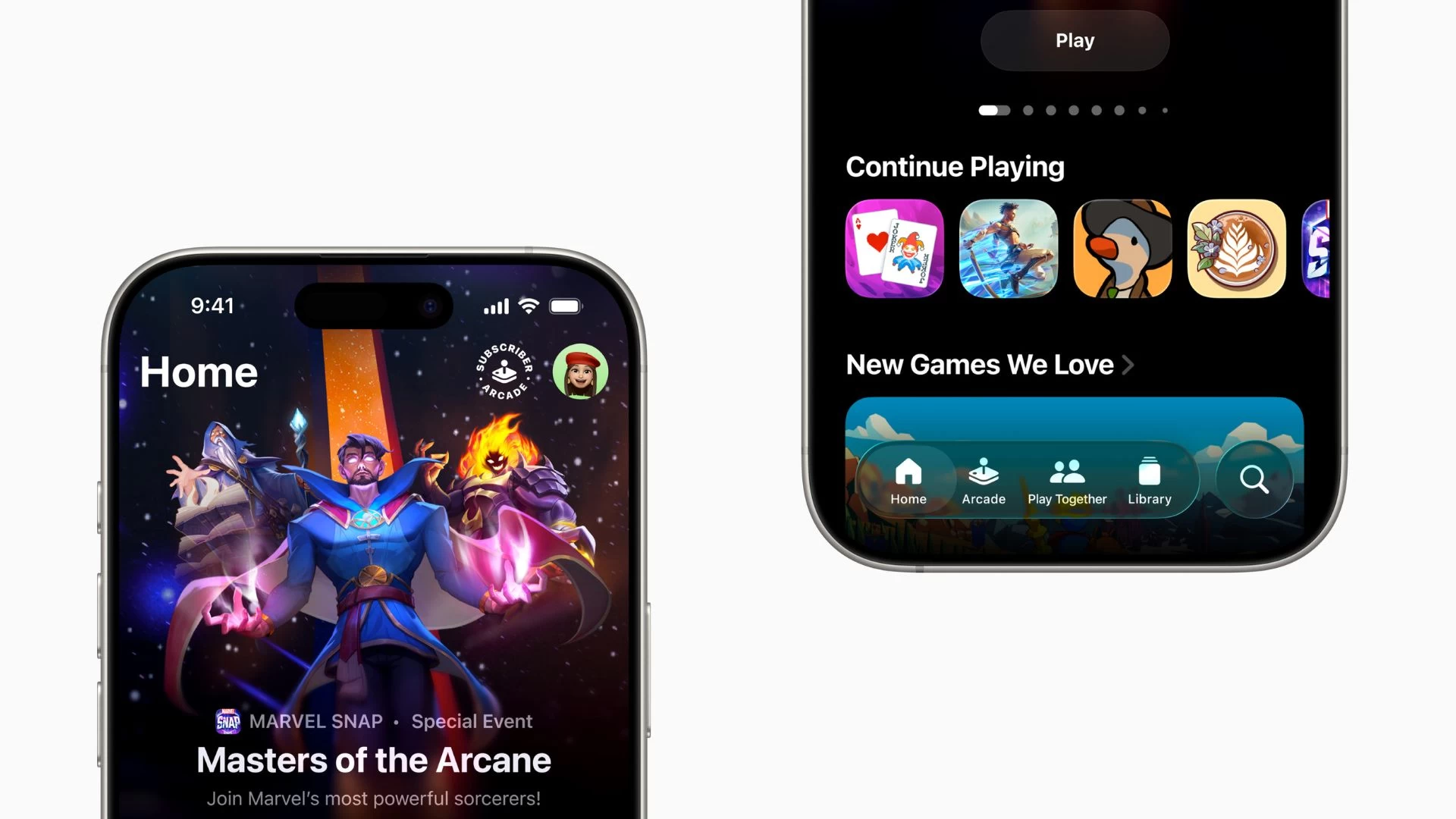
Of course, the Games app integrates with the iPhone-maker"s game subscription service, Apple Arcade, which appears as a separate tab. It also supports several Game Center features like leaderboards, multiplayer, and achievements.
These are some of the new features and changes you might notice immediately after installing the iOS 26 update on your device. It"s evident that iOS 26 has improved in several areas over its predecessors, like the search experience, which is now streamlined across apps and a better fit for one-handed usage.
Moreover, the Liquid Glass design language is consistent not just across iOS apps, but also across Apple"s ecosystem. You"ll find the same icons and visual upgrades on your iPad and Mac, marking the start of a new experience for the years to come.
What do you think about Liquid Glass and iOS 26? Tell us in the comments.