
The iOS 26 update is now available for supported iPhone models, including the latest iPhone 17 series and the hard-to-bend iPhone Air. Apple has loaded several new features that you'll start noticing right after installing the update.
You can find new features sprinkled across the Photos app, Safari browser, and other system apps. This article is part of our series exploring the new features and changes across iOS 26. The Phone app on iOS 26 has also received a big visual overhaul this time. So, let's talk about some of the biggest features you'll find in the Phone app.
On a side note, if you haven't installed iOS 26 on your device, here are ten things you should consider doing before starting with the update.
1. Redesigned UI with Liquid Glass
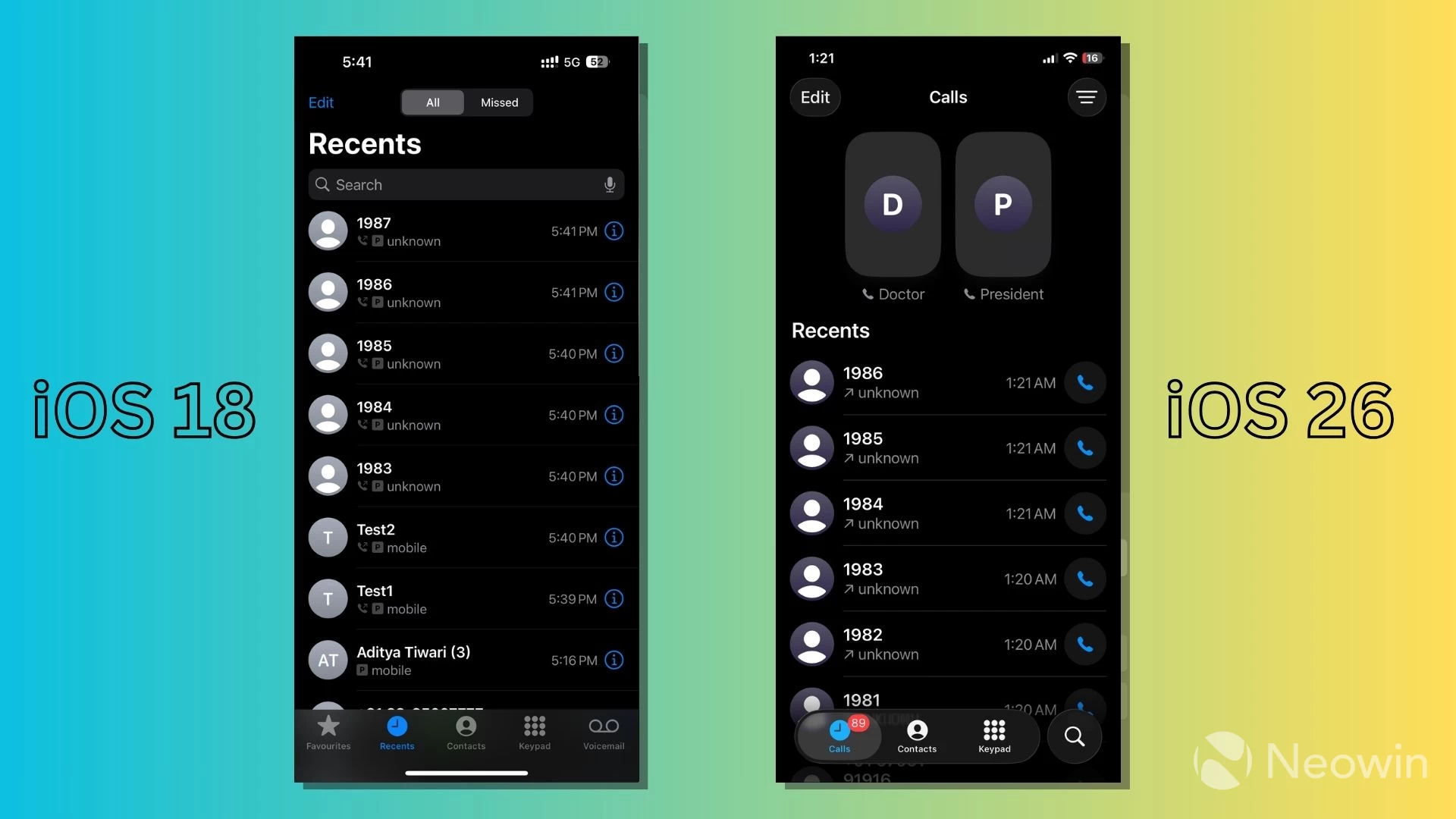
Topped with Liquid Glass, the Phone app on iOS 26 sports a new unified design that combines Recents, Favorites, and Voicemails into a single layout. The pill-shaped navigation bar at the bottom of the screen now only displays four buttons: Calls, Contacts, Keypad, and Search.
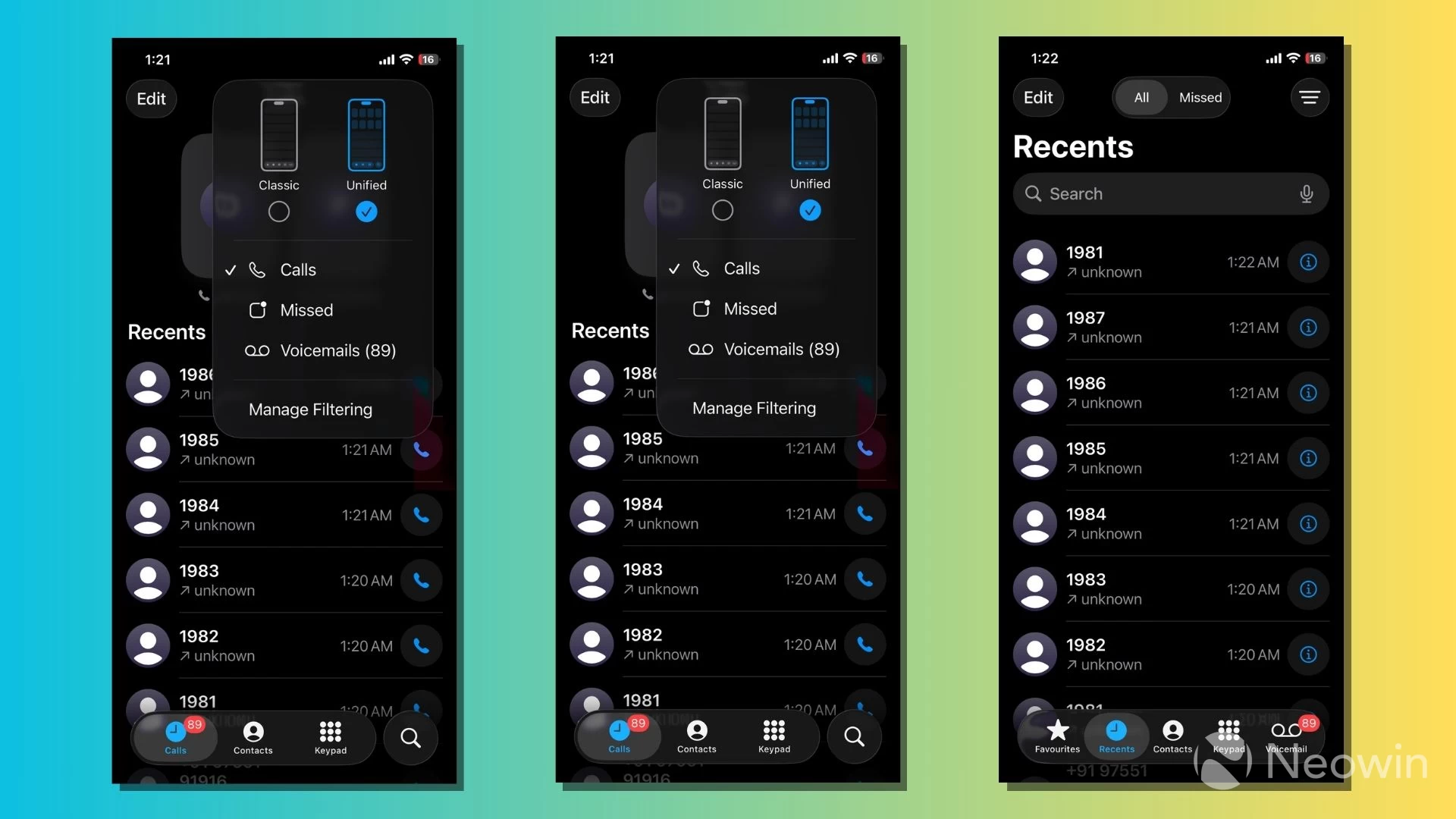
On the right side of these buttons sits the Lens icon, which opens the search feature in the Phone app. It's a change from last year's iOS 18, where you had to swipe down on the screen to reveal the search bar at the top. When you type a name in the search bar, it fetches related entries from your call history, as well as your Contacts list.
Side tip: You can tap on the "More" button in the top-right corner to get the Classic layout back.
2. Pin your favorite contacts
The unified interface also lets you pin contacts as Favorites at the top of the screen for quicker access (previously accessible from the bottom navigation bar). You can pin someone's phone number, FaceTime, or Messages by tapping the Edit button in the top-left corner of the screen, then choosing Edit Favorites.
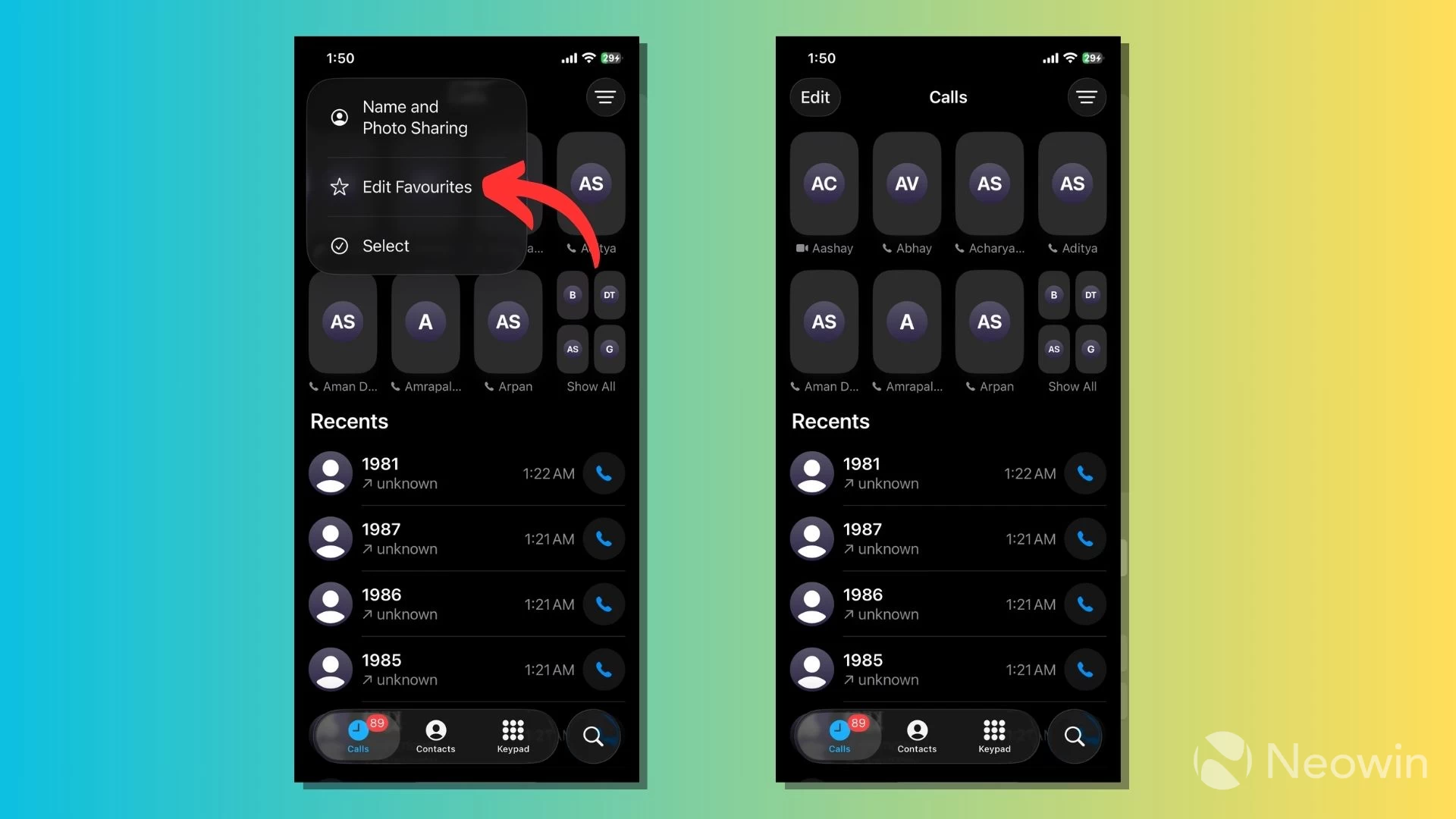
It appears that you can pin as many contacts to the top of the screen in the Phone app, or the limit is hard to exhaust. We tried adding about 16 of them, but the Phone app was still allowing more Favorites. However, if you add more than six Favorites, the rest are hidden behind a "Show All" option.
3. Call Screening
As the name suggests, Call Screening is meant to reduce interruptions due to unexpected phone calls from unknown numbers. Building on top of the Live Voicemail feature, Call Screening takes a phone call on your behalf to find out why the other person is calling you.
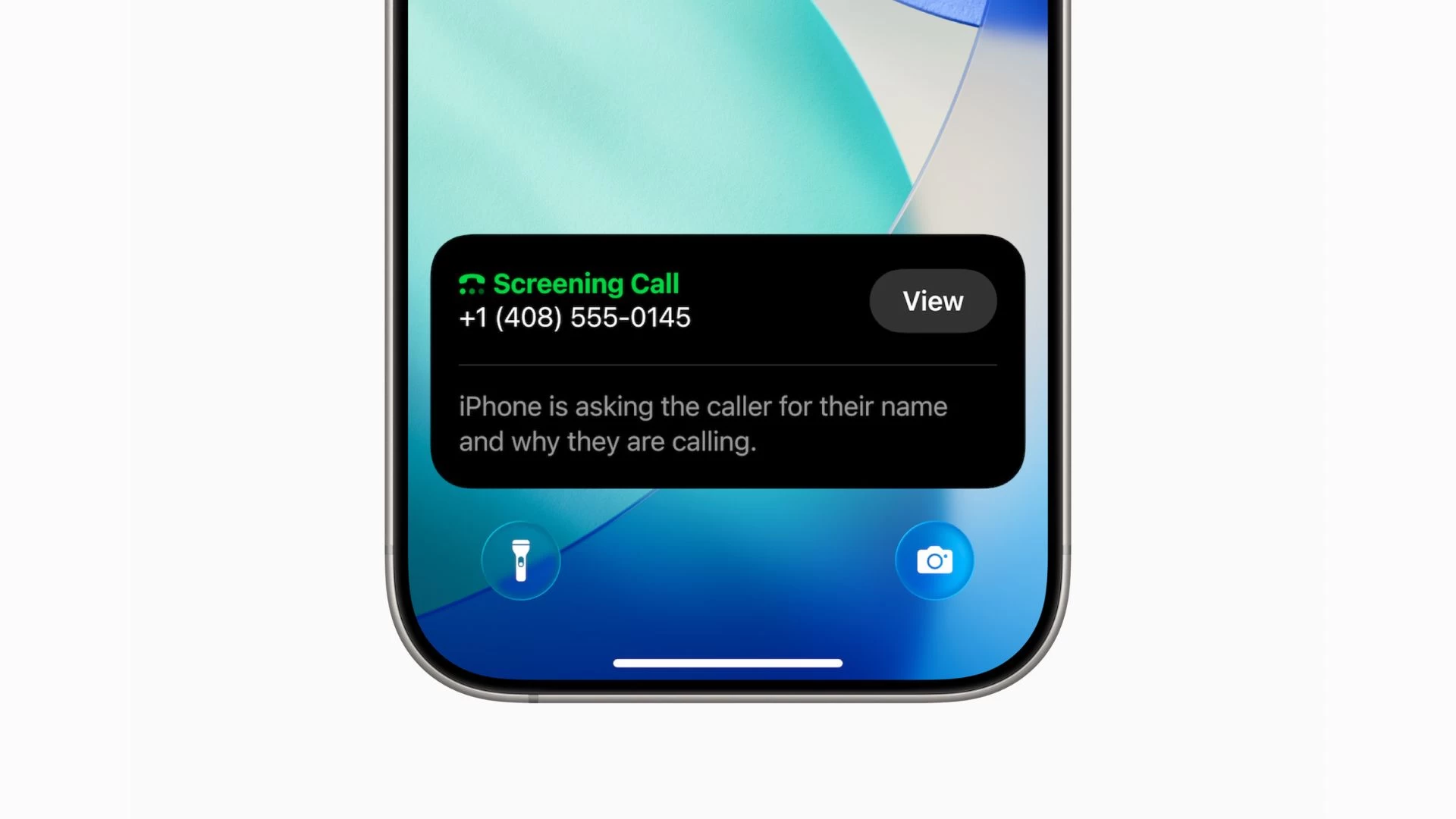
At the same time, it displays those details on your call screen so you can decide whether to pick it or not. Call Screening is available in the following languages and regions:
- English: US, Australia, Canada, India, Ireland, New Zealand, Puerto Rico, Singapore, South Africa, UK)
- Cantonese: Mainland China, Hong Kong, Macao
- Mandarin Chinese: Mainland China, Taiwan, Macao
- French: France, Canada
- Spanish: US, Mexico, Puerto Rico, Spain
- German: Germany
- Japanese: Japan
- Korean: Korea
- Portuguese: Brazil
4. Hold Assist
Everyone knows the pain of calling customer support teams, where you might have to deal with unexpected wait times. Hold Assist is a new iOS 26 feature that can take the burden off waiting on your behalf and notifies you when a live agent is available.
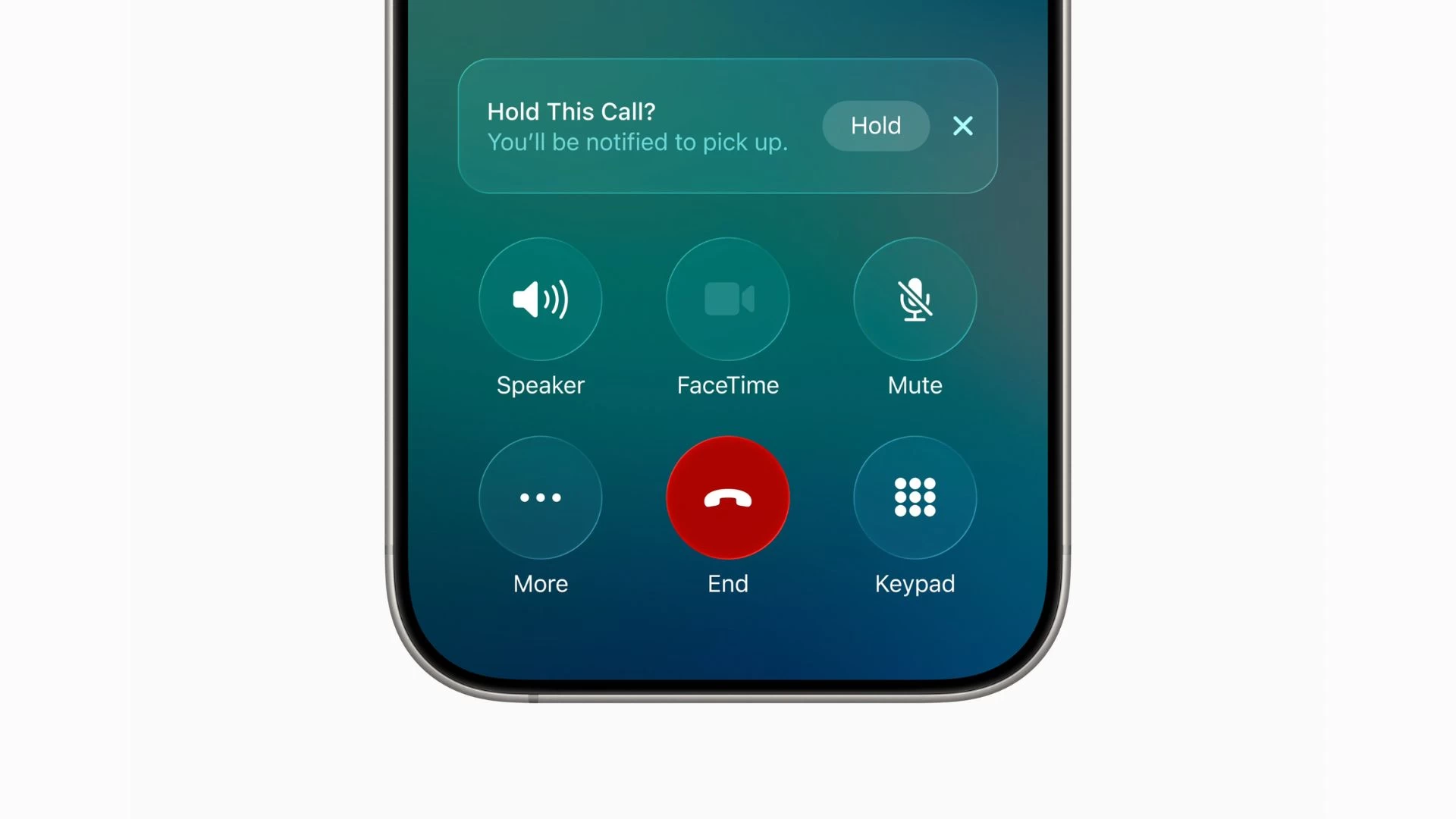
Hold Assist is available in the following languages and regions:
- English: US, Canada, Australia, India, Singapore, UK
- Spanish: US, Mexico, Spain
- French: France
- German: Germany
- Portugese: Brazil
- Japanese: Japan
- Mandarin Chinese: Mainland China
5. Live Translation
A part of the Apple Intelligence suite, Live Translation is available on the Phone app, FaceTime, and Messages, to offer language translation on the go. The feature is powered by Apple's on-device AI models to offer real-time translation when the person on the other end speaks a different language.
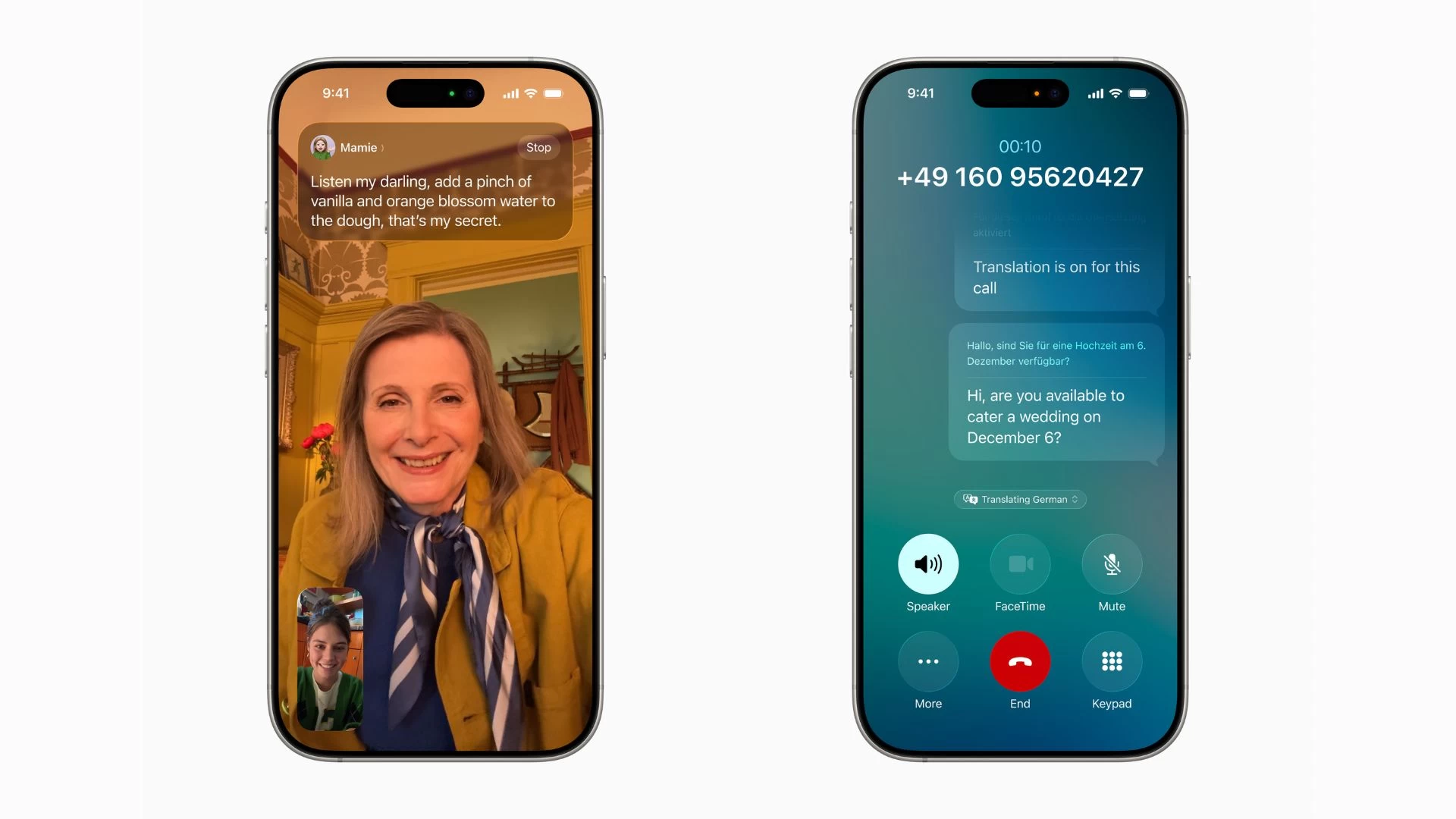
Live Translation for FaceTime and Phone is available in the following languages and regions:
- English: US, UK
- French: France
- German: Germany
- Portugese: Brazil
- Spanish: Spain
6. Call Filtering for unknown callers
iOS 26 also lets you filter unknown callers by automatically silencing calls from such numbers. Missed calls and voicemails from unknown senders will appear in a separate list called Unknown Callers.

You can turn on the Unknown Callers list by going to Settings > Apps > Phone app. Here, scroll down and turn on the toggle button under "Call Filtering." After that, you can tap on the More button in the top-right corner of the Recents tab in the Phone app to access the list of unknown numbers.
7. SharePlay over phone calls
Apple's SharePlay feature now works with the Phone app on iOS 26. In other words, you watch movies, listen to music, or play multiplayer games together while on a phone call with your friends. You can start a screen-sharing session similar to FaceTime.
8. Summaries in Voicemail
Another touch of Apple Intelligence is in the Voicemail feature. The Phone app uses Apple Intelligence to summarize voicemails that appear inline with your missed calls. This helps you see who called and what they said.
9. New Monogram styles
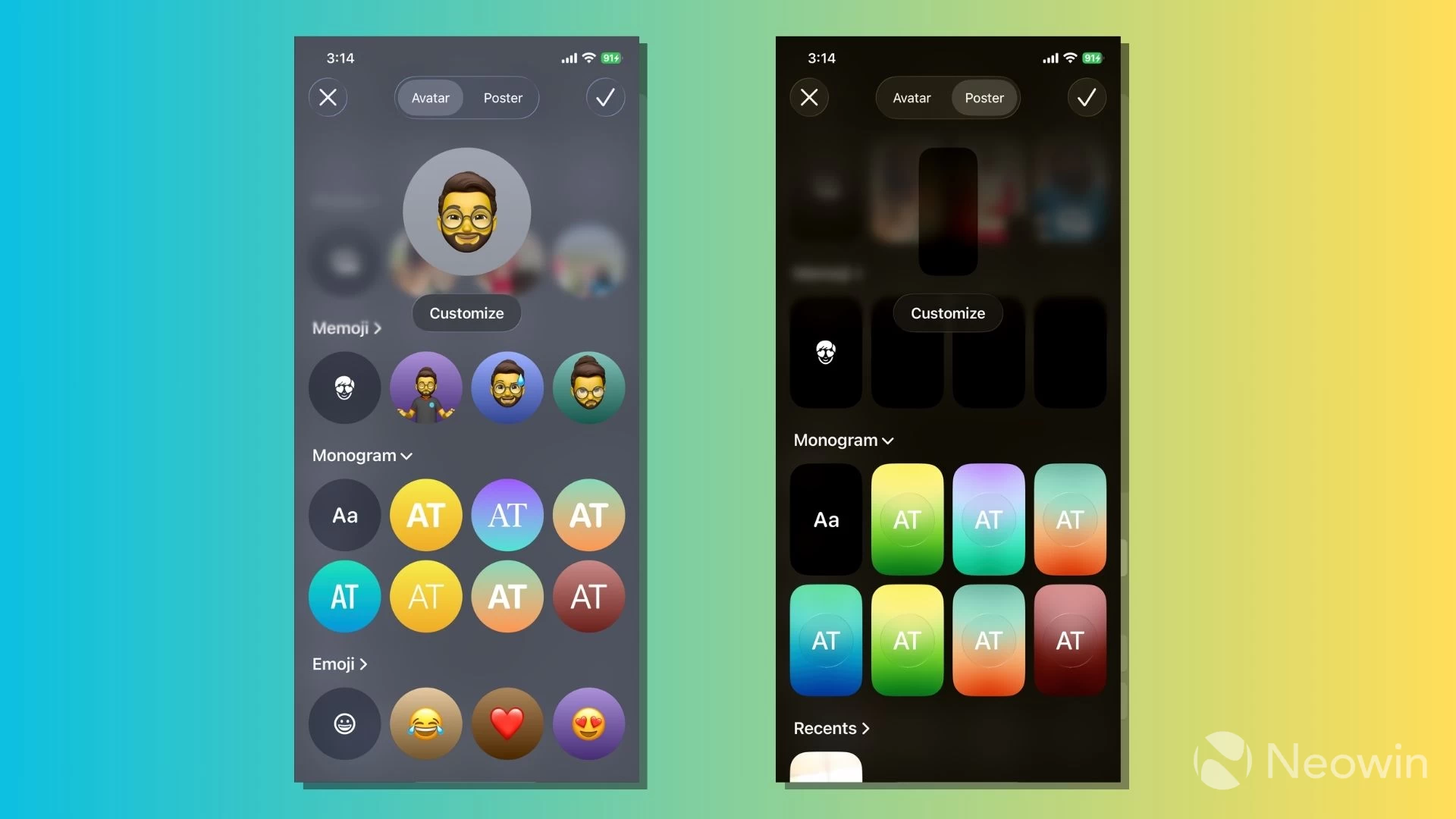
You can use the new monogram styles to personalize your own Avatar and Contact Poster, or those of your friends. To edit your Contact Poster, tap on the Edit button in the top-left corner of the Phone app, then tap on the "Name and Photo Sharing" option.
10. High-quality cellular calling
The Phone app enhances voice clarity and quality for users making phone calls on older cellular technologies or narrowband spectrum. This functionality is available on iPhone 16e and later models.
These are some of the new features and changes you'll find on the Phone app on iOS 26. You might have noticed how our calling experience is slowly shifting; a simple task, which is now aided by modern features like Hold Assist, Call Screening, and Live Translation.
It's also an example of how traditional phone calls remain relevant despite the availability of advanced offerings like video calls and instant messaging apps for years now. Let's wait to see what Apple has in store for the Phone app in the coming years.
What's your favorite feature in the Phone app? Tell us in the comments.


















1 Comment
Load the comments and join the conversation!
Read the comments, ask the editors questions, show respect and join the conversation.