GEEKOM is back with a new kind of PC that officially launches today, on February 20. This also means that GEEKOM has now expanded from offering just Mini PCs, to also including Ultra-thin laptops in its portfolio. Anyway, since they offered it for review, I decided to put it through its paces.
Table of contents:
- Introduction
- Design
- Setup and usage
- Benchmarks
- Battery / Power draw
- Conclusion
- Where to buy / Coupon code
With that out of the way, first a disclaimer: GEEKOM provided this sample without any editorial input or review pre-approval. Now some specifications:
| GEEKOM X14 Pro | ||
|---|---|---|
| Model | NX14CM | |
| Dimensions | ||
| Weight | 997 g / 2.2 lbs | |
| Material | Unibody Magnesium Alloy | |
| CPU | Intel Ultra 5 125H (14C/18T, 24MB L3, 2.3-5.1 GHz, TDP 20W) | |
| Graphics | Intel Arc graphics 8 Xe-cores @ 2350MHz 1024 shading units / stream processors (128 CUs), 8 Raytracing Cores, 64 texture mapping units, and 32 ROPs | |
| NPU | Intel AI Boost, 11 TOPS / Up to 33 TOPS (CPU+NPU+GPU) | |
| Memory | 32GB Dual-channel LPDDR5x 7467 MT/s Micron SODIMM | |
| Storage | 1 x M.2 2280 PCIe Gen 4x4, Wodposit 1TB, 2 TB | |
| Display | 14-inch AMOLED, 2.8K (2880 x 1800), 100% DCI-P3 Color Gamut, 450 Nits Brightness, 60/120Hz Interface: eDP | |
| Camera |
| |
| Mic | 2 x Digital Mics integrated in camera module | |
| Speakers | 2 x 3813 (4Ω×2W) built in body Audio Codec: ALC269QN-VC3-GR Certificate: DTS: X Ultra | |
| Operating System | Windows 11 Pro 25H2 | |
| Bluetooth | Bluetooth 5.4 | |
| Wireless LAN | MediaTek MT7922 M.2 Wi-Fi 6E LAN card | |
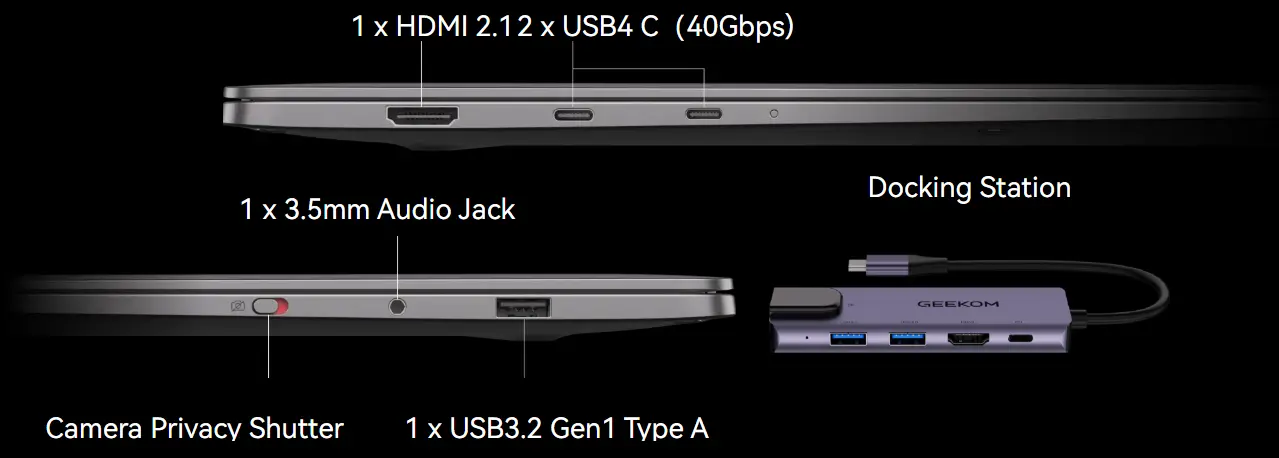
| Left I/O ports | 1 x HDMI 2.0 | |
| Right I/O ports | 1 x USB 3.2 Gen 1 Type-A (5 Gbps) 1 x 3.5 mm Audio jack 1 x Camera Privacy Shutter | |
| Keyboard | 78Key 1.2±0.2mm / Height 3.5±0.2mm (with backlight) White LED light in Caps Lock and Fn key Language: Default US | |
| Touch Pad |
| |
| Dock | Input port: 1 x Type-C
| |
| (Bio) Security | Fingerprint sensor (in Power button) | |
| SD Card slot | No | |
| Kensington Lock | No | |
| Battery | 72Wh (Input 20V, 3.25A) | |
| Power | 65W PD GaN Fast Charge, USB-C to USB-C | |
| Warranty: | 2 years (Early Bird 1+1 Years) | |
| MSRP | $1,249, $1,499 | |
Introduction
The X14 Pro is powered by the Intel Ultra 9 185H which was released in Q4 2023 and is a 14th Gen Meteor Lake CPU designed for laptop/mobile using the Intel 4 architecture based on a 7nm process. The Ultra 9 185H features 16 cores and 22 threads running at up to 5.1 GHz. It also includes a dedicated NPU utilizing Intel AI Boost at 11 TOPS.
On the graphics front, the 185H includes the still fairly capable ARC Graphics (not to be confused with the newer ARC 140T) integrated GPU with a max GPU frequency of 2350 MHz across 8 Xe-cores. It has been said that the iGPU is equivalent to the NVIDIA GeForce 3050, and GTX 1650 in gaming and synthetic benchmarks. Other highlights include and AMOLED display, LPDDR5x memory at 7467 MT/s, WiFi 6E, Bluetooth 5.4, and a fingerprint sensor built into the power button.
AI PC?
No.
Although the Intel Core Ultra 9 185H includes a dedicated NPU, it"s only 11 TOPS; therefore, it does not qualify as a Copilot+ PC. However, it can reach up to 33 TOPS with a combination of NPU, CPU, and GPU.
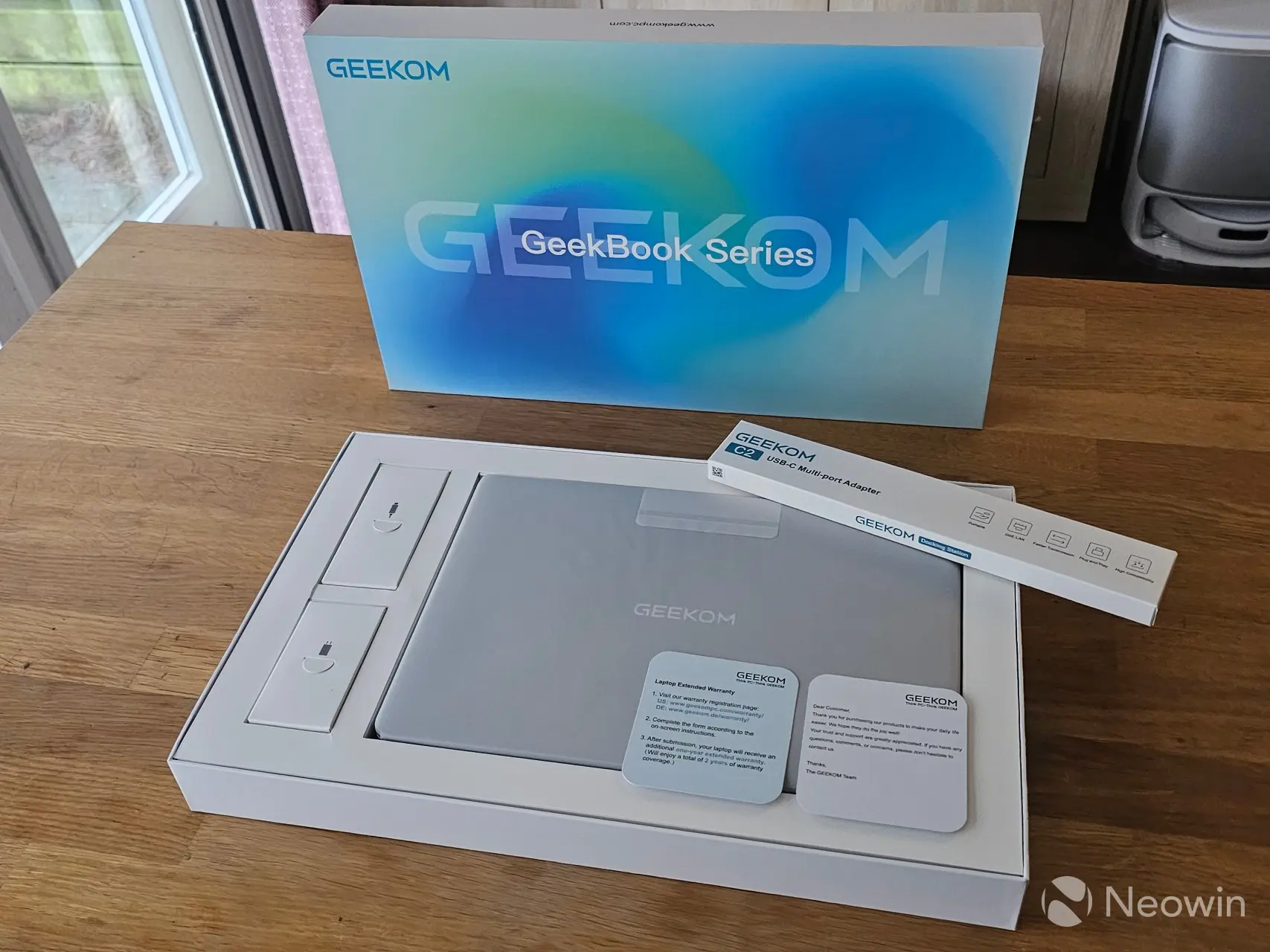
The packaging is quite a nice experience. The outer box houses the X14 Pro box with a small compartment that contains the 5-in-1 Dock ($40 value), which appears to be an "Early Bird" inclusion. Upon removing the box cover the X14 Pro is revealed sitting in a cardboard compartment with two small booklets of documentation. To the left of the X14 Pro are two cardboard compartments containing the 65W charger and Type-C USB cable.
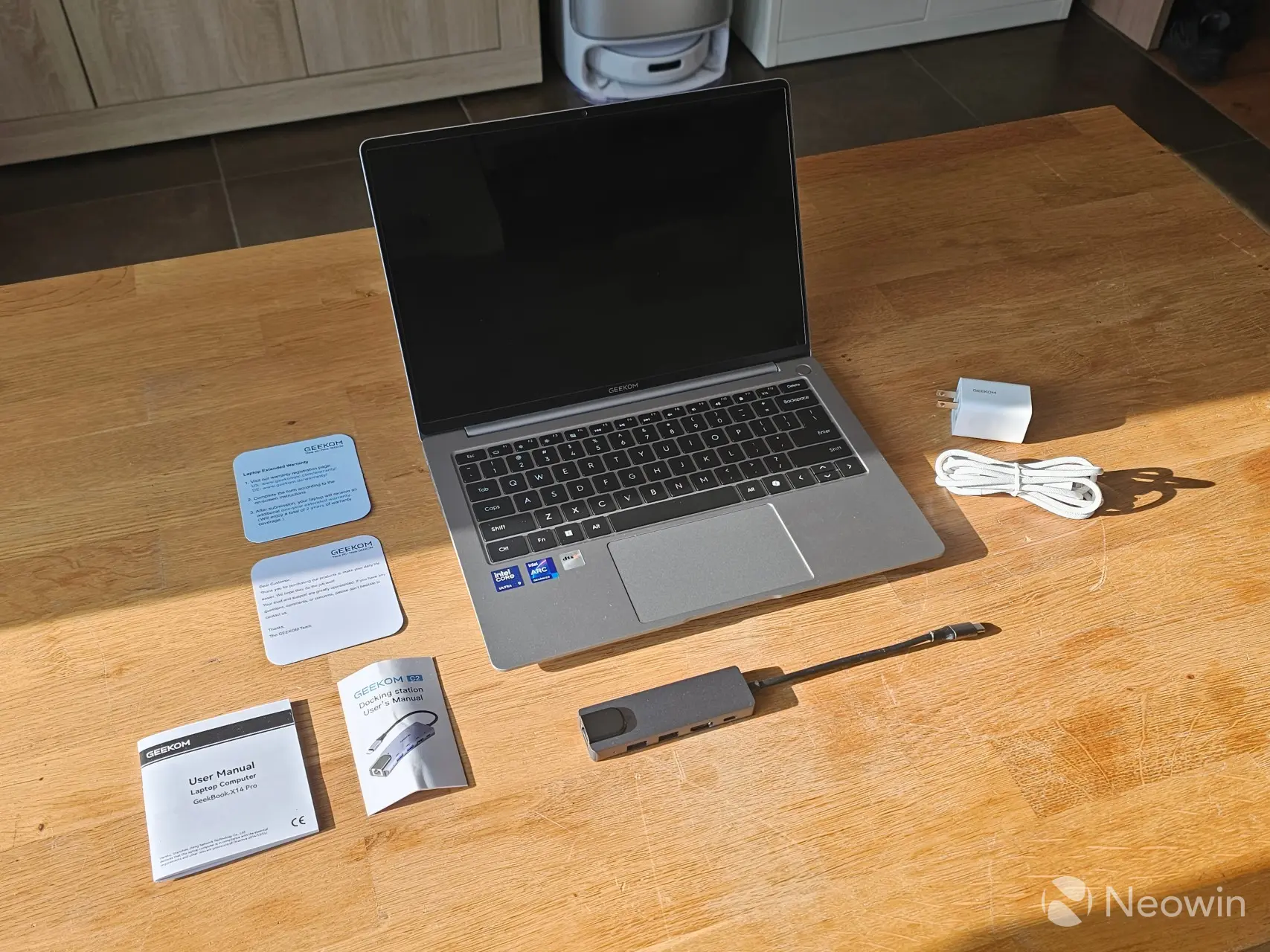
What’s In The Box
- 1 x GEEKOM X14 Pro Ultra-thin Laptop
- 1 x Type-C to Type-C cable 1.8M
- 1 x 65W GaN PD Fast Charger
- 1 x Warranty Card
- 1 x Thank You Card
- 1 x User Guide (Online link)
Design
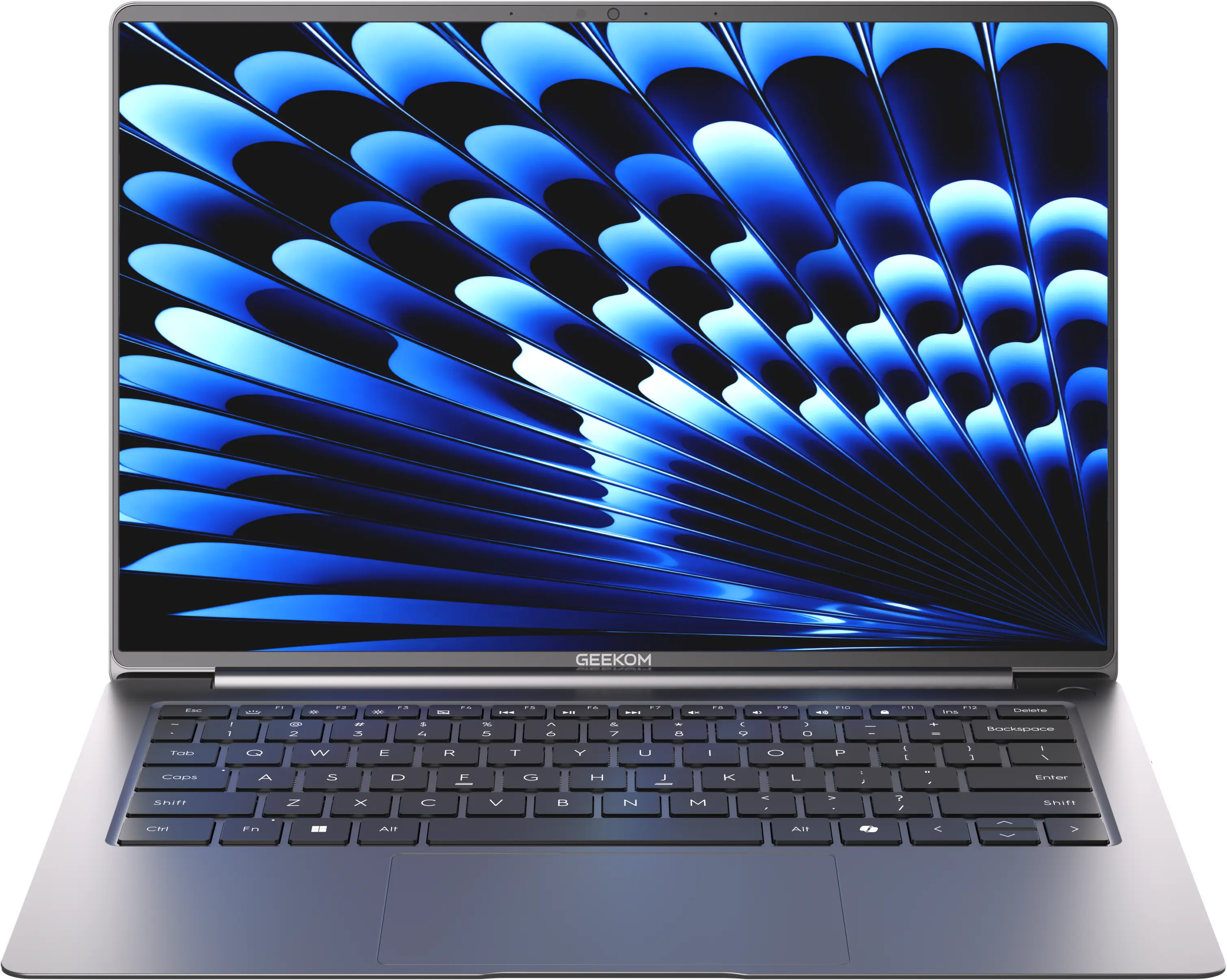
The X14 Pro"s design looks a lot like a MacBook. It definitely gives off a premium and balanced feel to it. All the edges and corners are rounded, so it is comfortable to hold and move around. At only three grams shy of a kilo it"s not that heavy either; in fact much of that weight can be attributed to the all-metal unibody.
The X14 Pro also includes two USB 4.0 ports, both of which can be used to power and charge the laptop and connect displays to, that being said the X14 Pro supports up to three external displays with the inclusion of a full HDMI 2.0 port. There"s also a USB Type-A 3.2 Gen 1 port, and an Audio jack port.
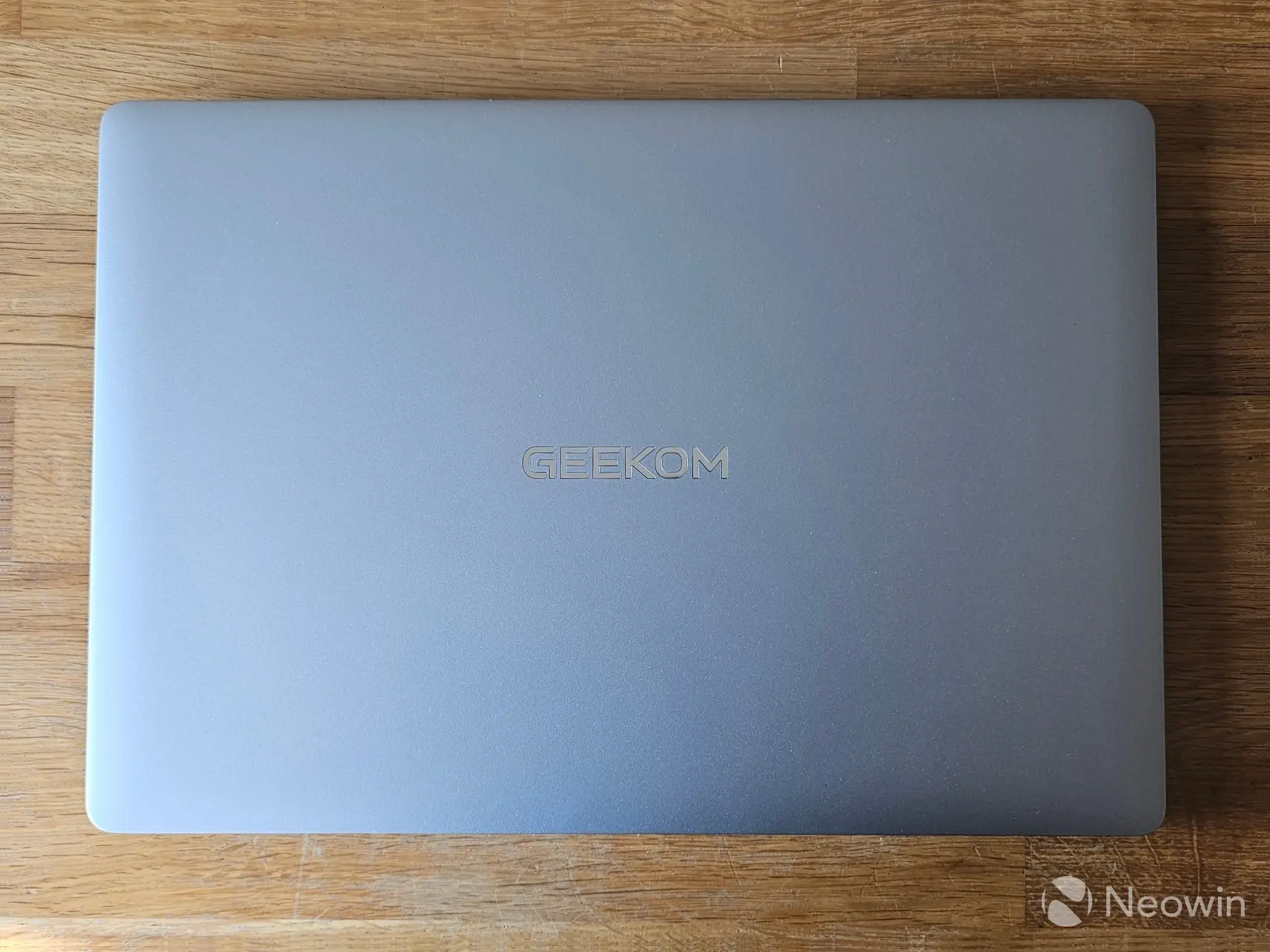
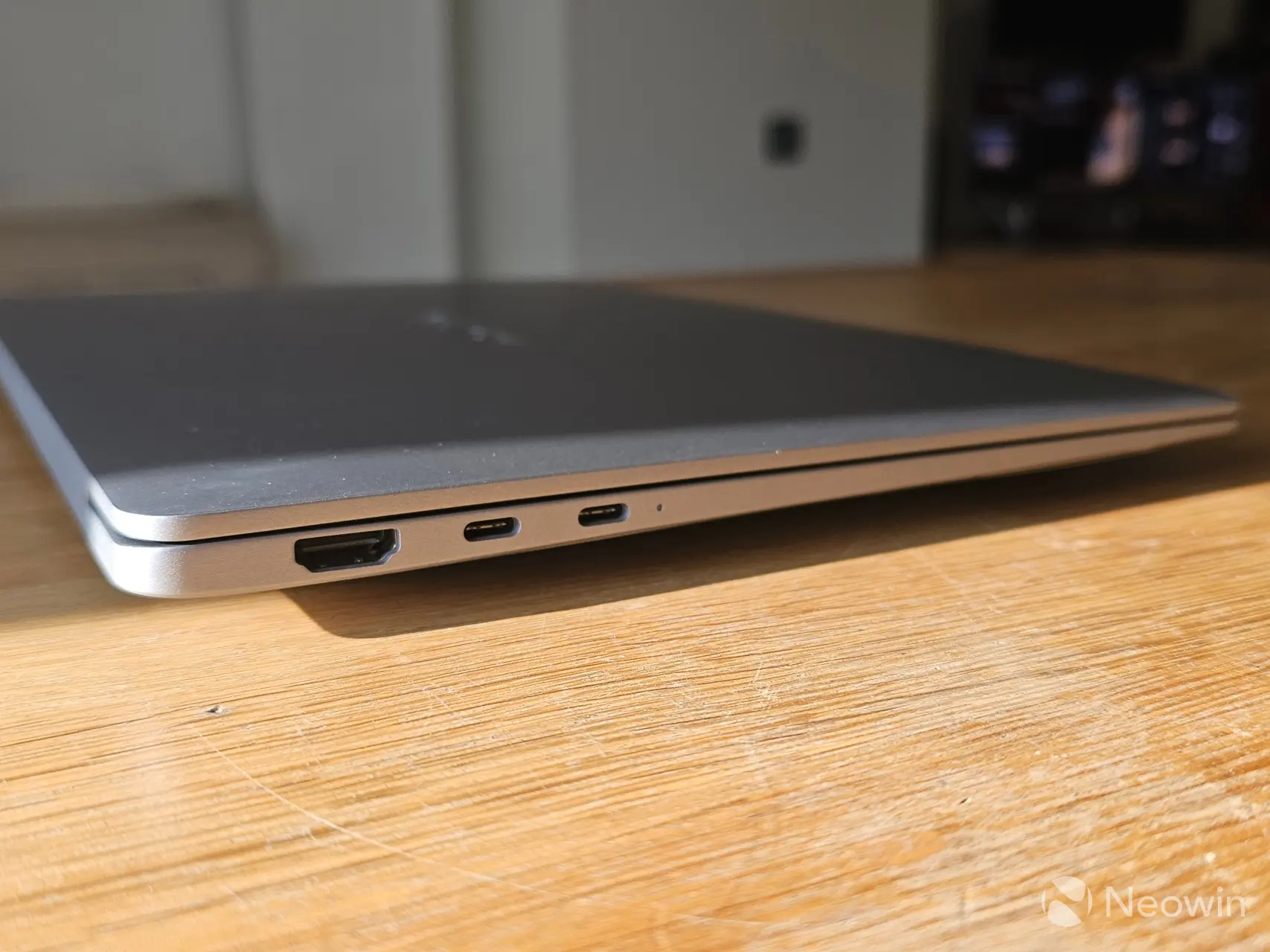
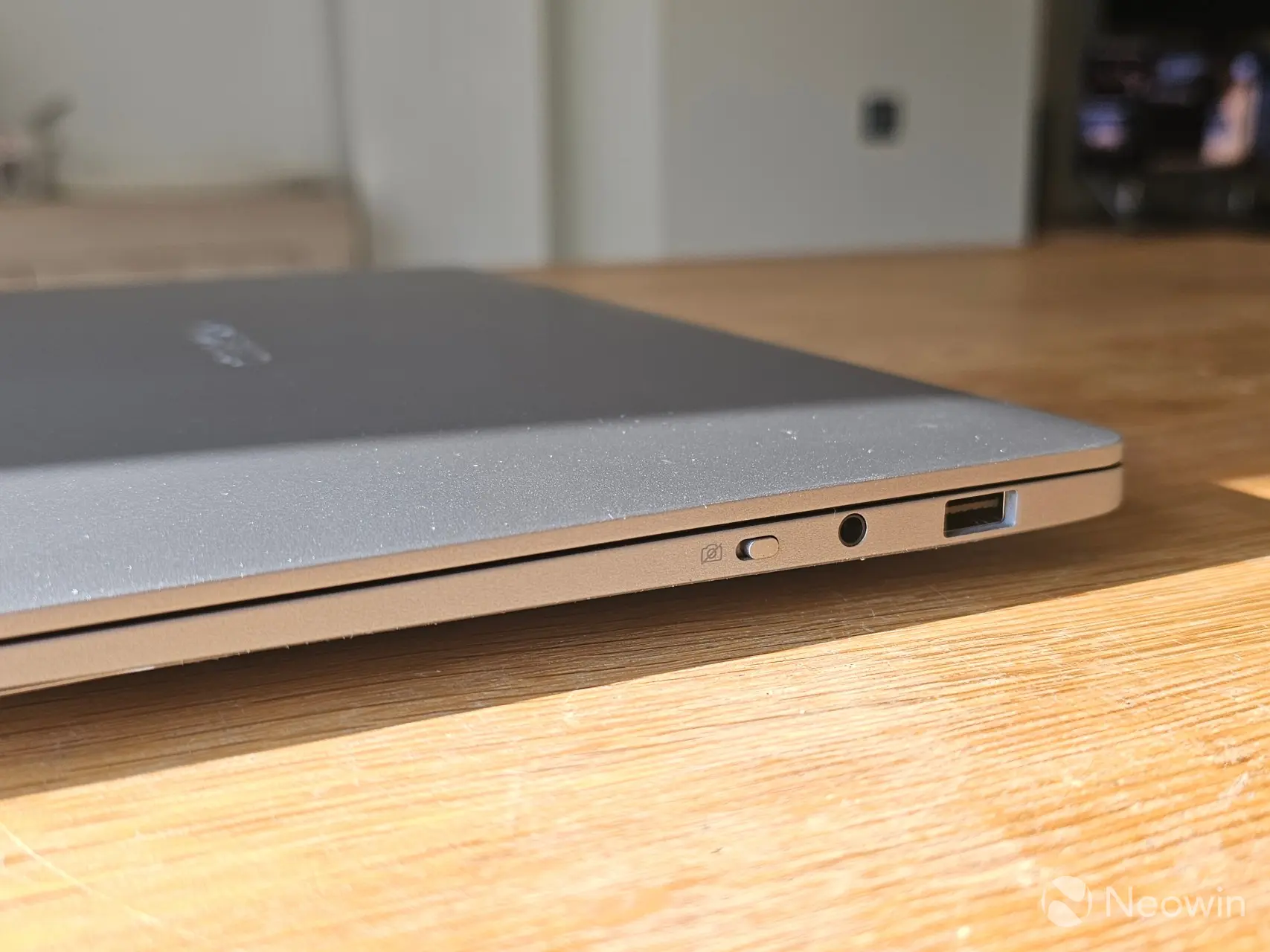
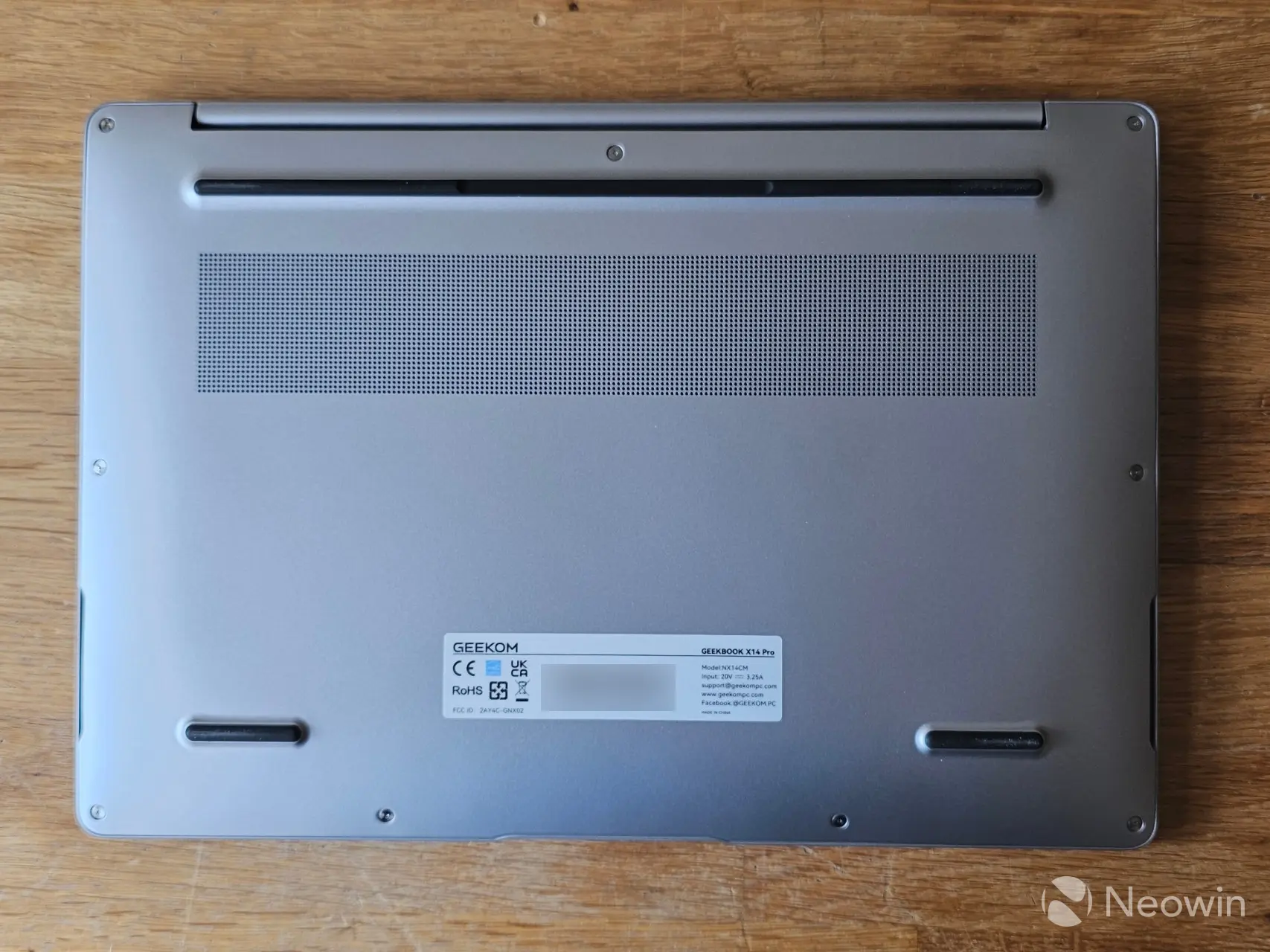
As far as looks go, it has a fully silver grey exterior, and it"s not a fingerprint magnet. The body is made from "Unibody Magnesium Alloy" which means it could take a few knocks, overall It doesn"t feel cheap and isn"t flimsy either, and there"s no creaking going on with the joints.
As I already mentioned, it"s physically possible to directly attach three screens to the X14 Pro using the HDMI 2.0 port, along with the two USB 4.0 ports, both of which have Power Delivery to power an external portable monitor.
Usage
BIOS
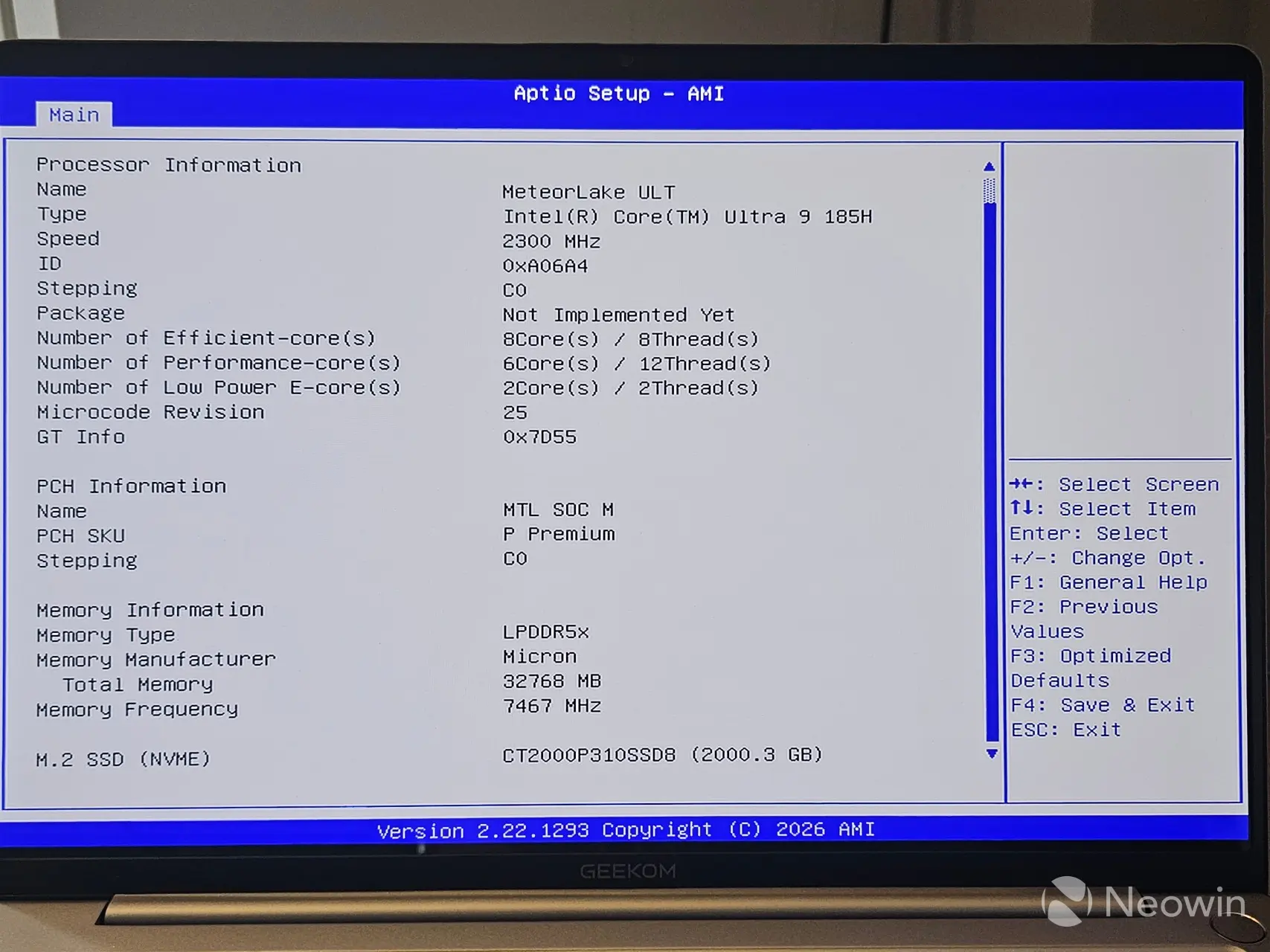
The X14 Pro includes an AptiBIOS, which is not completely locked down; however, there is very little in the BIOS to manage (1). There is no Advanced tab, so no tweaking for you! You can only manage the Security and Boot order. The memory reports the correct 7467MT/s speed that the CPU supports with LPDDR5x memory, and everything else looked in order, though. The user manual (or online guide) does not include how you enter the BIOS, but I discovered that you can access it by holding down the F7 key on restart or startup.
Setting up the X14 Pro
On first boot, you are prompted to complete the setup of Windows 11 Pro, meaning you do not have to fork out for a license, which is nice. After the setup is finished, I am happy to report that it does not come with any bloatware installed. The OOBE also installs several updates to Windows 25H2 26200.7840.
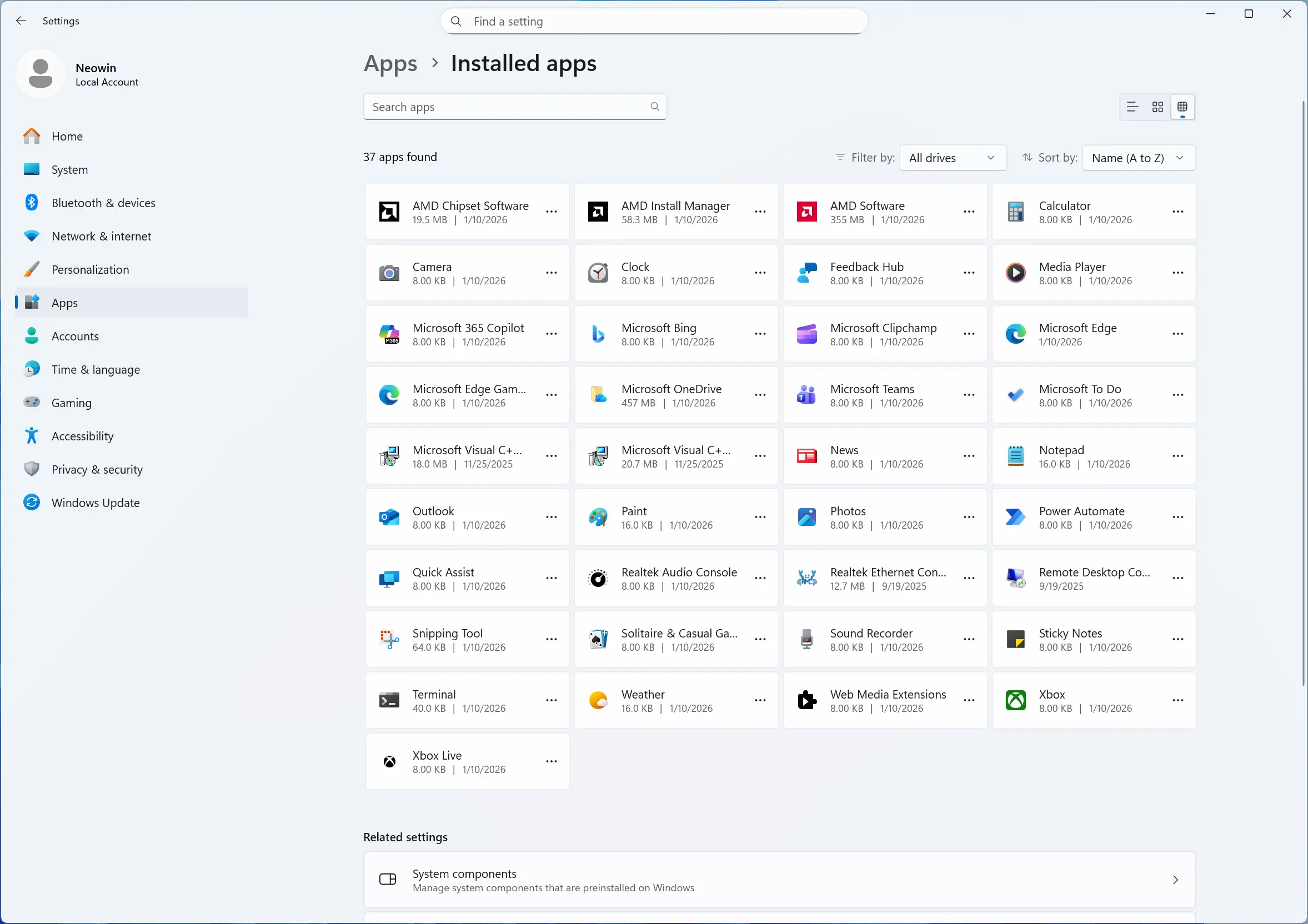
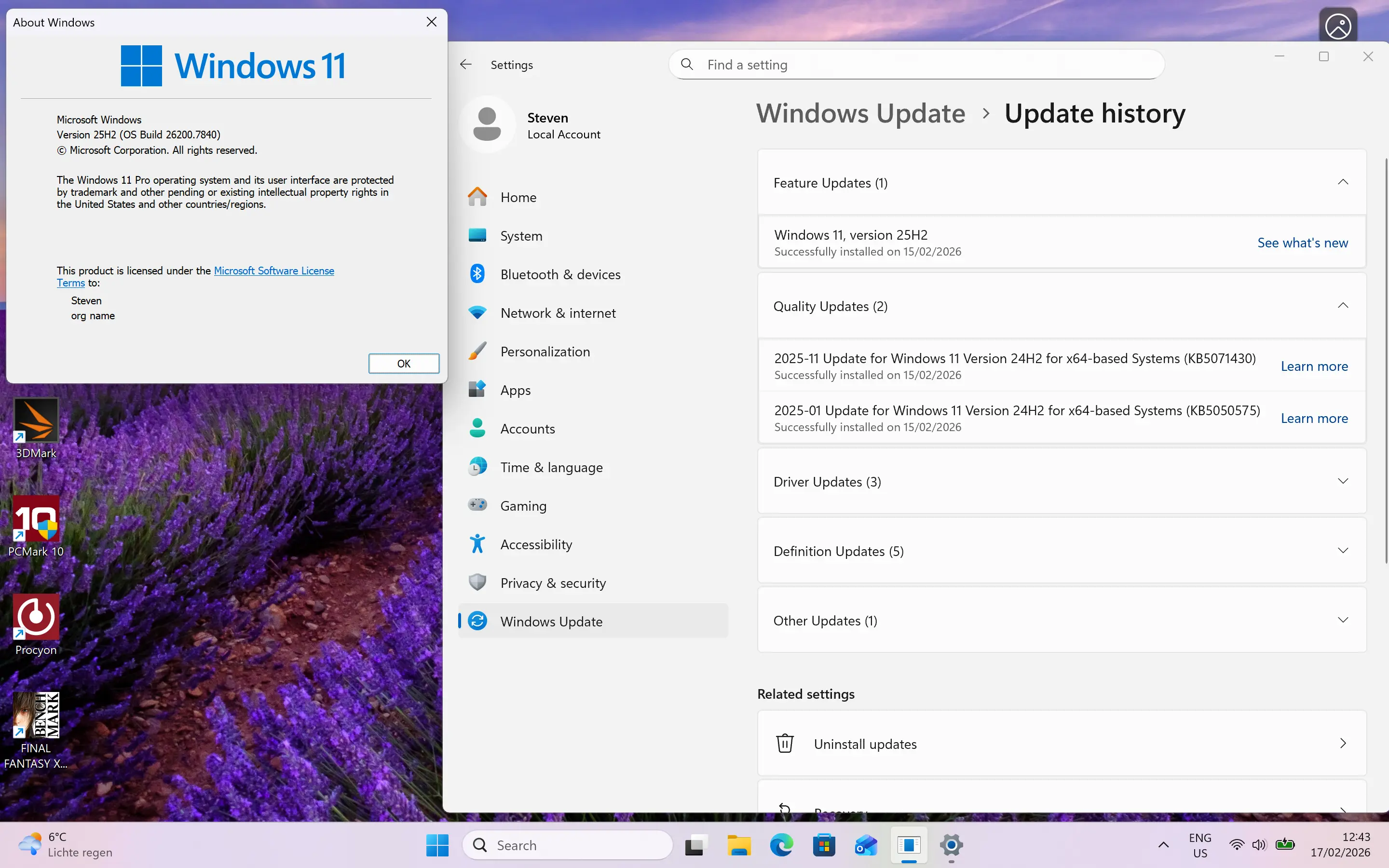
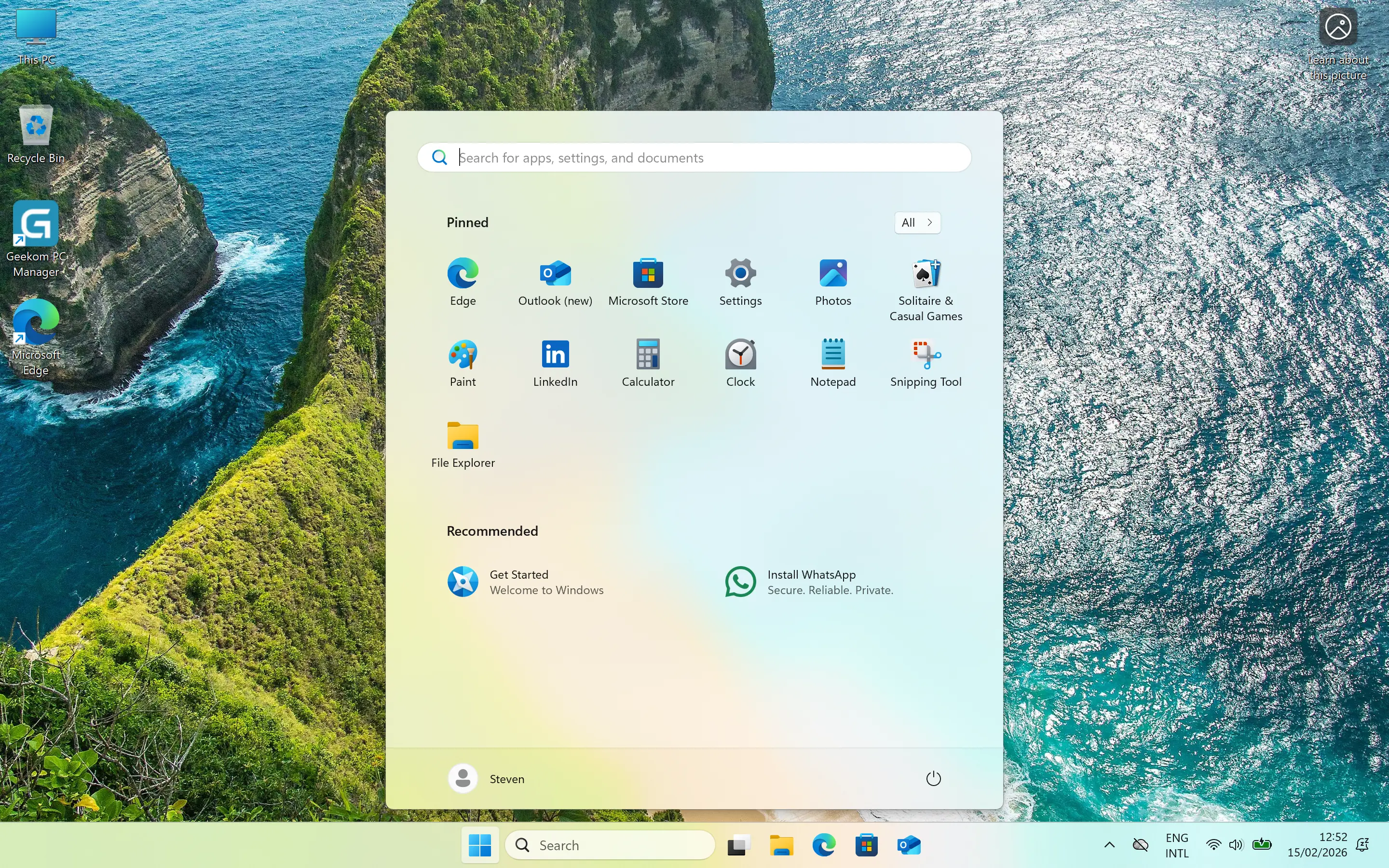
Post setup
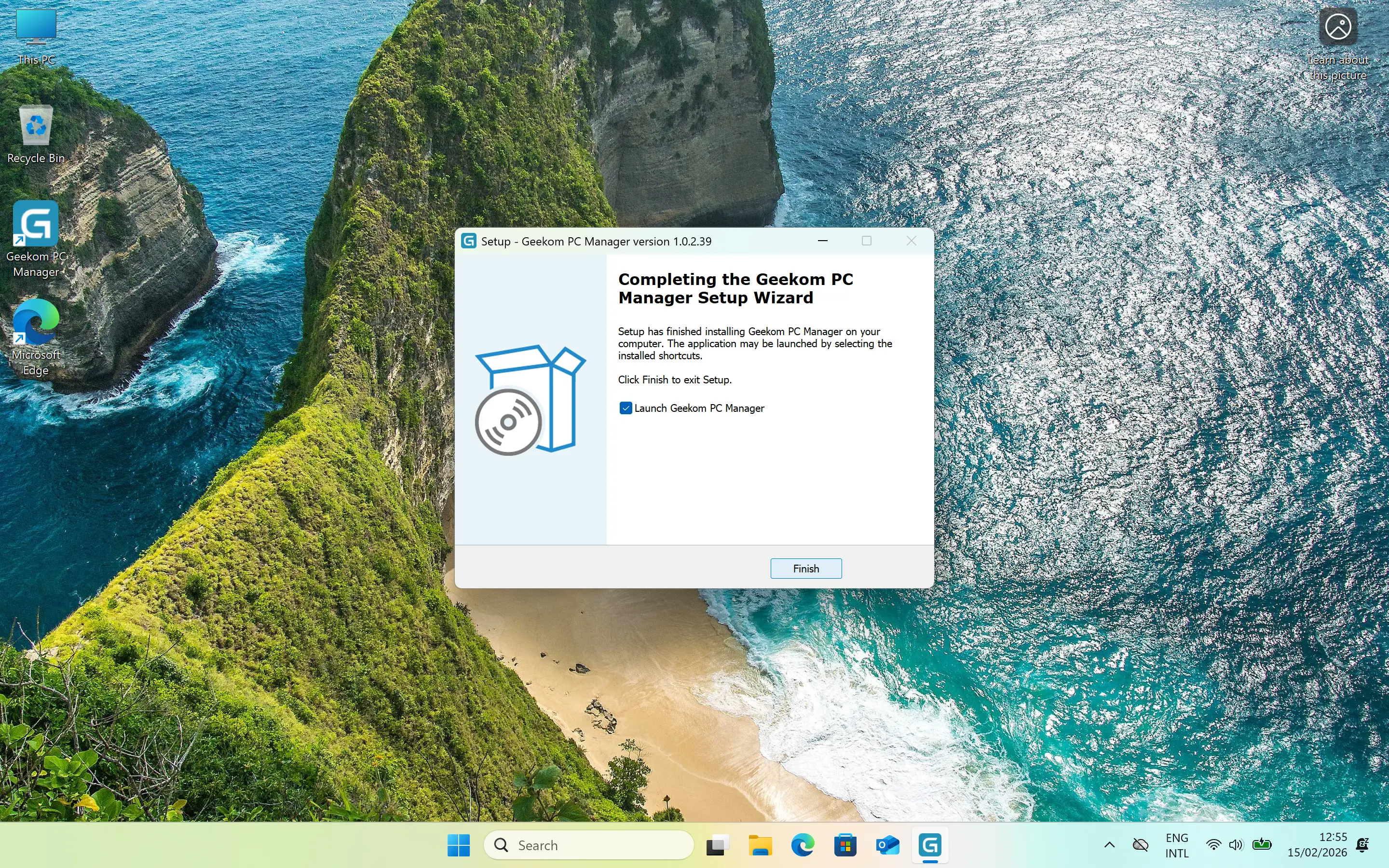
The X14 Pro comes with a utility called GEEKOM PC Manager. It is sort of like the Surface app for Microsoft Surface devices in so far that it is the only way to update the X14 Pro fiirmware (this is not possible through the BIOS). Although the app is placed prominently on the desktop, for some reason it wasn"t pinned to the Start menu.
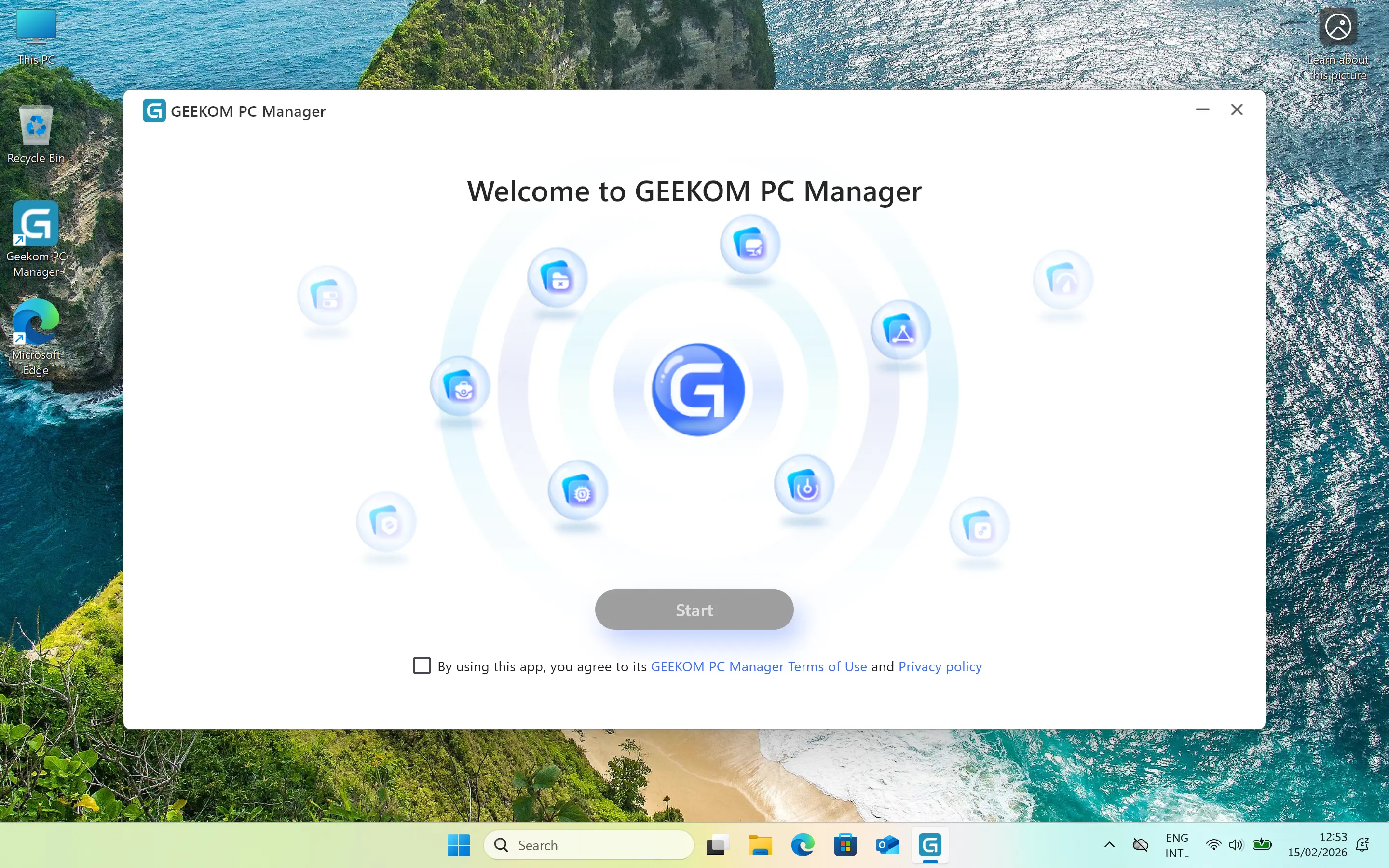
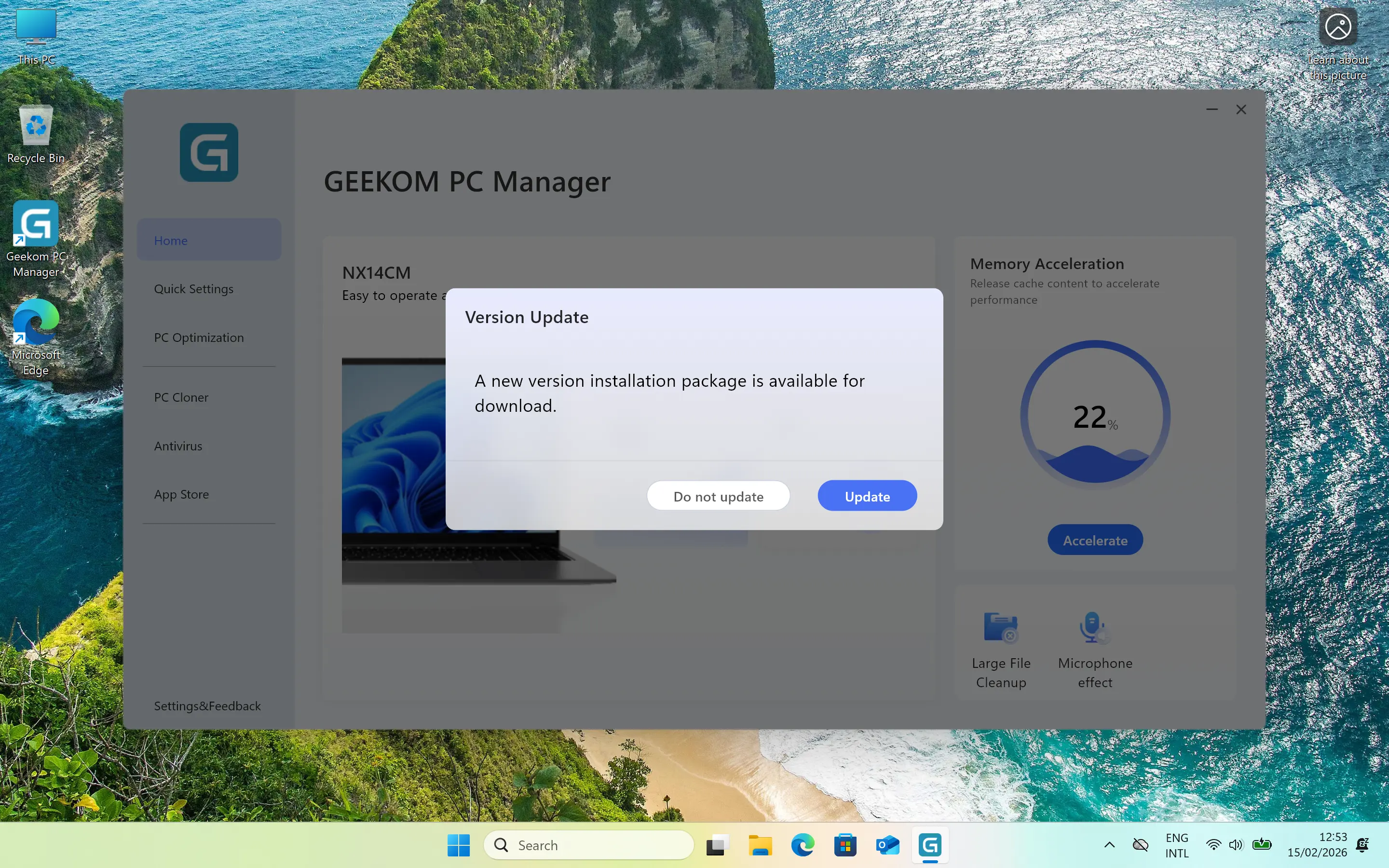
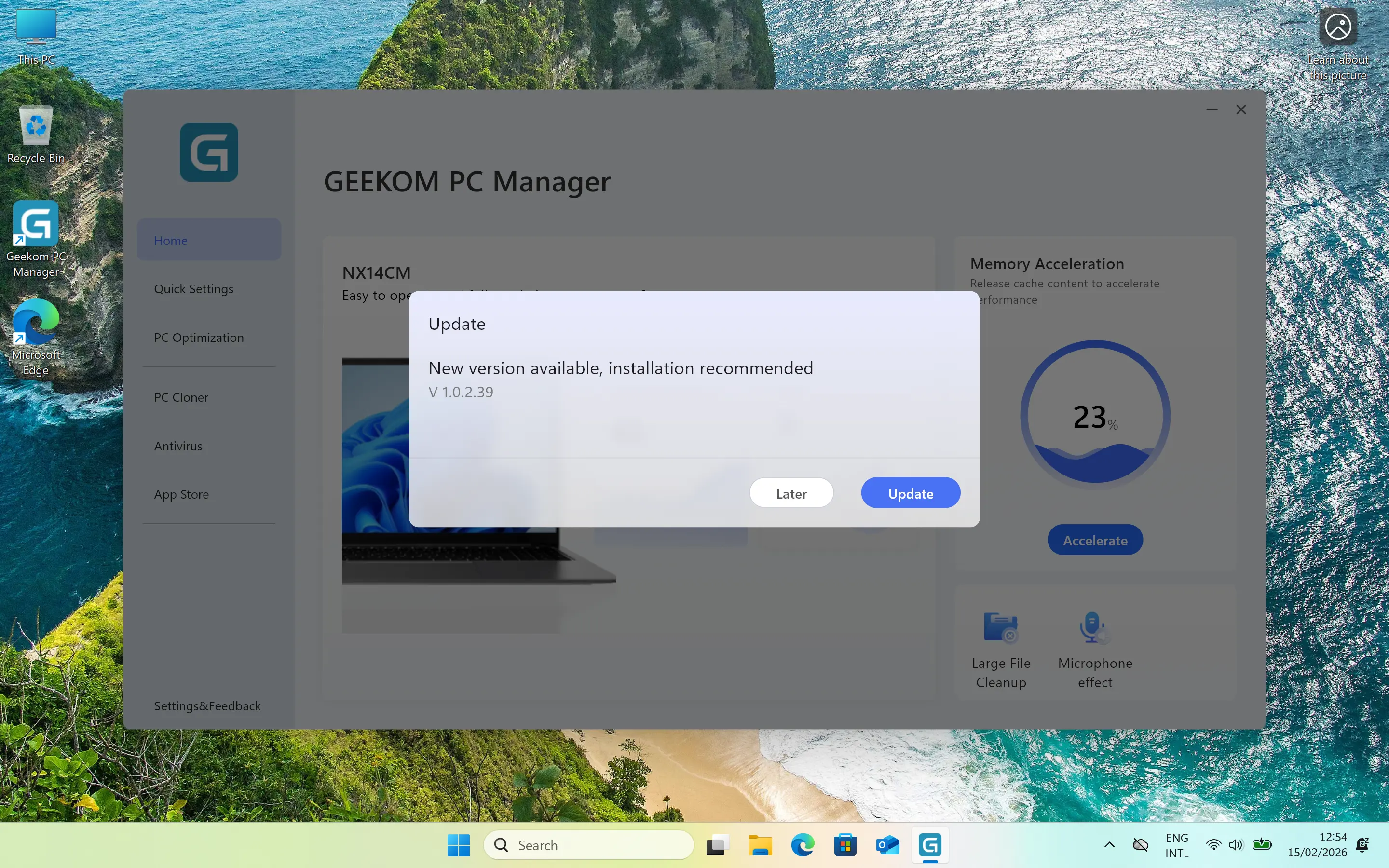
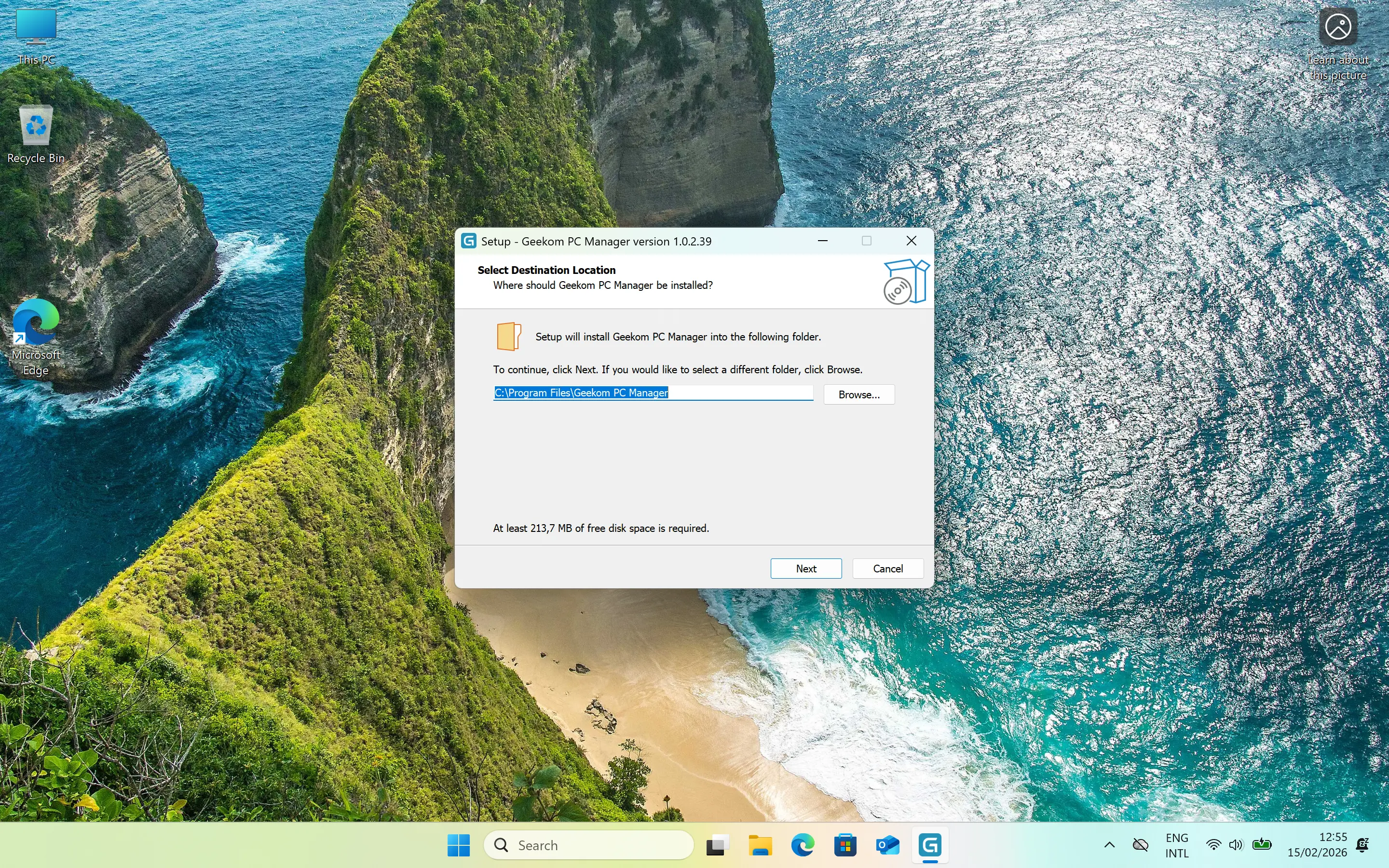
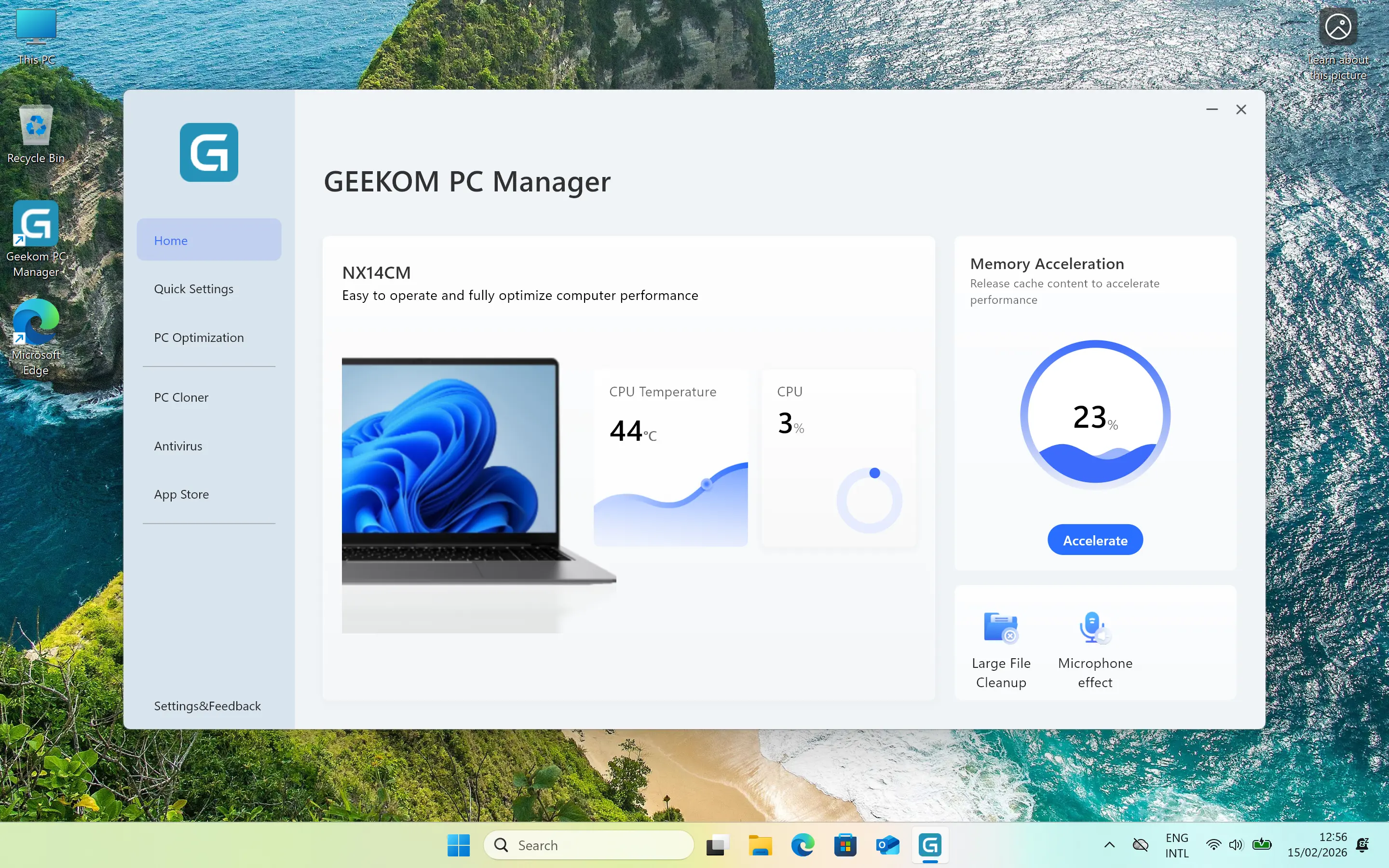
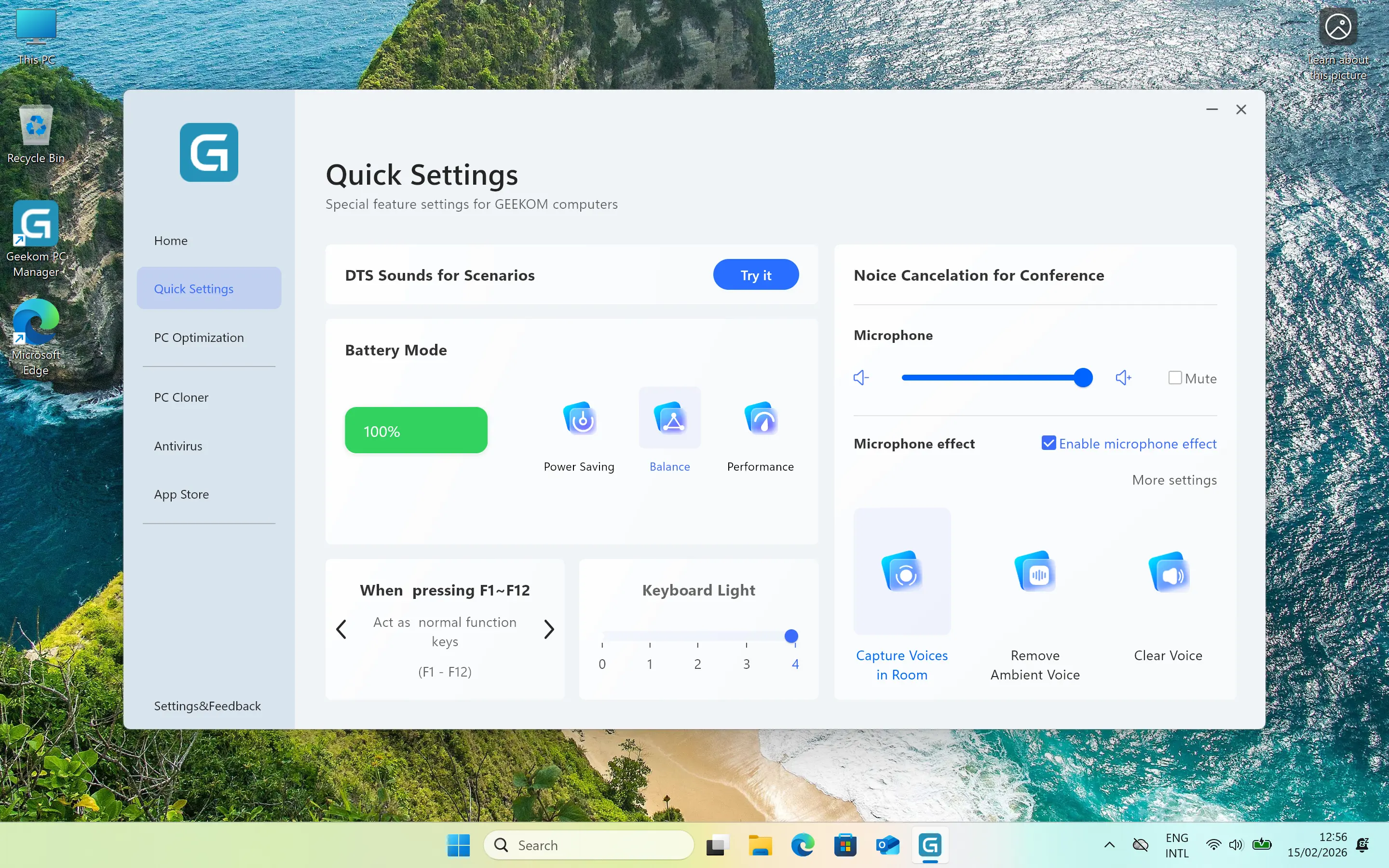
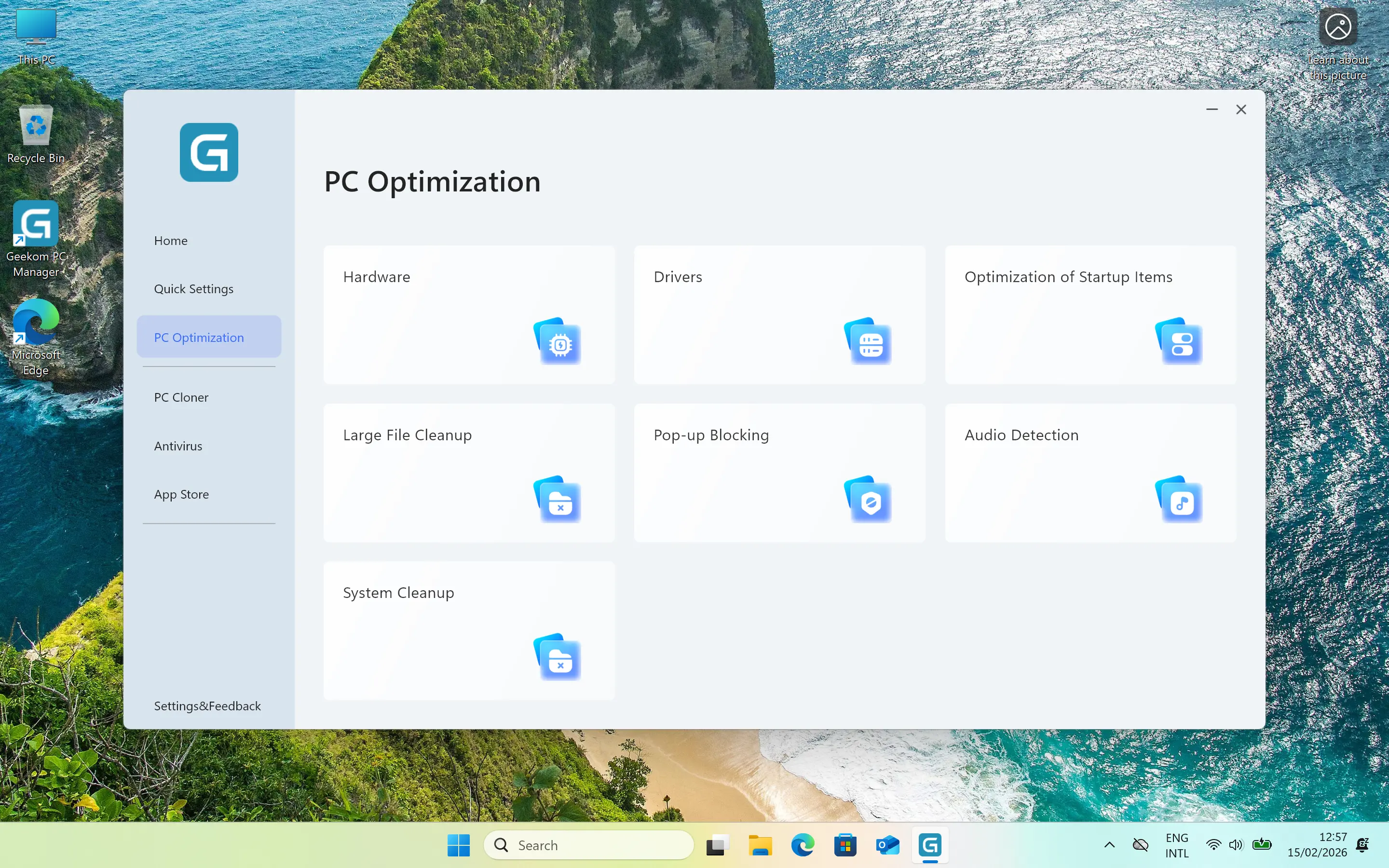
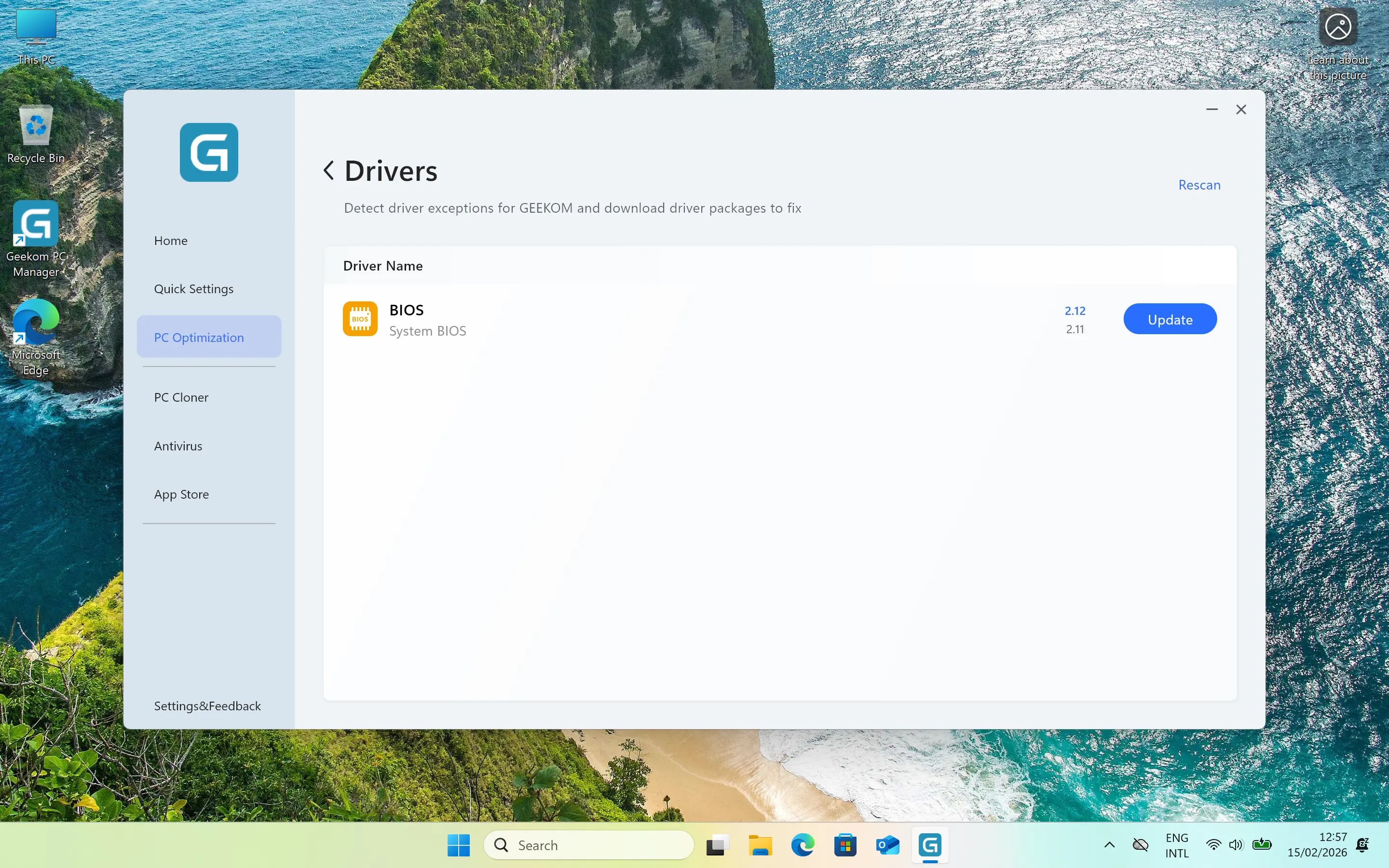
On the Home page of the app you can see the current CPU temperature, and CPU utilization along with a choice to "Accelerate" the memory, which is a standard tool for clearing background apps and cache in the memory. Quick Settings offers a few handy things like setting the Power profile, the F, or FN key priority on the keyboard, and Mic settings. The PC Optimization page offers a bunch of tools for System cleanup, and general PC sweepers as well as a built-in "Pop-up Blocking" option. I tried to test the Pop-up Blocking function with a test webpage, but all I was able to confirm was that Edge itself blocked the test popups. This is also where you will find the X14 Pro firmware update, if it exists, unhelpfully hidden behind the "Drivers" page of PC Optimization.
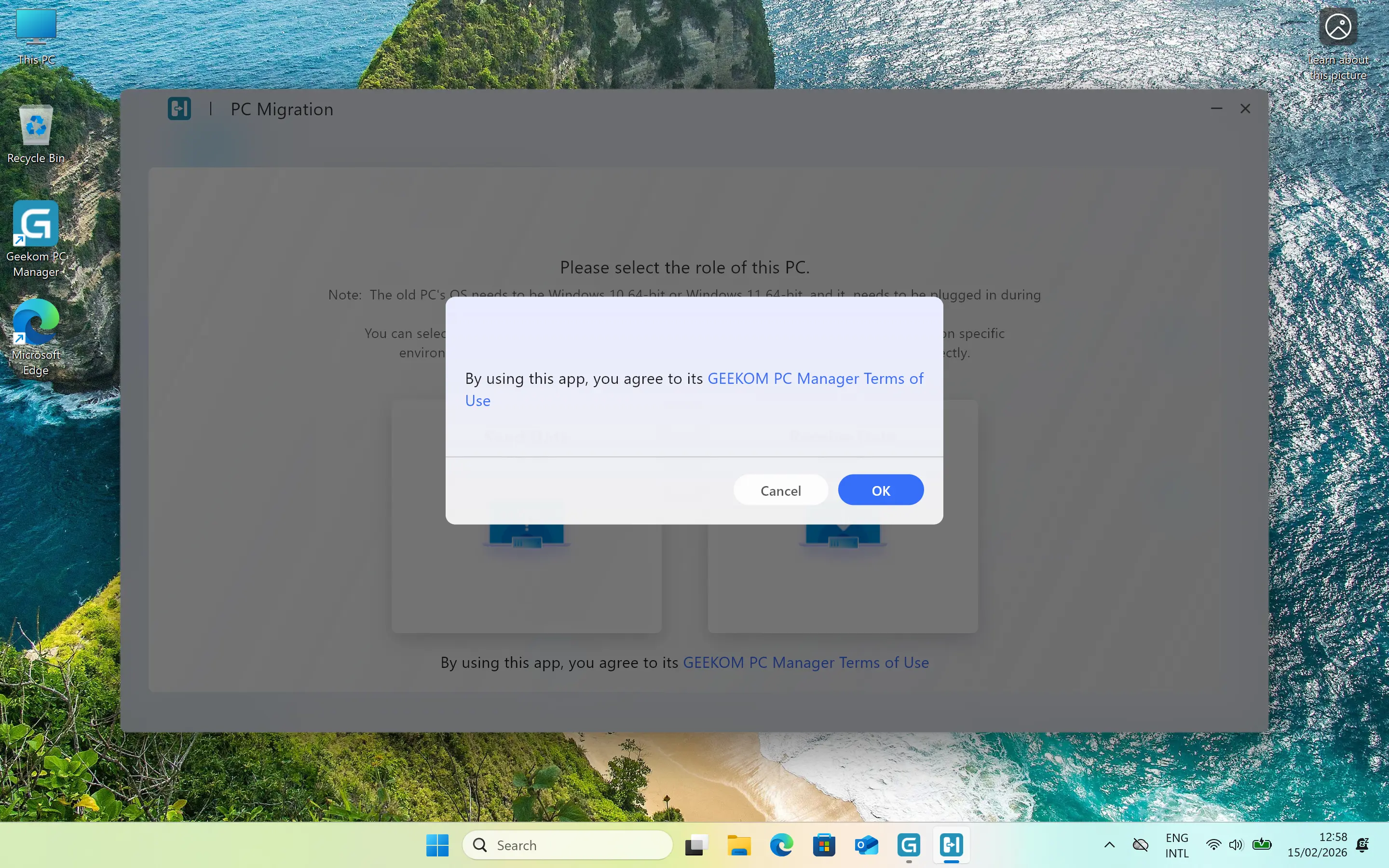
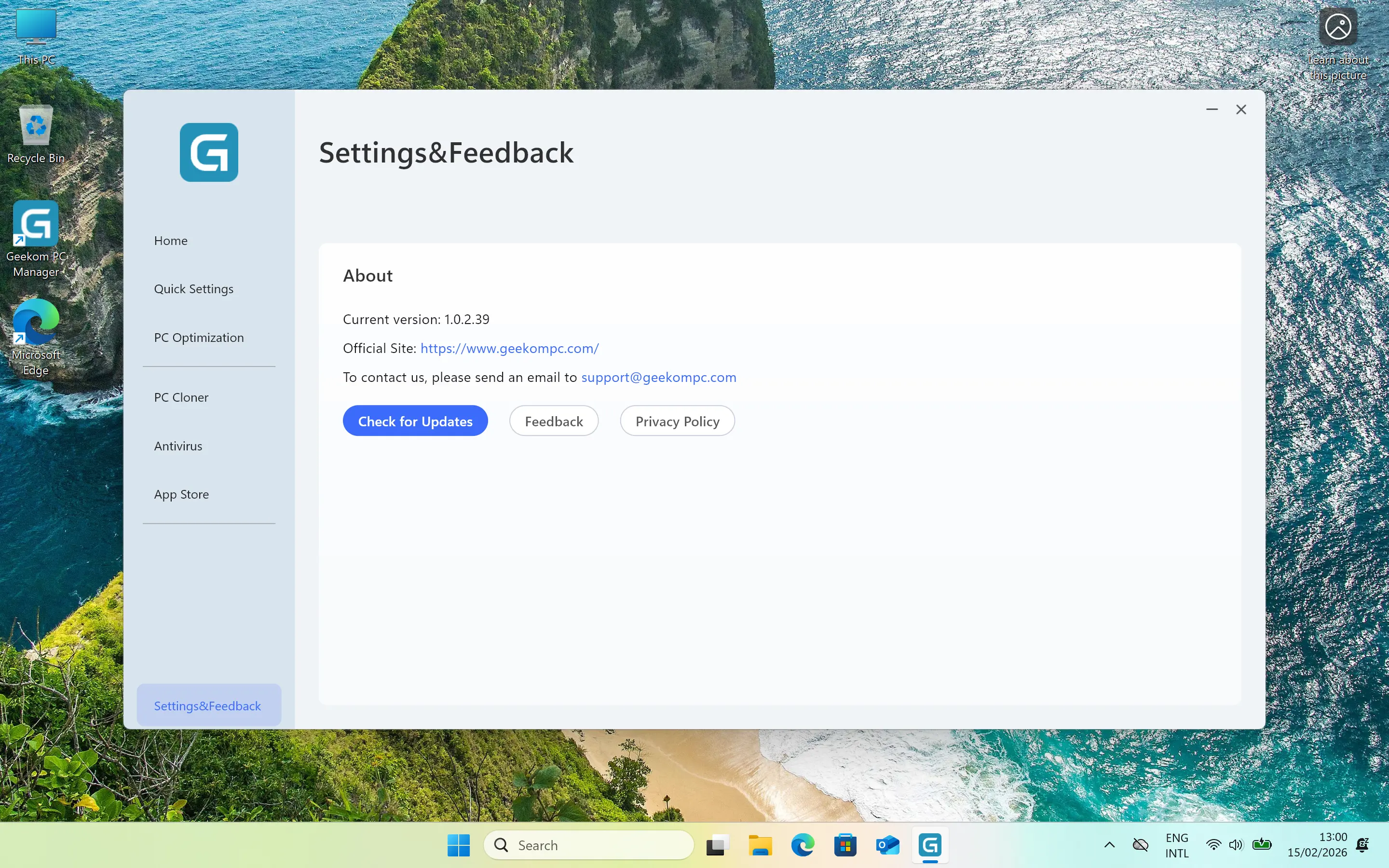
Next there"s a PC Cloner option that starts a PC Migration app, that I will be testing out. Then Antivirus simply links to Windows Security, and App Store links to the Microsoft Store app. Finally the Settings&Feedback option links to an About page with the Apps version, with options to check for app updates, provide feedback, and read the Privacy Policy.
It"s cool and all, but you can"t download it anywhere
As I was rounding off this review, I intended to test the PC Clone function of the GEEKOM PC MANAGER, but to my surprise, I can"t download it anywhere to install on my Surface Laptop 3 (which is the "old PC" in this scenario). I tried looking on GEEKOM U.S., and Germany in the Support sections, and all I could find was a page of the terms of use (linked within the app). Needless to say I, have reported this to my contact, and will update this review when i am able to run that test.
Quirks
Firmware update wipes, or corrupt Windows Hello
A word of warning for prospective buyers, after updating the firmware through the GEEKOM PC Manager and restarting, it was no longer possible to login with my saved fingerprint or PIN. It resulted in the login screen spazzing out when I tried one of the PIN or Fingerprint options with multiple restarts. Windows did warn that the PIN was no longer available, and I discovered that I could login if I immediately chose the Password option.
To resolve the above issue, I had to remove the saved fingerprint and PIN and set them up again. After that, signing in with a fingerprint or PIN worked again.
Camera doesn"t support Windows Hello
Not really a quirk, but worth a mention. Unfortunately, the camera does not support Windows Hello login, however the fingerprint sensor is quite good and fast. However, if you place your finger wrong on it, fingerprint signing gives up and requires a PIN to sign in which can be a real PITA.
Fingerprint sensor doesn"t give second chances
Another annoyance is that when attempting to sign into Windows using a fingerprint, if your finger is not on the sensor "properly" you get a warning that "Your fingerprint couldn"t be recognized. Try using a different finger." However, even after trying to attempt the correct placement, the X14 Pro says "Your PIN is required to sign in." In my experience, the fingerprint sensor is more often than not prone to this, resulting in me rolling my eyes and having to enter a PIN. You might get different results, but I"m already thinking about removing the fingerprint so I am offered the PIN choice, instead of having to go through repeated process of the fingerprint authentication failing to recognize me.
Removing the charging cable turns off the screen
In addition to the above, I discovered that the screen turns off when I removed the charging cable (this does not happen when removing the dock cable). Inserting it can result in the screen going black for up to five seconds, and removing the charging cable causes the screen to go black for up to two seconds. I reported this behavior to my contact and will update if I hear back.
Keyboard
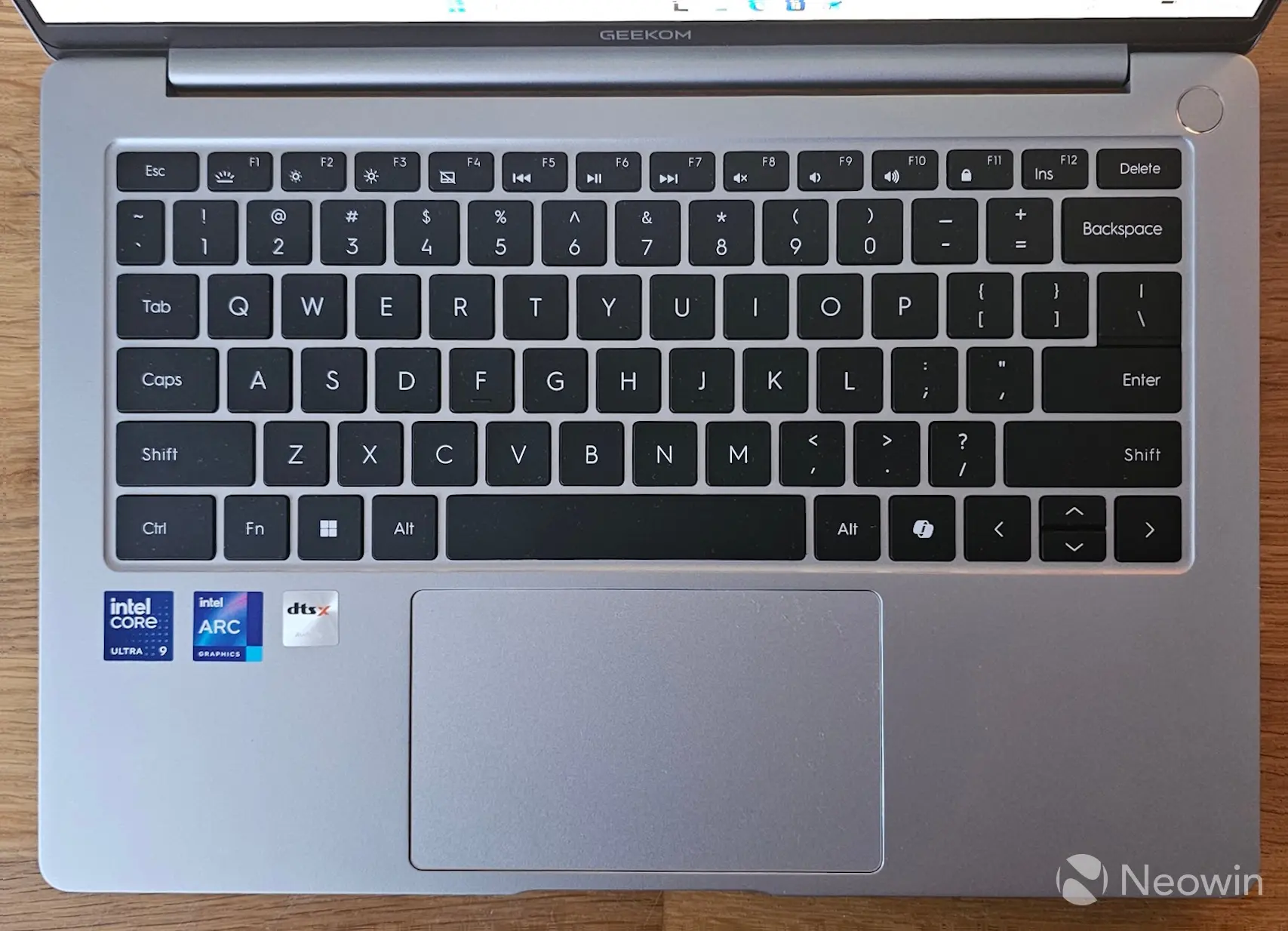
The backlit keyboard does not have a proximity sensor, this means it only turns on after the first key press. Sadly, there"s also no prtscr button, so I had to get used to using WIN + SHIFT + S to take screenshots. There"s also a Copilot key (first introduced to the world, a little over two years ago). The addition does not require a laptop to be a certified Copilot+ PC, as all it does is launch the Copilot app.
I found the keyboard comfortable to type on with a decent key travel, it doesn"t feel too firm but at the same time, not sponge-like either. In fact the keyboard is almost identical to the one on my Surface Laptop 3 right down to the key size, so it didn"t take me long at all to get used to typing on.
Display
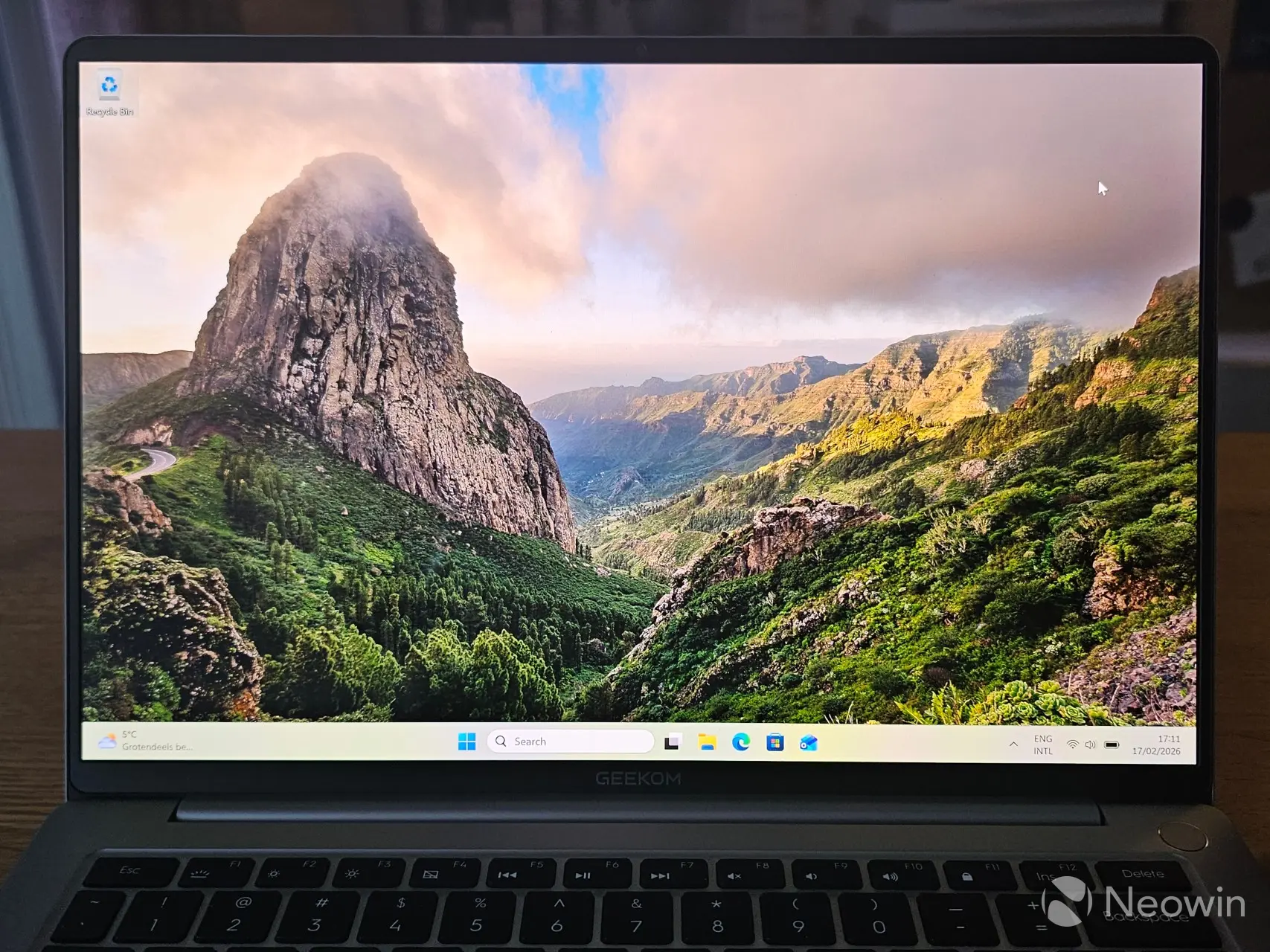
In a word, the 14-inch 2.8K 16:10 aspect ratio AMOLED display is stunning. It offers a comfortable viewing brightness even on battery, which is an example in the above image. The display supports a non configurable variable 60-120Hz refresh rate, a peak brightness level of 450 nits and supports HDR. GEEKOM does not list any kind of HDR certification on the product, or specifications pages, it is not even mentioned in any of the marketing materials, meaning the panel likely does not have any DisplayHDR 600 certification.
You"ll just have to take my word for it that it looks stunning. A peak of 450 nits brightness is more than satisfactory for indoor use, although that starts to break down if you"re using it outside in brighter conditions.
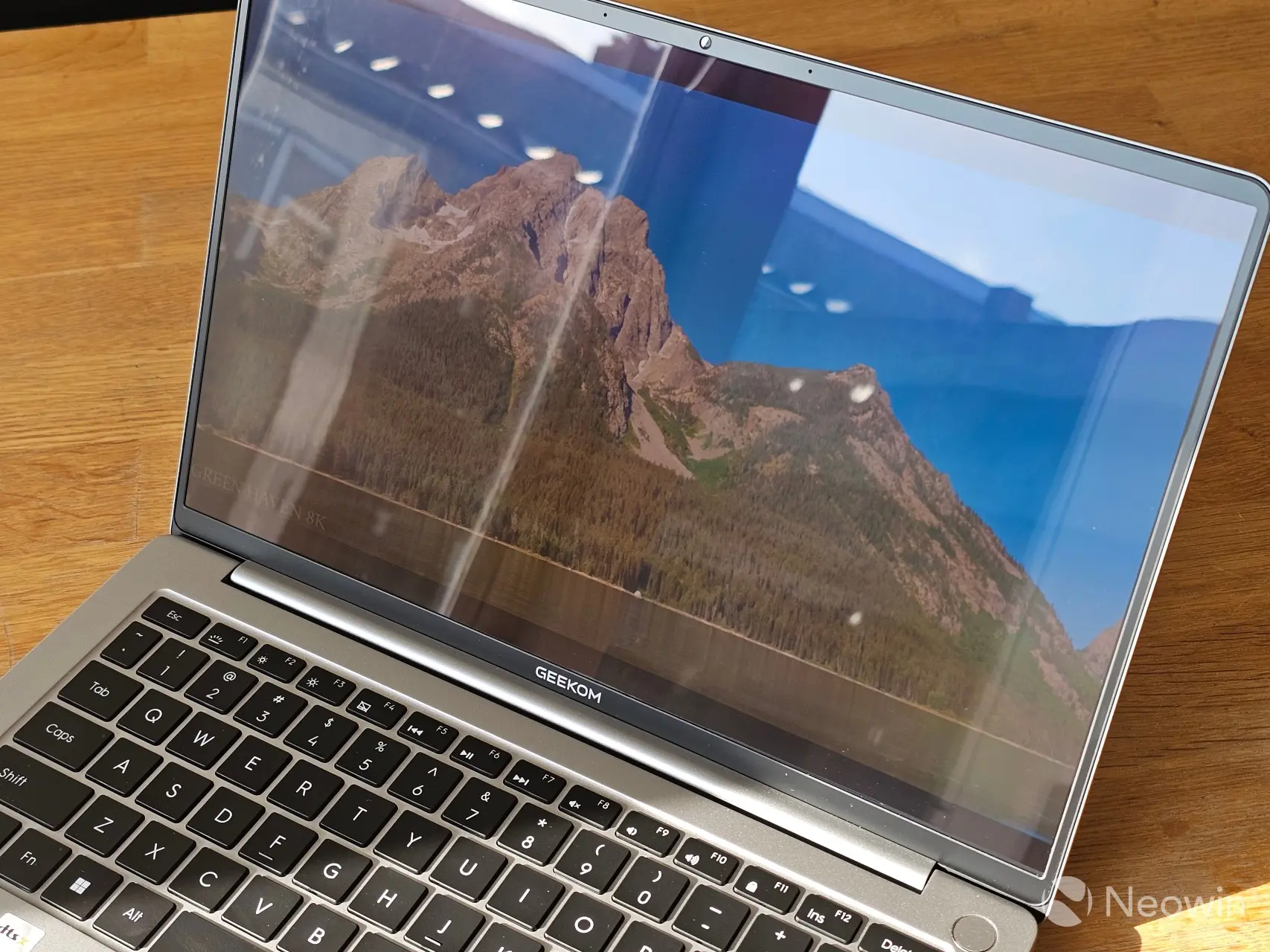
The above photo was taken indoors but with the X14 Pro turned toward direct sunlight near my kitchen"s south facing window. The picture doesn"t really do it justice, as I was still able to see the screen clearer than what my S23 Ultra was able to capture. As you can see, the screen has a bit of a glossy finish, but it is not overbearing; I think my Surface Laptop 3 screen is more reflective than the X14 Pro.
My contact is away for the Chinese New Year celebrations, so I will update this section when I am able to get more details about the panel and if there is any sort of official HDR support.
Sound
The X14 Pro comes with stereo speakers with DTS:X Ultra Audio certification. They flank the keyboard internally on the left and right and have a very clear and crisp sound. No laptop speakers will ever give a great sounding bass, but upon listening to So Below - Us, the vocals and high tones were very clear. As such, the speakers are perfect for listening along to podcasts or videos with dialog.
Dock
| Top view | Side view | Connected RJ45 port |
|---|---|---|
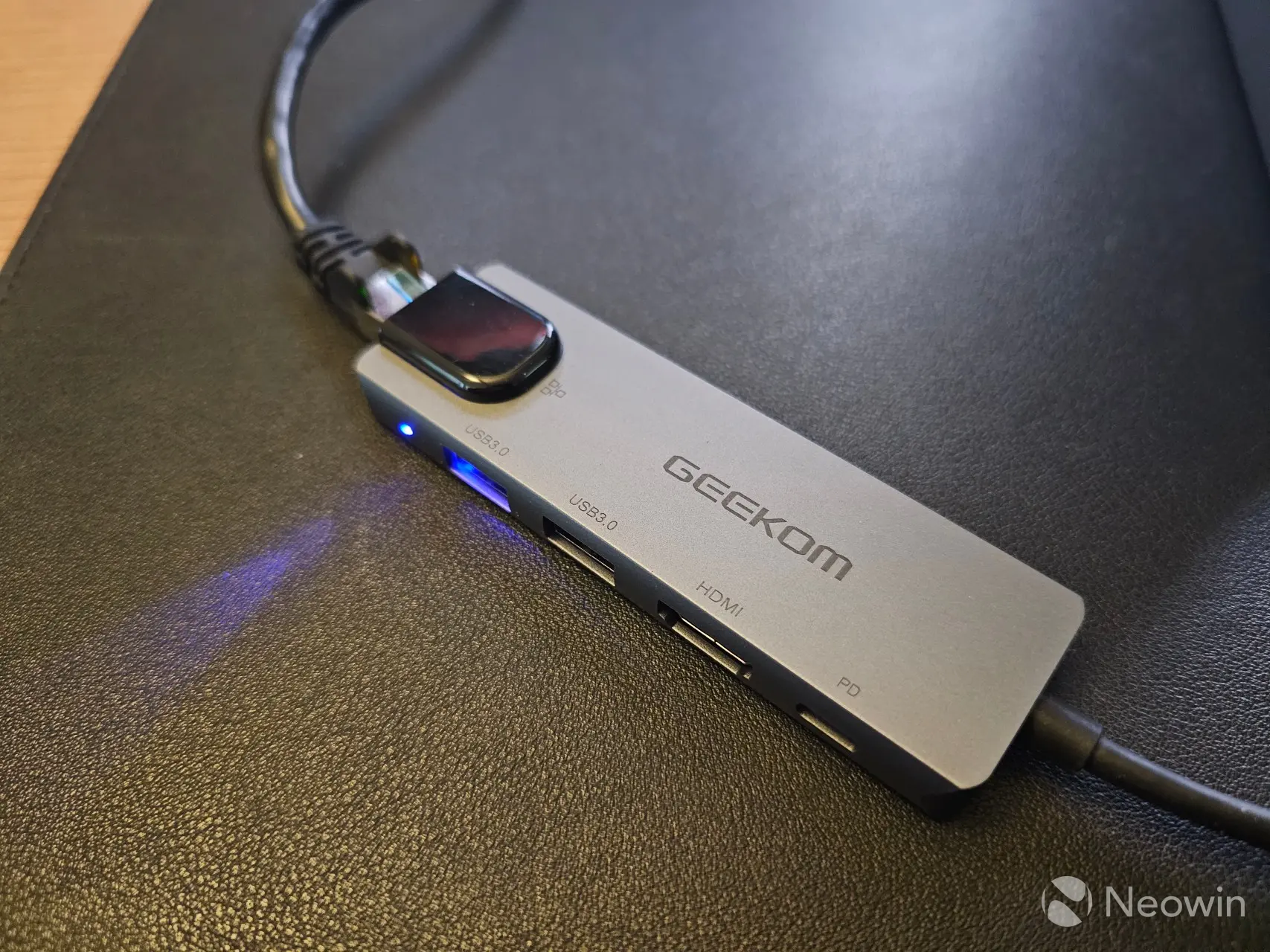
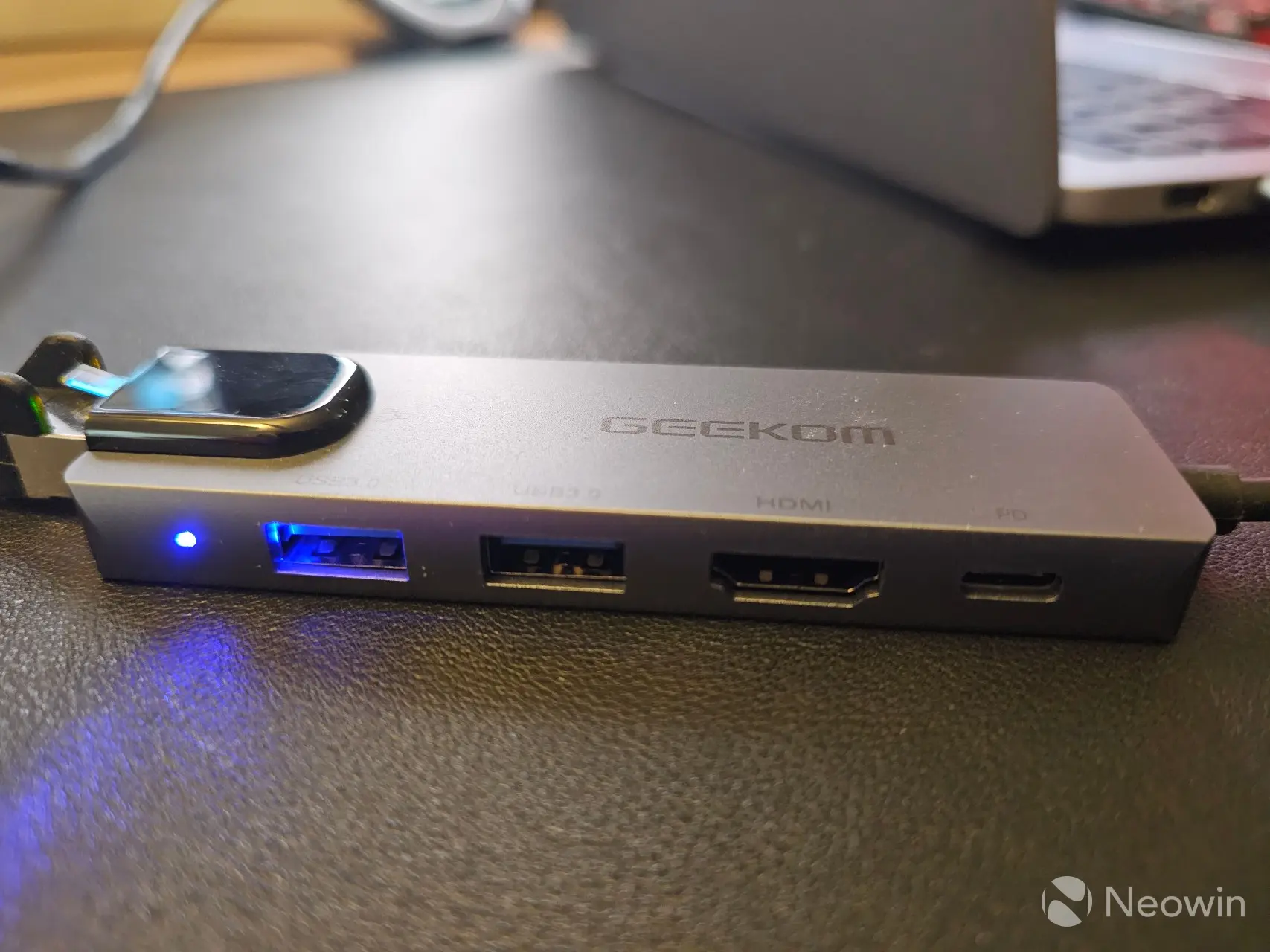
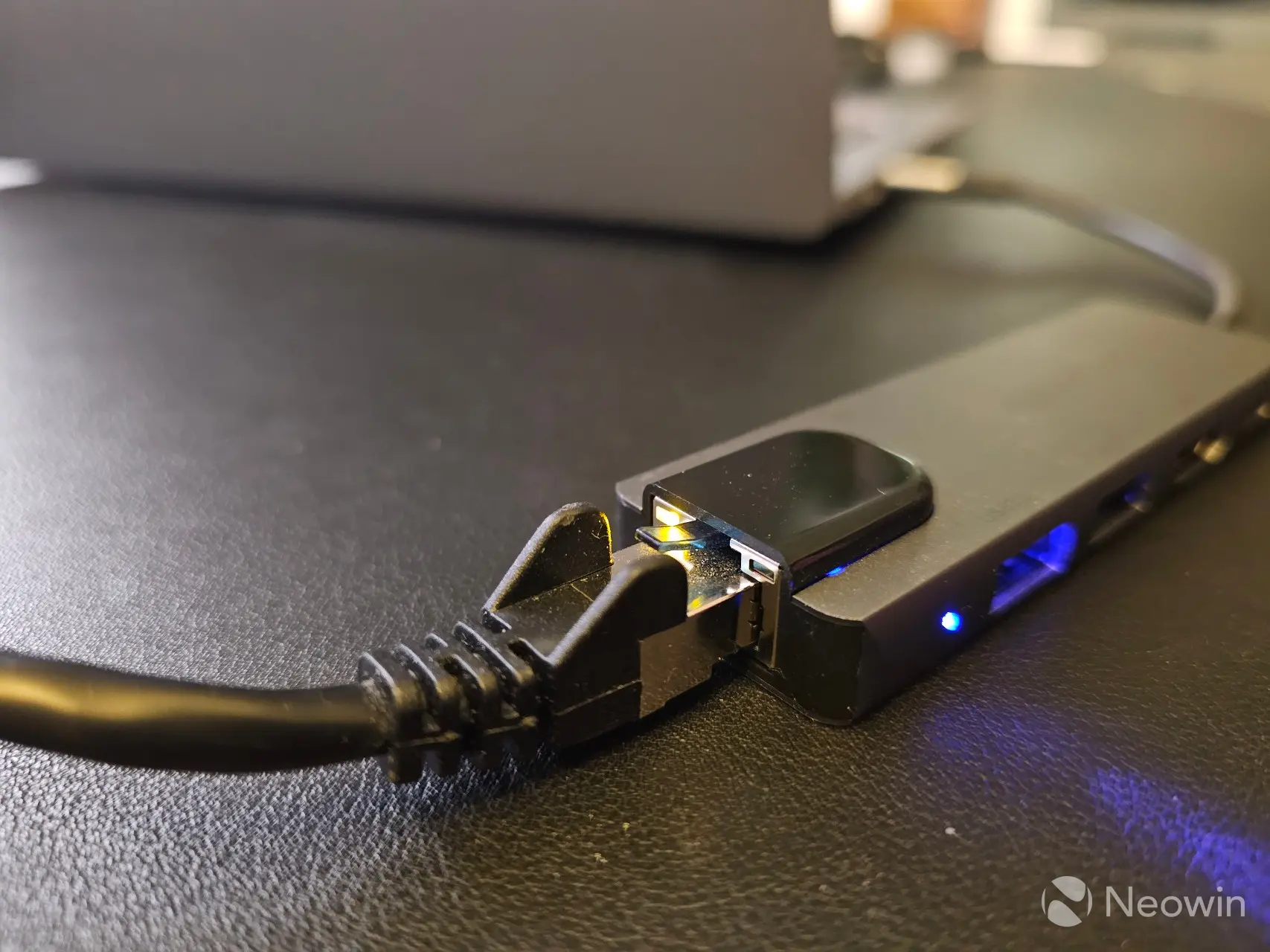
The dock works as expected offering an additional two USB 3.2 Gen 1 ports at the expense of one USB 4 port that it needs to connect to. This also allows for a second full sized HDMI port and to connect the X14 Pro directly to a LAN with its 1 GbE connection speed. It"s unclear if this accessory is a permanent addition to the X14 Pro, as it is also sold seperately for $40/€29.99.
Benchmarks
Before starting with benchmarks, I checked Windows Security, which gave several alerts, which ended up being because OneDrive was not setup and because I was not logged in with a Microsoft account (unsure how these two things affect PC security but hey ho!). After dismissing them, I checked Device Security > Secured-core PC (which gave an alert that not all features were enabled) and saw that Memory Integrity was disabled. Memory Integrity being disabled appears to be a default setting for GEEKOM PCs. I enabled it anyway and restarted.
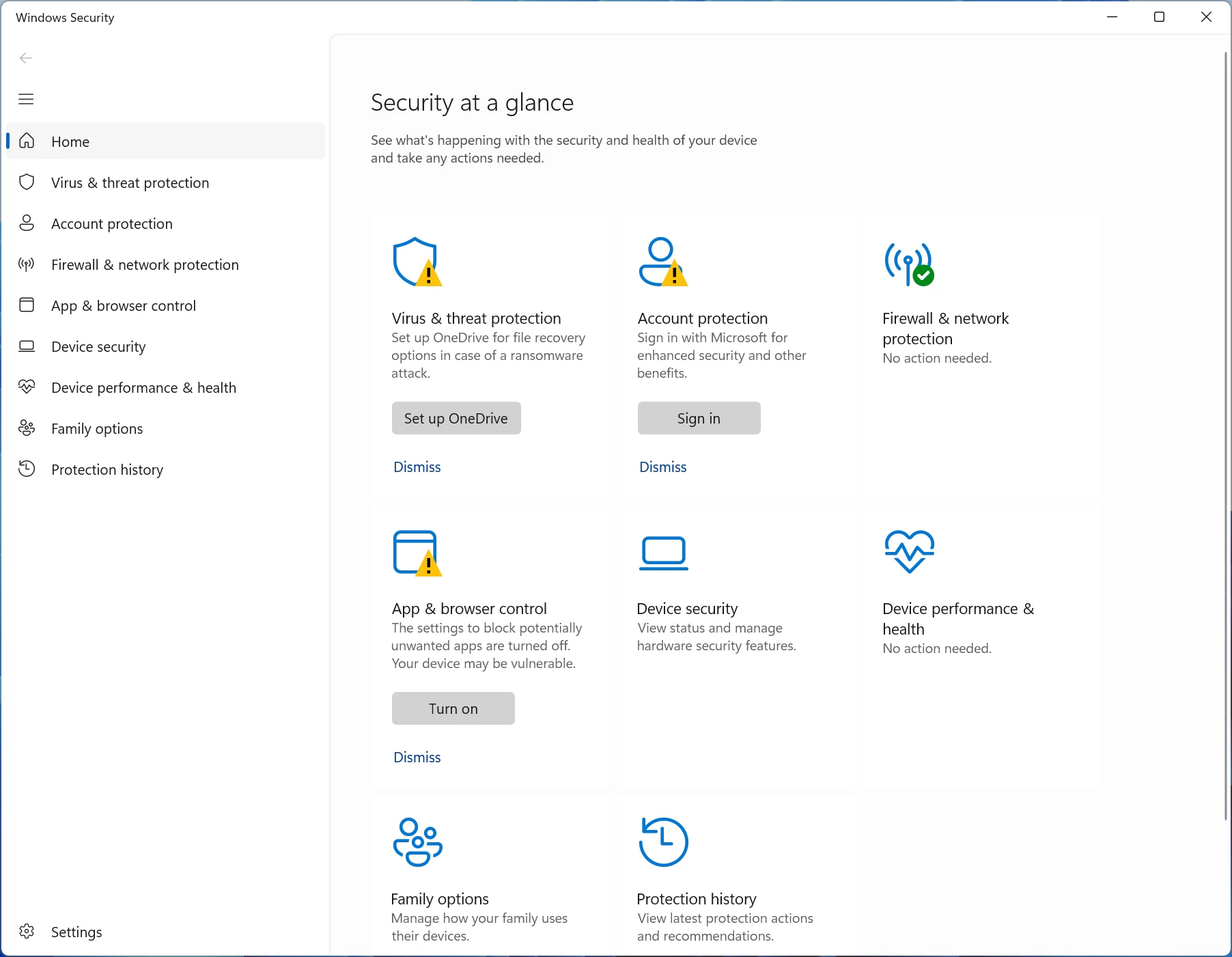
I also disabled OneDrive from startup programs via Task Manager.
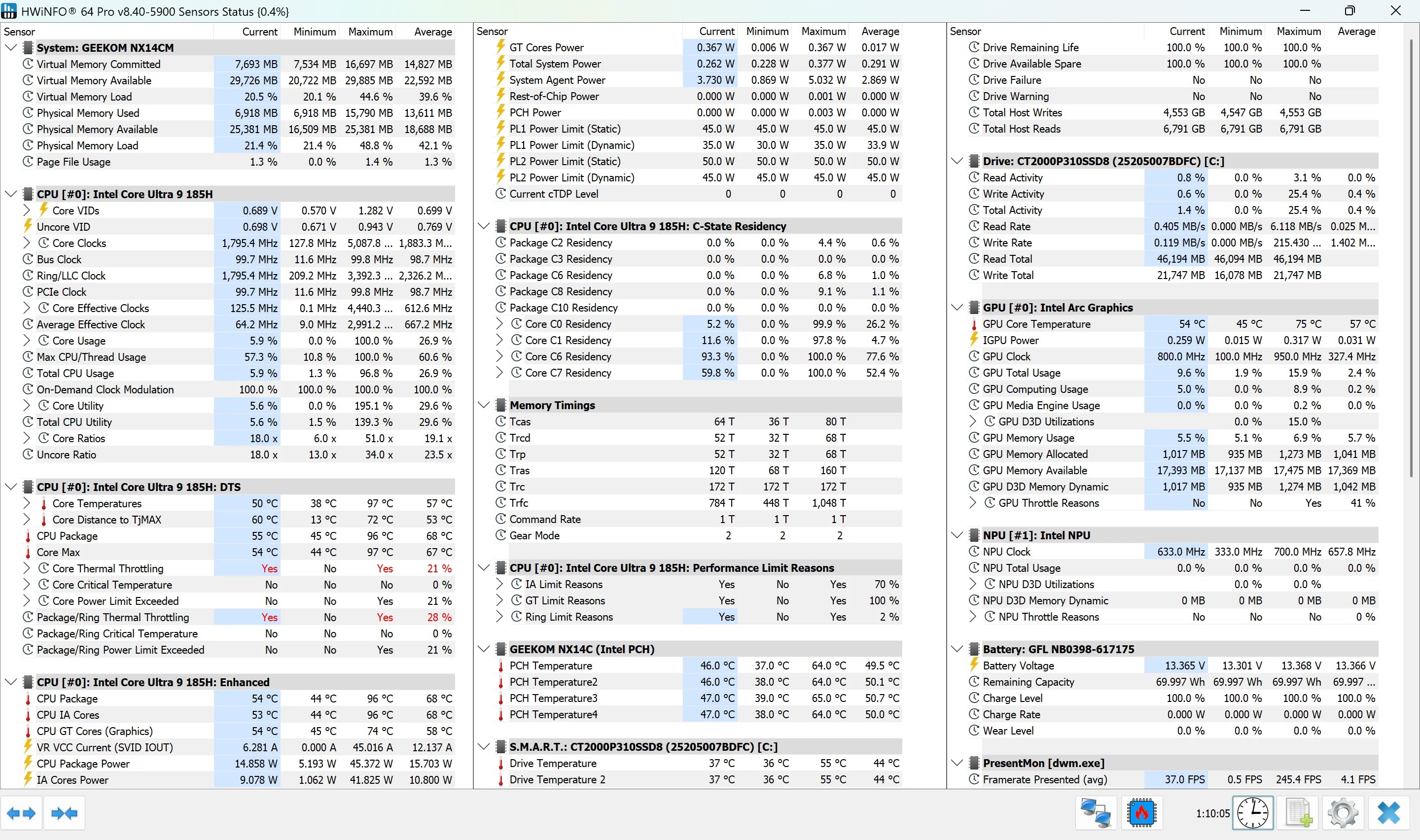
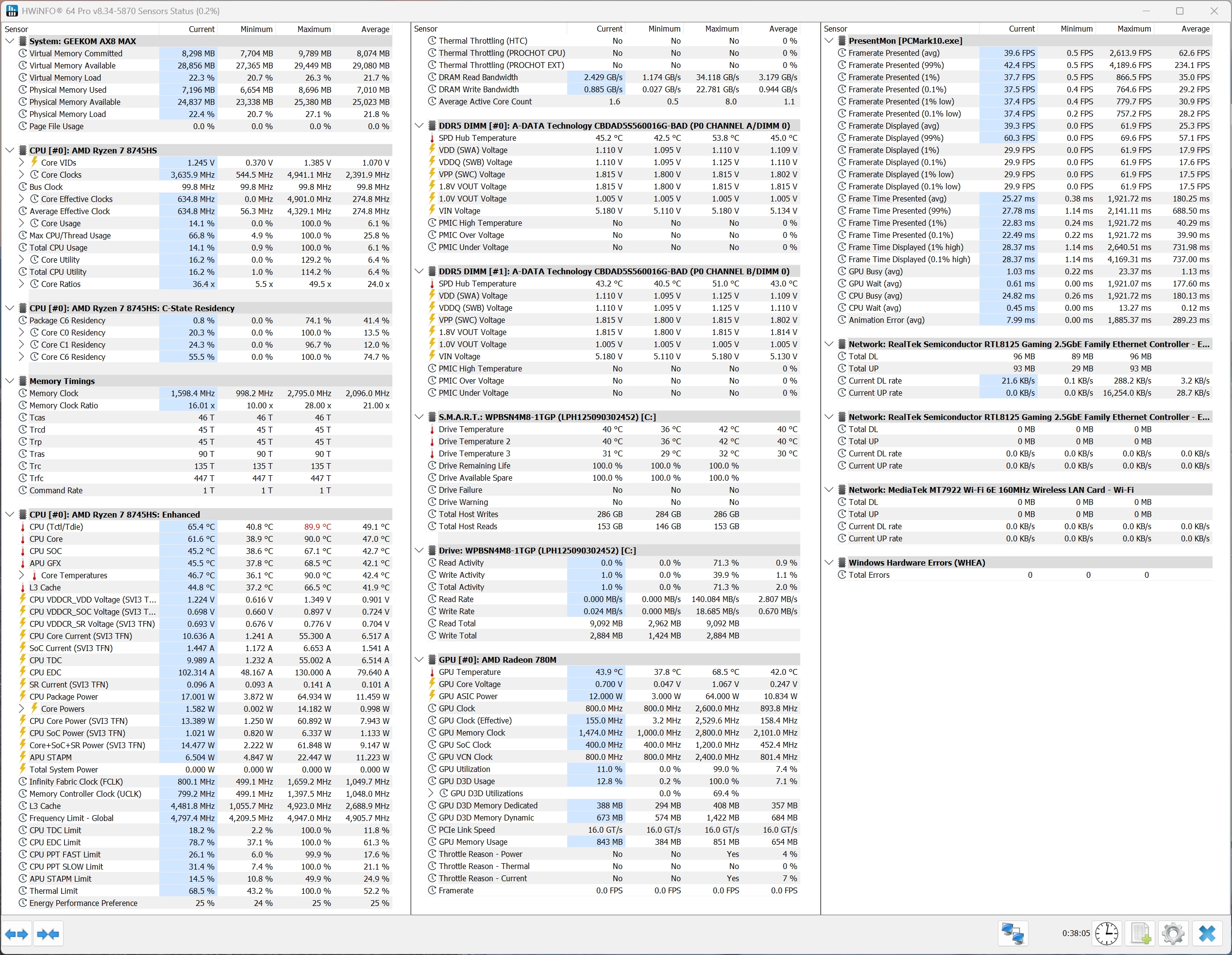
Below I also included a HWiNFO screenshot for the corresponding benchmark, because there was a bit of thermal throttling going on for some reason. Any sort of thermal throttling is going to affect the outcome in some way, so I feel like this should be disclosed.
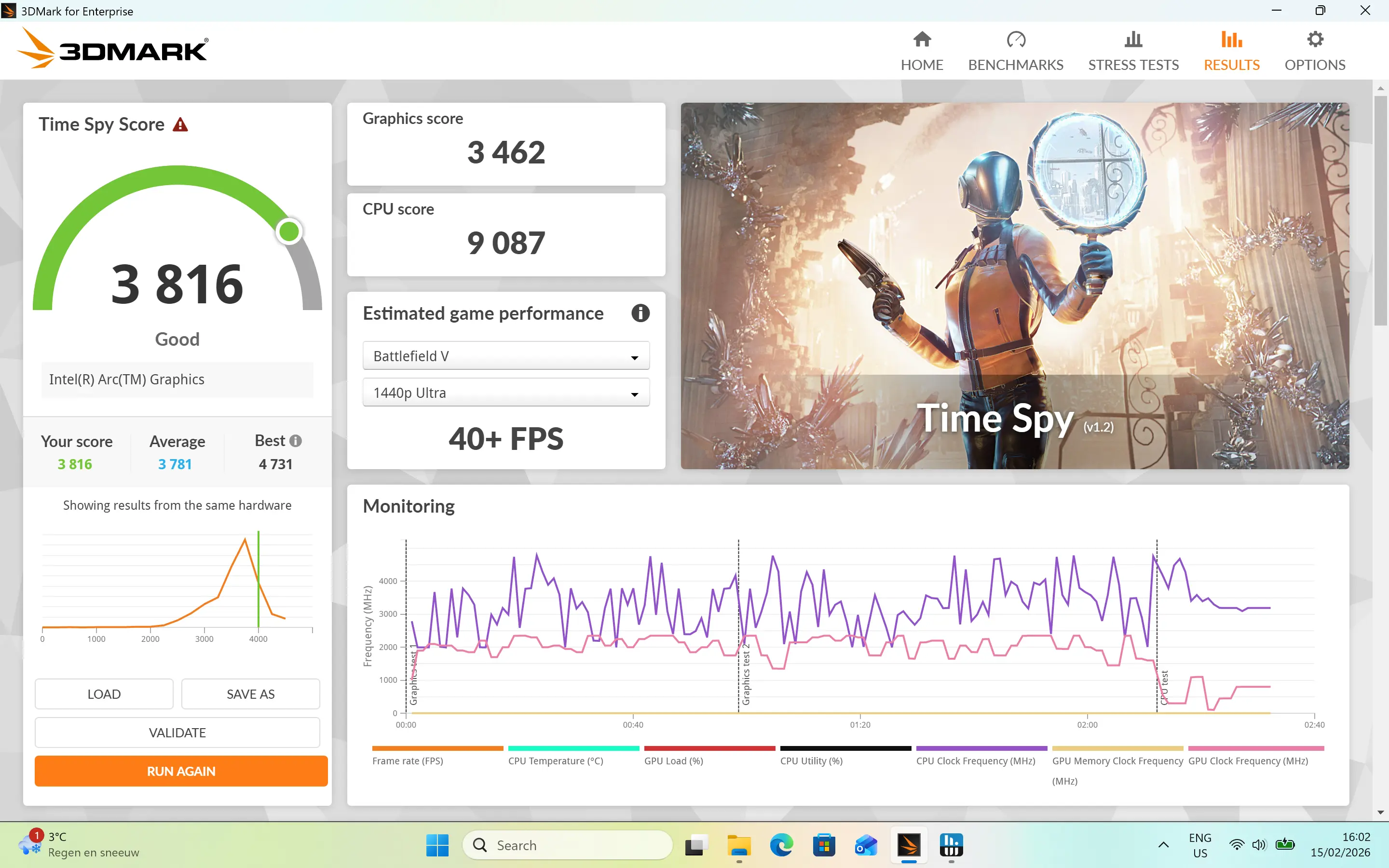
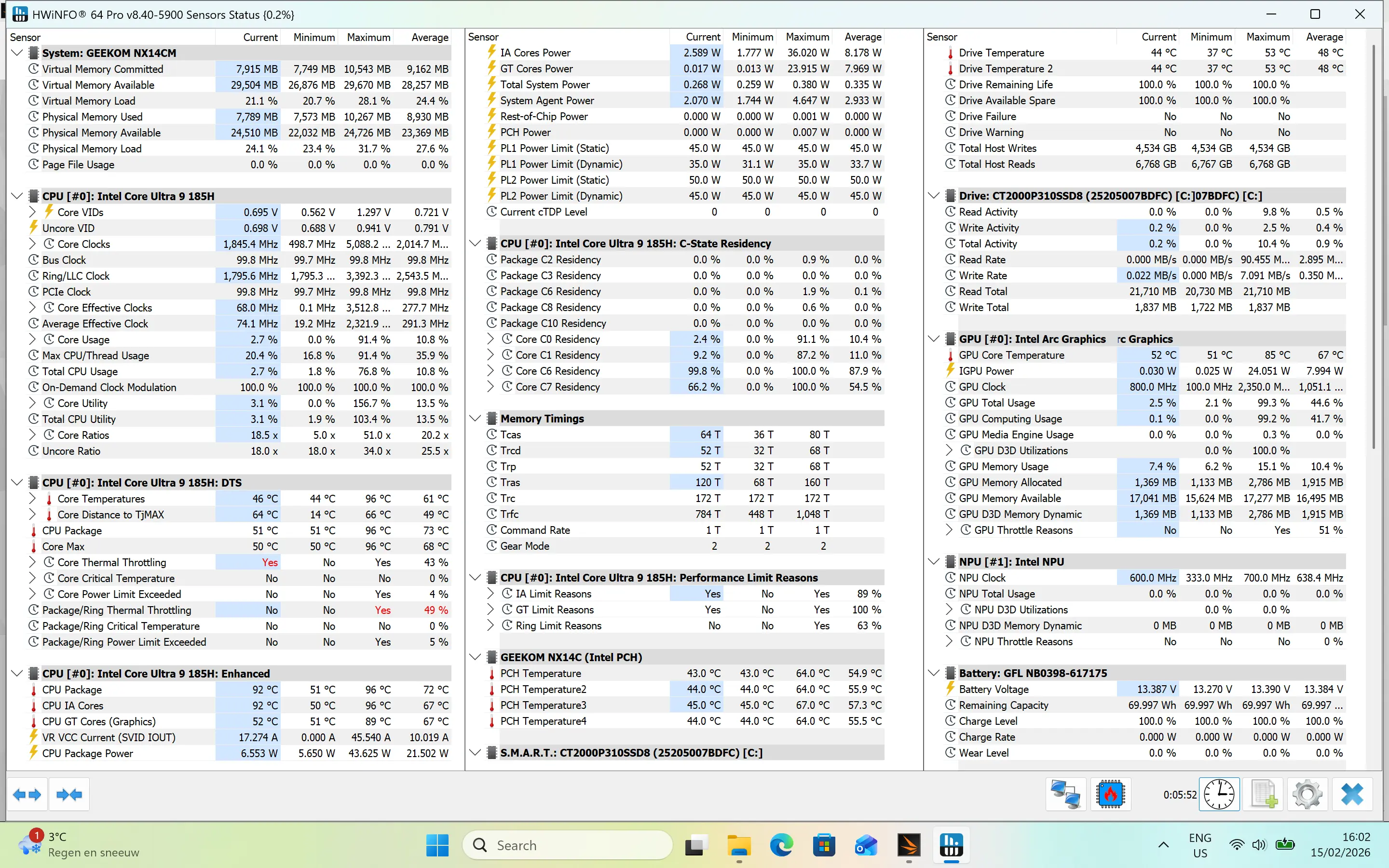
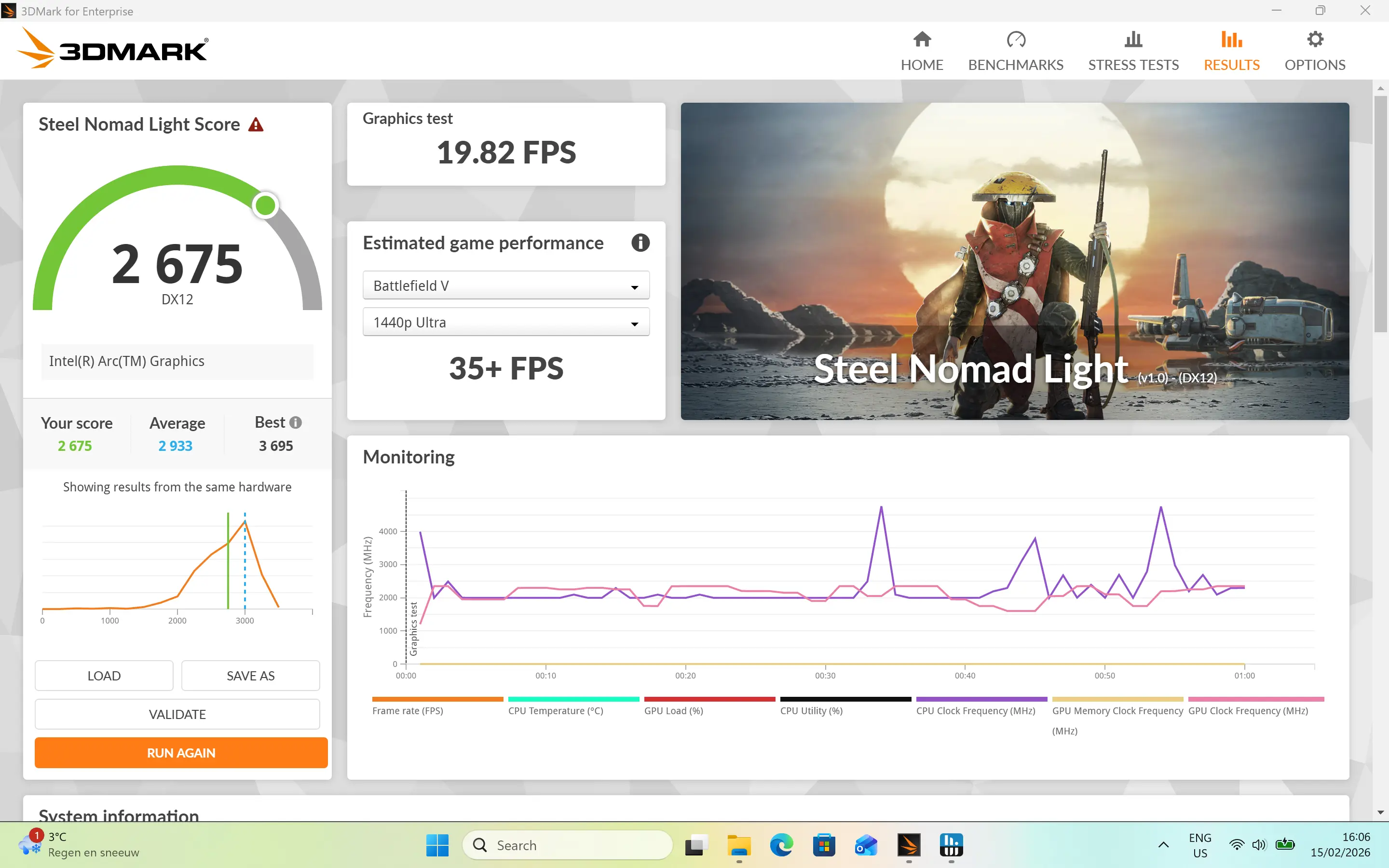
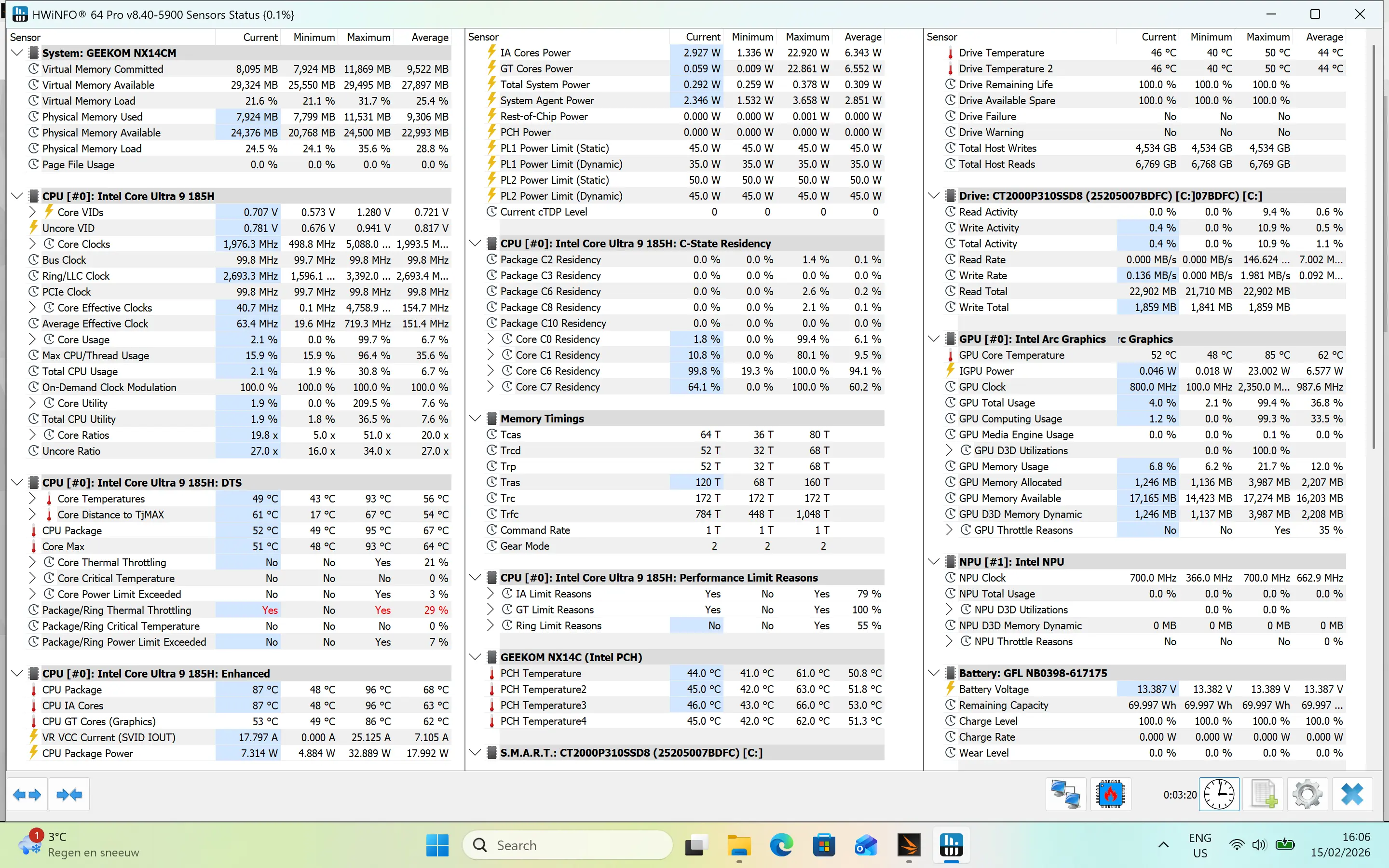
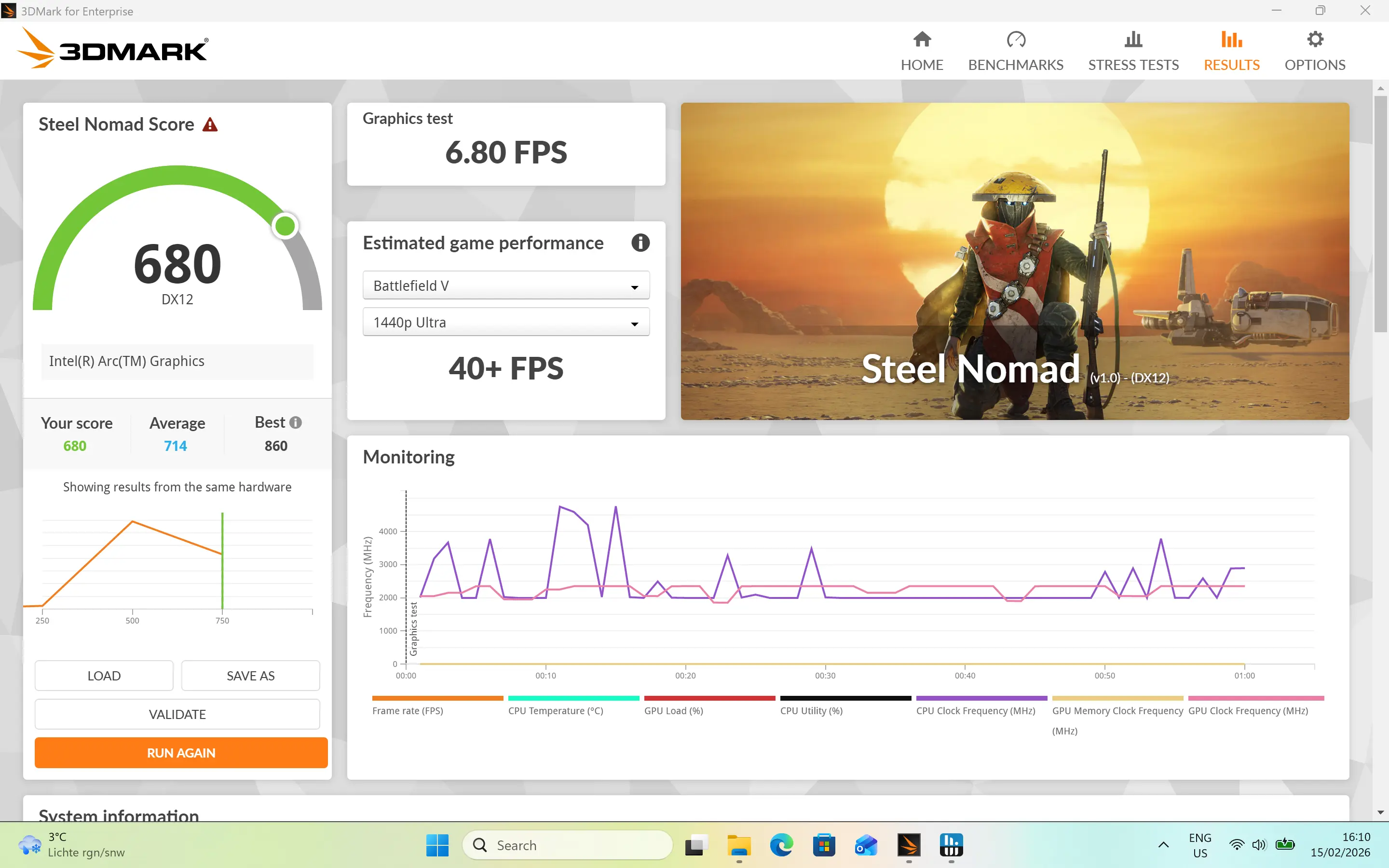
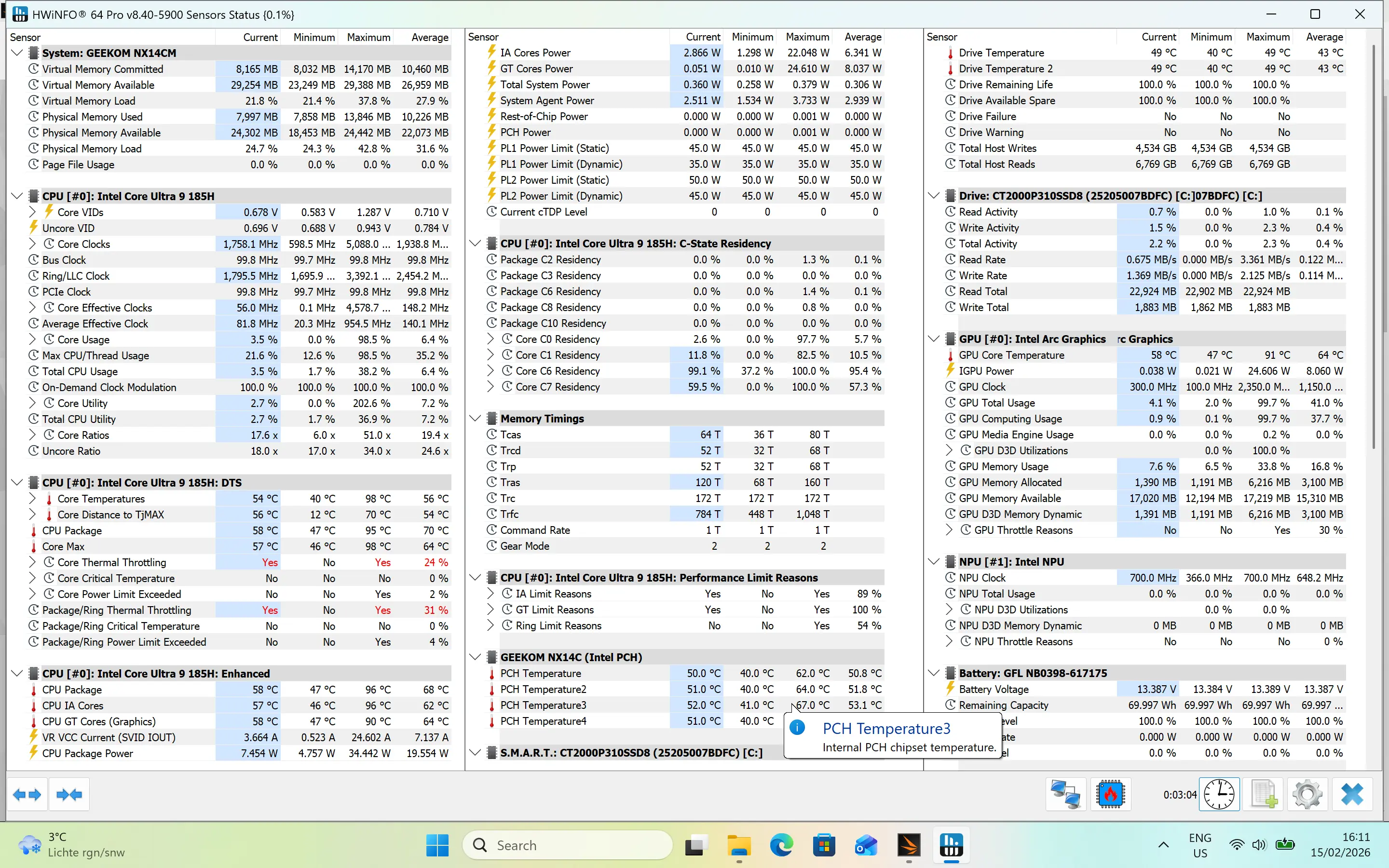
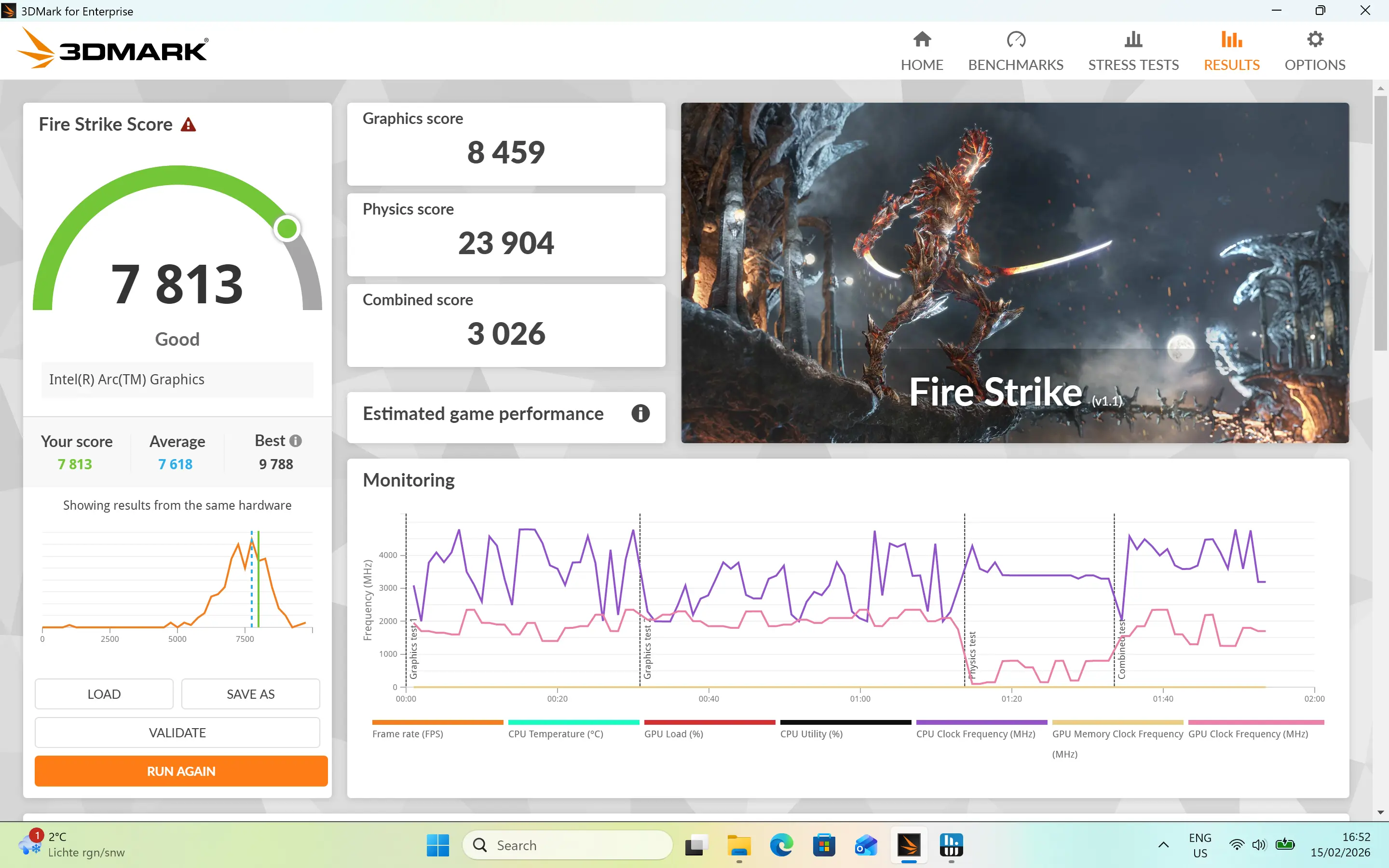
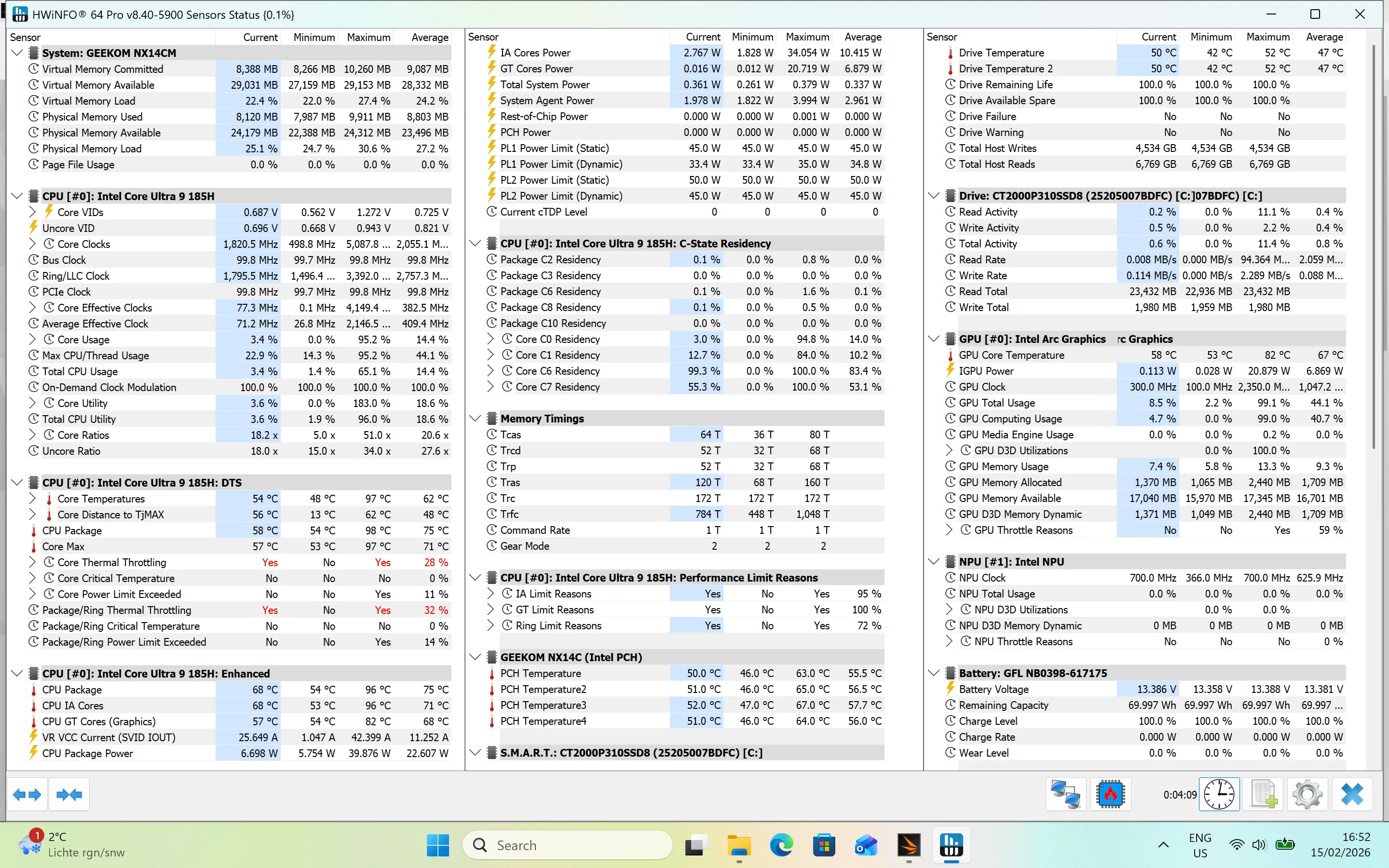
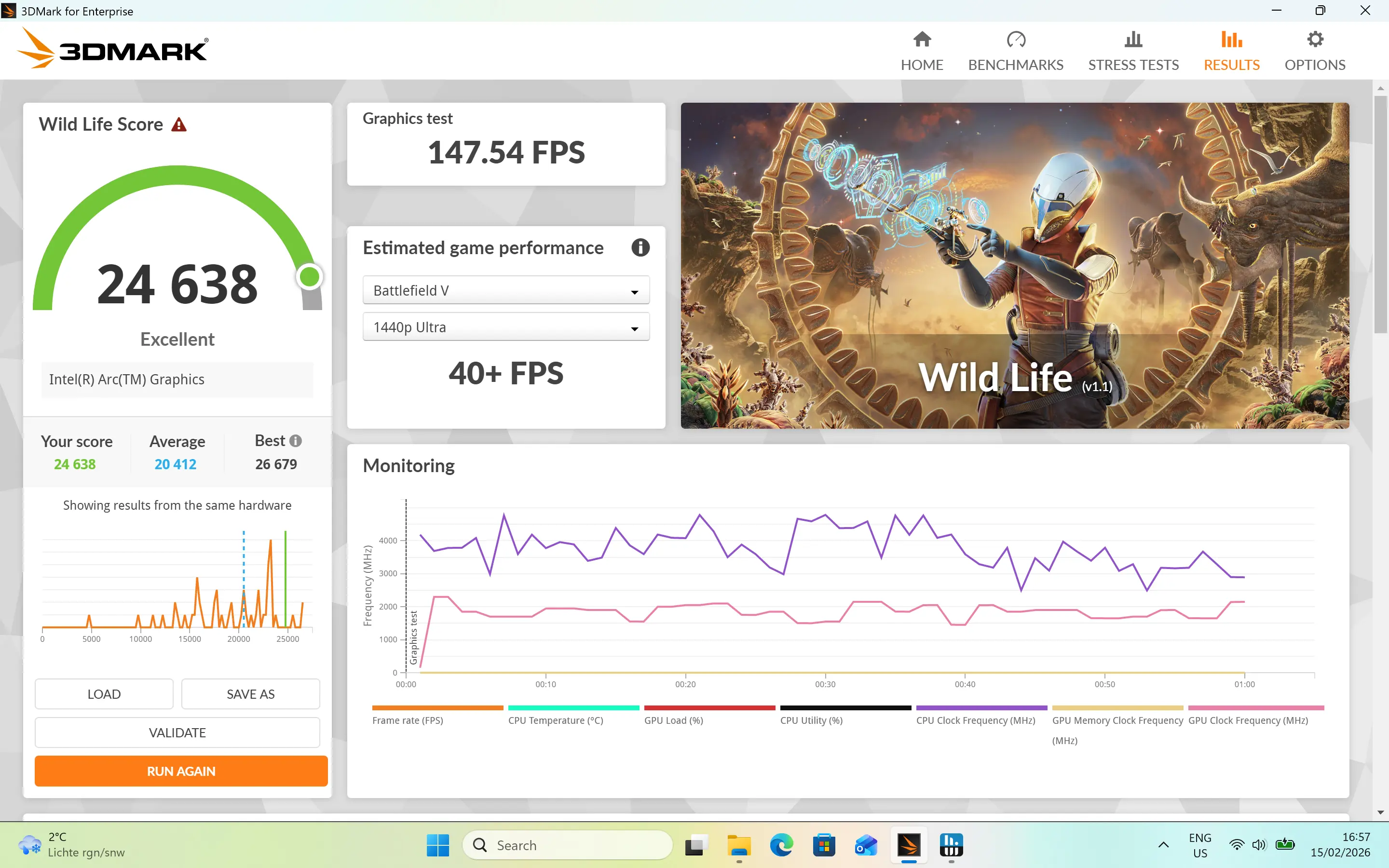
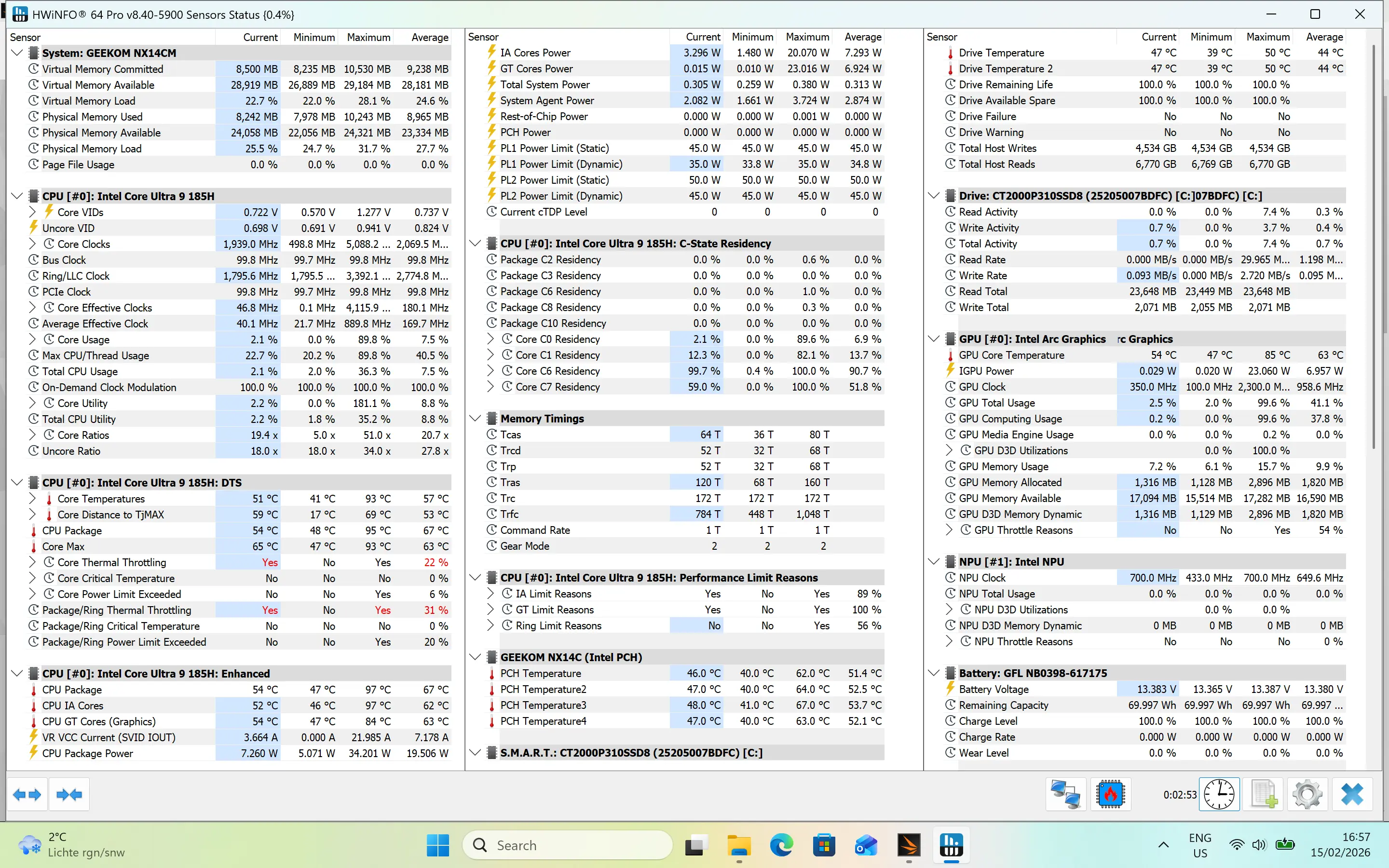
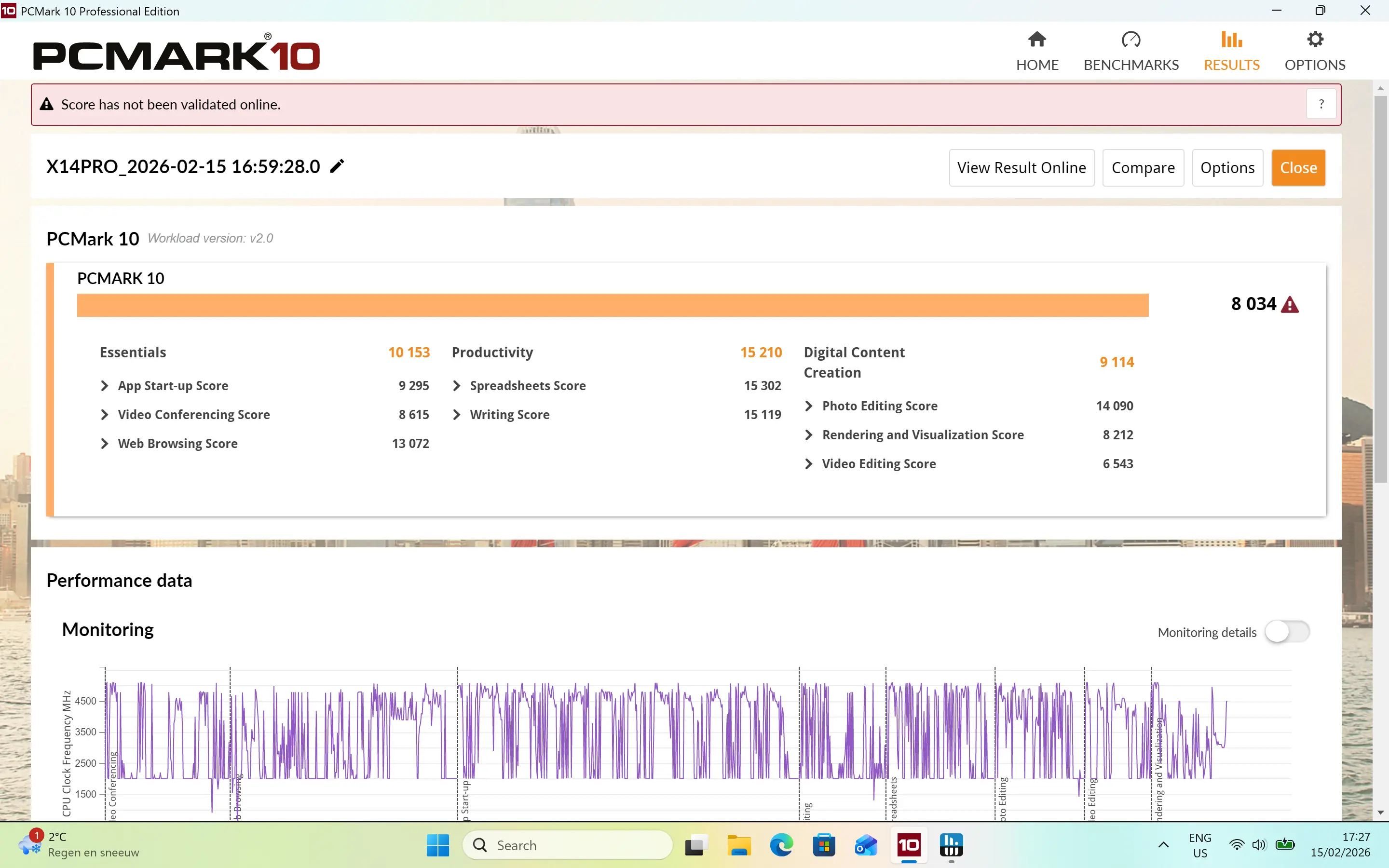
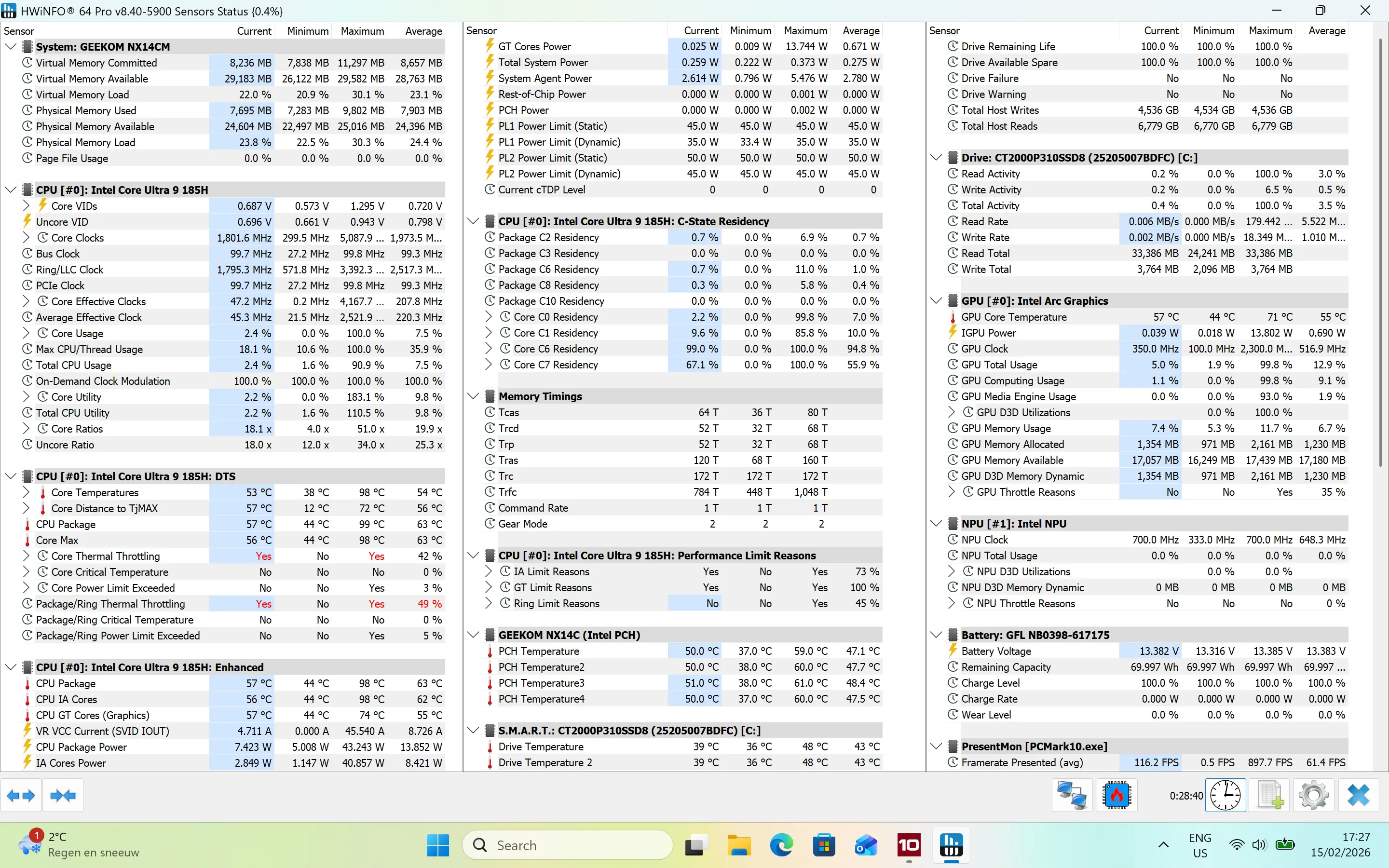
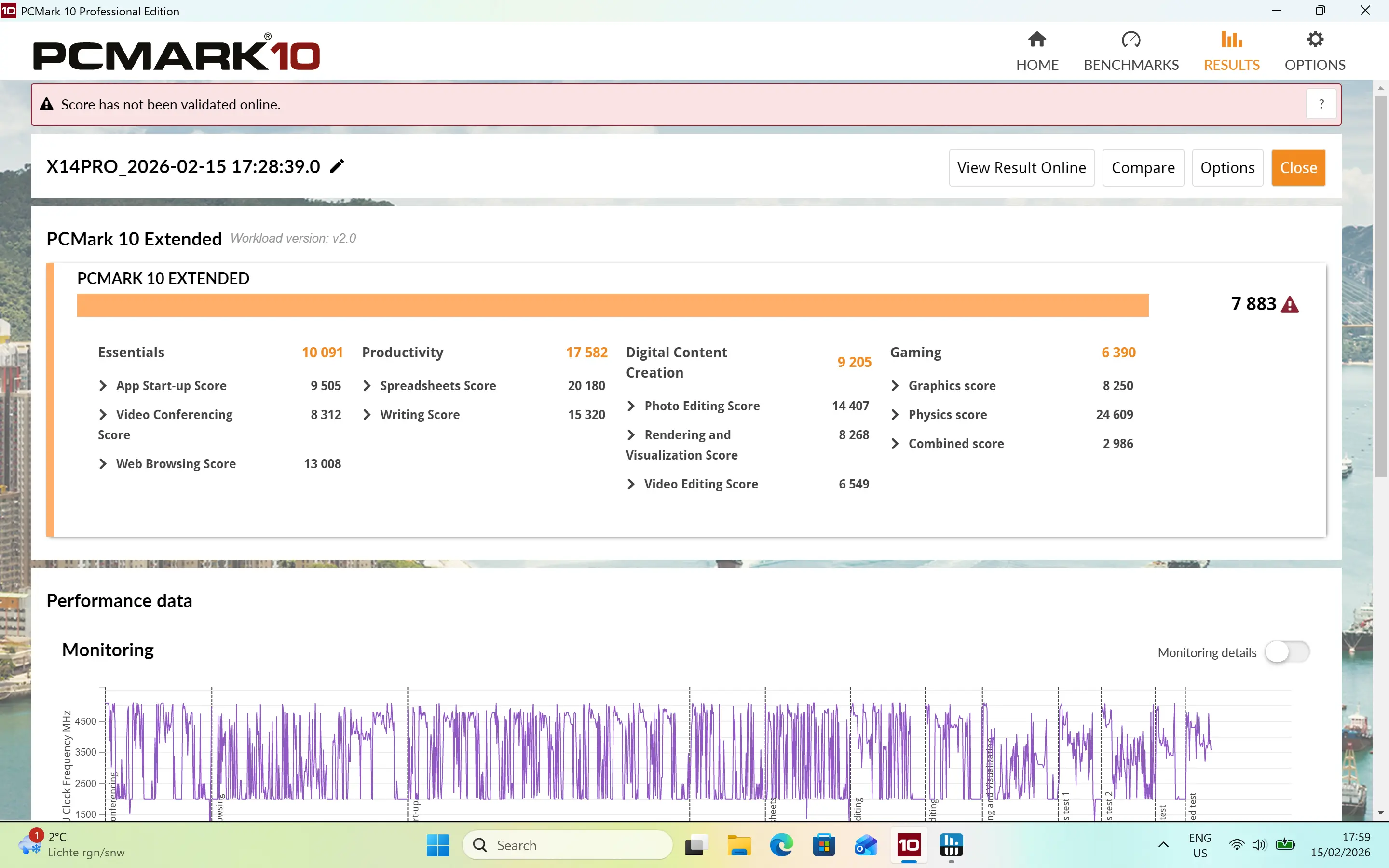
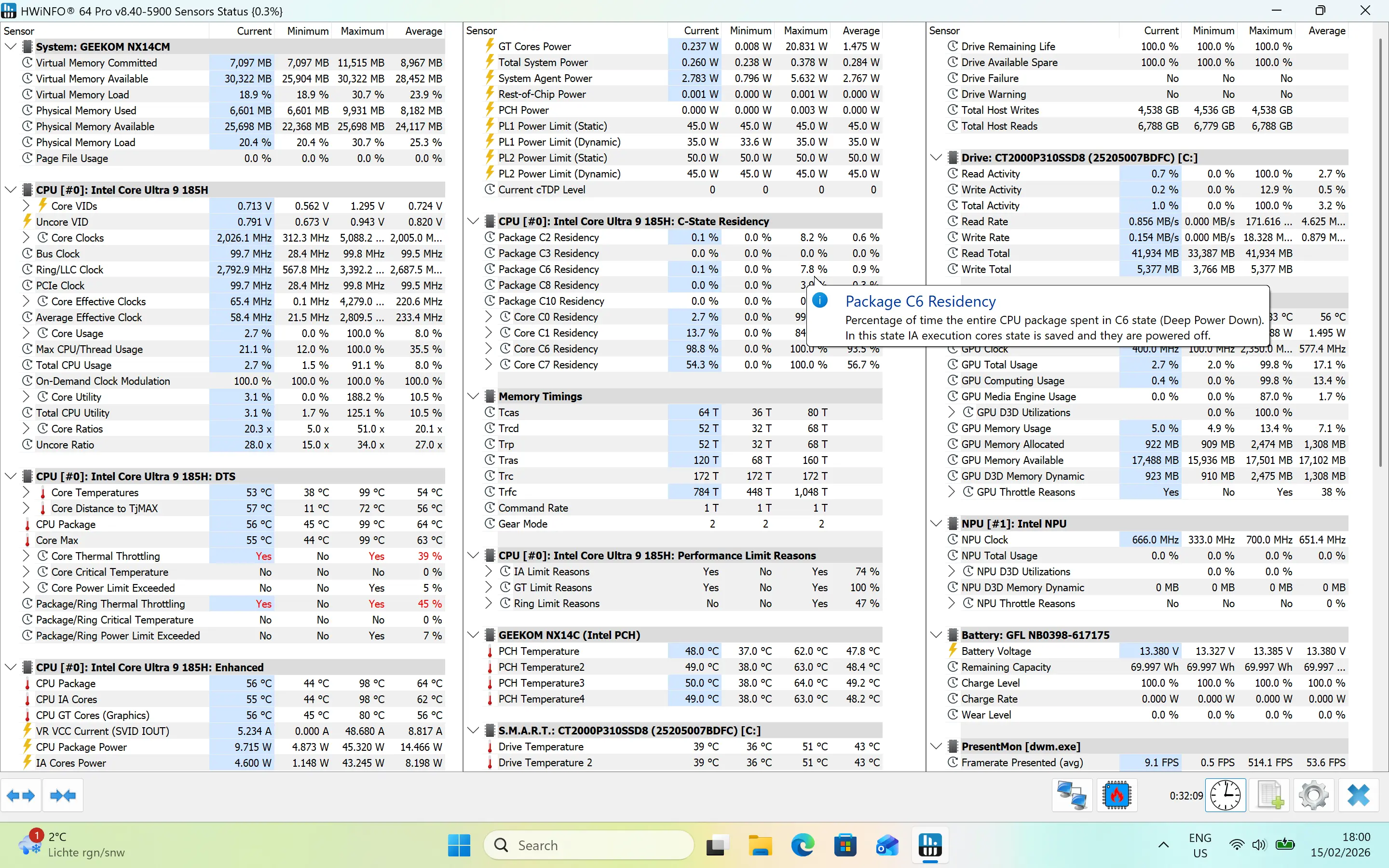
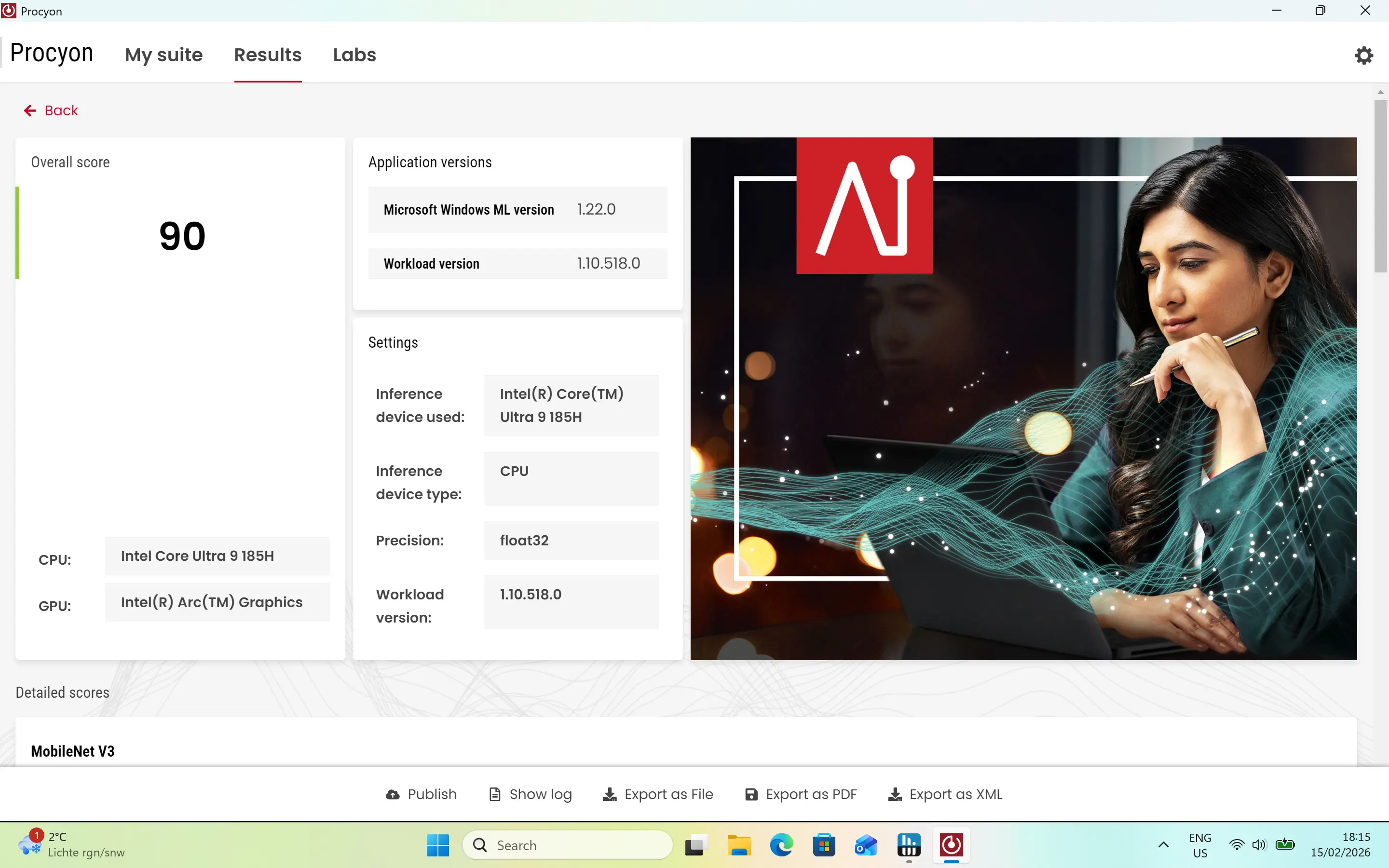
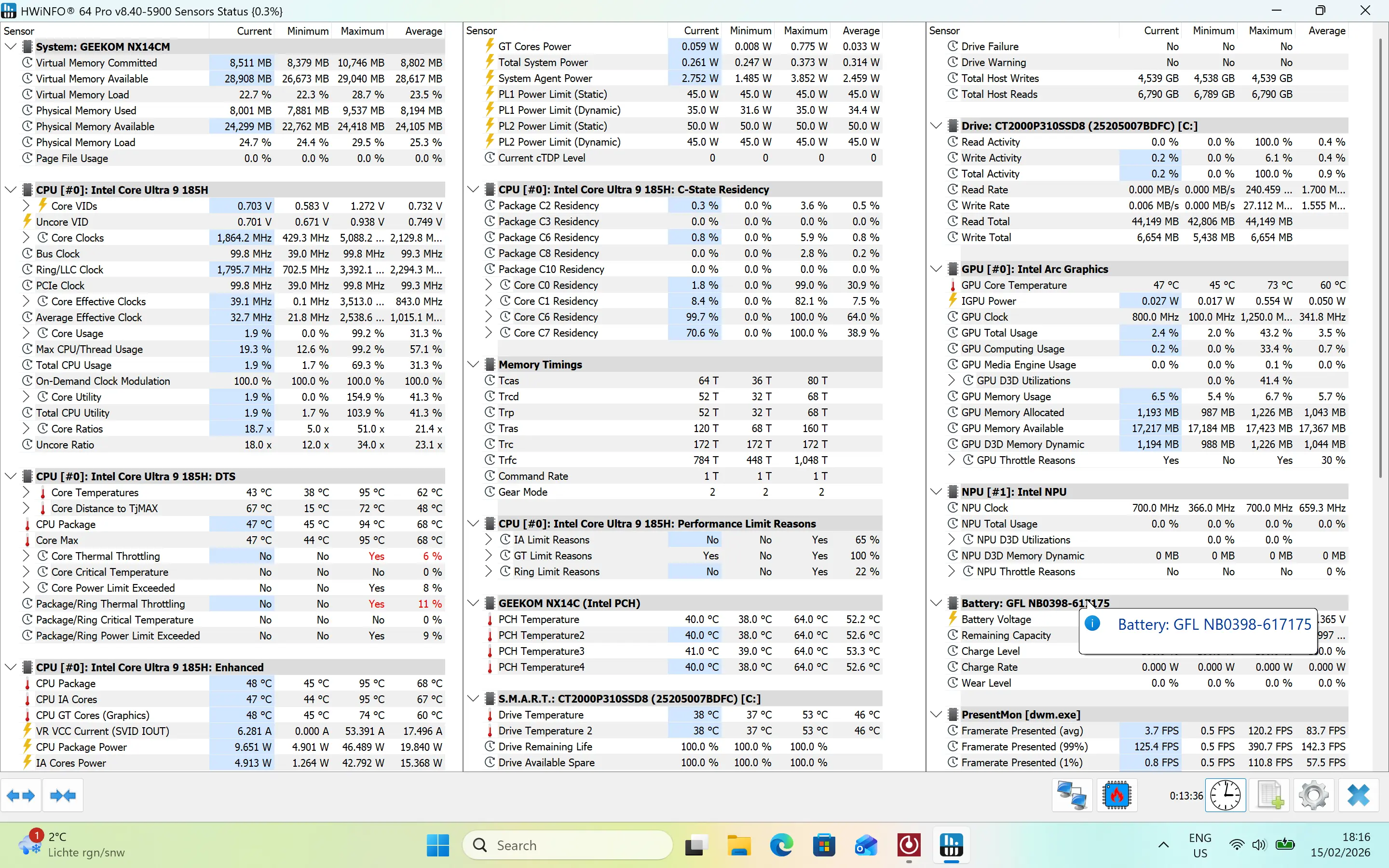
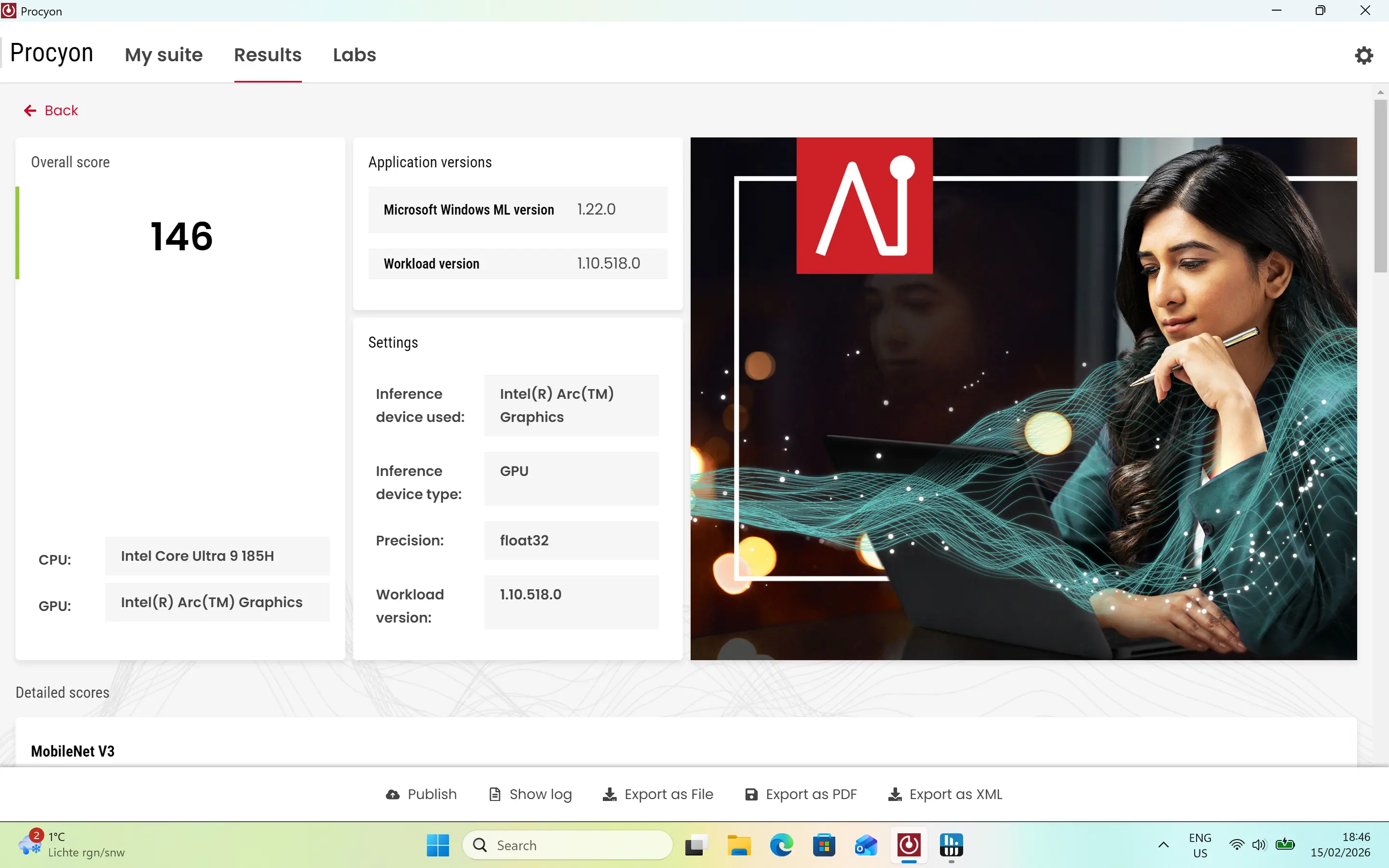
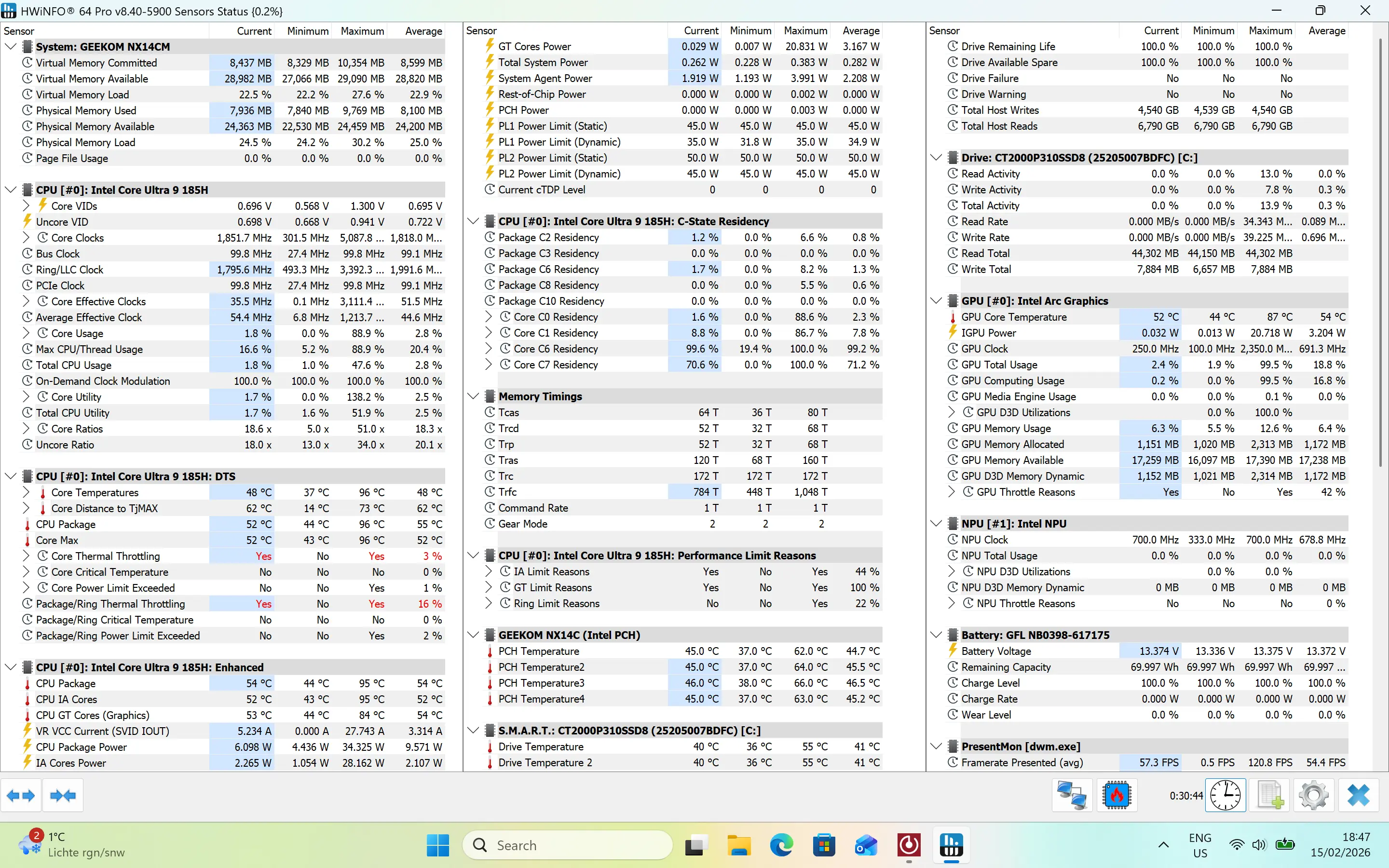
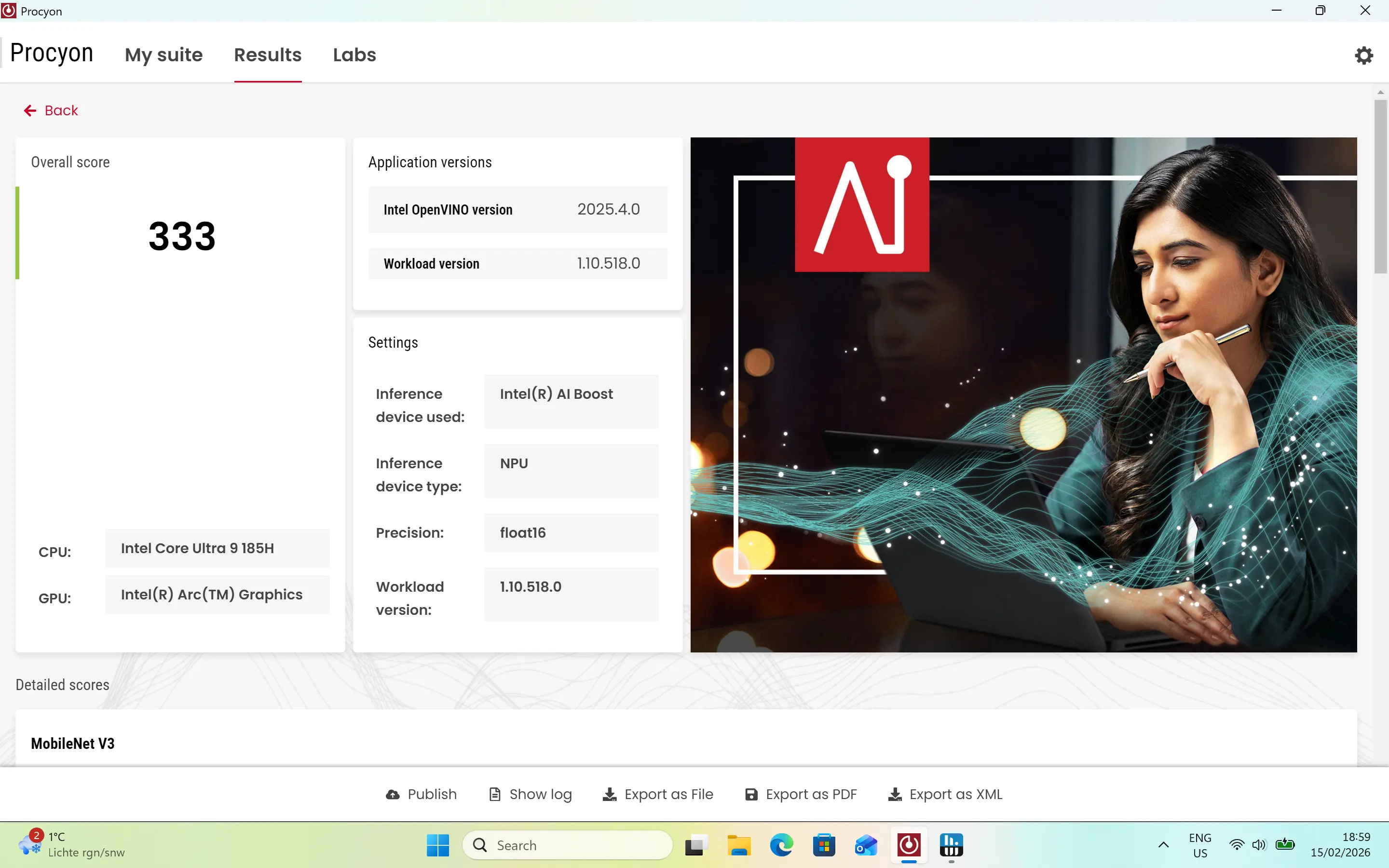
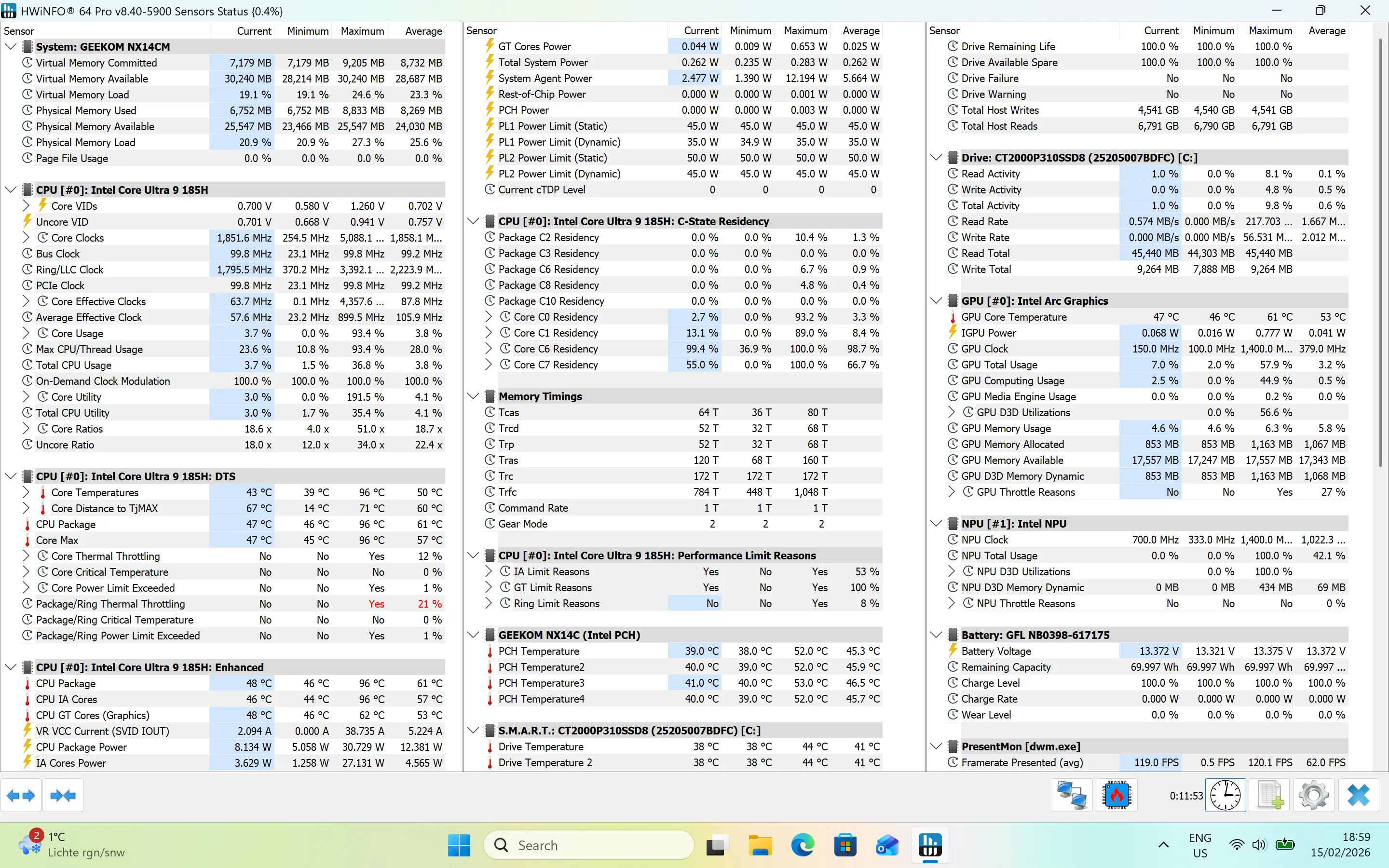
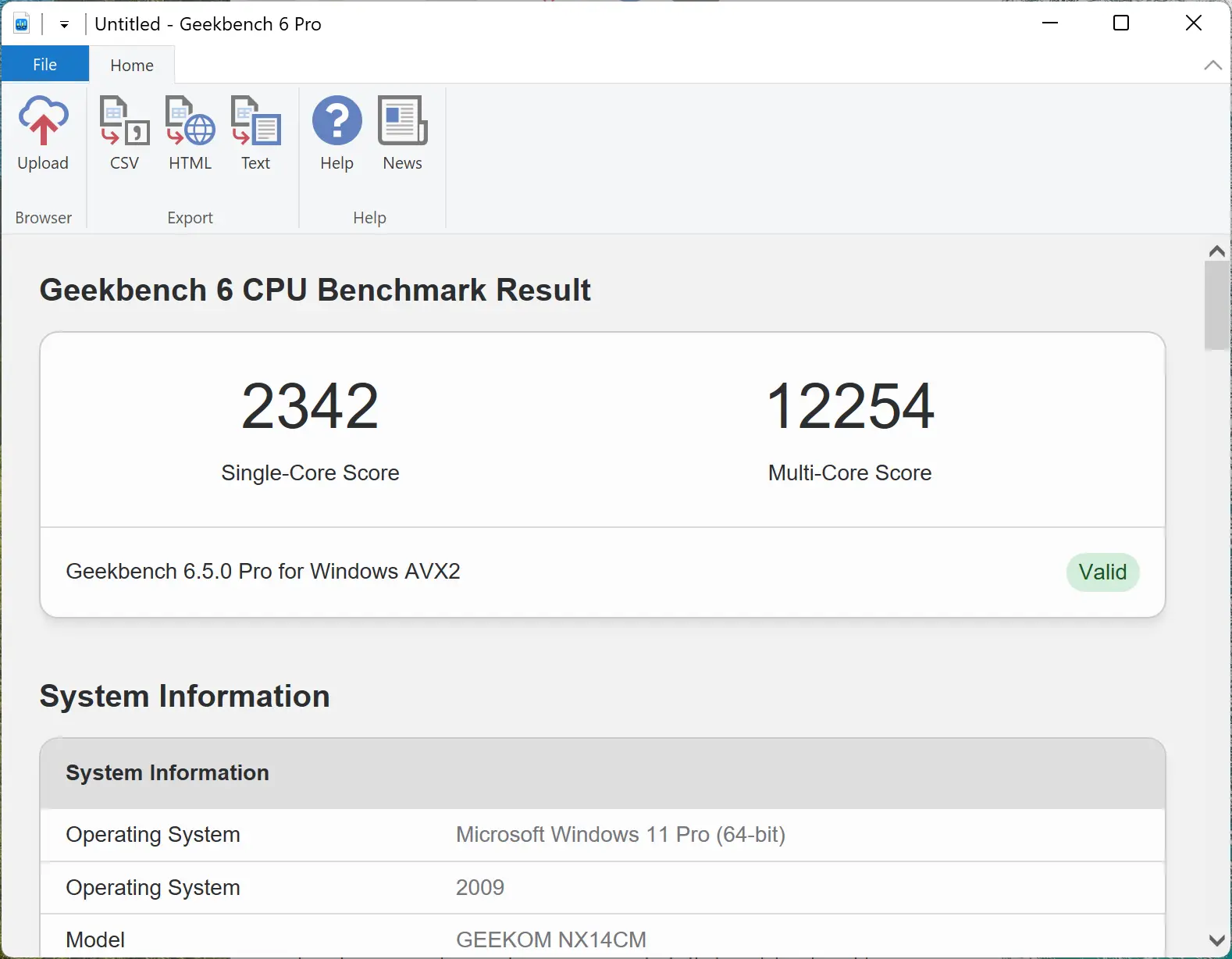
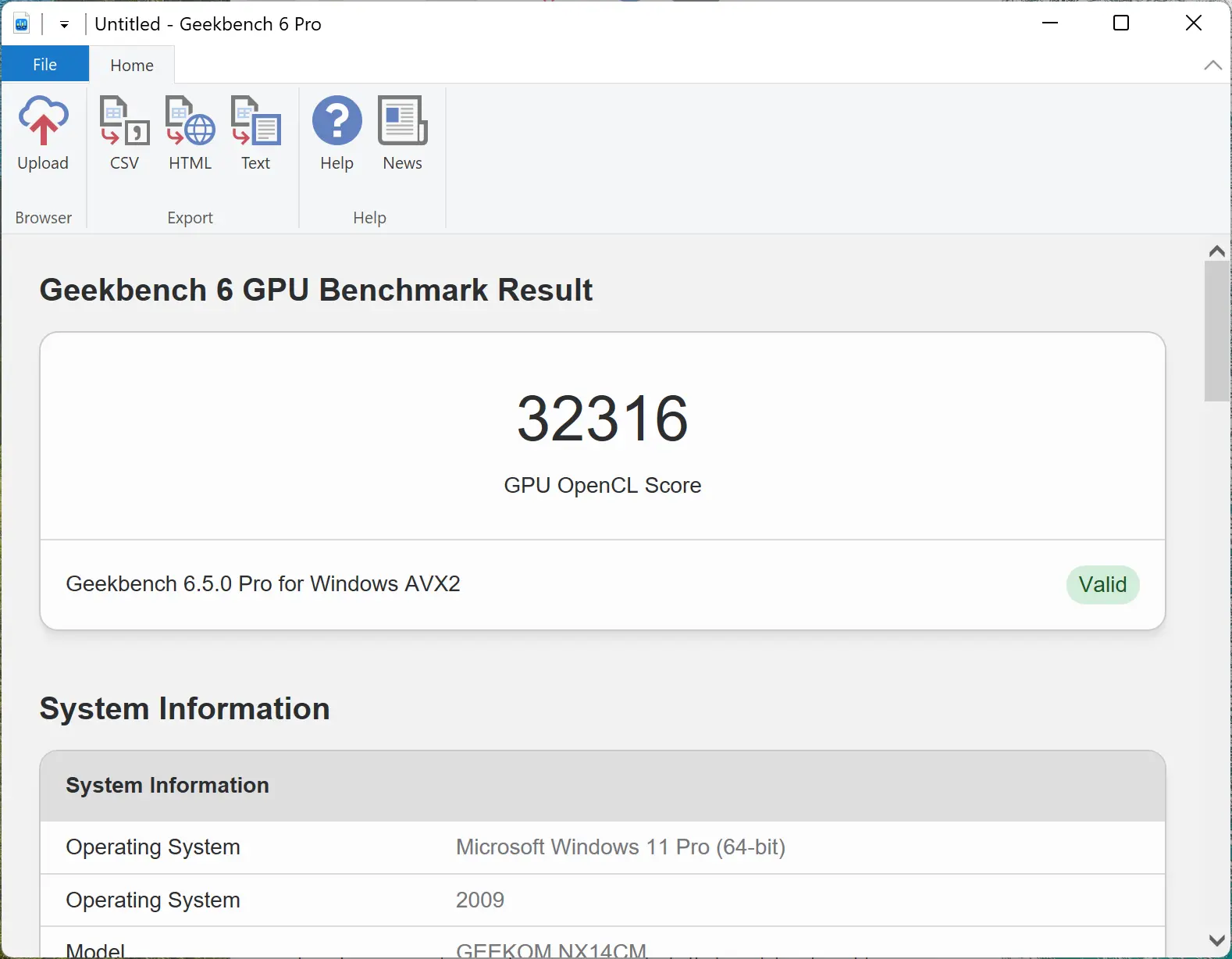
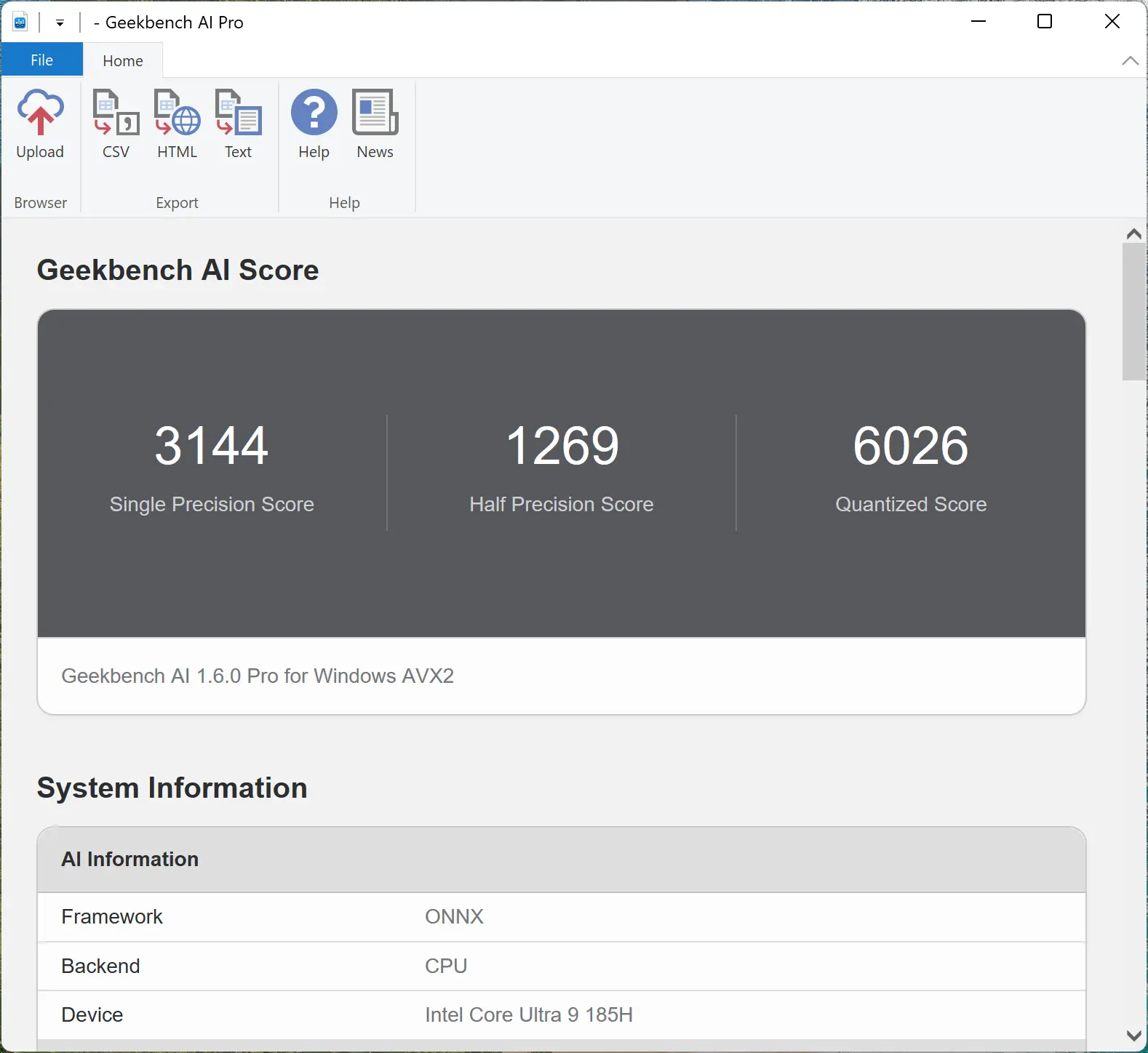
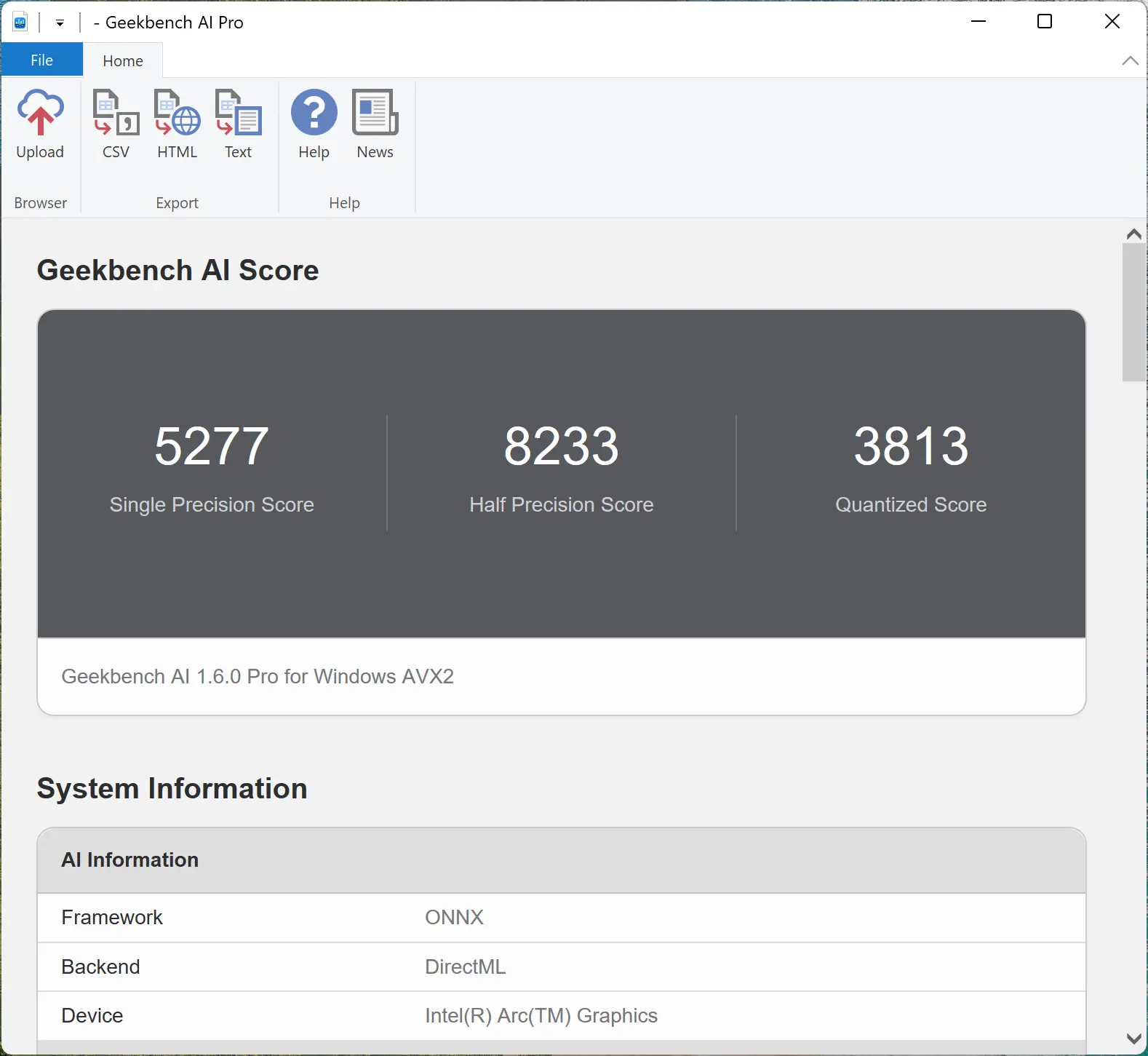
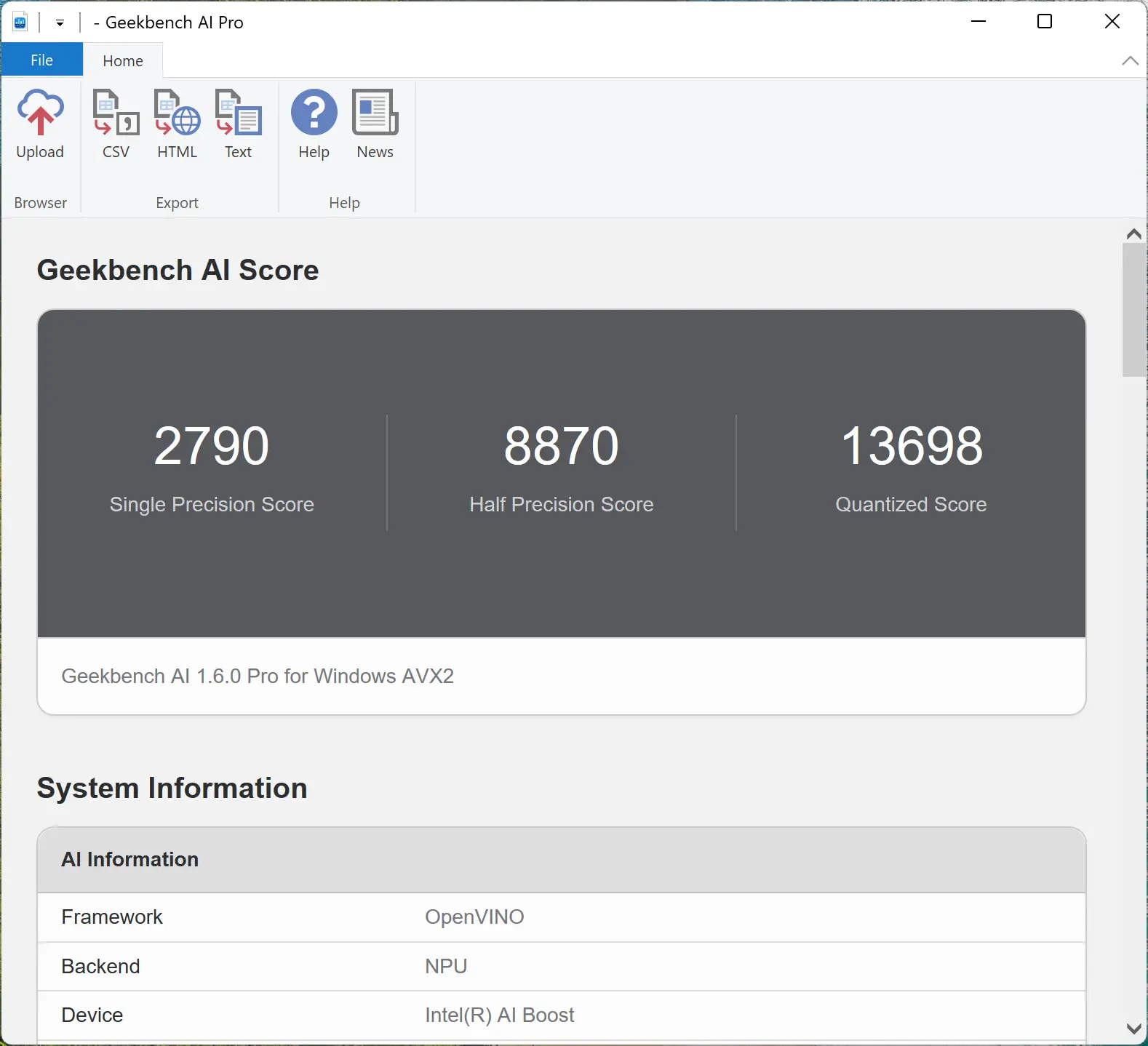
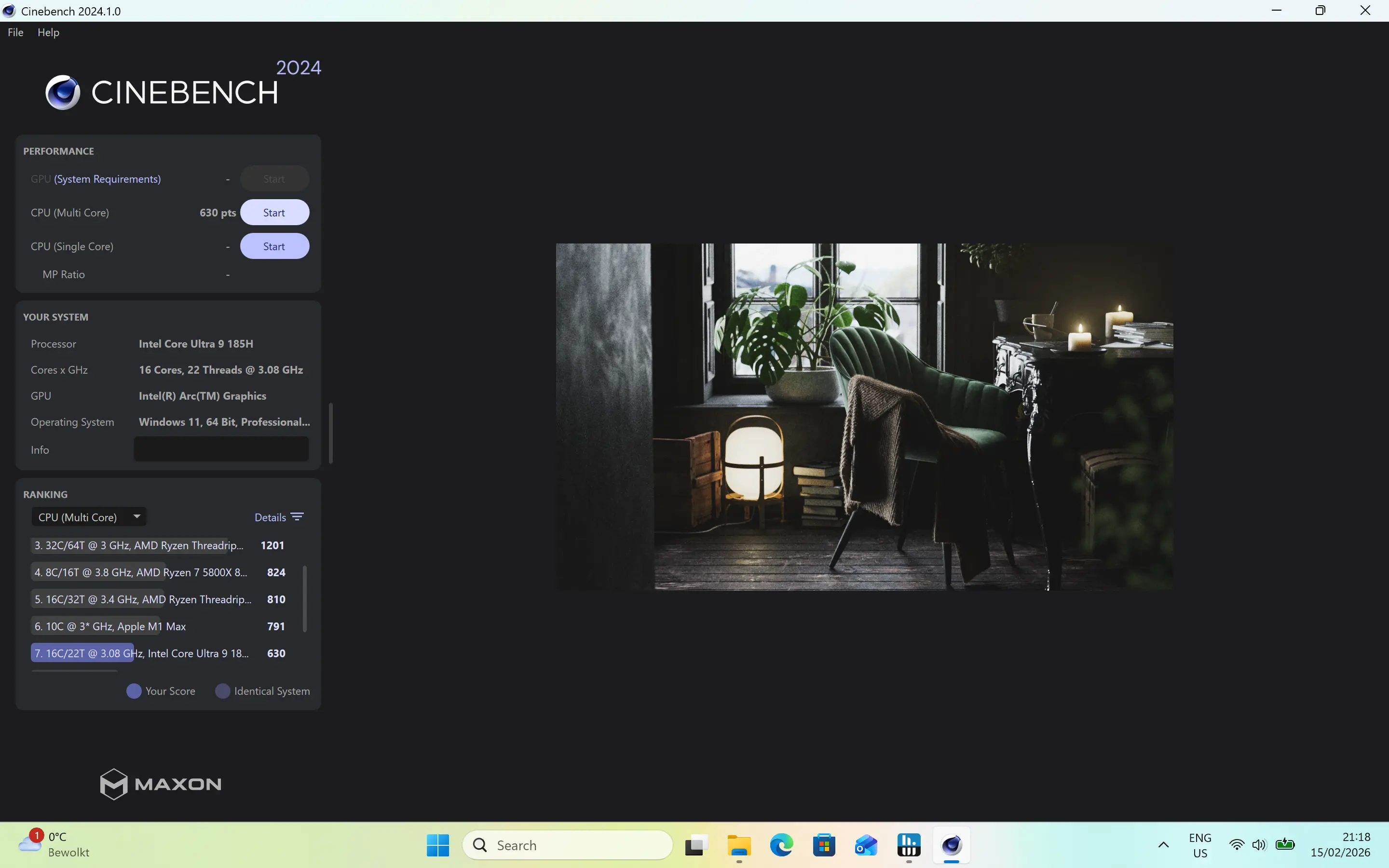
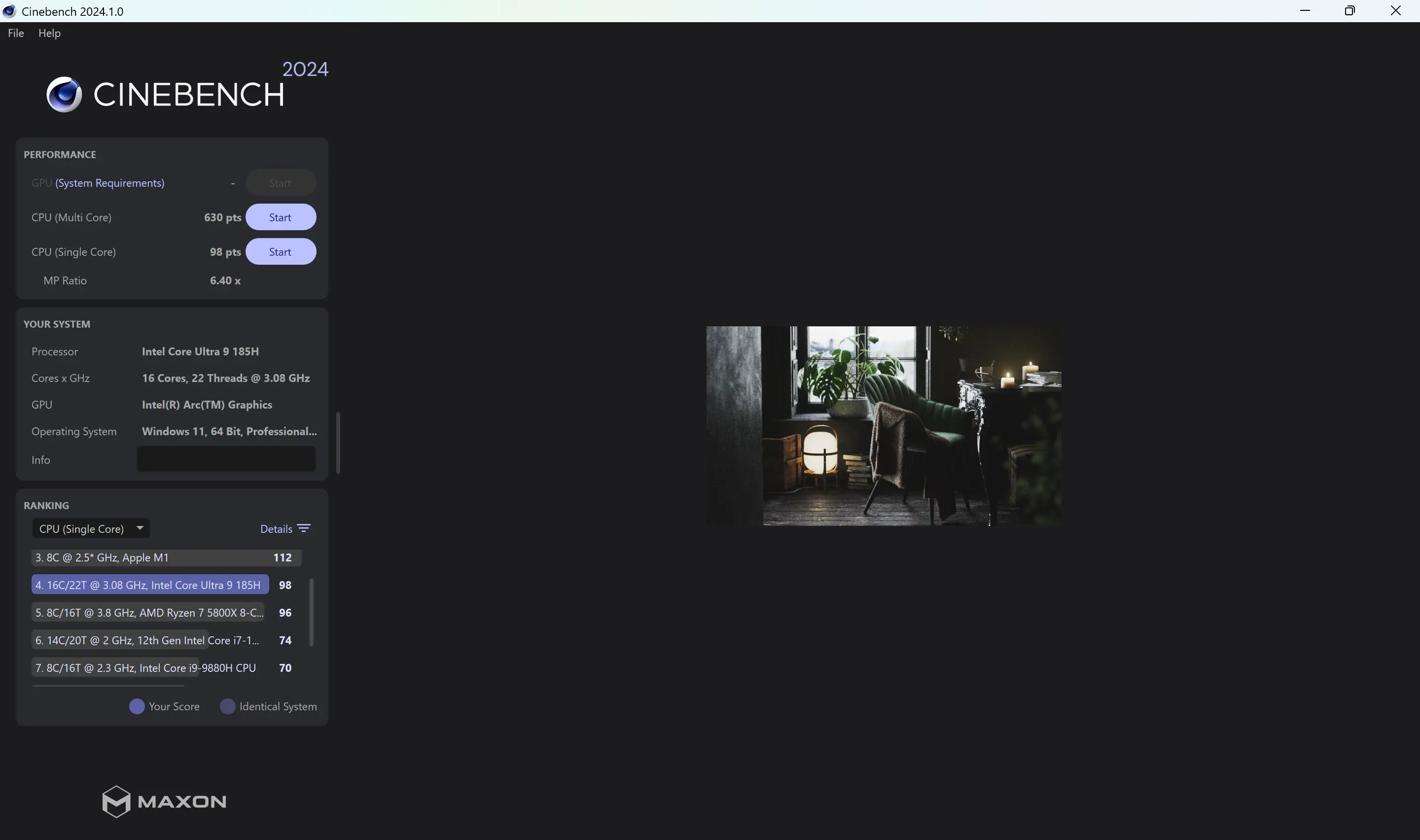
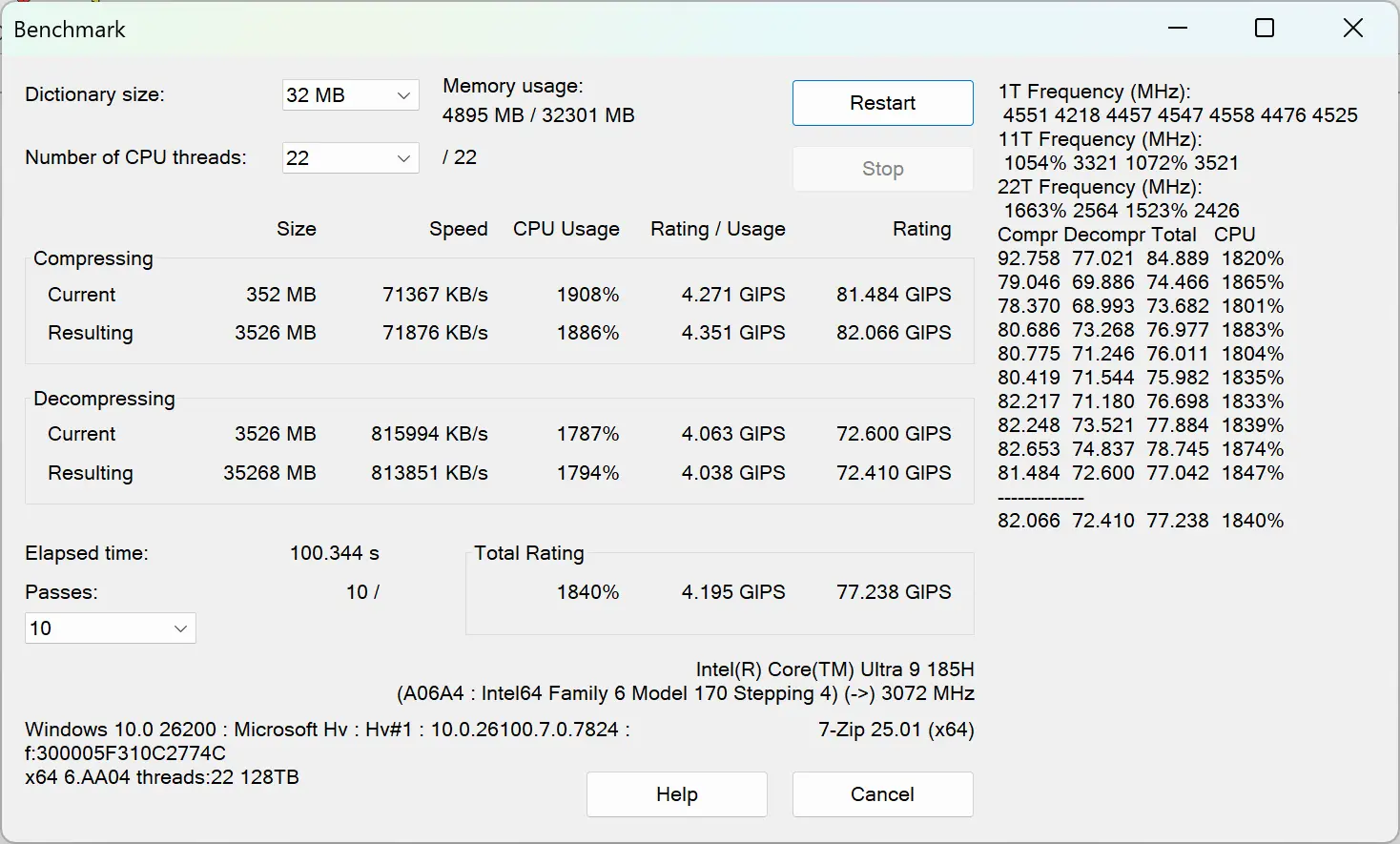
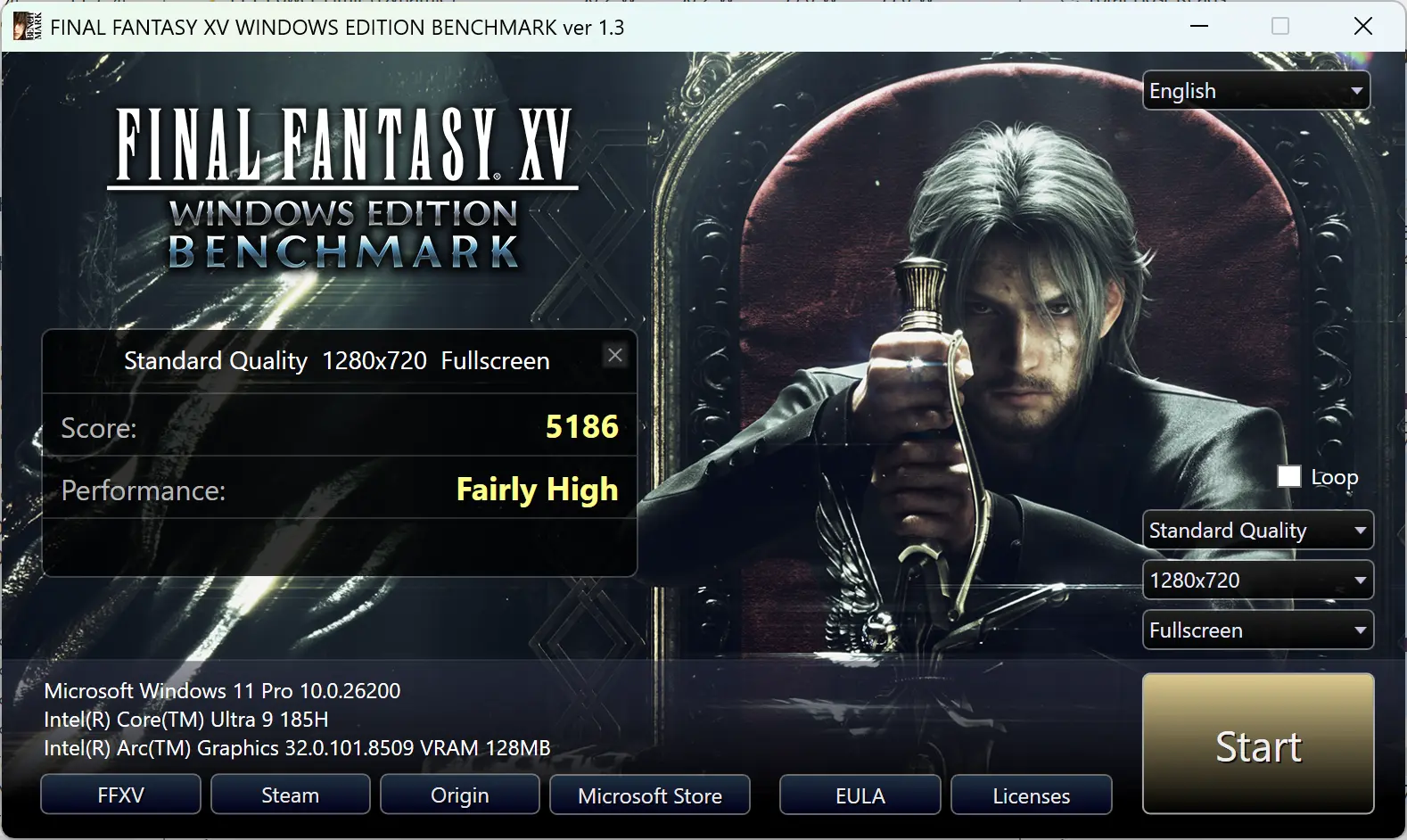
For the benchmarks, I used Cinebench 2024, 7-Zip, AS SSD, and CrystalDiskMark. 3DMark, PCMark 10, Procyon (Windows ML for CPU and GPU, and Intel OpenVINO for NPU) was provided to Neowin by UL Solutions; Primate Labs Inc. provided us with commercial versions of Geekbench 6, and Geekbench AI.
3DMark Time Spy tests gaming capability with DX12 graphics performance. PCMark tests are a mix of CPU and real-world productivity tests, such as using an office suite, web browsing, light photo/video editing, and making conference calls. Cinebench stresses the entire CPU as it is a multi-threaded rendering test. Geekbench is a synthetic benchmark that is great for a quick look at the potential performance across a wide range of workloads.
I also used HWiNFO to monitor hardware sensors and temperature readings.
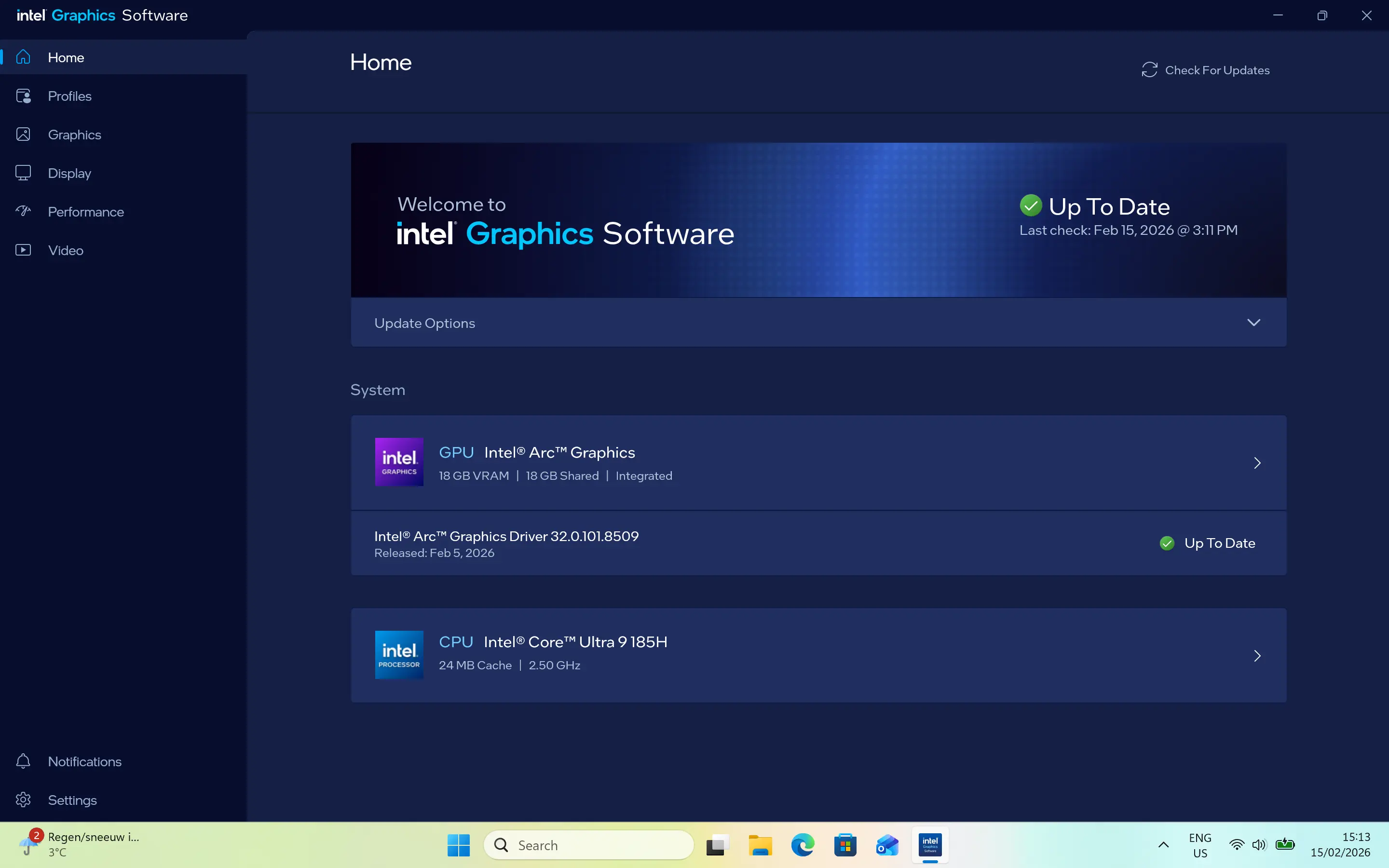
With all that out of the way, the following benchmarks compare with a couple of other GEEKOM Mini PCs, one with a Ryzen 9 8945HS, and the other with a Ryzen 7 8745HS. The X14 Pro is running Windows 11 Professional 25H2 build with the latest updates, and the latest Intel ARC Graphics drivers v32.0.101.8509 which I had to install.
| GEEKOM X14 Pro Ultra Core 9 185H | Geekom AE8 Ryzen 9 8945HS | GEEKOM AX8 Max Ryzen 7 8745HS | |
|---|---|---|---|
| 3DMark: Time Spy Steel Nomad Light Steel Nomad Fire Strike Wild Life | 3,816 | 3,343 2,915 499 | 3,033 2,611 468 7,557 17,208 |
| PCMark 10: Standard Extended test | 8,034 7,883 | 7,488 7,423 | 6,985 6,835 |
| Procyon: Windows ML CPU | 90 146 333 | 125 219 - | 165 186 - |
| Geekbench 6: Single Multicore Compute (OpenCL) | 2,342 12,254 32,316 | 2,662 13,468 31,707 | 2,587 12,882 29,068 |
| Geekbench AI | Single, Half, Quantized | Single, Half, Quantized | Single, Half, Quantized |
| ONNX CPU ONNX DirectML OpenVINO NPU | 3144, 1269, 6026 | 4503, 1978, 8823 7301, 11678, 5499 6394, 6329, 17840 | 4457, 1980, 8695 6938, 10587, 5339 6184, 5998, 17357 |
| Cinebench 2024: Single Multicore | 98 630 | 107 938 | 103 912 |
| 7-Zip | 77,238 | 102,259 | 104,321 |
Geekbench AI scores are in the following order (left to right): Single Precision, Half Precision, Quantized.
Comparative benchmarks
I"ve also included some additional comparetive CPU and GPU scores below. The benchmark chart comparisons were provided by Sayan Sen.
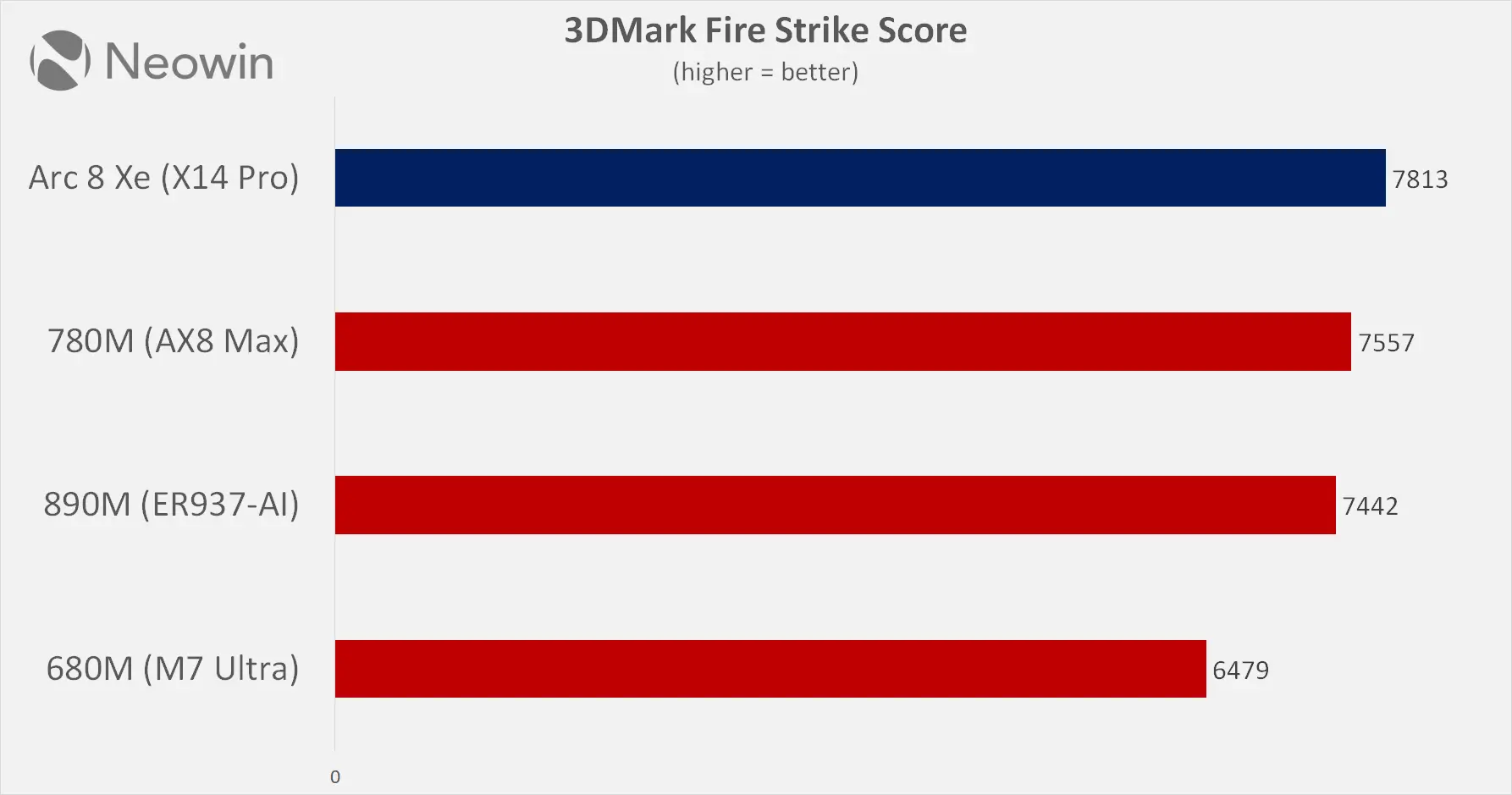
First in 3DMark Fire Strike, a DirectX 11-based 1080p synthetic graphics test, the Intel Arc 8 Xe iGP blew away the rest as it landed at the top of the stack, outperforming three generations of Radeon competition from 890M, 780M, and 680M.
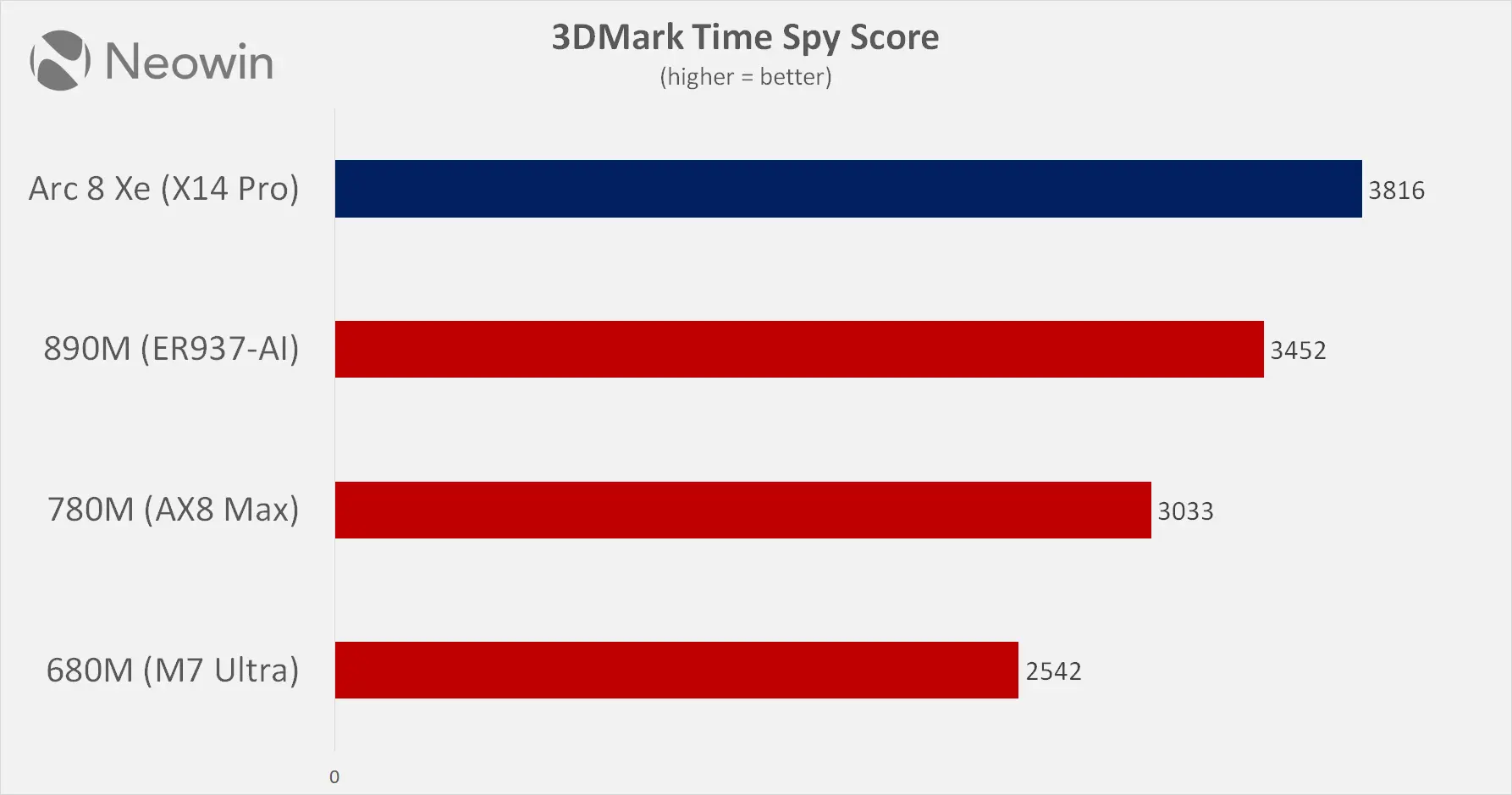
Next, in Time Spy, a DirectX 12 3DMark test, the Arc tops the Radeon iGPs. This is a 1440p DirectX 12 Feature level 11 test. Interestingly, in the newer Steel Nomad Light, which is also a 1440p DX12 benchmark, the 890M manages to outperform the Arc 8 Xe by a slim margin. The 780M also measures similarly.
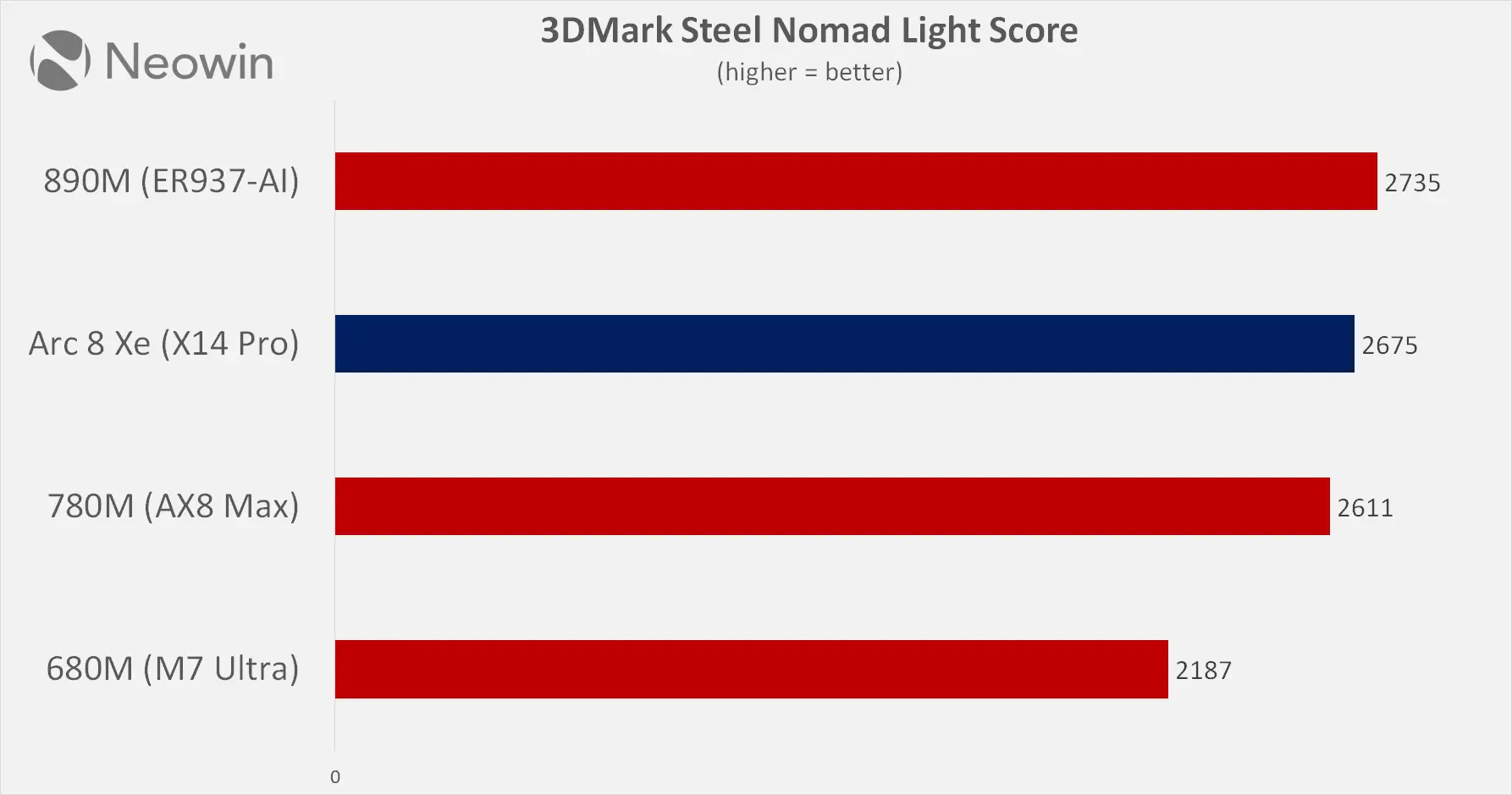
Do note that the real-world gaming performance may not reflect what we see above in 3DMark synthetics, as Intel iGP is known for having a worse driver overhead. We get more clarity on this later on in the Final Fantasy XV gaming benchmark scores.
Up next, we have some CPU benchmark charts starting off with PCMark 10 Extended test, which is a mixed workload test, as the on-board graphics is also leveraged from time to time for hardware-accelerating some tasks.
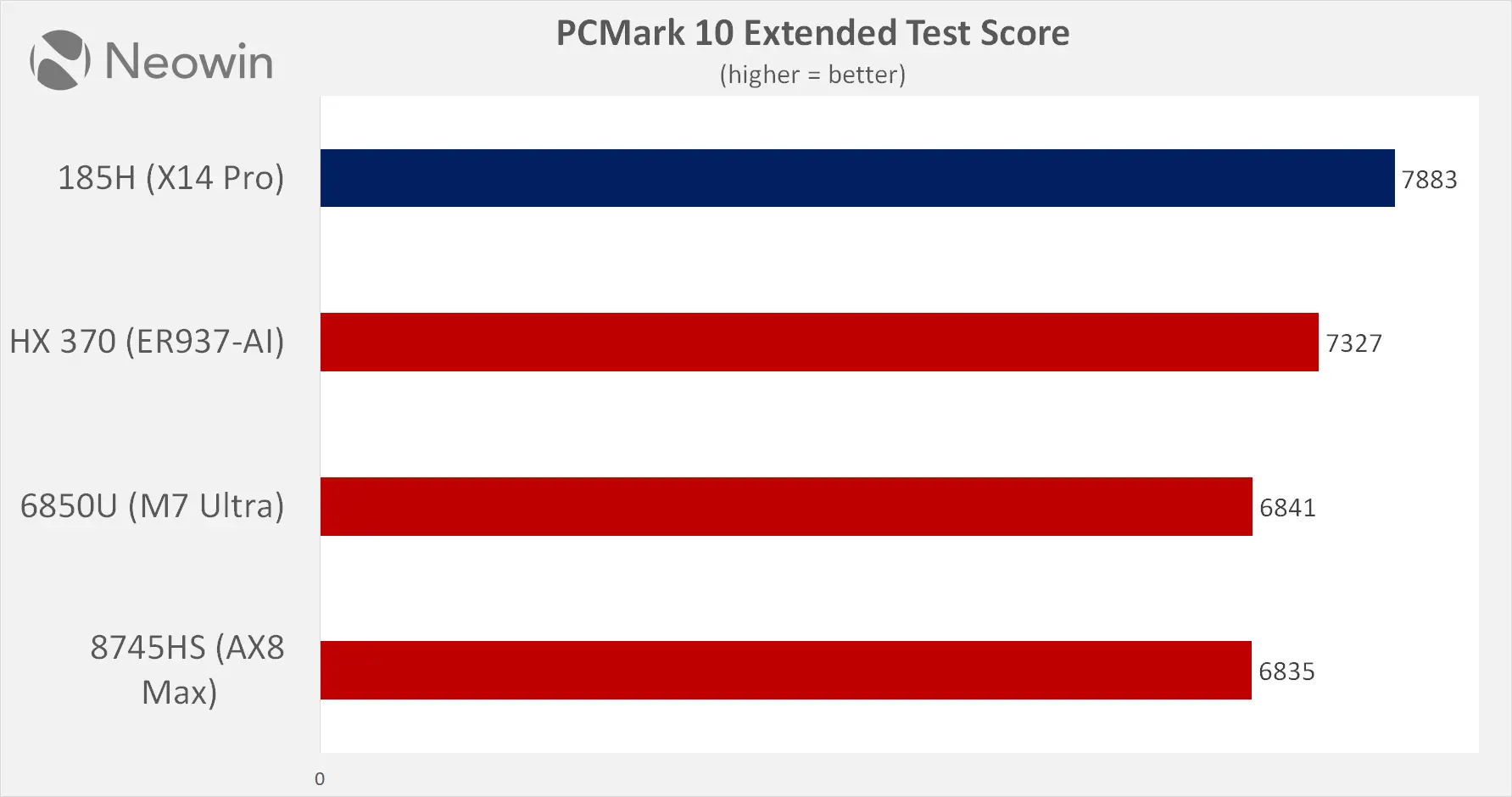
The Intel Core Ultra 9 185H puts on a great show here as it outdoes the AMD Ryzen AI 9 HX 370 as well.
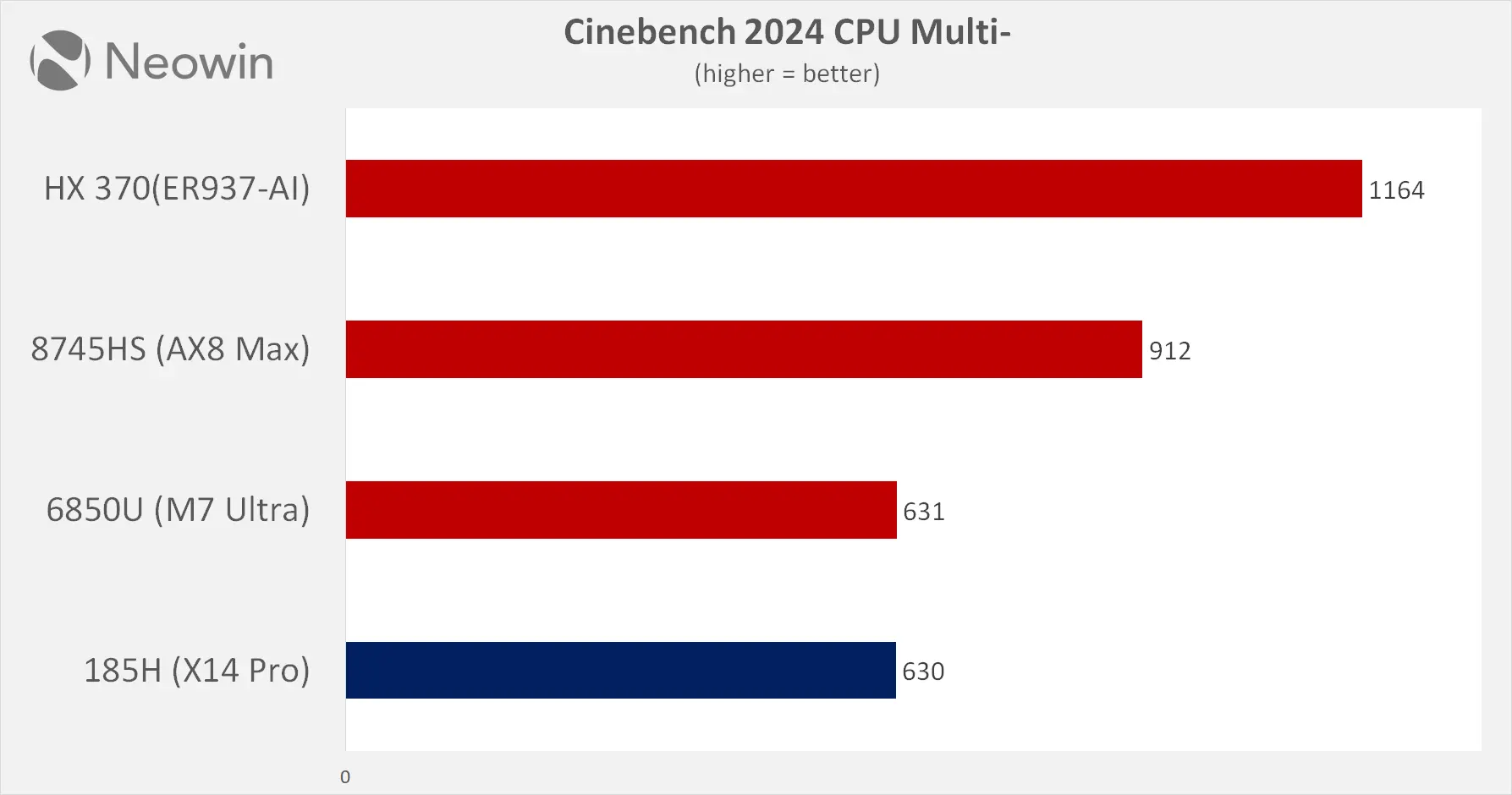
In Cinebench 2024 next, a multi-threaded rendering test for CPUs, the 185H has put up almost the exact same score as the Ryzen 6850U on the M7 Ultra. Thus the 8745HS and HX 370 are on another level.
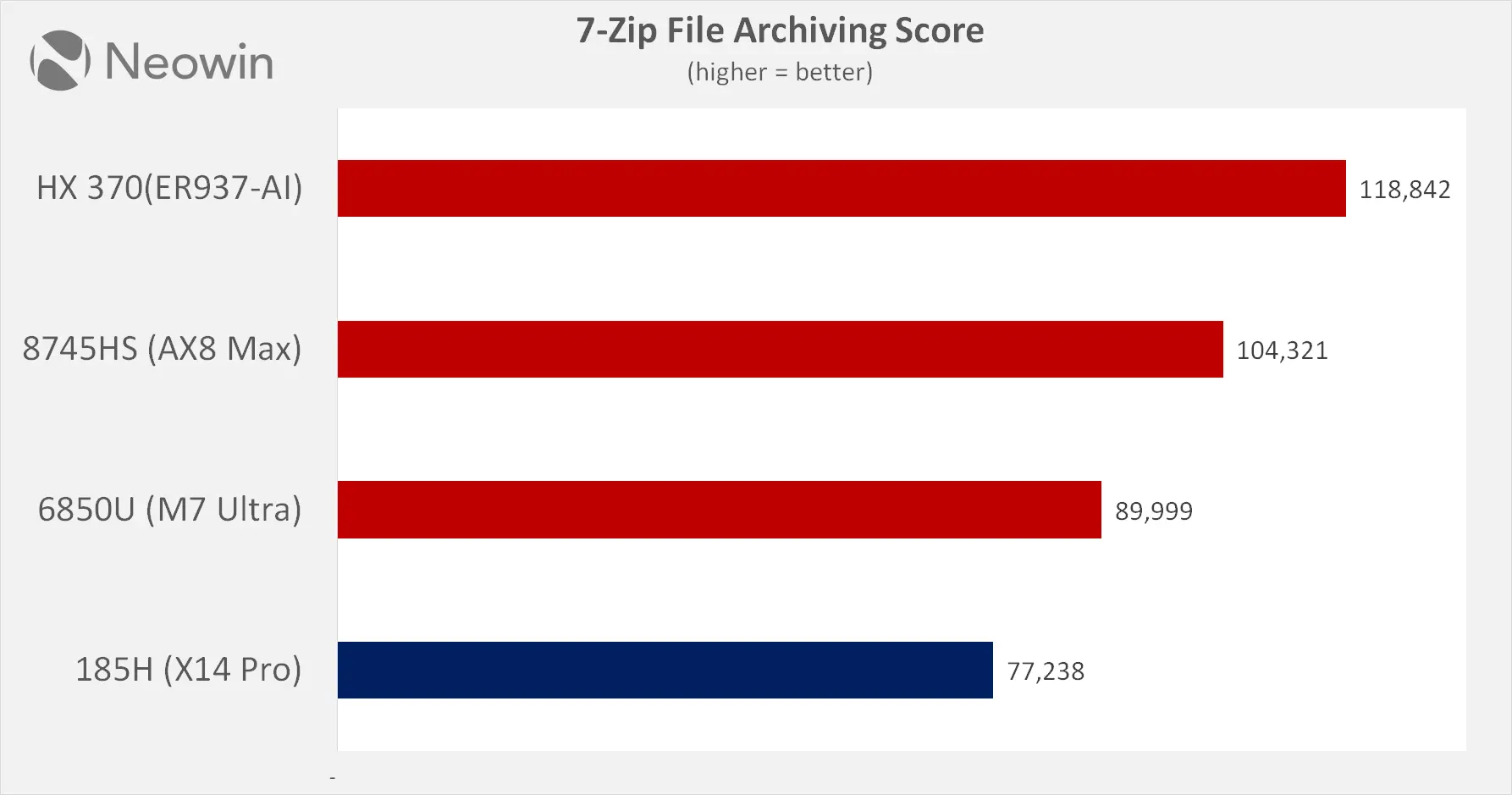
Finally we have the 7-Zip file archiving benchmark that measures compression and decompression performances of the processor. AMD once again easily beats Intel here as even the 6850U turns out to be significantly better.
Real-world gaming
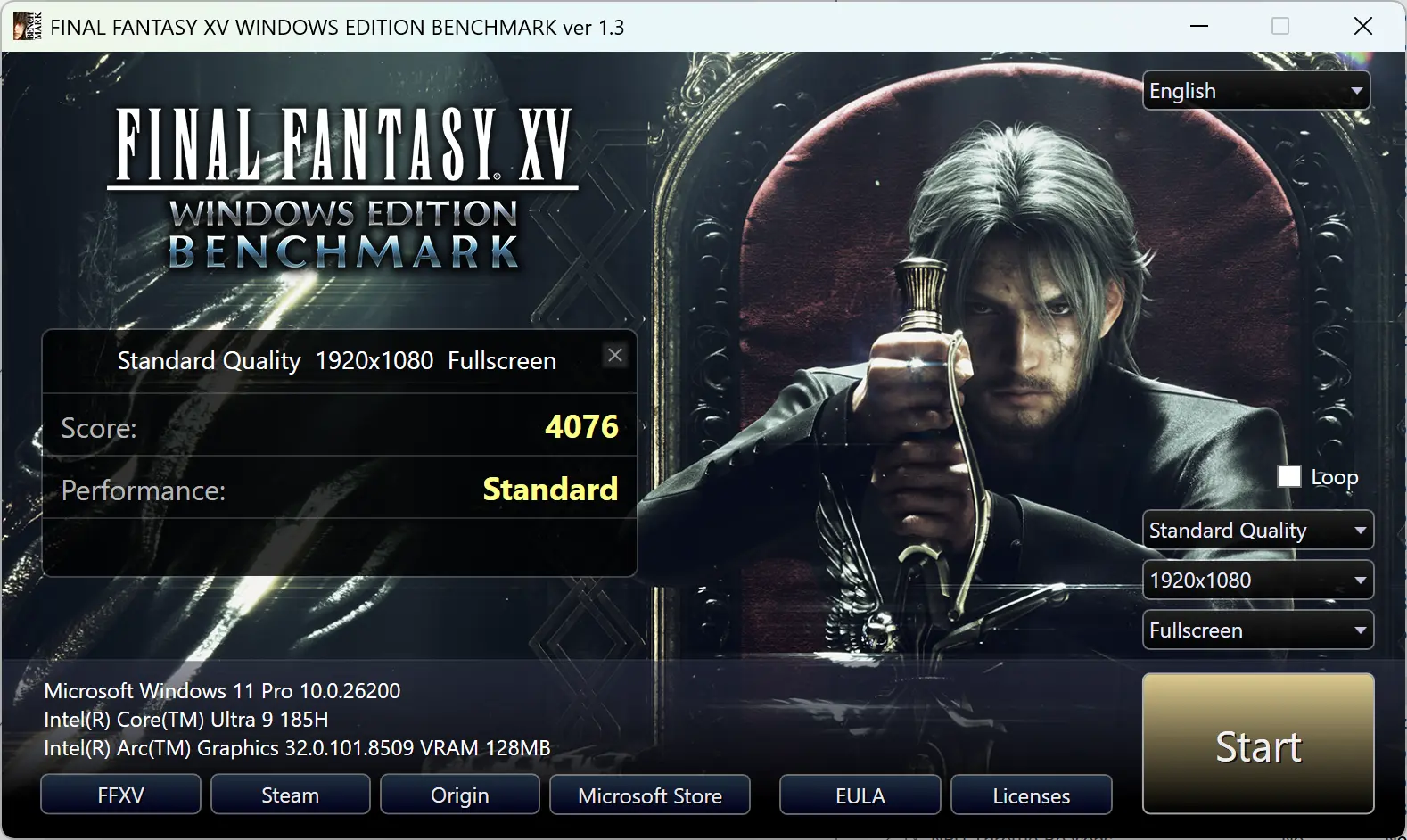
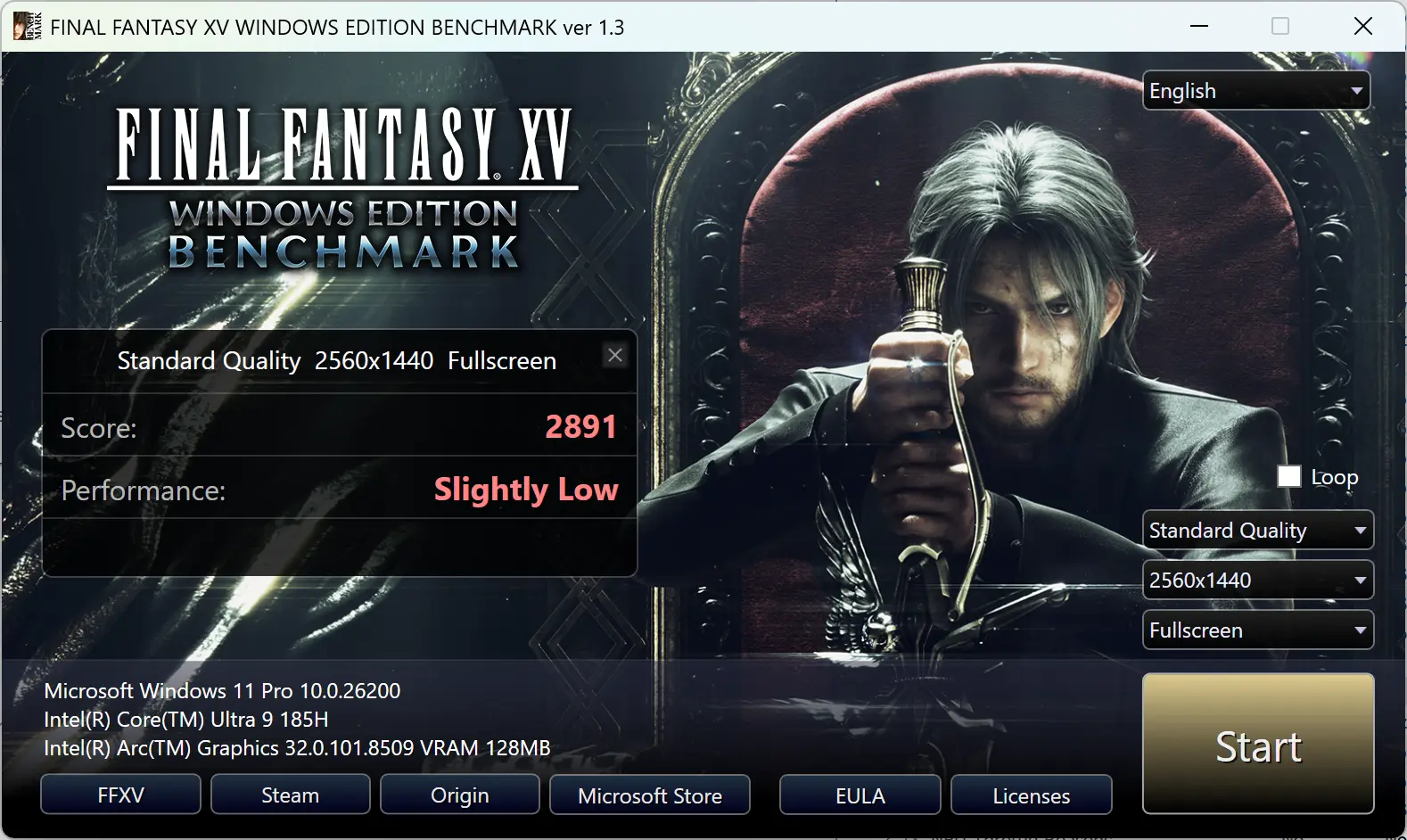
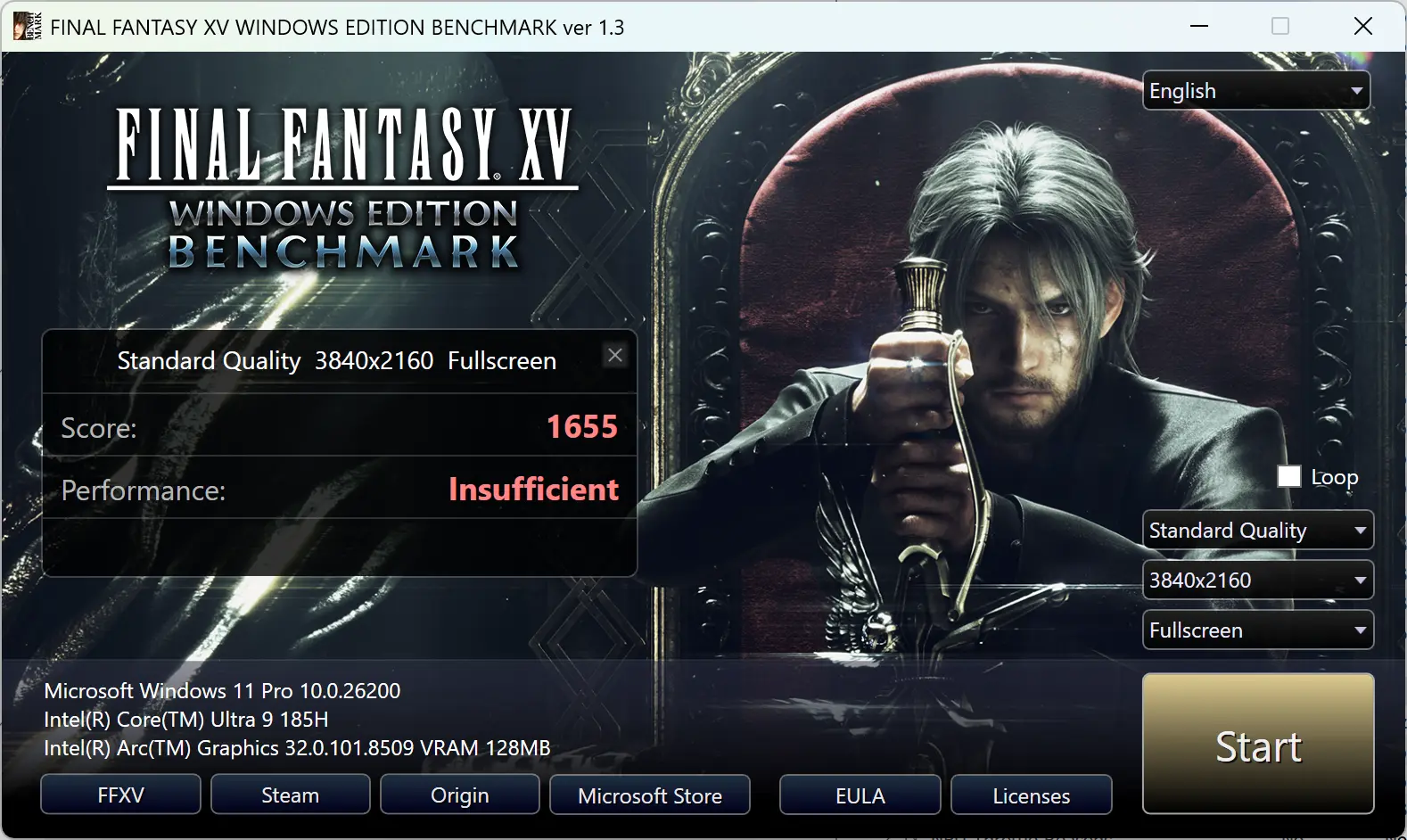
While we already established from the 3DMark tests that this is not quite a capable gaming laptop, I ran the standard Final Fantasy XV benchmark regardless to get a taste of how well it fares against the others.
Final Fantasy XV
To gauge the capability of the Intel Arc Xe eight EU integrated graphics processor (iGP), I ran the standalone Final Fantasy XV Windows Edition Benchmark on different resolutions at the Standard Quality preset to see what kind of gaming performance one can expect from the onboard GPU. This is a DX11 title.
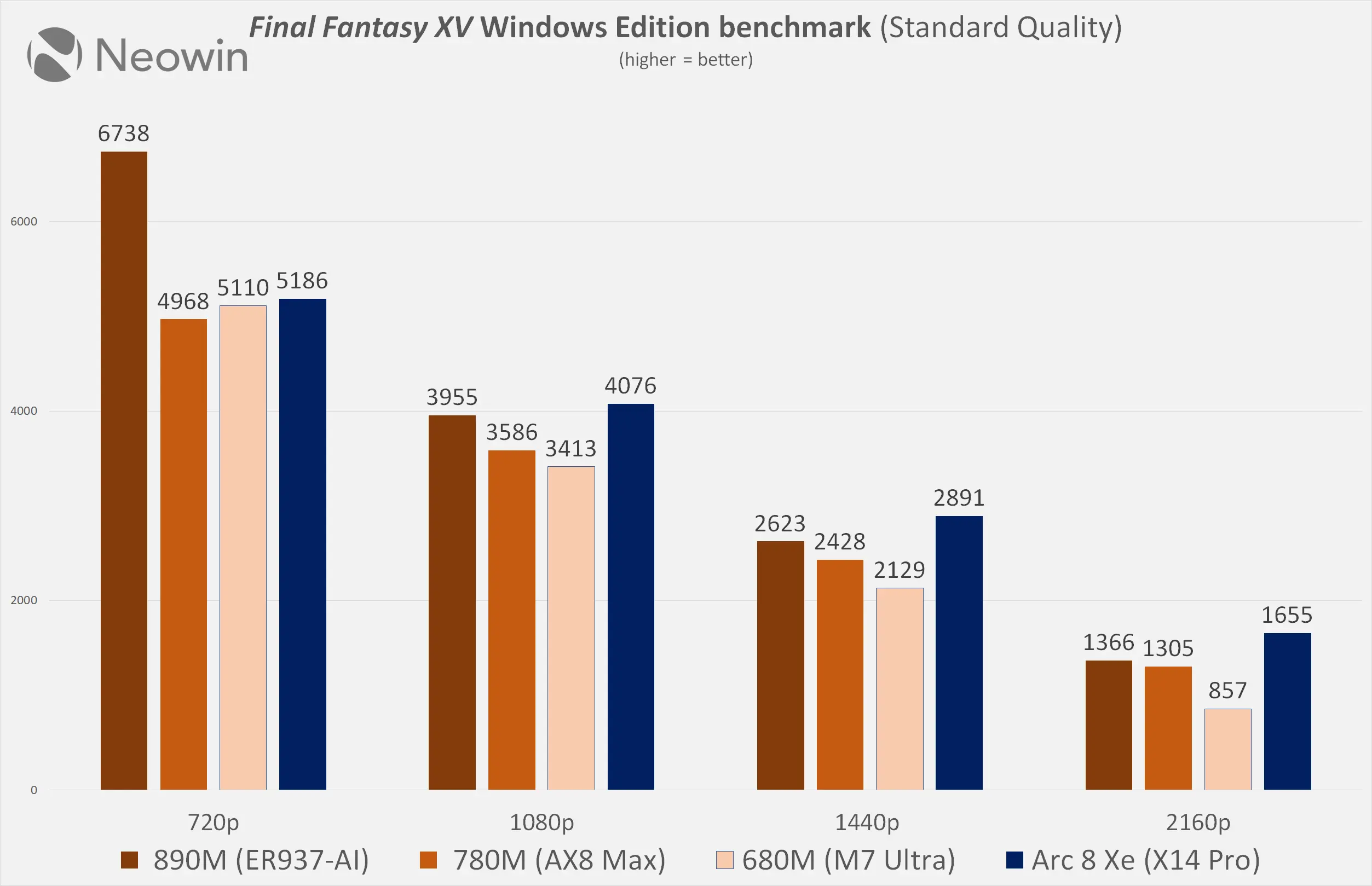
We start off 720p and here the Arc 8 Xe iGP was in the same ballpark as the AMD Radeon 780M and 680M, with each of them achieving around 50 fps.
Interestingly, as we move up through the resolution stack all the way to 2160p (4K), Intel Arc actually starts to increase its lead over the 680M and 780M, and at 4K, it even outpaces the 890M. This shows that Intel graphics is severely bottlenecked at lower resolutions, as at 720p, which is somewhat CPU-bound, the Arc 8 Xe is 23% slower; on the flip side, at 2160p, the Arc 8 Xe is 21% faster.
So while Intel"s iGP is no doubt capable, it definitely requires scenarios which are not CPU-bound, as there is a driver overhead issue, among other things, that it still needs to deal with, at least in the case of DirectX 11.
Browser Performance
| Browser | Low | High |
|---|---|---|
| Edge | 31.8 | 32.5 |
| Chrome | 30.9 | 31.6 |
| Firefox | 22.3 | 23.0 |
Next up, I tested browsing performance using Speedometer 3.1. Speedometer measures Web application responsiveness by timing simulated user interactions on various workloads; it provides a value and also a range showing the lowest and highest scores after three runs, as indicated in the chart above by the two scores for each browser. There"s just 0.9 difference on the high and low between Edge and Chrome, leaving Firefox in the dust by 9.5 points on the low, and 9.5 behind on the high compared to Edge which comes out on top in our tests.
Disk performance
I also tested the SSD"s capability using AS SSD and CrystalDiskMark.
| AS SSD | CrystalDiskMark |
|---|---|
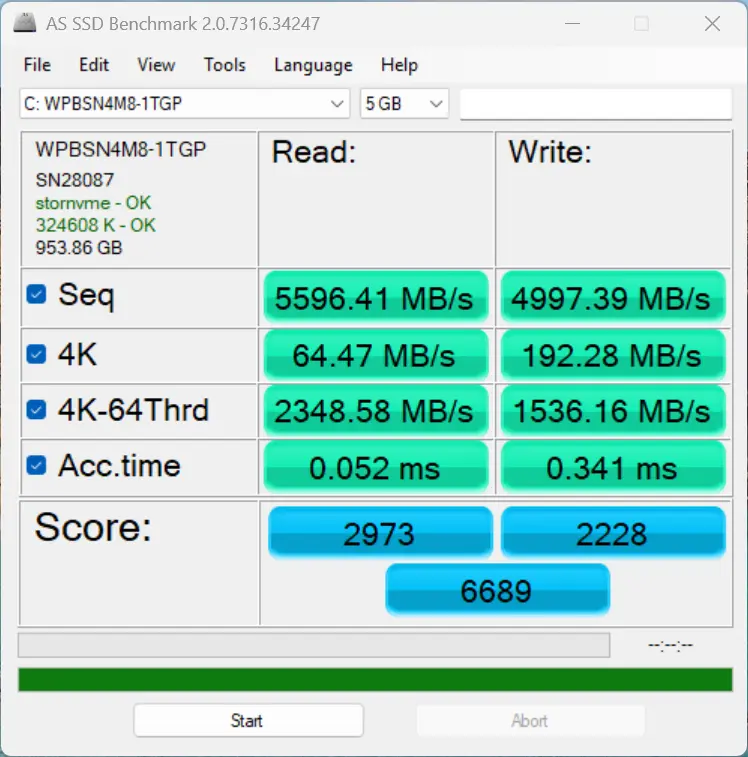
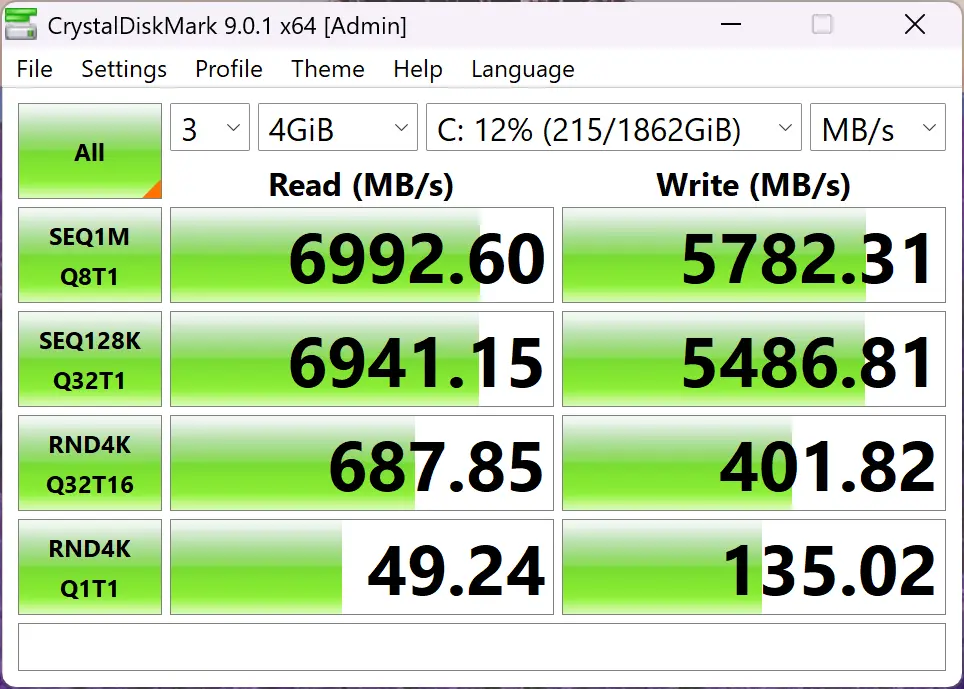
The 2TB Crucial P3 Plus is rated for 5000/4200 MB/s read/write, and you can see above that it"s a bit of a mixed result, in CrystalDiskMark it far exceeds that rating, while in AS SSD it falls quite a bit below it.
3DMark Storage Benchmark
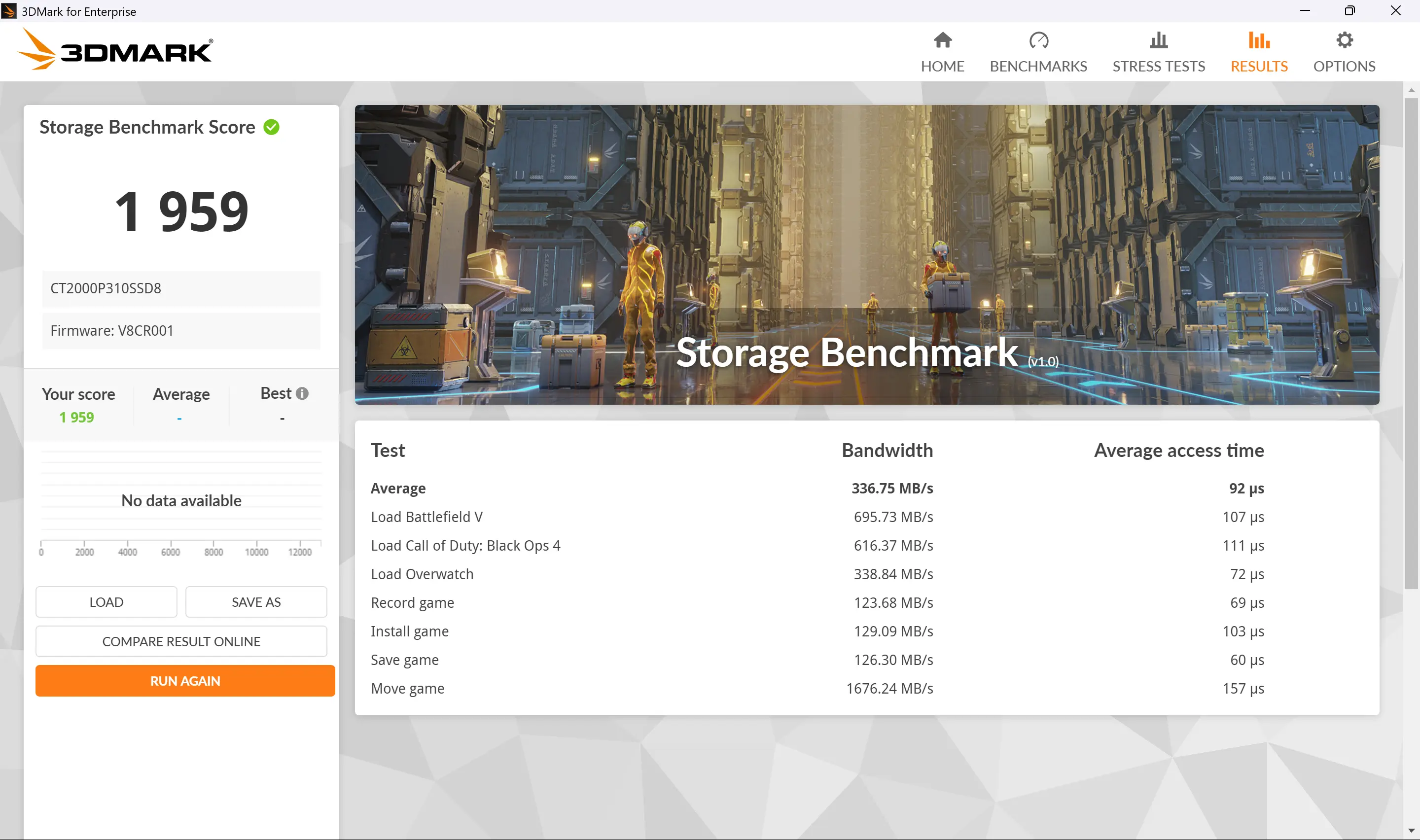
Next, I ran the Storage Benchmark, which is a component test that measures the performance of the Crucial P3 Plus SSD, particularly for gaming, using real-world gaming-related activities like loading games and recording gameplay. A comperative score was not given, even though I validated the score.
Heat
Despite running all of the above benchmark tests, the X14 Pro did not get hot (or even warm) to the touch, and no annoying noises were coming from the single fan that cools the unit. The Highest CPU temperature recorded was during the 7-Zip benchmark test, where the CPU Core reached 97 °C.
Infrared thermal imaging
| Top | Bottom |
|---|---|
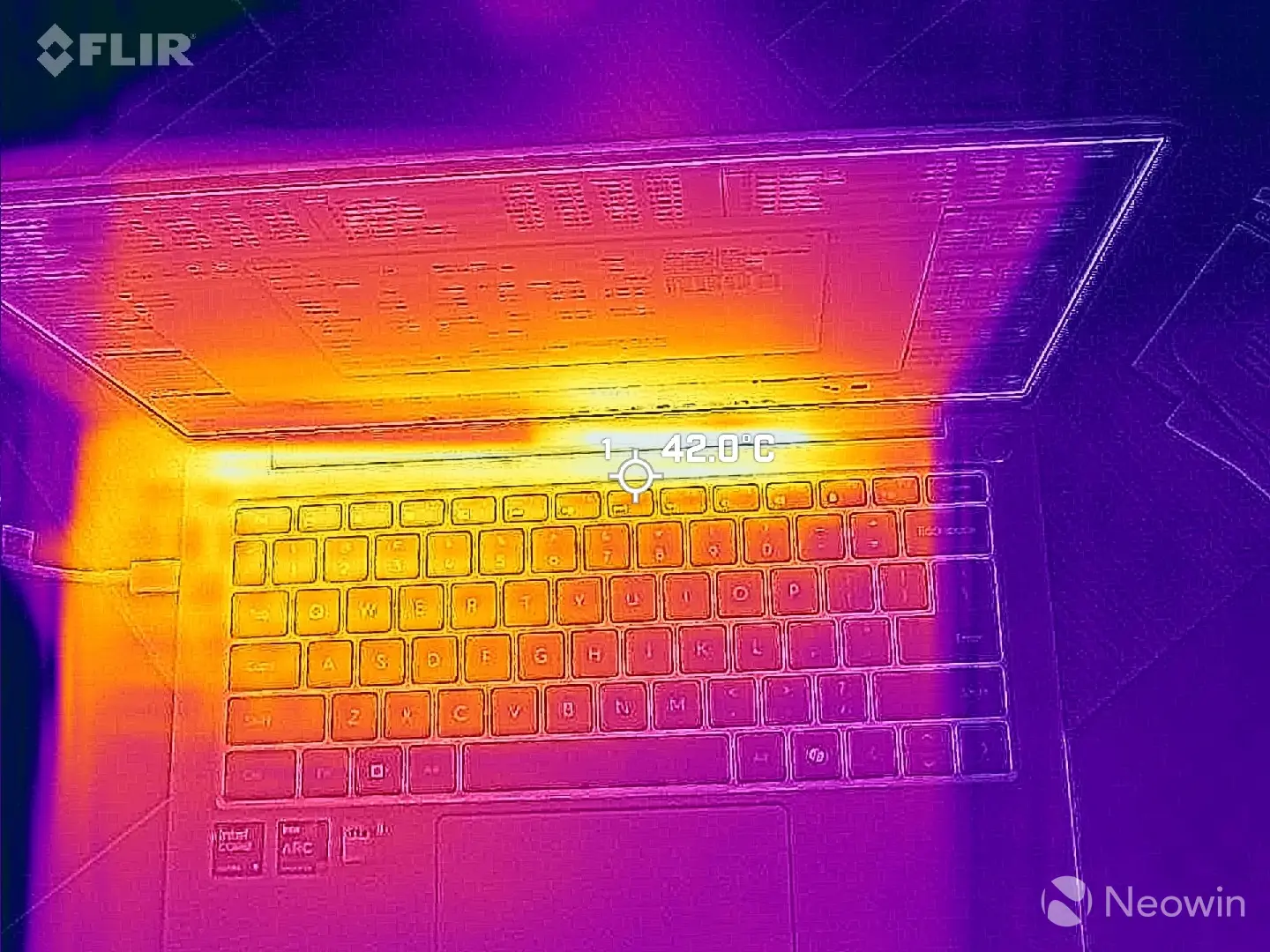
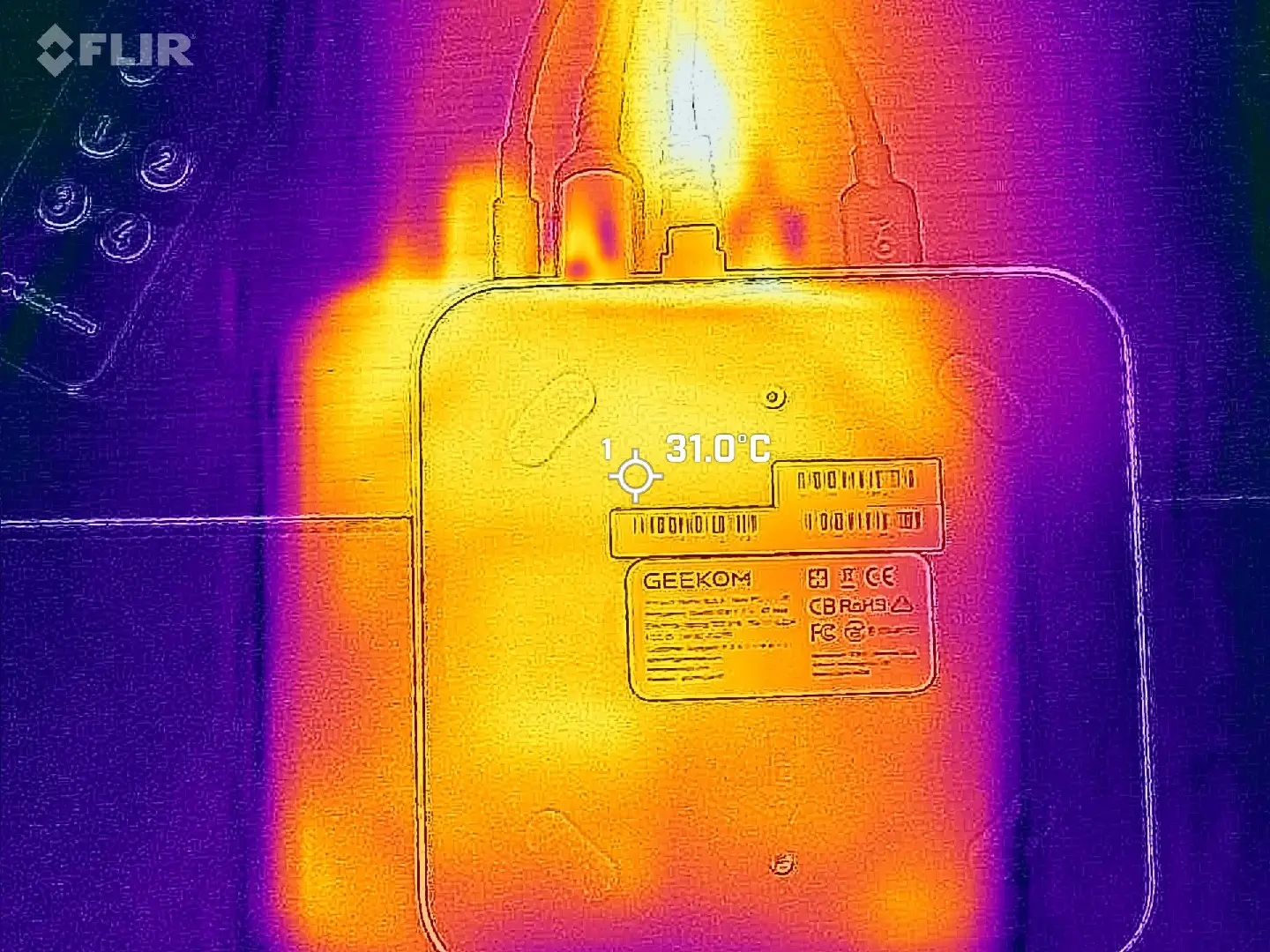
Despite all this, the outer shell never exceeded 42 °C while I was pointing my FLIR ONE Gen 3 thermal camera at a hotspot on the top while running a 7-Zip benchmark test. The heat on the bottom of the X14 Pro was more concentrated towards the left back portion where I observed 42.6C.
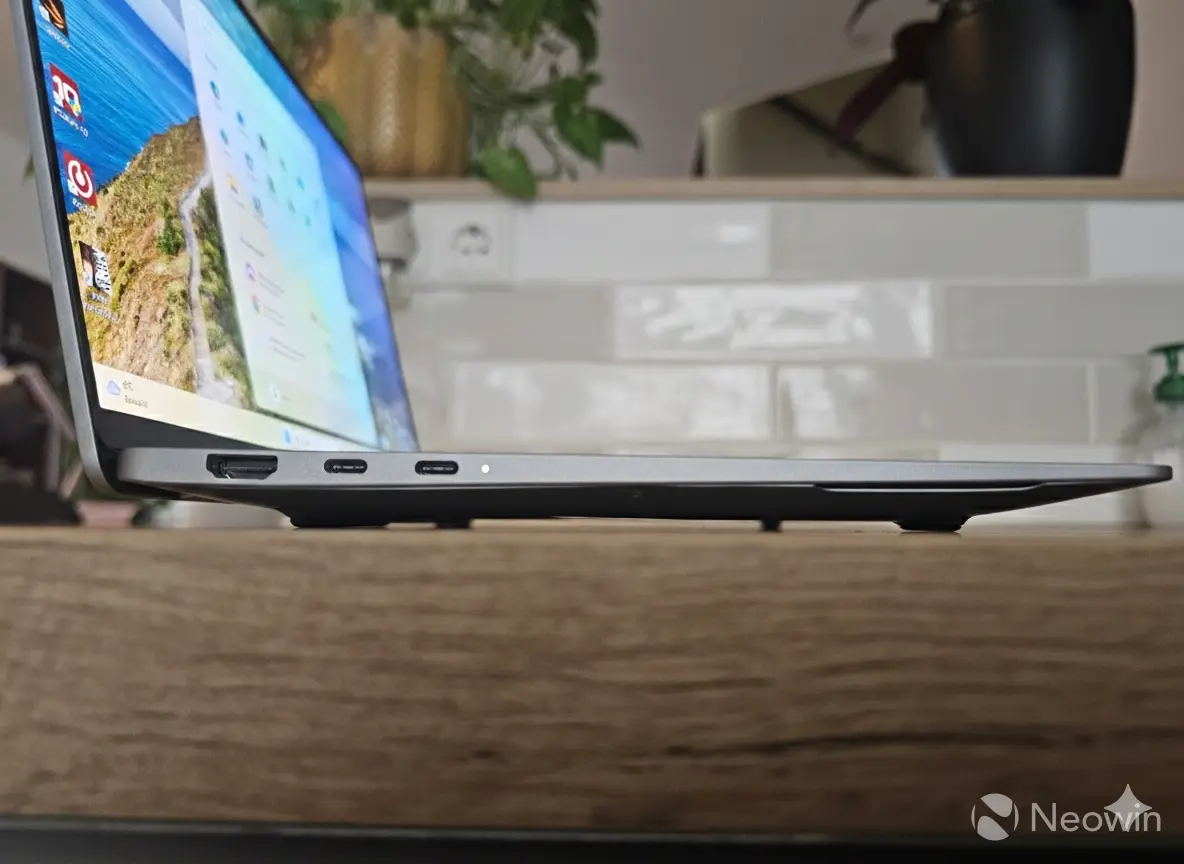
Having said that though, the airgap underneath the laptop is impressive, to me it looks like it has a higher clearance than most of the Mini PCs I have reviewed; plus the rear rubber standoff goes across much of the width of the bottom, which means if you"re placing it on your lap, you will (mostly) not be in direct contact with the chassis. In any case, I did not find the bottom getting too hot, which is something I have experienced with older models of laptops, sometimes to the extent of actually hurting my legs.
It might not be immediately obvious, but it has a higher clearance than the thickness of the keyboard base of the X14 Pro.

Above you can see its thickness compared to the Microsoft Surface Laptop 3. Although the X14 Pro is thinner, it appears to be thicker thanks to those large standoffs.
Battery
During my testing, I also kept an eye on the power draw using a Green Blue energy meter. Thanks to its internal battery, it wasn"t possible to test the draw in Standby or Sleep since the battery is always topping off when connected to the mains.
| In sleep, charging | OOBE initial setup |
|---|---|
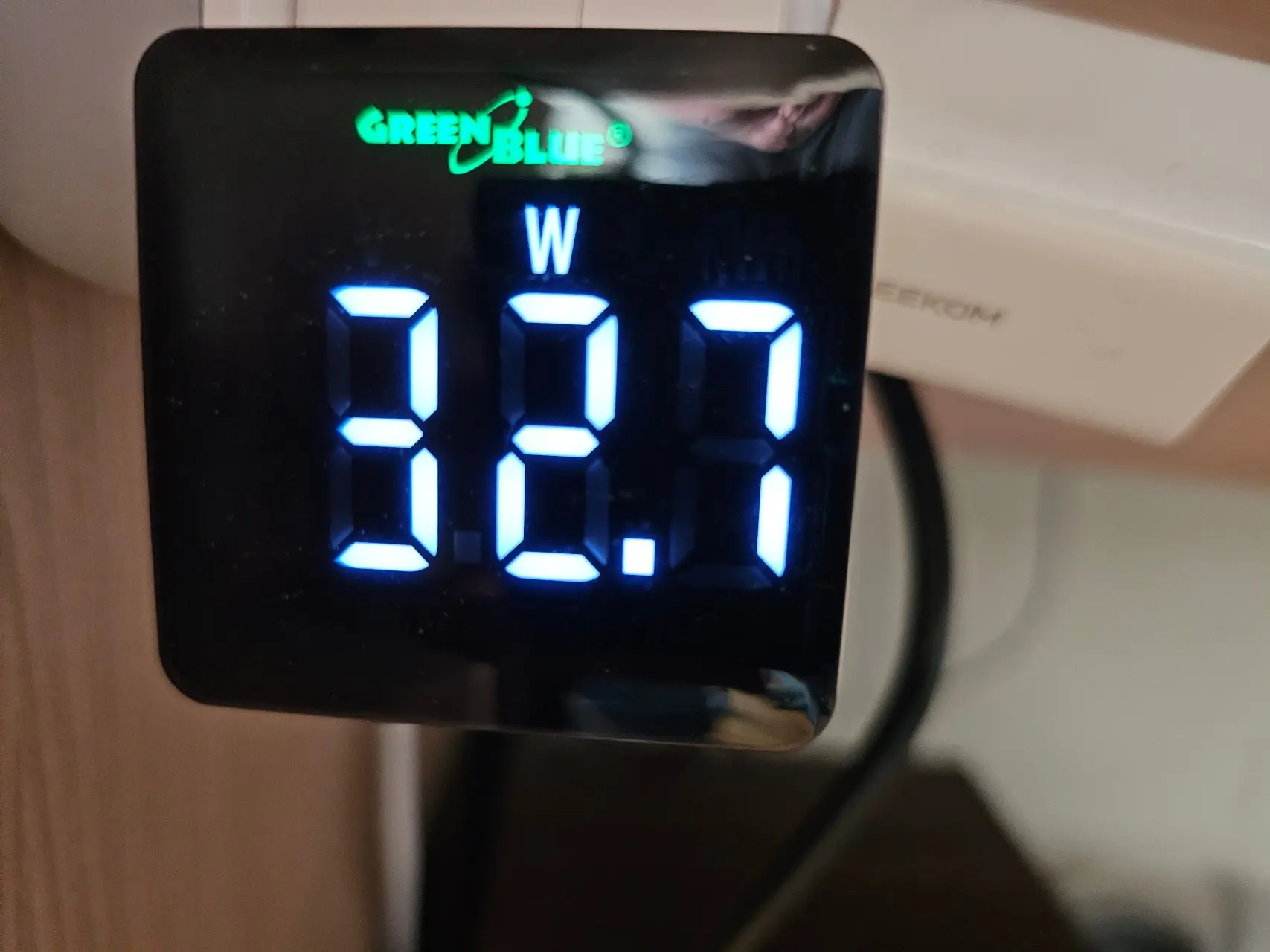
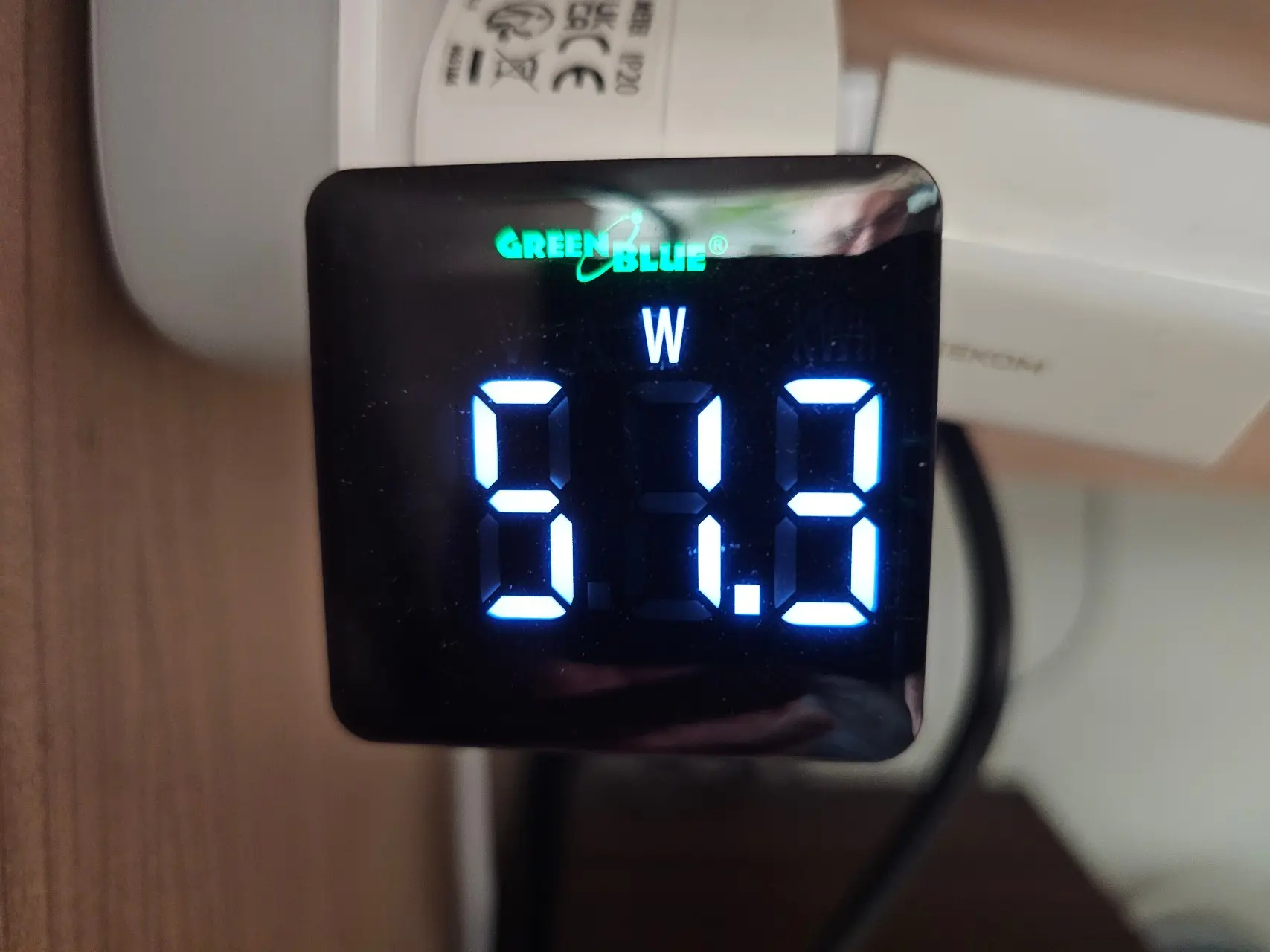
As you can see above, when powered off, it it was drawing around 32.7W whilst simultaneously charging. After powering on and running the Windows setup, that went up to around 50W.
| 3DMark Fire Strike | Windows 11 25H2 (idle) | From empty, off & charging |
|---|---|---|
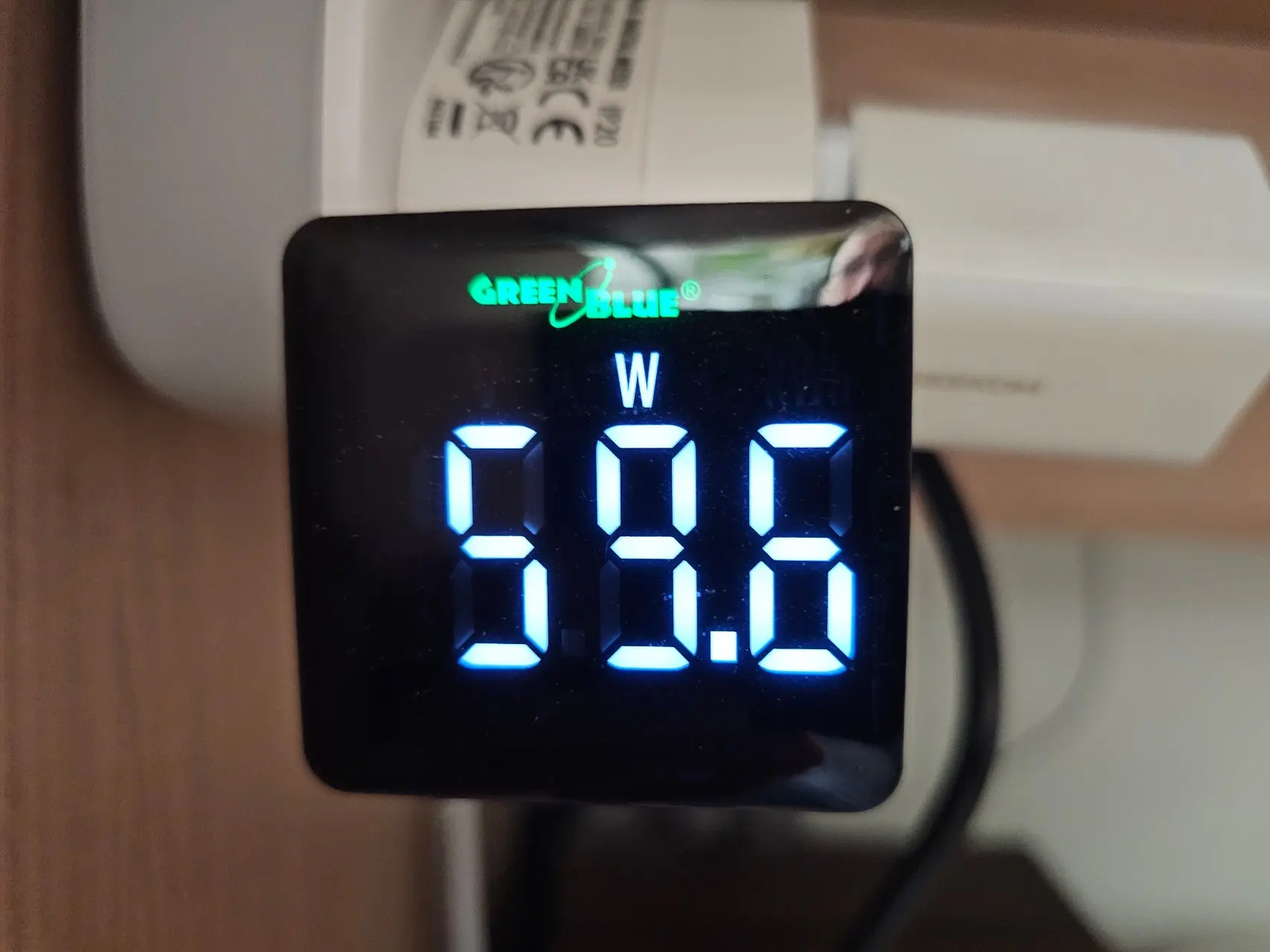
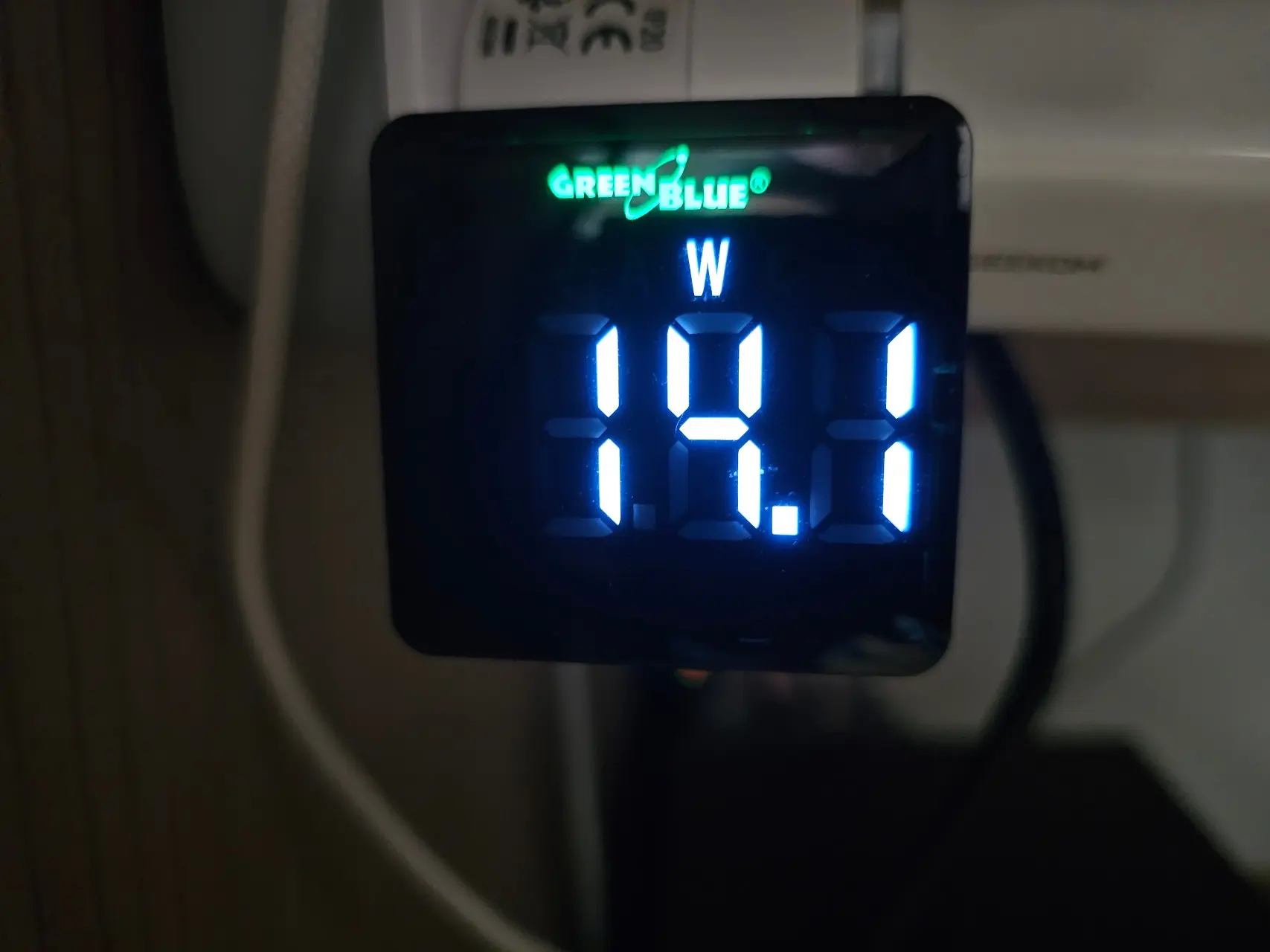
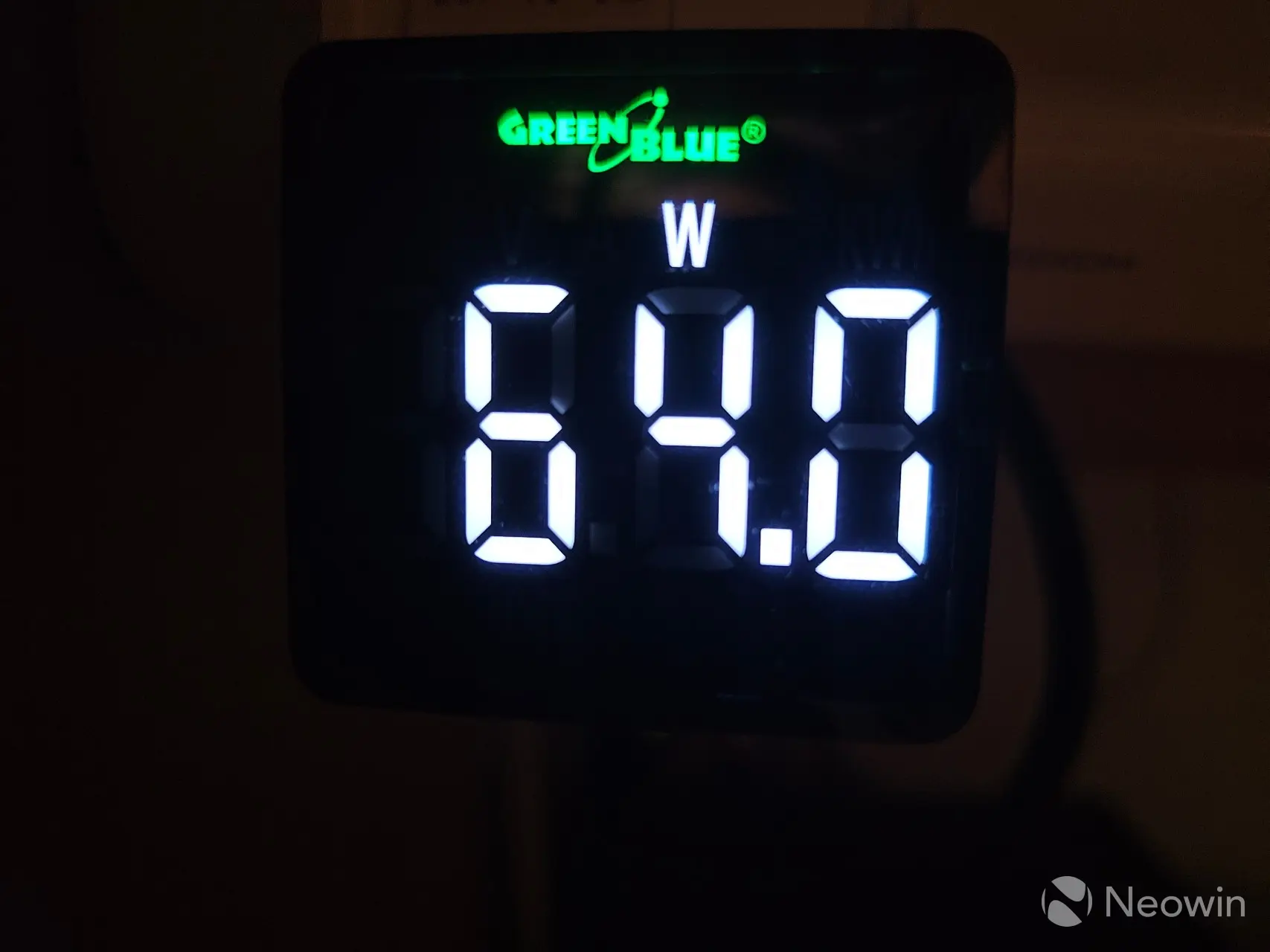
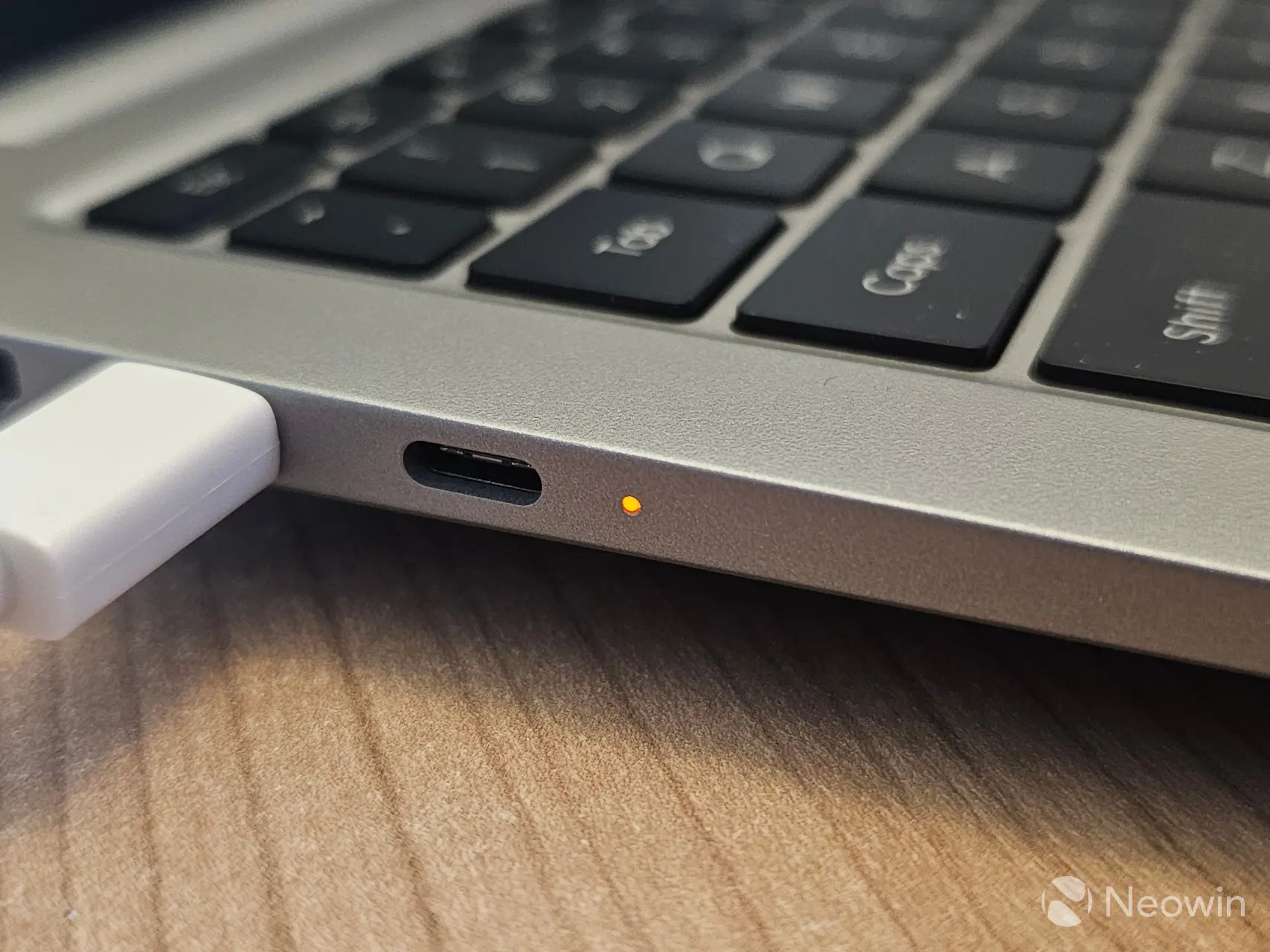
Next, I measured the maximum power draw when running 3DMark Fire Strike test, which relies on a combination of CPU and GPU access, although I captured 59.6W here, I saw it go up to 64W. I also captured usage after the X14 Pro had been sitting idle on the Windows desktop with no background apps running and observed usage of around 14.1 to 15W. Lastly, after I completely drained the battery with a YouTube HDR video loop test and connected it to the charger I could see it was drawing close to the rated 65W charging speed, which dropped to between 15-19W as it neared a full charge.
Battery tests
Next I tested how long the X14 Pro stayed on in different scenarios, listed below.
- YouTube video 18:35 - 23:41 (5h6m) 4K HDR video loop test
- It took around three hours to fully charge from empty
- YouTube video 12:05 - 19:45 (7h40m) 4K video test
- PCMark 10 00:10 - 04:06 (3h56) loop test
- 8 full loops, quit on the 9th
GEEKOM doesn"t make many claims about the battery-life other than claiming it is possible to squeeze 16 hours of unspecified use out of it, as well as claiming "with 65W PD GaN fast charging, just 30 minutes gives you hours of power". As can be seen in the above battery tests, it is at least possible to watch a three hour movie in HDR and continue working a couple more hours, if not longer on battery. Next I ran the same YouTube video loop test, but this time selecting a 4K (non HDR) video, and the X14 Pro managed just over seven and a half hours before turning off.

Finally, I decided to do a PCMark 10 loop test, which stresses full use of the laptop in different work scenarios, which include various app launches and video conferencing; the X14 pro managed eight full loops, and quit on the ninth just shy of four hours. Such a test compresses what normally be an extremely busy work day into a much shorter time-frame.
In each scenario the X14 Pro went into hibernation at around 5-6% battery, so after fully charging and turning on again, it picked up where it left off.
Conclusion
Overall, I like it. I would say the only thing I missed between the X14 Pro and the Surface Laptop 3 is how the Surface immediately unlocks with the Windows Hello camera as I am opening the lid. GEEKOM opted to go with a fingerprint sensor for biometrics and Windows Hello, and as I already pointed out in the quirks section, my experience with the fingerprint sensor is not the best. Sometimes it is fast and other times it gives up immediately and requires me to enter a PIN, all the while slowing down my intent.
It is still an impressive start in the extremely saturated laptop space. Hopefully my, and other reviewers" feedback will help with the next series of laptops for the future, because much of the problems I experienced can probably be fixed with a firmware update.
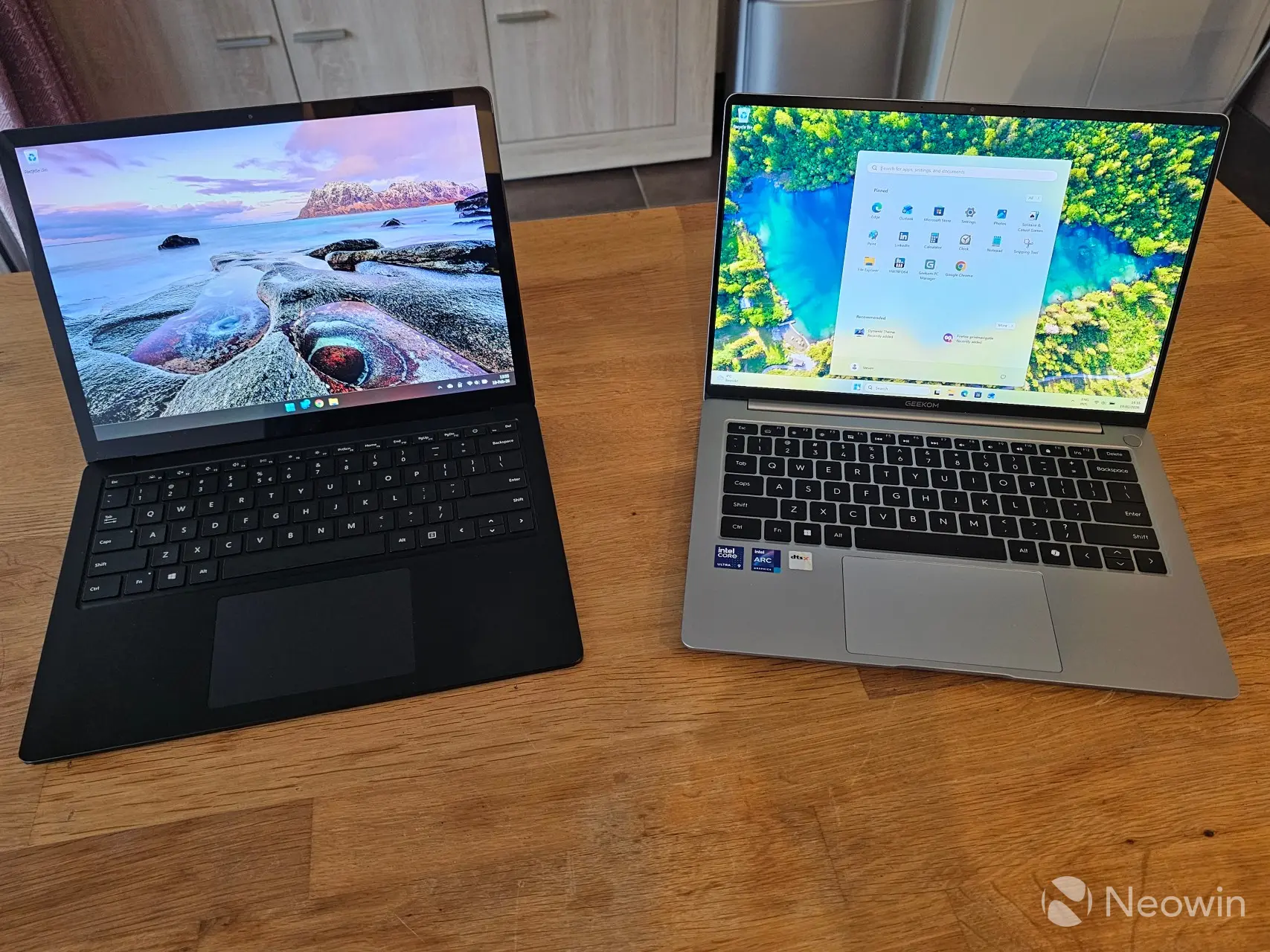
Microsoft Surface Laptop 3 on the left, GEEKOM X14 Pro on the right
The good
I really like the AMOLED 2.8K display, it"s vibrant and with viewing HDR, such as this example almost looks like you are viewing the content through a window rather than on a screen. I like that it comes with dual USB 4 ports, which also work to deliver power to an external monitor, and it has a premium metal build. Our benchmarks also showed that it"s no slouch by any means.
The bad
I was disappointed that GEEKOM didn"t go the extra mile to include a Windows Hello camera, but even that inclusion would not have positioned it as "Surface-killer", for that, it would have to be a Copilot+ PC, and the X14 Pro is not with its 33 TOPS. In addition, it includes a CPU that came out in 2023, so not exactly cutting edge. The weird quirk where if you disconnect the charging cable while you are using it, and it turns off the screen momentarily, disrupts the workflow.
Would I recommend?
Having said all that, I still think it"s an impressive start by GEEKOM to position itself as, not just a Mini PC seller, but also a serious contender in the Ultrabook space. Right now they only have the one series that differs only in CPU, storage, and screen size (with the 14- and 16-inch option). If like me, you have an aging Surface Laptop or equivalent, but don"t want to spend the kind of money it would take to replace it with something like a Surface Laptop 7 (equivelent spec costing $1,000 more), the X14 Pro should definitely be on your shortlist.
Where to buy
Assuming you"ve made it this far, at an MSRP starting at $1,299, the X14 Pro is not the cheapest, even if we consider that GEEKOM currently has it discounted by $250, bringing the Ultra 5 125H variant down to $999 on the official website. But, below, there are even more savings with coupons in the U.S., and Germany, bringing the price down a bit more. Unfortunately it is not yet on sale in the U.K.
- GEEKOM X14 Pro Ultra 9, 2TB on the official U.S. website for $1,124 (was $1,499)
- Use code NEOWINX14 (expires March 5) for above price
- GEEKOM X14 Pro Ultra 5, 1TB on the official U.S. website for $899 (was $1,249)
- Use code NEOWINX14 (expires March 5) for above price
- GEEKOM X14 Pro Ultra 9, 2TB on Amazon U.S. for $1,124.09
- Use code NEOWINX14 (expires March 5) for above price
- GEEKOM X14 Pro Ultra 5, 1TB on Amazon U.S. website for $899 (was $1,249)
- Use in page $100 off coupon for above price
- GEEKOM X14 Pro Ultra 9, 2TB on the official Germany website for €1,281.55 (was €1,599)
- Use code GKNEUJ5 for above price
- GEEKOM X14 Pro Ultra 5, 1TB on Amazon DE for €1,044.05 (was €1,399)
- Use code GKNEUJ5 for above price
Our stories may contain affiliate links for products/apps where Neowin is paid an affiliate fee if you complete a purchase via those links.