Microsoft is getting ready to release Windows 11 version 25H2, this year"s feature update for its operating system. As usual, the update will be rolling out in different stages over several weeks and even months, with general availability expected closer to the end of 2025. For most users, the best course of action is to do nothing and just wait, but if you want to get the update right here and right now, here is how to download and install Windows 11 version 25H2.
Windows 11 version 25H2 is based on version 24H2, and unlike the latter, it is not a full system upgrade. The update will arrive as an enablement package, which means it will be faster and with fewer risks of bugs or instabilities. Additionally, most features in version 25H2 will be available on version 24H2, which is shown by the fact that preview builds for both versions have the same changelogs with the same features.
With that cleared, here is how Microsoft is expected to roll out Windows 11 version 25H2:
Stage 1: Windows 11 version 25H2 is available in the Release Preview Channel, which is the final preview stage before general availability. At this point, the update is mostly finished, but Microsoft still releases minor updates to address bugs here and there. Serious bugs or major issues are unlikely to be encountered, but they are still possible, so keep that in mind.
Stage 2: Windows 11 version 25H2 is available as an optional non-security feature update for "seekers." At this stage, the update is only available for those manually checking Windows Update. You have to go to Settings > Windows Update and manually get it from there. This option is safer than the Release Preview Channel, but it is still technically a preview update.
Stage 3: Update is rolling out gradually to all users. At this point, there is nothing to do, as Windows Update will get you to version 25H2 automatically. The safest option for most users, as it gives Microsoft more time to iron out bugs that slipped into production in the previous stages.
The easiest: In-place upgrade and Enablement Packages
If you do not want to enroll in the Insider program and share diagnostic data with Microsoft, you can perform an in-place upgrade without signing up for the Insider program. Technically, it is a simpler method, as all you need is a Windows 11 image from Microsoft.
Right now, official Windows 11 25H2 images are available in the Insider program (you need a Microsoft Account to access them). However, you can also get the official non-insider ISOs, which will be publicly available once the update is officially out on the "Download Windows 11 website" and in the Media Creation Tool app. Those images are already on Microsoft"s servers, but not available publicly via MCT or the official website.
Here is how to do it:
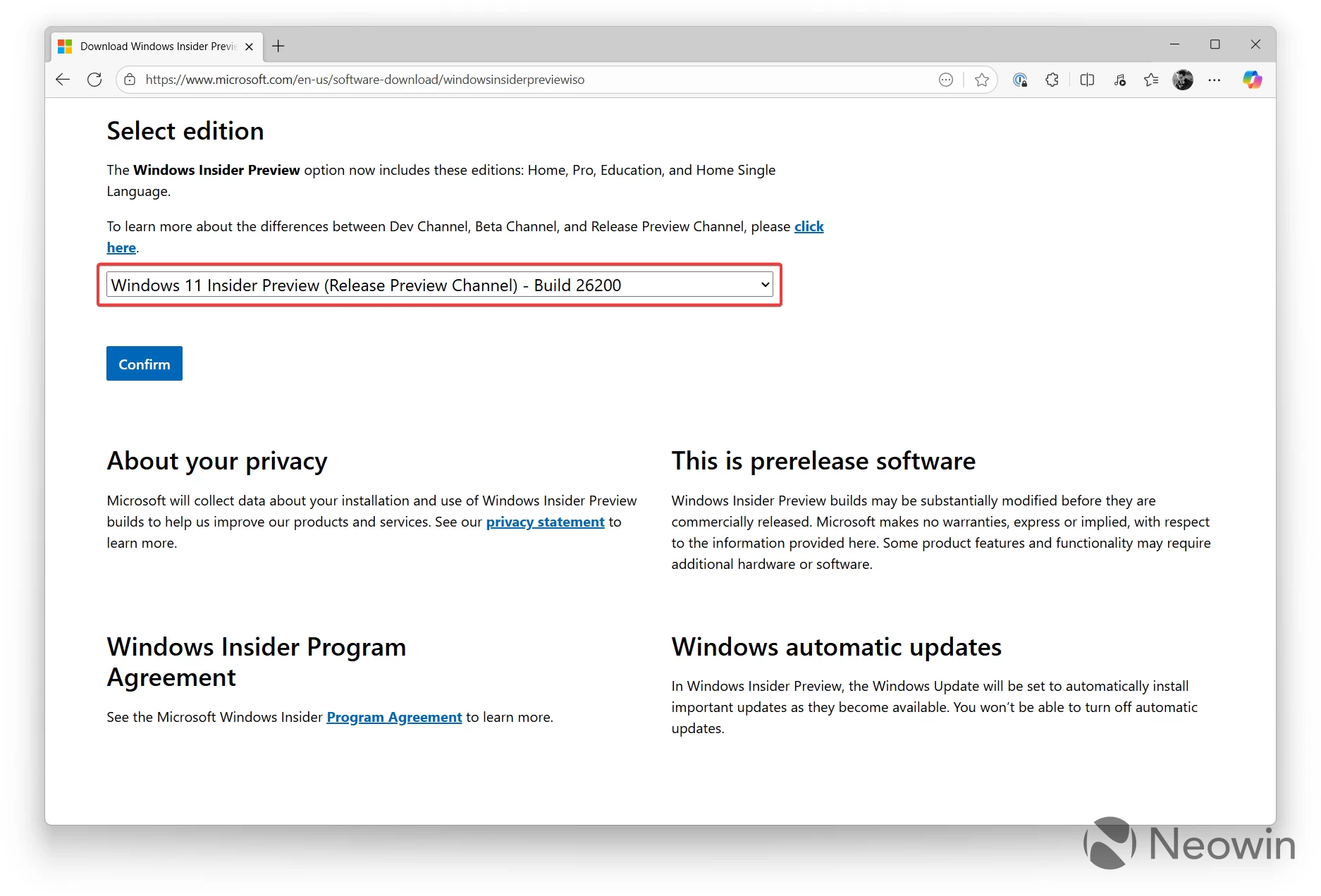
- Go to the official Windows Insider Preview Downloads page and scroll down to the "Select Edition" drop-down. Alternatively, get the non-insider images using the links in this article.
- Select "Windows 11 Insider Preview (Release Preview Channel)—Build 26200." Click Confirm.
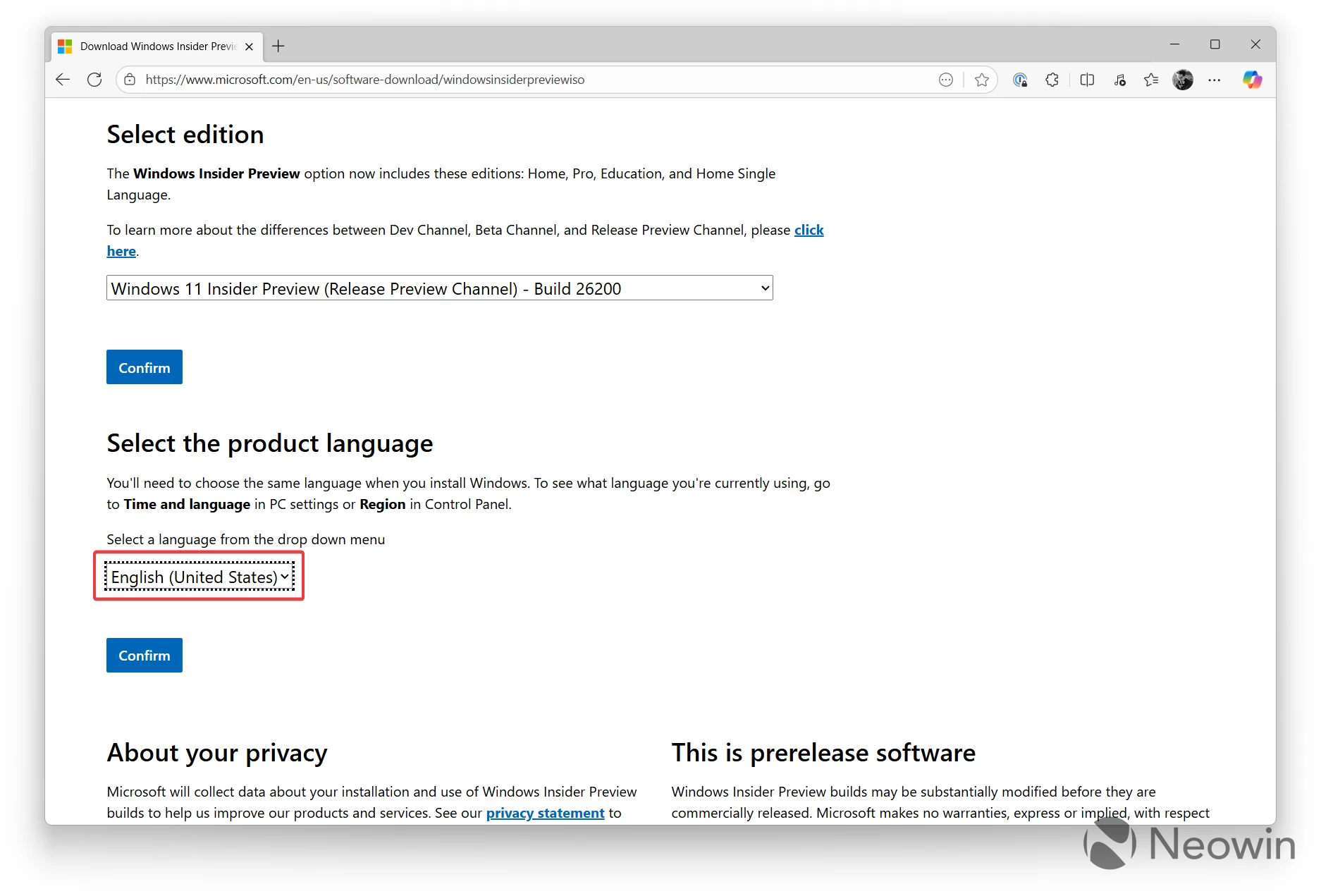
- Select the language you need in the next drop-down list and click Confirm.
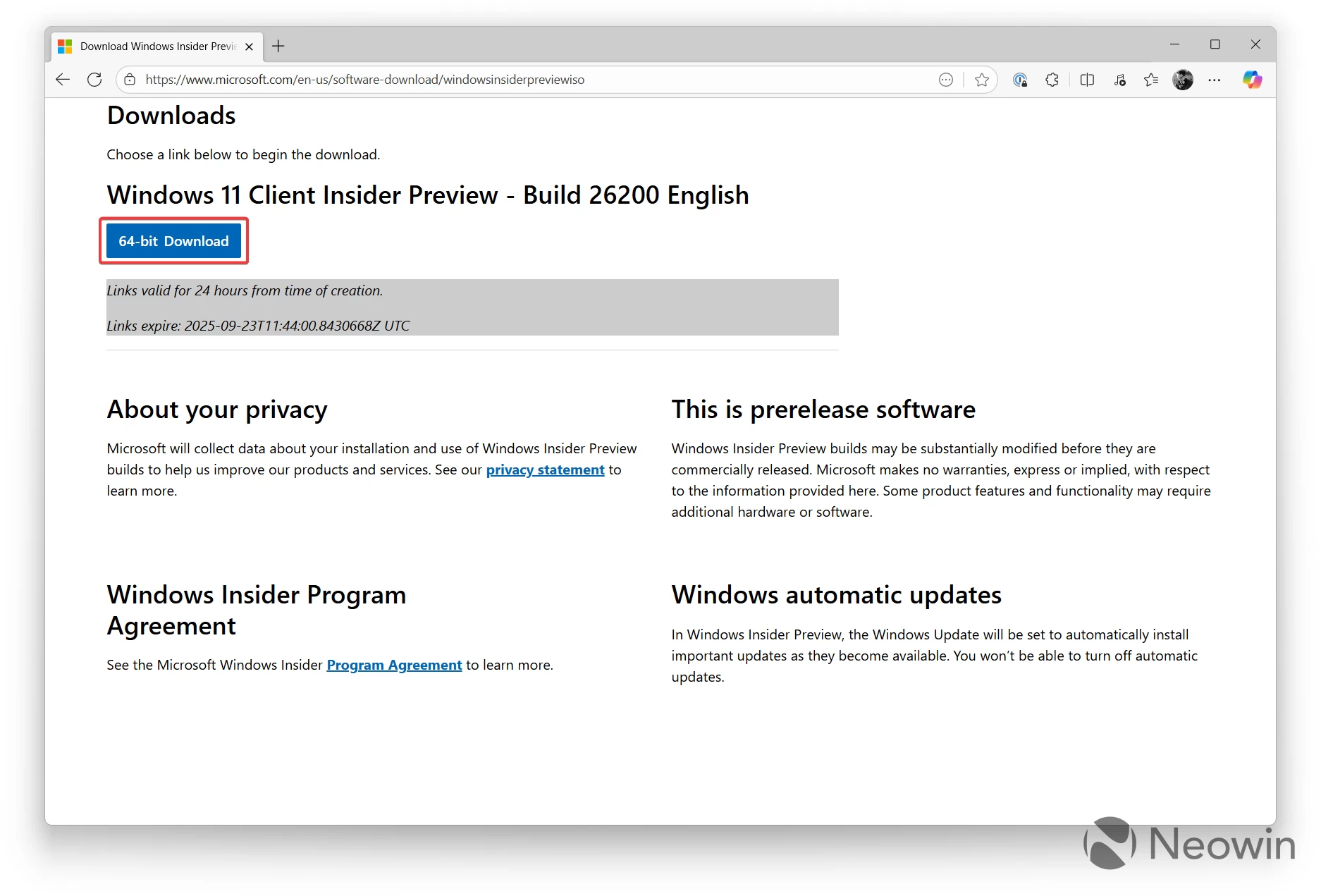
- Click 64-bit Download.
- Once the file is downloaded, double-click it to mount.
- Run the setup file.
- Follow the on-screen instructions to update your computer.
If you are on Windows 11 version 24H2 with the latest cumulative updates, you can technically get to Windows 11 version 25H2 right now with the so-called enablement package. Like we said earlier, Windows 11 version 25H2 is based on version 24H2, and getting to it only requires a small update package. All you have to do is download the package for your platform, run it and restart your computer:
Method 2: Installing Windows 11 25H2 using Insider Program
As usual, remember to back up all your important data to keep it safe, should something unexpected happen. Also, unless your PC is bricked, you will be able to roll back from Windows 11 version 25H2 to the previous update, a process we will detail in a separate guide.
- Go to Settings > Windows Update > Windows Insider Program.
- Windows 11 will prompt you to sign in with a Microsoft Account. If you use a local account, you can sign in only in the Insider program. Just keep in mind that you will have to share diagnostic data with Microsoft. If that is not an option, proceed to the second part of this guide, where we describe in-place upgrades.
- Select Release Preview from the list of available channels, and continue with on-screen instructions. All that is left is to accept the terms and conditions and restart your system.
- After a restart, go to Settings > Windows Update and click "Check for updates." If you do not see the update, go to the Windows Insider Program section and wait for a notification that there is a newer build. Click "Open Windows Update" and check for updates again.
- The Settings app will show you a message that Windows 11 version 25H2 is available for download. Click "Download and Install."
- Wait for Windows 11 to install the update and restart your computer.
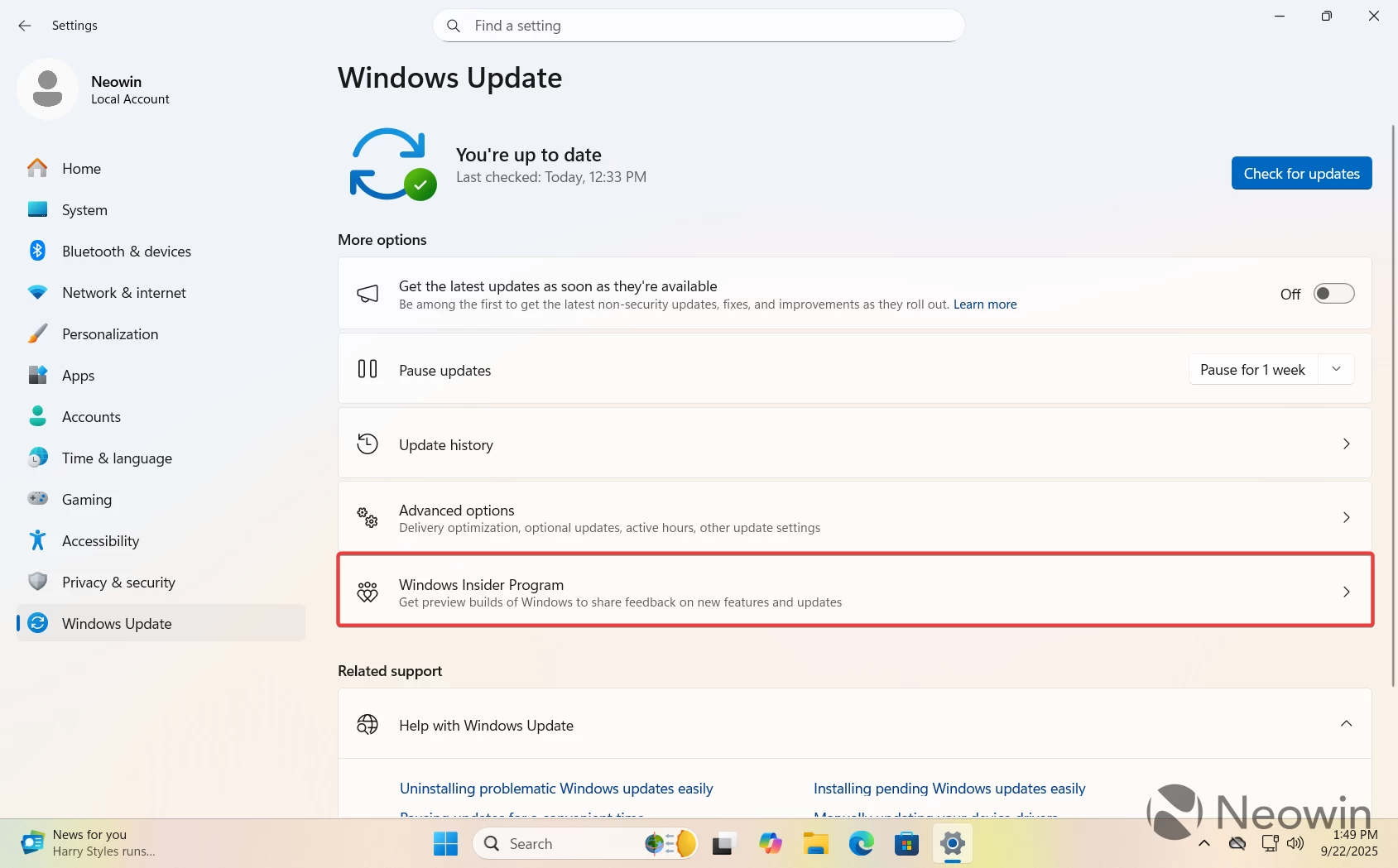
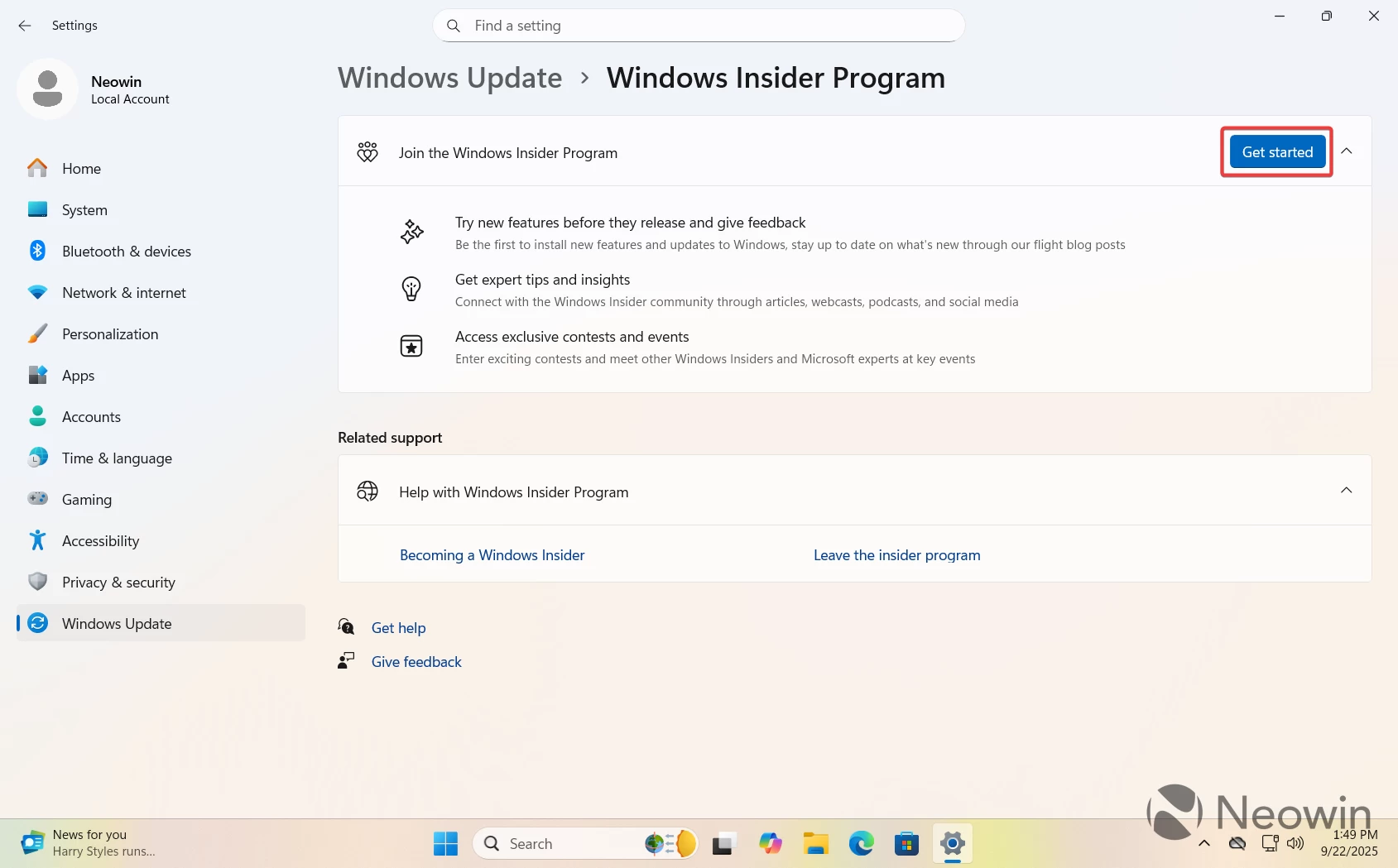
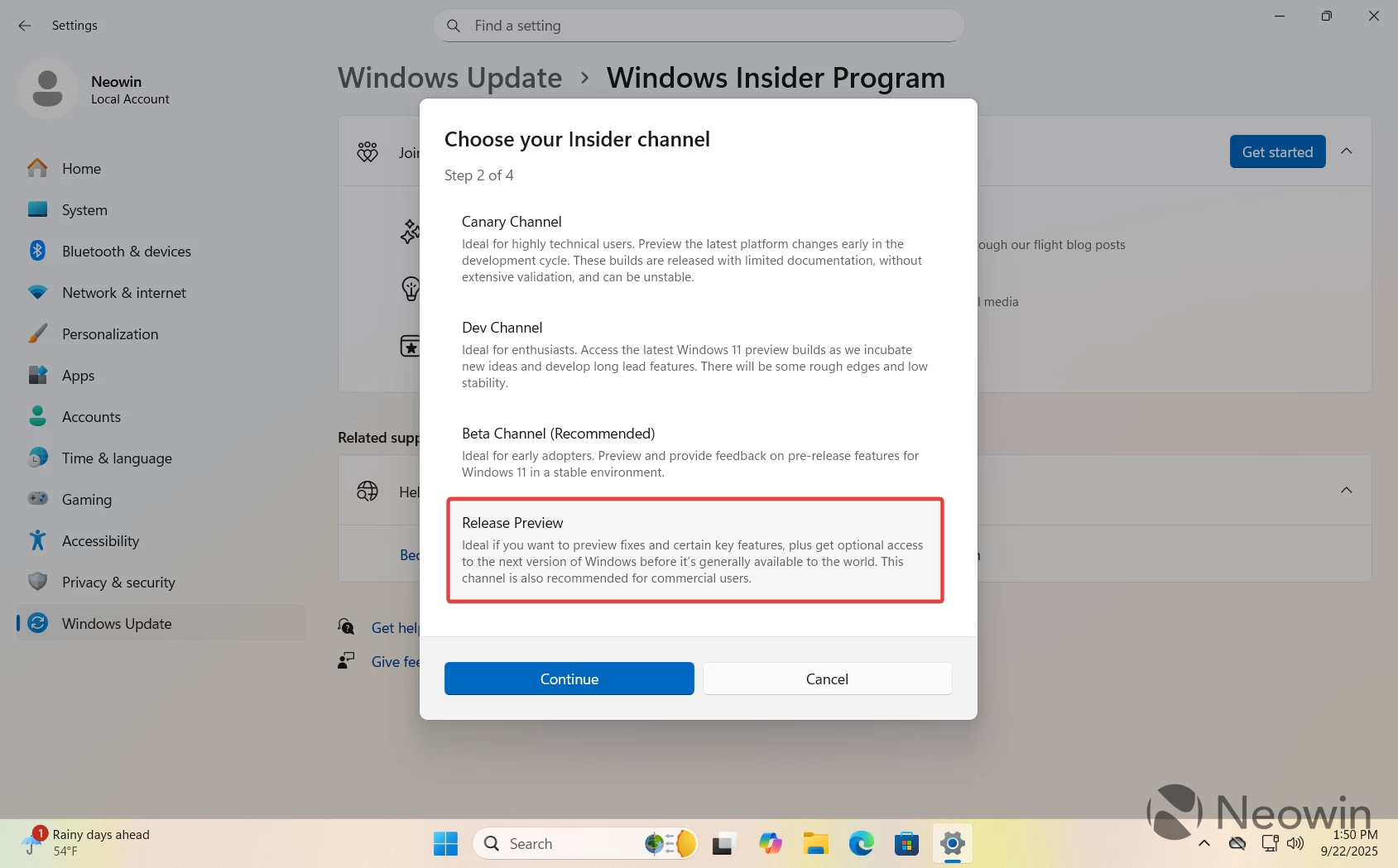
Once on Windows 11 version 25H2, you can stay in the Release Preview Channel until Windows 11 version 25H2 is out. Alternatively, you can leave the Insider program now. Your PC will be getting all the servicing updates for version 25H2 from now on.
Method 3: Seekers
Now, here is how to download Windows 11 version 25H2 once it is at the second stage, available as a non-security update outside the Insider program. At this point, you do not need an ISO or Microsoft Account to install Windows 11 version 25H2:
- Go to Settings > Windows Update and toggle on the "Get the latest updates as soon as they are available" option and confirm your choice.
- Click "Check for updates."
- The Settings app will show you a banner that Windows 11 version 25H2 is available for download. Click "Download and install."
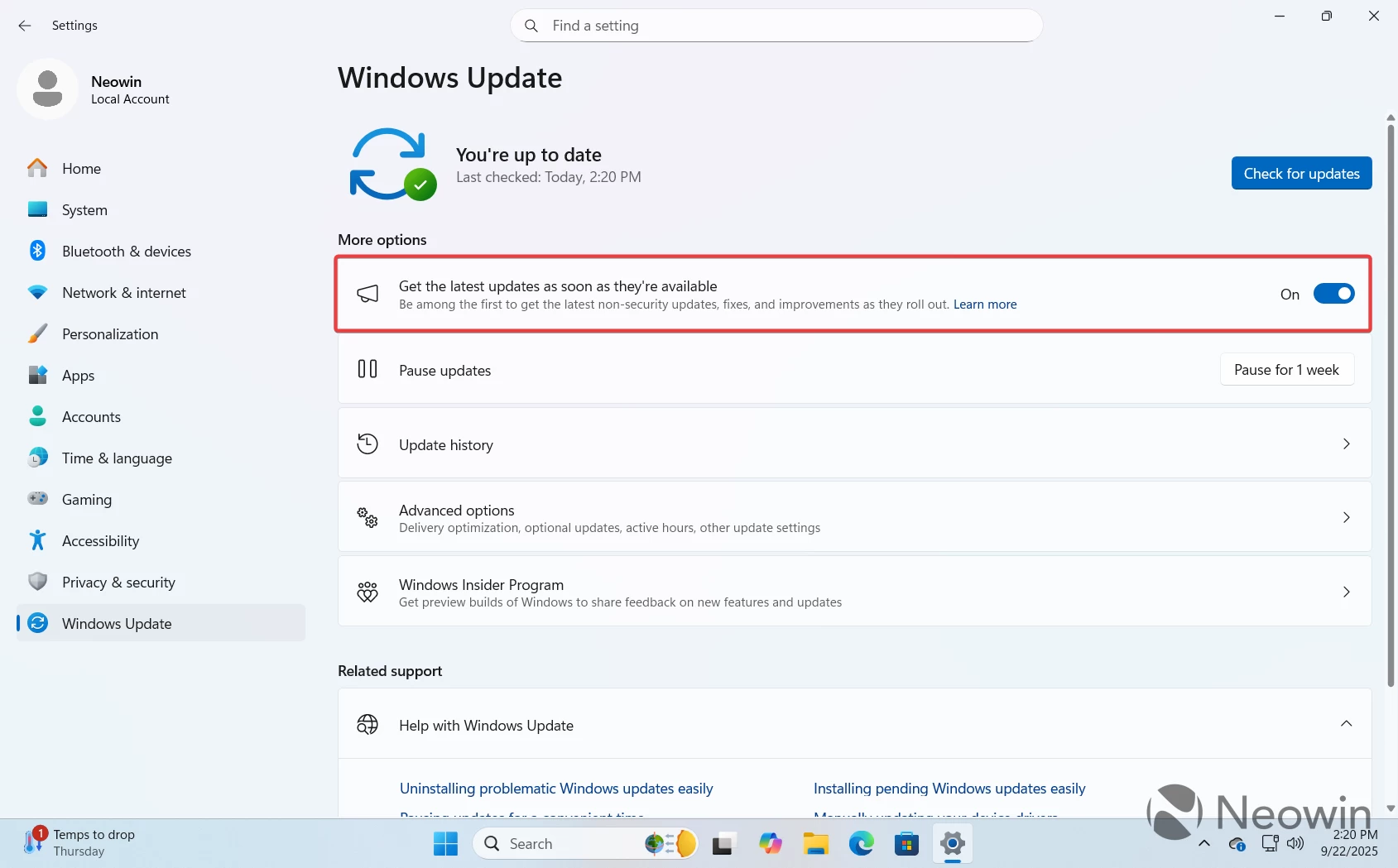
That is how you download and install Windows 11 version 25H2.