We recently reported on the announcement of the MX Master 4, and here it is in the flesh, ready to be inspected against the MX Master 3S. At £/$119, it does not come cheap; in fact, it is as expensive as many high-end gaming mice sporting 8K sensors and other premium features, even though the Master 4 still has a 125Hz polling rate and houses the same sensor tech. More on this later.
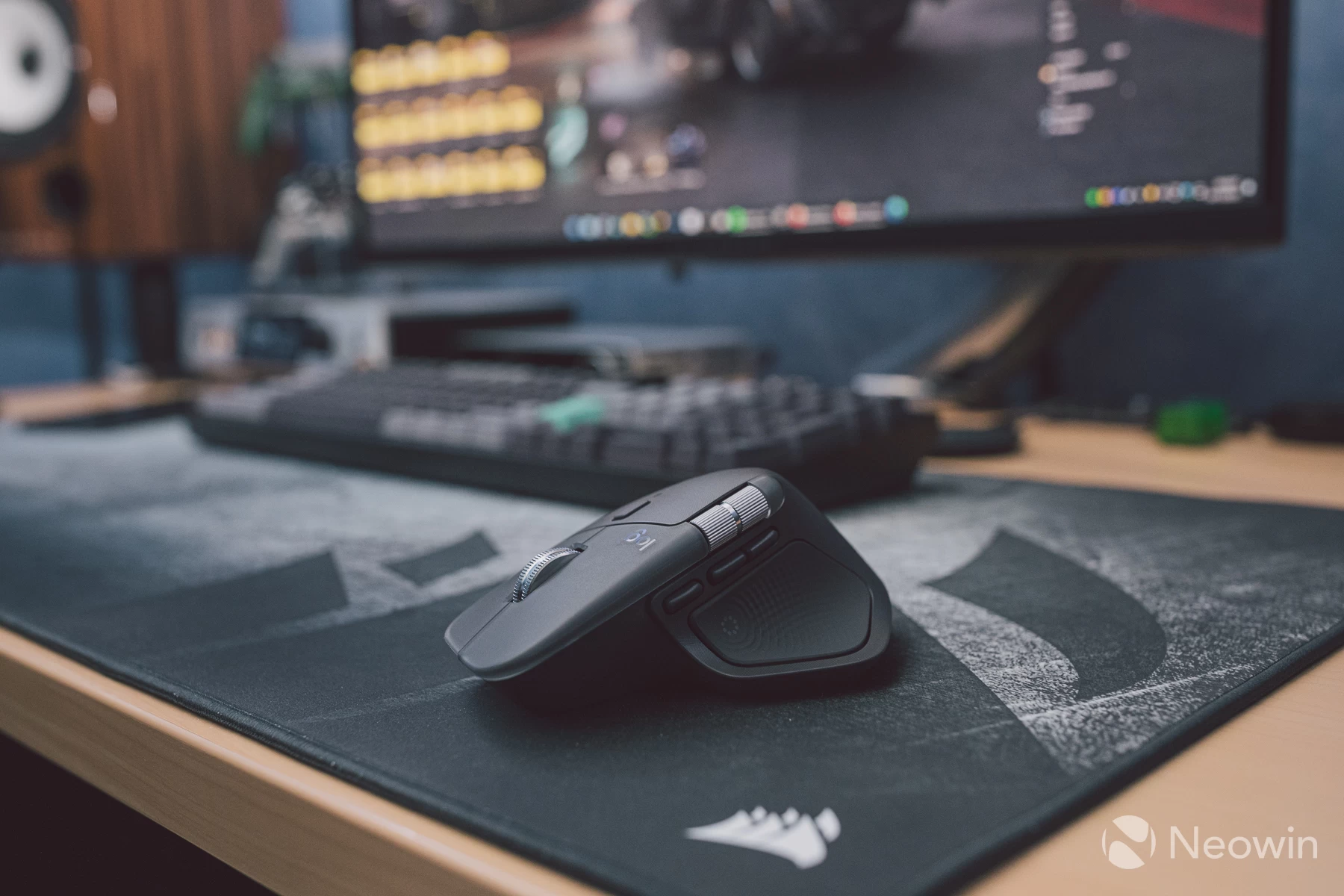
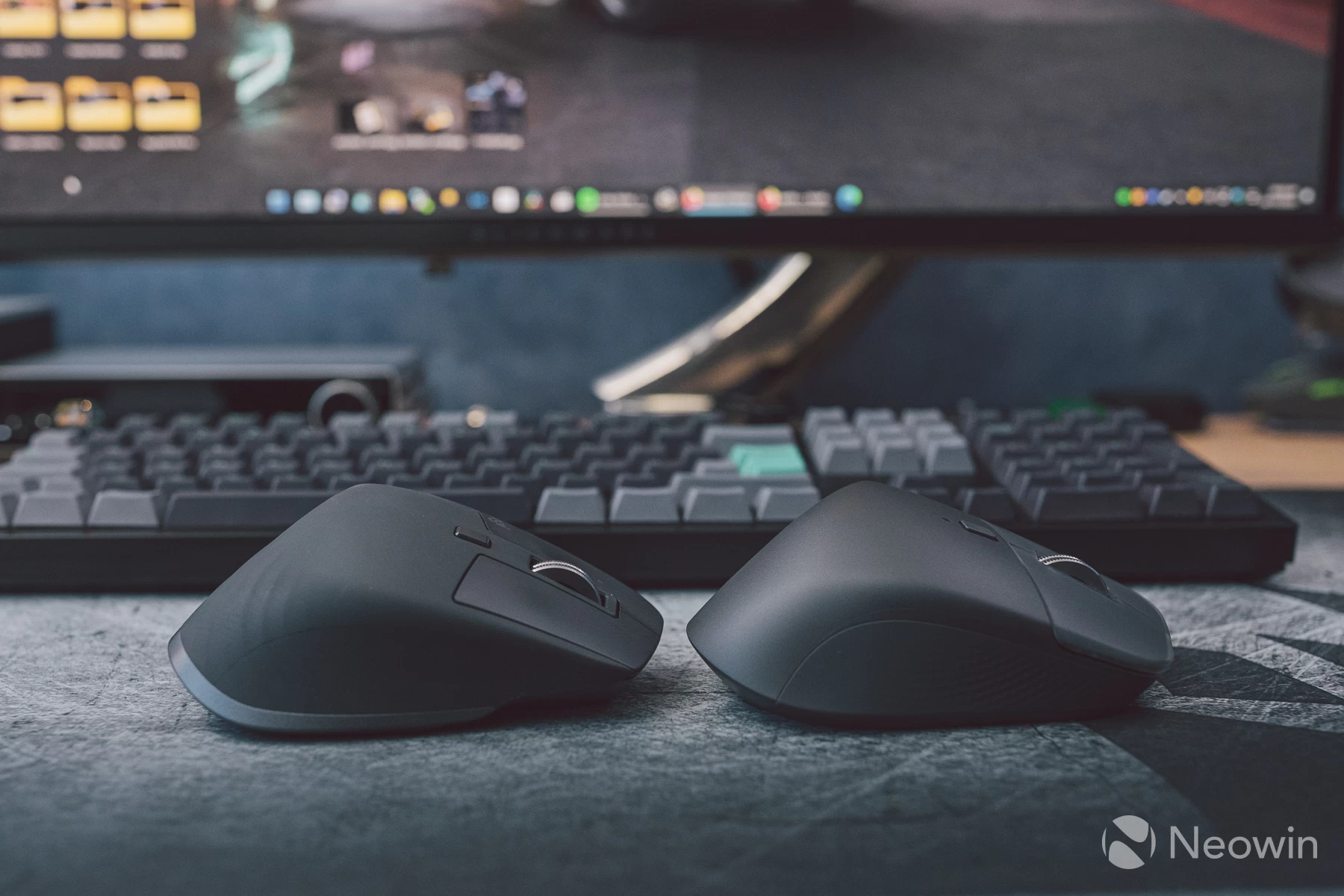
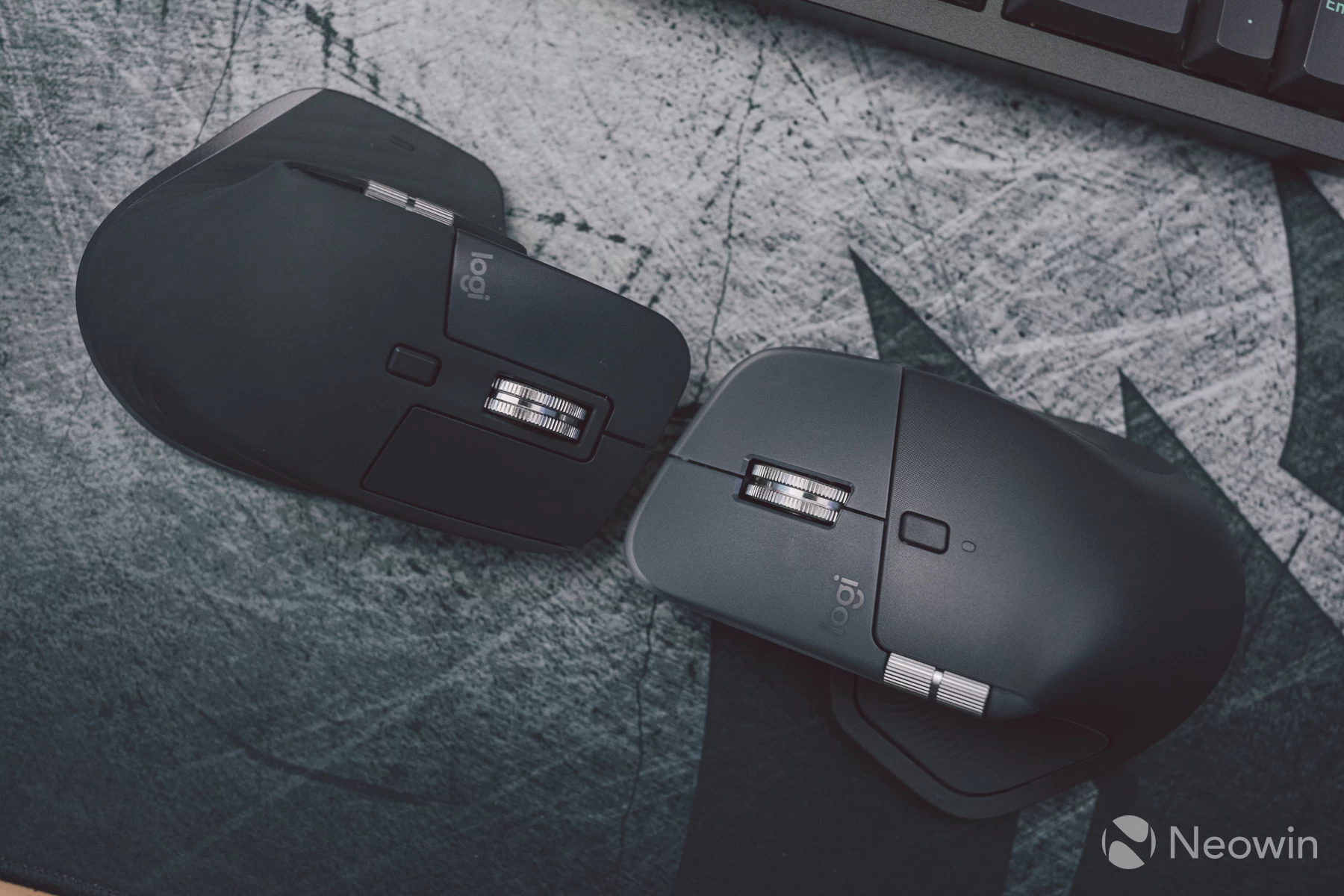
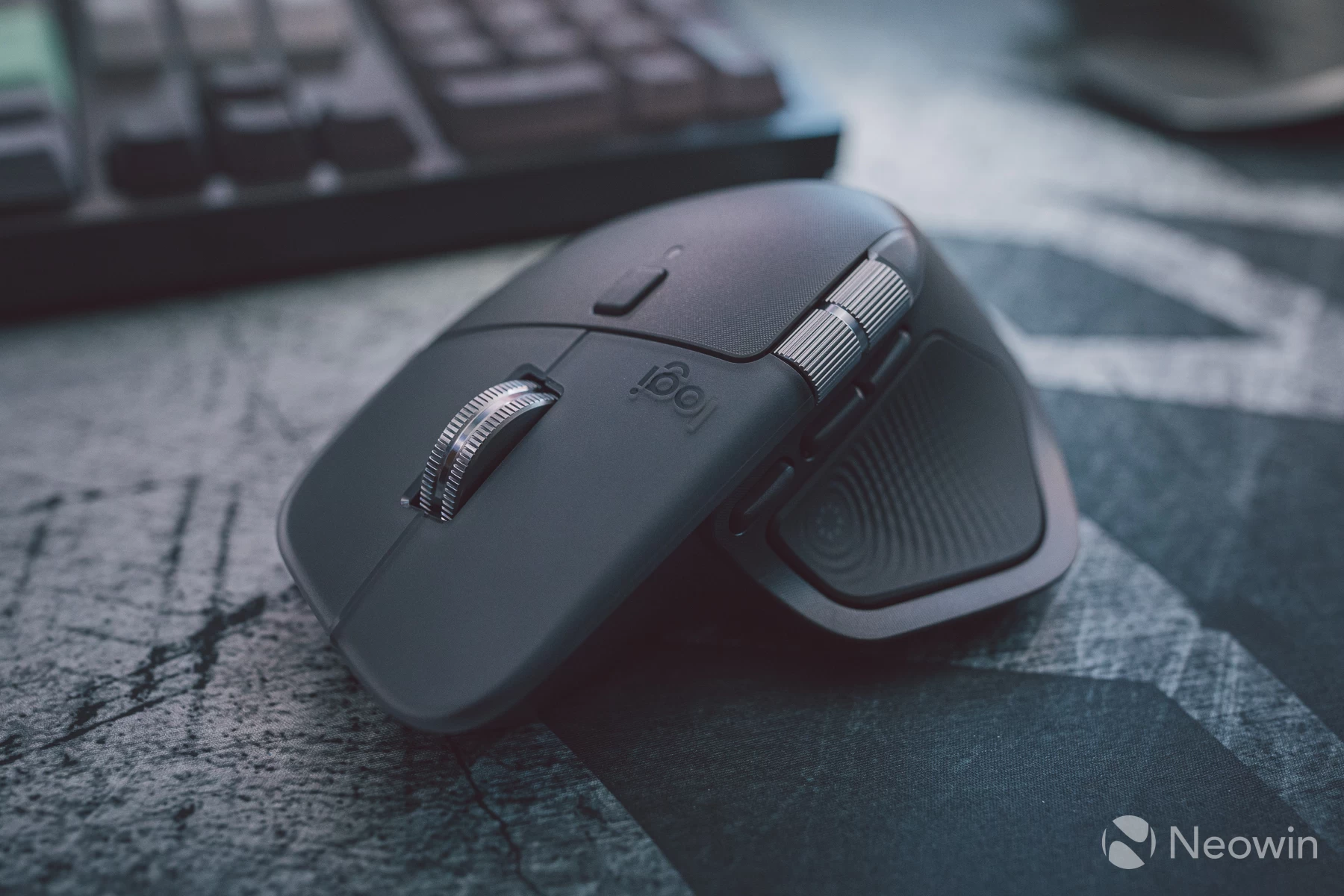
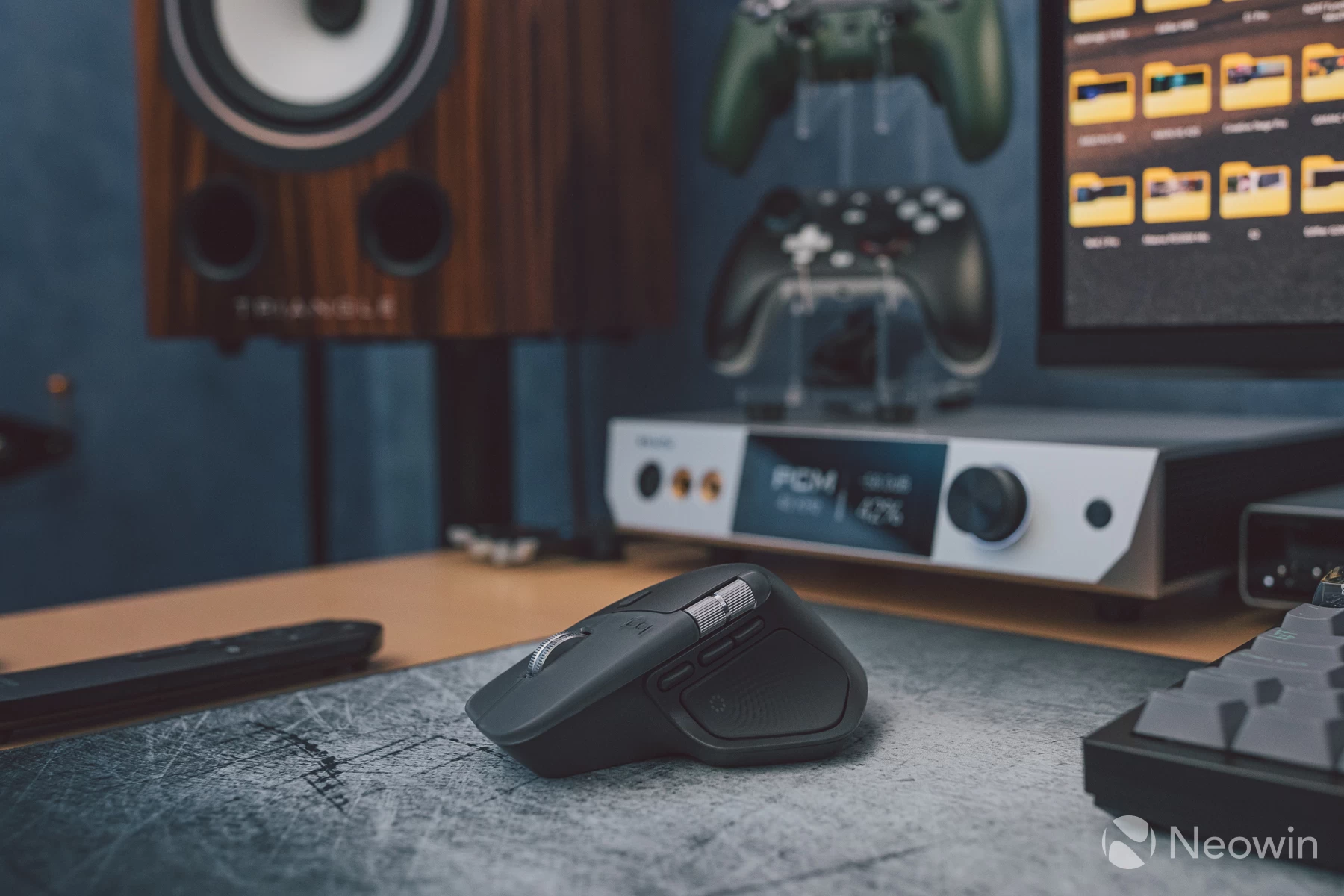
What we do get, though, is a much more refined fit and finish. The use of textured high-quality plastic on the main housing instead of the rubbery coating of old is very much welcome, no more getting sticky as it ages.
The main mouse buttons see a redesign as well, with the contact surface being a thick translucent layer that is also textured. It feels like it will not wear and go shiny with heavy finger traffic over the course of a single year, like the MX Master series has all done up until now.
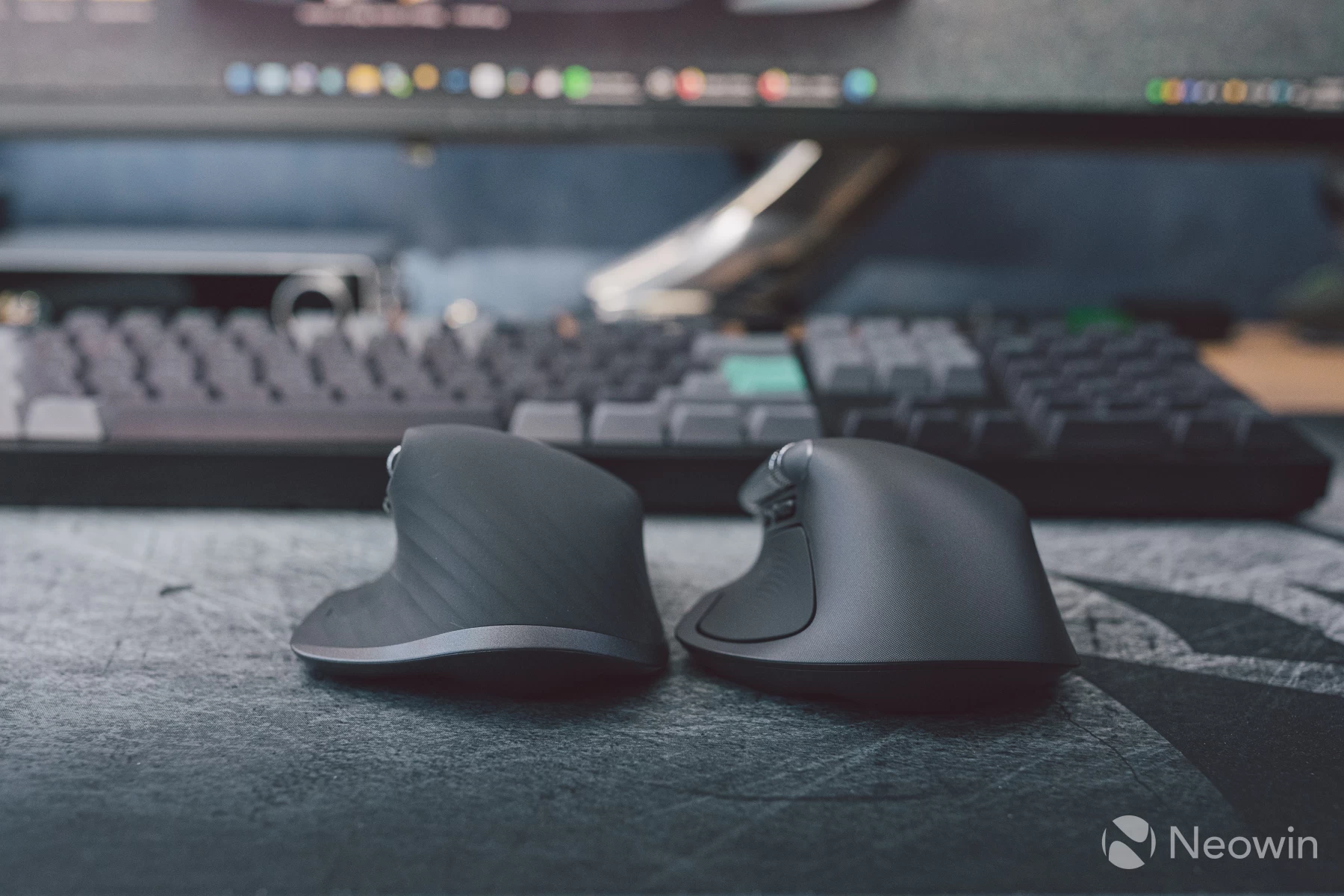
The side grips are now high-quality silicone, the type that feels like a kitchen spatula used to turn an omelette, the type that virtually never wears out.
This is actually my personal mouse, bought out of chance, with no prior intention to. My MX Master 3S developed a button fault, and Amazon offered a full refund, so I leveraged this chance and "upgraded" to the new model. Prior to that, I also owned the MX Master 3 and 2S, so my hands-on experience with the Master series spans several years in a pure productivity use-case setting. Don"t worry, my gaming needs are covered by a dedicated gaming mouse, the Pulsar X2 CrazyLight.
| Sensor | Darkfield high precision |
| Resolution | 200 to 8000 DPI |
| Number of buttons | 8 |
| Polling Rate | 125Hz |
| Dimensions | Height: 128.15 mm |
| Battery | 100% recycled Cobalt 650 mAh 70 days per charge Can be used whilst charging |
| Materials | Silicone, ABS plastic, low-Carbon Aluminium (wheel) |
| Weight | 151 g |
| Connections | Bluetooth, USB-C (charging only), Logi Bolt 2.4GHz via USB-C dongle |
| Cable | None |
| Features | Haptic feedback engine |
| Colours | Graphite / Pale Grey / Space Black / White Silver |
| Price | £119 / $119 |
Materials and feel
The MX Master 3S and 3 both employed a rubbery coating for all areas of the upper housing that contacted the skin. This coating would often become worn and sticky over a short space of time. To mitigate this, I would end up cleaning my MX3 on a weekly basis to keep it looking somewhat fresh still.
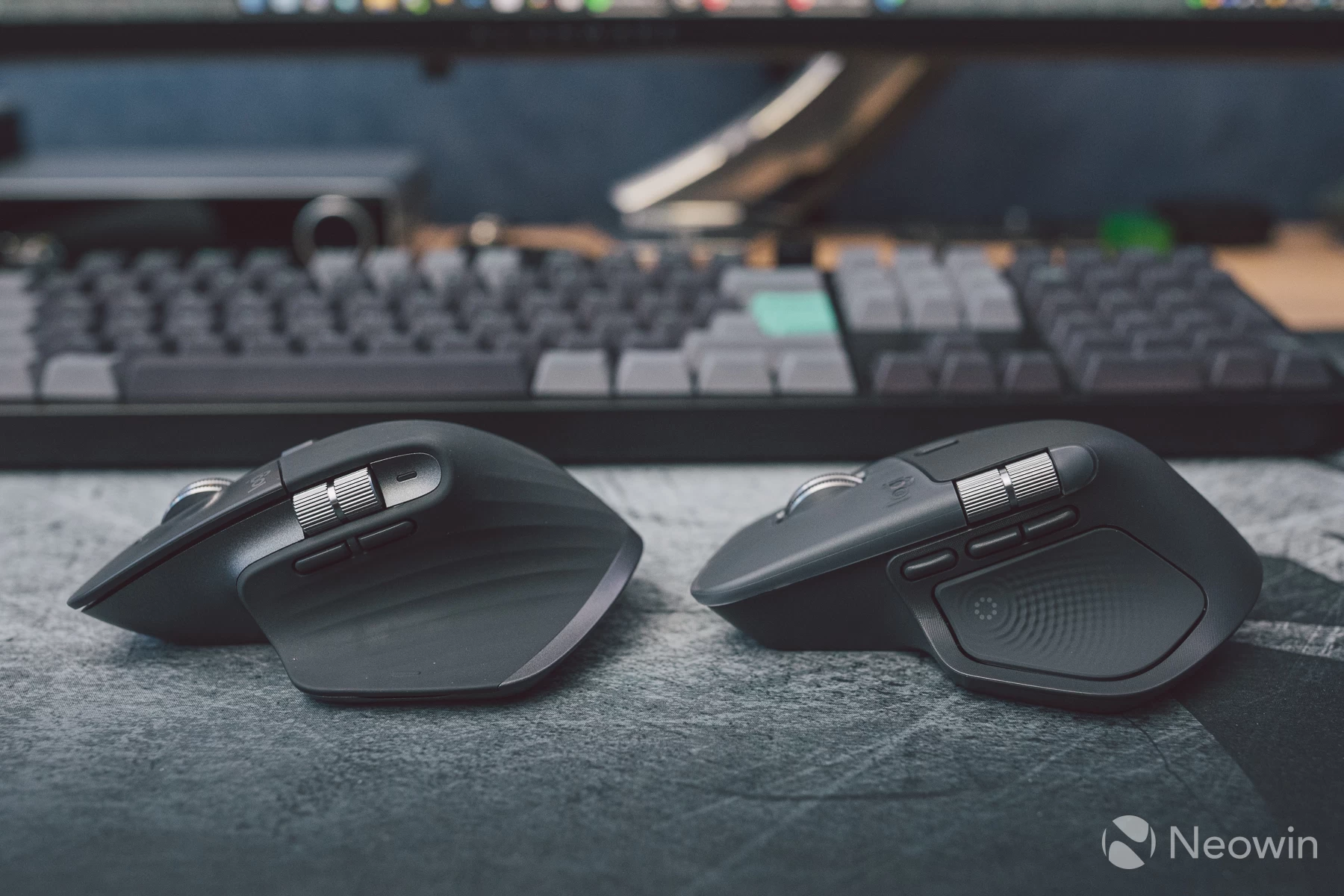
The mouse button plastic, though, is another story. The plastic finish is weak, and the heaviest contact patch from pressing would wear away and become shiny. My 3S is only a year old, and there were signs of this just 7 months in of daily use.
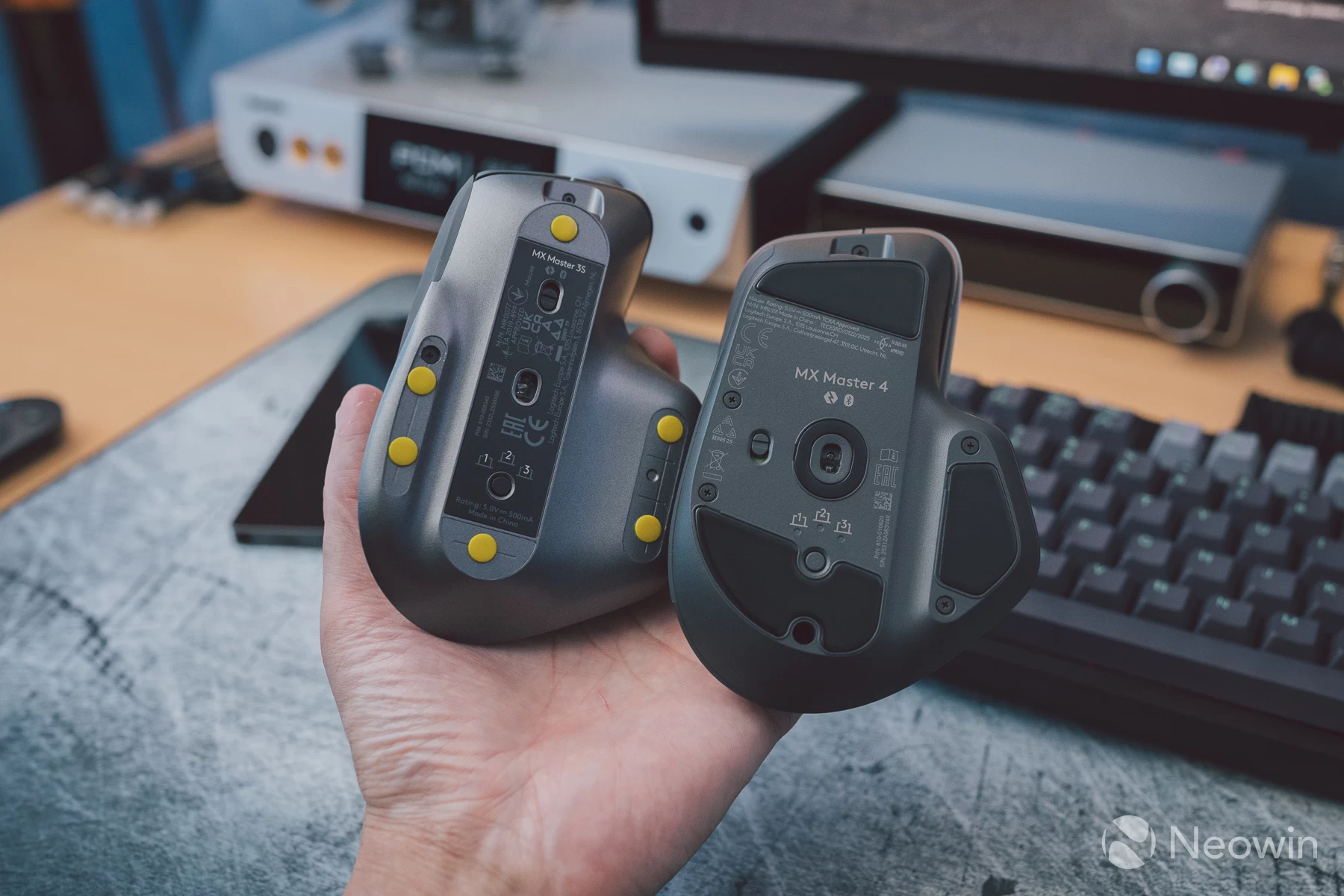
The underside sees the other big change with visible screws, which aids repairability whilst keeping the skates intact. This is great to see as the Master 4 uses materials that are either mostly or wholly recycled, such as the 100% cobalt battery and up to 54$ recycled plastics and eco-friendly Aluminium for the wheel.
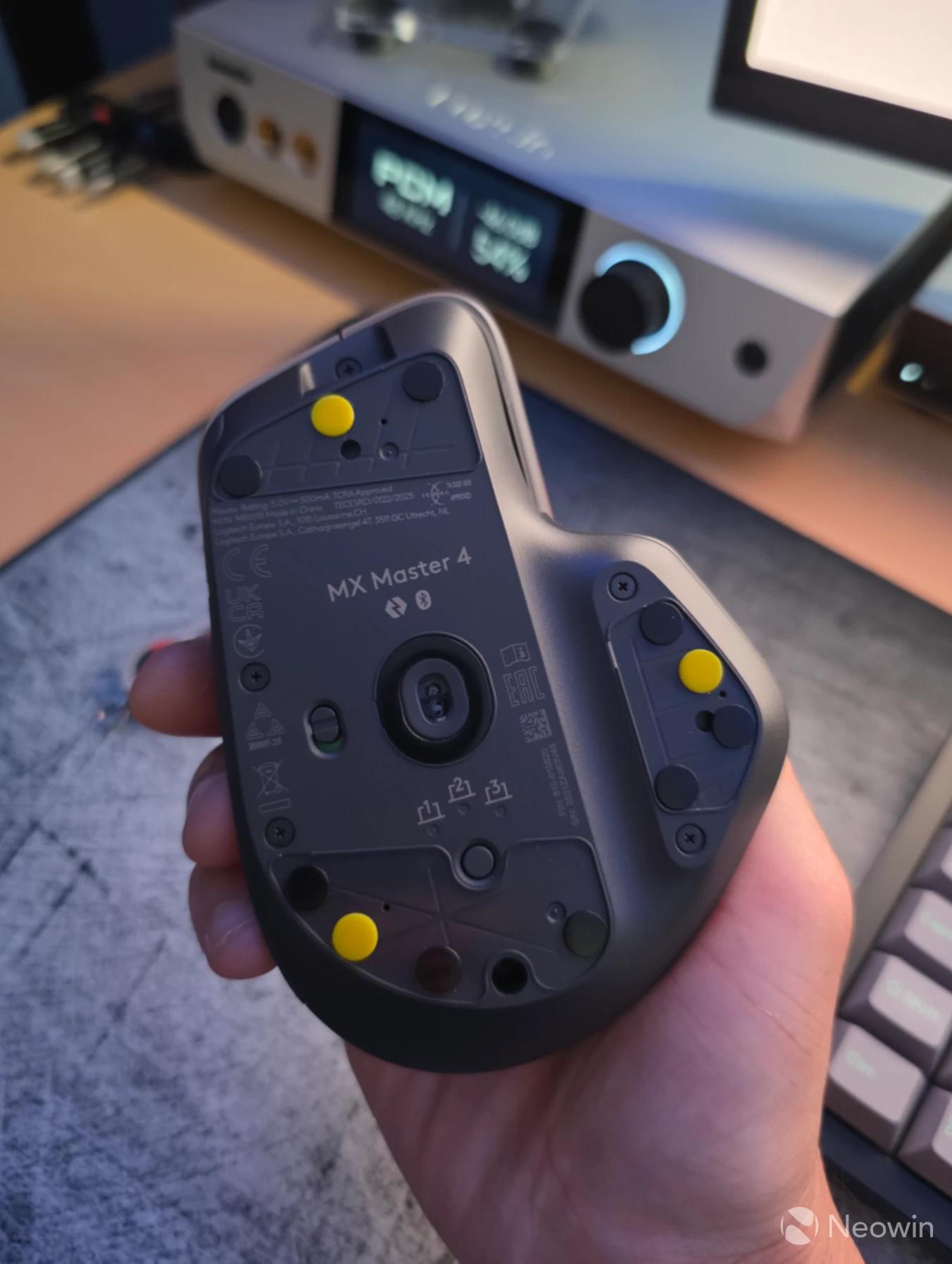
I did however swap out the stock skates with my personal skates of choice, UHMW-PE glide dots by Wallhack Pro (yellow) and Pulsar Gaming Gears (black). I have never been a fan of Logitech skates, they seem to age poorly and due to the weight of the MX Master series, having skates that glide effortlessly is a noticeable improvement in the mousing experience. It is a shame Logitech has not improved in this area.
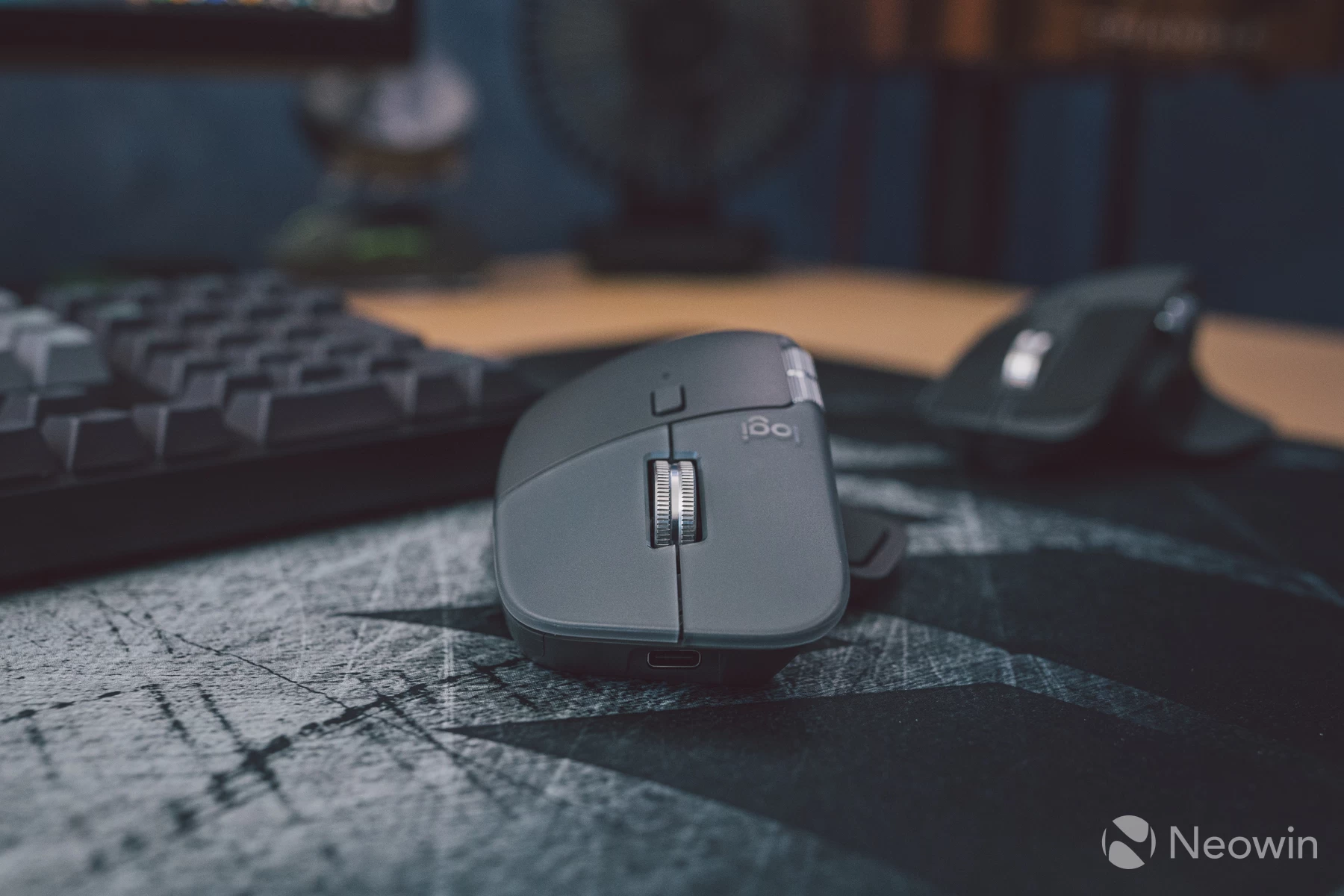
Since the Master 4S comes with the updated USB-C Bolt wireless dongle, which Logitech says offers more power for a better connection in congested environments, a place to store it is not immediately obvious... Thinking outside of the box a little shows that there is a storage area in the form of:
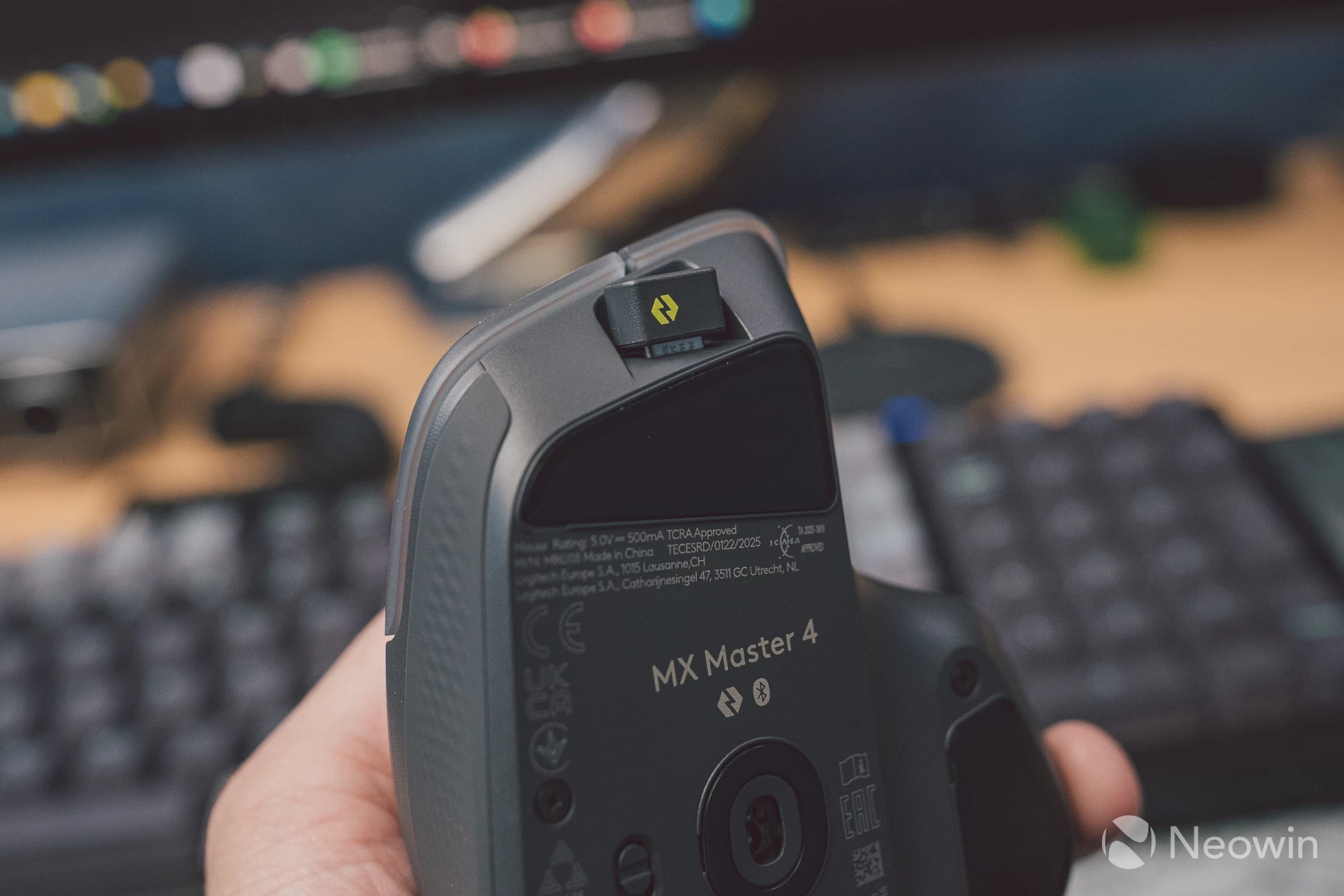
Bear in mind also that the USB connection is for charging only. The dongle needs to be connected to a computer at all times, unless Bluetooth LE is being used.
All the use of quality materials and the inclusion of the haptics engine mean the Master 4 comes in heavier than the 3S, measured at 151 grams. It is a bit of a chonk, though in this form factor and ergonomic shape, it makes the weight manageable, just like the 3 and 3S before it.
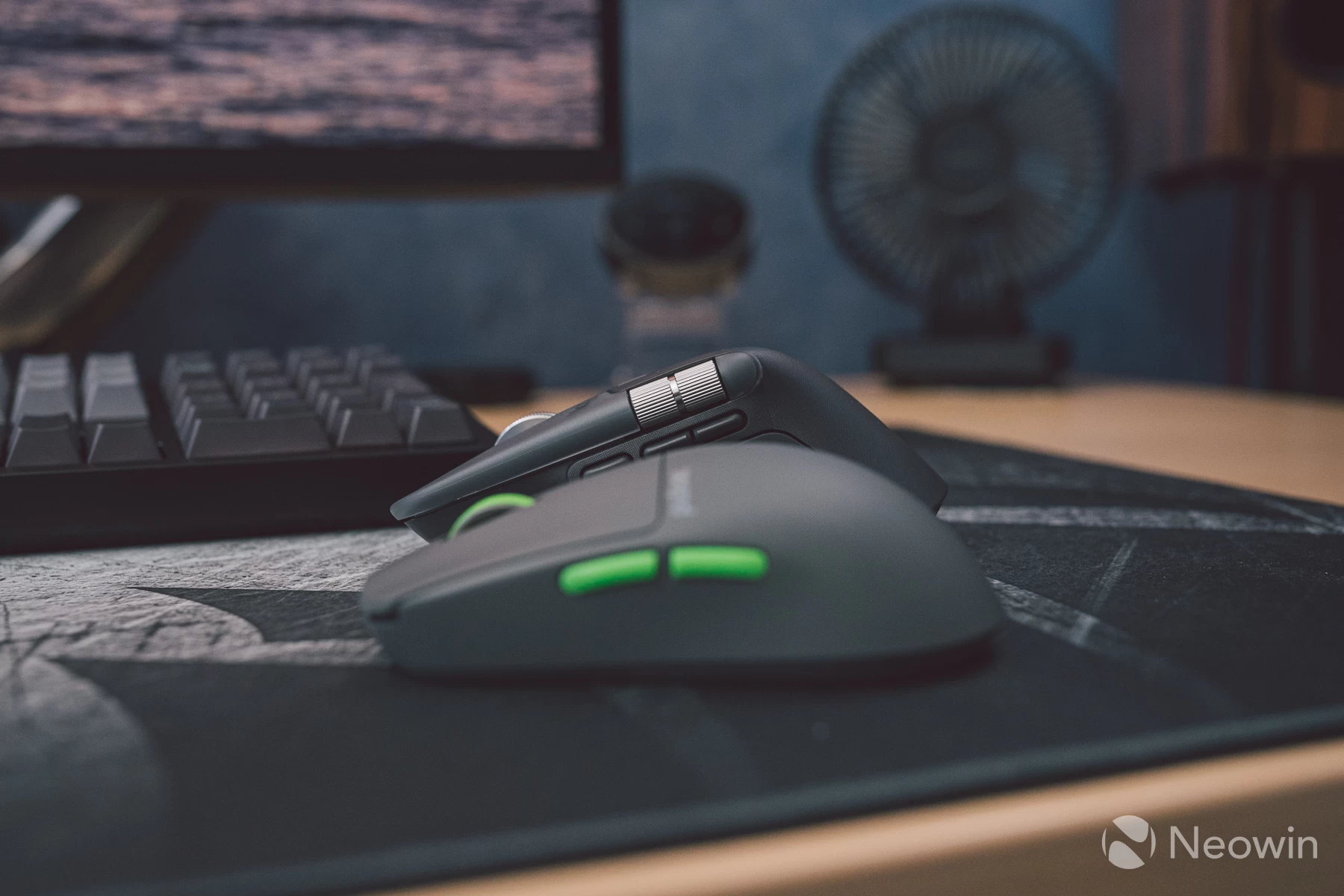
Compared to a regular medium-sized mouse, it sits a lot taller, but as mentioned, ergonomics are nicely thought out, and my 19cm hand is able to both claw and palm grip it without issue. The placement of the side buttons also feels fine for me.
The side buttons use the same tactile clicky switches as on the previous MX. The main buttons are also the same silent switches, though this time round, Logitech has quietened the press that little bit further.
Software: Options+
Logitech"s companion software is needed to customise the MX series devices, and since there is no on-board memory, the Options+ software handles all customisations. Without it running in the background, the mouse is just a standard mouse.
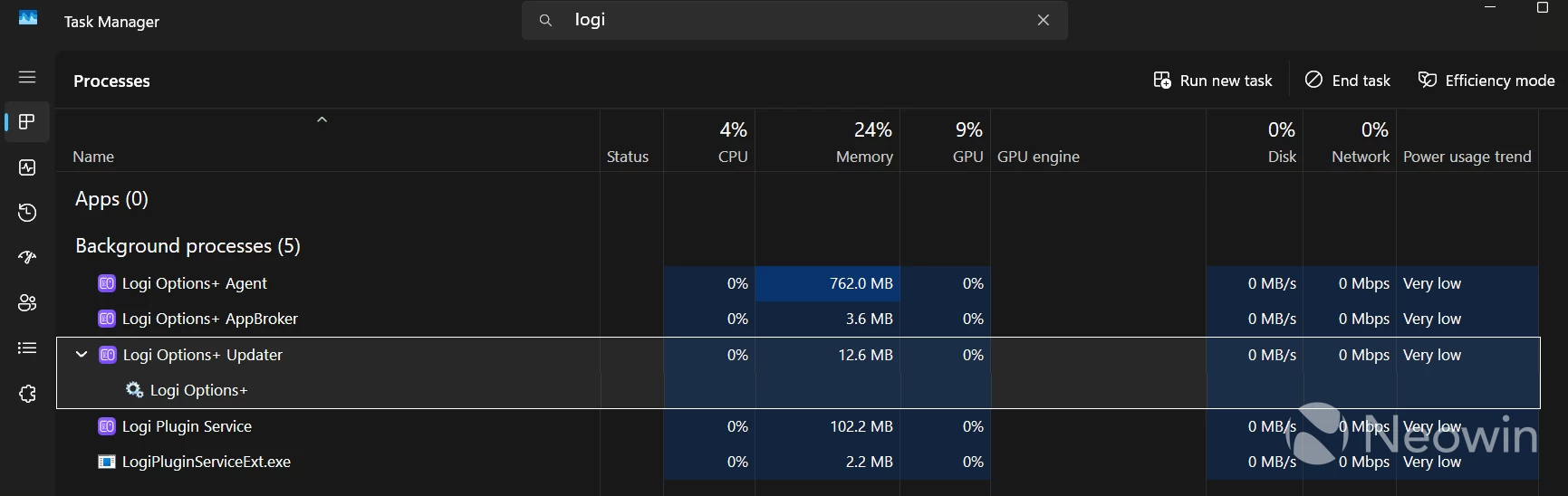
The software is relatively friendly on resource and power usage. Some will still call it bloat, but in my opinion, it does the job well, has never crashed or eaten through memory and CPU time.
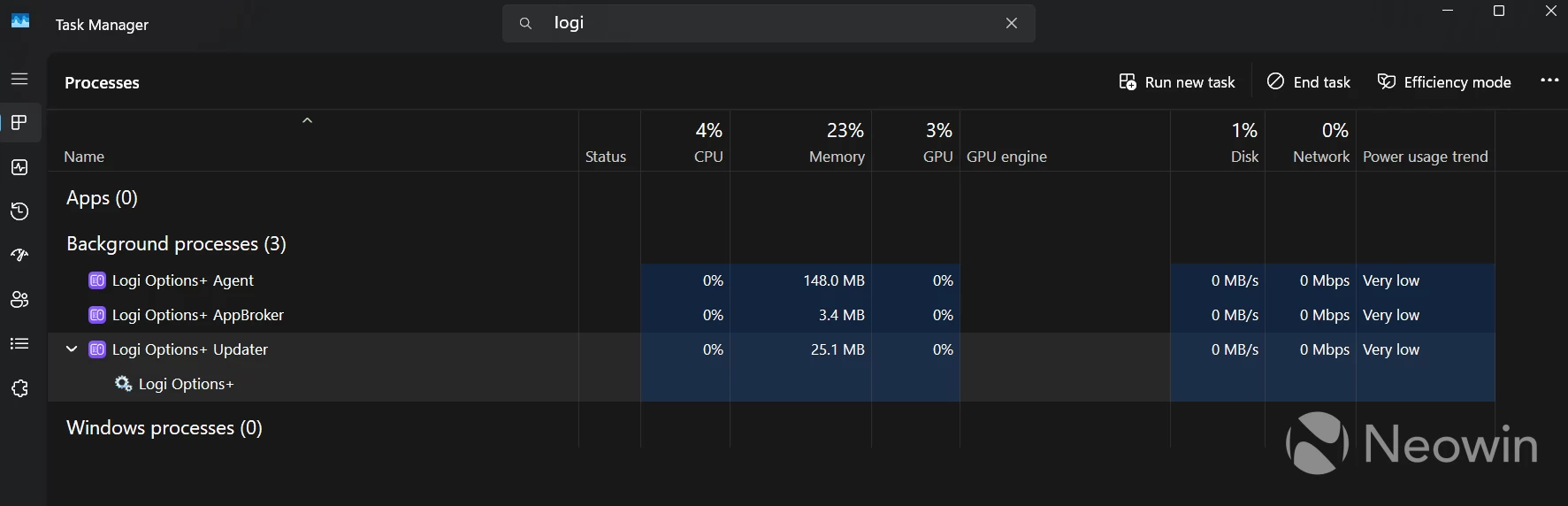
Update: Just to clarify, the above is with the Options+ front-end loaded up. With the app closed and simply running in the background, this is what the memory footprint is like:
Here is what the key screens within Options+ look like when configuring the mouse:
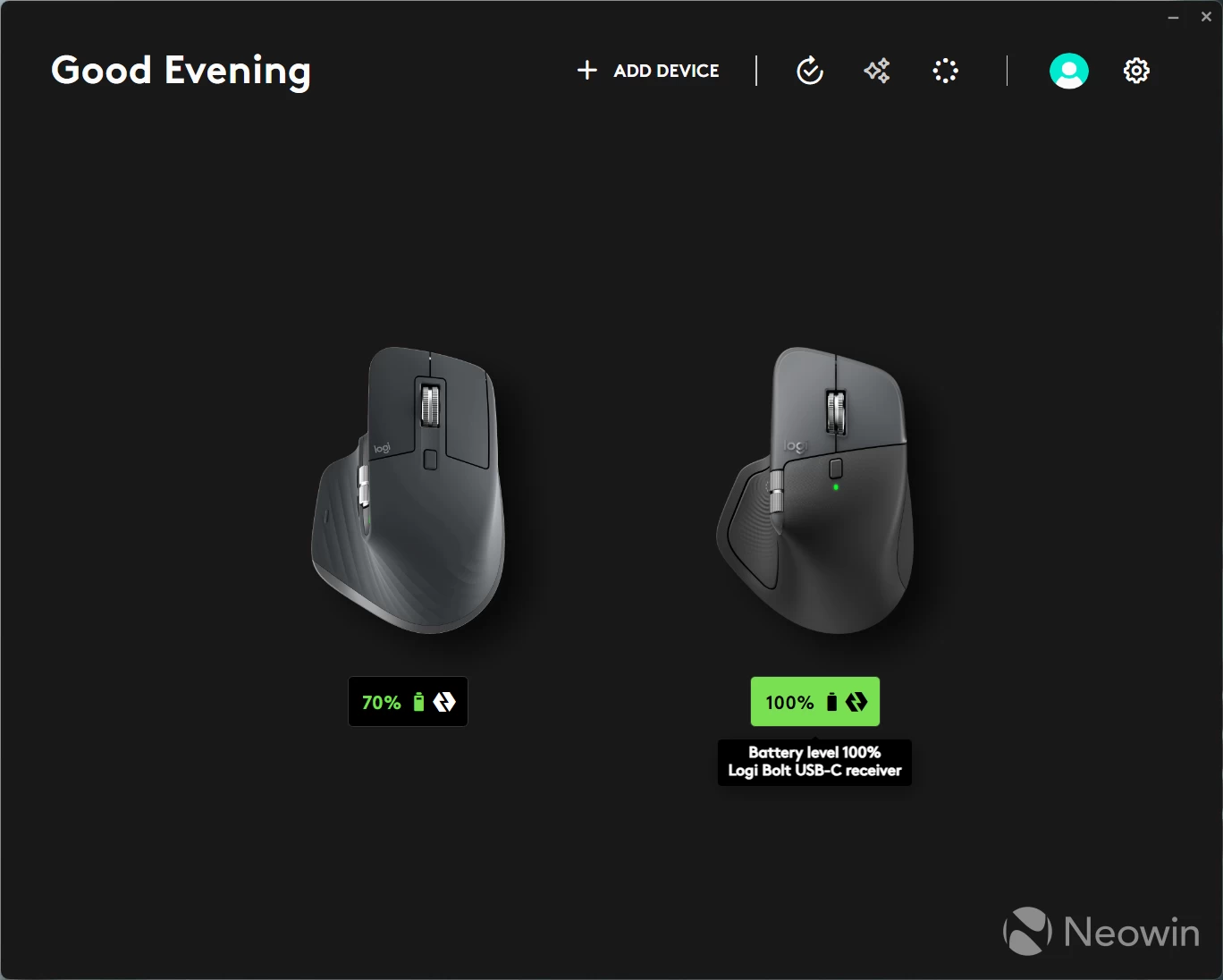
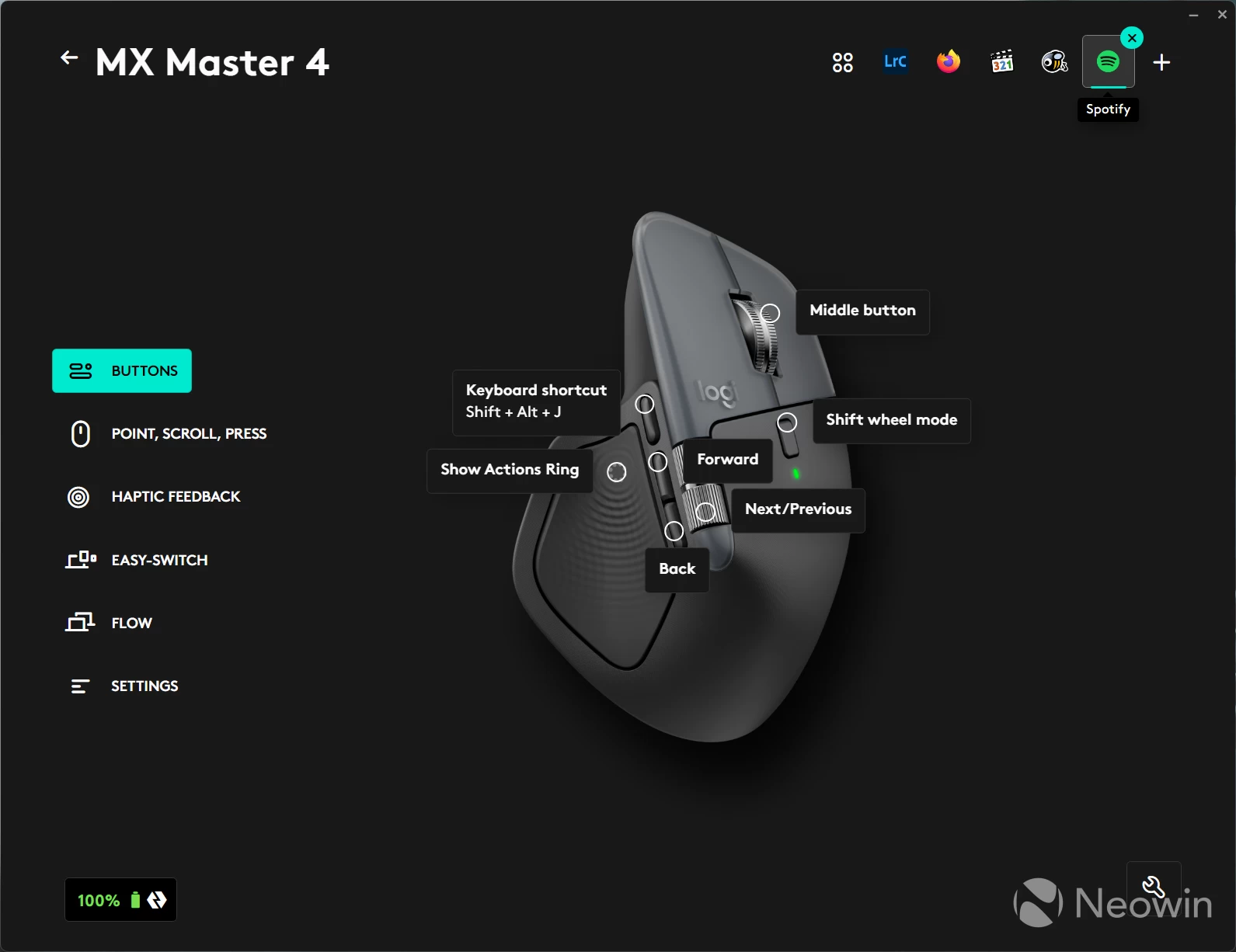
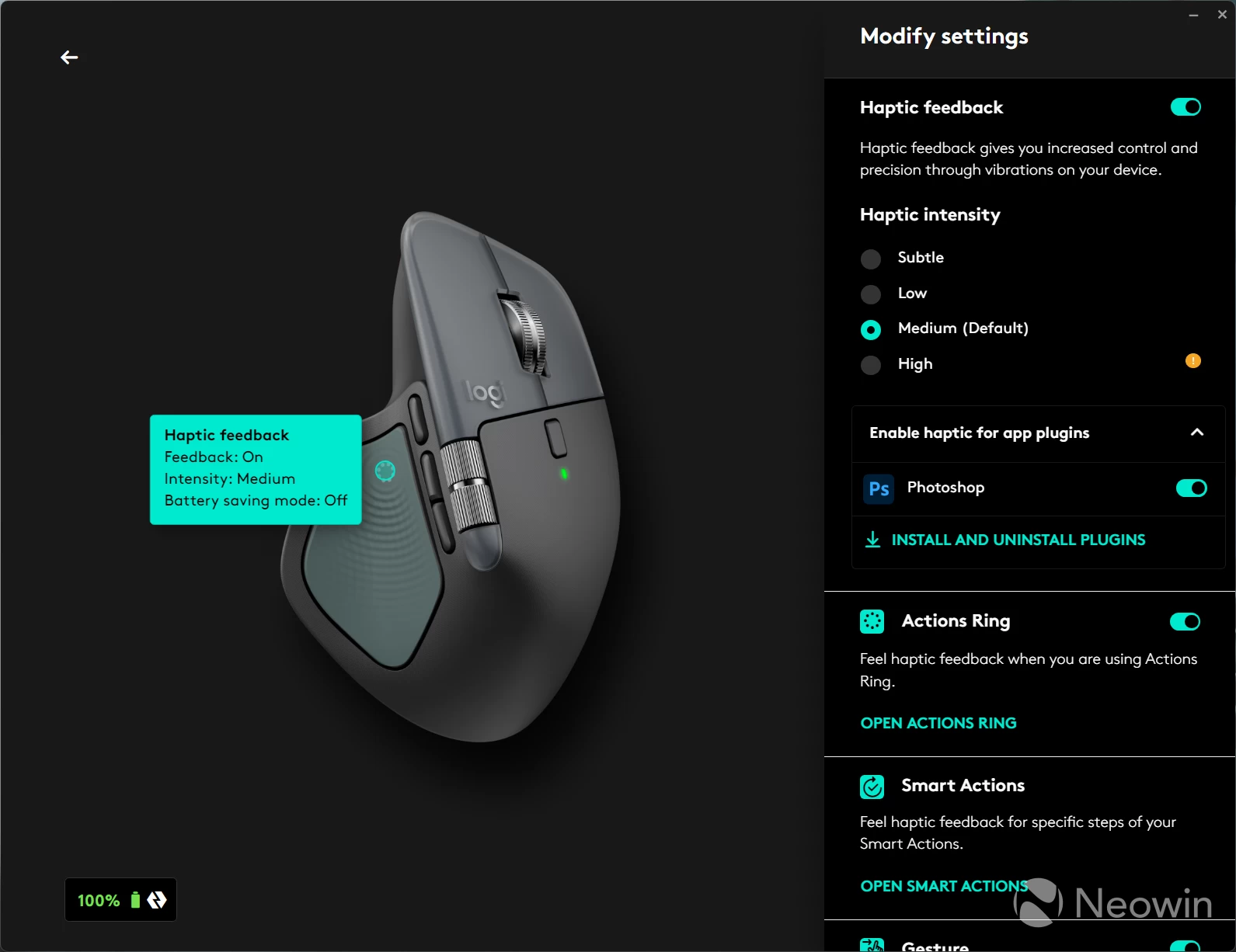
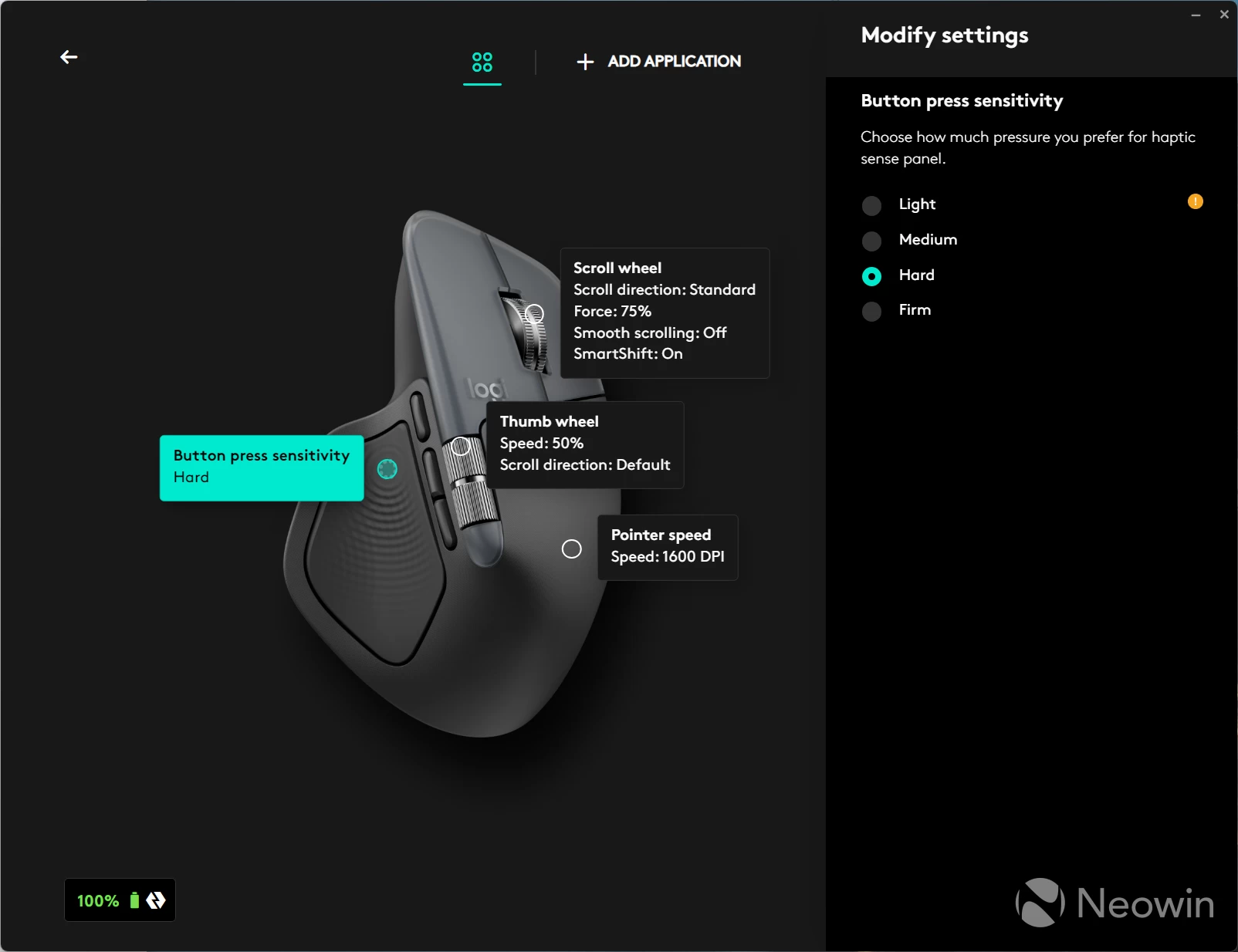
Adding and configuring is super-easy, whether you have the updated USB-C Bolt dongle or the original Type-A one; everything is stored in software and synchronised to Logitech"s cloud system once you log into your Logi account. I remember when the suite was SetPoint, rife with bugs and frequent crashes. Options+ is a full rewrite that just works.
The Action Ring feature is not entirely new; the Master 4 makes better use of it via a dedicated button, which is the pressure-sensitive touch area under the thumb. Action Rings can be enabled for previous mice, too, that are supported by Options+; you will just need to remap an existing button to call up the rings menu and lose whatever was mapped to that button originally.
This feature allows you to add orbs that do specific actions within apps or general global actions outside of apps. It works quickly and animates smoothly, so no complaints here, really, in how it has been implemented.
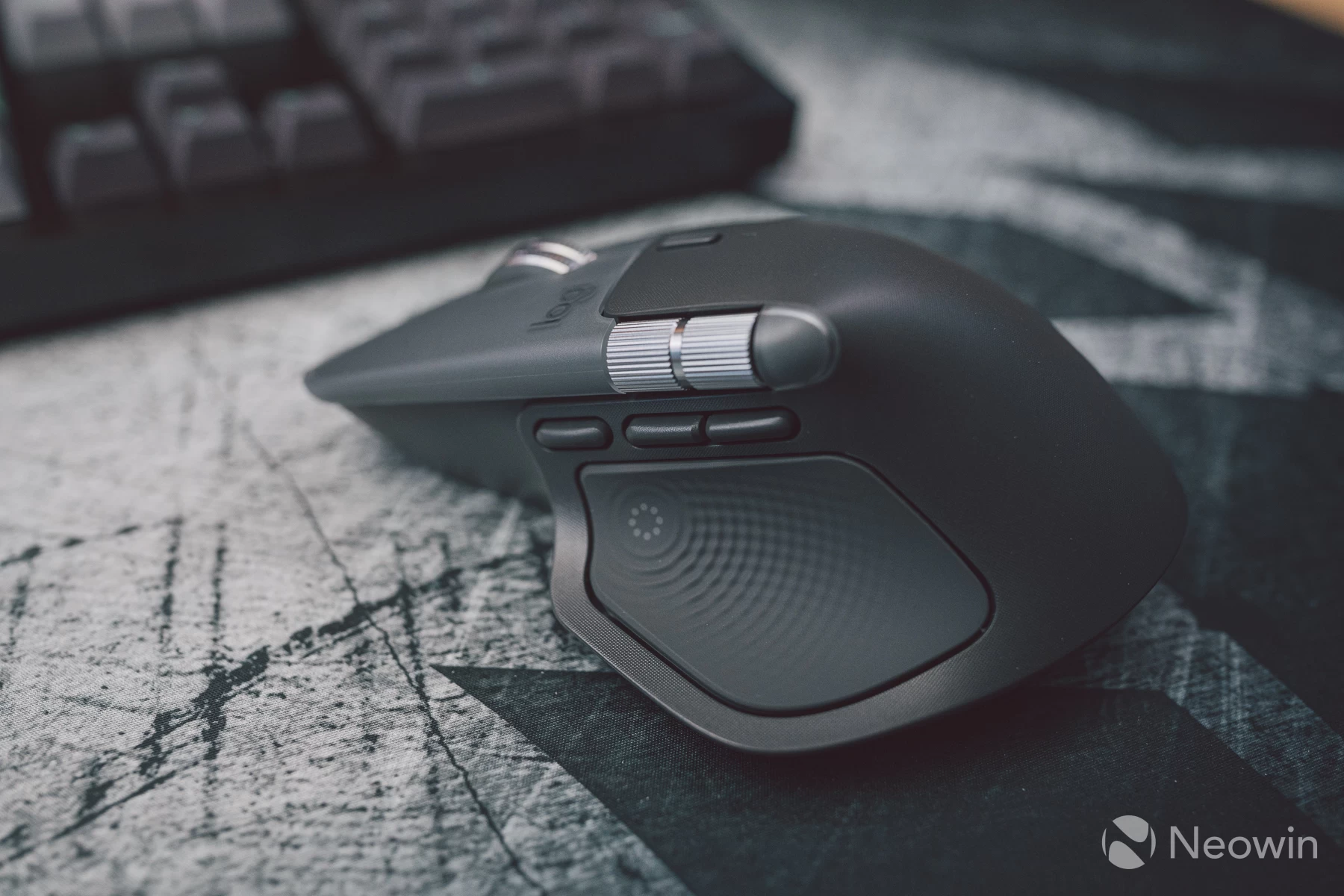
The haptics are felt through the thumb as you click and hover around the rings, the quality of which feels like that of a flagship smartphone or PS5 DualSense controller. The only downside is that the engine only works best with the Action Ring feature and a very small number of applications, currently limited to Adobe Photoshop, Lightroom and Davinci Resolve via installable plug-ins from within Options+.
I found using this feature quite useful, although within a day, the novelty did wear off, and I returned to using my keyboard shortcut muscle memory. Maybe those who are new to Options+ will like it more.
I then remapped the thumb pressure button to make use of per-app functions, leaving the new extra button in front of back/forward to be remapped to WIN+V, which opens up the Windows 11 clipboard/emoji panel, which saves some finger gymnastics on the keyboard.
Repairability
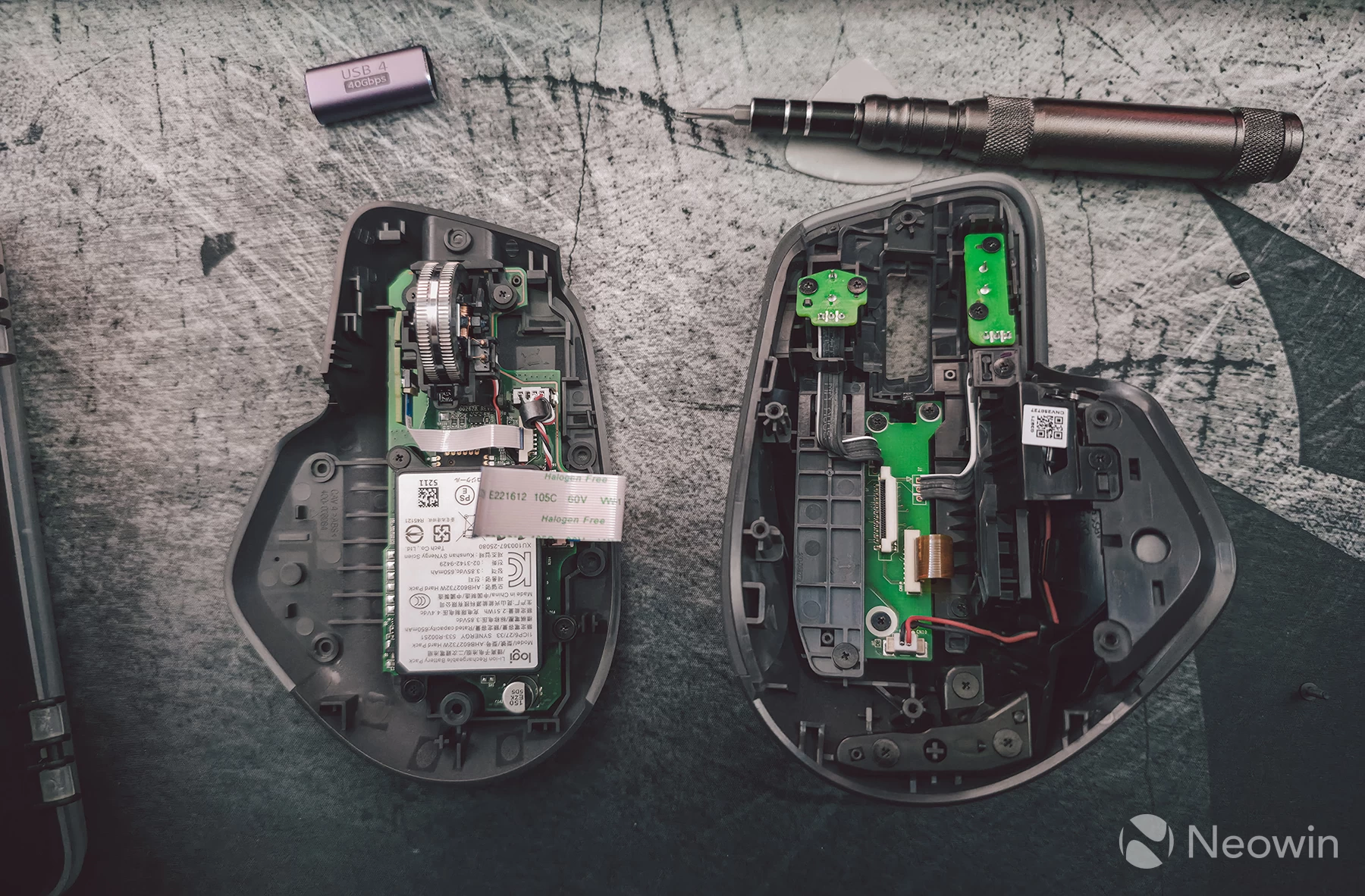
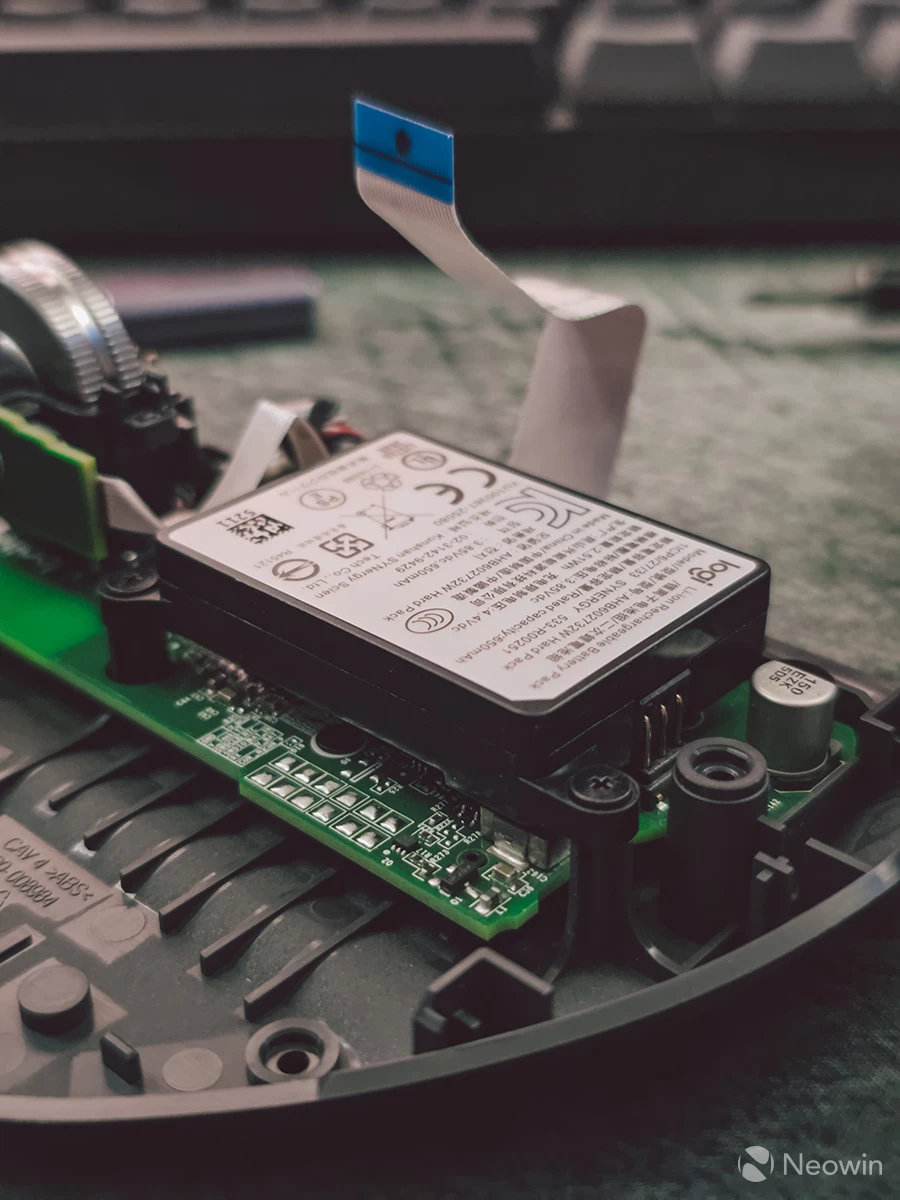
In an unexpected move, Logitech chose to not hide the screws underneath the mouse skates, this hints at the ability to self-repair your Master 4 down the line should you need to replace the Cobalt battery or other component.
For those interested in seeing what the wheel area looks like, here is a quick b-roll clip:
I found it easy to open up and inspect the insides, the primary ribbon cable visible connects the top half of the mouse housing the haptic motor and silent switch PCBs. The bottom half contains the motherboard, wheel assembly and removable battery.
Conclusion
I have not touched on performance in this review as there is nothing new to report here. The Master 4 performs exactly the same as the Master 3 and 3S, using the same Bolt wireless technology or Bluetooth LE. The sensor is the same, the polling rate is the same, so there is little need to cover familiar ground.
What the MX Master 4 brings new to the table is much-improved fit and finish, along with a novel haptics system that "should" get expanded support via new plug-ins that get added to the Options+ built-in app-store as time goes on. There is no reason why the engine cannot be used in all other apps to give feedback when hovering over links, doing certain actions and so on.
It"s just a shame that in 2025, and after so long since the Master 3 launched, Logitech fell on deaf ears and didn"t implement a higher polling rate for smoother cursor motion on today"s high refresh rate displays. On an OLED panel, tracking a 125Hz cursor or window drag action with your eyes isn"t very pretty, but it"s a compromise that has to be made for the areas these MX productivity mice excel in.
I also wish that this came with onboard memory, because at present if I wanted to make use of app-specific button maps across multiple computers, then Options+ must be installed. This is not possible on work computers.
And then there is the price. Around £40 more expensive than the Master 3S, that is a hefty premium for only core upgrades in materials for the most part, because the haptics stuff and extra button, I suspect most would not be bothered about, in favour of higher polling rates and onboard memory.
The Master 4 can be bought from Logitech"s Amazon store, priced at £119 and $119.
As an Amazon Associate, we earn from qualifying purchases.