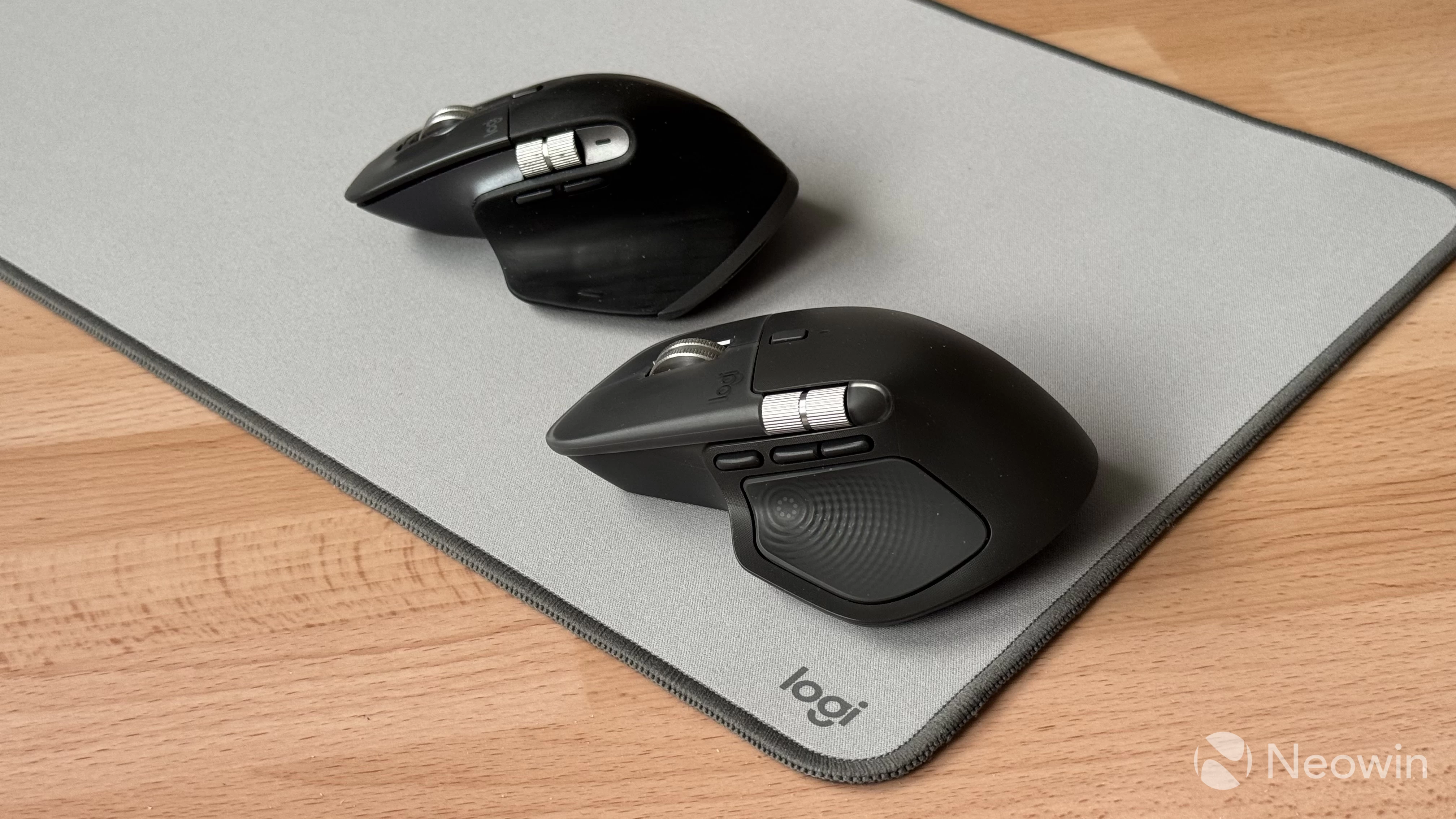
After spending nearly five years with my Logitech MX Master 3, arguably one of the best productivity mice out there, it became apparent to me that it is time to upgrade. My mouse went through a shell replacement (the original simply decayed to the point of no return) and switch upgrades (I upgraded it to silent switches for less noise), which spared me from spending money on the MX Master 3S. Now, however, with the MX Master 4 out and my replacement shell already in miserable condition, it is time to give the old friend a well-deserved rest and see what its true successor has to offer.
Neowin already published a review of the MX Master 4 a month ago, so in this article, I want to share five things that I discovered after upgrading and using the MX Master 4 for several weeks. Long story short, the best productivity mouse is now even better, but...
1. Peak productivity
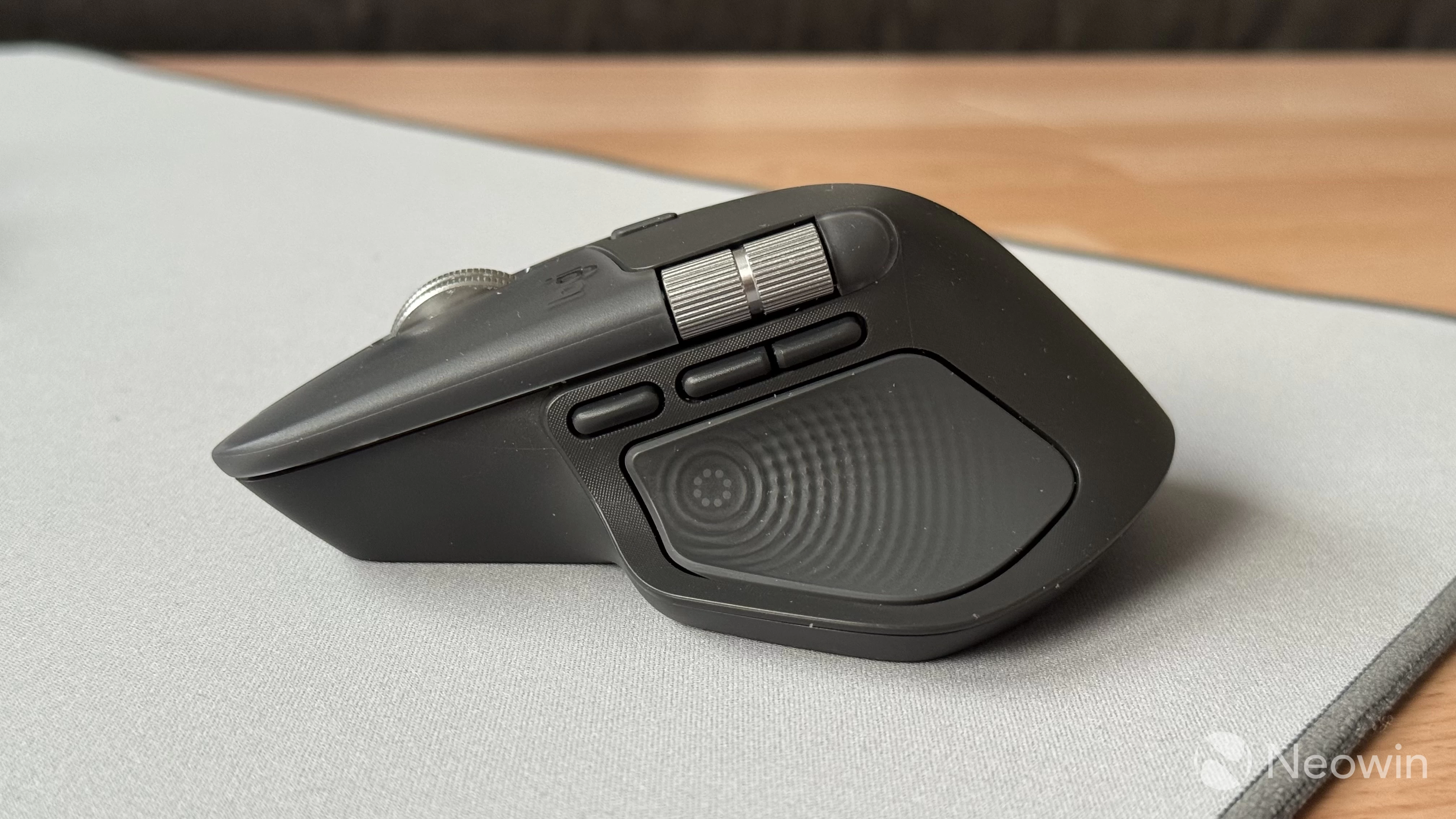
I am a massive shortcut snob, and Logitech can sell me a new device simply by adding another customizable button to the mouse. That is exactly what the company did. While the main purpose of the new haptic area is to open the Action Ring, you can remap it to five gestures and have five extra shortcuts on any app you like. Combine that with five more buttons that can do the same, plus two actions on the second wheel, and you get 32 (!) shortcuts and actions to speed things up.
Over the years, I have become so used to my shortcut layouts that now I cannot imagine using a PC without them. Text formatting, navigating and managing tabs, going back/forward, closing programs, arranging windows, switching desktops, launching scripts, and a lot more.
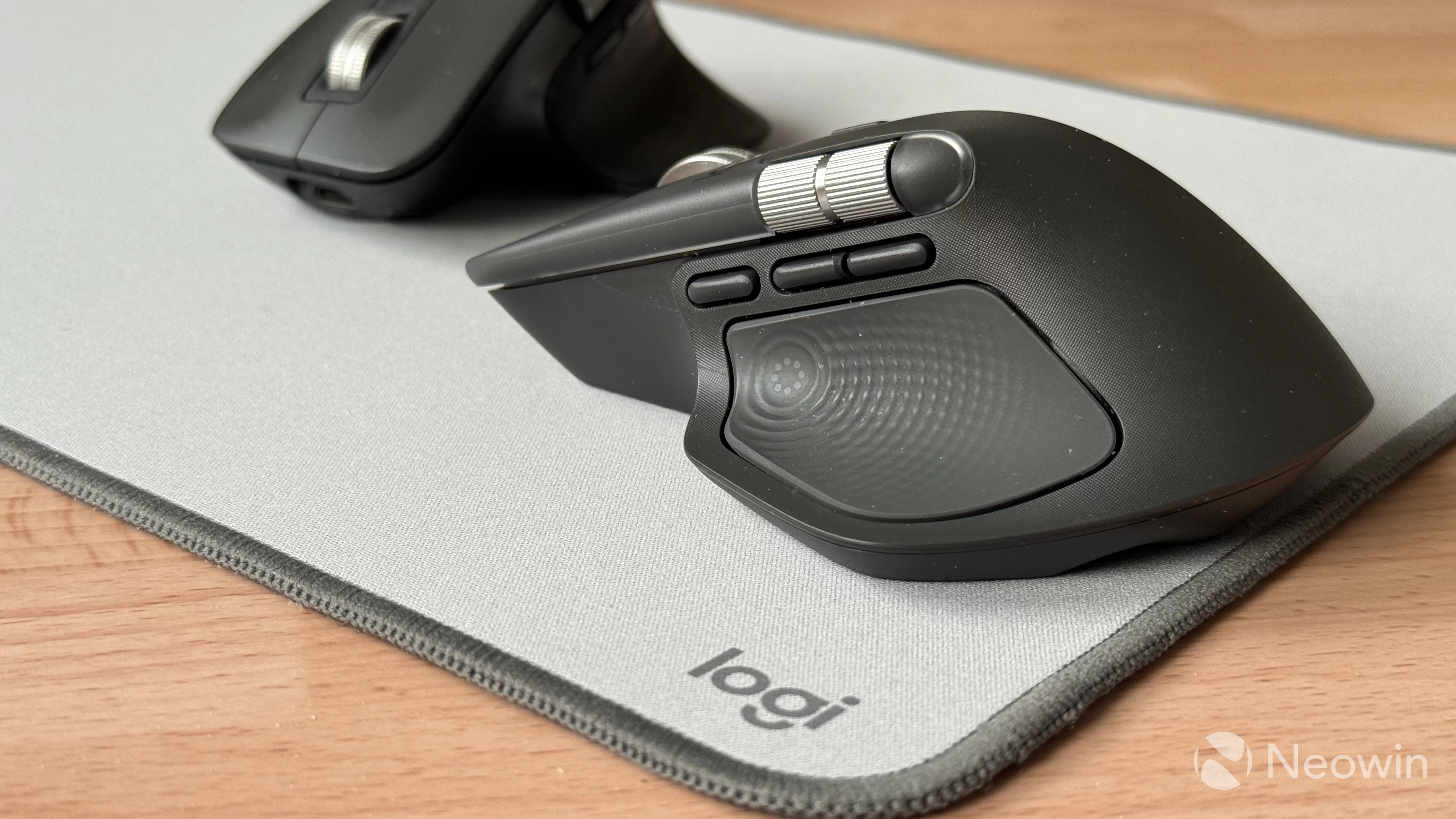
Besides adding an extra button, Logitech placed it in the right spot. I always thought that the MX Master 3/3S had the thumb button in a bit of an awkward location, and now, having it moved right where my thumb rests feels so much better, intuitive, and ergonomic.
2. Muscle memory is no joke
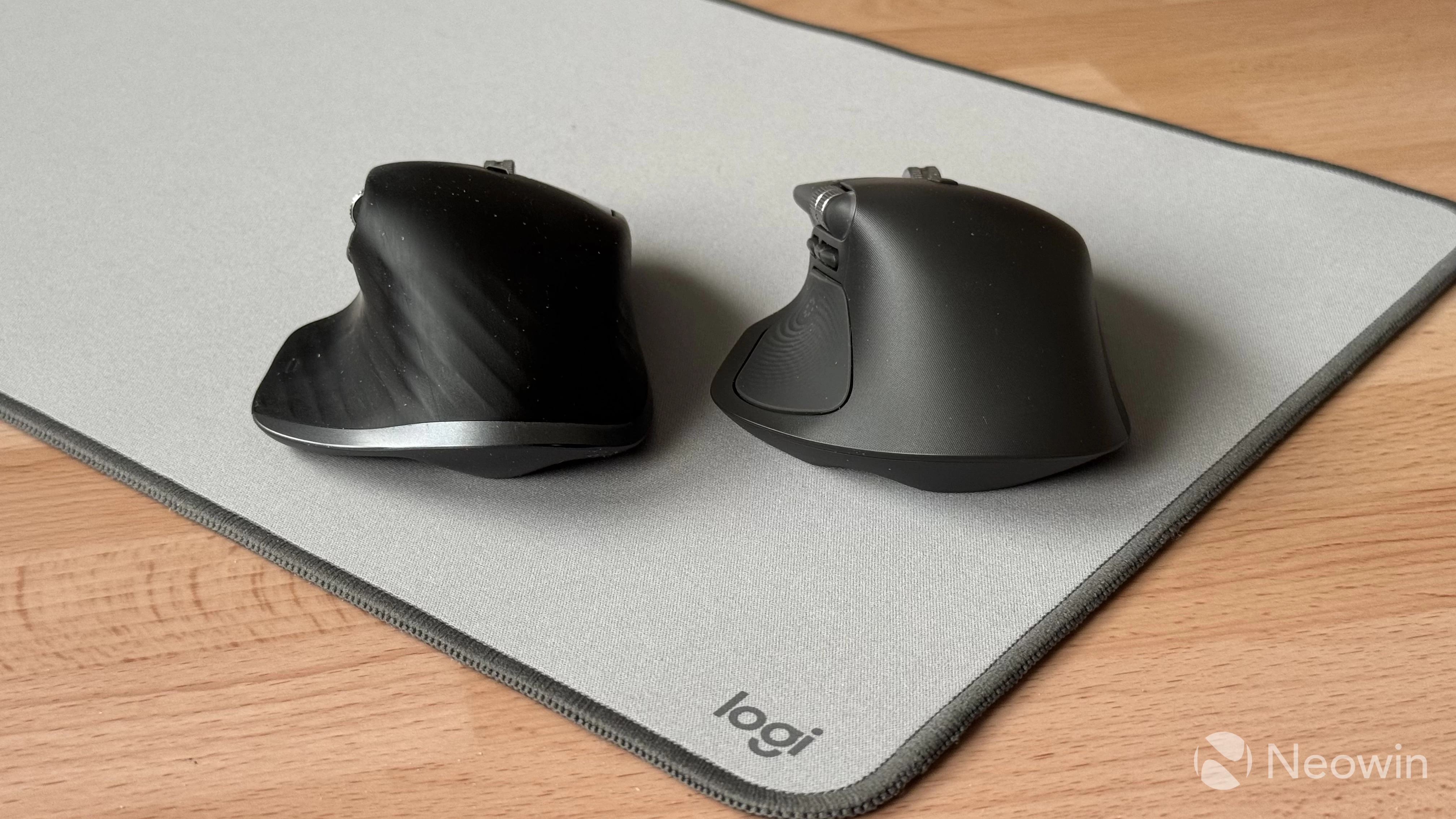
Over five years of using the MX Master 3, the mouse became a natural extension of my hand, so re-training my muscle memory to learn the new location of certain buttons was not easy at first. After a few weeks of use, I am still not 100% confident in my ability to locate the necessary button without thinking about it, but I am getting there.
While the mouse overall is similar to its predecessor, it still takes some time to get used to it. This shows that tweaking and updating such a product requires a very careful approach, and I like that Logitech decided to focus on small tweaks instead of redesigning the mouse from the ground up, upsetting long-term customers.
3. Signal reception is so much better
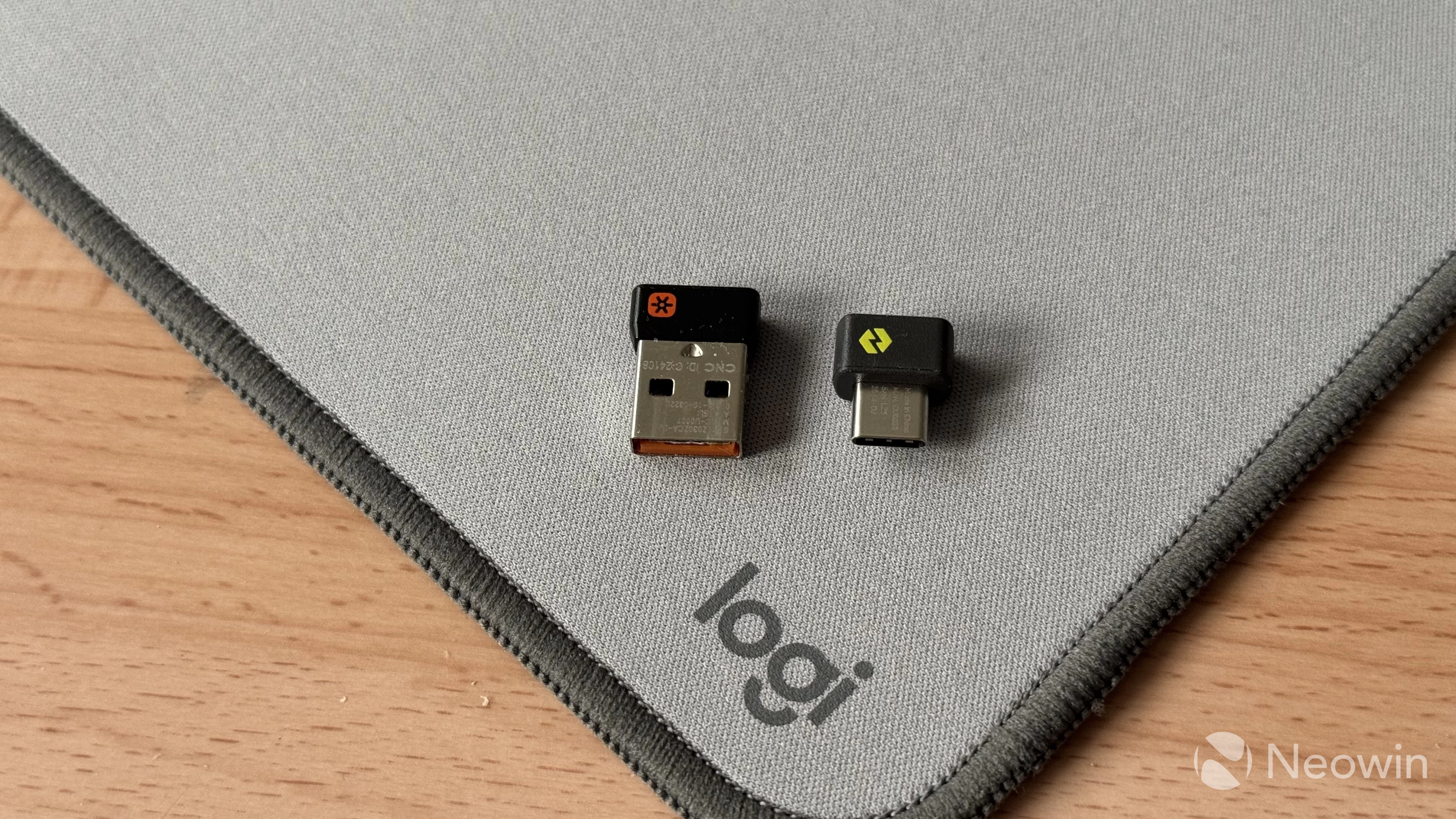
With the release of the MX Master 4, Logitech switched to a USB-C receiver, which is much more compact and modern. But the best thing is not the connector type. What I was very happy to learn was that Logitech significantly improved signal reception strength, which allows me to keep the Bolt receiver connected to the back of my PC without any interference.
With Unifying, this was simply impossible because the mouse would constantly drop signal, leading to cursor stutters, missed gestures, or even a complete loss of signal. It was very annoying, and the only way to fix that was to keep the connector closer to my desktop via a USB dongle. Now, in the MX Master 4, I have its dongle connected to the back of my desktop PC, and during several weeks of testing, the mouse never dropped a single bit.
4. Action Ring is good, but...
One thing I will never forgive Logitech for (until it brings it back) is the removal of Duolink. This feature creates an extra layer of shortcuts when you press and hold the Fn key on a compatible Logitech keyboard, basically doubling the number of available gestures and shortcuts to map. I have an MX Master 3 paired with the original MX Keys, and I can use the old Options app where Duolink is available. Sadly, that app is not compatible with the MX Master 4, which forced me to switch to Options+.
While the new Action Ring feature can partially mitigate that by allowing me to offload less frequently used shortcuts to the Ring, it is still no match for gestures where you do not look at the screen in search of a command. Instead, you simply press the necessary button and move the mouse in the right direction. It is a much more intuitive way to interact with your computer.
Logitech Options+ is by no means perfect software, and I have a bunch of extra complaints about the way it works and some of its features, but I am willing to turn a blind eye to them. Just bring back Duolink, Logitech, please.
5. Weight and materials
Finally, I have a few words to say about the weight and materials of the new MX Master 4. First, I am glad that the company switched to more durable materials. Even after the shell replacement, my MX Master 3 looks and feels, honestly, disgusting. And no, it is not because of my poor hygiene. I have very dry skin, and I am no stranger to soap. I just spent way too much time using the mouse, and it simply decomposed beyond recognition.
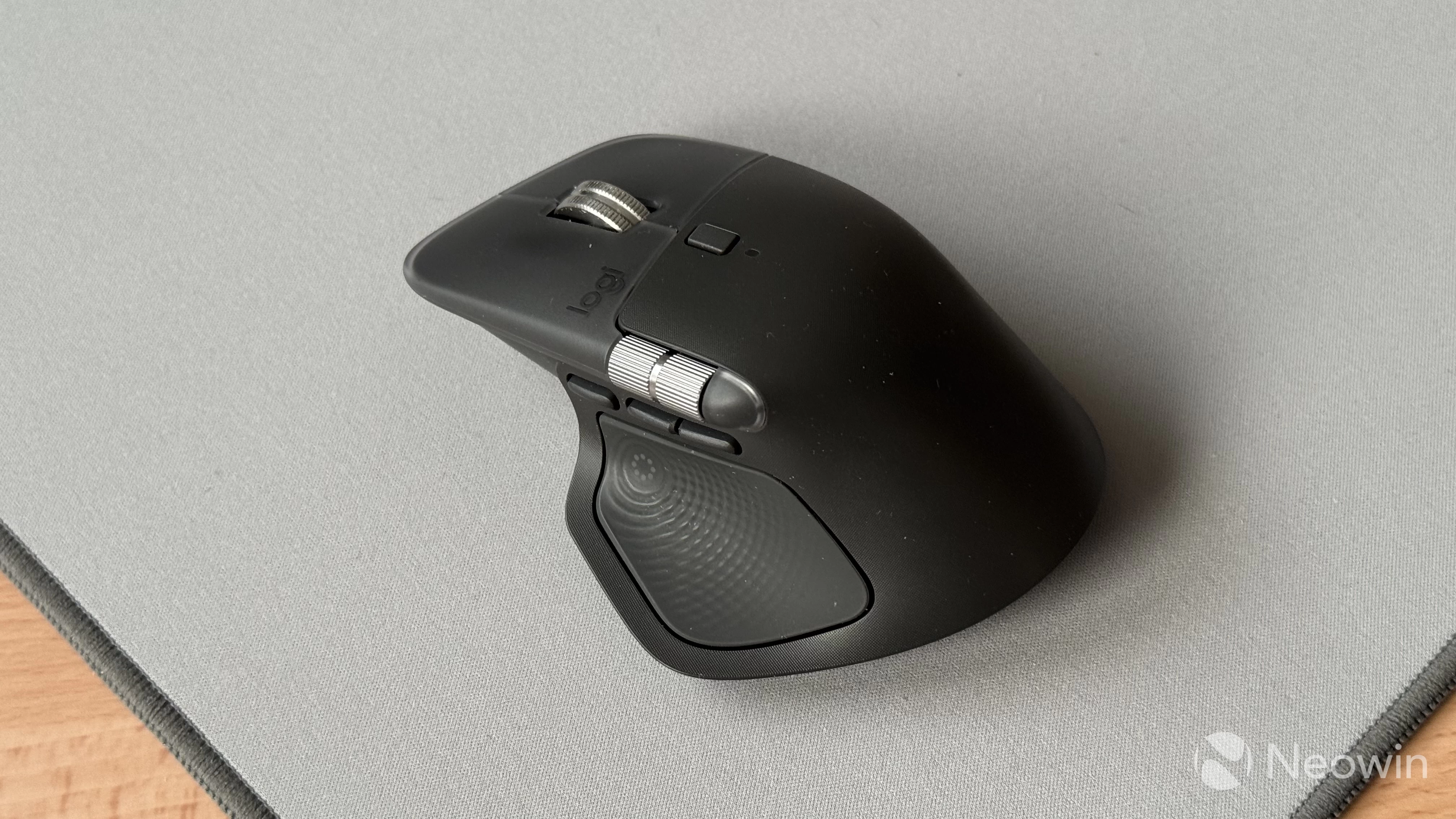
It is too early to tell how the MX Master 4 will hold up, but for now, it looks like Logitech managed to mitigate the material wear-out problem. The silicone pads at the sides feel more durable, and the main shell is now made from a much harder plastic that should not disintegrate as you use it. This, however, brings me to a problem I did not expect to encounter.
The MX Master 4 is notably heavier than the MX Master 3/3S, and because the main shell is made of a less sticky plastic, using the mouse is a bit awkward at first. I have noticed that there is much less grip, and my palm simply slides off the mouse's surface. Before, I was using my MX Master 3 with the full "palm grip," but now, I tend to hold it more with my fingers, and my thumb often uses the sharp edge of the thumbrest as a hook for better grip. I understand that that is a niche problem of people with dry skin. Still, I wish Logitech had used a material with just a little more grip.
Those were the five biggest things I noticed after switching to the MX Master 4, but there are plenty of other things I like. For example, the main scroll wheel is now dead-quiet when scrolling fast, and the horizontal wheel is easier to use. Haptics are also cool, but as Robbie said in his review, the novelty of this feature quickly wears off, given that very few apps support them at this point.
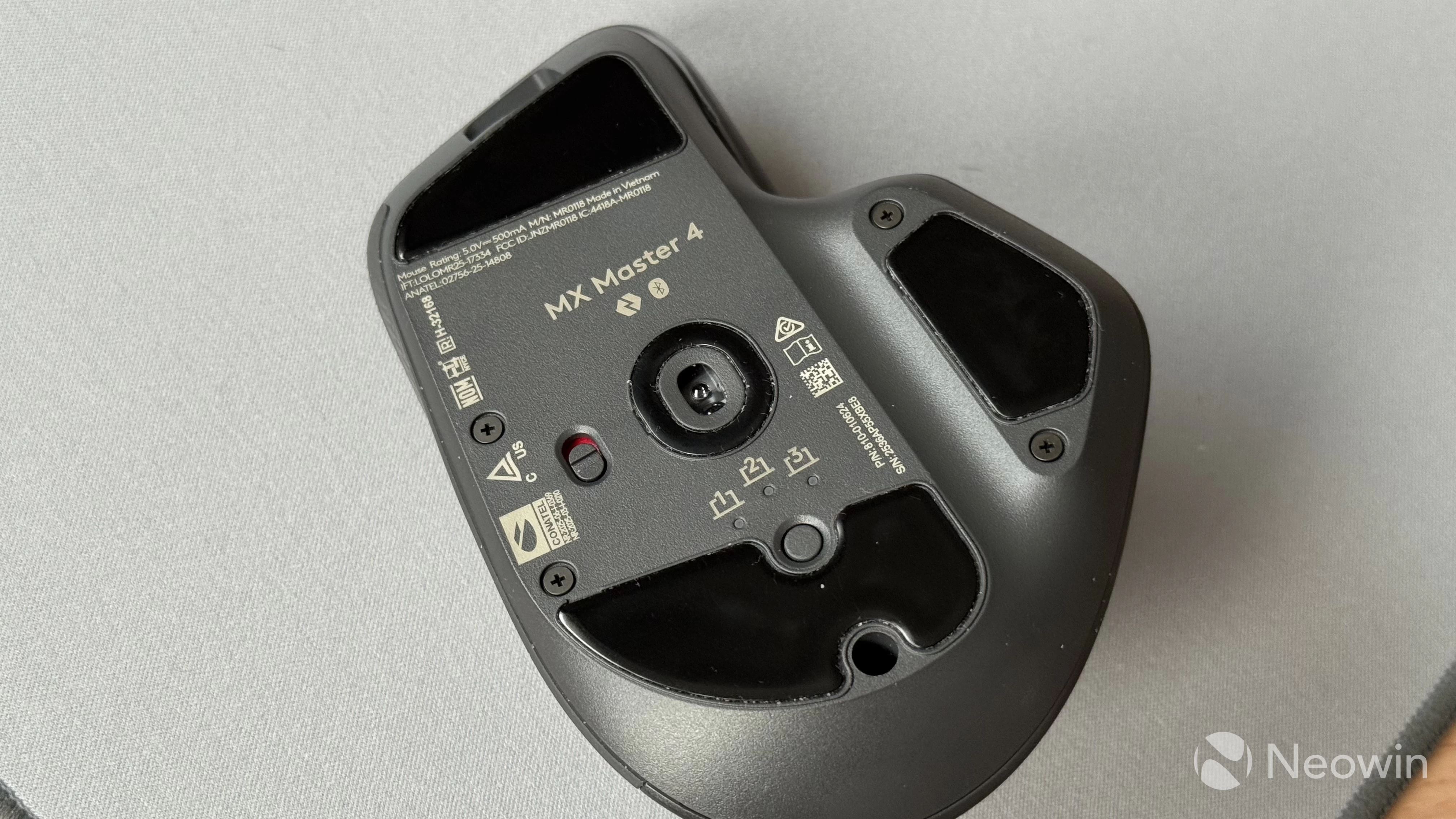
Finally, the repairability has been improved significantly, with the mouse no longer requiring glide removal to get to the screws. This is important because MX Master mice have a pretty complex wheel that needs cleaning after a long period of use, as it collects dust and eventually gets stuck. I went through the wheel assembly cleaning (you can check out my journey here) two times, and both of them required glide replacement. Not anymore!
At the same time, it is worth noting that the DPI switch button now feels cheaper than before. The MX Master 3/3S has a softer and quieter switch that is much more pleasant to use. Also, Logitech still refuses to use onboard memory for shortcuts, making it impossible to use all the features without installing the Options+ app. So yeah, there is some room for improvement in the MX Master 4S or whatever comes after this one.
Overall, the MX Master 4 is a worthy upgrade over the previous-gen models, especially if your mouse is on the brink of falling apart due to material wear-out. The more expansive price tag is a slightly bitter pill to swallow, but for those who use their PCs for work, the MX Master series is totally worth it. You can get the MX Master 4 for $119.99 on Amazon using this link.
As an Amazon Associate, we earn from qualifying purchases.
















9 Comments
Load the comments and join the conversation!
Read the comments, ask the editors questions, show respect and join the conversation.