
Back in March earlier this year, Neowin reported on a new Office feature that was meant to make Office apps like Word, Excel, Outlook, and others load faster. Called "Startup Boost", the feature essentially loads up the Microsoft Office applications in the background as soon as Windows 11 or 10 starts, ie, right at startup.
The idea is that once a user clicks on such an app, initially Word, it should load very fast since they are essentially waiting in the background to spring into action. However, Microsoft also said that the feature would not be offered to everyone.
The company noted: "Startup Boost is only available when your PC has enough resources to run without impacting system performance. This includes having at least 8 GB of available RAM, and at least 5 GB of available disk space. Additionally, Startup Boost will be disabled when Energy Saver mode is active."
Although this would be a feature that was going to be enabled by default, Microsoft added that it was optional to keep it on and thus users would still be able to disable it, with the only potential downside being that the apps "may take longer to load". It wrote: "To disable the feature, use the in-app setting, e.g., Word > Options > General > Startup Boost (under Start up Options)."

However, there was a big caveat here as pointed out correctly by one of our Neowin readers, rseiler. While the Startup Boost could be disabled, Microsoft at the time had expressed that the "Office Installer will automatically recreate all scheduled tasks when it applies an update," and this could lead to massive annoyance as Office receives updates several times, even within a single month, and especially for users and enterprises who are looking to permanently disable it so as to not use the feature.
The feature description previously stated: "You can disable this Startup Boost task like any other scheduled task. Please note that Office Installer will automatically recreate all scheduled tasks when it applies an update, so users who disable this task will need to disable it again after an Office update."
The option was initially supposed to start releasing in May, but Microsoft updated the schedule and pushed it back for a June-September 2025 General Availability rollout, wherein the Startup Boost feature has now begun rolling out to users and should complete the process in a couple of more months.
In the meantime, before a wider rollout, the company also realized the issue with task scheduler reset on every app update, and has now made some changes to the implementation of the feature. The company has confirmed that IT and sysadmins will be able to apply a Group Policy to keep Startup Boost disabled permanently.
Thus, here is what the updated M365 message says:
You can disable this Startup Boost task like any other scheduled task. Please note that Office Installer will automatically recreate all scheduled tasks when it applies an update, so users who disable this task will need to disable it again after an Office update. Admins can disable this feature via Group Policy without needing to do so after each Office update.
Besides the Group Policy addition, Microsoft has also made another couple of big changes since the initial feature announcement. The tech giant notes that now "Startup Boost only runs if you have launched Word recently, and if you have not launched Word recently it will automatically disable itself", and secondly when the feature is active "the scheduled task will not run immediately at login to avoid slowing down your PC — it will wait 10 minutes to ensure the system is in a steady idle state."
This is a good improvement over the initial implementation considering a user may not use Office apps on their system and thus something like this would be taking away system resources from other applications that may be more important to that user.
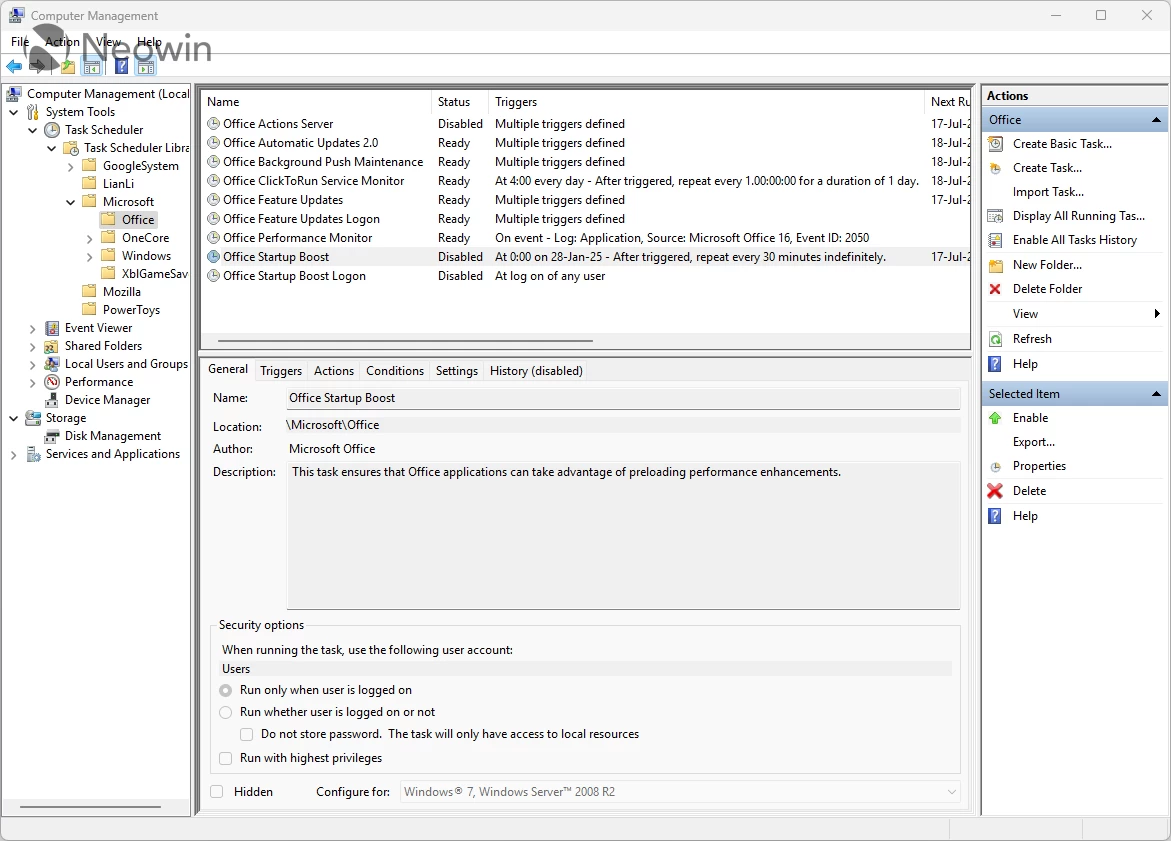
Interestingly, Neowin colleague Steven Parker found that the Office 365 Startup Boost feature is already "Disabled" by default, instead of being on the "Ready" state, on their Windows 11 24H2 PC that has the latest version of Office 365. He confirmed that he had loaded up Word the previous day and we also noted that the Energy Saver was disabled.
Thus, this may be an anomaly, or perhaps Microsoft decided against default-enabling the feature for all users at the moment.
If you want to disable the Office Startup Boost scheduled task, you can do so by:
- Right-clicking the Start button, or Run "compmgmt.msc"
- Open the Computer Management console
- Go to the Task Scheduler drop-down menu under System Tools
- Task Scheduler Library > Microsoft > Office
- Right click on Office Start Up Boost task > hit Disable
- Right click on Office Start Up Boost Logon > hit Disable
If you have access to the Microsoft 365 Admin Center portal, you can find the message under ID MC1041470.
Update, 17 September 2025: It is now rolling out.