Microsoft has released a couple of new Windows 11 builds for Insiders flighting the Canary channel. The first build, 28020.1863, under KB5083725, fixes sign-in problems related to internet connectivity. Meanwhile, the second build, 29570.1000, adds a new way to remove preinstalled Microsoft apps, improves context menu, and more.
First we have the changelog for build 28020.1863:
Changes and Improvements gradually being rolled out with toggle on*
- This update includes a small set of general improvements and fixes that improve the overall experience for Insiders running this build on their PCs.
[General]
- Fixed an issue that prevented some apps from signing in due to a false report of no internet connectivity.
Up next, we have build 29570.1000:
Changes and Improvements gradually being rolled out with toggle on*
- This update includes platform changes in moving to a new active development build.
[Gaming]
- Xbox mode is now available on Windows 11 PCs, including laptops, desktops, and tablets. Inspired by the Xbox console experience, Xbox mode offers a streamlined, full‑screen interface that puts your games front and center while minimizing background distractions. Xbox mode is designed for those moments when you want to lean back, pick up a controller, and focus on the game. Enter Xbox mode from the Xbox app, Game Bar settings, or by pressing Win + F11. For more information, see Full screen experience expands to more Windows 11 PC form factors.
[Policy-Based Removal of Preinstalled Microsoft Apps]
- This update adds support for a dynamic app removal list to the “Remove Default Microsoft Store packages” policy for Windows Enterprise and Education. Administrators can remove additional MSIX/APPX-packaged apps by specifying their app package family names using Group Policy. The dynamic list is not currently available in Intune Settings Catalog. Validation must be performed using Group Policy or custom OMA-URI. For more information, see Policy-based in-box app removal.
[Context Menu]
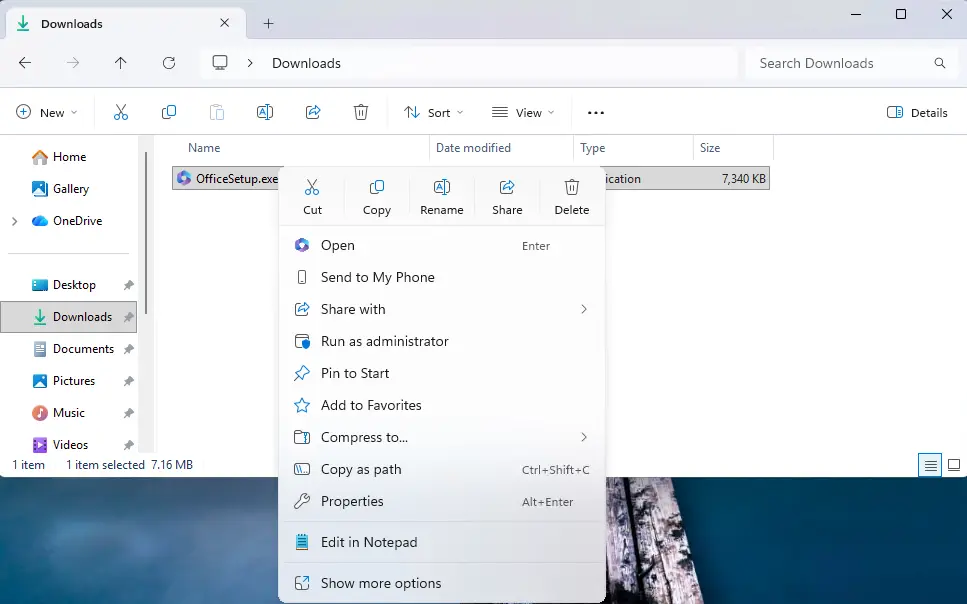
- When right clicking on a .exe, .bat, or .cmd file, the context menu’s “Open” verb will now match the icon associated with the file’s default app.
[Touchpad]
- We’re adding a new setting in Settings > Bluetooth & Devices > Touchpad so you can choose how large the right-click zone size is (this is the portion in the bottom-right of your touchpad where pressing a single finger will result in a right-click), between default, small, medium, and large. Note – this setting only appears for touchpads that have a pressable surface for this. Some manufacturers may provide customization for this in their own apps – if you’ve customized your setting using an app like this, a “Custom” entry will be added to the dropdown, which preserves that value.
[Lock screen]
- More widget options and support for lock screen widget personalization (previously referred to as “Weather and more”) are rolling out. After initial launch with Windows Insiders in the European Economic Area (EEA), these updates are expanding to all regions. You can add, remove, and rearrange lock screen widgets such as Weather, Watchlist, Sports, Traffic, and more. Any widget that supports the small sizing option can be added. To customize your lock screen widgets, go to Settings > Personalization > Lock screen.
[Input]
- Pen settings: we have made refinements to the Pen settings page including small changes to the options for the pen tail button. A new option, “Same as Copilot key”, enables the pen tail button to launch the same app as the Copilot key.
The official blog post is linked here (link1, link2) on Microsoft"s site.