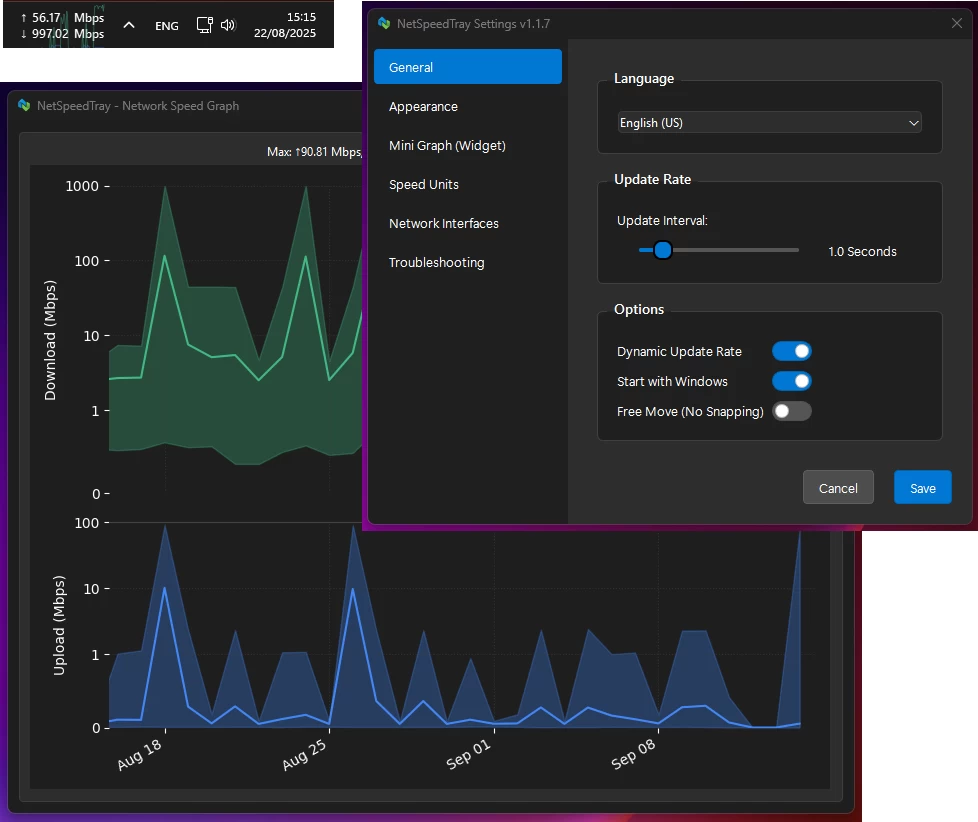
NetSpeedTray is a lightweight, open-source Windows network monitor that shows live upload and download speeds directly on the Taskbar. Designed for efficiency, it quietly sits in the system tray, conserving CPU and battery with dynamic updates. It blends seamlessly with Windows 10/11, adapts to light/dark themes, and auto-positions to avoid overlaps. Features include accurate interface detection, customizable display, optional mini-graph, color coding, granular font and unit control, detailed per-interface history graphs, safe data management, and easy CSV export—bringing the network monitoring Windows forgot.
NetSpeedTray key features:
Lightweight & Efficient
- Runs quietly in your system tray without consuming resources. Features a "Dynamic Update Rate" that lowers refresh frequency when the network is idle to save CPU and battery life.
Native Look & Feel
- Blends seamlessly with Windows 10/11 UI. Smart detection for light and dark taskbar themes ensures text is always visible.
Intelligent & Adaptive Positioning
- Automatically finds empty space next to your system tray and shifts to make room for new icons, preventing overlaps.
Seamless OS Integration
- Behaves like a native Windows component.
- Hides instantly with auto-hiding taskbar
- Hides when a fullscreen app is active
Smart Network Monitoring
- Accurate by Default: Auto mode identifies your main internet connection and ignores noise from VPNs or virtual adapters.
- Easy Interface Selection: Switch effortlessly between Auto, All, or Selected network interfaces via intuitive radio buttons.
Total Visual Customization
- Free Move Mode: Unlock and place the widget anywhere on your screen.
- Optional Mini-Graph: Real-time graph of recent network activity with adjustable opacity.
- Color Coding: Customize colors and speed thresholds to quickly see network status.
Granular Display Control
- Text & Font: Adjust font family, size, weight, and alignment.
- Units: Automatic (B/s, KB/s, MB/s) or fixed Mbps display.
- Precision: Set decimal places and always show them for uniform appearance.
Detailed & Intelligent History Graph
- Smart Scale: Logarithmic scale shows low-level traffic and large spikes clearly.
- Per-Interface Filtering: View speed history for specific adapters (Wi-Fi, Ethernet, VPN).
- Safe & Efficient Data Management: Adjustable retention, automatic cleanup, optimized database.
- Easy Data Export: Export raw data to .csv or save high-quality graphs for reports.
NetSpeedTray 2.0.1 changelog:
A cleaner, steadier widget
The side-by-side hardware readout (CPU/GPU beside your speeds) got a proper pass:
- Nothing jumps anymore. The whole readout used to slide sideways by a digit whenever a percentage ticked over (9 to 10, 99 to 100). Every field now sits in a fixed-width column, so only the digits change - the block stays put.
- RAM and VRAM line up. They used to drift out of alignment between the CPU and GPU rows when one had a temperature sensor and the other did not. Now the columns match.
- No more clipped memory. After a language change plus restart, the memory reading could clip ("11.6/15.7G" showing as just "1") until you toggled hardware off and on. Fixed.
- More compact. The network readout sits closer to the hardware, with less empty space toward the tray.
- "Show RAM" / "Show VRAM" now grey out until their CPU / GPU monitor is on (they render on those lines, so alone they showed nothing).
The history graph speaks your language
- Localized numbers and units. The graph now uses your locale"s decimal separator and speed unit (for example "12,3 Mbit/s" in German), matching the widget and the Monitor instead of always showing "12.3 Mbps".
- No more tofu. Japanese and Korean axis labels rendered as empty boxes; the graph now uses an installed Windows CJK font for those locales. Nothing is bundled, so the download size is unchanged.
Smaller download
- The installer and portable ZIP were nearly twice the size they needed to be (the one-folder build was packing the app twice). Fixed - the standalone download is roughly half the size now.
Also fixed
- The up arrow on the plan-speed and data-cap spinboxes now responds to clicks (it was being covered by the text field on the Windows 11 control style).
- The Monitor"s display-settings gear now appears only on the Hardware tab, the only place it does anything.
- Data sizes no longer round up into the wrong unit (999,999 bytes reads "1.0 MB", not "1000.0 KB").
- Preferred Monitor now works across multiple monitors. Two bugs kept the widget pinned to the primary display. NetSpeedTray was silently discarding every secondary-monitor taskbar (it required a system-tray area that only the primary taskbar has on Windows 11), and even once the widget was placed on the monitor you picked, a background refresh dragged it back to the primary within a frame. Both are fixed: the widget now lands on the monitor you choose and stays there.
- Clearer guidance for CPU/GPU temperatures and power. LibreHardwareMonitor removed the interface NetSpeedTray reads (its WMI provider) in v0.9.5, so temperatures and power now need LHM v0.9.4, the last version that exposes it. NetSpeedTray"s in-app "Get LibreHardwareMonitor" link points there, and the old, misleading "run as Administrator" message shown when the interface is missing is fixed.
Download: NetSpeedTray 2.0.1 | 42.0 MB (Open Source)
Download: NetSpeedTray Portable | 55.8 MB
View: NetSpeedTray Home Page | Screenshot