Microsoft has begun rolling out an audio recap feature for its Teams platform that lets you listen to a podcast-style summary of your meetings. The feature is available to members of the Teams Public Preview or Microsoft 365 Targeted release.
Microsoft did state that the audio recap is generated by AI, so you should watch out for hallucinations and other inaccuracies. It did not say which AI model it uses; it could be an LLM like GPT-5 or one of its in-house models, who knows.
The new feature is similar to a podcast and can handle multiple meetings at once, letting you combine up to eight transcripts to produce a single audio file summarizing key topics, decisions, and action items.
This audio summary is available in three styles: an "Executive" dual-host format that focuses on strategic insights, a "Newscast" single-host style that just gives you the facts, and a "Casual" dual-host style with a more conversational tone.
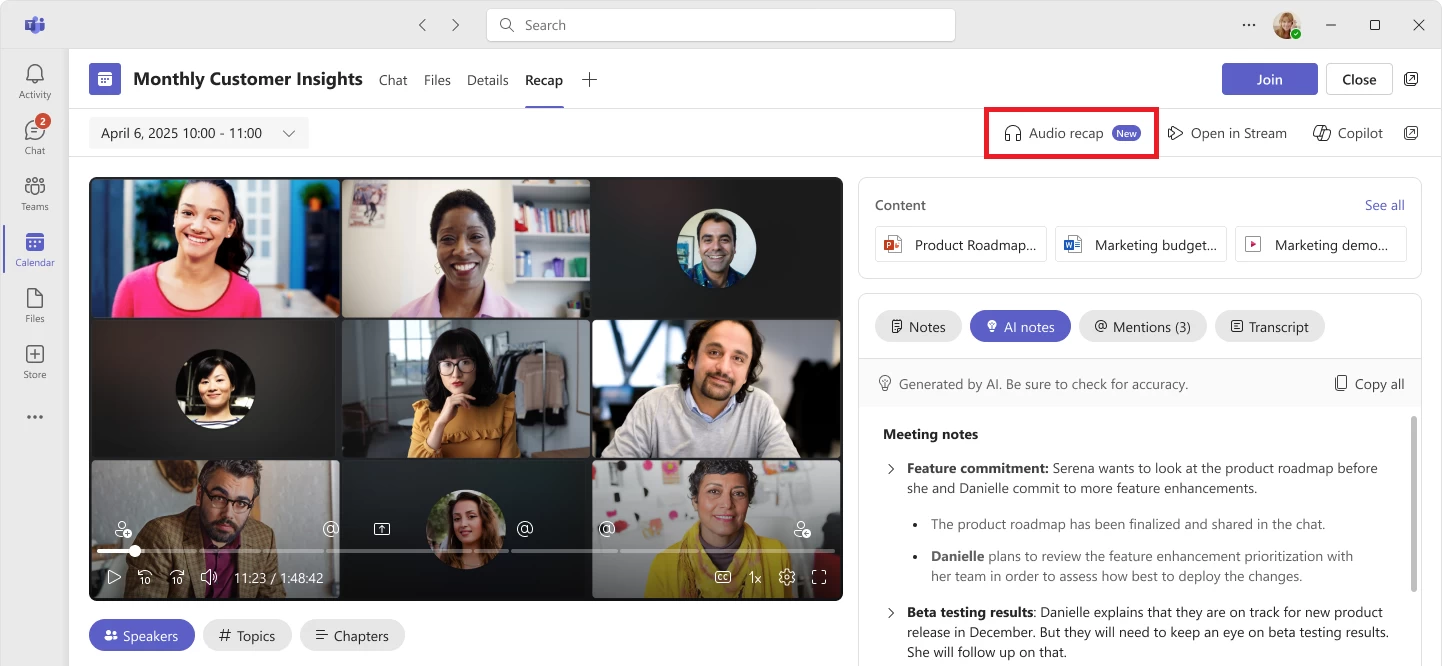
Here"s how it works on Windows, Mac, or the web. First, you open Teams and find the chat for a specific meeting. From there, you select "Meeting details", then "Recap", and finally "Audio recap". You can also find the feature by looking for the "Meet" app in the Apps menu.
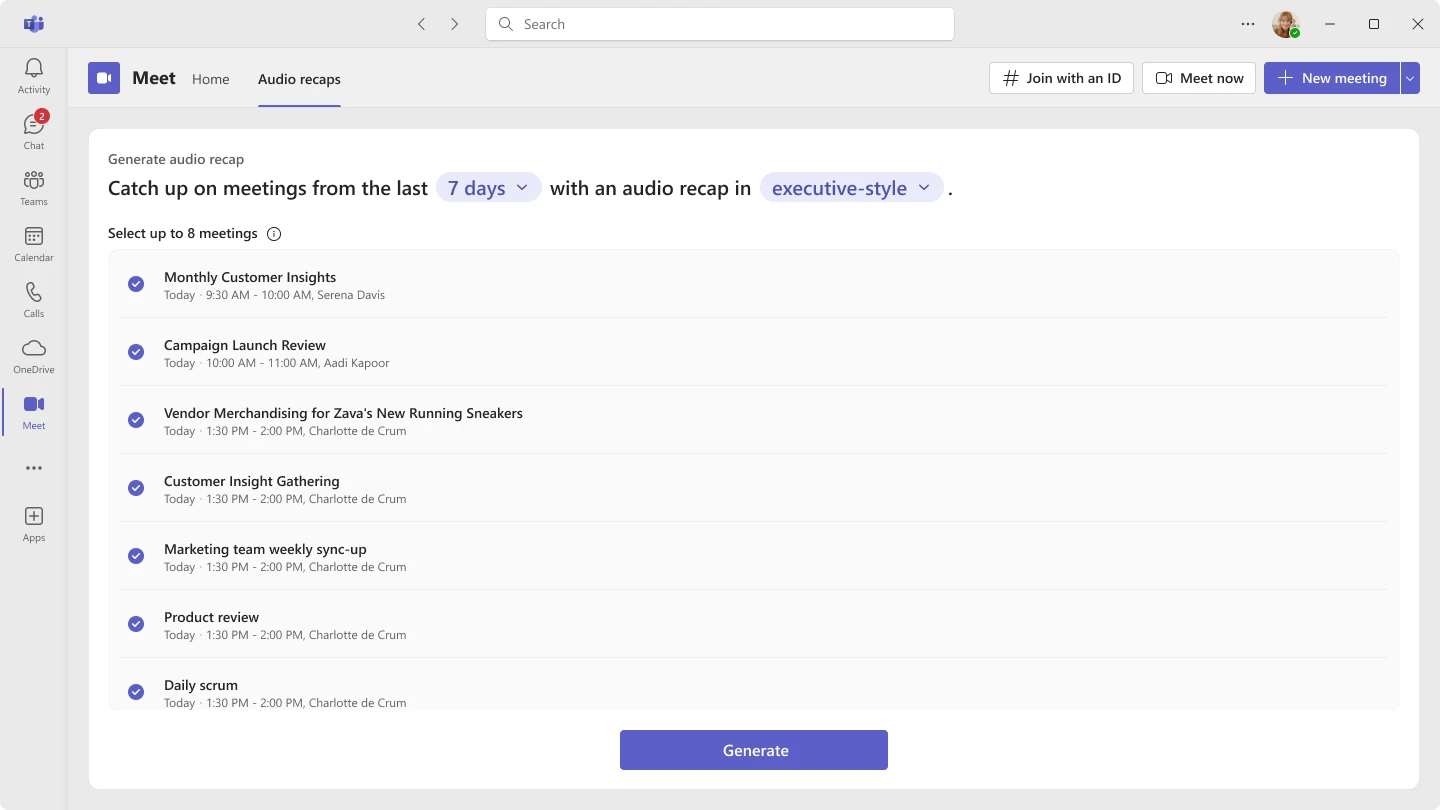
Once you are on the generation page, you select a timeframe and choose the meeting transcripts you want to include. After picking your preferred style from the three options, you just select "Generate".
The system creates the audio file, which you can then play, pause, skip through, and listen to at different speeds. A full transcript of the podcast is also available to read.
For mobile users on Android or iOS, the steps are mostly similar. You navigate to a meeting"s "Recap" page and tap a new headphones icon in the top corner to get started. The main difference is the entry point, as you can also find this headphones icon directly on the "Calendar" tab to begin a new recap from scratch. From there, the process of selecting your style and meetings before hitting "Generate" is the same, and you will get a notification when the audio is ready.
All of your previously generated recaps are available from the "Audio recaps" menu, so you can go back and listen to them later. If you are listening on your desktop, you can select a "Listen on phone" option, which gives you a QR code that you can scan with your phone, and the audio picks up right where you left off.
The audio recap feature is available in English only for now, with Microsoft promising that more languages are planned for the future. You will need to be using the new Teams client on Windows, Mac, Android, iOS, or the Web to access it.
In case you missed it, we recently looked at all the new features Microsoft added to Teams last month. Check it out here.