CHUWI may not be the most famous PC brand, but this company has a long history of making budget-friendly computers, laptops, and tablets. Recently, CHUWI launched the CoreBook Air series, which comprises a 14-inch and a 16-inch variant, offering users lightweight laptops at a low price. Today, I take the 14-inch variant for a spin to see what a sub-1Kg $550 ($478 with a promo code below) laptop gets you.
Disclaimer: CHUWI provided the review sample without review pre-approvals.
Specs in the box
My review sample arrived in a simple box made of cardboard. I did not expect anything fancy from a $550 machine, but CHUWI managed to surprise me with very good packaging. The laptop was secured in a chunk of styrofoam and wrapped in a fabric pouch. The latter can work as a makeshift case when you want to throw the laptop in your backpack without worrying about scratches.
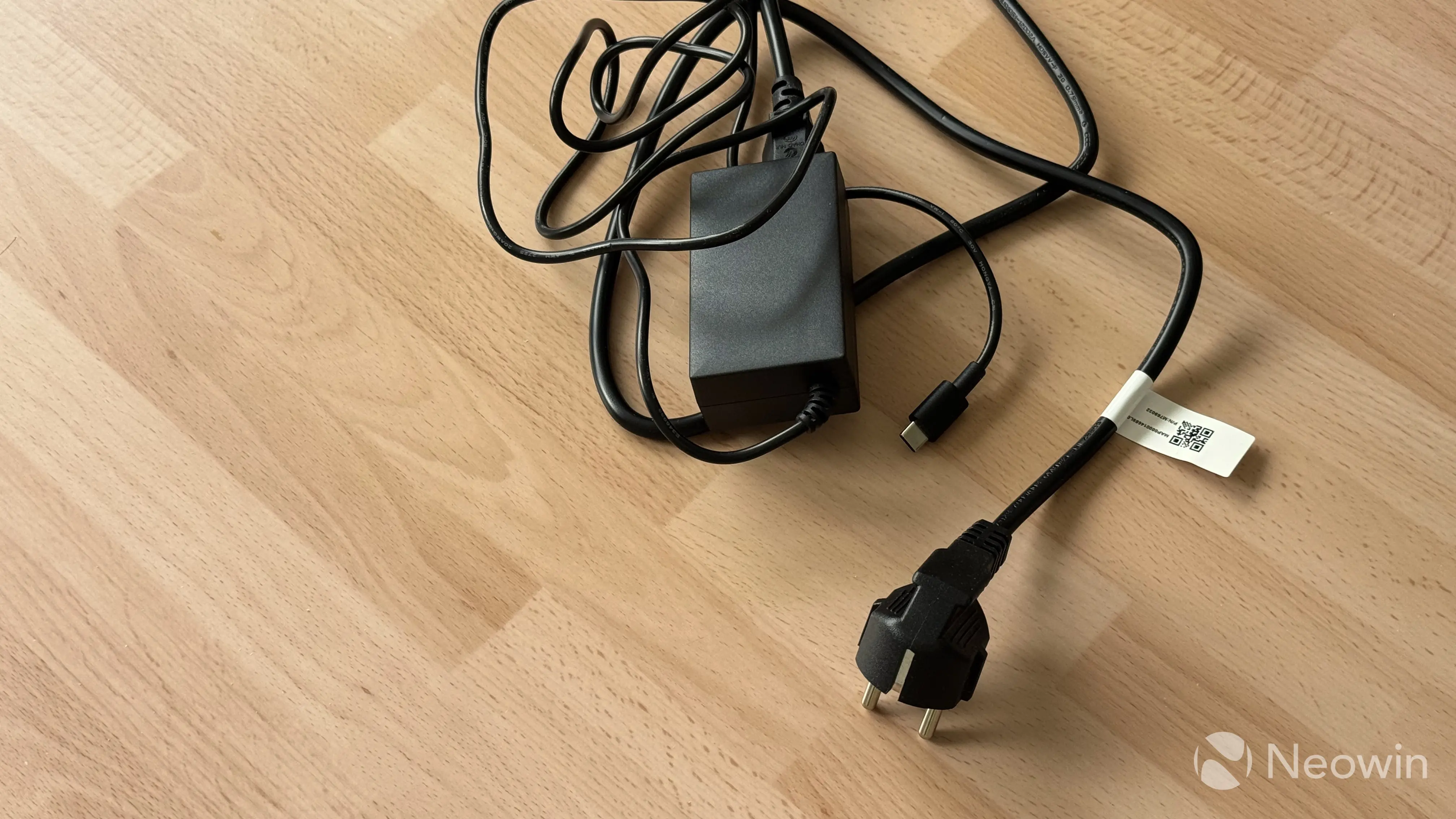
Inside the box, you will find the laptop itself and a 65W charger. It looks like a typical off-the-shelf laptop charger from 15 years ago, but it is Type-C (you can charge anything with it), and it gets its job done. While I would love to see a more modern brick, I am not going to nitpick. Keep in mind that we are talking about a sub-$500 laptop. In fact, I give CHUWI a thumbs up for using a modern charging port, not some old-school barrel plug.
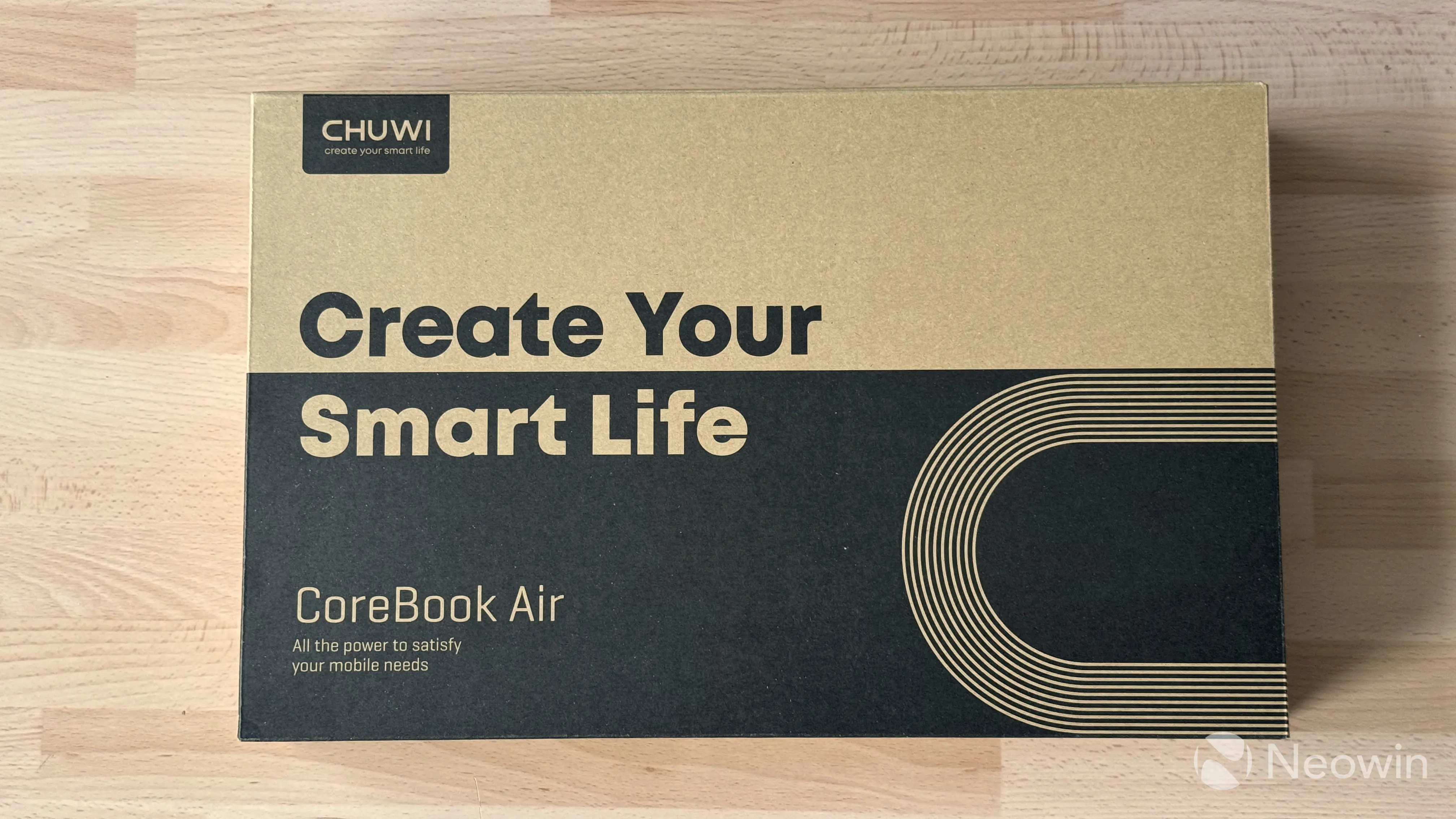
Now, let"s talk specs. There are only two versions of the CoreBook Air: 14-inch and 16-inch. Both have the same CPU, RAM, and storage, but the 16-inch variant also comes with a Windows Hello webcam. Not sure why Windows Hello is not available on the 14-inch variant, but it is what it is. Interestingly, the sticker on the box mentions additional configurations with up to 64GB of RAM and 2TB storage, but those variants are not available on the official website.
Here is a more detailed spec table (my configuration is highlighted with bold):
| CHUWI CoreBook Air | |
|---|---|
| Display | 14-inch or 16-inch IPS, 16:10, 1920 x 1200 pixels |
| CPU | AMD Ryzen 5 6600H, 6 (Zen 3+) cores / 12 threads at up to 4.5 GHz |
| GPU | AMD Radeon 660M, 6 RDNA 2 compute units at 1,900 MHz |
| RAM | 16GB 6400 MT/s LPDDR5 (non-upgradable) |
| Storage | 512GB PCIe Gen3 SSD |
| Camera | 1080p webcam with a physical shutter, Windows Hello IR camera on the 16-inch model |
| Battery | 55 Wh with 65W USB-C PD charging |
| Ports | 1x HDMI 2.1, 2x USB 3.2 Gen 2 Type-C, 1x USB 3.2 Gen 1 Type-A, 3.5 mm audio jack, 1x USB Type-C (data only) |
| Dimensions | 312.9 x 222.5 x 15.95 mm, 1.027 kg |
| Keyboard | Full-size backlit keyboard with a multitouch precision trackpad |
| Price | $550 or $478 with the NeowinAir coupon (13% off) on the official website |
Design
The laptop is made of aluminum finished in a beautiful Indigo Blue color. I have to say that it looks absolutely gorgeous, and in the sea of cheap gray or black laptops, it definitely stands out. I realize that CHUWI was most likely inspired by the color of Apple"s MacBook Air, but I do not mind that.
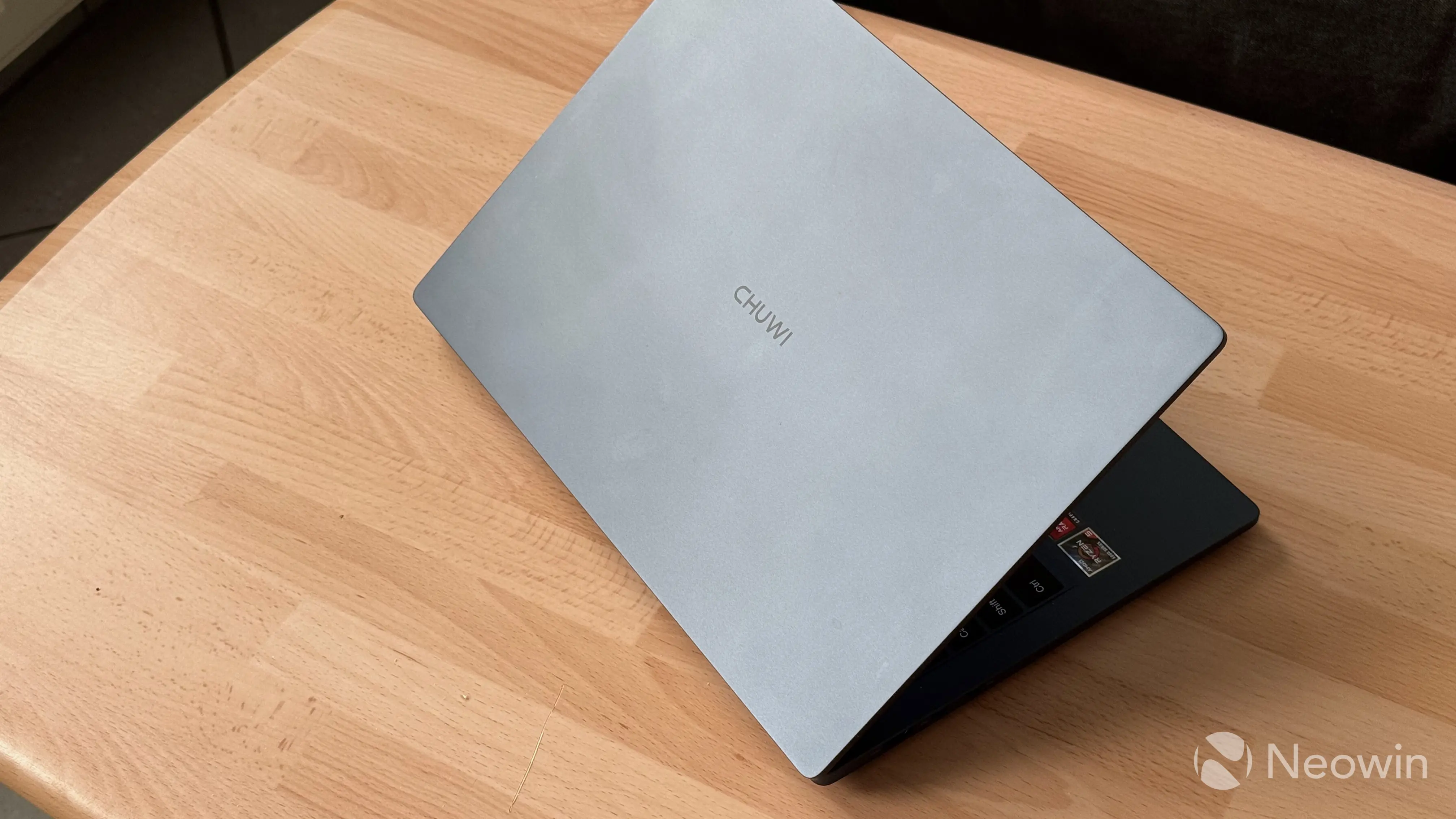
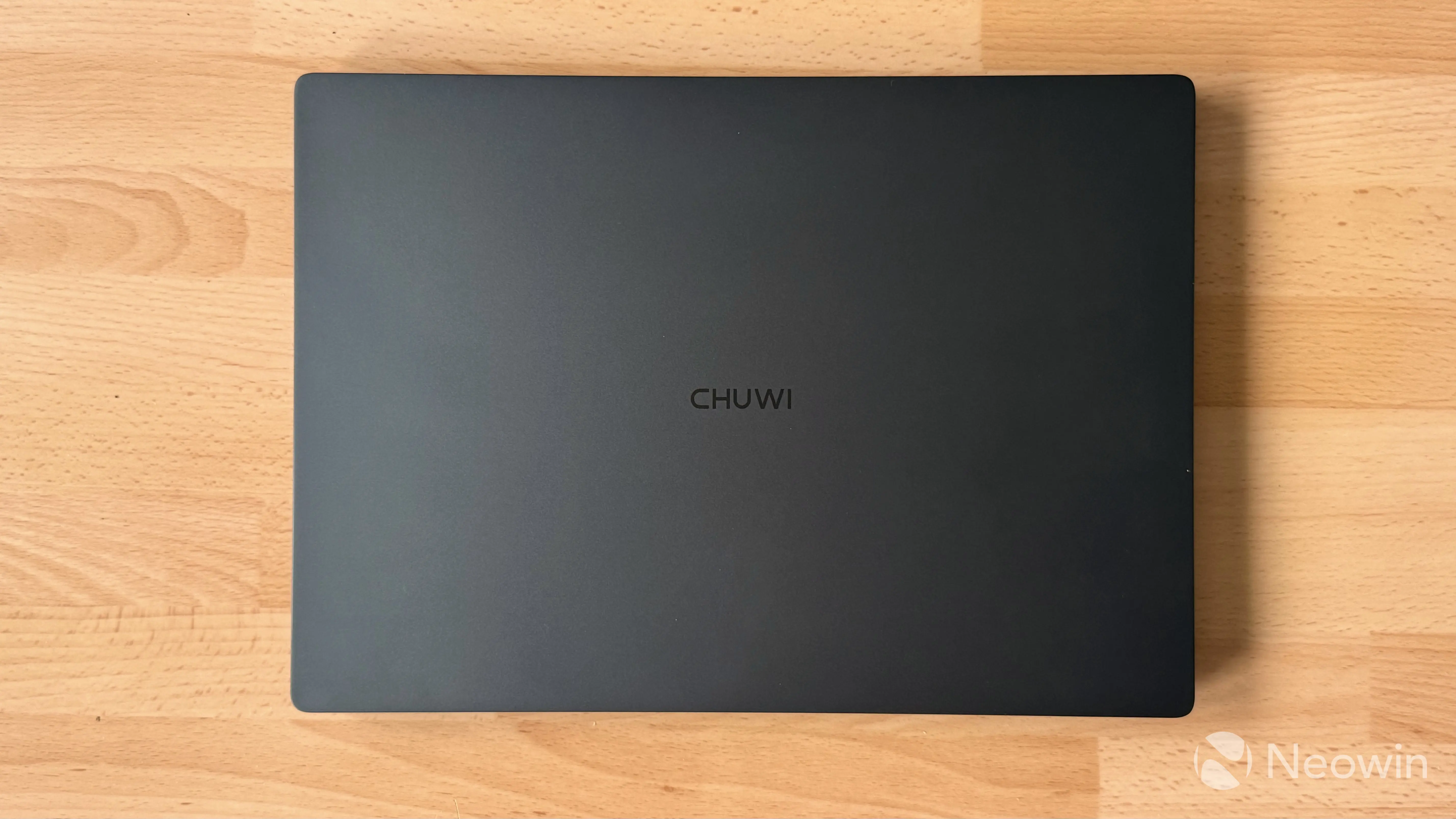
Design-wise, the CoreBook Air looks like a regular, maybe a little generic laptop. Its fanciest design bit is undoubtedly its color, which I like. I also like that the CHUWI logo on the lid is dark and barely visible, which gives the CoreBook Air a little stealthier look. At the same time, just like the MacBook Air, the CoreBook Air is an absolute fingerprint magnet, so get ready to wipe your laptop on a regular basis.
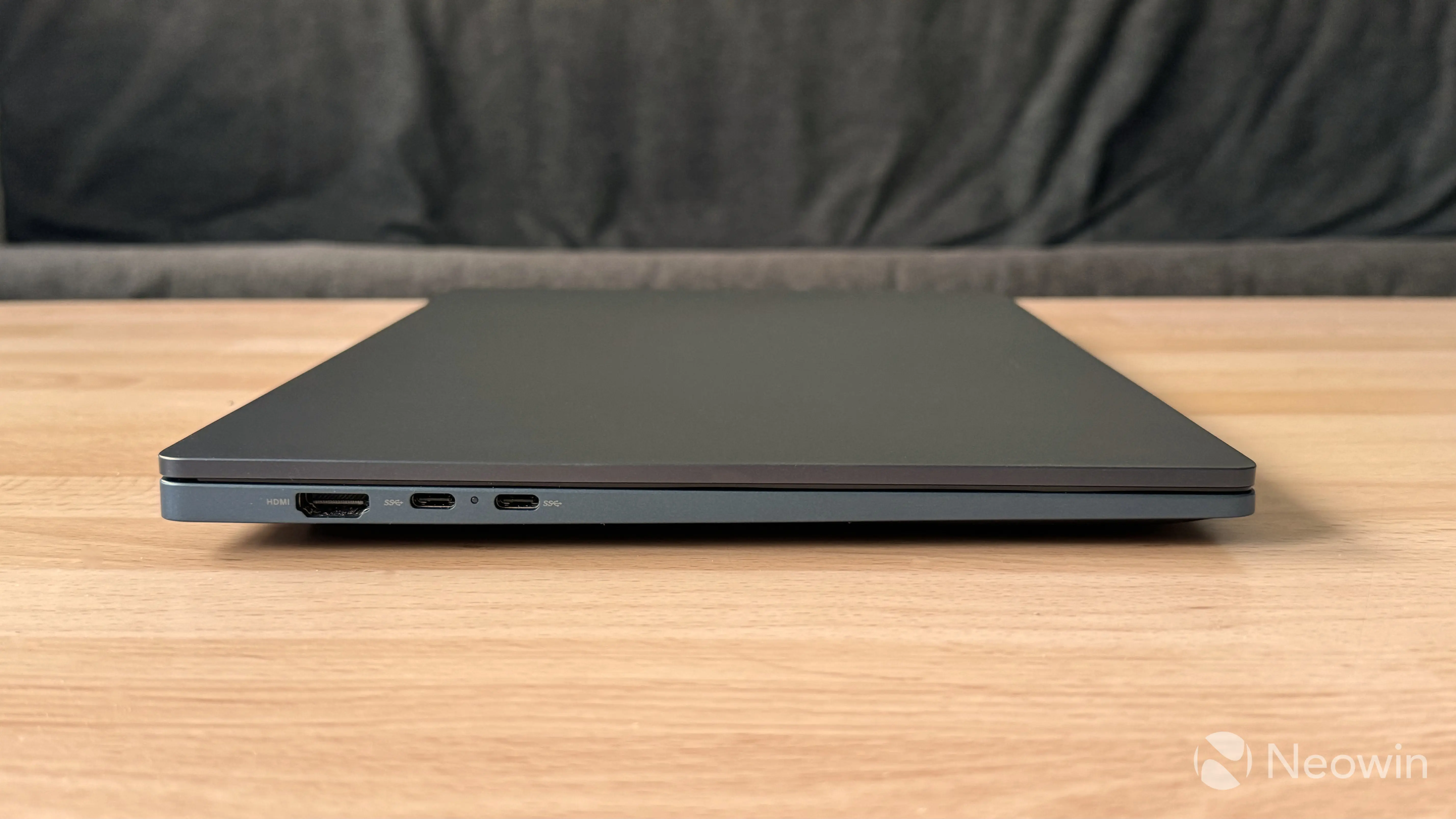
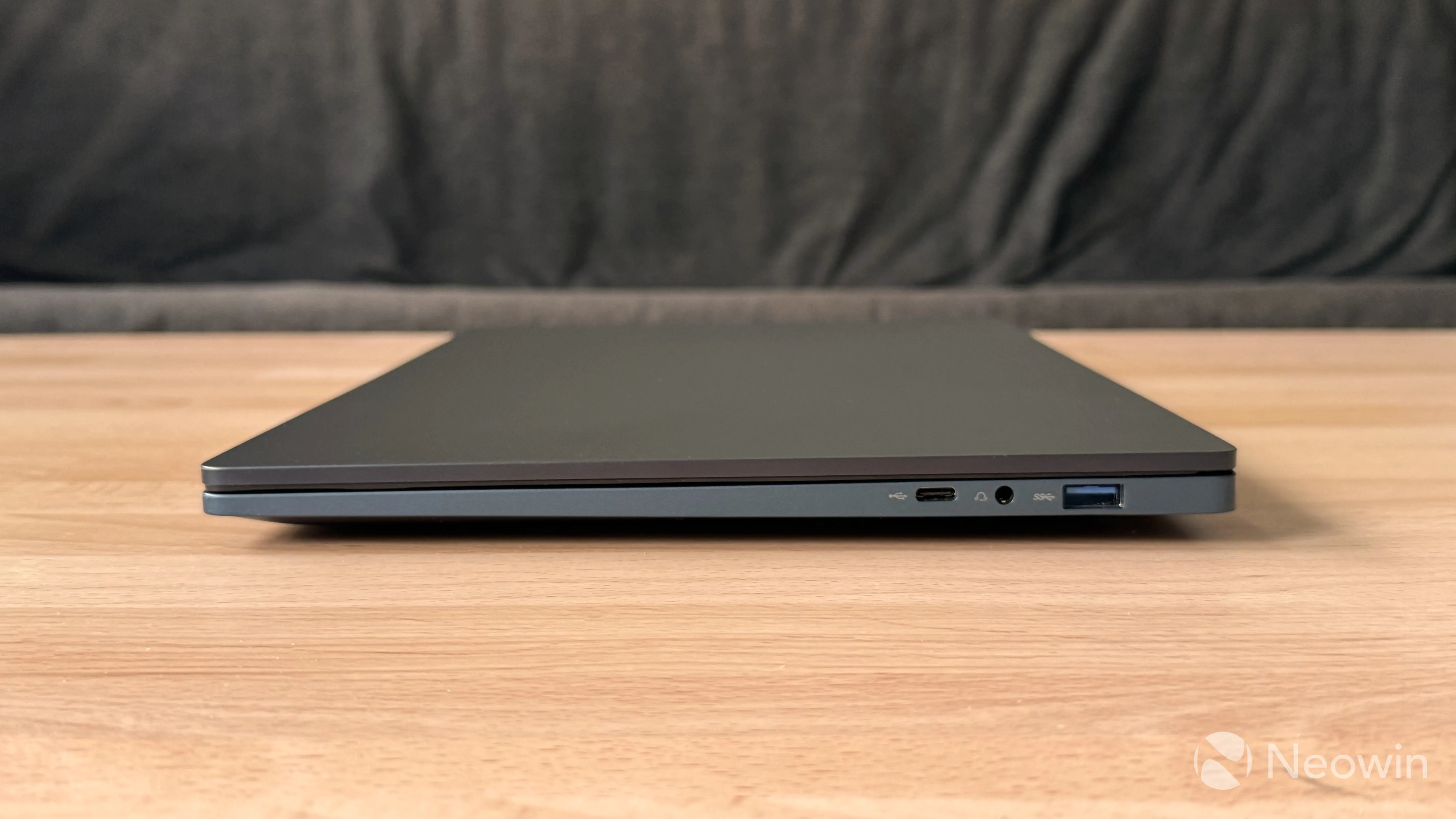
The main selling point of the CoreBook Air lineup is lightness. The computer is only 1 kg (1.027 kg, to be precise), and its lightness strikes you the moment you grab it. After using a quite heavy laptop with a 360-degree hinge for a couple of years, I struggled with processing the Air"s weight at first. Now, I cannot imagine switching to a heavier device. Weight may not be the first option you consider when purchasing a laptop, but it is something that you should definitely try to comprehend fully.
Despite its lightness, the CoreBook Air does not feel cheap. It does not creak or rattle, and the keyboard has very small flex to it. The hinge is stiff and does not wobble, but unfortunately, you cannot open it with one hand.
Keyboard and trackpad
Speaking of keyboard, it is a full-size backlit keyboard with three levels of backlight brightness that you can tweak with the Fn + F9 shortcut. I would say it is a typical budget laptop keyboard. Typing on it is alright, and the keys have enough travel, but they also have a slight hollow feel. The backlight also does not react to the trackpad, so it only lights up when you start typing. However, you can switch it to always-on mode in the BIOS. The latter is a typical AMI BIOS, nothing fancy.
Note that there is a dedicated Copilot key that also works as the Menu key in combination with the Fn key. Despite having the Copilot key, the CoreBook Air is not a Copilot+ PC (the chip inside is too old for that).
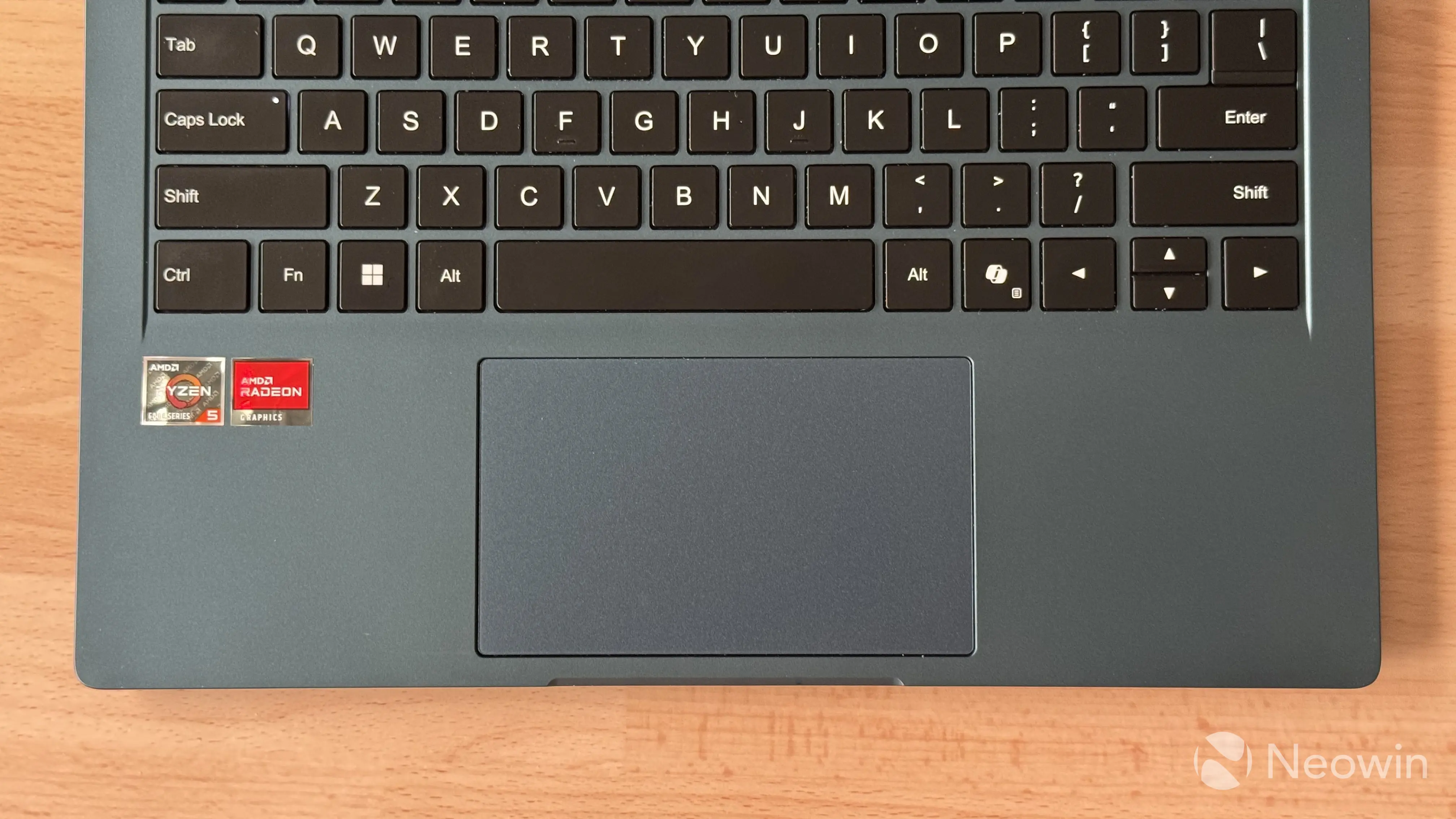
The laptop has a dedicated power key outside the keyboard, and I, for one, welcome such an approach. The power button looks minimal, and the LED indicator is small, just enough to let you know that the computer is running, but without shining a white LED in your face. The button also has a failsafe against accidental presses, so powering on this thing requires holding the power button for like half a second. The button"s shape is perfect for having a built-in fingerprint reader, but unfortunately, no biometric authentication here. Only the 16-inch model has a Windows Hello-compatible camera.
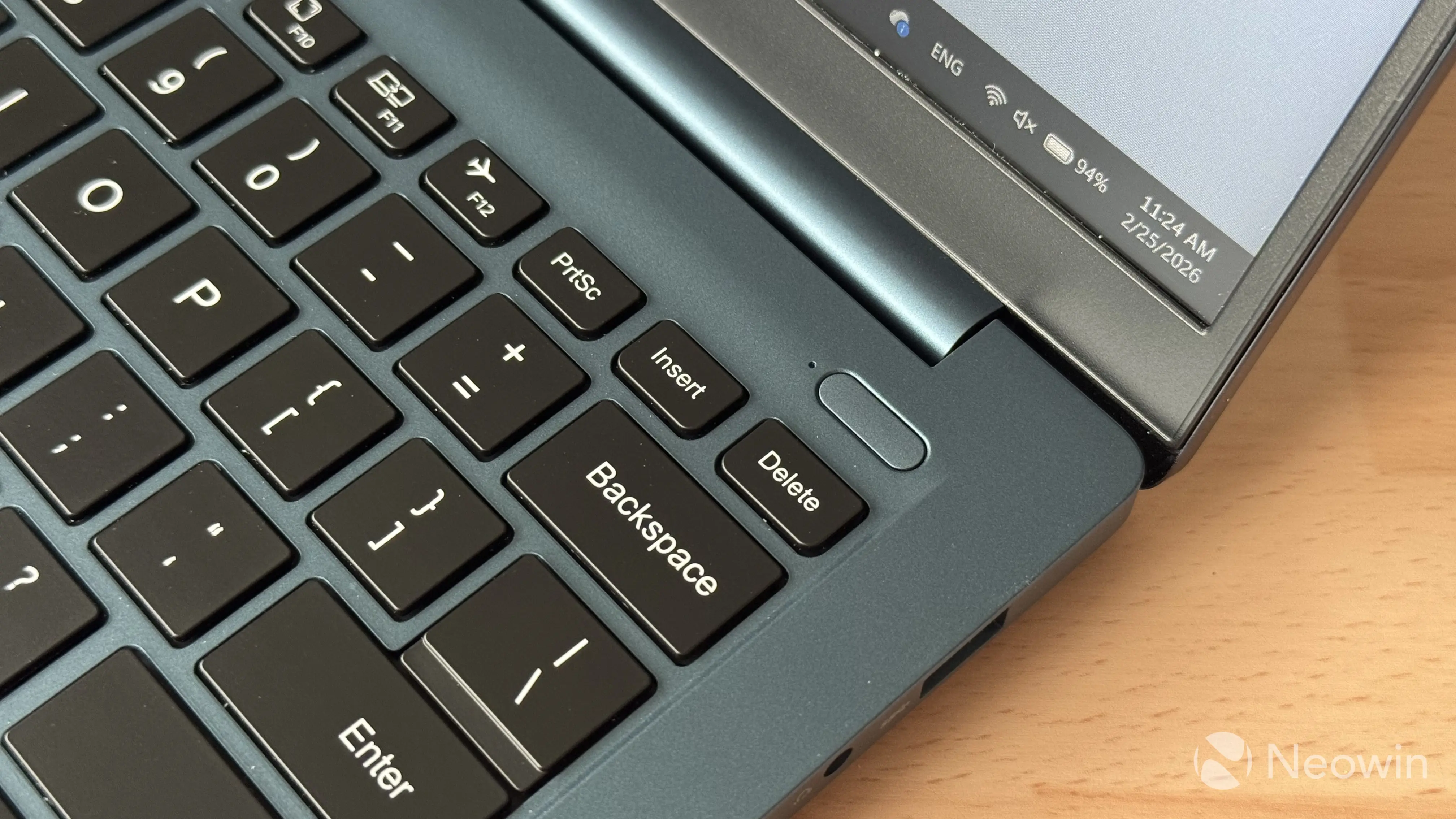
As for the trackpad, the CoreBook Air 14 offers a quite large one, which takes a little more than one third of the entire laptop width. I like its size and the fact that it is a Windows Precision trackpad with full gesture support and customization, but I cannot say it is a good trackpad. The only way to use it without grunting is by setting touch sensitivity to the maximum, and even after that, it would sometimes feel sluggish, as if it needs to wake up before processing your gestures. Also, physical right and left clicks are only possible when pressing in the lower corners of the trackpad.
Finally, kudos to CHUWI for not using stupid stickers on the deck. There are only two stickers: AMD Ryzen and AMD Radeon. Both are easily removable.
Display
The CoreBook Air 14 has a 14-inch 8-bit IPS 16:10 display with the FullHD+ (1920x1200 pixels) resolution. It is a 60Hz display, which is a bit disappointing. 60Hz feels dated in 2026, and I wish it were at least 90Hz like Microsoft"s budget-friendly Surface Laptop. Still, the display is plenty bright for its price, and most of the time, I ended up using it at 50-60% brightness. Of course, its colors are not like those in OLED laptops (see Steven Parker"s GEEKOM laptop review for reference), but they are decent overall, especially at this price level.
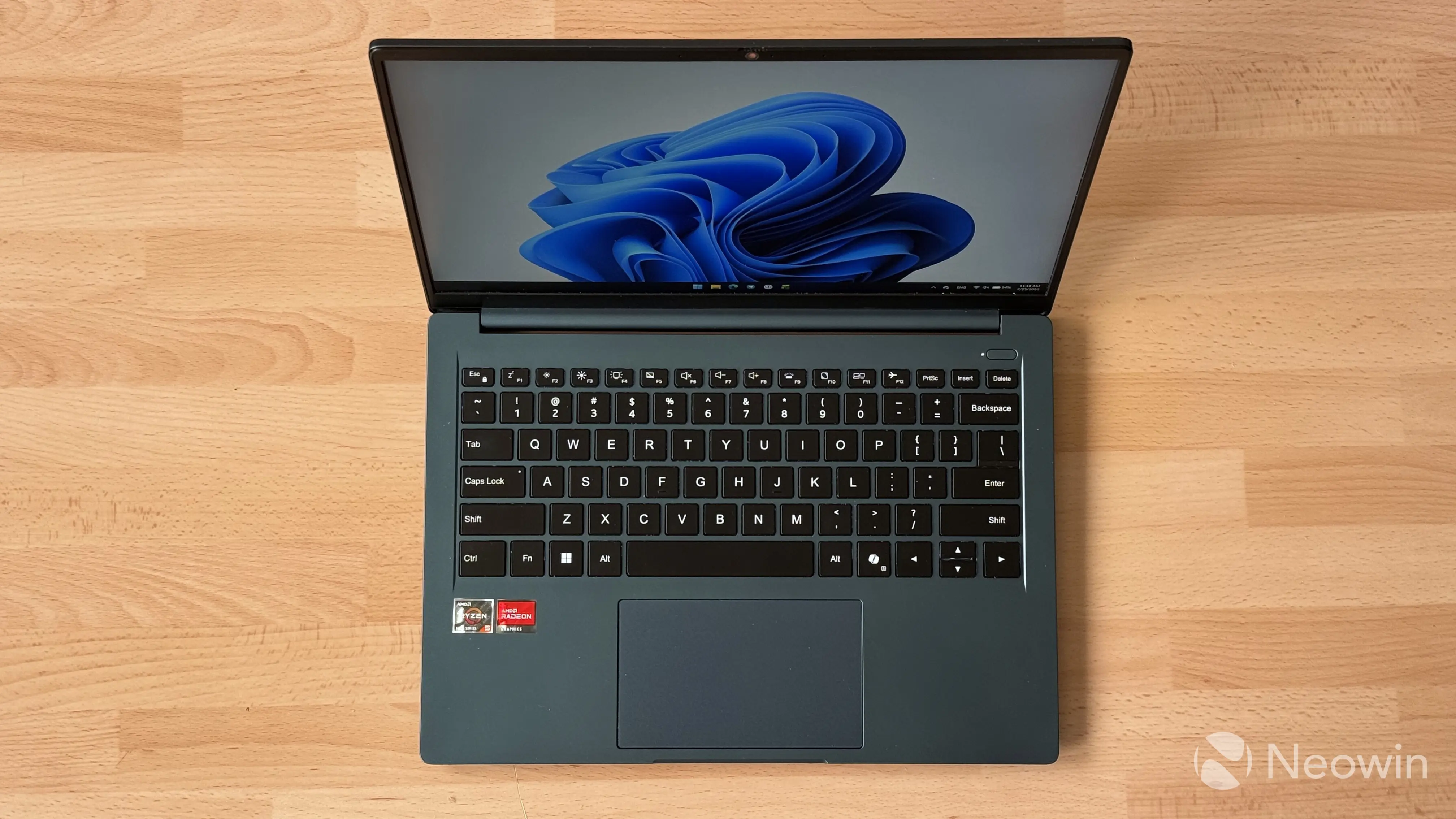
The screen is not flush with the bezels (another thing that shows the device"s price range), but they are adequately thin, and the surface has a matte finish to reduce glare. I prefer glossy screens, as they give better colors, but having fewer reflections is nice.
The display is not going to blow anyone"s head, but for a sub-$500 laptop, it is good, and does not suffer from noticeable backlight bleed. Of course, the 60Hz refresh rate is definitely noticeable, but you gotta cut some corners, right? HDR is not supported either.
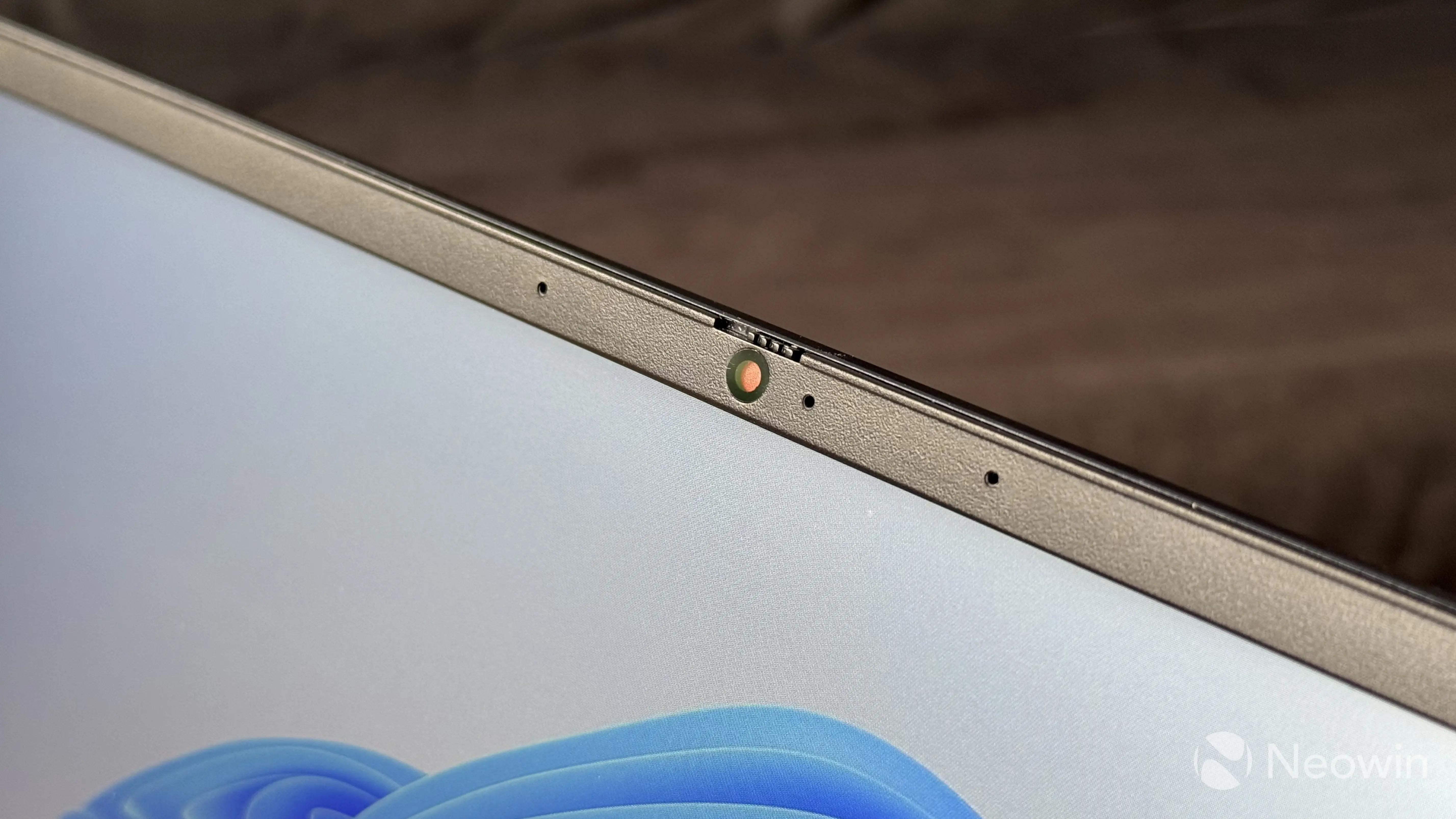
Above the screen, you will find a regular 1080p camera. It is a typical laptop camera with mediocre quality. However, it has a physical privacy shutter (thanks for that) and an LED status indicator. I do not take many video calls these days, but I was satisfied with the overall quality, given the price of the computer.
Getting inside
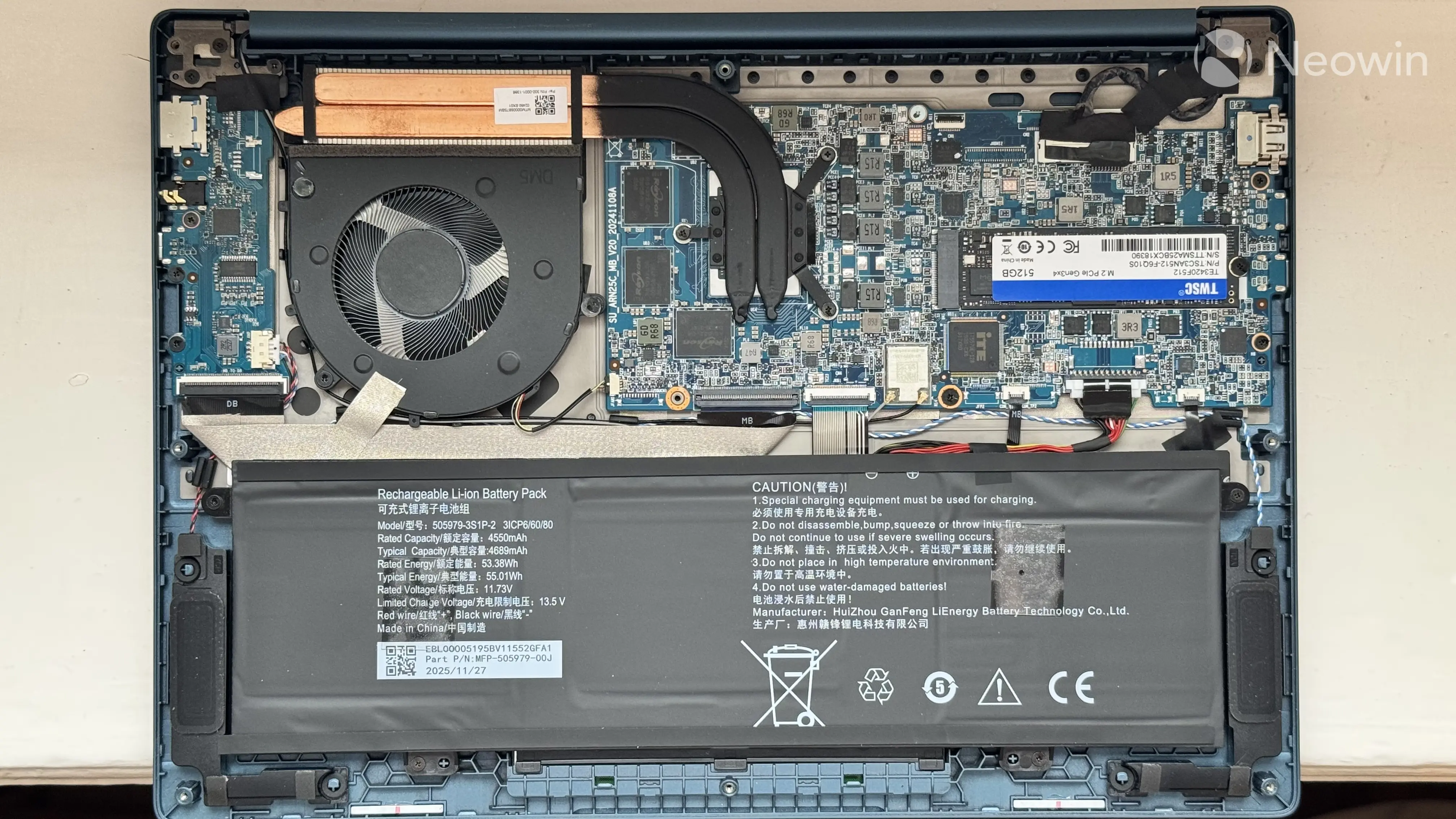
Repairability is a very important aspect of modern tech, and the CoreBook Air does not set any roadblocks on your way inside it. You can remove the bottom cover after undoing a bunch of screws, which are all exposed (words cannot describe how much I hate and despise laptops with screws hidden underneath rubber feet). Speaking of rubber feet, they are quite large, giving the laptop plenty of space to suck air through a big vent.
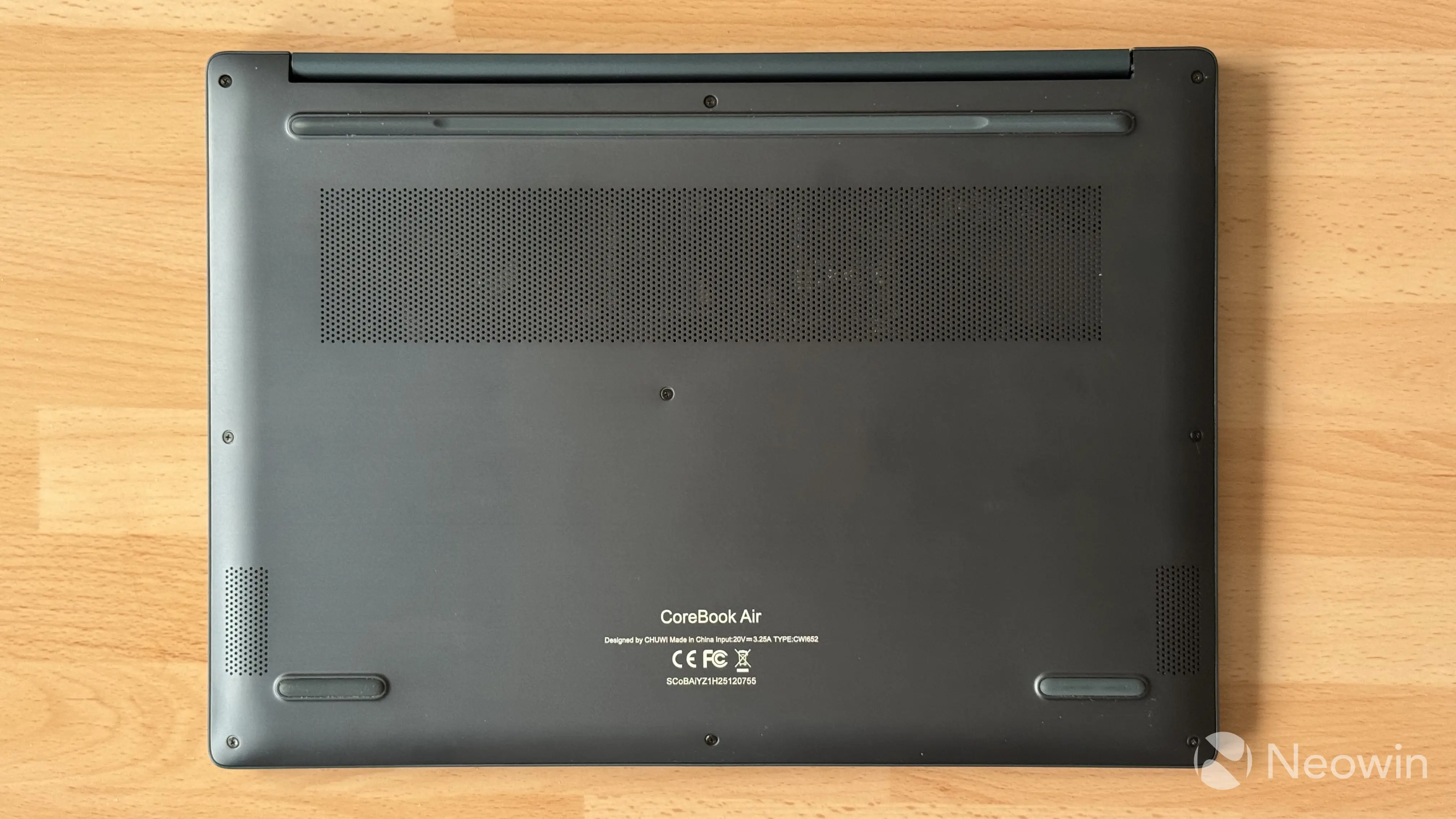
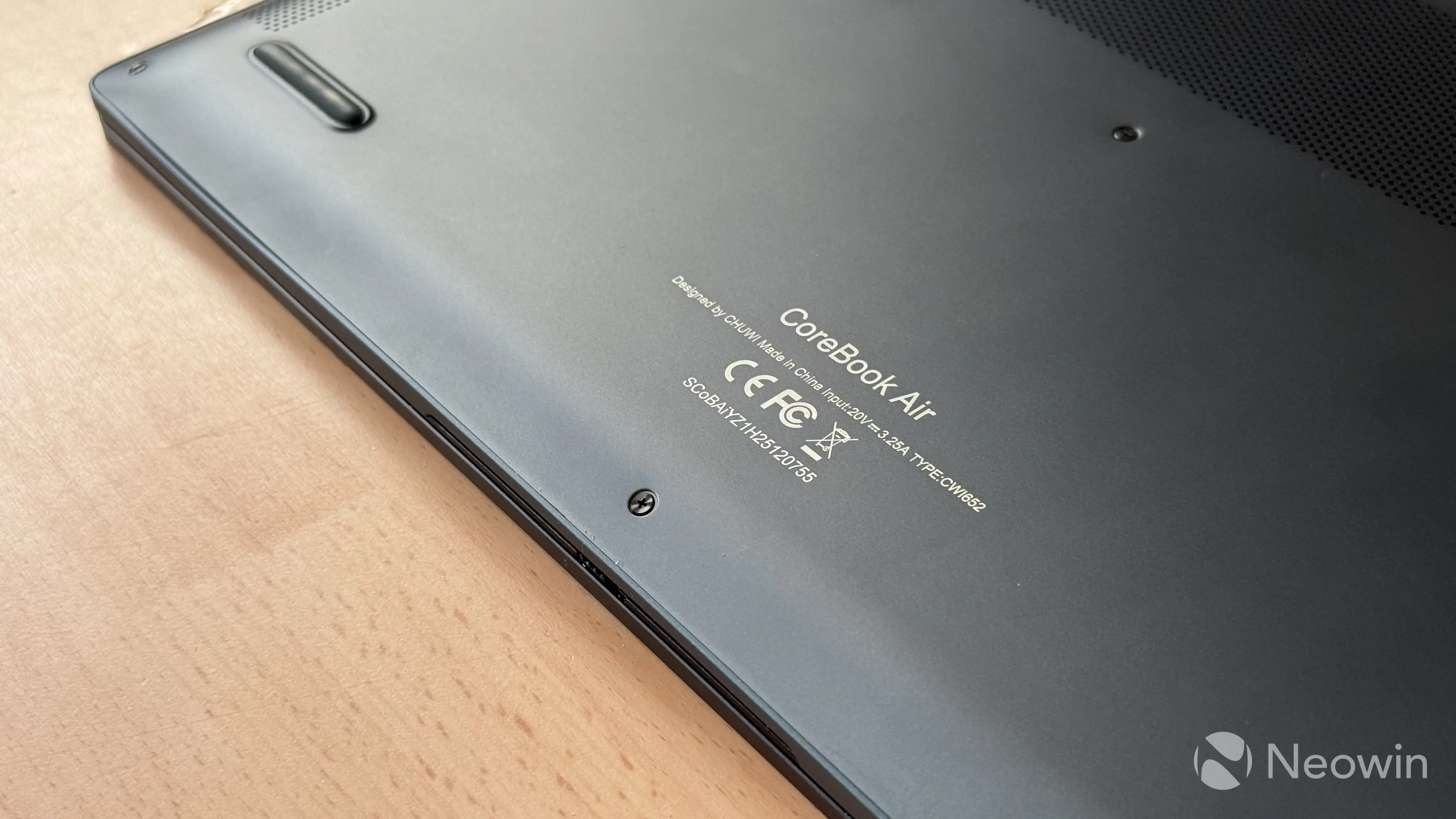
Under the cover, you will find the exposed drive (standard-sized), a single fan with two copper pipes, and a 55 Wh battery. Nothing is glued, and you can easily remove the battery, speakers, the mainboard, the daughter board, etc. Unfortunately, the network card from Realtek is soldered on, just like RAM, so no upgrades here.
Despite some limitations, the CoreBook Air is user-friendly when it comes to repairs, and servicing it should be easy. Getting spare parts, of course, is an open question, given the non-mainstream nature of the manufacturer, but at least you can easily get inside and remove whatever you need to remove. Thumbs up for this.
Hardware Inside
The CoreBook Air 14 is powered by the Ryzen 5 6600H. This 6-core, 12-thread processor from 2022 operates at up to 4.5 GHz, and it gives enough power for daily work. However, I am not going to pretend I was not disappointed to see such an old processor. The Ryzen 5 6600H debuted four years ago, and it is the biggest corner that CHUWI cut to make the computer affordable.
Do not get me wrong, it is still a solid chip, but buying a new laptop with a four-year-old processor just grinds my gears a little bit.
As for the graphics, the CoreBook Air 14 comes with the Radeon 660M iGPU with 6 cores operating at 1900 MHz and taking video memory from RAM. It is not a gaming machine by any stretch of imagination, but it can do some light gaming in stuff like Minecraft or similar. In addition, the Radeon 660M is an RDNA 2 graphics, which can hardware accelerate common video codecs (AV1, VP9), saving you battery life and CPU usage when watching media.
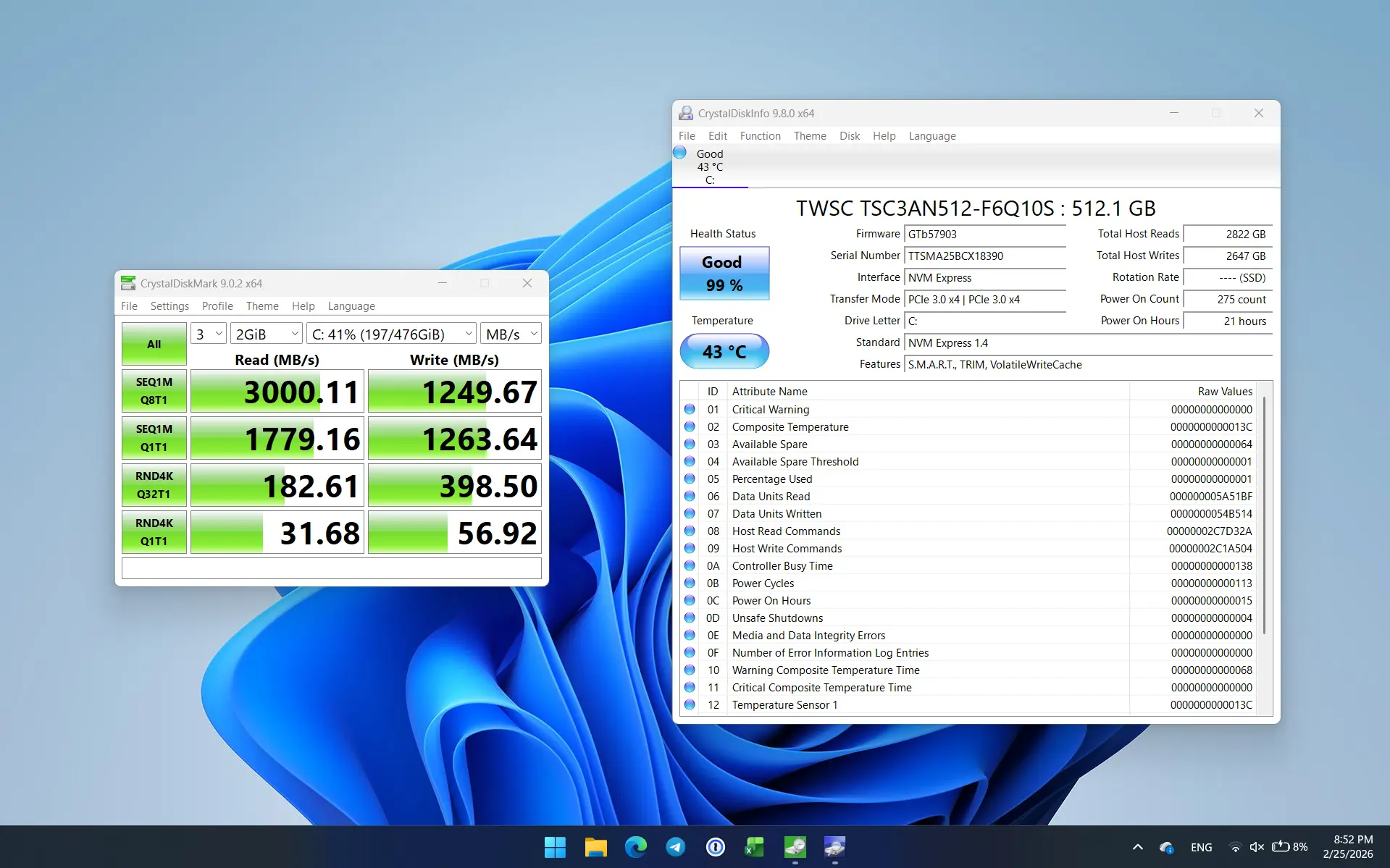
The processor is paired with 16GB of LPDDR5 memory that is not upgradeable. It is soldered on the motherboard and has no extra slots for expansion. As for storage, you get a PCIe Gen3 SSD with 512GB of space. Another corner cut (this chip supports PCIe Gen4 drives), but at least the drive is removable. You can easily access it and replace it with something better if you wish.
Using the CoreBook Air 14
The computer comes with Windows 11 preinstalled and activated. My unit arrived with version 24H2, which quickly picked up version 25H2 in Windows Update. I did not experience any issues with updating the computer, unlike Steven Parker, who is haunted by constant Windows Update issues (he tests significantly more devices than I do, so that I might be just lucky here).
The operating system came bloat-free. It only had a CHUWI control panel preinstalled and a copy of Office 2024 (also activated). I am not sure about the license origin, though. The Windows license is tied to the hardware, so clean-installing Windows did not result in the OS asking me to activate it once again.
One major concern that I experienced with the CHUWI"s software is the Winring0 driver and its vulnerability, about which I was kindly warned by Windows Security. It is not malware by any means (it is a security issue in a driver), and Windows Security quickly quarantined the problematic driver. After I was done with the initial testing, I purged the OS and reinstalled it from scratch.
Then I was hit with another problem: drivers. Windows has plenty of drivers built in, and when reinstalling Windows, you often get access to Wi-Fi so that you can quickly connect to the internet and pull the necessary drivers from Windows Update. Not here. Wi-Fi is not available on clean installations (I am only using official ISOs from Microsoft). After noticing that, I went to CHUWI"s official website to find the driver package. The only way to get it is to enter your device serial number (no manual search and no support section on the product page). After filling out the form, I got the following message:
Database Working Un-normal now, Please contact local retails and distributor for Service
Bruh...
After getting nothing from the "un-normal" database, I contacted CHUWI and asked for drivers. In a few hours, they sent me all the drivers for the CoreBook Air so that I could complete the installation. By the time of writing the review, the database is still in the "un-normal" state. Come on, guys!
Other than that, the software experience is alright and pain-free.
Performance, benchmarks, and thermals
In normal conditions, when working in a browser, Office apps, emails, etc, the CoreBook Air 14 stays cool and quiet. Processor"s temperatures fluctuate between 45 and 55 °C, which is plenty good for a laptop with a 45W chip. Under max load in Cinebench, temperatures reach 95 °C. Keep in mind that you are not likely to experience such high temperatures in normal use, given the nature of the benchmark.
The computer pulls air from its bottom lid, with exhaust vents mounted near the right side of the hinge. Sadly, I do not have a thermal camera, but even under heavy load, the computer does not get hot to the point of feeling uncomfortable. Exhaust vents mounted on the back help channel the hot air away from the components you touch the most.
I tested the laptop in a few benchmarks with the following results:
| Cinebench R23 | Geekbench 6 | Geekbench AI | PCMark10 |
|---|---|---|---|
| Multi-core: 8,345 Single-core: 1,339 | Single-core: 1,809 Multi-core: 7,090 OpenCL: 13,053 | Single Precision: 2,249 Half Precision: 1,057 Quantized: 3,864 | Essentials: 8,962 Productivity: 11,808 Content Creation: 4,523 Total: 5,608 |
Storage performance is notably worse than that in more modern laptops, which is hardly surprising, given that the laptop uses a PCIe Gen3 SSD:
The CoreBook Air 14 comes with Windows 11 Pro preinstalled, and it behaves just like you expect it to. I do not have much to say about day-to-day performance, as it was nothing extraordinary.
Battery life
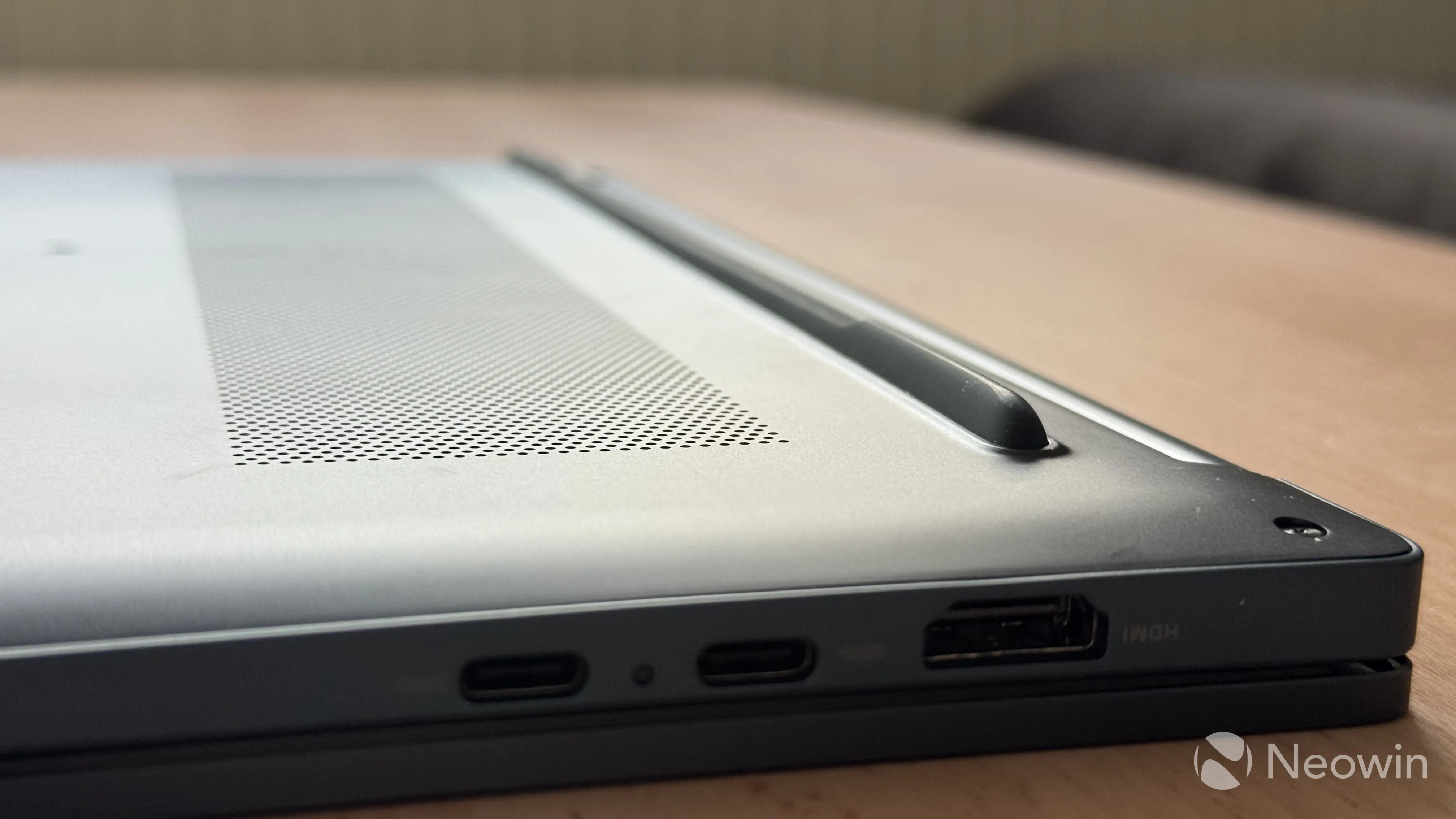
You can charge the CoreBook Air using one of the two USB Type-C ports located to the left (the right one is only for data). Between the ports, you can also find an LED indicator. During charging, the indicator is red, and when you get to 100%, it turns white. When the battery is below 10%, it starts blinking red.
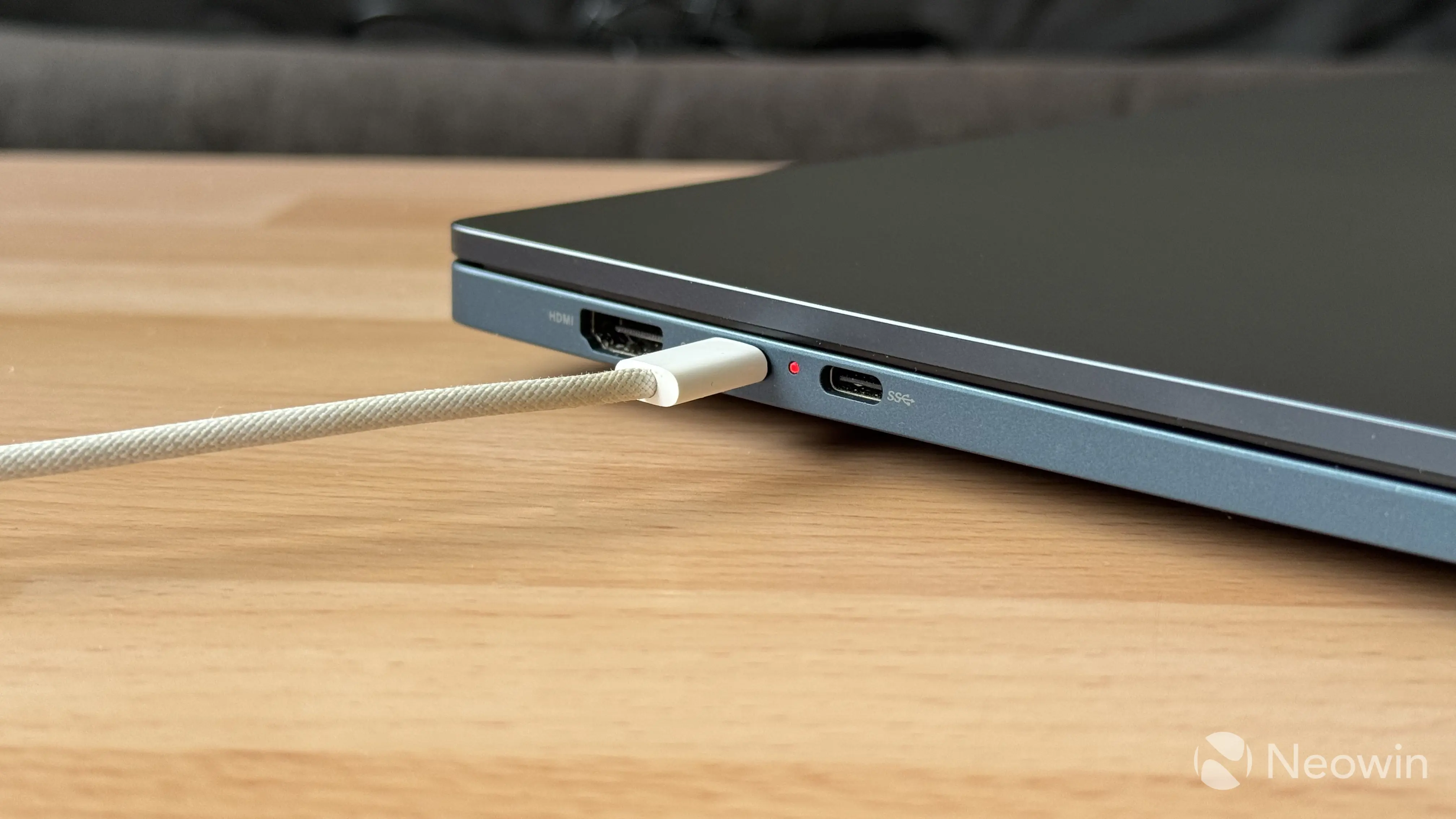
The laptop supports USB PD, which means it can charge from any modern charger or powerbank, as long as it can deliver up to 65W of power. As such, do not get discouraged by the rather old-school-looking charger in the box, as you can charge the CoreBook Air 13 with nearly anything that can deliver 45-65W of power. At maximum load, the laptop draws ~60-62W of power.
I did not experience any alarming anomalies with the battery when testing the computer. One time, it stuck at 100% for a prolonged period and then dropped to 90% in an instant, but that was resolved after a few charge-discharge cycles, as the battery and software got calibrated. After that, battery reporting was accurate and without major jumps. When draining the battery to its last drop, the CoreBook Air 13 shut down at about 6%. I was a bit disappointed to see it die this early.
As for battery life, it is pretty good. The built-in 55Wh battery lasted for 7.5 hours of FullHD YouTube video at 50% brightness. At 100% brightness, a 1080p YouTube video killed the battery in 6 hours and 40 minutes. While not mind-blowing, it is a respectable result, and it should get you through a workday on a single charge, which, in an emergency, can be topped up with a good power bank. I have a few in my disposal, and all of them managed to charge the CoreBook Air 13 without issues.
As for charging the laptop, it gets from dead to 100% in about 90 minutes.
Conclusion
The CHUWI CoreBook Air 14 is a good laptop if you can get it with a discount (use our "NEOWINAIR" promo code to get an extra 13% off). Lightweight, well-built, with a good set of ports, and a nice display. However, it does not exist in a vacuum, and when shopping for a computer on a tight budget, or any budget at all, you have to consider other options. And other options include more modern laptops from mainstream manufacturers at the $500 price range with processors like Core Ultra 5 200 Series or Snapdragon X. These devices will be more powerful and with more recent, more lasting hardware, but at the same time, not so lightweight, with most options being at ~1.4-1.6 Kg. And trust me, you will notice the difference.
If weight and portability matter to you, the CoreBook Air 14 is a solid option to consider, as it is nearly impossible to get such a device for less than $500. Its weight is a solid selling point, and if you are ready to accept some trade-offs, none of which are deal-breaking, go for it; you will enjoy this lightweight and beautiful laptop.
You can order the CHUWI CoreBook Air 13 on the official website.