You can download and install the iOS 26 update on your supported iPhone model. The freshly baked update brings a touch of Liquid Glass design language to almost every corner, including the Reminders app.
The Reminders app received several useful updates with iOS 18 last year, including support for recently deleted reminders, multilingual grocery lists, and Calendar integration, which allows you to view, create, and edit reminders directly in the Calendar app.
Let"s talk about the new features you can find in the Reminders app after installing iOS 26. If you haven"t installed iOS 26 yet, read about the ten things you should do before installing the update.
1. Time Zone support
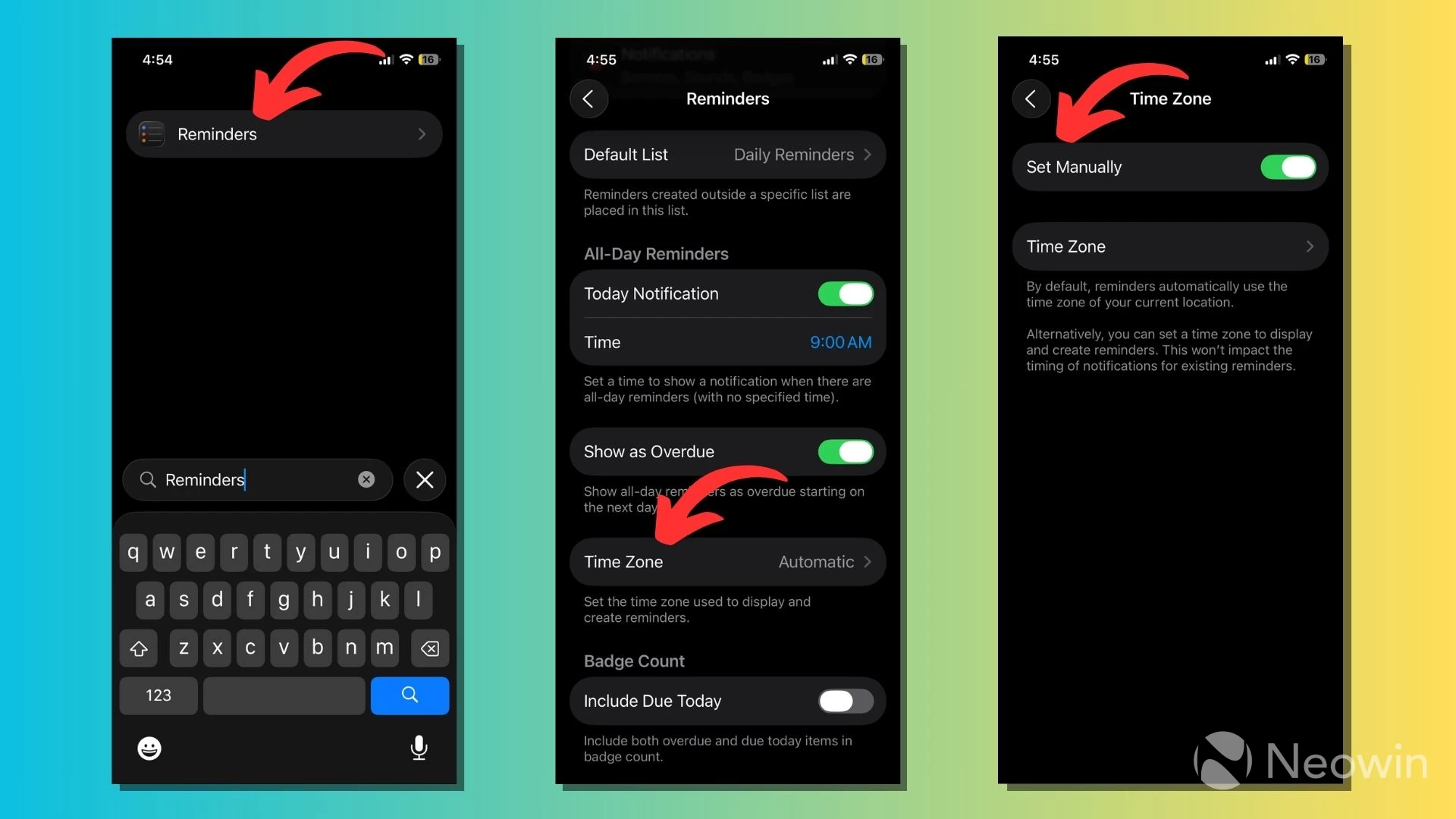
The Reminders app now lets you select a time zone. You can choose a universal time zone for the entire app by going to Settings > Apps > Reminders > Time Zone. Here, turn on the "Set Manually" toggle switch, then tap "Time Zone" and search for your desired location.
You can also select specific time zones for individual reminders. When creating a new reminder in the app, tap on the "Time" toggle button to select the time zone for the reminder.
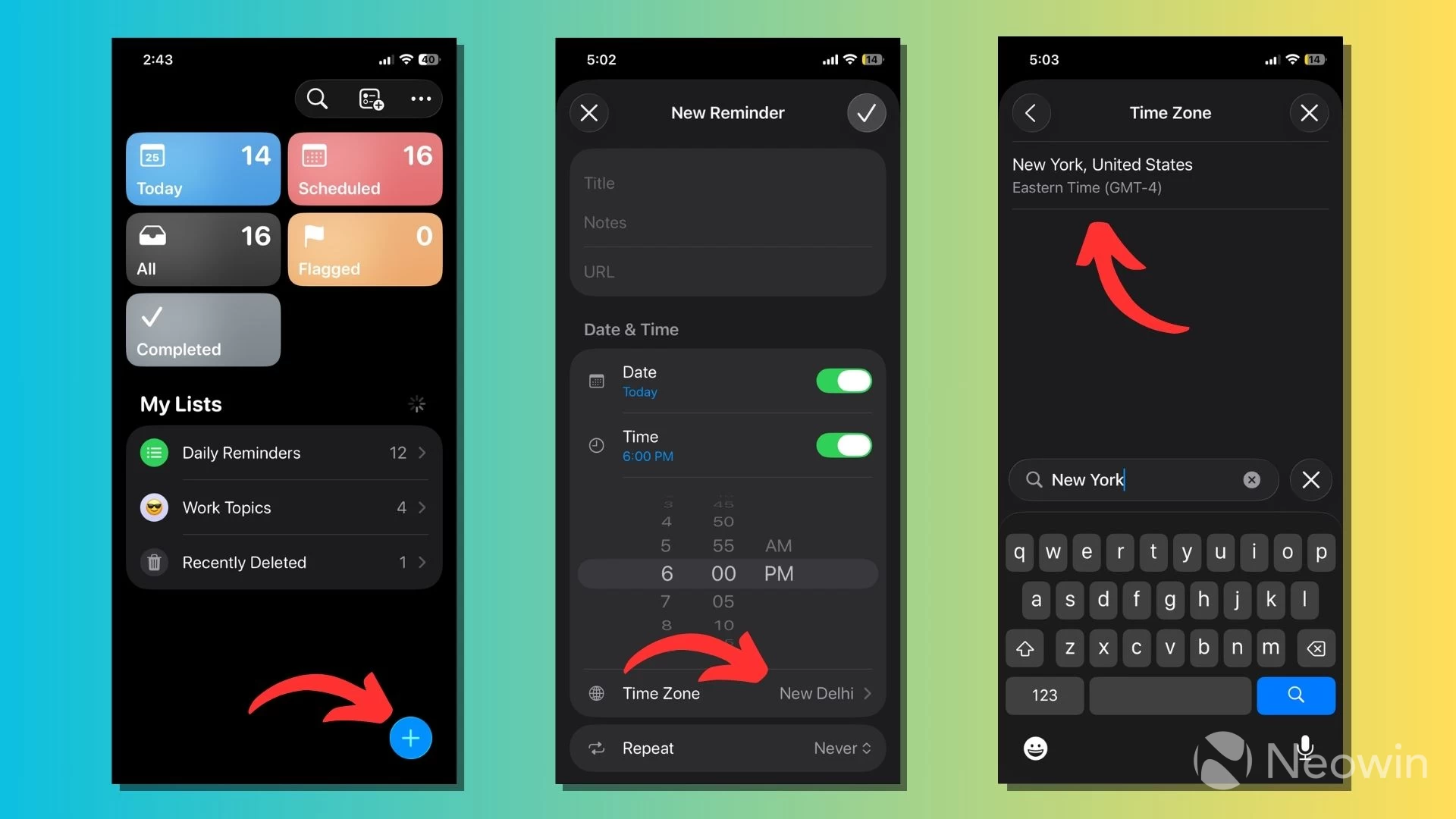
By default, the Reminders app uses the time zone of your device"s current location. When you switch to a manual time zone, the timing of notifications for existing reminders remains unaffected.
2. Create reminders quickly
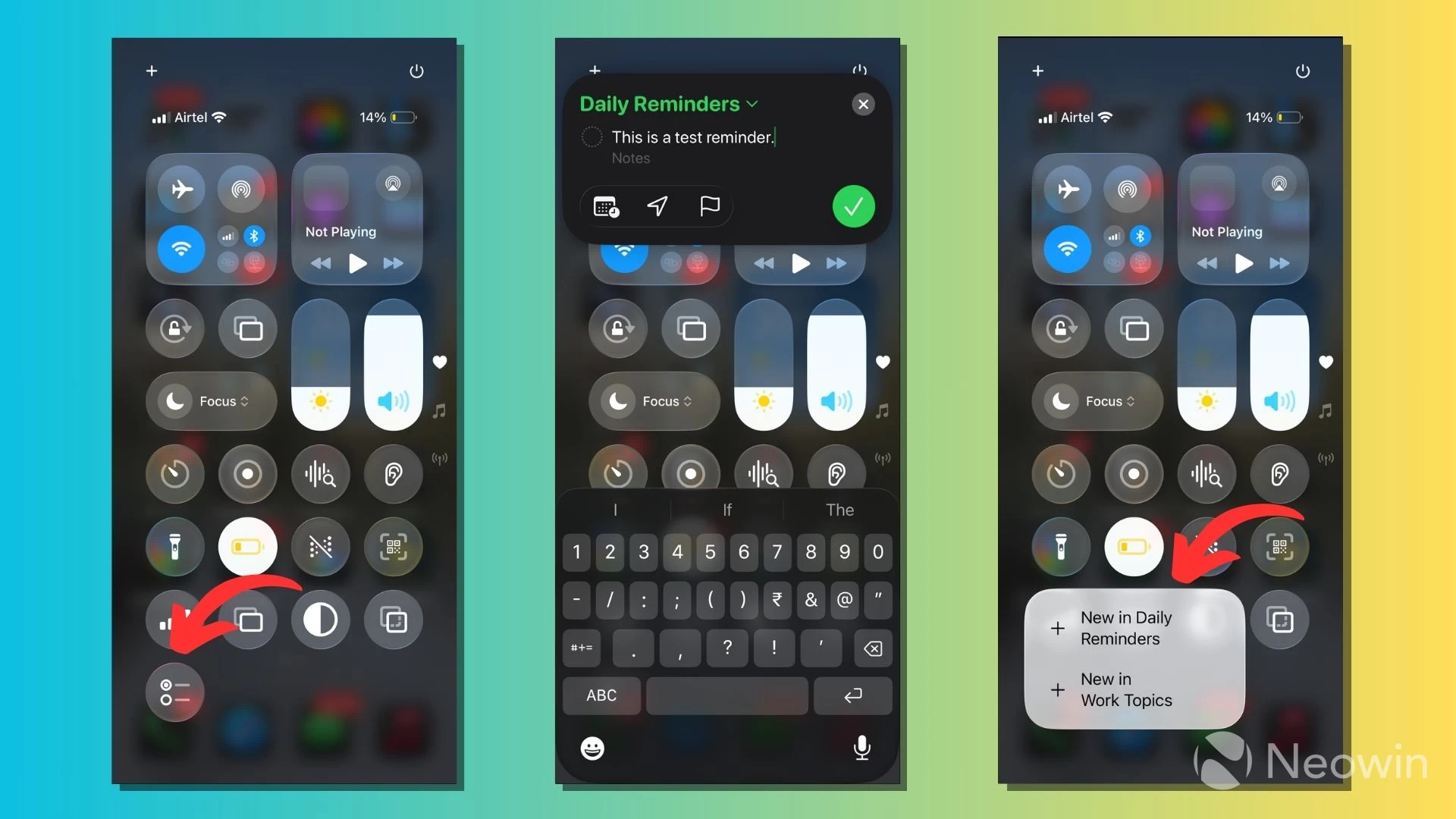
Apple has added a new button in the Control Center to create new reminders quickly. An overlay appears on top of the Control Center, where you can fill in the details, select the desired list, time, location, and flag.
As visible in the third screenshot, you can long-press the Reminders button in Control Center to pick a list. You can also create new reminders quickly by pressing the Action Button on iPhone 15 Pro/Pro Max and later models.
3. Automatically categorize reminders
The Reminders app now uses Apple Intelligence to automatically categorize reminders into different sections within a list. Your list will look tidier as the reminders get grouped into related topics.
You can tap on the three-dot menu button in the top-right corner, then select "Auto-Categorize" from the drop-down menu. If you want, you can follow the same steps to disable the feature and remove the categories.
If your iPhone doesn"t support Apple Intelligence, you can still categorize reminders into sections by tapping the three-dot menu button, then choosing "New Section."
4. Automatically suggested reminders
The Reminders app can review emails, messages, notes, or other text to extract relevant tasks, grocery items, or ingredients from a recipe. You can also share Safari webpages or News+ stories with the Reminders app to get suggestions based on the context.
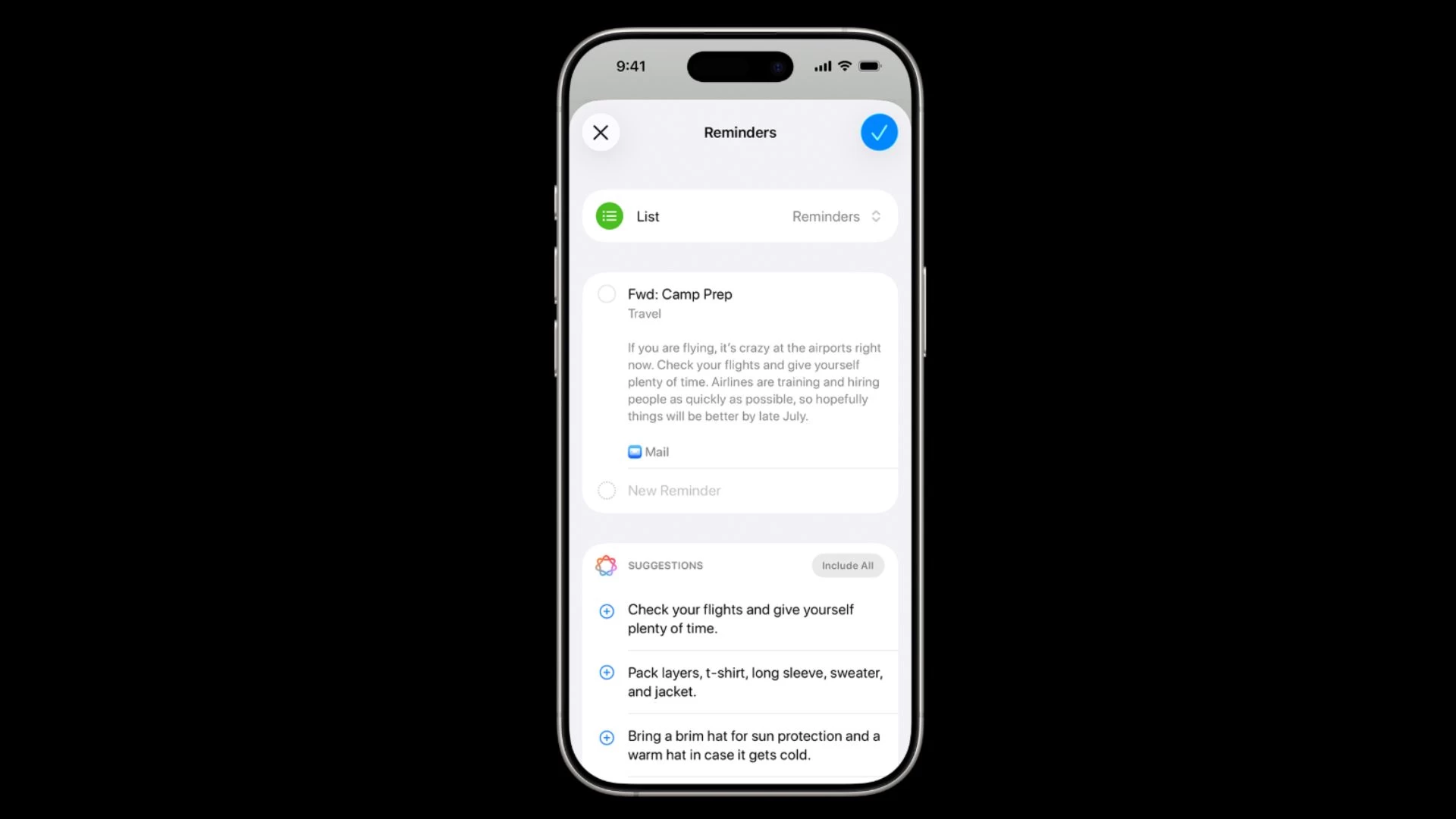
The feature utilizes Apple Intelligence and displays such reminders in the "Siri Suggestions" section of the app, from which you can add them to your lists.
5. Visual improvements with Liquid Glass

If you have muscle memory from last year, you"ll notice that Apple has done some reordering inside the Reminders app. The option to create a new list is now located at the top of the screen; its previous position has been taken by the "New Reminder" option, now represented as a "+" icon.
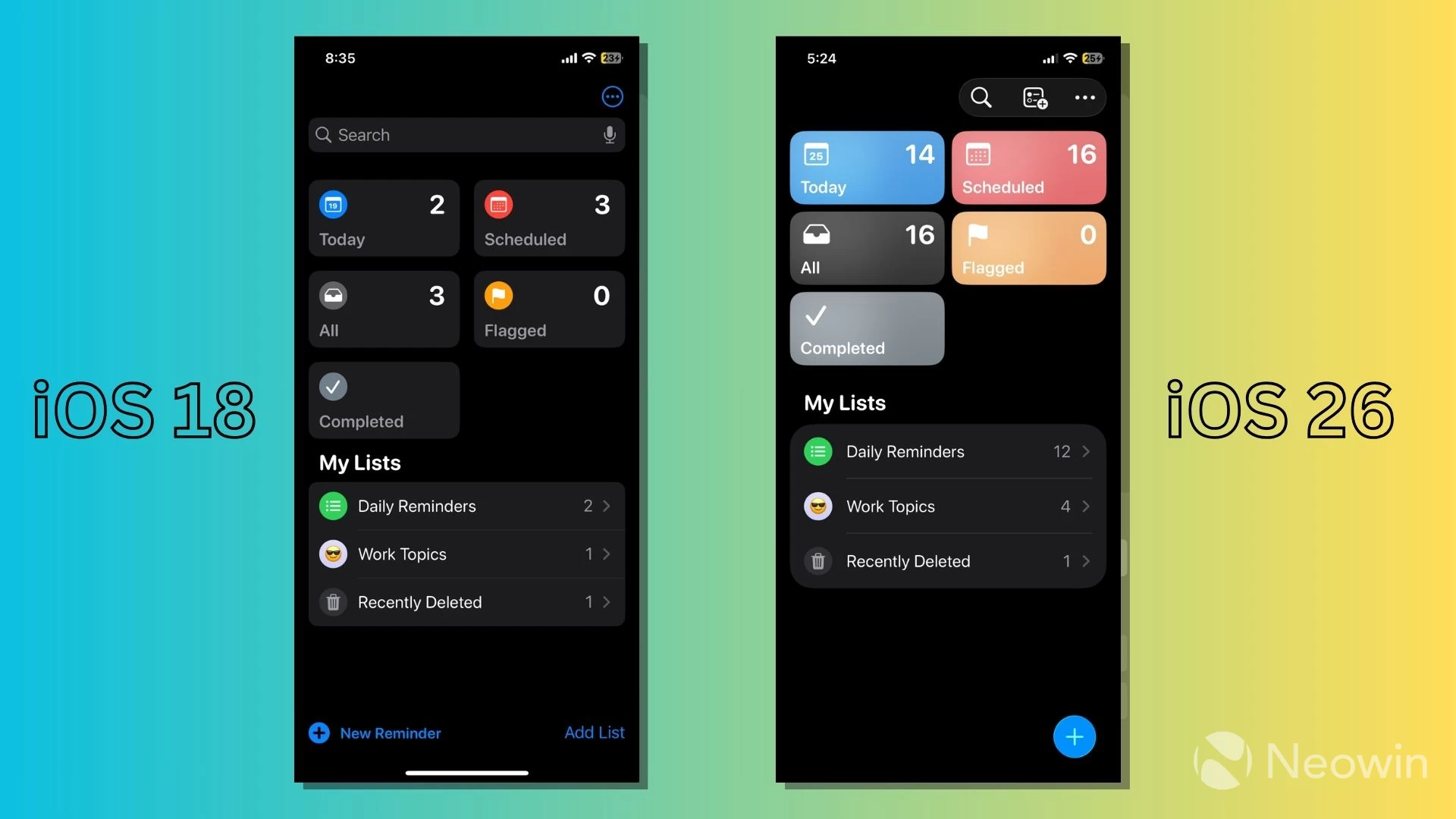
The updated Reminders app features curvy UI elements and colors for the different categories present on its main screen. Apple has also shrunk the search bar into a lens icon and placed it alongside the create list option at the top.
It"s different from other apps, where the search bar is now present at the bottom of the screen. The repositioning of the search bar in Reminders is also the reason you"ll notice more empty space at the bottom of the screen, as all the UI elements have been moved up slightly.
These are some of the new features and changes available in the Reminders app. On a broader note, the iOS 26 update introduces a fresh wave of visual changes, including Liquid Glass and interactive translucent elements.
Apple has topped it off by making the app more colorful and adding several Apple Intelligence features. While a new user will barely notice the re-arranged controls, it might result in a steeper learning curve for existing users.
This article is part of our series exploring the new features and changes on iOS 26, including the Phone app, new Adaptive features, and the ability to take HDR screenshots and add a 3D effect to your photos.