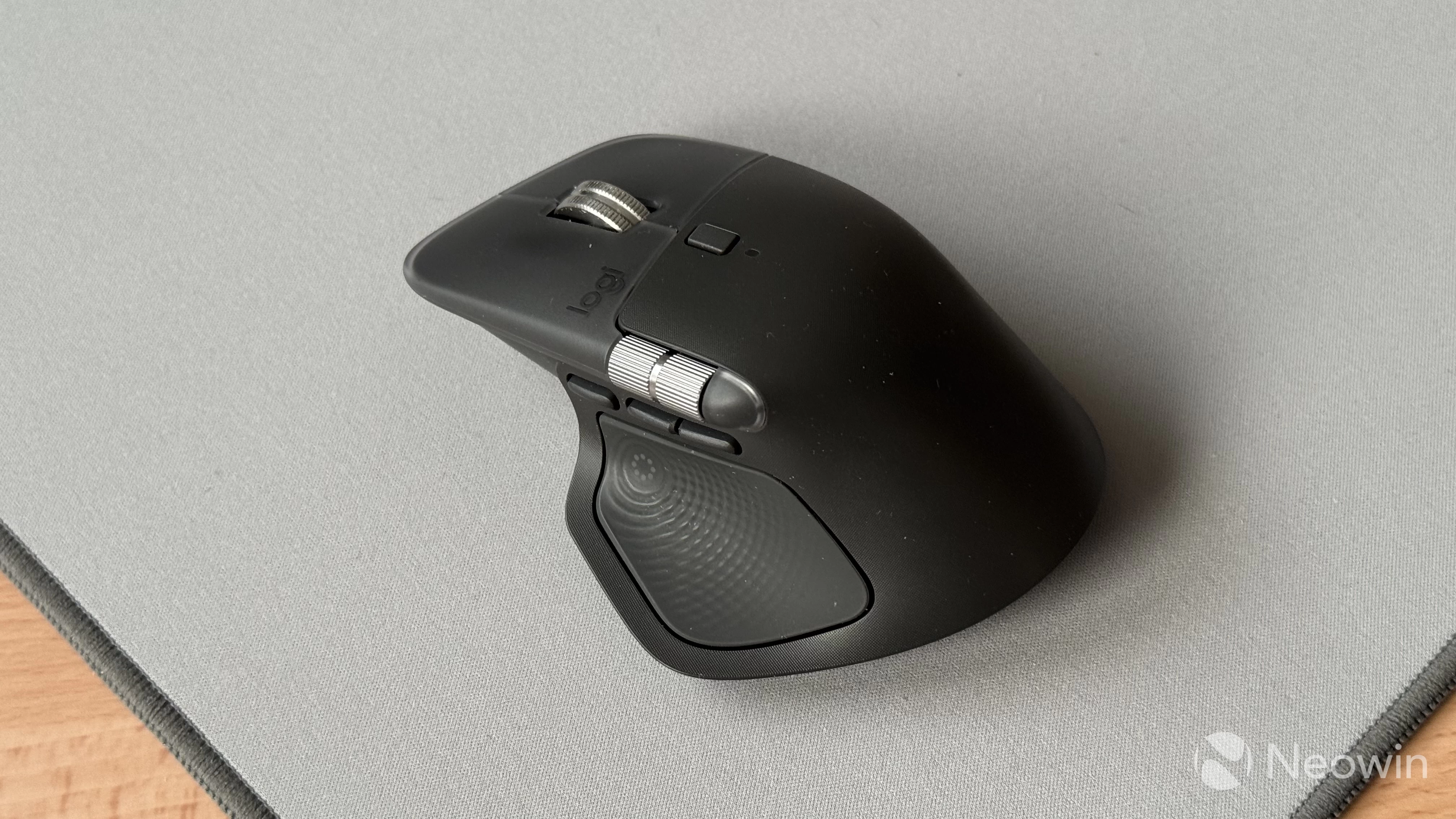
Logitech released the MX Master 4 a few months ago, finally offering a successor to the MX Master 3S and a more substantial release since the MX Master 3 in 2019. Some time ago, I shared my experience of using the MX Master 4 after years with the MX Master 3, and the new model turned out to be great, albeit not flawless. Now, after two months with the MX Master 4, here are five things I want Logitech to improve in the next version, be it the MX Master 4S or 5.
1. Side buttons for the main scroll wheel
Before switching to the MX Master 3, I used the M590, a compact and affordable mouse. Like many other mice, it had side buttons in the main scroll wheel, allowing you to perform various actions when pressing the wheel to the left or right. The main purpose of these buttons is horizontal scroll, but Logitech lets you remap those buttons to something more useful, like switching desktops, apps, tabs, or executing shortcuts.
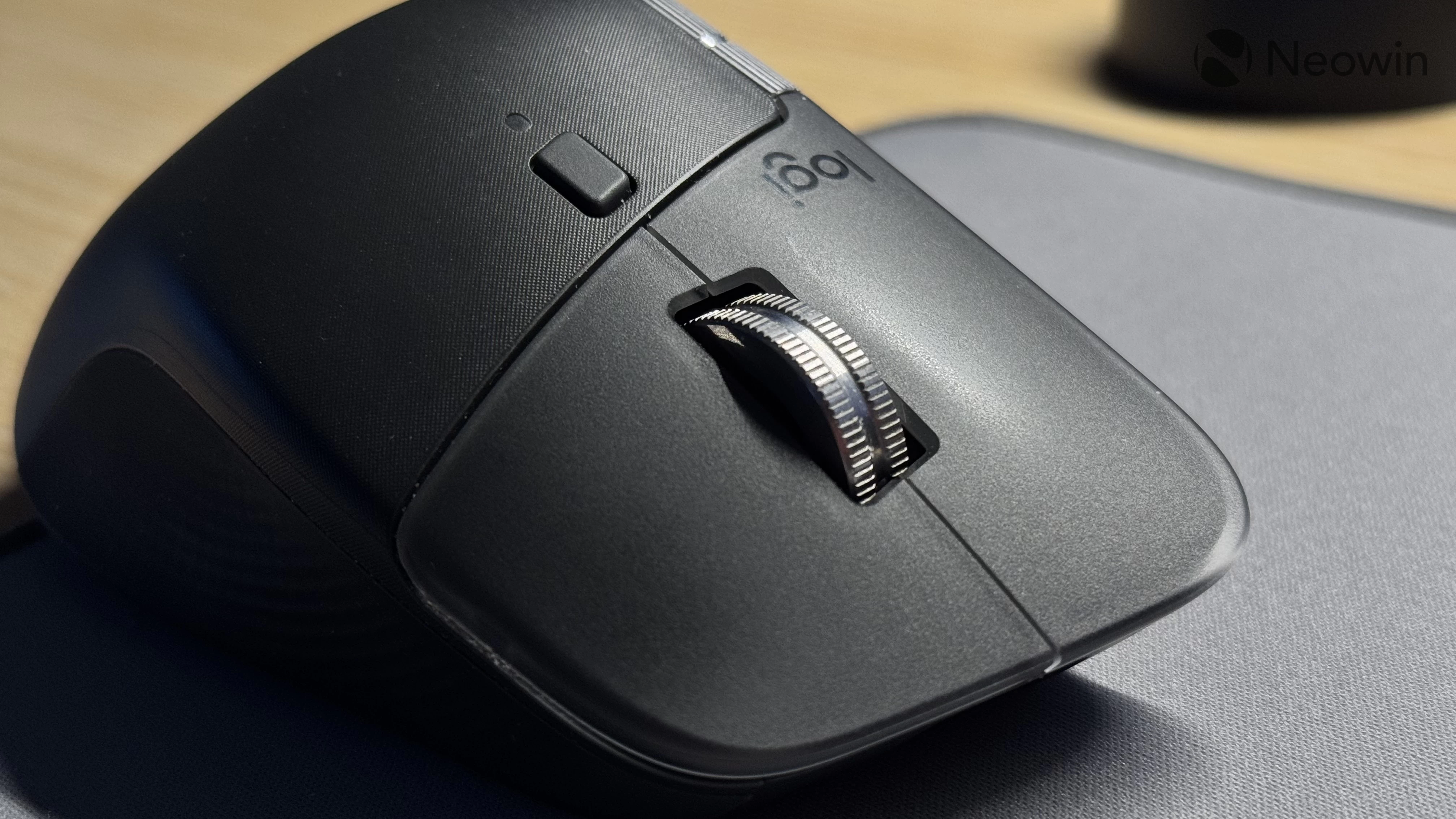
I understand that the secondary wheel kind of defeats the purpose of having a main wheel with side buttons, but I really think Logitech should bring them back. I always considered side scrolling with the main wheel awkward and inconvenient, but it works great for things like switching desktops or tabs, where you do not need to hold the wheel. Just one click to perform a quick action. Like the MX Master 3 and 3S, the MX Master 4"s main wheel wiggles side-to-side a bit, and that wiggle just begs for having two side buttons.
The scroll wheel in the MX Master series is a pretty complicated piece of engineering, which could be one of the reasons it lacks side buttons, but I am sure Logitech can figure it out, given the price of this device.
2. Profile switch button in a more accessible place
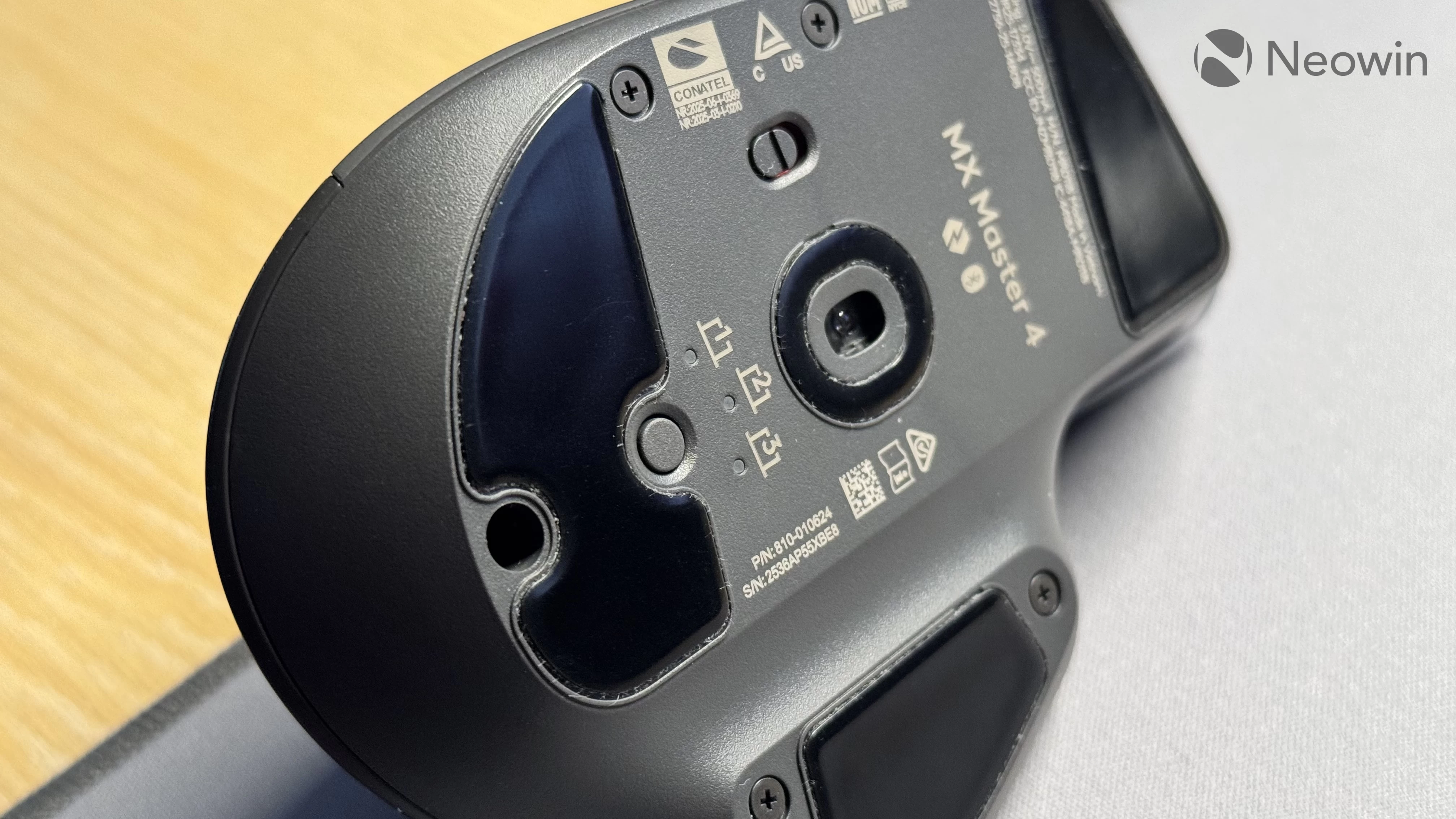
The MX Master 4 has three profiles for additional devices, but switching between them has always been a bit awkward, as the button and LED indicators are located on the bottom of the mouse. It is not a problem if you use the mouse solely with Windows PCs or Macs (there, the MX Master 4 can auto-switch), but things get weirder when you need to jump, say to Linux or an iPad.
I really wish there was no need to flip the mouse every time I want to move from one device to another. Having it next to the scroll mode button would be much better, or Logitech can at least let us map profile switching to another button. Here I want to mention the M590 once again, as it had the device switch button on top, and it was remappable. This, but in the MX Master, please.
3. Better polling
The MX Master 4 is not a gaming mouse by any means, but having a 125Hz polling rate on a $120 mouse frankly feels a bit offensive. You can feel the low polling rate (especially if you have experience using mice with better sensors), and just because people do not game with the MX Master mice, it does not mean they would not enjoy better sensors. Again, especially at this price.
4. A place to store the dongle
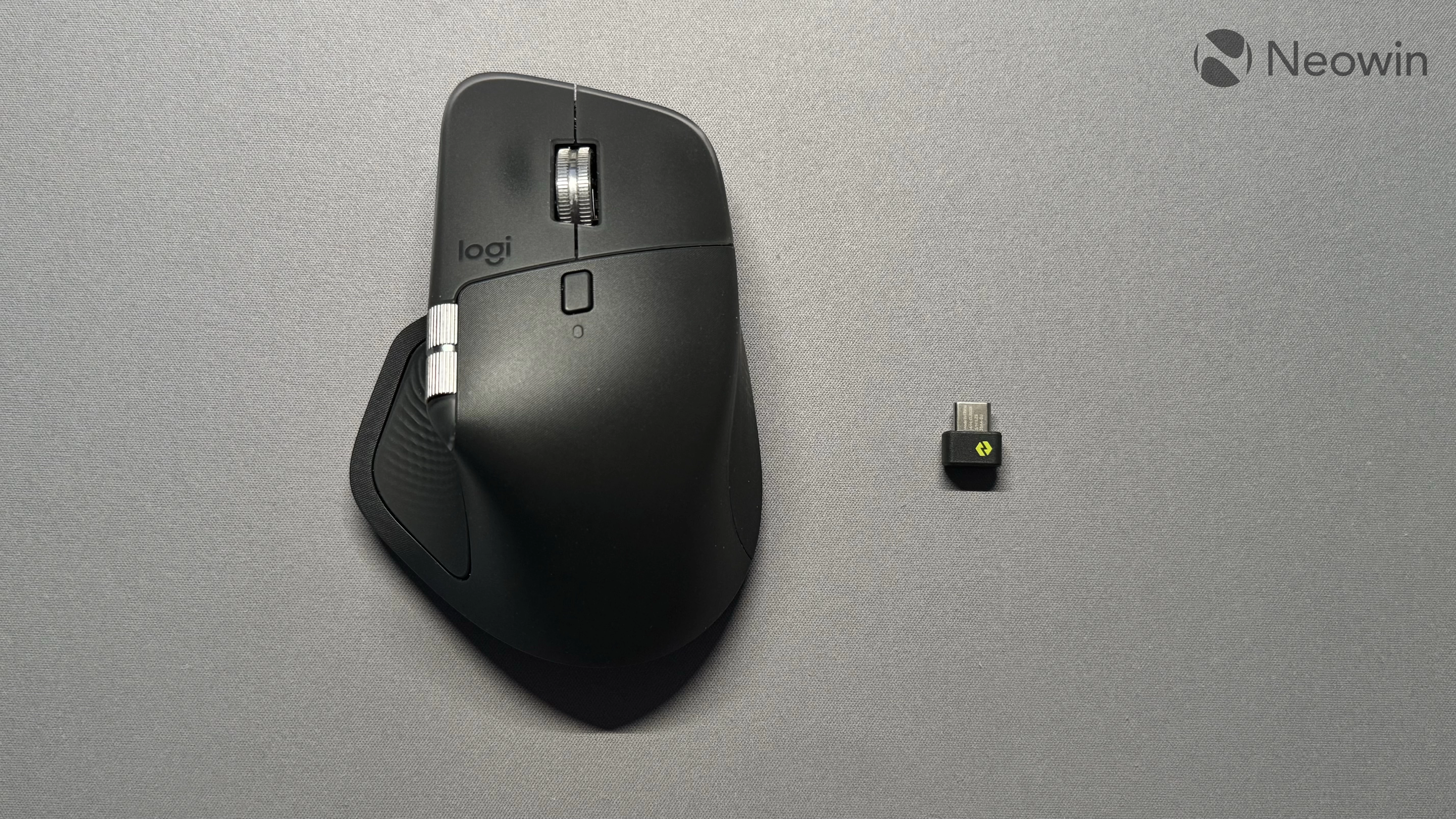
I absolutely love that Logitech finally switched to USB Type-C and redesigned the Bolt connector to have a much smaller footprint. Now, all that is left is to make a slot in the mouse to store the connector when on the go.
Again, the M590 and plenty of other mice have magnetic trays inside them for you to carry the dongle with the mouse in a safe place, but not the $120 MX Master 4. Like Robbie Khan said in his review, you can bypass this omission by sticking the dongle into the mouse"s USB port, but that feels awkward, especially pulling it out. Robbie also took his MX Master 4 apart, and those images show plenty of space for storage.
5. The biggest one: software
The previous four may feel like nitpicking, and what is hard to deny is the fact that Logitech needs to pay more attention to its software. I have two complaints in this area. The first one is the lack of onboard memory, which is very hard to excuse for a $120 productivity mouse. If you have a work device that does not allow installing apps, the MX Master 4 basically becomes a no-go, as it can only achieve its full potential when customized in the Logitech Options+ app.
Speaking of Logitech Options+... This app feels like a massive downgrade from the old Logitech Options app. It was never perfect, but it was reliable. Shortcuts always worked; you never had to increase DPI to increase gesture sensibility, and the Duolink feature was just a fantastic productivity boost. Now, my MX Master 4 forgets its customization every time I close a tab in Microsoft Edge, forcing me to switch apps to restore shortcuts. This also happens randomly in other apps and areas, making for a very frustrating user experience. With all these bugs, having an AI prompt builder in mouse software honestly feels like a bad joke.
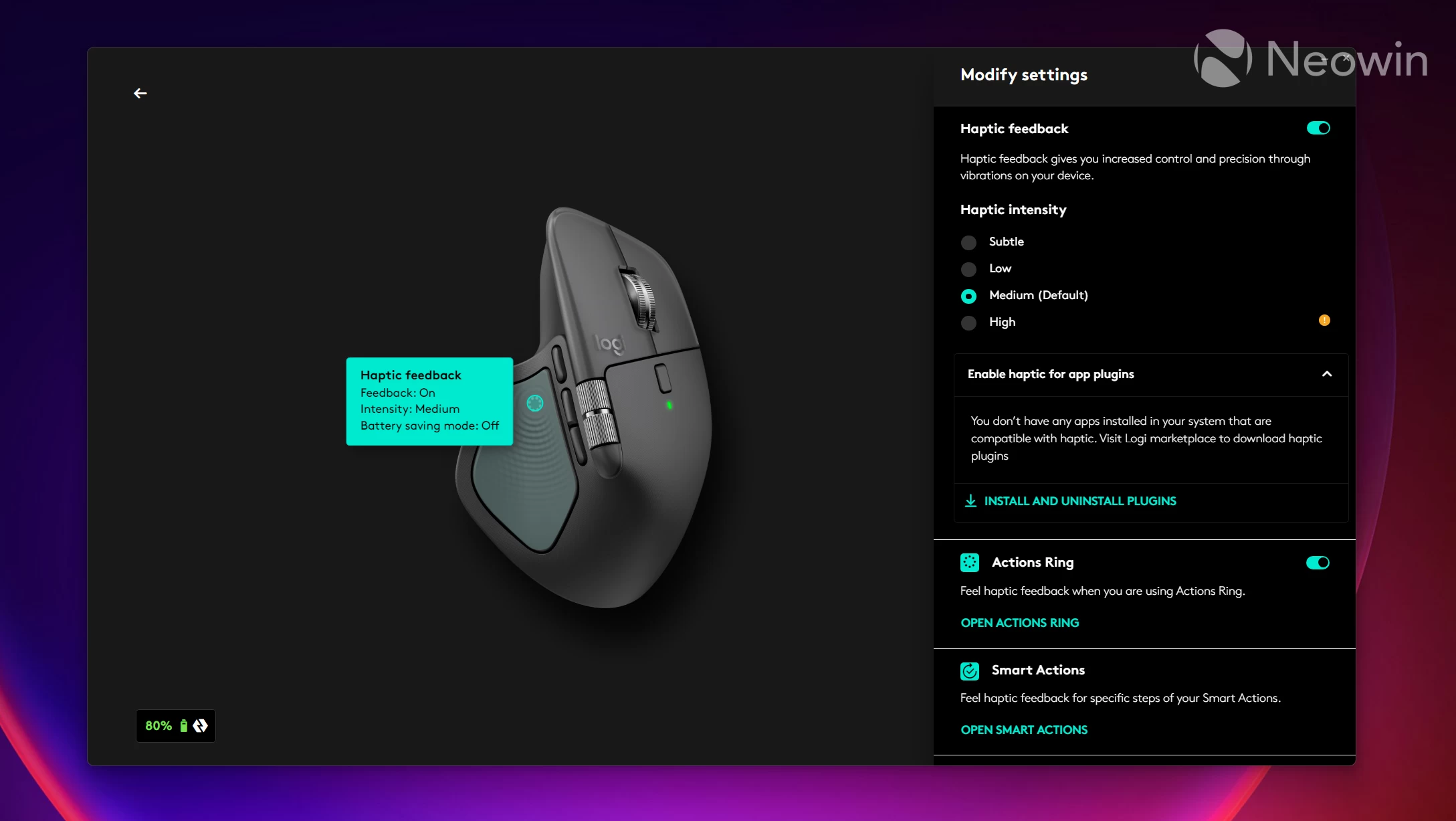
While the lack of on-board memory can only be solved in the next-gen MX Master mouse, a little bit more attention and love for the Options+ app will benefit all and give existing users one giant reason not to switch to something else. Oh, and can we finally have Options+ on Linux? Many people consider ditching Windows amid its enshittification and AI infestation, but for many, me included, the lack of Options+ on Linux is a big reason not to switch.
If you want to give the MX Master 4 a try, you can purchase it on Amazon for $119.99. The mouse is available in Graphite and Pale Gray.
As an Amazon Associate, we earn from qualifying purchases.