GMKtec is a brand that is new to me. As best I can make out, GMKtec is a sub-brand of Shenzhen GMK Technology Co., Ltd, based in China, which started operations in 2019, and according to their own website, their Mini PCs are sold in over 70 countries with official distributors and service networks established in 35 of them. Looking online, and from the point of view of end users on places like Reddit, GMKtec appears to have the mindset of "a cheaper Beelink" equivalent, which is not a bad place to be, really!
Before we get underway, here is a disclaimer: GMKtec provided a free sample without any review pre-approval.
Below are its full specifications.
| GMKtec NucBox K10 | ||
|---|---|---|
| Dimensions | ||
| Weight | 1065g | |
| CPU | Intel Core i9-13900HK (Base 4.1GHz, Turbo 5.4GHz 14C, 20T, 24MB L3 Cache) Min: 35W Base: 45W Turbo: 115W (65W) | |
| Graphics | Intel Iris® Xe Graphics eligible (96 EUs @ 1500MHz) | |
| NPU | No | |
| Memory | 0/32/64GB Dual SO-DIMM LPDDR5 5200MHz | |
| Storage | 2x M.2 2280 PCle 4.0 x4 slots (Crucial P3 Plus 1TB pre-installed) 1x M.2 2280 PCle 3.0 x3 slot | |
| PCIe Expansion | No | |
| Ethernet | 2.5GbE (Intel I226-V) | |
| Bluetooth | Bluetooth v5.2 | |
| Wireless LAN | Wi-Fi 6 (Intel AX201) 2.4Gbps | |
| Kensington Lock | Yes | |
| SD Card reader | No | |
| Power Input | Input: 100-240V AC, 50/60Hz 19V/6.32A (120W) | |
|
|
| |
| Front I/O Ports | 1 x 3.5mm Audio jack 2 x USB 3.2 Gen 2 Type-A (10 Gbps) 1 x USB 3.2 Gen 2 Type-C (10 Gbps DisplayPort, Data) 2 x USB 2.0 (480 Mbps) Power Button | |
| Rear I/O Ports | 2 x USB 3.2 Gen 2 Type-A (10 Gbps) | |
| OS | Windows 11 Pro 24H2 | |
| Price (MSRP) | $619, $719, $789 | |
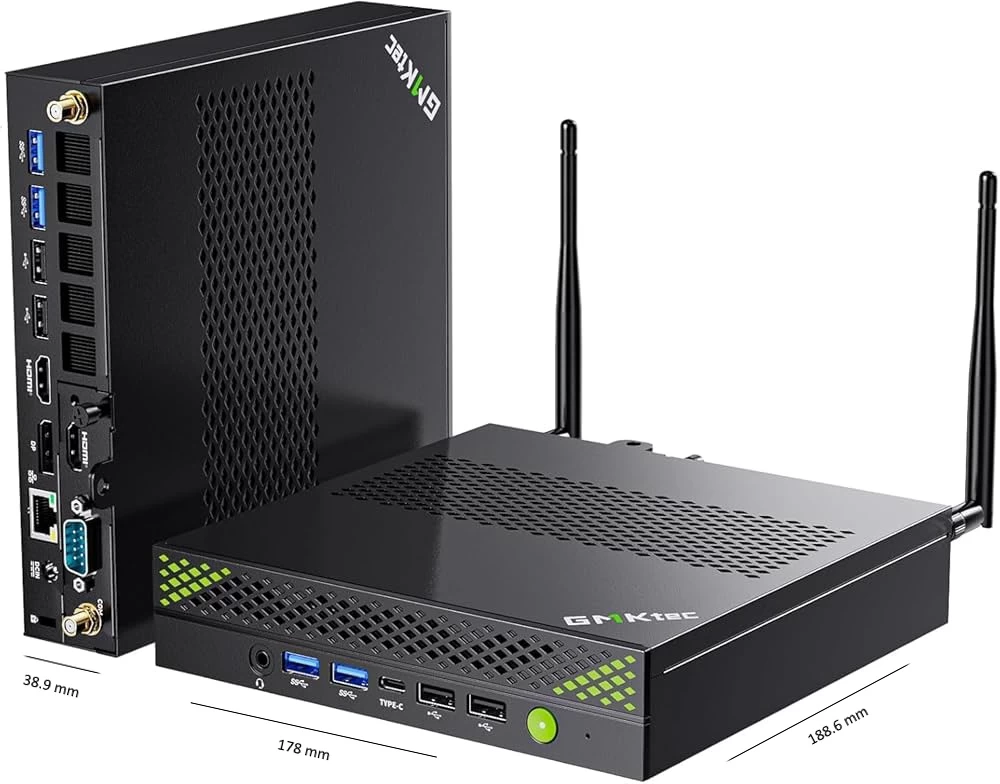
Bold denotes our configuration.
The K10 (which is what I"ll be calling it in this review) comes in three configurations and one color: Black. There"s a Barebone, without RAM, SSD, or Windows 11 Pro license, and the two full stock options come in either 32GB or 64 GB RAM; the rest is exactly the same, including the preinstalled Windows 11 Pro license. The prices listed above are the MSRP, but they can be bought for far less, which I"ll elaborate on later.
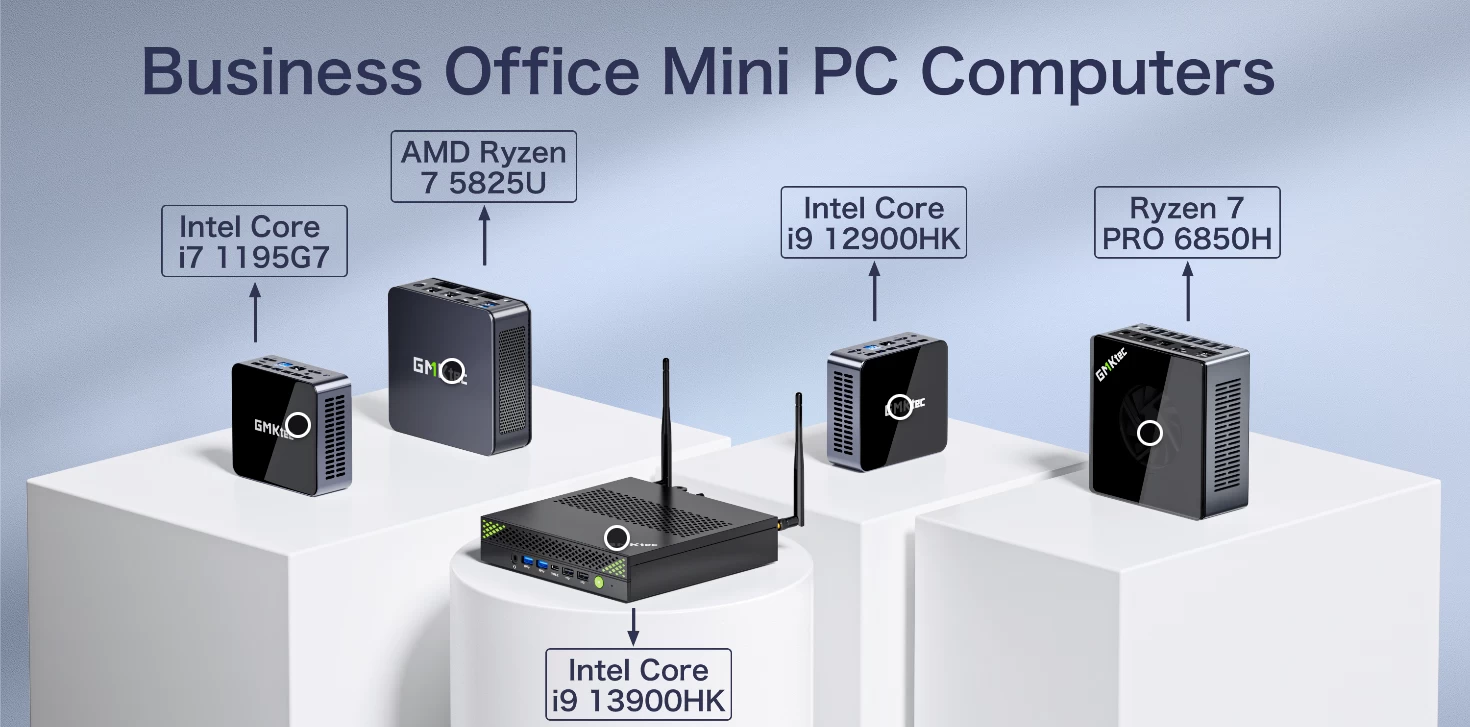
The K10 is a part of their Business Office Mini PC offerings, and is also the most powerful among five Intel and AMD configurations, so it could be said that it is the current flagship of this series.
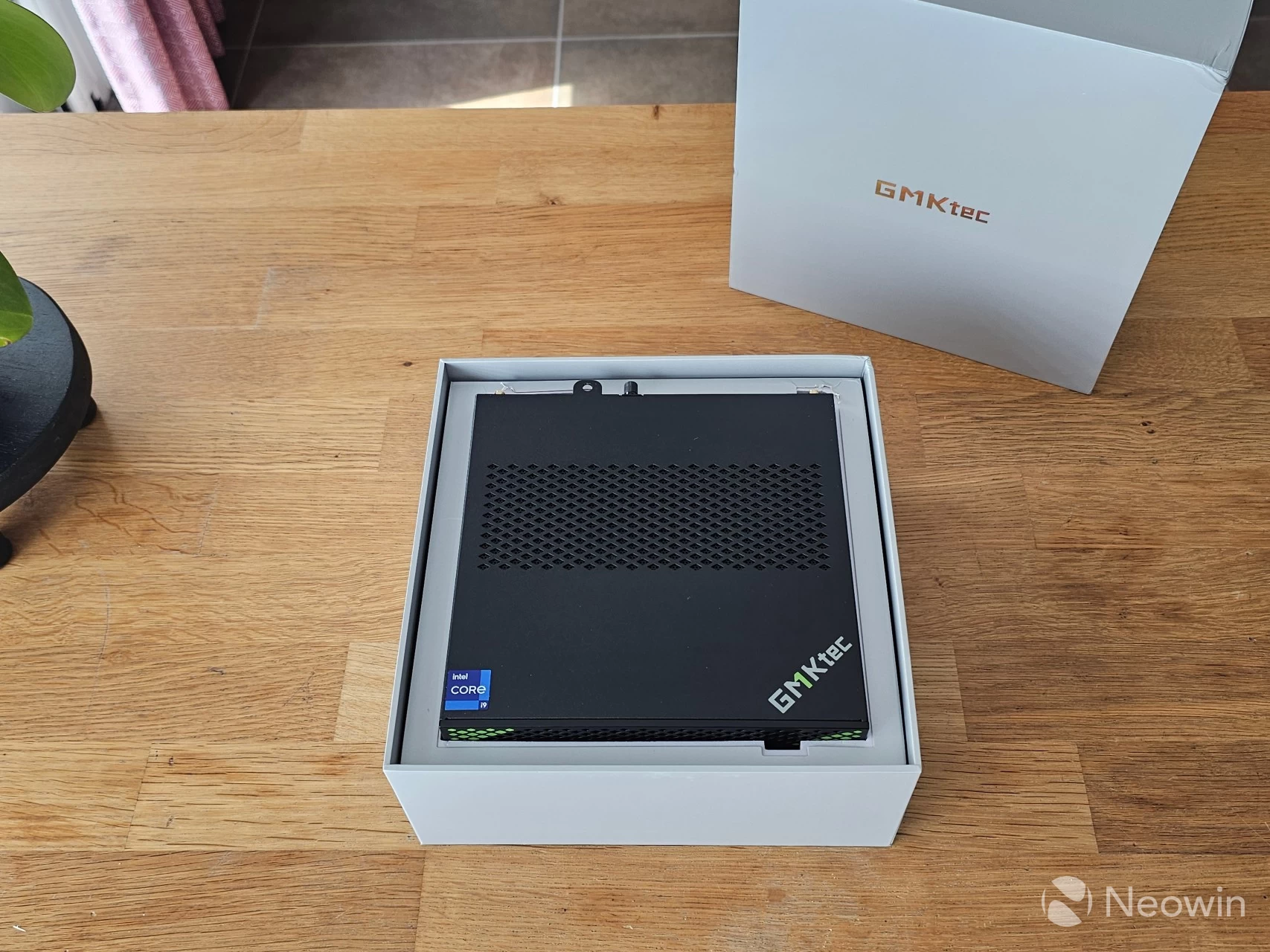
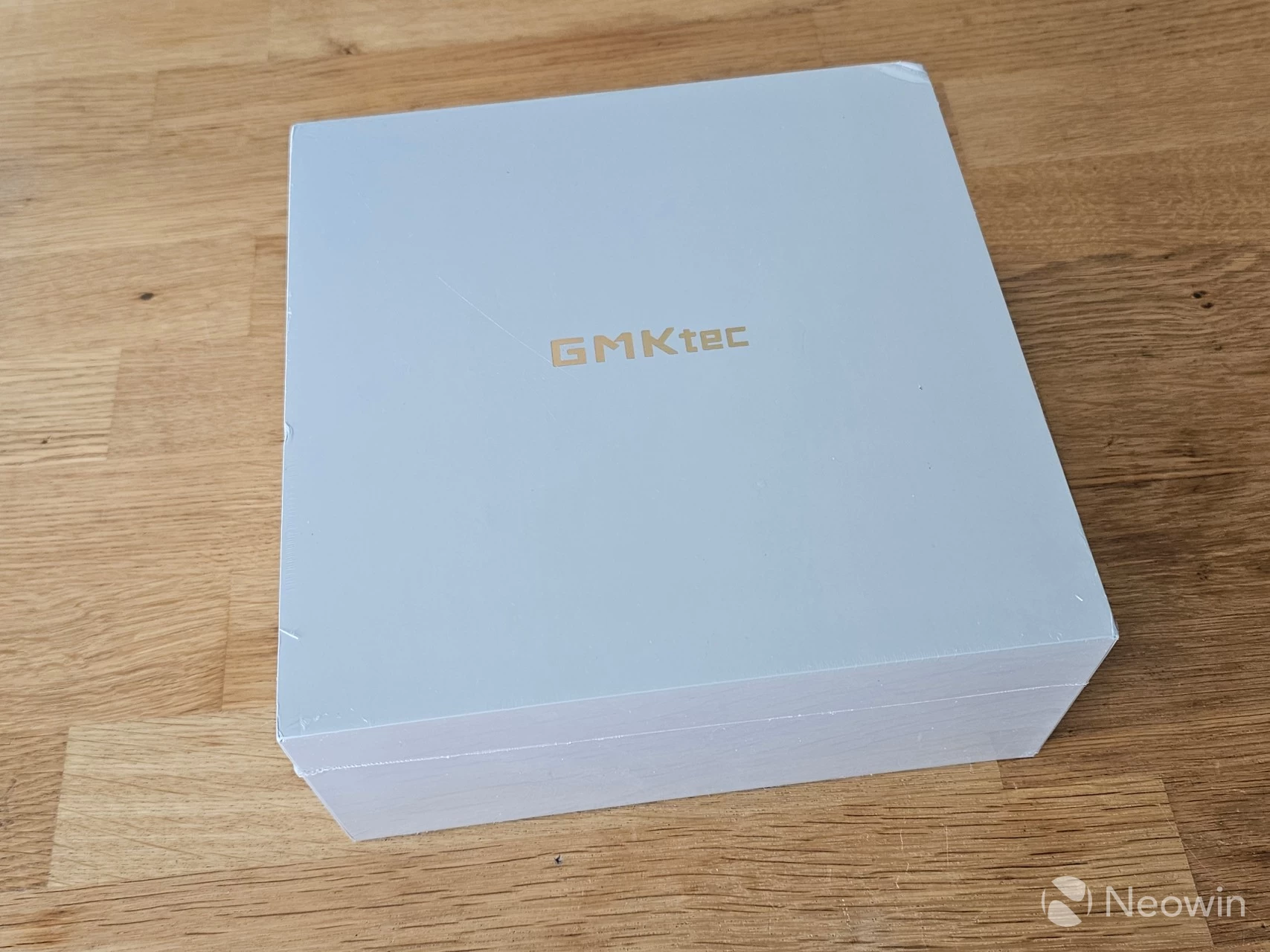
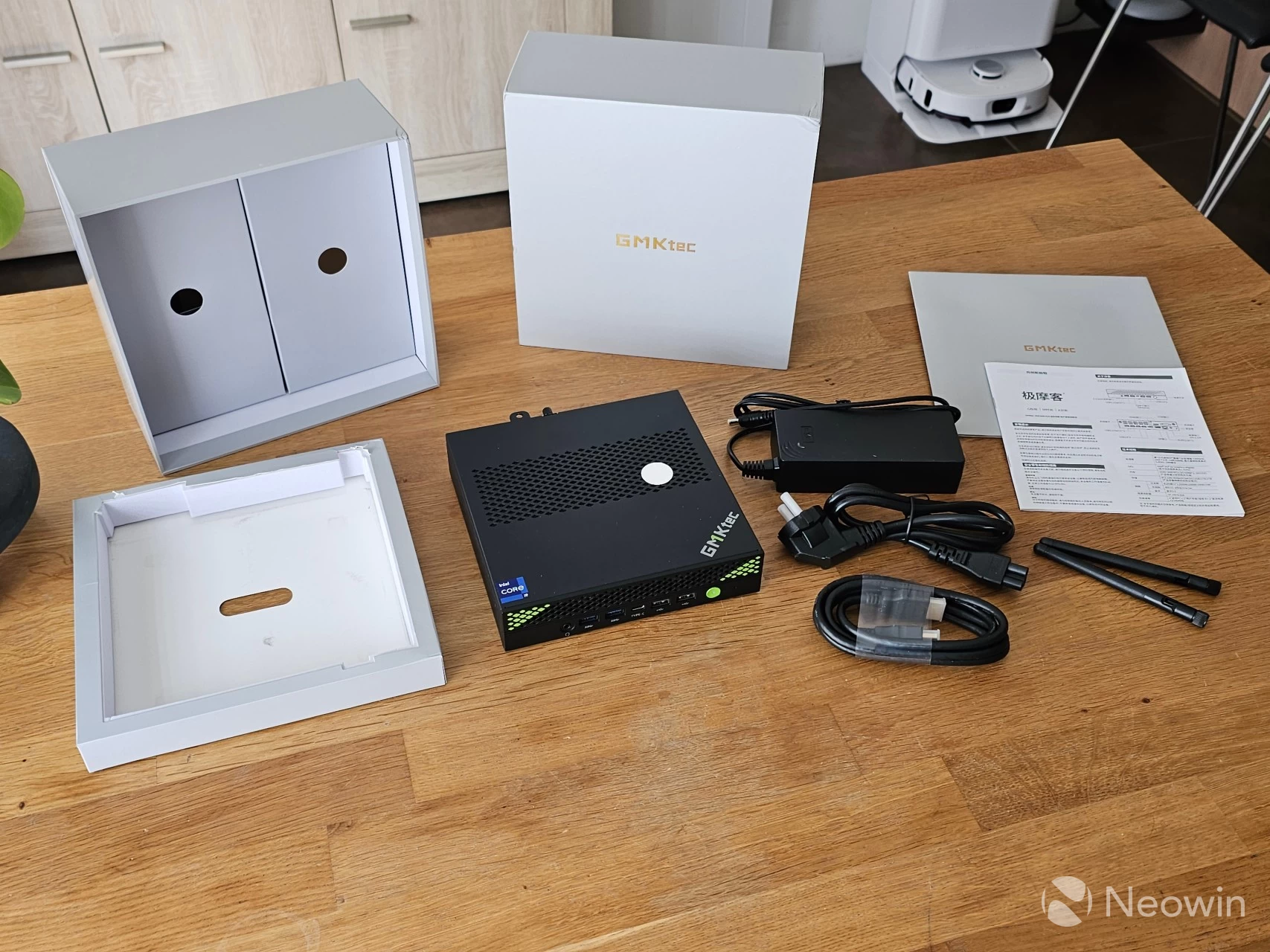
The packaging is a familiar affair for a Mini PC. The square box is completely gray, aside from an indented silver GMKtec branding on the top and manufacturing details of the K10 on the bottom. Upon removing the top of the box, you will find the K10 sitting in a cardboard mold flanked by foam padding. Upon removing the K10"s "cushion," there are two cardboard compartments that contain the power brick and cable, HDMI lead and user guide with safety information in several European languages, along with a couple of Wi-Fi/Bluetooth antennas.
What’s In The Box
- 1 x K10 Mini PC
- 1 x Power Adapter
- 1 x HDMI Cable
- 2 x Wi-Fi/Bluetooth antenna
- 1 x User manual
Although the K10 does not come with a VESA mount option, there are two mount points on the bottom of the Mini PC. In short, you have everything you need to get going.
Design
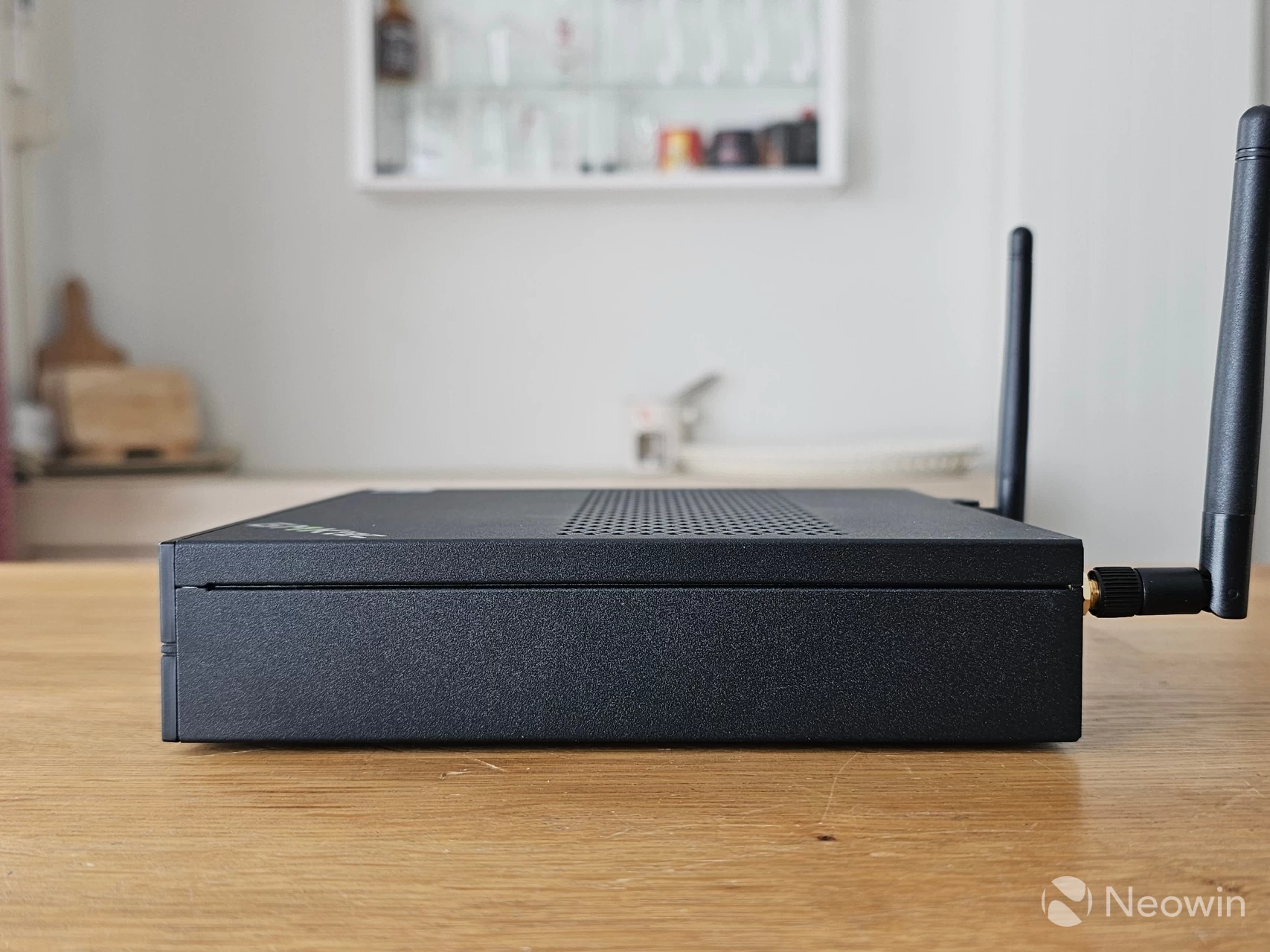
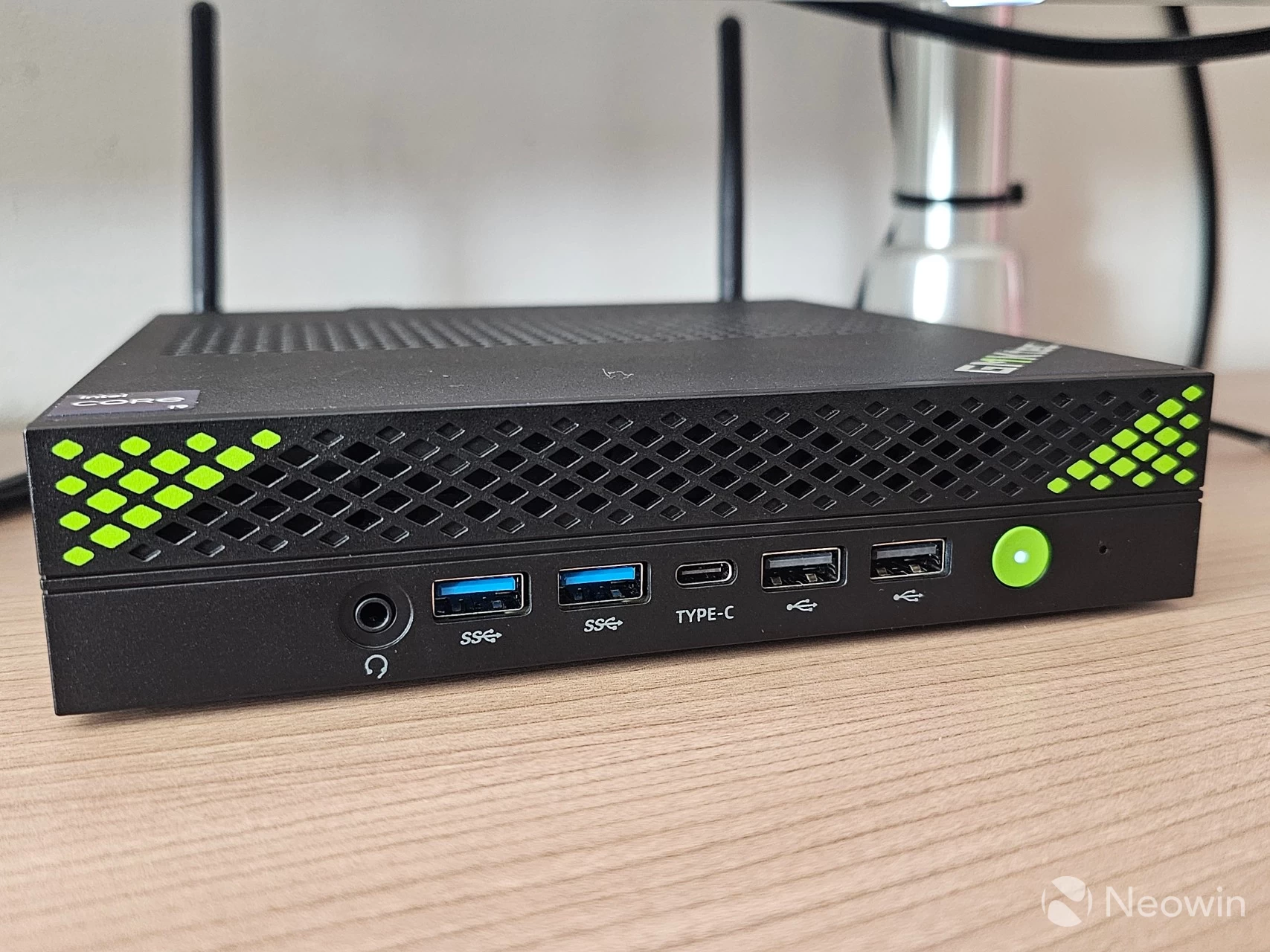
The black matte exterior is unlike any Mini PC I have reviewed before, and although it has a relatively large footprint, it is not quite as tall as a standard "square" mini PC. The benefit of this design choice means that there is ample space for heat dissipation with a large grill vent on the top of the K10 and also on the front. The sides, rear, and bottom do not feature any vents.
It looks pretty cool, and as we"ll see later, it features just about all the ports you could wish for.
GMKtec uses a "large super cooling fan system," and as previously mentioned, all the venting of heat is done through the top and the front of the K10.
I can confirm the K10 generally did not even get warm to the touch during a Cinebench 2024 test, and barely made any noise that I could hear.
As far as looks go, it is a completely black, although there are plenty of joints to be seen, you will only need to access it from the bottom with one screw to manage the M.2 SSDs and SODIMM memory.
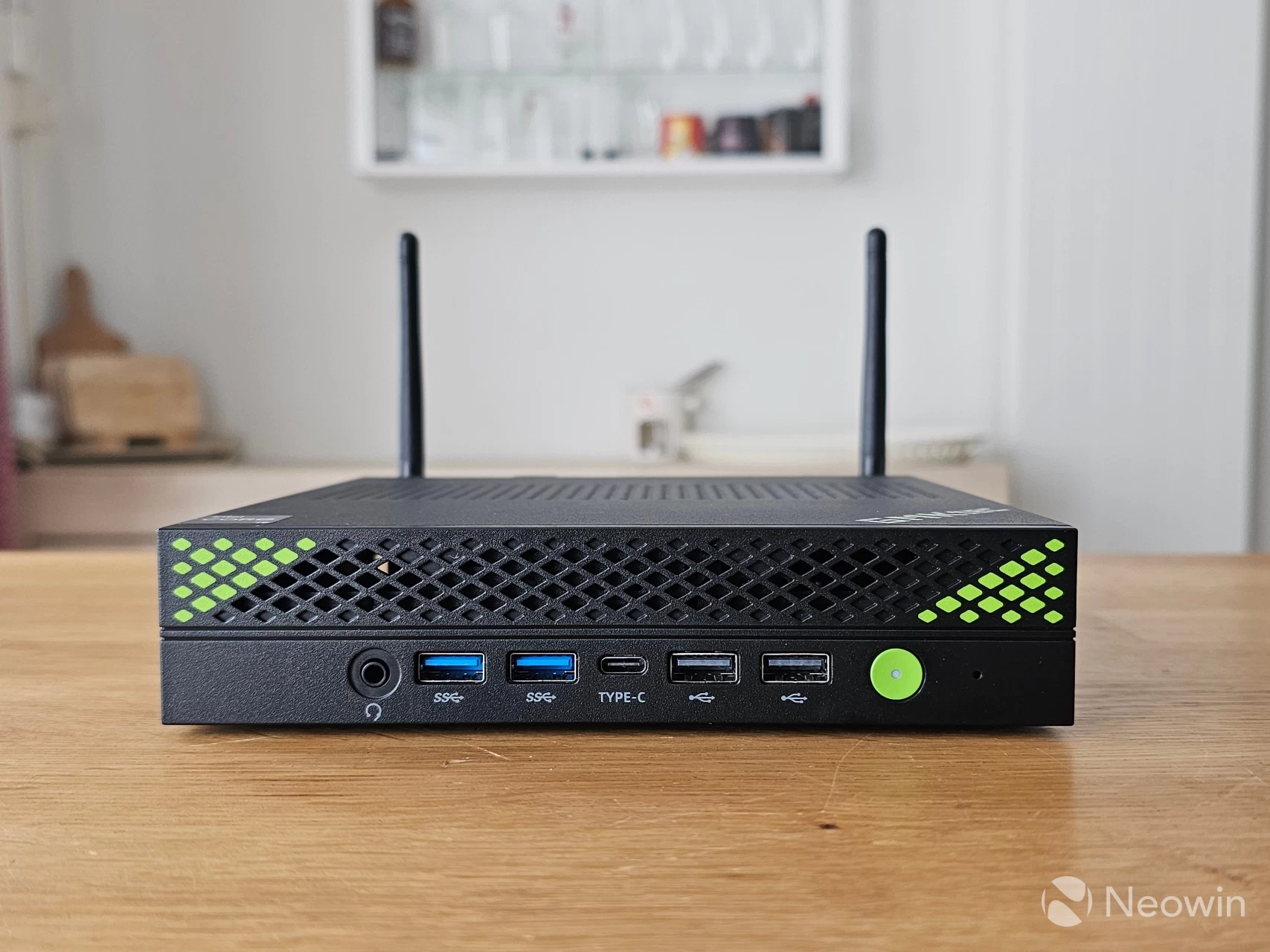
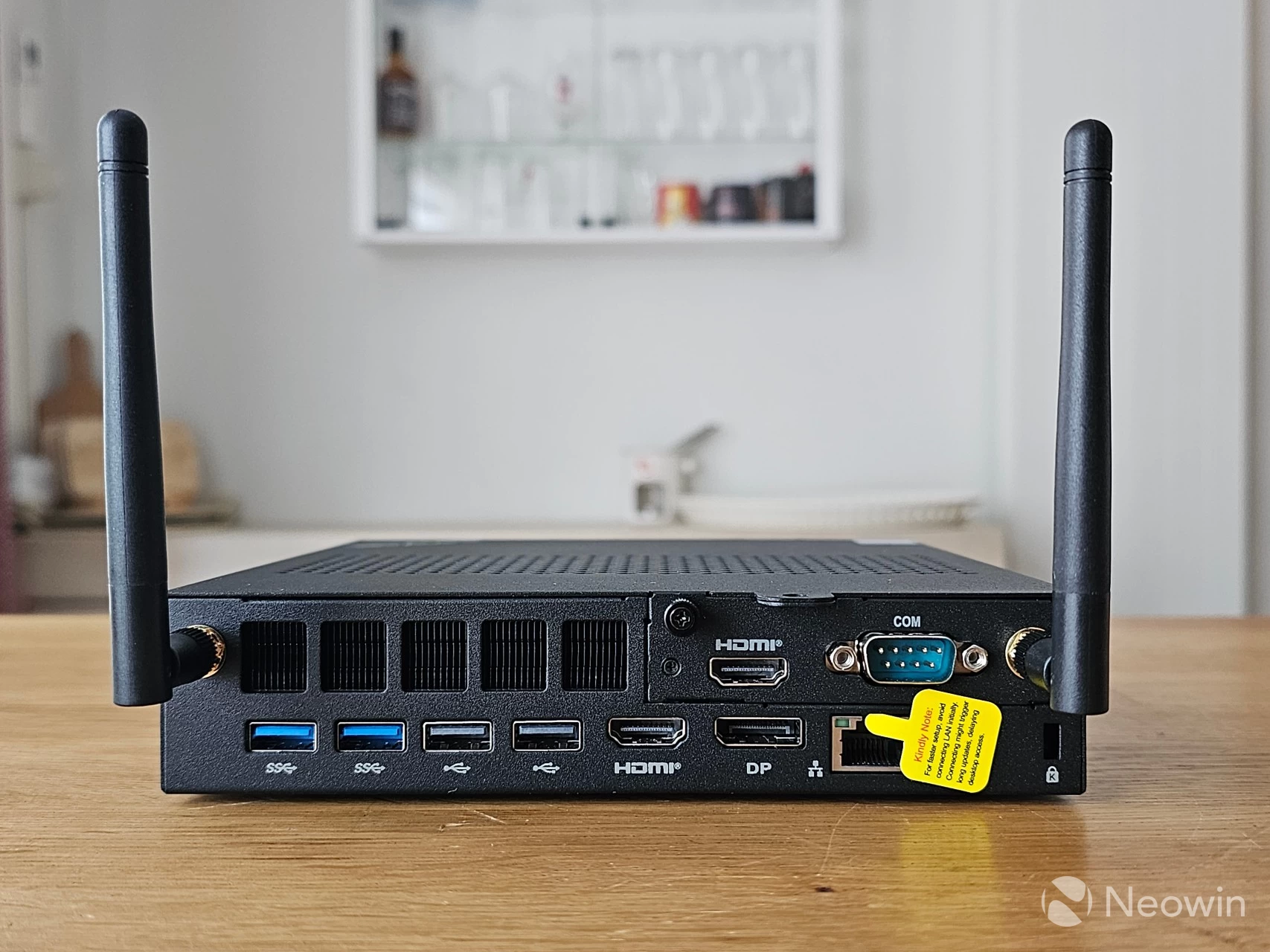
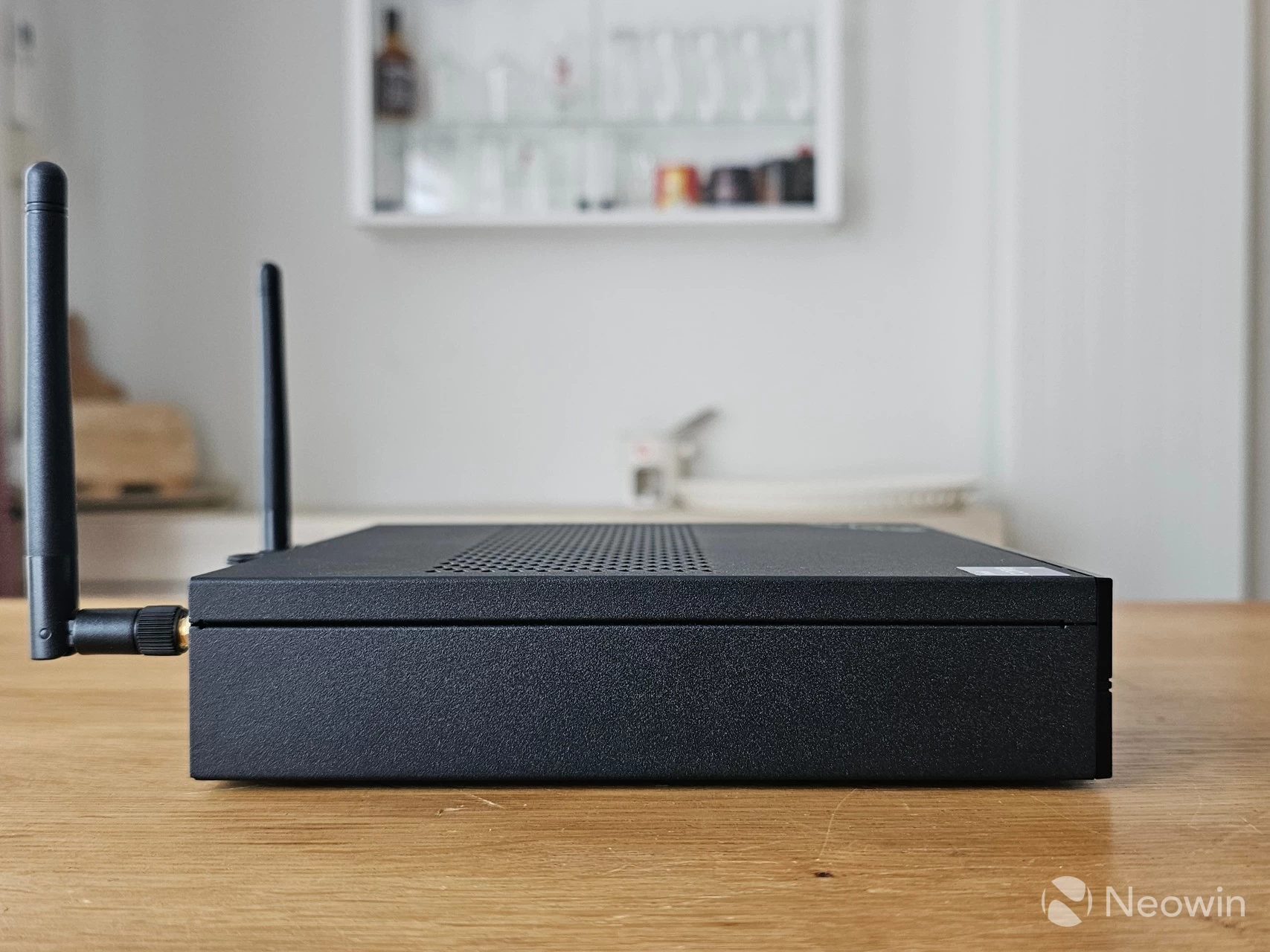
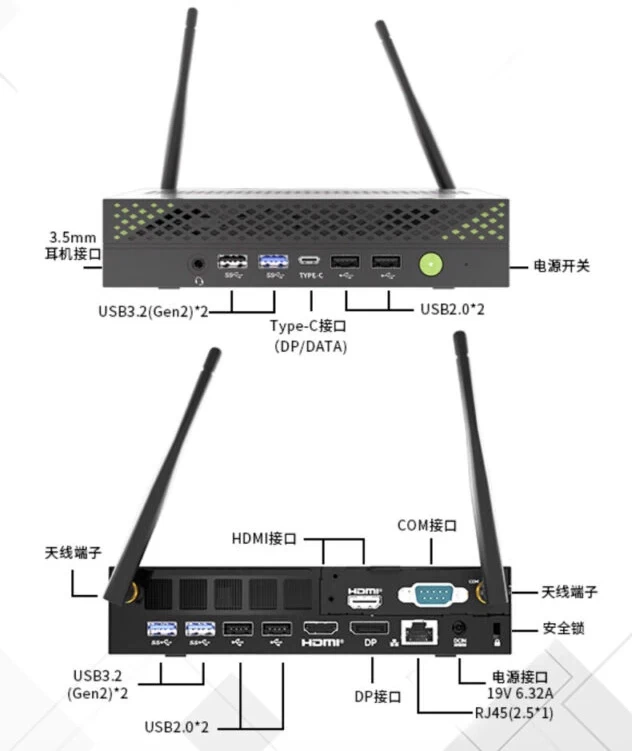
On the front, you have an audio jack, two Type A 3.2 Gen 2 (10 Gbps) USB ports, a Type-C Gen 2 (10 Gbps) USB port, two USB 2.0 ports and the power button.
Around the back, there are two Type A 3.2 Gen 2 (10 Gbps) USB ports, two USB 2.0 ports, an HDMI 2.0b port, a DisplayPort, a 2.5 GbE port, a barrel port for power, and a Kensington Lock. Above that, there"s another HDMI port, a COM port, which are flanked by the Wi-Fi antennas.
The K10 supports up to four screens natively through the single Type C USB 3.2 front port (supporting Data & Video), along with one full DisplayPort 1.4a (4K @ 144Hz), and two HDMI 2.0b ports.
Both sides are completely smooth.
| Top | Bottom |
|---|---|
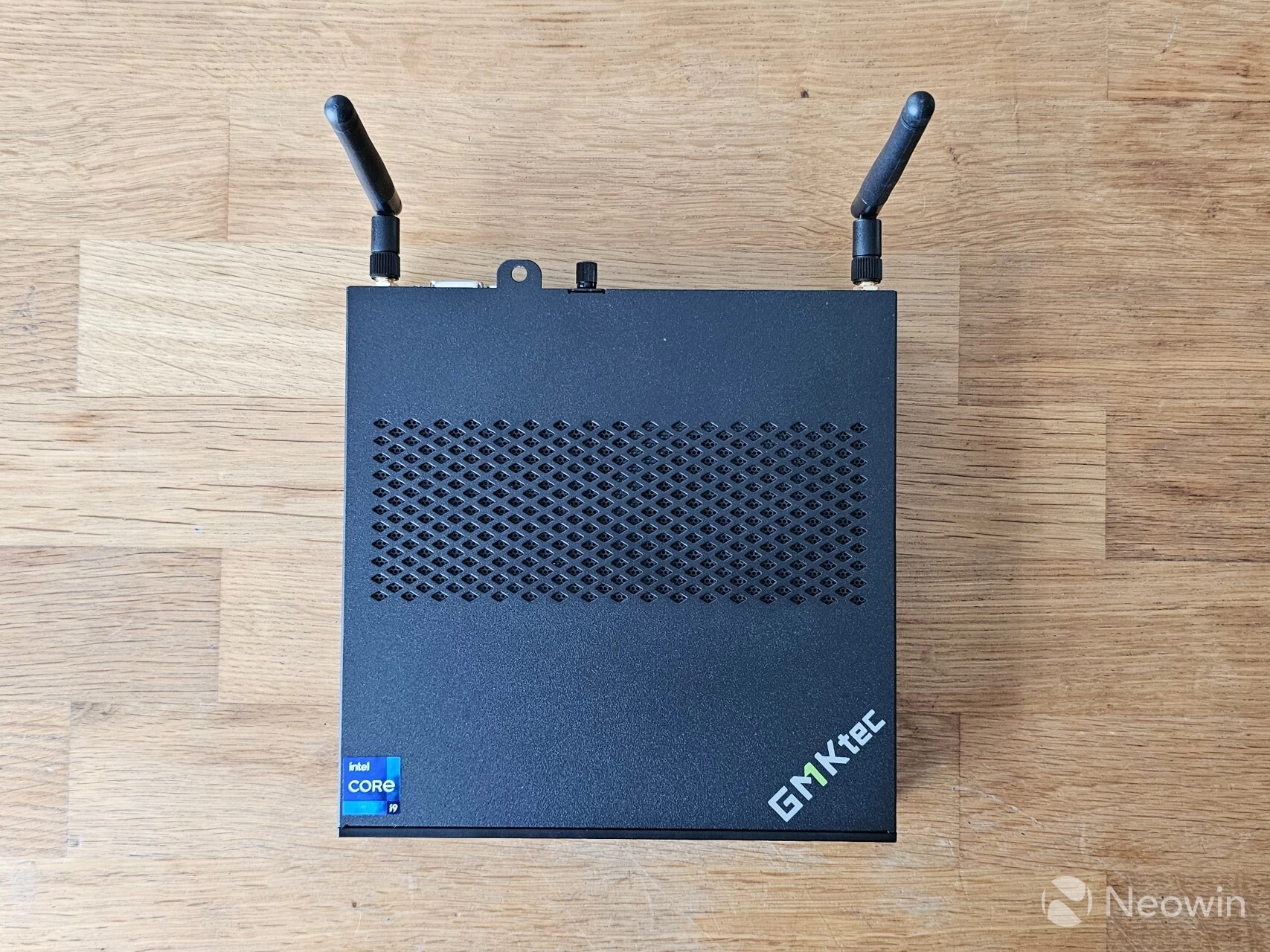
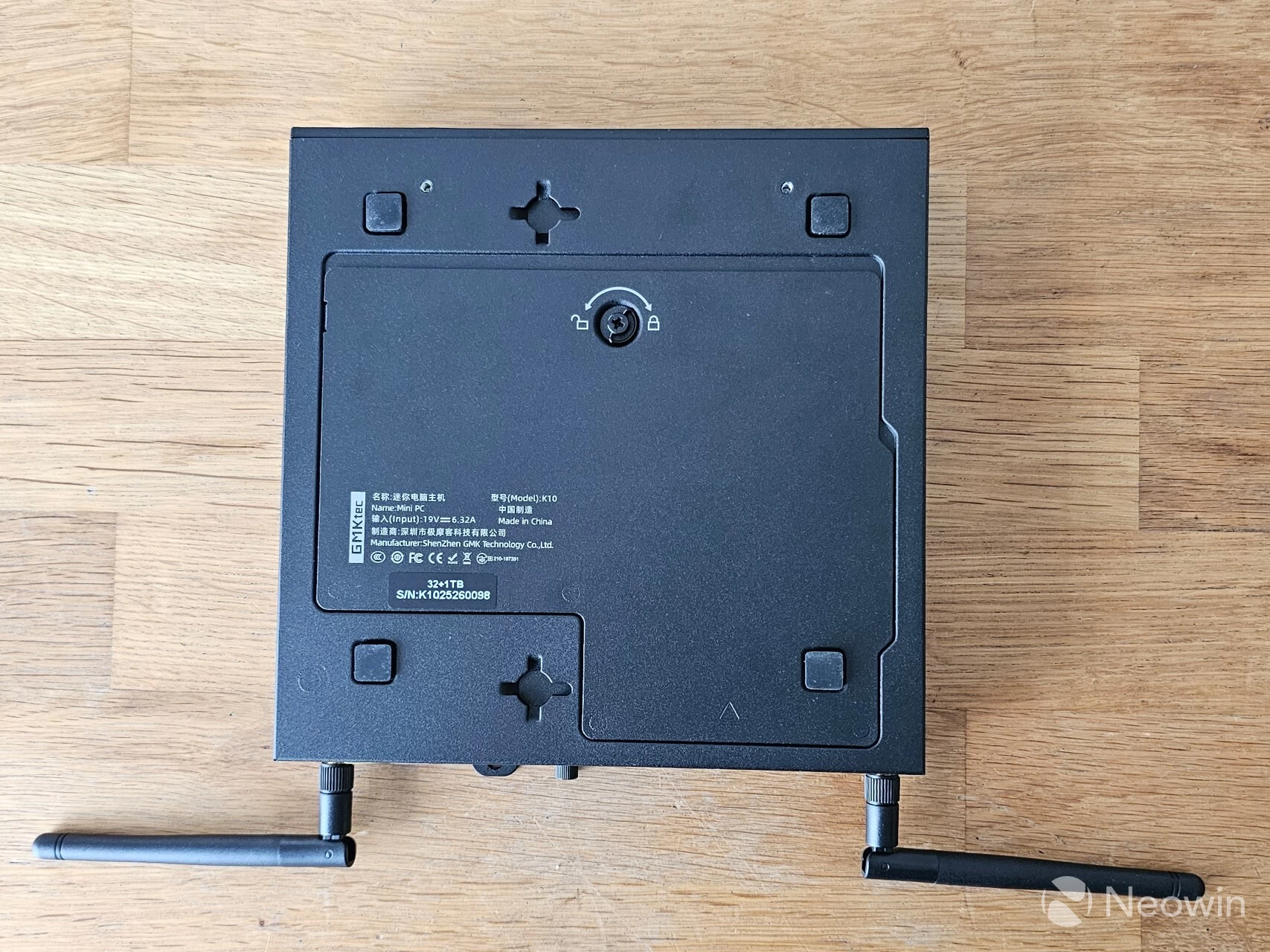
The top features a grill for heat dissipation, which is something we don"t see on the typical smaller "mac mini" style Mini PCs, with venting usually being on the rear and/or bottom. Speaking of the bottom, as you can see, there are no grill vents to be seen; instead, there are two screw holder cutouts for mounting, and a removable cover fastened with a single Philips screw, which can also be unscrewed toolless with a small hook.
Teardown
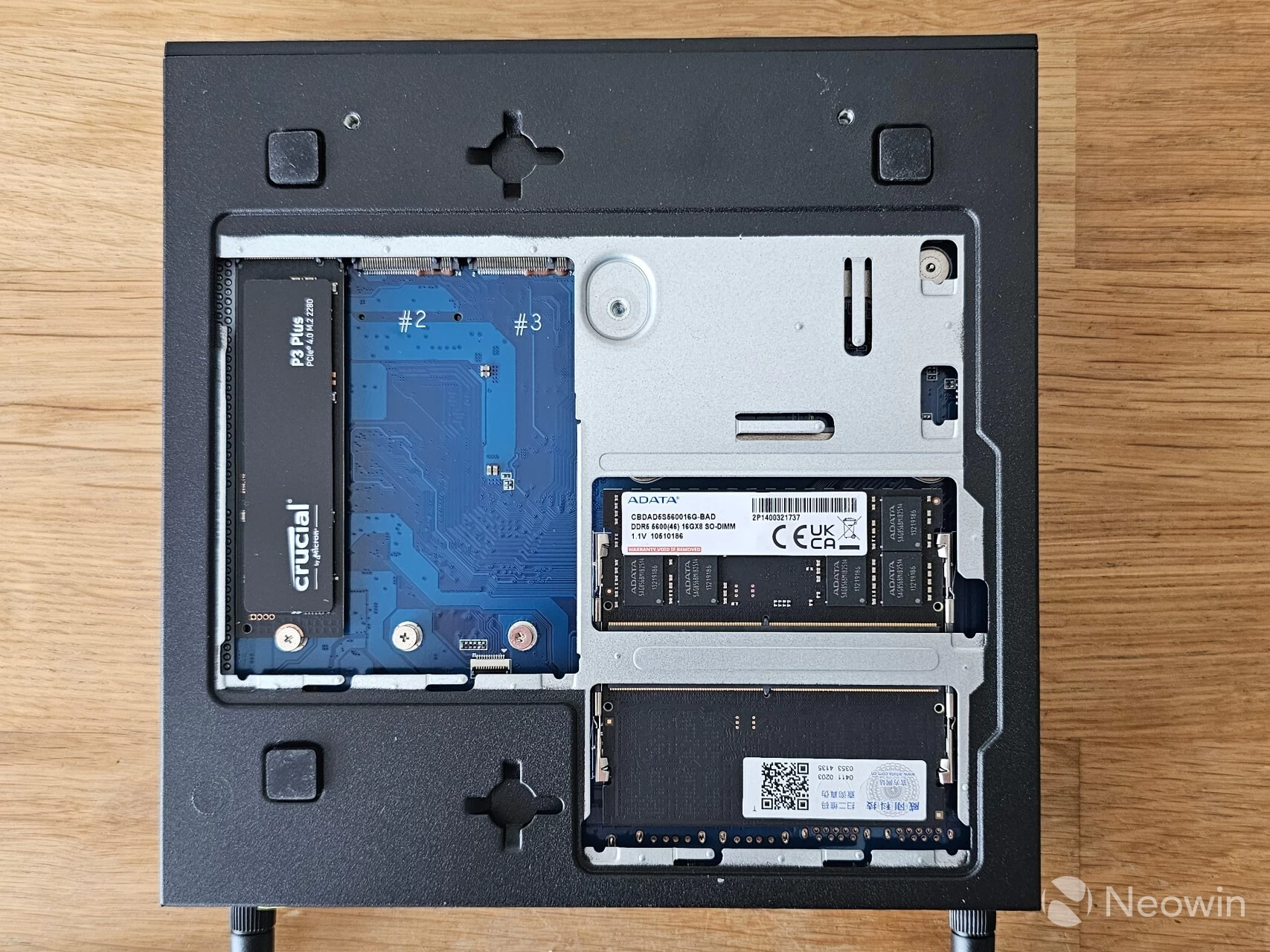
Usually, any Mini PC that I have reviewed requires a teardown to get to the NVMe slots and memory; however, the K10 has a toolless access point on the bottom where you only need to remove one screw to manage the three NVMe ports and SODIMM memory. Speaking of the NVMe ports, two are PCIe 4.0 x4, and the third is PCIe 3.0 x3, and they only support the 2280 size. The installed memory is by ADATA, and although it is rated for 5600 MT/s, the i9-13900HK CPU only supports up to 5200 MT/s.
That being said, I did not feel like it was necessary to break the K10 down any further, since we can get to what we need easily.
Size comparison
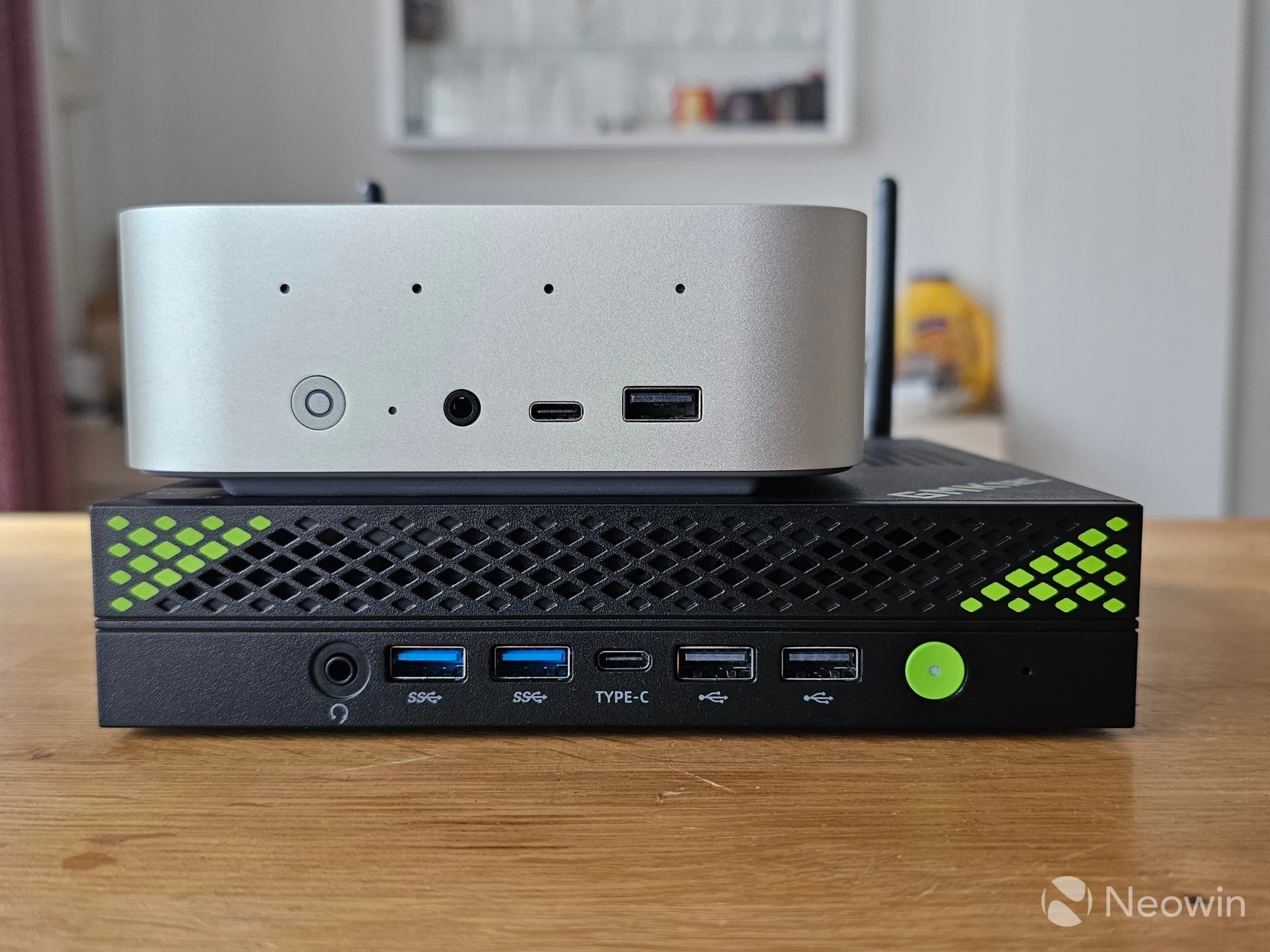
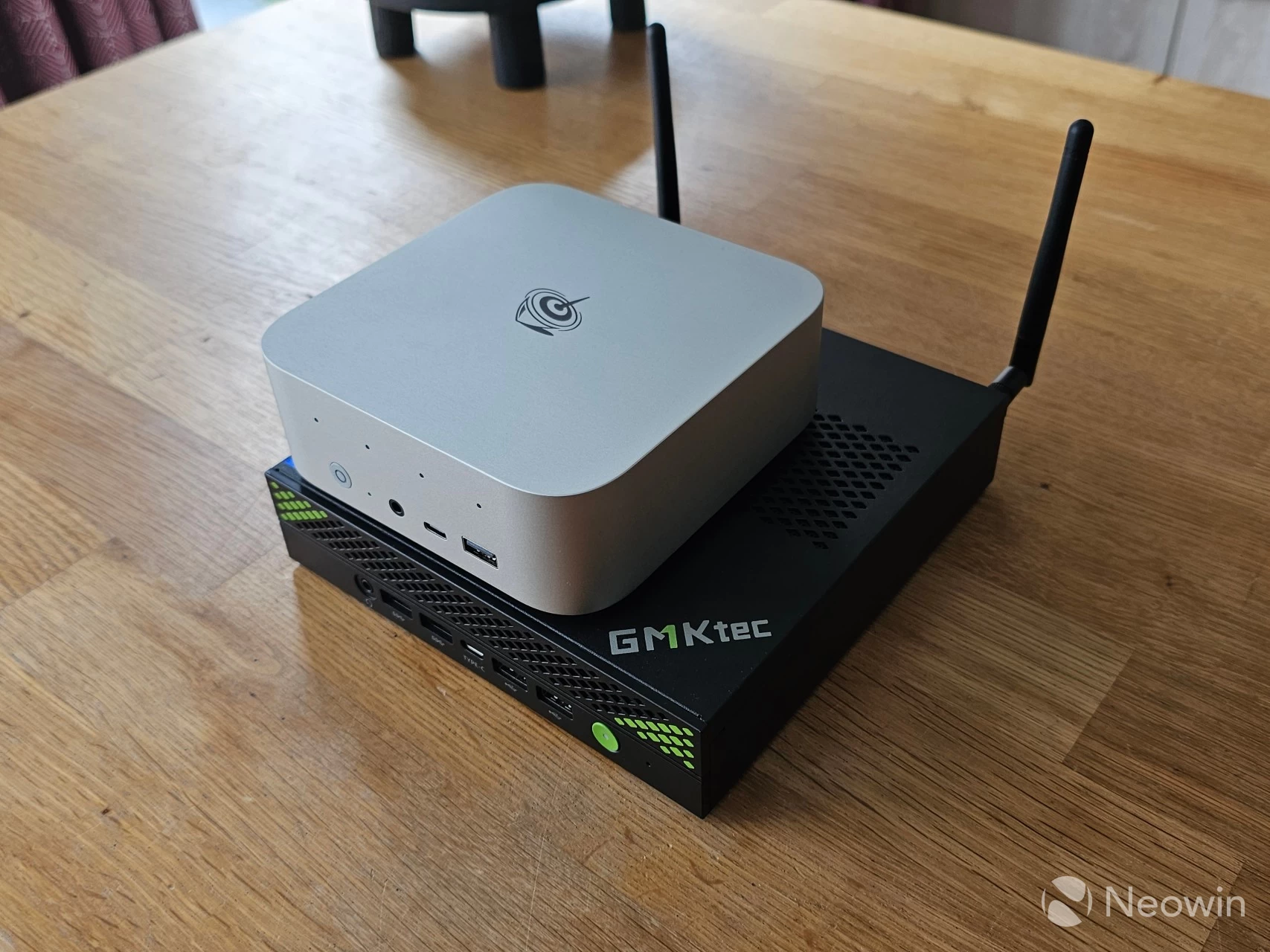
In regard to the K10"s size, the above images should show a bit more clearly the difference between a "standard" Mini PC —in this case, a Beelink SEi13 Pro, and the larger footprint of the K10.
Usage
BIOS
The K10 uses an AMIBIOS, which is similar to what HP, Dell and other PC manufacturers use to lock down customization of the machine"s values, like CPU or memory over/underclocking, as well as power management. However, the BIOS here is not locked down, and you can configure it to your heart"s content. It should be noted that the key to enter the BIOS is Esc, not DEL.
OOBE
On first boot, you are prompted to complete the setup of Windows 11 Pro, meaning you do not have to fork out for a license. Something I found funny while unboxing is that there is a warning sticker over the Ethernet port that says:
For faster setup, avoid connecting to LAN initially. Connecting might trigger long updates delaying desktop access.
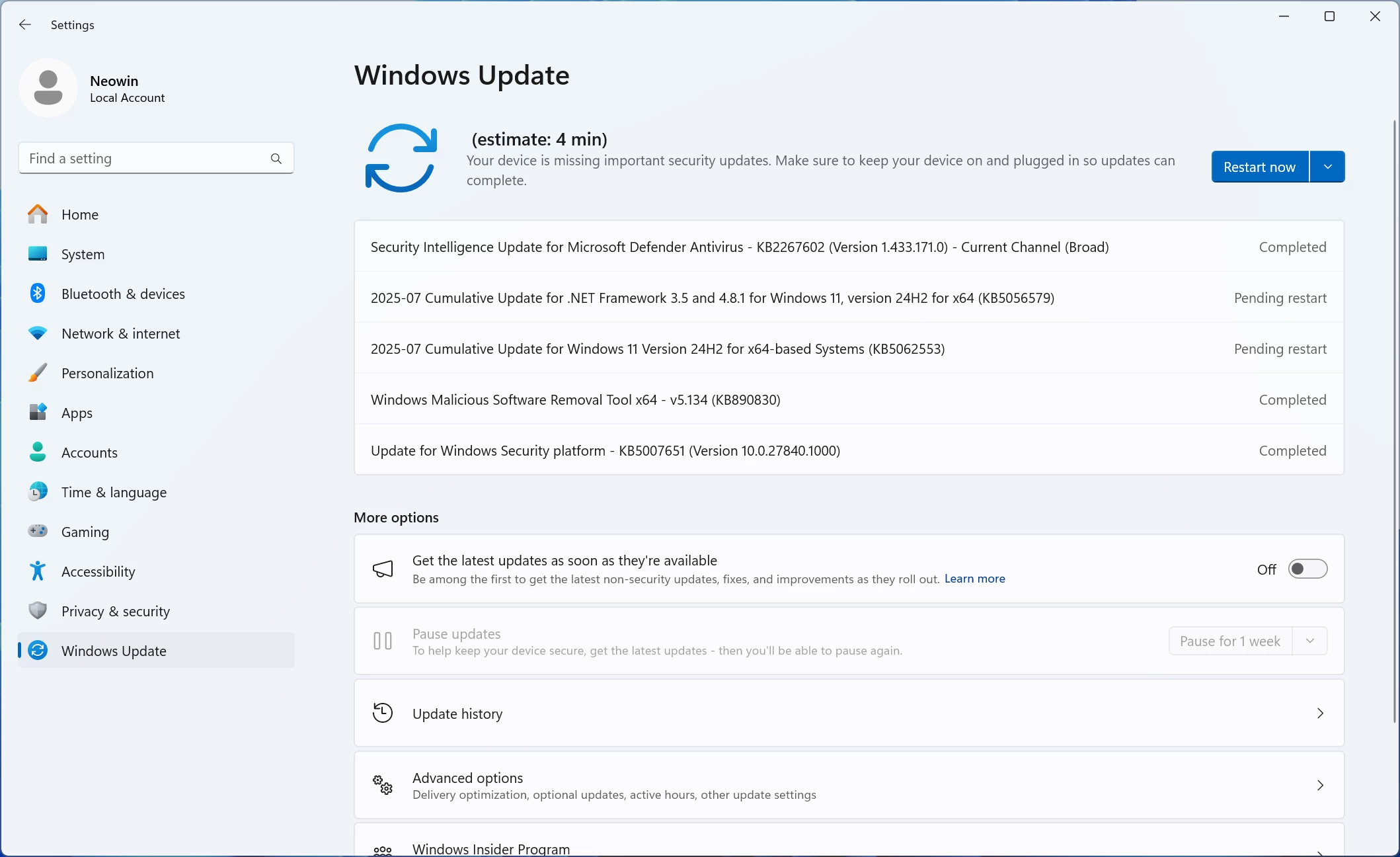
Having ignored that advice, because I need to benchmark this thing anyway, and after completing setup and updates, which took 4.5 hours(!), yes, really, Microsoft... I was finally on build 26100.4652, which included the July 2025 Patch Tuesday update (KB5062553).
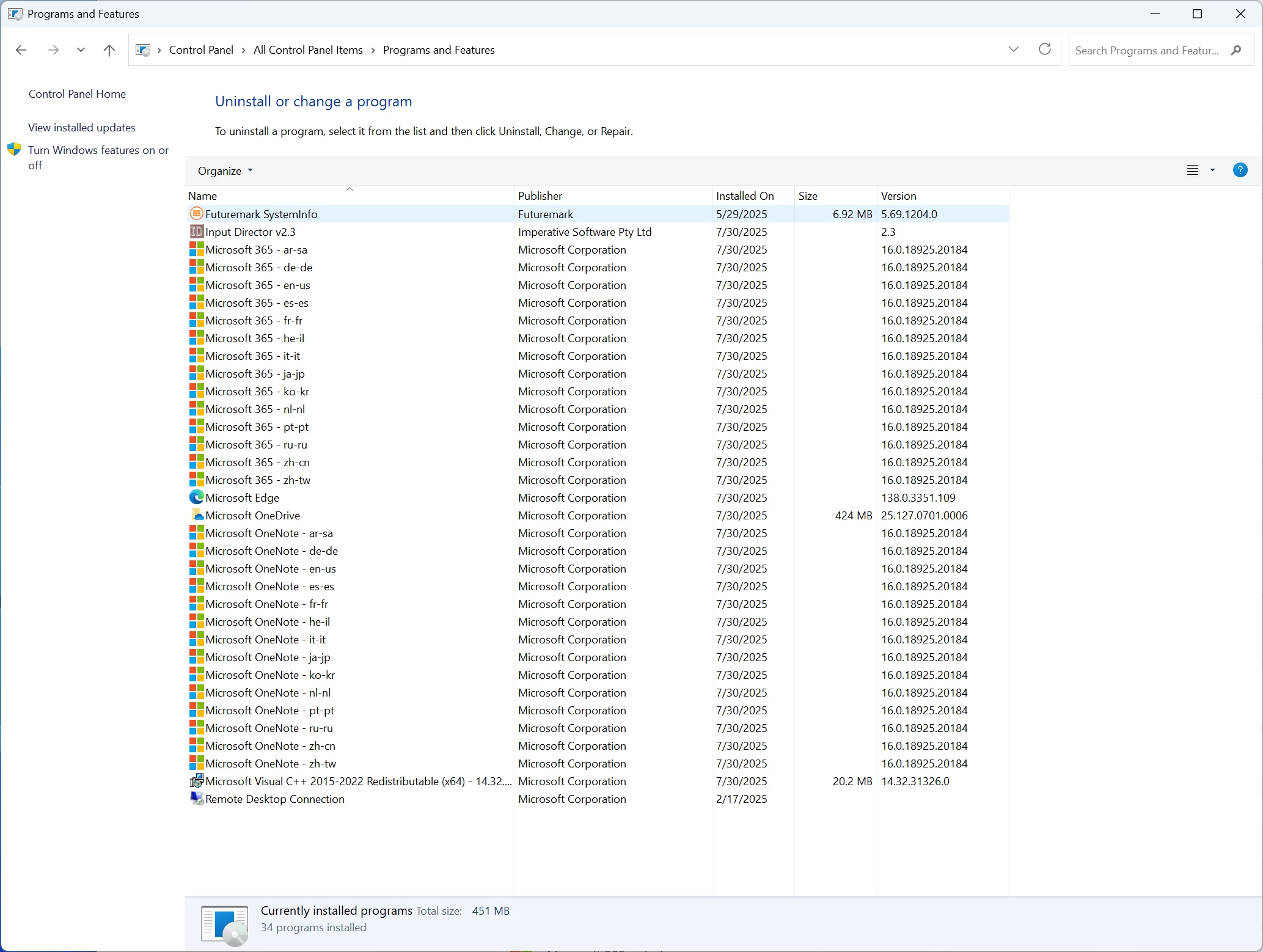
I noticed that a bunch of Office apps were also preinstalled, and lo and behold, in several languages too. This might explain why the image for the K10 is over 16GB in size, yes.. GMKtec also provides a recovery image, but it probably makes sense to back up the K10"s license and activation to a Microsoft account first. Getting back to the K10, I checked out disk usage and confirmed that Office 365 and OneNote took up 20GB disk space. This also means that you will have to remove each language that you don"t want in order to gain back some gigabytes. Although Office 365 and OneNote are preinstalled, they are not activated with a license; you are asked to sign in to a Microsoft account or provide a product key, so it seems like a strange addition to me.
Benchmarks
With that out of the way, and because people like that sort of thing, I ran some benchmarks and compared them to Mini PCs with the same exact CPU (but all have different memory configurations). The latest Intel Graphics driver (32.0.101.6972) was also installed.
For the benchmarks, I used Cinebench 2024, 7-Zip, AS SSD, and CrystalDiskMark. 3DMark, PCMark 10, and Procyon (Windows ML for CPU and GPU) were provided to Neowin by UL Solutions; Primate Labs Inc. provided us with a commercial version of Geekbench 6. I skipped using Geekbench AI here because the K10 does not contain an NPU, nor do the comparison Mini PCs.
3DMark Time Spy tests gaming capability with DX12 graphics performance. PCMark tests are a mix of CPU and real-world productivity tests, such as using an office suite, web browsing, light photo/video editing, and making conference calls. Cinebench stresses the entire CPU as it is a multi-threaded rendering test. Geekbench is a synthetic benchmark that is great for a quick look at the potential performance across a wide range of workloads.
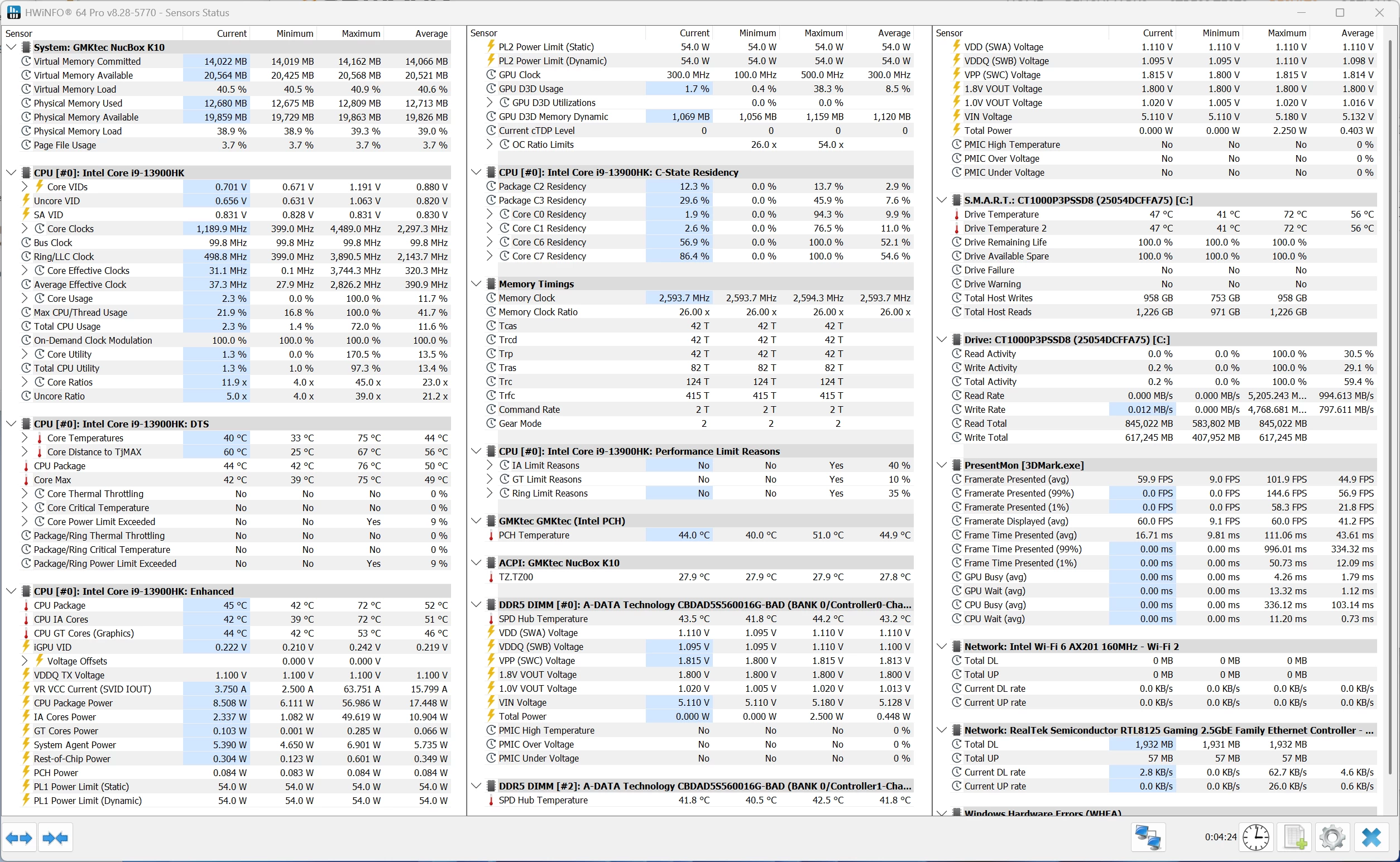
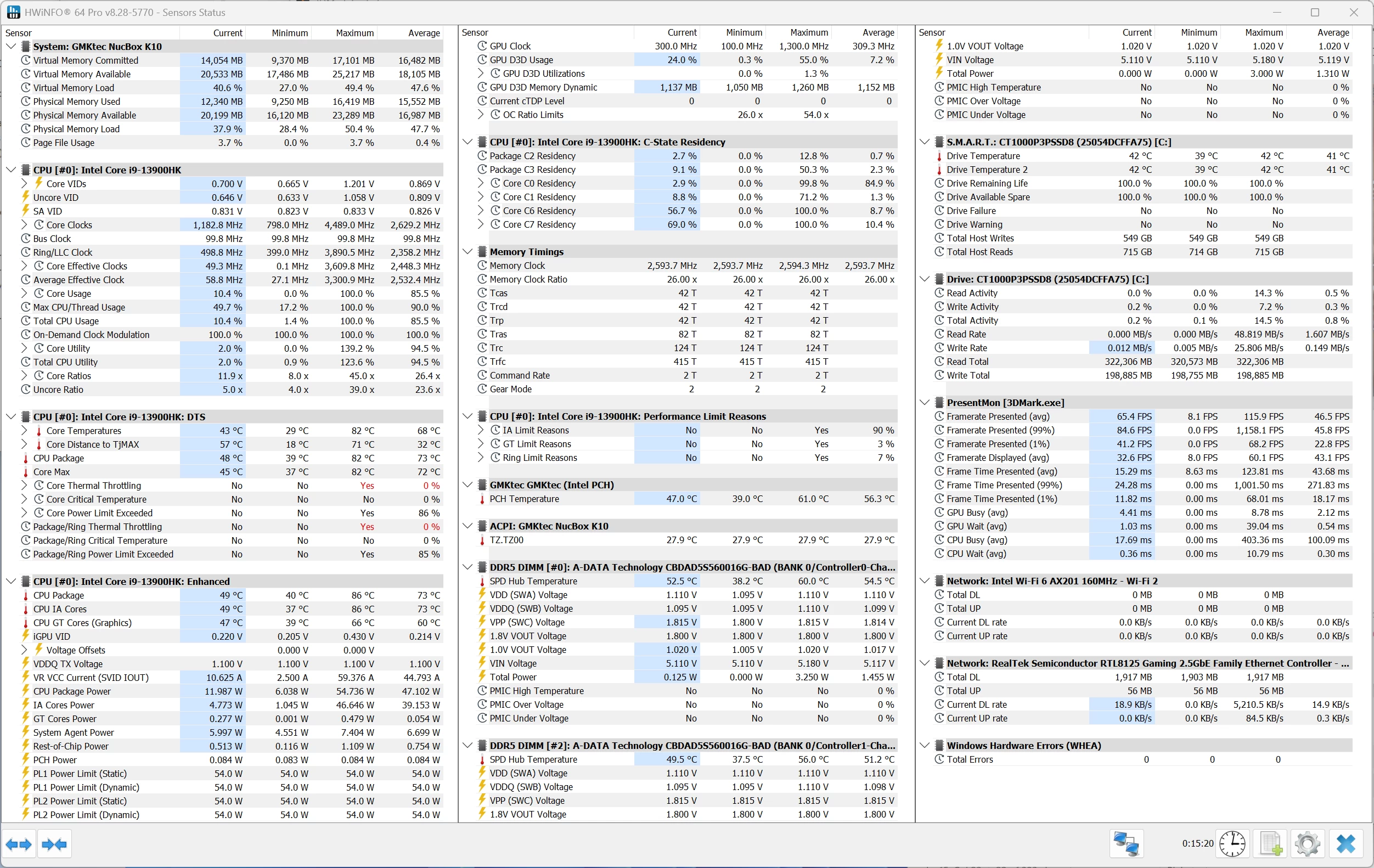
I also used HWiNFO to monitor hardware sensors and temperature readings.
| GMKtec NucBox K10 Intel i9-13900HK | Beelink GTi13 Ultra Intel i9-13900HK | Geekom IT13 (2025) Intel i9-13900HK | |
|---|---|---|---|
| 3DMark: Time Spy | 2,128 1,428 209 6,034 11,801 | 2,148 1,437 207 - - | 1,727 1,200 173 - - |
| PCMark: Standard Extended test | 6,121 5,901 | 6,034 5,912 | 5,749 5,357 |
| Procyon: Windows ML CPU | 103 | 111 | 76 95 |
| Geekbench: Single Multicore Compute (OpenCL) | 2,446 12,335 17,406 | 2,417 13,307 17,409 | 2,427 10,215 15,200 |
| Cinebench 2024: Single Multicore | 104 864 | 104 977 | 102 699 |
| 7-Zip | 93,478 | 100,122 | 79,066 |
Geekom IT13 (2025) has DDR4 memory.
The highest temperature recorded during 3DMark was in Time Spy at 72 °C; here we can see the much more effective cooling with the larger case compared to the GEEKOM SEi13 (with i9-13900H), which reached 87.7 °C, thanks to its far smaller aluminum case. I ran the Time Spy test three times and recorded the highest score.
One thing is clear from these scores: it definitely matters when using DDR5 instead of DDR4 memory. The GMKtec holds its own against the Beelink GTi13 Ultra, but blows past the Geekom IT13 thanks to its slower 3200 MT/s DDR4 memory.
However, as you might see from these scores, don"t think you can replace your gaming desktop with this configuration; you"d still need a dedicated GPU if you intended to do much of any gaming on it.
| Browser | High | Low |
|---|---|---|
| Chrome | 29.9 | 29.3 |
| Edge | 29.9 | 29.2 |
| Firefox | 23.6 | 23.1 |
Next up, I tested browsing performance using Speedometer 3.0. Speedometer provides a value and also a range showing the highest and lowest scores after three runs, as indicated in the chart above by the two scores for each browser. Here we can see Chrome and Edge are neck and neck, with Chrome beating Edge by just 0.1 points on the low, Firefox was a shocking 6.1 points slower on the low end, and 6.3 points behind on the highest.
I also tested the SSD"s capability using AS SSD and CrystalDiskMark 9.0.1.
| AS SSD | CrystalDiskMark |
|---|---|
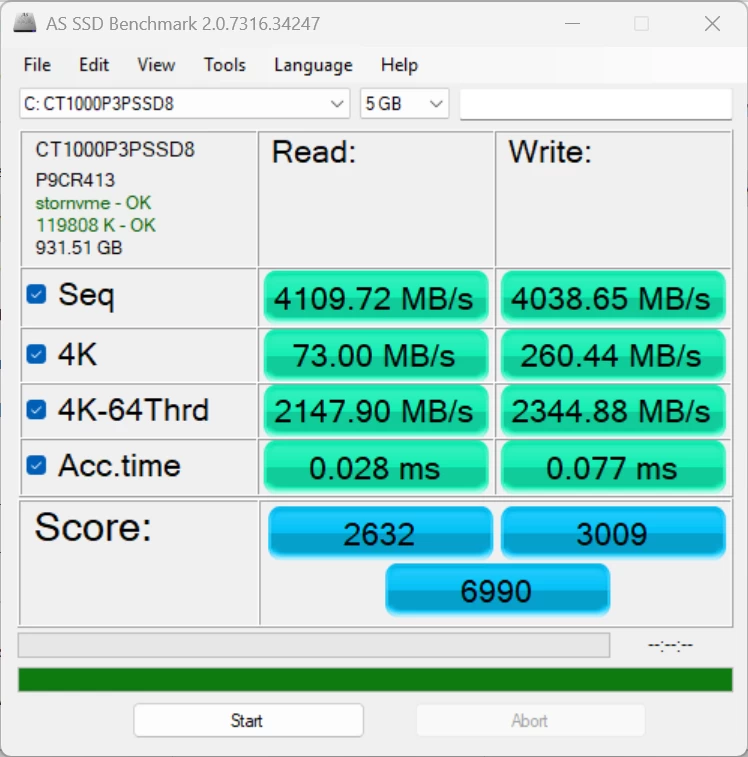
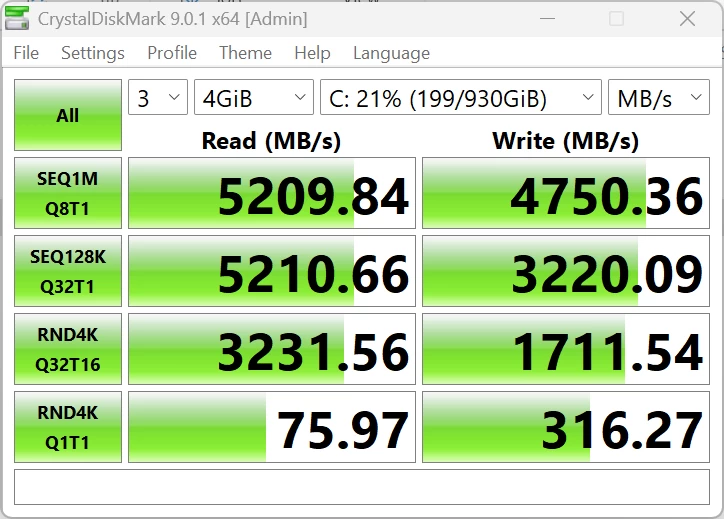
The Crucial P3 Plus performs well within its rated speeds here, and despite running all of the above benchmark tests, the K10 did not even get warm, and no annoying noises were coming from the single fan that cooled the unit. However it must be noted that none of the M.2 slots include a thermal pad, despite this, the SSD reached a max temperature of 72C (with an average of 56C) during the CrystalDiskMark benchmark, which is slightly over the typical operating temperature range for a PCIe 4.0 x4 NVMe SSD, of between 0°C and 70°C (32°F to 158°F); so buyers might want to consider adding a thermal pad to manage temperatures under heavy loads.
Heat
| Top | Front |
|---|---|
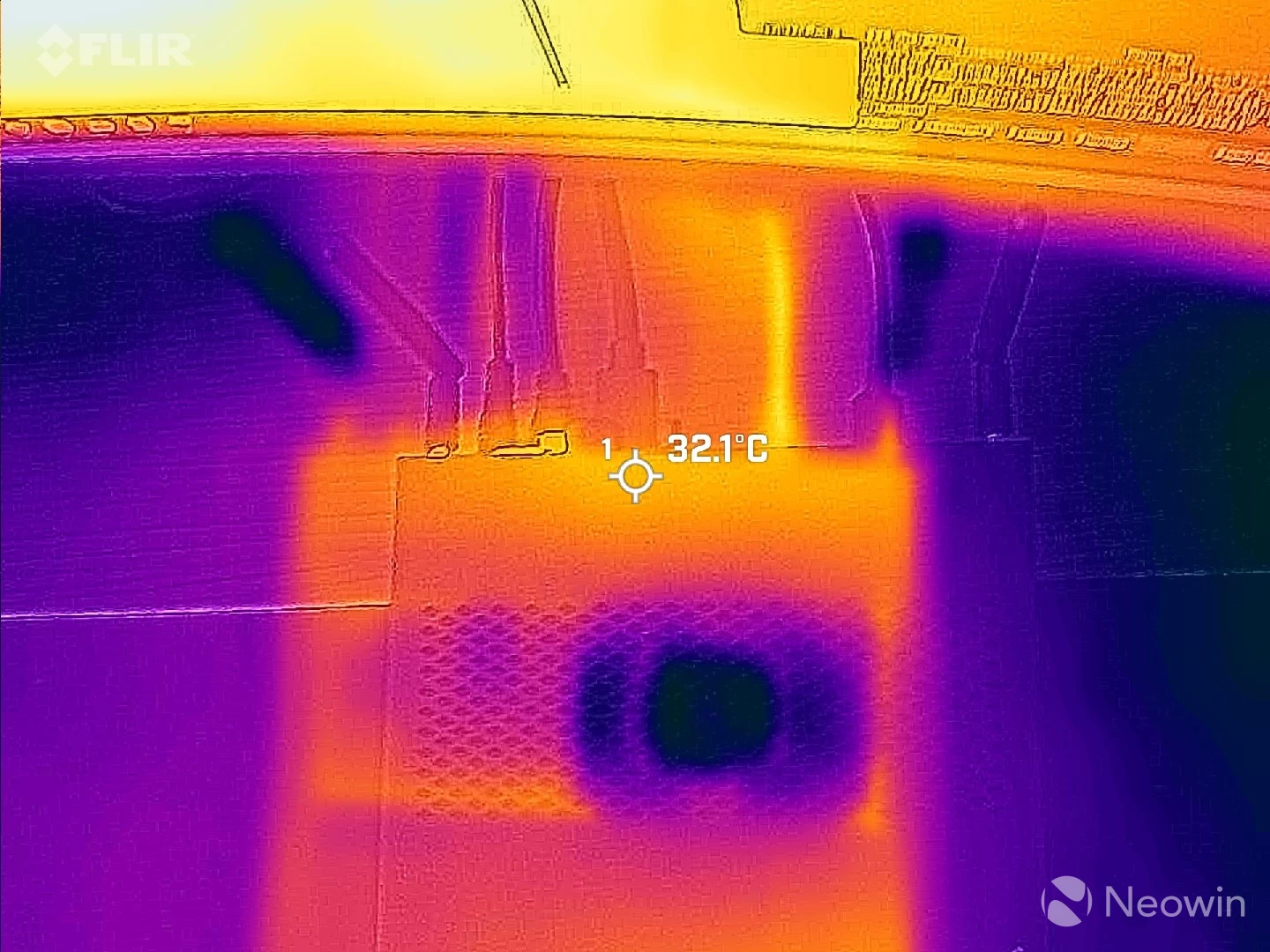
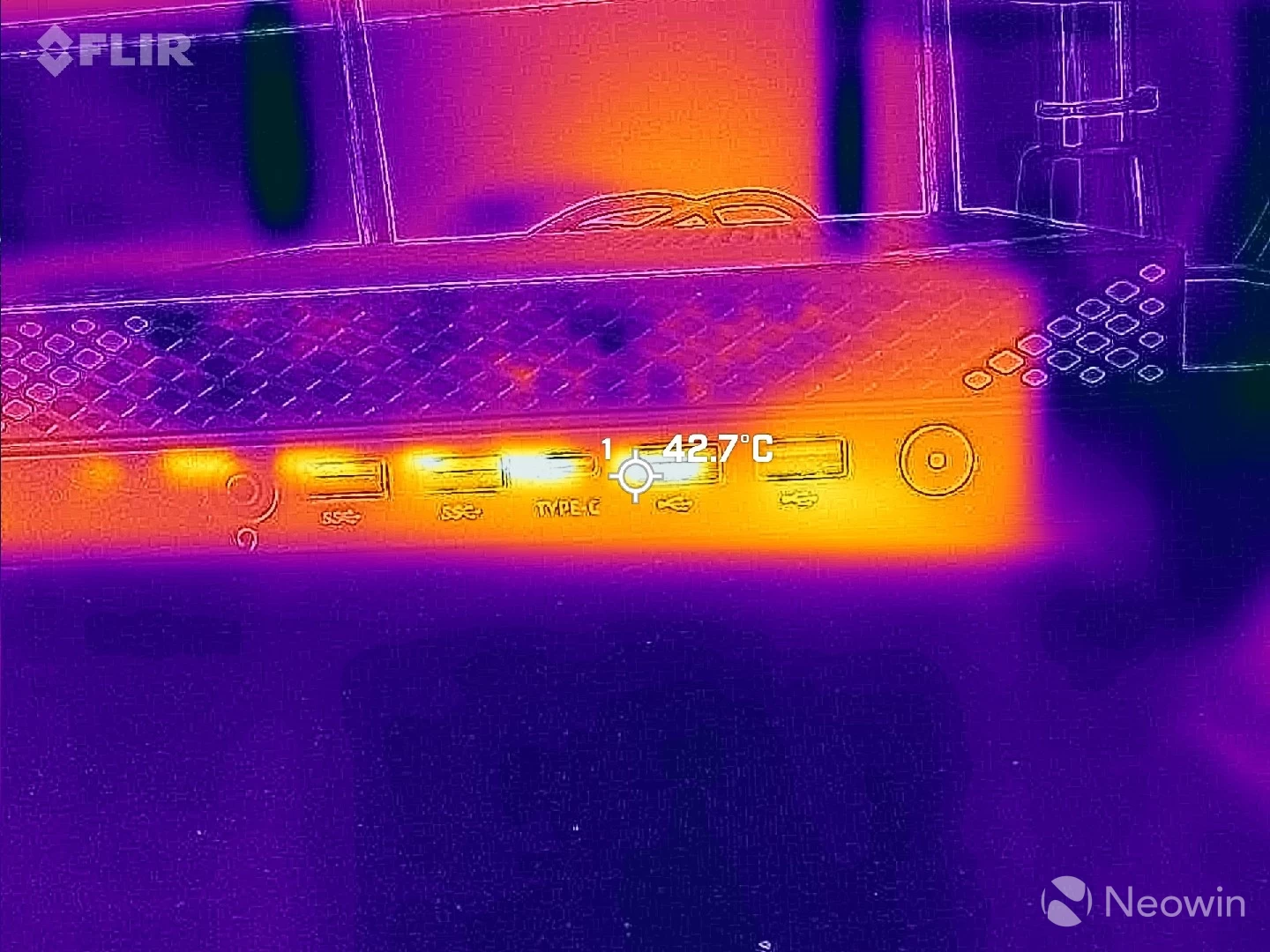
The K10 remains pretty cool, even under load. The highest temperature recorded on the top of the unit was around 32 °C, while on the front it is the same, except for the heat coming out of the USB 2.0 ports, which exceeded 42 °C. That being said, the maximum CPU temperature recorded during a Cinebench 2024 run went as high as 82 °C with an average of 67 °C, which is pretty good.
Conclusion
I have now reviewed several Mini PCs with an i9-13900HK CPU, and it"s kind of shocking how the benchmarks don"t all line up. A mixture of different memory types and speeds really must make a difference here; however, what we have here is still a solid and powerful Mini PC.
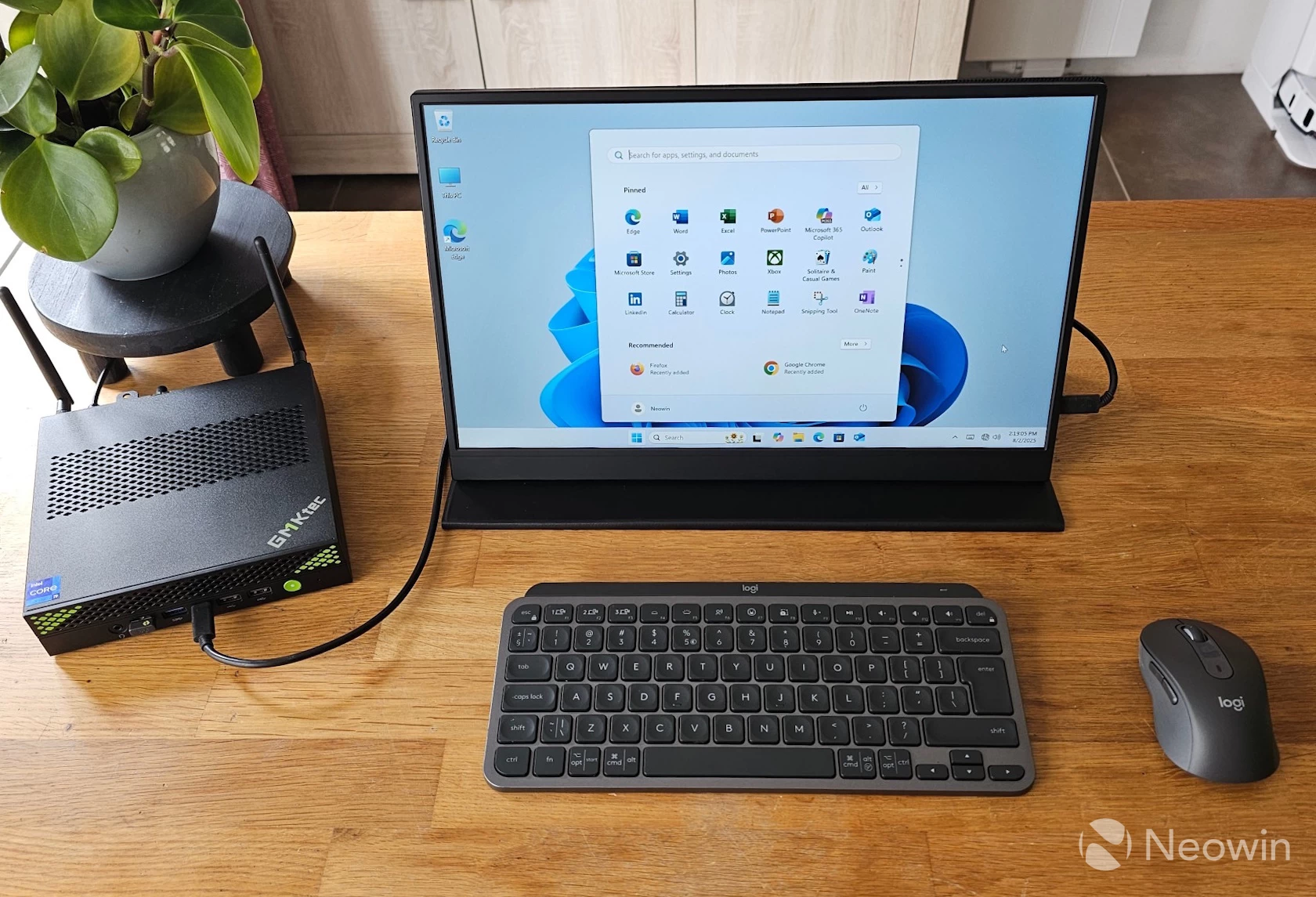
What I liked
The K10 includes a Type-C and Type-A ports on the front, and there are plenty of those Type-A"s (eight in total). You can connect four screens with the included full-sized HDMI ports and DisplayPort, along with the front USB Type-C 3.2 port, which supports DisplayPort.
I also like the fact that this portable PC has a Kensington Lock, and the COM port is a nice addition too, that might nudge some small business owners to upgrade their ancient PCs, while retaining that ancient port for industrial applications.
What I didn"t like
Sadly, there is just one Type-C port, where it is common to find two or three on Mini PCs. I would have liked to see a USB 4 support too in this day and age, or at least an additional Type-C 3.2 Gen 2 port, but it is what it is. I found the inclusion of Microsoft 365 and OneNote in no less than 14 languages a bit weird. If GMKtec is also supplying a license for it, then it makes sense, but that"s not the case here. I also feel like this larger footprint could have easily accommodated an SD Card slot.
Where to buy
Although the MSRP for this variant is $719.99, the GMKtec K10 is available right now for $539 on the official website or for $519.99 on Amazon, which is 27% off. Although this Mini PC has a 13th-gen Intel mobile CPU, I still feel like the deal price is right for what you get: a sturdy, powerful, and well-built mini PC with plenty of connectivity options.
As an Amazon Associate, I earn from qualifying purchases.