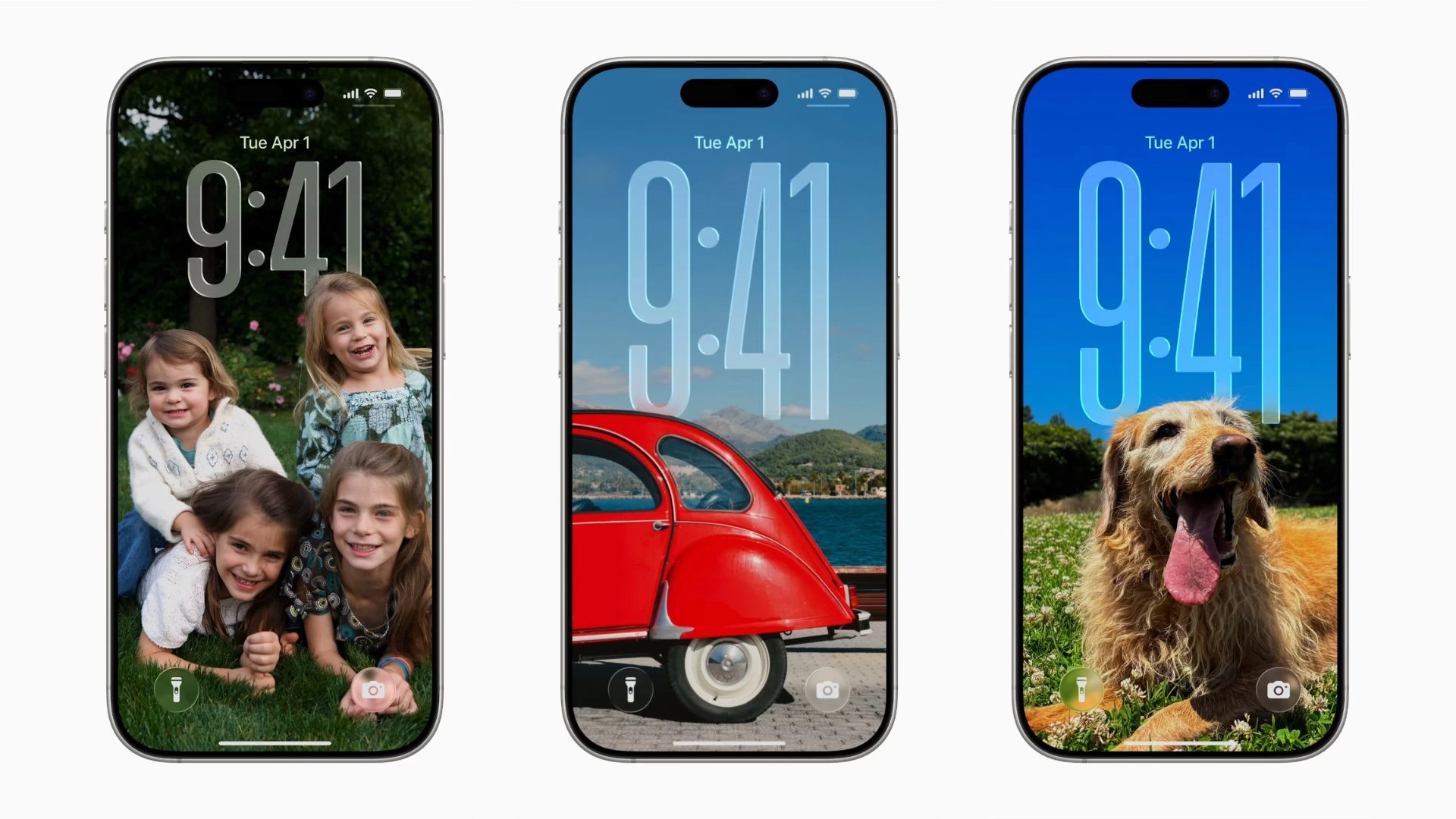
Spatial Scenes is one of the party tricks that Apple has baked into the recently released iOS 26 update. It"s included in the Photos app, which also received a major redesign with the iOS 26 update, bringing back the tabbed interface that Apple ditched last year.
Spatial Scenes converts your 2D images into their 3D self. The feature utilizes Apple"s computer vision techniques, running on the Neural Engine, to add depth to an image. This is how you can convert 2D images to 3D on your supported iPhone model:
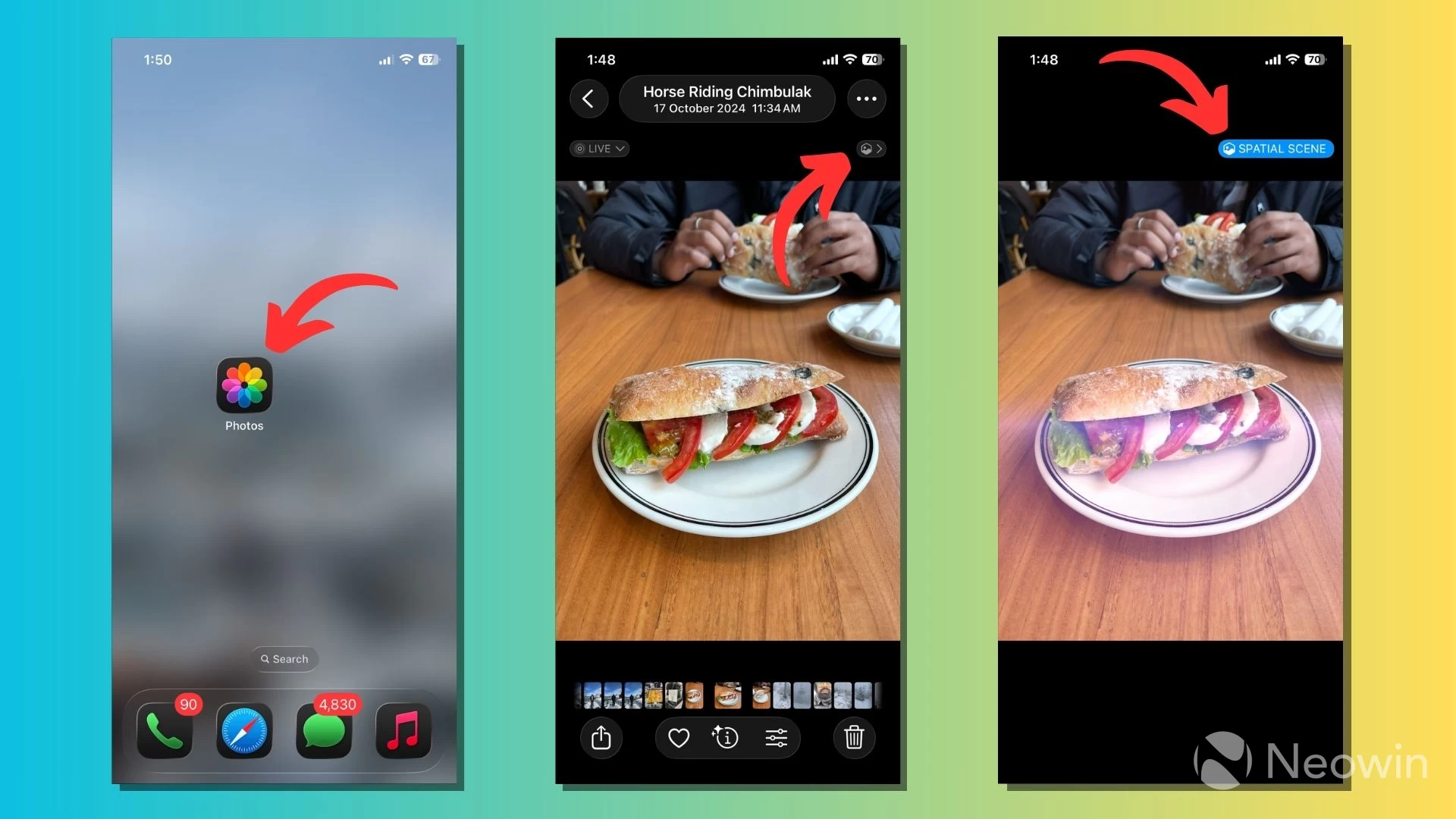
- Go to the Photos app on your iPhone running iOS 26.
- Open an image from the Library you want to transform.
- Tap on the little hexagon-shaped Spatial Scenes button present in the top-right corner of the screen.
- The device will display an animation and take a few seconds to generate a Spatial Scene of your image.
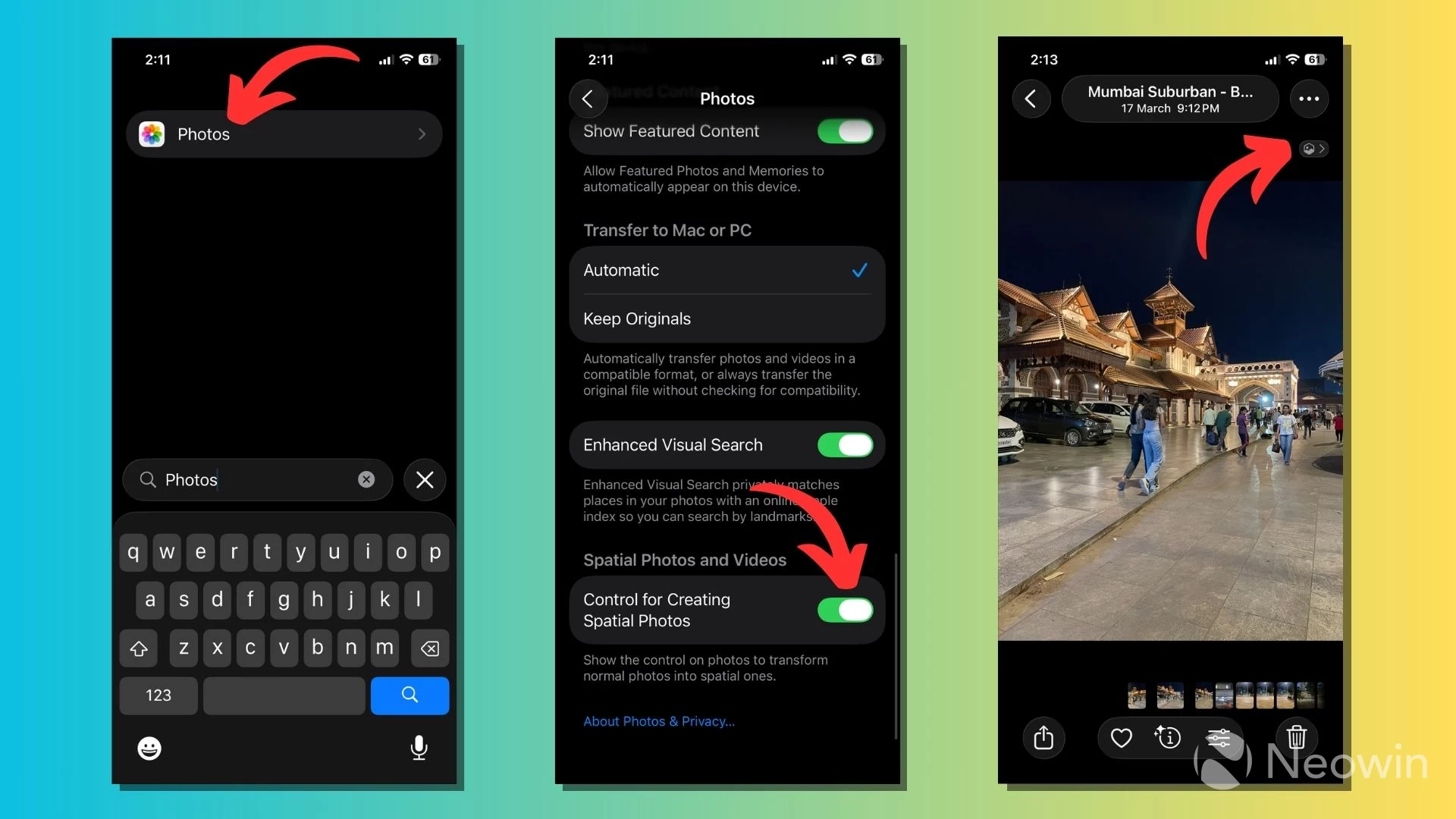
Once it"s done, you can tilt your iPhone in different directions to see the 3D depth in action, which may vary depending on the image. Note that Spatial Scenes isn"t compatible with screenshots; you won"t find the hexagon-shaped button when you open a screenshot image in the Photos app.
If you didn"t find the Spatial Scenes button in the Photos app, go to Settings > Apps > Photos. Here, scroll down to the bottom and turn on the "Control for Creating Spatial Photos" toggle switch.
Spatial Scenes works with photos taken years ago, and it"s not limited to the iPhone. The feature can add depth to images taken from another camera. It gives you a sense that you can look around the subject. When you convert a landscape image, you"ll get an illusion that you"re looking at it through your iPhone"s screen as a window.
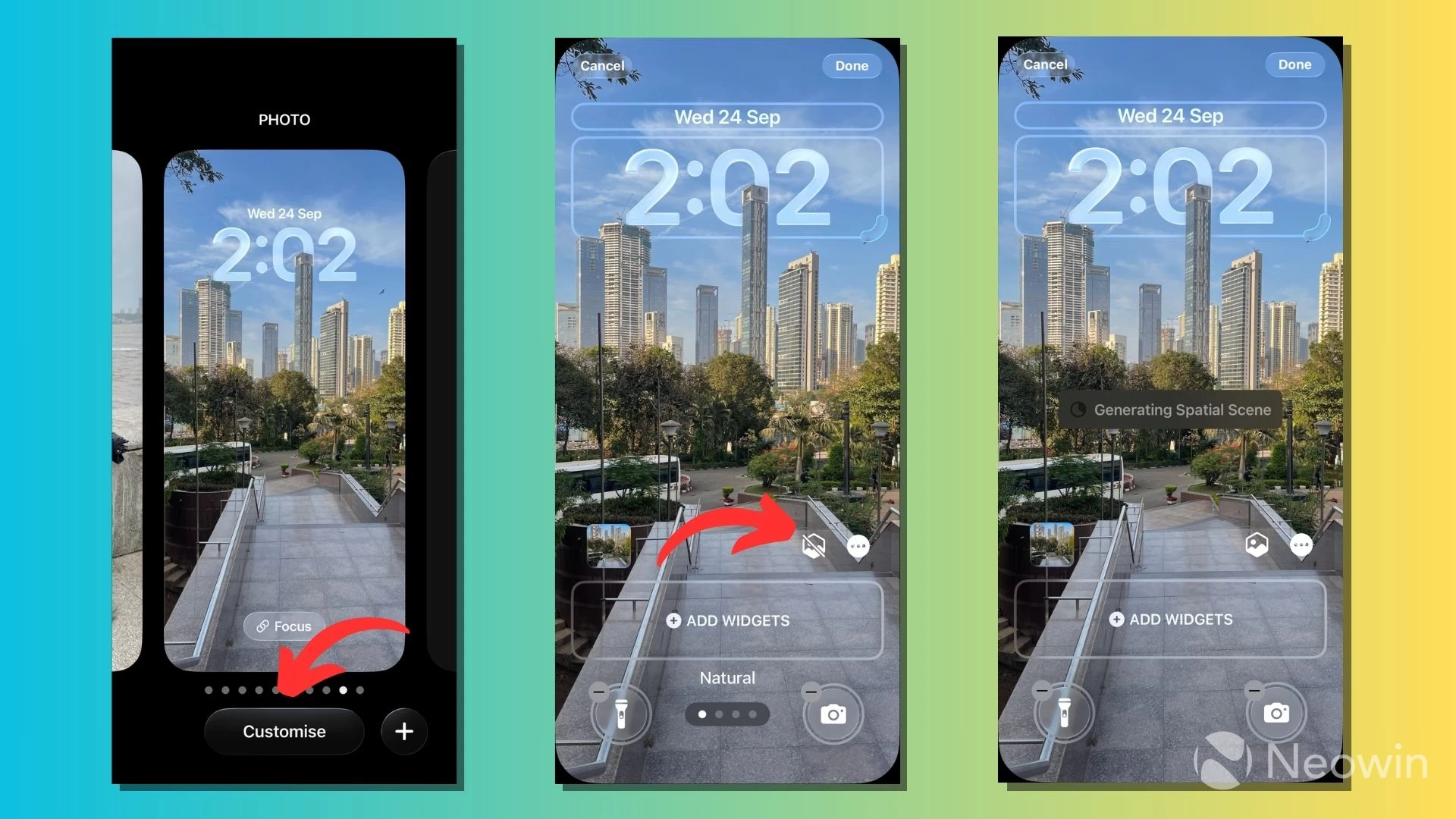
After you convert an image into a Spatial Scene, you can use it in different ways. You can set it as your Lock Screen wallpaper, where it works with the dynamic clock to add an even more 3D effect. The depth is also visible on the Home Screen when you add the Photos widget.
Long-press on the Lock Screen with your iPhone unlocked, then tap Customize. On the next screen, tap on the hexagonal button to generate a Spatial Scene of your lock screen wallpaper.
So, this is how you can transform simple 2D images on your iPhone into 3D ones with added depth. Keep in mind that your phone may use more battery with Spatial Scenes wallpapers than with static images. You try using new features like Adaptive Power mode to optimize your battery usage.
This article is part of our series exploring the new features and changes in iOS 26. You can read about the new features in the Phone app, Camera app, ten things to do before installing iOS 26, and visual changes you"ll notice after installing the latest update.
What do you think about Spatial Scenes? Tell us in the comments.