
Apple has released the latest operating system update for iPhone, calling it iOS 26 this time (not iOS 19 as many expected). It has enough reasons to do so; in fact, all of Apple's new operating systems for iPad, Apple Watch, Mac, and other devices now carry the version number "26."
If you haven't been running the latest iPhone update in its beta form already, you can now upgrade from iOS 18 to the stable version of iOS 26. However, there are some things that you need to do before getting started with the installation process.
1. Check if your iPhone is supported
You might be all excited to download the latest update, but it would be a big turn-off to realize that the software update page on your device is now a barren land. You can check this list of compatible iPhone models to see if your device supports iOS 26.
This can help you decide whether to upgrade your device or not. Speaking of which, Apple has launched the iPhone Air and the iPhone 17 Series, with the maxed-out variant costing $2,000.
2. Backup your iPhone
While the iPhone update experience has become quite stable over the years, it's still technology, and things can go south at any time. Even if you've set up automatic iCloud backups, it's still a good idea to manually back up your iPhone one last time before installing iOS 26.
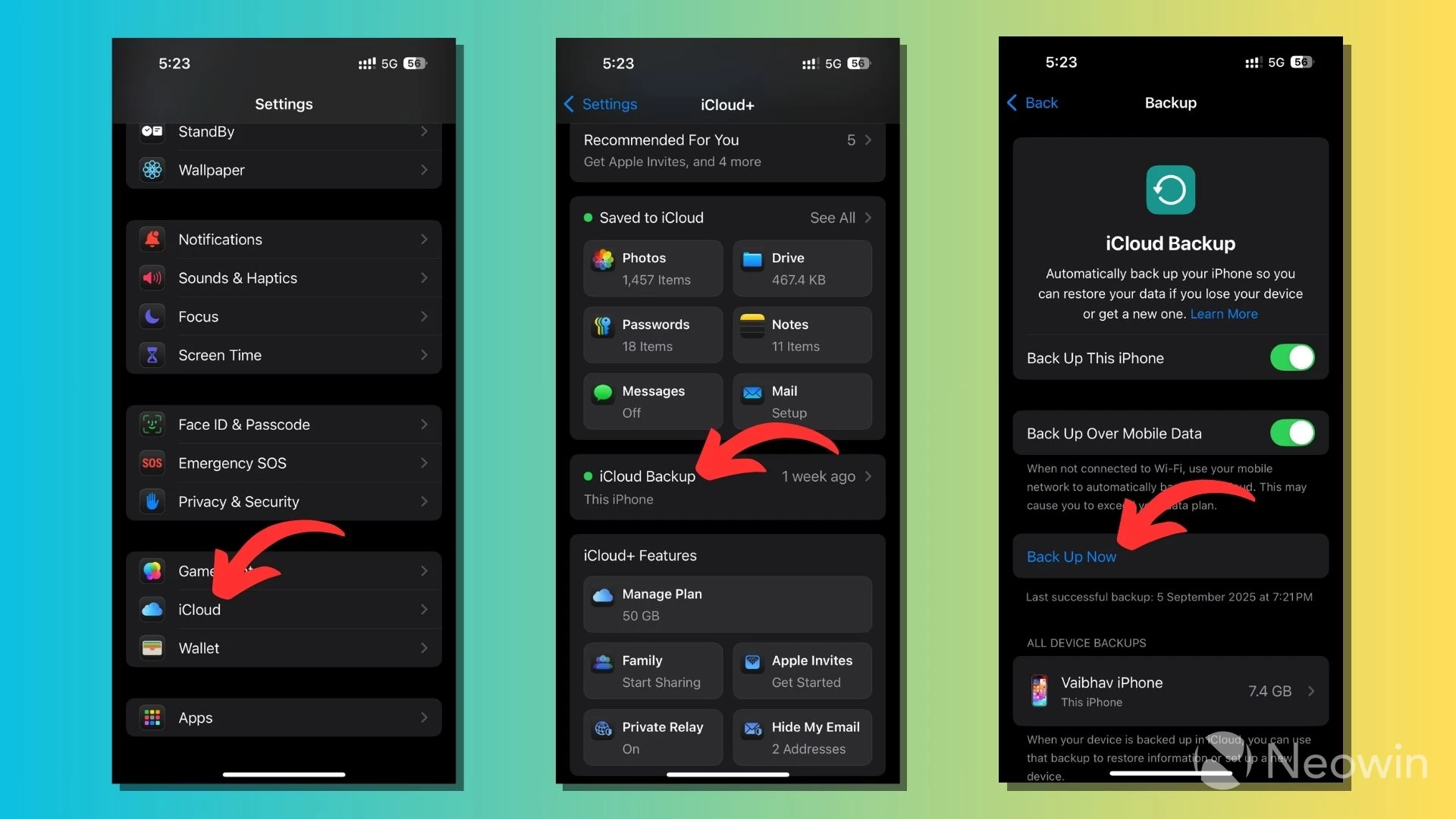
You can go to Settings > iCloud > iCloud Backup. Here, tap the "Back Up Now" option to start the process. Note that you need to have enough iCloud storage for the backup to work. Alternatively, you can back up your iPhone locally on your Mac.
While all the data is backed up to your iCloud, images and videos in the Photos app are not a part of your iPhone's backup file if you have iCloud Photos enabled. You can manage iCloud Photos by going to Settings > Tap your name > iCloud > Photos.
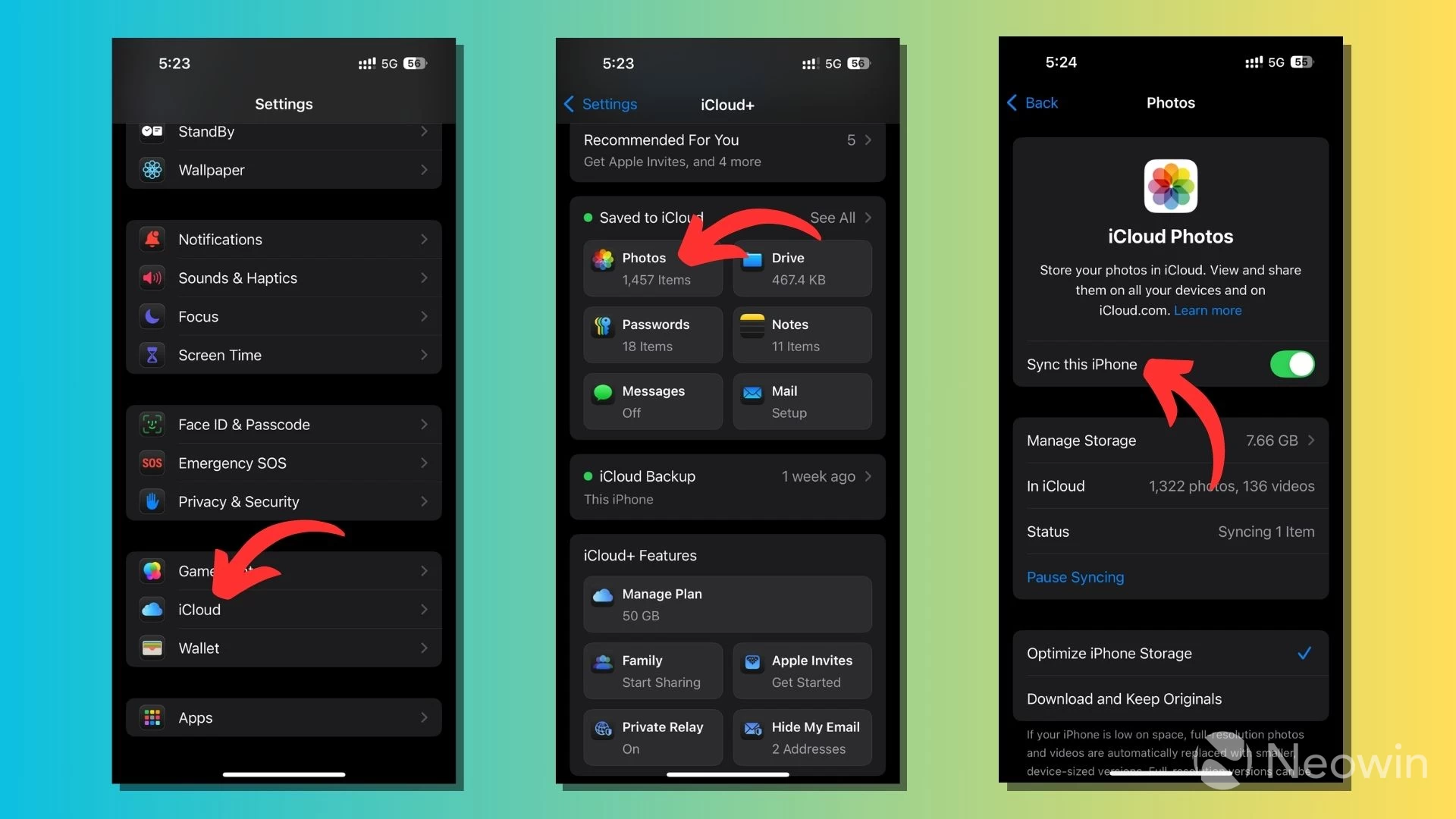
Here, turn on the "Sync this iPhone" toggle button. Once enabled, you can check the sync status in the Photos app by tapping your profile picture in the top right corner of the screen. You can also select the "Optimize iPhone Storage" option to upload the original version of your image or video to the cloud and free up some storage on your device.
3. Backup third-party apps
Chats on apps like WhatsApp or Telegram are not included in your iPhone backup. WhatsApp saves its chat history in a separate backup on iCloud. That's why it's important to double-check whether your WhatsApp chats are backed up to the latest date, even if you enabled automatic backups.
For instance, if your frequency was set to once a week and you try to install the iOS 26 update before it, there is a chance you might lose some of your chats. You should do this for all other apps on your phone whose data doesn't sync to iCloud or isn't part of the device backup.
4. Update your apps
If automatic updates aren't enabled for your apps, go to the App Store and update them manually. This ensures the best possible experience an app can offer because developers might push last-minute changes to improve compatibility with the latest iOS update.
5. Make sure to save all your login credentials
We use a ton of apps and services these days, and remembering the username and password for each of them is a difficult task, if not impossible. Before starting the update process, make a quick check that the user credentials for all important apps you use are safely stored in the Passwords app or another password manager you prefer.
This ensures your passwords are safe in case something unexpected happens during the update process.
6. Make sure you have enough free storage
In addition to backing up your data, ensure that your iPhone has enough free storage to install the update properly. For iOS 26, the update package size is about 7.8GB, and it's recommended to have about 20-25GB of free storage to install the update smoothly.
If you don't have enough storage, try syncing your Photos app to iCloud and deleting redundant videos.
7. Make sure your iPhone has enough battery
A smooth installation also means that your device should have enough battery juice to last through the entire process. Your iPhone might shut down halfway if it's running low on battery, which increases the chances of the device getting bricked or losing your data.
That's why your device should have at least 50% battery capacity to install the iOS 26 update.
8. Make sure your internet connection is stable
A shaky internet connection can cause issues such as longer download times, updates getting paused, or failed downloads. It's preferable to download iOS 26 over a Wi-Fi connection, given the size of the update package. Otherwise, it might lead to unexpected bills on a metered cellular connection.
For faster download times, check if other devices or people on your network are not running bandwidth-hungry tasks like streaming movies or downloading heavy software.
9. There is no rush
Sometimes, it's okay to have a grace period when a new product or software update arrives. Freshly-baked products might be susceptible to unknown bugs and issues.
The recently launched Pixel 10 series made headlines after early buyers faced issues with wireless chargers. When Apple launched iOS 18 last year, people reported a bug in iMessage just two days after the release.
However, these cases should be taken as a note of caution and shouldn't demotivate you from trying new stuff. You can still wait for about a week if you're skeptical about the stability.
10. Decide how to update your iPhone
There are multiple ways to get the iOS 26 update on your iPhone. If you're running short on time, you can set up automatic updates by going to Settings > General > Software Update > Automatic Updates.
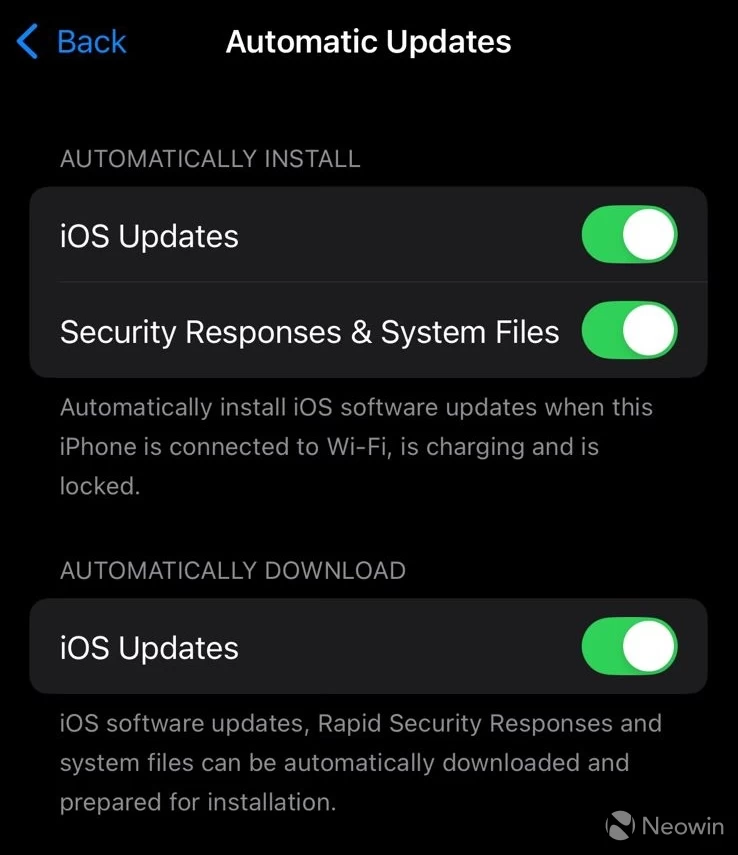
When you turn on the "iOS Updates" toggle under Automatically Install, the device will download and install the update overnight, while charging and connected to Wi-Fi.
When you switch on the toggle button under Automatically Download, the device will download the update in the background, but won't install it until you grant the permission manually.
You can also try the old school way and update your iPhone to the latest version by connecting it to your Mac. Once connected, you can find your device in the side menu of the Finder app.
The iOS 26 update brings a platter of new features and changes to the iPhone, such as the redesigned Photos app, new features in Safari, HDR screenshots, and more. The cherry on top is the new Liquid Glass design language that Apple is rolling out on most of its operating systems for a consistent look across devices. It's the biggest design update in years, but Apple faced backlash initially, which forced the company to make some changes to Liquid Glass.

















2 Comments
Load the comments and join the conversation!
Read the comments, ask the editors questions, show respect and join the conversation.