Windows 10 support is ending soon, and with it, millions of users will be forced to upgrade to Windows 11. However, the process might not be as easy as clicking a button in Windows Update. Before upgrading, you must ensure your PC has the necessary bits, particularly the Trusted Platform Module. If you do not know how to check whether your PC has one, here are a few methods to ensure your PC supports TPM 2.0.
It is also worth noting that TPM 2.0 is no longer the thing that only Windows 11 requires. Some of the most popular games now mandate a Trusted Platform Module and Secure Boot for their anti-cheat software. Without such things, games like Call of Duty: Black Ops 7 and Battlefield 6 simply refuse to start. As such, more users are forced to learn about TPM and Secure Boot.
How to check if my computer supports TPM 2.0?
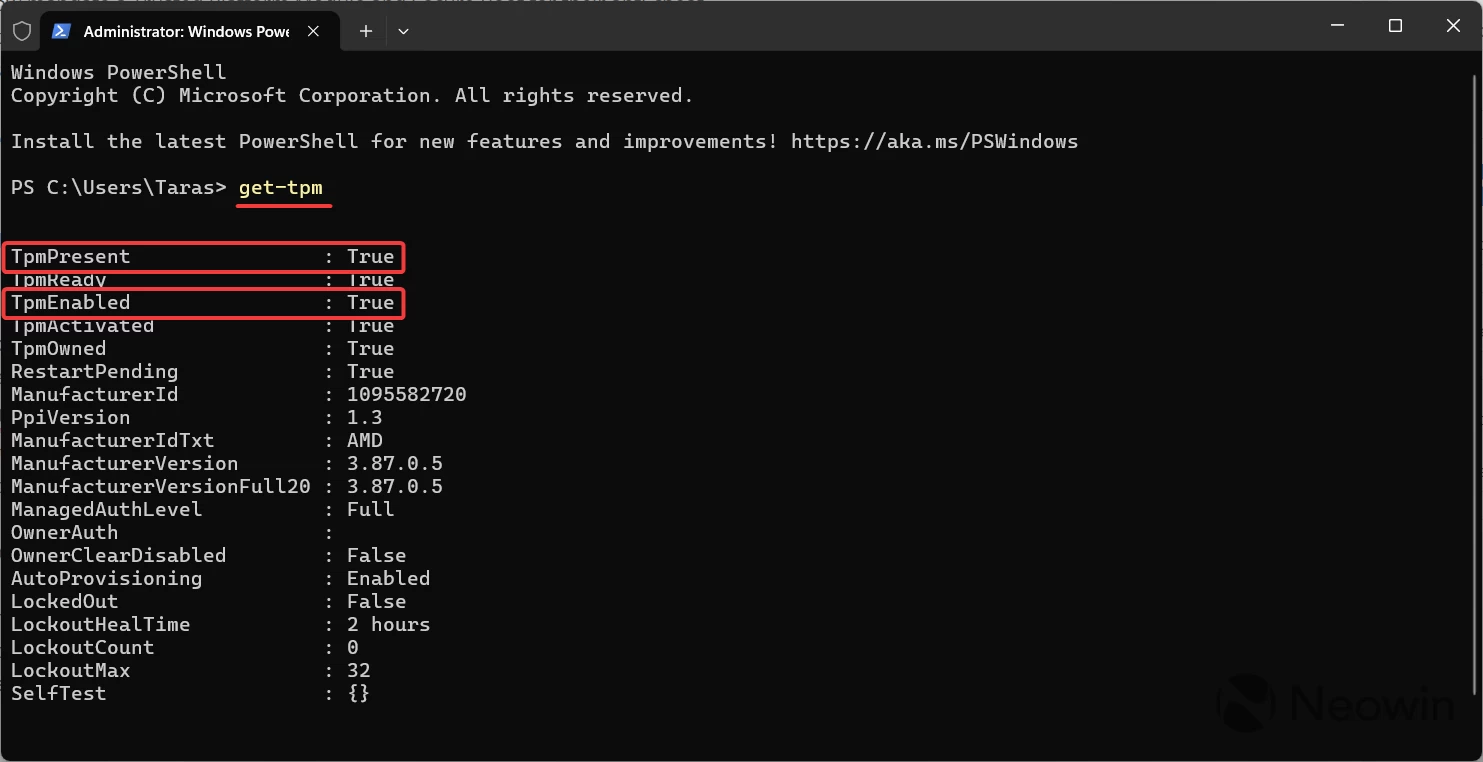
There are several ways to check TPM 2.0 support on a Windows PC. The quickest and probably the easiest is using Windows Terminal because it can show not only if TPM is enabled, but whether it is supported as well.
- Press Win + R and type wt.
- Press Ctrl + Enter to execute the command as Administrator. Note that you need elevated privileges to perform this action.
- Type get-tpm and press Enter.
- Look out for TPMPresent and TPMEnabled values. If both are "true," there is nothing to worry about, since your computer has the Trusted Platform Module enabled. If TPMEnabled says "false," you need to enable TPM in your motherboard"s UEFI settings; more on that in the second part of the article.
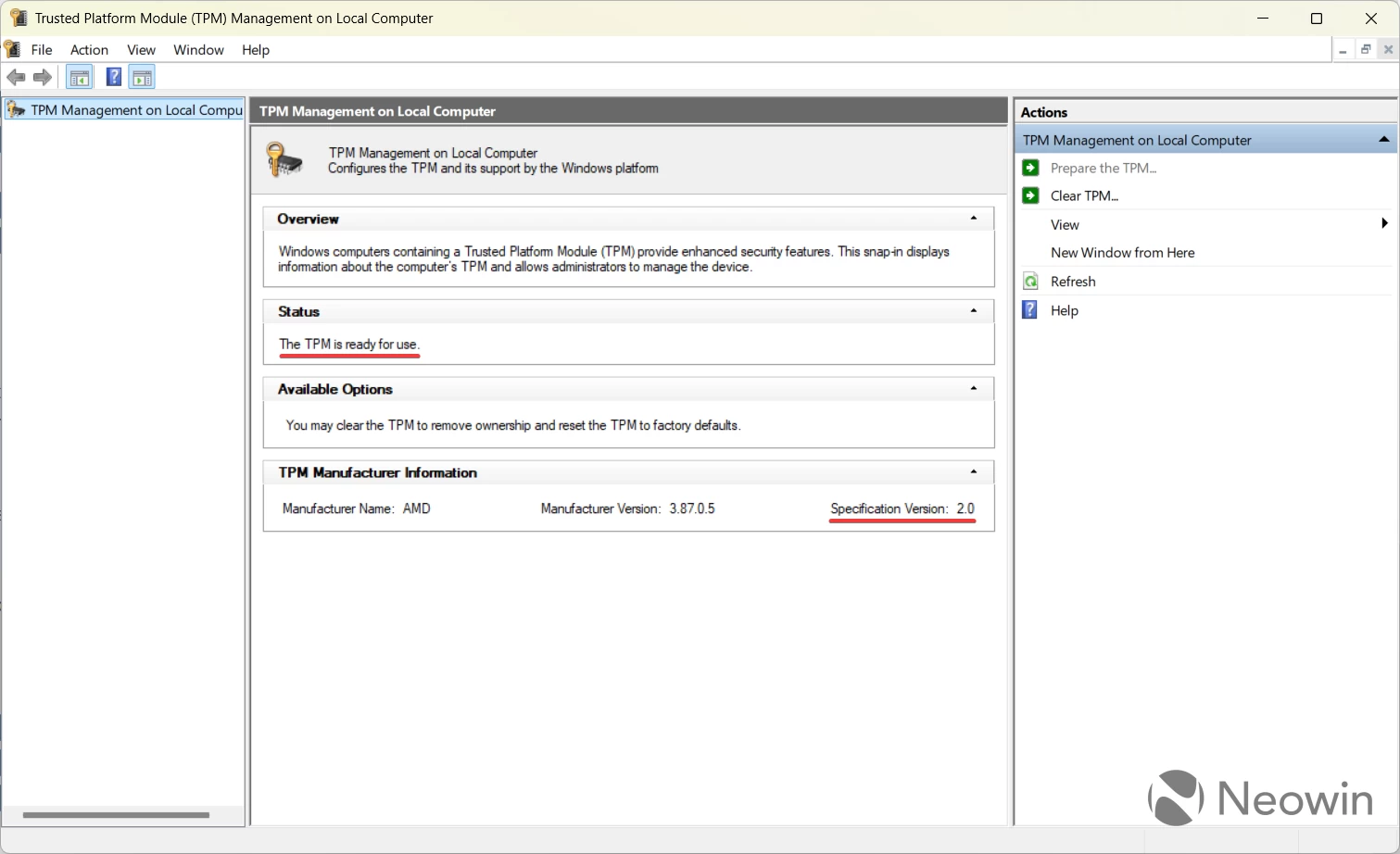
Another way to check TPM on a Windows PC is to press Win + R and type tpm.msc. Windows will open a new window where you should find the "The TPM is ready for use" message. There will also be a TPM Manufacturer section where you can find your module"s version, such as 2.0 (Windows 11"s requirement). If TPM is missing or is not enabled, you will see a "Compatible TPM cannot be found" message.
There is more. Open Device Manager and expand the Security Devices section. If TPM is present and enabled, you will see a "Trusted Platform Module 2.0" entry there.
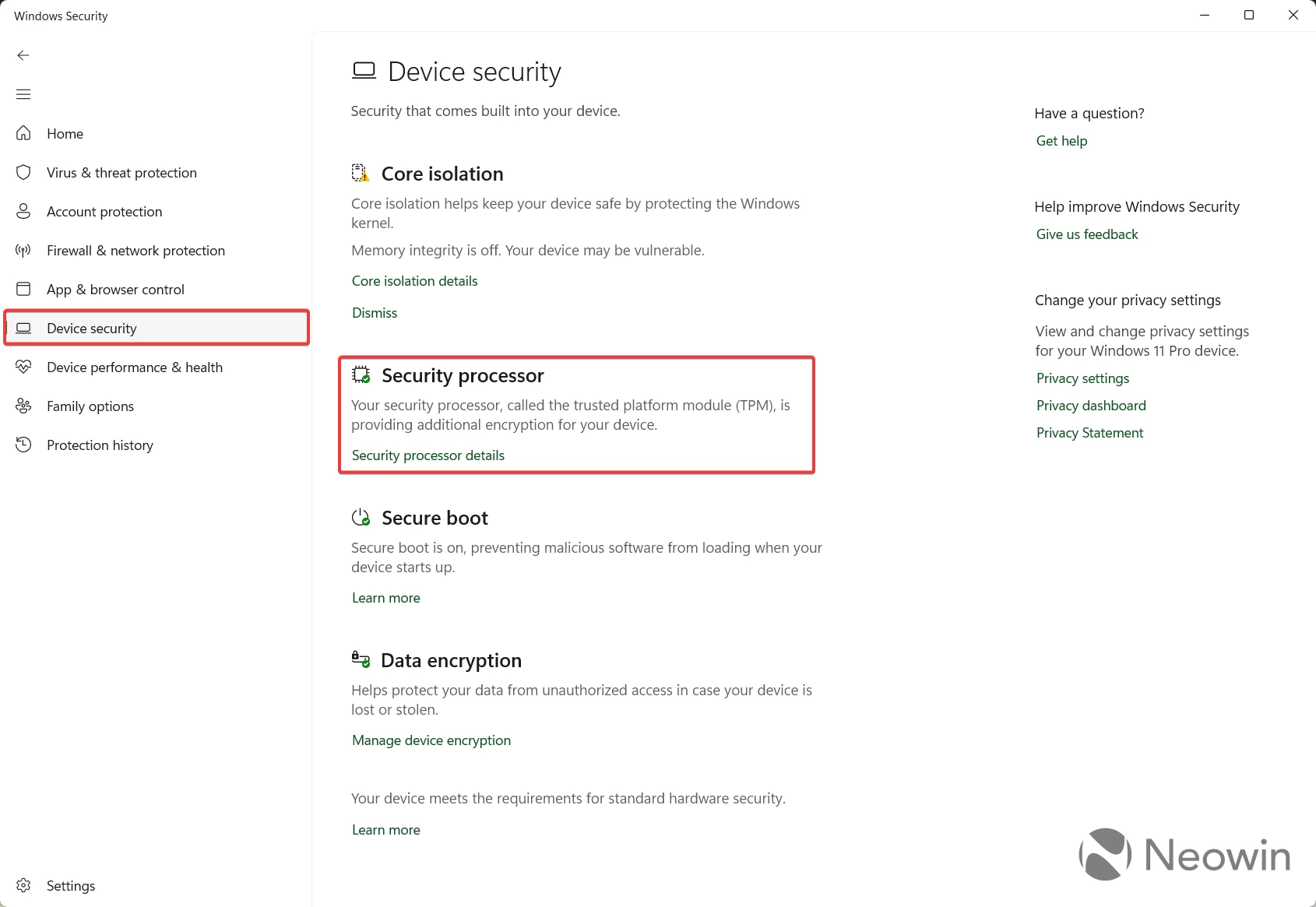
Finally, you can check if your PC has a TPM chip in the Windows Security app:
- Open Start menu and type Windows Security or open the app from the All Apps list.
- Go to the Device Security tab.
- Click Security Processor Details. You will not find this option if TPM is missing or not enabled.
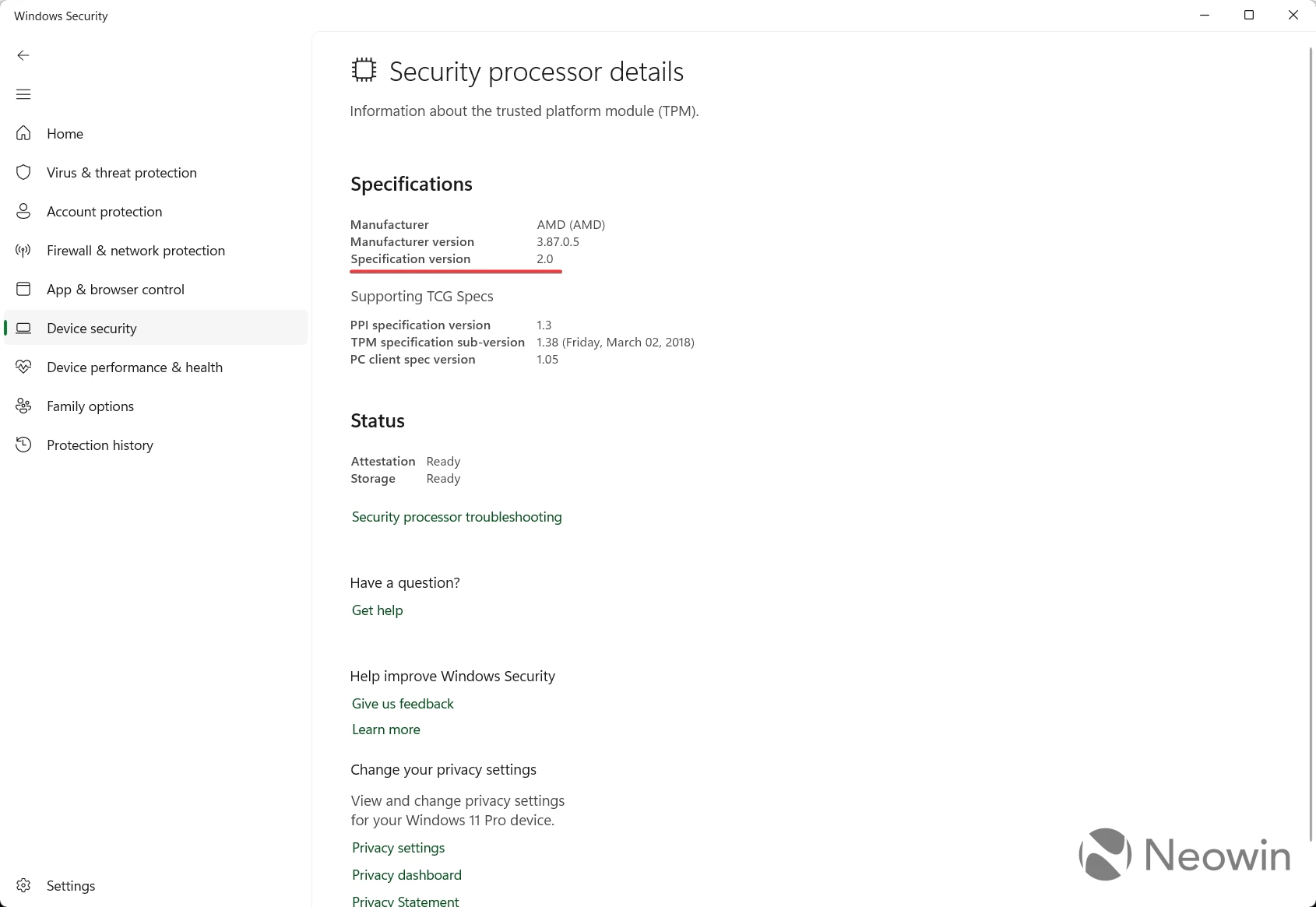
Finally, it is worth noting that Steam will soon be able to run TPM and Secure Boot checks for you. By the time of publishing this guide, the ability to see whether your PC has TPM and Secure Boot is available in the latest Beta version of the client.
How to enable Trusted Platform Module (TPM) on a Windows PC?
The funny thing about modern PCs is that some manufacturers still ship motherboards with TPM or Secure Boot disabled by default. This is not a problem for those building a new Windows 11 PC, as the operating system will not allow itself to be installed without enabling TPM and Secure Boot first. However, if you have a Windows 10-based PC, you might have a Windows installation with TPM disabled. In such a case, you have to dig into your computer"s UEFI settings to enable the Trusted Platform Module.
The problem with enabling TPM in UEFI/BIOS (some people still call it BIOS, even though it is technically incorrect) is that different motherboards have different menus and user interfaces. Therefore, the TPM switch is not located in one unified place. However, the rule of thumb is that you need to find and enable fTPM if your PC has an AMD processor or PTT (Intel Platform Trust Technology) setting.
While I cannot list menus from all motherboard manufacturers, on GIGABYTE"s AORUS motherboards with AMD sockets, TPM settings are buried in Settings > Miscellaneous > Trusted Computing 2.0 or AMD CPU fTPM. You might also need to enter "Advanced" or "Expert" mode in your BIOS settings, as most modern motherboards have simplified versions of their UEFI settings for less experienced users. Either way, the best option is to refer to your mobo"s user manual.
Once found, enable TPM and restart your system. Turning it on will not affect your existing Windows installation or data.
That is how you check if your computer has TPM and whether it is enabled or not.