Apple bakes new accessibility features into the iPhone with every iOS update. It was the Eye Tracking feature in iOS 18 last year that let you control your iPhone just using your eyes. Now Apple has gone a few steps further, letting you control your iPhone with your head.
Let"s talk about how you can turn on and use the Head Tracking feature on your supported iPhone model running the iOS 26 update:
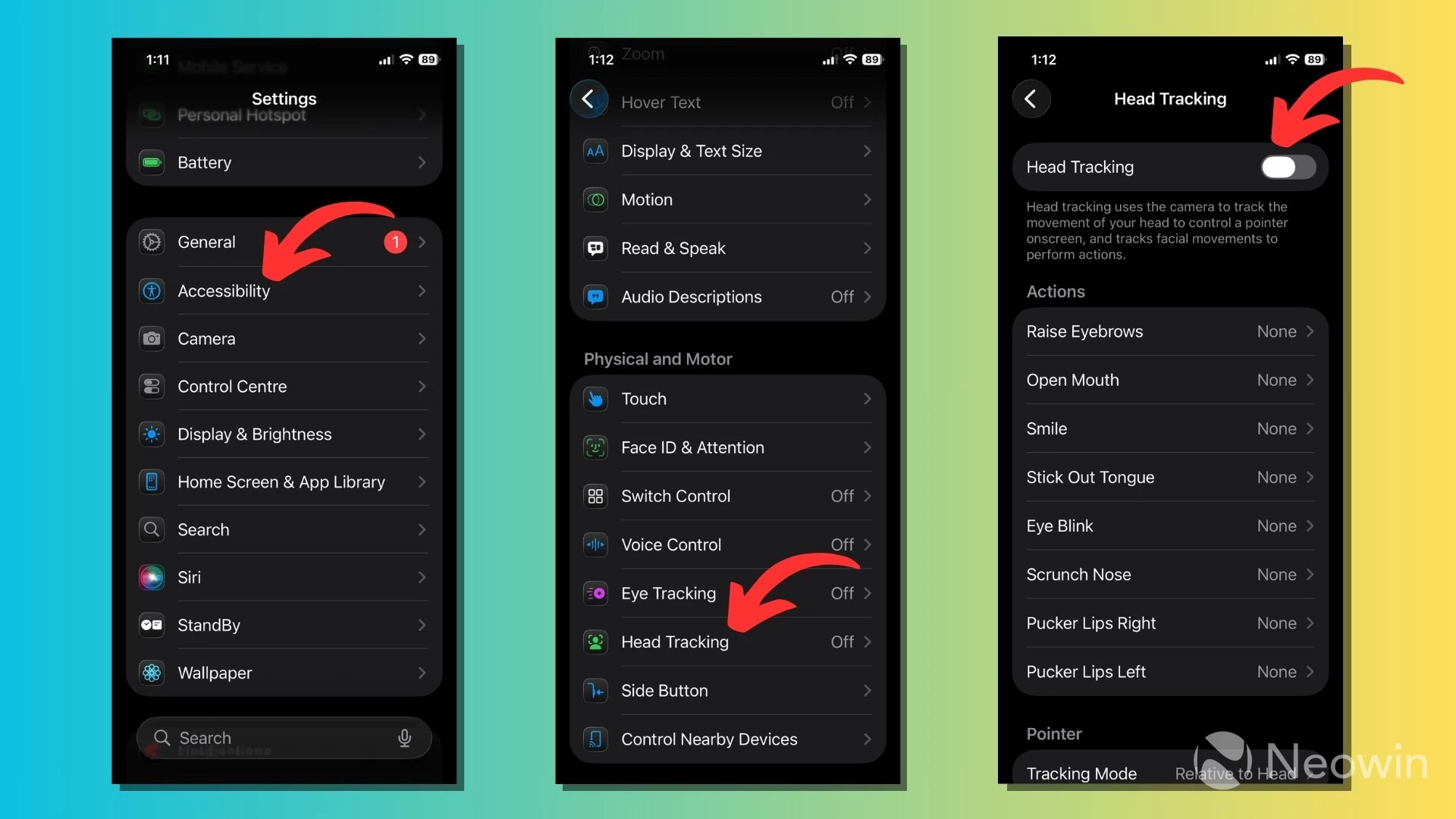
- Go to the Settings app > Accessibility.
- Scroll down to find the "Head Tracking" option under "Physical and Motor."
- Turn on the toggle button that says "Head Tracking."
Like eye tracking, the new accessibility feature uses the iPhone"s front camera to track your head movement to control an on-screen pointer. It also tracks your facial expressions to perform different actions such as tapping, opening apps, and navigating across the device.
For the best possible results, place your iPhone on a stable surface about 18-20 inches from your face. Make sure there is enough light on your face and the front camera isn"t dirty.
It"s better that you configure different facial expressions for the actions you want to perform before enabling Head Tracking. You can choose from a platter of expressions, such as raising your eyebrows, opening your mouth, smiling, sticking your tongue out, blinking your eyes, scrunching your nose, or puckering your lips left or right.
For instance, you can tap an item by looking at it (or Dwell) and holding your head steady. You can configure the smile gesture to open the Control Centre, go to the Home Screen, or pucker your lips to the left or right to scroll up or down on the screen.
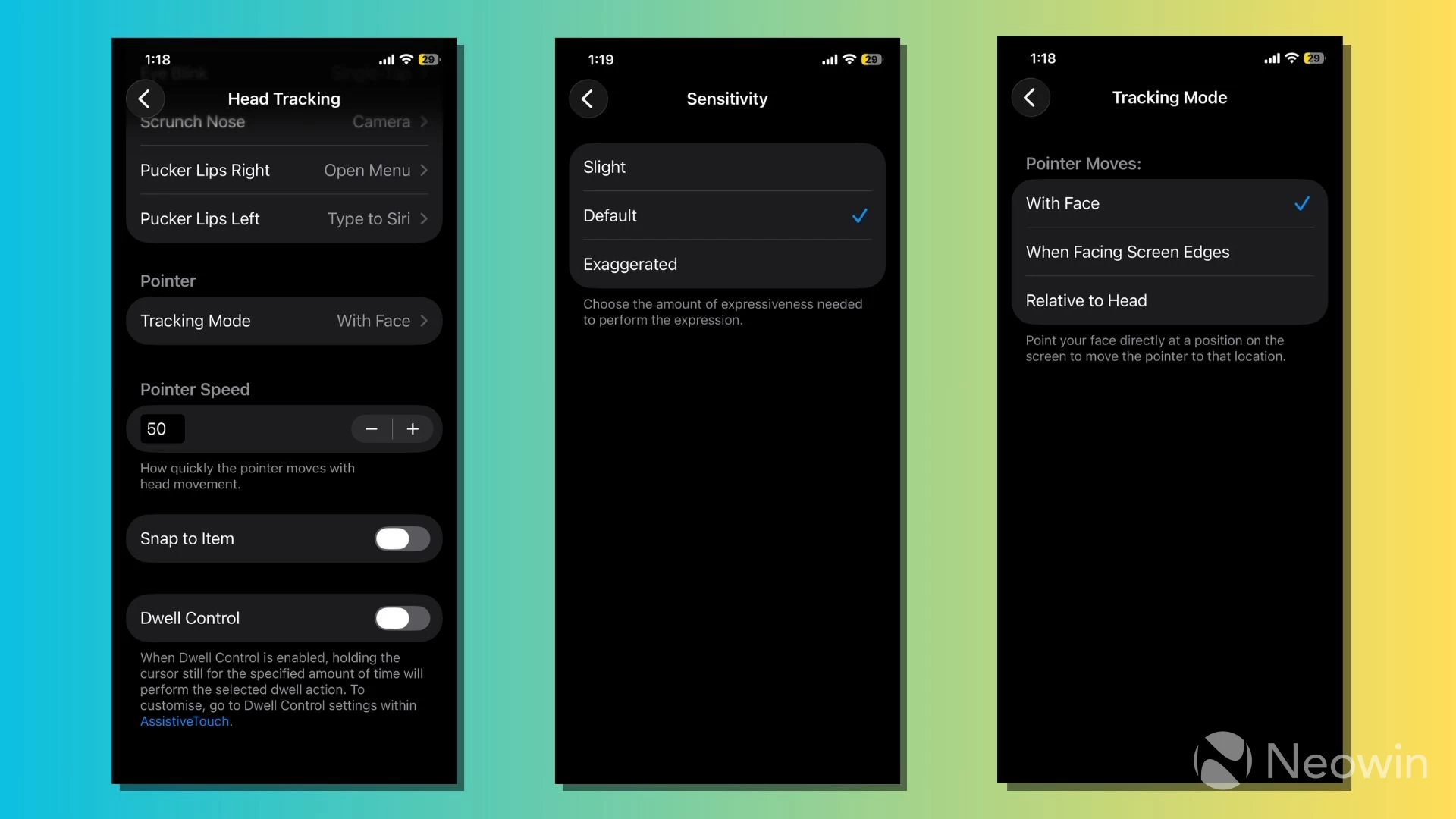
The Head Tracking feature also lets you set the pointer speed and choose whether it should track relative to your head, your face, or when facing the screen edges. For each action, you can choose whether you should make a slight, default, or exaggerated expression to trigger the action.
Head Tracking also works in combination with the Dwell Control accessibility feature already available on iPhone. You can use the AssistiveTouch feature to perform additional on-screen gestures or simulate physical button presses.
So, this is how the head tracking feature works on iOS 26. For now, the accessibility feature only lets you access system-level features and actions. You can"t access specific apps directly, but create a shortcut to do so.
Just like Eye Tracking, it might take a while for you to get the hang of it when you"re getting started; you may find it a bit hard to control the on-screen pointer at first. Note that Head Tracking is also available on iPad as part of iPadOS 26. You can turn it on and use it by following similar steps.
This article is part of our series exploring the new features and changes in iOS 26. You can read about how you can convert 2D images to 3D ones, and what"s new in Apple Maps, Reminders app, and Camera app.
What do you think about Head Tracking? Tell us in the comments.