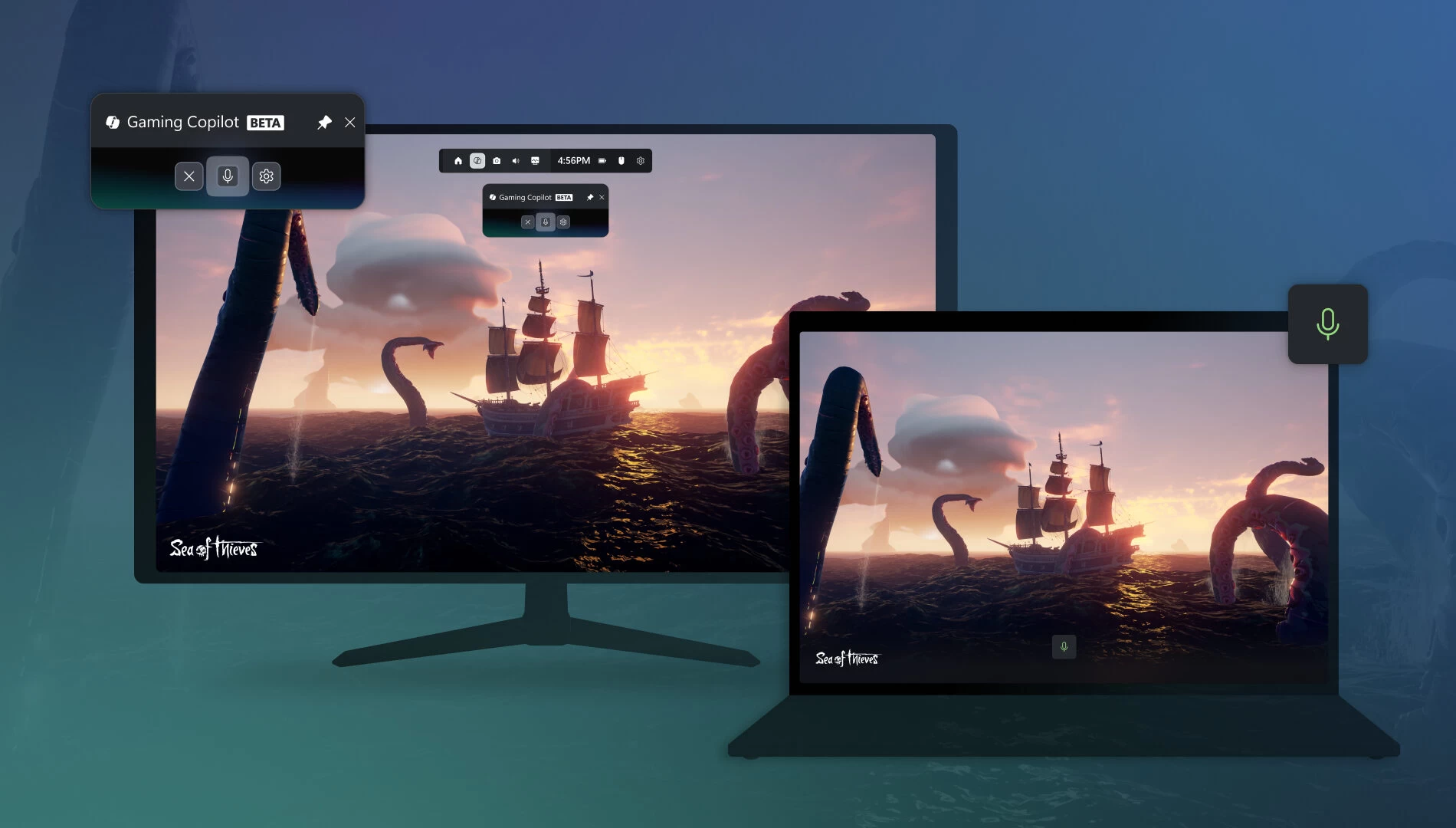
It was back in March that Microsoft announced that it would start to inject its AI efforts into the Xbox gaming side of things, dubbing the feature the "ultimate gaming sidekick." The beta for it kicked off a few months later, offering an early version for Insiders and mobile users on the Xbox app, letting them ask questions from the AI about passing difficult sections and game recommendations. Now, Gaming Copilot is beginning its rollout for the public.
Microsoft today announced that PC players over 18 will begin seeing Gaming Copilot on the Xbox Game Bar for quick access. Following that, starting in October, the Xbox mobile app on Apple and Android devices will get the same AI companion to use with any gaming needs.
During its testing phase with Insiders, Gaming Copilot had received upgrades to its in-game assistance, voice mode, and a better understanding of gameplay on the screen that it has access to. "Now, any Xbox player on PC or with the Xbox app on mobile will be able to leverage Gaming Copilot’s capabilities while playing, with new features and improvements like deeper insights and coaching to come as we continue to gather feedback and learn from our community," said the company today.
To begin using Gaming Copilot on Windows PCs, hit the Windows key and G to get the Game Bar overlay open, then hit the Gaming Copilot icon in the Home Bar to open the widget. Microsoft recommends using the Voice Mode for seamless access when playing a game, letting players ask for advice or information without having to look at another screen or read the overlay.
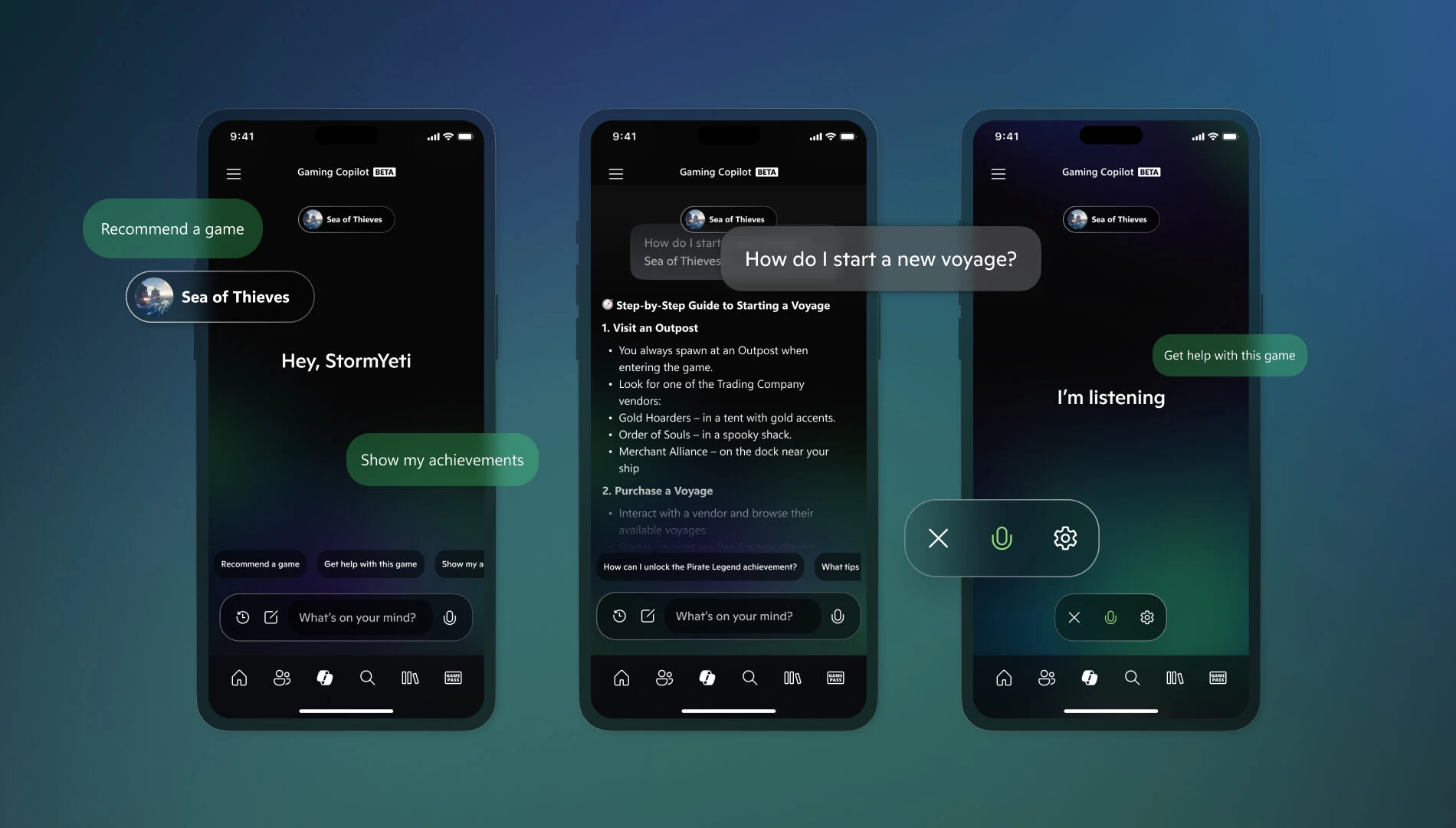
The voice mode has two options, Push to Talk and Mini Mode:
- Push to Talk – when you’re mid-game and want to quickly ask Gaming Copilot for help then jump back into the game, try the new “Push to Talk” feature. To do this, go to the “Hardware and Hotkeys” settings page where you can set your own key bind shortcut to “Push to Talk”.
- Mini Mode – for a long-running voice conversation, try pinning the Gaming Copilot widget. To do this, launch and pin the Gaming Copilot widget, click on “Talk” in the left navigation bar to start a conversation, and click the upward arrow on the bottom right to minimize the widget. Now you can continue the conversation once you return to your gameplay, all while taking up minimal space on your screen.
Per Microsoft, the AI is able to understand what it is seeing on the screen, coupled with knowing what game is being played, to help players better. This means it can give information on any enemies on the display, tips for passing difficult sections, or be helpful with NPC interactions. The AI is also said to be able to help with getting profile information like achievement data and play history and also recommend games based on previously played titles.
The company asked Gaming Copilot users to use the feedback button to mark AI responses using the “thumbs up” or “thumbs down” to help it with improving the technology.