OneNote is a pretty useful note-taking app that allows many rich text and media formatting options, too. The good thing about it is that it is not necessarily bundled with a paid Microsoft 365 subscription, which means that you can download it as a standalone app from the Microsoft Store. Now, Microsoft has begun rolling out a "highly requested" feature for OneNote customers.
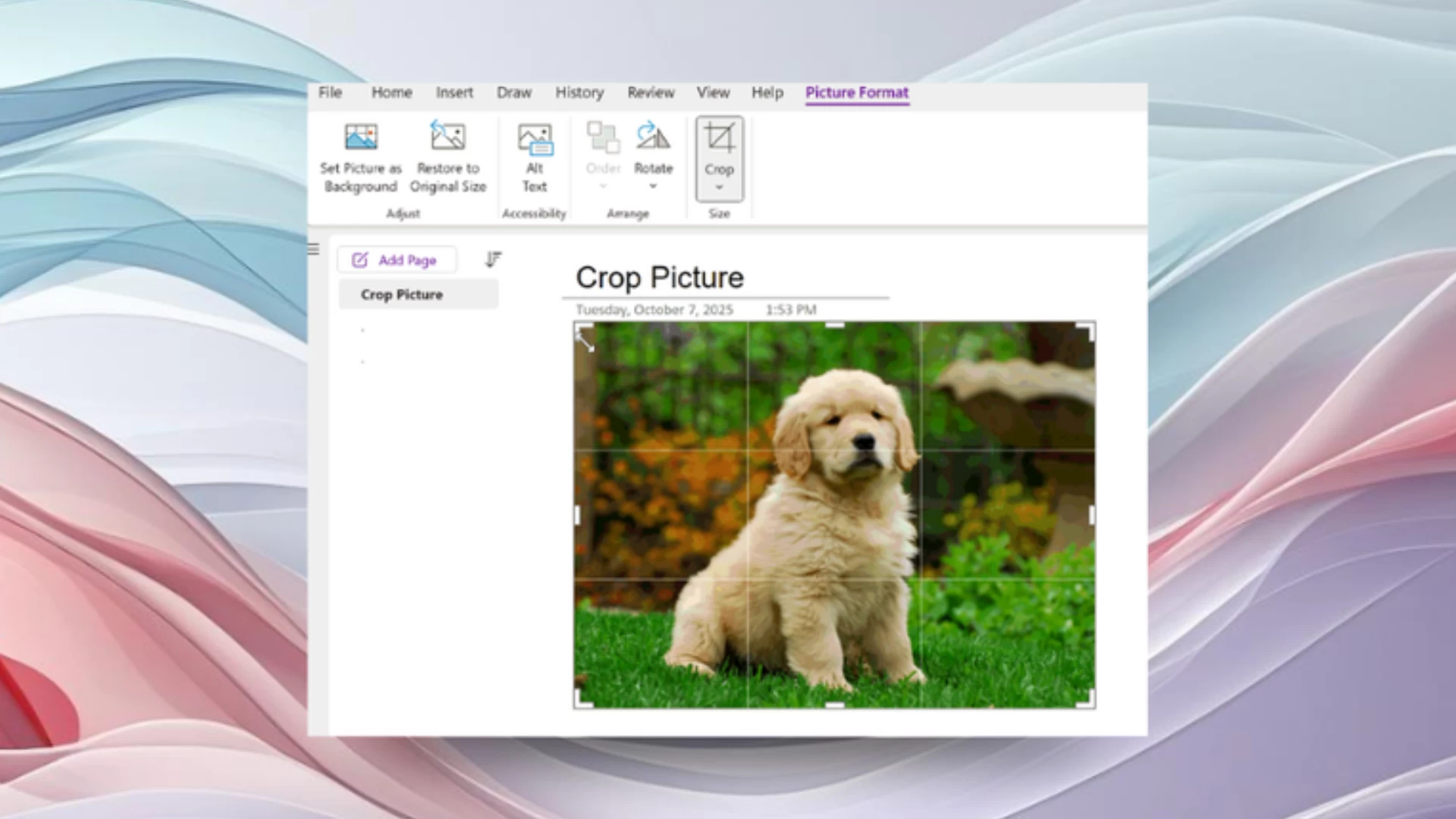
The feature in question is an image editing option, basically the ability to crop images directly in OneNote. Prior to today, users had to resort to external tools and applications to crop images before attaching them in OneNote, which is a fairly cumbersome process. With the latest functionality, completing this requirement should be a breeze, enabling users to remove background clutter or simply zoom in on the details.
In order to crop a picture, simply open the OneNote app, select an image or insert a new one, navigate to Picture Format in the app ribbon, and then utilize either of the two methods mentioned below:
- Picture Format > Crop: Then, use your mouse to drag the crop handles and trim your picture manually.
- Picture Format > Crop with Keyboard: Then, use your arrow keys (← ↑ → ↓) for fine, precise adjustments to the crop area.
Once you press Enter or click in any region outside of your image, the changes will be applied instantaneously.
This was apparently a highly requested item desired by many users, but it"s interesting that it"s only rolling out to OneNote on Windows for Insiders running Version 2509 (Build 19323.10000) or later. While cropped images are viewable on other platforms like Mac, Android, iOS, and the web, the OneNote app on these variants does not support the ability to crop images at this time. If you have some feedback for Microsoft regarding the implementation of cropping on Windows or have some suggestions regarding OneNote in general, simply use the Help > Feedback menu inside the app.