
After you have upgraded to a new version of Windows, you may notice that the space on the drive volume which contains the operating system immediately decreases. While there could be many culprits, the reason behind this is usually a new folder that gets created during the installation of your update. For example, if Windows is installed on your C: drive, you'll notice a Windows.old folder now being present in that directory.
For those unaware, Windows.old is a directory that gets automatically created when upgrading to a new version of Windows. It basically contains an archive of your previous installation, storing program files, some user data, core Windows components and files, and more.
The purpose of this folder is to host a system backup that you can restore to, if you run into critical issues while using the new version of Windows that you upgraded to. These recovery options can be found in the System > Recovery options in Windows Settings.
Now that we've established that Windows.old actually serves a very useful purpose, the next question one could have is whether it is safe to delete? Well, the good thing about this directory is that it automatically deletes itself within a few weeks, so you usually don't have to worry about it.
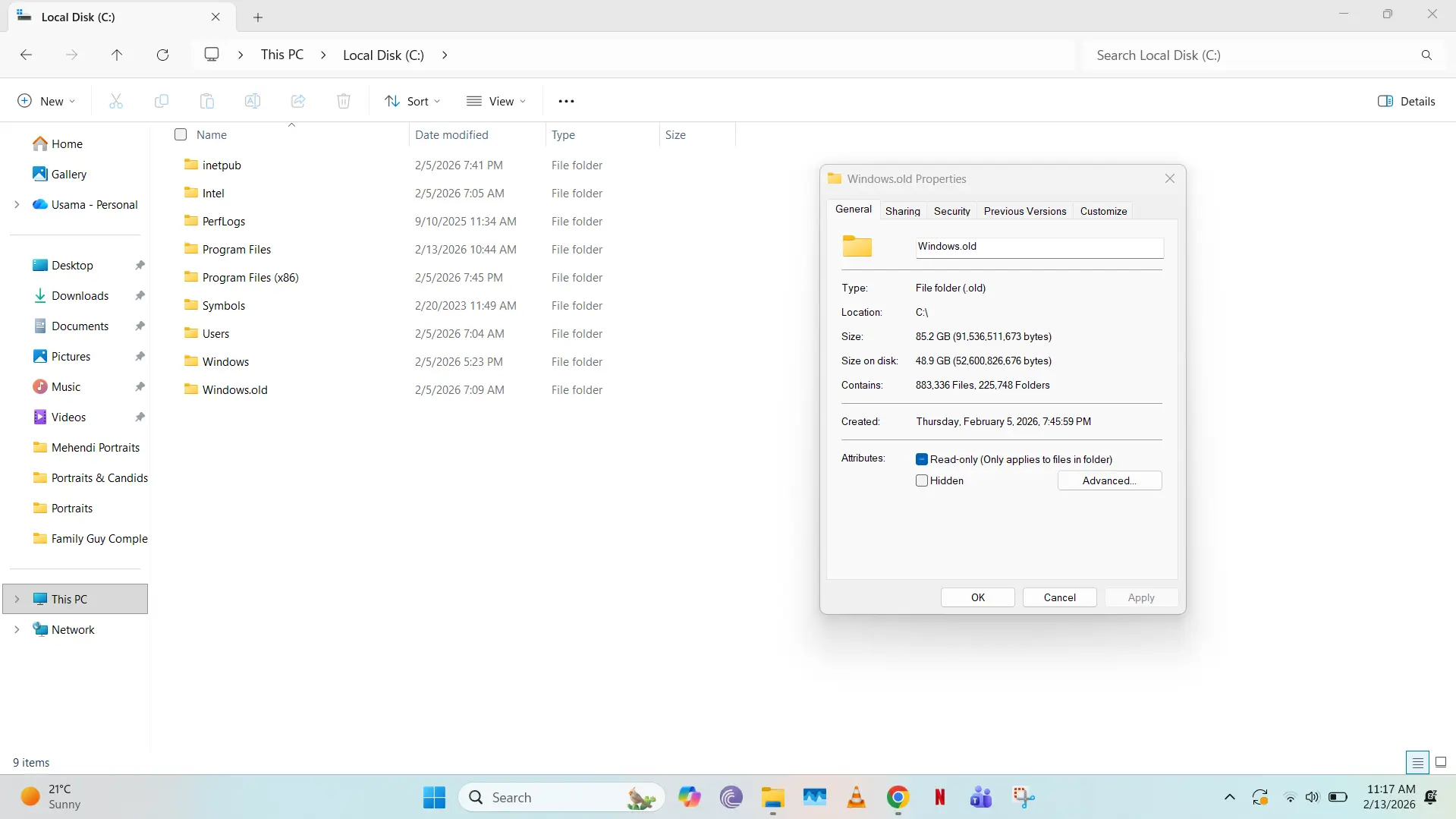
However, depending upon your drive capacity, you may still need to consider deleting it manually. I ran into this issue (which actually prompted me to write this guide), because I noticed that only 4GB of free space was left on my C: drive. Although this isn't a critical problem, I have found my latest version of Windows to be stable enough to not consider a restore. If you look at the screenshot above, you'll notice that the folder is occupying a massive ~85GB on my PC.
Provided that you have administrative permissions on your PC, you can safely delete this folder and get all that occupied space back. However, do keep in mind that this essentially gets rid of a restore point on your PC, so only do so if you really need that free space and if you believe that you won't need to revert to an older Windows version in the near future.
That said, you can't delete Windows.old via the File Explorer, you'll run into errors. The other way to do it is by following the instructions below:
- Search Disk Cleanup in Windows Search
- Choose the drive which contains your Windows installation
- Click on Clean System Files
- Again, select the drive which contains your Windows installation. Wait a few minutes for the scan to complete
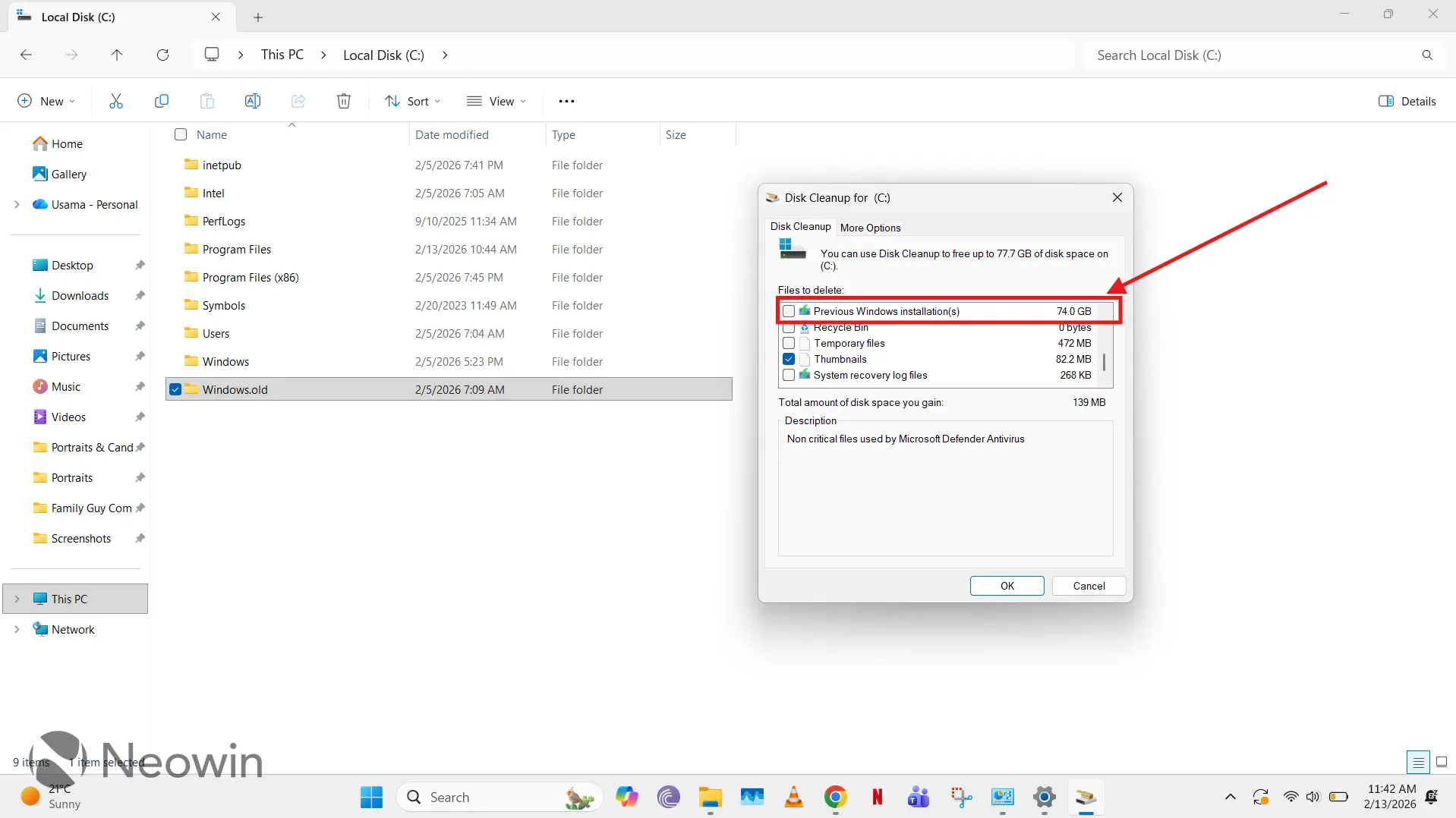
- Once this scan completes, you'll see more options in the Disk Cleanup UI. Select Previous Windows installation(s)
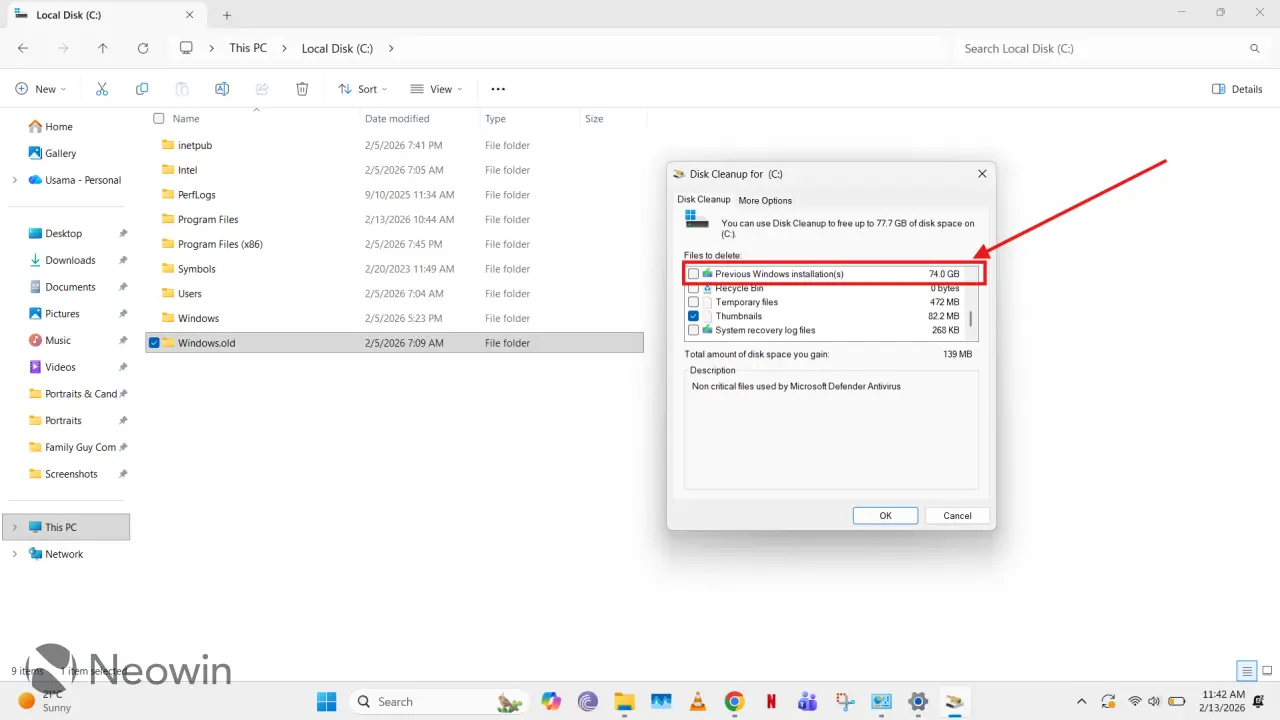
- Click OK at the bottom
- Windows will prompt you that if you delete this folder, you won't be able to restore to this older version of the OS. Click OK
- Wait a few minutes for this directory to be deleted
That's it! That's all there is to it. However, do keep in mind that this will irreversibly delete a restore point to the previous version of Windows, so if you do experience problems in your latest installation, this deletion of Windows.old also removes a way to go back. As such, only do so at your own risk and only if you really want that freed up space.
















2 Comments
Load the comments and join the conversation!
Read the comments, ask the editors questions, show respect and join the conversation.