
Screen, webcam and sketchboard recorder with an integrated editor.
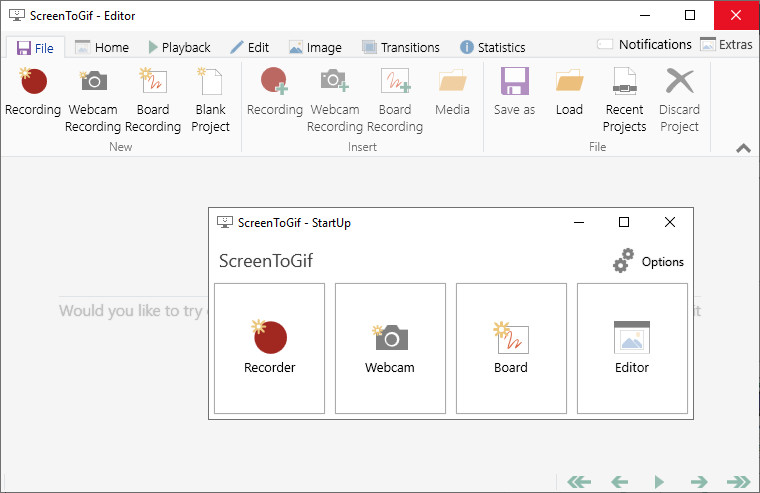
ScreenToGif is an open source program that lets you to record a selected area of your screen, live feed from your webcam or live drawings from a sketchboard. Afterward, you can edit and save the animation as a gif, apng, video, psd or png image. Also there's the Webcam Recorder and the Board Recorder.
Features:
- Record your screen and save directly to a gif looped animation or a video.
- Pause and continue to record or start over by discard the recording.
- Move the window around to record what you want, it stays on top.
- You can add Text, Subtitles, Title Frames, Borders, Watermarks, Drawings, etc.
- Crop and Resize.
- Remove frames that you don't want.
- Select a folder to save the file automatically or select one before encoding.
- Add the system cursor to your recording.
- Very small sized and portable executable.
ScreenToGif 2.43 changelog:
- Added option for translating special keys.
- Reworked plugins page, now it downloads the latest version of FFmpeg.
- Adjusted the default Quality of the GifskiGifPreset preset to a higher value by @corvinsz
- Fixes the issue: The "Repeat forever" checkbox in Gifski options is non-functional. The GIF loops indefinitely even if it's unchecked. by @fz0000
- Upgrading KGy SOFT package versions, fixing encoded preview of current frame, zoomable preview by @koszeggy
ScreenToGif 2.43.1 changes:
- Bug fixes and translation updates.
- German translation updated.
- Updated the installer to download the latest version of FFmpeg.
Fixed
- The "Automatic Tasks" options page was not working.
- FFmpeg detection was wrong, which caused video export to fail.
Download: ScreenToGif 64-bit | Portable 64-bit ~7.0 MB (Open Source)
Download: ScreenToGif 32-bit | Portable 32-bit
Download: ScreenToGif ARM64 | Portable ARM64
View: ScreenToGif Home Page | User Guide | Screenshot
 Get alerted to all of our Software updates on Twitter at @NeowinSoftware











1 Comment
Load the comments and join the conversation!
Read the comments, ask the editors questions, show respect and join the conversation.