
Windows 11 version 25H2, which is currently available for testing in the Dev Channel, is coming later this year. It is expected to bring a few noteworthy changes and upgrades, such as a redesigned Start menu, which will address plenty of user feedback and criticism. Interestingly, Microsoft also appears to be making some changes to how desktop shortcuts work.
While Windows 11 version 25H2 and its redesigned Start menu still allow you to create shortcuts by dragging apps from the menu to the desktop, the shortcuts' properties dialog is now different. In Windows 11 version 24H2, you can right-click a shortcut and check the path to the file in the "Target" box. In version 25H2, the box no longer shows the full path to the file.
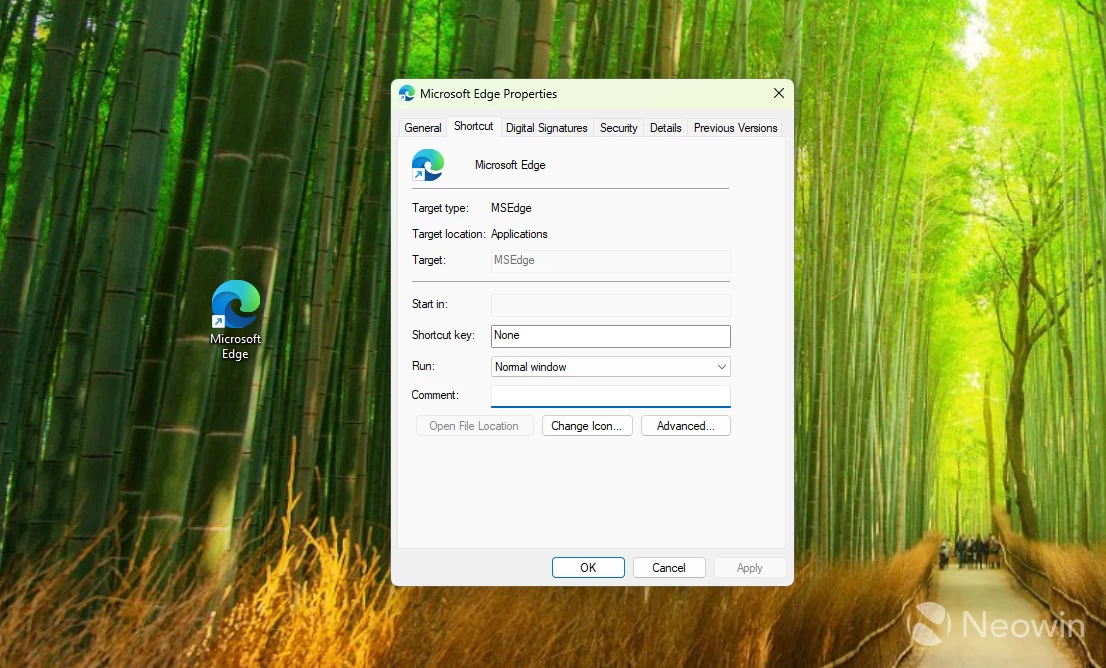
Besides making things less convenient, this change removes the ability to add special commands and arguments to executables. Here on Neowin, we often report on experimental features and changes that you can only enable by modifying the shortcut's target. While it is still possible in Windows 11 version 25H2, users are now required to take a different approach.
There are no words from Microsoft regarding this change. It is also quite possible that it is a bug in the new Start menu. Reverting to the old Start menu restores the previous behavior. If you do not have the new Start menu on your system with a Dev or Beta build, check out this article.
If you want to create a shortcut with the correct properties dialog, do the following:
- Open the Start menu and right-click the app you want to have on the desktop.
- Select "Open file location."
- Windows 11 will open File Explorer with the app you need. Right-click it and select "Show more options."
- Select Send to > Desktop (create shortcut).
Done. Now you have the correct shortcut with a properly working target box in the properties dialog.
Via Deskmodder















20 Comments
Load the comments and join the conversation!
Read the comments, ask the editors questions, show respect and join the conversation.