Recently, a senior Microsoft engineer unveiled the secret behind how past Windows versions were able to reboot and get back into Windows much faster. This was done as booting or rebooting is one of the most basic yet important functions of the OS and when things like these do not undergo flawlessly, it can lead to a lot of inconvenience for users, both at home as well as at offices.
The newest Windows 11 Patch is the latest such example of that as the update led to shutdown / hibernation problems as well as boot-up issues (since been fixed with the second emergency update).
However, it is not always Microsoft or Windows that can lead to boot-related problems. From the latest Chrome canary build, it has been learned that Google is testing a new feature that will allow the browser to start up right at Windows boot.
The new feature is in the form a toggle inside the browser settings dubbed "Launch Chrome when my computer starts," something Google has been working on since around October or November last year as the Chromium dev team had added a new kForegroundLaunchOnLogin feature flag.
As you can probably make out from the feature flag title, Google has intended this to be a foreground process, which typically tend to have higher resource priorities than background tasks. Thankfully, there is also kLaunchOnStartup flag alongside it for gatekeeping, which is essentially for the toggle for enabling or disabling the feature.
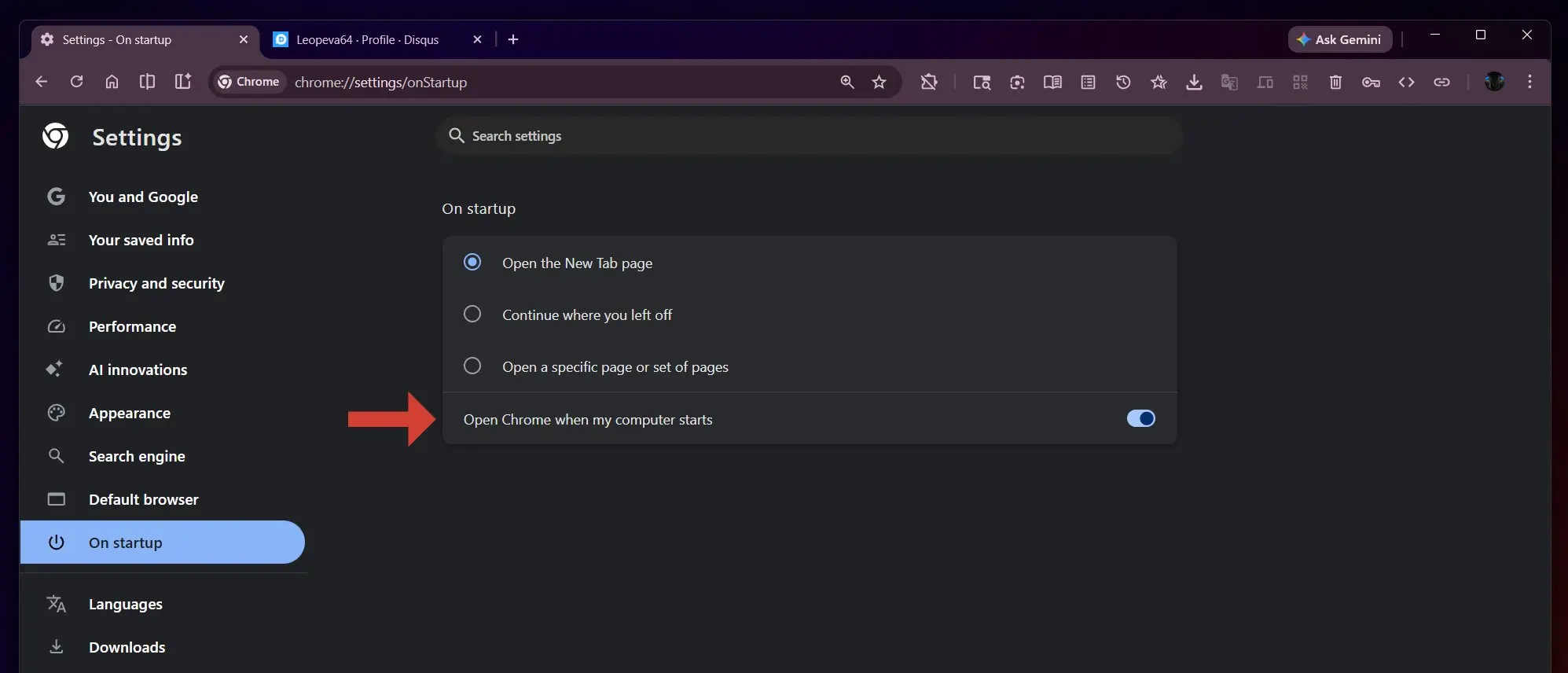
Neowin forum member Leopeva64, who noticed the feature, notes that by default the toggle is currently set to off, which is a good thing. As noted above, this is a foreground process and hence, for systems that lack an SSD or are running a less powerful CPU, like say a quad-thread low clock model, may struggle initially, which will slow down the Windows boot speed.
Microsoft has an official guide on how to fix slow Windows 11/10 start up speeds. Hence users struggling with a laggy PC boot-up can also use that to limit such processes.
Via: Leopeva64 (X)




















10 Comments
Load the comments and join the conversation!
Read the comments, ask the editors questions, show respect and join the conversation.