Hardware is always great when you first buy it, but it can quickly come to feel sluggish when the tech giants start bloating their software with either badly written code or features you never asked for. Take Google, for instance, it has just started bundling an offline LLM with Chrome which takes up a hefty 4GB of space just to power unnecessary features such as “Help me write”.
It’s not just Google, we also see this with Microsoft cramming Copilot everywhere (though it is scaling this back now, thankfully). Windows 11 is also a very heavy operating system which runs slowly on older hardware and forces users to buy new hardware, once for the TPM 2.0 support, and again for some AI features if you want those.
I do not like buying new hardware very often so I look for ways to try and extend the life of the things I already have. I currently use what’s normally a horribly slow laptop from the 2010s and have tested a few different Linux operating systems on it with various levels of success. With things like Fedora Xfce it ran mostly OK, but I still encountered a tiny bit of lag.
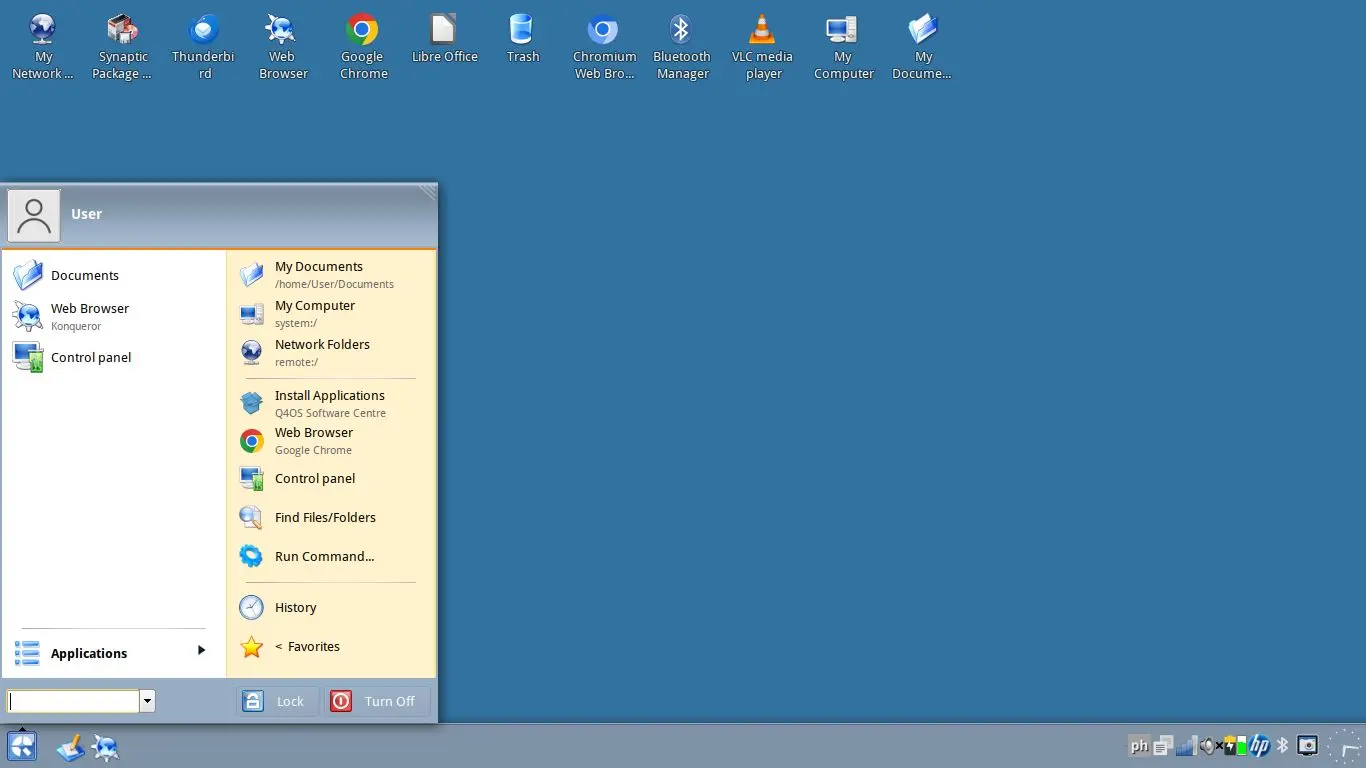
In the last few months, I decided to scrub the laptop clean again to try a Linux operating system I had never used before (and I’ve been distro hopping since 2008!) It is called Q4OS, it has been around since 2014 and aims to be extremely fast when you go with the Trinity Desktop Environment (which I had never heard of before this). While some parts of this distribution are predictably bare bones, one nice thing is that it has a very good theme manager and a theme out of the box that makes Q4OS look like a mix of Windows XP and Windows 7, taking the best elements from each.
Q4OS is built on top of a Debian base, giving it wide package availability, a high level of stability and predictability, and long-term support. Powering the OS is Linux kernel 6.12 LTS, which isn’t too old and ensures modern hardware compatibility. While you won’t be thinking about these under-the-hood aspects of Q4OS too much, they do ensure that your system stays rock solid.
When I came to download Q4OS, I saw on the download page that I could get a Plasma version (KDE) or version called Trinity, which I had never heard of, but is actually a fork of the older KDE 3.5. According to the download page, the Plasma version required a 1GHz CPU, 2GB RAM, and 8GB of disk space - this is not bad, but I felt like it could lag a bit like other Linux distributions I’ve tried, so I went with Trinity, which requires a 500MHz CPU, 512MB RAM, and just 6GB of disk space.
I still haven’t tried the Plasma version, so I won’t talk about it here, everything I mention here pertains to the Trinity edition.
One potential downside of Q4OS, if you were thinking about putting it on extremely old hardware, is that the current Andromeda version is only available for 64-bit computers. If you are like me and just have a weaker laptop, but it came out in the 2010s, then you should be OK as your machine is probably 64-bit.
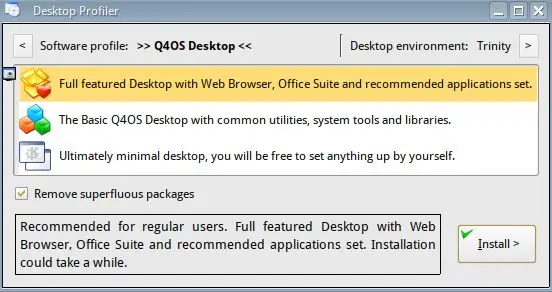
One of the standout features in Q4OS is the Desktop Profiler which is within the Q4OS Welcome Screen program. After a clean install of Q4OS, you can use the Desktop Profiler to install a full desktop with a browser, office suite, and a full set of apps; the basic Q4OS with just common utilities, system tools, and libraries; or a minimalist setup where you configure the OS however you like.
The Desktop Profiler also lets you install additional desktop environments which remain completely separate from other environments you install. This lets you switch back and forth from the login screen, giving you greater freedom.
If you’re coming from Windows, there is also an interesting Windows installer which lets you install Q4OS from an exe file on Windows and it’ll be shown in your installed programs, allowing for easy removal, but you still use it by restarting the computer and booting into the operating system as a separate entity from Windows. I have not tried this myself as this system doesn’t handle Windows 11 very well, but it’s definitely a nice touch if you want to experiment with Linux for the first time.
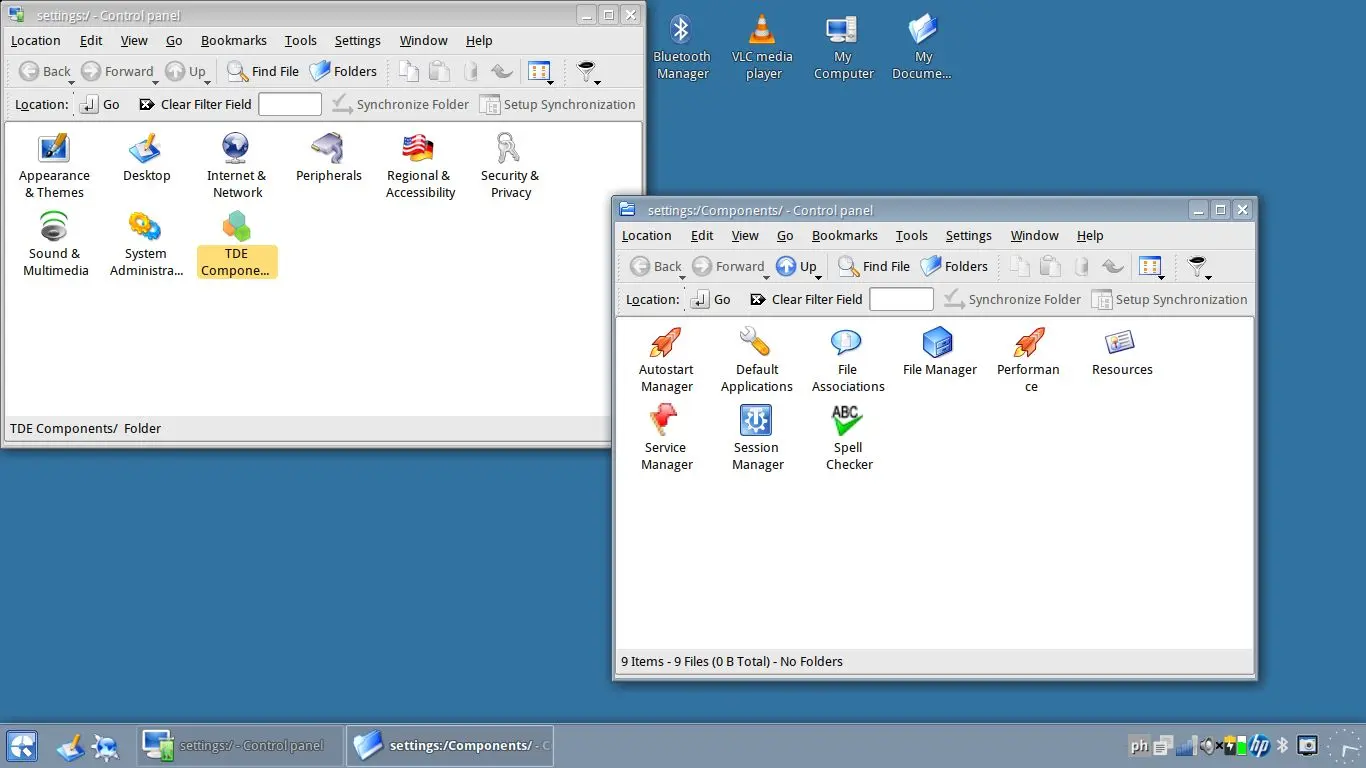
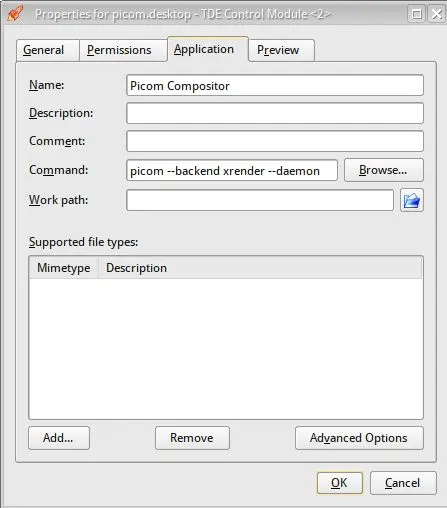
The main issue I have had with this operating system was menu shadows in my browser, Google Chrome. Due to a compositor issue menus would appear with a black box around them rather than a shadow. I lumped this for a while, but found a very easy fix just a couple of days ago. I just had to install picom and then go to Control Panel > TDE Components > Autostart Manager. I then added the following command to my startup programs, it’s a bit finicky but not too hard to figure out how to get to the screenshot shown below:
Another slight issue, though not really, was the amount of swap space (amount of memory that can be shifted to disk) that Q4OS created out of the box. I think it was about 500MB, which is a lot less than the amount of RAM I have (4GB). I had a quick look at what I could do about this on Google Gemini and it recommended zram-tools, which I quickly installed and now the swap sits at 2.33GB. I’m not too sure why it picked that amount, but it is now enough for me, there is no hanging when I open lots and lots of tabs in Chrome.
My main issue with Q4OS, and probably the issue most readers would have with it, is the spartan appearance of some of the system tools and settings panes. This is, however, to be expected in a system attempting to be lightweight and they’re not really missing features, so it’s OK. In terms of the overall appearance, I quite like Q4OS, it reminds me of what I was using 20 years ago, the start menu looks like it has been lifted from Windows XP (except it has search functionality now) and the taskbar reminds me of Windows 7 Starter (do you remember it with the grey-blue theme color and no translucency?)
If you go to Control Panel > Appearance & Theme > Theme Manager, you can select from a bunch of themes. One interesting one is Debonaire, it has a start menu that looks like it was taken from Longhorn, when Microsoft was in a confused stage between Windows XP and Windows Vista UI elements that eventually got shelved.
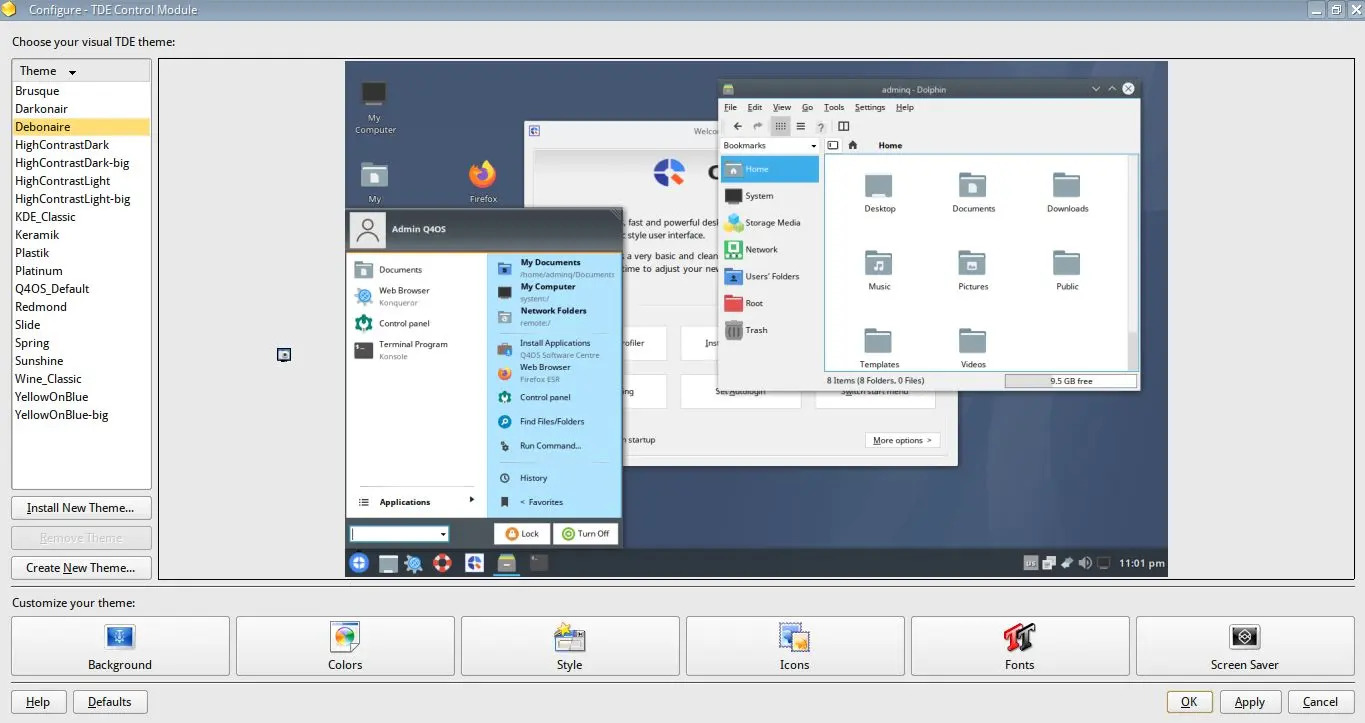
Out of the box, Q4OS is very usable and will feel familiar to anyone coming from Windows. Of course, you also get the massive performance benefits this distribution brings, which is great if other operating systems are a bit too slow for your computer.
As I've mentioned several times throughout, this distro is based on Debian, so the massive library of apps available in the Debian repositories is available in Q4OS. If the repositories do not have a piece of software you're looking for then you can easily install deb packages, it even has an installer flow like exe installers on Windows, but you can't install Windows apps on Q4OS.
To make things a bit simpler for new users, you can go to the Start menu and press Install Applications, this will present you will a selection of very popular apps that run on Linux, but not everything is there. It has a button to open Synaptic for even more apps and if that still doesn't suit you then you can also grab flatpaks or deb files online.
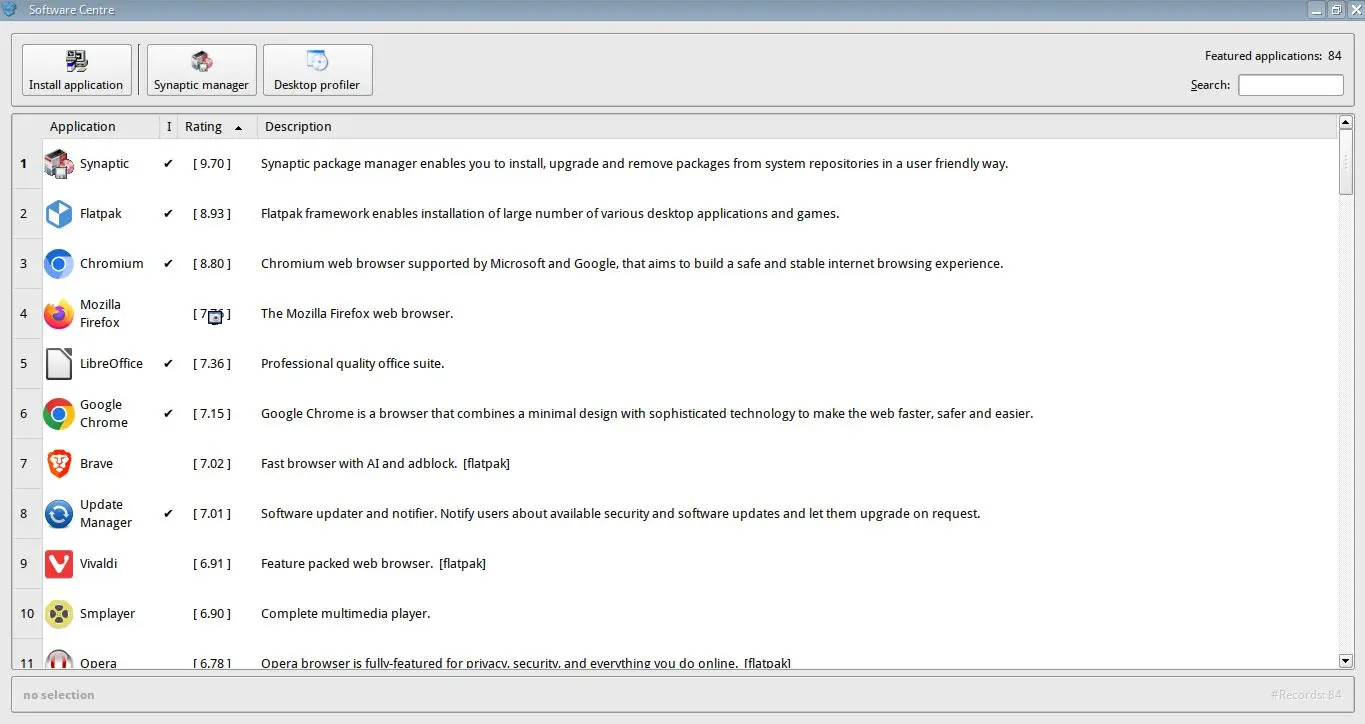
One quirk with the Windows-like installer for deb files is that it doesn't seem to set up repositories properly or at all, so what I tend to do is open the terminal and use sudo dpkg -i this sets up the repositories properly so that I get future updates via the update manager.
On the topic of apps, if you are coming from Windows, life will be easier if you attempt to use native Linux alternative apps. You can try to force your Windows apps on with WINE, but it's a much less pleasant experience. If you want to find alternative apps on Linux then check this website.
For me, this is hands down the best Linux distribution I have tried, it offers a high-enough level of features and unmatched speed, even when compared to other Linux distributions. Thanks to the Debian base and relatively modern Linux kernel, most of your hardware should work out of the box and you shouldn’t run into any issues regarding stability. This week, there was news of a Linux vulnerability called Dirty Frag, but just a day after reading about it, Q4OS got a kernel update which patched the issue. So even though the system might look a bit ancient, the security is solid.
So, if you are someone with an older computer that doesn’t support Windows 11 or you just want something lighter, do consider Q4OS. I am certainly glad I gave it a chance as I now have a new favorite that I’m confident will run well on any computer I install it on. You can learn more here.

















10 Comments
Load the comments and join the conversation!
Read the comments, ask the editors questions, show respect and join the conversation.