Starting with Windows 11 version 24H2, Microsoft automatically encrypts all drives when you set up a new computer. In the past, BitLocker was a security feature reserved for Professional SKUs, but now, encryption is standard even on Home editions. While BitLocker is not a bad thing per se (it is for your security, after all), the bad part is that Microsoft is not asking users whether they want it or not. Windows 11 won't even let you know that it just encrypted all your drives, and there are already plenty of horror stories about users losing their data. Not cool.
If you want to install a vanilla Windows 11 version 24H2 or 25H2 without any mods, be aware that Microsoft will encrypt your drives if you sign in with a Microsoft Account during the initial setup or even after it. This could be a nasty surprise for those coming from the now-unsupported Windows 10, especially when trying to move a drive from one PC to another. Fortunately, there is a way to reverse that, and this guide will show you how to remove BitLocker encryption in Windows 11.
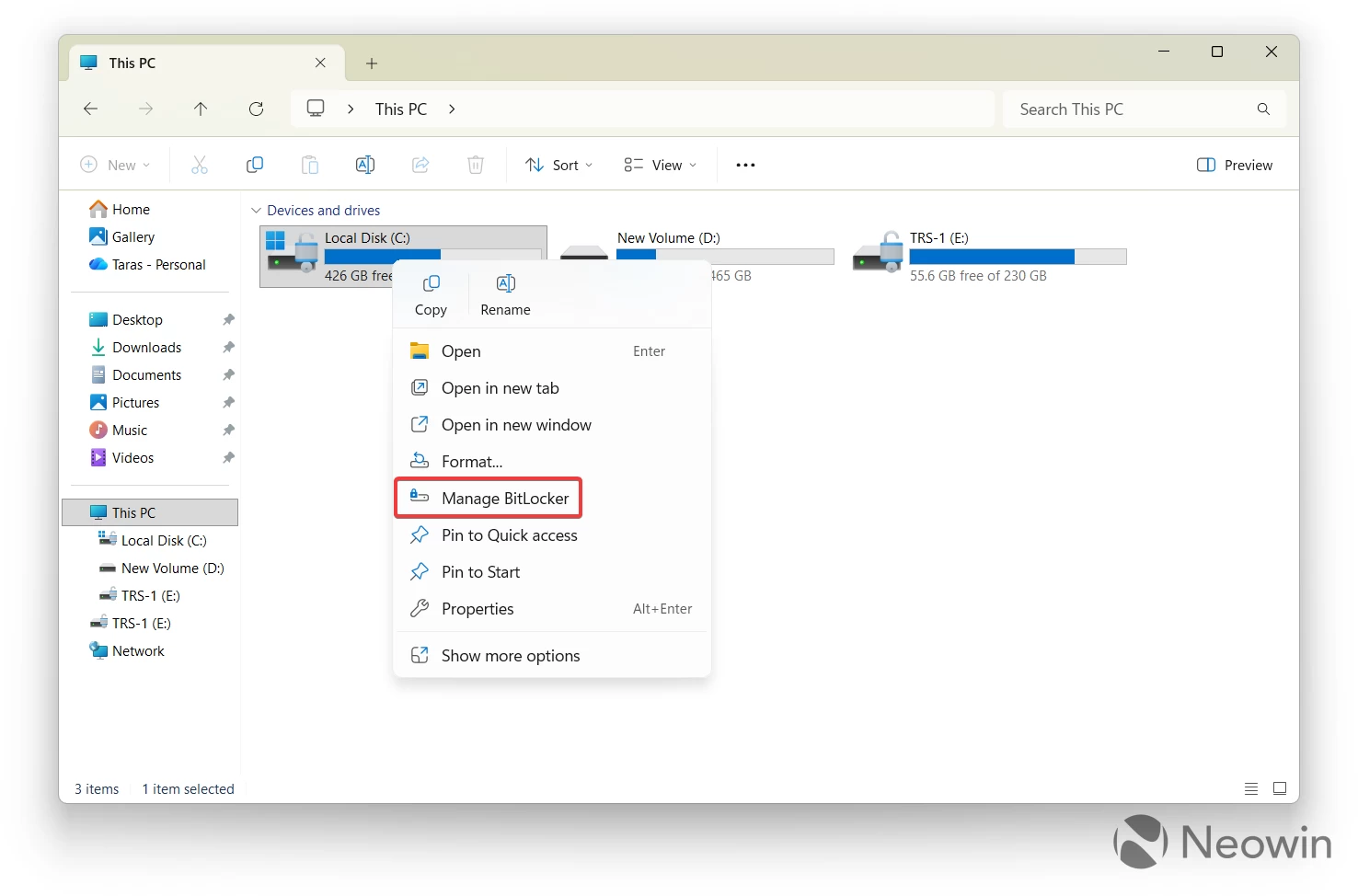
How do you know that your drive is BitLocker-encrypted? Open File Explorer and check the drive's icon. If it has a small lock icon next to it, it means the encryption is there. If it is locked, you need to enter the key to access the drive. If it is unlocked, you can access the drive without any keys:

Tip: You can learn how to find your BitLocker key in our article describing 5 things every Windows 11 user should do after clean-installing the operating system.
Now, to the main part of removing BitLocker:
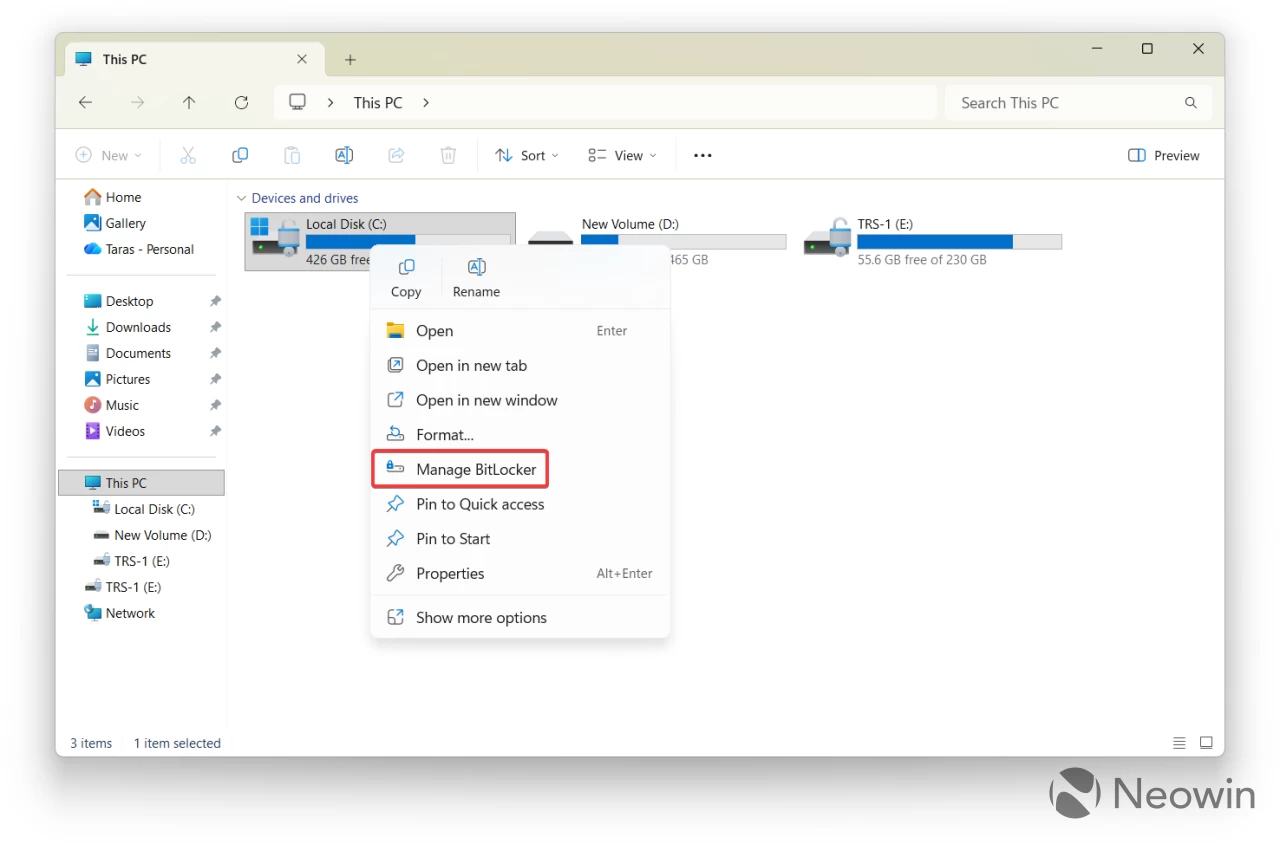
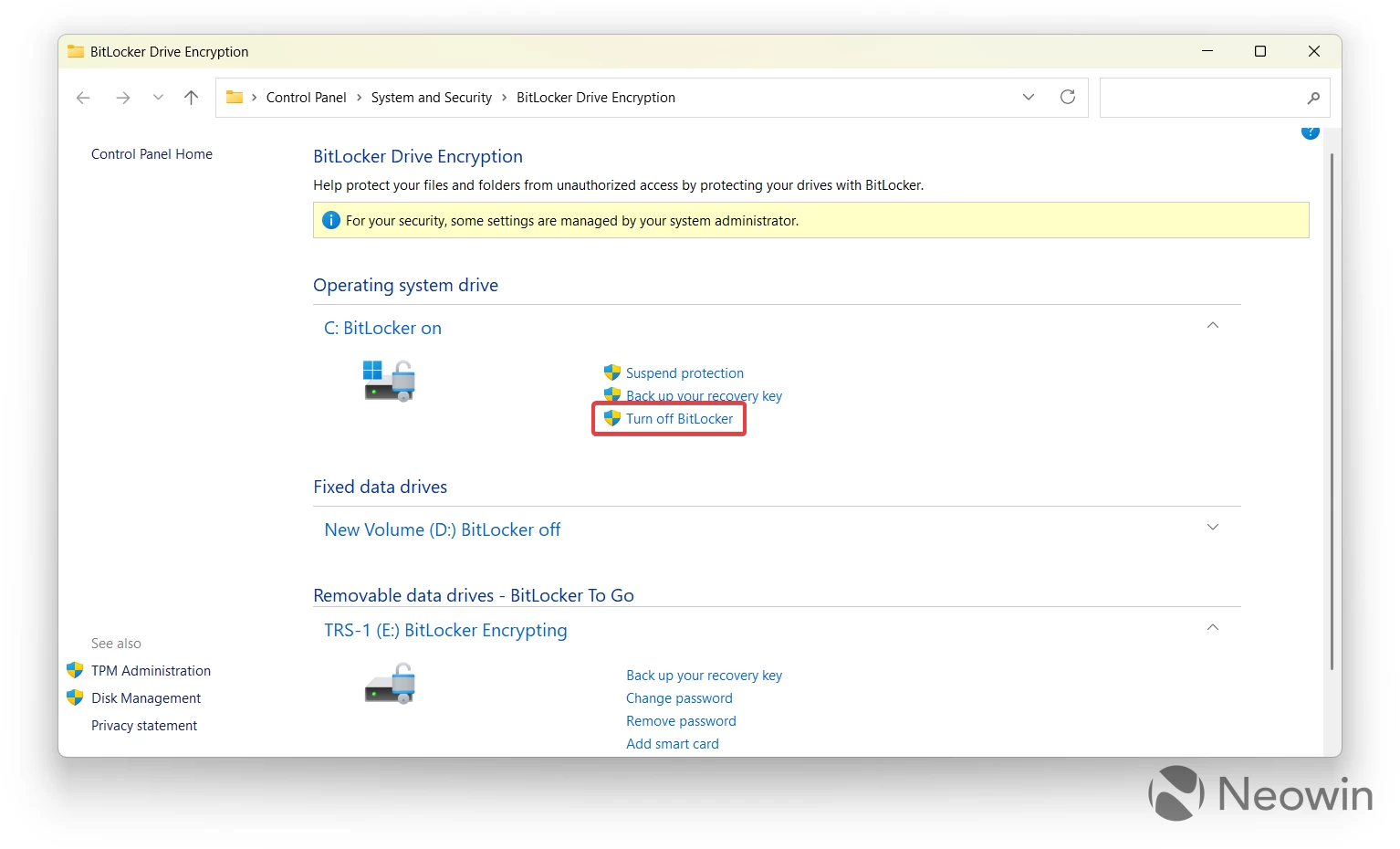
- To remove BitLocker from your drive, right-click the drive in File Explorer and select Manage BitLocker. This will open the Control Panel (because Microsoft still has not migrated BitLocker settings to the Settings app) with a list of all available drives and their BitLocker options.
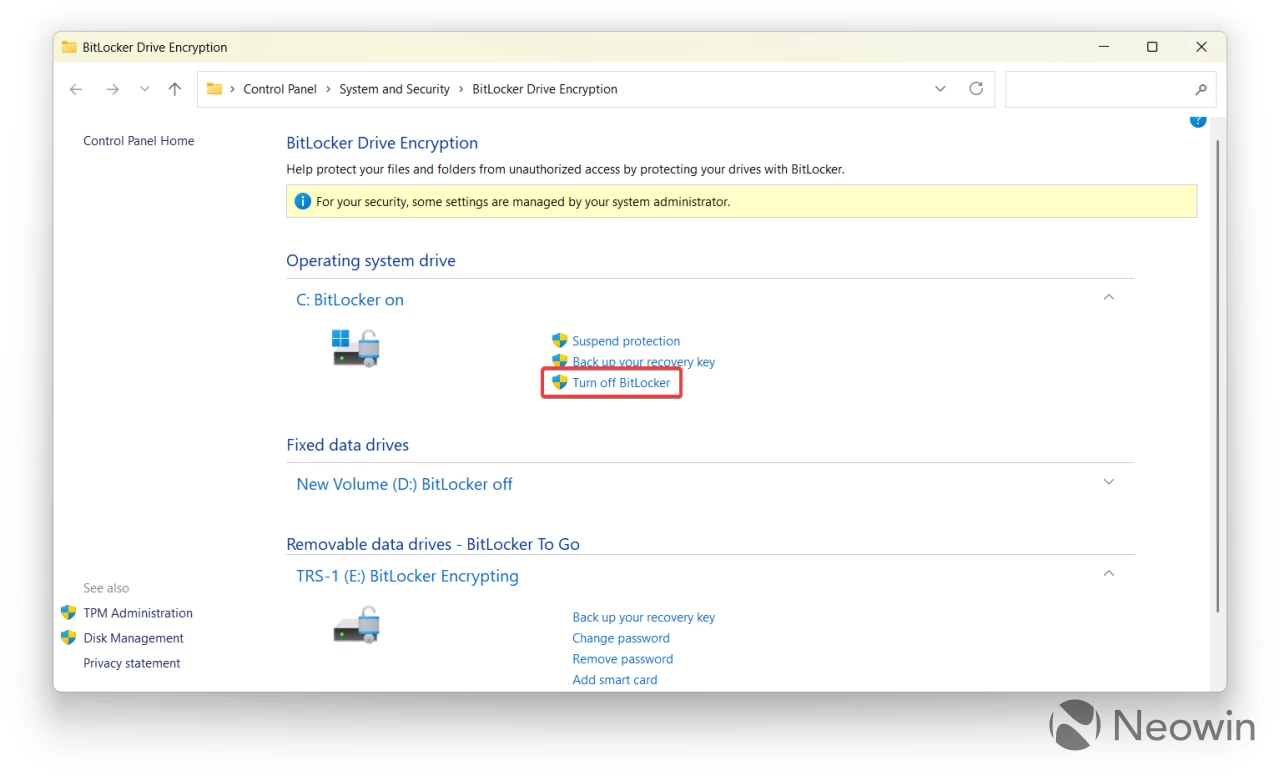
- Find the drive you want to decrypt and click Turn off BitLocker. If the drive is locked, Windows 11 will prompt you to enter the BitLocker key. If it is stored in your current Microsoft Account, the drive will unlock automatically. If not, you will have to find and enter the key.
- Confirm the removal of BitLocker by clicking "Turn off BitLocker" on the warning dialog. Note that this process might take a long time, depending on how big your drive is, how much data it has, and how powerful your CPU is. However, you can continue using your computer while it removes encryption. Just keep it on.
That is how you remove BitLocker encryption in Windows 11.
Another option you may want to consider before clean-installing Windows 11 is to make sure it does not encrypt your drives by default. To do so, you need to create a Windows 11 install USB drive with BitLocker encryption disabled using the small app called Rufus:
- Download Rufus from the official website.
- Download a Windows 11 ISO from the official website.
- Launch Rufus, select your USB drive and pick the downloaded ISO. Leave everything else as is.
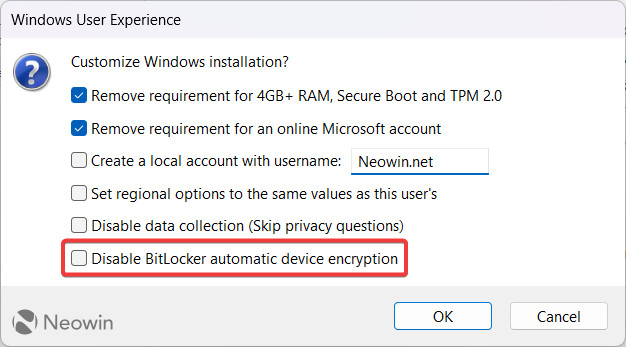
- Click Start. Rufus will show a small dialog with a bunch of additional options for your installations. Tick off the "Disable BitLocker automatic drive encryption" option and click Ok.
- Wait for Rufus to create your Windows 11 install media, then use it to clean-install Windows 11 as usual.
Once everything is done, you will have a clean Windows 11 installation without BitLocker encryption.



















135 Comments
Load the comments and join the conversation!
Read the comments, ask the editors questions, show respect and join the conversation.