Windows 11 is used by over a billion people around the globe, and despite having lots of issues in some environments, it dominates the enterprise and government space too. Naturally, with an OS as large and complex as Windows, people often tinker around with settings or third-party customization software, hoping to make the OS adapt perfectly to their needs. While this can be fruitful in some cases, mistakes can lead to some very undesirable results. Here are 10 common mistakes to avoid when using Windows 11, in no particular order.
1 - Installing multiple antivirus software
.jpg)
I understand that there is a certain level of distrust around the built-in antimalware solutions in Windows such as Microsoft Defender and other configurations available through Windows Security. Most of it is due to telemetry collection and the presence of bugs in OS releases, but if you do check out tests from most independent vendors, Microsoft Defender ranks among the best.
Still, if you don't trust Microsoft Defender, it is still a bad idea to install antivirus software from other vendors and have them run in tandem. This can cause conflicts, misconfigurations, slowdowns due to frequent scans, and confusion due to the generation of false positives depending on the strictness of each antivirus' detection. There's little benefit to running many antimalware solutions on your PC, even though it sounds good on paper. It's better to choose one antivirus software that you trust and just stick with it, regardless of whether it is Defender or some third-party alternative.
2 - Modifying Windows Registry without proper understanding

Windows Registry is a very powerful utility that contains the configurations for crucial low-level settings of the operating system. If you modify it through properly validated instructions, you can tweak the behavior of Windows and uncover hidden features. It's a great way to customize the OS according to your liking, but any wrong step or misconfiguration can cause serious problems in your installation and may even render it unbootable. Only do this if you trust the instructions completely or understand what you're doing. Same goes for using third-party software which modifies Windows Registry.
3 - Ignoring Windows updates

Microsoft rolls out Windows updates on a monthly basis through Patch Tuesday, and while I've recently debated that it's kind of confusing that these cumulative updates do more than just patch Windows, they still do contain important security fixes. While Redmond is eventually giving customers the option to indefinitely delay Windows updates, this should be an informed decision when the time comes. You shouldn't defer updates for an overly long time just to avoid a restart, as that can leave your PC susceptible to cybersecurity risks.
4 - Not monitoring startup apps

The default behavior of certain apps and software that you download is that they launch on startup. Obviously, the intention behind the developers is to quickly surface their app as soon as you start your PC (Steam is a major culprit in this area), it slows down your PC's boot time. In real-world scenarios, there are likely very few apps that you would want to launch immediately on PC startup, so it's better to navigate to the Task Manager periodically and disabling apps that you don't want to load instantly.
5 - Deleting Windows.old immediately

Windows.old is a directory created automatically after a major system update that contains an archive of your previous installation, including program files, some user data, core Windows components and files, and more. Depending upon the nature of your usage, this folder might be massive and you would be tempted to delete it immediately after updating to a new Windows version.
However, you shouldn't do that as this directory is used to revert to the previous version of the OS, should you encounter problems with your new installation. If you get rid of it, you're essentially getting rid of a system restore point, which can be an undesirable situation to be in case of breaking bugs. Windows automatically deletes this folder after a few days, but still, if you really, really want to get rid of it, you can check out our guide here.
6 - Not taking regular backups
This is kind of related to the previous section, but it requires manual intervention from your side. Some people use their PCs actively but never back up their data, finding it to be a tedious process that doesn't yield immediate results. They often ignore OneDrive prompts (which is fine, if you don't want to use Microsoft services), and don't back up their data in other locations either.
Taking regular backups of important data is good hygiene when it comes to system security and safety, and should be a practice that you should carry out by yourself periodically, or have an automated backup system. If you don't trust cloud storage vendors, get yourself some local, external storage and keep a couple of isolated replicas of essential data. World Backup Day lands in a couple of days, perhaps that should be your resolution this year?
7 - Not paying attention to app-level privacy settings
Although some Windows users are extremely conscious about privacy, the vast majority aren't. Many users simply download apps from trusted and untrusted sources on the internet and run them directly on their PC without checking what permissions they are using. Fortunately, Windows 11 has a handy section under Settings > Privacy & security > App permissions where you can validate on a granular level to see which apps are using location, camera, microphone, and other services. While this may sound rather tedious, it is better to be safe than sorry.
8 - Keeping your PC running indefinitely
_(1).jpg)
Some people like to keep their Windows machines running indefinitely, either as a force of habit or keep everything loaded each time they use their PC so they don't skip a beat as they dive into their workflows. Although this will not break your PC, a good rule of thumb is to restart your PC on a weekly basis to get rid of temporary files, apply updates, and prevent gradual slowdowns due to constant resource and hardware usage. You'll notice that your Windows 11 installation will run a lot smoothly after a restart, especially if you've kept it on for more than a week already. Personally, I don't mind restarting my PC once every couple of days after saving my work; an SSD really does do wonders for Windows machines.
9 - Ignoring battery health
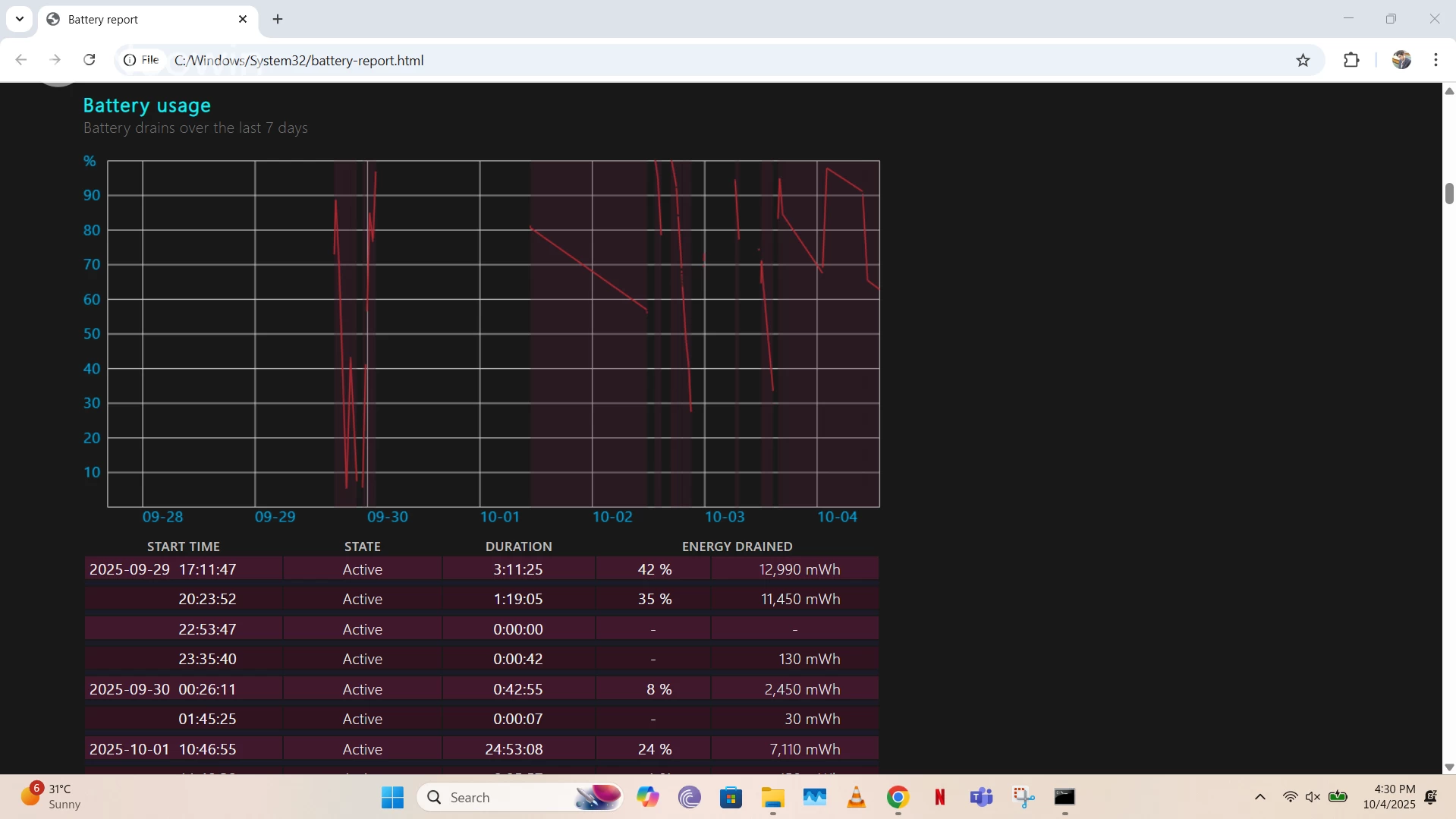
Since we've talked about Windows 11's performance in the previous section, it's also worth mentioning that it's important to monitor your laptop's battery health as you use it heavily or apply restarts consistently. Battery health can make or break a Windows 11 laptop experience for you, and fortunately, we have a dedicated guide which can help you keep track of it.
10 - Using Windows 11 like Windows 10

Many holdouts such as myself took ages to finally upgrade to Windows 11 from Windows 10 on their primary PC (although I had been using it on my secondary machine since day one), because, frankly, the latter is a solid OS. A drawback with this approach is also that you try to use Windows 11 exactly how you used the previous OS, even though Microsoft's latest iteration does pack many useful features.
Some of my favorites include Snap Layouts, tabbed File Explorer, redesigned Task Manager, native support for compression formats, the updated Settings app (lots of work still left to do!), and a lot more. Despite its weaknesses in some areas, Windows 11 is absolutely a standout in others, and you're doing yourself a disservice if you're using it exactly like Windows 10.
What are other common mistakes that you think people should avoid when using Windows 11? Let us know in the comments section below!















23 Comments
Load the comments and join the conversation!
Read the comments, ask the editors questions, show respect and join the conversation.