
Windows 11 has over a billion users, but we all know that it isn't perfect, obviously. Although there are several third-party tools that you can use to improve your experience, there also several built-in configurations that you can leverage to the same effect. Here is a list of 10 tweaks, in no particular order, that you can make to your Windows 11 experience more enjoyable. Each of these should take around a minute to execute, which means that you should be done in about 10 minutes.
1 - Turn off Start menu recommendations
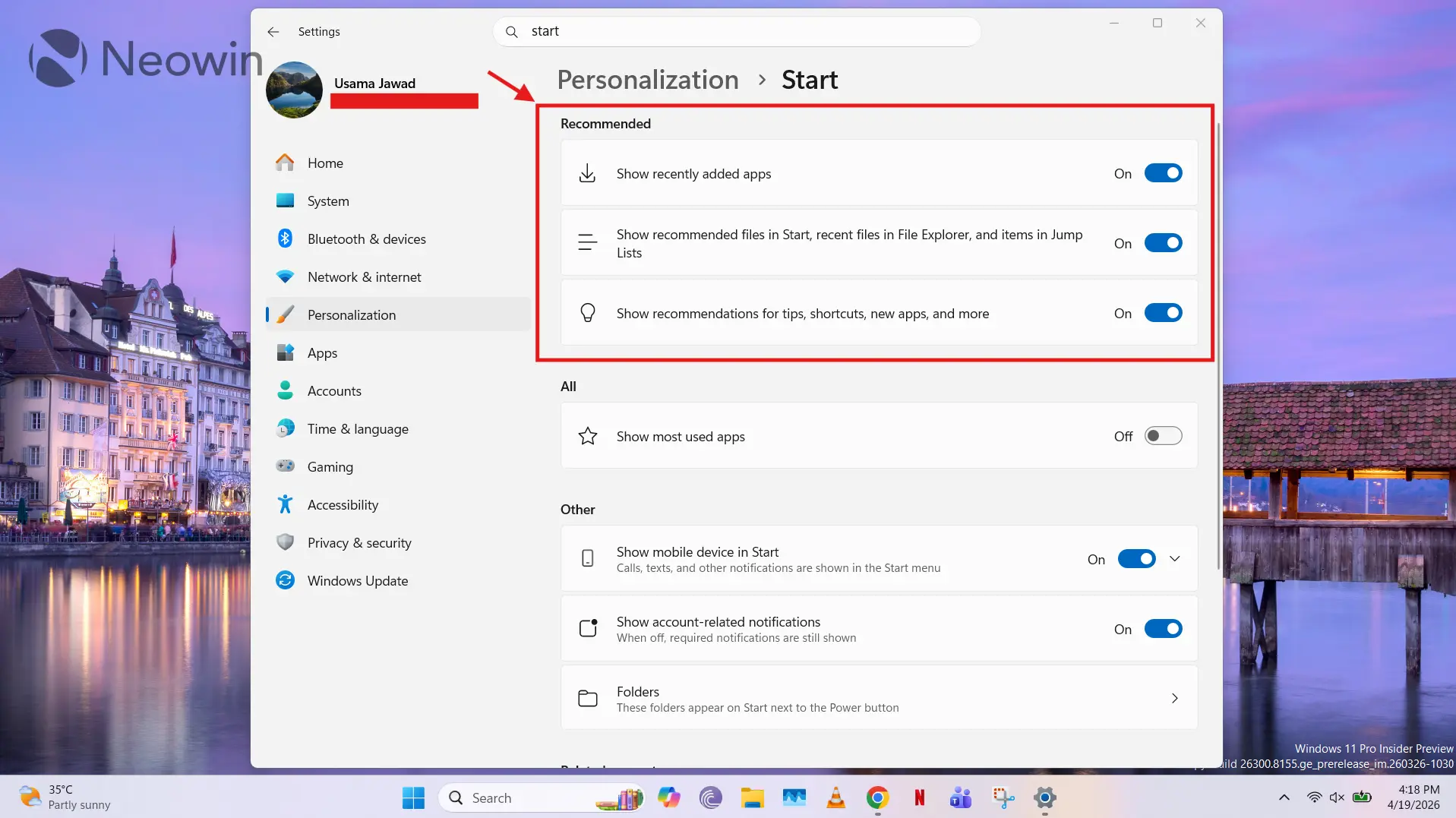
Although this was already a thing in Windows 10, the problem regarding recommended apps became a lot more apparent in Windows 11. Microsoft shows a series of suggestions regarding apps and files that you should use when you open the Start menu. Some find this experience intrusive and consider them "ads" trying to upsell Microsoft Store software, but Microsoft simply considers them recommendations. Different strokes for different folks. The good thing is that you can easily turn these off by simply heading over to Settings > Personalization > Start.
2 - Show file extensions
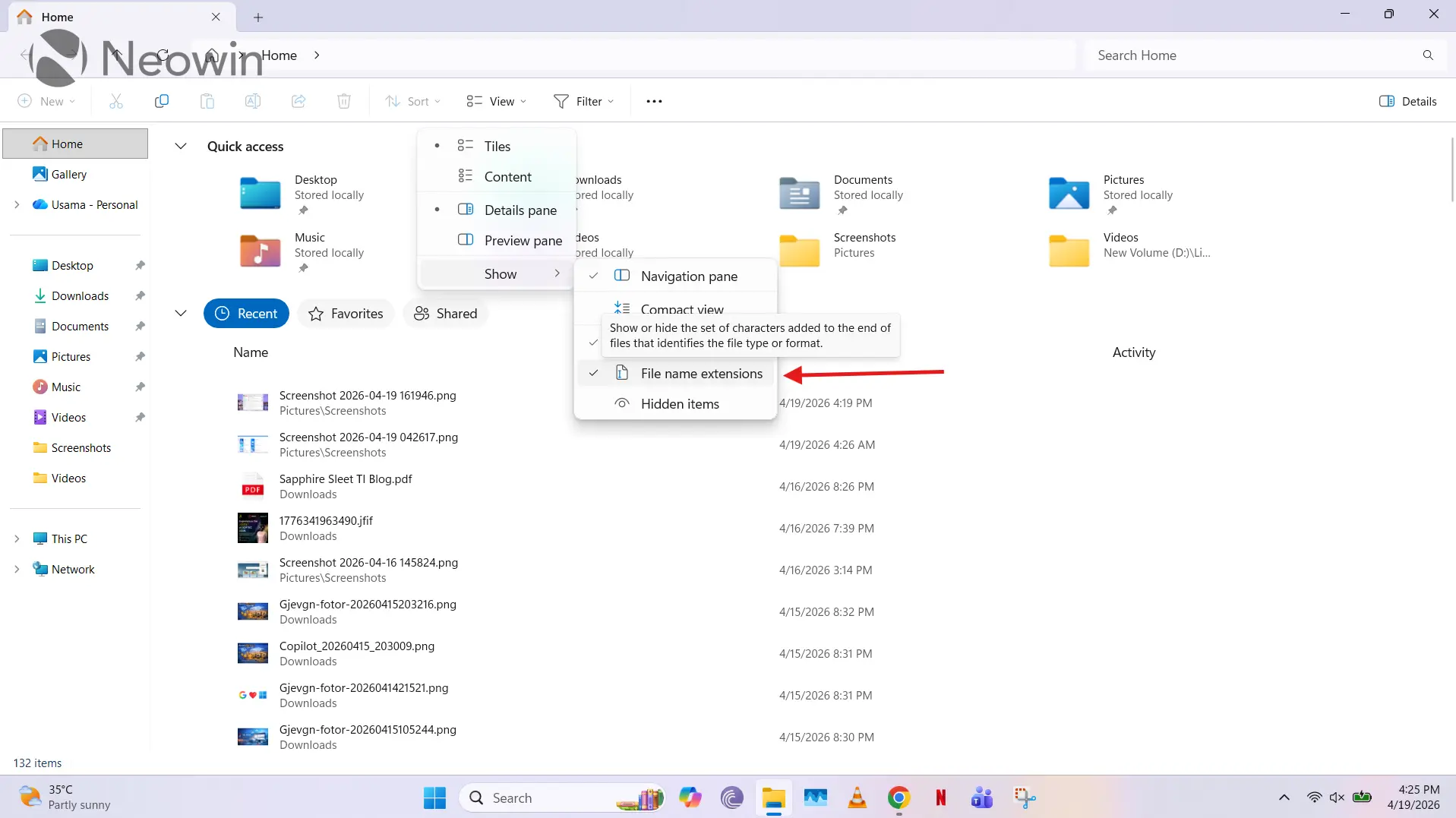
Consider this a matter of personal preference, but I like to know the file format of the content on my PC. This can also be useful in a number of cases where certain tools don't accept certain formats so if I have, for example, an image file in the .JFIF format that isn't consider a friendly format by my image processing software, I can immediately know about that rather than hitting errors later. It also improves your cybersecurity posture as you reduce the risk of accidentally running and opening malicious content. You can toggle on file extensions in File Explorer by clicking on View > Show > File name extensions.
3 - Enable dark mode (or Night Light)
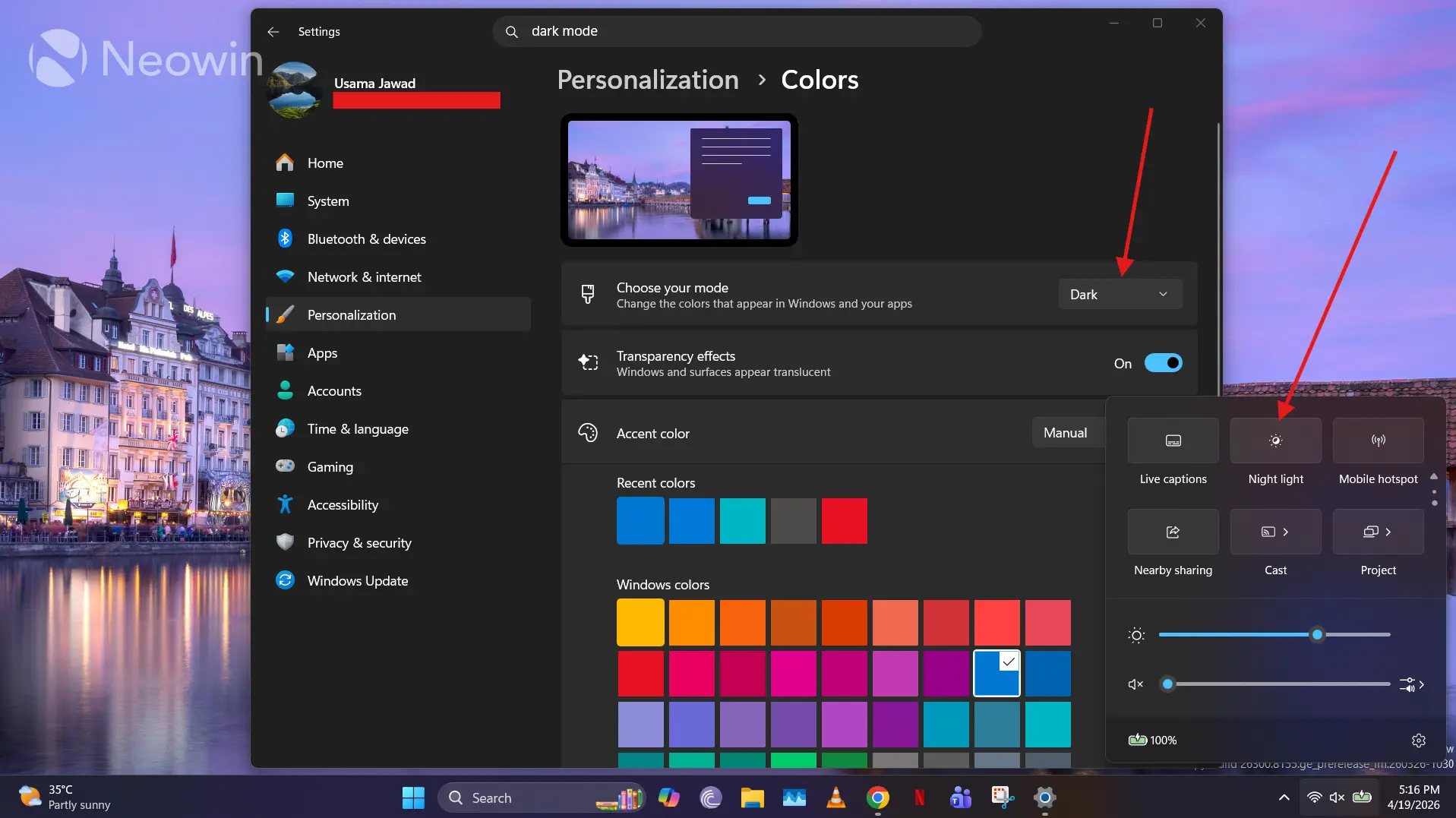
Some people do not really appreciate being blinded by bright displays, especially while working in low-light environments. Although reducing your display's brightness manually is one option, there are a couple of other more desirable configurations built-in as well. One involves enabling dark mode through Settings > Personalization > Colors, and the other requires you turn on Night Light from the Taskbar. The former does not offer a scheduling mechanism unfortunately, but you can enable it through the Light Switch PowerToys. You can also use these two capabilities together. Dark mode also just looks cool while Night Light can reduce eye strain by getting rid of blue light.
4 - Disable unnecessary startup apps
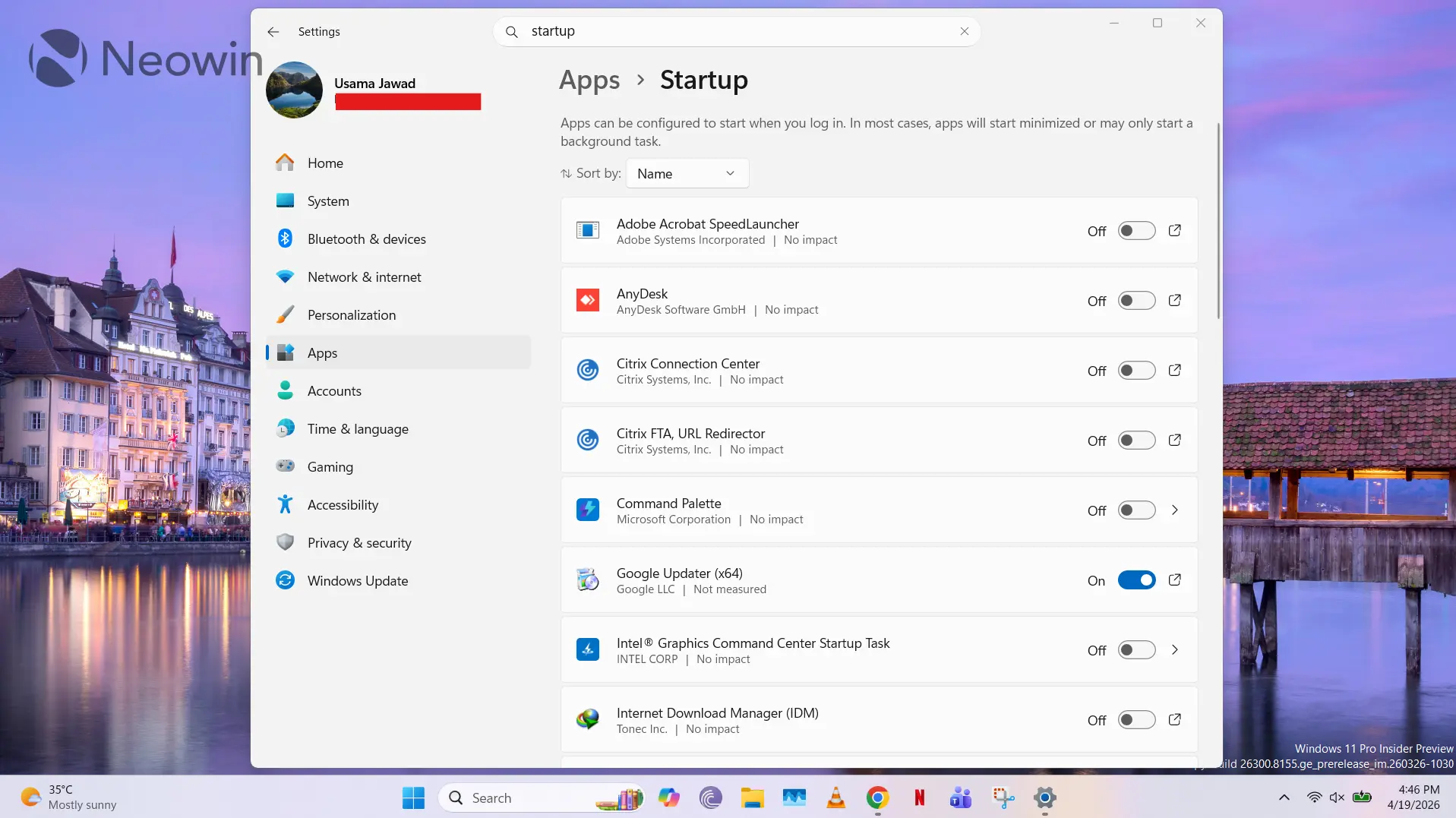
Certain apps get themselves registered as startup apps upon installation. What this means is that they'll automatically launch as soon you boot up your PC. This can lead to slower boot times and a sluggish experience. The good news is that you can monitor this list of apps and their impact, and get rid of the ones you don't need to launch immediately through Settings > Apps > Startup.
5 - Turn off background permissions for apps
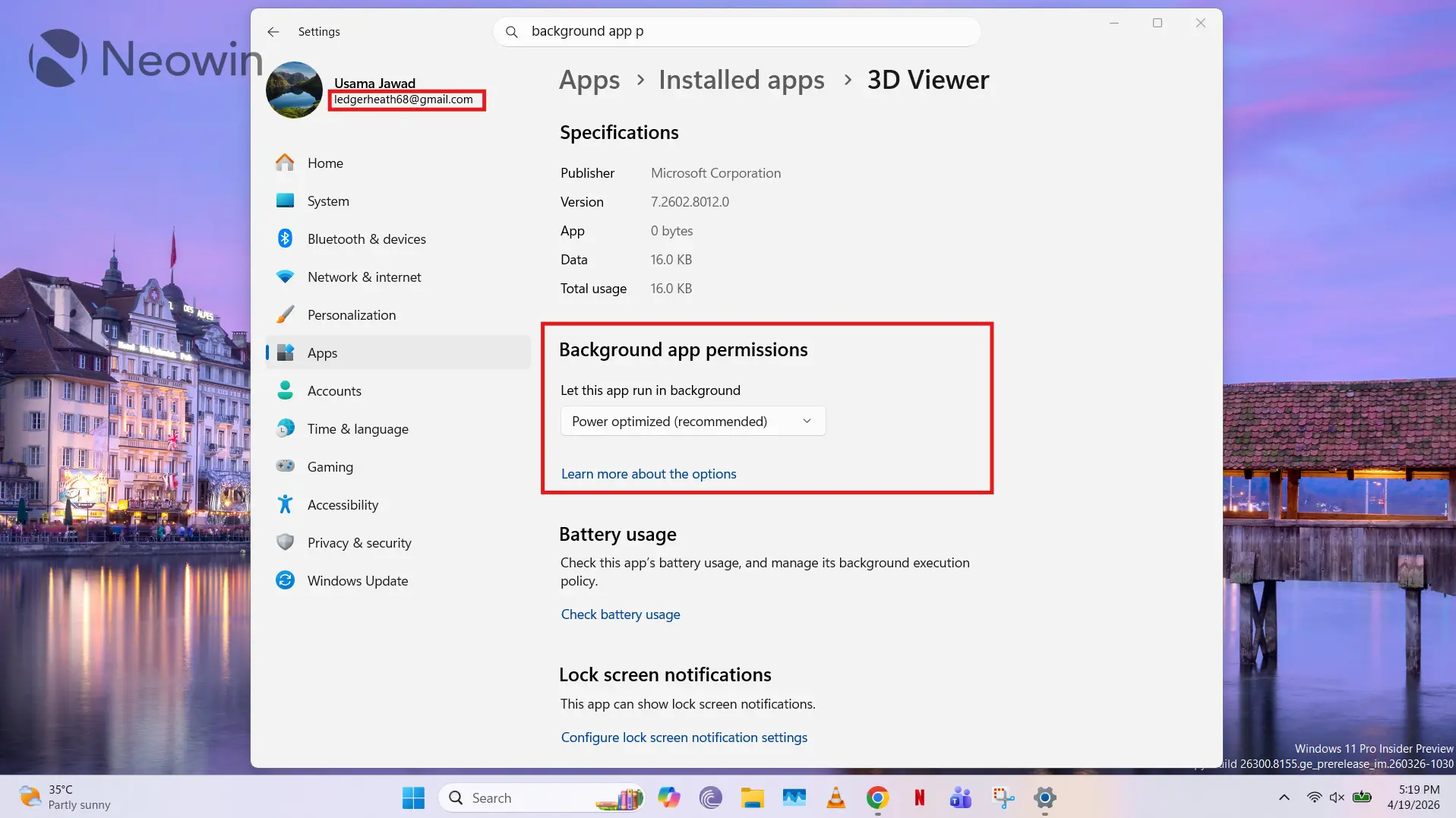
Certain apps have the ability run in the background, silently consuming compute resources and battery life. While they may go unnoticed if you are not resource-constrained, you may experience performance degradation if there are many apps running the background. You can simply turn off background permissions for individual apps by heading over to Settings > Apps > Installed apps, where you can click on the three-dot menu for a specific app and click on Advanced options.
6 - Snap Layouts
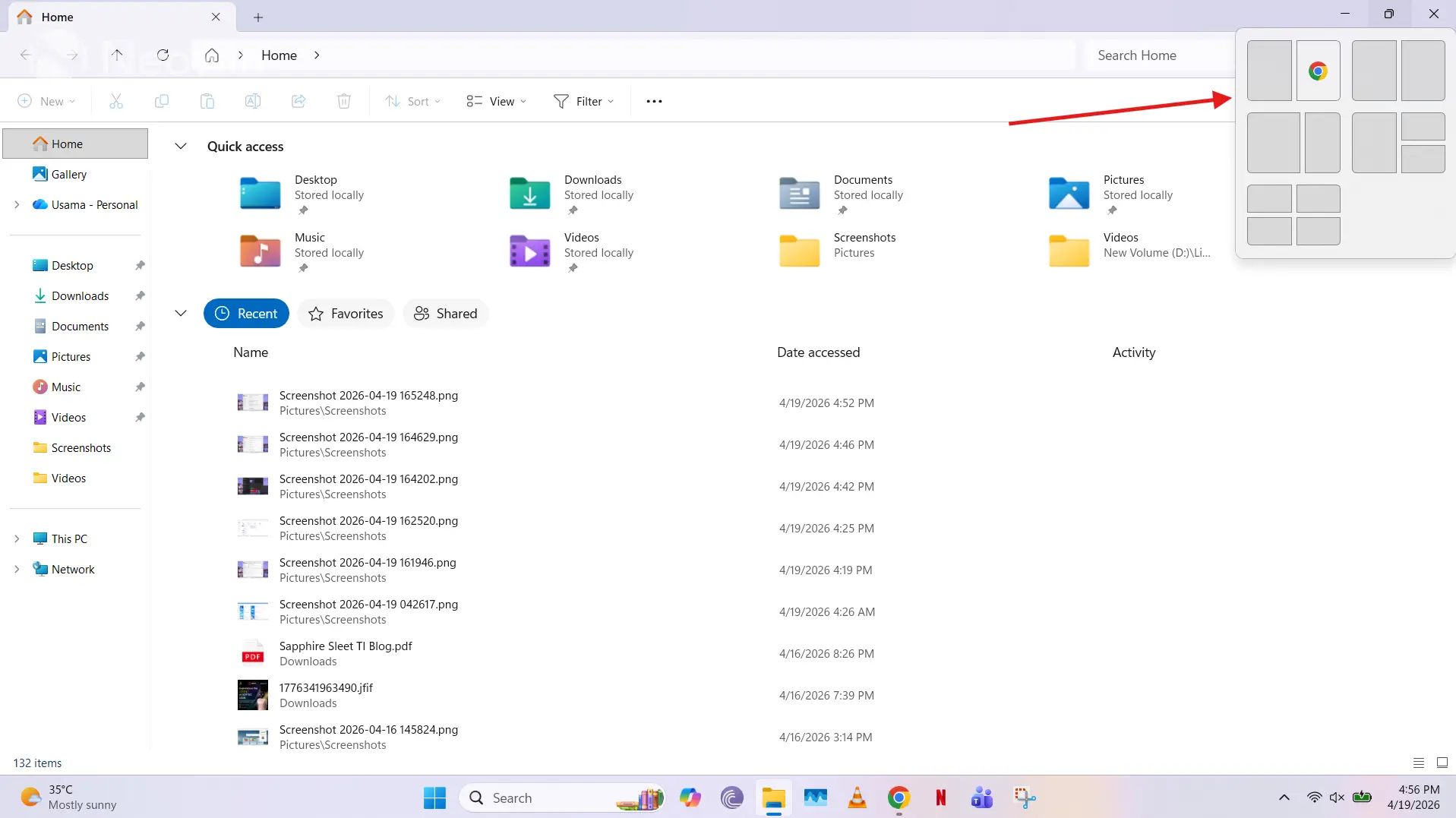
I still think Snap Layouts is one of the best Windows 11 features, especially considering how intuitive it is and the wonders it can do for your productivity. I wrote about this back in 2021, but in a nutshell, it allows you to quickly "snap" a window to one of the predefined areas if you hover over the maximize button. Check out the screenshot above.
7 - Simplify your Taskbar
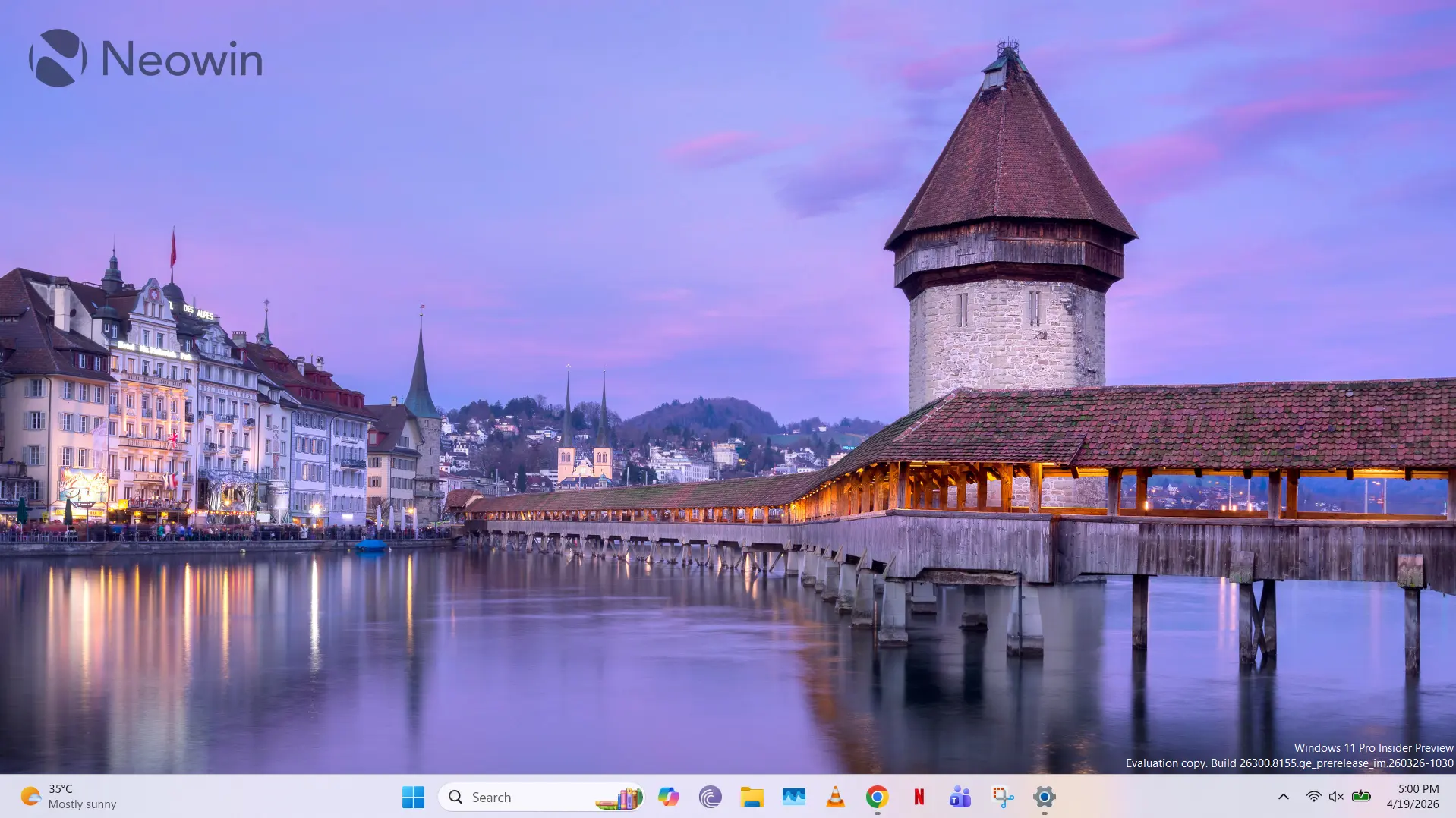
The Taskbar is among the most controversial UX in Windows 11. Although Microsoft has promised to fix it to some extent, there are already some settings that you can leverage to get rid of extraneous stuff that you don't need. If you right-click on the Taskbar and click Taskbar settings, you'll be able to get rid of the search bar, Task View, Widgets, and Resume.
8 - Enable Clipboard History
As I have said before, Clipboard History is an extremely underrated feature packaged in Windows 11. Consider it a supercharged version of the standard ctrl + c, ctrl + v experience as it allows you to save up to 25 items, even rich content like emoji. In addition, it syncs history across connected devices, which is very cool. You can trigger it with the Win + V shortcut.
9 - Configure default apps
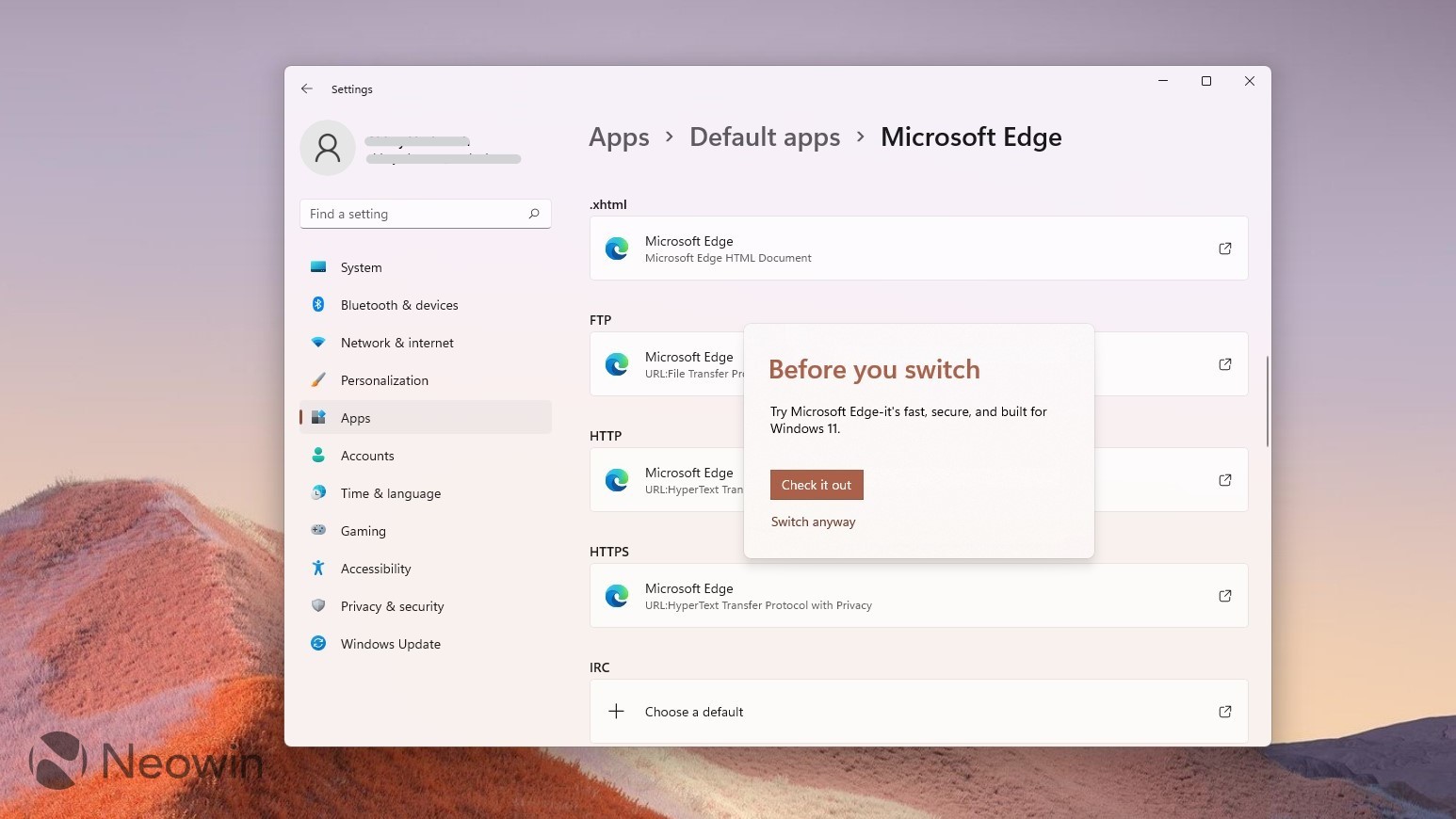
Windows 11 has a rather controversial history when it comes to allowing user-configured default apps. I remember bashing this experience back in 2021, but things have improved considerably, with signs of more to come. Regardless, one of the best ways to feel in control of your PC is by setting your preferred default apps. This can be accomplished through Settings > Apps > Default apps, and although I have experienced Windows 11 resetting my configurations after an update - which is something I have seen others complain about too - I haven't been able to reliably reproduce this bug. However, this should not stop you from using your desired apps, it's just a chore sometimes.
10 - Play around with notification settings
Notifications can be pretty intrusive, especially if they get triggered when you are actively engaged in any work or play activity. Fortunately, Windows 11 offers several built-in configurations to customize this experience according to your liking. This includes settings for scheduling Do not Disturb (DnD), setting priority notifications, managing notification sounds, and a lot more, all available through Settings > System > Notifications.

















10 Comments
Load the comments and join the conversation!
Read the comments, ask the editors questions, show respect and join the conversation.