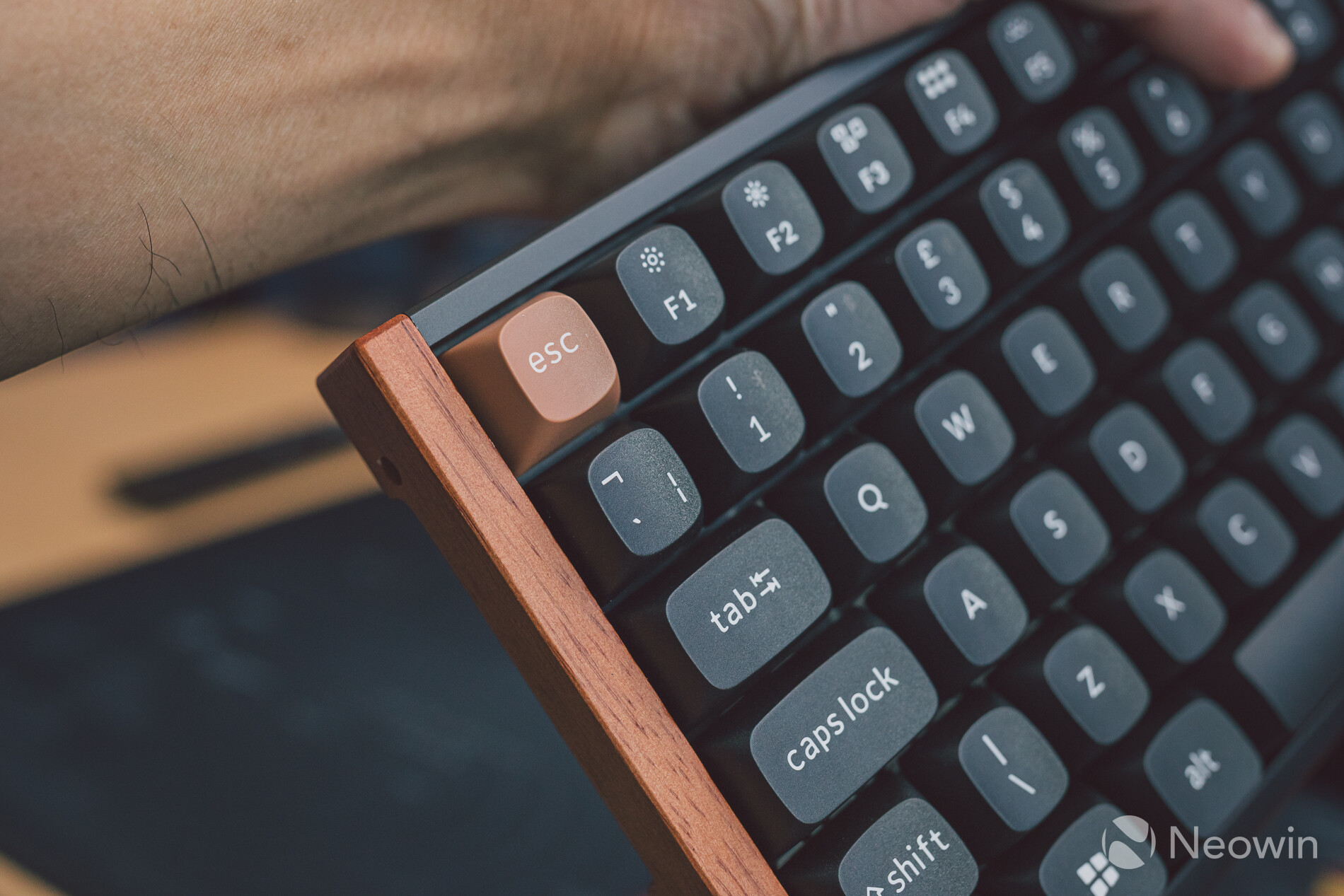
If you're a Windows user, you've probably triggered the Sticky keys notification either by choice or by accident at some point. It's the dialog window that opens up with a beep when you press the Shift key five times. In my personal experience, I usually triggered it by accident when playing a video game on my PC which used the Shift key to make the character sprint. At that time, I found the dialog box extremely annoying and I immediately dismissed it without reading even a word, but with the passage of time, I realized that Sticky keys serve a very important purpose.
Sticky keys is actually an accessibility feature that is primarily aimed at those with limited movement or those who use assistive technologies. Those of us who don't fall into either of these categories tend to use shortcuts like ctrl + c, ctrl + v, and ctrl + alt + del without a second thought, but there are some who find it difficult to press multiple keys at the same time due to restricted dexterity.
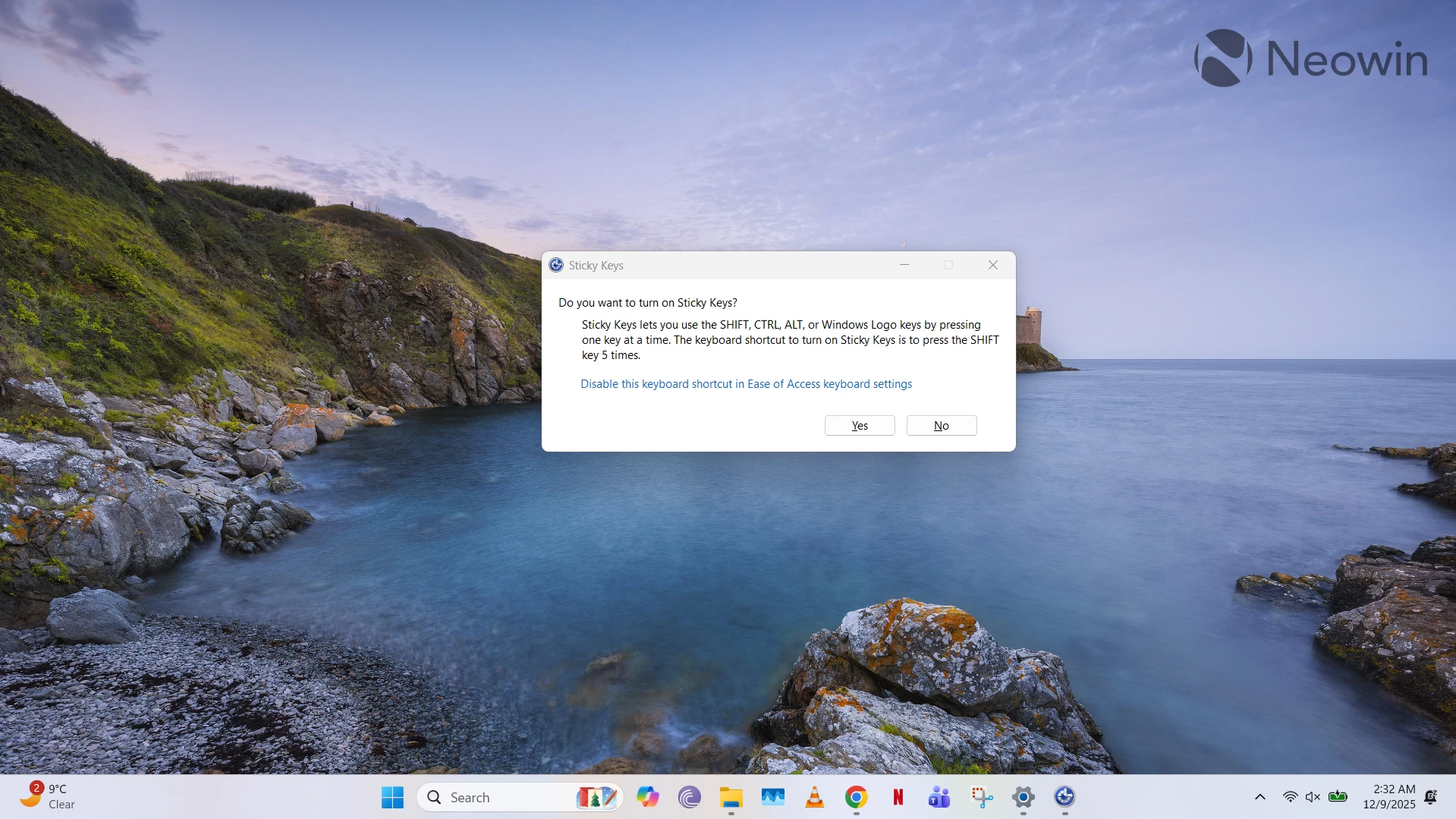
This is where Sticky keys comes into play. In its activated state, it basically simulates a sustained key press so that even if a user presses the ctrl key and the "C" key separately, it gets treated as a ctrl + c. This makes it incredibly useful for those who are disabled in some way and cannot use keyboard shortcuts in the traditional way.
Sticky keys work with Shift, Ctrl, Alt, and Windows key combinations. Give it a go by pressing the Shift key five times and then pressing "Yes". It may not be something that you need, but perhaps it causes you less annoyance the next time you trigger it by accident. Of course, if it bothers you too much and disrupts your flow, you can opt to disable the functionality in Windows 11 by navigating to Settings > Accessibility > Keyboard > Sticky keys > Toggle off Keyboard shortcut for Sticky keys.


















2 Comments
Load the comments and join the conversation!
Read the comments, ask the editors questions, show respect and join the conversation.