If you have an old PC that does not support Windows 11, you can give it a new life by making a lightweight, debloated Windows 11 image. Here is how to do it.
The PC market is about to experience a global-scale event later this year. Microsoft is on track to end Windows 10 support on October 14, 2025, and even though it is no longer the most popular operating system in the world, hundreds of millions of PC continue running it every day. The affected users have several options to choose from, one of which is updating to Windows 11.
However, not every PC supports Windows 11. As such, those who want to upgrade but cannot purchase new hardware can use unofficial methods to upgrade from Windows 10 to 11. While we already have a guide about updating unsupported PCs to Windows 11, in this article, we focus on creating a lightweight and debloated image, which should work better on lower-end systems with lower resource strain. Of course, if you have a beefier PC, you can also try this method for more efficient work.
Important: You have to accept the potential risks of running altered Windows copies, especially when using third-party tools. If you are not comfortable doing that or you do not trust the maker of the script, you can try installing Windows 11 on unsupported PCs using unmodified images or enroll your system in the Extended Security Update program to remain supported for one more year.
In this guide, we will modify a Windows 11 image using a popular tool called Tiny11Maker. It strips Windows images off the official requirements and removes unnecessary components and "bloat" for a cleaner experience, allowing you to install Windows 11 on PCs without TPM 2.0 or Secure Boot and with processors older than the minimum required (the second-gen AMD Ryzen or the eighth-gen Intel Core).
Note: Some very old PC with certain processors cannot physically run recent Windows 11 versions, even with hardware requirements removed. Check out this article to learn more.
Creating a debloated Windows 11 image for unsupported PCs
Obtain a Windows 11 image for your computer with the necessary edition and language. You can get it from the official Windows 11 website or with the Media Creation Tool.
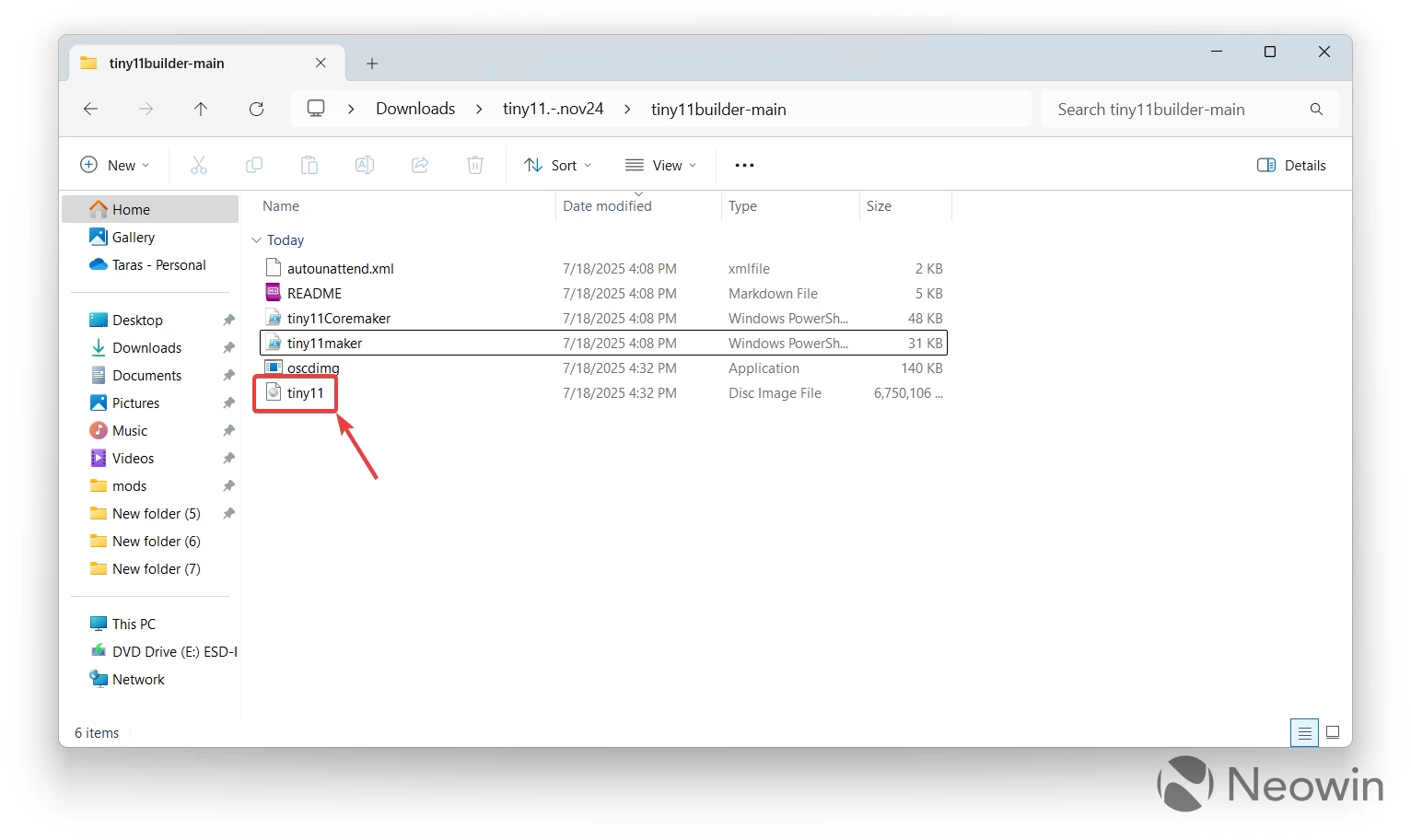
Run the tiny11maker script. The folder also has the tiny11Coremaker script, which makes ultra-stripped images with a lot of important stuff removed. If you plan to use modified Windows 11 on your main machine for daily work, stick to the tiny11maker script, since it does not alter critical components like Windows Update, Windows Recovery, or Windows Security.
Run Windows Terminal as Administrator and type Set-ExecutionPolicy Unrestricted to allow PowerShell scripts.
Drag the tiny11maker file onto the Windows Terminal window and press Enter.
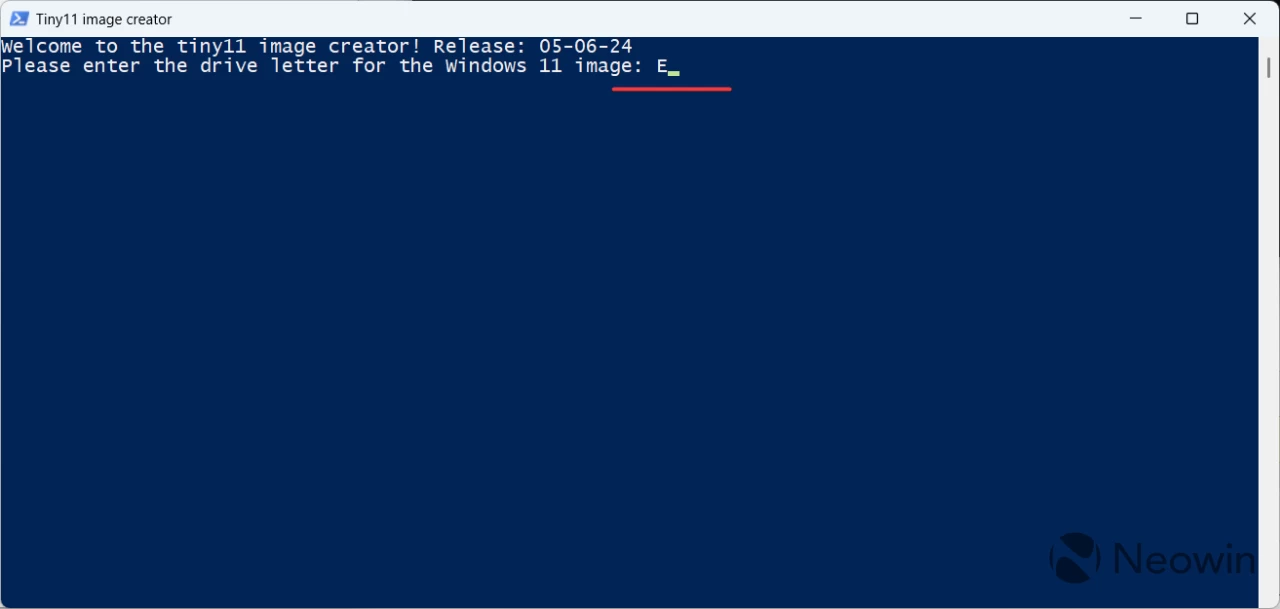
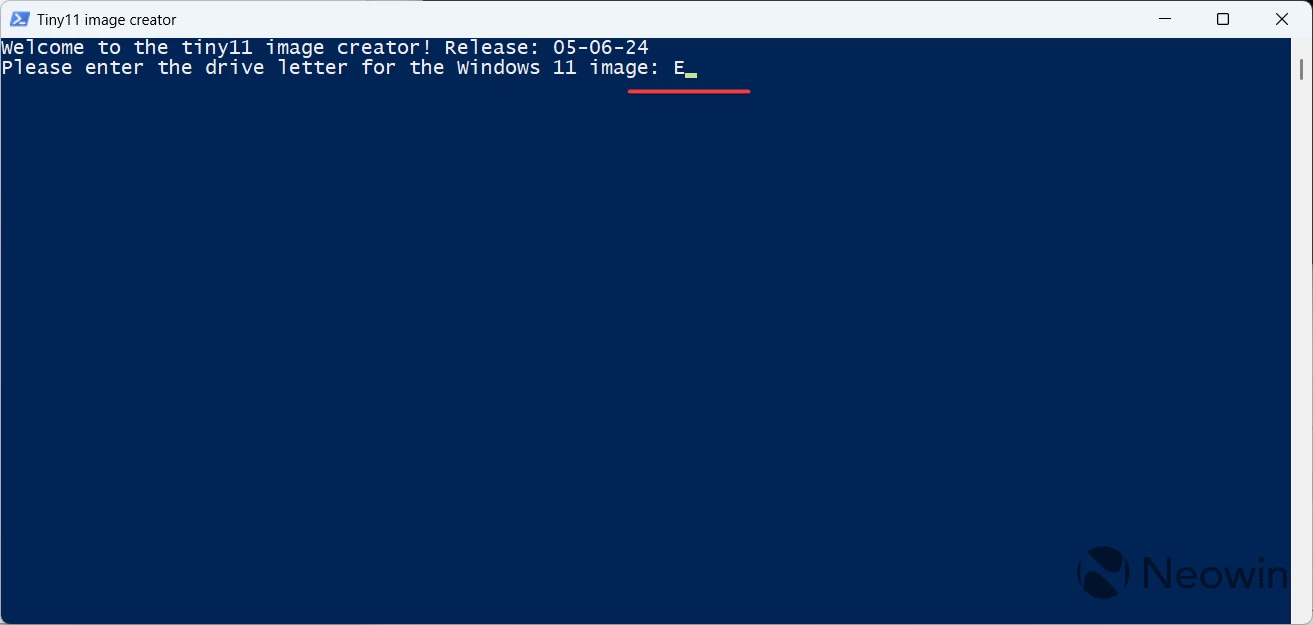
Specify the drive letter with the previously downloaded image and press Enter.
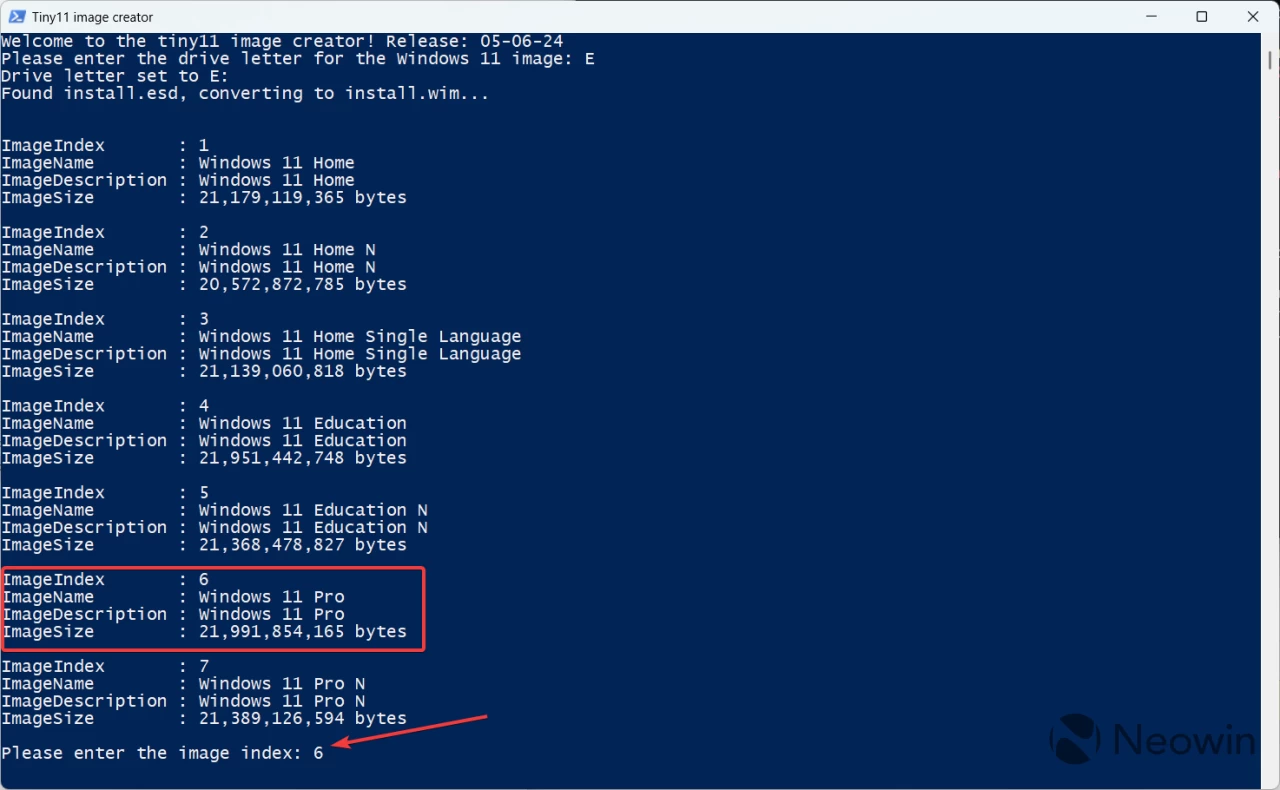
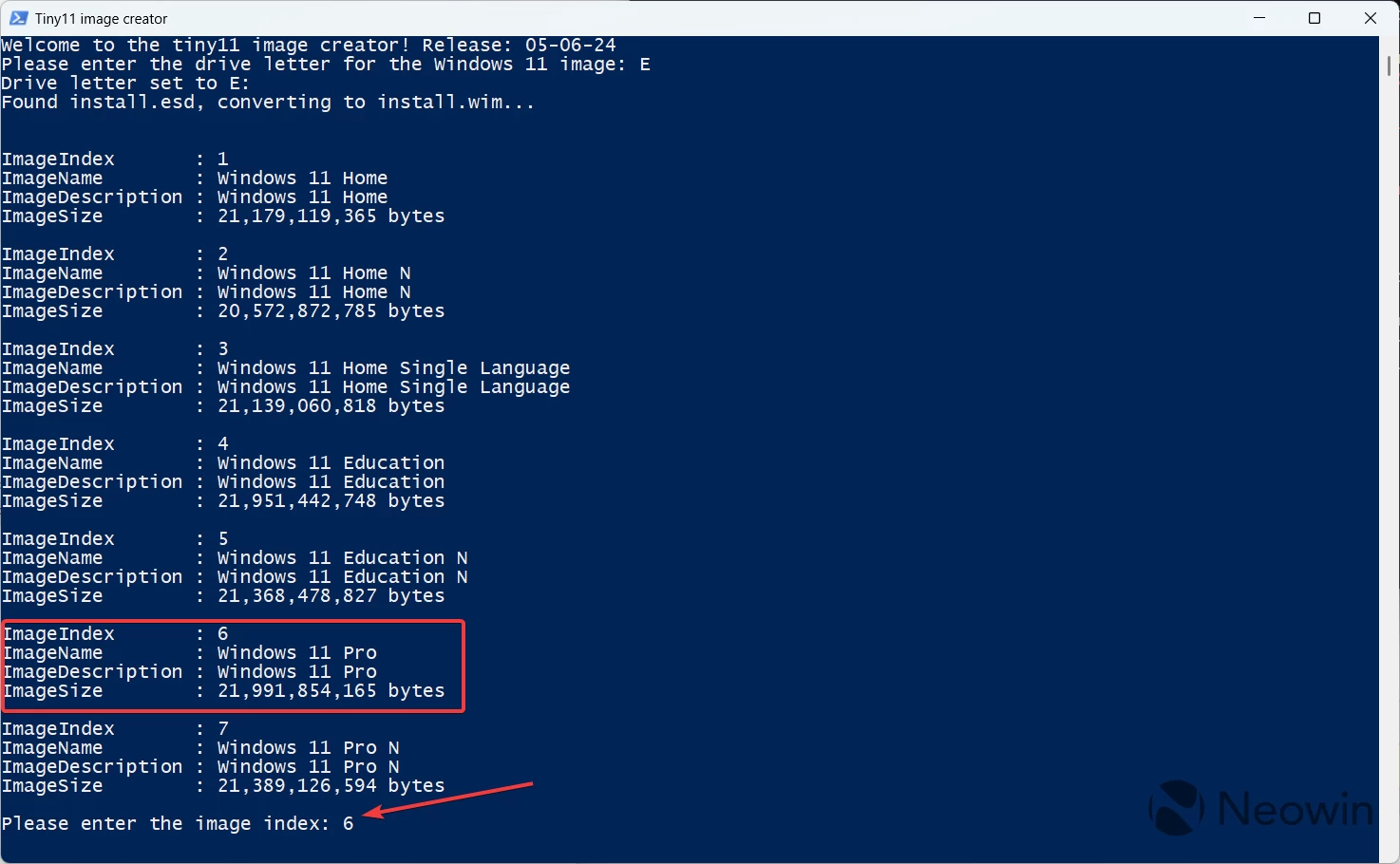
Select the necessary edition, such as Home, Professional, Professional N, or whichever you need and press Enter.
Important: Keep in mind that Tiny11maker is not a piracy tool, and it will not activate the system for you. You still need a valid Windows 10 or 11 key to activate the installation. Make sure you select the SKU that matches your license key.
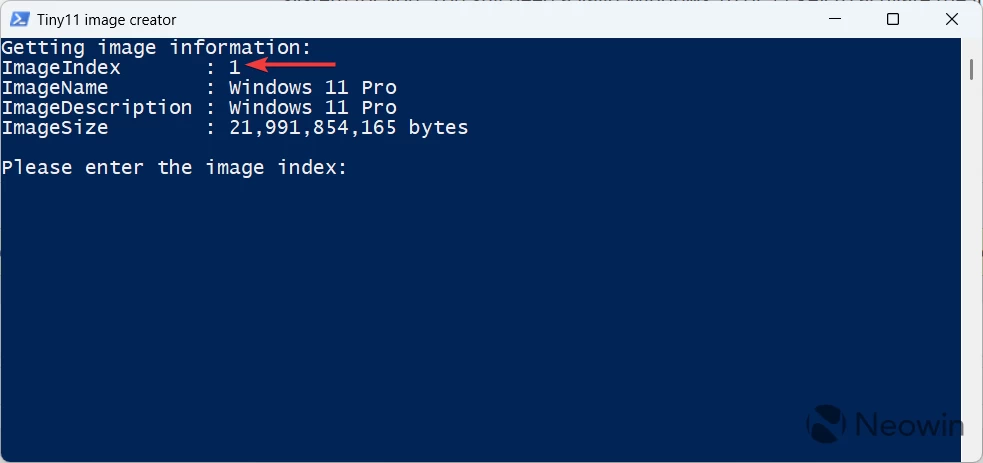
After converting the image, PowerShell will prompt you to select the image index. Select the one matching your Windows edition.
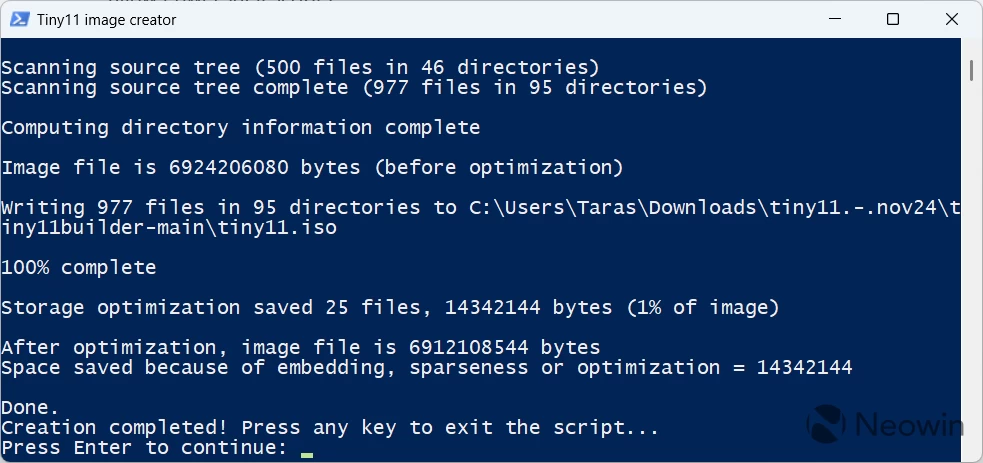
Wait for Tiny11maker to do its job.
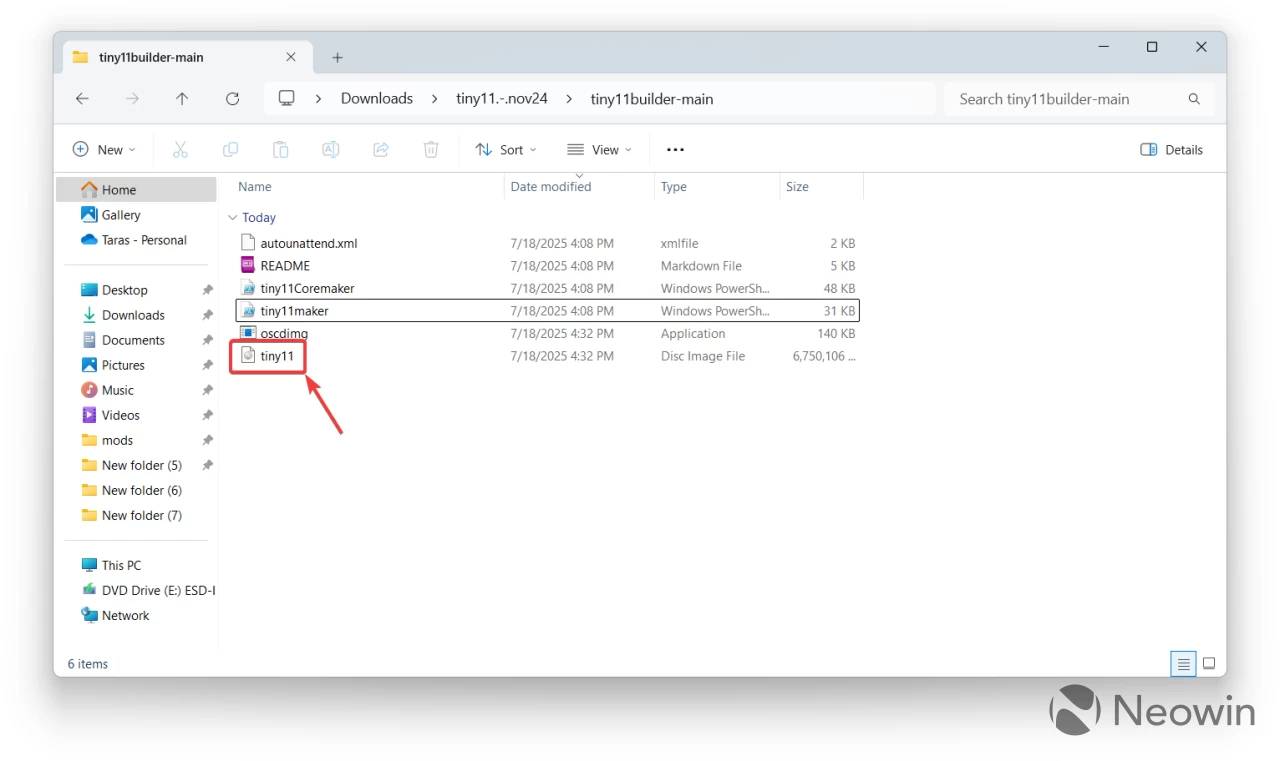
In the end, you will have a ready-for-use ISO file that you can write to any USB drive using apps like Rufus as described in this guide (do not select any mods on Step 11). You will find the image in the same folder as the Tiny11maker files.
Done! Now you have a stripped-down Windows 11 image that works on unsupported PCs and consumes fewer resources than the "vanilla" version.











13 Comments
Load the comments and join the conversation!
Read the comments, ask the editors questions, show respect and join the conversation.