Google Classroom is getting three closely-related features, audio, video, and screencast recording, to, in the Mountain View tech giant's words, "help transform teaching and learning through multimodality, improving communication, intake, and retention for learners."
The new recording feature can be used in different areas of the platform. Teachers can now record private comments for students, walking them through complex problems line by line with their voice or a screencast. They can also record video announcements as well as instructions for assignments. When given permission, students can also use recordings for their own posts or submit assignments as a video or audio file.
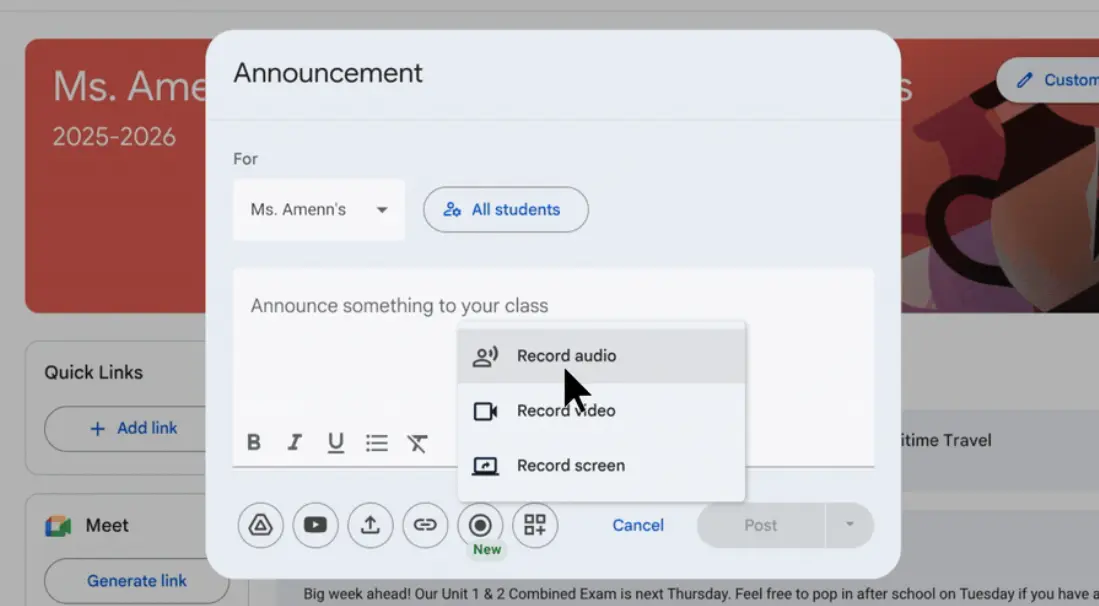
For now, the recording feature is only available on the web version of Google Classroom. As noted earlier, students will only be able to post recordings in the class stream when their teacher has permitted them to do so.
To set the student permissions to post, teachers need to go to classroom.google.com and select the specific class. From there, they click the settings icon and navigate to the "General" section.
Under the "Stream" heading, a dropdown menu offers three choices: "Students can post and comment," which is the default, "Students can only comment," and "Only teachers can post or comment."
If a teacher needs more granular control instead of changing settings for the entire class, they can mute individual students. When a student is muted, they cannot post or comment in the class stream, though they can still send private comments to the teacher. The student will not see any notification that they have been muted.
To do this, a teacher can go to the People page, select the student they want to mute, and choose the mute option from the Actions menu. A teacher can also mute a student directly from one of their posts in the stream.
The audio, video, and screencast recording feature has started rolling out to Google Workspace Education Plus subscribers in both the Rapid and Scheduled Release domains.













1 Comment
Load the comments and join the conversation!
Read the comments, ask the editors questions, show respect and join the conversation.