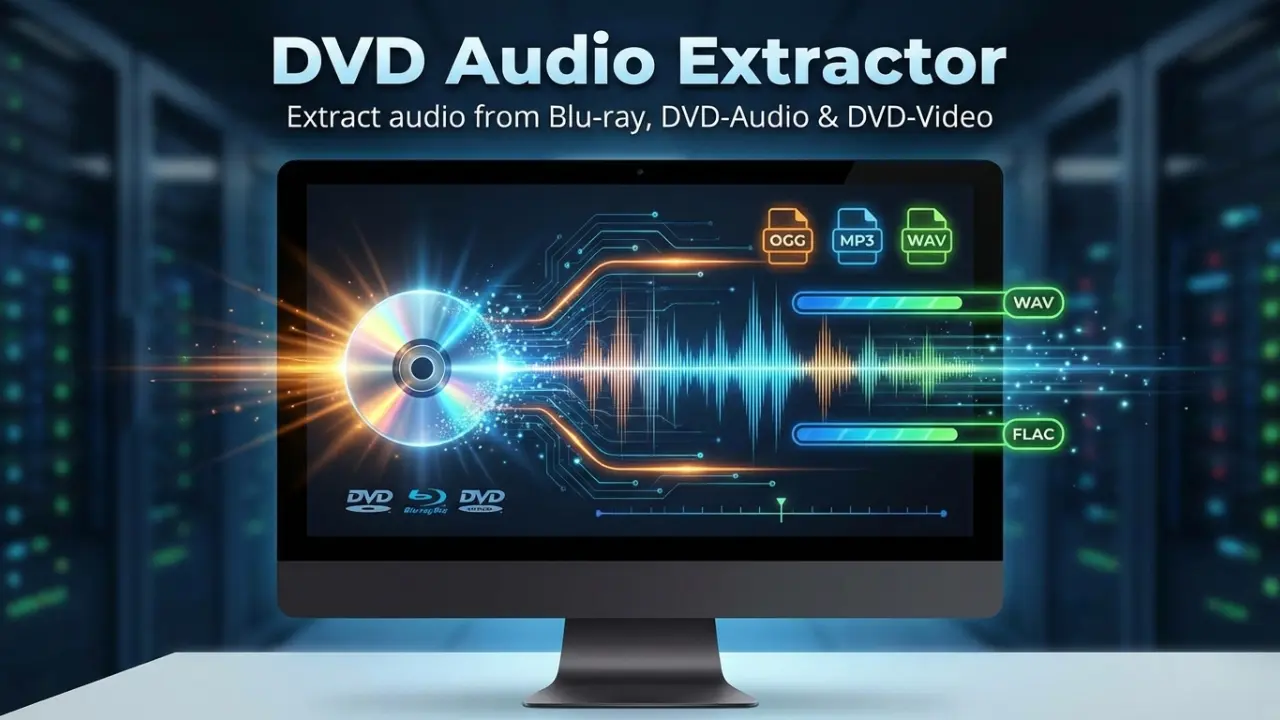
DVD Audio Extractor is a powerful software DVD audio extracting / ripping tool. The program comes with a step by step wizard-like interface and all the functions can be used by simple mouse clicks. It can help you to extract audio streams from your favorite Blu-ray, DVD-Audio and DVD-Video discs and save them as OGG, MP3, Wave or FLAC files. The unique CD Image creating feature allows you to convert DVD to Audio CD or DTS-CD in one step.
DVD Audio Extractor can decode all the audio formats available on all DVD-Audio and DVD-Video discs: MLP (Meridian Lossless Packiing), LPCM (Linear pulse code modulation), DTS (Digital Theater Systems), Dolby Digital (AC-3), and MPEG2.
DVD Audio Extractor is a cross-platform application runs on Windows, Mac OS X and Linux (Ubuntu and Fedora). DVD Audio Extractor features ultra-fast extracting speed, rich audio formats support, multi-channel capability, resample to arbitrary sample rate, audio preview and much more. It's all what you needed to get audios out of Blu-ray and DVD discs, so that you can listen on MP3 Player, play on PC, record to CD or do anything else.
DVD Audio Extractor 8.8.0 changelog:
-
Drop support for Windows 10. Minimum supported Windows system is now Windows 11.
-
Drop support for Intel based macOS. Old x86_64 package is still available for download.
-
Update libFLAC library to version 1.5.0.
Download: DVD Audio Extractor 8.8.0 | 17.4 MB (Shareware)
View: DVD Audio Extractor Website | Screenshot
 Get alerted to all of our Software updates on Twitter at @NeowinSoftware















0 Comments
Load the comments and join the conversation!
Read the comments, ask the editors questions, show respect and join the conversation.