PowerToys is a set of useful utilities to enhance your Windows experience and workflows. Not all "toys" bundled in this package are geared towards everyone - as we have seen recently with Color Picker -, but individually, they can be quite handy for the right customer. Today, we are taking a look at a PowerToys utility that is interestingly aimed at general users rather than power users.
About Light Switch
Windows 11 has support for both light and dark modes, and while it continues to gain enhancements from time to time, one configuration sorely lacking in its implementation is the ability to automatically switch themes based on different criteria. Various third-party tools have closed this gap over time, but the recent addition of Light Switch to PowerToys was certainly a very welcome move.
This simple utility says exactly what it says on the tin: it allows you to switch between light and dark themes, depending upon certain conditions. There are many benefits of enabling dark mode during your Windows 11 usage, including less strain on your eyes and better battery life on OLED devices.
Light Switch Functionalities
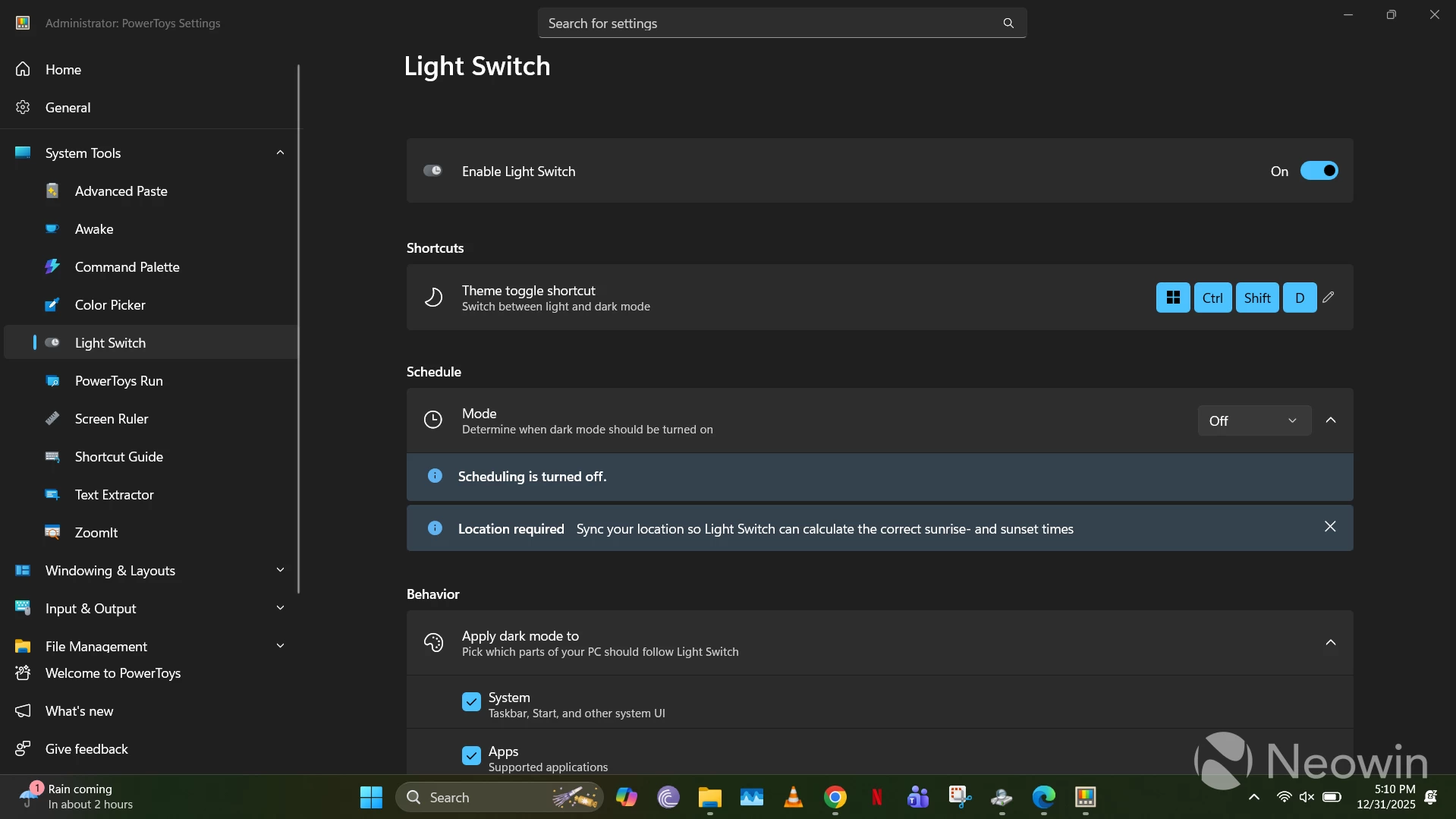
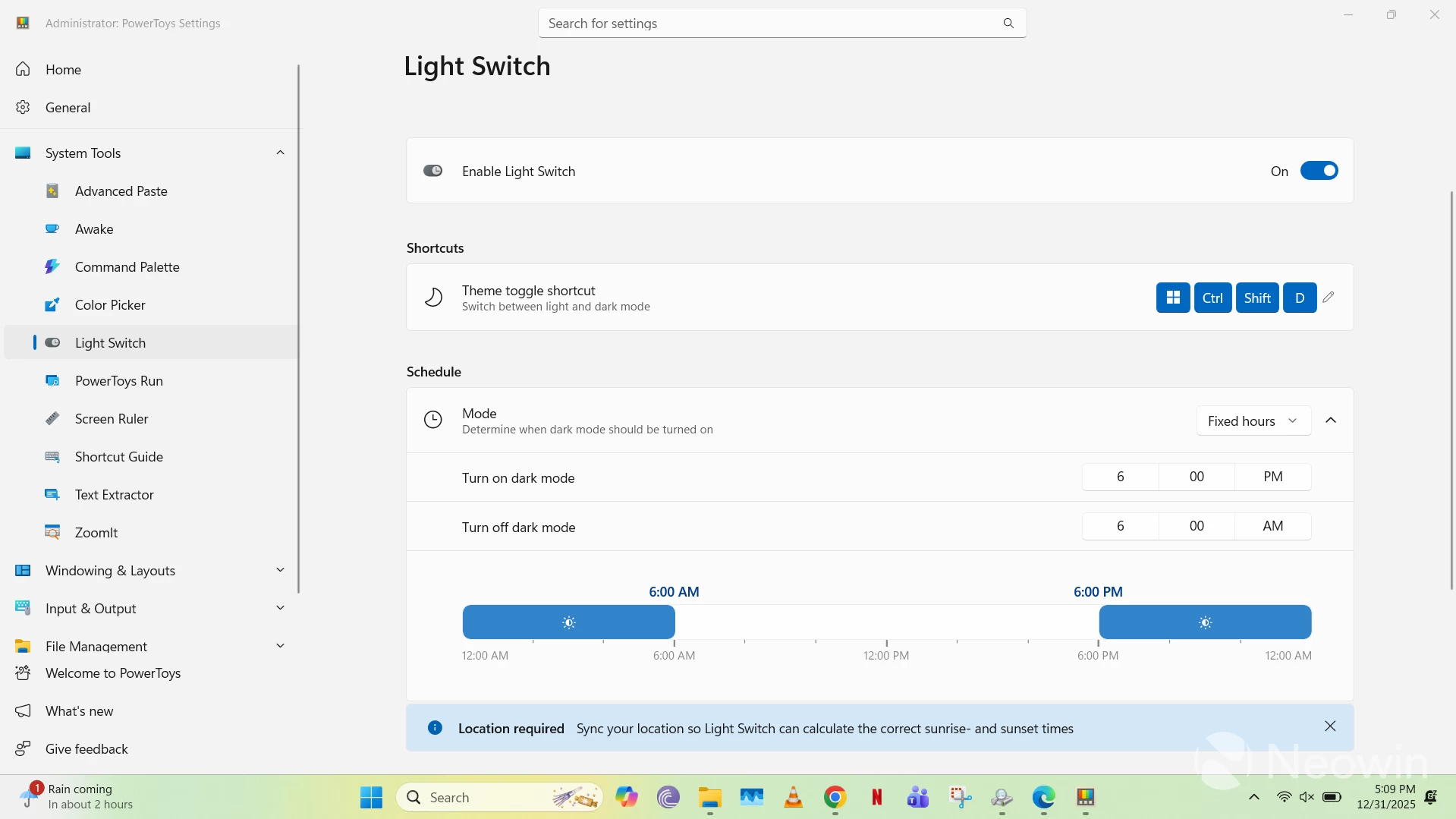
Light Switch in PowerToys is disabled by default, but once you enable it, you can manually toggle between themes using the Win + Ctrl + Shift + D shortcut, which is configurable, of course. If you manually toggle between modes, it usually takes a couple of seconds before the theme is switched completely.
Furthermore, you can set three modes:
- Off: Automatic switching is disabled
- Fixed hours: Manually adjust the time of the day when you want to enable and disable dark mode
- Sunset to sunrise: You will first need to synchronize your device's location either through location services or manually entering your latitudinal and longitudinal coordinates, and then configure if you want to offset the sunrise or sunset time in case you want to trigger dark mode earlier or later
Additionally, you can choose if you want to apply dark mode only to system elements (Taskbar, Start menu, etc.), supported applications, or both.
Conclusion: Light Switch is an awesome tool, but I wish it was present in Windows 11 by default
Light Switch is such a simple, but useful tool that does exactly what it says on the tin. That said, I do want to emphasize that it should be a default feature of Windows 11 rather than a utility inside PowerToys. I don't think it's intended for power users, as it benefits everyone, so why restrict it to PowerToys? Maybe it will eventually become a part of the OS, just like Snap Layouts graduating from PowerToys to a Windows 11 staple, and I do wish we see it happen with Light Switch too.
This Closer Look piece is based on version 0.96.1 of Microsoft PowerToys, which is the latest version at the time of writing. Functionalities may change in newer versions of PowerToys when they become available.
You can check out our other Closer Look pieces for PowerToys utilities here:














8 Comments
Load the comments and join the conversation!
Read the comments, ask the editors questions, show respect and join the conversation.