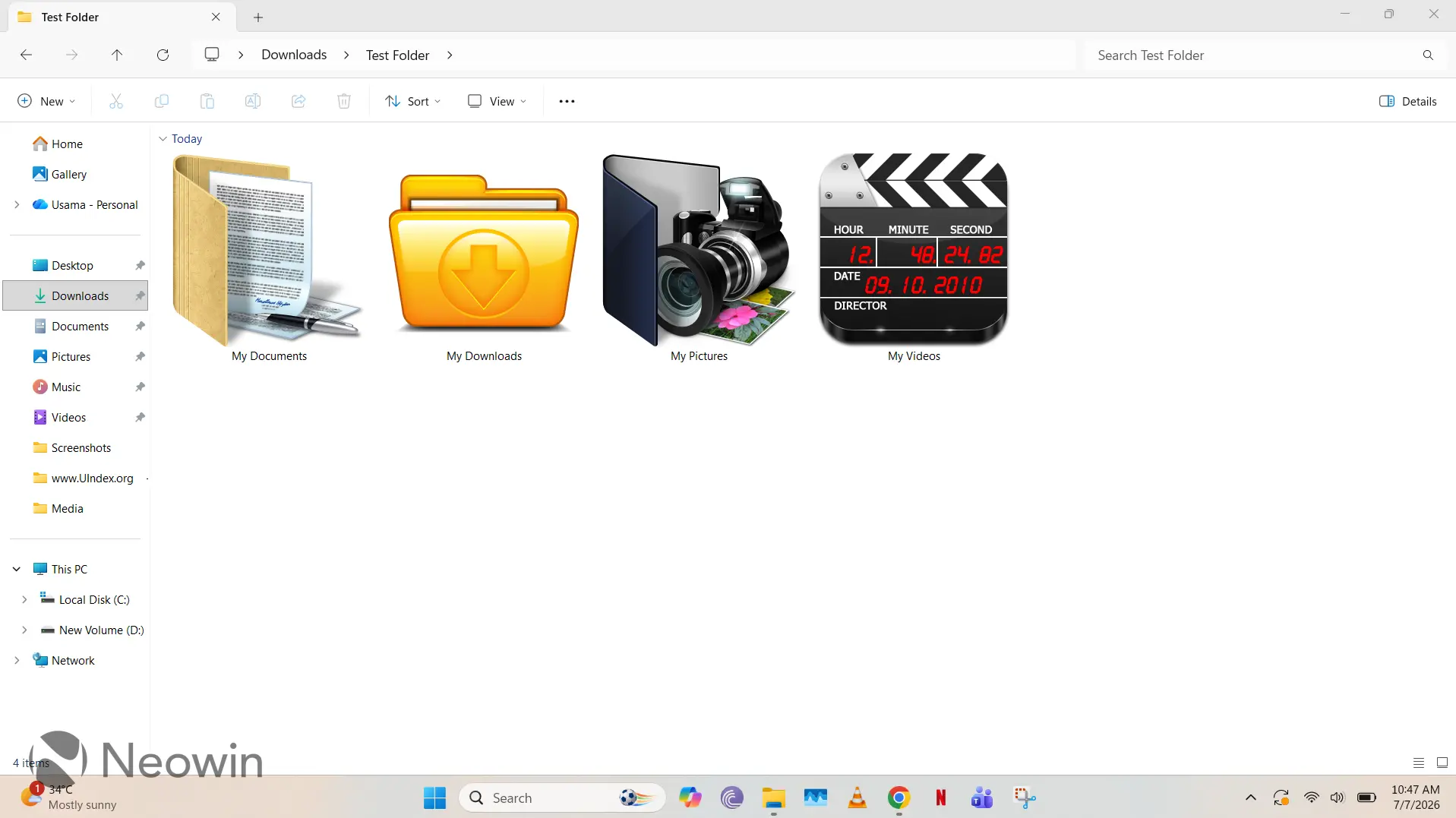
Although there are many third-party tools like Windhawk, FlyOOBE, DeskScapes 2026, and more that can be used to customize and tweak Windows 11 according to your preferences, many people often forget that the operating system natively offers a lot of configurability too. One such handy option is available inside File Explorer, where you can set custom folder icons to personalize your experience very quickly.
File Explorer is an interface that Windows 11 users leverage rather heavily, so it can get quite boring looking at default icons. It can also be a bit tedious reading the text of each item to navigate to the folder you need. In cases like these, custom folder icons can come in quite handy as they allow you to not only personalize File Explorer, but also offer meaningful aesthetics that can make navigation quicker.
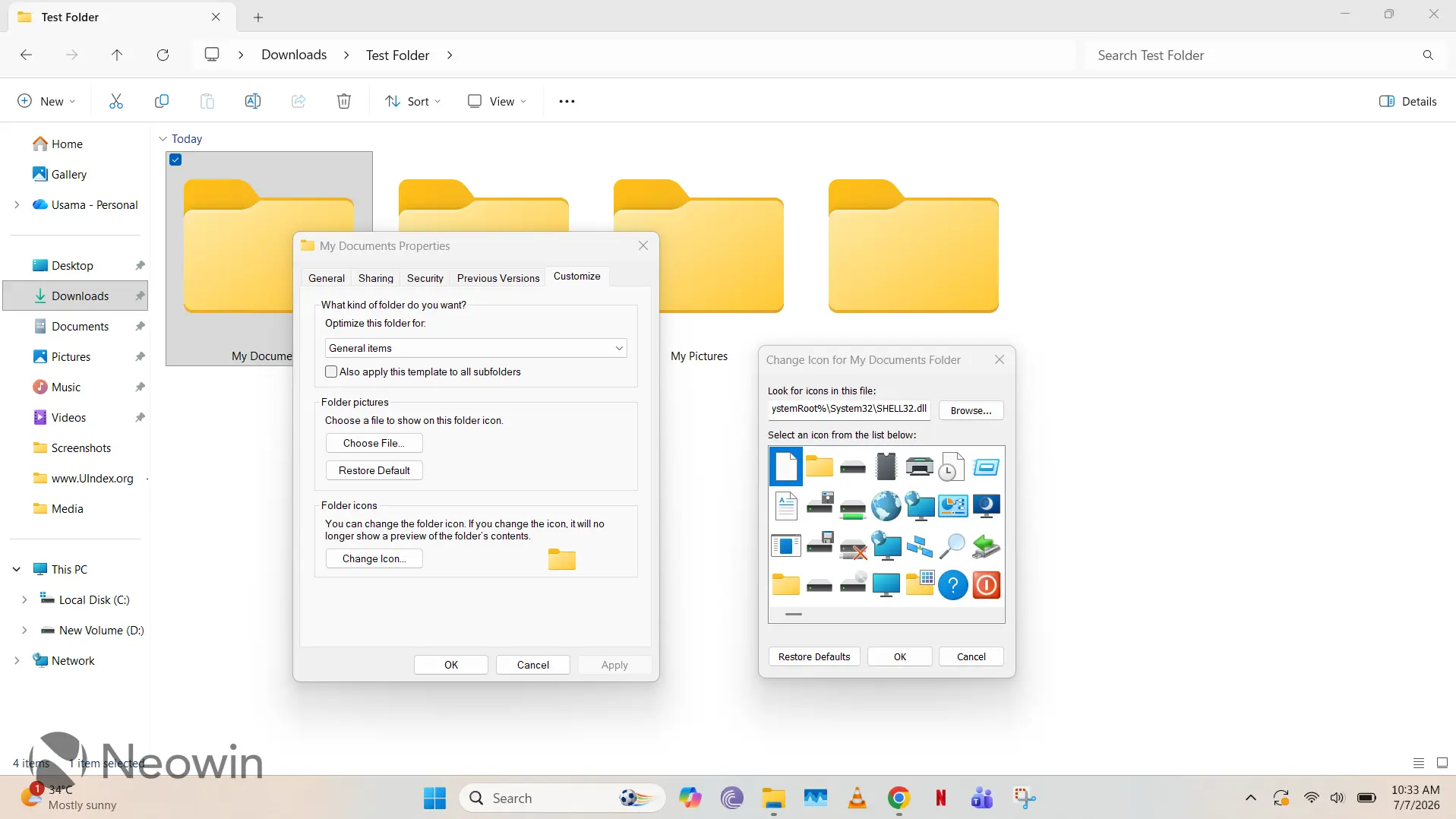
Here is how to configure custom folder icons in Windows 11:
- Download icon files (.ico) from a third-party website of your choice. There are lots of free options online, like Icon Archive. You'll also be able to download them directly from Google Images
- Open File Explorer
- Navigate to the folder you want to customize
- Right-click the folder
- Select Properties
- Go to the Customize tab
- Select Change Icon
- If you want, you can select a native icon from the Windows directory, but for the purpose of this guide, we'll select the third-party .ico file that we downloaded. As such, select Browse
- Navigate to the .ico file and double-click it
- Click Apply, followed by OK
That's all there is to it! It shouldn't take more than a minute after downloading the .ico file of your choice. The good news is also that you are not married to the icon you set; you can restore it to the default icon by simply selecting Restore Defaults in the interface mentioned in step 8. It's a very easy way to customize File Explorer, with any changes in this regard being quickly reversible. I would also recommend using View > Extra large icons in File Explorer so that you can properly enjoy the aesthetics.
You can also download the entire Object Desktop package. Object Desktop includes programs such as Fences, Start11, Groupy, SoundPackager, DeskScapes and Multiplicity.
Disclaimer: Neowin's relationship to Stardock


















3 Comments
Load the comments and join the conversation!
Read the comments, ask the editors questions, show respect and join the conversation.