Some of you may know that I like to explore Windows utilities that are not always visible or advertised to the user. Some examples of this are Problem Steps Recorder, Character Map, and Phone Dialer. I have discovered most of these either by chance, or while researching for an article, or while simply browsing some online forum. Once again, this is because most of these obscure tools aren't really advertised to regular consumers for one reason or the other. Now, imagine my surprise when I found out that Windows actually has an entire dedicated section for native utilities integrated in the OS.
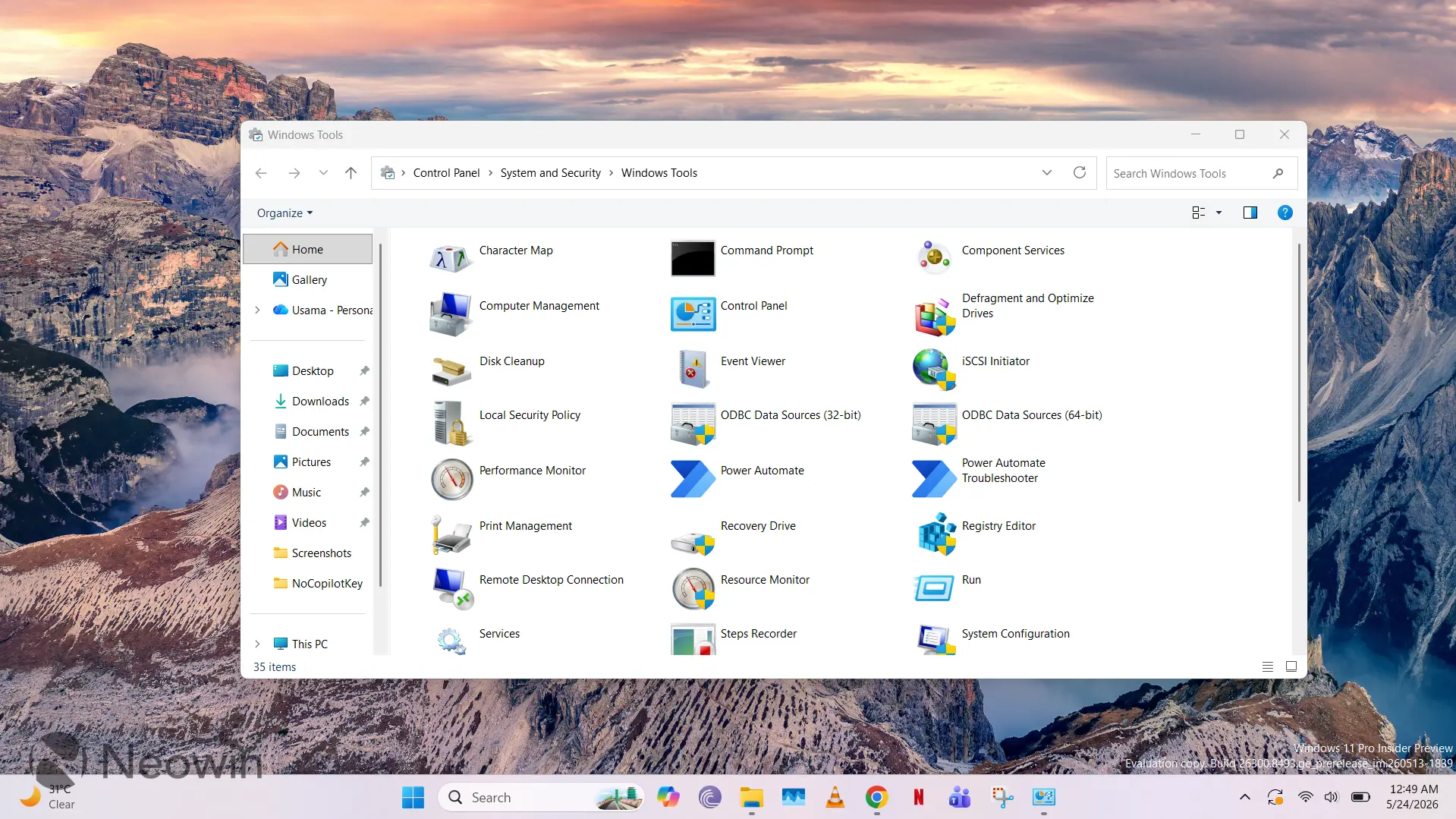
I came across the "hidden" Windows Tools interface while browsing the r/windows11 subreddit. The "hidden" is in quotation marks because it's not actually hidden; it's just not actively surfaced to consumers. If you type Windows Tools in Search or navigate to Control Panel\System and Security\Windows Tools, you'll be able to open it with ease. I did not know about this at all, but it's apparently been present in older versions of Windows too. A Redditor has a screenshot from Windows 2000 Professional when Windows Tools was dubbed Administrative Tools.
While I was initially excited that I had discovered some legacy UI to explore once again, it's primarily just a section that hosts shortcuts to a bunch of tools. I have listed the items present in my installation below:
- Character Map
- Command Prompt
- Component Services
- Computer Management
- Control Panel
- Defragment and Optimize Drives
- Disk Cleanup
- Event Viewer
- iSCSI Initiator
- Local Security Policy
- ODBC Data Sources (32-bit)
- ODBC Data Sources (64-bit)
- Performance Monitor
- Power Automate
- Power Automate Troubleshooter
- Print Management
- Recovery Drive
- Registry Editor
- Remote Desktop Connection
- Resource Monitor
- Run
- Services
- Steps Recorder
- System Configuration
- System Information
- Task Manager
- Task Scheduler
- Windows Defender Firewall with Advanced Security
- Windows Fax and Scan
- Windows Media Player Legacy
- Windows Memory Diagnostic
- Windows PowerShell
- Windows PowerShell (x86)
- Windows PowerShell ISE
- Windows PowerShell ISE (x86)
As I scrolled through the list, I realized that I was aware of most of the Windows utilities listed already. However, there were a few surprises. For example, I have no idea what iSCSI Initiator is, and while I can guess what Local Security Policy does, I confess that I've never seen or used it before.
Additionally, the software hosted in this Windows Tools interface does not appear to be exhaustive. And despite searching, I have not been able to find concrete documentation about the criteria that a software must pass in order to be listed here. It most definitely has to be a first-party software and likely needs to have some administrative purpose, but it's unclear what other requirements are mandated. For example, Group Policy Editor, which meets both of the assumed requirements above, is not listed here.
Overall, it's an interesting section that I wasn't aware of at all, but most of the utilities listed are quite common and accessible. There are some unknown variables in there for me, but I'll try and dig a bit deeper into this over the coming days and will share my findings here on Neowin if I come across anything interesting. In the meantime, if you have some fascinating tidbit to share regarding this interface, sound off in the comments below!















Some, but not all, are in "C:\ProgramData\Microsoft\Windows\Start Menu\Programs\Administrative Tools" (Win11 25H2)
(Edit) add this to the mix "C:\ProgramData\Microsoft\Windows\Start Menu\Programs\Accessories"
I wonder if it's pulling from select start menu area(s). Both of these locations are pre-set start menu items.
(Edit 2) Something I added to the first location showed on in this panel.
In Windows 10 Build 21343 (2021), Microsoft changed the name of the Windows Administrative Tools folder in Start to Windows Tools. In the past, this is how admins were able to access ODBC data sources for 32-bit and 64-bit. I don't use ODBC much these days because everything is now done through native SQL client.
New to windows huh?
Seriously, what is going on here. LOL This seems more appropriate for a forum post than an article for a tech site.
Garbage articles in the name of user engagement.
That is exactly what I was thinking since I found these "hidden" tools on the Windows 11 start menu under the letter W. :)
Right? They are so hidden they can be found by typing ONE letter in the search. LOL
Just wait until you visit the 'All Tasks' folder.
(One can enter shell:::{ED7BA470-8E54-465E-825C-99712043E01C} in the Run dialog or in Windows Explorer.)
Whoa! Slow down the author is not ready for that yet.
Try "God mode".
LOL!!
"I came across the "hidden" Windows Tools interface while browsing the r/windows11 subreddit. The "hidden" is in quotation marks because it's not actually hidden; it's just not actively surfaced to consumers."
It's literally listed in the start menu...
💩💩
I think this type of article belongs to a personal blog. It's nothing new for most users who actually use Windows. Maybe something to explore for very new generation boys and girls.
*personal blogs or to some other news portals by Valnet Publishing Group (XDA, How-To Geek, Android Police etc.)
"Senior" editor, more like señor editor... Dude has less skills than a newbie on the help desk.
That's some pretty racist ###### you just wrote there.
Señor means Mr?
You don't have to pretend to be dumb
---
Lets hope Neowin didnt pay the author for this piece, lol
Why?
Do you think only experienced hardcore tech enthusiasts browse Neowin?
Plenty of tech newbie wander along too.
The nasty elitism displayed in some of these comments remind me when WarWagon had his articles aimed at newbies and was shouted down by these very types of comments.
I'm ashamed to admit I was one of those ridiculing WW's articles.
This comment section displays the worst of the Neowin community.
But he was literally teaching us how to turn on a computer lol
...and?
Does that give you and the others the right to pile on like a feral pack of tech elitists?
k.
The comment section is the worst part of every community. Neowin has not been the nice community it started as for about fifteen years.
I access Windows Tools regularly. It was one of the first things I had to track down in Windows 11 because I wanted to know where Remote Desktop and the legacy Command Prompt were located.
Gen Z !!

Good morning and welcome to Windows.
The fact is, in a home set up, none of these tools are really required. The OS looks after itself much better than it used to - no one "needs" to access defrag or regedit etc. In fact, I would argue that most tools should be removed and only surfaced in the 'pro' version, to save wandering mouse-clicks breaking things. YET, how else do you learn about computers without these things being there - I found out a LOT of stuff by clicking through windows, finding out what I probably shouldn't have done.
I would argue that they should be there, but only if some education is included - perhaps there should be a short education on "Learn about Windows" for each tool before it is provided to the user. You know, without anyone ending up in forums suggesting that they clean registry files...
So where are we with "Personal Computing" - do we treat devices like appliances - fixed 'firmware' that does its job - much like a phone now where nothing really goes wrong - or do we still make administrative features available for Joe Blogs, who can get scammed with thinking that errors in Windows Event Viewer logs are really a big issue.
Hello Control Panel 😆
Control Panel; ever present since Windows 95 🥳
[…and this is an “editorial” piece aka ‘opinion’ here? Shame on you, Neowin]
Errr Control Panel has been in Windows since 1.0.
You’re right about that!
Even longer than I thought. Come to think it was in Windows 3.11 and sooner indeed; starting with 1.0
Is this article a joke? I don’t get it.
Dude...
I’ve been using windows for decades and today i found a hidden menu. If you go to task bar, look for the little flag button, click it, and a whole secret menu pops up.
thank me later.
Hidden? Secret? Errr maybe only to you… 🤦♂️
I guess sarcasm isn't your thing?
WHOOOOOSSSHH!!!
✈️
It's a blessing and a curse, eh Monk.
Hello,
For access to infrequently-accessed utilities that come bundled with Windows, I create a directory called Microsoft\Tools off my Start Menu that contains shortcuts to them.
Name: Add or Remove a Program
Target: C:\Windows\System32\appwiz.cpl
Name: Adjust DPI Scaling
Target: C:\Windows\System32\DpiScaling.exe
Name: Backup and Restore User Credentials
Target: C:\Windows\System32\credwiz.exe
Name: Calculator
Target: calculator:///
Name: Color Management
Target: C:\Windows\System32\colorcpl.exe
Name: Create a Repair Disc
Target: C:\Windows\System32\recdisc.exe
Name: Create a user for this PC
Target: ms-cxh:localonly
Name: DirectX Diagnostics
Target: C:\Windows\System32\dxdiag.exe
Name: Disk Indexing Options
Target: C:\Windows\System32\rundll32.exe shell32.dll,Control_RunDLL srchadmin.dll
Name: Installation Express
Target: C:\Windows\System32\iexpress.exe
Name: Internet Explorer Control Panel
Target: C:\Windows\System32\inetcpl.cpl
Name: KGL Check
Target: ms-gamingoverlay://kglcheck/
Name: Local Machine Certificates
Target: C:\Windows\System32\certlm.msc
Name: Local User and Groups Manager
Target: C:\Windows\System32\lusrmgr.msc
Name: Manage All Users
Target: C:\Windows\System32\control.exe userpasswords2
Name: Manage Current User
Target: C:\Windows\System32\control.exe userpasswords
Name: Media Creation Tool
Target: "C:\Program Files (x86)\Microsoft\Media Creation Tool\MediaCreationTool.exe"
Name: Microsoft Support Diagnostic Tool
Target: C:\Windows\System32\msdt.exe
Name: Network Connetions
Target: C:\Windows\System32\ncpa.cpl
Name: Network Properties
Target: C:\Windows\System32\control.exe netconnections
Name: ODBC Data Source Administrator
Target: C:\Windows\System32\odbcad32.exe
Name: On-Screen Keyboard
Target: C:\Windows\System32\osk.exe
Name: Private Character Editor
Target: C:\Windows\System32\eudcedit.exe
Name: Problem Steps Recorder
Target: C:\Windows\System32\psr.exe
Name: Registry Editor
Target: C:\Windows\regedit.exe
Name: Registry Editor32
Target: C:\Windows\System32\regedt32.exe
Name: System Configuration Utility
Target: C:\Windows\System32\msconfig.exe
Name: System Information
Target: C:\Windows\System32\msinfo32.exe
Name: TPM Management
Target: C:\Windows\System32\tpm.msc
Name: Windows Firewall
Target: C:\Windows\System32\wf.msc
Name: Windows Update
Target: ms-settings:windowsupdate?winsettingshome
Name: WLTUC
Target: ms-cxh://WLTUC/
I have been doing this since the Windows 9x time-frame, and there are a quite a few more have deprecated but exist in my backups and so forth. Still, it is convenient for me when I want to get to some Microsoft utility that I use once in a long while.
Regards,
Aryeh Goretsky
Tell me you do that with a batch file, not individually, please.
lol batch... Something something PowerShell at least!
Though it'd be enough, turns out it can't create shortcuts and you need PS
Hello,
I have zipped the shortcut files up and made them available for download at 1drv.ms/u/c/c42fef4b8b0ce29e/IQBi56uD9tZXQJi9NIIN5tWSAYKUjw-CAiKz5Y8NWRF5NG8?e=GkeW8v.
As usual, disclaimers about downloading random files from the internet applies.
Regards,
Aryeh Goretsky
You're so well mannered and kind, but i meant that i guess you could have a *PowerShell script for practicality to create them all.
Hello,
I made these a few shortcuts at a time across many years, so just have a file library of them that I have copied over from system to system.
Let me take a look and see if there is an easy way to script their creation.
Regards,
Aryeh Goretsky
Hello,
I posted a very primitive PowerShell script here in the forum. Feedback appreciated.
Regards,
Aryeh Goretsky
there's more in GodMode : Create a folder and name it :
GodMode.{ED7BA470-8E54-465E-825C-99712043E01C}
It's all there
WTF 😂
Slow news day?
Imagine not knowing about this until 2026. LMFAO! Author must be a Linux guy.
Is one of the newer Linux guys
The author obviously doesn't do much configuring of Windows 11 past initial install, gpedit and secpol are two very useful tools to secure and configure Windows 11. There are books and loads of Internet pages about these tools. Microsoft Learn would be a good starting point.
That is absolutely true, not just an opinion.
Ill informed 'expert' pushes opinion, people read opinion and take as fact without checking 'expert' has a clue what they're on about, tell others who know even less and there you go.....
Writer status at Neowin revoked. Nah. You've written some nice articles too
This is just getting embarrassing, now.
It's "hidden" or rather unknown to many because it doesn't do anything regularly useful for non techies, nor anything that techies don't do another way, plus it's based on ye olde Control Panel that's been demoted for over a decade now.
Many don't use it, i even forgot it existed, so i won't bash anyone who didn't know to begin. And there's 'God Mode' if you need it.
Either way, successful clickbait.
The control panel even has a link to the "hidden" Windows Tools section.
Aww how sweet.
"hidden Windows Tools interface" = Control Panel.
Well done on your discovery.
Well, it's not the same as Control Panel but what makes this article even more embarrassing is that Control Panel literally has an icon/link to the "hidden" Windows Tools. LOL!
From that list... I could use any of at least 18 of them.
Daily runners like, Run, or Task Manager... monthly uses of Command prompt, Fax... Control panel, etc. They are still as useful as they've been.
For those trying their hardest to be sarcastic and funny... not really working out for you all. See... elites are not the only people who come to this site looking for new articles and things to learn... and you're getting down on the writer because he chose the POV of those just getting familiar with Windows. While I read these regardless of my experience, I come here every day to do just that.
Learn things new from all of you. I know I don't always agree with asinine comments and push back a bit, but I'm not so sure about being outright disrespectful because my article on the subject didn't get published. ;)
With Windows Vista there is support for canonical names of Control Panel items.
You found Administrative Tools? Welcome to 1997!
Next up, I discovered why the mouse has two buttons - (Single Left) Click here to find out why, you'll be shocked when you discover.
These tools have been around for 30+ years and are on the start menu where they've always been.
It's a shame to see what Neowin has become, been a regular for nearly 26 years, but the constant ragebait/clickbait/nonsense articles is starting to seriously grate.
I cannot believe this is a news post from Neowin. This should be embarassing, coming from a "senior editor". Is it your first day using Windows?! Maybe it's time to find a new Windows news site.