Google has announced a new Gemini-powered feature for Gmail, called Help me schedule, which lets you quickly set up a meeting time with someone over email. Rolling out to different Workspace tiers, you can access the feature from the toolbar at the bottom of the screen when composing a new message in Gmail.
Gemini already exists in Gmail as the side panel, assists people in composing emails, and detects Calendar-related content in emails. The latest addition allows Gemini to figure out if you're trying to coordinate a time over email.
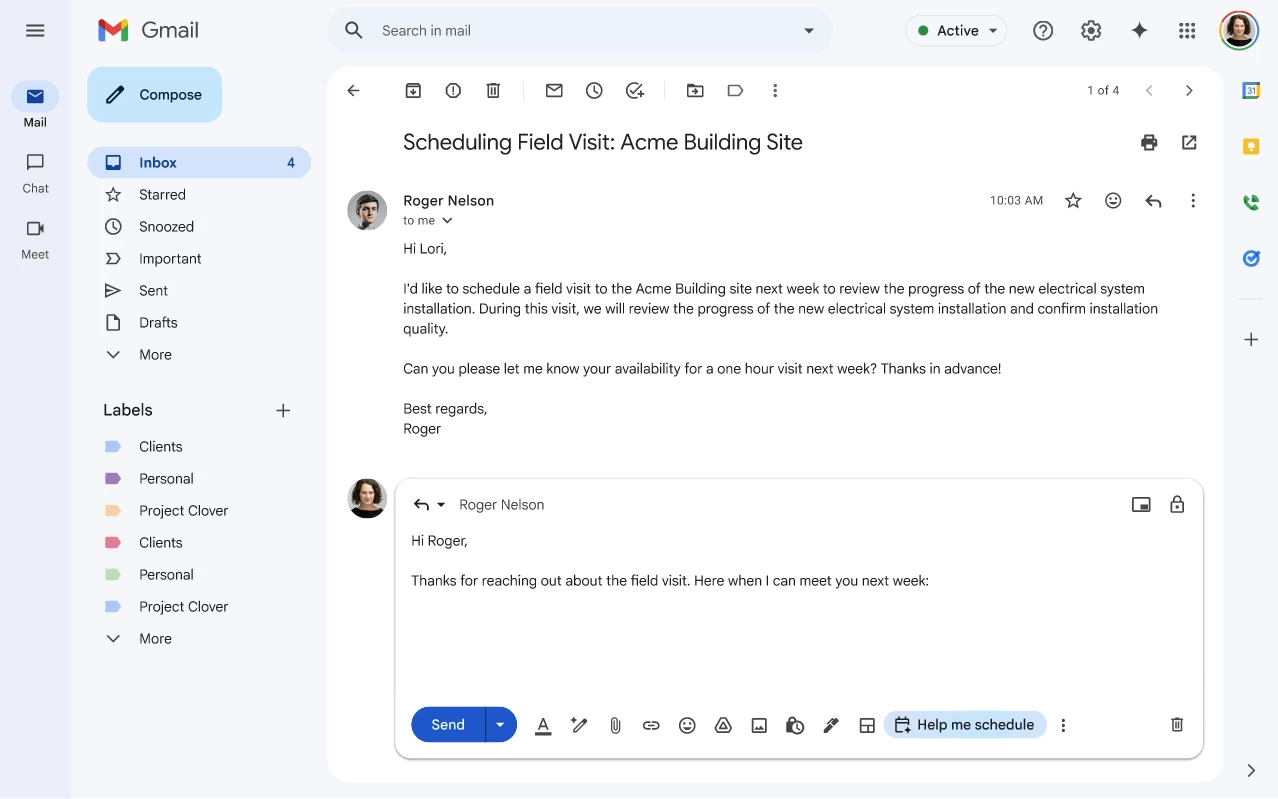
It then displays a "Help me schedule" button in the toolbar, which you can click to see automatic suggestions for ideal slots. These suggestions are based on the context of the email and what your Google Calendar looks like for the coming days.
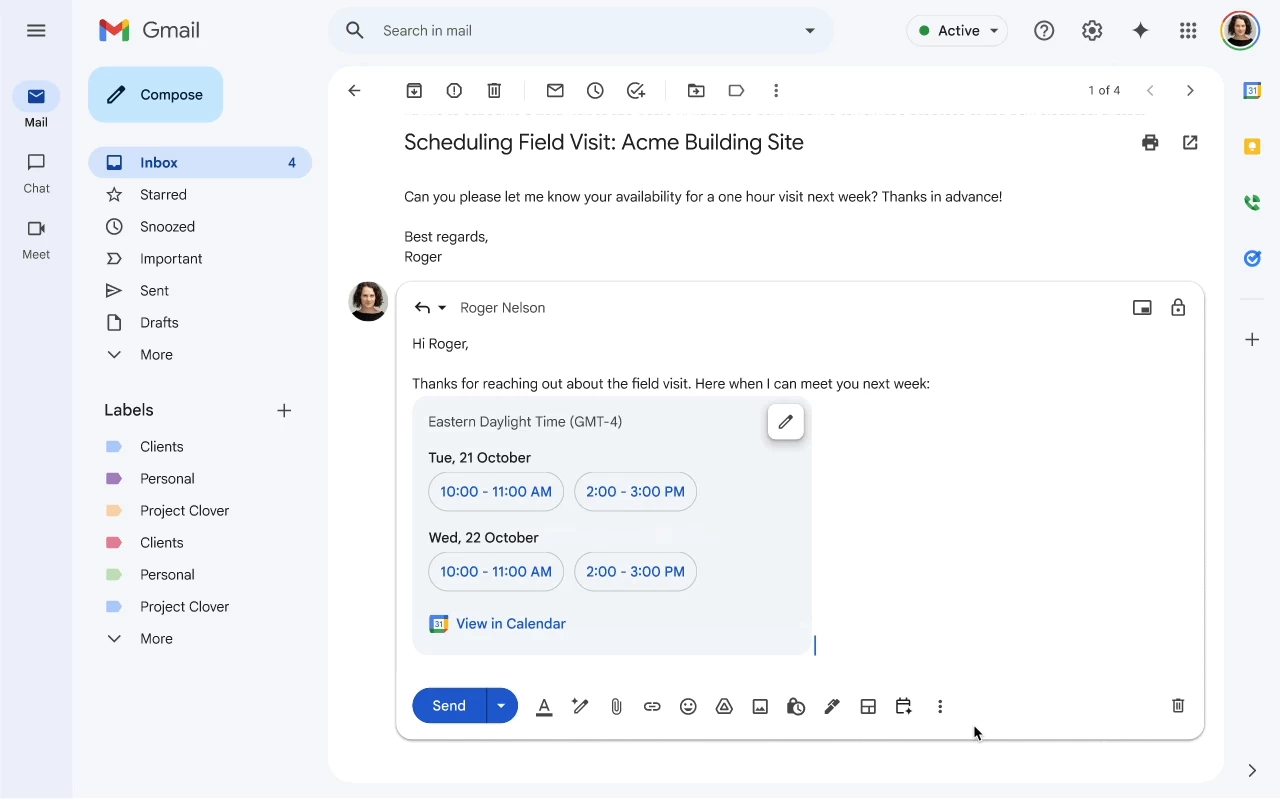
You can click on the pen icon in the top-right corner of the suggestions interface to add or remove options and customize the time suggested by Gemini. The recipient, on the other hand, can select a time slot directly from the email, and an invite is automatically added to each person's respective calendar.
The search giant said in a blog post that the Help me schedule currently supports meeting-scheduling between two people, not groups. It will be enabled by default for eligible users, and its rollout will take a few weeks to complete.
Help me schedule is available for Google Workspace tiers, including Business Standard/Plus, Enterprise Starter/Standard/Plus, Frontline Plus, Google AI Pro for Education, Google AI Pro/Ultra, and those who purchased Gemini Business/Enterprise add-ons.
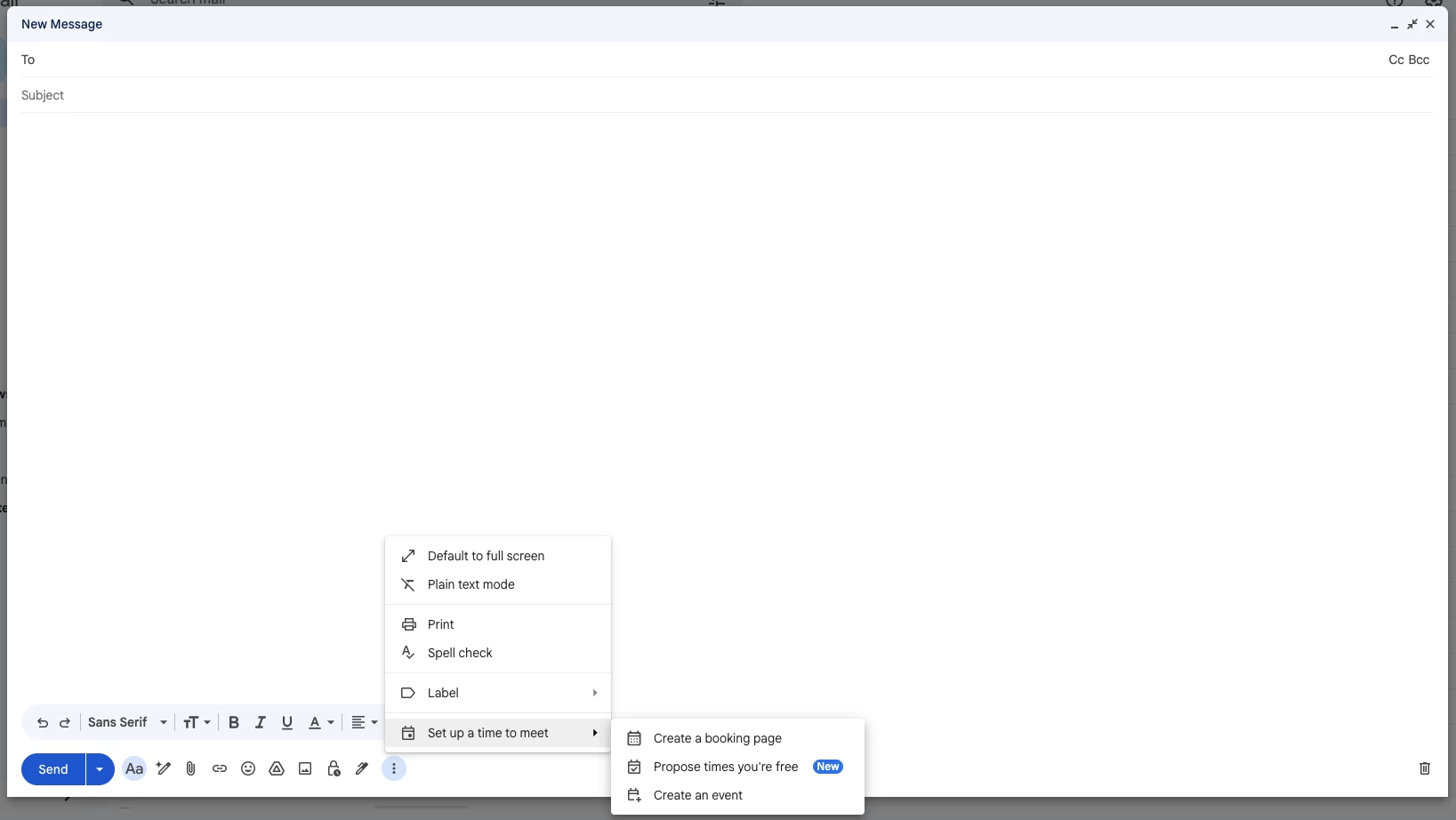
If the feature is not available for your Google account yet, you can still go the old school way. Click on the three-dot menu button in the Compose UI and go to "Set up a time to meet" to manually pick a suitable time slot from your Google Calendar.

















0 Comments
Load the comments and join the conversation!
Read the comments, ask the editors questions, show respect and join the conversation.